How to delete your TikTok account step by step

Chinese video portal TikTok is all the rage. The app offers users the opportunity to record their own video clips, edit them and upload them to the TikTok platform. It is also supplemented by well-known social media functions. Today, with around 1.56 billion users worldwide, TikTok has long since become a serious competitor to established social media platforms such as Facebook, YouTube and Instagram.
However, the app packed with the latest trends is not to everyone’s taste. We will show you how you can delete or temporarily deactivate your TikTok account and what you need to bear in mind when doing so.
How to delete your TikTok account quick guide
As is the case when deleting your Facebook account or deleting your Instagram account, deleting your TikTok account means all your data and content will be wiped. The entire account is deleted permanently along with all content and cannot be restored. If you would like to permanently deregister from TikTok (at least with your current personal profile), you should proceed as follows:
- Log into your TikTok account
- Tap the three-dotted icon at the top of your profile page
- Select “Settings and privacy”
- Tap on “Account”
- Select “Deactivate or delete account”
- Receive and enter the confirmation code
- Tap “Delete account” again
- Store, share, and edit data easily
- Backed up and highly secure
- Sync with all devices
How to delete your TikTok account step by step
In the following sections we lay out the complete, step-by-step process for deleting your TikTok account.
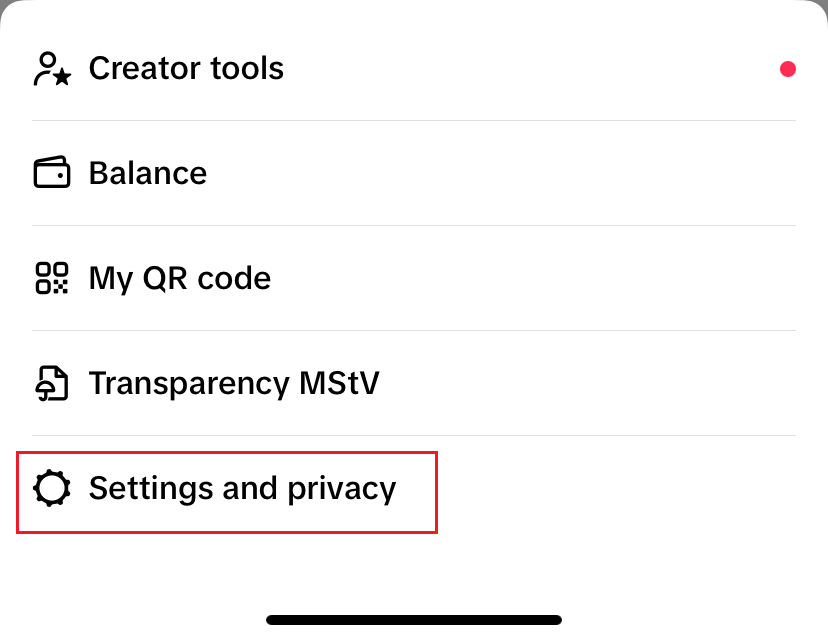
Step 1: Open the TikTok app and log into your account. On your profile page, tap on the three-dot icon to the top right and then on “Settings and privacy”.
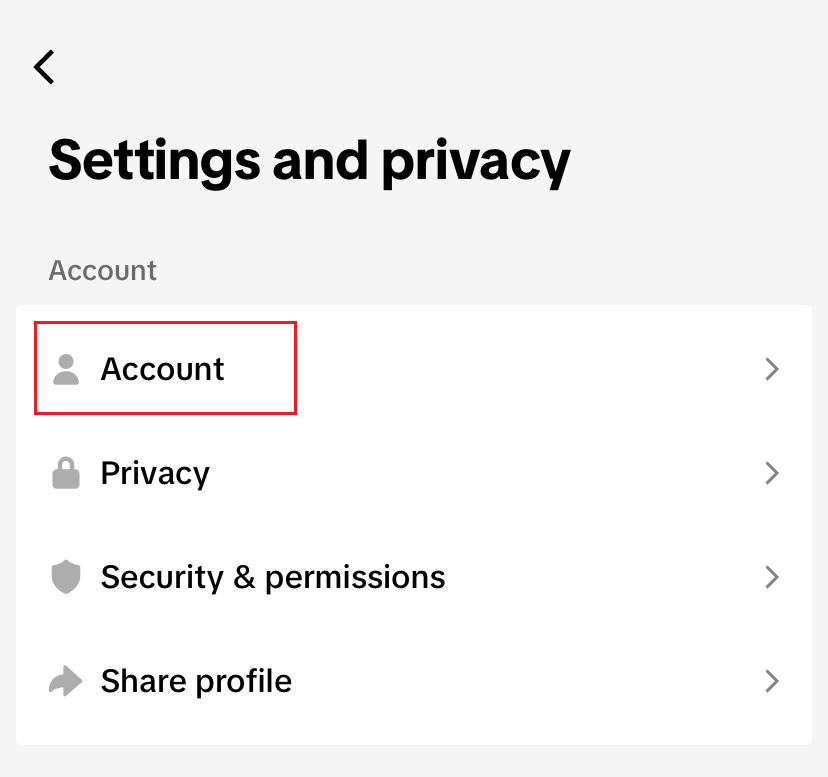
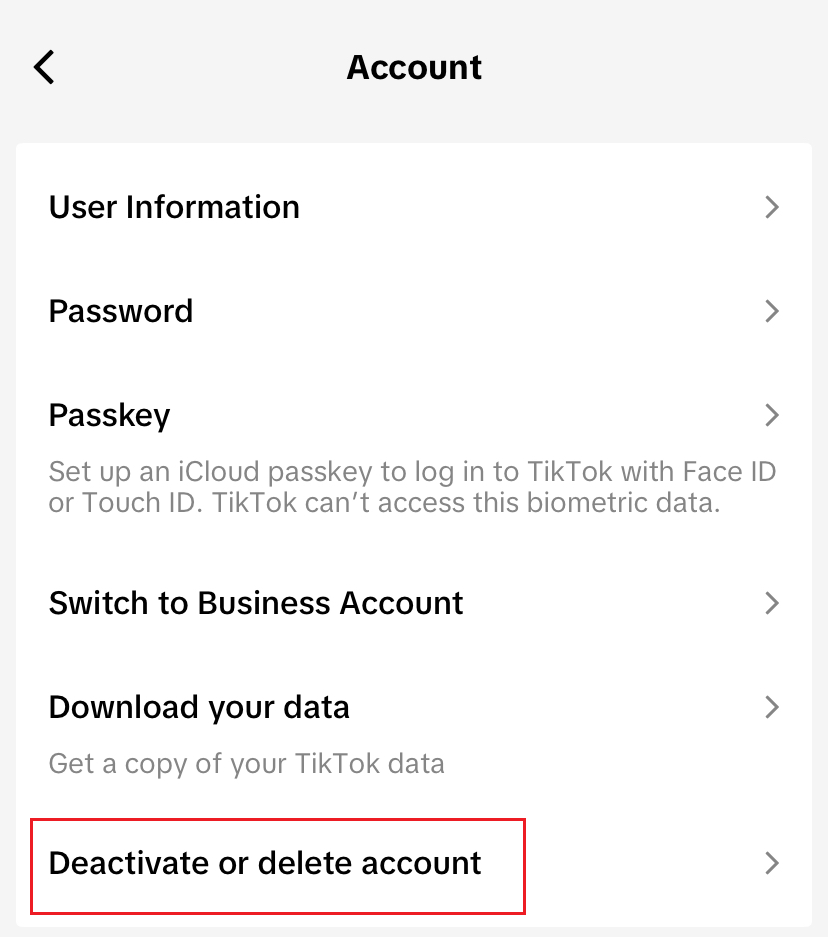
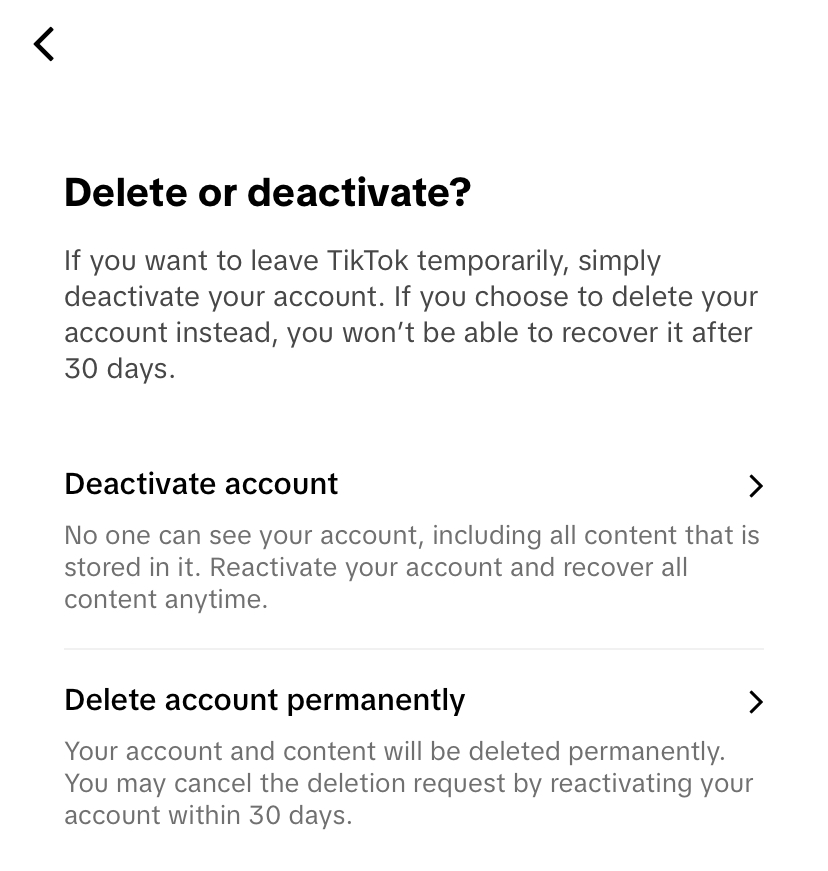
Step 3: You will now be prompted to choose whether to deactivate your account or permanently delete it. If you opt for deletion, the account will no longer be recoverable after 30 days. Select your preferred option and provide a reason for deleting the account, if you want to.
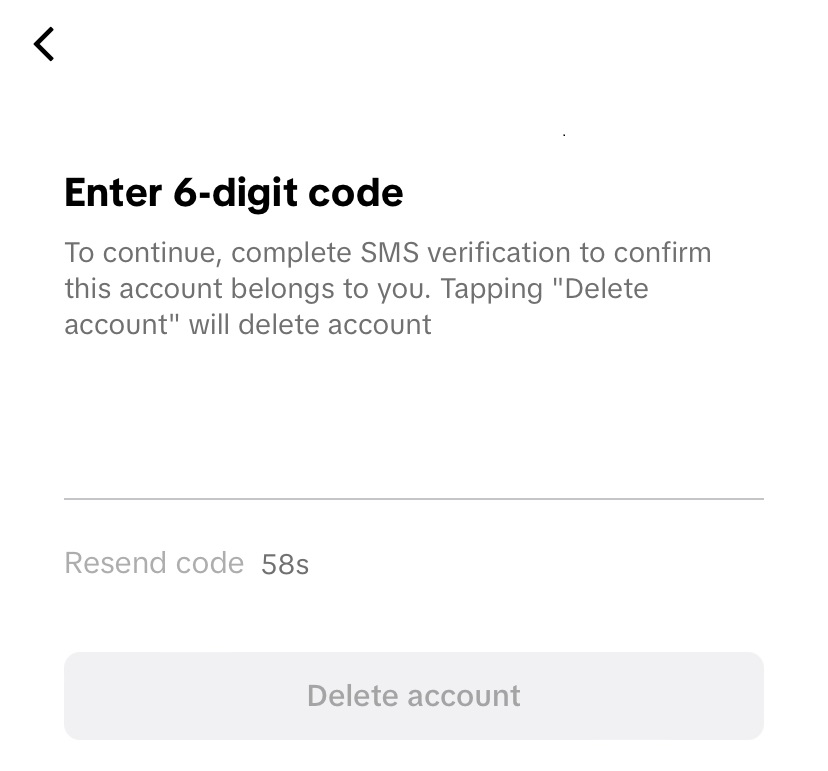
Step 4: Next, enter your mobile number if you haven’t already added it to your account. A six-digit code will now be automatically sent to your phone. This is the confirmation code for deleting your TikTok account. Enter the received code into the designated field and confirm by selecting to delete or deactivate the account.
- Write perfect emails with optional AI features
- Add credibility to your brand
- Includes domain, spam filter and email forwarding
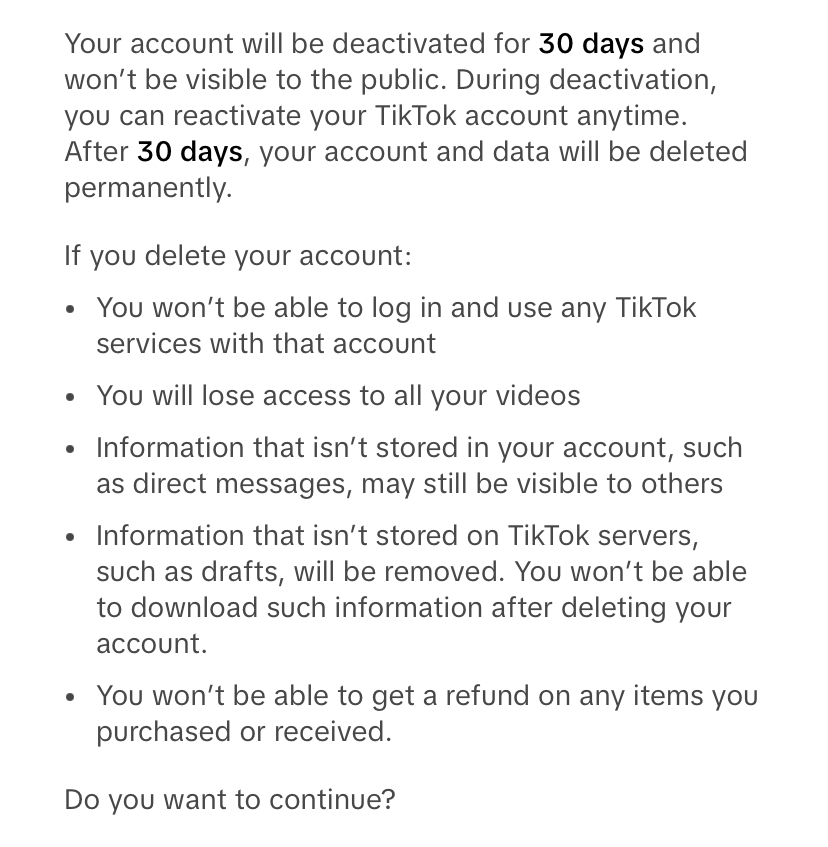
Step 5: A brief summary will appear, informing you which data you will no longer be able to access after deletion. If you are sure, tap the “Delete account” button again.
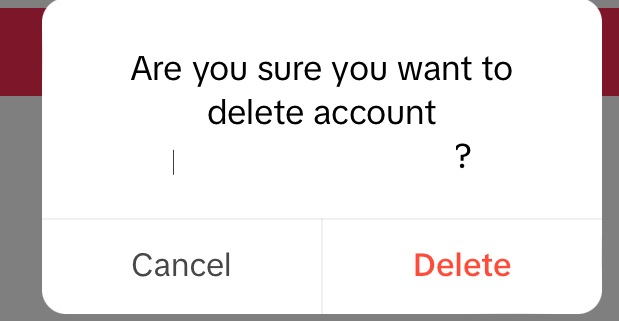
Step 6: A final confirmation dialog box will appear. Click on “Delete,” and your account will be deactivated for 30 days before being permanently deleted. Afterward, you will be automatically logged out and see the message “Login session expired, the account has been deleted.”
- Free Wildcard SSL for safer data transfers
- Free private registration for more privacy
- Free Domain Connect for easy DNS setup
How to restore TikTok after deactivating your account quick guide
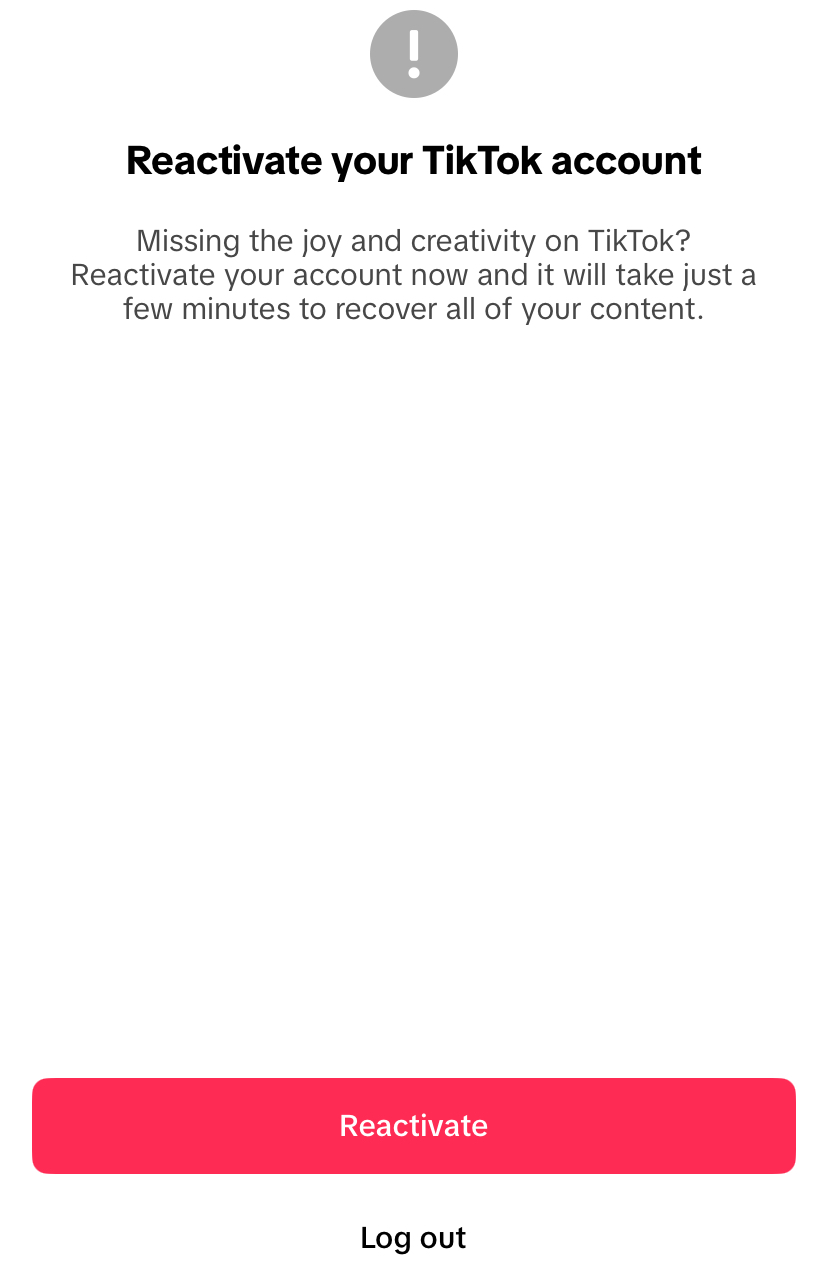
Before a TikTok account is permanently deleted from the operator’s database, it goes into an ongoing 30-day deactivation mode. This means that a deleted account can be reactivated by the user within 30 days after they confirm deletion. To do this, log into the app as you normally would. A dialog box then opens, where you can tap the “Reactivate” button to restore an account that has previously been deleted.