

How to delete a Yahoo account step by step

If you want to delete your Yahoo account, you can do so via the popular free email provider’s website. While the deletion process itself only requires a few steps, it takes an additional 30 days for the account to be permanently deactivated. It is not possible, however, to delete an account through the Yahoo Mail app.
How to delete a Yahoo account quick guide
- Start by opening the Yahoo account deletion page in your browser (mobile or desktop).
- Read the message that appears and click on the “Continue deleting my account” button to proceed.
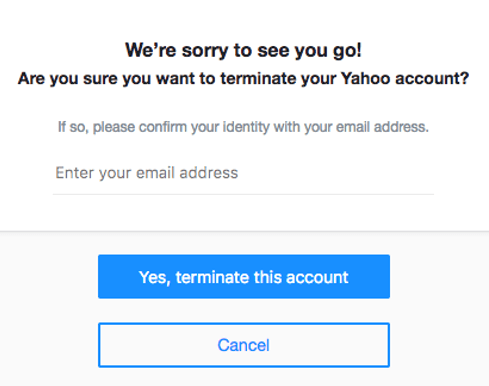
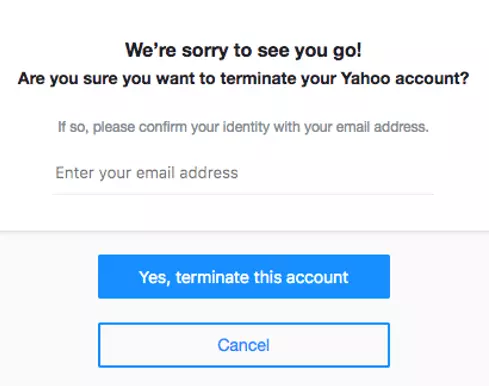
- Enter your Yahoo email address and click on “Yes, terminate this account” to confirm.
- At this point your account is deactivated. It will be permanently deleted after 30 days as long as you don’t sign in again in the meantime.
- Write perfect emails with optional AI features
- Add credibility to your brand
- Includes domain, spam filter and email forwarding
What should I know before deleting my Yahoo account?
Before you go ahead and delete your account, here are a few points to bear in mind. You can only delete your account if you have no outstanding balances and the end of the paid subscription term for any canceled subscriptions was at least 90 days ago.
Additionally, keep in mind that deleting your account will result in all your data being lost. Therefore, it’s a good idea to save important addresses or emails externally before permanently deleting your Yahoo account. It’s also theoretically possible that your username could be taken over by someone else.
How to delete your Yahoo account via the app
You can delete your Yahoo email account either on your smartphone or computer, but not via the Yahoo Mail app. Even if you use the Yahoo Mail app, you’ll need to go through a web browser and delete your account via the dedicated website. We’ll guide you through the process step by step below.
Once you have deleted your Yahoo account, you can also uninstall the Yahoo app from your smartphone if needed.
- Store, share, and edit data easily
- Backed up and highly secure
- Sync with all devices
How to delete your Yahoo account via the website
If you want to delete your Yahoo account, you can do so with any common web browser. Follow these steps:
- First, open the Yahoo account deletion page and log in with your email address and password.
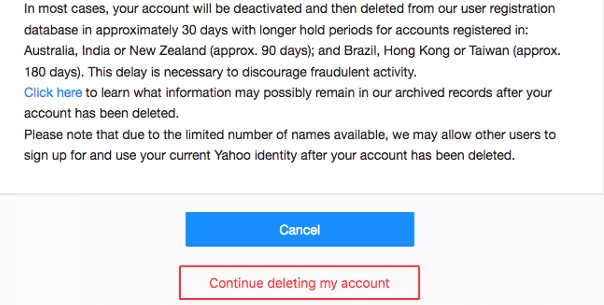
- A detailed text will then appear, explaining the cancelation process and the implications of deleting your account. Read this text carefully. If you understand everything and wish to proceed with deleting your Yahoo account, click on “Continue deleting my account”.
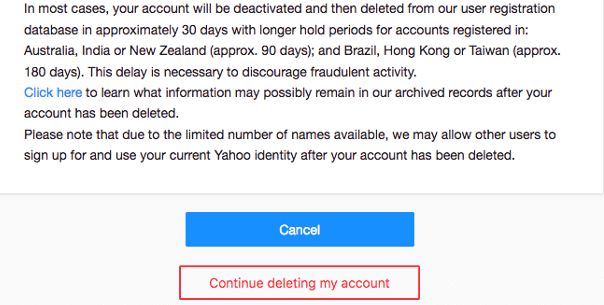
- You’ll then be asked one final time whether you’re sure you want to delete your account. To confirm, enter your email address and click on “Yes, terminate this account”.
Transition period before complete deletion
It takes some time for your Yahoo account to be fully deleted. Yahoo will pause your account for 30 days initially. Depending on the country where your account was registered, the process might take longer—up to 90 days (Australia, New Zealand) or even 180 days (Brazil, Taiwan, Hong Kong, India). If you do not log into your account during this period, it will be automatically deleted after the deadline.
This also means that you can easily reverse the deletion by logging back into your account within the given timeframe. To confirm that your Yahoo account has been successfully deleted, try logging in again after the deadline has passed. If the login fails, it means that your profile has been permanently deactivated.
- Write perfect emails with optional AI features
- Add credibility to your brand
- Includes domain, spam filter and email forwarding