

How to use WhatsApp group calls

You can talk to multiple contacts on WhatsApp at the same time, in the form of a WhatsApp video group call or audio group call.
How to start a WhatsApp group call
- Go to the “Calls” tab in WhatsApp.
- Tap the circular phone-plus icon in the bottom right corner.
- Type the names of the contacts you want to call into the search bar at the top.
- Add the desired people from your contact list. WhatsApp group calls support up to 31 participants.
- Finally, tap the camera or phone icon to start the group video or voice call.
- Store, share, and edit data easily
- Backed up and highly secure
- Sync with all devices
How to start a WhatsApp group call step by step
WhatsApp video calls aren’t limited to just two people — you can connect with up to 31 participants. There are three different ways to start group calls on WhatsApp, and we’ll walk you through each one step by step. These features are available on Android phones running version 4.1 or higher.
Starting a group call on WhatsApp via “Calls”
To begin a group call on WhatsApp from the “Calls” tab, follow these steps.
Step 1: Switch to the “Calls” tab in WhatsApp.
Step 2: Now tap on the circular handset icon at the bottom right.
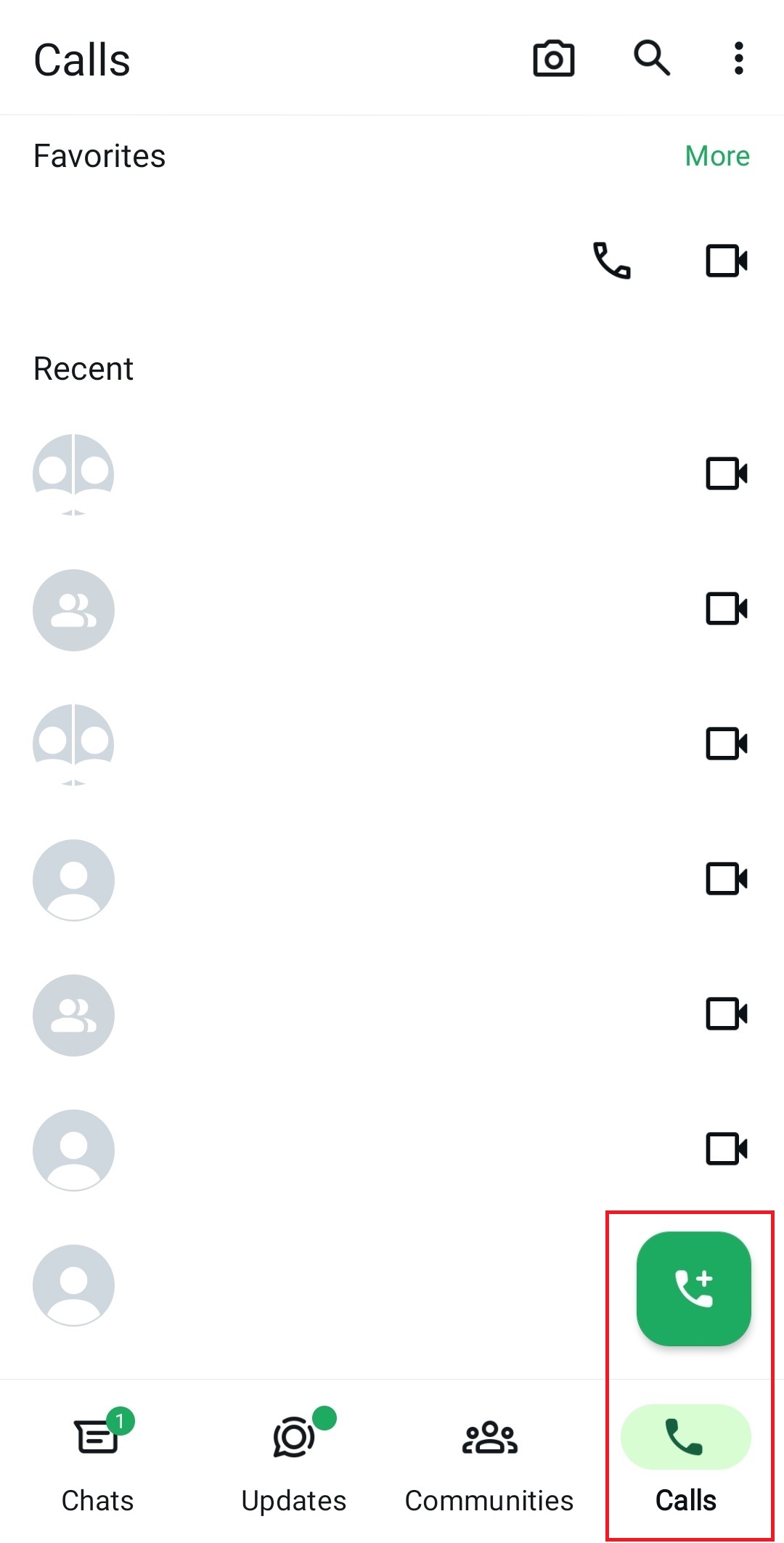
Step 3: Then select the contacts you want either by using the search bar or manually from your contact list.
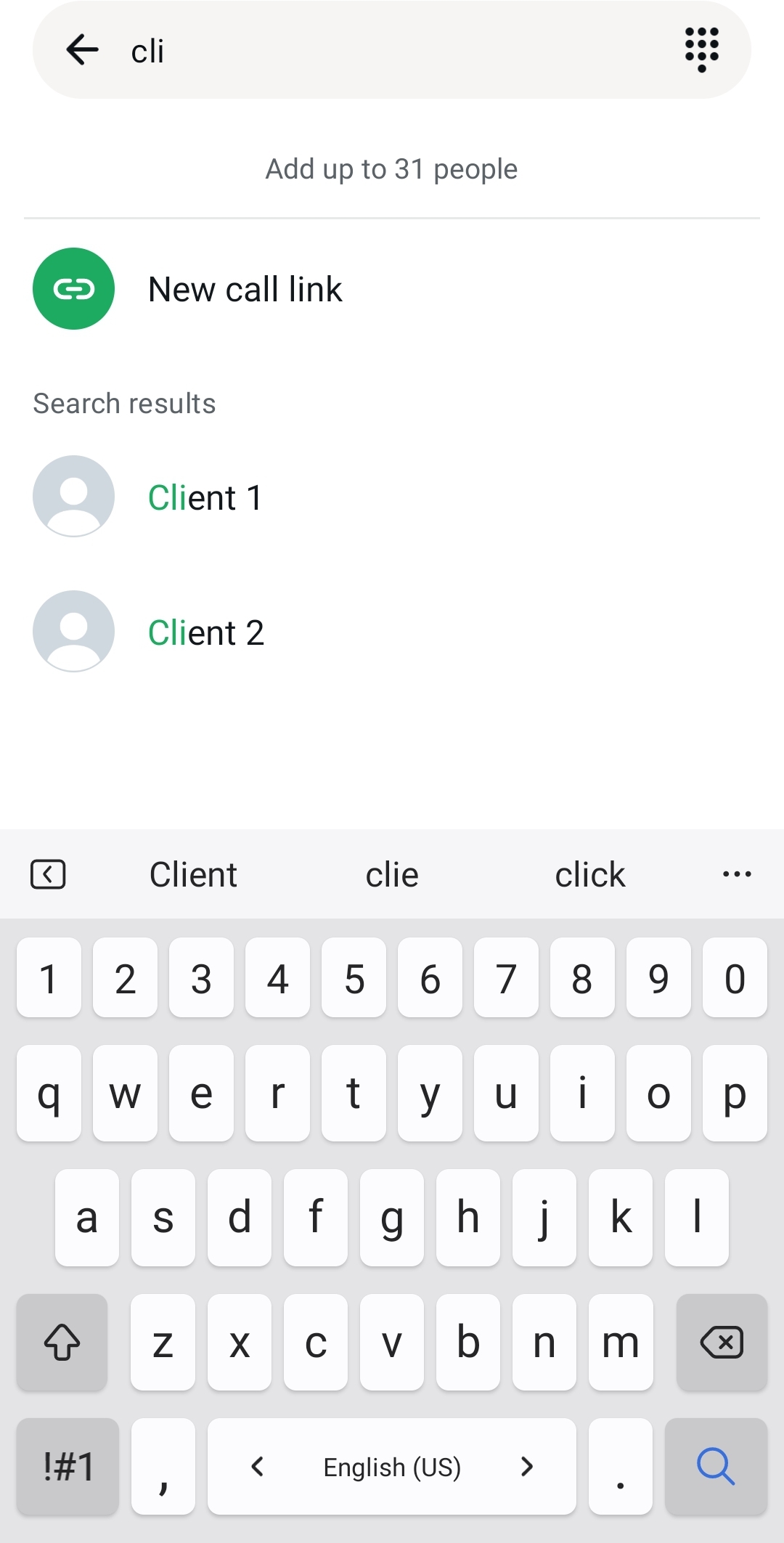
Step 4: By tapping on the individual contacts, you can add up to 30 more people from your contact list. These can now join the WhatsApp (video) group call at any time.
Step 5: Finally, tap the camera or handset icon depending on whether you wish to make a WhatsApp video group call or a group voice call. Bear in mind that an active group voice call on WhatsApp cannot be switched to video during the call.
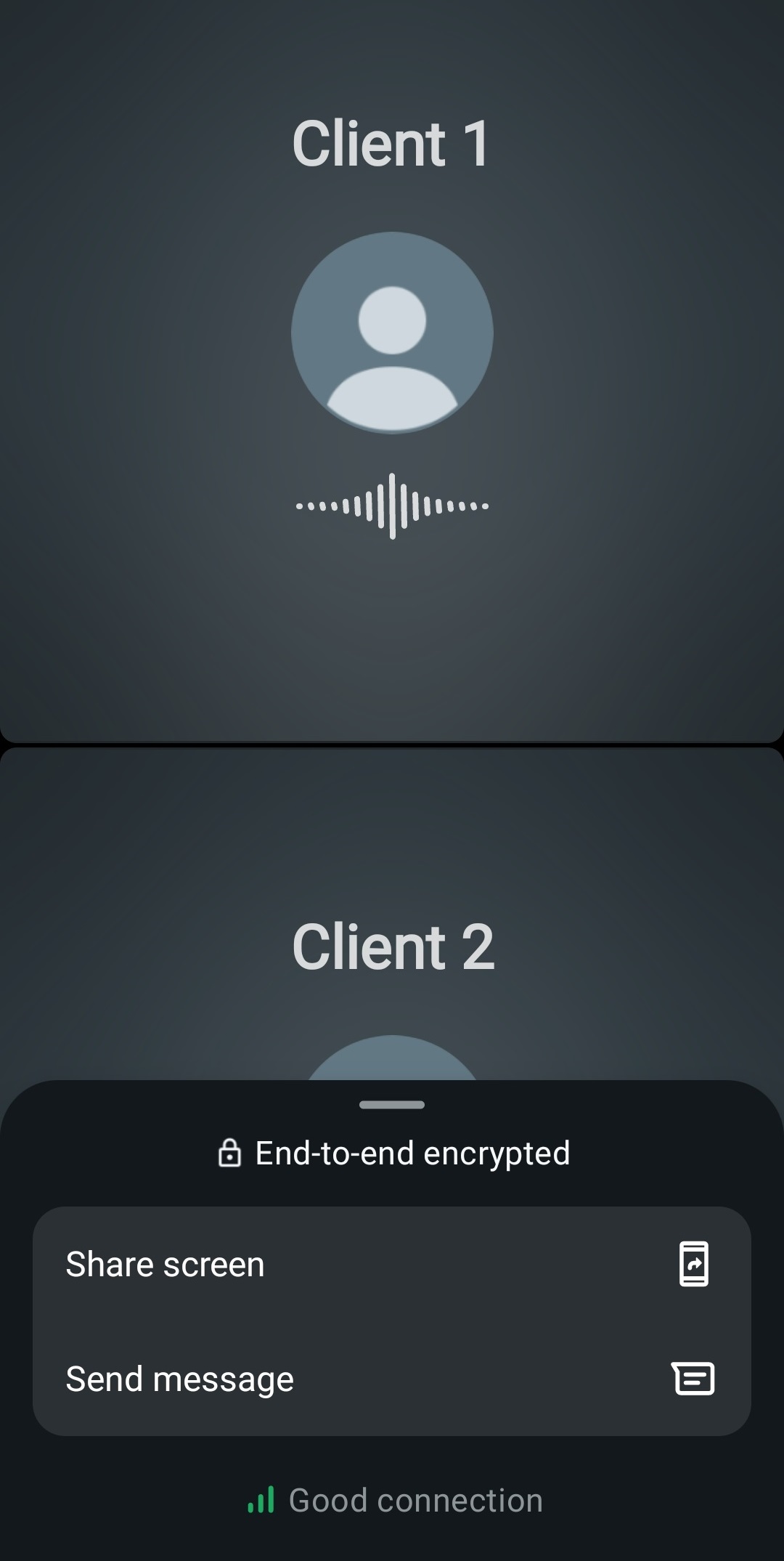
Your WhatsApp group (video) call is protected with end-to-end encryption. During the call, you can also share your screen.
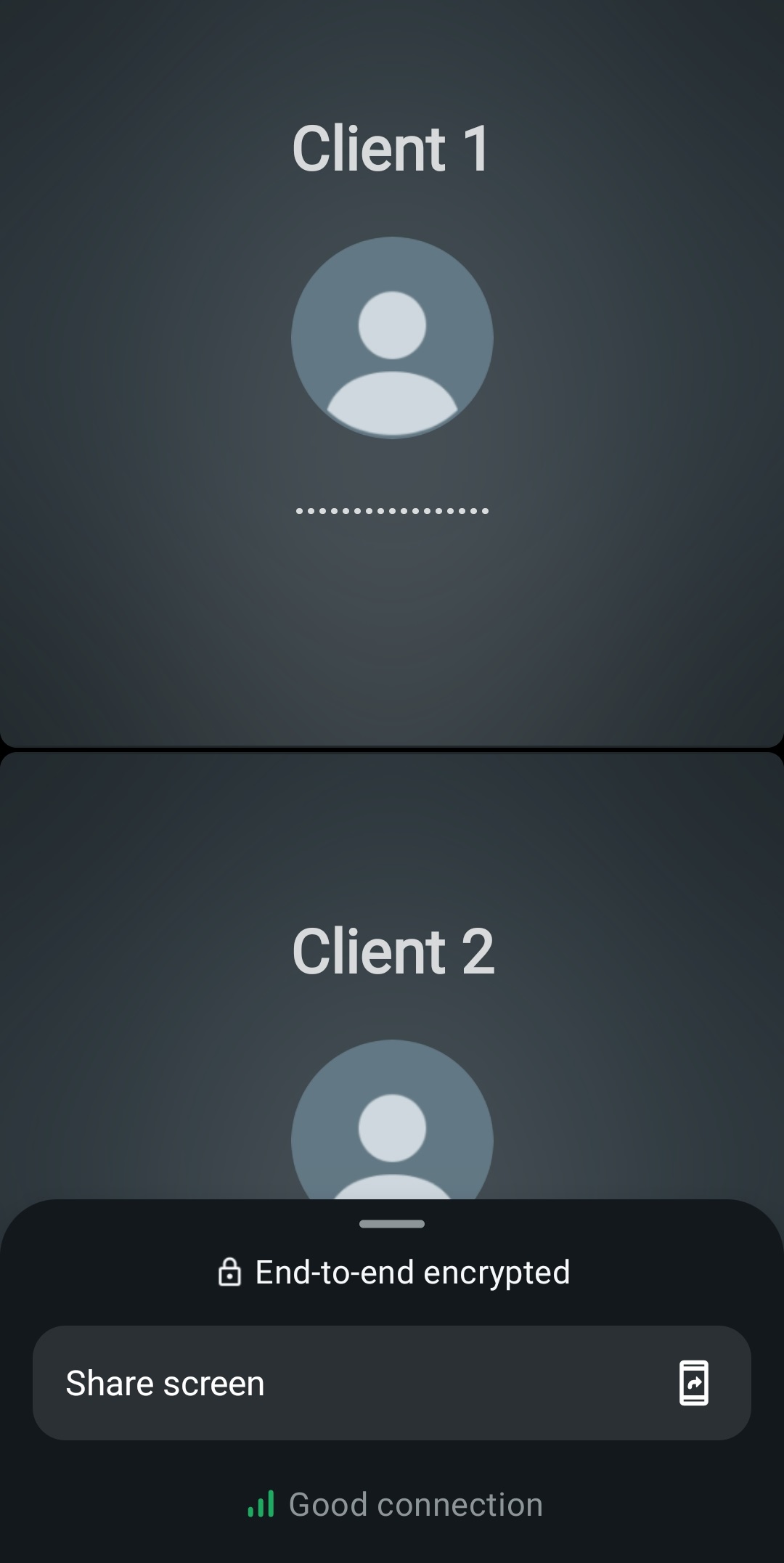
Starting a WhatsApp group call from a group chat
You can initiate a group call on WhatsApp directly from within an existing group. Remember that when making calls from a WhatsApp group, only group members can participate. Proceed as follows:
Step 1: Launch the WhatsApp group chat where you want to start the call.
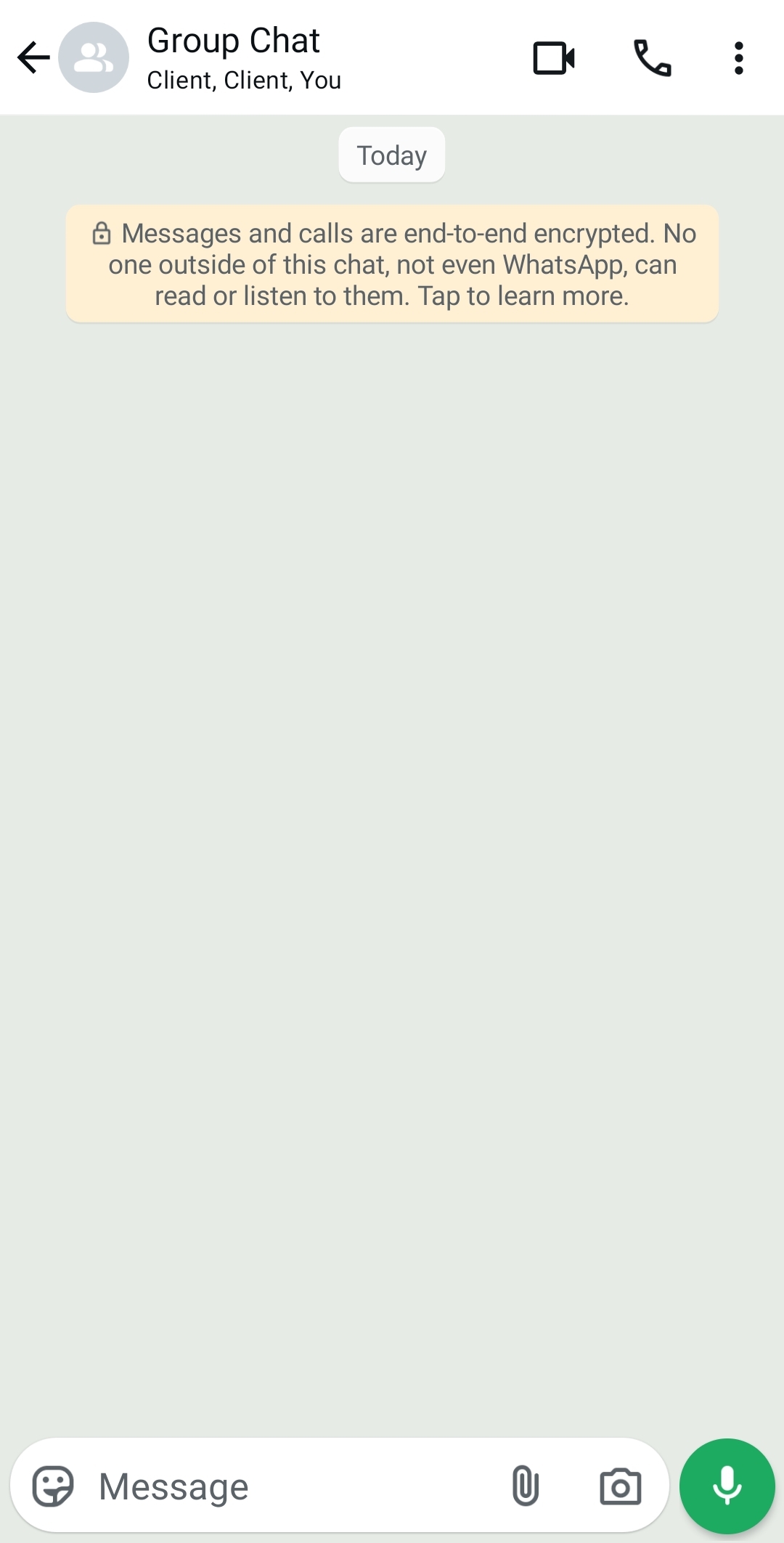
Step 2: If your group chat has more than 32 contacts, tap the group call icon. If your group chat has fewer than 31 contacts, tap “Voice Call” or “Video Call” and confirm your choice. You can also call one or several specific members of the group by tapping “Select participants” and then choosing the desired contacts.
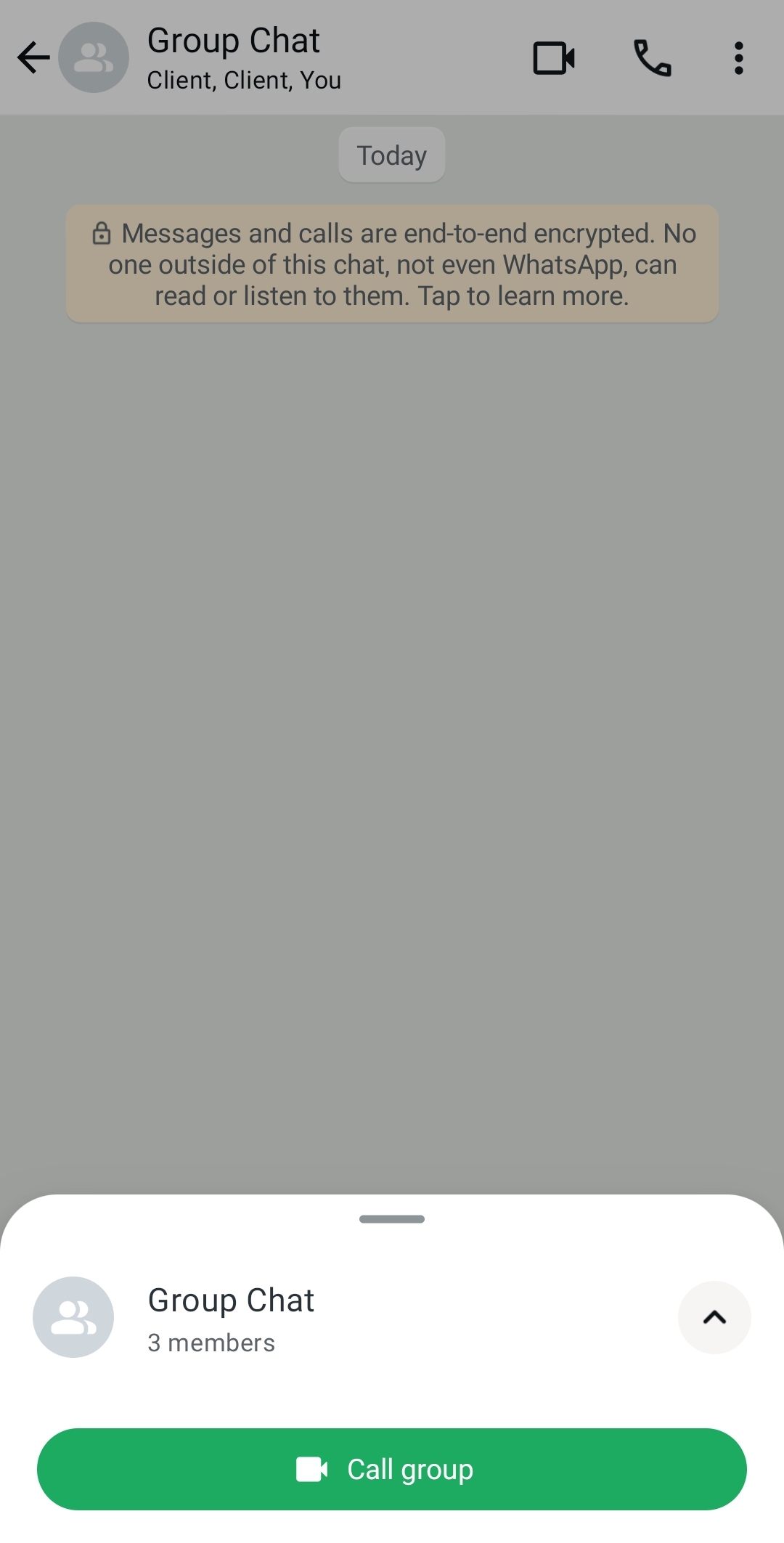
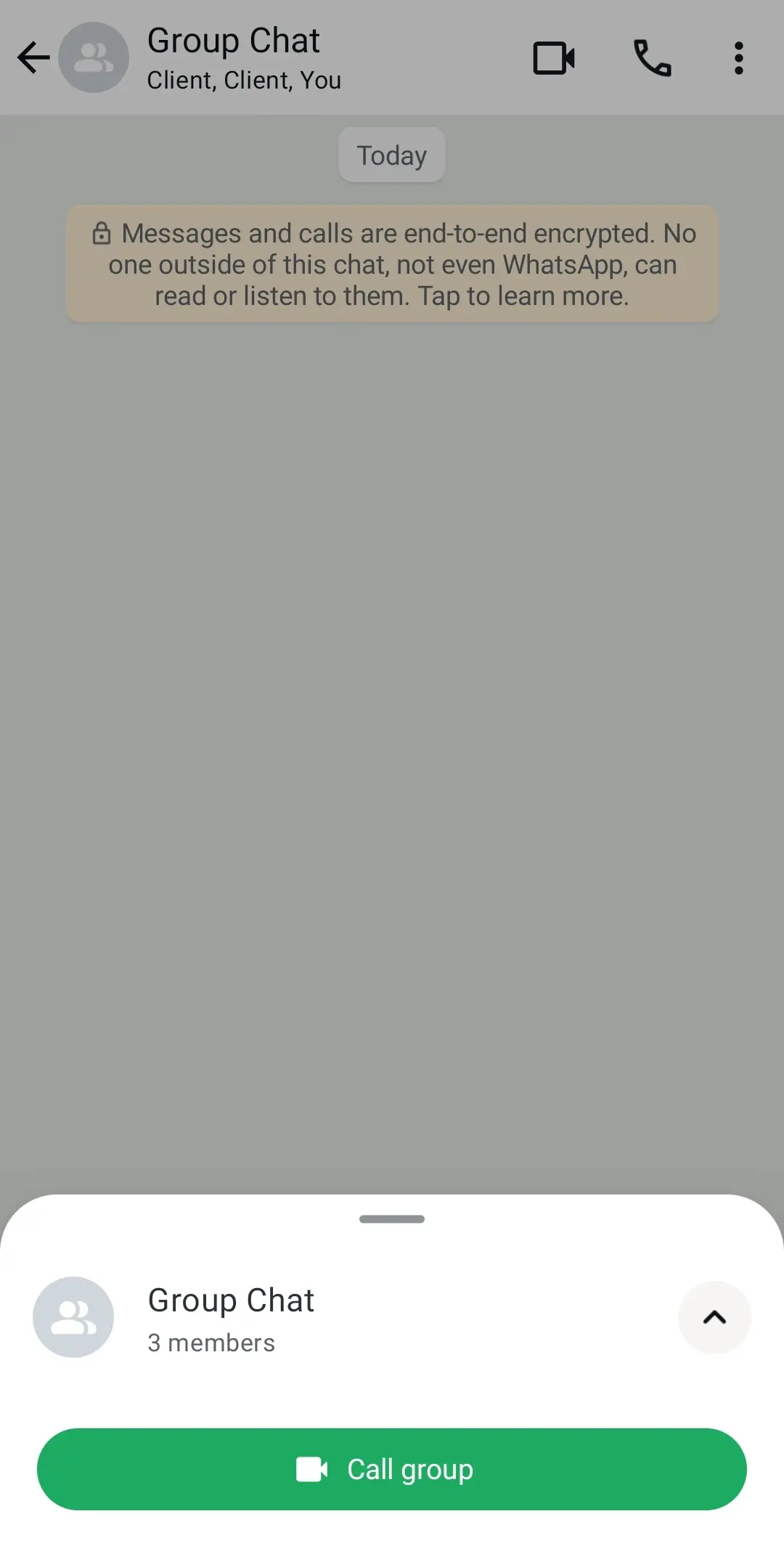
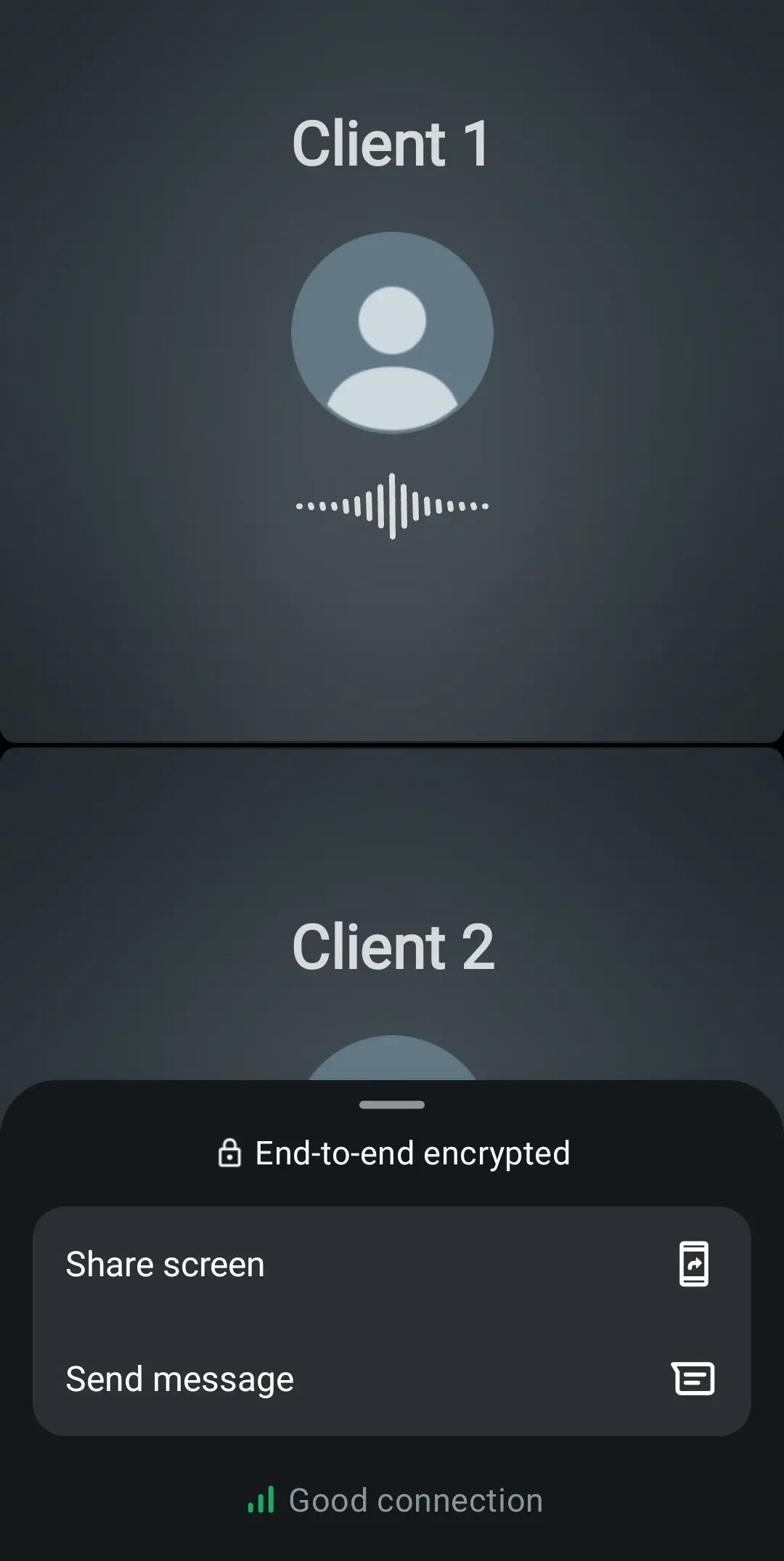
Your WhatsApp group (video) call is protected with end-to-end encryption. During the call, you can send messages or share your screen.
Want to back up your most important WhatsApp data, such as contacts, chat history, or media? With IONOS HiDrive Cloud Storage, you can access all your data from any device.
Adding additional participants to a WhatsApp group call
You can easily add more participants to your WhatsApp group call, even while a video or audio call is already in progress.
Step 1: Launch WhatsApp and open the chat with one of the participants. Call the first participant by clicking on the video or audio icon.
Step 2: Once you’ve initiated the call with the first participant simply tap the plus sign to add another contact to the call.
Step 3: Your contact list will now open. Use the search function to find the contact in the list, then tap on their name.
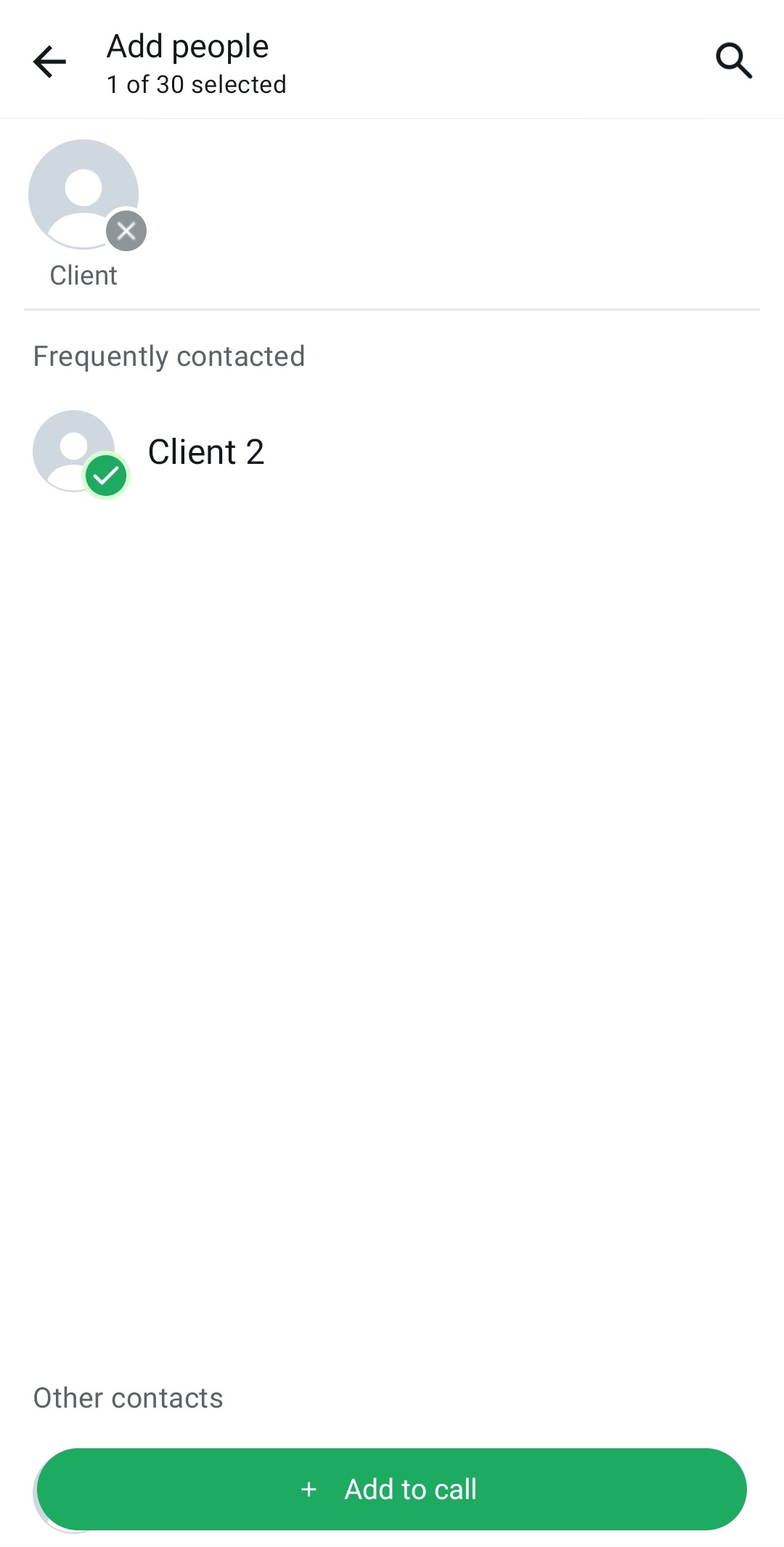
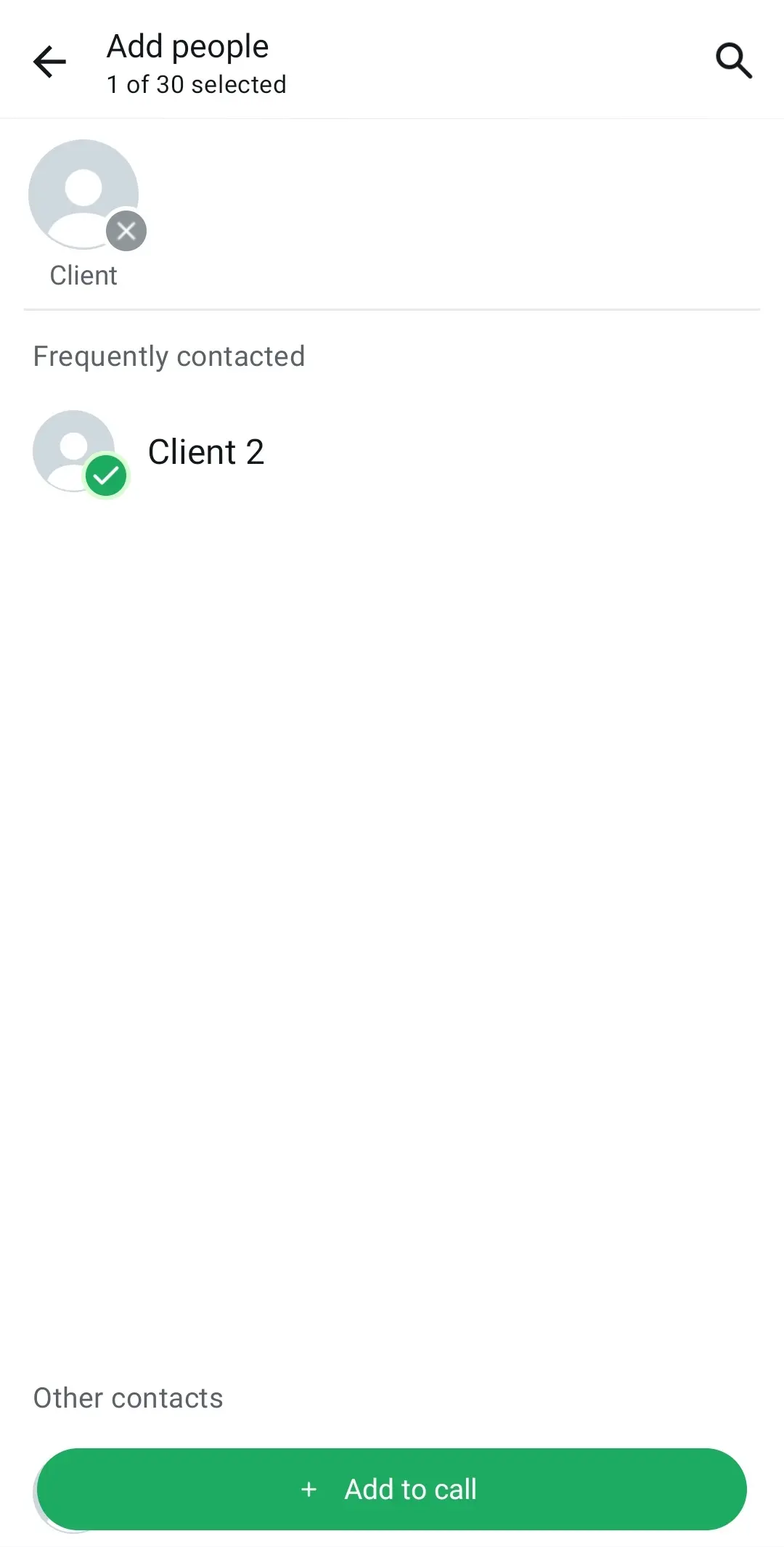
Step 4: Confirm that you want to add this contact to your WhatsApp group call by tapping “Add to call”.
In a WhatsApp group voice call, you can still communicate with someone you have blocked, but you cannot add a contact you’ve blocked to the call. Likewise, you cannot add a contact who has blocked you.
How to ignore or join an incoming WhatsApp group call
WhatsApp calling you? To ignore or join an incoming WhatsApp group call, follow these steps:
Step 1: If someone invites you to join a group call on WhatsApp, you’ll receive a notification.
Step 2: Tap “Join” if you want to enter the incoming WhatsApp group call. You’ll see on-screen who’s already on the call and who else has been invited.
If you don’t want to join the call, tap “Ignore”.
How to join a missed group voice call on WhatsApp
In case you missed a group voice call on WhatsApp, you can still join it later, provided it is still in progress.
Step 1: Open WhatsApp and tap the “Calls” tab.
Step 2: If the missed call was started from a group chat, you can join the call by tapping “Join”.
Step 3: The Call info screen will open.
Step 4: In the call menu, tap “Join” again.
Bad news for those using the WhatsApp web app as group calls are not yet supported there. However, there are plenty of great WhatsApp alternatives available.
- Free Wildcard SSL for safer data transfers
- Free private registration for more privacy
- Free Domain Connect for easy DNS setup