

Set up Google Alerts: How to get the best results

With Google Alerts you will be informed about relevant news on self-selected topics or search terms. You can set up Google Alerts via the corresponding website and refine them with the help of some search parameters.
- Simple registration
- Premium TLDs at great prices
- 24/7 personal consultant included
- Free privacy protection for eligible domains
What are Google Alerts useful for?
Google Alerts do not wait until you start a search but inform you as soon as there is news about the topic for which you have set up Google’s service. This works great in a private context, for example, for travel destinations, news about celebrities, or price developments for certain products. Google Alerts can also play an important role in a professional context.
If you set up Google Alerts, you can use the tool for competition monitoring or for your reputation management. Criticism, comments, ambiguities, or even digital frenzies regarding your company or a product will be hard to miss. This gives you the chance to intervene effectively, respond early on, or make adjustments. Together with thoughtful and seamless social media monitoring, this is an important tool to help shape the conversation online.
Set up Google Alerts in 5 steps
If you want to set up Google Alerts for personal or business use, you can easily do so by visiting the corresponding subpage on Google. We will explain step by step what you need to do for this.
Step 1: First, sign in with your Google account and access the Google Alerts page.
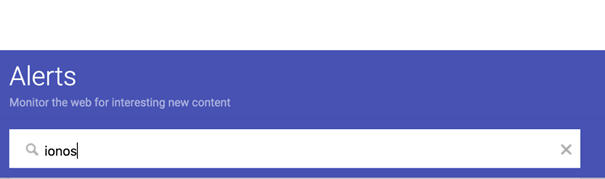
Step 2: Now enter the term for which you want to set up Google Alerts in the search bar. The procedure here is the same as the normal search.
Step 3: Now you will be shown a preview and can get a first impression of whether the search meets your requirements. If it does, select “Show Options”.
Step 4: Here you will now find various selection options. Sources and languages can be included or excluded. In addition, you determine how often you want to be informed about news. If all the specifications meet your expectations, click on “Create Alert”.
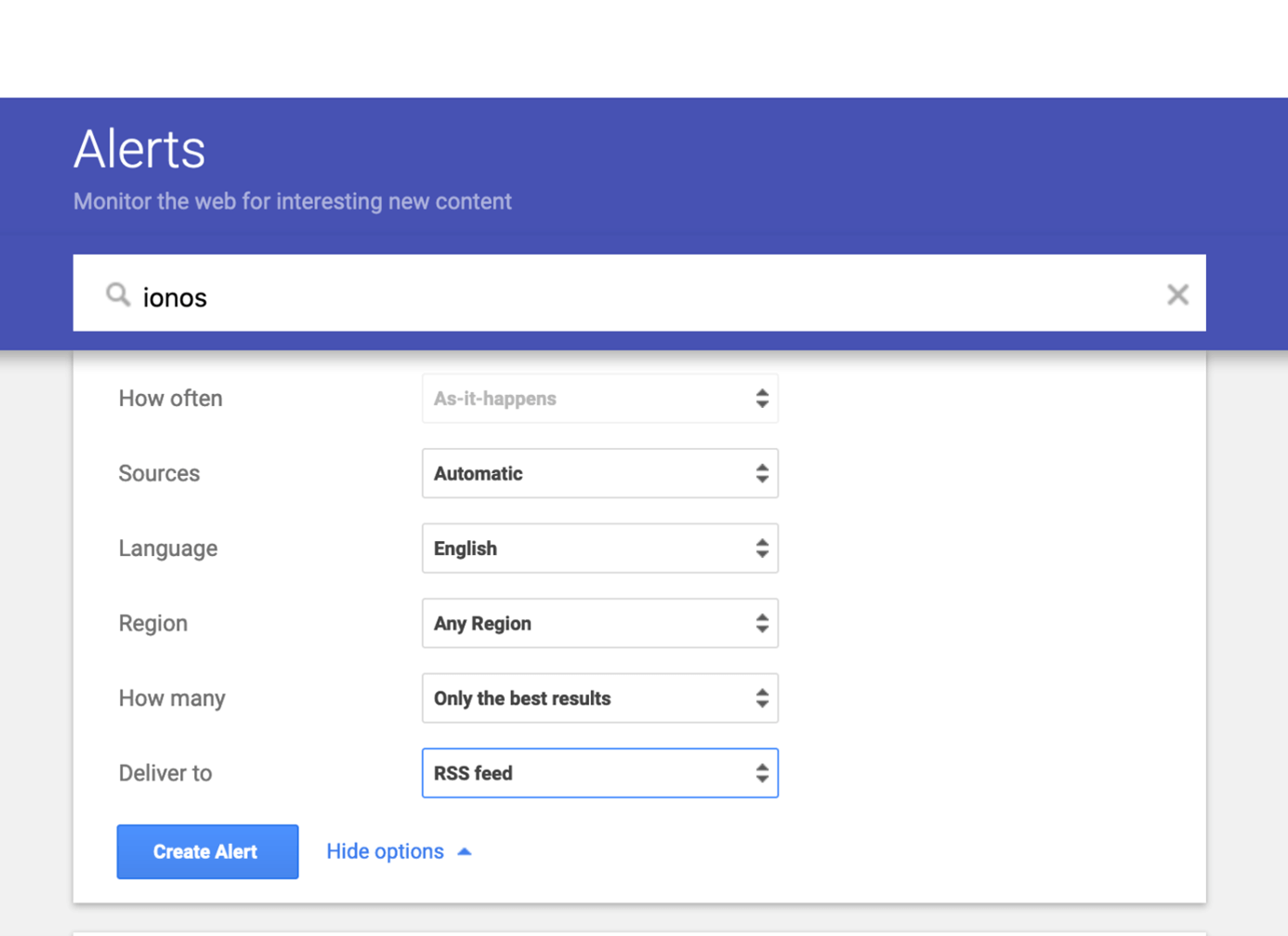
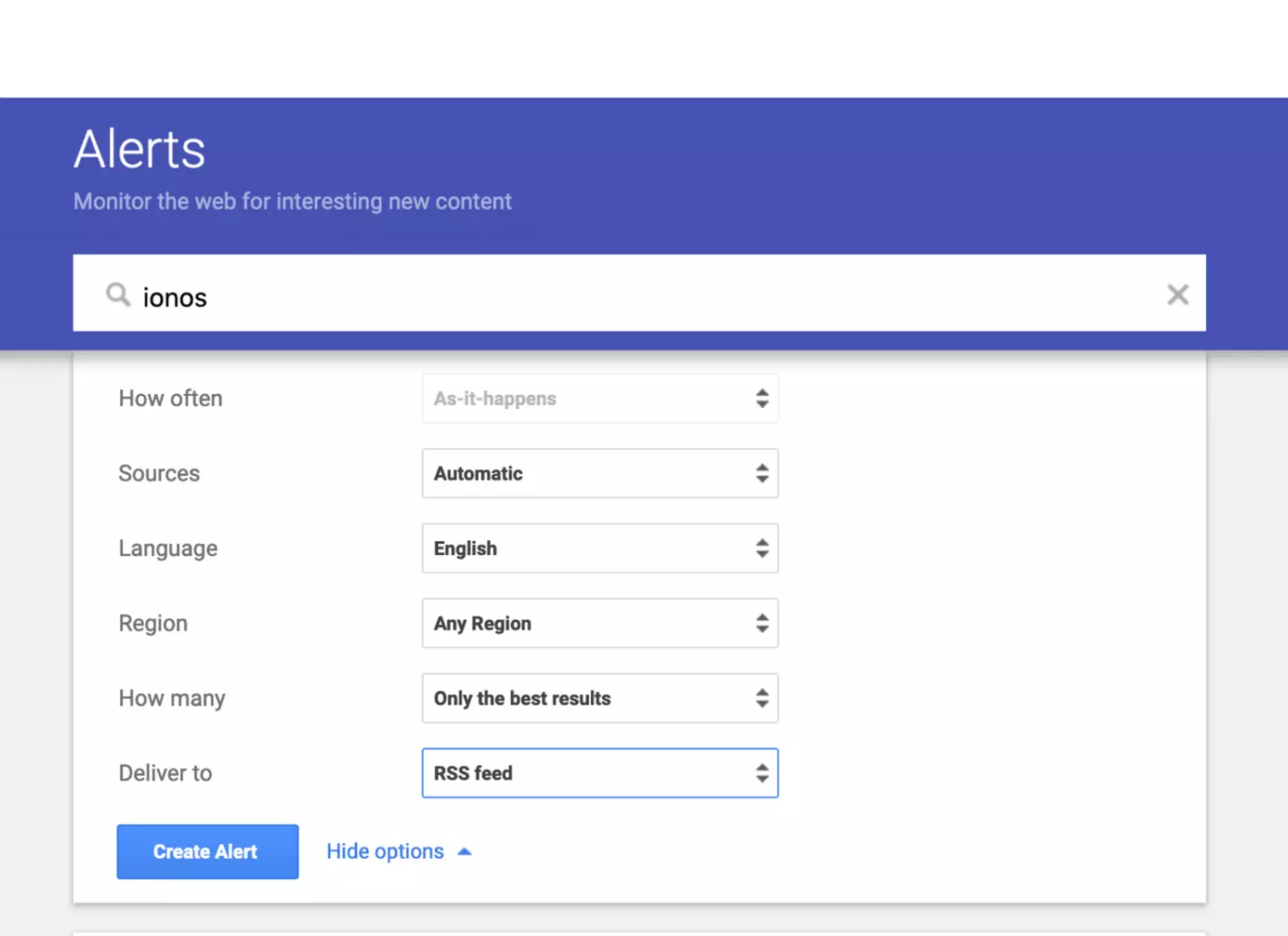
Step 5: Now you will receive the news about your Google Alerts in your inbox or as an RSS feed. On the Google Alerts page, you will find an overview of your alerts and you can completely change or delete them at any time.
Optimize Google Alerts with search operators
If you want to keep an eye on a very current or popular topic, it could be that the Google Alerts get out of hand and you have to search again manually for the news that is relevant for you. To prevent this, you can refine your selection. With the help of Boolean operators, special characters, or punctuation marks you will find the best results. Here is a listing of some useful Google search operators that will help you set up Google Alerts.
Basic search operators
| Search operator | Function |
| "…" | Only results that contain the exact spelling will be considered. |
| - | Terms after the minus are excluded from the search. |
| | or OR | With this search operator you can display results for two different search terms. |
| * | Serves as a wildcard. |
| () | The parentheses can be used to group search terms. |
| x..y | If you enter numbers before and after the dots, the search results are displayed from the first to the second number. This is useful for amounts or years. |
Advanced search operators
The advanced search operators are placed in front of the corresponding search terms and delimited with a colon.
| Search operator | Function |
| intext: | Displays results that contain a specific word. |
| inanchor: | Displays results that contain a specific term in the link text. |
| intitle: | Displays results that contain a specific word in the title. |
| inurl: | Displays results that contain a specific word in the URL. |
| location: | Displays results that involve a specific location. |
| site: | Displays results from a specific website. |
| source: | Displays results from a specific source. |