

How to Fix the Windows Update Error 0x80070002

Windows operating systems are configured as standard to search for the newest updates once they’re connected to the internet. However, you can also start the search for the latest updates manually in the Update Center. It’s certainly advisable to use one of these two options. After all, without regular Windows updates, you not only miss out on the latest features of Windows and other Microsoft applications like Office or Outlook, but also important bug fixes and security improvements (such as the removal of security vulnerabilities).
However, issues like error 0x80070002 can occur when searching for updates and installing them automatically or manually. These problems prevent the update process, thereby exposing the stability of the system to significant risk. We explain what’s behind error message 0x80070002 and how you can resolve this problem yourself.
- Simple registration
- Premium TLDs at great prices
- 24/7 personal consultant included
- Free privacy protection for eligible domains
What Does Error Code “0x80070002” Mean?
The error message “0x80070002” is one of the more well-known error codes for problems encountered when updating Windows. It not only occurs in current versions of Windows, like Windows 10, but also in older editions such as Vista or XP. In some cases, the code “0x80070003” is also shown which refers to the same problem. Plus, depending on the system version, there are the alternative codes “80070002” or “80070003”. The message behind these four possible codes is “ERROR_FILE_NOT_FOUND”.
The fact that the Windows update process failed because a file could not be found could be due to a missing file or a file that’s damaged. The key processes that may be responsible for this are the downloading and unpacking of the installation files. Since Windows doesn’t resolve this problem itself but instead displays error 0x80070002, it’s a good idea to try to solve the problem yourself and install the relevant update anyway.
The “0x80070002” error can occur when starting as well as uninstalling other Microsoft applications and third-party programs. Here too, the files required for the respective action are missing or damaged.
Possible Solutions to the Windows Error 0x80070002
If you get the error code “0x80070002” when installing a Windows update, this could be due to various reasons. For instance, one possibility is that the Windows service responsible for updates is not working properly, making installation impossible. It’s also possible that important system files have been lost or deleted, or that incorrect system settings have been applied. This may not necessarily be due to any changes made by yourself; these system issues can also be caused by malware or defective hardware.
Read the following solution suggestions to find out how best to approach the 0x80070002 error in each case.
Solution 1: Check the System Date and Time
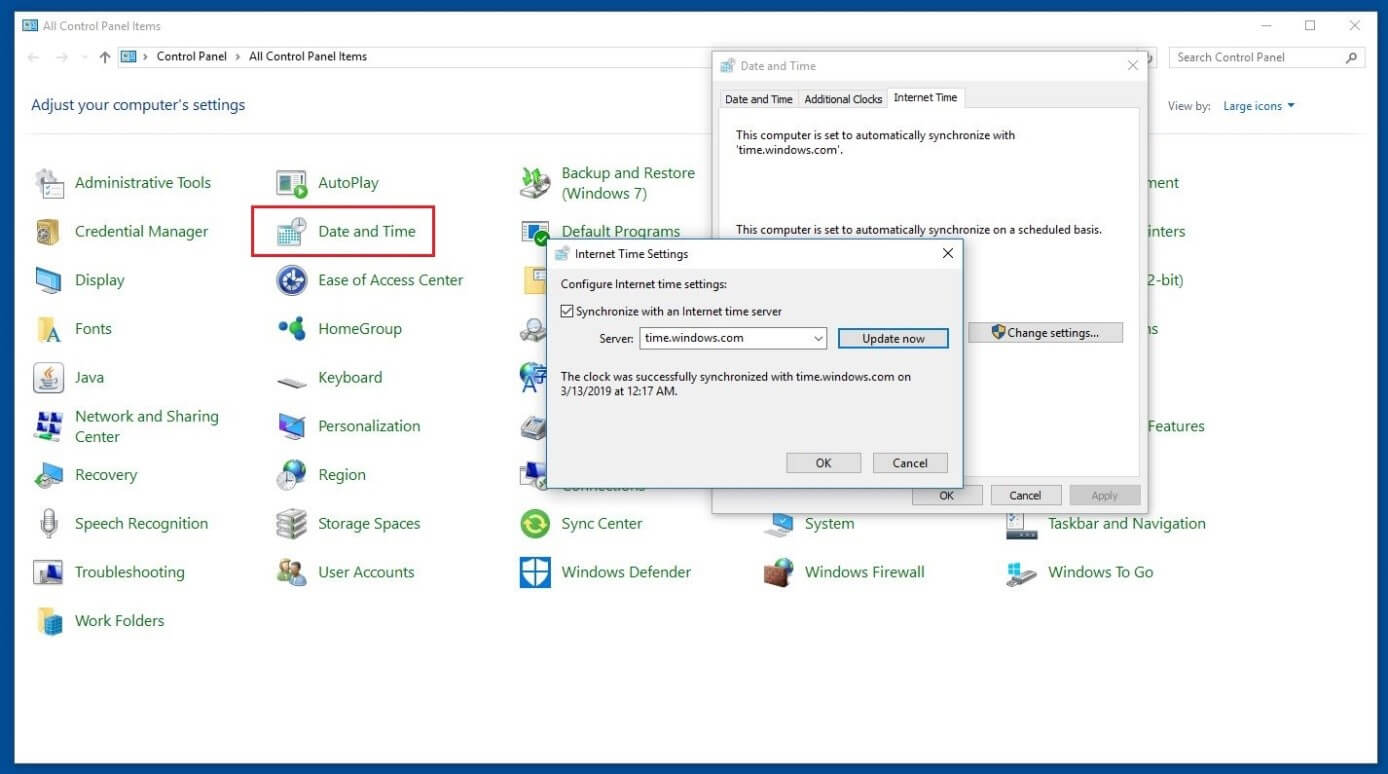
As soon as you’ve connected to the internet, the operating system will usually determine the right information about the time zone, time, and date automatically. If this synchronization process doesn’t work, or you manually enter the time information, this can lead to issues like the update error 0x80070002 in the event of significant discrepancies from the actual values. First, take a look at the “Date and Time” menu, which can be opened via the Control Panel (in the Windows Start menu). Follow the steps below:
- Check whether the right time zone is set in the “Date and Time” tab. If this isn’t the case, you can change the current setting via “Change time zone”. Also, make sure “Automatically switch to summer/wintertime” is checked.
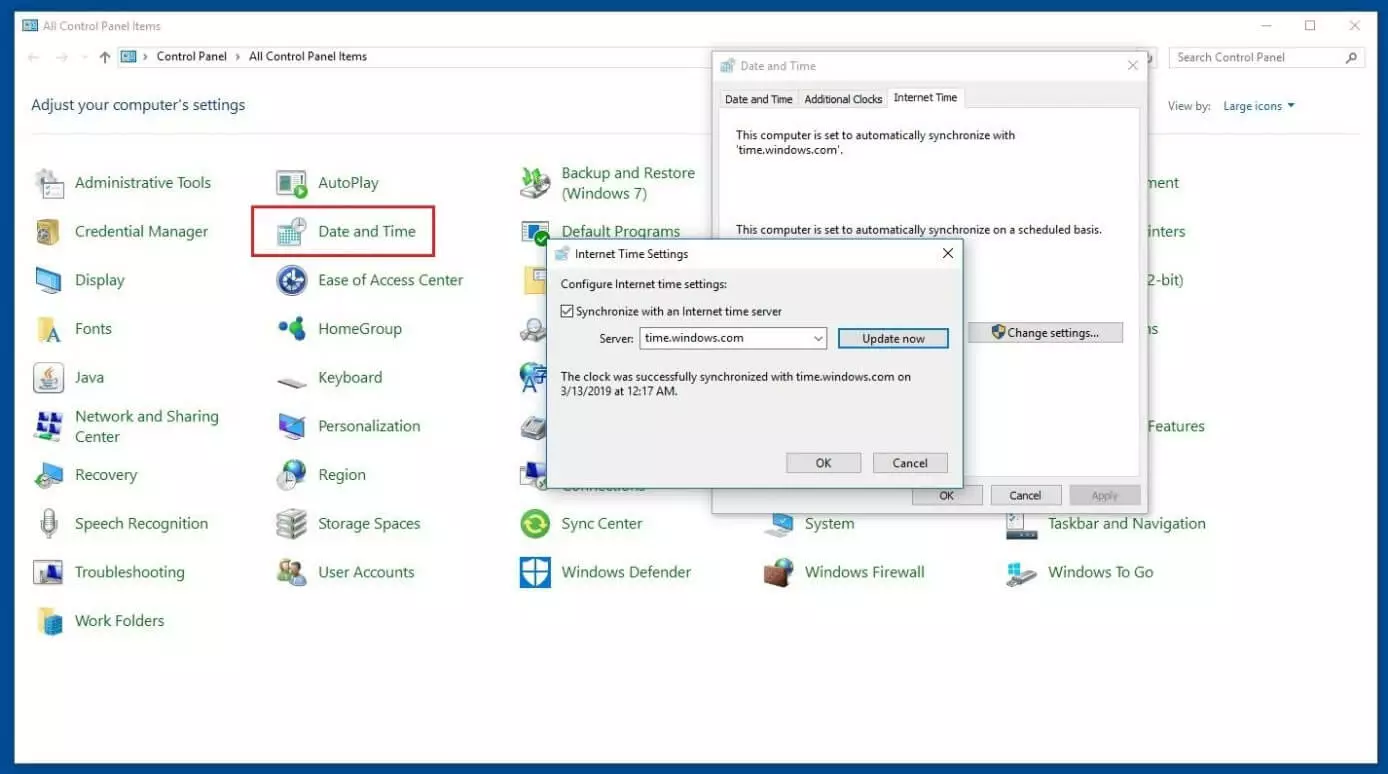
- Go to the “Internet time” tab and click on the button “Change settings”.
- Make sure “Synchronize with an internet time server” is checked and select one of the suggested servers.
- Click on “Update now” and then on “OK” to confirm the changes.
Solution 2: Restart the Windows Update Service
Windows operating systems contain a wide range of services and processes which are either permanently active or are executed as soon as they are needed by the system. One of these services is the Windows Update Agent (WUA) – responsible for recognizing, downloading and installing updates for Windows and other installed Microsoft applications. If this system isn’t work properly, it won’t be possible to update the system. One possible approach to solving the 0x80070002 error is to restart the Update Agent.
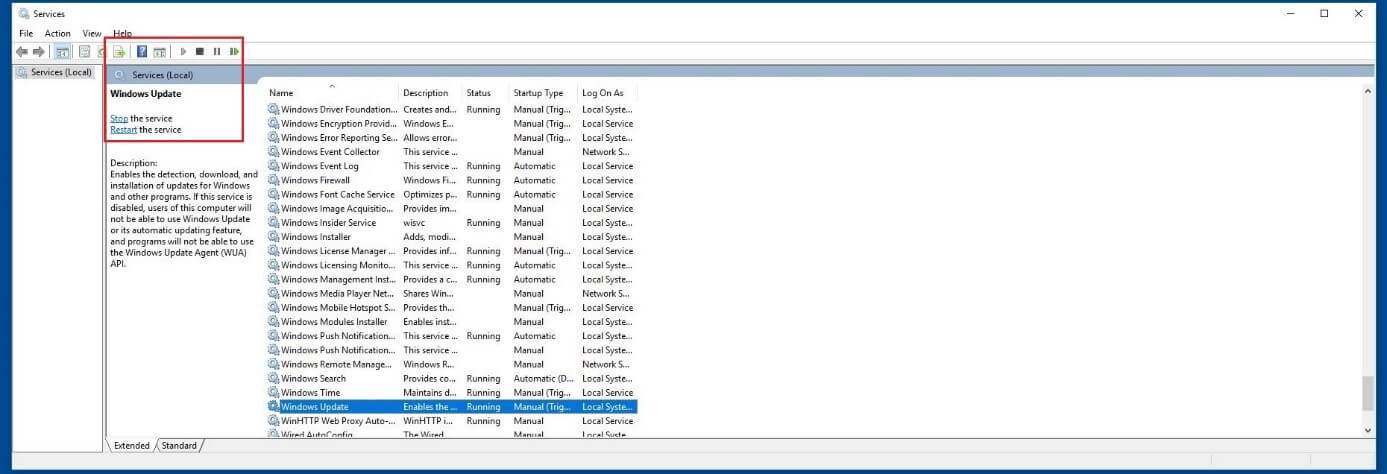
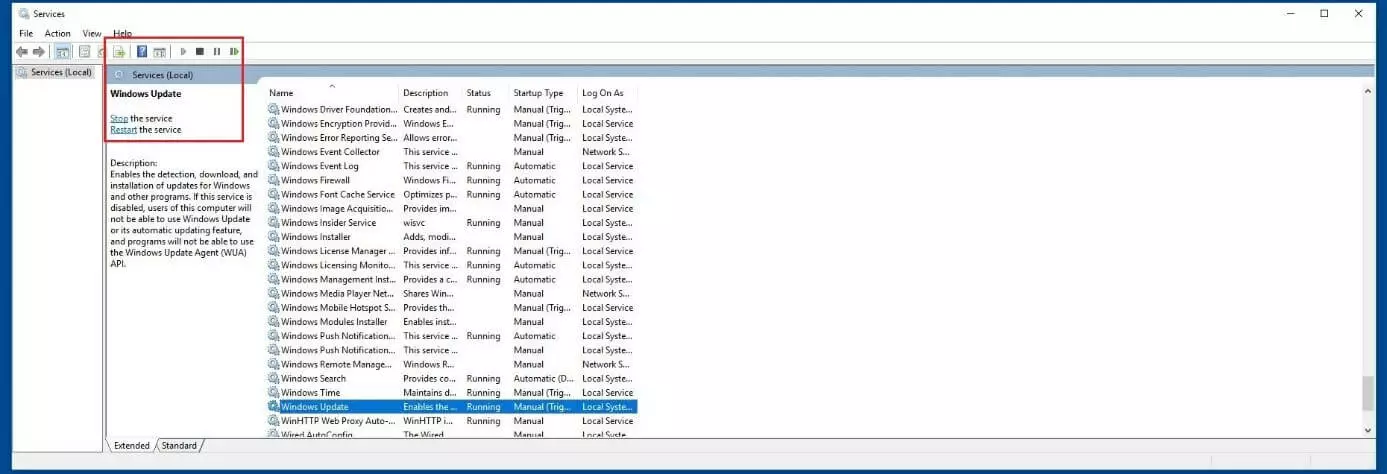
Like all other Windows services, you can find the Update Service in the Microsoft Management Console, which can be accessed via the Control Panel (“Administration” -> “Services”) or the search function in the Start menu. In the case of the latter, enter the search term “services” and open the link with the same name. Search for the entry “Windows Update” in the list and click on “End the service” or the square stop symbol.
Before restarting the agent, first open the following directory on your computer (if you’ve installed Windows on a different drive, replace the drive letter accordingly):
C:/Windows/SoftwareDistributionThe Update Agent temporarily saves files in this directory which are needed for the installation process. In order for the service not to revert back to these files after restarting, and instead download and unpack the respective update from scratch, you should delete the contents of this directory:
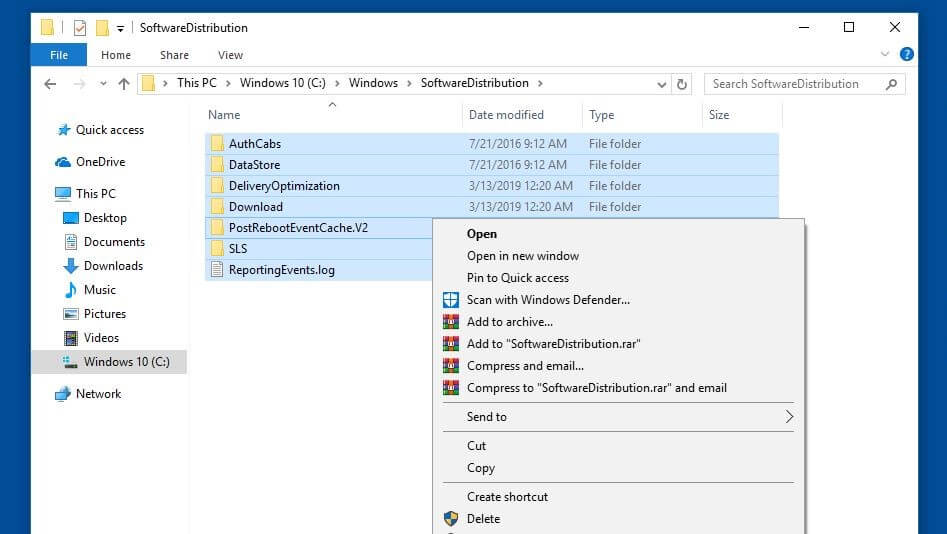
Now restart the Update Service via the button with the same name in the Microsoft Management Console and then carry out a system restart. Afterwards, the agent will be able to try to download and install the problematic update again.
- Regular virus and malware scans
- Automatic backups and simple file recovery
Solution 3: Check and Repair System Files
Missing or faulty system files can likewise cause the 0x80070002 error. But since the error message provides no information whatsoever about where you should look in this event, you have to rely on the services of the SFC tool (System File Checker). This program checks and repairs all system files in your Windows installation. If repairs aren’t possible, the SFC will inform you about the affected file(s). Administrator rights are required to use the command line tool, as you have to run the command prompt as an administrator. To do so, follow these steps:
- Open the Start menu.
- Type “cmd” into the search bar.
- Select “Command Prompt” by right-clicking and click on “Run as administrator”.
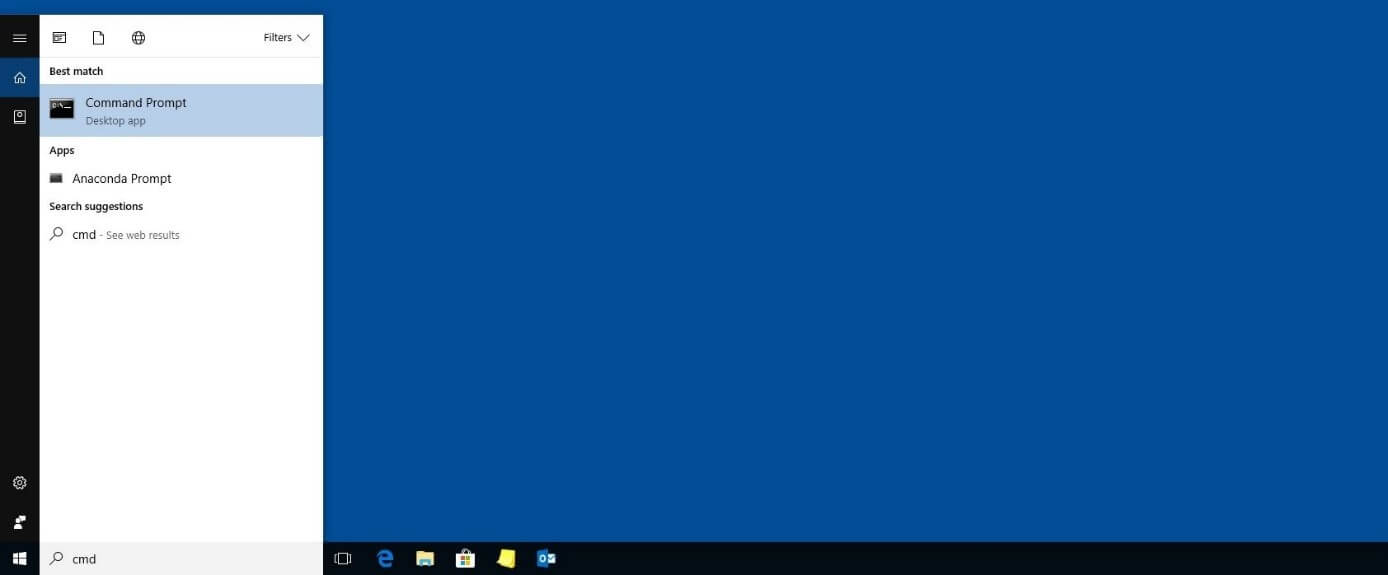
As soon as you’ve opened the command line, enter the following commands to start the SFC:
sfc /scannowKeep the command prompt open until the check process has been fully completed. The tool will then show you the result of the check. A list of damaged files that couldn’t be repaired can subsequently be found in the log file cbs.log, located in the directory Windows/Logs/CBS.
Solution 4: Check the Windows Drive for File System Errors
System crashes or improper deletion can result in file system errors, i.e. defective hard drive sectors. In turn, these can cause a wide range of complications such as the 0x80070002 update problem. Windows offers a solution integrated as standard, the CHKDSK tool (Check Disk), which enables you to discover these kinds of errors in the file system structure and resolve them at any time. Like the SFC program described above, CHKDSK can be run via command line.
Here, too, it’s necessary to start the command prompt as an administrator:
- Open the Windows Start menu.
- Enter the term “cmd” into the search.
- Right-click on “Command Prompt” and then “Run as administrator”.
To scan and repair the drive you’ve installed Windows on (usually C:), enter the following command:
chkdsk C: /F /RSince the drive is currently being used by Windows and its various services and processes, you’ll receive a message that CHKDSK can’t be started at this time. Type “J” and confirm with the [Enter] key, so that the check program will be run prior to the next system start instead.
Solution 5: Use the Update Troubleshooter
For current Windows versions, the Update Troubleshooter provides a service specially tailored to resolving update errors like 0x80070002. You can download the latest version of the troubleshooter at any time from the official Microsoft Support Forum; it’s only a few kilobytes (KB) in size. After you’ve opened the downloaded .diagcab file with the “Assistant for Troubleshooting by Diagnosis”, simply follow the instructions to fix the 0x80070002 error:


Solution 6: Check the System for Malware
If important system files or settings are erroneous or missing, there’s also the chance your computer is infected with malware. In this case, your efforts to fix the 0x80070002 error will likely remain unsuccessful until you find the harmful software and remove it entirely from your system. Learn about the best tools for finding and removing spyware, Trojan horses, viruses, and other harmful software by reading our extensive article on malware.
Solution 7: Manually Install the Problematic Update
If, despite following these solution suggestions, the Update Center still displays the error code “0x80070002”, you should try to download and install the relevant update yourself. Microsoft makes all released updates available on its Online Update Catalog. You just need to type in the knowledge base number of the update (always starting with “KB”) into the search bar and press “Search”; the web application will then look for the right installation files automatically.
Make sure you select and install the installation files for the right Windows edition (server vs. desktop) and architecture (x64/ARM64/x86).
Click here for important legal disclaimers.