

How to force an App to quit on Mac

It happens to all Mac users at some point - an application “freezes” and can no longer be quit in the usual manner. The main reason is usually an overloaded RAM. Or in other words, insufficient computer memory to run the applications that are open, including open browser tabs. We'll show you how to force quit a Mac program quickly.
- Simple registration
- Premium TLDs at great prices
- 24/7 personal consultant included
- Free privacy protection for eligible domains
Quick guide: force quit on Mac
Beware: When forcing programs to close, data may be lost!
Method 1:
- Quit an application in the foreground with the [CMD] + [Q] shortcut.
- Alternatively, click on the app name in the menu bar at the top and select “Quit [app name]”.
Method 2:
- Select the Apple menu from the top left.
- Click “Force quit”.
- Select application to force quit from the menu window.
Method 3:
- Use the shortcut [CMD] + [OPTION] + [ESC].
- Select application to force quit from menu.
Method 4:
- Open Activity Monitor: Search with [CMD] + SPACEBAR or via Spotlight (magnifying glass icon in the upper right corner).
- Select application from menu.
- Close with the cross icon in the upper left corner.
Method 1: Quit program
Before you force quit an application on a Mac, wait a few minutes and try to quit it in the usual way. This gives you a chance to the save your content before closing the application. When doing so ensure that the corresponding application is in the foreground, i.e. displayed at the top left of the menu bar next to the Apple icon. Now enter the key combination [CMD] + [Q] to close the program.
Instead of using a shortcut, Mac users can also click on the app name in the menu bar at the top. A drop-down menu opens with the option “Quit XYZ”.
Use the following methods to force quit a program. This fixes issues such as frozen applications, but unsaved files and data may be lost.
Method 2: Force quit via Apple menu
If the application isn’t responding and you cannot quit it as per method 1, you can force quit the Mac program following these steps:
- Ensure that the application you wish to force quit is in the foreground and click on the Apple symbol in the menu bar at the top left.
- Select “Force Quit…” from the dropdown menu.
- Select the application you want to shut down and click on “Force Quit”.
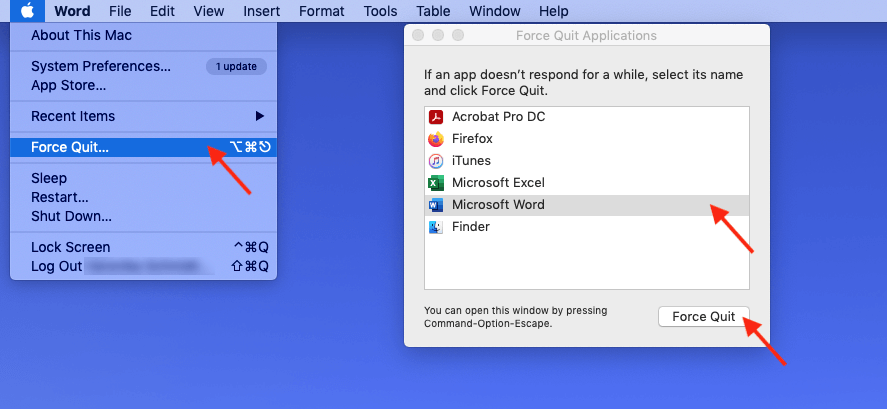
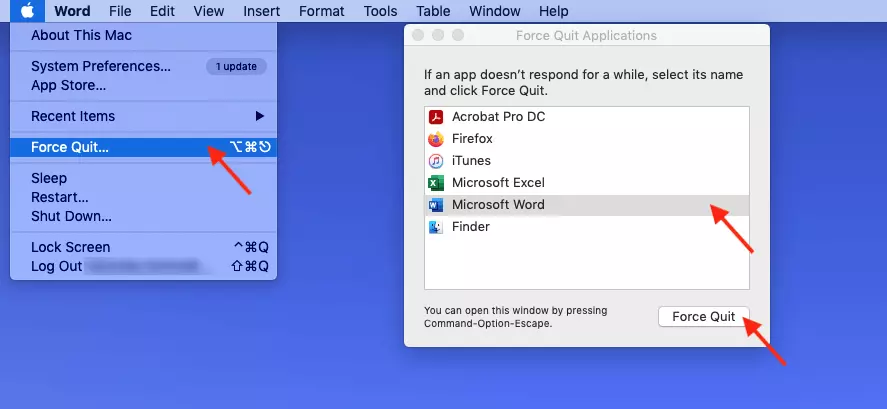
If you’re not sure which application is slowing down your Mac, look for the programs that have a “Not responding” notice displayed next to them.
Method 3: Force quit Mac application via shortcut
If you prefer Mac shortcuts or if your mouse or trackpad does not respond anymore, method 2 can also be executed via a key combination.
Press the key combination [CMD] + [OPTION] + [ESC]. This launches the Mac task manager. Select the frozen application in the dialog box as per method 2, and then click “Force Quit”.
Mac shortcuts are not only useful to force quit applications. Different keyboard shortcuts can save time if you frequently execute the same commands in your workflow.
Method 4: Force quit Mac application via Activity Monitor
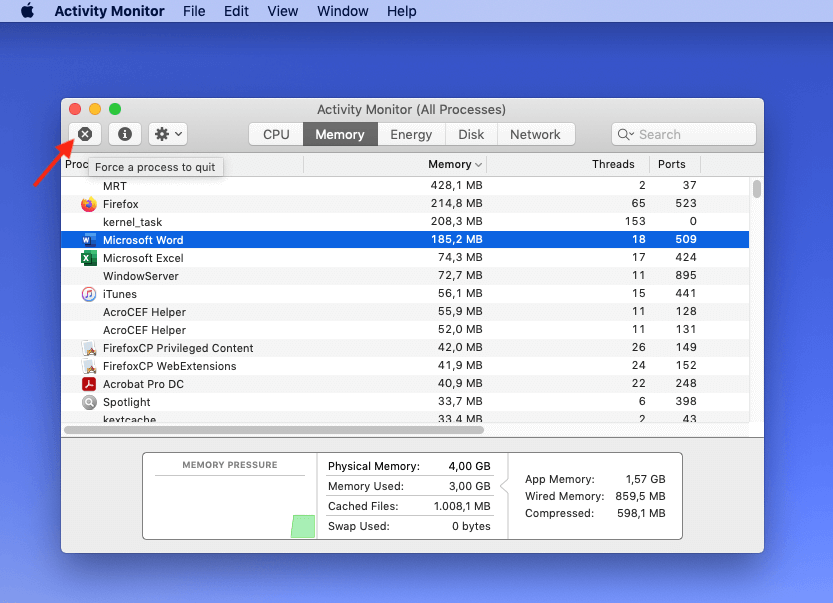
Where several applications are frozen or you want to check which program is causing the issue, it’s best to check in the Activity Monitor. To do this, follow these steps:
- Press the key combination [CMD] + SPACEBAR or click on Spotlight (the magnifying glass icon) in the top right corner of your display.
- Enter “Activity Monitor” into the search bar and hit Enter.


- Select the applications you wish to terminate.
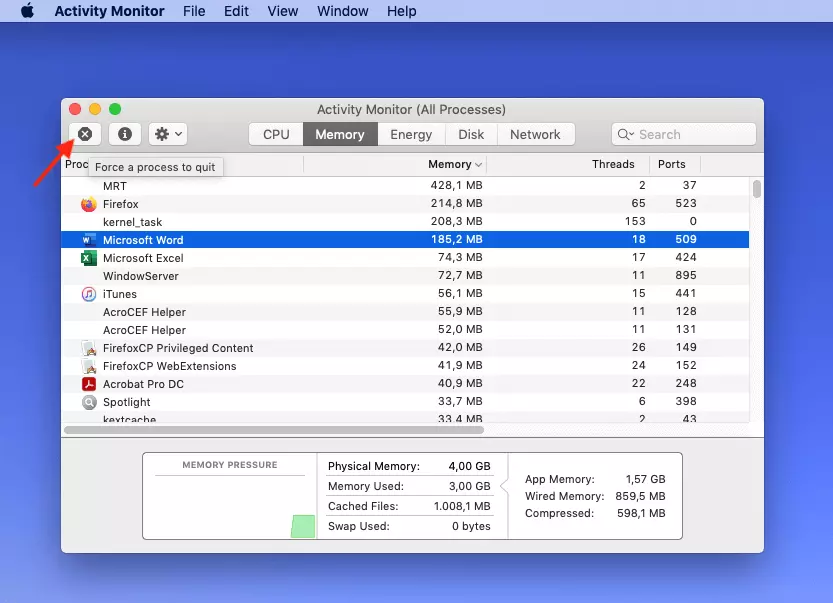
- Click on the cross to the upper left if you want to force quit the selected Mac application.
Last resort: restarting the Mac
If frozen applications do not respond and cannot be terminated using one of the methods described above, you can force a restart of the Mac. To do this, hold down the [CTRL] + [CMD] + On/Off keys. Please note that unsaved data and files may be lost.
If one or more applications keep freezing, there might be a system error. In this case, you may wish to restart your Mac in recovery mode to restore a specific system version.