

0xc0000005: The Best Ways to Solve the Windows Error

Microsoft achieved a tremendous success with Windows: For decades, the operating system has been one of the most popular solutions for the graphic administration and use of computers. What’s more, not only the installation but also the resolution of errors has become much easier over the course of time – thanks to automatic troubleshooters designed for a wide range of scenarios, which can be started with a single click. But things become rather complicated when an error occurs for which no ready-made solution exists. And this is the case with the “0xc0000005” error, which can occur when launching third-party applications, as it can’t be fixed using standard repair tools.
- Simple registration
- Premium TLDs at great prices
- 24/7 personal consultant included
- Free privacy protection for eligible domains
What’s Behind the Windows Error “0xc0000005”?
The fault associated with the error code “0xc0000005” is one of the more well-known Windows errors. It not only affects Windows 10 users, but also users of older versions such as Windows 8 and Windows 7. Generally, there are three different scenarios in which the error occurs:
- Installing Windows: “Unexpected error when installing Windows. Make sure the installation source can be accessed and restart the installation. Error code: 0xC0000005”
- Starting applications: “The application could not be started correctly (0xc0000005). Click on “OK” to close the application.”
- Access violations by applications: “0xC0000005: Access violation when reading position ...”
Moreover, the error (without an additional message) can also appear when updating Windows, thereby preventing the installation of operating system improvements. In all these cases, it’s advisable to try to solve the problem yourself, since Windows does not provide any specific troubleshooter here.
The Most Frequent Causes of the 0xc0000005 Error
Depending on the context in which error 0xc0000005 appears, there can be a wide range of causes. For example, the hardware may not be working properly or it may be configured incorrectly. Alternatively, the error may be due to the executed software, meaning the problem could be fixed with a reinstallation. In most instances, however, the problem is attributable to specific errors or damages to the operating system. Here, the range of errors can include erroneous or invalid registry entries, missing or incomplete DLL files (Dynamic Link Library) or damaged system files and configurations. In addition, malware may be responsible for causing the “0xc0000005” message.
We’ve compiled the most promising approaches to solving the various 0xc0000005 error situations for you below.
How to Fix Access Errors with the Error Code “0xc0000005”
In the case of access violation errors (also known as protection violation errors), these errors always occur when an executed program attempts to access a certain resource (particularly storage space) that’s protected from such access or is unreachable. These kinds of errors – associated with the code “0xc0000005” – are always accompanied by the respective software crashing.
You can first try to remove the relevant application from your PC and then reinstall it. If software files or settings caused the access error, this fault will likely no longer appear afterwards. But if reinstallation doesn’t provide the intended outcome, you should try out the following solution strategies.
Solution 1: Deactivate Data Execution Prevention (DEP) for the Program
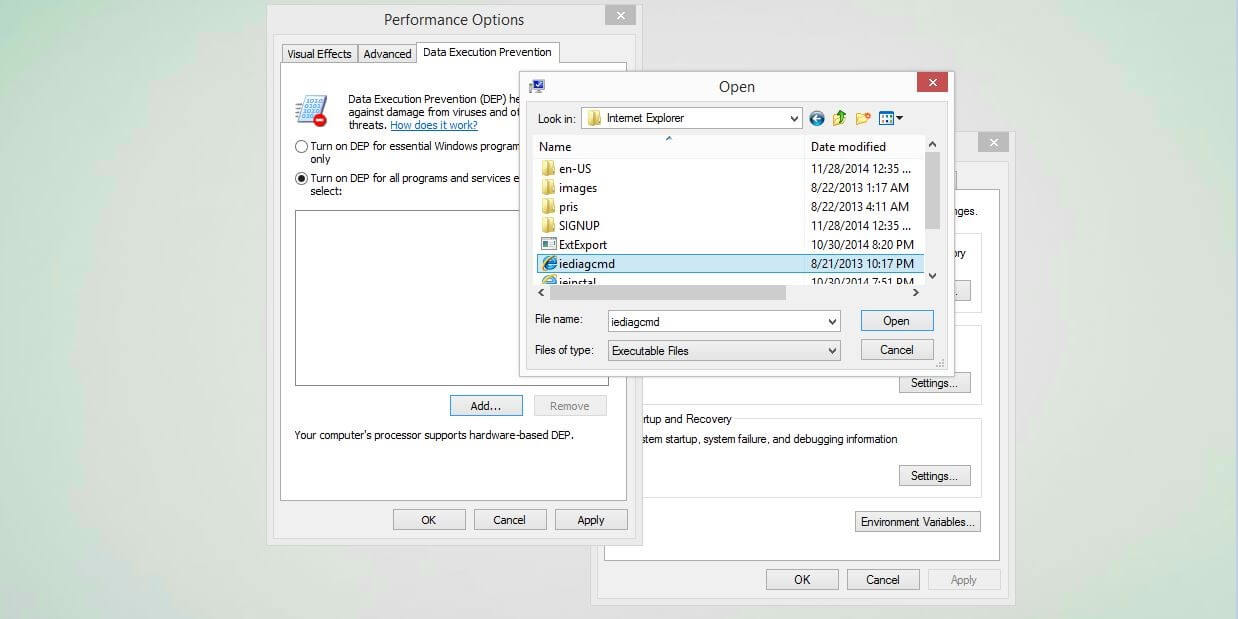
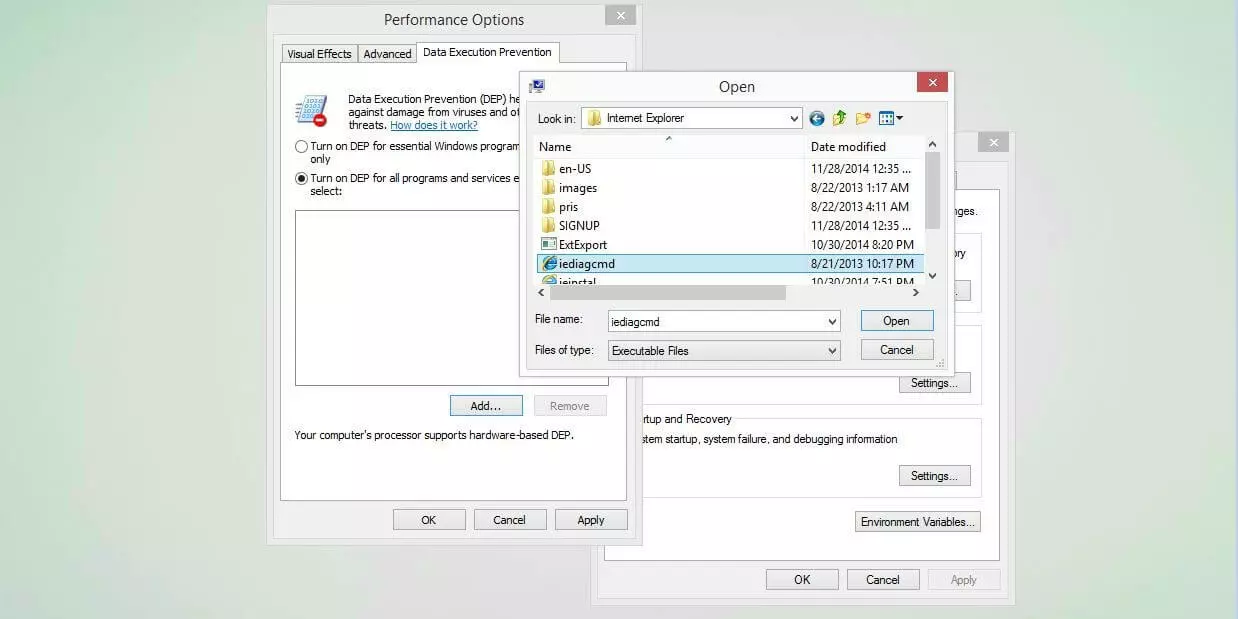
Windows offers an integrated feature for protecting working memory – called Data Execution Prevention (DEP) – which may accidentally cause access problems like 0xc0000005. This is because some programs are incompatible with this security feature, meaning certain actions will always result in the error. The simplest solution in this case is to deactivate the protection mechanism for the respective application. To do so, make sure you have administrator rights and follow these steps:
- Start the “Run” dialog via the Start menu or using the key combination [Windows] + [R].
- Enter “sysdm.cpl” and press the [Enter] key to open the System Settings.
- Switch to the “Advanced” tab and click on the “Settings” button in the “Performance” section.
- Go to the “Data Execution Prevention” tab and select the point “Activate Data Execution Prevention for all programs and services except for those selected”.
- Click on “Add” and search for the .exe file of the problematic program.
- Save the change by clicking “Apply” and then “OK”.
Solution 2: Deactivate the AppInit_DLLs Mechanism in the Windows Registry
One possible solution to the 0xc0000005 error is to deactivate the AppInit_DLLs function, which allows you to load any selection of DLLs (Windows libraries) in any process executed in the user mode. The use of DLLs enables a more efficient use of storage space, which is why affected programs load faster and take up less hard drive space. However, sometimes the “AppInit_DLLs” entry can cause problematic access violations. Provided you have administrator rights, you can deactivate this feature in the Windows Registry. You can open it as follows:
- Open the “Run” dialogue via the button with the same name in the Start menu or using the key combination [Windows] + [R].
- Type in “regedit” and press [Enter].
Changes to the Windows registry database should only be applied after careful thought. Careless, incorrect changes can quickly result in the system no longer working properly. It is therefore a good idea to create a backup of the present state of the registry before making any changes. Simply click on “File” in the registry editor and choose “Export”. Next, enter a suitable name and save the backup copy wherever you wish.
After you’ve opened the Registry Editor, look for the following key:
HKEY_LOCAL_MACHINE\SOFTWARE\Microsoft\Windows NT\CurrentVersion\WindowsHere, you’ll find the entry “LoadAppInit_DLLs”, which you should double-click to change the assigned value to “0”:
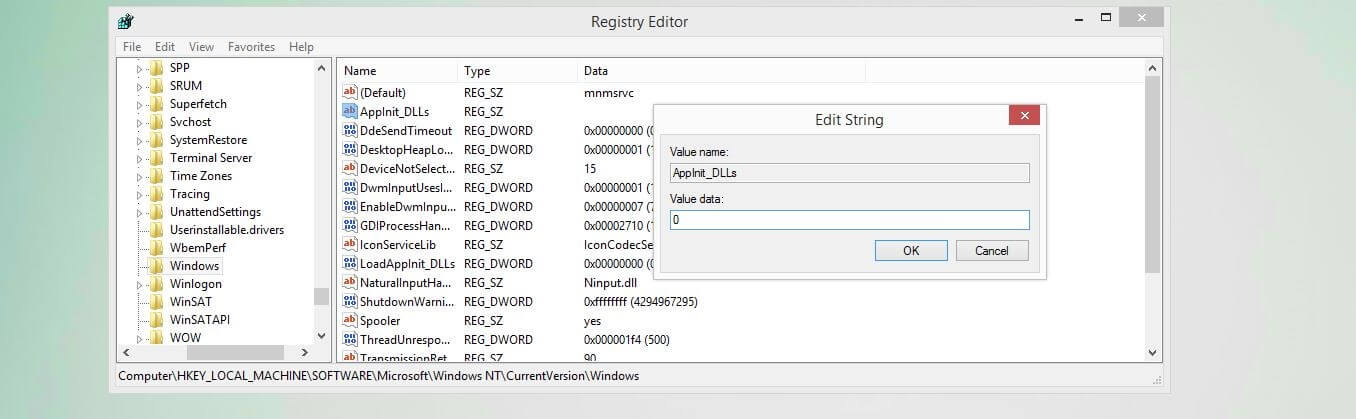
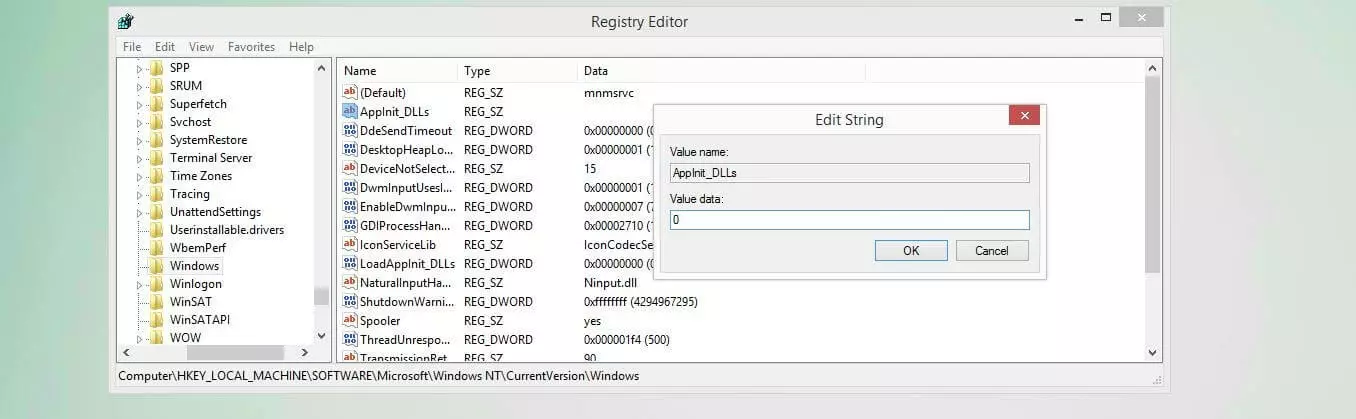
Click on “OK” to confirm the change. After restarting the system, you can then attempt to start the problematic software again.
Solution 3: Perform Malware Scan
Windows errors like “0xc0000005” can also be the result of harmful software – especially if the error occurs in relation to access to certain system resources. Although the Windows security suite provides good protection against viruses, bots, Trojan horses, and other malware, which can be complemented with third-party tools like Kaspersky, Bitdefender or Avira Antivirus, even the best programs are unable to offer absolute security. Start your malware scanners manually to actively check the current security situation of your system and clear any discovered malware.
 To display this video, third-party cookies are required. You can access and change your cookie settings here.
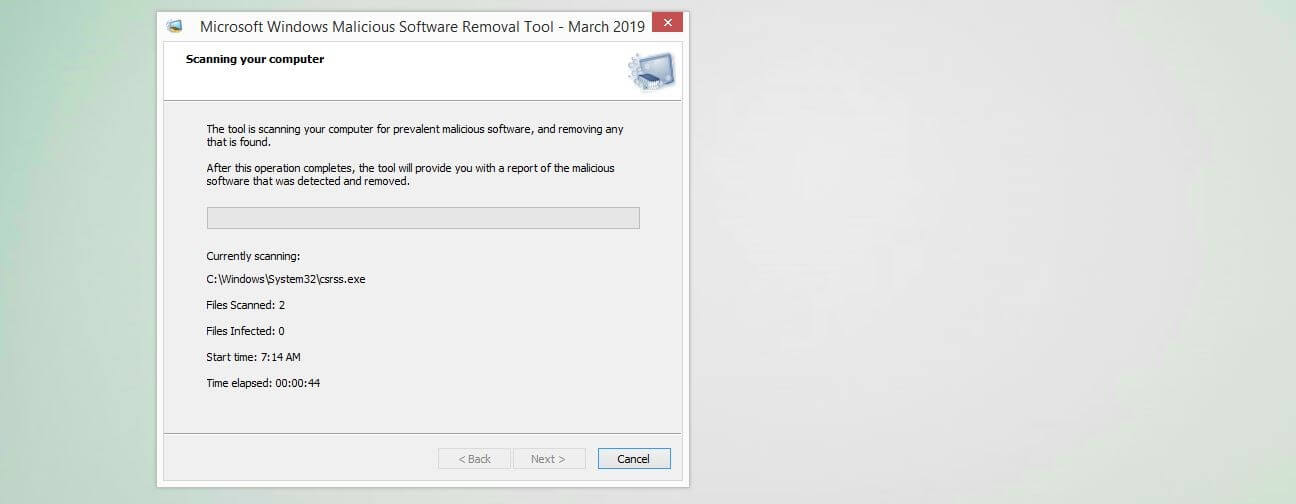
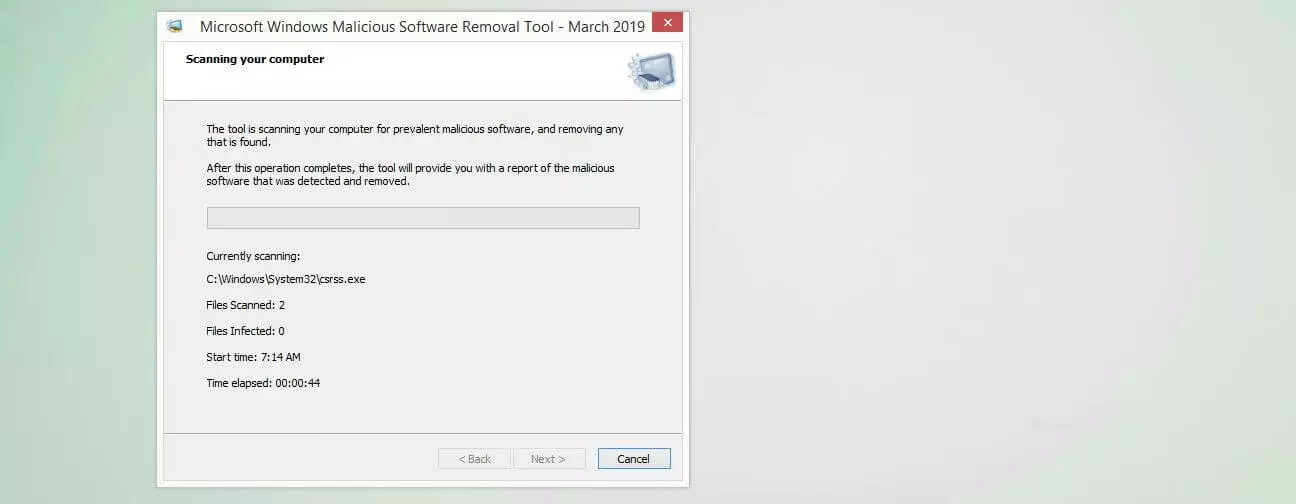
 Microsoft also offers a tool for removing harmful software, called the Malicious Software Removal Tool (MSRT). It’s updated on a monthly basis as standard as part of the Windows update and examines the system in the background for threats. However, this tool doesn’t always work correctly, which is why Microsoft also makes the latest version of MSRT available on its website for download.
Solution 4: Run the Windows Memory Diagnostic and Replace Any Defective RAM
If the access problem with the error code “0xc0000005” persists despite following these solution suggestions, you’ll have to check whether there is a hardware defect – specifically in the form of damaged RAM storage. In this case, the solution is to replace the defective working memory with a new one.
To replace your computer’s working memory, you’ll need to be able to open your computer’s housing, identify the RAM slot, and remove and replace the respective modules. If you don’t have the required expertise, we recommend that you seek assistance from a hardware expert and entrust them with replacing the storage medium.
First of all, you should be sure that the access error is actually the result of a defective storage module. A solution already integrated in the system is the Windows Memory Diagnostic, which you can find via the Start menu under “Windows Administration Programs” or using the search function. Start the tool by double-clicking and then select the option “Restart now and check for problems”. The PC will subsequently shutdown and then run the memory diagnostic when it restarts.


Once the check process is completed, Windows will start up as normal. In the info bar (in the bottom right), you’ll receive a message about the results of the check. This tells you whether memory problems were detected or whether the RAM is working properly.
How to Resolve the 0xc0000005 Error when Starting Applications
As with access violation errors, it’s just as annoying and frustrating if the 0xc0000005 message is displayed when running one or more applications. In this case, it’s not even possible to launch the relevant software. The attempt is usually aborted with the text “The application could not be started correctly”. Reinstalling the programs affected by the problem can be a quick fix. Any important program files lost during installation or an update can be restored in this way. A malware scan (see Solution 3 for access errors) can also resolve the issue.
If neither malware nor the software itself are responsible for the error “0xc0000005”, the following specific solutions offer the best chances of success.
Solution 1: Update Device Drivers
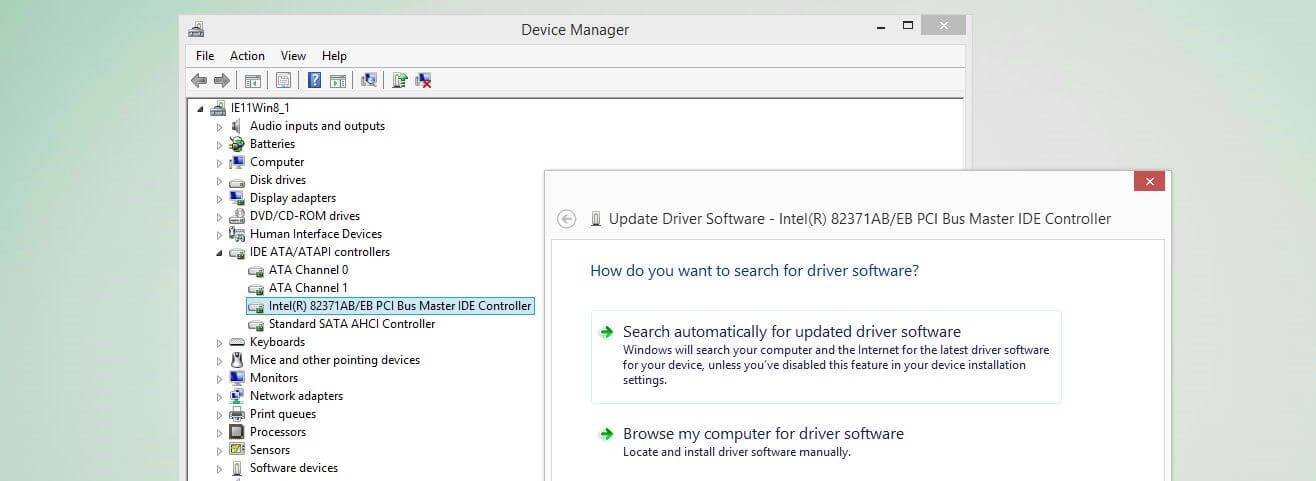
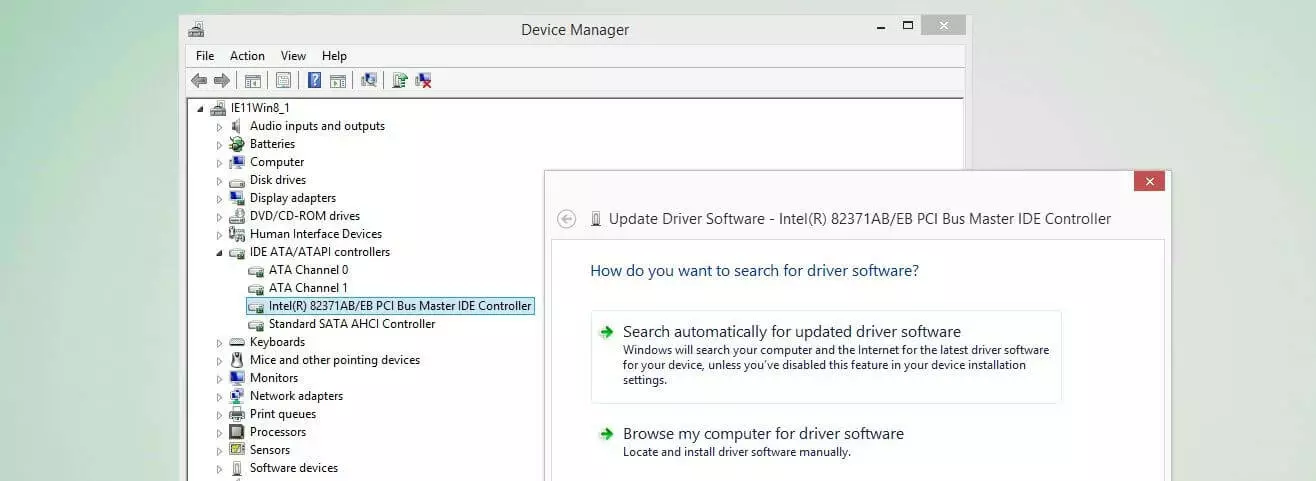
If you get a 0xc0000005 message when starting applications, this could be due to missing or outdated device drivers. Although Windows automatically looks for the latest drivers for the underlying hardware as standard, the operating system doesn’t always find the current version. Windows also frequently has problems installing the right device drivers when hardware is replaced. Because of this, you should always keep an eye on the hardware compatibility.
You can get an overview of the installed hardware at any time via the Device Manager, which can be opened via the button with the same name in the Control Panel (symbol view). To search for the latest drivers for a certain device and install them, you can either visit the manufacturer’s website and download them directly from the website or use the search feature integrated in the Device Manager. You can open the Device Manager by selected the relevant hardware component with a right click and choosing the option “Update drivers”. You can then look for available drivers online or on the computer.
Solution 2: Repair the BCD File
Another possible cause of the application launch issue with the error code “0xc0000005” is erroneous boot configuration data – usually as a result of a malware infection. Here, it’s not enough to simply remove the relevant malware, as the false entries would still remain in the boot database. Specifically, this concerns the boot loader paths xOsload.exe and xNtKrnl.exe, which also have to be deleted to fix the problem.
You can check the current boot loader paths at any time via the command prompt by running the command line as administrator and entering the command “bcdedit”.
To remove the erroneous boot paths and reset the boot configuration data to the original condition, you’ll need a Windows installation medium (CD, DVD or USB stick). This allows you to start the command prompt outside regular system operation. Boot your PC from the medium of your choice and then follow the steps below:
- Click on “Next” in the language settings and then on “Computer Repair Options”.
- In this order, press the buttons “Troubleshooter”, “Advanced Options”, and “Command Prompt” (in Windows 10 and 8) or “Use Recovery Tools...”, “Next”, and “Command Prompt” (in Windows 7).
Now enter the following commands in the command line – you can change the drive letter D: if necessary (Windows installation drive):
del D:\windows\system32\xntkrnl.exe
del D:\windows\system32\xosload.exe
del D:\windows\system32\drivers\oem-drv64.sys
attrib c:\boot\bcd -h -r -s
ren c:\boot\bcd bcd.old
bootrec /rebuildbcd
Next, restart your PC and enter your Windows key or digital license (Windows 10) if you’re prompted to reactivate Windows.
0xc0000005 Errors When Installing Windows: The Best Solutions
Thanks to the user-friendly assistant, installing Windows poses no major challenge even for non-techies. But if the 0xc0000005 error occurs during this process, sound advice will almost certainly be necessary. One possible cause of this issue is that the installation medium used is damaged. If you have an alternative to hand, you should first try to install Windows again from this data medium before applying the following two solution strategies.
Solution 1: Delete and Recreate Windows Hard Drive Partitions
Damaged or incompatible partitions on the hard drive, which are intended for installing the operating system, are a potential source of the 0xc0000005 error when installing Windows (particularly for new installations). You can fix this problem by deleting the partitions and creating them again. To do so, select the user-defined installation type (for advanced users) and proceed as follows:
- Select the partition intended for Windows (type: “Primary”), click on “Delete”, and confirm this step.
- Repeat this process for the partition with the description “System reserved” as well as for all other partitions belonging to older Windows installations.
- As soon as you’ve deleted all partitions, the installation assistant will show the entry “Non-allocated storage space on drive 0” in the list. Select this entry and press “New”.
- The setup will automatically calculate the maximum storage space. Confirm this change via the “Apply” button. At least two new partitions will be created as a result.
- Ignore the partition with the attribute “System reserved” and instead click on the alternative partition (with far more storage space) to define it as the installation drive for Windows.
- Begin the installation by clicking on the “Next” button.
 To display this video, third-party cookies are required. You can access and change your cookie settings here.
 Solution 2: Replace Defective Hardware
Also when installing Windows, the cause of the 0xc0000005 error can be defective hardware. In this case, you should first check the working memory using the Windows Memory Diagnostic mentioned earlier – at least for a new installation to replace a running Windows system (see Solution 4 for access errors). Besides RAM, the hard drive on which Windows is to be installed is also a likely candidate for the source of the error. If it doesn’t work properly, it’s highly probable that the installation will fail. Here, other error codes than “0xc000005” are also possible.
Click here for important legal disclaimers.