

How do you change screen brightness in Windows 10 and 11

There are different ways to adjust the screen brightness in Windows 10 and 11. You can either adjust the brightness yourself in the operating system, have the brightness adjusted automatically, or change the brightness directly on the external screen.
- Simple registration
- Premium TLDs at great prices
- 24/7 personal consultant included
- Free privacy protection for eligible domains
How to adjust the brightness via the settings?
Windows offers you the possibility to change the screen brightness progressively. This works for both Windows 10 and Windows 11.
Step 1: Open your Windows settings
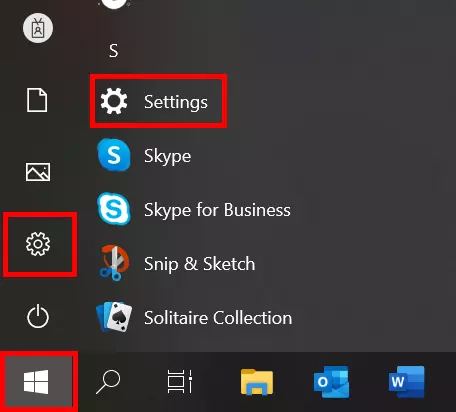
Click on the Windows symbol at the far left of the taskbar and then on the gear icon that appears just above it.
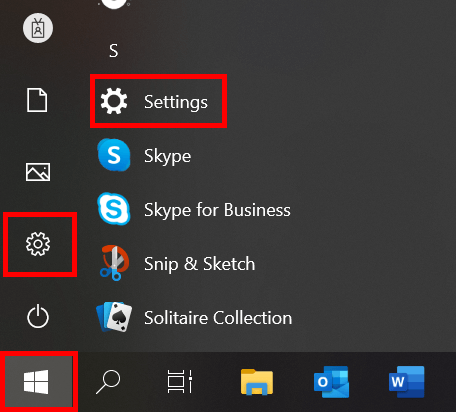
For quicker access to the settings, you can also use the shortcut [Windows key] + [I].
Step 2: Go into the System settings
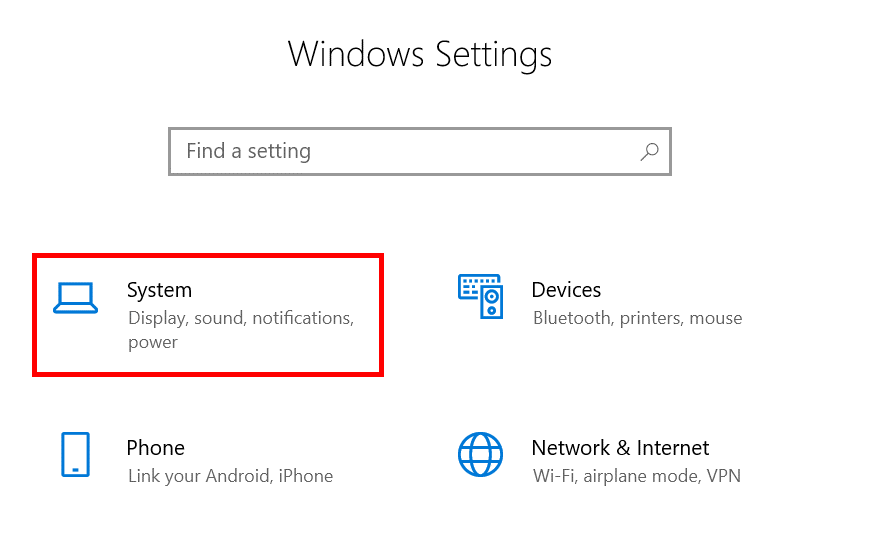
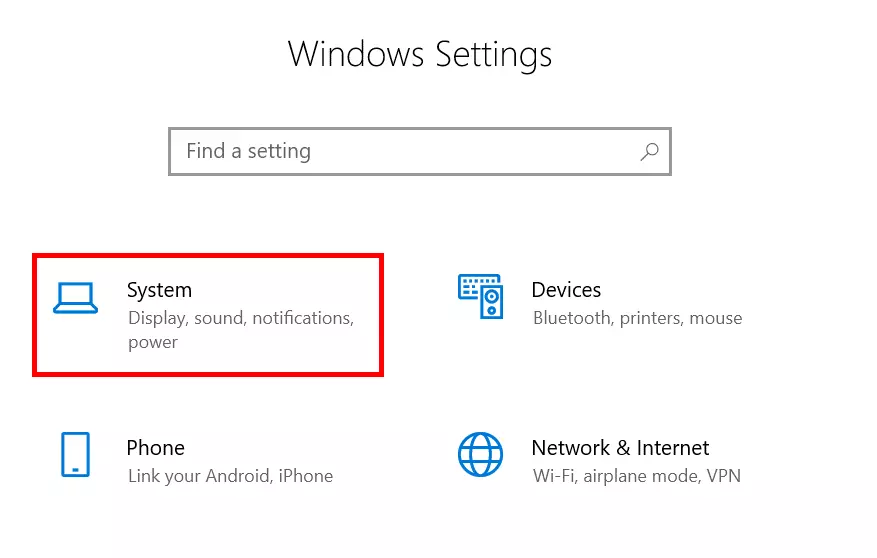
Windows settings are divided into several sections. The screen brightness settings are found in the “System” section.
Step 3: Adjust the brightness
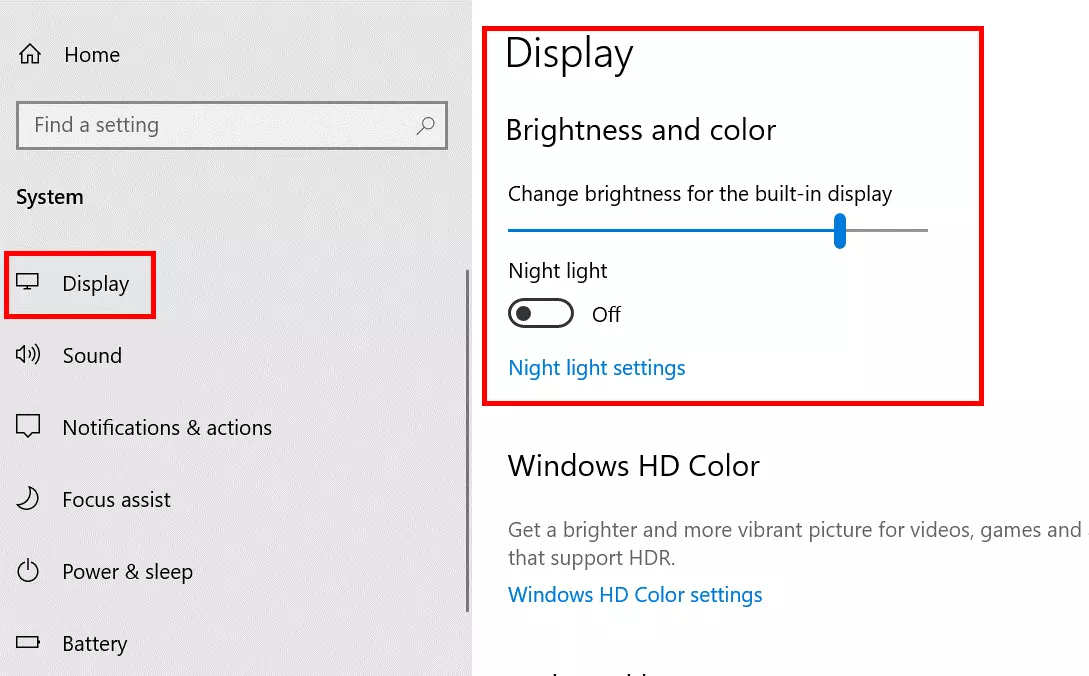
Find and click on the “Display” tab (or “Screen” in some cases). In the right-hand panel, you will see a slider that lets you freely adjust the screen brightness. There’s also an option to turn on Night light. You can turn on night mode immediately (without specifying a time of day) by left-clicking on “Night light settings”. Adjust the strength of the night light or alternatively, simply move the slider to “On”.
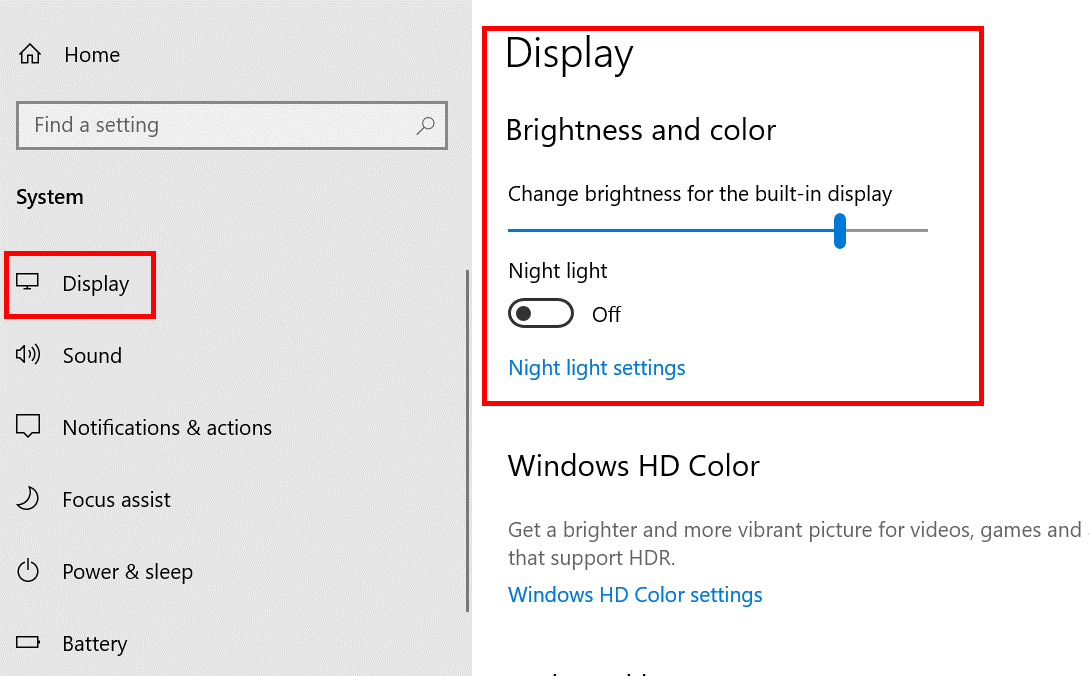
To open the System settings without going to the main Windows settings screen, right-click in any empty space on your desktop and select “Display settings” in the menu that opens.
How to set the screen brightness via shortcut?
The screen brightness can be adjusted with a shortcut so you avoid having to take a detour by navigating around lots of menus. Many keyboards have two F keys with a sun symbol in the top row. The “Adjust brightness” function is assigned to these keys as a secondary function. To execute this, press the [Fn] + [lighter/darker] keys simultaneously. Repeat this brightness control process until the desired brightness is set.
There are lots more Windows shortcuts so you can save a lot of time and navigating with the appropriate shortcuts.
How to adjust the screen brightness via the Action Center?
The Action Center is a quick way of accessing various settings, including the screen brightness settings. Windows 10 and Windows 11 both have these options, although the terms they use are slightly different.
Step 1: Open the Action Center
To open the Action Center, left-click on the speech bubble icon at the bottom right of the taskbar in Windows 10. As a Windows 11 user, you will find the option after clicking on the network icon — also at the bottom right of the taskbar.
Step 2: Adjust the brightness
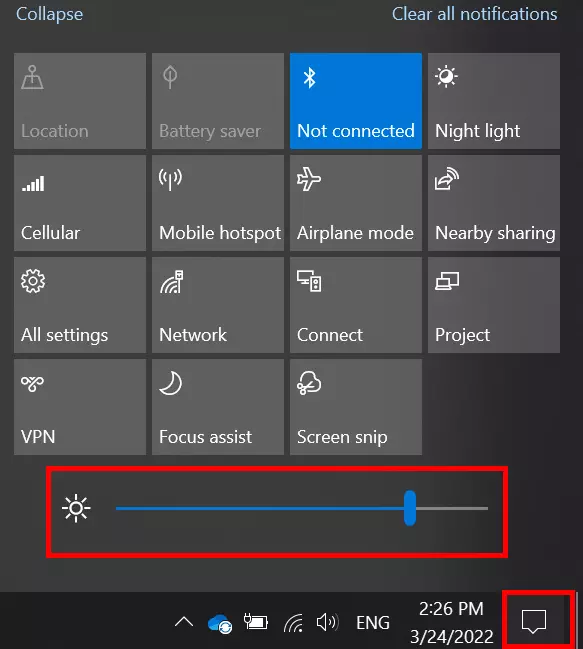
Adjust the brightness slider (shown by a sun symbol) to the desired level.
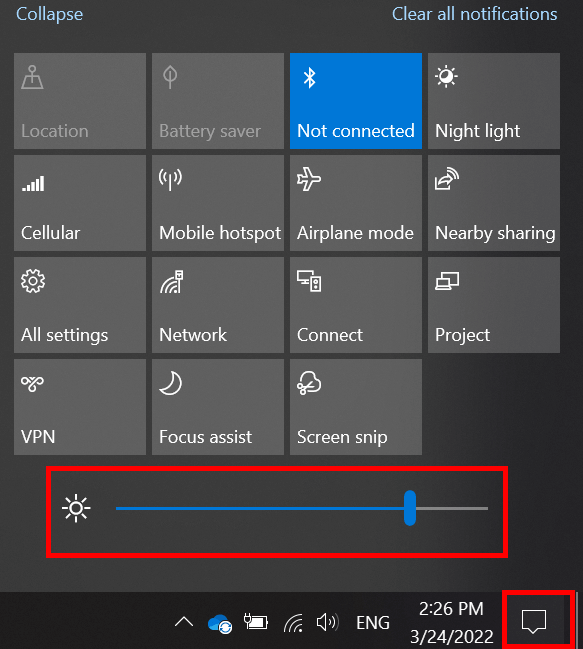
If there is no brightness control slider in the Action Center box, look for a tile labeled “Brighter” or the sun symbol. Keep clicking on the tile with the left mouse button until the screen is bright enough for your needs.
How to adjust the screen brightness on an external monitor?
On computers with external monitors, the brightness is usually adjusted directly on the monitor instead of the operating system. Using the physical buttons on your monitor, you can call up the on-screen display, which allows you to adjust the brightness. The exact position of the buttons and the structure of the on-screen menus depends on the device and manufacturer, but there are usually small symbols on or above the corresponding buttons to guide you. If you’re in any doubt, refer to the user manual for your monitor to find out how to change the screen brightness.
How to automatically adjust the screen brightness to lighting conditions?
Some computer models have an integrated light sensor, which enables the screen brightness to adjust automatically to changing light conditions. It can also be found in the system settings.
The night mode in Windows also offers automatic adjustment. However, instead of using the actual lighting conditions to adjust the screen brightness, it works depending on the time of day. Users can either set a period for warmer lighting themselves or use sunrise and sunset times. Windows is already aware of these times.
Many users find a dark display more pleasant therefore Windows offers dark mode. Learn how to set this in our guides:
- Write perfect emails with optional AI features
- Add credibility to your brand
- Includes domain, spam filter and email forwarding