

How to customize the Windows 7 Startup folder simply and quickly

Every operating system launches several programs immediately when the system boots. Many of them play an important role in ensuring that your computer runs properly. Applications that you always use can also be started automatically with the operating system. That is precisely why it can make sense to add Startup programs in Windows 7. Conversely, other software may be less useful, so you may want to remove it from the Startup folder to enable the operating system to load faster, and use fewer resources while running.
What does the Startup folder in Windows 7 do?
The Startup folder is a function in operating systems (including Windows 7) that launches selected programs when the system is loaded. Besides the applications the system needs to function, the Startup folder also contains some programs the user needs every time anyway. These can include an e-mail client, your antivirus software or your productivity programs. Instead of launching these programs manually every time, Windows loads the programs immediately on startup. However, as this slows down the boot process, you should only include programs you really use.
Programs that don’t belong in your Startup folder can also add themselves to it. If there is malware on your PC or laptop, it will more than likely be in the list of Startup programs in Windows 7. The harmful software is launched with the operating system and then runs unnoticed in the background. That is why it is important to choose the programs in the Startup folder carefully. The folder contains links to the programs that Windows launches automatically as it boots up. If you know how to access the folder, you can optimize the Startup programs.
Do you have a different Microsoft operating system version? You can also change the startup programs in Windows 8 and Windows 10.
Windows 7 Startup folder
In Windows 7, the Startup folder is easy to access from the Start menu. When you click the Windows symbol and then “All Programs” you will see a folder called “Startup”. It contains programs that are launched when the system starts, but not the application files themselves. If you want to use them in the Startup folder, you first have to create links for the programs in question and then move them to the folder.
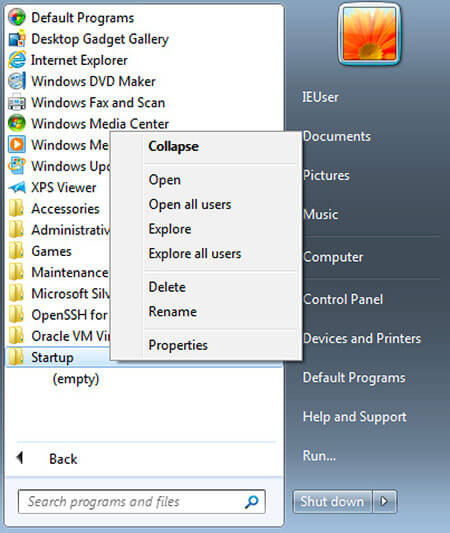
To manage the Startup folder properly, you should open it in Windows Explorer. You don’t need to click your way through a long folder structure to find it – you can access it directly via the Start menu. If you right-click the Startup folder, you can even choose between two different folders to open: You can either work with the Startup folder for the user currently logged in or you can customize the programs for all users.
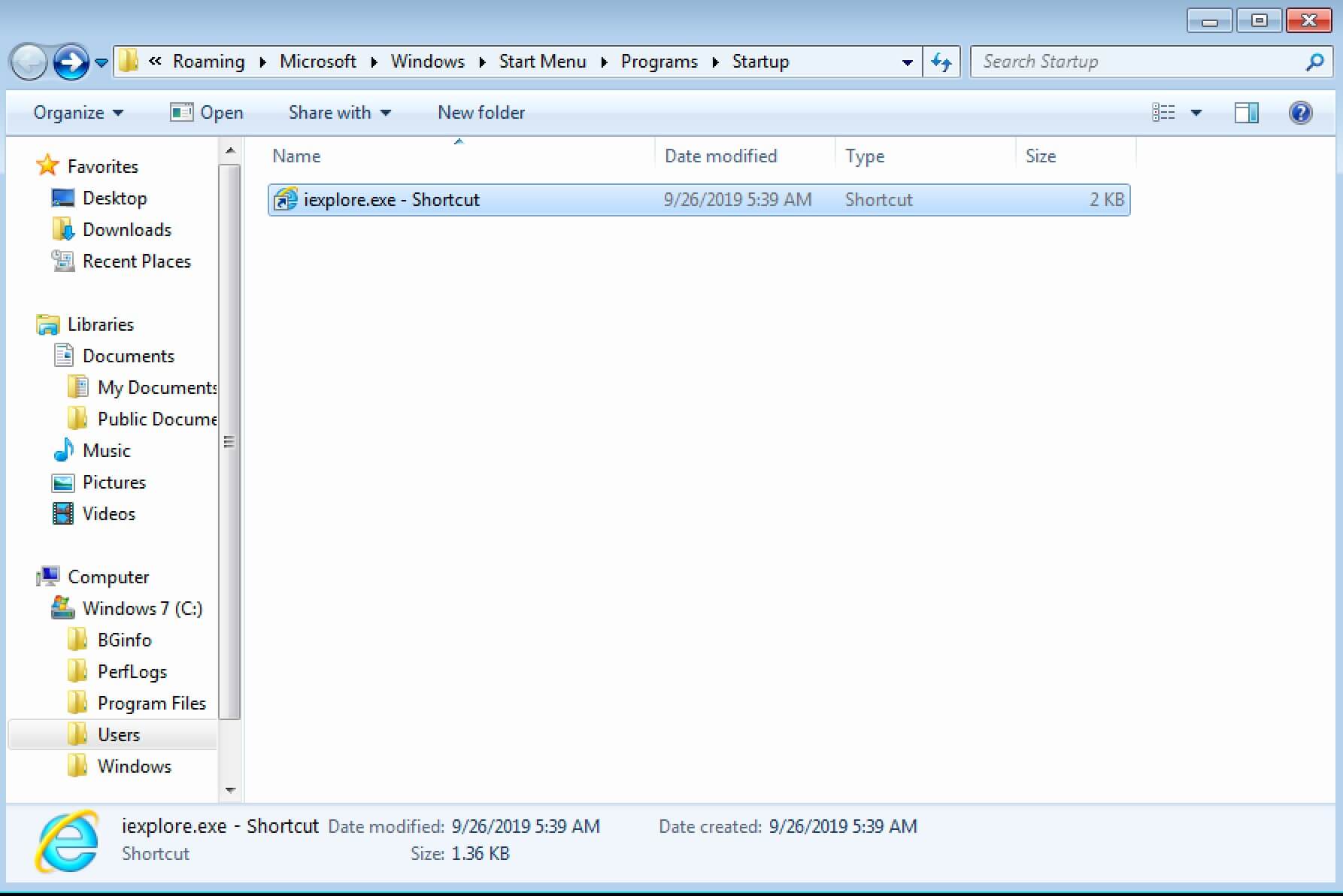
In Windows 7, the Startup folder has lost a lot of its former significance, which is why you often won’t find any programs at all in it.
Changing Windows 7 Startup programs using System Configuration
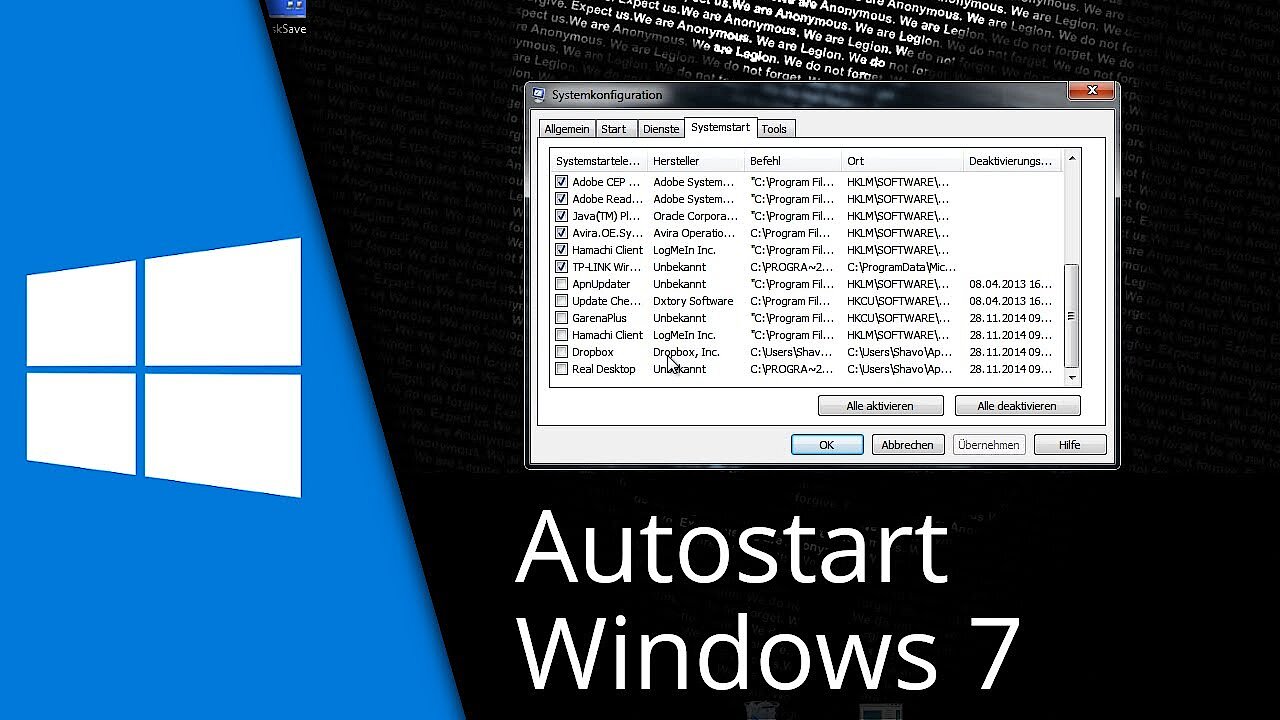
Not all programs loaded automatically when the system starts can be found in the Startup folder. You have to access the System Configuration to deactivate these programs. Using the “Run” dialog is the fastest way to access the required list. To open it, press [Win] + [R] and enter “msconfig”. The window that opens contains a tab called “Startup”. It contains a list of all programs that are launched automatically when the system starts – including information on the software producer.
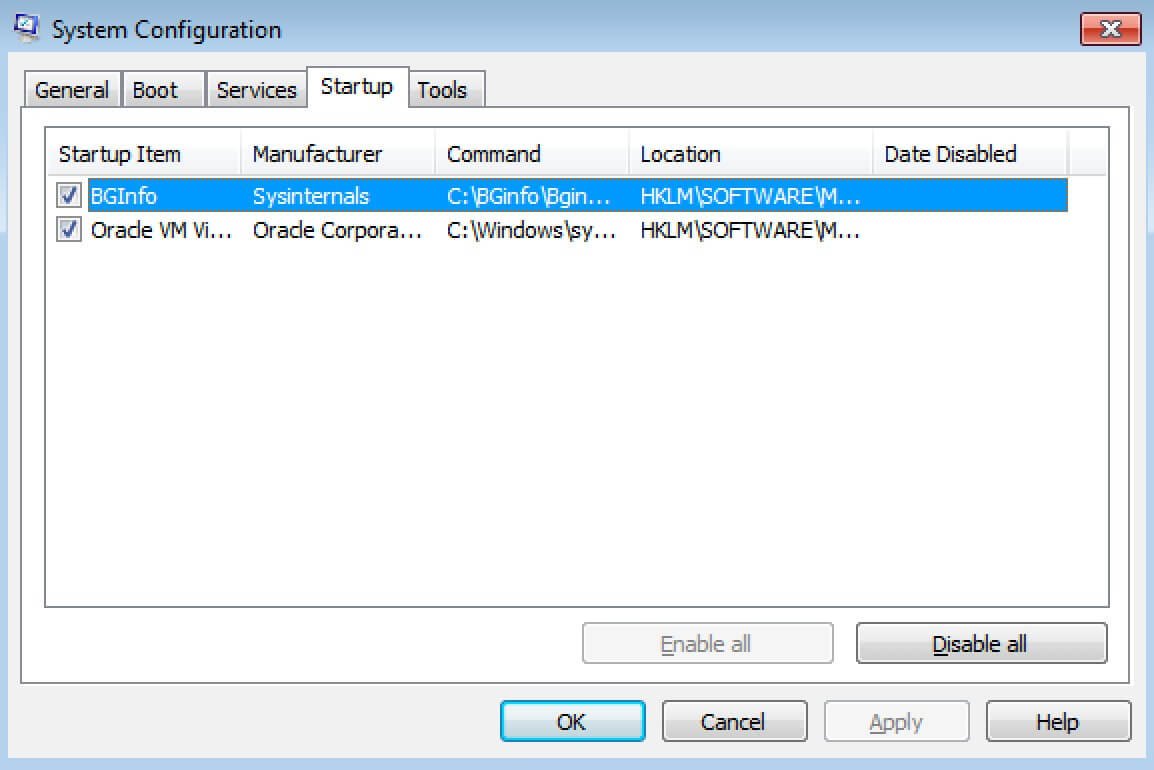
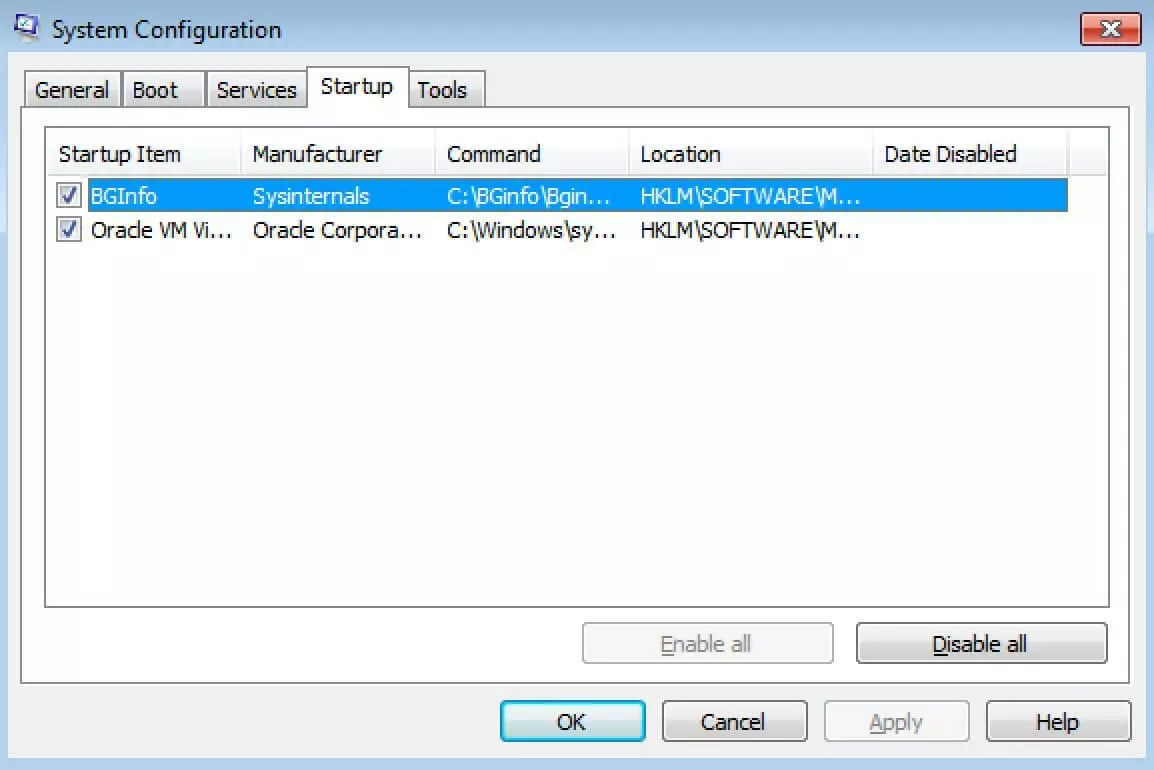
Once you find the program you don’t want to run on startup, you can disable the automatic start setting by unchecking the checkbox. Windows even lets you deactivate all applications at once. However, take care when using this option: Some of the programs may play an important role in keeping your PC functioning properly. The program remains visible in the list after deactivation, which makes it easy to undo your decision.
 To display this video, third-party cookies are required. You can access and change your cookie settings here.
 Another option in Windows 7: Editing Startup programs in the Registry
If you can’t find the unwanted program in the Startup folder or the System Configuration, your last option is the System Registry. It contains every program installed on your system.
Only use the Registry to remove Startup programs in Windows 7 if you know what you are doing. If you delete the wrong entries, you can damage your system irreparably.
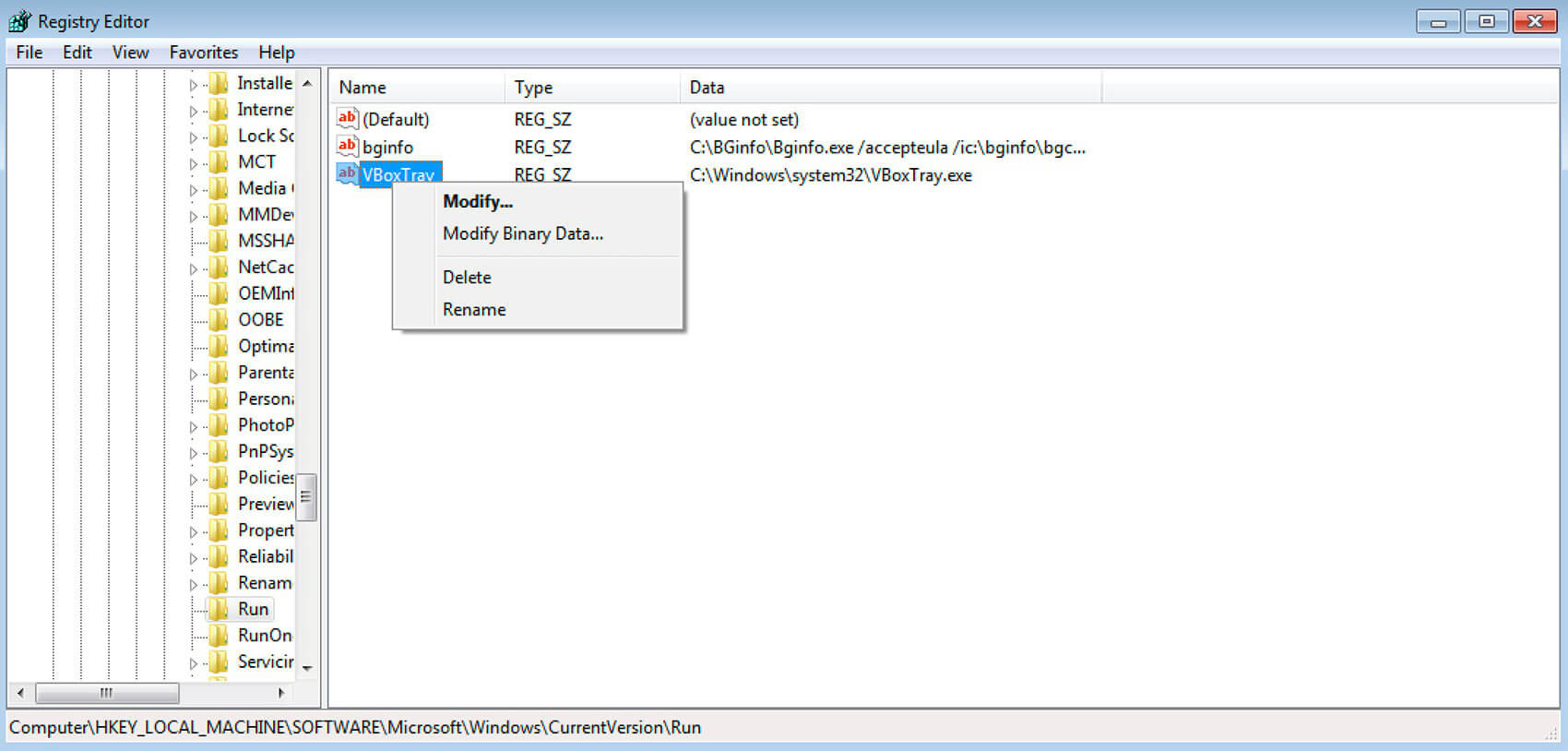
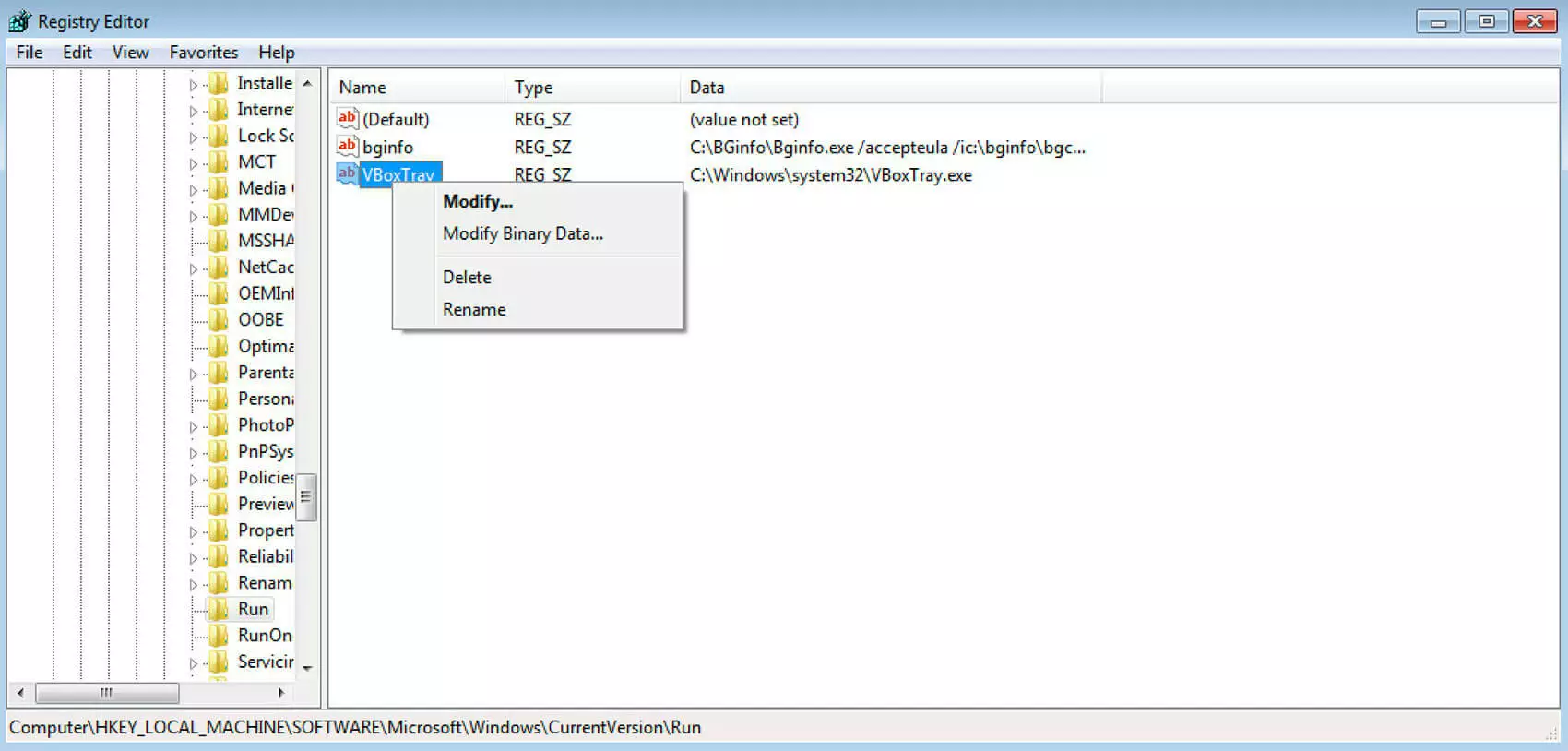
Open the Registry using the “Run” dialog by entering “regedit” and clicking “OK” to confirm. Then you have to navigate to the “Run” folder in the Registry: HKEY_LOCAL_MACHINE -> SOFTWARE -> Microsoft -> Windows -> CurrentVersion -> Run
You should see a list of entries for all Startup programs. You can delete them, but only if you are sure you know what you are doing!
Which programs should be in the Startup folder?
The programs in the Startup folder should be based on your individual requirements. You can load all the programs you use every time when the system starts. Also, some applications need to run in the background without you using them actively.
- Antivirus software: Programs that protect your computer against viruses, Trojans and other malware can only work properly if they are used all the time. If you add your antivirus software to the Startup folder, you avoid the risk of forgetting to start the program and endangering your system.
- Backup software: Regular backups ensure that you lose little to no data if your system crashes. However, to make sure of this, you need to back up your system at regular intervals. If your backup software runs in the background, this is never a problem.
- E-mail client: To enable you to check your e-mails right away when you start your computer, it makes sense to add your e-mail program to the Startup folder.
- VPN program: VPN software lets you use the Internet relatively anonymously. You should add the program to the Startup folder to protect your data transfers from the moment you boot your PC.