

How to set up a Minecraft cross-platform server

With a Minecraft cross-platform server, players on PC, console, and mobile can team up and play together, no matter the platform. In this guide, we’ll show you how to set up a server that makes cross-platform gaming a reality.
What are the requirements for a Minecraft cross-platform server?
You can theoretically host a Minecraft cross-platform server on your own computer. However, due to the high-performance demands, this isn’t recommended. Instead, it’s better to rent high-performance enterprise hardware from a professional provider like IONOS. This takes the load off your device and gives you access to a stable broadband connection that’s far more powerful than a typical home setup. Plus, you won’t need to keep your computer running 24/7 to keep the server online.
The hardware requirements for a Minecraft server depend on how many players will be connected at the same time. RAM usage increases with larger multiplayer servers. To get started, you should consider at least the following specifications:
- CPU/Computing power: Min. 3.4 GHz (4 cores)
- RAM/Memory: Min. 4 GB
- Hard disk storage: Min. 20 GB free space
A Minecraft cross-platform server can run on Linux or Windows. When using Windows Server 2022, for example, you’ll need extra resources for the operating system: at least a 1.4 GHz CPU, 2 GB of RAM, and 32 GB of storage just for the OS. For smaller setups, Ubuntu is often recommended since it’s more resource-efficient and runs reliably.
To enable players on different platforms (e.g., PC, console, mobile) to play together, software like GeyserMC is required. GeyserMC acts as a proxy, allowing Bedrock Edition players to join Java Edition servers.
Connect your Minecraft server to your own domain, so players can join using an easy-to-remember address instead of dealing with complex IP entries.
How to host your Minecraft cross-platform server with IONOS
Finding the right hosting solution for a Minecraft cross-platform server can be tricky with so many providers and server options available. IONOS offers three types of servers suitable for hosting a game server:
- Cloud Server: This solution offers you maximum flexibility, as performance can be scaled as required. Instead of a fixed host, several host systems are used. You only pay for the performance you actually use, which makes this option ideal for dynamic player numbers.
- VPS (vServer): IONOS relies on virtualization for its vServers (VPS). This solution offers you fixed, predictable costs, as the performance of a fixed host system is used. VPS is ideal for smaller servers with a constant number of players.
- Dedicated Server: If you’re running a Minecraft server with high requirements, a dedicated server is the way to go. You get hardware reserved exclusively for you. You only pay for the actual resources used at the end of the month.
- Save 50% or more vs leading hosts
- Unlimited traffic & no setup fees
- 99.99% uptime guaranteed
- Free 24/7 premium support
IONOS tip for Minecraft server newbies
If you’re new to server hosting and this Minecraft cross-platform server is your first big project, getting started can feel a bit overwhelming. You might not know exactly how many players will regularly connect or how often the server will be online. This is where IONOS cloud servers offer an ideal solution. The flexible plans mean that you only pay for the resources you actually use.
Start cost-effectively with a smaller plan and scale up resources such as RAM and CPU as your requirements increase. This ensures a stable gaming experience in the long term, without unnecessary costs.
3 scenarios for your Minecraft cross-platform server with the right IONOS plan
| Scenario | Suitable IONOS server running Windows |
|---|---|
| 1-2 people, permanently online | VPS RAM M |
| 3–5 people, permanently online | VPS RAM XL |
| 6+ people, large Minecraft world, permanently online | Dedicated Server AE8-64 NVMe L |
How to set up a Minecraft cross-platform server step by step (Windows server)
For players on different platforms (e.g., PC, console, mobile) to play together, you can use the GeyserMC plugin. GeyserMC acts as a proxy, allowing Bedrock players to join a Java server. Below is a step-by-step guide for installing and configuring GeyserMC on a Windows server. Before starting this guide, make sure you have already set up a functional Minecraft server set up.
Step 1: Download and install the GeyserMC plugin
- Download GeyserMC: Visit the GeyserMC page and download the latest version of the plugin for your server type (e.g. Spigot, Bukkit or Paper).
- Download e.g. the latest version of Geyser
Spigot.jarif you are using Spigot or Paper. - Copy the downloaded Geyser
Spigot.jarinto thepluginsfolder of your Minecraft server. - Restart the server to load the plugin.
Step 2: Configure GeyserMC
- After the restart, you will find a new folder called
Geyser-Spigotin thepluginsfolder. - Open the file
config.ymlin this folder with a text editor. - Adjust the following settings:
bedrock:address: Leave this value at0.0.0.0to allow connections from all IP addresses.port: By default, this is19132. Make sure that this port is not used by other services and is open in your firewall.
remote:address: Set this to127.0.0.1if Geyser is running on the same server as your Minecraft server. Otherwise, enter the IP address of the Minecraft server.port: This should be the port of your Java server, usually25565.
auth-type:- Set this to
onlineif you want Bedrock players to require a valid Java account. - Set it to
floodgateif you’re using the Floodgate plugin to allow Bedrock players without a Java account to access the game.
- Set this to
Open and forward the necessary ports in your firewall and, if needed, in your router to make the server accessible from outside.
Step 3 (optional): Install Floodgate
Floodgate allows Bedrock players to access your server without a paid Java account.
- Download the plugin from the Floodgate download page.
- Copy the
floodgate-spigot.jarinto thepluginsfolder of your server. - Make sure that the
auth-typeis set tofloodgatein theconfig.ymlof GeyserMC. - Restart the server.
Step 4: Port forwarding and firewall settings
Make sure that the following ports are open and forwarded in your firewall:
- Java server port (by default
25565, TCP) - GeyserMC Bedrock port (by default
19132, UDP)
Step 5: Connect Bedrock players
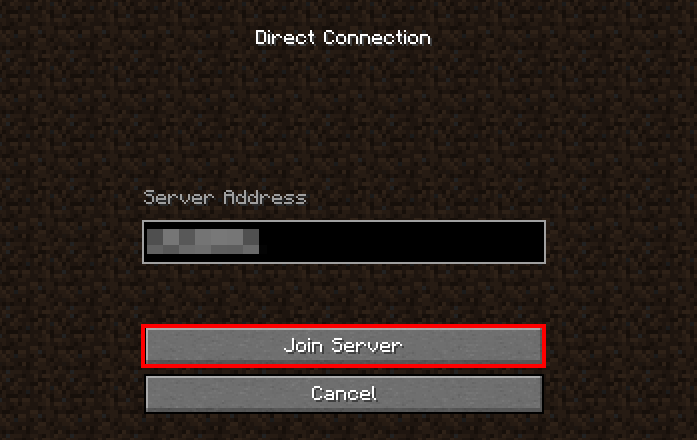
Bedrock players can now join your server by entering the IP address of your server and the GeyserMC Bedrock port (19132) in their Minecraft client.
Ensure both your Minecraft server and GeyserMC are up to date to ensure compatibility. For more information and detailed instructions, check out the official GeyserMC documentation.
Troubleshooting connection issues of Minecraft cross-platform servers
Despite careful setup of a Minecraft cross-platform server, connection problems can happen. Below are some common causes and their solutions:
General connection issues
- Check internet connection: Ensure that all devices have a stable internet connection. An unstable connection can cause disconnections.
- Update Minecraft version: Verify that the latest version of Minecraft is installed on all devices. Different versions can lead to compatibility issues.
- Restarting devices: Restarting your router or modem can resolve network problems. Also, restart the affected devices to fix temporary disruptions.
Problems connecting via different platforms
- Microsoft account linking: Make sure all participants are logged into their respective Microsoft or Mojang accounts, as these accounts are required for crossplay connections.
- Confirm friend requests: Ensure all players have added each other as friends to help facilitate the connection process.
Lag and latency problems during the game
- Close background applications: Limit the number of apps running in the background to free up system resources for Minecraft and enhance game performance.
- Network optimization: Prioritize game traffic in your router settings, especially if you’re streaming or downloading large files simultaneously.
- Use a wired connection: An Ethernet connection typically offers a more stable and faster connection than Wi-Fi, helping to reduce latency issues.
Server settings
- Firewall configuration: Ensure that the ports required for Minecraft (by default, 25565 for Java and 19132 for Bedrock) are open in the firewall. Also, check if any security software is blocking traffic.
- Analyze server logs: Review the server logs for error messages or warnings that may point to connection issues.
- Check GeyserMC settings: If you’re using GeyserMC, make sure the configuration is correct and that you have the latest version installed. Incorrect configurations can lead to connection problems.