

MySQL Tutorial

The backbone of our digital universe is one ever increasing mountain of data. This means that a key element of the internet and our online world is making use of database management systems like MySQL. They enable us to process and store huge amounts of data electronically. Complex data sets can be easily subdivided into handy subsets and used accordingly. In our MySQL tutorial for beginners, we’ll take you through the basics of this data management system and show you examples of how you can use MySQL to get the most out of data management for your web project.
What is MySQL?
MySQL is one of the most popular relational database management systems worldwide, alongside Oracle and Microsoft SQL (check out db-engines.com for a current ranking of database model popularity). The software, developed in 1994 by Swedish company MySQL AB, is today controlled by the Oracle Corporation and is operated through a dual license system: In addition to the proprietary enterprise version, Oracle offers a GPL licensed, open source version as well. This double licensing gives companies the opportunity to develop their own applications formed on a MySQL basis, without having to adhere to a strict license. However, the Oracle takeover of MySQL has been met with some fierce criticism in the open source community. MySQL is written in C and C++ and has a Yacc-based SQL parser with a privately developed tokenizer (lexical scanner). The database management system is known for its broad level of support for different operating systems.
The abbreviation SQL stands for ‘Structured Query Language’, a computer language that is used to manage database structures. Possible operations include querying, inserting, updating, and deleting existing data.
MariaDB – MySQL fork with potential
The incorporation of the MySQL project into the Oracle product portfolio has mainly been met with mistrust and criticism in the developer scene. This is primarily due to the fact that the differences between the GPL licensed MySQL version and the paid enterprise product are gradually increasing. New functions for the database management system are more and more often only available in the proprietary version of the software. Unpublished error databases and a lack of testing also suggest that the open source project is being neglected now that it’s under the control of the software giant Oracle. As a result, backing within the open source community is on the wane.
As early as 2009, the core development team supporting the MySQL founder Michael ‘Monty’ Widenius had begun to turn their backs on the popular database system and started focusing on initiating an open source fork of the software with MariaDB. By the end of 2012, Fedora, OpenSUSE, Slackware, and Arch Linux became the first Linux distributions to switch from MySQL to MariaDB as their standard installation. Numerous open source projects, as well as big name software firms and web platforms, followed this example — among them, Mozilla, Ubuntu, Google, Red Hat Enterprise Linux, Web of Trust, Team Speak, the Wikipedia Foundation, and the aforementioned software project XAMPP.
It’s already clear that MariaDB is being developed more regularly than the open source MySQL version. So it’s safe to assume that the fork will soon overtake its mother project.
The term ‘fork’ is used in the software industry for a development project that splinters off from another (usually open source) project. A fork is usually based on the source code of the mother project, before developing independently as it moves forward.
Database systems
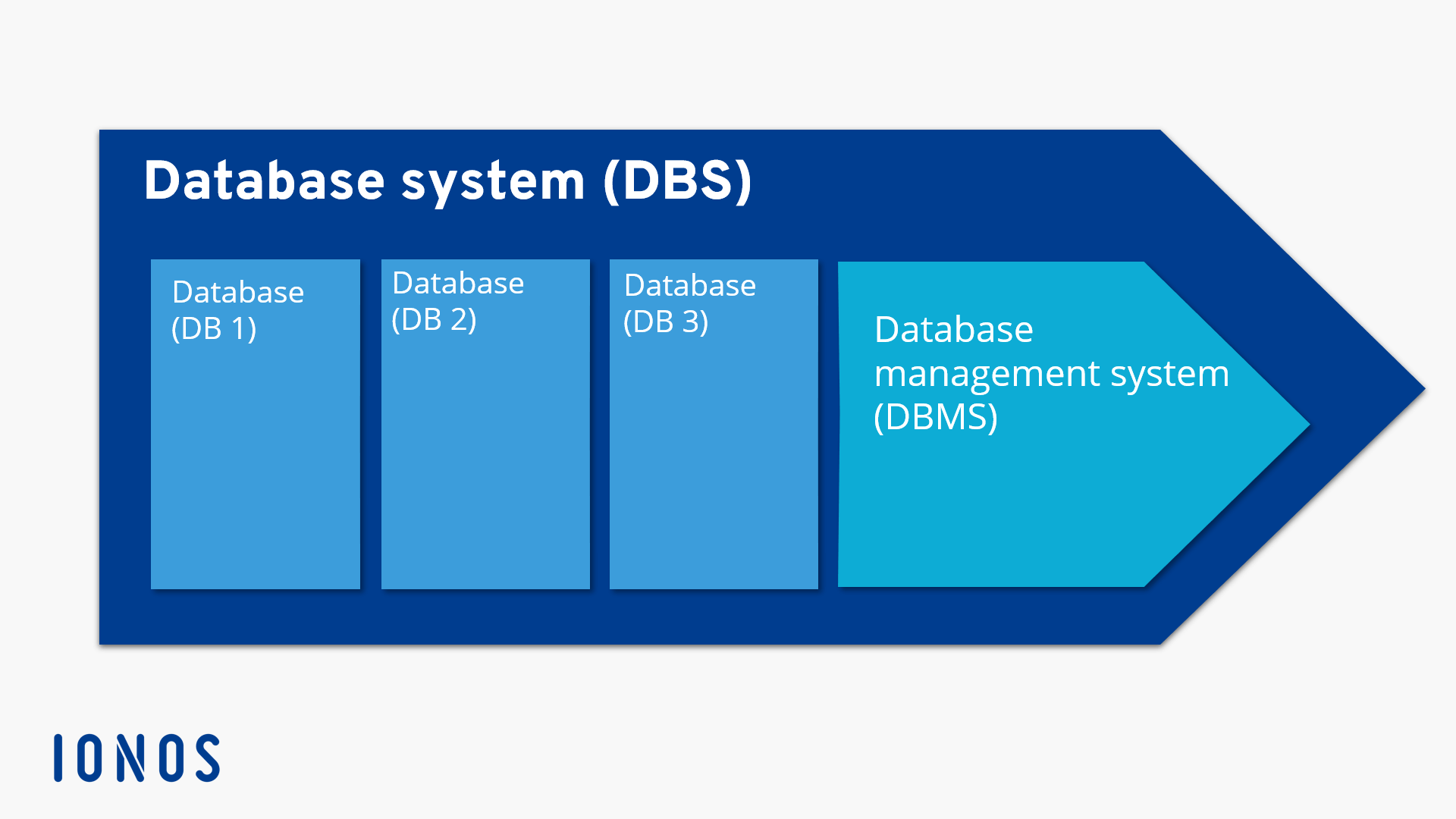
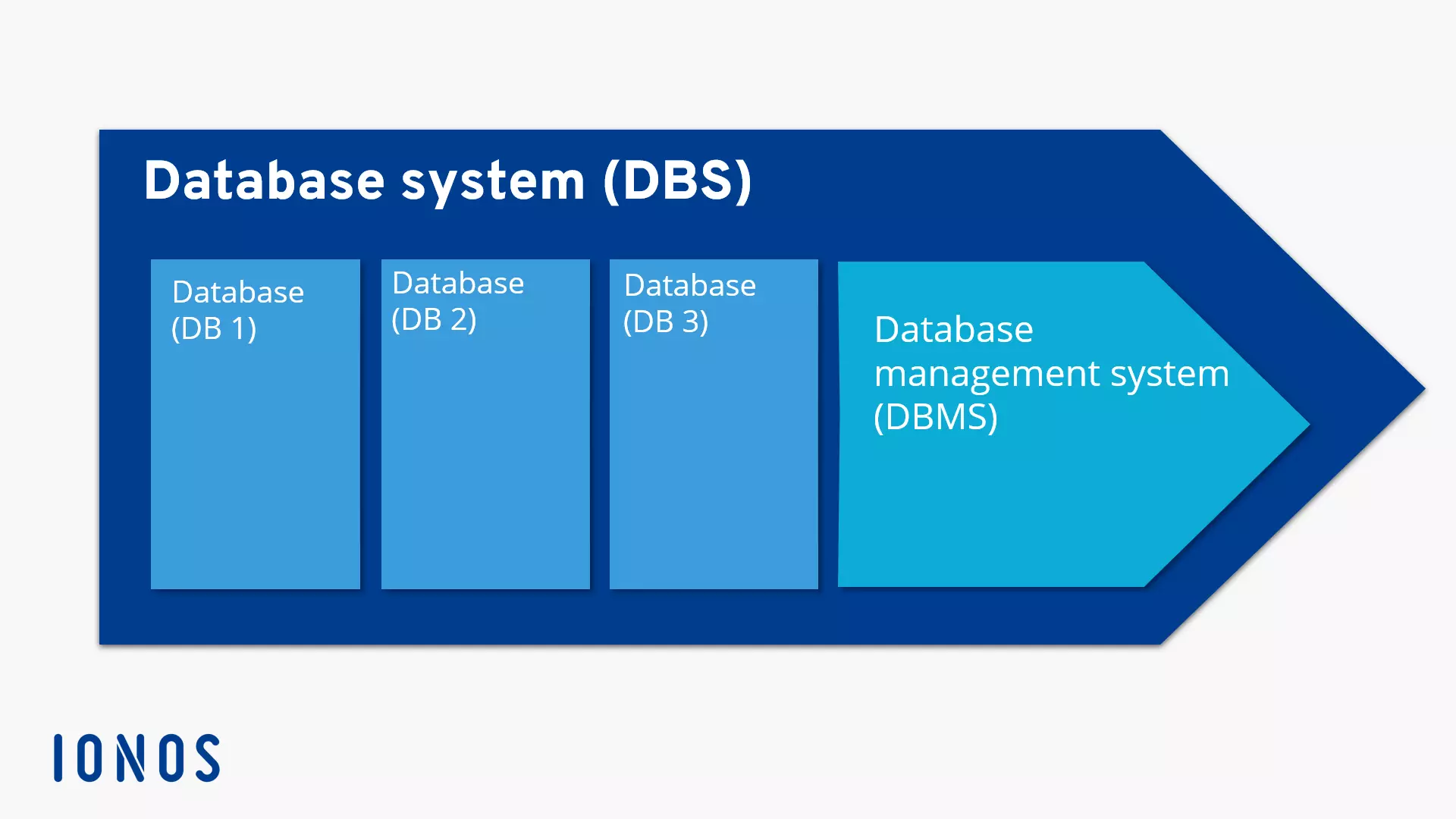
In the modern world, electronic data management usually takes place in a database system (DBS). A DBS comprises two basic components: The database (DB) itself and the database management system (DBMS) that are required to manage the data.
- The database management system: the DMBS is a software like MySQL that’s responsible for managing the database. One of the tasks of this management software is the structuring of data according to a predefined database model. In addition, the DBMS controls the write and read access to the database, manages large amounts of data and access to parallel databases, and ensures that data integrity, data protection, and data security policies are adhered to.
- The database: a database is a collection of data that is similar in content, like customer data or CMS data. A DBMS can manage several DBs simultaneously.
The following graphic shows a schematic depiction of a database system:
The relational database model
MySQL is the definition of a relational DBMS. This means that data management is organized using a table-based database model. All the data that MySQL processes is stored in a table that can be related according to keys.
We’ll demonstrate how this works with a simple example. Below are two tables, ‘authors’ and ‘works’.



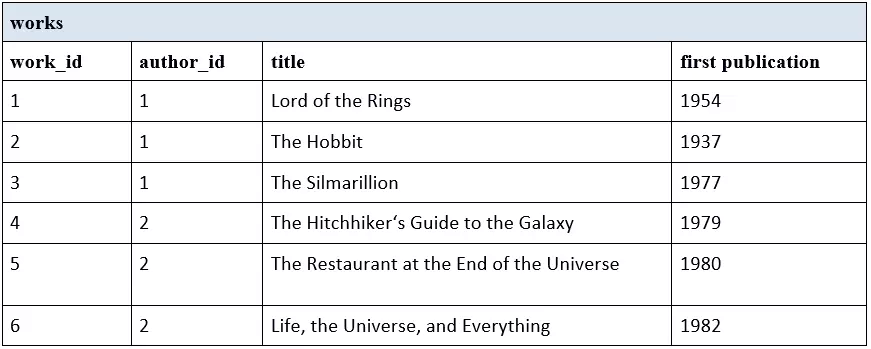
All the tables within a relational database contain columns and rows. Each column of the table contains a particular attribute. In the table ‘authors’, there are columns containing the attributes ‘author_id’, ‘first name(s)’, and ‘surname’. The rows of a table contain data records. These are usually individually identified via a primary key. Whichever attribute is the primary key is decided by the creation of the table. The requirement for this is that the primary key enables a unique assessment of the data. As a result, every primary key within a column can only be used once. It’s recommended to number them with an ID.
In addition to the primary key work_id, our table also includes author_id as a foreign key. This creates a relationship between the two tables and enables us to link the records from one table to the other. If two tables of a relational database are connected, this is known as a join. This could be achieved by calling out a command like: ‘All works of the author John Ronald Reuel Tolkien including their date of first publication’.

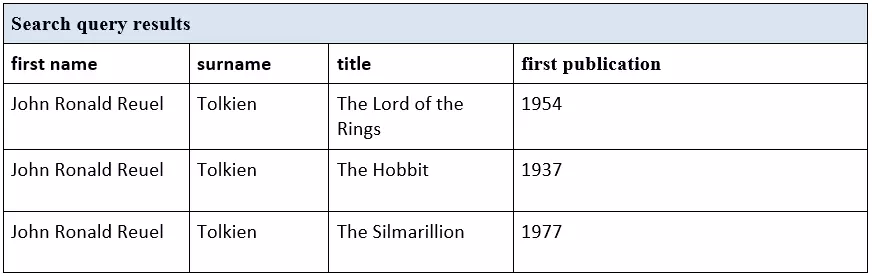
Tolkien is listed in the authors table with the primary key author_id1. To call up all works by the author, we can simply use the foreign key in the Works table. This allows us to retrieve all rows that are linked to author_id1.
In practical use, MySQL database operations work with standardized SQL-commands like SELECT, INSERT, UPDATE, and DELETE. We’ll explore these in more detail in the following sections of our MySQL tutorial.
We could have stored all the data on both of our authors and their works in just one table of course. But this would result in a database with a huge number of redundant entries, as we would have to fill out the first name and surname table for every single row, even though many would repeat. This also puts extra strain on your database memory and means that if you wish to update a table, you need to do so for every row individually rather than being able to change a whole data set in one go. Because of this, most developers stick to one topic focus per table when working with relational database systems. This is known as normalization of data.
The central application field for MySQL is storing data for dynamic web pages. The combination of MySQL with the web server software Apache and the scripting languages PHP or Perl has been established as the classic software framework for web development. This web stack is known as LAMP (Linux), MAMP (MacOS), or WAMP (Windows), depending on which server operating system it’s used with.
But for MySQL beginners, we recommend using the local text environment XAMPP in order to get first-hand experience with this complicated database management system. This uses the current version of MariaDB.
Installation of the database management system
In order to take you through the basics of MySQL, we’ll work with practical examples. Our MySQL introduction will work on the basis of the testing environment XAMPP. Code snippets and screenshots will be concentrated on database operations made possible via PHP with the help of an Apache HTTP server on a local Windows computer. Instead of the classic MySQL database, we’ll be using the fork MariaDB. But don’t worry — both database management systems are so compatible that you’ll be able to copy over everything you learn directly with a 1:1 translation. Because of this, it makes no difference for the purpose of this beginner’s tutorial as to whether you use MySQL or MariaDB. Our XAMPP tutorial demonstrates how to install a test environment locally on your Windows computer. If you want to learn how to deal with relational databases right from the start, we strongly recommend that you get to grips with MariaDB directly. An alternative test environment based on MySQL exists in the form of AMPPS and is also available free of charge. It’s also possible to work with a user-defined web stack. MySQL and MariaDB can be combined with a range of different operating systems, web servers, and scripting languages. You can access GPL-licensed download packages free of charge at mysql.com and mariadb.com. Detailed installation tutorials for the different platforms can be found in the documentation for MySQL and MariaDB.
Database management with phpMyAdmin
When it comes to managing MySQL, we’ll be using the free web application phpMyAdmin here. This is part of the installation for the XAMPP software bundle but can also be downloaded from the official project website free of charge in a separate download package. phpMyAdmin is considered the standard software for administration of MySQL databases online. This web application, written in PHP and JavaScript, offers a graphic user interface for executing database operations. This allows users to create and manage tables for a relational database easily in a web browser. Prior knowledge of the corresponding SQL commands is also not required.
Calling up phpMyAdmin
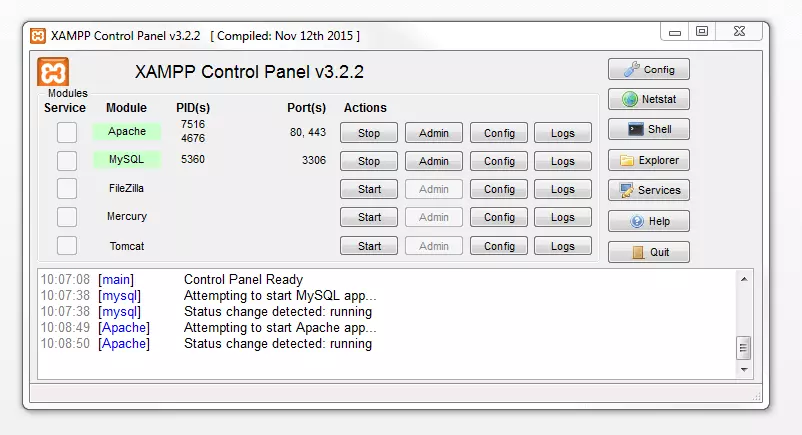
Once your software bundle XAMPP is installed, you can start your database management system (MySQL or MariaDB) via the Control Panel in the same way as you would for the other components of the test stack. Go to the ‘Actions’ menu and select the ‘Start’ button. To call up the phpMyAdmin in your web browser, you’ll need to start the web server Apache. Activated modules will appear highlighted in green in the XAMPP Control Panel. You can also see the current status of your XAMPP modules via a notification in the text window.
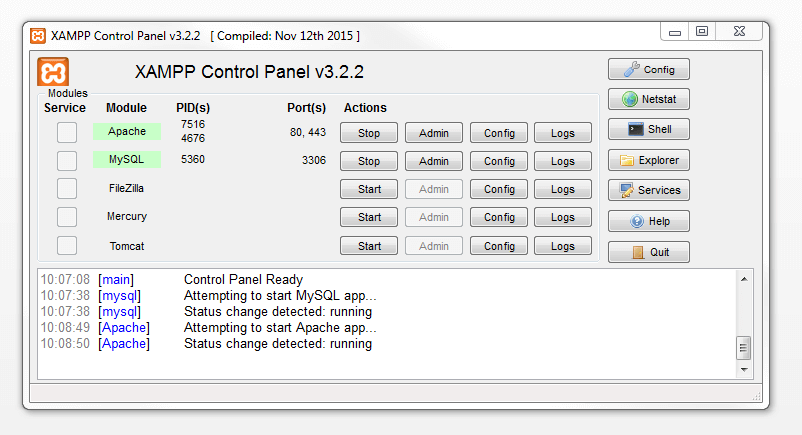
XAMPP was developed as part of the software project ‘Apache Friends’. It is designed to be a compact test system for use on a local computer. This software bundle isn’t designed for preparing web services online. Because of its many limitations, the productive system XAMPP should not be considered secure for use.
In the local hosting folder, you can access the web interface for this administration software under http://localhost/phpmyadmin/.
As soon as you’ve defined a password for your root account in the MySQL installation, phpMyAdmin will ask you to give this information on a log-in screen. If you’re using phpMyAdmin for a web hosting project, then your corresponding log-in data will be assigned to the respective provider. In these cases, you normally won’t have any root rights.
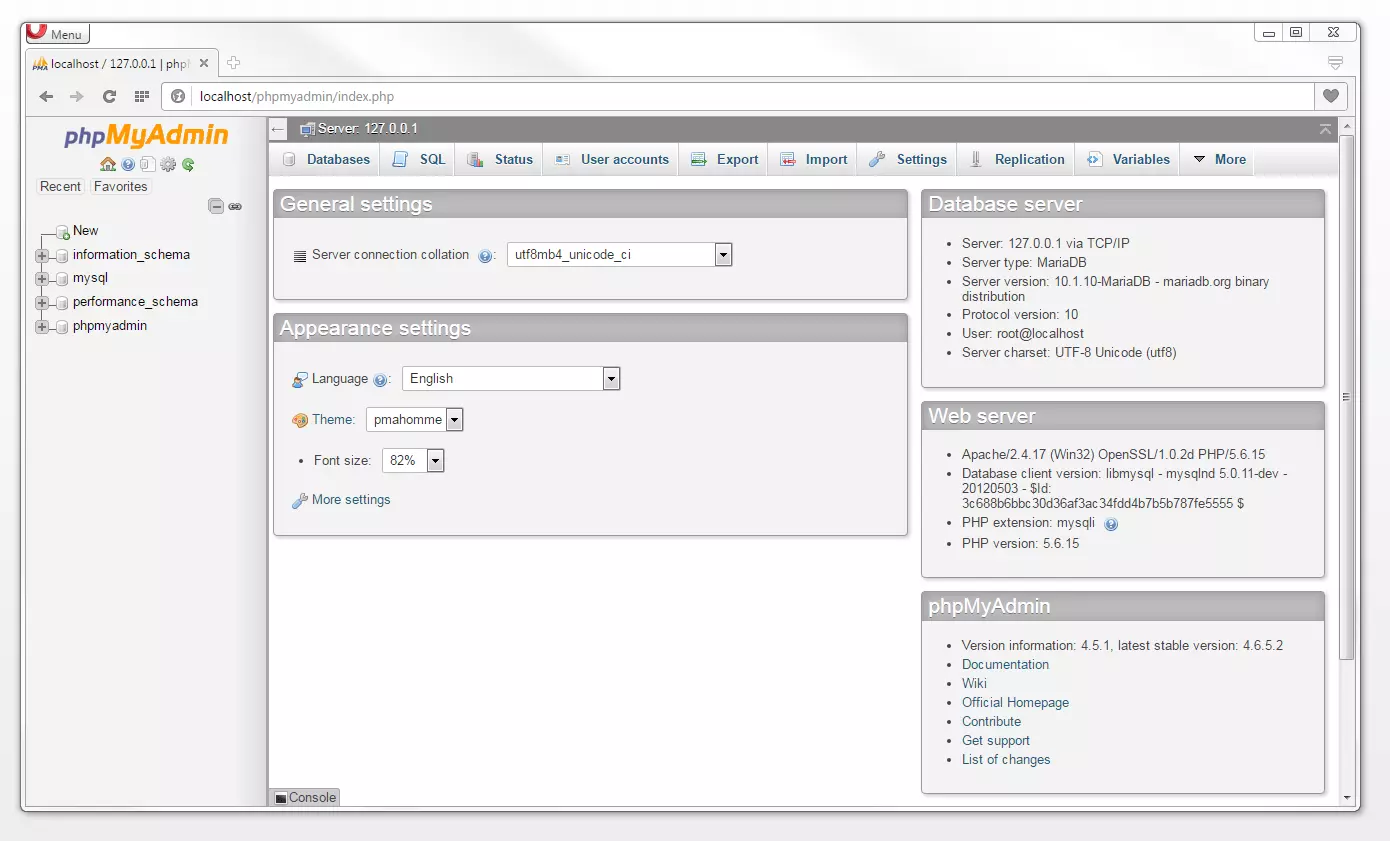
After you’ve successfully logged in, phpMyAdmin will present you with the application’s start page. This will give you the chance to make basic settings for your character set (collation) of the MySQL connection as well as your desired display mode (language, design, and font size).
On the right-hand side, you’ll also find an overview of the key data of your database server, your web server software of choice, as well as information about the current version of phpMyAdmin. The menu list on the start page is laid out in the form of tabs, as with all other menu lists in the application. The options are the tabs Databases, SQL, Status, User accounts, Export, Import, Settings, Replication, Variables and More.
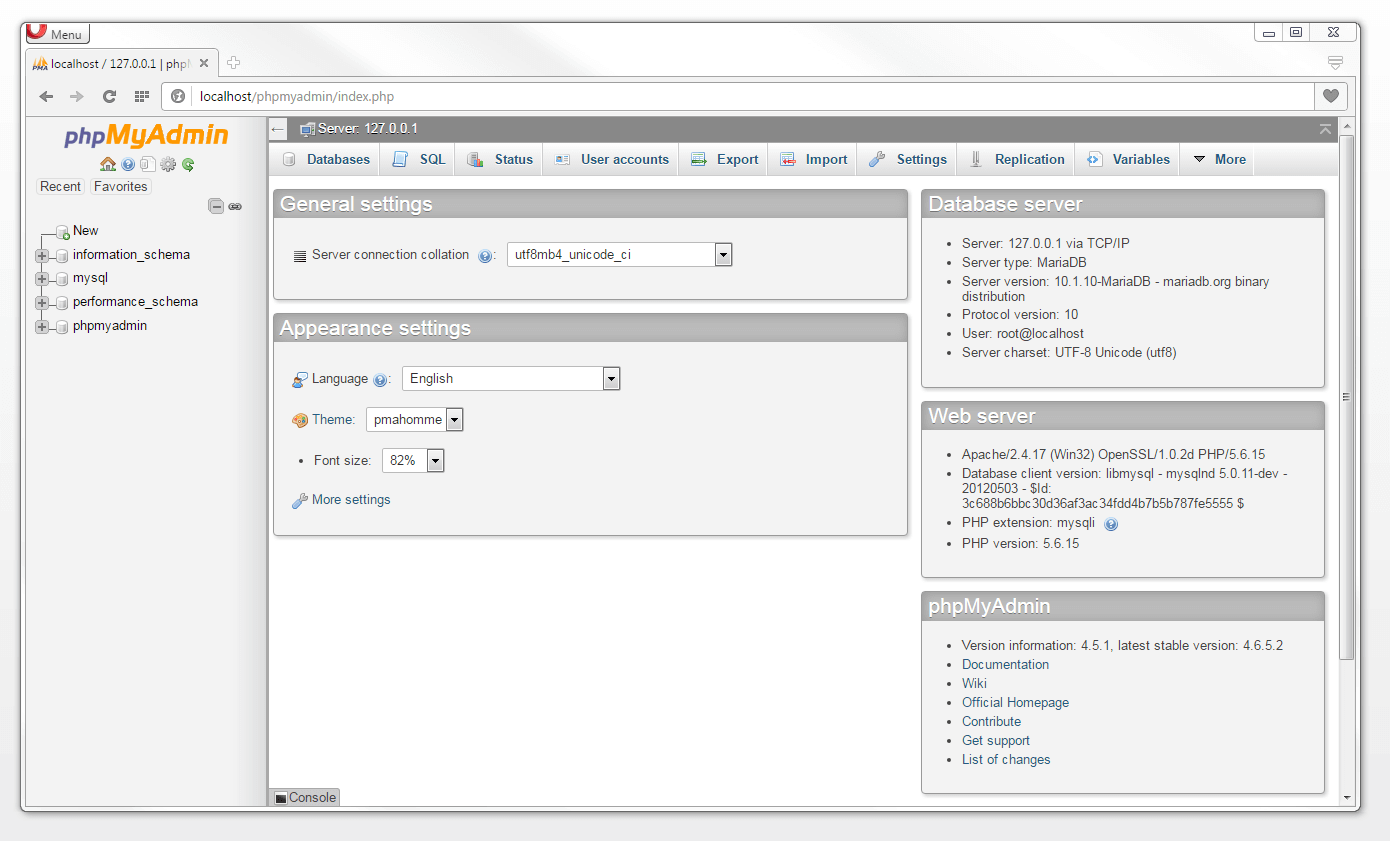
On the left-hand side of the user interface, you will find a navigation panel. Here is where all tables are listed with which you can access your database with the help of phpMyAdmin. In the upper left corner, underneath the program’s logo, the software offers links to the homepage as well as to the official documents. Additionally, you also have the possibility of configuring the navigation panel and updating your individual display.
We will begin our MySQL tutorial by showing you how to set up your first database.
Setting up a database
In order to set up a database with the phpMyAdmin, you should next select the ‘Databases’ tab in the menu bar of the homepage.
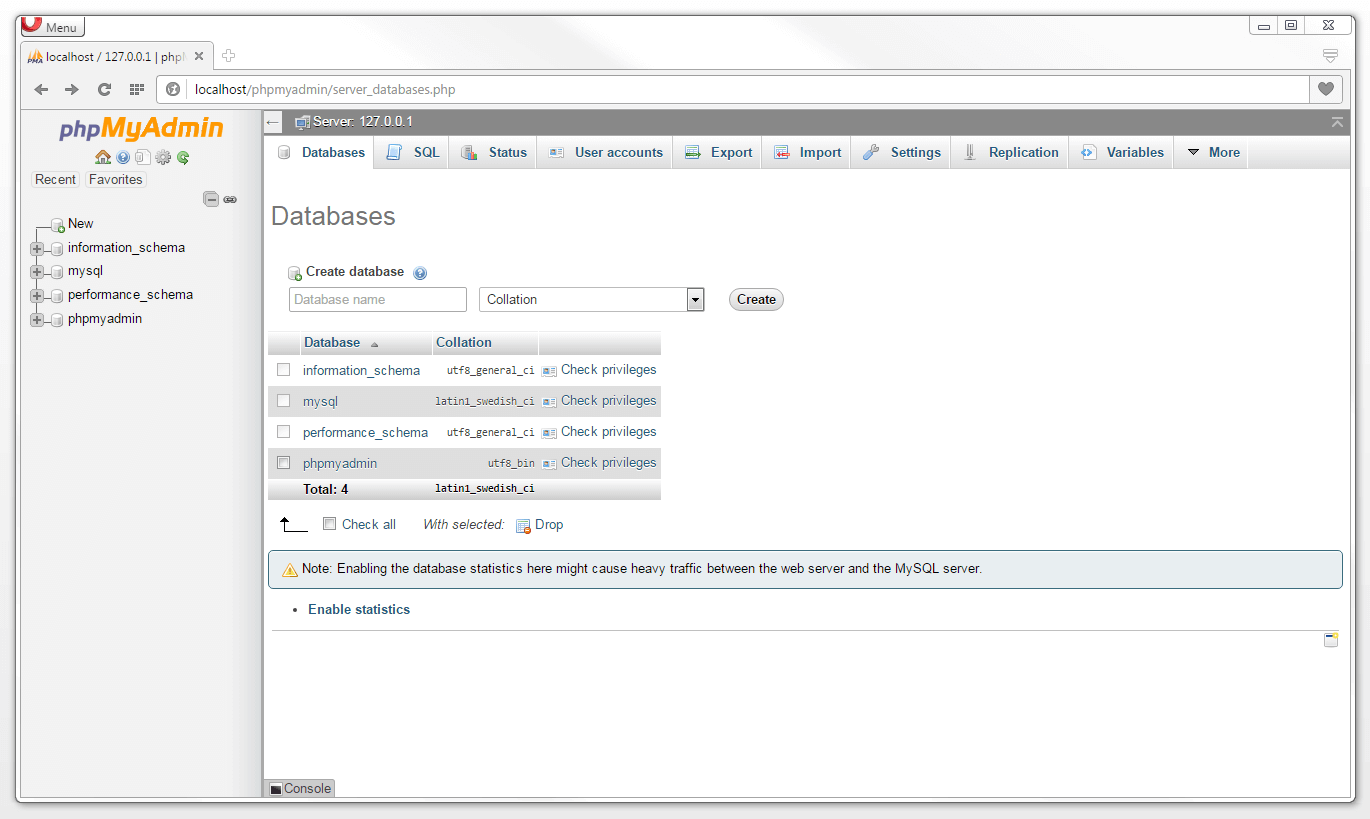
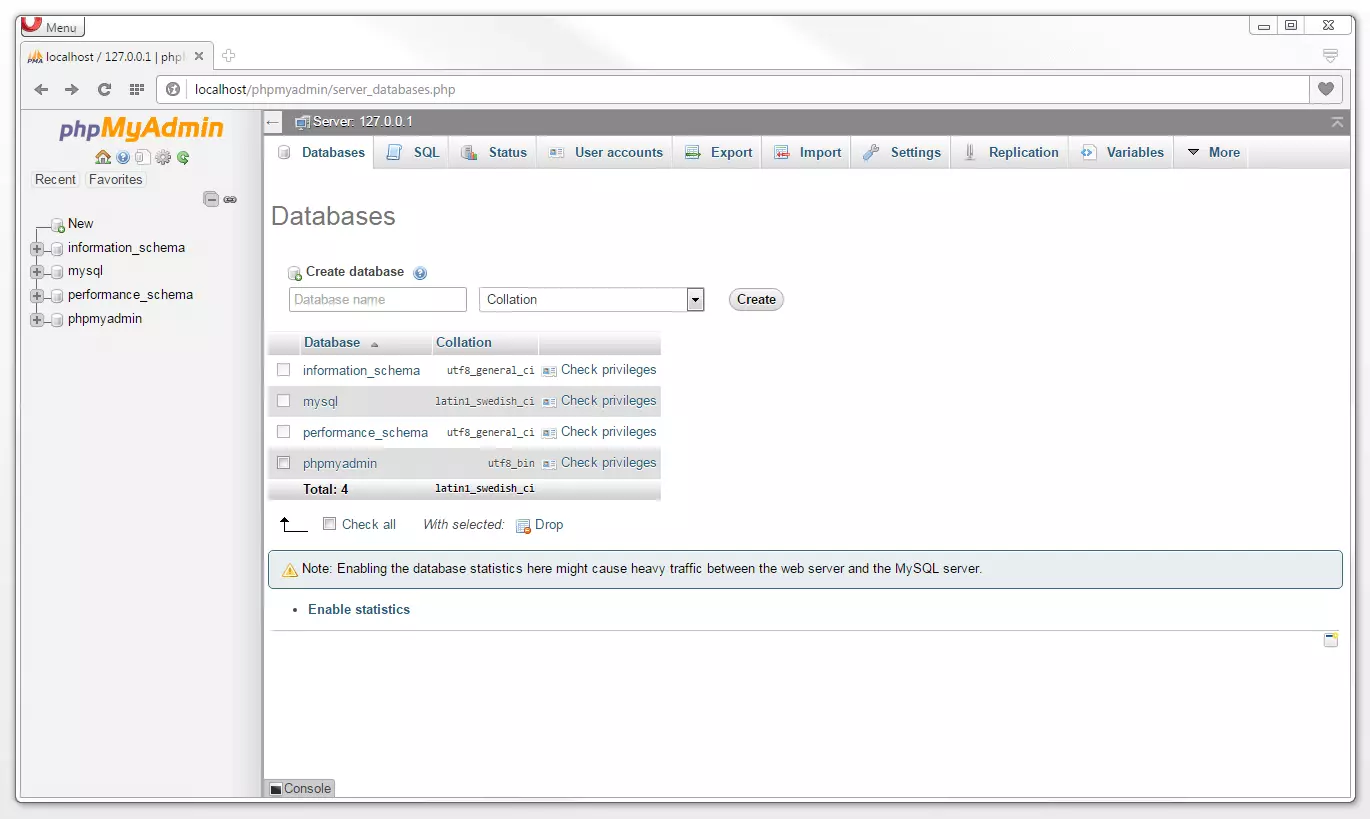
Enter your desired database name in the ‘Create database’ field and choose a character set. We recommend the collation utf8mb4_unicode_ci. By selecting a character set, you let the database server know which coding should be used for the files that will be sent to you. The mb4 variants allow even exotic characters like symbols or emojis as they lie outside the Unicode planes (Basic Multilingual) and are, therefore, highly recommended.
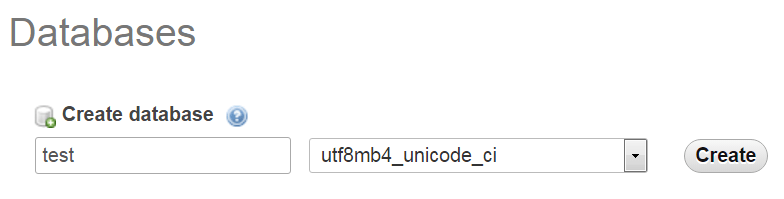
Confirm your entry by clicking on ‘Create’. Your newly created database will appear in the navigation panel on the left-hand side of the screen. Initially, newly created databases will contain no content. In order to start depositing files, next you will need to create a table.
Creating tables
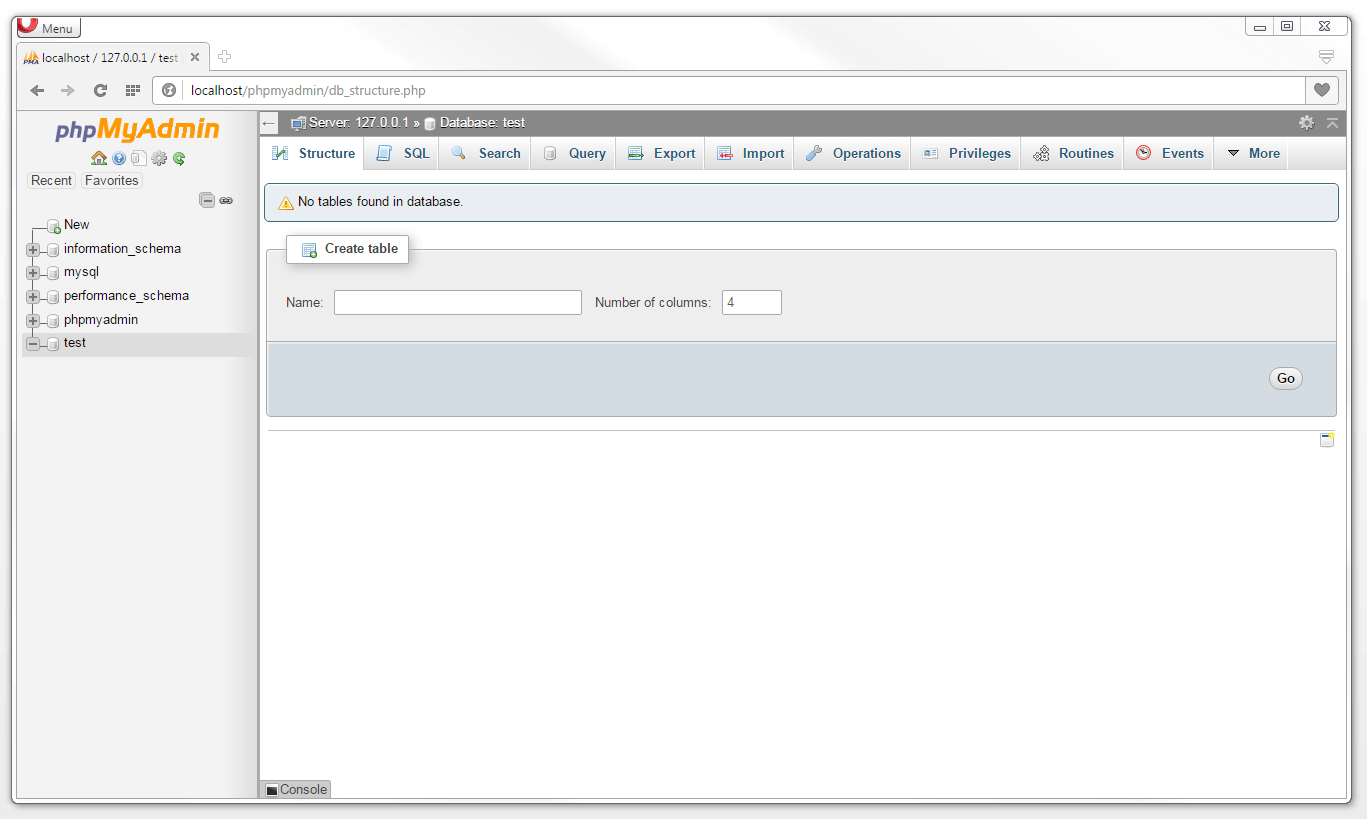
To create a new table, select the desired database followed by the menu tab ‘Structure‘.
 agsandrewshutterstock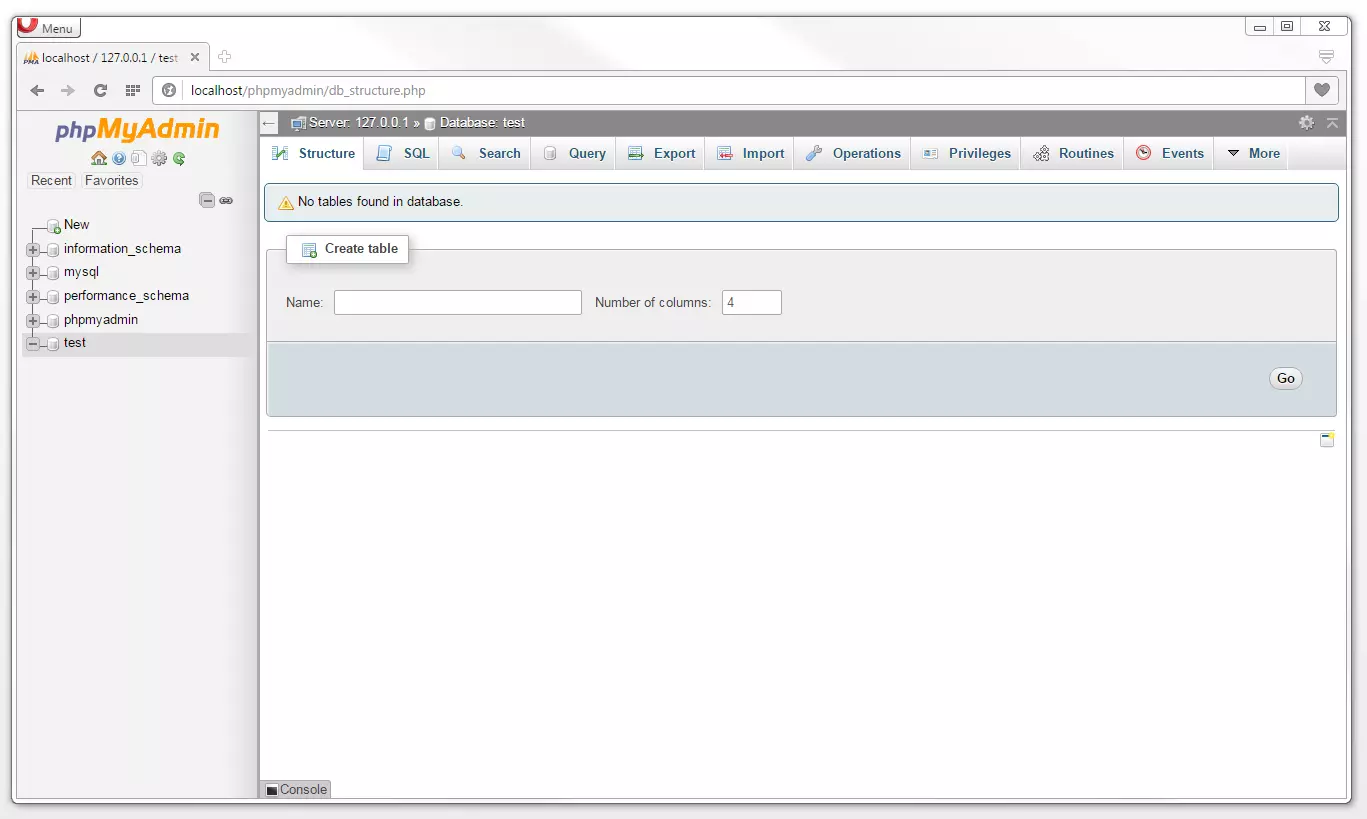
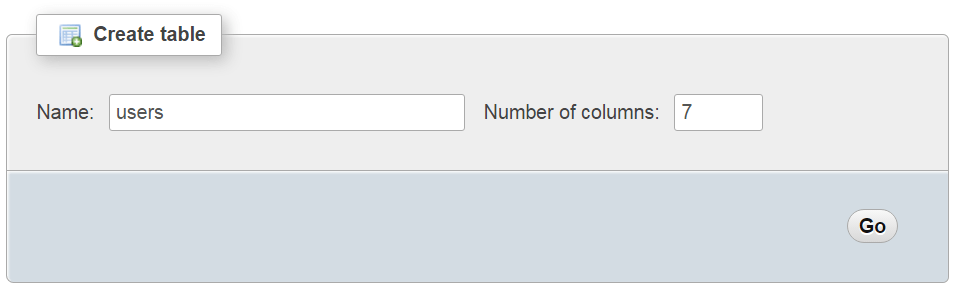
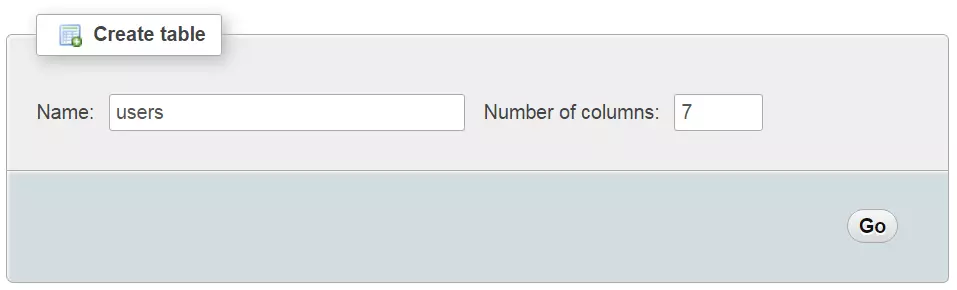
Set about creating a table by entering a name (e.g., users) as well as the desired number of columns underneath the ‘Create table’ tab. Remember that each column represents one attribute of a data set. If you require additional columns, these can then be added later.
For example, if you wish to create a user database for your website, the following names are available for the columns on the table:
| Column | Description |
|---|---|
| id | An identification number unique to each user |
| forename | User’s forename |
| surname | User’s surname |
| User’s email address | |
| password | User’s password |
| created_at | The date and time that the listing took place |
| updated_at | The date and time that the listing was updated |
Thus, for your user database, you create a table users made up of seven columns. This can then be confirmed by clicking on ‘Go’.
Once the table has been created, phpMyAdmin gives you the possibility of naming the individual table columns as well as deciding on the format settings for the data involved.
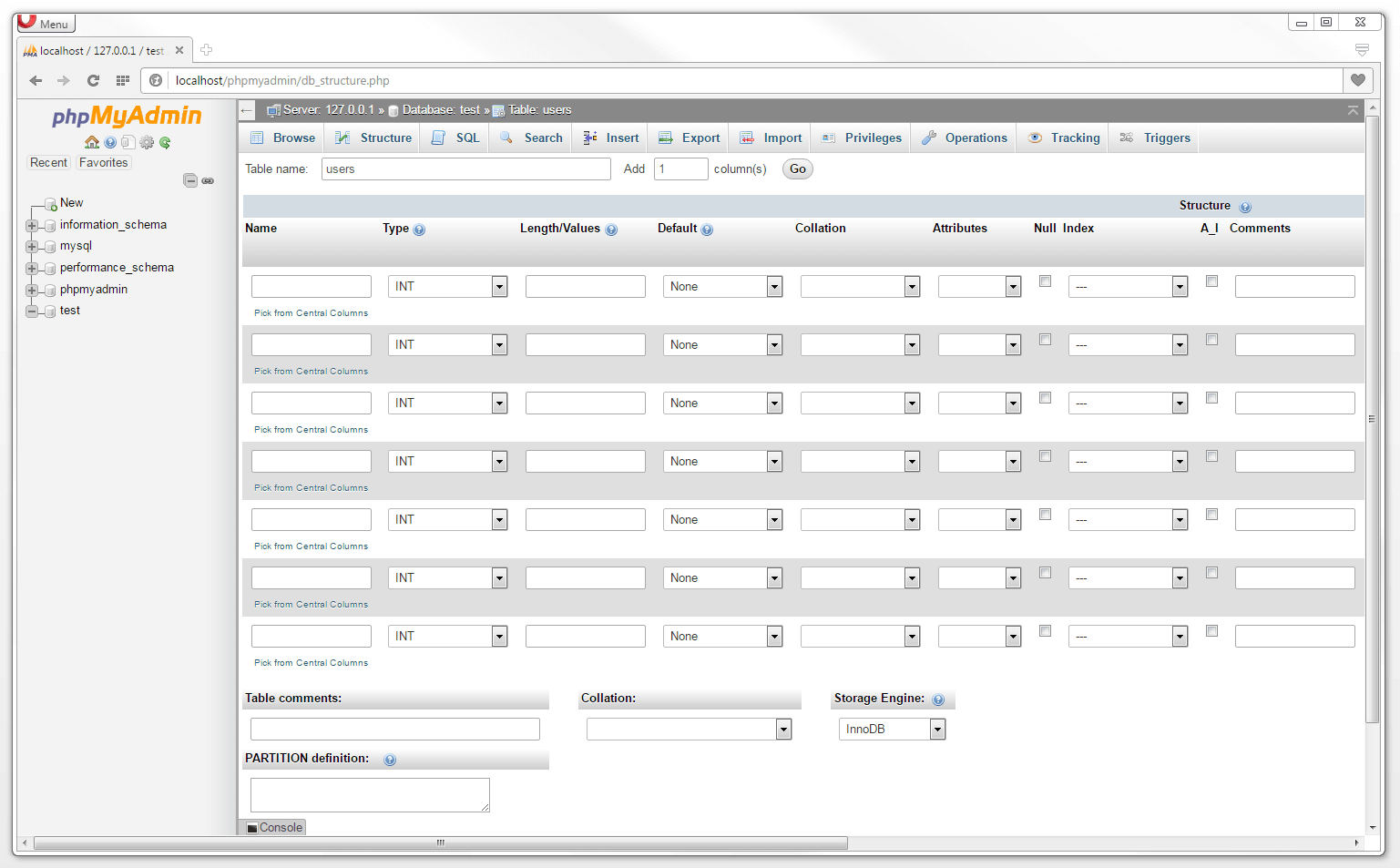
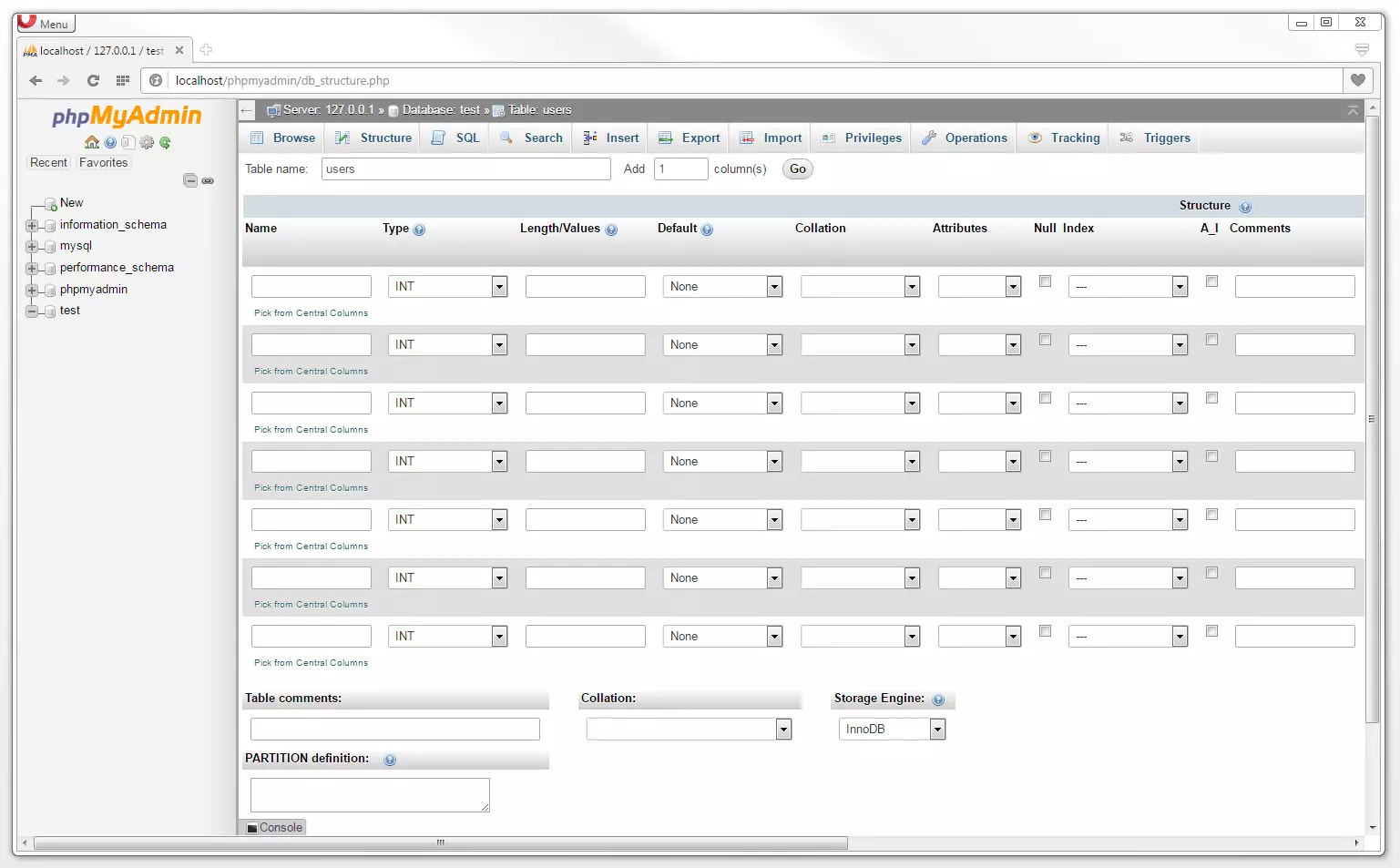
A description of the possible table structure formats can be found in the following table.
| Option | Description |
|---|---|
| Name | Each column of the database table will be assigned with a name and these can be freely chosen, within certain limitations. There is no problem with any alphabetical letters (upper or lower case), numbers, dollar signs, and underscores. These can then be used as alternatives to spaces, which are not allowed (correct: user_id; incorrect: user id). Column names cannot be made up solely of numbers. Additionally there are also various keywords in the SQL database language that are reserved for certain roles and functions. A list of these can be found among the MySQL documents. Most of these restrictions can actually be bypassed through the placing of backticks (``) in the respective column. The same rules apply for tables and other names in MySQL. It is recommended that you use column names that are in English and relevant to the respective attributes. |
| Type | The data type indicates which type of file is saved in a column. MySQL and MariaDB make it possible for you to define files based on integer and floating points, times and dates, as well text strings and binary data. A description can be found in the data type table. |
| Length/Values | With some data types (e.g. text strings) it is possible to assign a maximum length to the values of a column. |
| Default | The ‘Default’ option allows you to set a standard value for a column. This will then be automatically inserted if it so happens that a data set doesn’t contain a value for a certain column. |
| Collation | With the ‘Collation’ option you can assign a specific character type to a column. This can then be different from the global database settings. It is also possible to alter the coding table-wide for all columns. |
| Attributes | Some data types can be specified in greater detail through optional attributes. For example, this means that with the attributes signed and unsigned you can set whether a whole or floating point figure can accept both negative (signed) or just positive (unsigned) values. |
| Index | Indexation rules can be set out through the use of the ‘Index’ option. If you select for one column the index setting PRIMARY, this will be set as the primary key of the table. Die UNIQUE setting establishes that values within this column can only be saved once. This ensures that there is no danger of duplications. |
| A_I | The abbreviation ‘A_I’ stands for AUTO_INCREMENT and instructs the database management system to automatically come up with a value, if none is specified during the creation of a data set. This option can be accessed via the indexation of data sets. |
| Comments | The ‘Comments’ field allows you to assign comments to table columns. |
The options outlined here cover the most important settings for the formation of table columns. If you use the scroll bar to scroll further to the right, you will find further settings. These are not covered in this MySQL tutorial for beginners.
The table below lists the different types of data that can be processed with MySQL and MariaDB, as well as their range of values and storage requirements.
| Type | Description | Range of value | Storage requirements |
|---|---|---|---|
| TINYINT | Very small integer | Unsigned: 0 up to 255 Signed: -128 up to +127 | 1 Byte |
| SMALLINT | Small integer | Unsigned: 0 up to 65.535 Signed: -32.768 up to +32.767 | 2 Byte |
| MEDIUMINT | Medium-sized integer | Unsigned: 0 up to 16.777.215 Signed: -8.388.608 up to +8.388.607 | 3 Byte |
| INT/INTEGER | Normal-sized integer | Unsigned: 0 up to 4.294.967.295 Signed: -2.147.483.648 up to +2.147.483.647 | 4 Byte |
| BIGINT | Large integer | Unsigned: 0 up to 18.446.744.073.709.551.615 Signed: -9.223.372.036.854.775.808 up to +9.223.372.036.854.775.807 | 8 Byte |
| FLOAT | A floating point figure with single precision | Unsigned: 0 up to 3,4e+38 Signed: -3,4e+38 up to 3,4e+38 | 4 Byte |
| DOUBLE | A floating point figure with double precision | Unsigned: 0 up to 3,4e+38 Signed: -3,4e+38 up to 3,4e+38 | 8 Byte |
| DATE | Date format 'YYYY-MM-DD' | '1000-01-01' up to '9999-12-31' | 3 Byte |
| TIME | Time format 'HH:MM:SS.ssssss' | '-838:59:59.999999' up to '838:59:59.999999' | 3 Byte |
| DATETIME | Date and time format 'YYYY-MM-DD HH:MM:SS.ssssss' | Contains both DATE and TIME ( up to 23:59:59.999999 Stunden) | 8 Byte |
| TIMESTAMP | Timestamp in the format 'YYYY-MM-DD HH:MM:DD' | '1970-01-01 00:00:01' (UTC) up to '2038-01-19 05:14:07' (UTC) | 4 Byte |
| YEAR | A year from 1901 up to 2155 | 1901 up to 2155 and 0000 | 1 Byte |
| CHAR | Fixed length string; M represents column length in characters | For M: 0 up to 255 characters | M Byte |
| VARCHAR | Variable length string; M represents column length in characters | For M: 0 up to 65.535 characters | Max. M + 2 Byte |
| TINYTEXT | Very small string of variable length; M represents column length in characters | For M: 0 up to 255 characters | M + 1 Byte |
| TEXT | Variable length string; M represents column length in characters | For M: 0 up to 65.535 characters | M + 2 Byte |
| MEDIUMTEXT | Medium-sized string of variable length; M represents column length in characters | For M: 0 up to 16.777.215 characters | M + 3 Byte |
| LONGTEXT | Long string of variable length; M represents column length in characters | For M: 0 up to 4.294.967.295 characters (4 GB) | M + 4 Byte |
| BLOB | A BLOB (Binary Large Object) is a binary object with files of variable length (e.g. images, audio). | Max. length M: 65.535 Byte | M + 2 Byte |
| TINYBLOB | Small binary object with files of variable length. | Max. length M: 255 Byte | M + 1 Byte |
| MEDIUMBLOB | Medium-sized binary object with files of variable length. | Max. length M: 16.777.215 Byte | M + 3 Byte |
| LONGBLOB | Large binary object with files of variable length | Max. length M: 4.294.967.295 Byte (4 GB). | M + 4 Byte |
| ENUM (additional cost) | String object whose permissible values is defined upon the creation of a column. | Max. 65,535 different elements | 1 or 2 Bytes, depending on the number of possible values |
| SET | String object whose permissible values is defined upon the creation of a table. Multiple choice is possible. | Max. 64 different values | 1, 2, 3, 4, or 8 Bytes, depending on the number of possible values |
The following settings were determined for our example table users:
Possible values for the column id are selected as Integers (INT) and carry the attribute UNSIGNED. This means that id can only accept positive numerical values. In the ‘Index’ we selected the setting PRIMARY for id. The identification number functions here as the primary key for the table users. A tick next to ‘A_I’ (Auto_Increment) lets the database management system know that IDs for each input should be automatically generated as sequential numbers.
The values for the columns forename, surname, email and password are selected as data type VARCHAR. This then means that we are dealing with a string whose length (M) we have limited to 50 characters using the option ‘Length/Value’. With regards to the email column, the index option UNIQUE has been activated. This allows us to ensure that each email address in our table is only saved once.
For the columns created_at und updated_at, the data type TIMESTAMP has been selected. The database management system saves time-related data for the creation and updating of data sets in the format YYYY-MM-DD HH:MM:DD. Given that the system automatically generates a timestamp for each new entry, we select the standard value CURRENT_TIMESTAMP for the created_at column. This then means that the updated_at will only become relevant when we decide to update an entry. For this reason, we allow null values for this column and set NULL as the standard value.
In PHP the NULL value is depicted as an empty entry. An empty field has the value NULL if it has not yet been assigned a value yet.
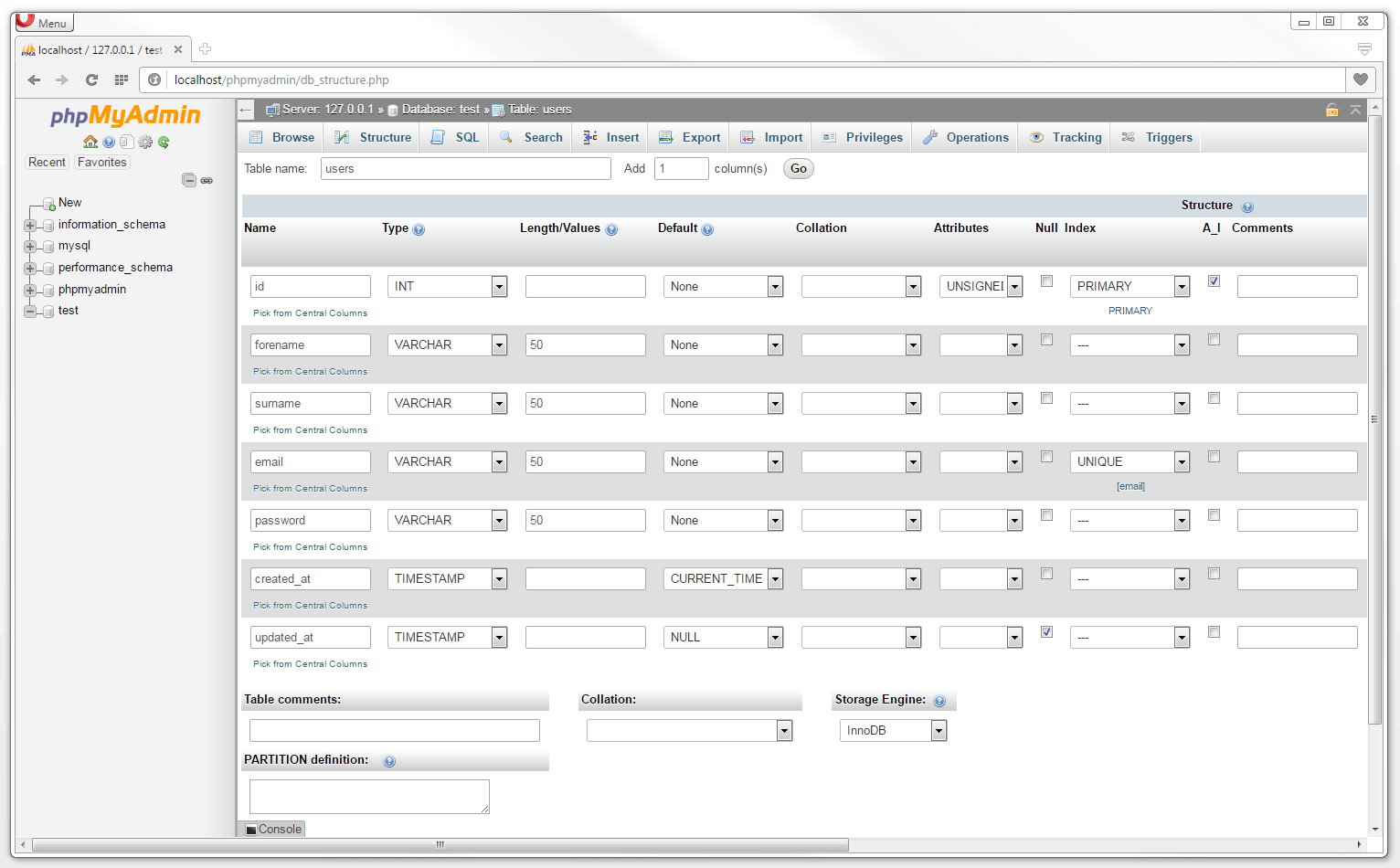
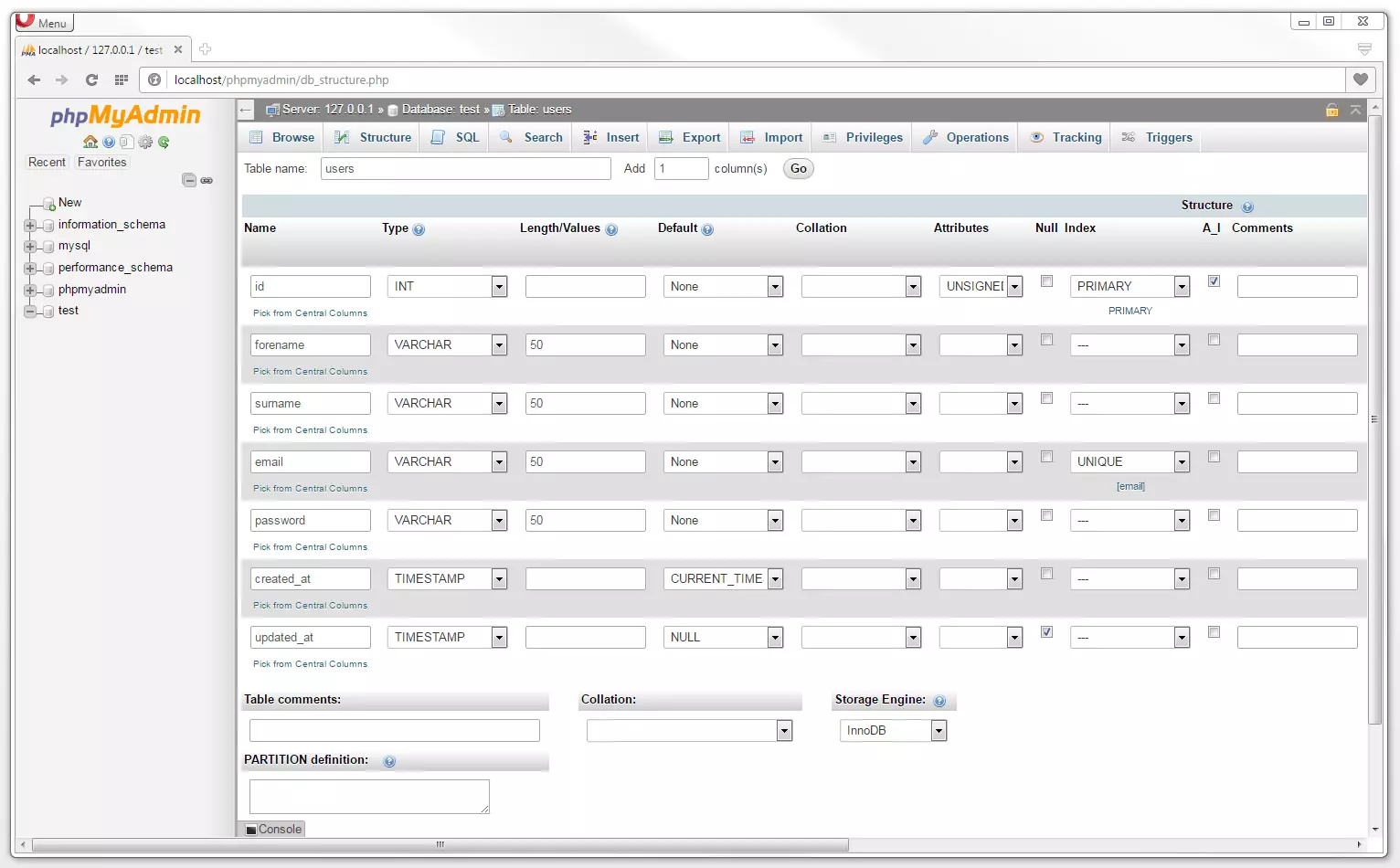
In terms of a storage engine, we use the MySQL standard spreadsheet table format InnoBD.
All table settings that are applied via the graphic user interface are translated by phpMyAdmin into SQL code. If required, these can then be displayed by clicking on the ‘SQL Preview’ tab.
CREATE TABLE test.users ( id INT UNSIGNED NOT NULL AUTO_INCREMENT , forename VARCHAR(50) NOT NULL , surname VARCHAR(50) NOT NULL , email VARCHAR(50) NOT NULL , password VARCHAR(50) NOT NULL , created_at TIMESTAMP NOT NULL DEFAULT CURRENT_TIMESTAMP , updated_at TIMESTAMP NULL DEFAULT NULL , PRIMARY KEY (id), UNIQUE (email)) ENGINE = InnoDB;A detailed description of SQL syntax can be found below in the section on database queries.
By simply clicking on ‘Save’ you can save your settings. The table users is displayed in the navigation panel under the database test.
Managing tables
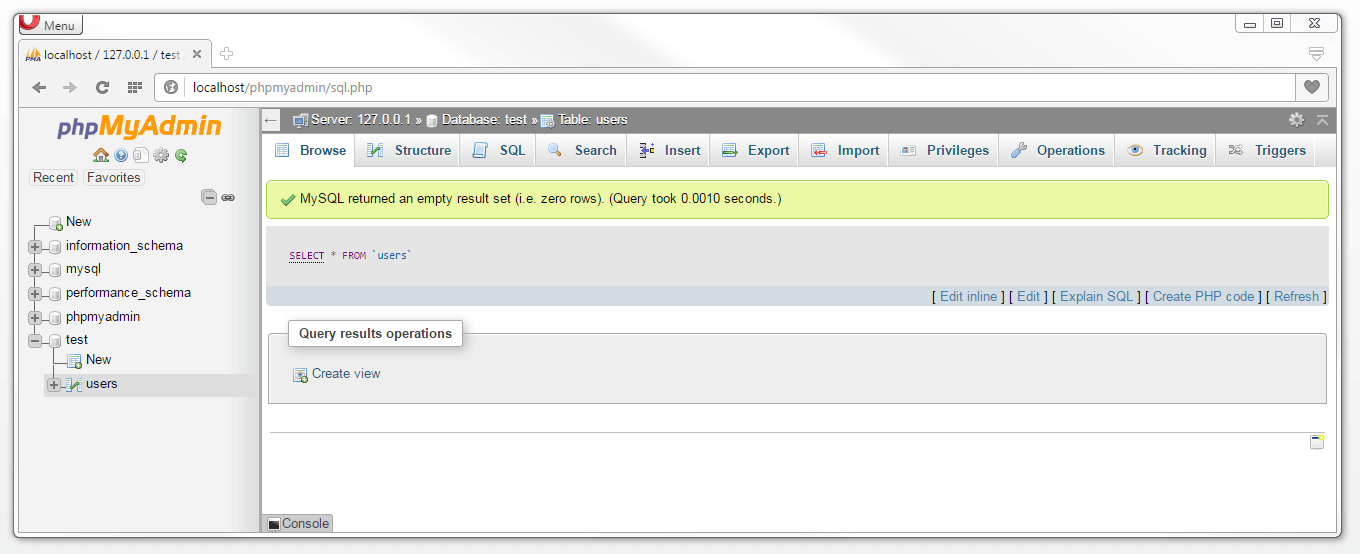
In order to manage a table that you have created, click on the table’s name in the navigation panel. Under the ‘Browse’ tab, phpMyAdmin provides an overview of the data stored in the respective tables. In the case of our example table, this request returns an empty result as there have been no data sets so far in the users table.
 Vadim Georgievshutterstock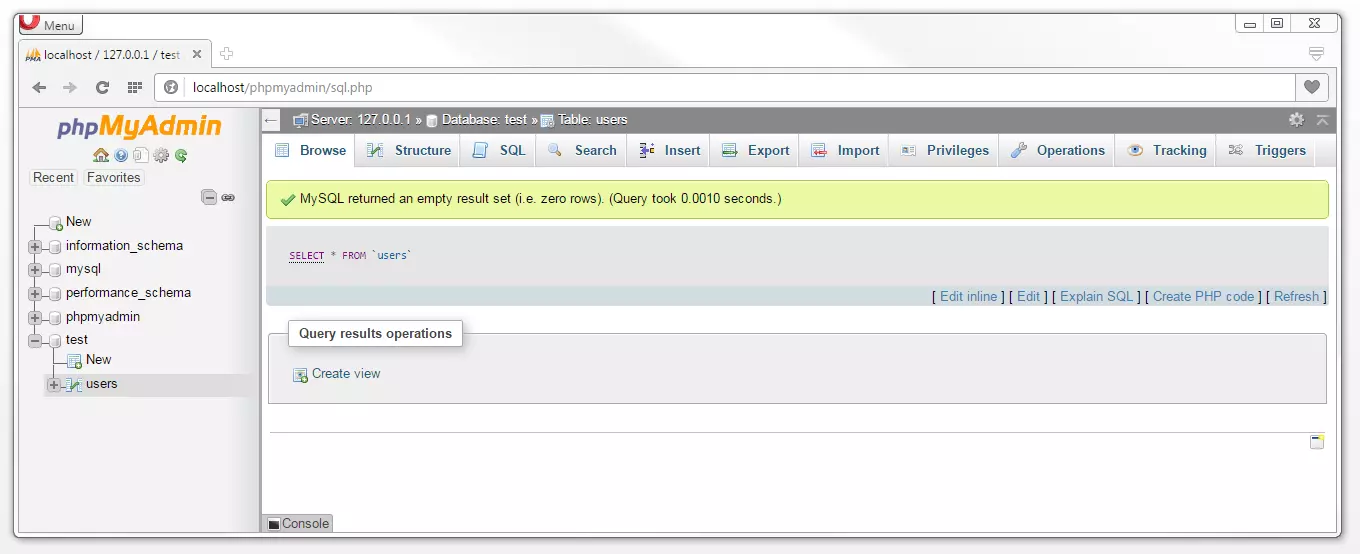
The navigation bar offers several tabs when it comes to managing your data tables. Click on the ‘Structure’ tab if you wish to change the structure of a data table. New data sets can be added under the ‘Insert’ tab. Furthermore, phpMyAdmin, makes it possible for you to search through tables, manage authorizations, as well as export data sets or even import ones from other tables.
Editing table structure
If at a later stage you wish to add additional columns to your table, delete existing ones, or even edit those already present, it can be done by simply clicking on the tab labeled ‘Structure’.
Go to ‘Add column(s)’ and select the desired number of new columns as well as the respective position they should have.
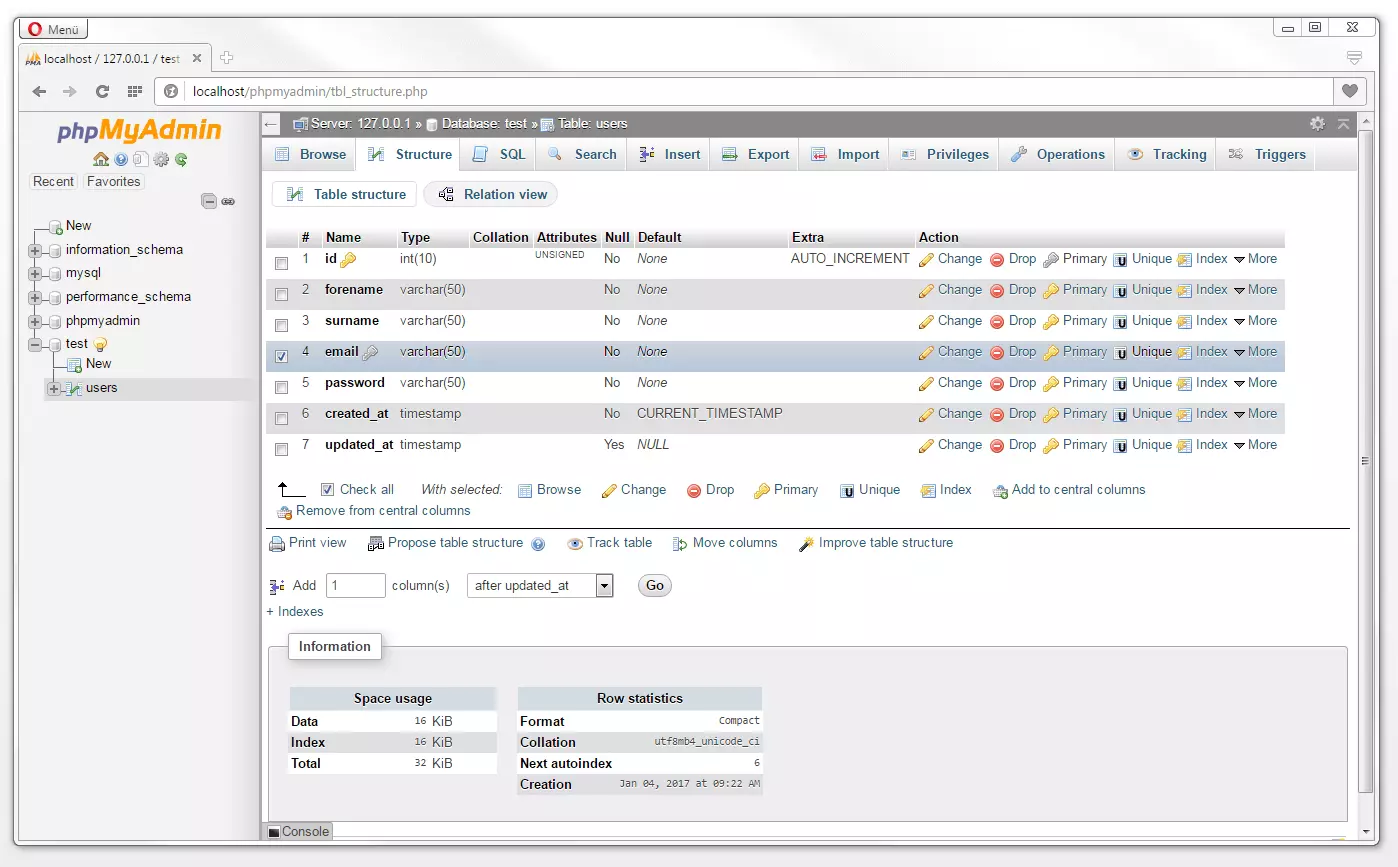
The following graphic shows a column being inserted after updated_at:


If it is the case that you wish to delete columns, this can be done by ticking the box next to the column and then scrolling down and clicking on ‘Drop’.
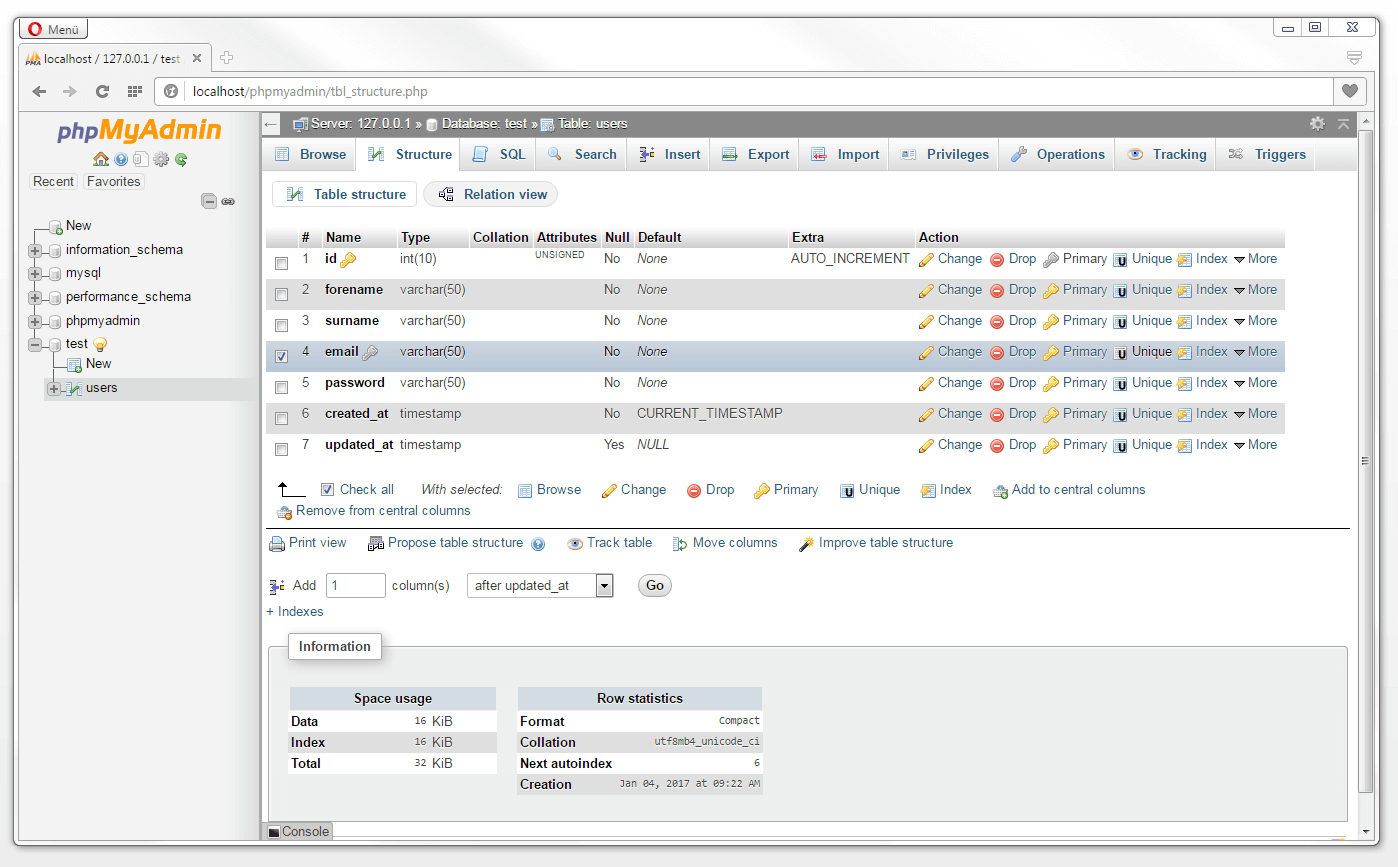
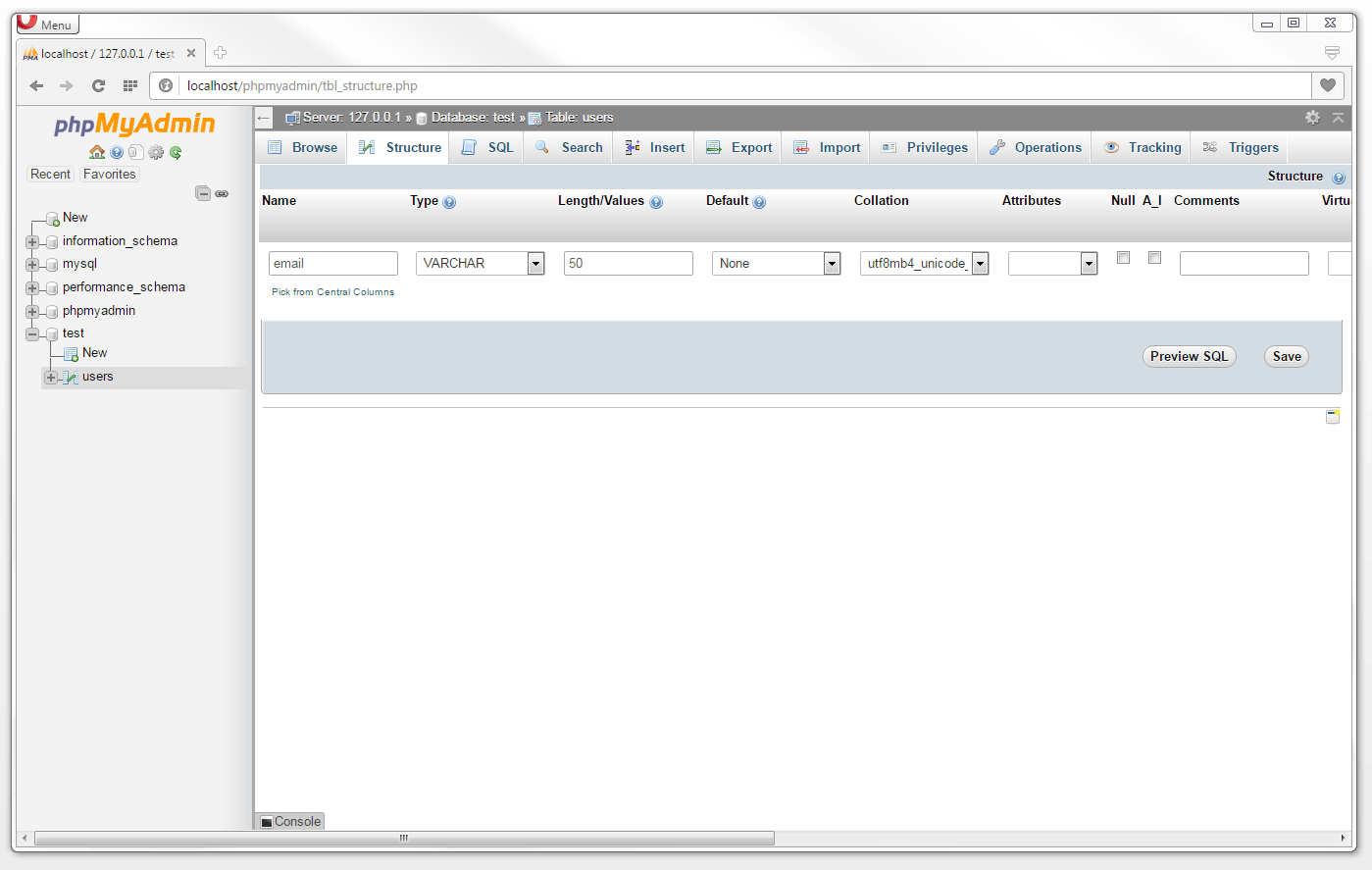
Editing a column can be done by clicking on the ‘Change’ button. You will be brought to an editing view which you will already recognize from having created a table:
 patpitchayaShutterstock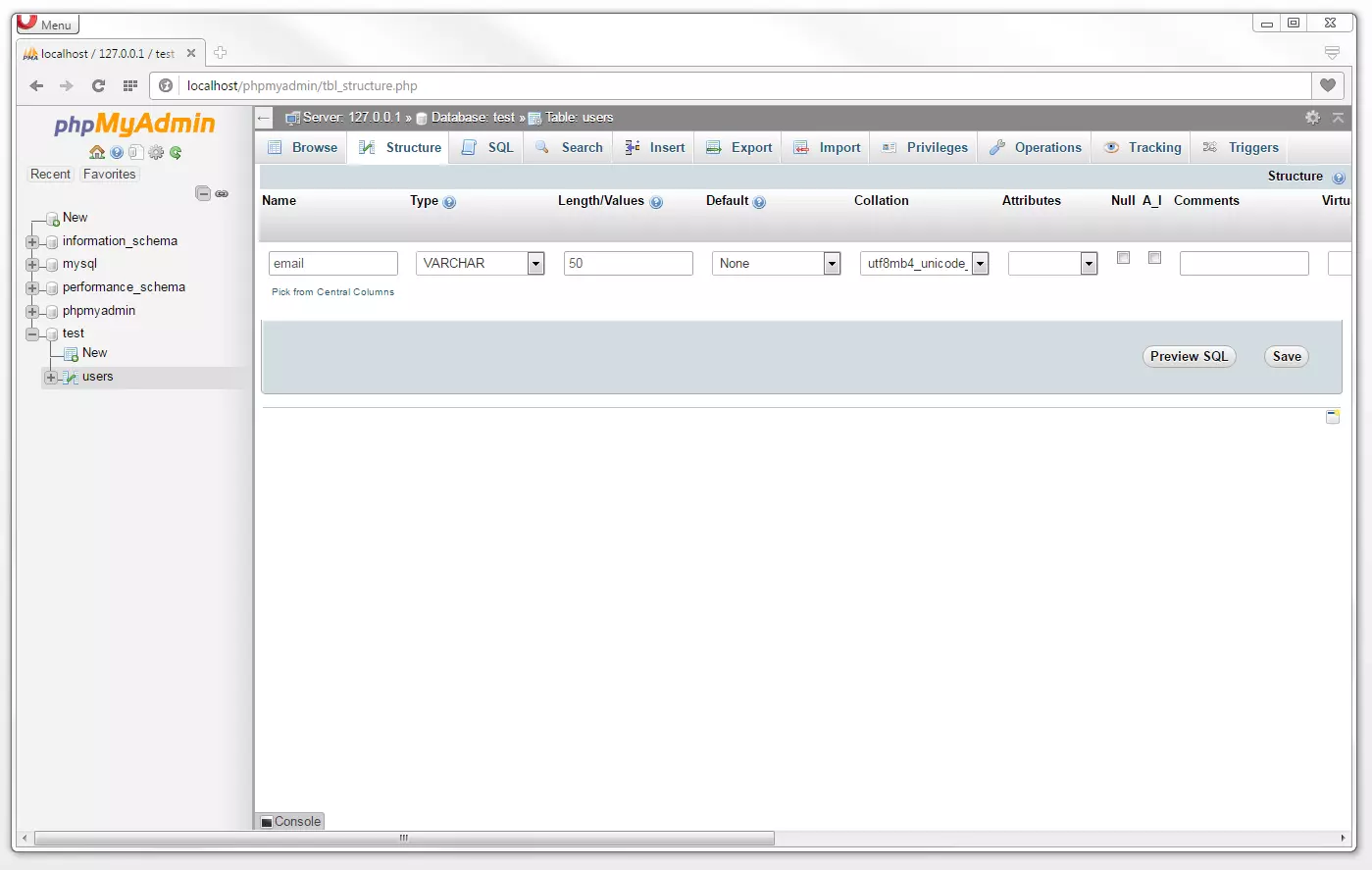
Under certain circumstances, changes to the table structure can lead to a result of data. Before you begin editing or deleting already created columns, you should definitely make sure to back up your database. If you move to the tab titled ‘Export’, select the desired file format for the backup and confirm this by clicking on ‘Go’. This will open dialog window in which your web browser will inquire the save location for the download. An alternative to the database backup via phpMyAdmin is offered by the backup program MySQLDumper.
Create table entries
There are two possibilities available for filling your table with data via phpMyAdmin. You can either import data sets from an external file (e.g., from a backup) or you create a table entry manually. Simply select the example table users and click on the ‘Insert’ tab.
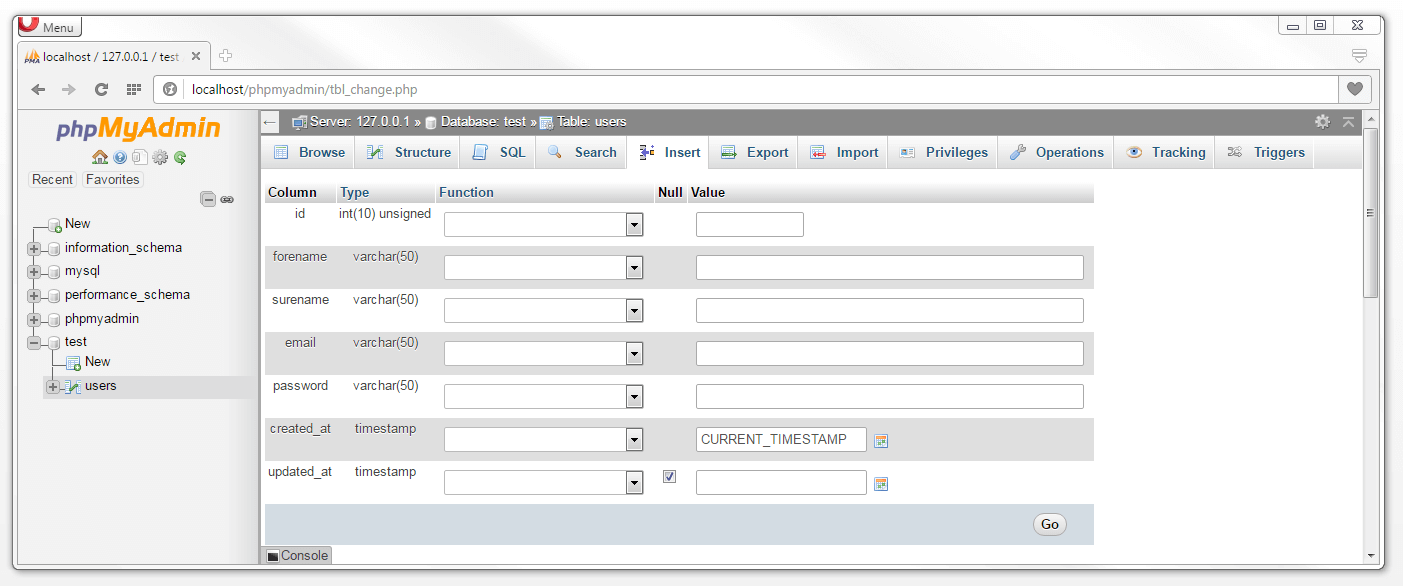
phpMyAdmin shows the following data entry field:
 unewindShutterstock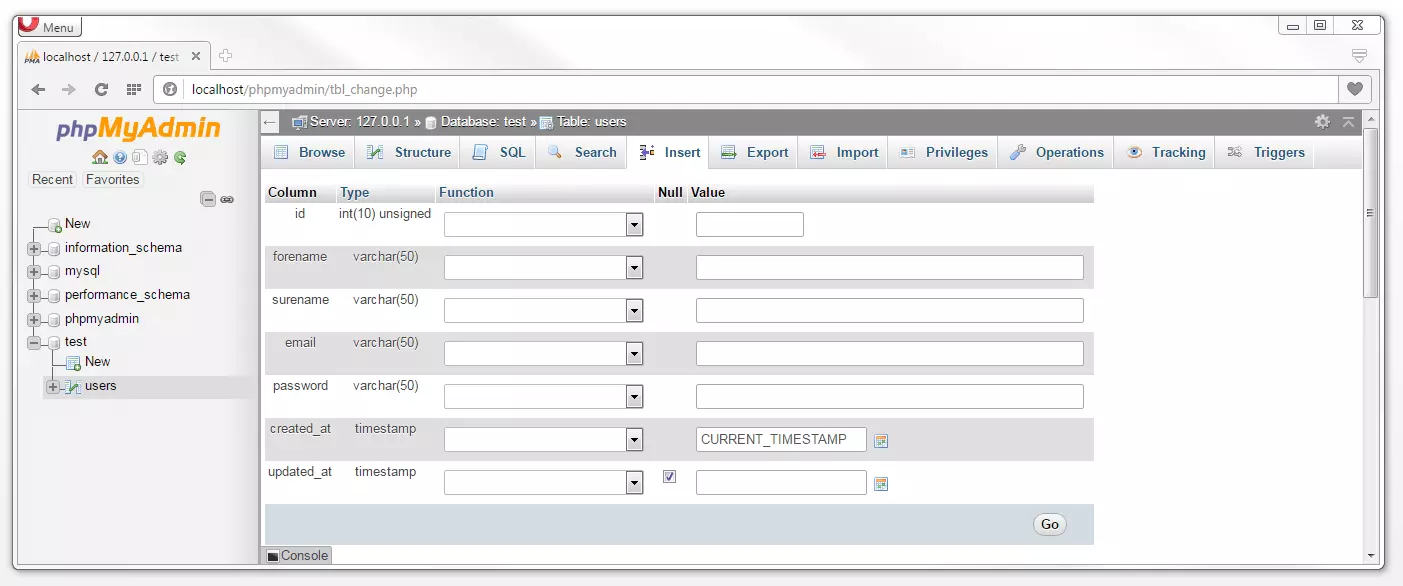
Under ‘Column’, the individual columns assigned to the table users will be listed. Under ‘Type’ you will find information relating to which data type is assigned to each column as well as the character limitation (in brackets). In this case, we skip over the ‘Function’ area and go directly to ‘Value’. Here we define the values for the individual columns within our example table.
In the previous chapter, we configured the table users in such a way that the data fields for the columns id, created_at and updated_at will be filled automatically by the database management system. The id column will see identification numbers being assigned sequentially to each new entry. The created_at field will be automatically assigned an up to date timestamp and as for updated_at, the system will then assign the standard value of NULL. This means that initially the data for the columns forename, surname, email and password must be entered manually. We illustrate this here with fictional user details:
- forename: John
- surname: Doe
- email: john@doe.com
- password: qwerty
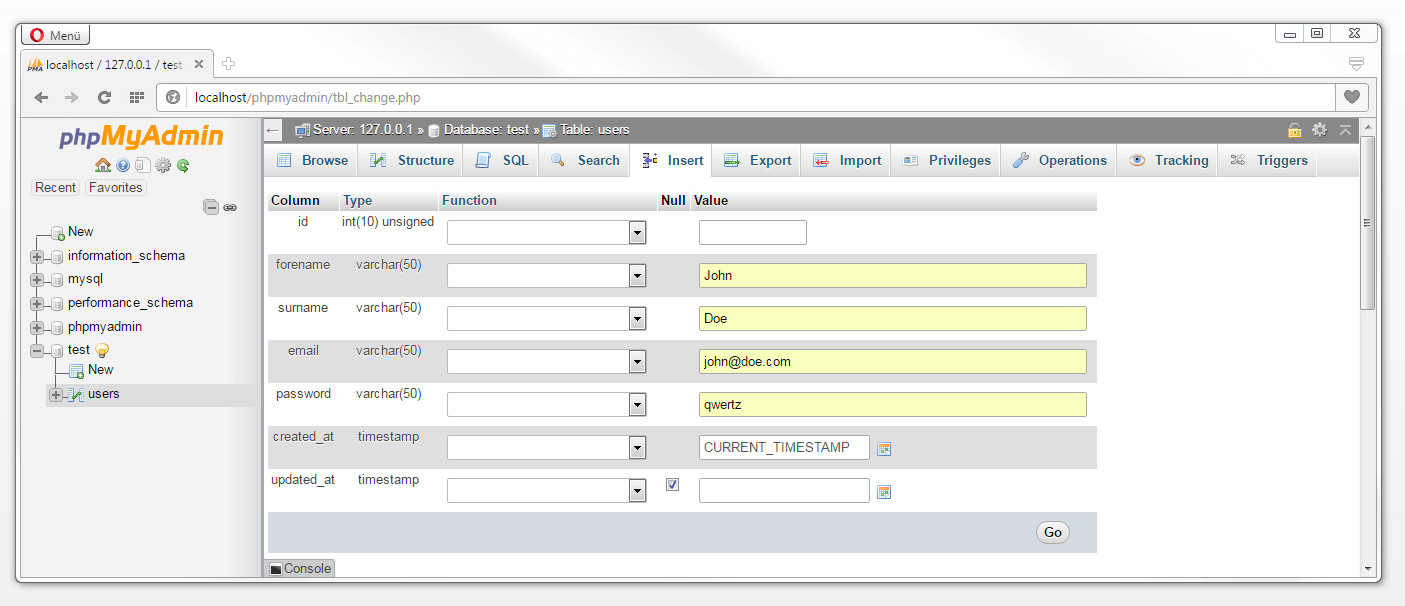
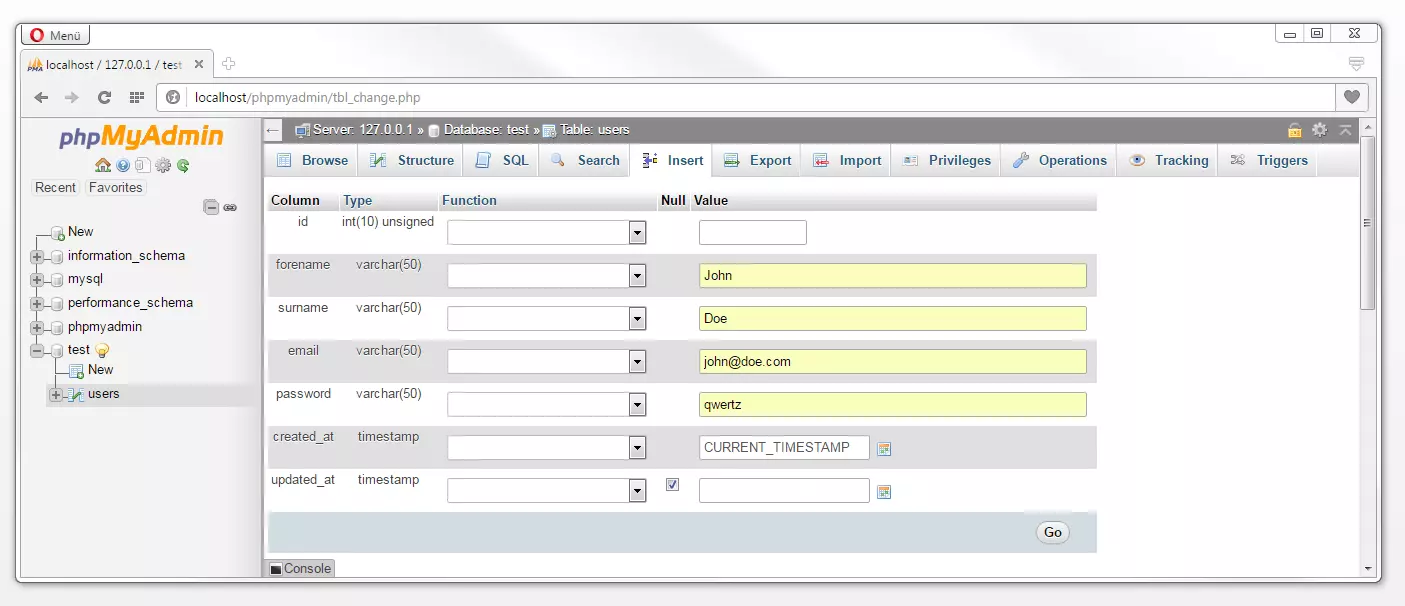
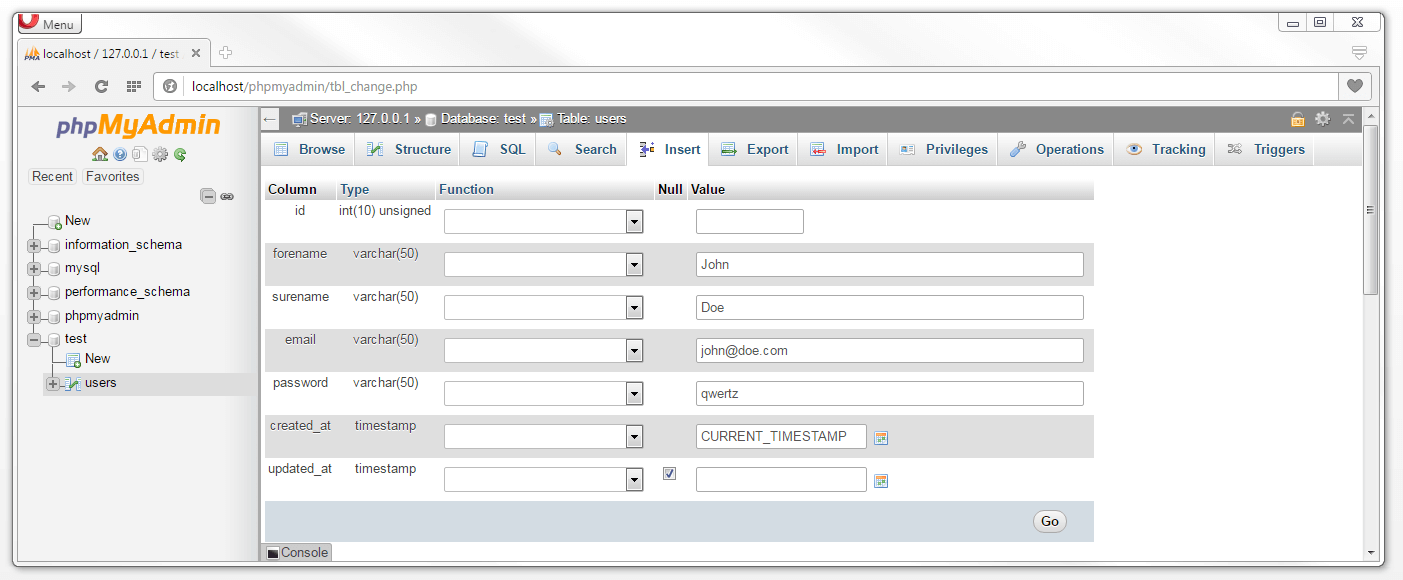
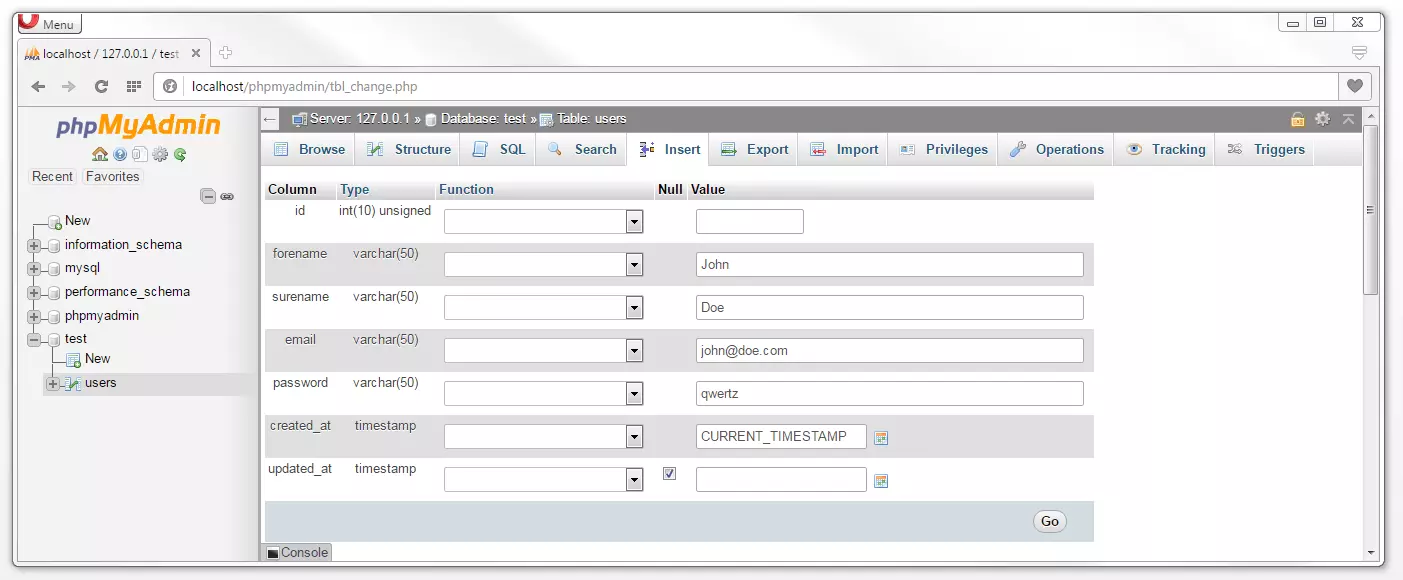
Once you click on ‘Go’ you will transfer the data to your table. phpMyAdmin will then automatically change to the ‘SQL’ tab and displays the carried out database operation as a statement in SQL syntax:
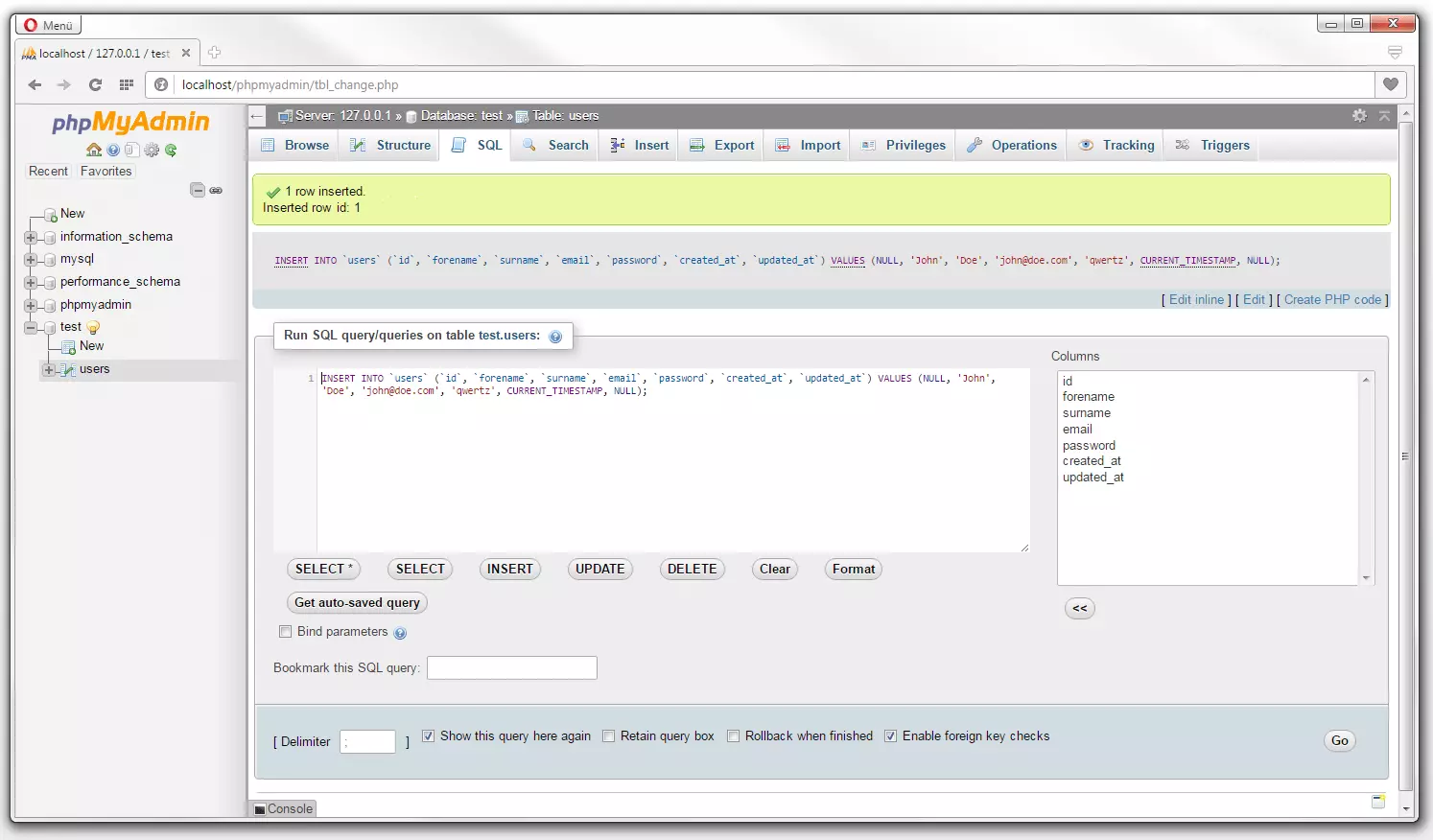
INSERT INTO users (id, forename, surname, email, password, created_at, updated_at) VALUES (NULL, 'John', 'Doe', 'john@doe.com', 'qwertz', CURRENT_TIMESTAMP, NULL);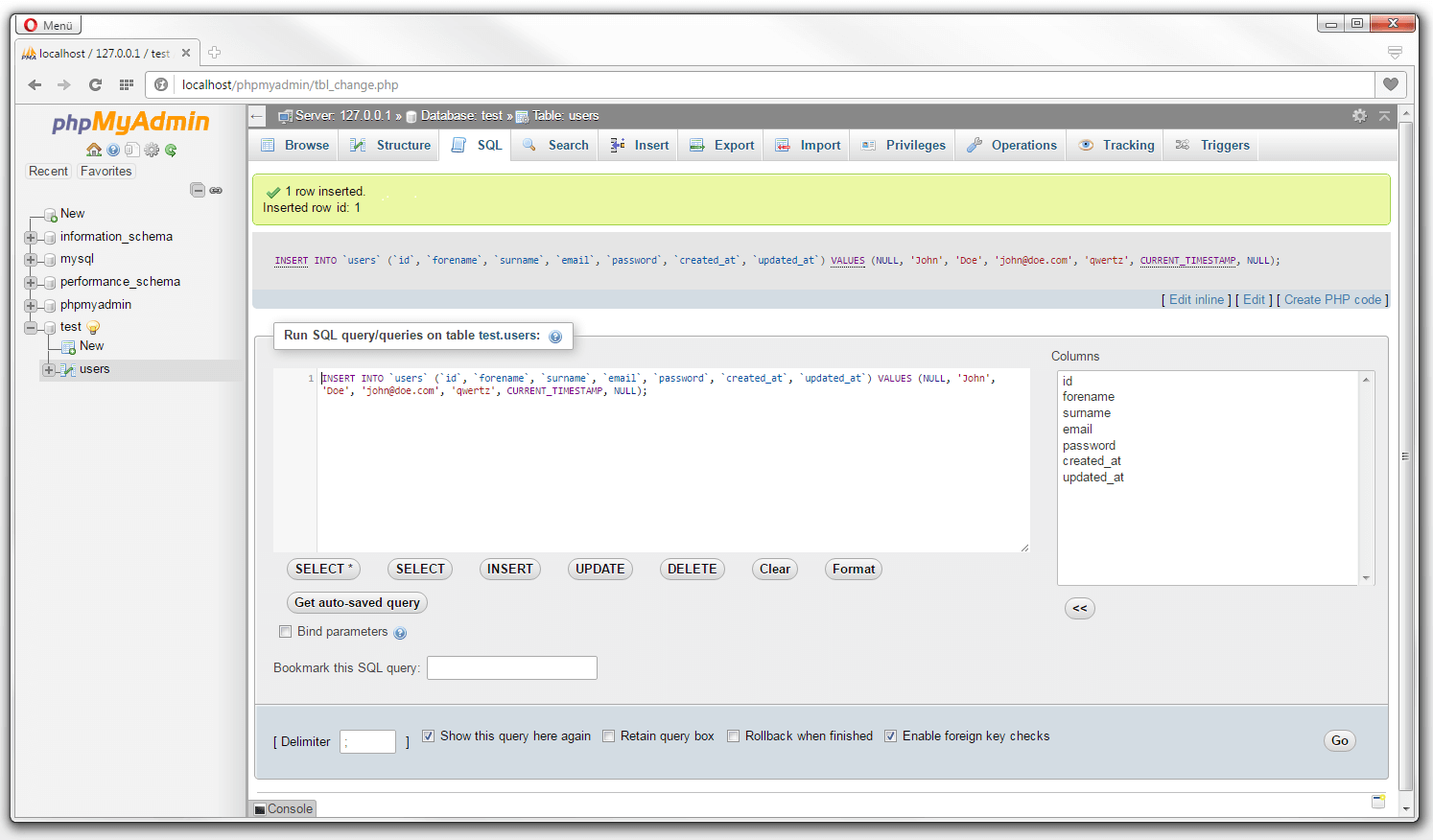
Generally speaking, all database operations that you can comfortably carry out through a graphic user interface can also be written in the database language SQL. This is standard procedure in the context of web development.
So-called SQL queries can be found in the source code of all dynamic web applications and make it possible for web servers to interact with the database. This means that the database language SQL is based on commands — for example, to retrieve data and utilize them in the context of program execution. The most important SQL orders SELECT, INSERT, DELETE and UPDATE, as well as the syntax of basic database operations are the subject of discussion in the next chapter of our MySQL tutorial.
Up next we fill our users table with further user data and take a look at the table overview in the ‘Browse’ tab:
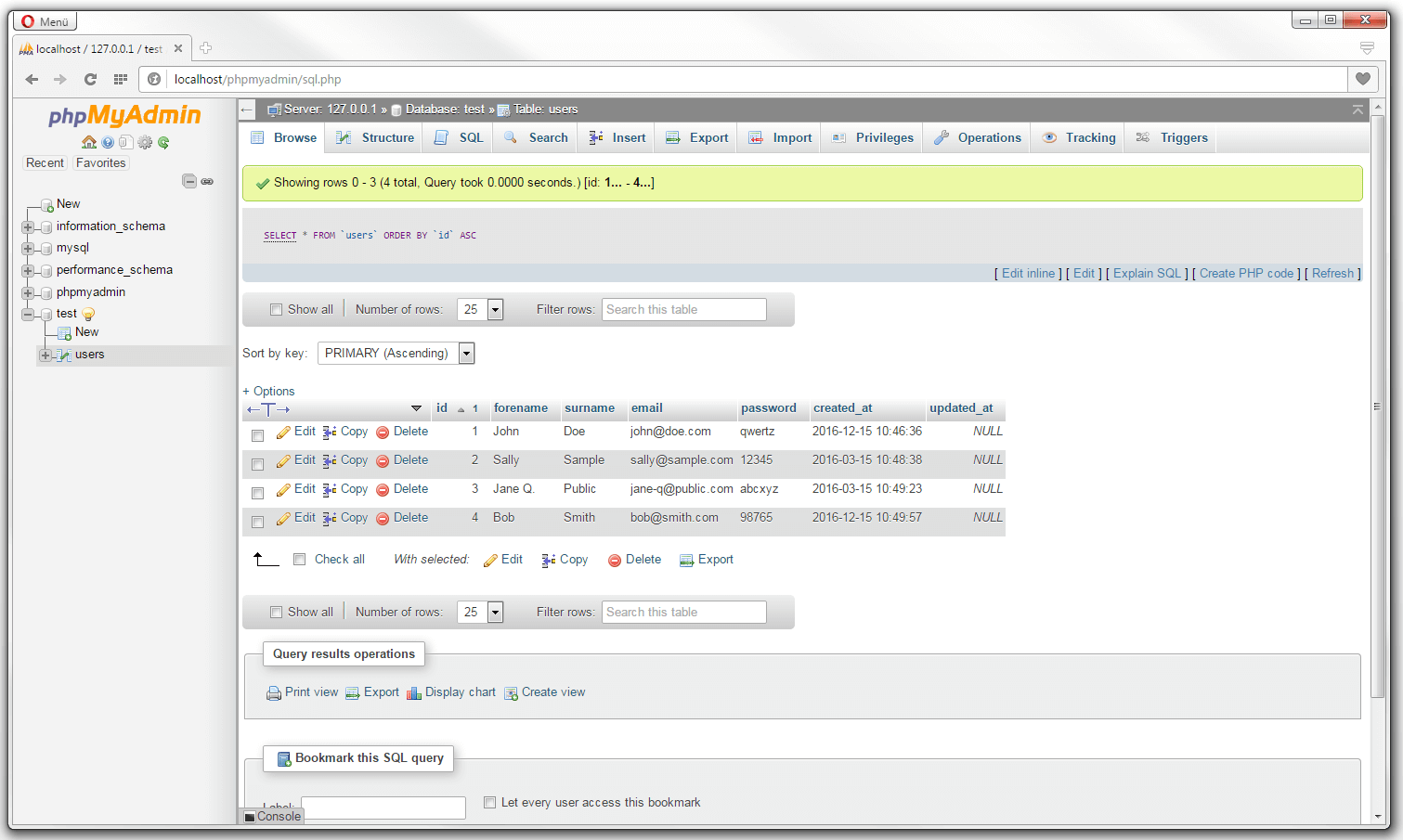
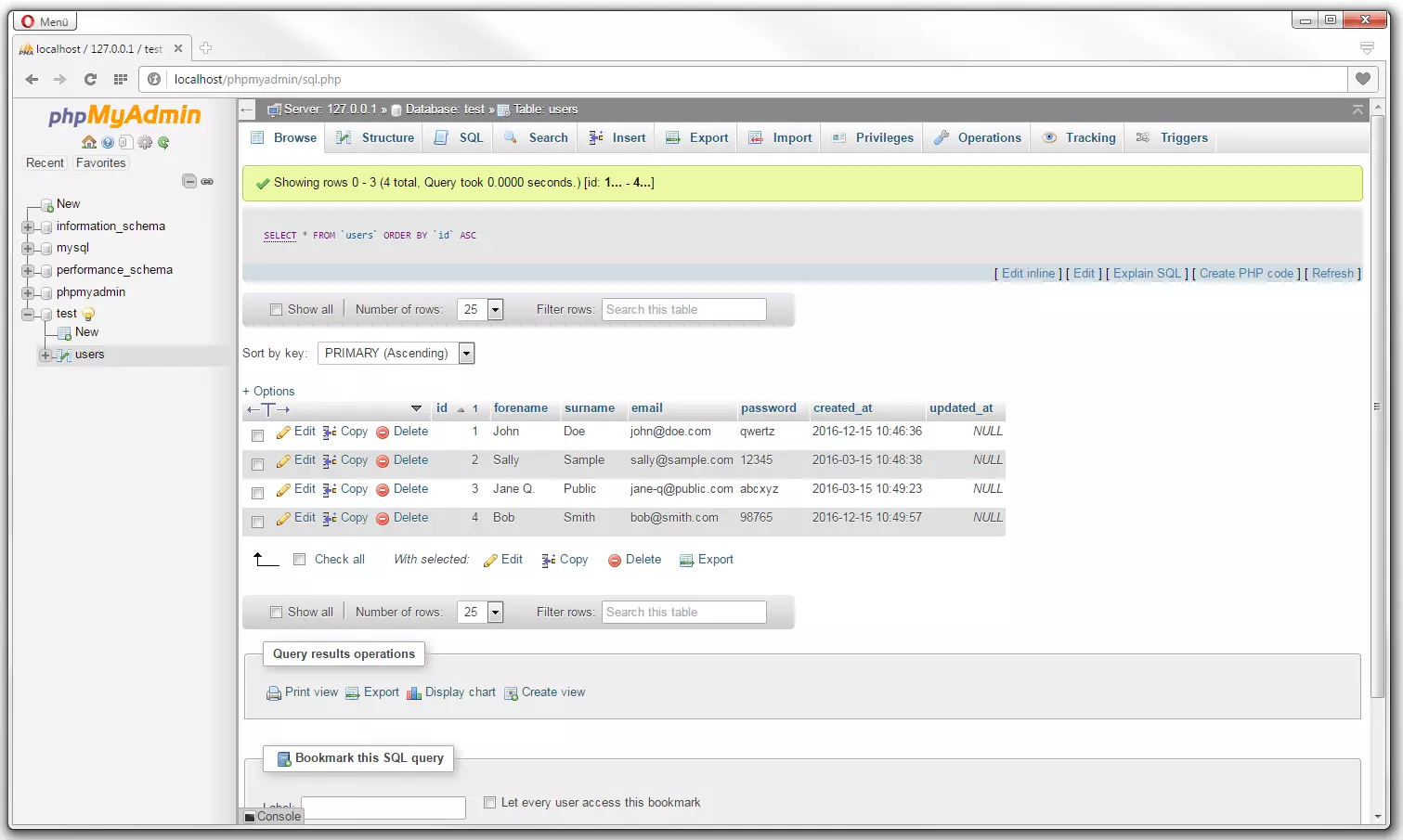
By clicking on the respective column name you can sort the table into the desired order.
Establishing a database connection
After we have filled our example table users with entries, the next chapter will address how the stored files can be retrieved via PHP through the Apache web server.
The first step towards doing this is to set up a database connection. For this there are three interface functions available in PHP: MySQL Extension, MySQL Improved Extension (MySQLi) and PHP Data Objects (PDO).
- MySQL extension: MSQL extension refers to a MySQL interface that used to be very popular but today is rather outdated. Compared with MySQLi and PDO, the old MySQL extension is disadvantaged in that it doesn’t support prepared statements or named parameters.
- MySQLi: This is an improved version of the classic PHP extension for access to MySQL databases. The interface functions both procedurally as well as object-orientated. Use is limited to MySQL and MariaDB databases.
- PDO: PHP Data Objects (PDO) is an object-orientated interface that provides an abstraction layer for data access. This means that via PDO and not just MySQL databases can be integrated as well as other database systems like PostgreSQL, Oracle, MSSQL, or SQLite in PHP.
In the case of this MySQL course, we have limited it to database connections via PDO.
In order to be able to make a PHP script query to a database, it must first be authenticated. A database connection via PDO can be set up by using the following line of code:
<?php
$pdo = new PDO('DSN', 'username', 'password');
?>
It is recommended that you include this at the start of each script that contains database operations.
We use the PHP keyword new to create a PDE basic class entity. Three parameters are required to go about constructing this; the Data Source Name (DSN), the username, and the database password — if applicable. In this case, the DSN is made up of the following parameters:
- PDO database driver: mysql
- Database server (host=): localhost
- Database name (dbname=): test
- Character set (charset=): utf8
If it’s the case that you have not specified any login details for your database, you can enter the username root and leave the password field empty:
<?php
$pdo = new PDO('mysql:host=localhost;dbname=test;charset=utf8', 'root', '');
?>
The database connection is saved in the variable $pdo. This makes it possible to refer back to the database connection at a later point in the program code.
If a connection to the database is established, you can send any number of queries to the database in the subsequent script code. Once the script is terminated, the database connection is also stopped.
Data queries with SELECT, INSERT, UPDATE and DELETE
In order to retrieve files from our database, we refer back to the database language SQL. This is based semantically on the English language and deliberately kept quite simple. The SQL syntax is to a large extent self-explanatory.
In SQL you work with statements, which are also referred to as queries or requests.
For example, a basic SELECT query is made up of the following components:
SELECT column FROM table;Next, you need to specify the SQL command SELECT and then specify the various columns and tables to which the command should refer to. A semicolon then brings the statement to an end.
Additionally, you also have the possibility of extending the statement to include an optional condition like a sorting or grouping function:
SELECT column FROM table WHERE condition ORDER BY sortingsequence;The convention is that SQL commands are capitalized, while databases, tables, and fieldnames are written in lower case. This is simply to make them more readable. SQL is principally an unformatted language and therefore does not differentiate between upper and lower case.
If you decide to use the table and column names of the already pre-defined corresponding SQL keywords (something which is not recommended), THEN they must be placed in backticks (``).
Below we demonstrate the syntax of basic SQL statements using the examples of the commands SELECT, INSERT, UPDATE and DELETE.
SELECT
The command SELECT is used to retrieve selected data rows from a desired number of tables. For example, if you wish to display in the web browser the names and surnames, as well as the email addresses of all users from the previously mentioned table, you should create a new PHP file text.php in the htdocs directory of your XAMPP environment and then input the following script:
<?php
$pdo = new PDO('mysql:host=localhost;dbname=test;charset=utf8', 'root', '');
$sql = "SELECT forename, surname, email FROM users";
foreach ($pdo->query($sql) as $row) {
    echo $row['forename'] . " " . $row['surname'] . "<br />";
    echo "E-Mail: " . $row['email'] . "<br /><br />";
}
?>
The example code can be read as follows: first we begin with the script that has the PHP start tag <?php. In line 2 then we establish the connection to our database test on localhost and save this in the variable $pdo. The SQL statement with the command SELECT can be found in line 3. Here the database management system is instructed to retrieve the columns forename, surname, and email from the users table. We then save the statement in the $sql variable.
Columns 4 to 7 display a foreach loop. This offers the possibility of iterating over any array, such as going through a data structure step by step. Selecting which array we wish to iterate and how the requested files should be saved can be specified in brackets behind the foreach construct:
$pdo->query($sql) as $rowThe $pdo variable responds to the desired database through the connection established in line 2. We send this along with the function query() to the SQL statement stored in the variable $sql.
What happens here is that the web server retrieves the columns forename, surname, and email of the users table from the database and, within the framework of foreach loop, goes through each individual table row. As to where the extracted data should be saved, this is specified by the PHP keyword as in the array $row variable.
This is how the array looked in the first round of the foreach loop:
$row = array (
    forename => John,
    surname => Doe,
    email => john@doe.com
)
In the current example, part of the foreach loop is also the text output via echo during each loop pass. This means that we go through each column of the users table individually, read through the deposited files for the columns defined in the SQL statement individually, and then release them via the web browser.
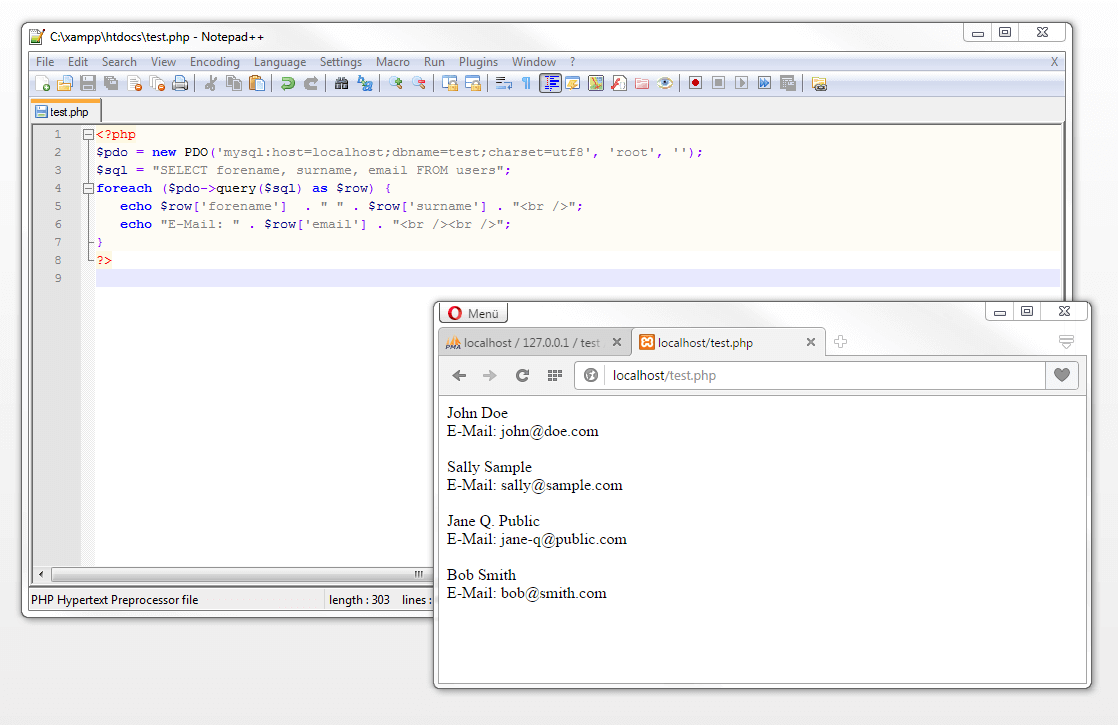
If it is the case that all the columns of a table should be read through, you should use the asterisks as a placeholder in the SQL statement.
<?php
$pdo = new PDO('mysql:host=localhost;dbname=test;charset=utf8', 'root', '');
$sql = "SELECT * FROM users";
foreach ($pdo->query($sql) as $row) {
    echo $row['forename'] . " " . $row['surname'] . "<br />";
    echo "E-Mail: " . $row['email'] . "<br />";
    echo "Created at: " . $row['created_at'] . "<br /><br />";
}
?>Additionally we also have the possibility of using all data deposited in users as part of the script. The screenshot below shows the text with an additional timestamp signaling the time that the data was recorded:
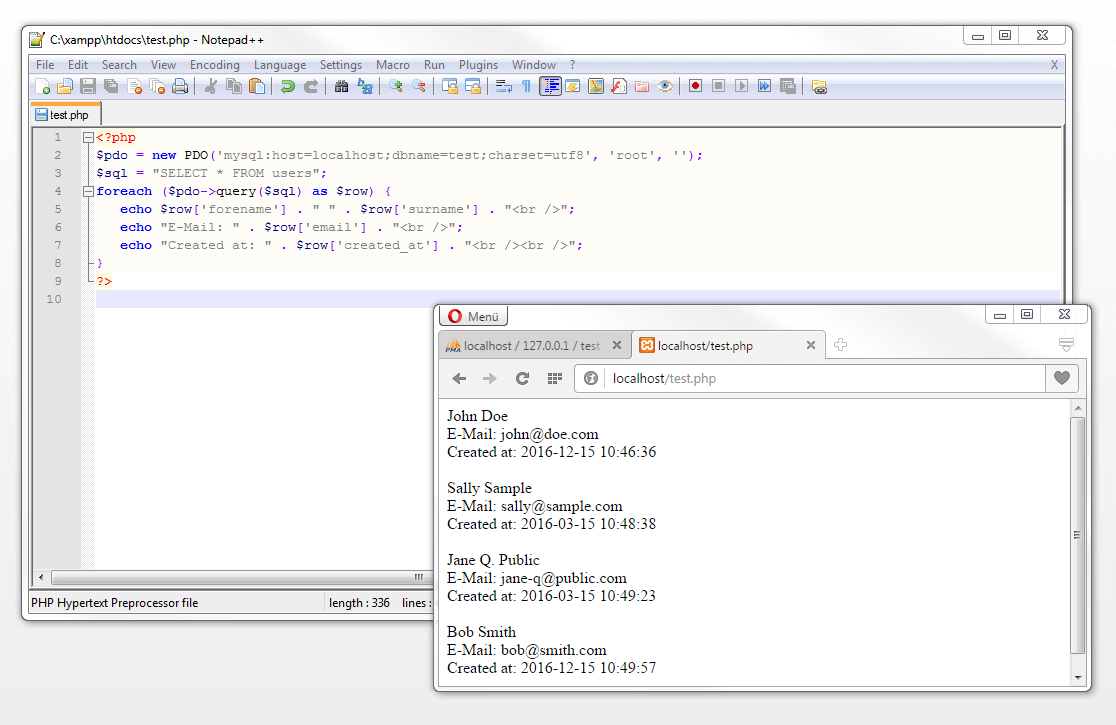
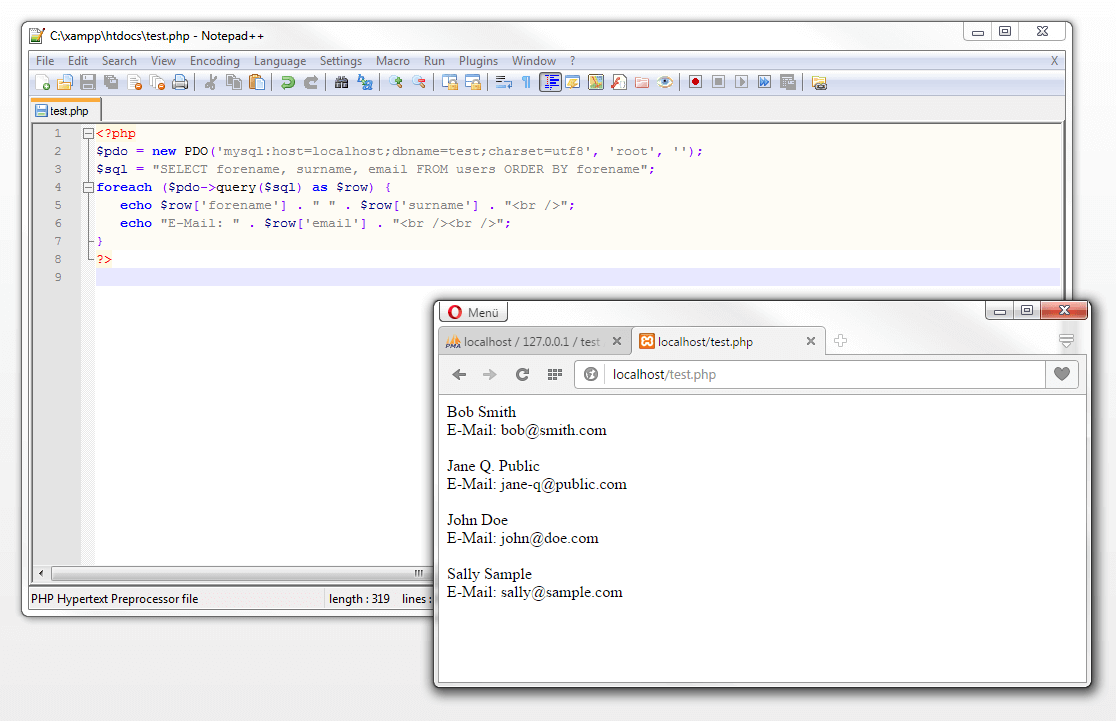
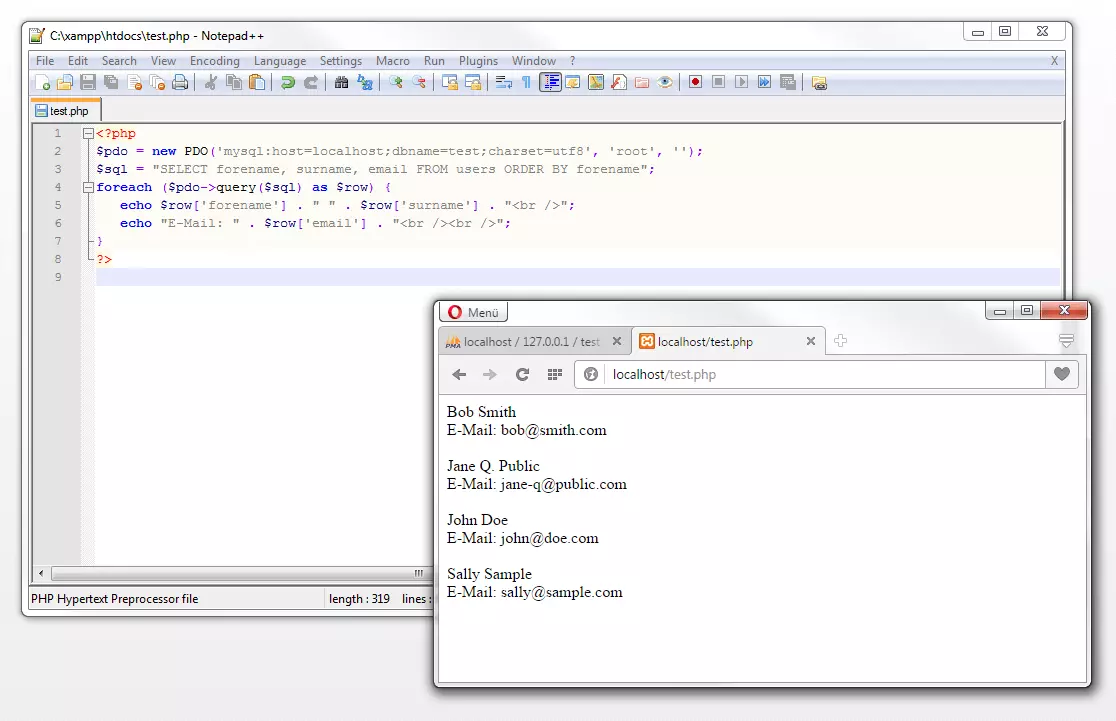
In the case of both previous examples, the web server gives us the user details in the order in which we originally entered them in the users table (according to the ID). If you wish to sort the data in a different order, you can do this through the use of the SQL keyword ORDER BY. The following example will show the data being organized according to alphabetical order of users’ first names:
<?php
$pdo = new PDO('mysql:host=localhost;dbname=test;charset=utf8', 'root', '');
$sql = "SELECT forename, surname, email FROM users ORDER BY forename";
foreach ($pdo->query($sql) as $row) {
    echo $row['forename'] . " " . $row['surname'] . "<br />";
    echo "E-Mail: " . $row['email'] . "<br /><br />";
}
?>
INSERT
The creation of database entries via phpMyAdmin only happens very rarely. Generally, data that is part of an executed script from the web server is written in the database, e.g., when an internet user fills out an online formula on a website or when a customer leaves a comment on an internet store’s site. In both cases, the SQL command INSERT is deployed in the background. A SQL statement with the command INSERT is created according to the following schema:
INSERT INTO table (column1, column2, column3) VALUES (value1, value2, value3);This can be read as follows: call up the named table and then enter the values 1, 2 and 3 in the columns 1, 2 and 3.
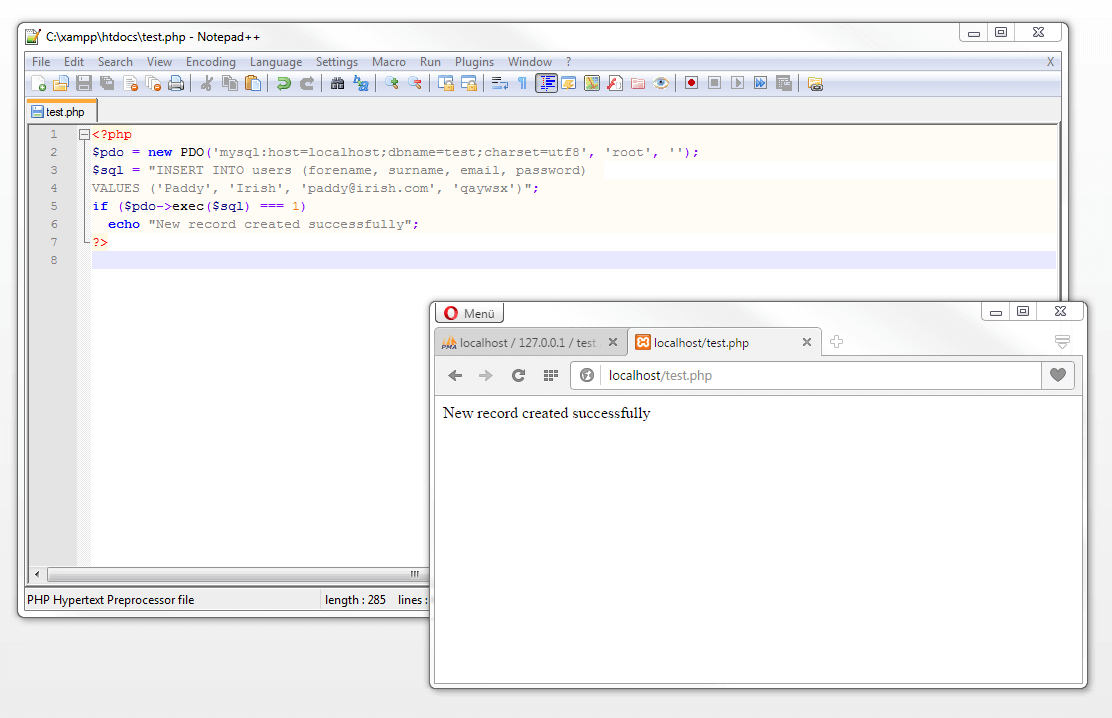
A basic PHP script, to add a further data set to our example table, could appear as follows:
<?php
$pdo = new PDO('mysql:host=localhost;dbname=test;charset=utf8', 'root', '');
$sql = "INSERT INTO users (forename, surname, email, password)
VALUES ('Paddy', 'Irish', 'paddy@irish.com', 'qaywsx')";
if ($pdo->exec($sql) === 1)
    echo "New record created successfully";
?>
Next, we begin to build the connection to the database and save this in the variable $pdo. Finally, we specify the SQL statement and save this to the variable $sql. In column 5 we use the arrow (->) in order to access the variable $pdo and then with the help of the function exec(), execute the SQL statement stored in $sql.
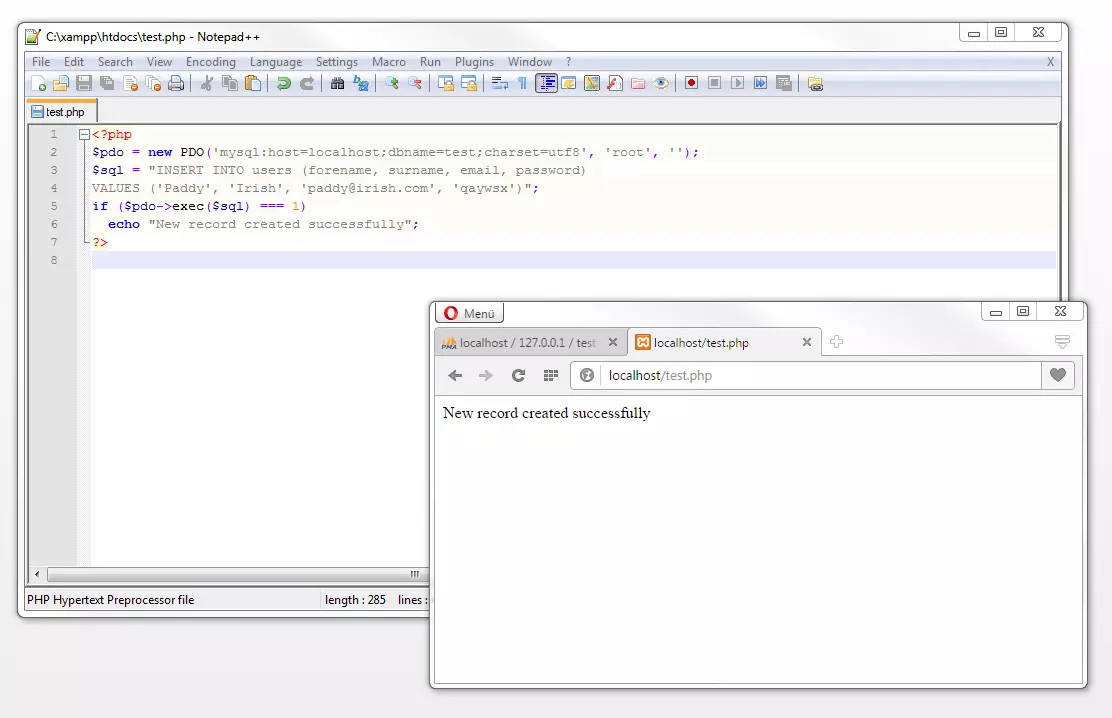
In order to make sure that our script enters only one data set into the users table, we need to check the number of affected columns. This can be done with the help of an if condition. What this does is make sure that the string New record created successfully can only be displayed in the web browser, if the number of entered data sets amounts to 1. If the case is executed again, the message remains the same. Duplicate entries are herewith avoided by the fact that the value email has been defined as UNIQUE.
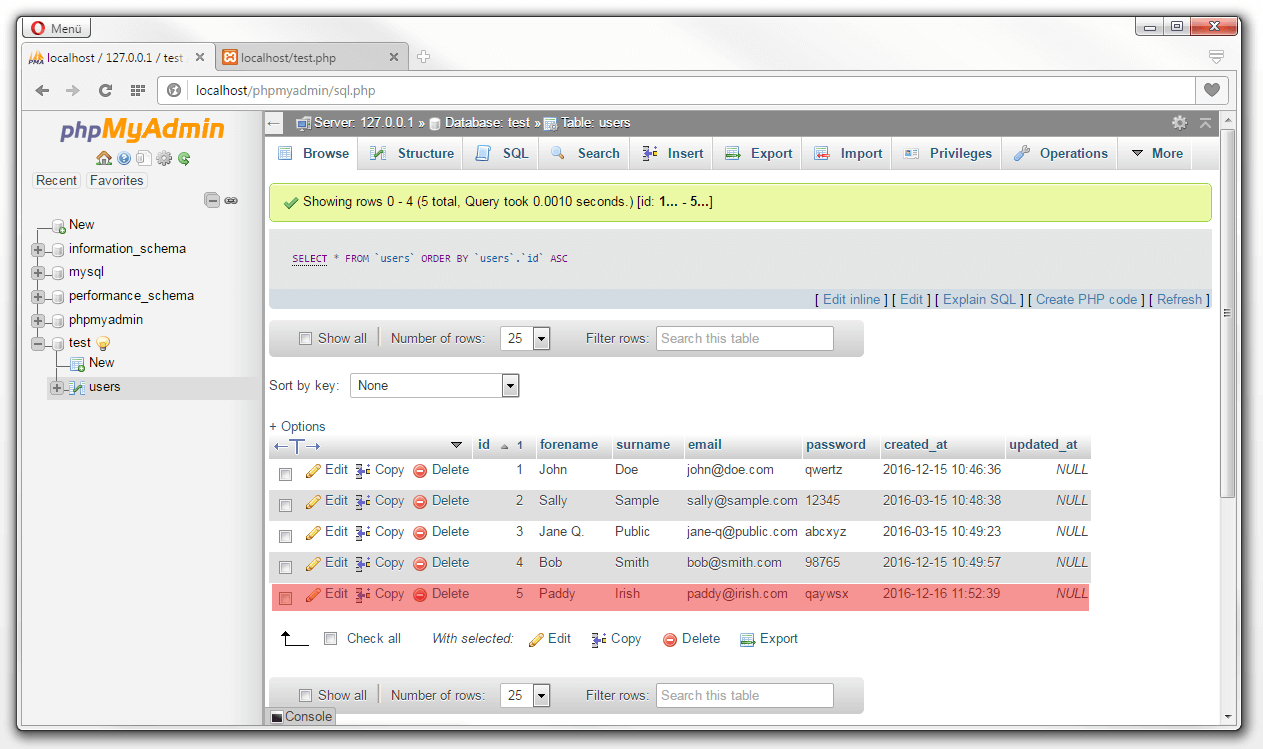
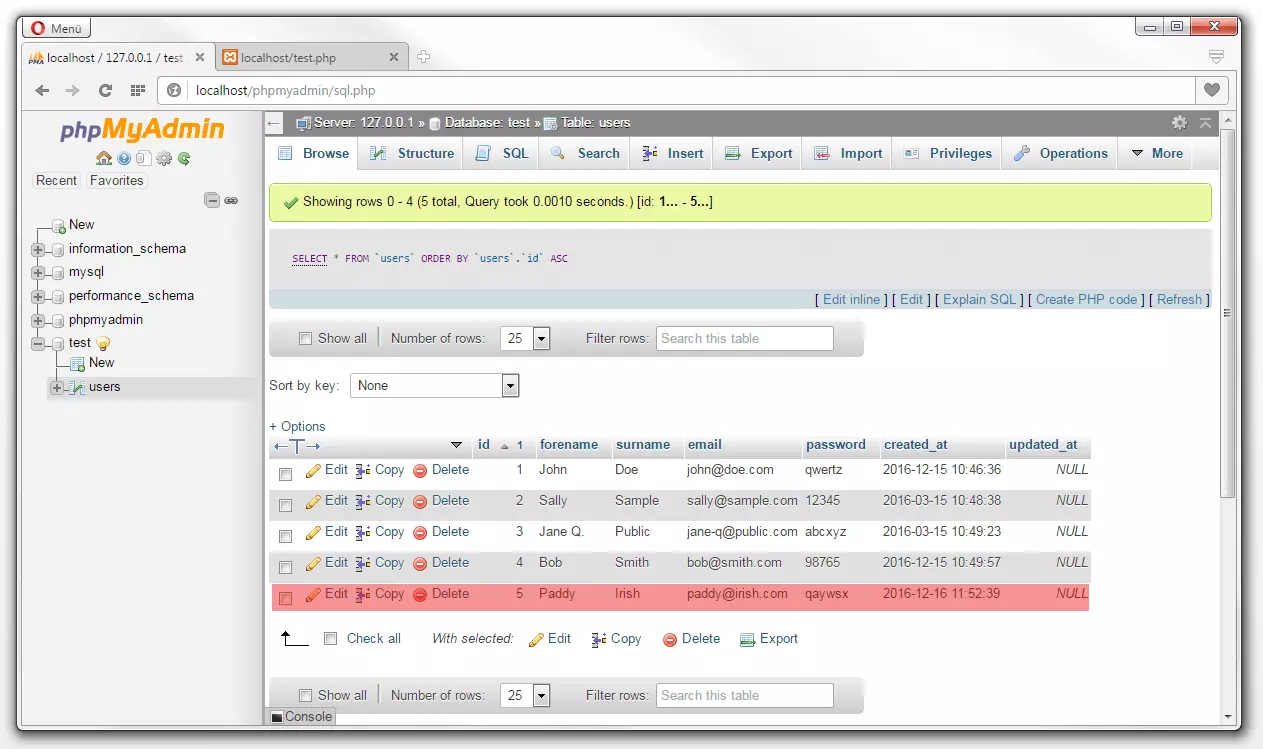
If we call up the overview of our example table users in the database, we see that the table has been extended to include the data set 5. As intended, the sequential identification numbers and timestamp are then automatically added.
UPDATE
If you wish to update the existing data sets, use the SQL command UPDATE as per the following basic schema:
UPDATE table SET column1 = value1, value2 = value2 WHERE column3 = value3Translated into simple English, this statement means: select the indicated table and replace the value in Column1 with Value1 and the value in Column2 with Value2, provided that Column3 contains Value3. Note: if you forget the condition, MySQL will overwrite the affected fields across all data sets.
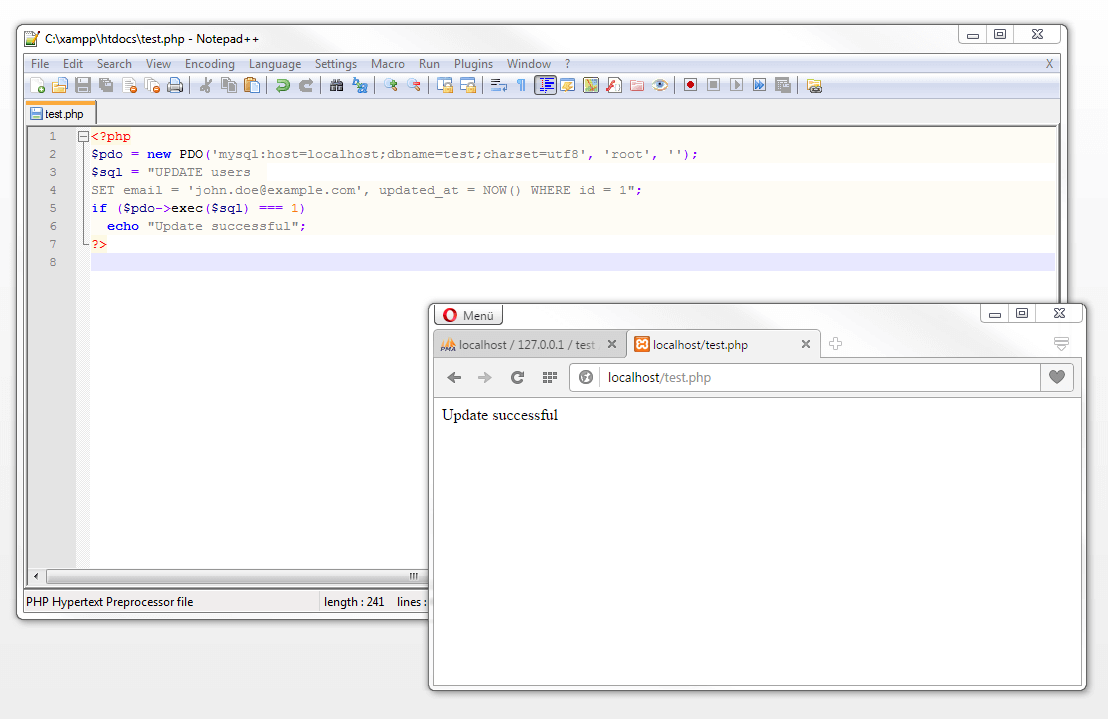
In this example, we are dealing with an SQL statement that links a database operation to a condition. Transferred to our example table, the email address of the user John Doe can be updated via the following PHP script:
<?php
$pdo = new PDO('mysql:host=localhost;dbname=test;charset=utf8', 'root', '');
$sql = "UPDATE users
SET email = 'john.doe@example.com', updated_at = NOW() WHERE id = 1";
if ($pdo->exec($sql) === 1)
    echo "Update successful";
?>
In the SQL statement, we specify clearly that the current value in the email column is to be replaced by the new value john.doe@example.com, provided that the value of the column id amounts to 1. With this then we simply update the data set with the primary key 1. Furthermore, in the same statement we also update the value for the column updated_at with the help of the MySql function now, which also furnishes it with an updated timestamp. The SQL statement is then executed as before with the line of code $pdo->exec($sql) within the framework of an if condition.
Assuming that the update was successful, phpMyAdmin should appear in the ‘Browse’ tab of the updated table:
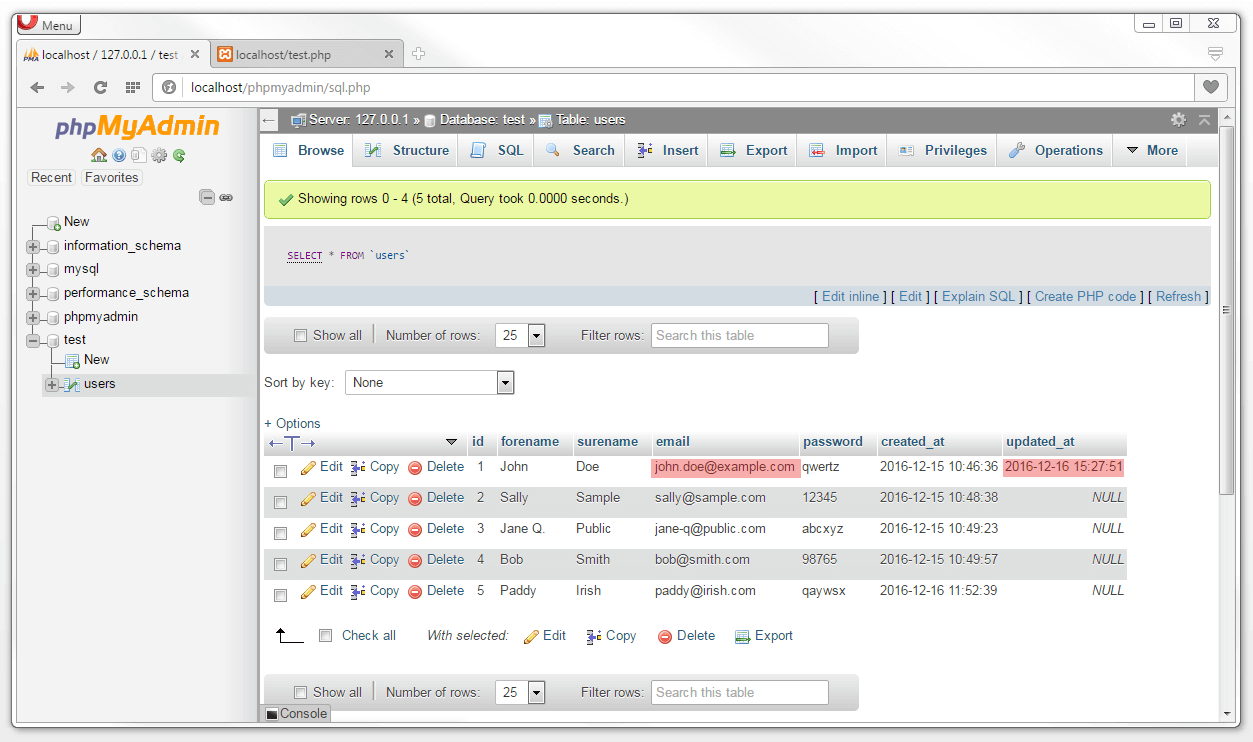
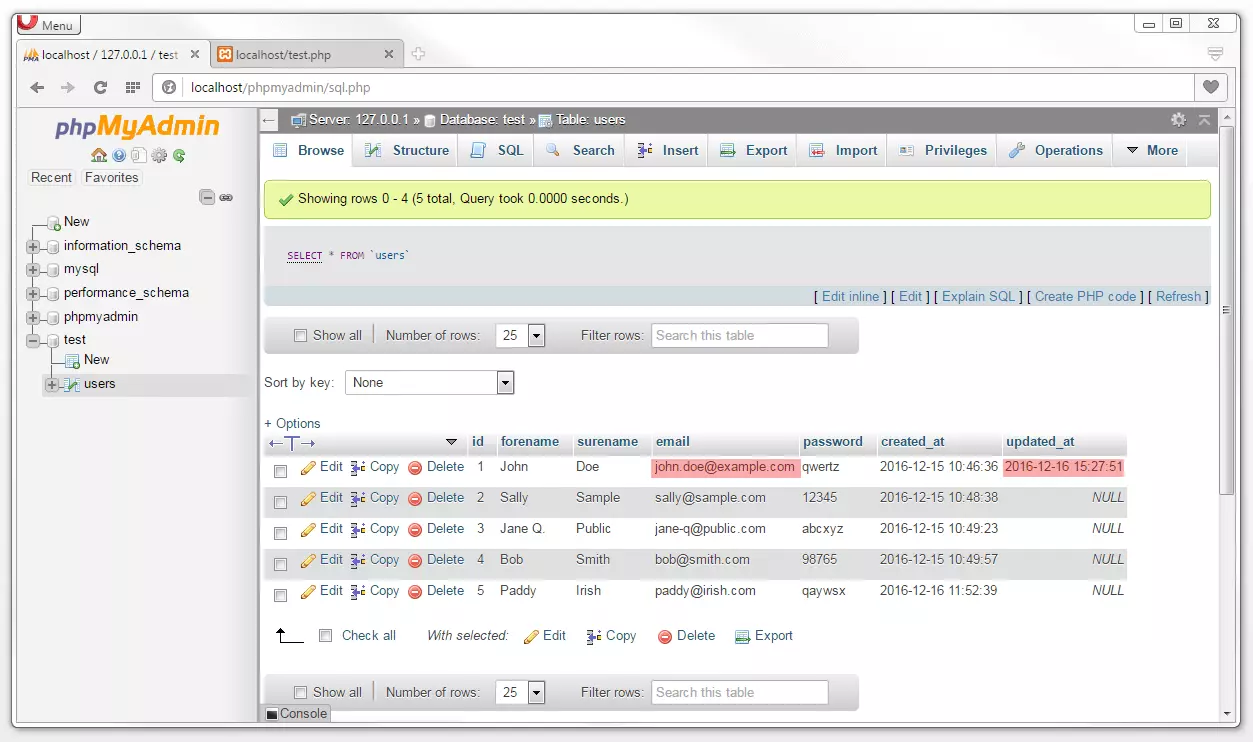
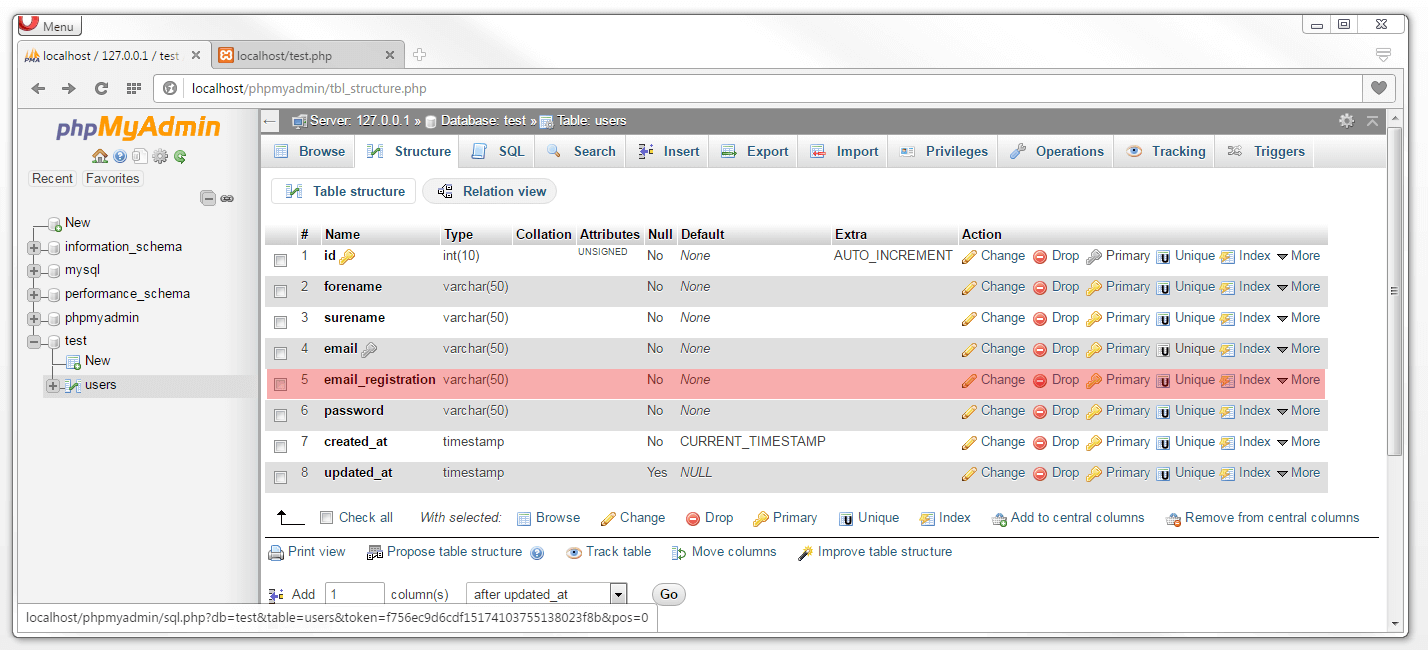
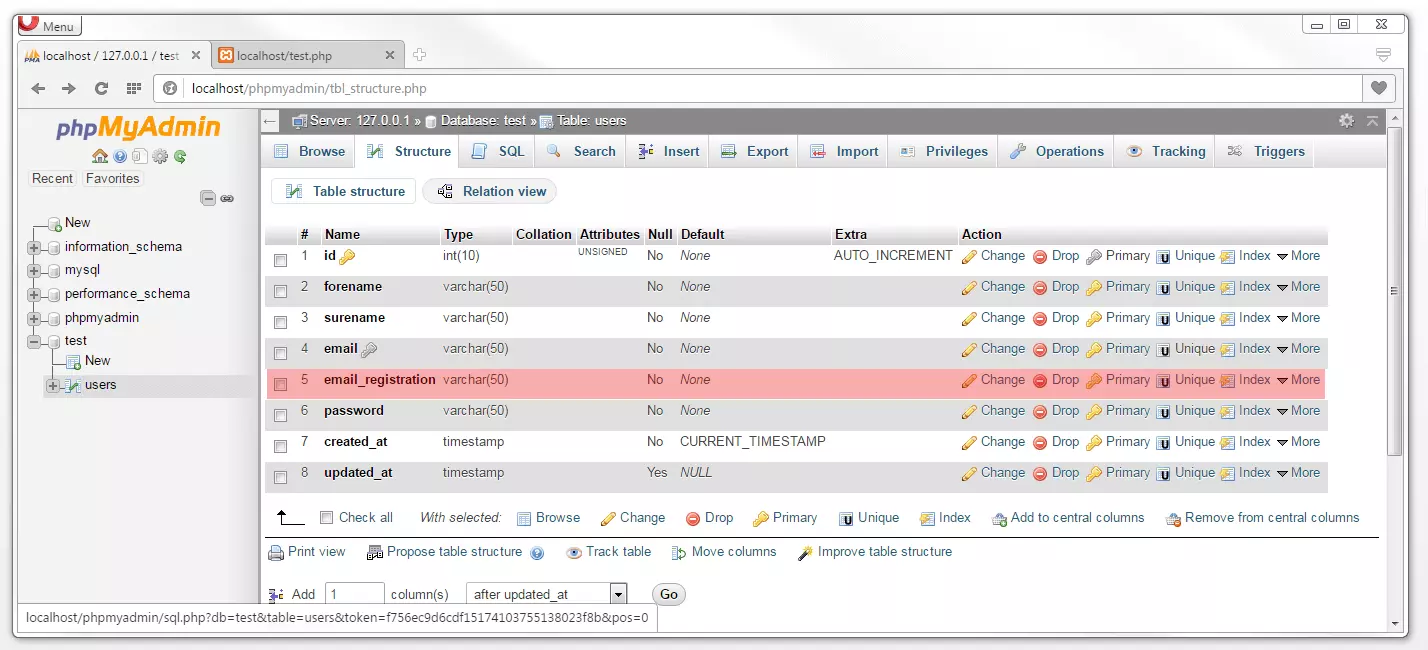
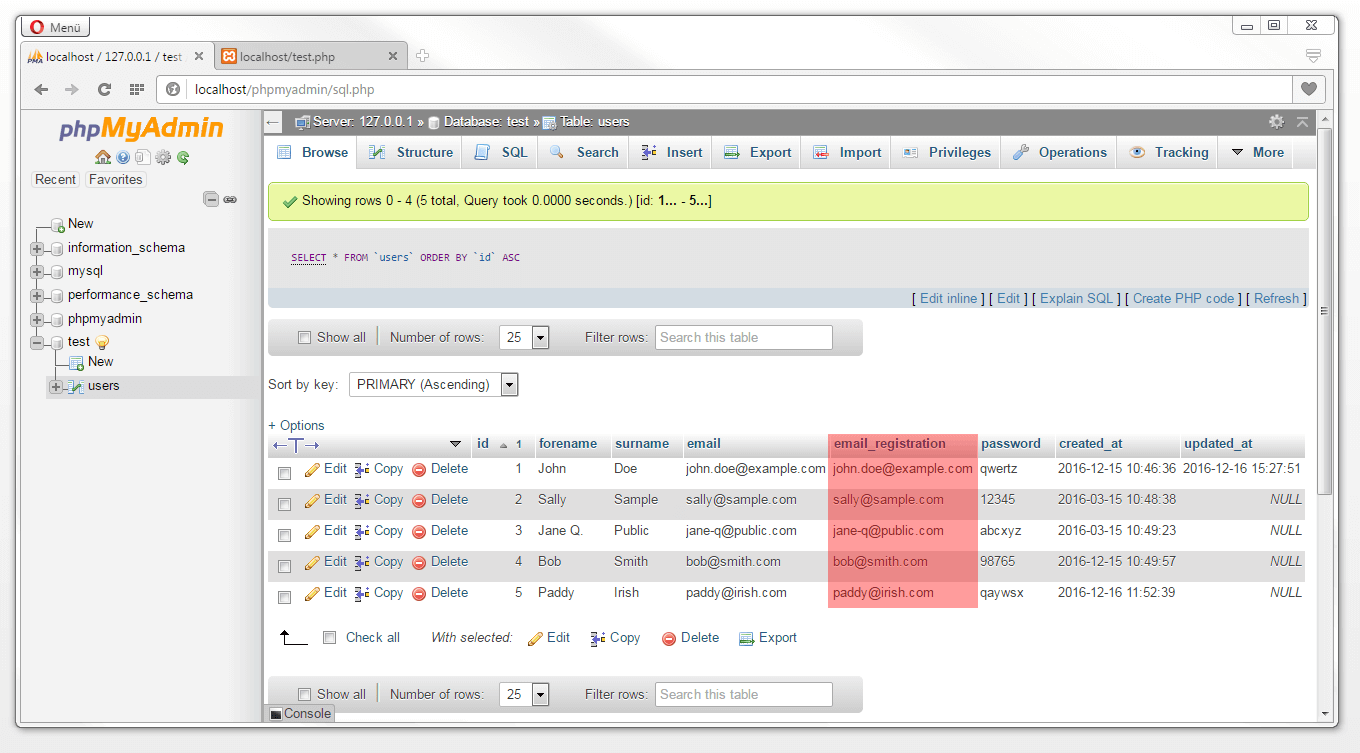
In this example, we have updated an email address and replaced the standard value NULL in the column updated_at with a timestamp. In addition, the UPDATE command also makes it possible to transfer values from one column to another. This operation can be performed by extending our example table users with an email_registration column. This gives us the possibility of differentiating between two email addresses; both that which was used during registration, as well a current contact address, which may change over time. Initially, both addresses will appear the same so that the values can be transferred from one field to another. In order to do this we use phpMyAdmin and the ‘Add columns’ option in the ‘Structure’ tab, and then initially create a new column email_registration:
Use the following UPDATE statement to transfer the values:
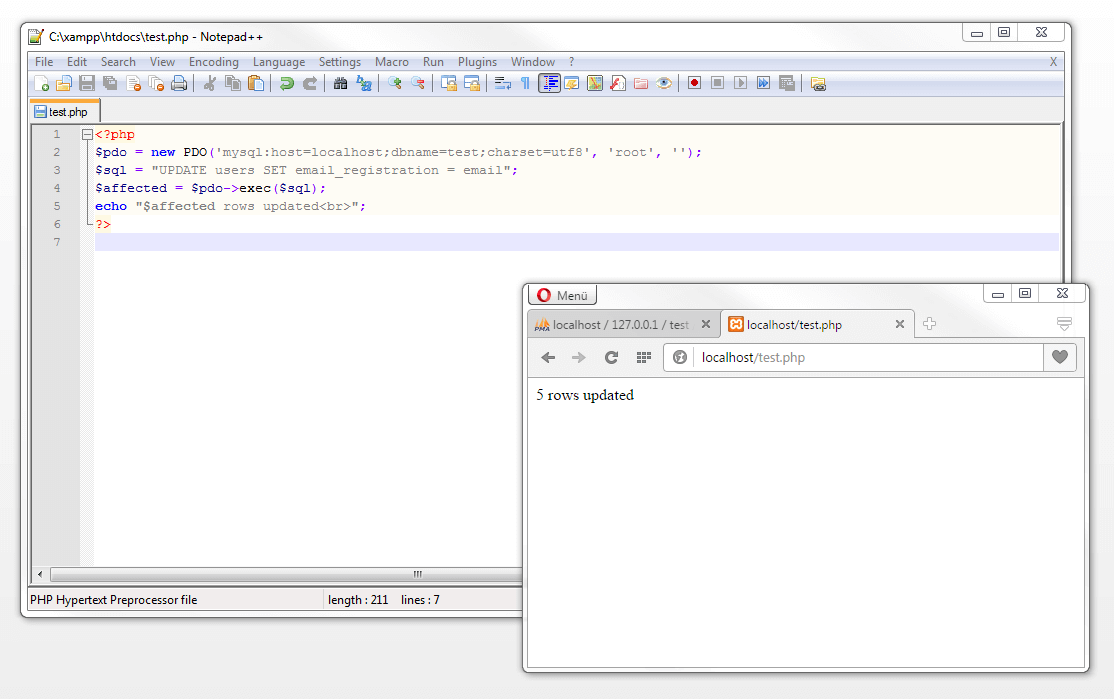
UPDATE users SET email_registration = emailGiven that we wish to update all data sets, we therefore outline no condition for this update:
<?php
$pdo = new PDO('mysql:host=localhost;dbname=test;charset=utf8', 'root', '');
$sql = "UPDATE users SET email_registration = email";
$affected = $pdo->exec($sql);
echo "$affected rows updated<br>";
?>
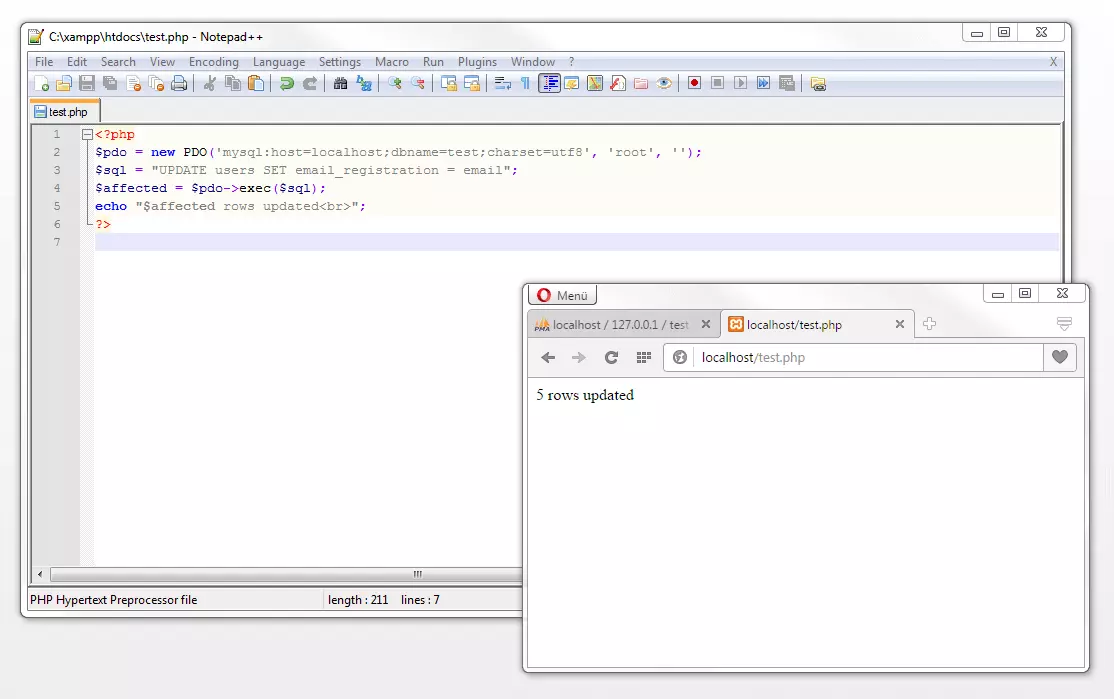
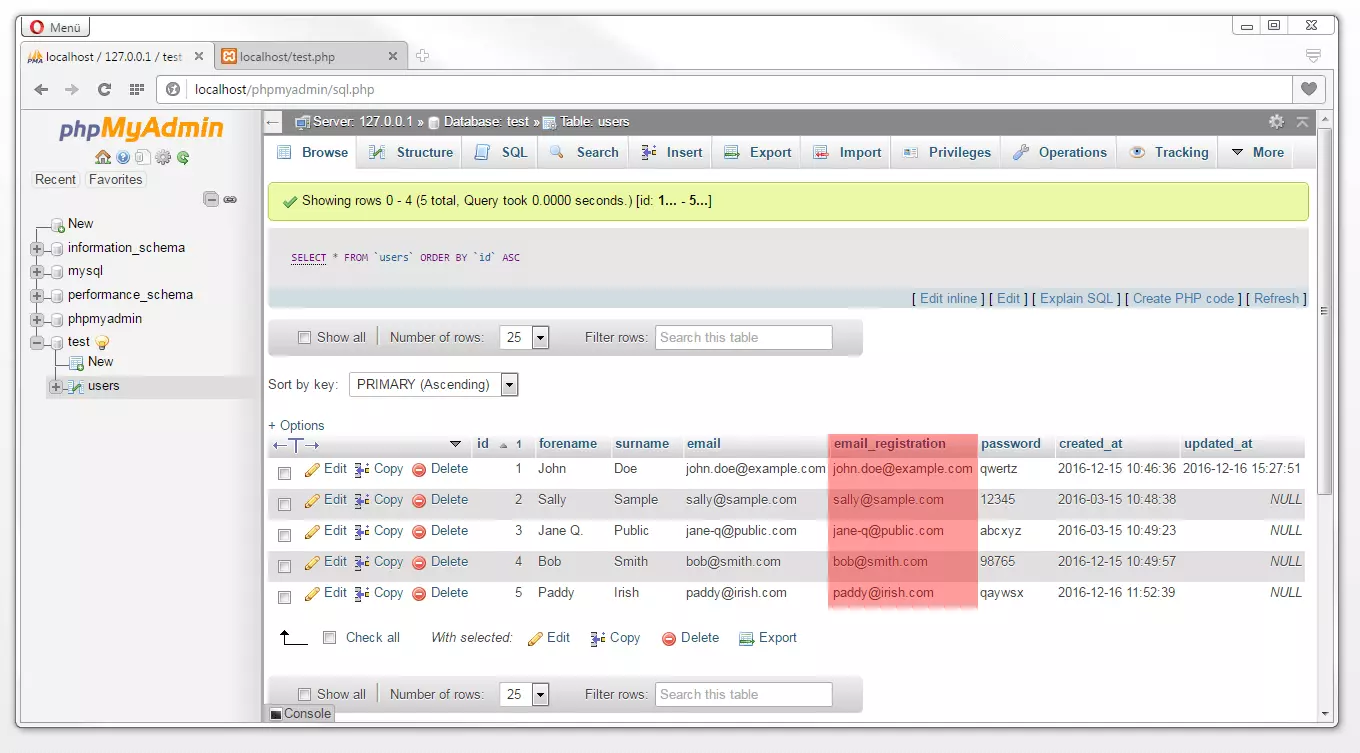
If the script is executed via a web browser, the database management system will transfer the values for all data sets from the email column to the email_registration column.
DELETE
Database entries can be deleted by using the SQL command DELETE. This can be deployed with the following schema:
DELETE FROM table WHERE column = valueIf it’s the case that you are working with IDs in your databases, there is the possibility of identifying the entries to be deleted. For example, if you wish to delete entry 5 in our example table then enter the following:
<?php
$pdo = new PDO('mysql:host=localhost;dbname=test;charset=utf8', 'root', '');
$sql = "DELETE FROM users WHERE id = 5";
$affected = $pdo->exec($sql);
echo "$affected rows updated<br>";
?>
The SQL command DELETE invariably deletes a full database column. If you wish to only delete values in certain columns of a database, you can do this with an UPDATE statement. UPDATE table SET column = NULL WHERE … you can assign the value NULL to a column, provided of course that you have authorized a NULL value for the column(s) in question.
Prepared statements
PDO allows for database operations to be transformed into so-called prepared statements. These days, such ‘preconceived queries’ are standard practice in the world of web development and are therefore supported by all modern database management systems.
The previous examples have seen us transfer parameter values directly in the SQL statement. However prepared statements work with placeholders, which are then only subsequently assigned values. This makes it possible for the database management system to check the validity of parameters before they are processed. This acts as effective protection against SQL injection. For such patterns of attack, hackers create or alter SQL commands in order to get access to sensitive data, overwrite data, or to incorporate their own commands into a system.
SQL injection is based on a known security breach in the area of SQL databases. For example, if a user’s entry is transferred with static parameters via $_GET, this gives hackers the opportunity to augment the input with meta characters. This can lead to undesired effects if they manage to get into the SQL interpreter without masking. This can be effectively avoided with parameterized queries. In this way, prepared statements function as templates for SQL commands for SQL commands, which are transferred to the database, separately from the actual parameters. This not only validates the transferred data but also masks the meta characters automatically and inserts the parameter into the SQL statement, instead of the placeholder.
Alongside these safety features, prepared statements also offer performance advantages. This becomes obvious when the same SQL command is run in a loop with various parameters. Once a prepared statement is parsed once, it remains present in the database system and only needs to be implemented with new parameters. This then means that complicated queries are accelerated significantly.
In PDO prepared statements are implemented with the help of the function prepare(). This prepares a statement for the execution and also returns a statement object. Either a question mark (?) or a named parameter will be used as a placeholder for the respective value.
Prepared statements with unnamed parameters
The following example of code shows the database operation INSERT as a prepared statement with unnamed parameters:
<?php
$pdo = new PDO('mysql:host=localhost;dbname=test;charset=utf8', 'root', '');
// prepare SQL statement
$statement = $pdo->prepare("INSERT INTO users (forename, surname, email, password)
VALUES (?, ?, ?, ?)");
// bind parameter
$statement ->bindParam(1, $forename);
$statement ->bindParam(2, $surname);
$statement ->bindParam(3, $email);
$statement ->bindParam(4, $password);
// insert data sets
$forename = "Anders";
$surname = "Andersen";
$email = "anders@andersen.com";
$password = "mnbvc";
if ($statement->execute())
    echo "New record $forename created successfully<br>";
$forename = "Matti";
$surname = "Meikäläinen";
$email = "matti@meikäläinen.com";
$password = "jhgfd";
// display status
if ($statement->execute())
    echo "New record $forename created successfully<br>";
?>
Next, with the help of the prepare() function, we create a statement object of the desired query and then save this in the $statement array. Instead of concrete parameter values, the question mark is deployed as a placeholder.
If it is the case that a statement contains only placeholders, separately transferred values in the following code must be bound to it. In PHP the bindParam() function is used. We use the arrow operator (->) to access the bindParam() method of the $statement object and then assign this variable (1 corresponds to the first question mark, 2 to the second, and so on).
This SQL template can then be executed as often as you want with the desired parameters. The current example sees us specify variable values for two data sets. The execution of these preconceived SQL statements takes place for each data set via execute().
Prepared statements with named parameters
Names parameters are clearer and more visible than the question mark placeholder. In this case, we are talking about a user defined placeholder, which can be named according to the following schema:
:exampleNamed parameters should contain neither spaces nor hyphens (-). Instead, you should use the underscore (_).
In the following example, the database operation INSERT is shown as a prepared statement with named parameters:
<?php
$pdo = new PDO('mysql:host=localhost;dbname=test;charset=utf8', 'root', '');
// prepare SQL statement
$statement = $pdo->prepare("INSERT INTO users (forename, surname, email, password)
VALUES (:forename, :surname, :email, :password)");
// bind parameter
$statement ->bindParam(':forename', $forename);
$statement ->bindParam(':surname', $surname);
$statement ->bindParam(':email', $email);
$statement ->bindParam(':password', $password);
// insert data sets
$forename = "Anders";
$surname = "Andersen";
$email = "anders@andersen.com";
$password = "mnbvc";
if ($statement->execute())
    echo "New record $forename created successfully<br>";
$forename = "Matti";
$surname = "Meikäläinen";
$email = "matti@meikäläinen.com";
$password = "jhgfd";
$statement->execute();
// display status
if ($statement->execute())
    echo "New record $forename created successfully<br>";
?>
Within the prepared statement are the named parameters :forename, :surname, :email, and :password. We then bind this to the variables $forename, $surname, $email, and $password via bindParam(). In the current example, we have named both the parameters as well as the variables of the columns within our example table. This is not specified by the syntax. For this reason, a standardized naming in the sense of an easily readable source code is recommended. The assigning of the variable value and the execution of the SQL statement is analogous to the previous example.
Dates and time functions in MySQL
MySQL and MariaDB support a diverse range of functions to be able to work with date and time information. A complete list of them can be found here. In this MySQL tutorial for beginners, we limit ourselves to one choice.
| Date & time function | Description |
|---|---|
| CURRENT_TIMESTAMP() / NOW() | Through the example of the SQL command UPDATE we are already familiar with the function NOW(). In this case, we are merely dealing with a synonym of the function CURRENT_TIMESTAMP(). This function always comes into effect in the context of a database operation which should adhere to the current date and time |
| CURDATE() / CURRENT_DATE() | The CURDATE() function returns the current date |
| CURTIME() / CURRENT_TIME() | The CURTIME() function returns the current time |
| DAY() / DAYOFMONTH() | Returns the day of the month (0 – 31); requires a date or timestamp as an argument |
| DAYOFWEEK() | Returns the day of the week (1 = Sunday); requires a date or timestamp as an argument |
| MONTH() | Returns the month (1-12); requires a date or timestamp as an argument |
| YEAR() | Returns a year (1000 – 9999, 0), requires a date or timestamp as an argument |
| DATE() | Extracts the date from time or date info; requires a date or timestamp as an argument |
| TIME() | Extracts the time from time and date info; requires a date or timestamp as an argument |
| DATE_FORMAT() | Format time or details according to the specified parameters; requires a date or timestamp as an argument |
An example of a possible scenario for the application of the time and date function in MySQL is a database query, in which all data sets created on a certain day should be read out.
The following script provides us with all data sets from our example table users, which were created today:
<?php
$pdo = new PDO('mysql:host=localhost;dbname=test;charset=utf8', 'root', '');
$sql = "SELECT forename, surname, email FROM users WHERE DATE(created_at) = CURDATE()";
foreach ($pdo->query($sql) as $row) {
    echo $row['forename'] . " " . $row['surname'] . "<br />";
    echo "E-Mail: " . $row['email'] . "<br /><br />";
}
?>
To ensure that only the entries from today are displayed, we use the following condition in SQL statement:
DATE(created_at) = CURDATE()Next, with the help of the DATE() function, we extract the date from the timestamp saved in the created_at column, and then synchronize this with the current date. Herewith the SELECT command only selects the entries whose timestamp corresponds with today’s date.
Alternatively, we can also select the entry that we updated on 16.12.2016. In order to do this we only need to adjust the condition of our SQL statement:
SELECT forename, surname, email FROM users WHERE DATE(updated_at) = '2016-12-16'In this case, the date information extracted from the timestamp is collated with a concrete date. Furthermore, you can narrow down queries to a specific year, month, or day.
The following statement relates to all entries in the users table, which were created in December:
SELECT forename, surname, email FROM users WHERE month(created_at) = 12";Along with the equals sign, SQL supports the following operators in conditions:
| Operators | Description |
|---|---|
| = | is equal |
| < | less than |
| > | larger than |
| <= | less than or equal |
| >= | larger than or equal |
| != | unequal |
Additionally, you can also link several conditions with logical symbols:
| Logical operators | Description |
|---|---|
| OR i.e. || | Logical OR |
| AND i.e. && | Logical AND |
For an example, the following statement selects all entries which were created after February and prior to April:
SELECT forename, surname, email FROM users WHERE MONTH(created_at) > 2 AND MONTH(created_at) < 4";Up till now, we have saved the date and time details in our database in the predetermined format. However, with MySQL and MariaDB, they are not necessarily set to this. The DATE_FORMAT() function offers you optional parameters allowing you to format dates and times as you please.
<?php
$pdo = new PDO('mysql:host=localhost;dbname=test;charset=utf8', 'root', '');
$sql = "SELECT forename, surname, DATE_FORMAT(created_at,'%D %M %Y') AS created_at FROM users WHERE id=1";
    foreach ($pdo->query($sql) as $row) {
    echo $row['forename'] . " " . $row['surname'] . " your profile was created at: " . $row['created_at'] . ".<br /><br />";
}
?>
The table below shows the possible parameters for the DATE_FORMAT() function according to MySQL documentation.
| Parameter | Description | Value range/Examples |
|---|---|---|
| %c | Month with 1 or 2 digits | 0 to 12 |
| %d | Day of the month with 2 digits | 00 to 31 |
| %e | Day of the month with 1 or 2 digits | 0 to 31 |
| %H | Number of hours with 2 digits | 00 to 23 |
| %i | Number of minutes with 2 digits | 00 to 59 |
| %j | Number of days within the year with 3 digits | 001 to 366 |
| %k | Number of hours with 1 or 2 digits | 0 to 23 |
| %M | Month written in current locale | January, February, March, etc. |
| %m | Month in 2 digits | 00 to 12 |
| %s | Number of seconds in 2 digits | 00 to 59 |
| %T | Time in 24 hour format (short form '%H:%i:%S'.) | HH:MM:SS |
| %u | Number of the week of the year, beginning with Monday | 00 to 53 |
| %W | Day of the week in current locale | Monday, Tuesday, etc. |
| %w | Day of the week in digits | 0 = Sunday, 6 = Saturday |
| %Y | Year in 4 digits | e.g. 2016 |
| %y | Year in 2 digits | e.g. 16 |
MySQL error messages
If it so happens that a script is not executed as desired, this is usually as a result of syntactic errors in the source code or wrongly named tables, columns, and/or variables. In this case, it does not necessarily lead to an error message. Often the desired result remains in place without any indication of the failed operation.
With errorInfo() you have a function that allows you to access advanced error information relating to the most recent database operation — e.g. to issue these via the web browser.
The following script for updating email addresses sees the errorInfo() function being used in combination with an if loop. For this to happen, the correct execution of the SQL statement is required. If this is carried out error free, then the web server will return the string Update successful. Otherwise, it will be executed under the specified code else.
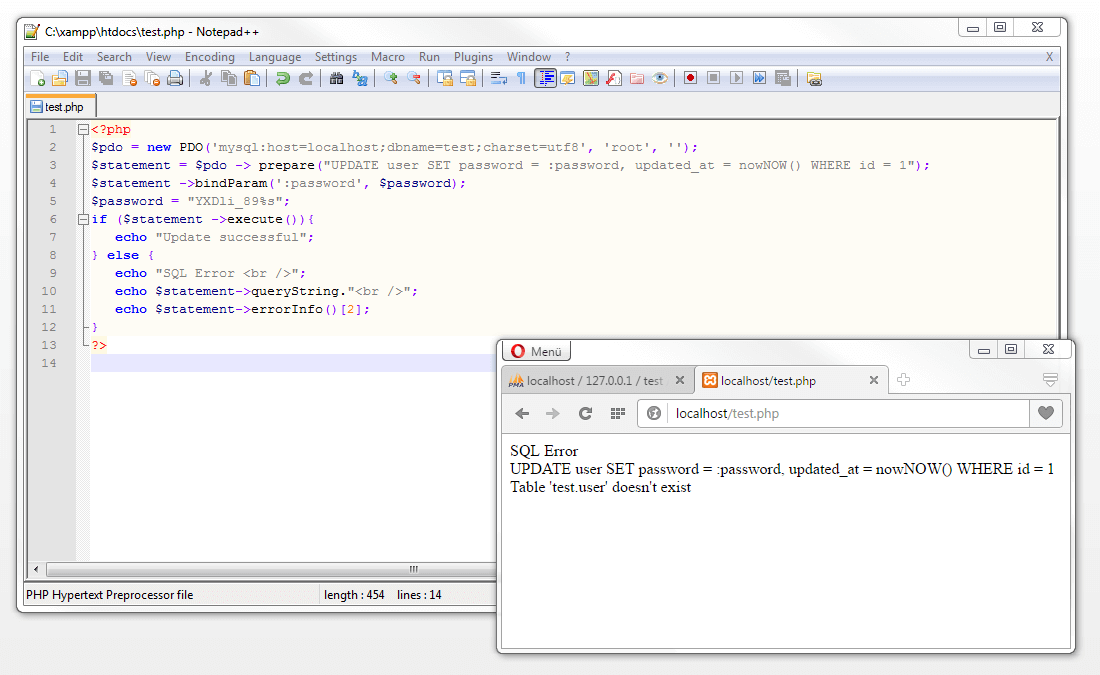
In the current example, we inform the user about the fact that an SQL error has occurred and thus issue the affected SQL statement as well as advanced error information via errorInfo():
<?php
$pdo = new PDO('mysql:host=localhost;dbname=test;charset=utf8', 'root', '');
$statement = $pdo -> prepare("UPDATE user SET password = :password, updated_at = NOW() WHERE id = 1");
$statement ->bindParam(':password', $password);
$password = "YXDli_89%s";
if ($statement ->execute()){
    echo "Update successful";
} else {
    echo "SQL Error <br />";
    echo $statement->queryString."<br />";
    echo $statement->errorInfo()[2];
}
?>
If we execute the script via the web server, the following information is displayed:
SQL Error
UPDATE user SET password = :password, updated_at = NOW() WHERE id = 1
Table 'test.user' doesn't exist
The SQL command UPDATE refers to a table under the name user. However we gave our table the name users. The SQL server cannot find the requested table and so shows the message 'test.user' doesn't exist. In this case, the cause of the error is merely a typing error that can be rectified quickly.
With the return values of the errorInfo() function, we are dealing with an array that contains three elements:
[0] = SQL error code
[1] = driver-specific error code
[2] = driver-specific error message
Exactly which information is retrieved via errorInfo() can be specified by outlining the desired elements in square brackets.
It’s generally the case that detailed error information is rarely issued only via the web browser. With this information, users can usually do only very little. Whereas potential attackers use error messages to help them understand SQL queries and through this detect an application’s weak points. Therefore, it is highly recommended that the information provided to users regarding errors stays quite general and that more specific error information is stored internally. An example of how this can be done is as follows:
<?php
$pdo = new PDO('mysql:host=localhost;dbname=test;charset=utf8', 'root', '');
$statement = $pdo->prepare("UPDATE user SET password = :password, updated_at = NOW() WHERE id = 1");
$statement->bindParam(':password', $password);
$password = "YXDli_89%s";
if ($statement->execute()) {
     echo "Update successful";
} else {
    echo “Unfortunately an error has occurred during the updating of your password. Please contact our administrator on: admin@website.com.”;
    $error = DATE("Y-m-d H:i:s") . " - " . __FILE__ . " - " . $statement->queryString . " - " . $statement->errorInfo()[2] . " \r\n";
    file_put_contents("sqlerrors.log", $error, FILE_APPEND);
}
?>
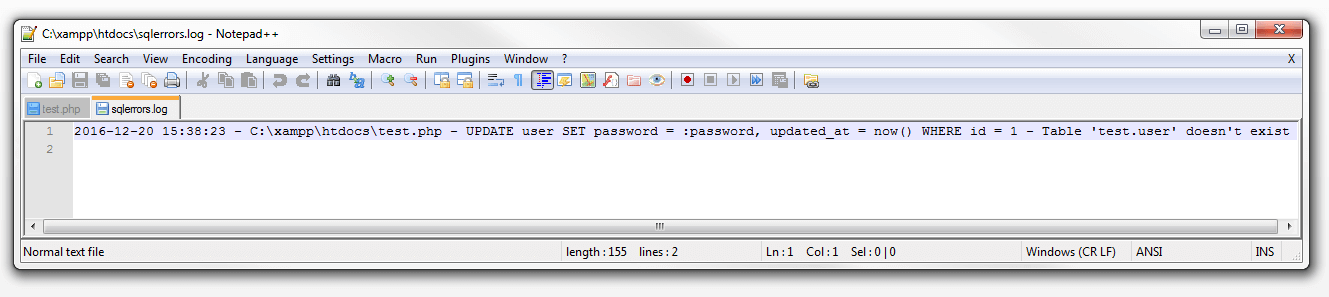
Instead of the function errorInfo() returning the value via echo in the web browser, we save this along with the current time stamp, the path to the file, and the affected SQL statement in the $error variable.
The PHP function DATE() issues the Unix timestamp in the specified format. The so-called constant __FILE__ provides us with the complete path to the test.php file. We retrieve the current SQL statement just like as we did in the previous example via $statement->queryString. Following this, the files stored in $error are stored as text in the sqlerrors.log file in the htdocs folder. This is done with the help of the function file_put_contents().
JOIN
As was previously discussed in the chapter on relational databases, it is possible to query data from multiple tables at the same time. Now that you are familiar with the basic database operations, we will address this further and demonstrate to you how you can link different tables within your database in a join.
The merging of tables in the context of a query takes place with the help of the SQL command JOIN. Through this, two or more normalized tables are linked through common columns. This is realized via a foreign key.
This linking of database tables is demonstrated in the following example:

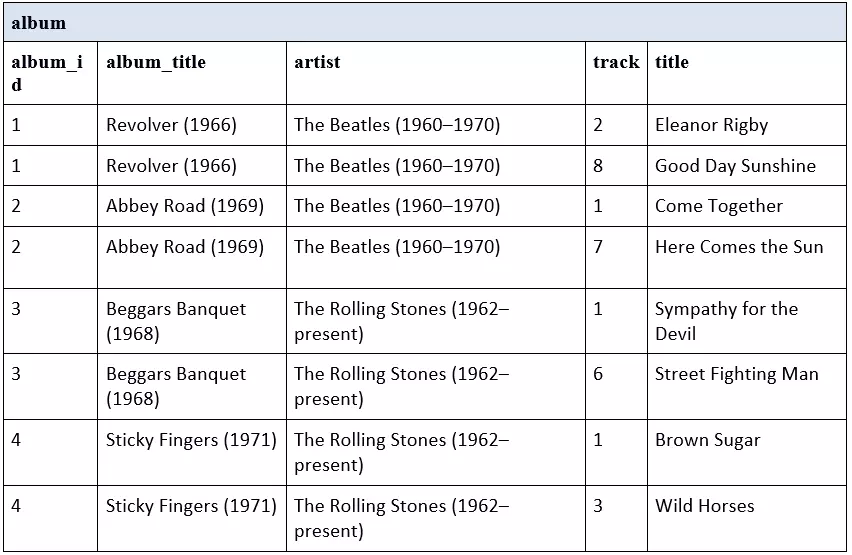
This table shows a selection of our favorite songs from the 1960s and serves as an example of a poor quality database design.
The table features redundant data fields. We remove these by splitting the files as part of the normalization process and then link them with the help of the foreign key.
Normal forms
Good database design can be characterized by a minimum level of redundancy. Duplicate entries can be avoided through the normalization of data tables. In the area of the relational database model, three consecutive normal forms, each one built upon the other, have been established. These specify set rules for the optimal data structuring.
First normal form
A table belongs to the first normal form if all of its attribute values are atomic. Attribute values are deemed to be atomic if they contain only one piece of information. This is clearly demonstrated in our bad example above.
For example, take a look at the columns album_title and artist in the table album. Instead of listing each piece of information within the table in a separate table, we have supposedly decided to make it easier for ourselves by simply placing information regarding the release year of an album, as well as how long the band has been in existence, in brackets after the title of the album. All of this information is placed under the table heading of artist. However, we may one day come to regret this sloppiness if, for example, we wish to retrieve all titles that were released in a certain year.
For that reason, we recommend creating tables based on the rules of the first normal form instead. With this in mind, our example table should then look like this:

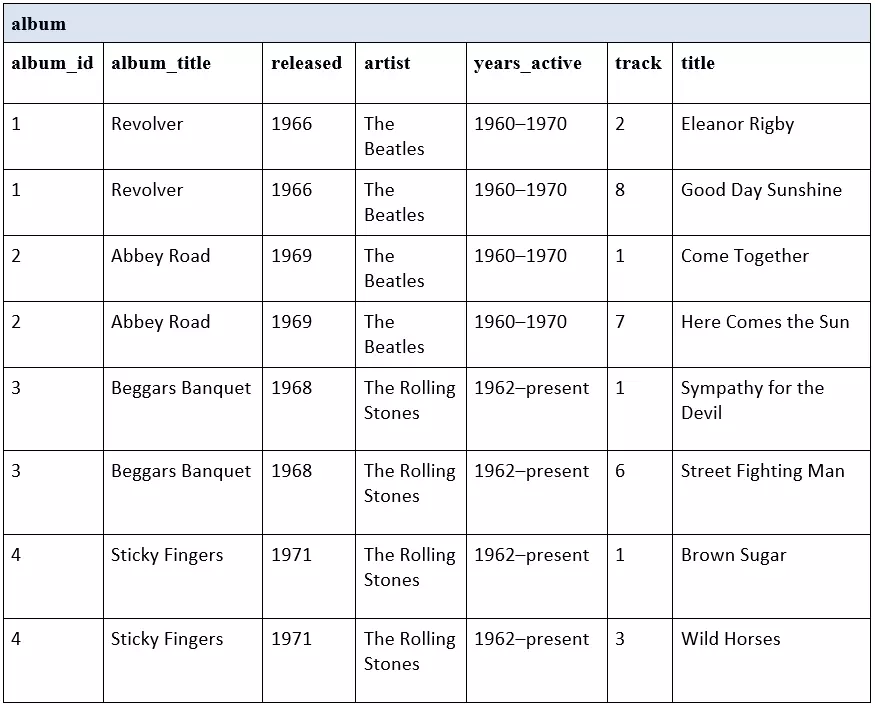
All pieces of data are now separate and more readable. However, it is still the case that our table contains some redundancies. Over the next few steps, we will explain how to get rid of these.
Second normal form
A table can be said to be belonging to the second normal form if, all conditions of the first normal form are fulfilled, and when every non-key attribute is fully functionally dependent on the overall primary key of the table.
Data tables will often only contain one column which then functions as the primary key. Tables like this will automatically belong to the second normal form if they happen to fit all the criteria of the first normal form. Now and then it will also happen that the primary key of a table is made up of two columns. This is the case with our example table.
To go about retrieving a desired title from the title column, we would need both the album_id as well as the highlighted track number from the track column. For example, the track Sympathy for the Devil could be retrieved via the primary key album_ID = 3 AND track = 1. In this case we are dealing with a composite primary key and this is required exclusively for queries, which refer back to the title column. The columns album_title, released, artist and years_active are solely dependent on the album_id. For this reason, these columns have no fully functional independence from the overall primary key. The conditions for the second normal form have not yet been met.
We can change this by transferring the title column to a new table and then link it with the output table through a foreign key (album_id):

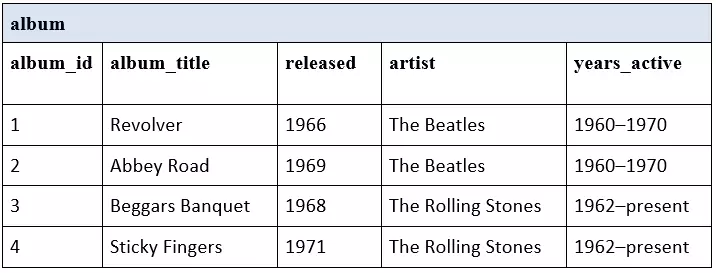

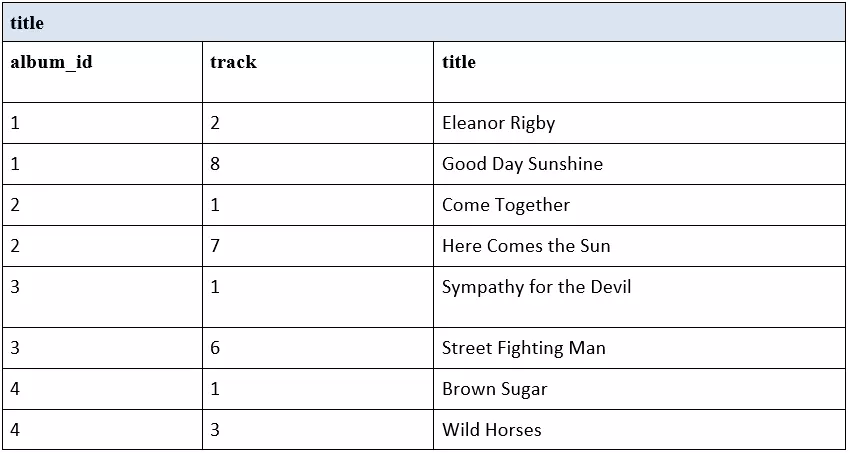
The revised table album contains only a one part primary key and automatically fulfills the conditions of the second normal form. The new table title contains only the non-key column title. This is fully functionally dependent on both parts of the primary key (album_id and track) and so belongs to the second normal form.
However, even in the second normal form, our data table album features entries that are redundant.
Third normal form
If a table should fit the criteria of the third normal form, then all conditions of the second normal form (and as a consequence also the first normal form=) need to be fulfilled. Additionally, no non-key attribute can be intransitive dependent on a key attribute. And while this condition sounds quite complicated, it can be easily explained: transitive dependence always occurs when one non-key attribute is dependent on another.
This is very relevant to our example table album which contains the columns artist and years_active. While the artist can be identified through the album_id, on the other hand, the year and period of the band’s existence are dependent on artists and also transitively dependent on the album_id. One disadvantage of this is that every time a new album from one of the already listed artists is entered, the database management system will automatically save a redundant value in the years_active column.
In order to fulfill the criteria for the third normal form, and with it remove all the redundancies from our table, we first need to transfer the artist column (including years_active) to a separate table and link it to the output table album via a foreign key.
We are then left with three normalized tables: artist, album and title.

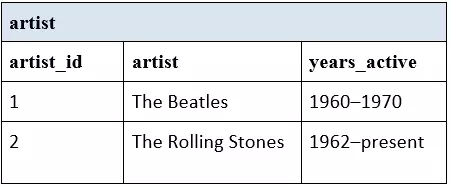

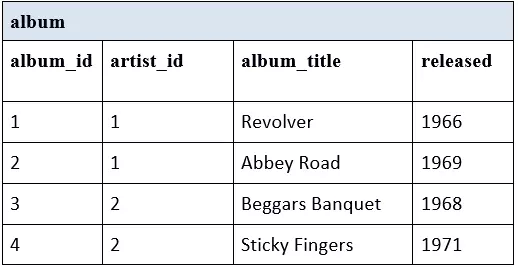

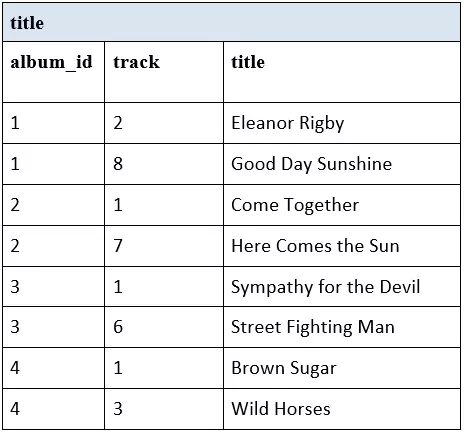
If we now wish to output a specific title in our database including information on the album as well as the artist, we should link three separate tables with the help of an SQL command and the respective foreign key.
Defining a foreign key via phpMyAdmin
Provided that you have selected InnoDB as a database engine, you can define the foreign key relationships through the graphic user interface of your administration software phpMyAdmin. In this case, the primary key of a table can be deployed as a foreign key in any number of tables.
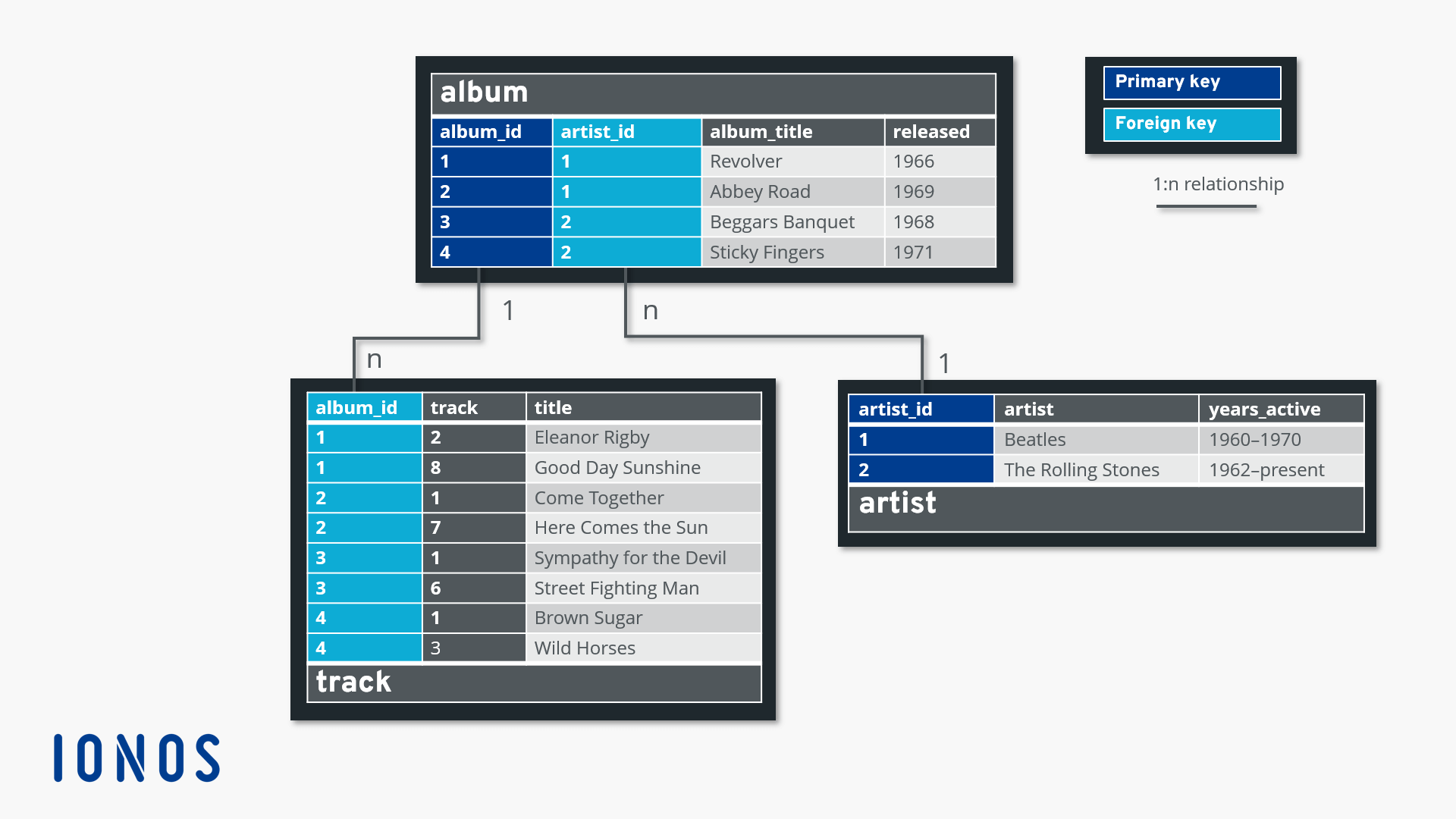
In terms of our example, we require two connections in order to link the three normalized tables album, artist and title.
- For the first connection, we use the primary key album_id from the album table as a foreign key in the table track.
- For the second connection, we use the primary key artist_id from the artist table as a foreign key in the table album.
The following graphic outlines the various foreign key relations:
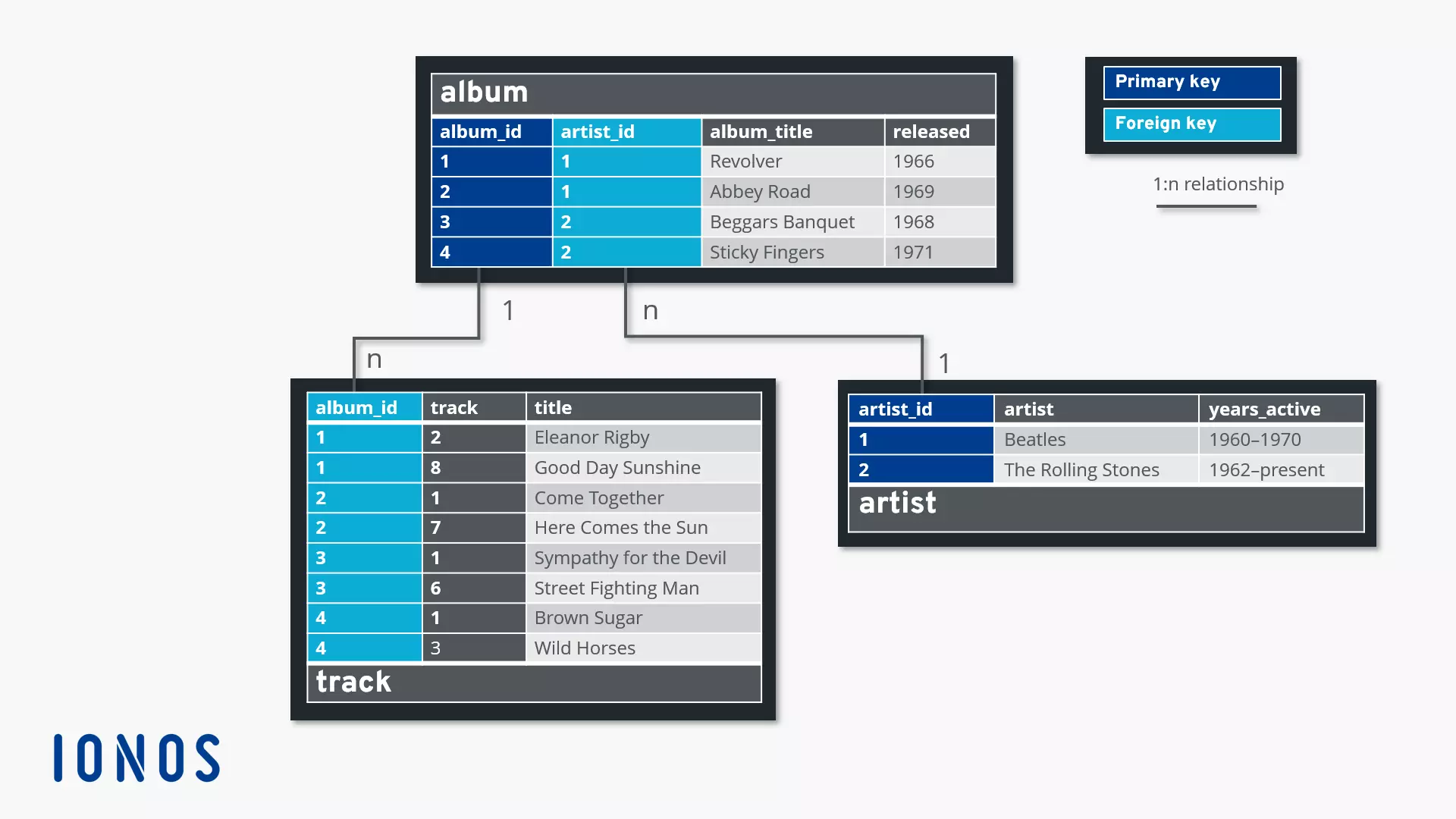
When linking data tables it is important to remember that, a column that is supposed to function as a foreign key needs to be provided with the attributes UNIQUE or INDEX.
The relationship between a primary key and foreign key generally belongs to the relationship type 1:n. Every data field in the primary column of table A is related to any number of (n) data fields in the foreign key column of table B. But every data field in the foreign key column of table B refers to exactly one data field in the primary key column of table A. For example, if we have four entries in the primary column album_id in the table album. These are then linked with eight entries in the table title, through the foreign key title.album_id.
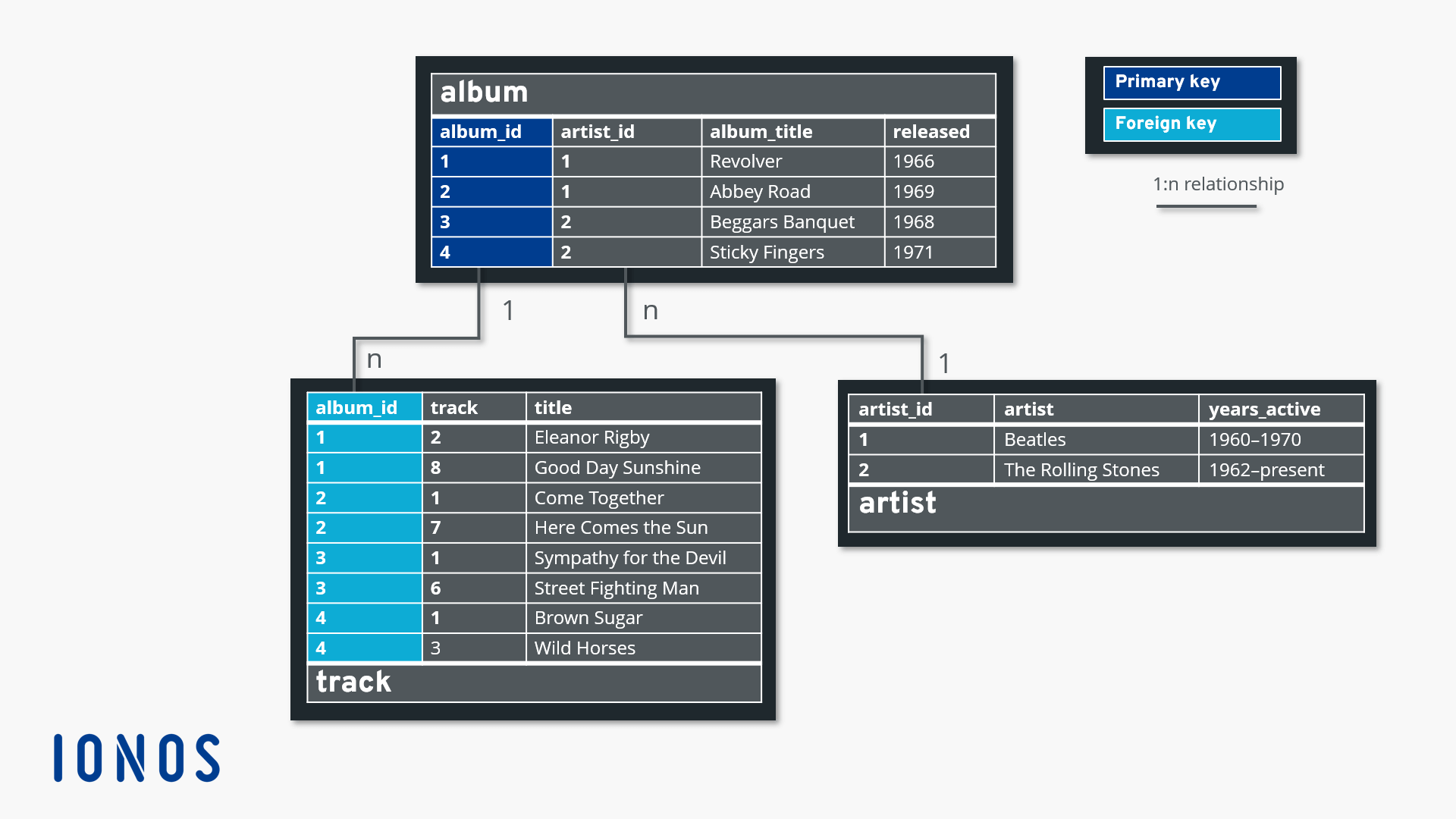
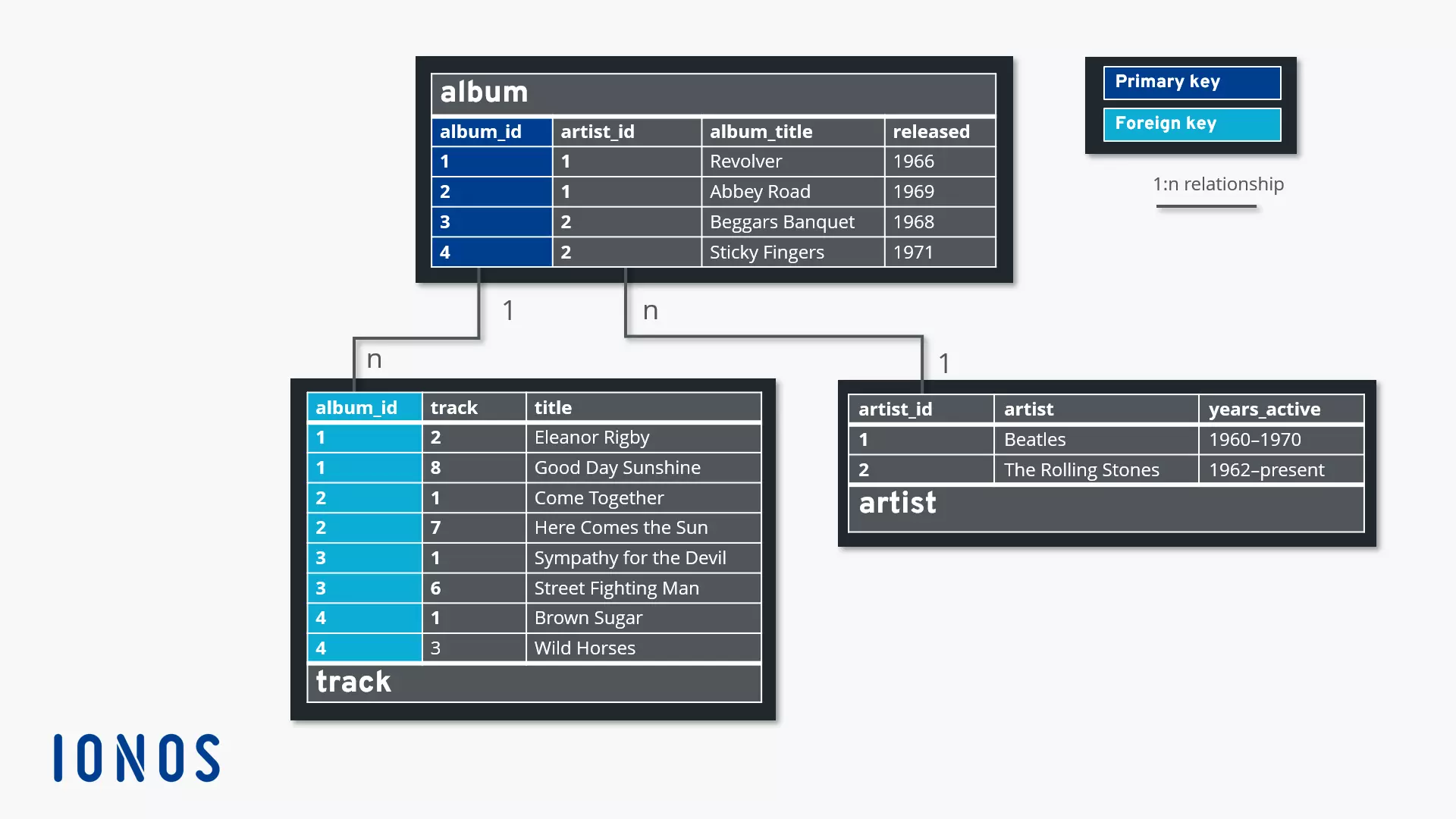
To establish the desired connections, we first set up the tables album, artist and title in phpMyAdmin and specify our primary key in the context of table creation, as was already outlined through the ‘Index’ option. You should also note that columns, which later should function as a foreign key, are also labeled as INDEX or UNIQUE through the index option. However, only INDEX is suitable for 1:n relationships due to the fact that ultimately the values in a UNIQUE field are not allowed to repeat themselves.
The next step will see us define the foreign key. We demonstrate this using the example of the album table. We then select the table in the navigation panel and find the Structure tab in the menu list. Here you will find the ‘Relation view’ option:
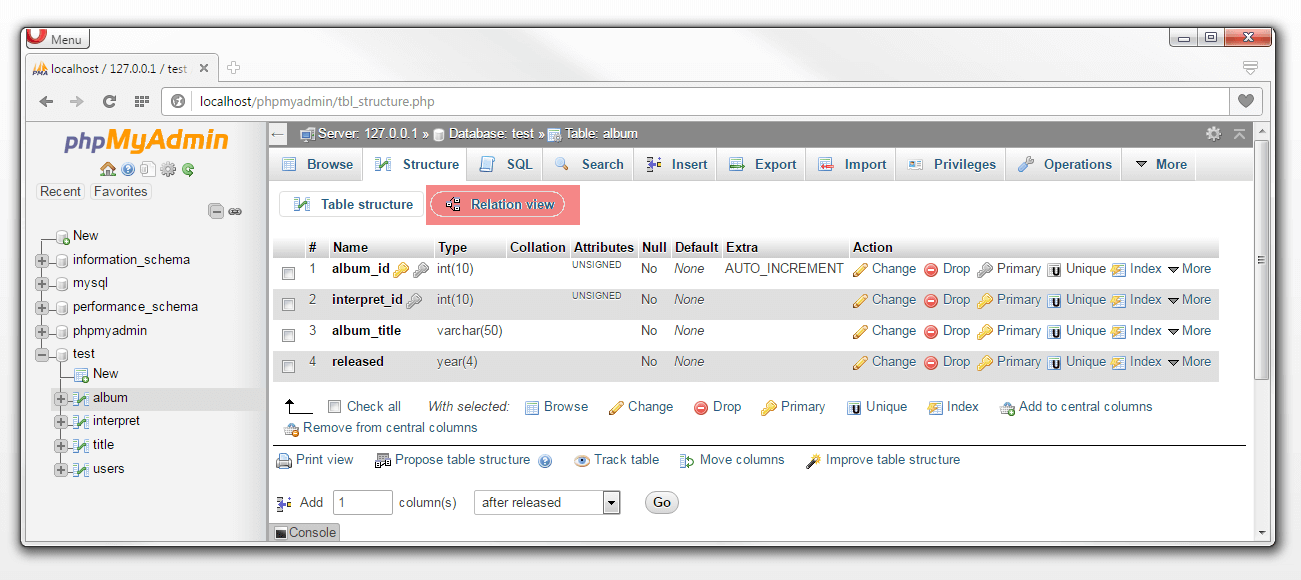
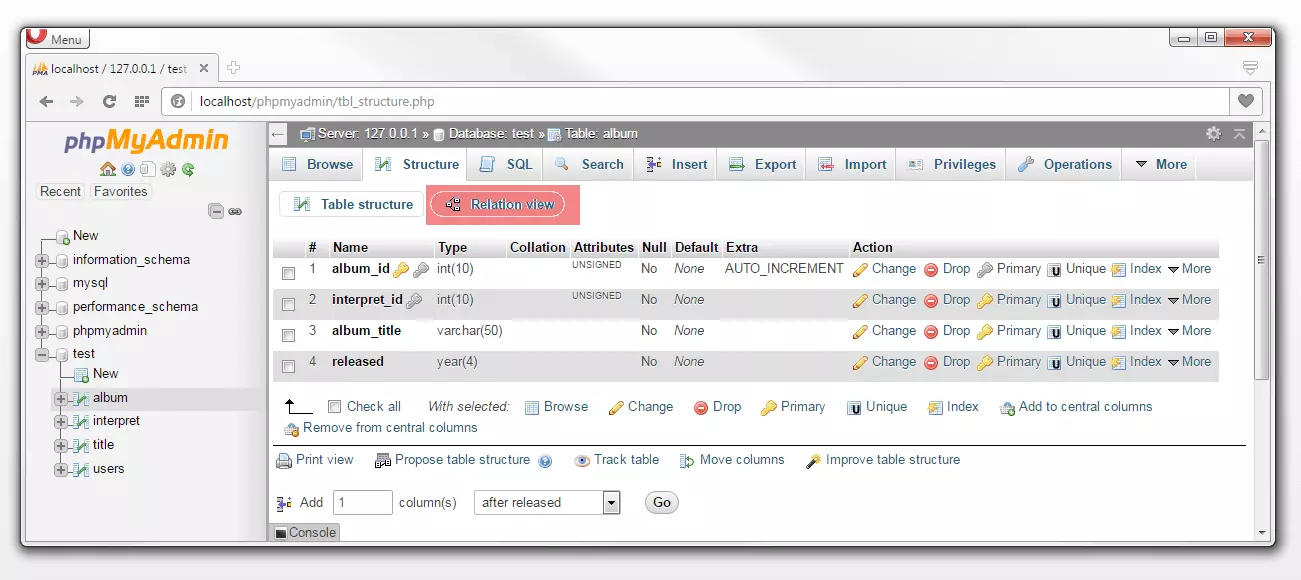
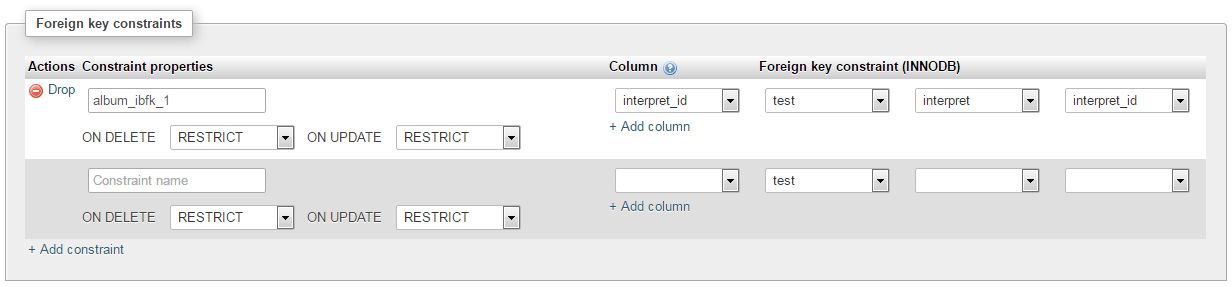
Foreign key relationships can be defined in the relationship view of a data table through the ‘Foreign key constraints’ option:
 BrAt82Shutterstock
The interpret_id column should function as a foreign key in the album table, which is based on the interpret_id primary key from the interpret table.


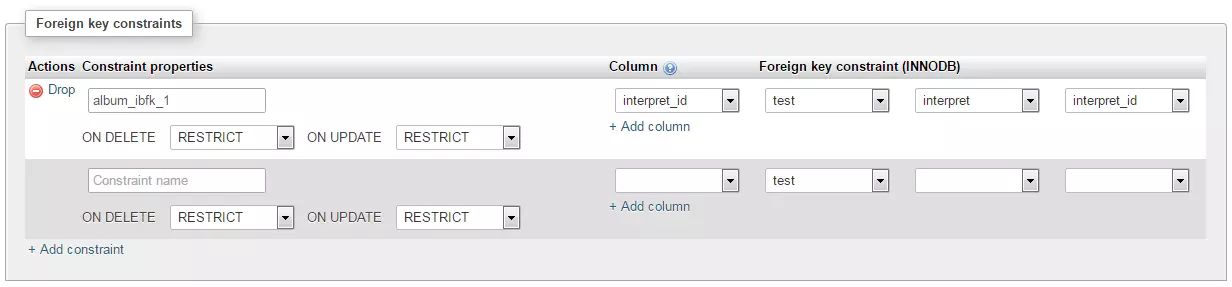
Under ‘Column’ in the drop down menu, we then select interpret_id as the foreign key. Please note that only columns labeled as INDEX, UNIQUE or PRIMARY are listed here. In the three-part entry field ‘Foreign key constraint (InnoDB)’ we determine which primary key, from which table, and from which database, the foreign key should be based on. Our selection is as follows:
Database: test
Table: artist
Primary key: artist_id
The ‘Constraint name’ can remain empty as the database management system will automatically assign a name here. However, you must specify how a table acts as a foreign key, as soon as the primary key underlying the foreign key is altered or deleted.
For example, if an artist from the parent table artist is deleted, then the primary key connected with this entry is also deleted. It is, therefore, necessary to clarify what should happen with the entries which relate to this entry via a foreign key — this would be the album of an artist in the case of our example.
To determine the reaction of a table with a foreign key in the case of an UPDATE or DELETE, you have four options to choose from in MySQL, i.e., MariaDB.
- RESTRICT: The RESTRICT option excludes any change to the parent table, insofar that other tables exist which refer to the parent. In our case, a data set in the artist table could not be deleted, if it is the case that data sets in the album table are linked with them.
- CASCADE: The CASCADE option makes sure that any change in the parent table is passed onto all other tables that refer back to the parent table. For example, if we were to change the artist_id of The Rolling Stones from 2 to 8, this alteration would also be registered with all other tables that use artist_id as a foreign key. This is done through the use of the foreign key option CASCADE. If an entry in the parent table is deleted, this will then also ensure that all data sets connected with this entry in other tables are also deleted. BUT: bear in mind that this also means that the deletion of a single entry can lead to many data sets disappearing.
- SET NULL: Selecting the SET NULL option causes the value of the foreign key column to be set to NULL as soon as the primary key of the parent table is changed or deleted.
- NO ACTION: With MySQl, the NO ACTION option is the equivalent of the RESTRICT option.
Once you have specified the desired option for the foreign key relationship, confirm your entry by clicking on ‘Save’. The database management system will then automatically assign a name for the newly defined relationship.
Types of JOIN in MySQL and MariaDB
Foreign key relationships make it possible for you to retrieve data from different tables at the same time, all with just one single SQL statement. For this there are four types of JOIN available in MySQL and MariaDB:
- INNER JOIN: With an INNER JOIN, the database management system searches for common entries in both tables bound via JOIN. The only data sets that will be scanned are those in which there are matches, i.e., in which the values in the linked columns (primary key and foreign key) from both tables correspond.
- OUTER JOIN: With an OUTER JOIN you differentiate between left and right databases. It is different to the INNER JOIN in that it is not just data sets that contain matches in both tables that are scanned. All the rest of the data sets of the right or left table are also scanned as well.
- LEFT JOIN: All data sets from the left table are scanned as well as all of those from the right table, in which matches are found.
- RIGHT JOIN: All data sets from the right table are scanned as well as all of those from the left table, in which matches are found.
For the sake of brevity in our MySQL for beginners tutorial, we will limit ourselves to the INNER JOIN.
The syntax of an INNER JOIN looks like the following basic schema:
SELECT * FROM table1
INNER JOIN table2 ON table1.foreignkey = table2.primarykey
WHERE column = value
The SQL command SELECT in combination with the placeholder * instructs the database management system to select the values from all columns for which the conditions of the ON- and WHERE- clause are valid.
As we are dealing with an INNER JOIN, only the data sets where there is a match between the foreign key of table1 and the primary key of table2 are retrieved from the database. Furthermore, with the help of the WHERE clause, you can define the optional filter function.
This is made clear by using the example of our normalized tables album, artist and track:
<?php
$pdo = new PDO('mysql:host=localhost;dbname=test;charset=utf8', 'root', '');
$sql = "SELECT * FROM album
INNER JOIN interpret ON album.interpret_id = interpret.interpret_id";
foreach ($pdo->query($sql) as $row) {
    echo $row['album_title'] . " was released by " . $row['interpret'] . " in " . $row['released'] . ".<br /><br />";
}
?>
The example script shows an INNER JOIN in which the table album is linked with the table artist. We select only the data sets wherein there is a match between the primary and foreign key.
album.interpret_id = interpret.interpret_idIn our database, this is the case with all data sets (a LEFT or RIGHT JOIN would, therefore, have produced the same result). Following this, we display the scanned values in the browser with the help of a foreach loop and the language construct echo.
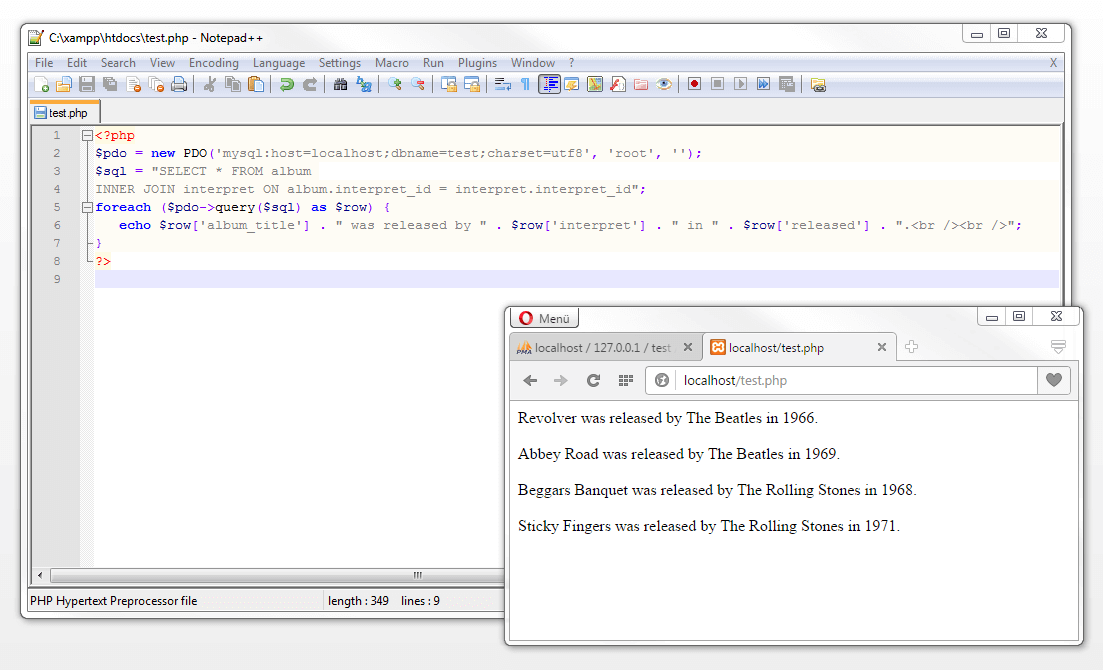
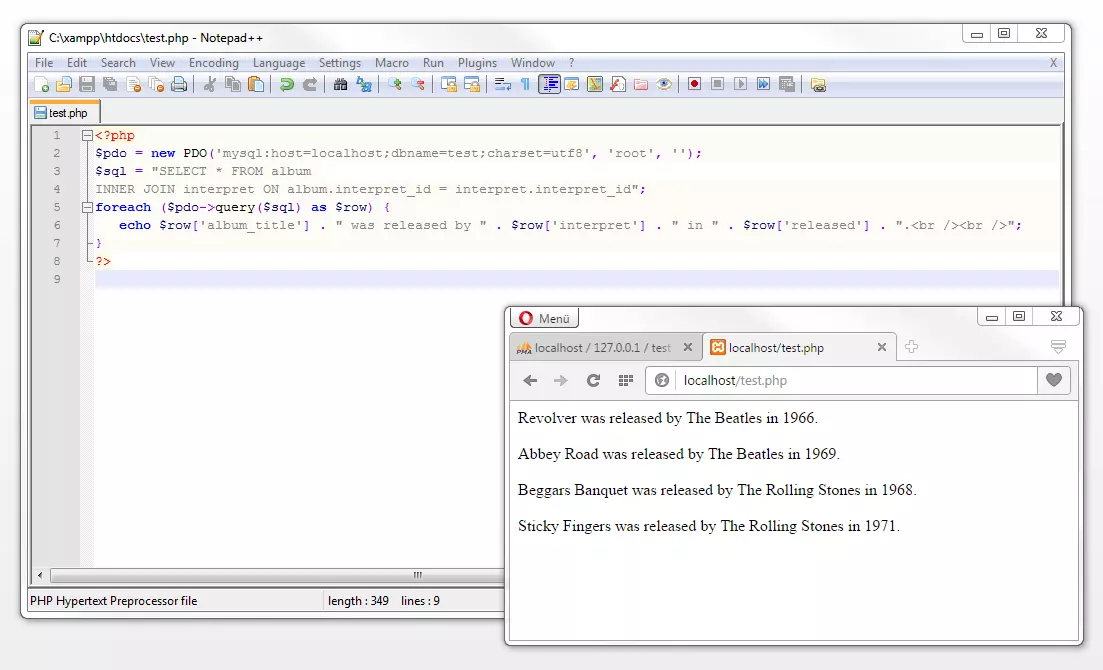
We have then scanned the details from the artist table, as well as the details regarding the album title and the record’s year of release.
Which of the join’s data sets are displayed is restricted by a condition of the WHERE clause. If, for example, we wish to output the albums that were released in the year 1968, we can enter the following:
<?php
$pdo = new PDO('mysql:host=localhost;dbname=test;charset=utf8', 'root', '');
$sql = "SELECT * FROM album
INNER JOIN interpret ON album.interpret_id = interpret.interpret_id WHERE released = 1968";
foreach ($pdo->query($sql) as $row) {
    echo $row['album_title'] . " was released by " . $row['interpret'] . " in " . $row['released'] . ".<br /><br />";
}
?>
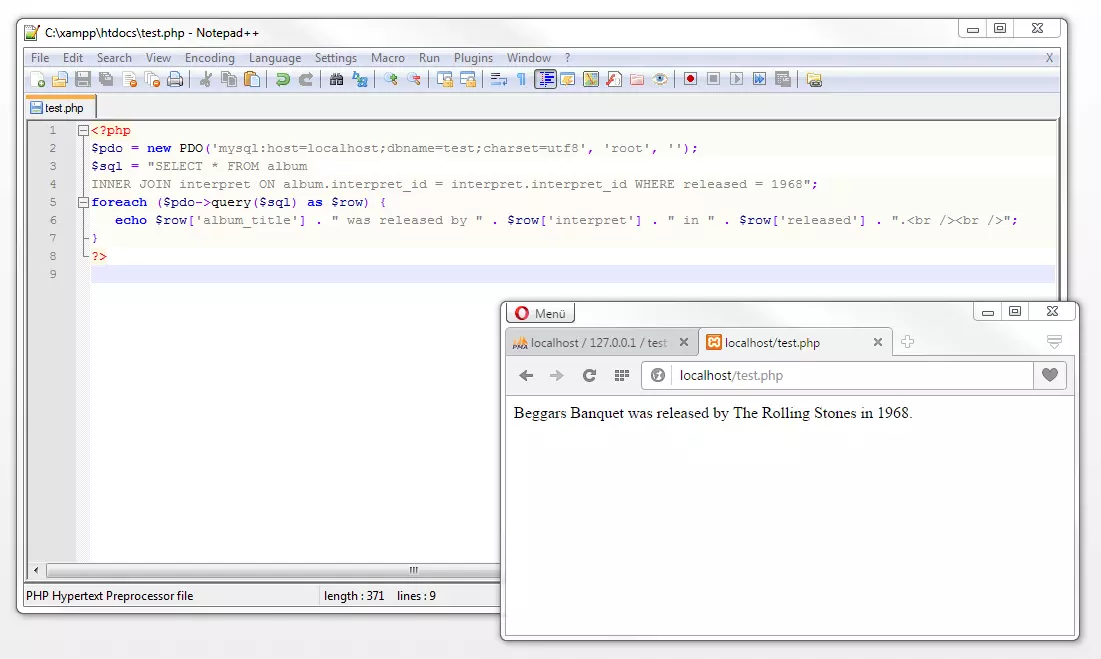
By using the WHERE released = 1968, we limit the output in the browser to one album. Beggars Banquet from the Rolling Stones is now the only album in our manageable database that was released in the year 1968.
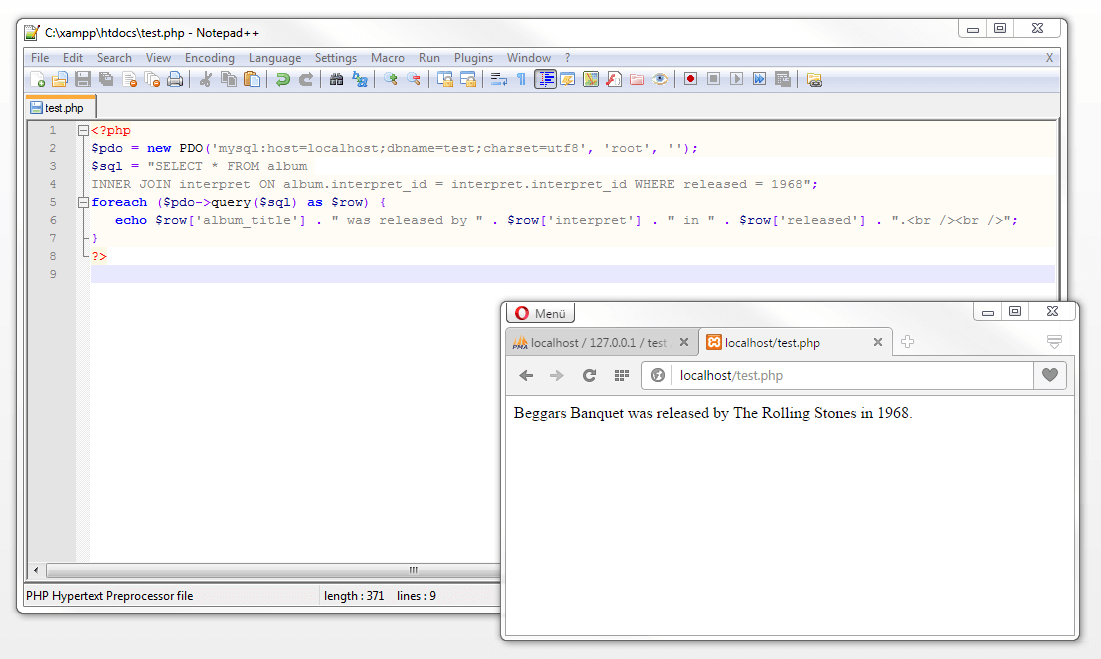
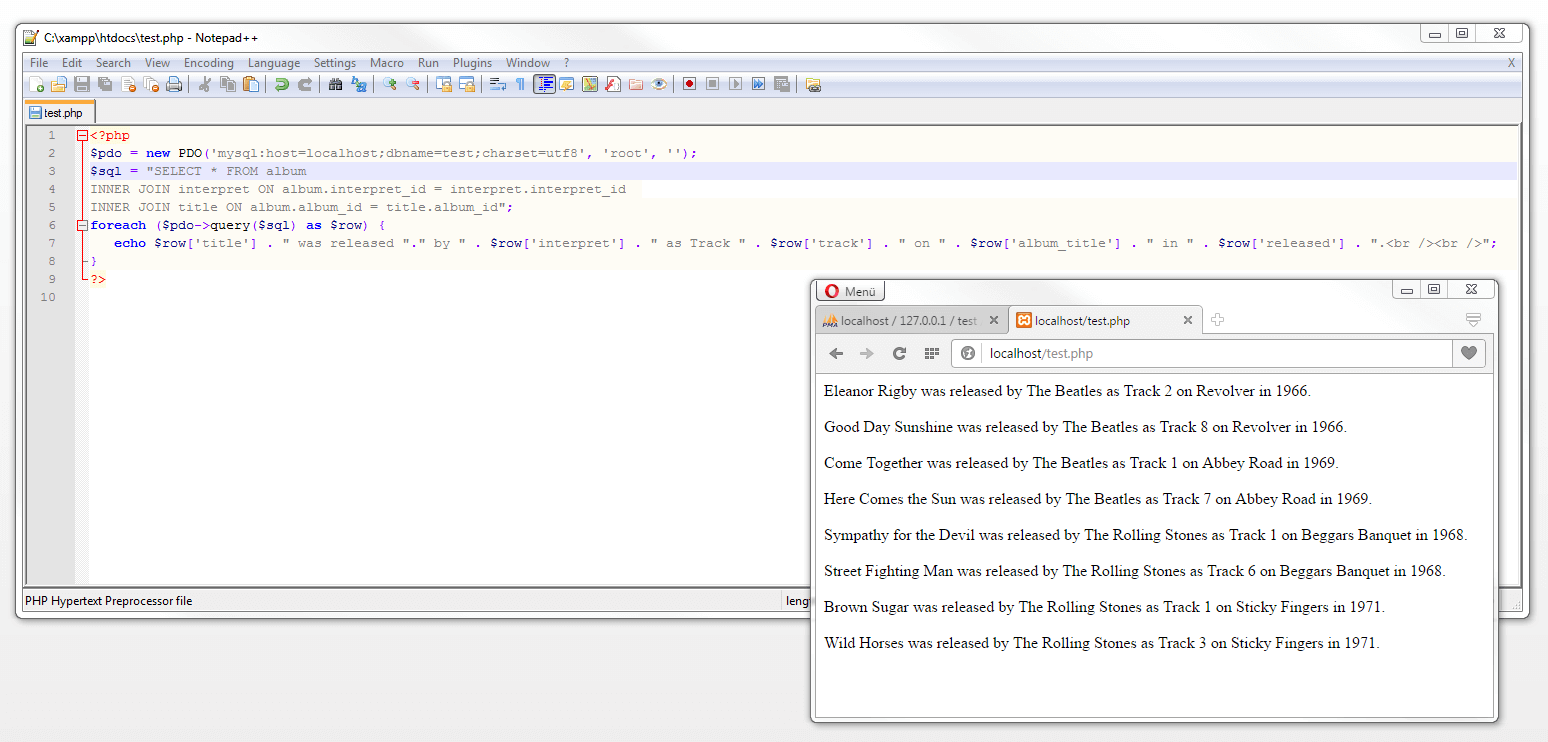
The JOIN command allows you to bring as many tables as you want together in a data network. In the following example, we link the album table with the artist and track tables in an INNER JOIN. This then means that we can output all information relating to the tracks stored in the database.
<?php
$pdo = new PDO('mysql:host=localhost;dbname=test;charset=utf8', 'root', '');
$sql = "SELECT * FROM album
INNER JOIN interpret ON album.interpret_id = interpret.interpret_id
INNER JOIN title ON album.album_id = title.album_id";
foreach ($pdo->query($sql) as $row) {
    echo $row['title'] . " was released by " . $row['interpret'] . " as Track " . $row['track'] . " on " . $row['album_title'] . " in " . $row['released'] . ".<br /><br />";
}
?> GraskoShutterstock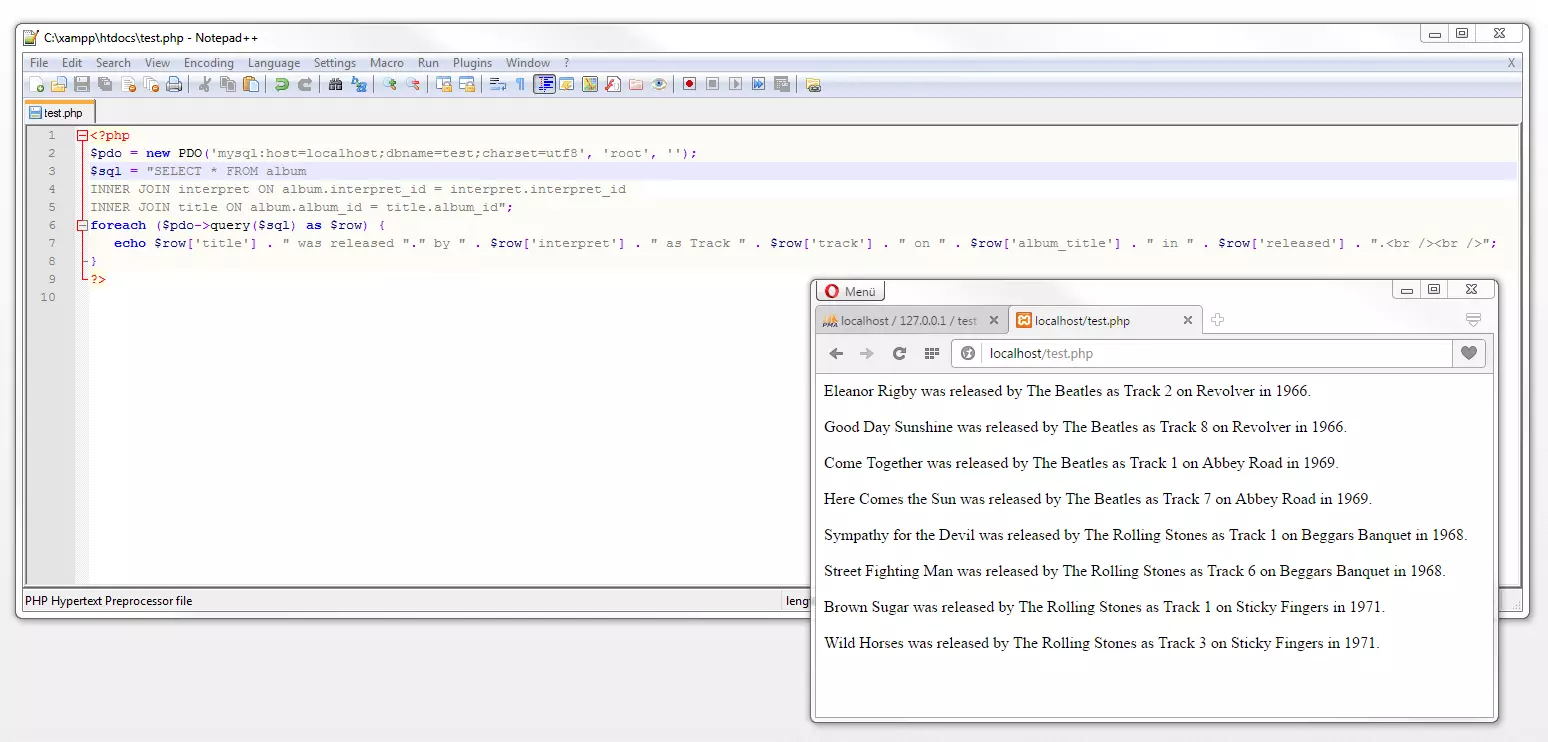
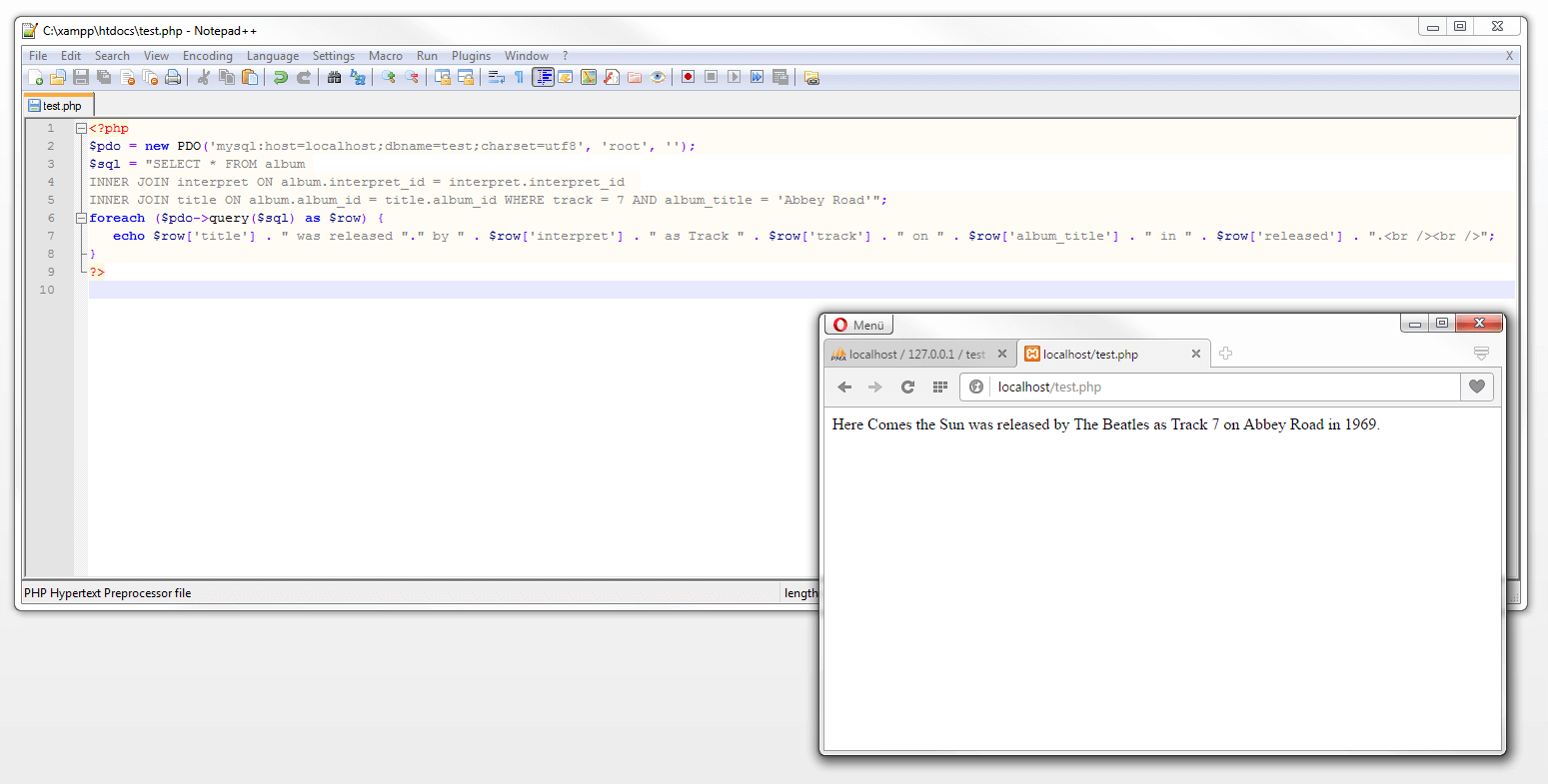
Even here, if required, we can also define a WHERE clause with a filter function. For example, if we wish to only display the information on Track 7 of the album ‘Abbey Road’.
<?php
$pdo = new PDO('mysql:host=localhost;dbname=test;charset=utf8', 'root', '');
$sql = "SELECT * FROM album
INNER JOIN interpret ON album.interpret_id = interpret.interpret_id
INNER JOIN title ON album.album_id = title.album_id WHERE track = 7 AND album_title = 'Abbey Road'";
foreach ($pdo->query($sql) as $row) {
    echo $row['title'] . " was released by " . $row['interpret'] . " as Track " . $row['track'] . " on " . $row['album_title'] . " in " . $row['released'] . ".<br /><br />";
}
?>
Make sure that when it comes to the track title that we are dealing with a multi-part primary key. If we wish to refer back to a specific title, then alongside the track number we will also need the album_id, which is highlighted in the album table along with the title of the album.
From beginner to professional
Our MySQL tutorial aimed at beginners can be seen as a crash course with the aim of making you more familiar with the basics of SQL-based database systems and demonstrating easy and practical examples of database operations. If your interests in the software’s possibilities should go beyond those described here, we recommend the literature from DBMS MySQL and MariaDB already linked above in the introductory chapter. Apart from this, there are also countless websites which offer tutorials and examples of use from the most popular database management system. Also recommended is the internet platform Stack Overflow. Here a user community of more than 6.5 million developers poses questions and exchanges advice on current issues and problems regarding software development. And naturally, here in the IONOS Digital Guide there are many extensive articles on the topic of databases. These can be found using the tags listed below.