

The best Remote Desktop Software Tools

Working from home and remote working solutions are quickly gaining in popularity. Employees are no longer restricted to work from the office but, at the same time, can continue to access data and programs stored on office servers. This is made possible in various ways. One option involves moving everything to the cloud or accessing a company network via a VPN connection. Another option involves remote desktop tools, which let users access the office or server center network from their home PCs or laptops.
There are plenty of software options available for this purpose – free and paid-for. Find out what the best tools are for Windows, Mac, Linux, and more.
What do remote desktop tools need to be capable of?
In essence, a remote desktop connects two different computers with one another. One is being remote-controlled by the other. It’s a great way to make configuration changes to servers without hardware devices such as monitors, keyboards, or even a mouse. Administrators can use their own PC to access settings on a server.
Remote desktop software is also a great option for customer support: users no longer have to describe their problems to support workers. Instead, the expert can immediately view the problem on another computer and make changes to correct the settings.
Remote desktop software is a great option for standard office tasks. Employees can use their home laptop to connect to and administer their office PC using a remote desktop tool. In this way, they have access to all the data and programs they would normally only be able to access at the office. This merges the home-working environment even more effectively with the office. What’s more, many programs have been designed for collaborative working because they include whiteboard and chat functions.
The top remote desktop software: 7 tools compared
A wide variety of remote desktop software is available. Some do not require special platform-support, while others have been developed to work with specific operating systems only. Some software is open-source and free to download and use, while other tools are paid-for only. Below is an overview of the top seven tools including their advantages and disadvantages.
X2Go
 To display this video, third-party cookies are required. You can access and change your cookie settings here.
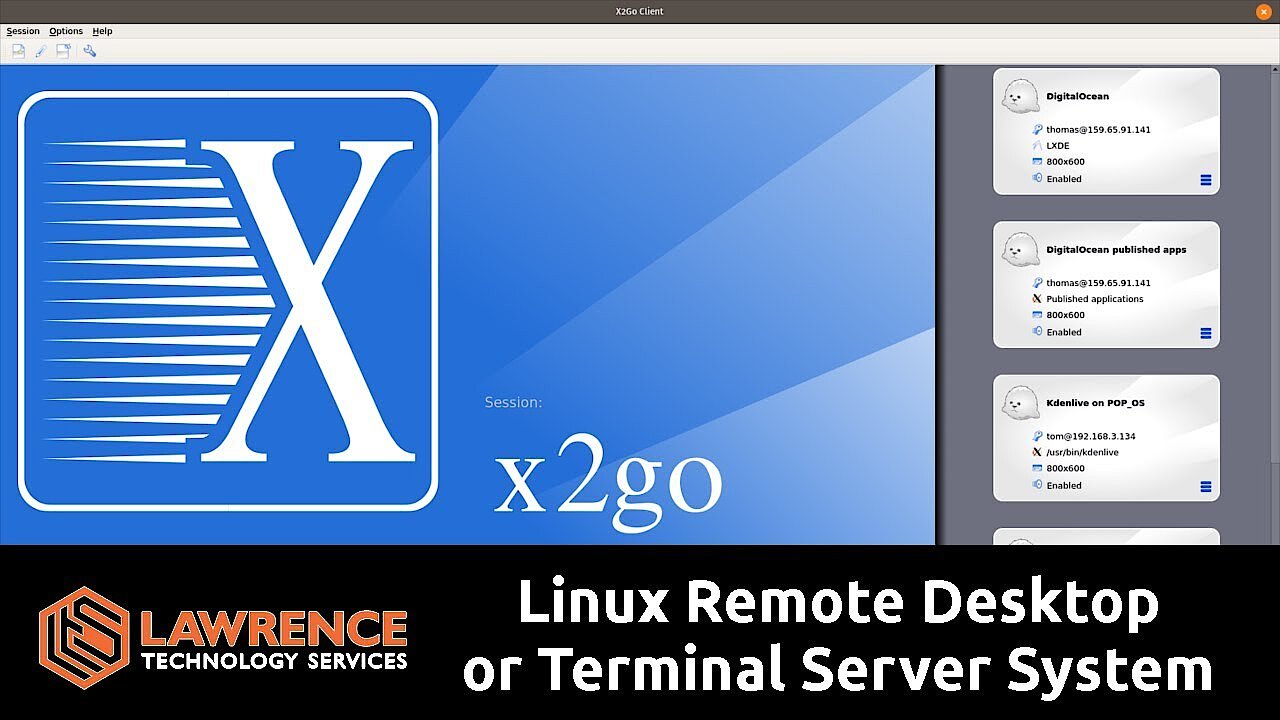
 The remote desktop software X2Go is an extensive open-source solution that boasts many interesting features. It’s suitable for the home office as well as small server management. The latter makes the software particularly useful because when installed on a Linux server, multiple users are able to access it via X2Go. The limitation to user numbers is entirely down to a company’s resources and their servers’ technical abilities. The client software is available for Windows, Mac, and Linux, but can also be operated using a browser.
One special feature of the server operation is the Published Application function: Instead of providing users with a full desktop environment, the mode enables select applications. The client starts the application not from his or her PC but runs the software via the server. In this way, X2Go blends with cloud computing.
X2Go is available free of charge. Installation on the client server is relatively simple. But the developer provides professional (paid-for) support for the set-up, configuration, and maintenance of the software.
| Advantages | Disadvantages |
|---|---|
| Open source | Not suitable for beginners |
| Free | |
| Published Application feature |
TeamViewer
TeamViewer is among the best-known remote desktop tools worldwide and has been available since 2005. Complete beginners can use the software to quickly connect to another computer – whether a server or another desktop PC or laptop. The software plays an important role in remote support (whereby an expert repairs a user’s computer from afar) and in screen-sharing. That’s why the tool is more commonly seen as a collaboration tool than a software management tool.
TeamViewer supports many different operating systems. Besides Windows, Mac, and Linux, it can be installed on mobile operating systems like iOS and Android, and even Raspberry Pi. The TeamViewer Pilot is a fairly new addition which enables remote maintenance via an augmented reality app.
For private users, the software is free to install. However, companies will have to pay for a license.
| Advantages | Disadvantages |
|---|---|
| Available for many different platforms | Paid-for license required for professional use |
| Free for private users | |
| Augmented reality | |
| Collaboration features |
AnyDesk
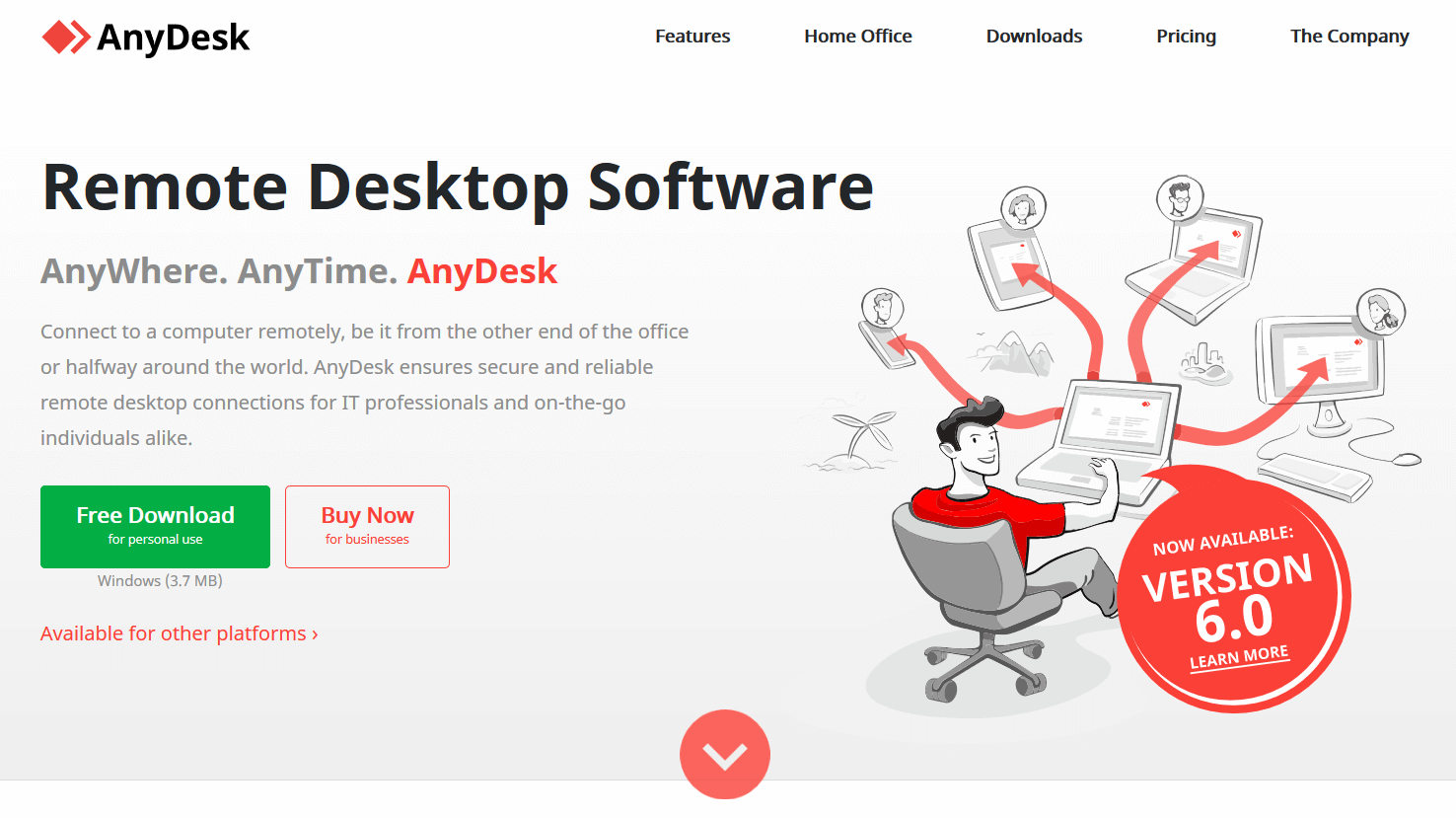
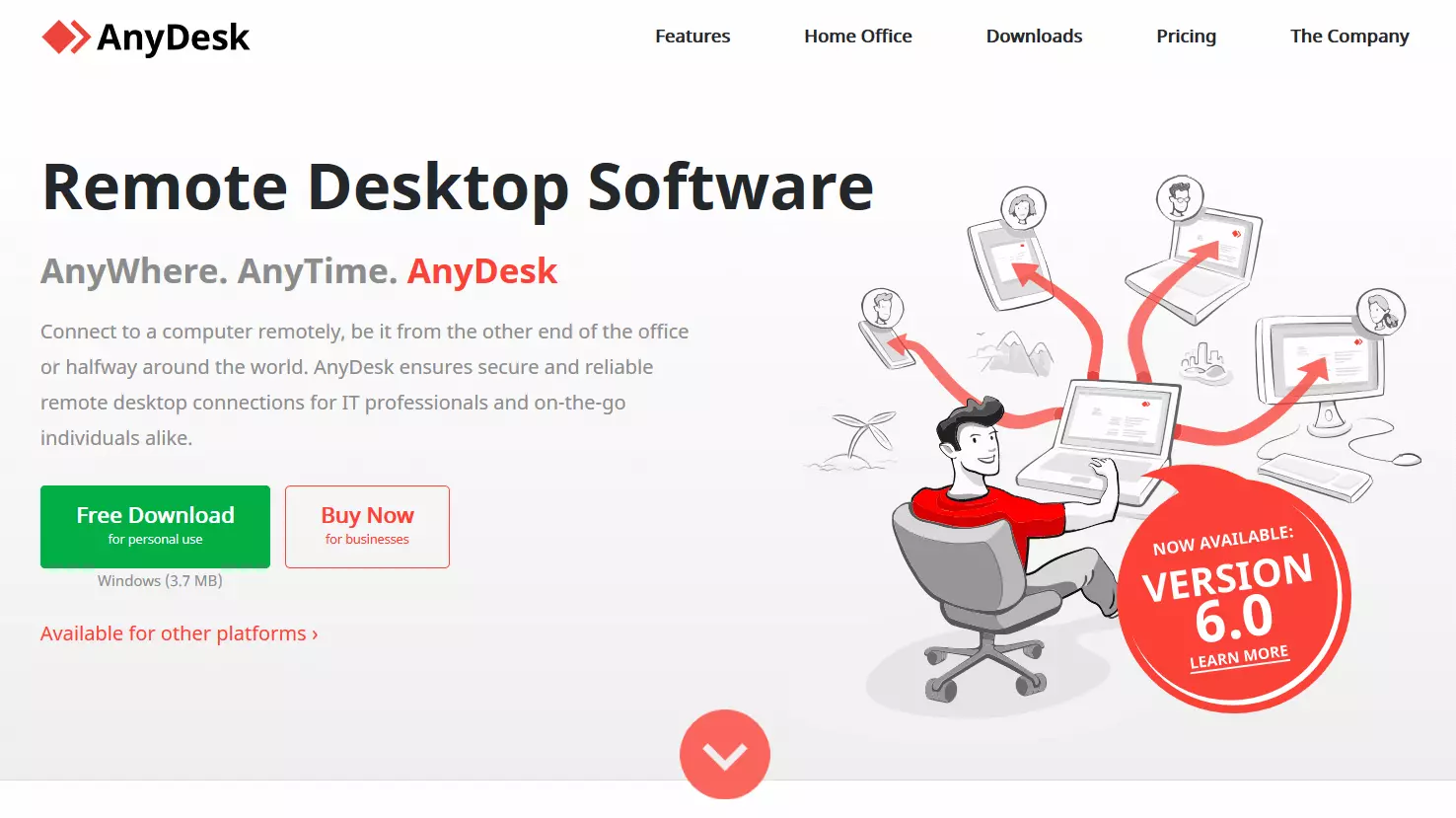
After working for TeamViewer, three developers created their own remote desktop software. The result was AnyDesk – an easy-to-use remote desktop tool similar in scope and functionality to TeamViewer and other alternatives.
Primarily, AnyDesk is useful for users in need of remote support, but can also be used by those who want to access their office PC from their home office. In case of the latter, the creators developed a special package that includes the main features at a special price. Generally, AnyDesk is free for private users. Companies can choose from a range of different licensing models.
AnyDesk is available for many different operating systems – hence the name. Besides Windows, Mac, and Linux as well as Android and iOS, the tool can be used with FreeBSD, Raspberry Pi, and Chrome OS.
| Advantages | Disadvantages |
|---|---|
| Available for wide range of platforms | Paid-for for professional features |
| Special offers for home office users | |
| Free for private users | |
| Collaboration features |
RemotePC
RemotePC was developed to connect a home PC to an office computer. The remote desktop software promises ease of use. Installation is quick and simple, and beginners will enjoy the easy drag-and-drop functionality. Additional features such as a chat, file transfer functionality, or a whiteboard are suitable for collaborative working with co-workers. Work can also be recorded on video.
The software is available for various operating systems: Windows, macOS, Linux, iOS, Android, and Chrome OS. One of the special features of RemotePC is that it also runs on Fire OS and can even be operated using a Kindle. The developer provides different subscription models which change according to the size of a team.
| Advantages | Disadvantages |
|---|---|
| Available for many different platforms | No free version available |
| Collaboration features | |
| Augmented reality |
Zoho Assist
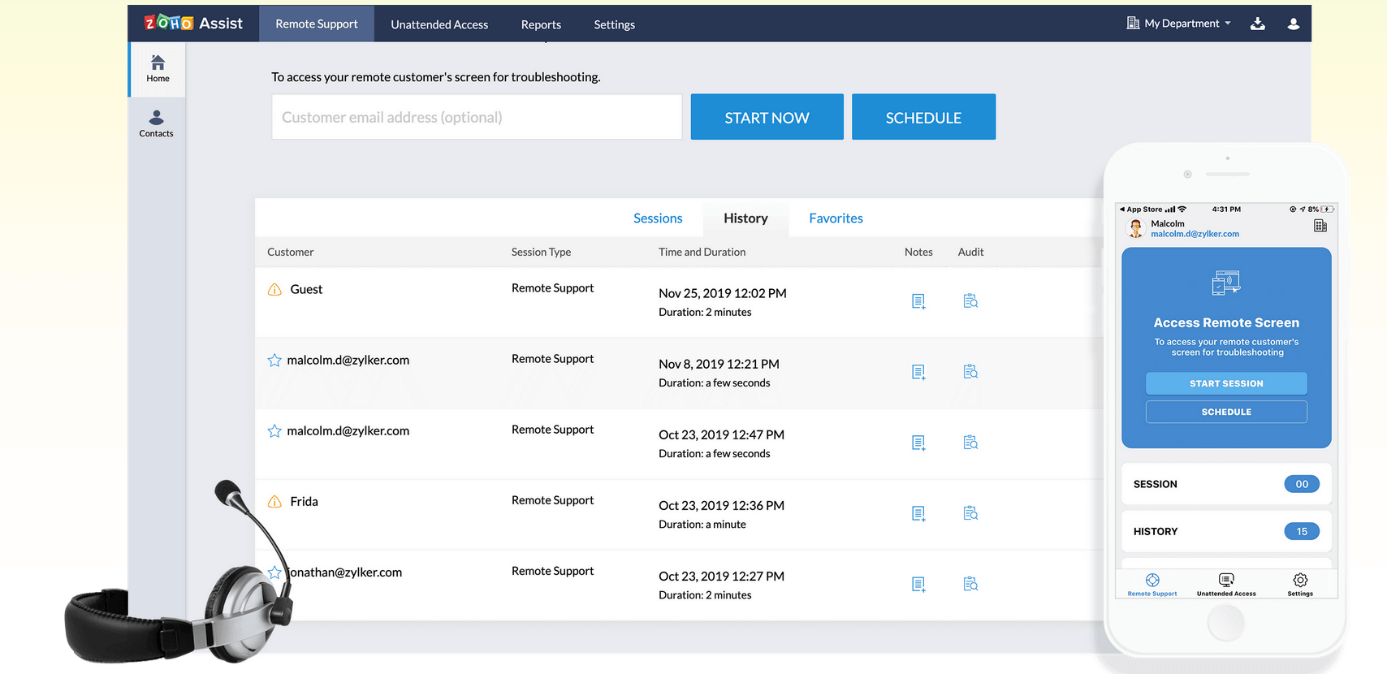
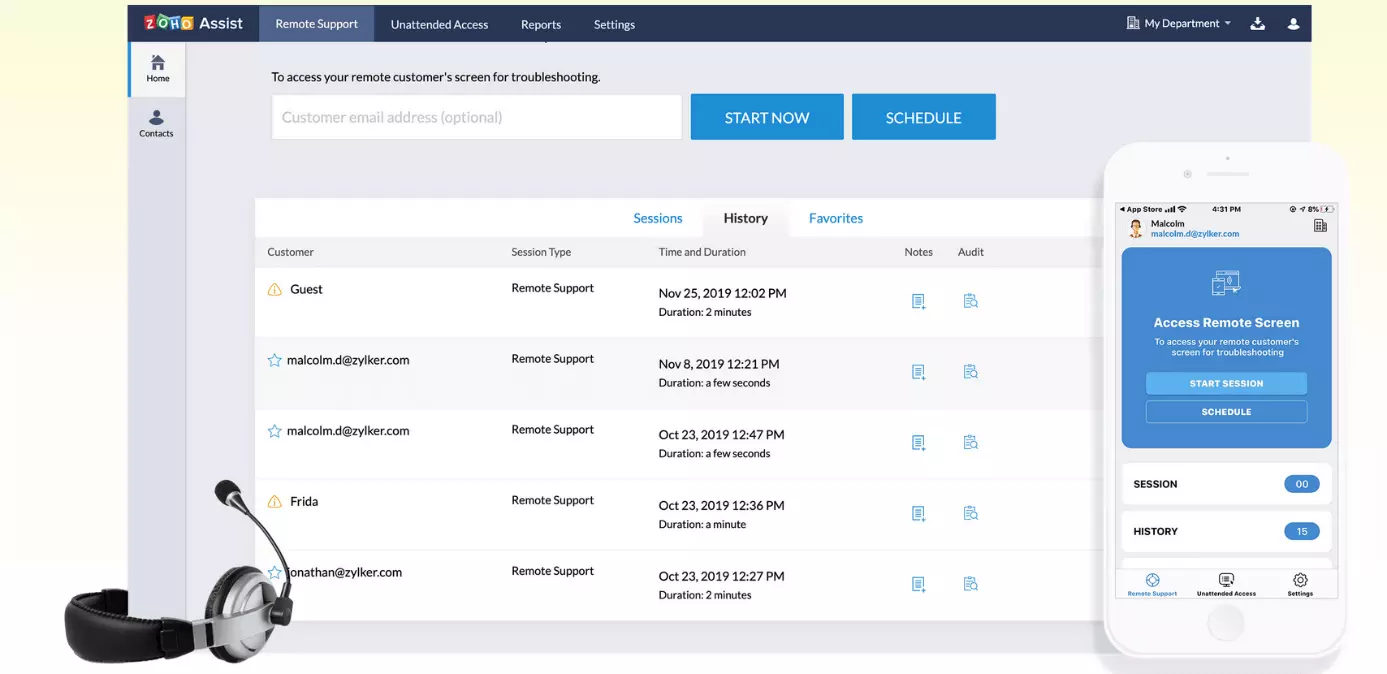
Zoho offers a whole range of different programs to ease office work. Besides CRM, recruitment, and office applications, the developer also launched a remote desktop tool called Zoho Assist. Much like other Zoho applications, the tool is meant for everyday use by providing support for internal IT services and external clients. A special customer widget is available for the latter, which can be incorporated on a website to provide users with remote access without any software installation. All that’s required is a session ID which is shared via email.
A free version with limited functions is available. In addition, various premium versions are available which can be used to connect to multiple end devices and include an option for multi monitor navigation. The feature can be used to remote control multiple desktop monitors.
| Advantages | Disadvantages |
|---|---|
| Limited options in free version | Full version paid-for |
| Client widget | |
| Part of a larger suite |
Microsoft Remote Desktop
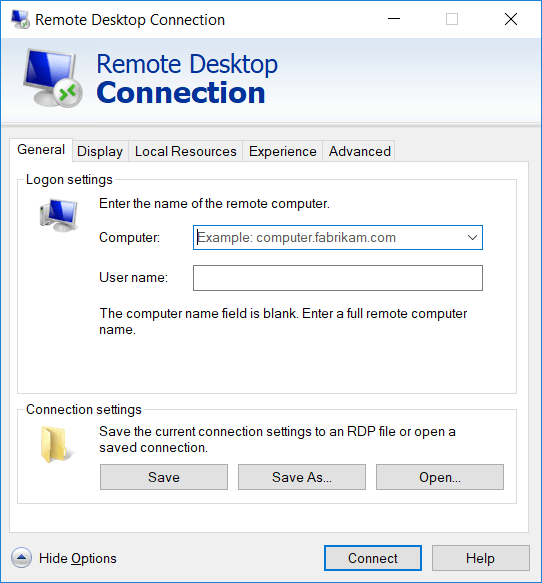
Windows users will already be able to access the free Microsoft tool, because the software comes preinstalled with Windows. The process is simple: a user confirms the system settings on the host system (which is only possible with the Pro version of the operating system). You can then launch the software on a client, enter the address of another computer, and remote-control it. Apart from Windows, the client software is available for macOS and various mobile operating systems.
In comparison to other remote desktop tools, the Microsoft software doesn’t mirror the other PC. While you can continue to work on the host-side with other programs or at least see what’s going on, the current user of a host PC is logged off in Microsoft Remote Desktop. The program is therefore only partially suitable for support.
| Advantages | Disadvantages |
|---|---|
| Integrated in Windows | Host only for Windows Pro users |
| Free |
NoMachine
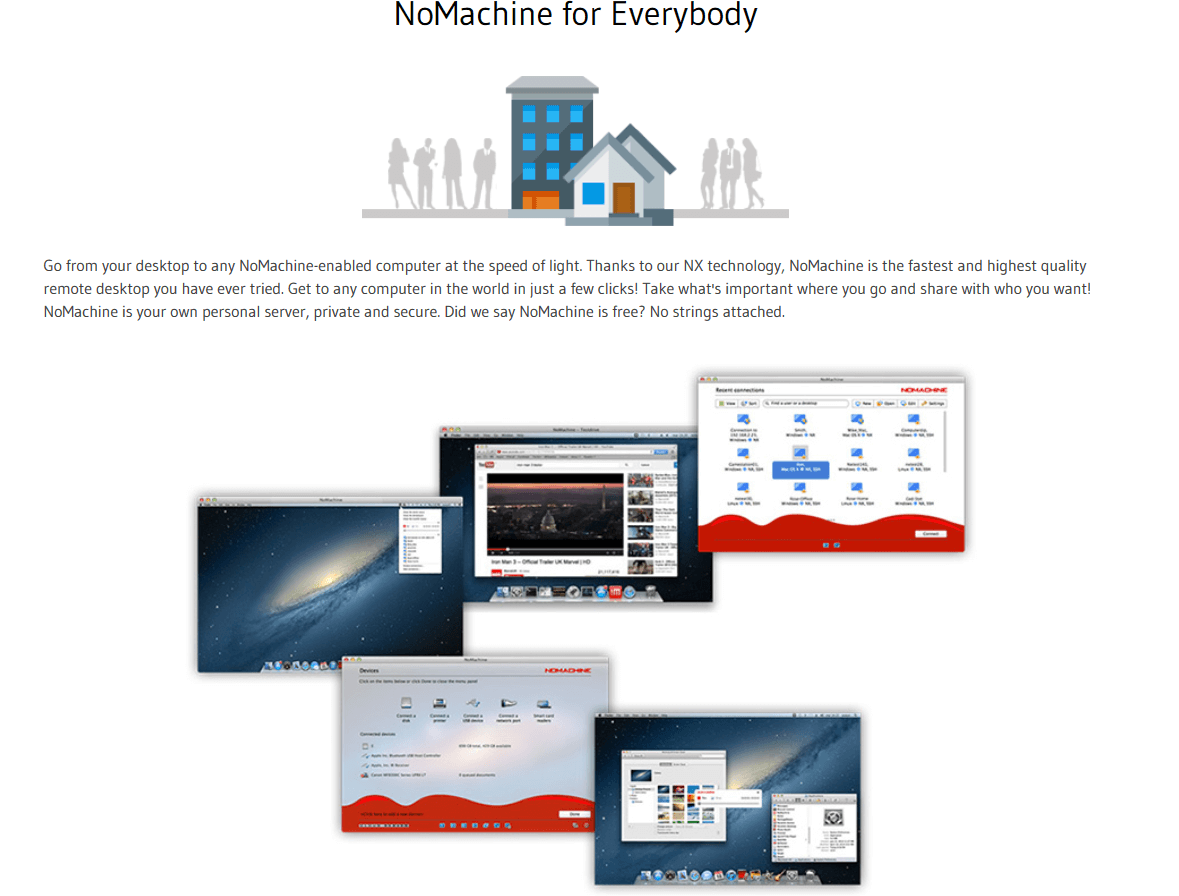
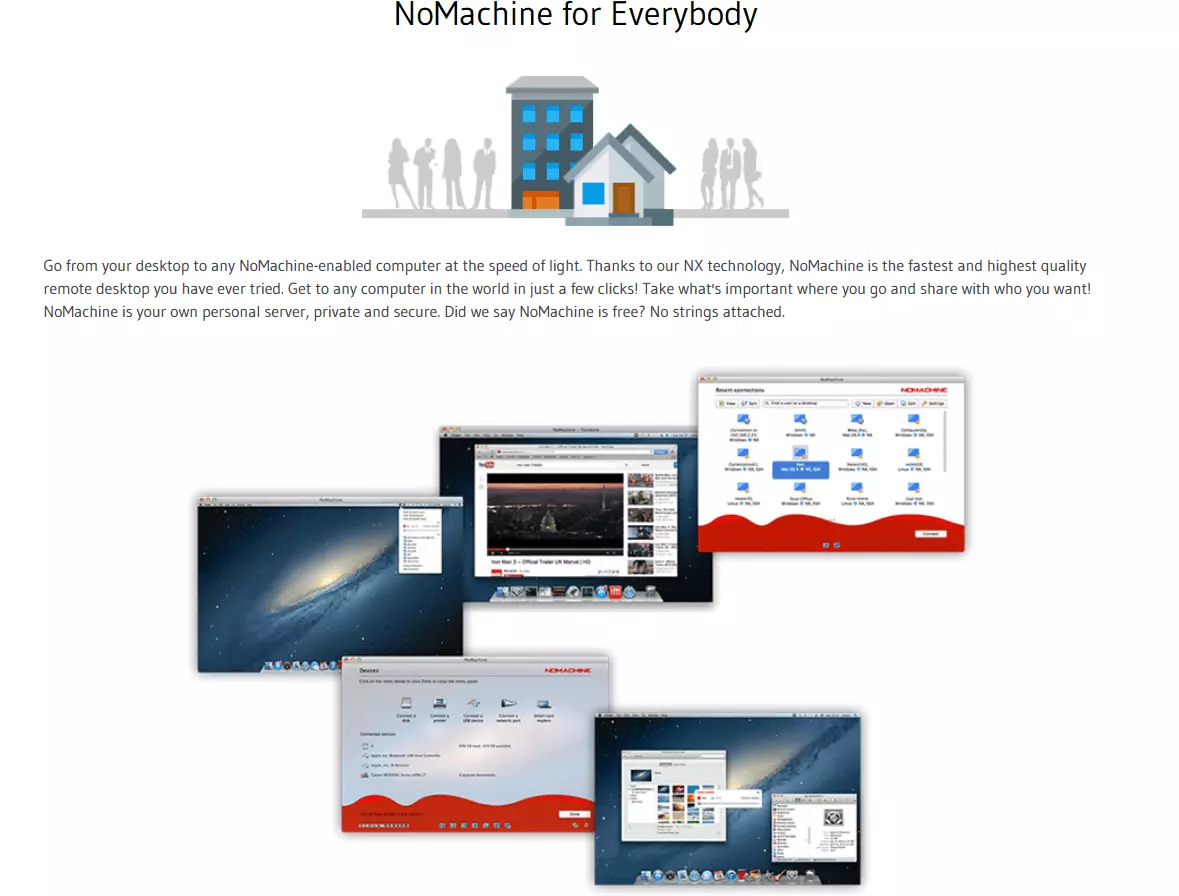
NoMachine boasts quick connectivity to a remote desktop. This can be achieved with your own NX protocol, which transfers the content of one PC to another one without much delay. The connection is quick and the familiarization process is simple thanks to a no-frills graphical user interface. The software can be installed on Windows, macOS, Linux, Android, iOS, and Raspberry Pi. For private users, NoMachine is available free of charge. Companies with more demands must acquire a license. At the enterprise level, a special application for server maintenance is also available.
In addition to mirroring another desktop PC, NoMachine offers several features: collaborators can work together on a whiteboard, they can record entire sessions, and access chat functions. This makes NoMachine an excellent tool for collaboration, for remote maintenance, and remote support.
| Advantages | Disadvantages |
|---|---|
| Free for private users | Full version is paid-for |
| Available for many different platforms | |
| Collaboration features | |
| Free for private users |
Remote desktop tools – an overview
At first glance, the different remote desktop tools appear similar. Our table below provides a more comprehensive comparison of the tools.
| X2Go | TeamViewer | AnyDesk | RemotePC | Zoho Assist | Microsoft Remote Desktop | NoMachine | |
|---|---|---|---|---|---|---|---|
| Client-OS: | |||||||
| Windows | ✓ | ✓ | ✓ | ✓ | ✓ | ✓ | ✓ |
| Mac | ✓ | ✓ | ✓ | ✓ | ✓ | ✓ | ✓ |
| Linux | ✓ | ✓ | ✓ | ✓ | ✓ | ✓ | ✓ |
| Other | Browser | Mobile, Raspberry Pi, Chrome OS | Mobile, Raspberry Pi, FreeBSD, Chrome OS | Mobile, Chrome OS, Fire OS | Mobile, Browser, Chrome OS | Mobile | Mobile, Raspberry Pi |
| Server-OS: | |||||||
| Windows | - | ✓ | ? | ? | ? | ✓ | - |
| Mac | - | ✓ | ? | ? | ? | - | - |
| Linux | ✓ | - | ? | ? | ? | - | ✓ |
| Encryption | SSH | 256 bit AES | RSA 2048 | 256 bit AES | 256 bit AES | RC4 | 128 bit AES |
| Collaboration features | → | ↑ | ↑ | ↗ | ↗ | ↓ | ↑ |
| Open source | ✓ | - | - | - | - | - | - |
| Free | ✓ | For private users | For private users | - | For private users | ✓ | For private users |
| Special features | Published Application | Augmented reality | Home office package | Augmented reality | Client widget for website | Part of Windows | Whiteboard function |