

svchost.exe: the service host in Windows operating system tests
If your Windows system is running properly, you probably have no reason to use the Task Manager or monitor individual processes and services. PC users rarely have to track running services or background applications, just like car owners rarely need to look under the hoods of their cars. However, it’s a good idea to learn the basics of system monitoring and familiarize yourself with the most important system programs, especially if you rely on your computer for work. After all, problems often appear at the most inopportune moments. You should monitor running processes if you experience one of the following problems:
- Inexplicably high usage of system resources, such as an extremely high CPU load
- Programs crashing or windows freezing
- You suspect viruses on your machine
- You can’t open programs that have been installed correctly
The svchost.exe process immediately stands out when you check your running applications. You’ll usually see multiple instances of it running, and sometimes even several dozen instances. The name of the program is an abbreviation of service host. That means it’s a software program that can be used by other programs or services. As a result, the source program behind the process you're monitoring is not immediately recognizable.
How is svchost.exe embedded?
As a system program, svchost.exe is located in the system folder “\Windows\System32.” This is a protected folder that cannot be accessed by users who do not have administrator privileges. The program is launched by the Service Control Manager (SCM) after system startup. The SCM manages a list of services to be started in the Windows registry. After system startup, the SCM runs an instance of svchost.exe as a process for each service listed in the registry.
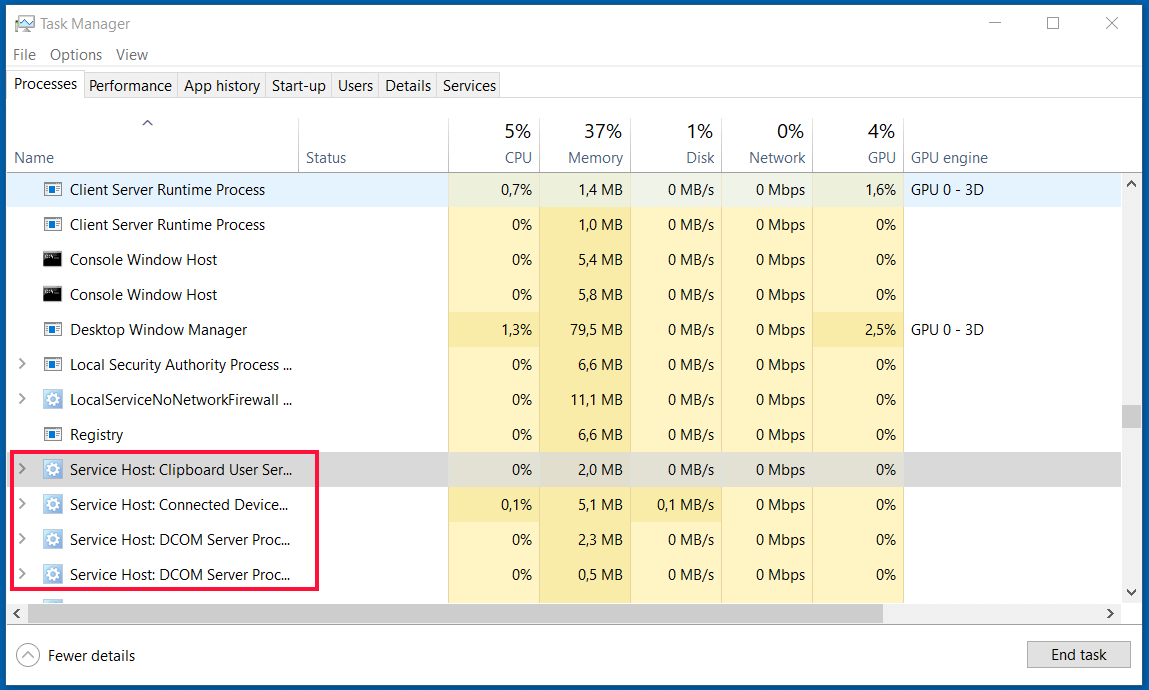
In principle, several services can also be combined in one process. However, for powerful computers, Windows usually runs a separate process for each service. This makes it easier to distinguish between the individual processes. This is an advantage when a process “crashes,” meaning it enters an undefined state. In such cases, the failed task can then be closed without affecting other programs.
The Windows Registry is a central repository that contains many important settings for the Windows operating system. It is a hierarchal database and can be managed using the Regedit editor.
What is svchost.exe used for?
You may be wondering why additional software is necessary to start services in the first place. The reason has to do with gains in efficiency and specific concepts such as Dynamic Link Libraries (DLLs). DLLs use svchost.exe to run a service. Generally speaking, these libraries consist of code that can be used by different software applications and dynamically integrated (linked) if necessary. First, this saves disk space because not every software program has to include the functions in the library. Second, it promotes modularity. DLLs can be customized and updated regardless of the software being used.
Multiple programs may be affected if there are errors in a DLL.
Thanks to their unique properties, dynamic libraries support ordinary programs that require extensive code to run independently. They also solve the problem that certain program resources (such as embedded functions) typically cannot be directly controlled by other programs. The system primarily uses DLLs to provide functions that are required by multiple programs.
How do you inspect an svchost.exe process more closely?
If you determine that an svchost.exe process is responsible for problems in your system, there are several ways to inspect it.
Task Manager
One effective tool is the Windows Task Manager, which you typically access using the keyboard shortcut Ctrl + Shift + Esc. Alternatively, you can type “Task Manager” in the search box and launch the app from the search results.
The Task Manager has several tabs. The Processes view opens by default. It displays the percentage of system resources being used for each running process, including CPU usage, memory utilization, network utilization and disk utilization. You can change how the list is sorted by clicking a column's header. The processes are named after the associated programs. In Windows 10, svchost.exe processes start with “Service Host,” followed by the description of the service currently running. In earlier versions of Windows, the name svchost.exe appeared directly in the list of processes.
Services (Services.msc)
All services can be viewed with the Services system app. To open this app, simply go to the “Run” dialog box from the Start menu (Windows icon) and enter the following:
services.mscYou can select Properties from the context menu of each service listed. This window displays the path to the linked executable file. The name of the service and a brief description are also displayed. That way you can determine the function of the service. On the Dependencies tab, you can view other services that are dependent on the service.
tasklist.exe
If you don’t mind using the command line tool, the taskliste.exe program is a good alternative. The program comes pre-installed on Windows 10 and is very easy to use. In previous versions, a similar software program was called “tlist.exe.” Start by opening Command Prompt (cmd.exe). To see a list of all instances of svchost.exe with the associated process ID and the services running inside each instance, type the following command into the Windows command line:
tasklist /svc /fi "imagename eq svchost.exe"External programs: Process Explorer
Microsoft offers third-party freeware such as the Process Explorer developed by well-known author and Windows insider Mark Russinovich. The program is similar in appearance to the Task Manager, but has a much more extensive range of features. For example, you can easily see which processes have invoked other processes. In addition, you can right-click to open a context menu for more detail. For example, you can view not only the program associated with a process, but also the registry entry. Yet another option is to submit software directly to the VirusTotal platform for inspection.
How can you tell whether svchost.exe is a virus?
The svchost.exe process often appears suspicious when you’re inspecting a malware-infected system. One reason for this is that the underlying service is not always immediately recognizable. In addition, you can't rule out the possibility that malware is exploiting the function of the process and attaching itself to it. Cybercriminals have often taken advantage of the fact that the process is so common.
It’s not easy to determine which processes are legitimate. Start by checking whether the process is spelled correctly. For example, malware often uses similar-looking spellings like scvhost.exe or svhost.exe. You can also use the method described above to view the path to the executable file. The file must always be located in the “\Windows\System32\” directory, otherwise it’s not a legitimate system process.
The linked services offer further clues. If these services are known Windows system functions, it’s very unlikely that malware is the cause of your problems. The “Details” tab in the Task Manager provides further information. In the properties, you can view the digital signature (certificate) of the originator for svchost.exe, the issuer should always be Microsoft.
How do you terminate individual svchost.exe processes?
If a program with a graphical user interface stops responding, it may be helpful to manually terminate the associated process. It’s also possible that you accidentally launched several instances of a program by double-clicking the program icon several times. Here too, you can end the processes so that you can return to using the program as usual. You can close processes like svchost.exe in the Task Manager. To do this, go to Processes view and simply right-click the process and choose “End task.”
When you terminate system processes, you may experience unforeseen problems in the running operating system. Therefore, always save open documents or other data beforehand.
If a svchost.exe instance is still causing problems even after a restart, you have the option of manually disabling the process in the Services app. But before doing this, you should determine the function of the service you want to disable, if possible. Otherwise, there’s a risk that the system may not function properly when you restart your computer.
svchost.exe – A process (un)like any other
As you can see, svchost.exe is a completely normal yet very unique process. It runs in multiple instances for good reason. It doesn’t mean that your system isn’t working properly or infected with malware. You can now view the purpose of each individual process relatively easily in the Windows Task Manager. And if necessary, you can manually terminate svchost.exe just like any other process.