

Network attached storage (NAS)

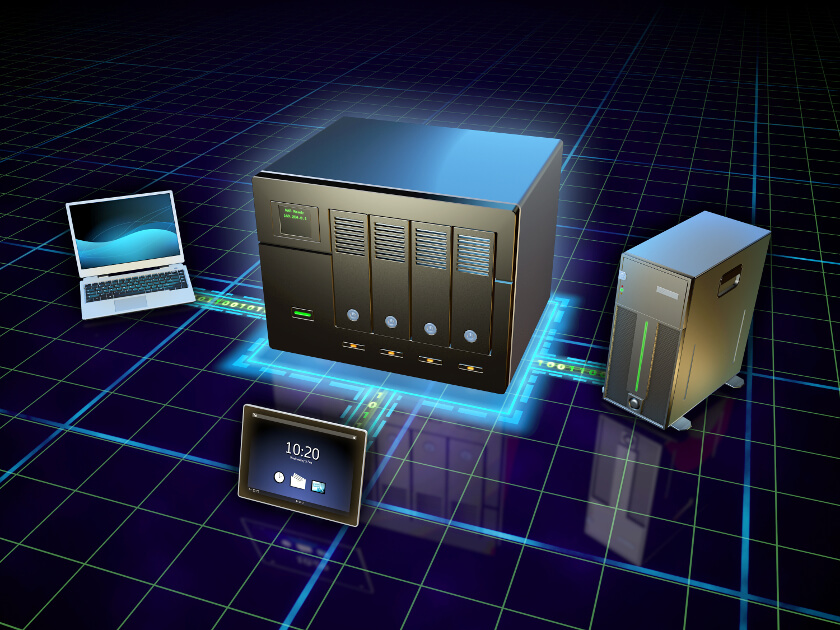
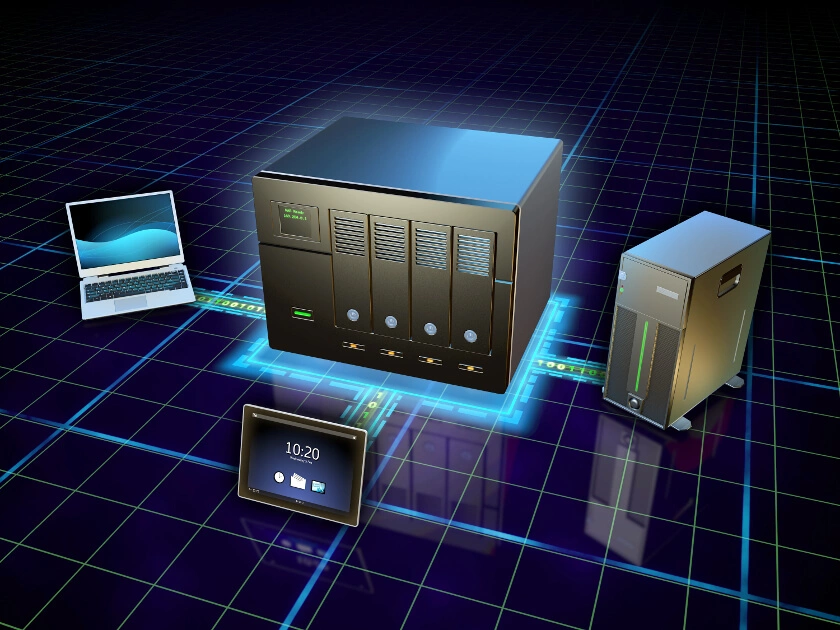
Centrally accessible data is the backbone of any computer-supported group project. Many companies provide their employees with locally connected computer networks (Local Area Network, LAN) that feature shared storage platforms. Storing data this way offers many advantages when compared with decentralized approaches. Centralized databases enable employees to collectively work on documents or tables, without having to create multiple versions of this same document. What’s more, administering data backups within a shared storage platform proves to be less strenuous than when compared to a range of individual hard drives. Depending on a company’s size, the technical basis for centrally storing files is composed of file servers, storage networks (storage area networks, SAN), or so-called NAS systems (Network Attached Storage). The latter mentioned option has become increasingly popular among private users over the last few years. The increased flexibility to centrally manage and access content, like photos, videos, or private music collections, through various devices is the main reason behind their popularity. In contrast to file servers and SAN solutions, which are primarily geared more towards business customers, NAS home systems are offered as easily administrable, affordable solutions. But what is NAS server? And to whom are these storage concepts best suited?
- Automatic backup & easy recovery
- Intuitive scheduling and management
- AI-based threat protection
What is a NAS?
Network area storage refers to a dedicated storage device that’s stored in a local network and, comparatively speaking, more affordable and easier to administer.
NAS systems are sold by manufactures with the guarantee of being complete devices, ready for immediate use. By definition, this also means, of course, that all of the necessary hardware and software components are also available. Some popular providers include names like: Synology, Seagate Technology, Netgear, QNAP, Buffalo, or Western Digital.
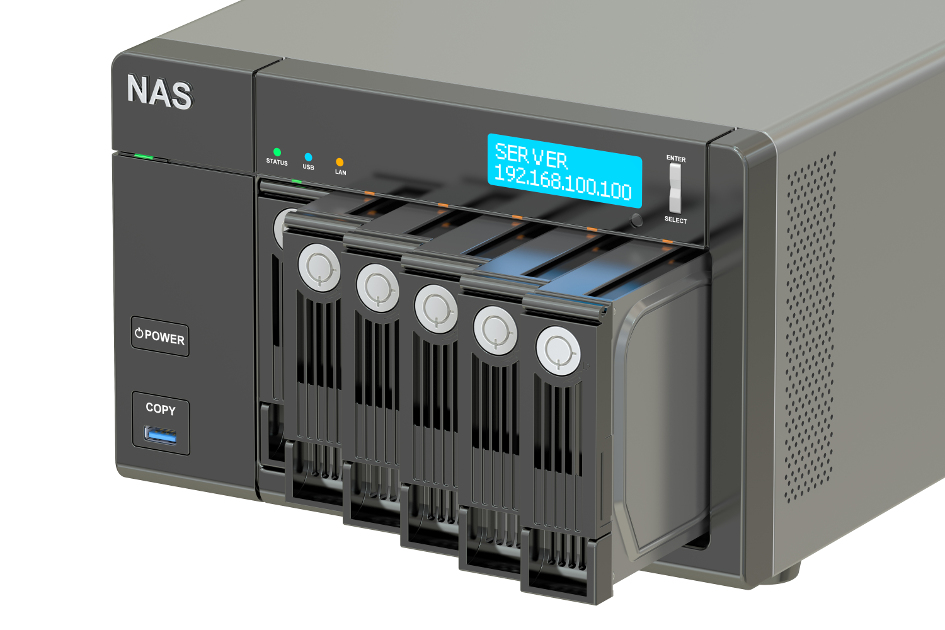
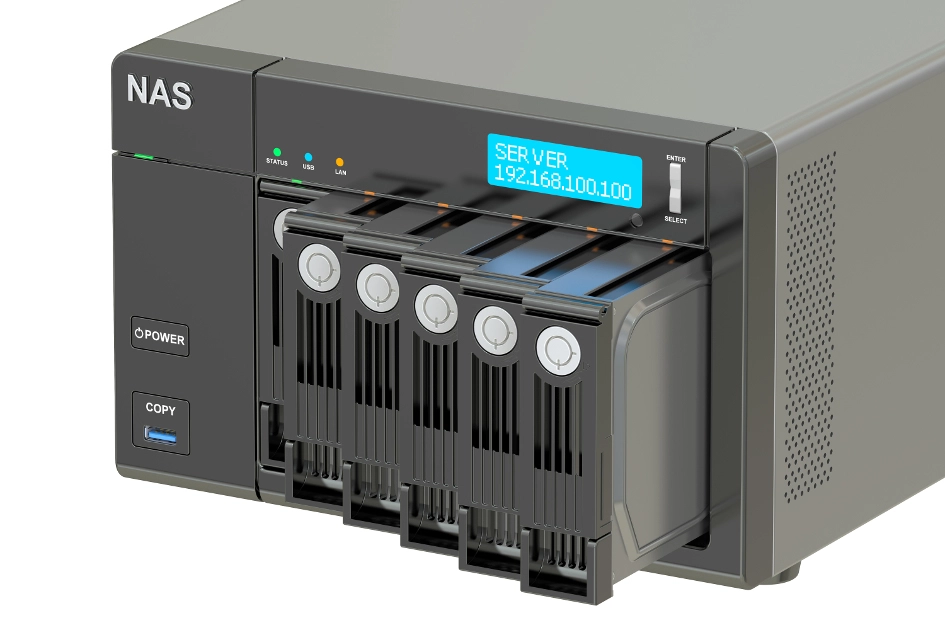
At its core, a NAS is nothing more than a normal computer. Underneath its exterior, you’ll find a CPU, RAM, and a mother board. What’s more, the network storage also has interfaces, like LAN, USB, and WLAN. The central hardware components for the NAS’ storage function are comprised of a certain number of mass storage media, like hard drives and SSD (Solid State Drives) and a RAID controller (Redundant Array of Independent Disks), which organizes these multiple physical components into a virtual drive. In terms of the software, an operating system (generally, this is Linux) and the NAS software are used.
How a NAS system works
NAS systems are essentially file servers that have been optimized for storing data in local networks. Access to LAN is carried out via the Windows network protocol SMB (Server Message Blocks). NFS (Network File System) or FTP (File Transfer System) are used as the system’s transfer protocols. Apple hardware relies on AFP (Apple Filing Protocol). Additionally, many NAS systems can also be used to help store Time Machine backups. One of the central functions of network attached storage is the control it offers users when it comes to accessing saved data. This feature is particularly useful for professional applications; files from different users can be separated from one another while still being saved on the same storage platform. Working in groups is made possible with the support of the proper clearance.
With its comparatively low cost, network attached storage also appeals to the SOHO (Small Office, Home Office) market. Additionally, compared to other alternatives, the system requires relatively little administrative work, features high security against breakdowns, and maintains a good energy balance.
Administration
Unlike conventional file servers, operating a NAS system requires comparatively little IT expertise. All network storage settings are managed through a graphical configuration interface, which can be called up in a client’s browser. For easier access to network storage, NAS systems can also incorporated into devices, like PCs and laptops, as hard drives; special programs for data transfer aren’t needed. Smartphones, network-compatible stereo systems, and smart TVs that don’t allow simple file sharing are able to access photos or videos through streaming servers, such as TwonkyMedia, which are integrated in the software. This enables NAS to be used at home as a centralized media storage device.
Protection against system breakdowns
One of the deciding cost factors when purchasing a network storage system is the number of storage media it includes. While entry-level devices with one or two hard drives are aimed at serving private users, options for business-oriented solutions generally contain up to 12 storage slots. These professional devices enable complex storage set-ups to be realized that enable greater reliability and larger data throughput. In order to achieve these traits, manufacturers have looked towards so-called RAID systems. Here, data is redundantly distributed throughout multiple physical storage media, ensuring the NAS system’s reliability and availability, even when individual hard drives crash. When dealing with Network Attached Storage, typical RAID levels are: RAID-0, RAID-1, RAID-5, and RAID-10.
- RAID 0: strictly speaking, this storage concept isn’t a RAID system; instead, it’s only an ‘Array of Independent Disks’. These can be configured in such a way that allows the storage process to be simultaneously allocated to multiple hard drives. This increases the system’s throughput. Data redundancy cannot be realized with RAID-0.
- RAID 1: For RAID 1, data from the RAID controller is stored onto two separate storage devices. This sort of redundancy requires at least two storage devices. With this storage concept, users only have access to half of the actual storage capacity. However, saved data is still kept when one of the two hard drives crashes
- RAID 5: For NAS systems with at least three available hard drives, storing data is done according to RAID-5. This set-up connects redundant data storage with increased throughput by simultaneously operating multiple hard drives. For this storage concept, the controller creates checksums for the data blocks that are to be written and saves these so-called parities separately on a neighboring hard drive. For this process, the controller functions in such a way that evenly distributes data and checksums evenly throughout all storage devices. Following this, if one hard drive crashes, lost information can be restored from the available data blocks. Due its low costs and high reliability, RAID 5 is an especially popular storage option.
- RAID 01 and RAID 10: these storage concepts involve combinations of different RAID levels and can be used with any setup that employs at least four hard drives. A RAID 01 system distributes data the same way a RAID 0 system does, i.e. throughout at least two hard drives. This data is then mirrored onto the same number of hard drives according to the RAID 1 scheme. RAID 10, on the other hand, first mirrors the data and then distributes it afterwards. In terms of data security, RAID 10 presents the better option given that it’s less prone to crashes and also allows data to be more quickly restored. Both RAID systems only provide users with half of hard drives’ storage capacities.
Users who opt out of a RAID level for their NAS are employing what’s known as a JBOD (‘just a bunch of disks’). In this case, the entire storage capacity of all hard drives is available; however, neither the reliability nor the throughput speed of the system is improved.
Those who make use of redundant storage strategies should also ensure that they have planned for regular backups. A standard interface for this is the NDMP (Network Data Management Protocol). This makes it possible to control a NAS data storage options via a backup management software. In general, regular data backups occur through a synchronization with a second NAS system and either a USB hard drive or the cloud.
Costs and energy use
There are many options available on the market for NAS systems, including hard drives and cases. For the latter, users can decide themselves how much storage capacity they need. Free slots make it possible to retroactively expand a network’s storage capacity. While there are entry-level devices available for under $100, high-performance business models, including storage devices, can easily reach the multi-thousand dollar price range. When used within a business context, however, these investments often end up paying for themselves.
Unlike conventional servers, modern NAS systems use far less power; this is due to the models reduced storage functions. Many devices support highly developed energy saving strategies. Switching a network into standby mode, even for non-stop operations, helps ensure for more limited energy consumption, as this function puts devices into a state of hibernation that have been idling for an extended period of time. And thanks to the Wake-on-LAN (WoL) function, even a deactivated NAS system can be started again via the network.
Expandability
Generally, it’s not possible to install additional software with a NAS system — many devices, however, offer additional functions, such as launching the device as a print server. Some NAS systems also enable online remote access and can be operated as web, FTP, or email servers.