

Encrypting ZIP Files: How to Password Protect Your ZIP Files

Would you like to prevent unauthorized people from accessing sensitive data that you store on data servers and shared computers, or send via email? Then it’s best to use password-protected archive files, like those in ZIP format.
You can password protect ZIP files on both Windows 10 and macOS. However, the range of functions provided by your system’s password-protection tools are limited. For this reason, we recommend using external software.
Password Protect ZIP Files with Windows System Tools
Microsoft Windows 10 provides a feature for password protecting files and folders which is integrated in the operating system. Windows password protection can also protect ZIP files from unauthorized access, without having to use third-party software. To activate password protection for your files, follow these steps:
Windows password protection is only available in the editions Microsoft Windows 10 Pro, Education, and Enterprise, not in Windows 10 Home.
Step 1: Using the right mouse button, click on the ZIP file that you would like to password protect.
Step 2: In the shortcut menu, select the “Properties” option to open the file properties.
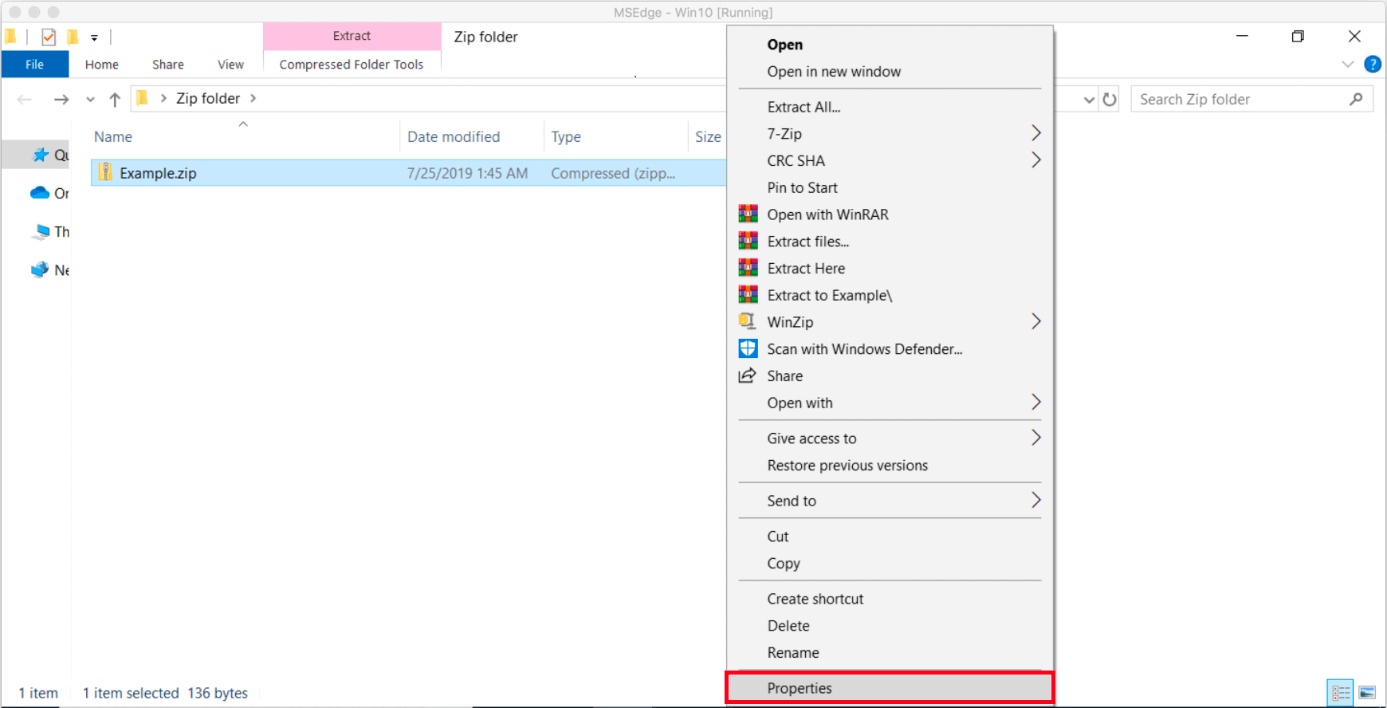
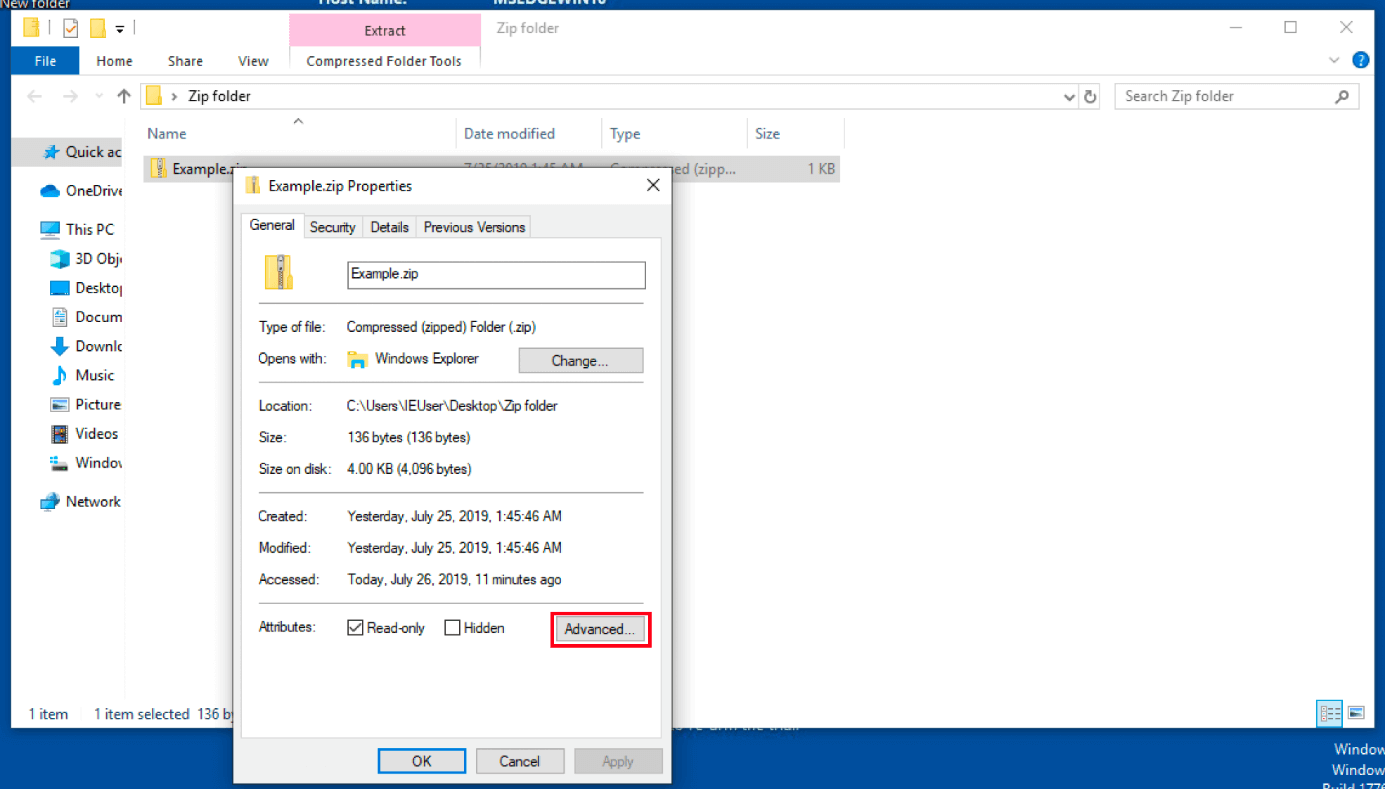
Step 3: In the “General” tab, click on “Advanced” in order to open the “Advanced Attribute” dialog window.
Step 4: In the “Advanced Attributes” dialog window, select the check box next to “Encrypt contents to secure data”.
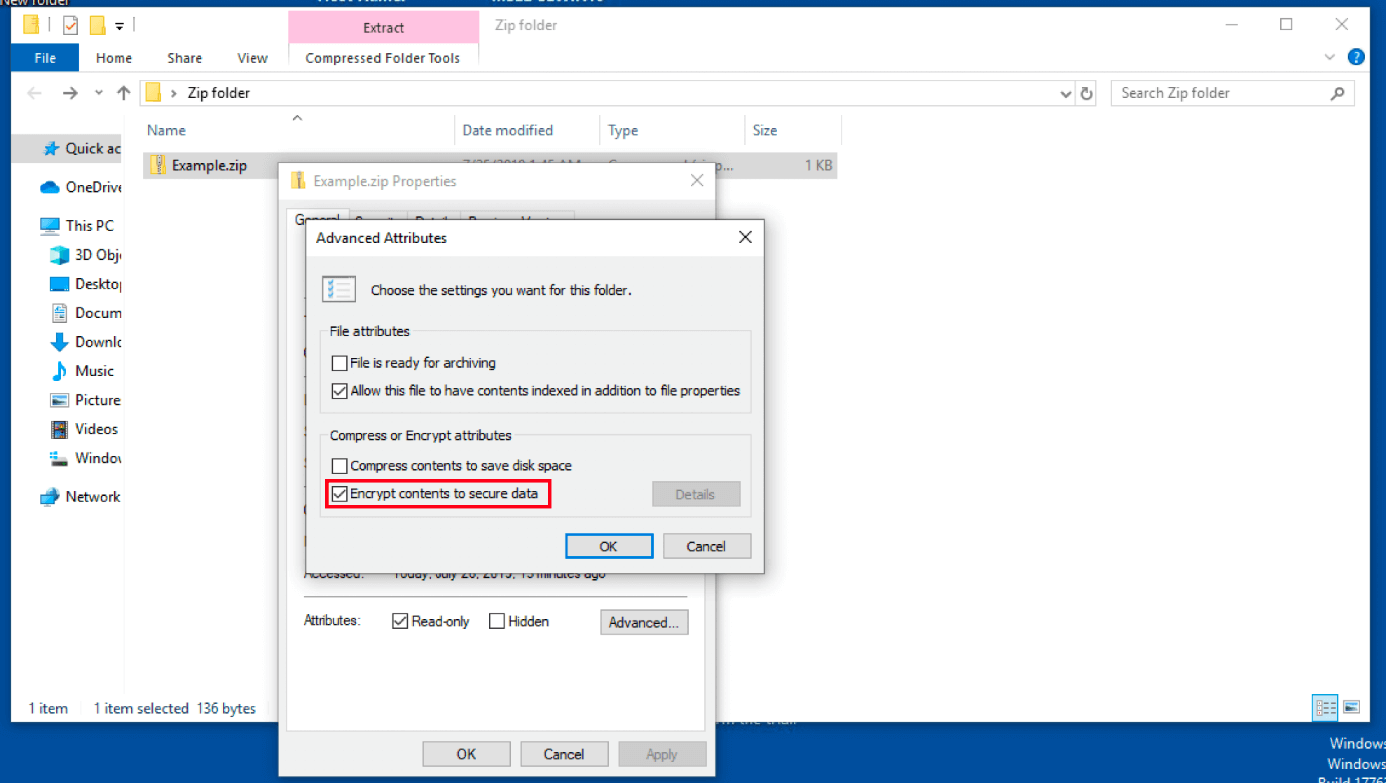
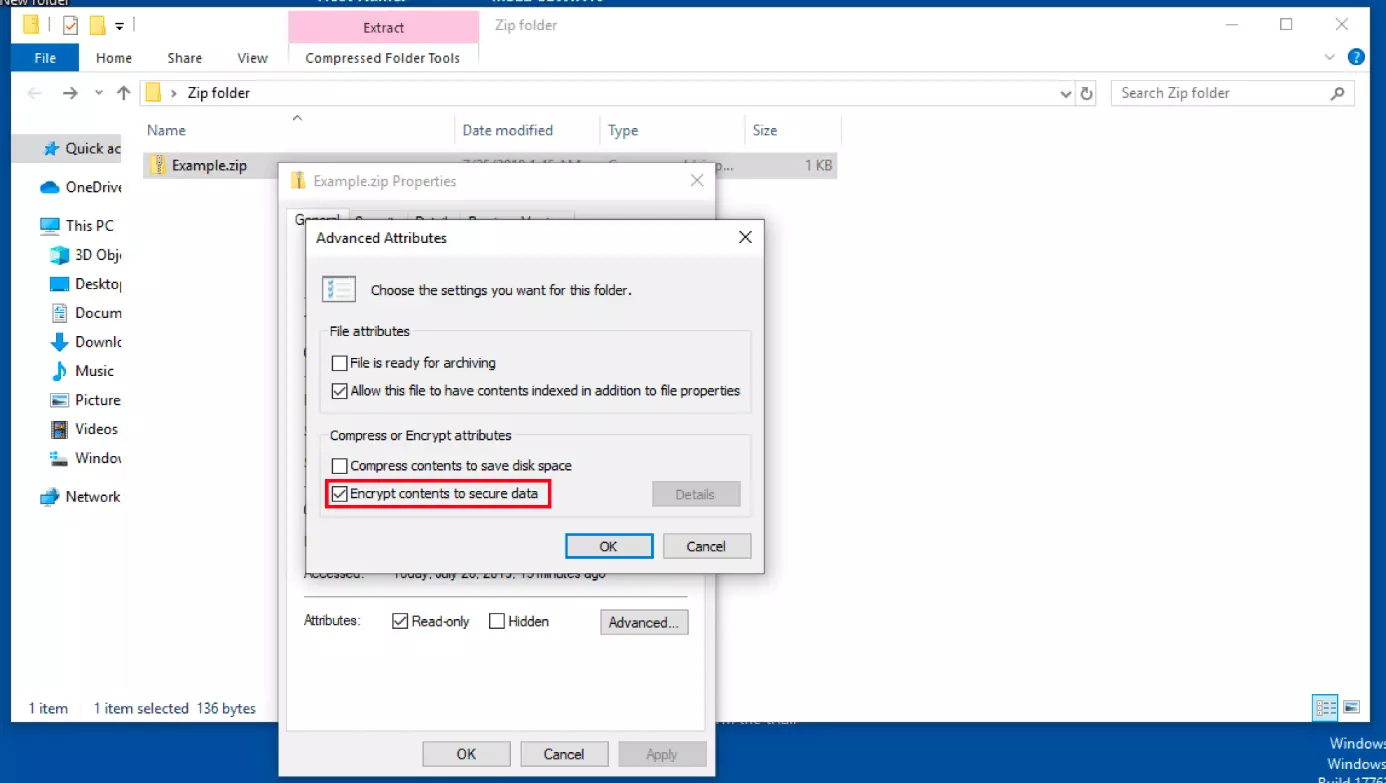
Step 5: Close the “Advanced Attributes” dialog window by clicking on “OK” and save the change in file properties by clicking on “OK” or “Apply”.
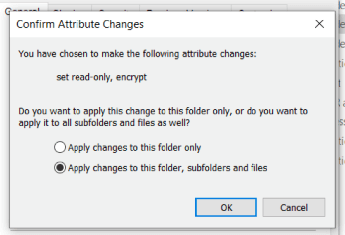
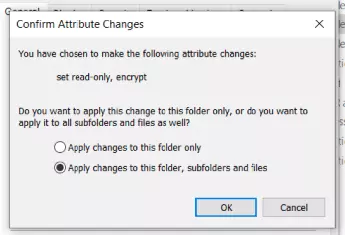
The file icon now displays a padlock. This indicates that the corresponding file is password protected. But what does this actually mean?
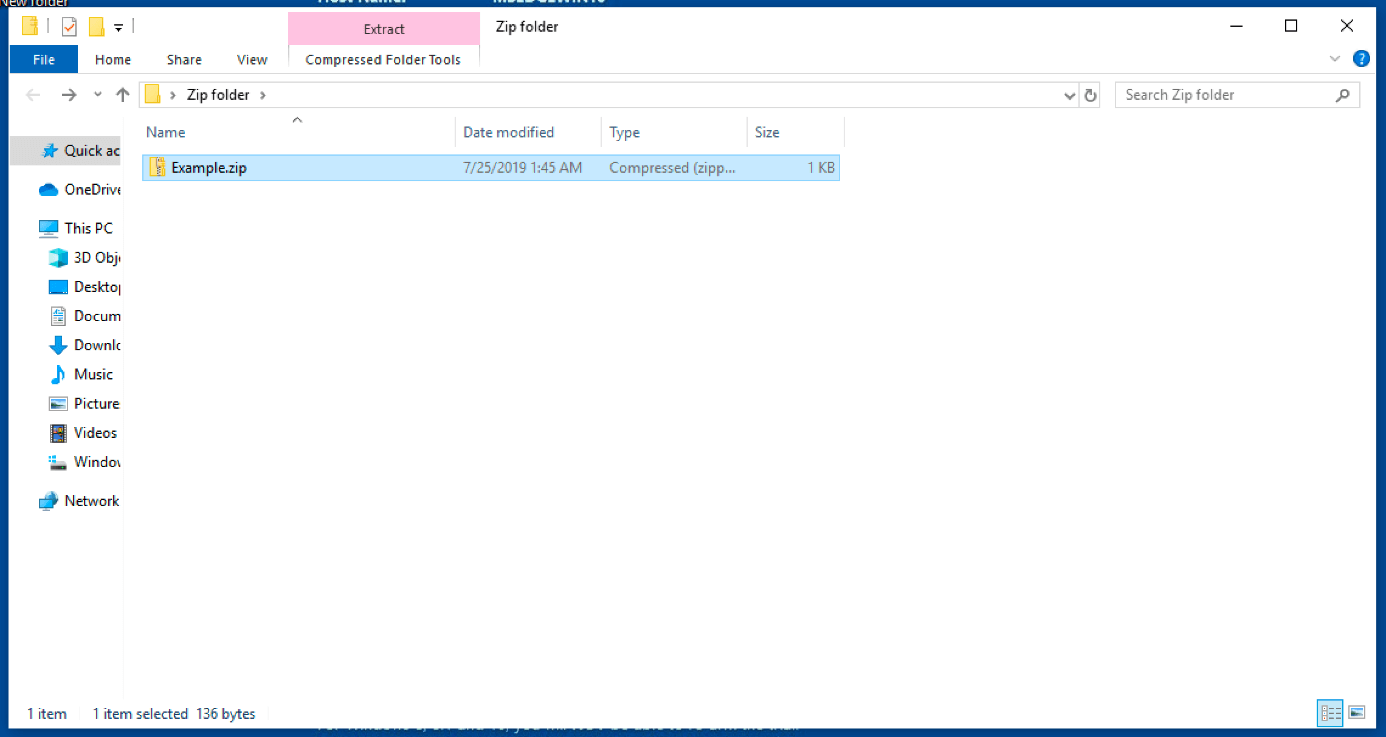
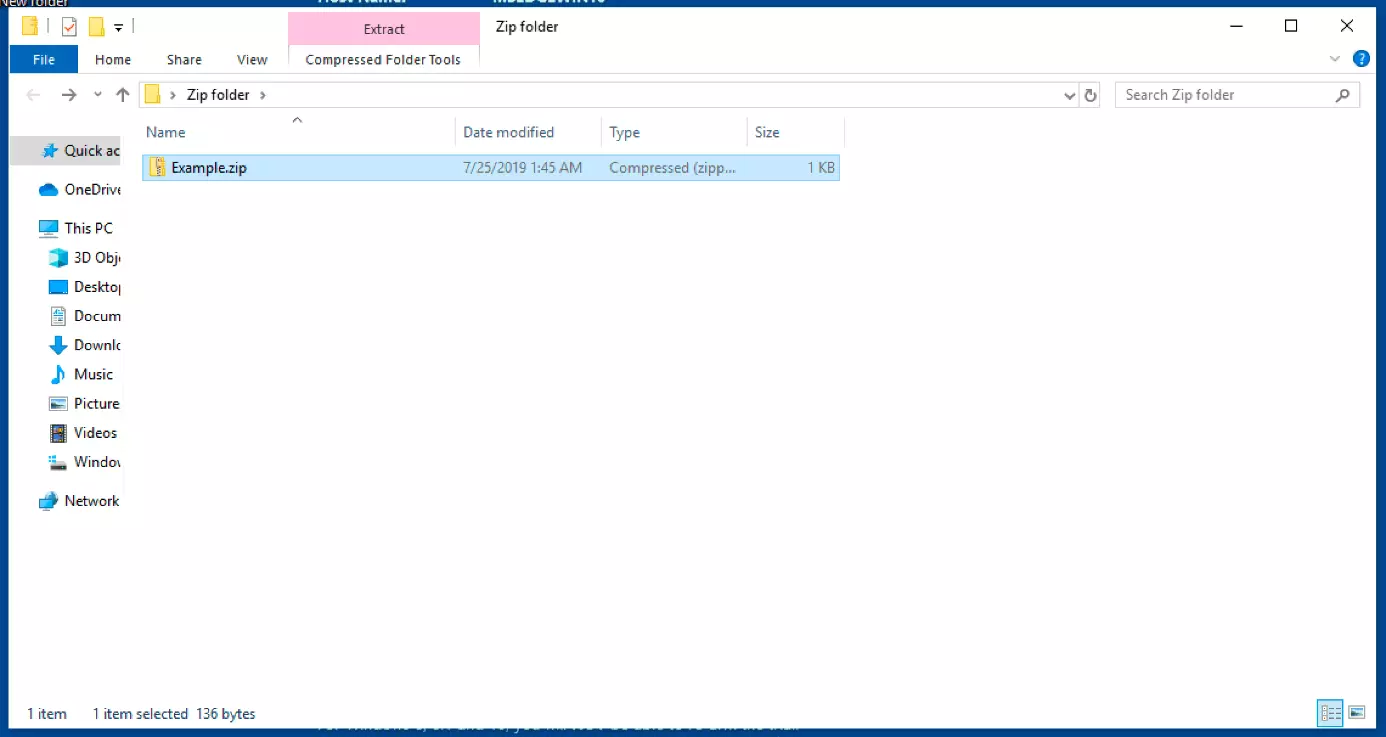
After you have activated password protection, you’ll note that you can still open the file without a password prompt. File content can also be displayed and processed without changes. Nevertheless, the file is password protected – with a key generated by Windows that is stored in your user account.
You have access to the file as long as you are logged into your user account. By contrast, other users will be denied access. This can be very practical in many situations. However, only in a few application cases does it serve as a password-protected ZIP file. For instance, this feature is not intended for sending password-protected ZIP files. For this, we recommend using a compression program with an encryption feature.
Encrypting File Folders with macOS Standard Tools
Though it’s true the Apple operating system macOS does not offer any native features for password protecting ZIP files, you can however protect the directories – in which ZIP files are located – as image files. To do so, follow these steps:
Step 1: Create a new folder in Finder – macOS’ standard file manager.
Step 2: Relocate all ZIP files that you’d like to protect into the folder you just created.
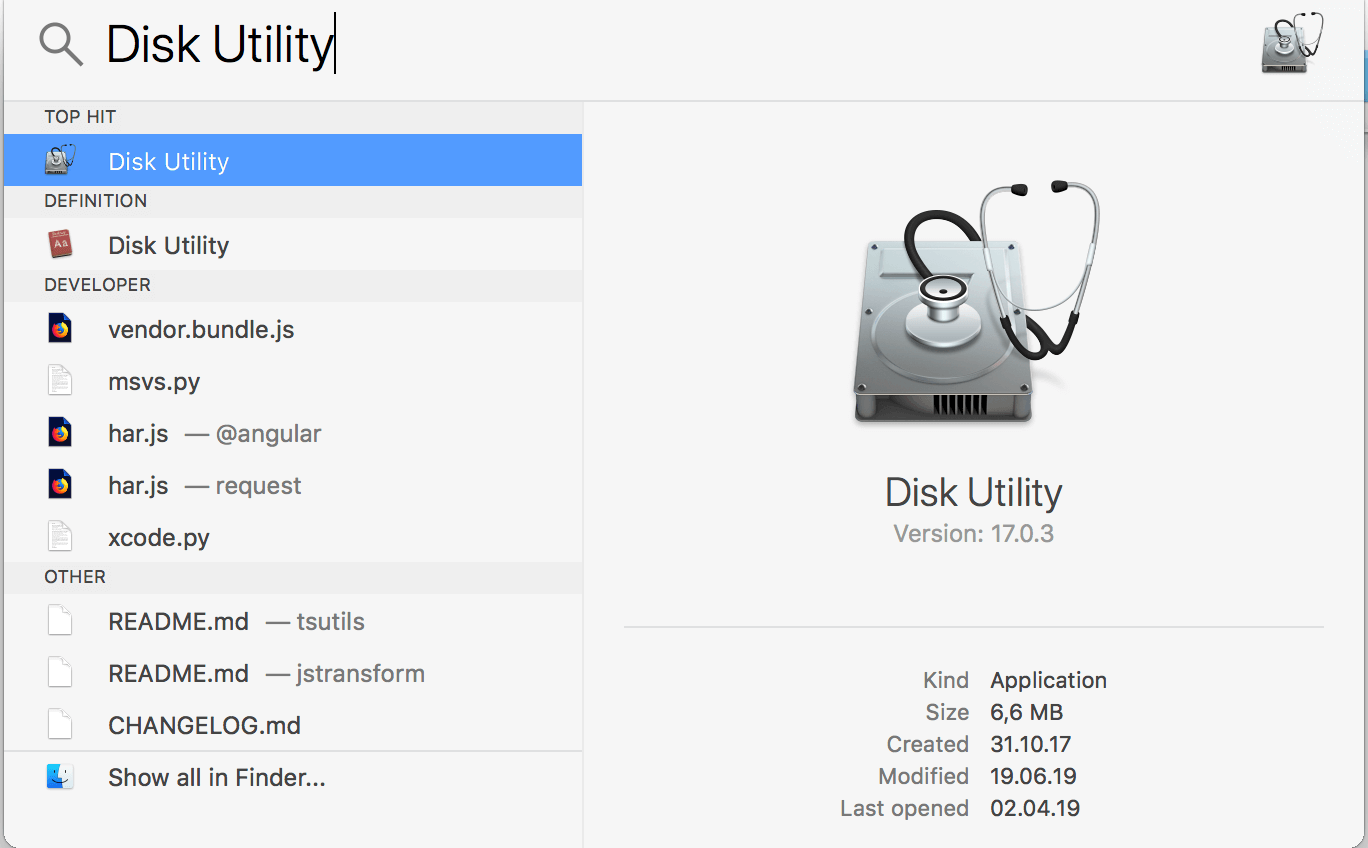
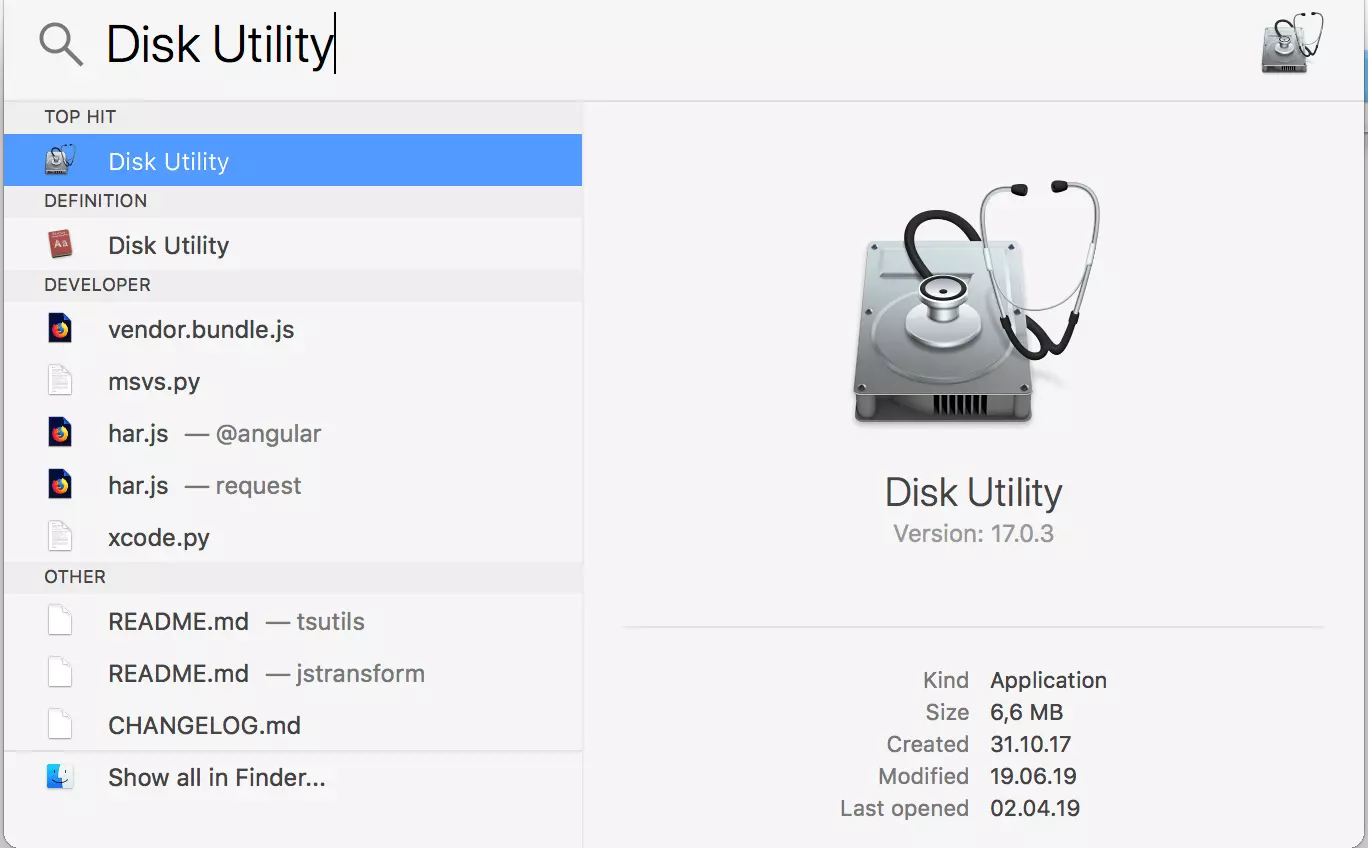
Step 3: Open the macOS hard drive service program. You can do this via Spotlight search.
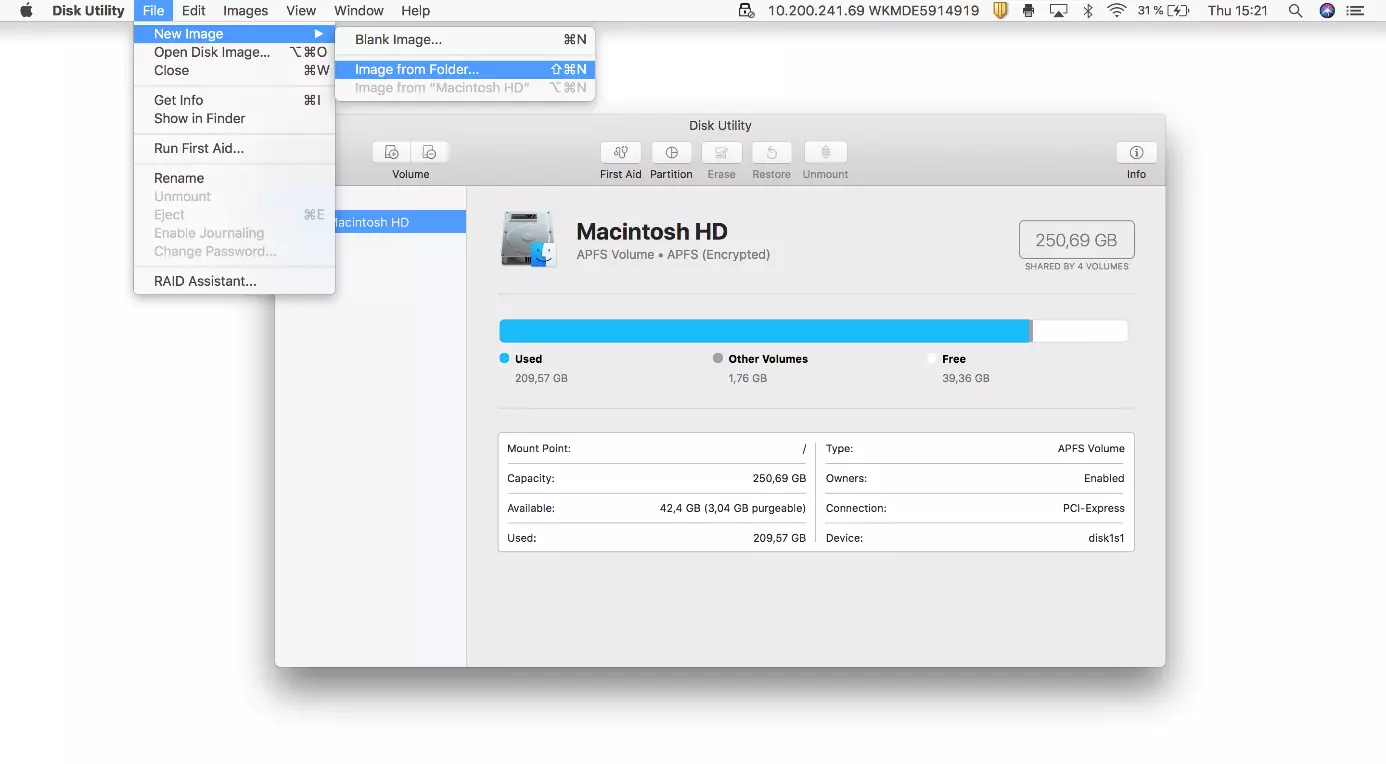
Step 4: Click on “File” in the menu bar above and choose “Image from Folder” under “New Image”.
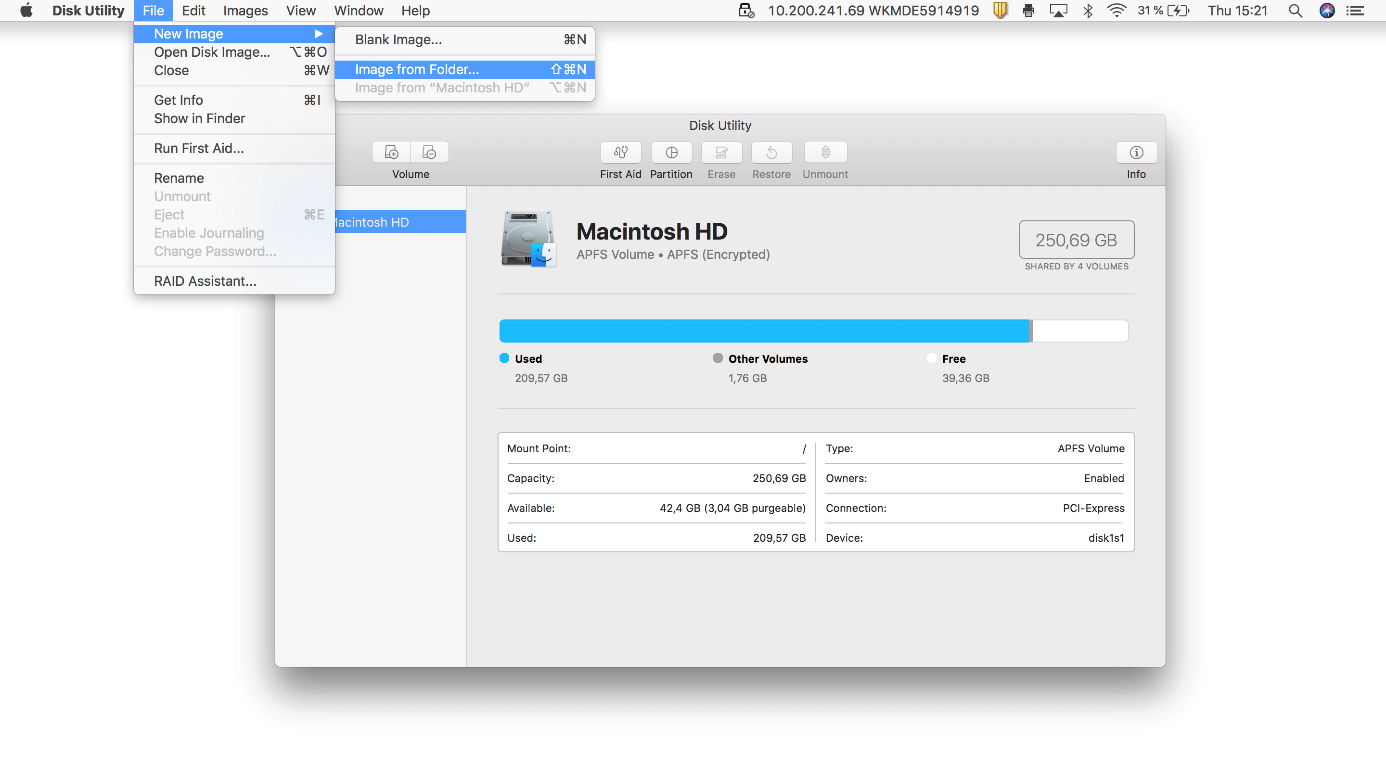
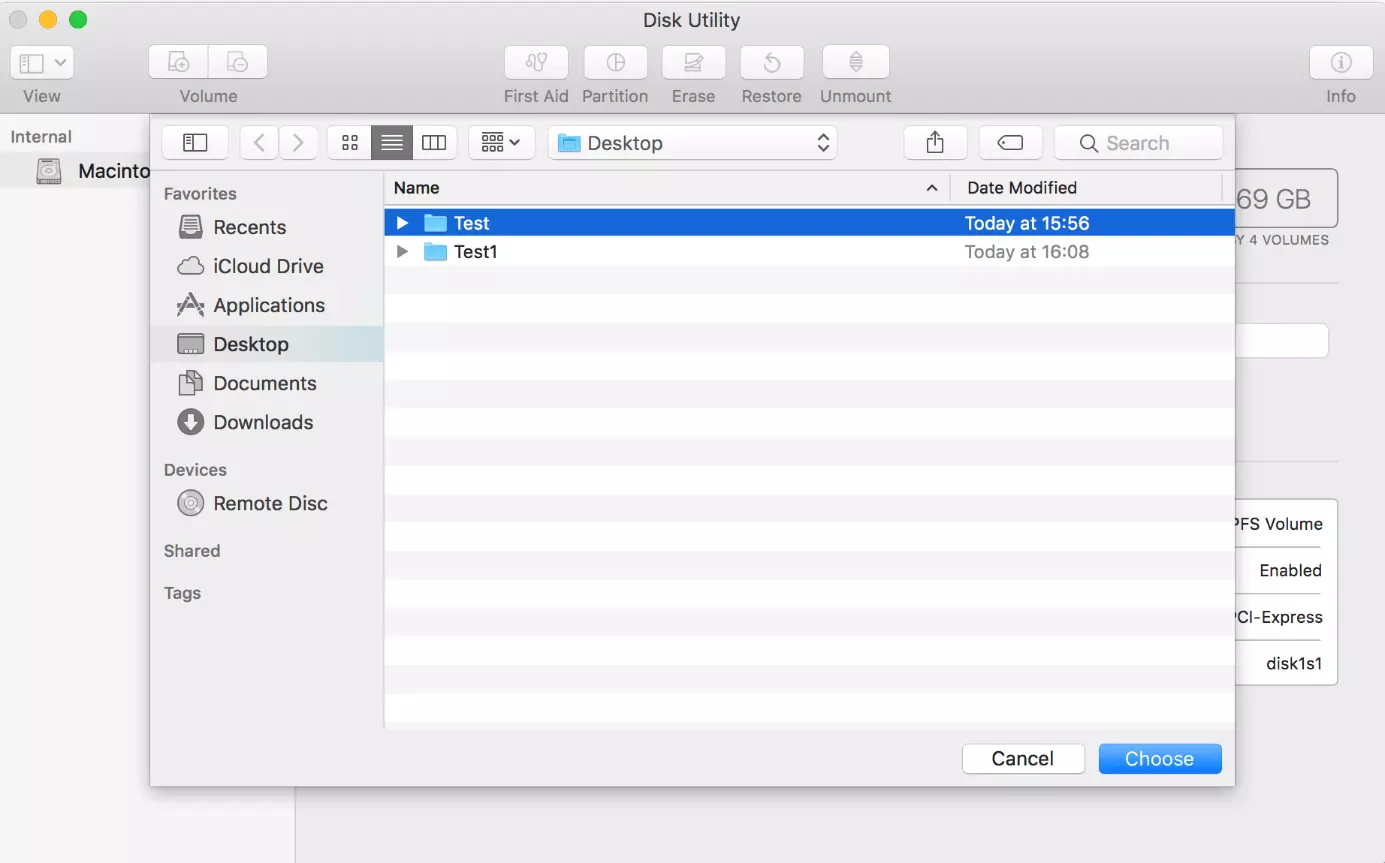
Step 5: Choose the folder you created at the beginning that has the files you wish to protect and click on “Open”.
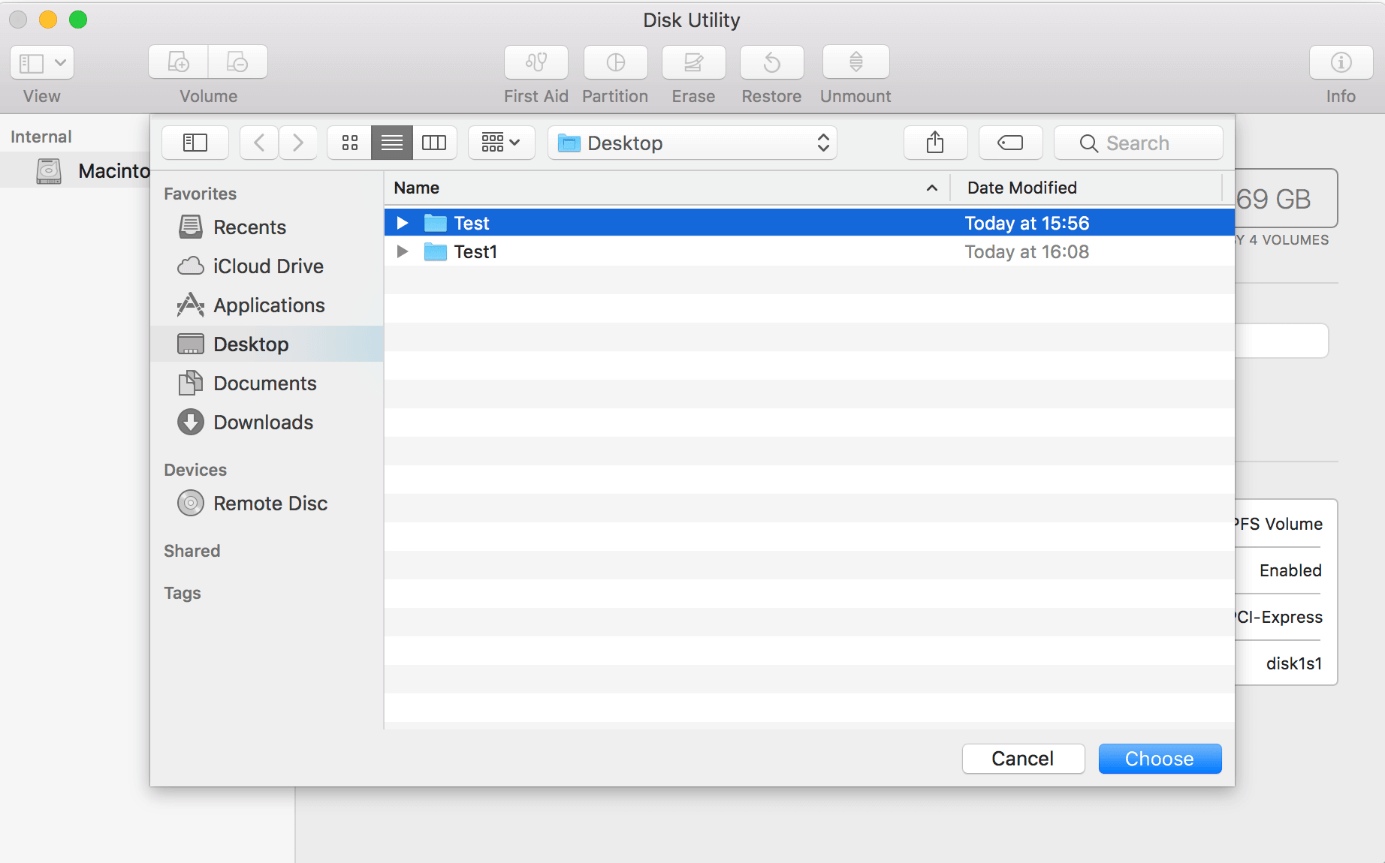
Step 6: Give the image a name and choose a save location.
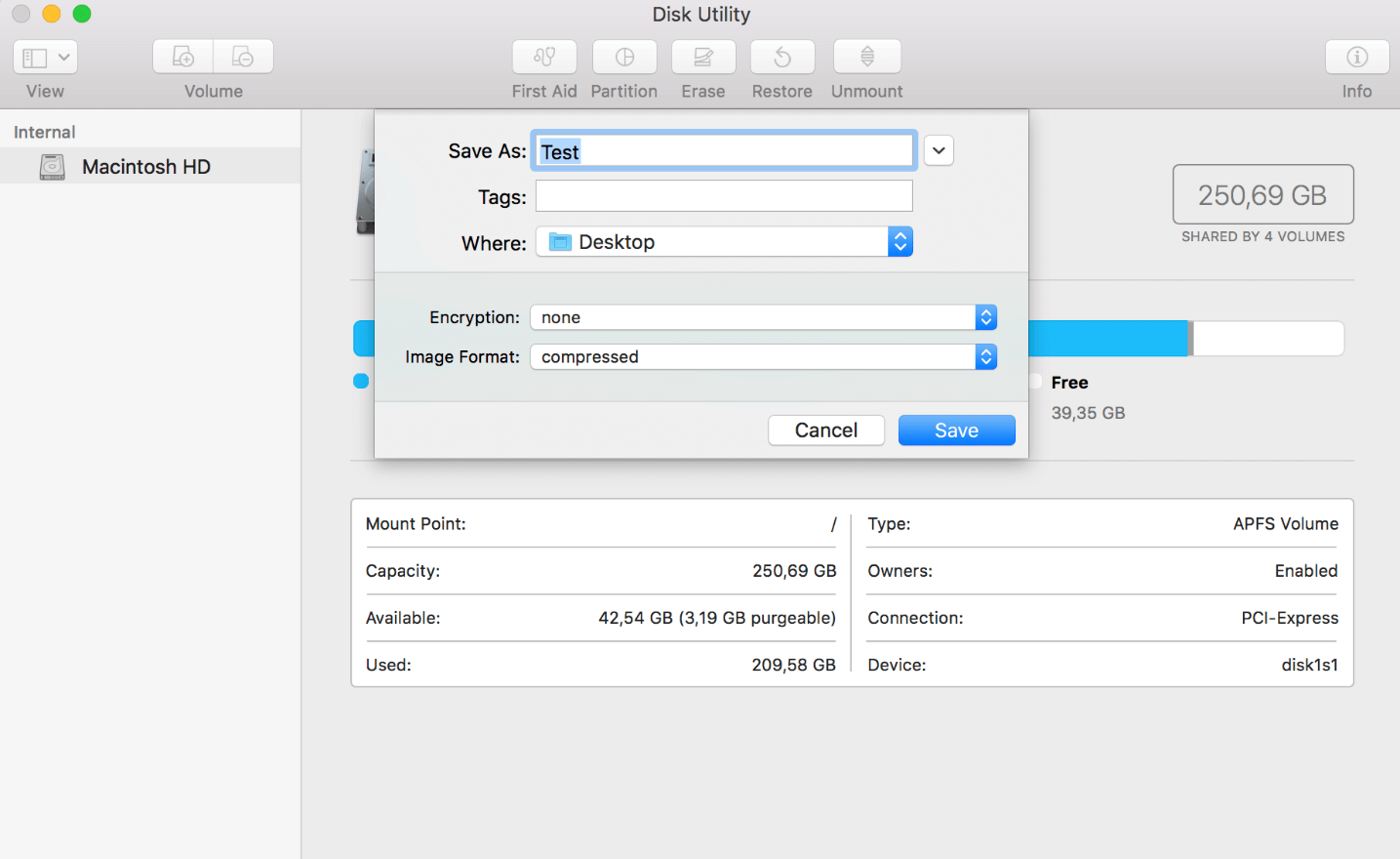
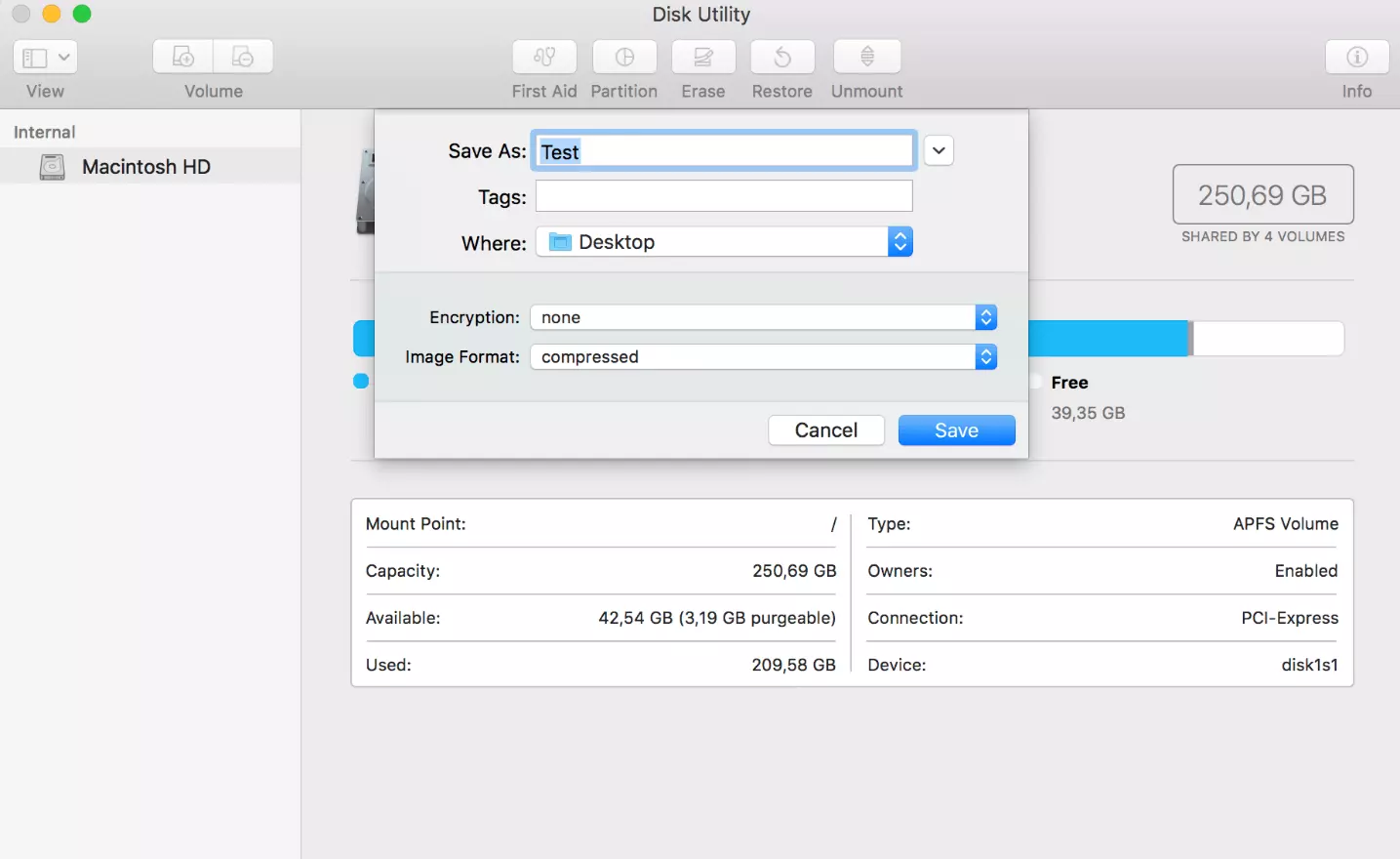
Step 7: Choose the type of encryption:
- 128-Bit-AES encryption (recommended)
- 256-Bit-AES encryption (more secure, but slower)
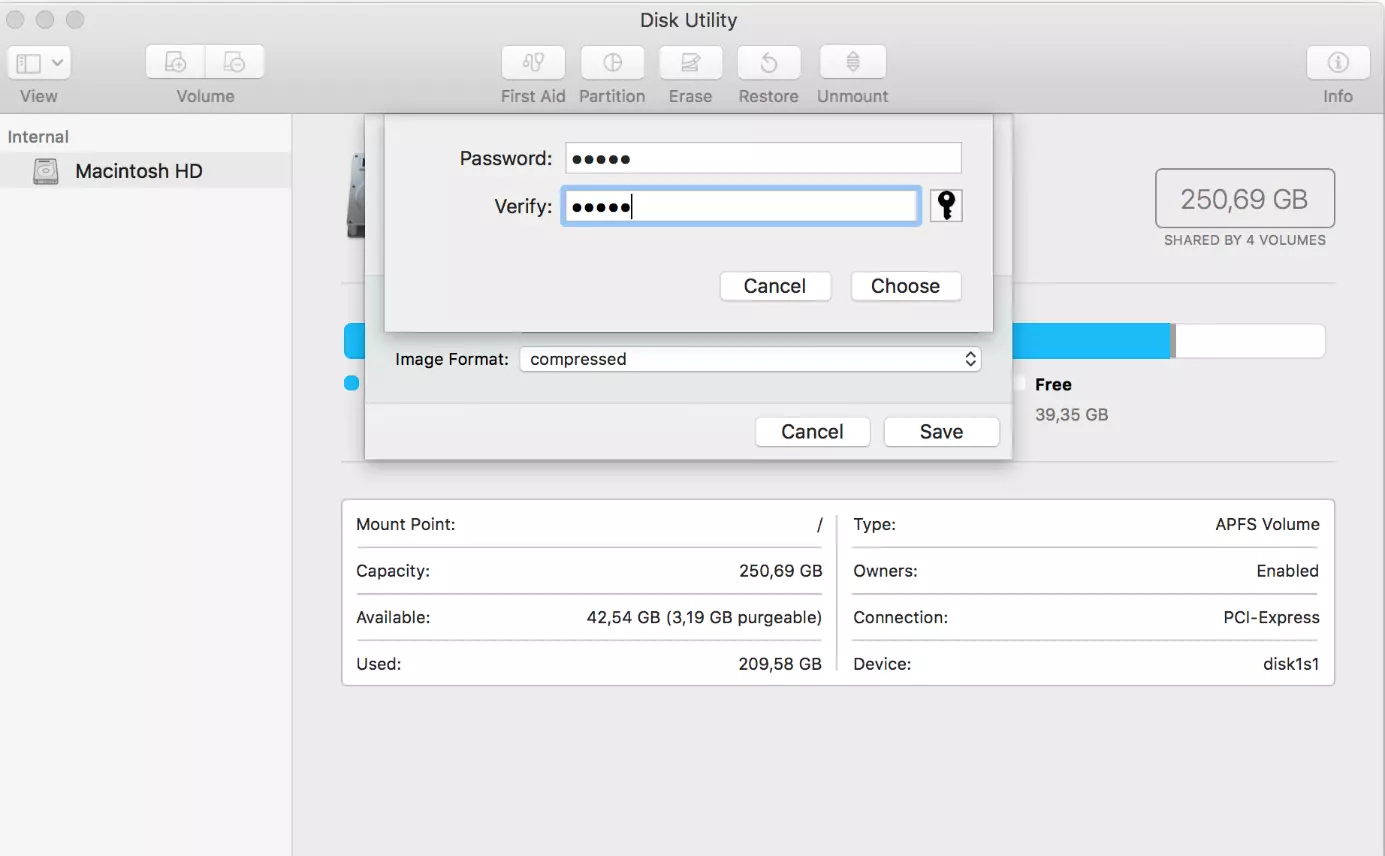
Step 8: Enter a password of your choosing and confirm entry by clicking on “Choose”.
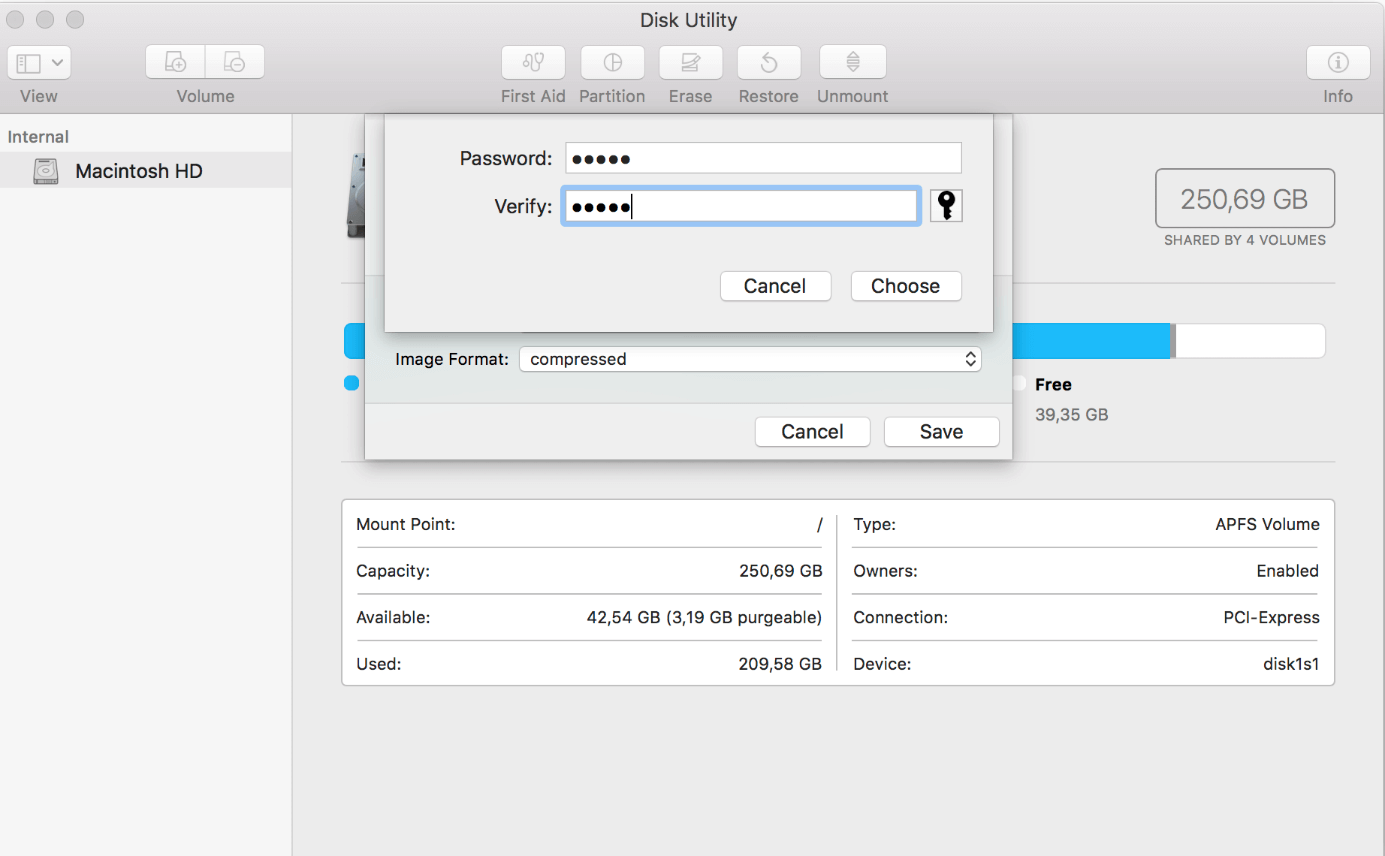
Step 9: Make sure that the image format is set to “Compressed” and complete the process by clicking on “Save”.
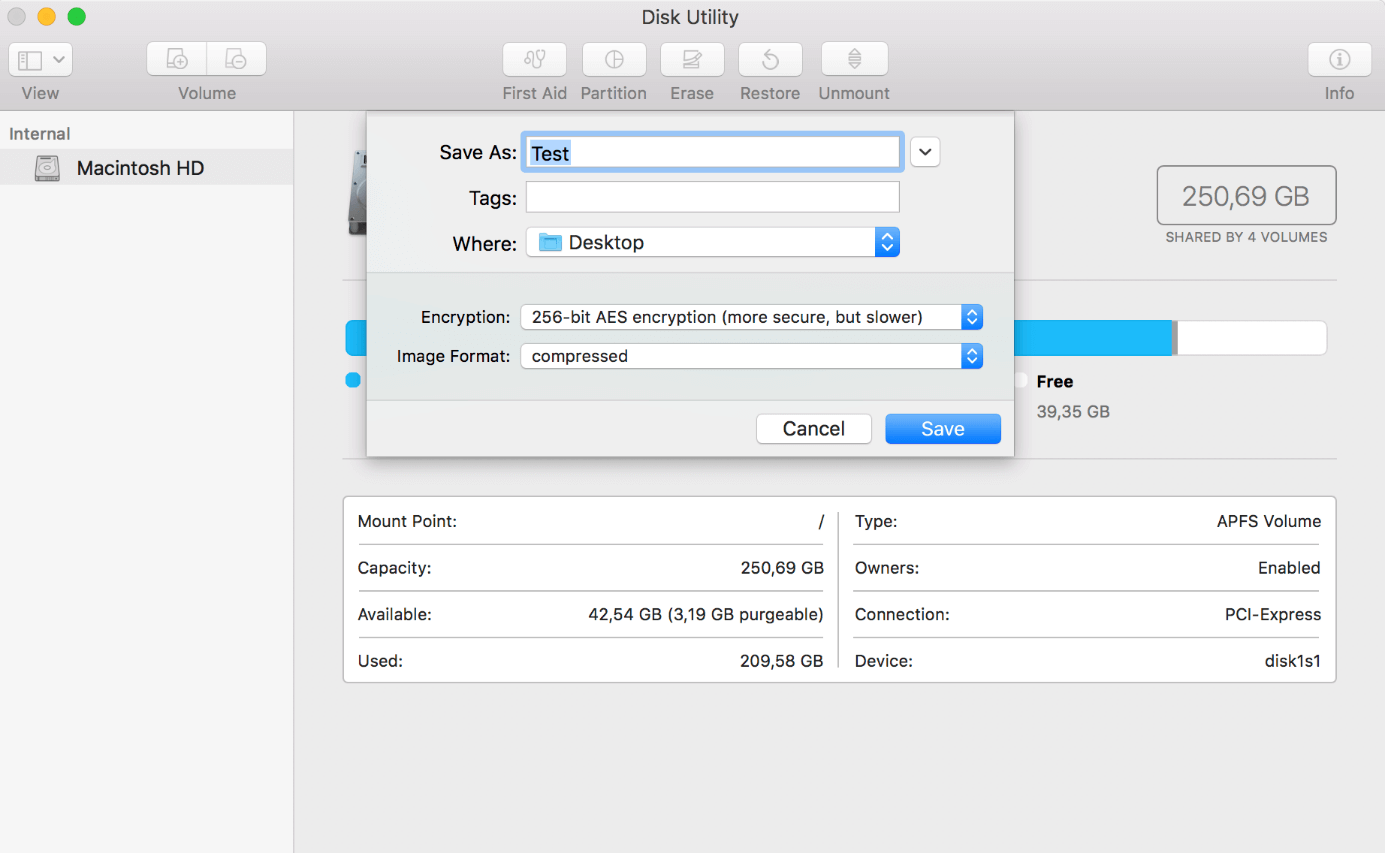
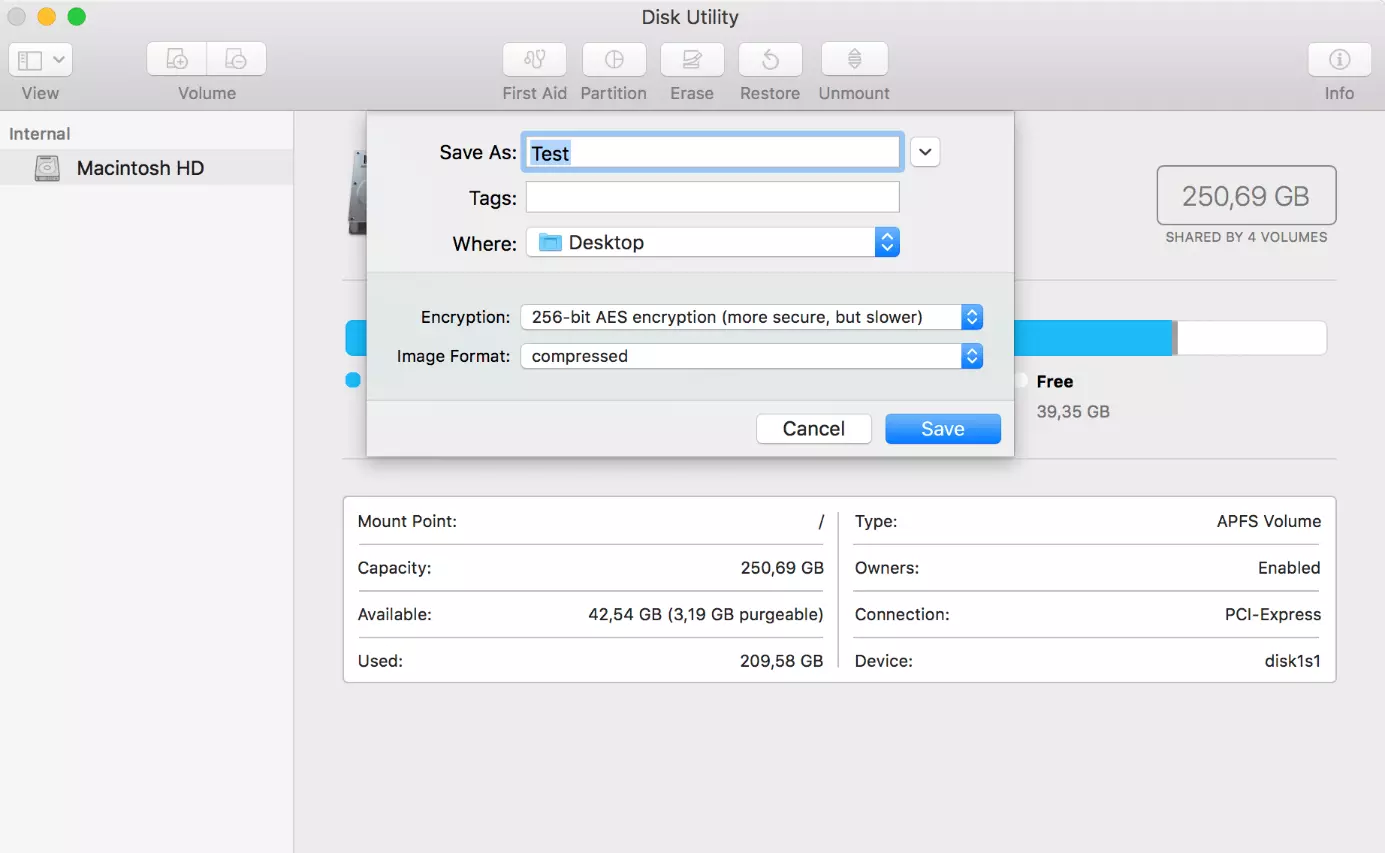
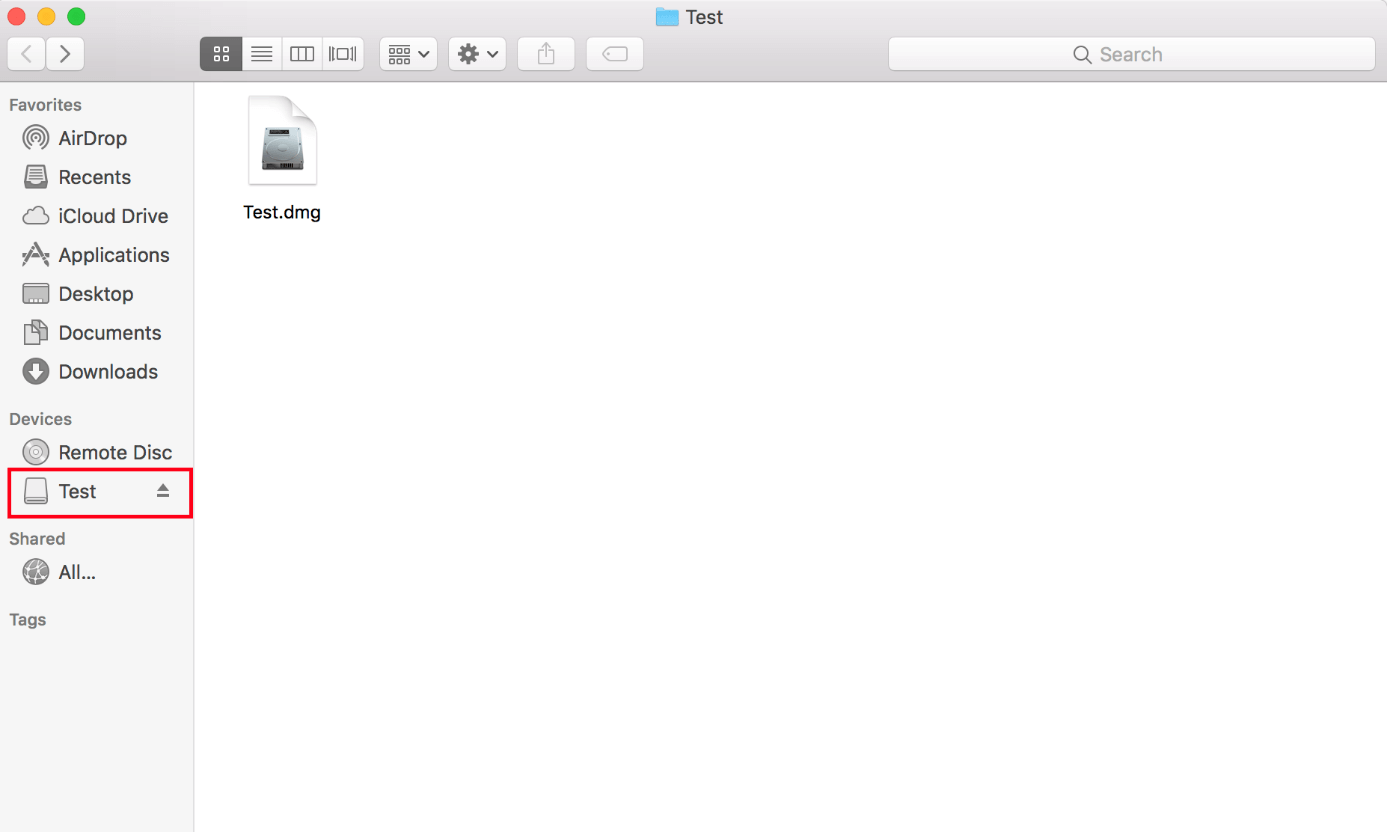
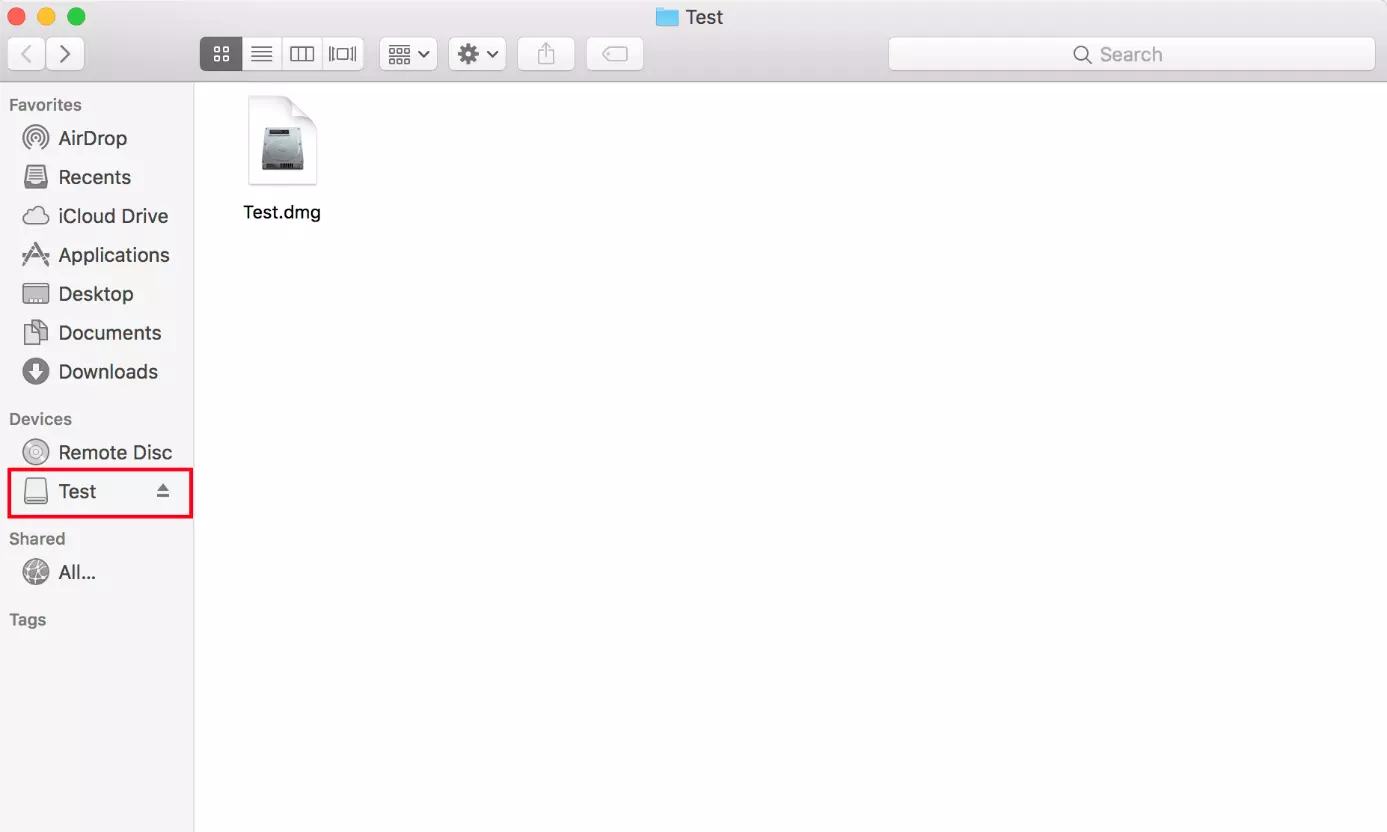
The encrypted image is created in .dmg format in the save location you specified.
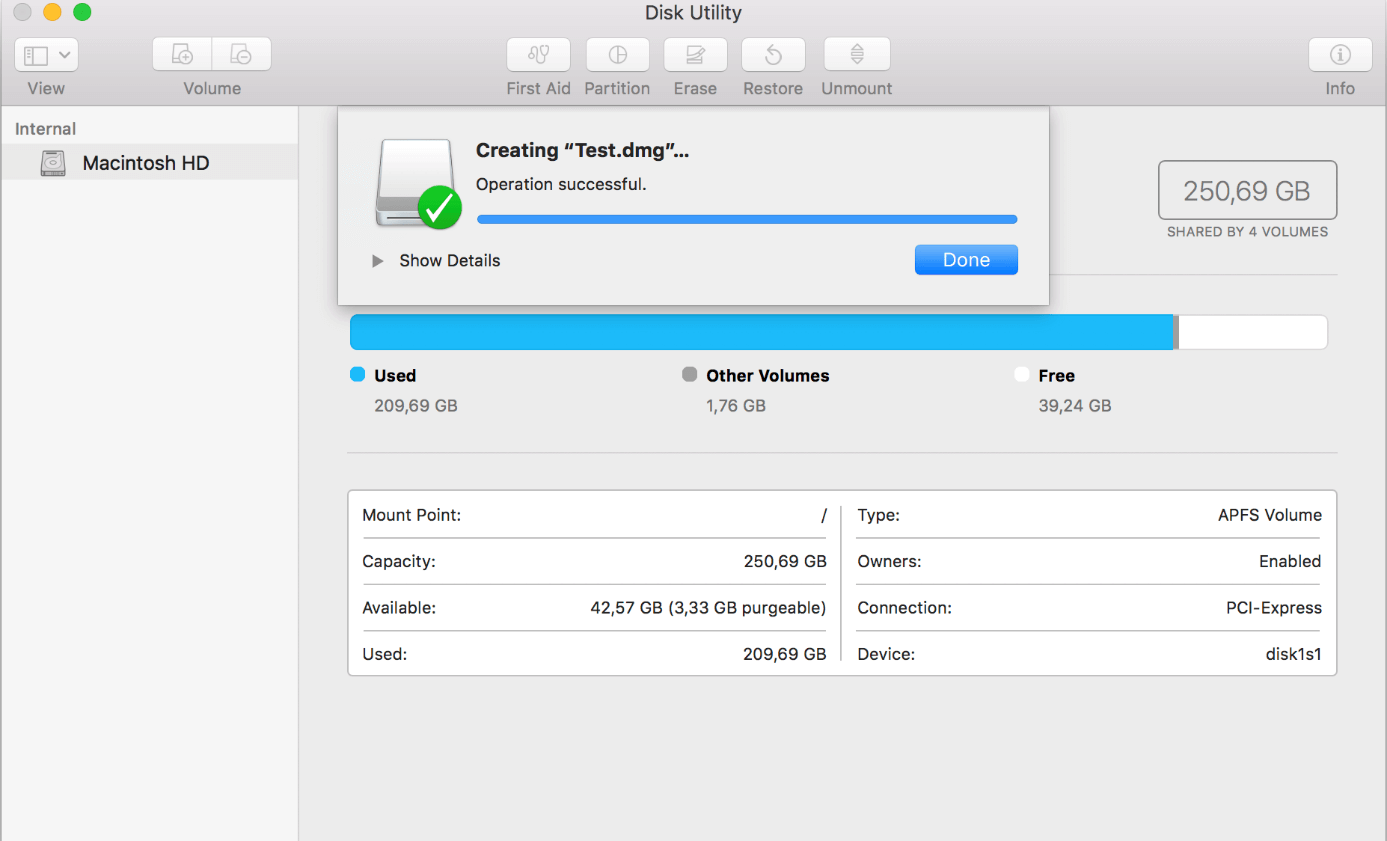
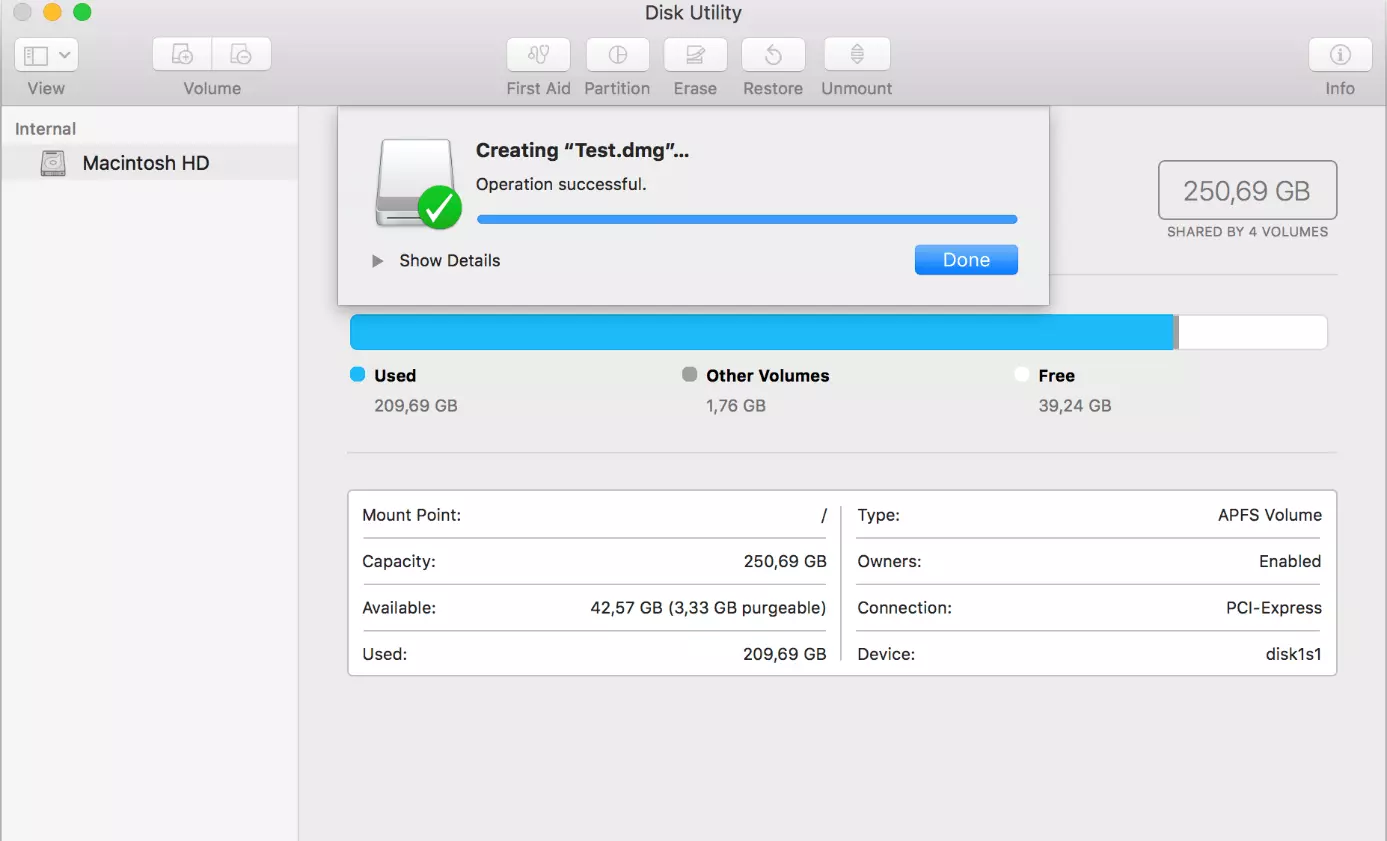
Select the image by double-clicking on it and entering your password to access the password-protected file.
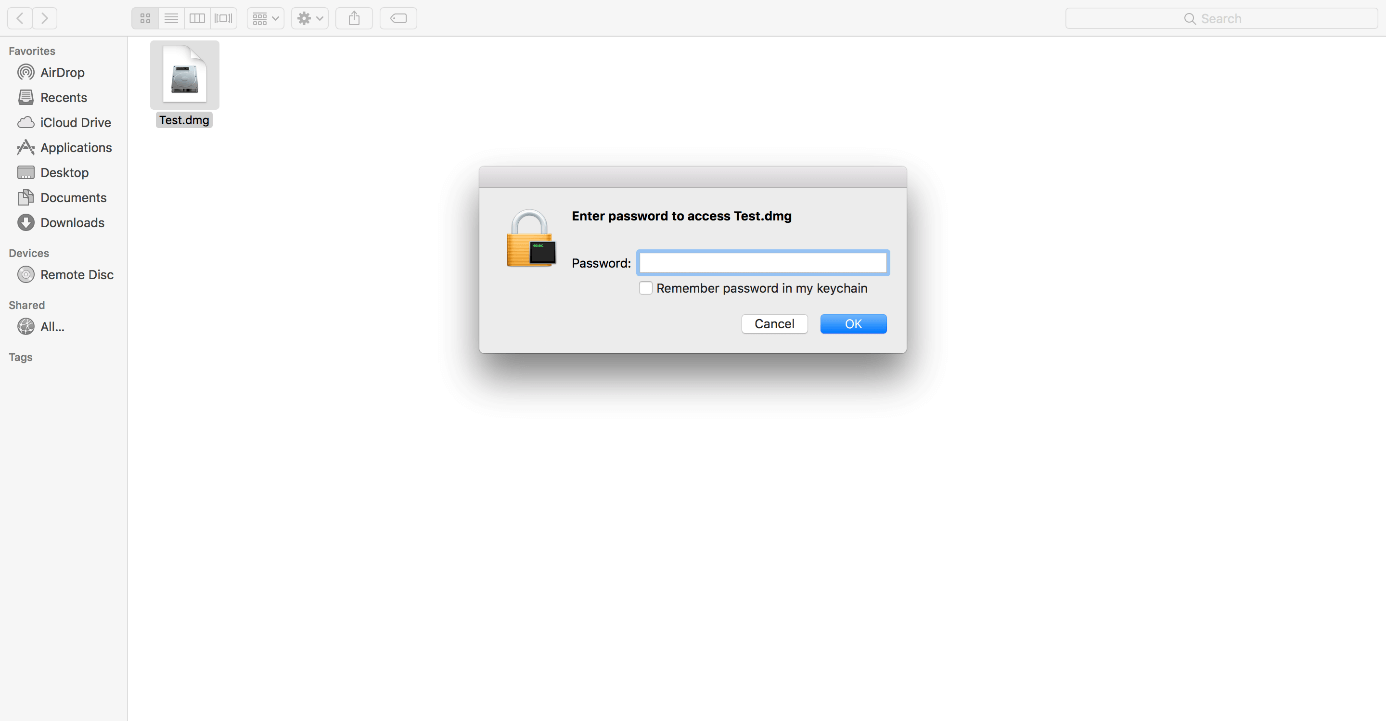
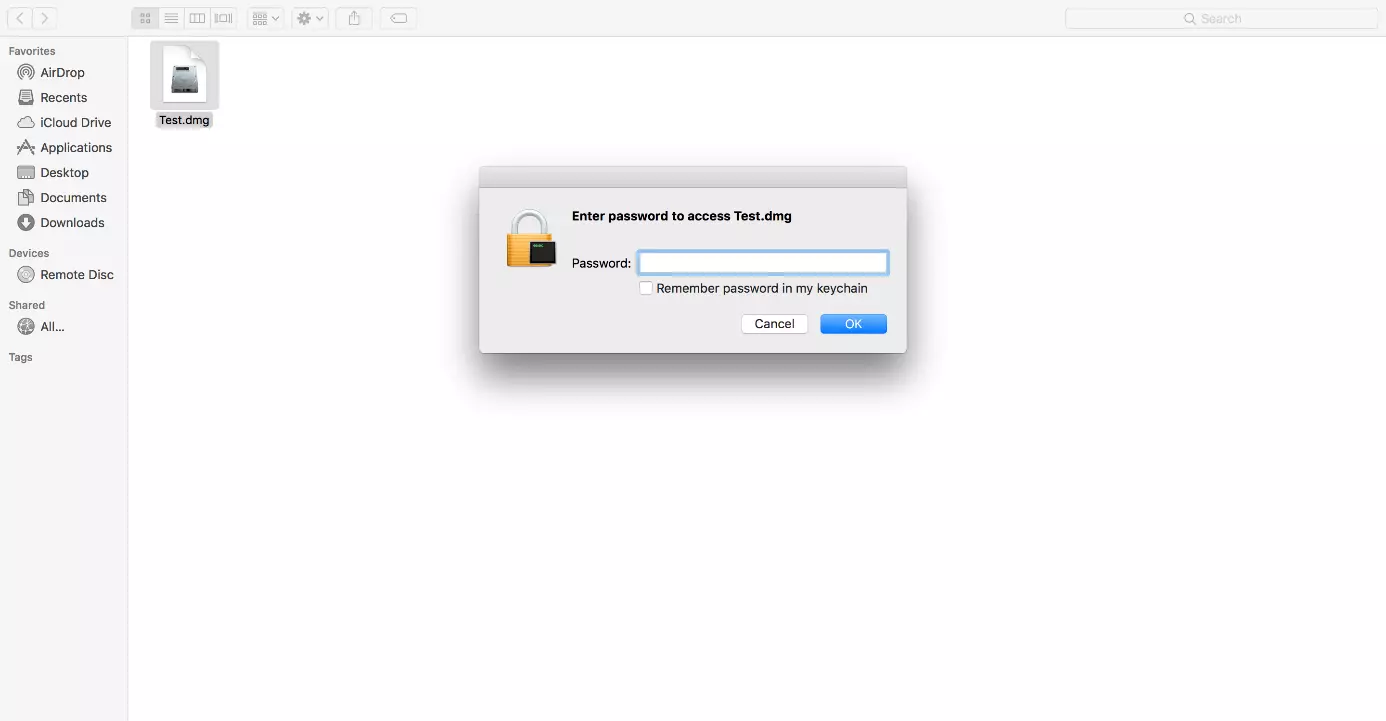
An open .dmg file is displayed as an integrated drive in Finder.
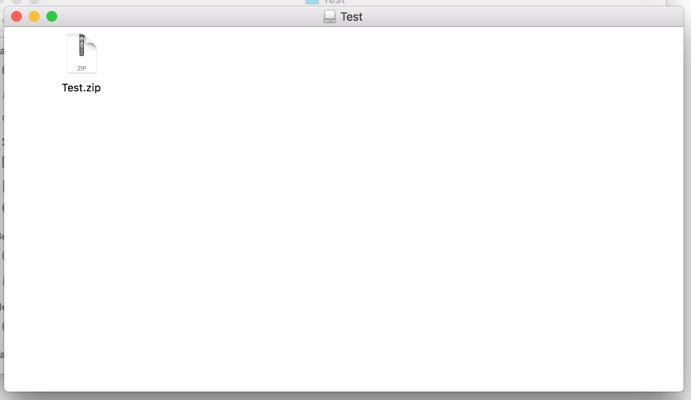
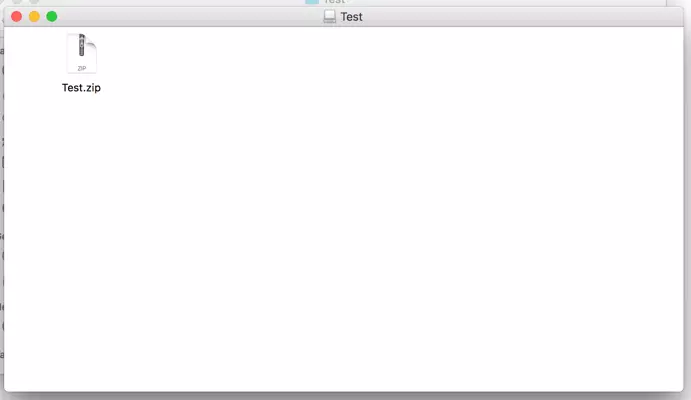
Eject the image via Finder if you are no longer using the protected files. Otherwise, they will remain accessible without a password prompt.
To make sure that your data is protected from unauthorized access, you should delete the unencrypted original data.
Password Protecting ZIP Files with Third-Party Software
Since the options for each operating system are limited, we recommend using a third-party program. For example, we have chosen 7-Zip, a free packer application with a high compression rate and reliable encryption. It creates archive files in the 7z, TAR, WIM, and ZIP formats. The program’s encryption feature is available for 7z and ZIP files.
Follow these steps to create a password-protected archive file for any file folder of your choosing:
Step 1: Download the open-source 7-Zip compression program from the provider’s website and install the software on your system.
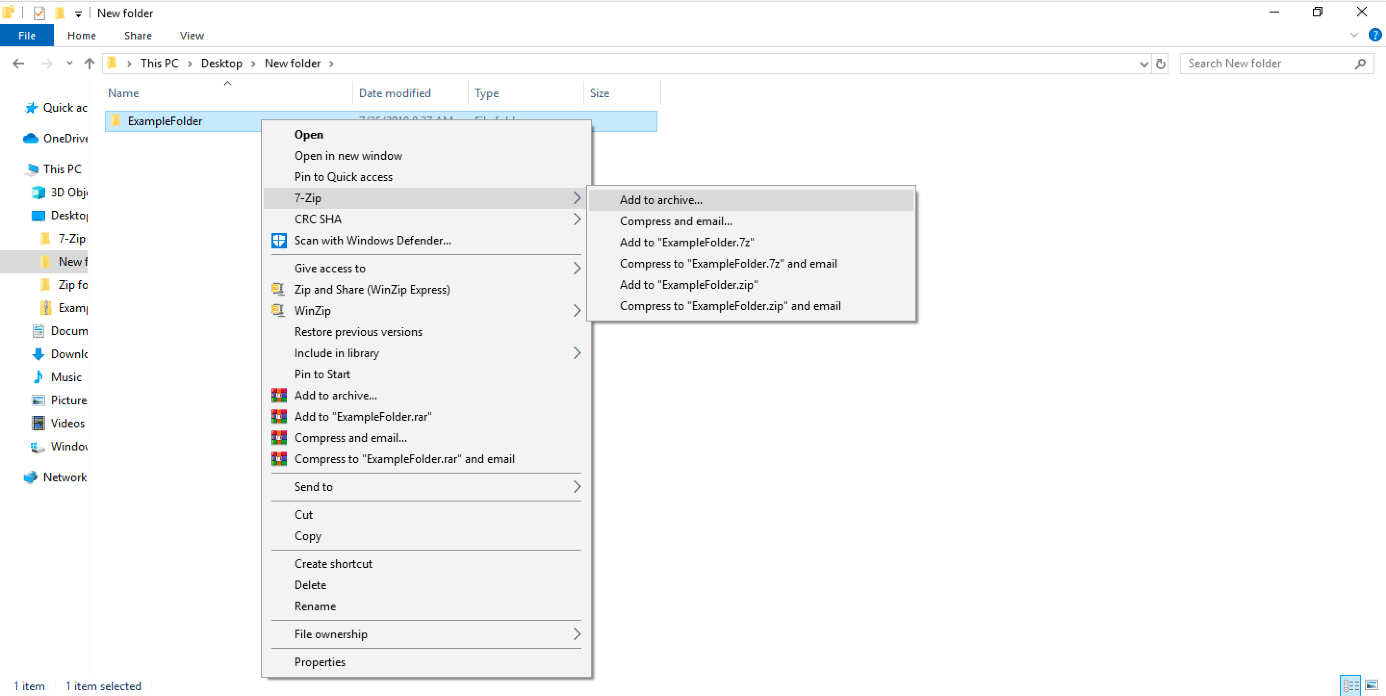
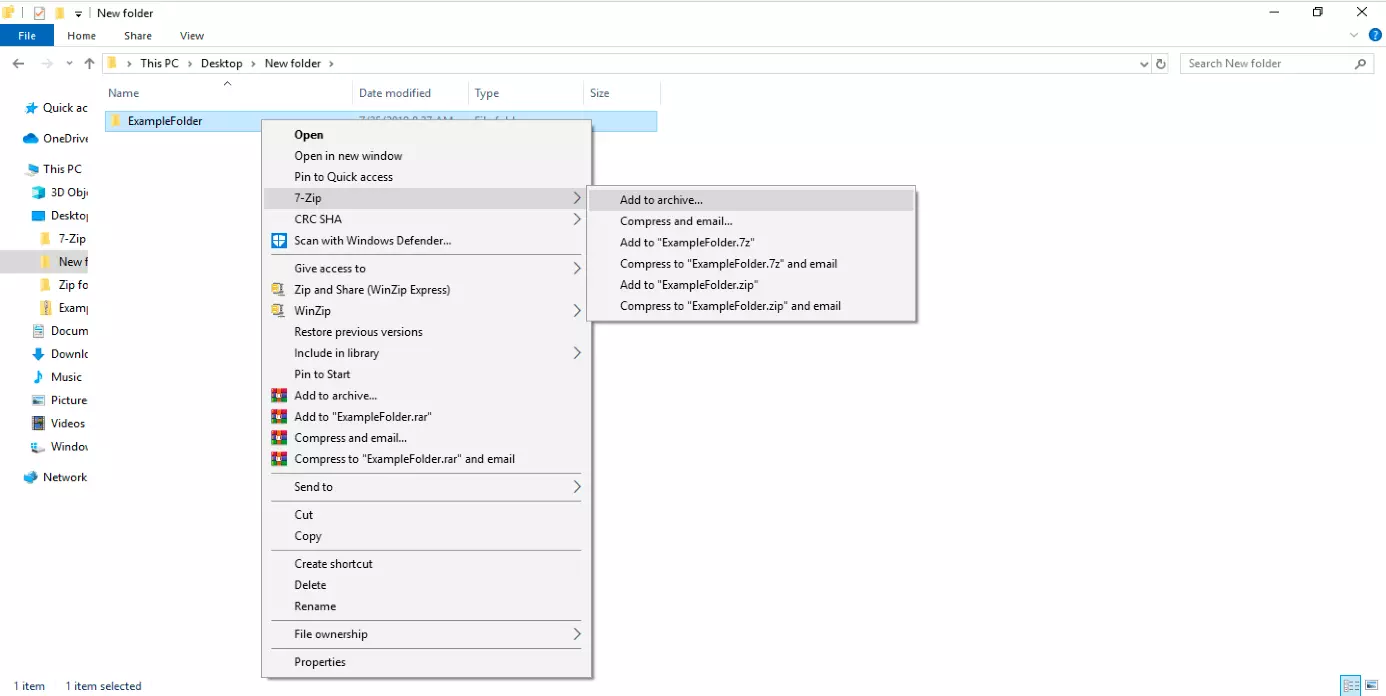
7-Zip is automatically integrated into the Windows Explorer shortcut menu.
Step 2: Using the right mouse button, click on the file folder that you would like to encrypt.
Step 3: Choose “7-Zip” in the shortcut menu and click on “Add to archives…” in the pop-up menu.
Step 4: In the packer program’s configuration mask, you’ll find the required settings for the save location, archive format, compression strength, compression method, and encryption.
Enter a password, then enter it again.
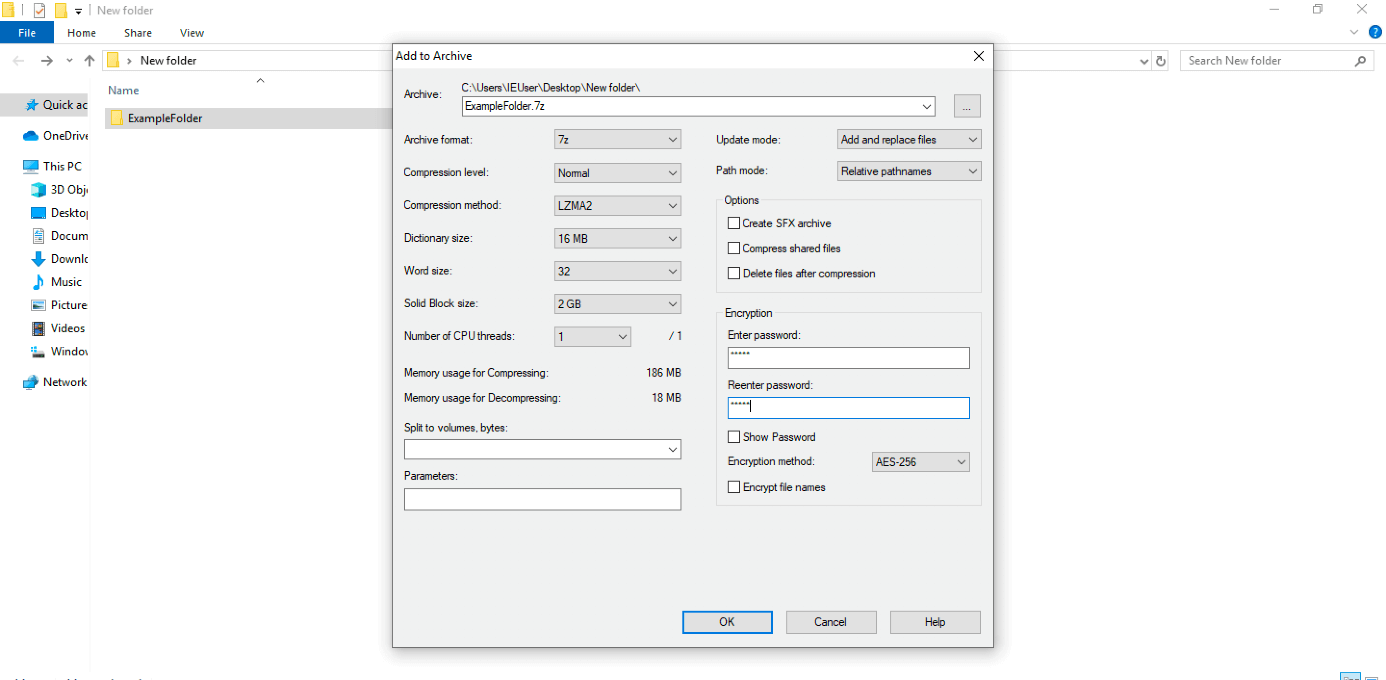
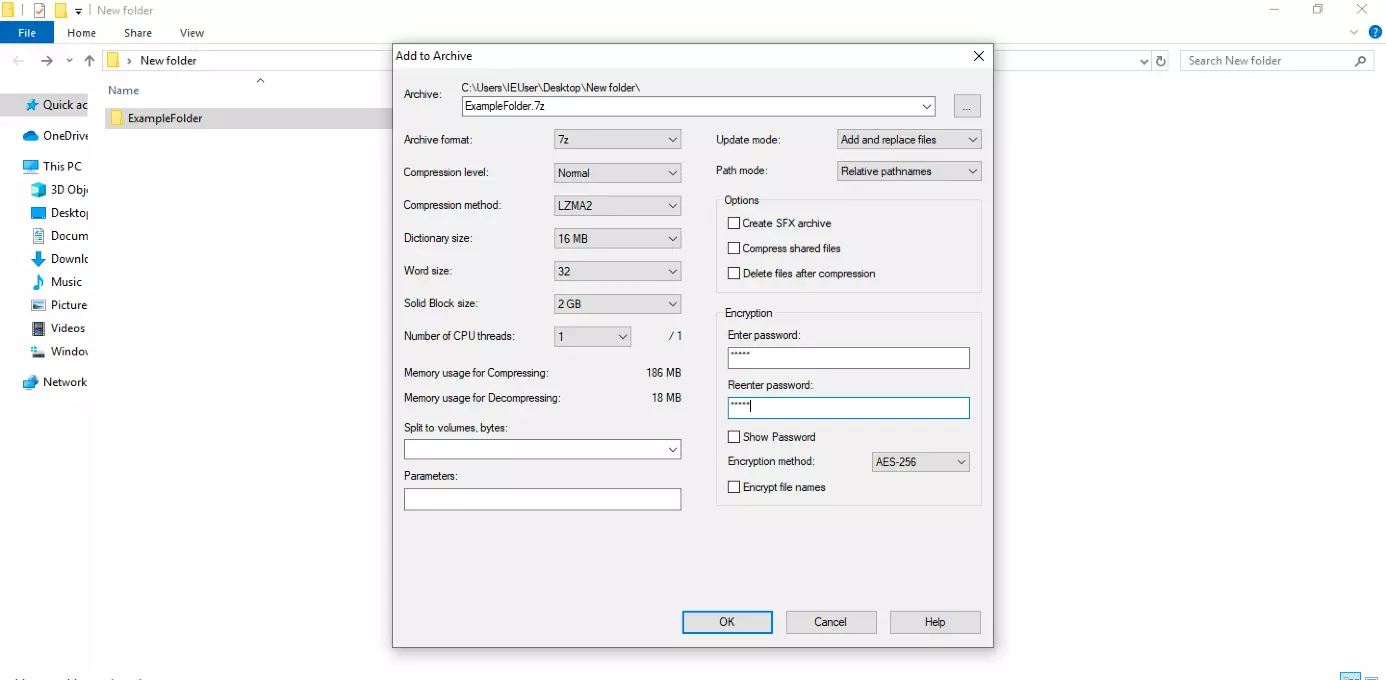
In archive format, 7z is available with AES-256-bit encryption. This can also be used for password protecting ZIP files. What’s more, the latter can be encrypted with the ZipCrypto algorithm.
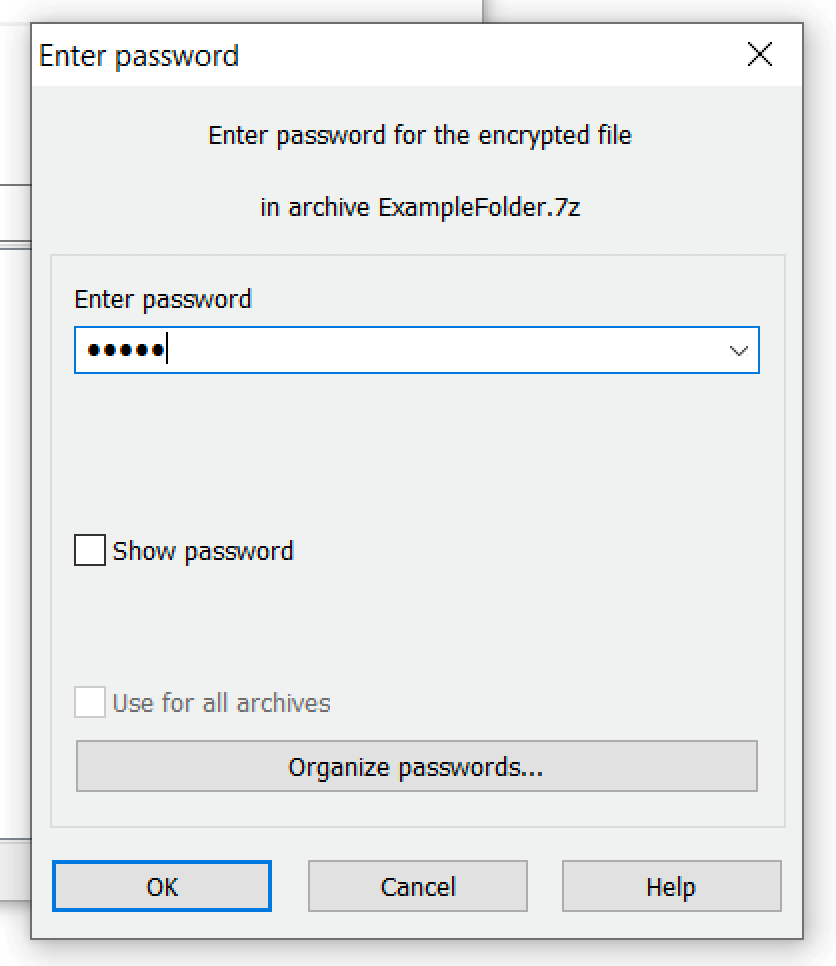
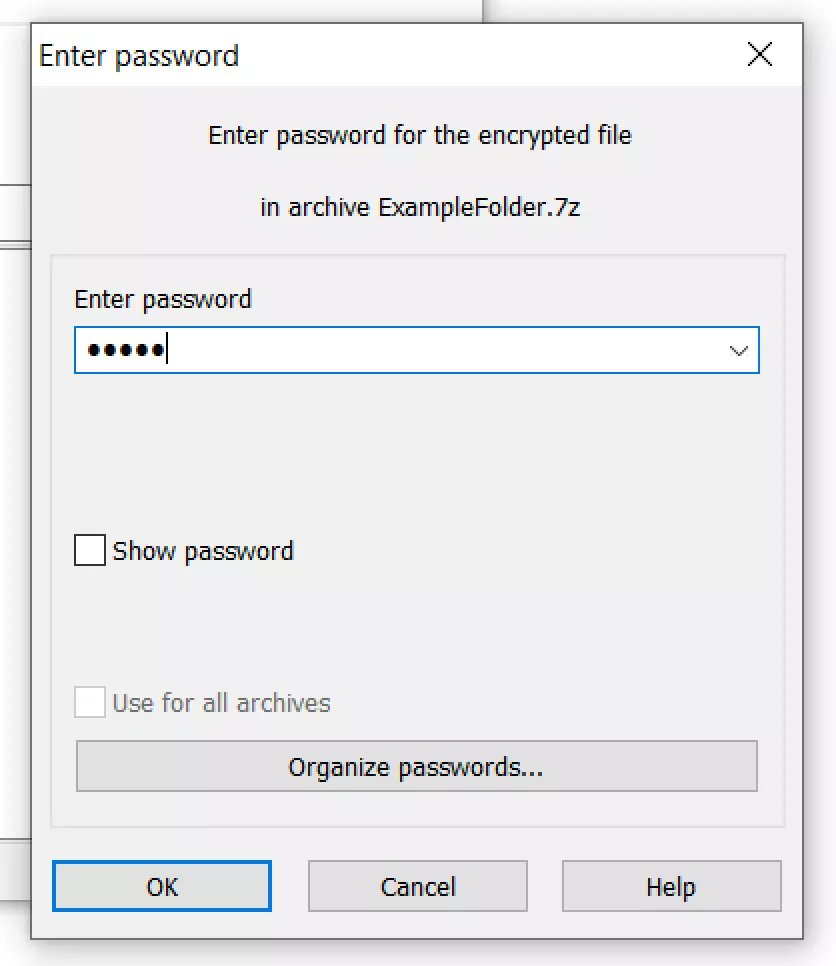
Opening an archive file that has been password protected with 7-Zip requires you to enter a password.
Windows users often utilize the WinZip packer program for password protecting ZIP files. The programs WinRAR, Peazip, Bandizip, and Ashampoo Zip Free also offer encryption features. We provide you with a detailed comparison of the range of features in our article on the most popular WinZip alternatives.