

How to uninstall Kaspersky step by step
People are showing increasing interest in uninstalling Kaspersky. Keep reading to find out how to uninstall Kaspersky. In certain cases, you may need to use a removal tool.
Why should I remove Kaspersky?
In the past, the Department of Homeland Security has issued warnings about the software, citing the access and privileges that the Russia-based company has on your computer. There have also been recent warnings about Kaspersky in Europe, in light of the current political situation with Russia (as of 2022). The worry with Kaspersky is that the company could be used, willingly or not, for cyber attacks by the Russian government.
If you are seeking alternative anti-virus programs, have a look at our dedicated article.
How to uninstall Kaspersky on Windows
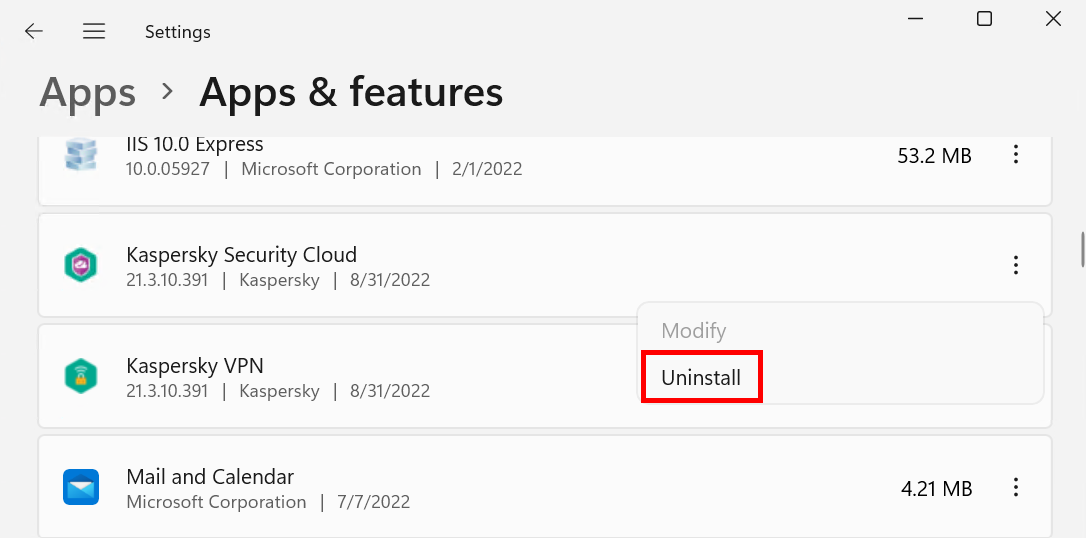
To uninstall Kaspersky on a Windows computer, follow these steps:
- Click on “Start” and open the settings.
- Select “Apps and Features”.
- Find Kaspersky and click on “Uninstall”.
- Kaspersky will now be uninstalled. You might also have other programs made by the company on your computer, so you should be sure to locate these as well. Kaspersky’s password manager and VPN software are two examples.
- Delete these programs using the steps above.
How to uninstall Kaspersky on a Mac
Kaspersky is also easy to remove on a Mac. Just take the following steps:
- Quit the program if you have it open.
- Open the software’s installation file.
- Double click on “Uninstall Kaspersky” and confirm your choice by clicking on “Uninstall”.
- Enter the admin’s name and password and click “Ok”.
- Click on “Finish” to uninstall Kaspersky.
How to uninstall Kaspersky with a removal tool
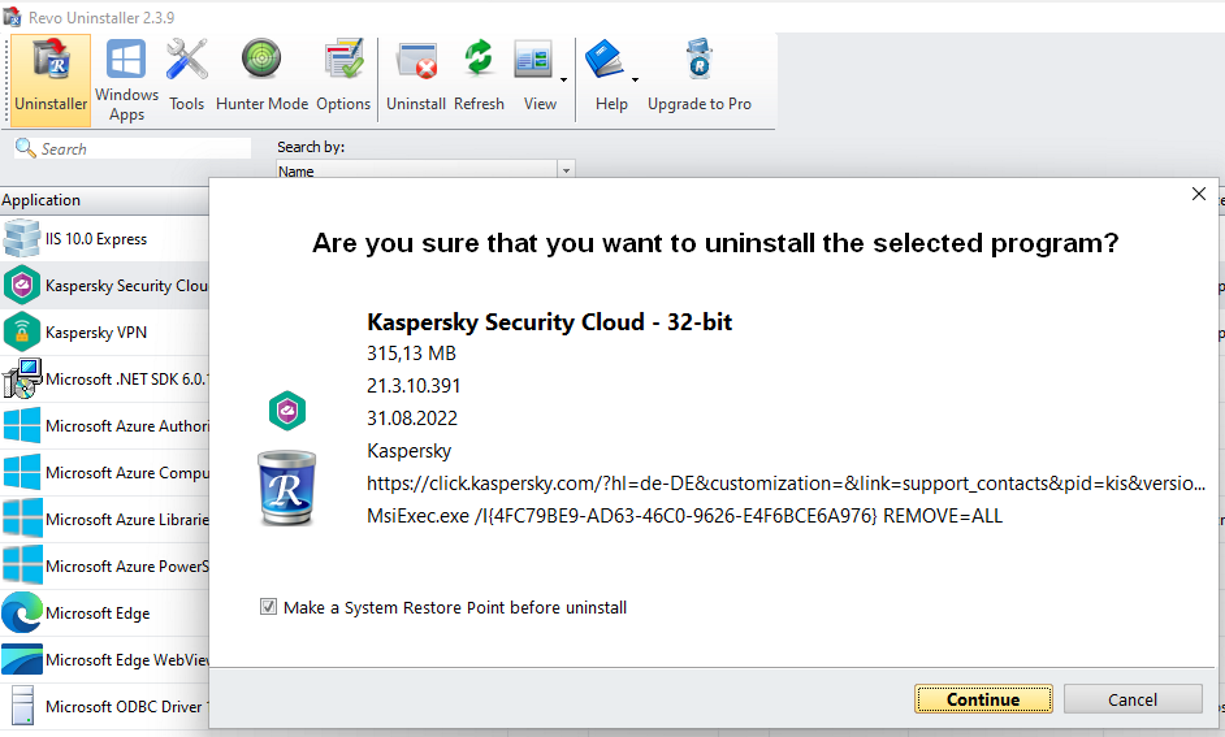
If you want to be sure that you haven’t missed any Kaspersky files on your computer, you can use a removal tool. There are a number of free and commercial options. We’ll show you how to uninstall Kaspersky with a removal tool using the Revo Uninstaller.
- Download Revo Uninstaller for free and install the program.
- Open the software and click on “Uninstaller”.
- Search for Kaspersky in the list and then double click on it.
- You’ll now be asked whether you’re sure that you want to uninstall the program. Click “Continue”.
- Next you can choose how thoroughly you want Revo Uninstaller to search your computer for Kaspersky files. You’ll have the choice between different scan intensities. Revo recommends that inexperienced users choose “Moderate”. If you identify as an advanced user and want your system to be more thoroughly searched for Kaspersky files, you can choose “Advanced”.
- Click on “Scan”.
- When the scan is complete, you’ll be presented with a list of Kaspersky items on your hard drive. Click on “Select All” and then “Continue”.
- In the next window, you’ll be shown all the program’s folders and files. Click on “Select All” and then “Finish” to uninstall Kaspersky.
You can’t remove Kaspersky—what now?
It can happen that Kaspersky can’t be uninstalled. This might be because, for example, there are some traces of the program deep in your system. Kaspersky itself has made the special tool kavremover available for this case. This isn’t uncommon for the makers of antivirus software. However, if you don’t want to use Kaspersky’s uninstaller, you can try a removal tool like Revo Uninstaller.
Looking for a solution for securing your data? IONOS’s MyDefender offers automatic backups, regular virus scans, and protection from ransomware attacks. Choose the best plan for your project!