

Image tools: A comparison of the best programs

Data security is a central component of IT project rescue (disaster recovery). More and more companies protect their daily business using electronic information technology (IT) – in the event of an accident, security backups prevent the loss of any data. And these are no longer created manually. Instead, tools are used that automate data security. Backups are then either file-level backups or image-based backup procedures.
- File-level backup software: With a file-level backup, a security backup copy is made at the file level. With this backup strategy, the single file is the smallest unit to be recovered. File backups are selectively created. Users are given the option to select which files or folders of their system are backed up and which aren’t.
- Imaging software: An alternative to file-level backup is data security with the help of images at the bit level. An image contains a direct core image of the chosen data medium (hard drive, flash drive, optical medium, etc.). Image-based backup software creates an exact bit copy of all chosen data. In the case of a server or workstation, all files and programs including the operating system and configuration can be saved.
- Automatic backup & easy recovery
- Intuitive scheduling and management
- AI-based threat protection
As opposed to file-based backup tools, image-based programs offer the benefit to data security that in the event of a total failure, only the last memory image must be written back to the production system or any replacement hardware to restore a server or work computer without losing any data. This is called bare metal recovery (BMR).
File-level backup software, on the other hand, secures data in the form of working files (documents, photos, presentations, or tables). The operating system as well as the respective configuration are not saved. In the case of total failure, everything must be extensively reconstructed before the backup files can play back the production system.
Professional image tools usually provide both backup procedures. In some cases, users are also given the opportunity to search created images and restore only selected files.
Both types of backups can be implemented as a complete backup or a partial backup. The latter only synchronizes new and changed files or bits. A partial backup is either implemented as a differential backup or an incremental backup.
- Complete backup: The selected files (file-level backup) or the entire drive (image-based backup) are completely copied to the backup medium.
- Differential backup: All data (files or bits) that have been changed since the last complete backup or have been added are copied to the backup medium. A differential backup is always based on the last complete backup. In the case of a differential backup strategy, you only need the full backup and the last partial backup to complete your system restoration.
- Incremental backup: All data (files or bits) that have been changed since the last full or partial backup, or have been added, are transferred to the backup medium. Since each incremental backup is based on the previous partial backup, the data throughput per backup and the required storage space on the backup medium and considerably reduced compared to differential backups. One drawback of this backup strategy: The backup software has to access various partial backups for the complete restoration of a system to reconstruct the latest file versions.
Further information on the advantages and disadvantages of the different backup procedures can be found in our article on the database security. File- or image-based backups are usually kept in versions. Depending on the backup procedures, users have the opportunity to backup selected files or the entire system at a specified save time.
To save as much space as possible with backup procedures, companies usually use data reduction methods such as compression and deduplication. A good backup software should already have native functions for data reduction.
Imaging software overview
There’s a huge variety of professional software available for image-based data security. The selection ranges from free tools (partially on an open source basis) to applications available with a permanent license, to subscription solutions with regular costs. Which model is right for you depends on how you’re planning on using it and which backup features you need. We’ve looked at the most popular image tools for private user and small businesses, in regard to functionality and usability. In comparison:
- Acronis True Image 2017
- Acronis Backup 12.5
- Paragon Backup & Recovery 16 Free
- Clonezilla
- DriveImage XML 2.60
- Aomei Backupper Standard 4.0.4
- O&O DiskImage 11.0
Acronis True Image 2017
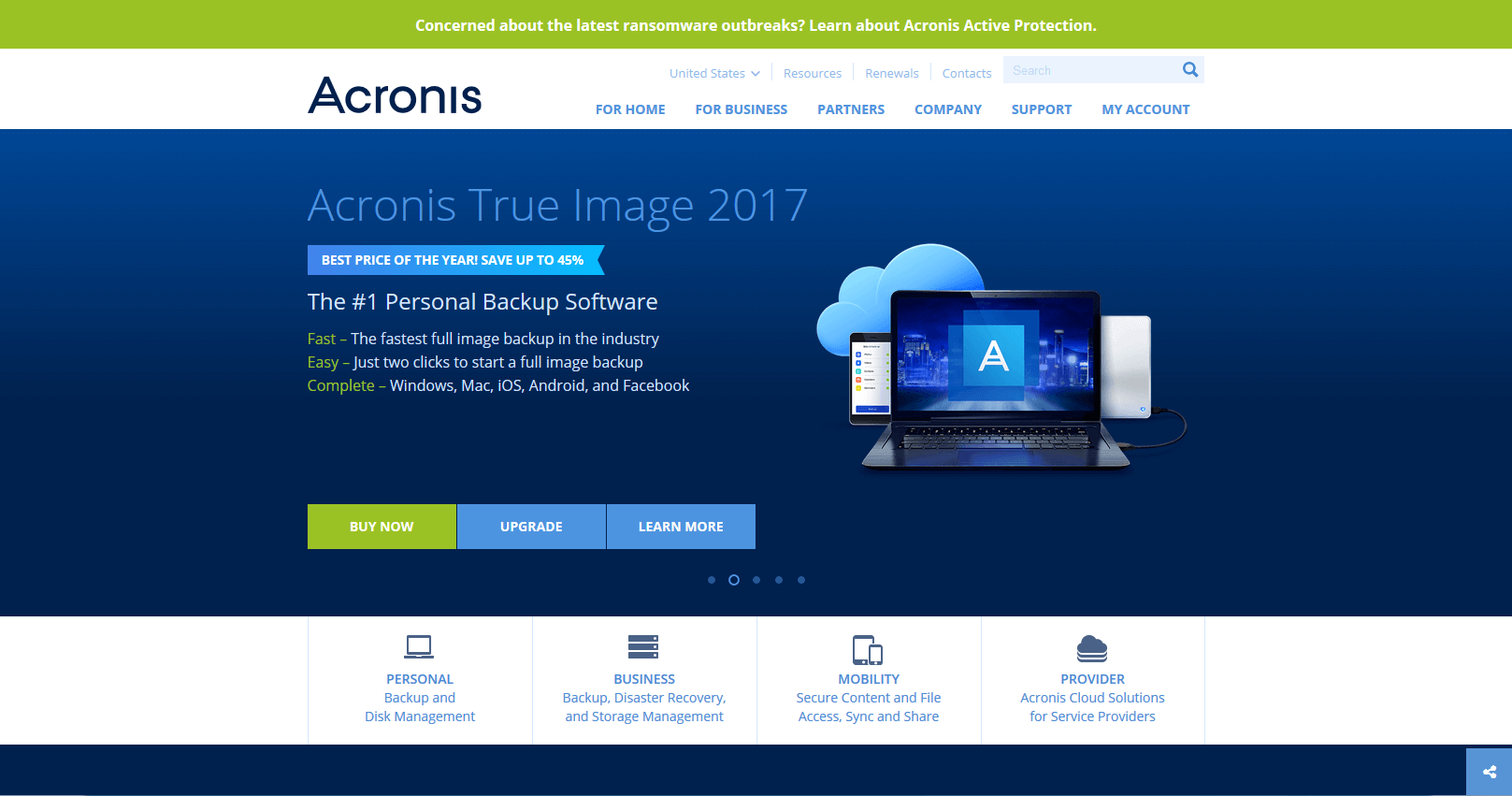
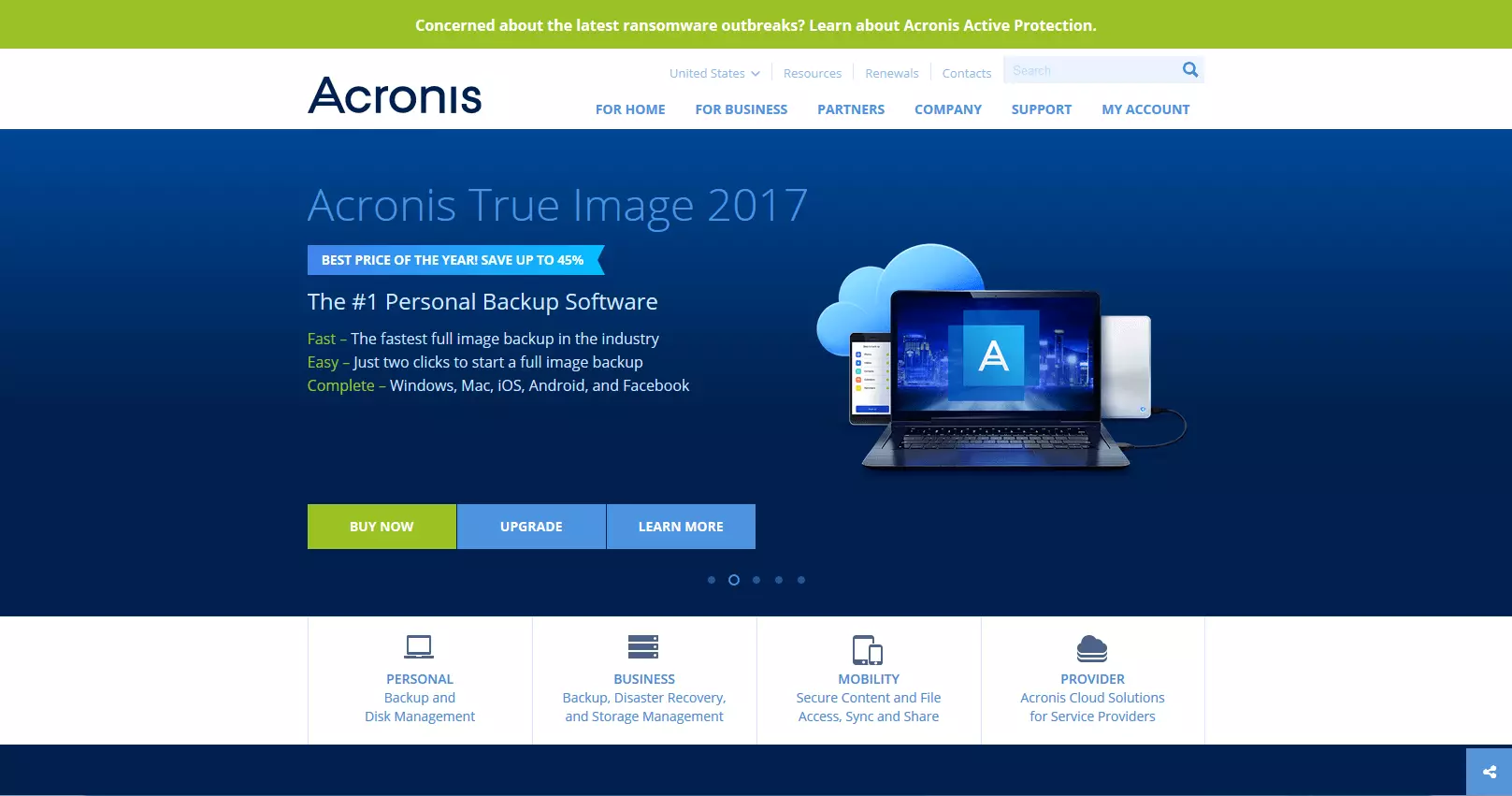
Acronis True Image 2017 is designed as a user-friendly backup software for private users and is available for PC and Mac as a permanent license without a cloud connection (Essential), or as a 1-year subscription with 50 GB (Plus) or 1000 GB (Premium) Acronis Cloud Storage. All licenses can be acquired for one, three, or five computers, as desired. A free edition is not offered. The manufacturer does, however, allow a 30-day trial period for interested parties, where you can download and install the software without registration.
All product versions of the imaging software offer:
- Complete image-based backups
- Backups of chosen files and folders (file-level)
- Tools for exact cloning of drives at the sector level
- Try&Decide tools for the testing of new software components and drivers
The software supports not only internal drives (HDD, SSD, and RAID) as backup media, but also optical drives (CD-R/RW, DVD-R/RW, DVD+R, etc.), USB drives (1.1, 2.0, 3.0), eSATA, FireWire, Thunderbolt, network attached storage (NAS), FTP servers, and PC card storage devices. Backups can be divided among multiple backup media if needed.
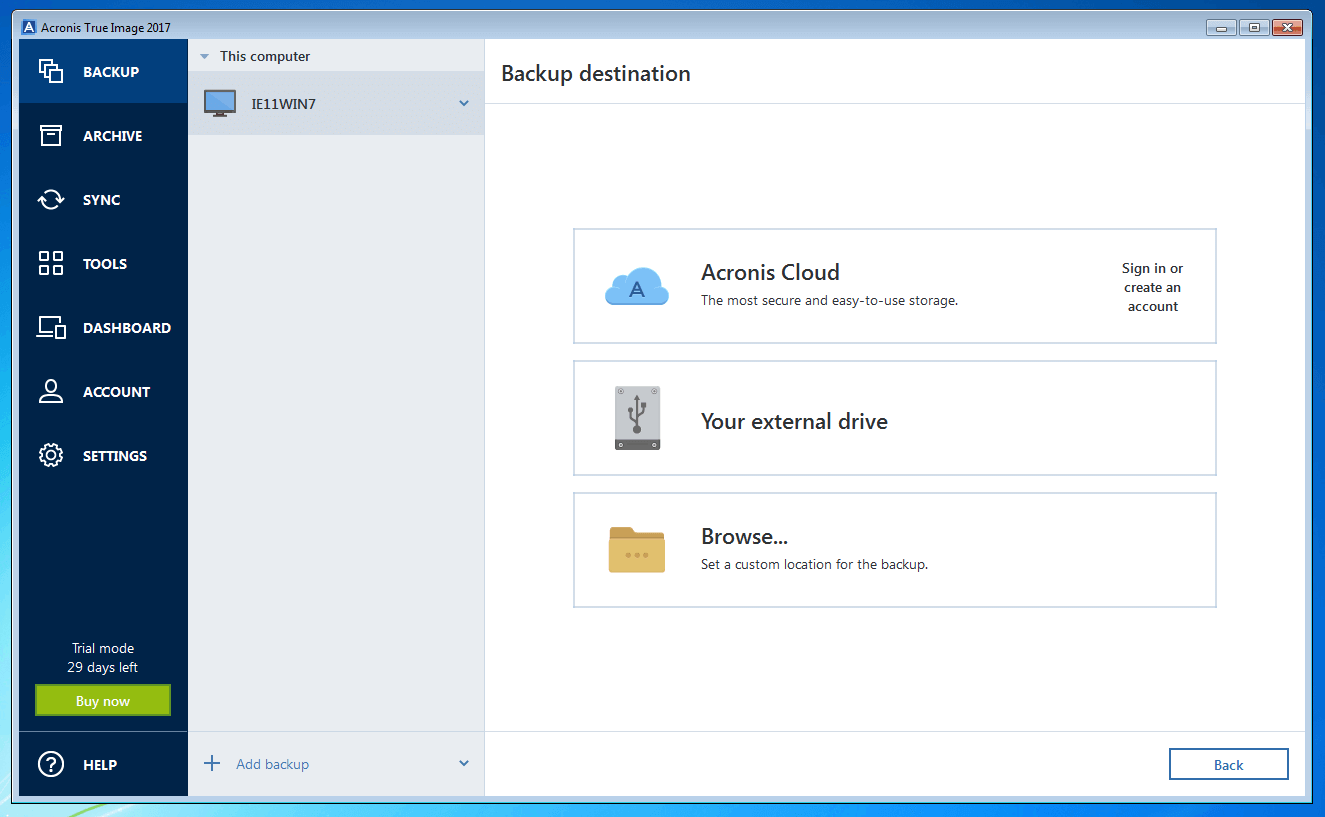
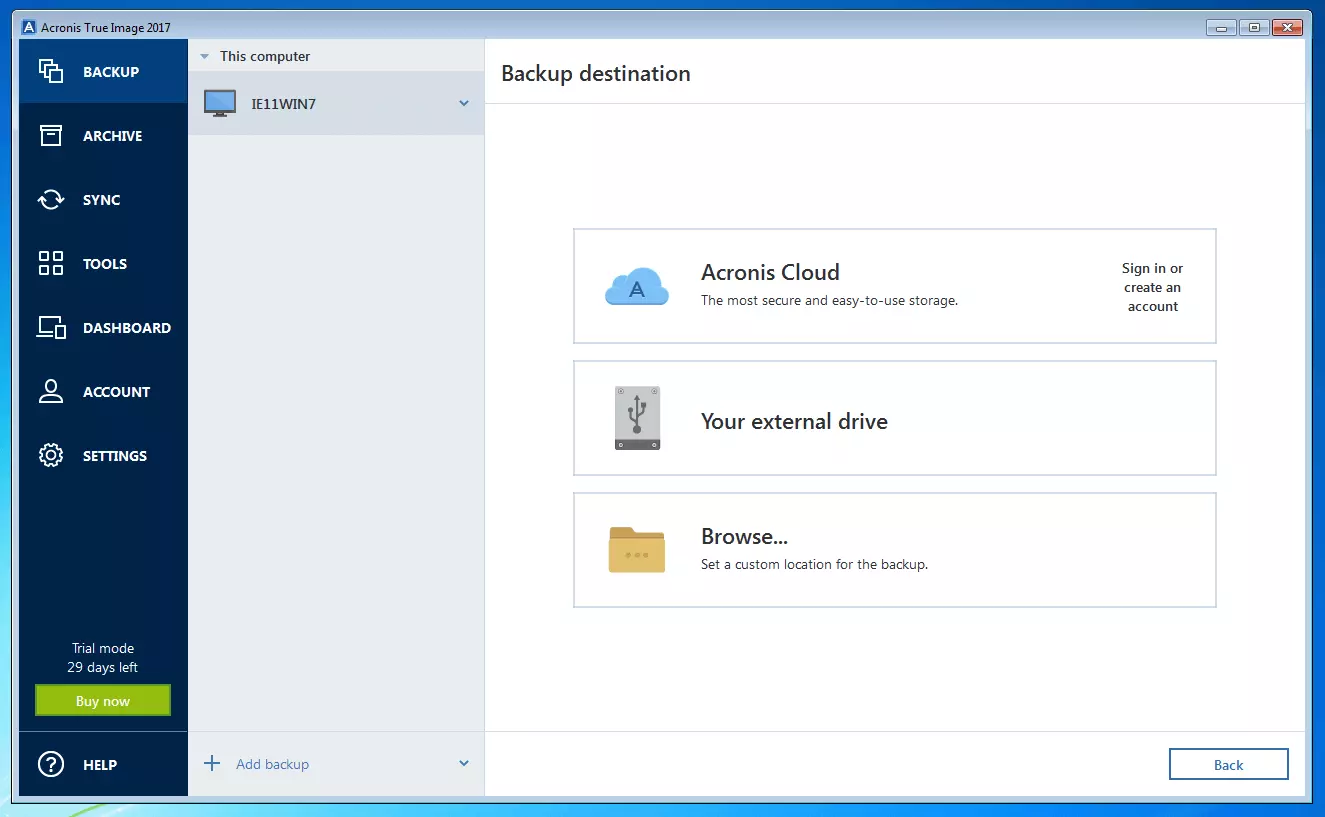
Saving in the cloud is only natively supported in the subscription model (standard or premium). Those accessing Acronis True Image 2017 with a permanent license need an additional cloud add-on.
Data security in the cloud enables a physical separation of the backups form the original data. Users can better protect themselves against data loss in the case of burglaries or disasters. Another advantage: An individual storage device doesn’t need to be appropriated. But outsourcing to the internet does have its risks. Users of cloud backup services should be aware that the integrity of their data in the cloud is strongly dependent on the data protection regulations of individual providers
When combined with Acronis Cloud Storage, the backup tool enables:
- Data backups in the Acronis Cloud
- Cloud-based synchronization and data archiving
- Search function for backups in the cloud
- Mobile device backup in the cloud
- Central control of backup tools via a touchscreen-optimized web portal
- Incremental backups of Facebook data
An Acronis account is a requirement for the use of cloud functions. This offers registered users access to a web-based user account, over which Acronis products, user licenses, or cloud storage quotas can be purchased and managed online.
True Image 2017 is advertised by the manufacturer as the world’s fastest backup software. And the software did indeed perform quite well in the AV-TEST run by The Independent IT Security Institute in April 2017. True Image 2017 saves a 50GB test set of 56 CD image and film files from SSD to HDD in under 12 minutes. According to Acronis, True Image 2017 is around 60% faster than the previous version when backing up and restoring complete images. All backup data is automatically compressed.
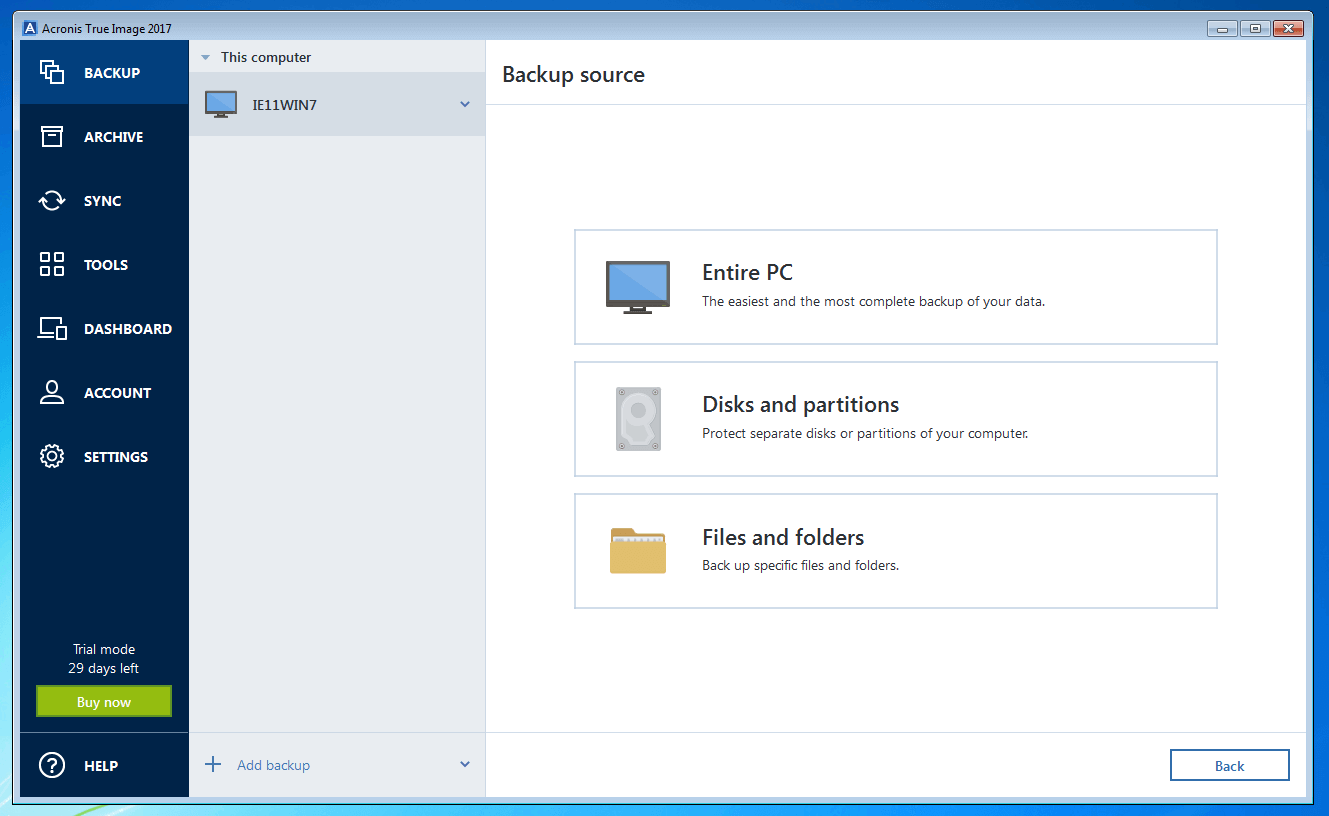
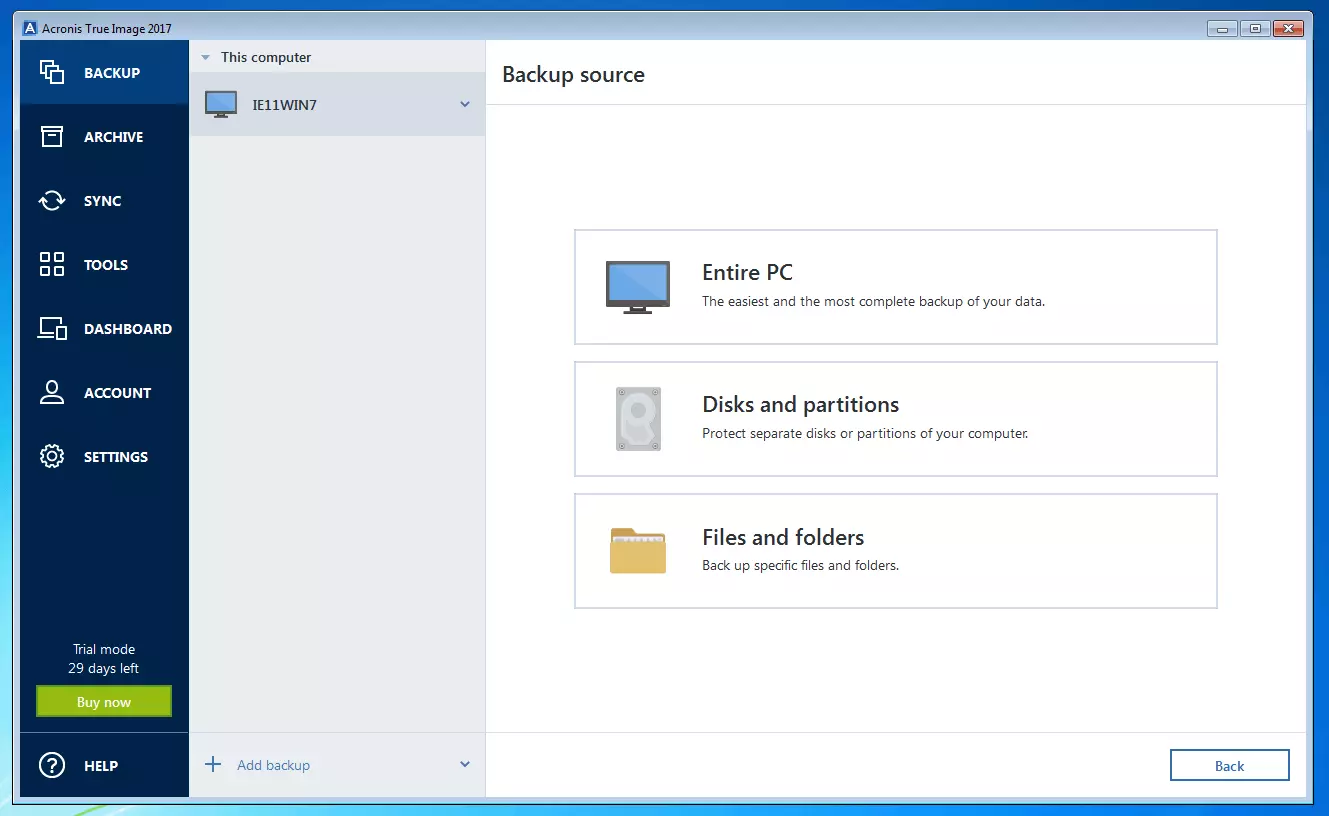
Acronis True Image 2017 also reported a relatively good performance in the AV-TEST of usability with 77.78%. The image tool makes up for a somewhat lengthy installation process with a clear, self-explanatory user interface.
The program offers the possibility to create multilayered backup plans. For example, users can choose a weekly complete backup, or choose select data to be backed up daily in parallel.
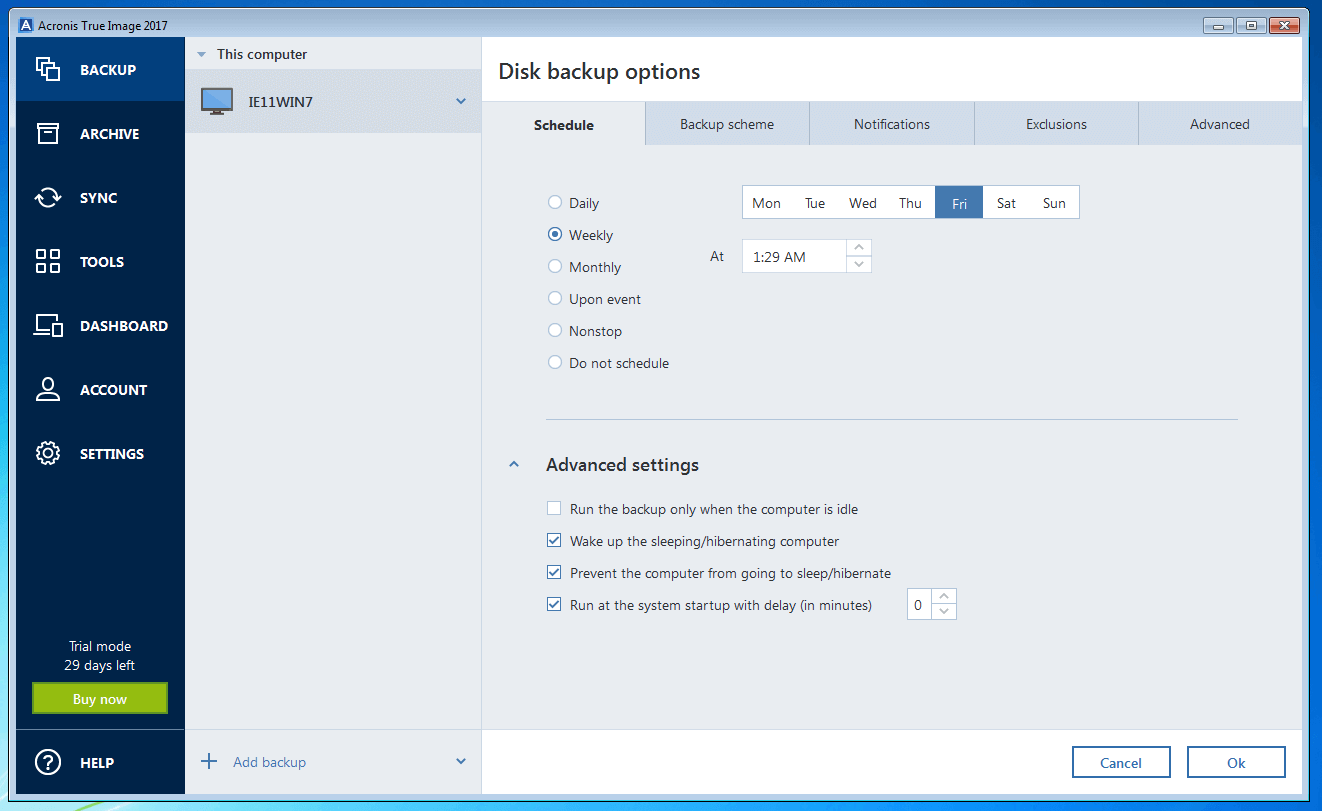
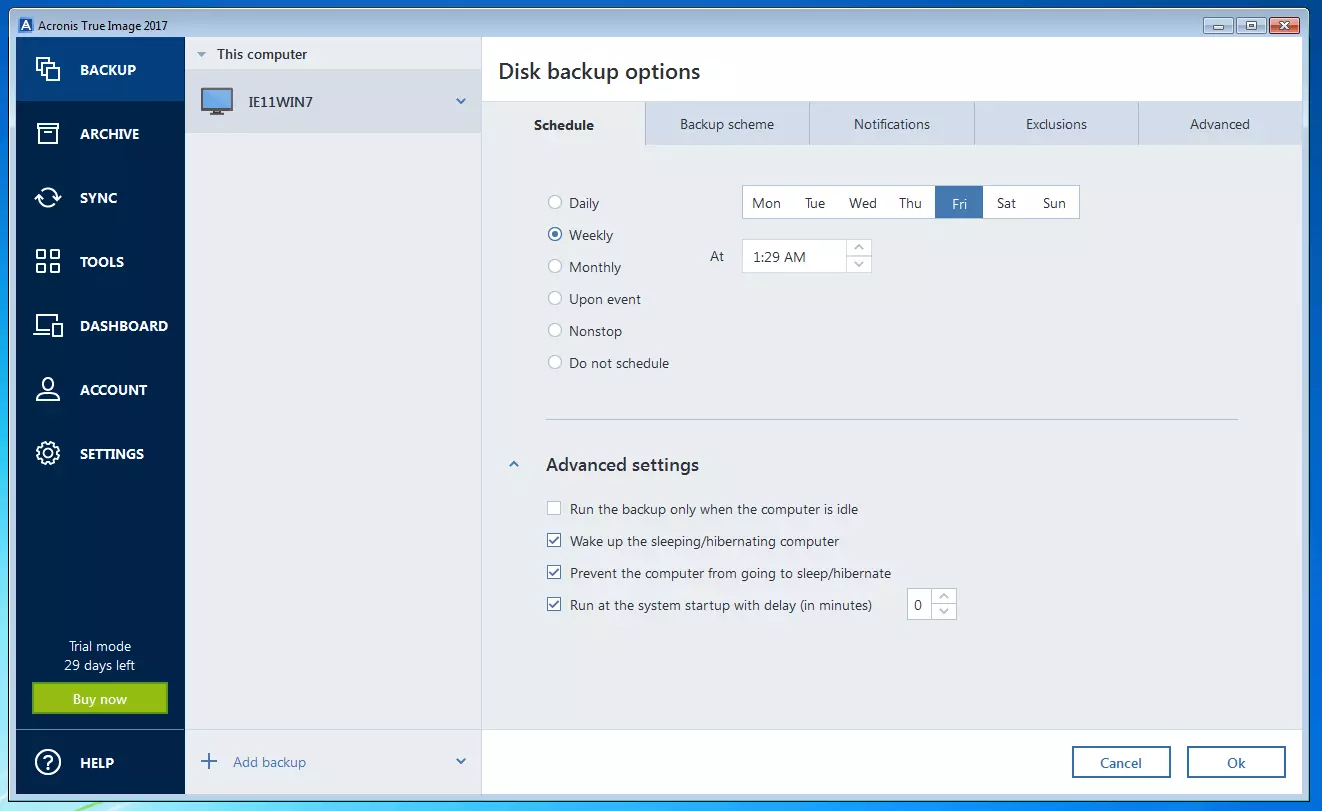
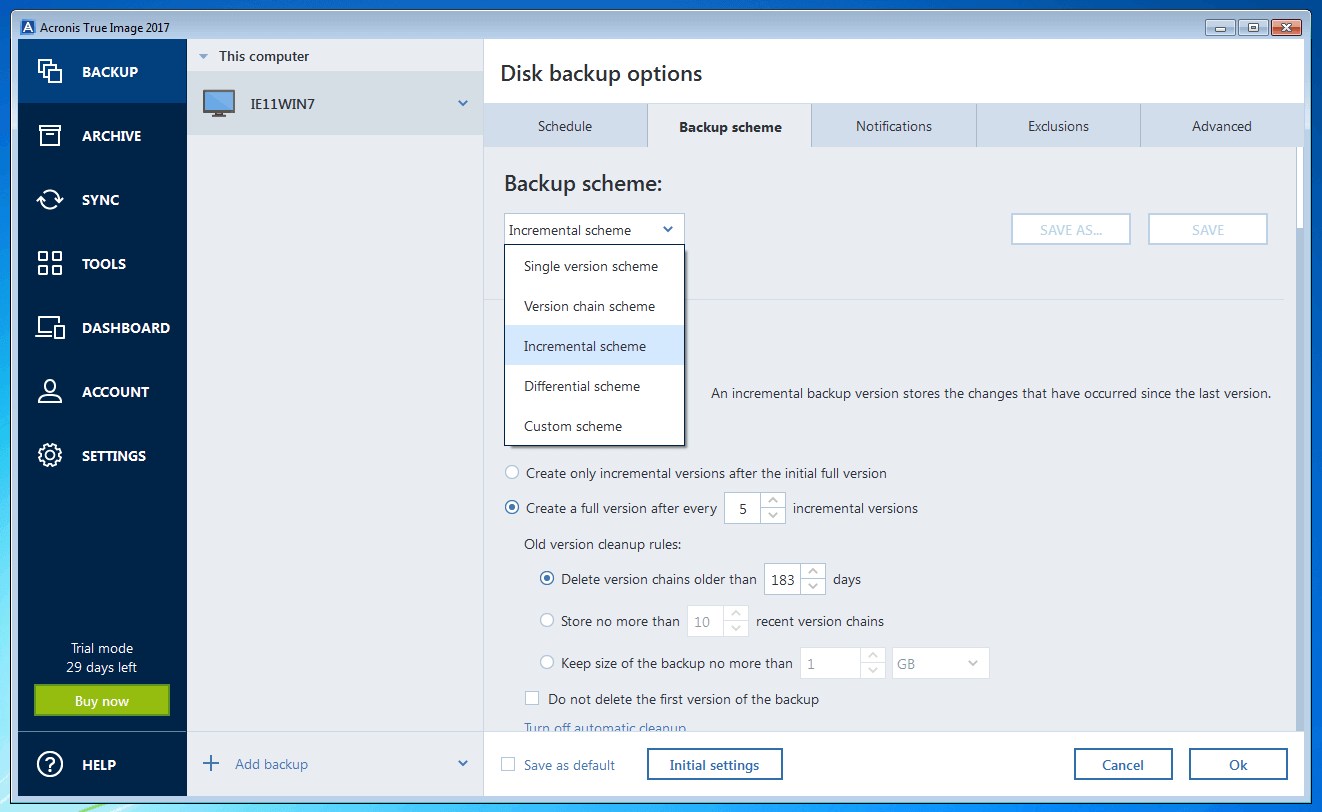
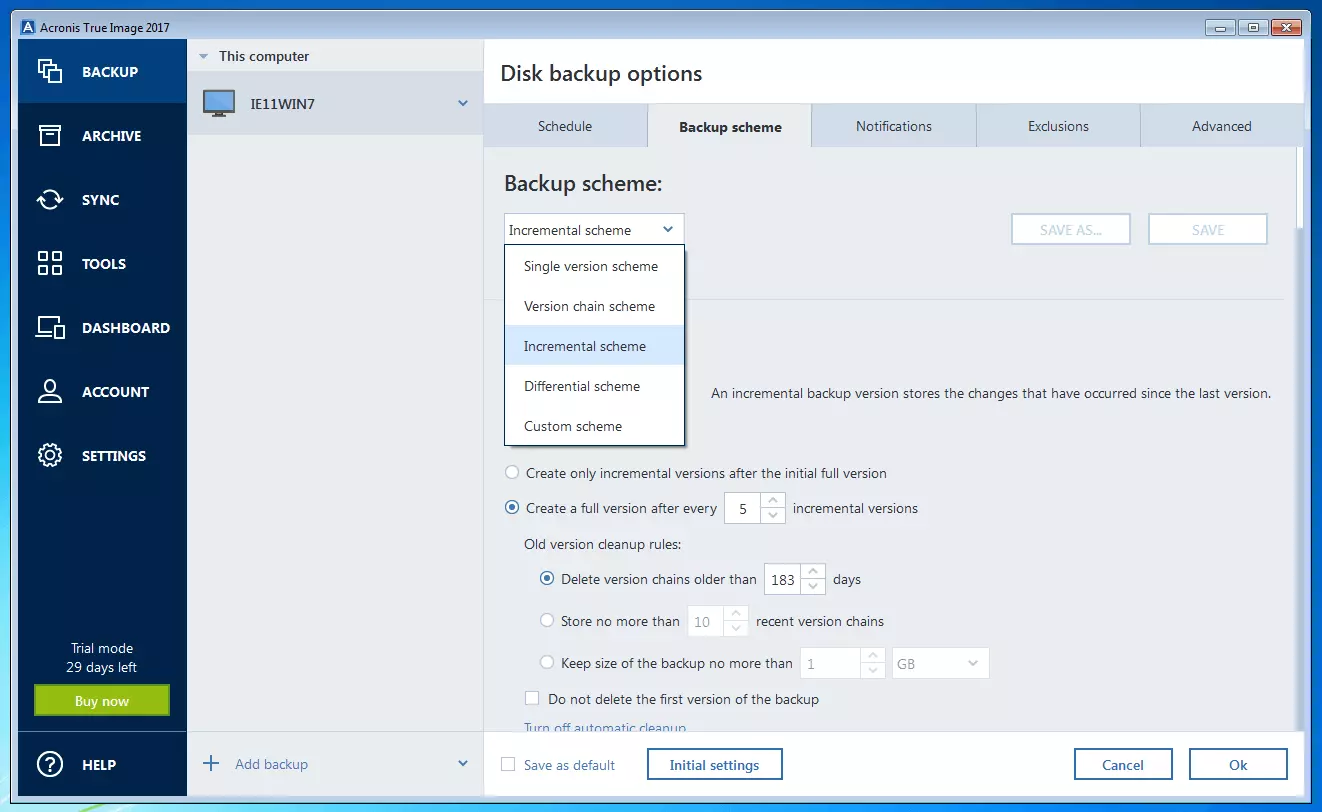
The backup can be set incrementally, differentially, or to user-defined parameters. An integrated search function makes it possible to search through images and only back up single files or folders as needed.
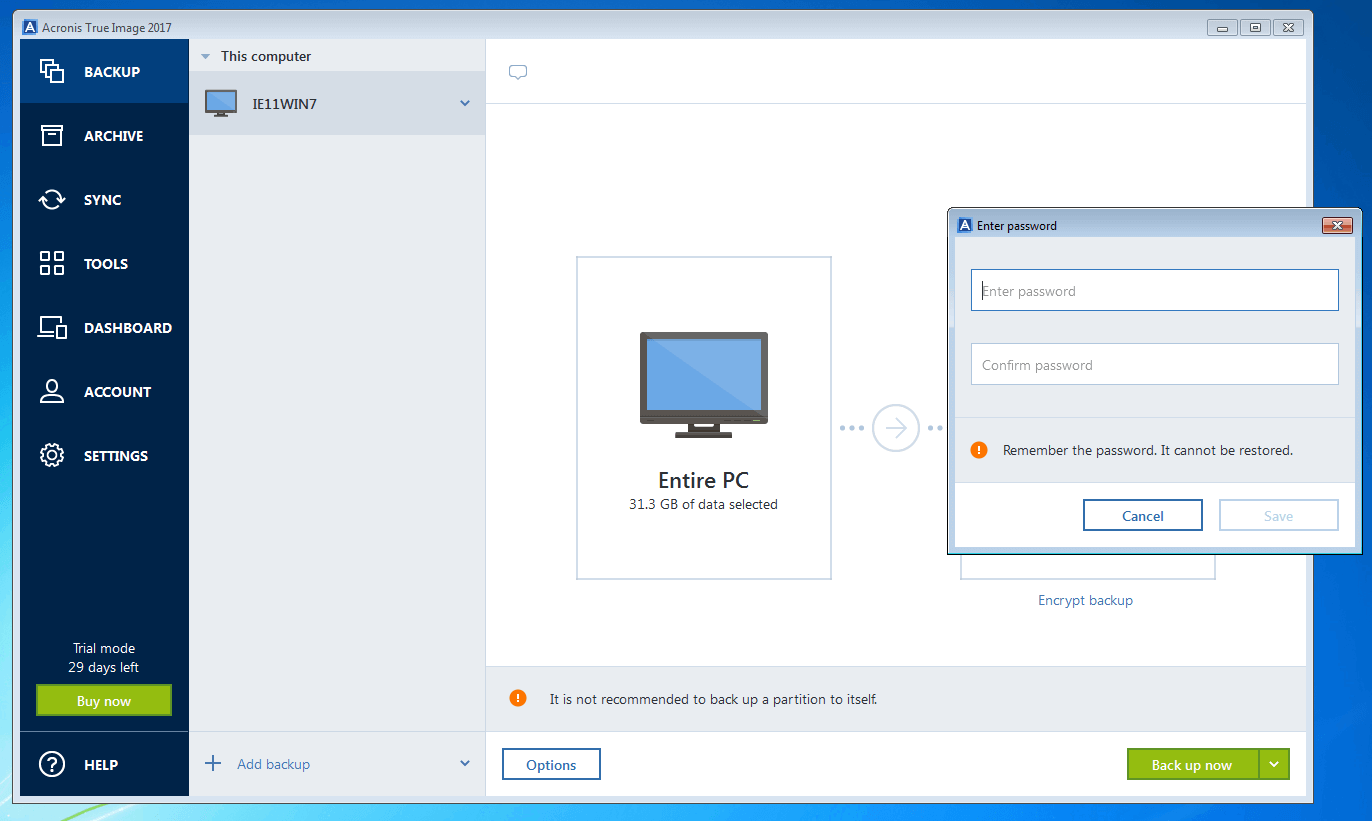
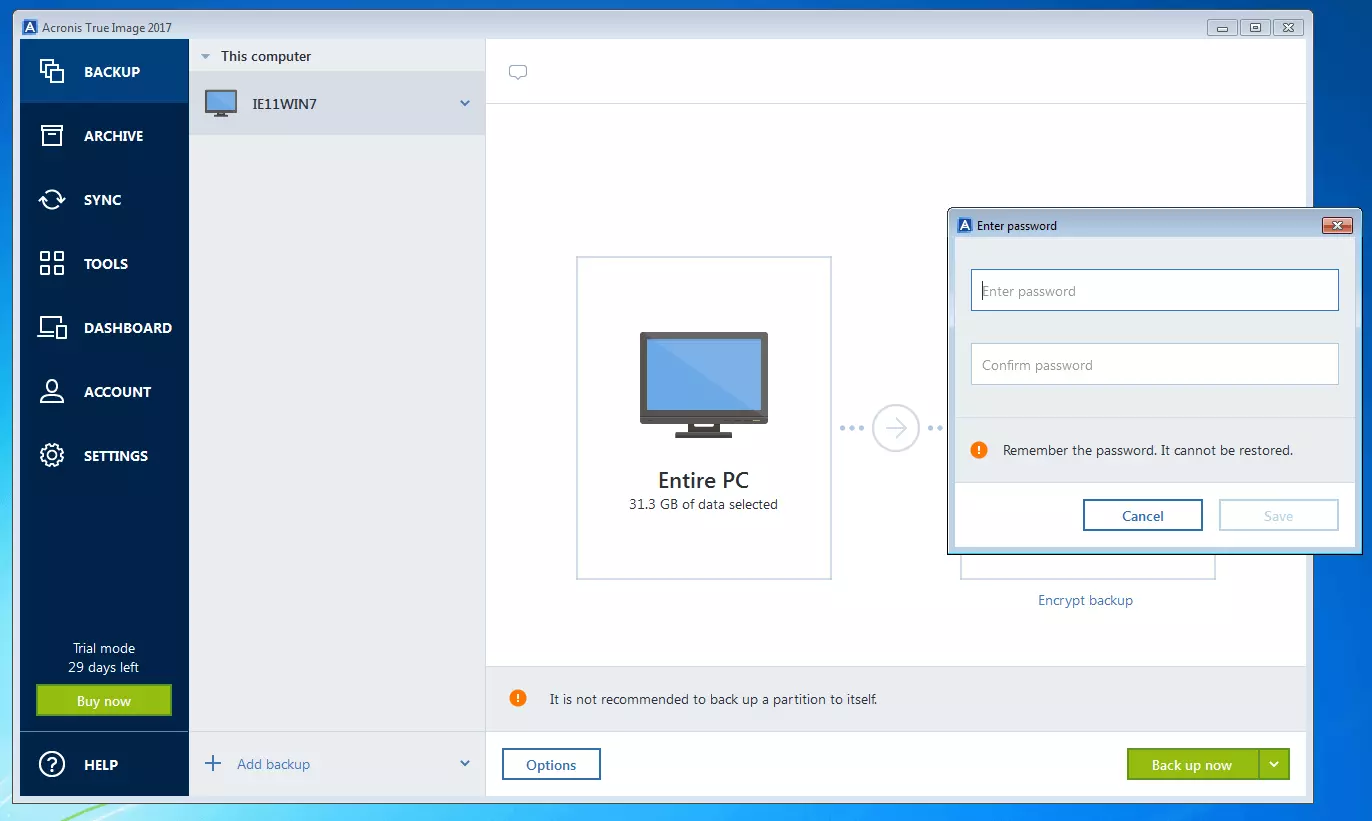
The confidentiality of the backup data (especially on cloud-based backups) is secured using password-protected 256-bit AES end-to-end encryption.
To prevent total failures, Acronis True Image 2017 can create a bootable emergency medium (CD/DVD, USB drive, or ISO file) that contains all necessary components for a bare metal recovery (BRM).
The premium subscription of the imaging software with Acronis Active Protection contains integrated anti-ransomware. Additional premium tools are Acronis Notary and Acronis ASign. These make it possible to check the authenticity and integrity of your backups and provide images with an electronic signature when needed.
The remote function of the image tool provides a touchscreen-optimized web portal. This enables centralized management of all PCs, Macs, and mobile devices connected to your Acronis account. An internet connection is required to do this, as well as having Acronis True Image 2017 installed on the device in question.
| Benefits | Drawbacks | |
|---|---|---|
| ✓ Very good back up performance | ✗ Full range of functions including cloud storage and anti-ransomware only available to users with paid premium subscription | |
| ✓ Very clear, intuitive, user-friendly interface | ✗ Acronis True Image 2017 is exclusively available to private users | |
| ✓ Integrated anti-ransomware, authentication, and backup validation (only with premium subscription) | ✗ Storage space in the Acronis cloud is relatively expensive compared to other providers | |
| ✓ Backup optionally image- or file-based | ||
| ✓ Cloud-based backups | ||
| ✓ Encrypted backups | ||
| ✓ Automatic compression |
 To display this video, third-party cookies are required. You can access and change your cookie settings here.
 Acronis True Image 2017 offers an impressive range of functions. Full functionality is only available to subscribers, though. Note: The image tool is only accessible for private users. Companies must use the professional software Acronis Backup 12.5.
Acronis Backup 12.5
While True Image 2017 is geared toward private users, Acronis specifically targets companies with Backup 12.5. The product, which is specially designed for hybrid cloud infrastructures, is available to business customers in both standard and advanced editions. Licensing is available for each system as a yearly subscription (1 to 3 years) or unrestricted subscription. The imaging software supports various physical or virtual systems, cloud platforms, virtualization technologies, and Microsoft applications. This allows for backup strategies that include all secure corporate data, regardless of whether it’s on a local computer, remote system, private or public cloud, or mobile device.
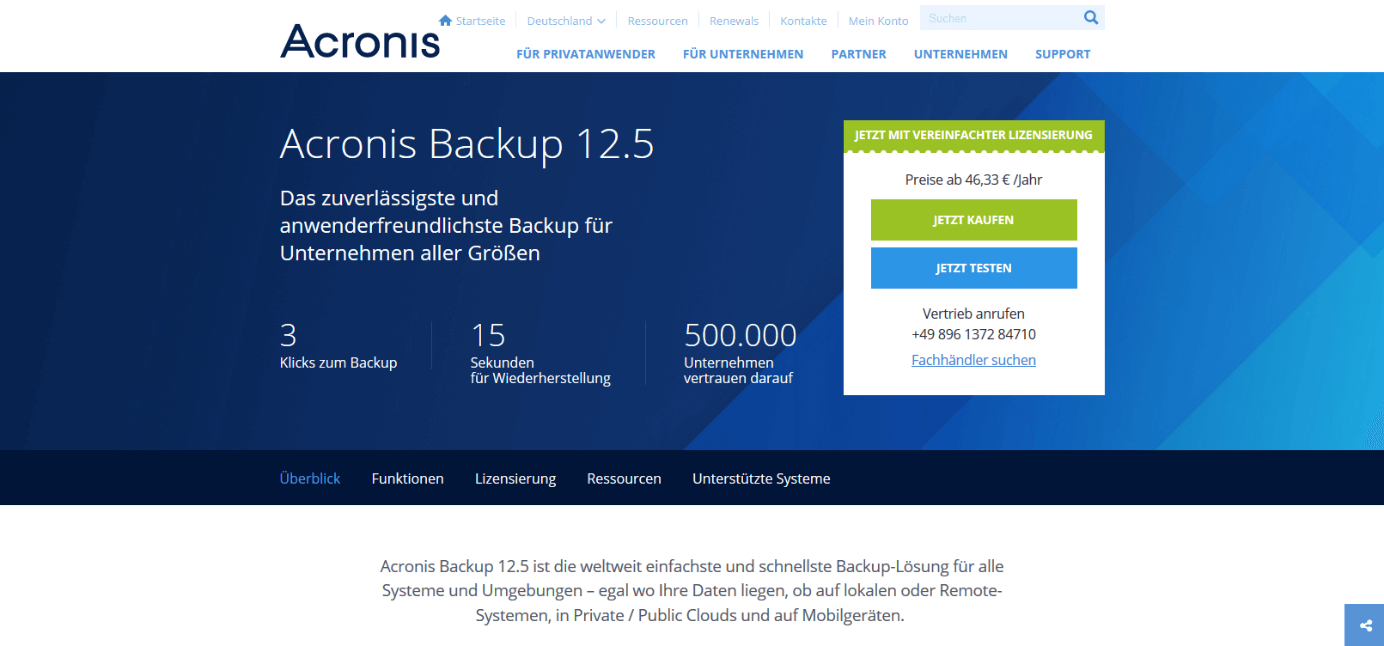
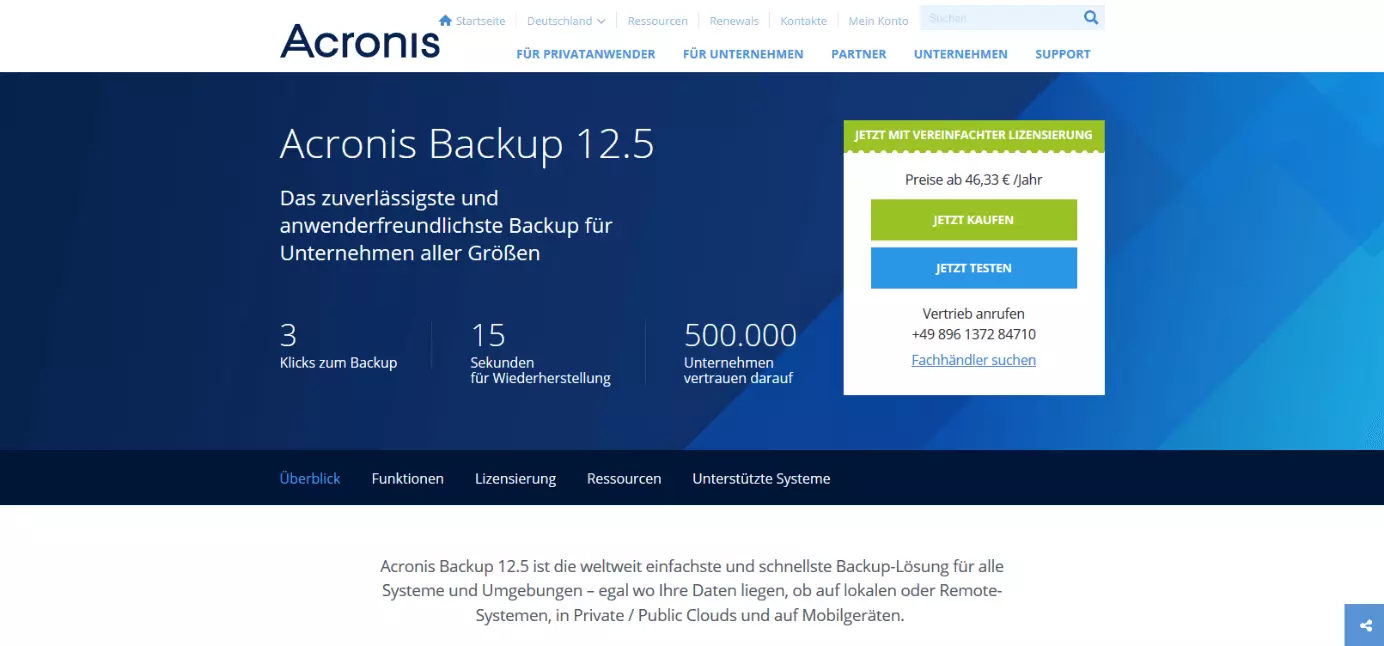
The standard edition of Acronis Backup 12.5 was developed by the provider specifically for small companies with fewer than 50 employees, and offers the following backup features for simple IT infrastructure:
- Central management console (in the cloud or on-premises)
- Image-based backups from individual files to the entire system
- Various backup destination (internal and external hard drives, NAS, SAN, and cloud storage)
- Customizable dashboards
- Compatible with more than 20 platforms (physical, virtual, cloud-based, or mobile)
- Backups from Amazon EC2 instances, Microsoft Azures VMs, and Microsoft 365 mailboxes
- SAN storage snapshots
- Local and cloud-based disaster recovery for emergency restoration
- Backup validation
- Anti-ransomware tool Acronis Active Protection
- Deduplication with variable block size
A storage area network (SAN) is a network for connecting mass storage systems such as disk arrays or tape drive to server systems.
For larger companies with more than 50 employees, the advanced edition of the imaging software is recommended. This expands the standard edition with functions specifically designed for large IT infrastructures.
- Support for tape drives, libraries, and autoloaders
- Guideline-based group management
- Role-based administrative access
- Data authentication via Acronis Notary
- Disaster recovery within 15 seconds via Acronis Instant Restore
- Incremental restoration of virtual machines via vmFlashback
The heart of the imaging software is its backup management console, which enables the management of all systems connected to the control unit via a central administrational interface. Users obtain access to the backup management console via the cloud. A corresponding interface is found in your Acronis account after purchasing the product. Simultaneous operation of the management console is also supported on-premises.
- On-premises console: Install the Acronis backup management console on a system in your local IT infrastructure to backup other devices in your company network.
- Cloud console: Access the cloud version of the backup management console using your web browser to back up connection devices over the internet.
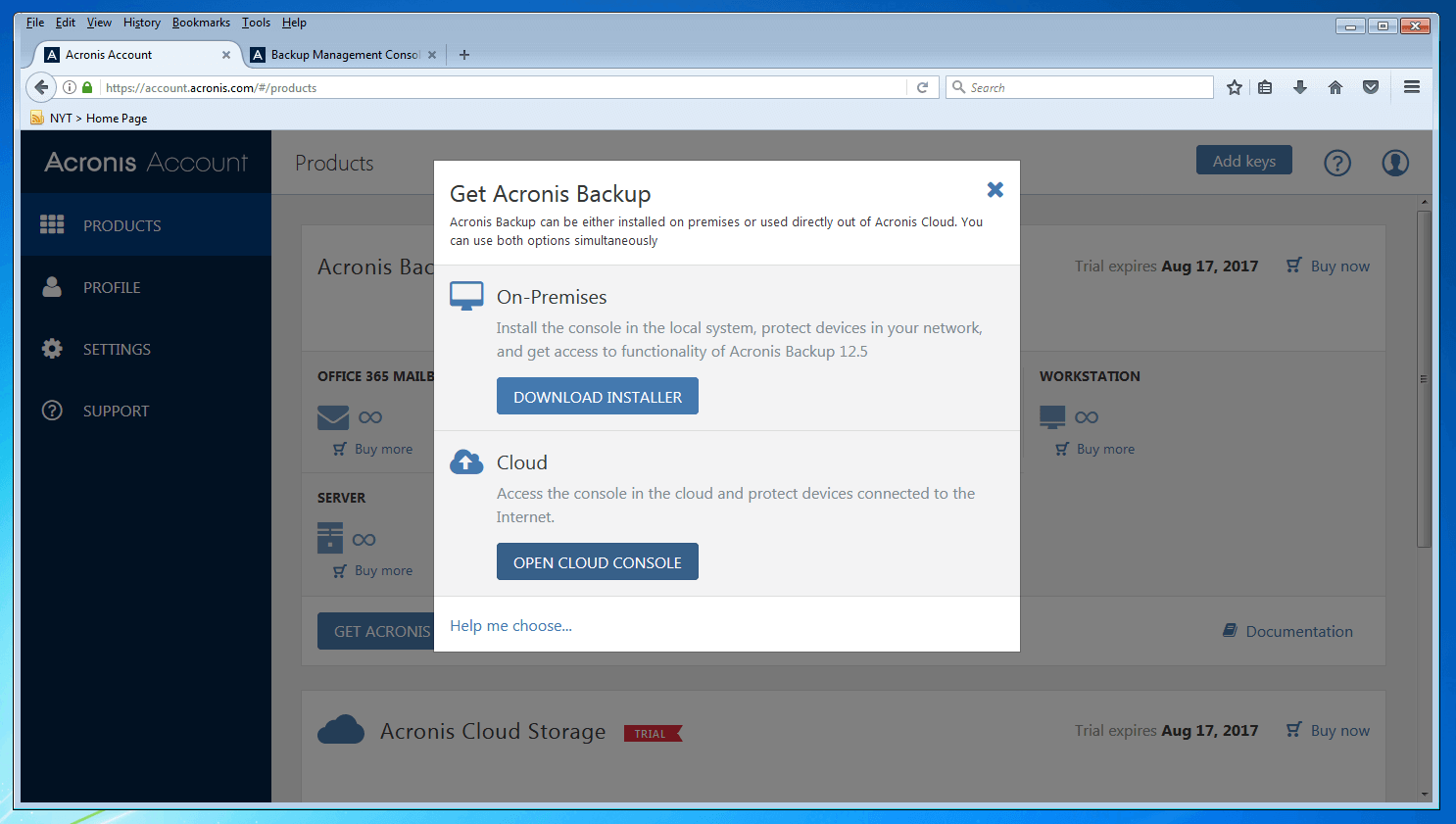
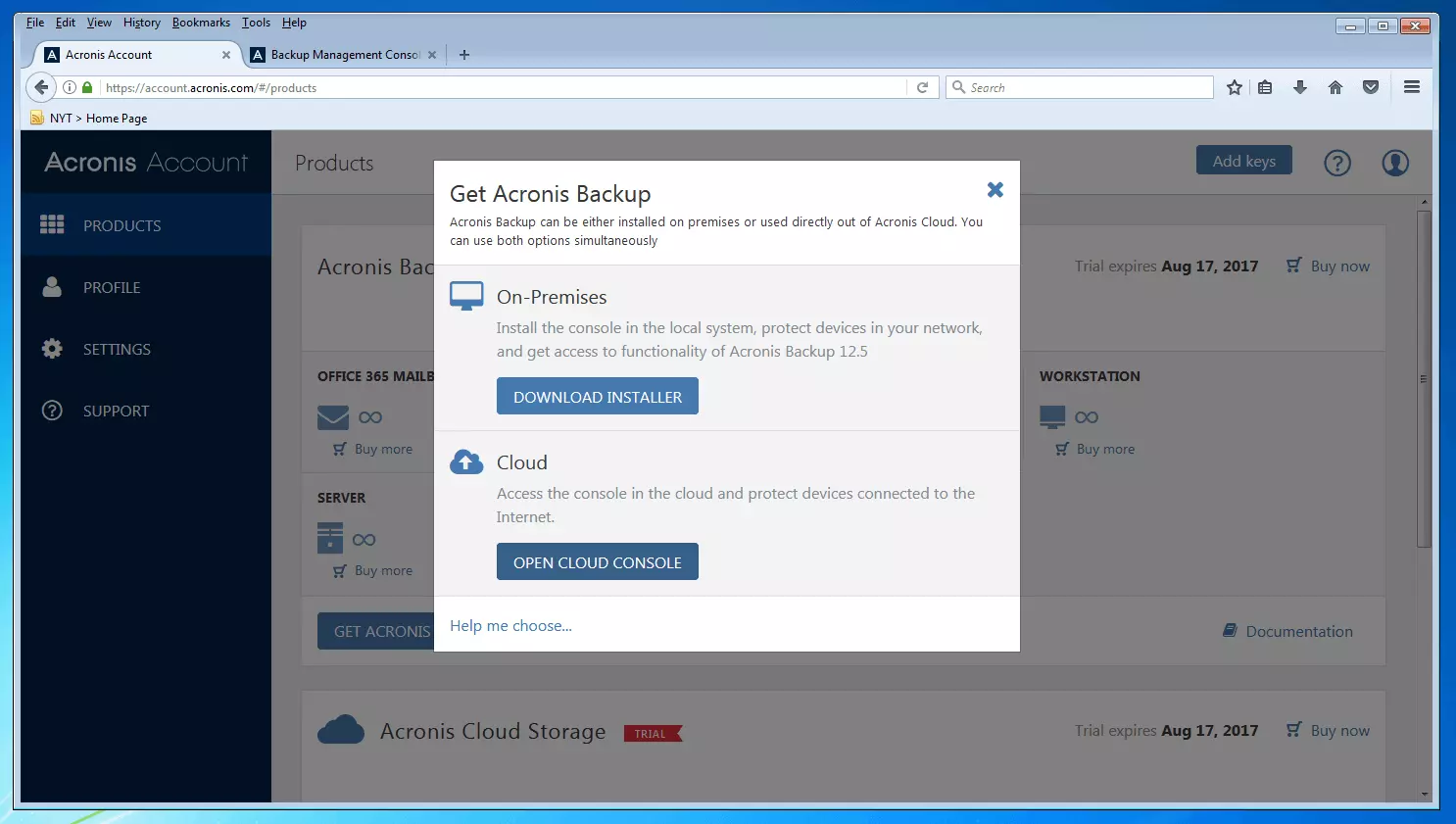
The user interface of the backup management console resembles the web portal for the private user software Acronis True Image 2017, but clearly offers a larger spectrum of functions.
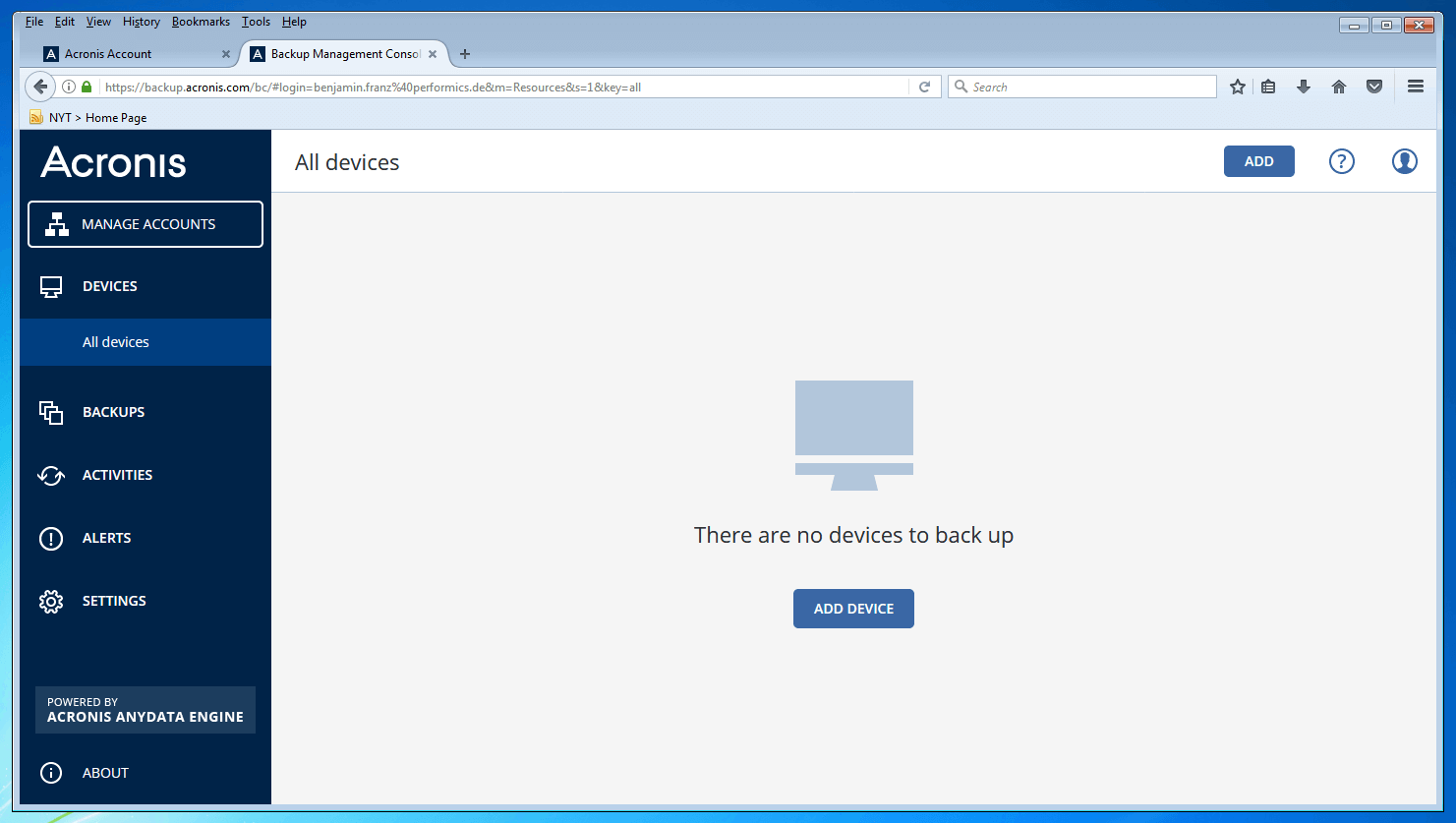
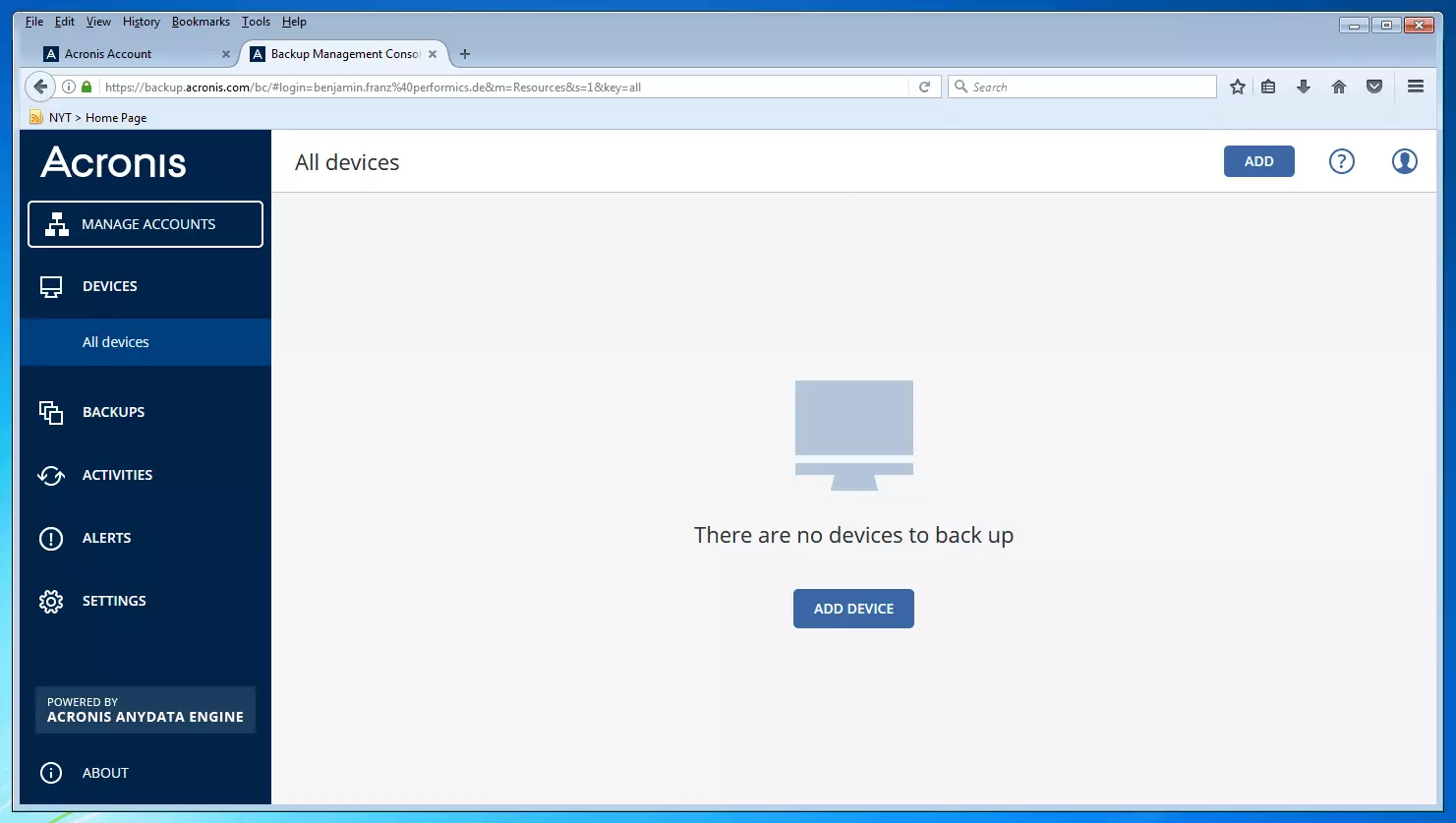
Use the central device management to connect the backup management console with all devices that you want to include in your backup strategy.
The following table contains all systems that are supported by Acronis Backup 12.5:
| Physical | Virtual | Applications | Cloud | Work stations | Mobile devices | |
|---|---|---|---|---|---|---|
| Windows Server | VMware vSpere | Oracle Database | Microsoft 365 | Windows-PC | iPhone | |
| Windows Server Essentials | Microsoft Hyper-V | Exchange | Azure | Surface Family | iPad | |
| Linux | Citrix XenServer | SQL Server | Amazon EC2 | Mac | Android | |
| Windows-PC | Red Hat Virtualization | SharePoint | Acronis Cloud | |||
| Mac | Linux KVM | Active Directory | Private Cloud | |||
| Oracle VM Server |
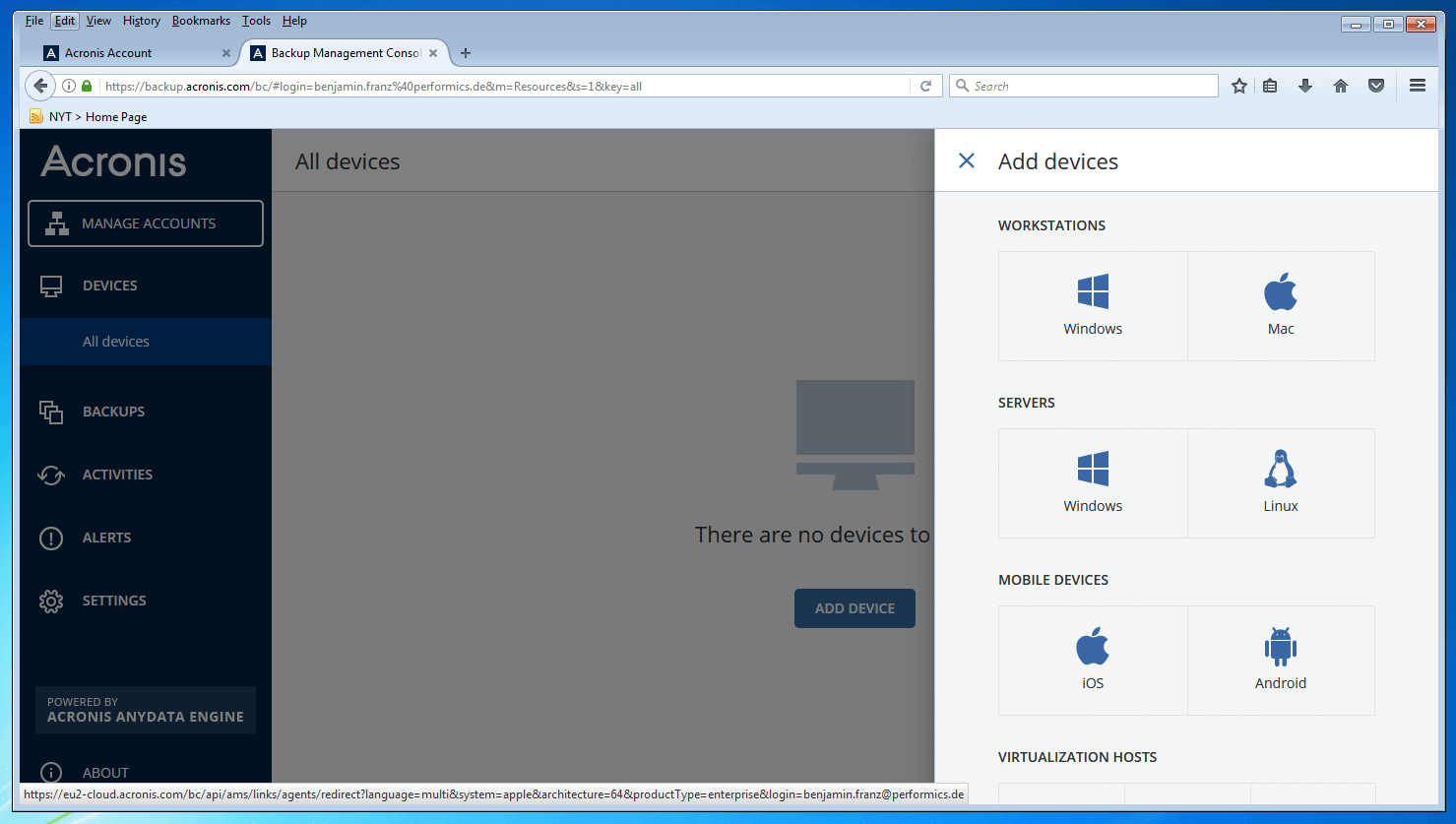
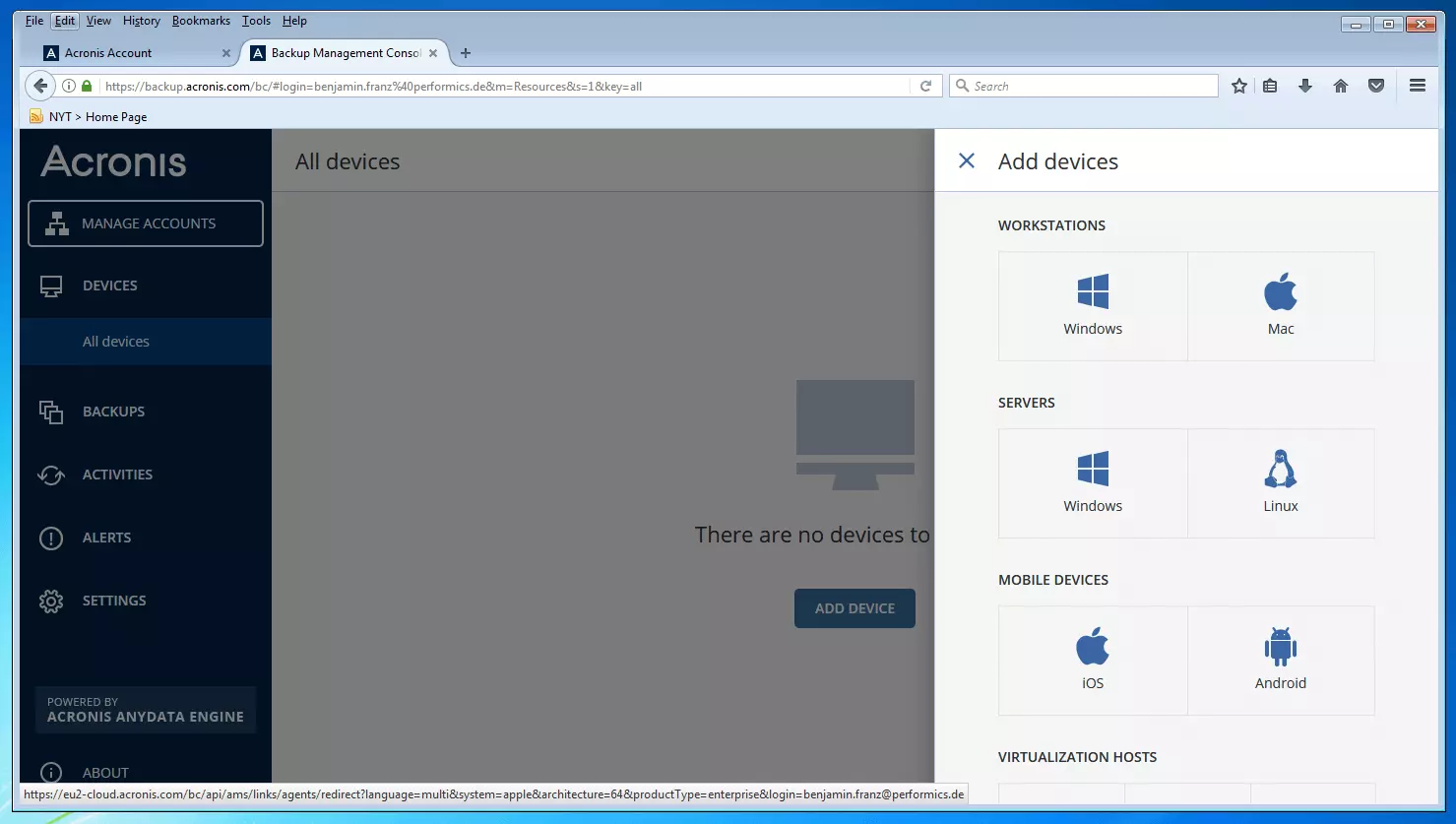
To add a new device to the backup management console, click on “Add Device” and select the desired backup agent from the list on the right side of the page. Install the system on the target device and connect it to your Acronis account.
An overview of all devices connected to the backup management console can be displayed by clicking on “All Devices”.
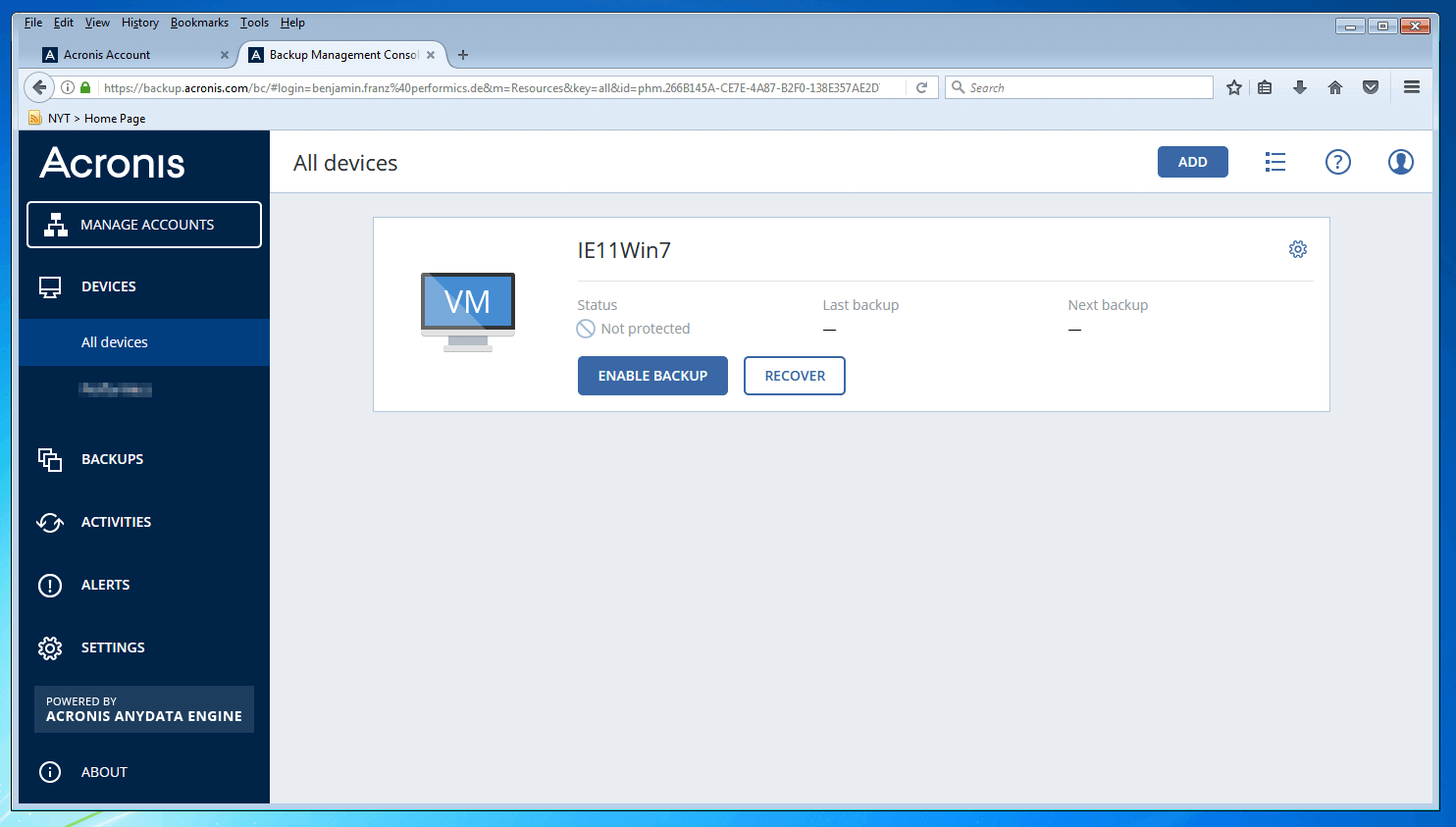
To lay out a backup plan, select the desired device and click on the “Enable Backup” button. It opens a menu for the configuration of backup plans.
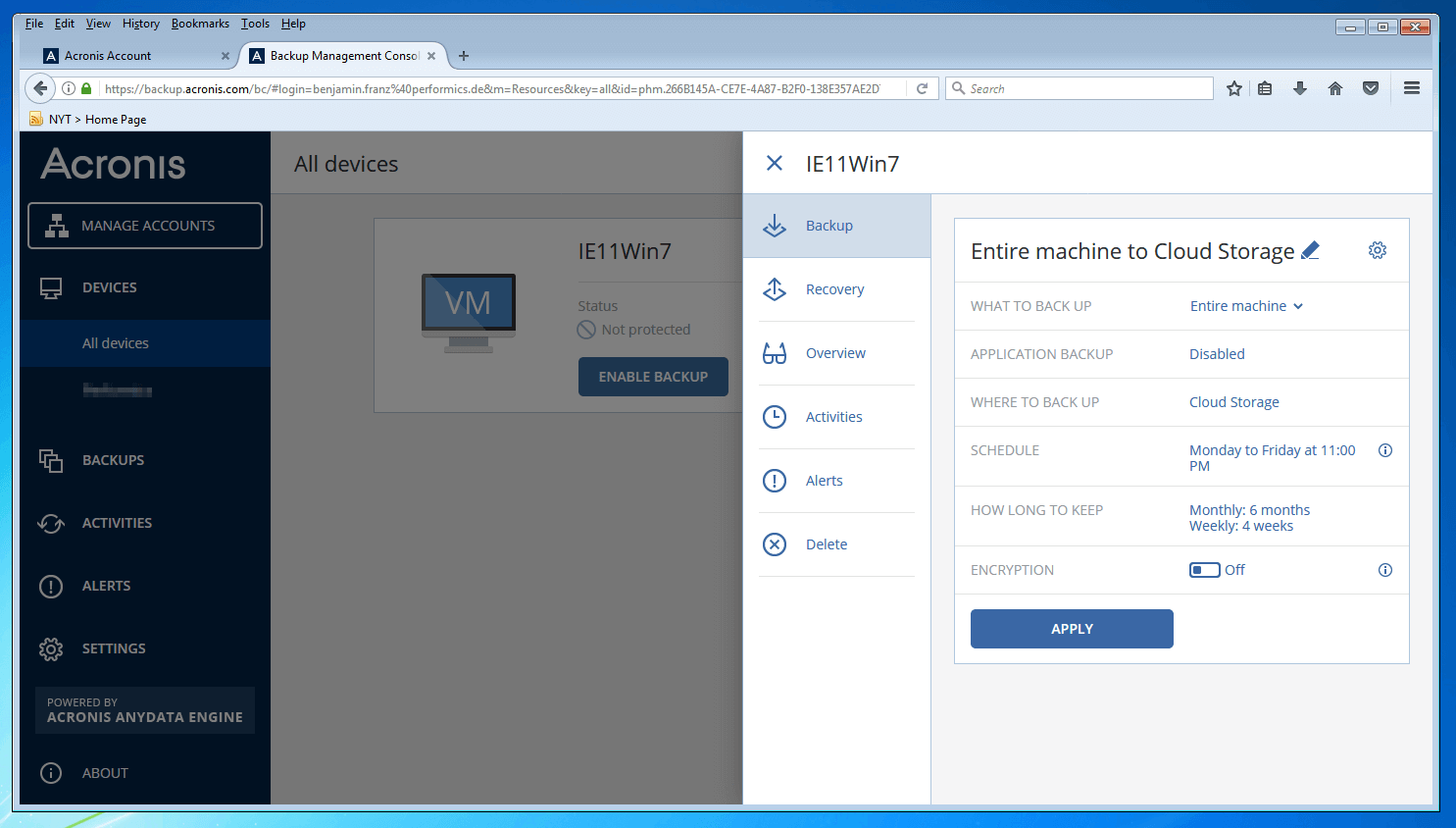
Each backup plan is individually named.
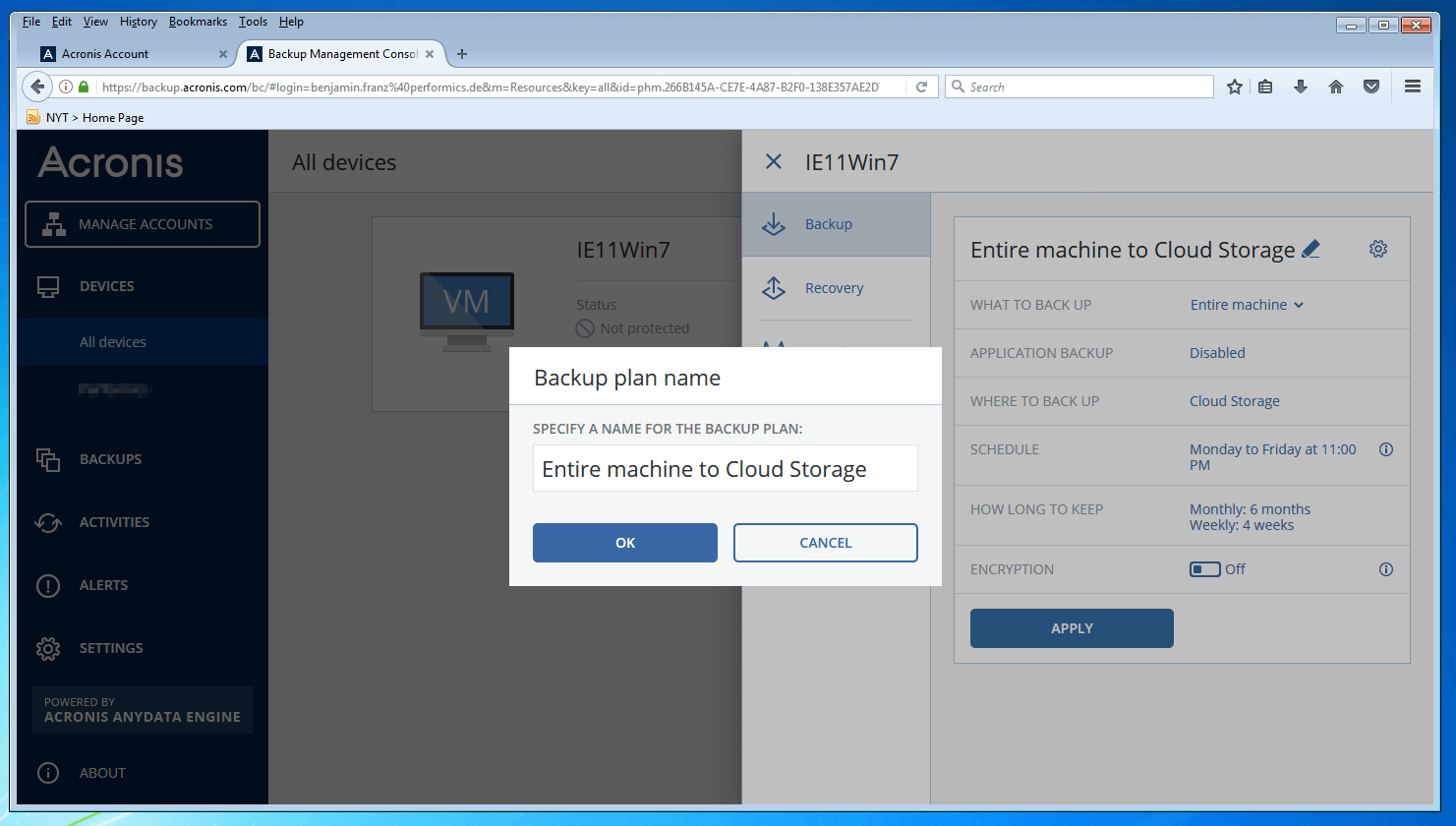
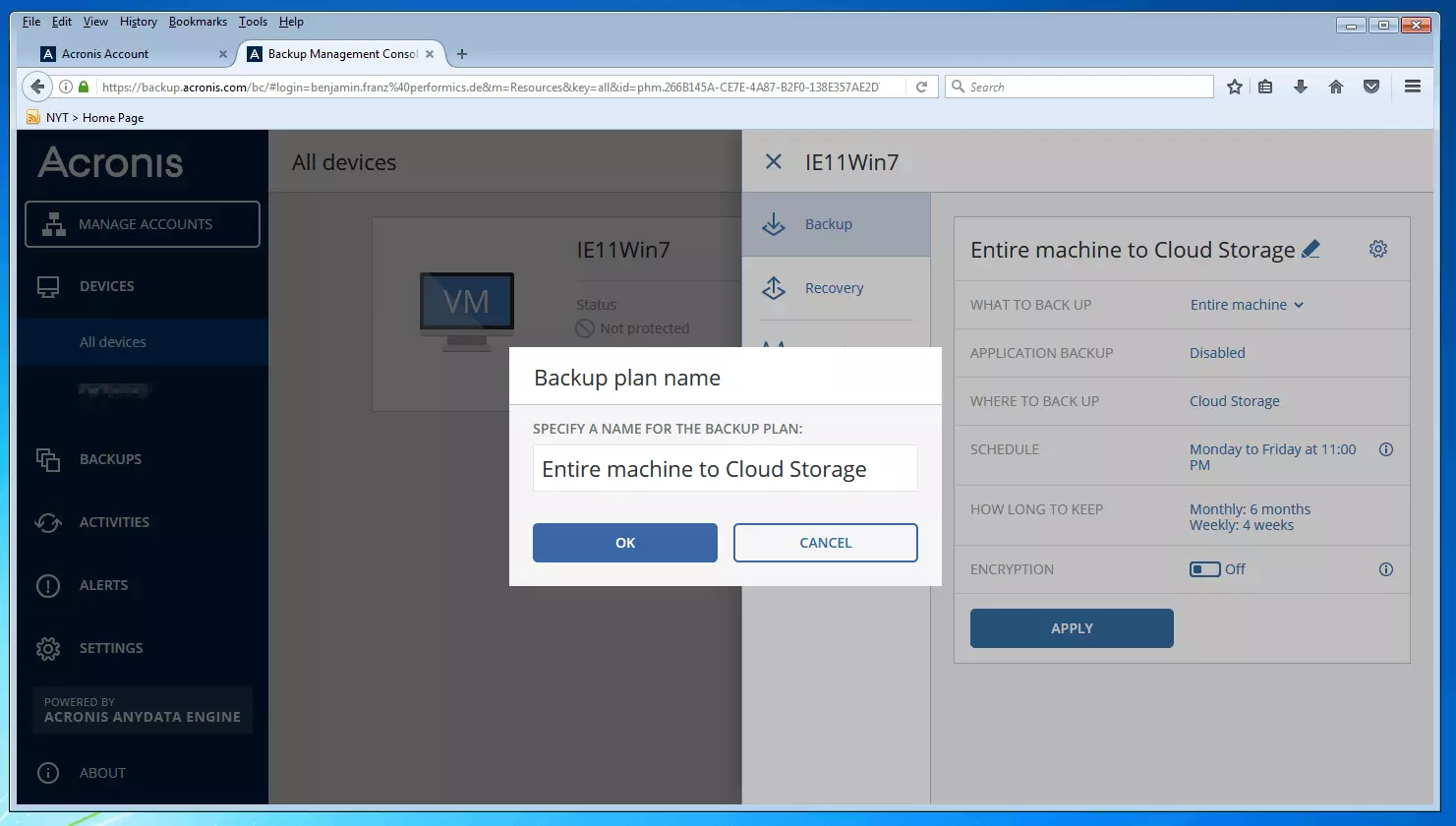
With Acronis Backup 12.5, you can choose to back up the entire system of a selective device or just individual hard drives, partitions, folders, or files. The imaging software also gives you the option to only save the current system status.
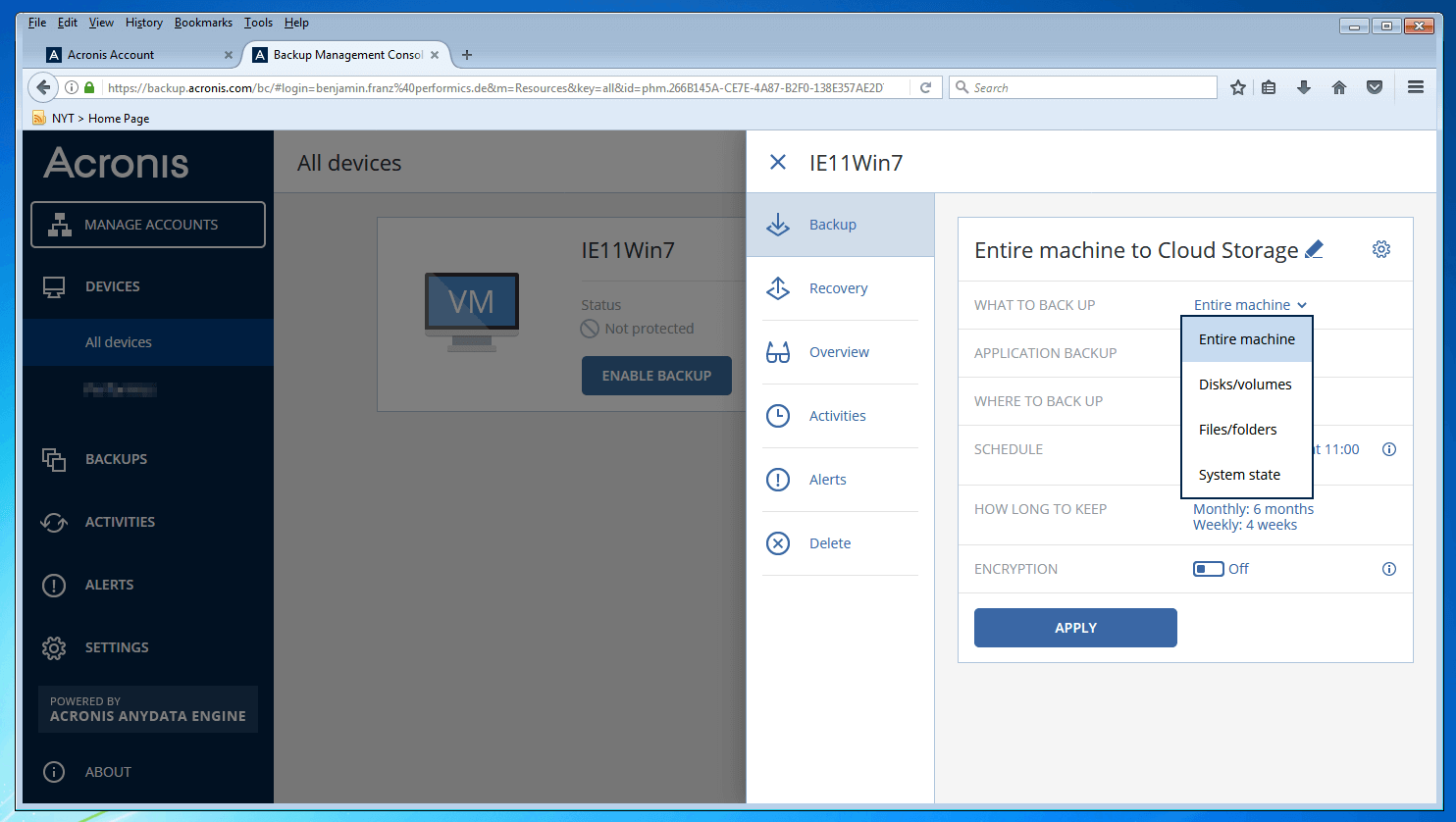
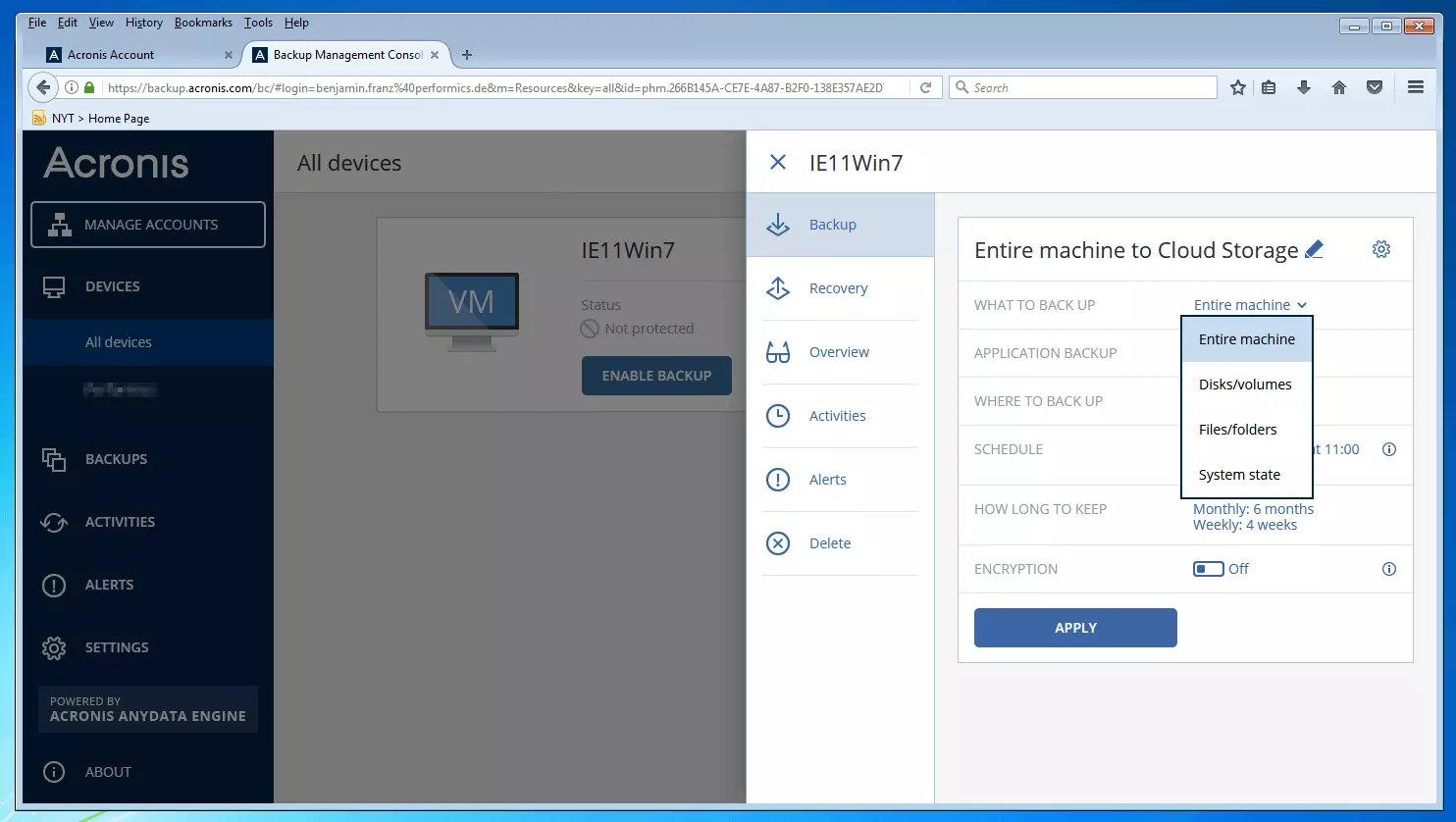
Possible sources for a data backup are local folders on internal and external storage devices, folders on the closed network of a storage device, or the Acronis cloud. Cloud storage platforms from other providers aren’t supported. Therefore, if you want to use Acronis Backup 12.5 to create cloud-based backups, you will inevitably have to buy the comparatively expensive Acronis Cloud Storage. Backups on optical storage media (CD, DVD, BD, ISO) are no longer supported in the current version 12.5.
A complete list of all supported storage media can be found in the overview table at the end of this article.
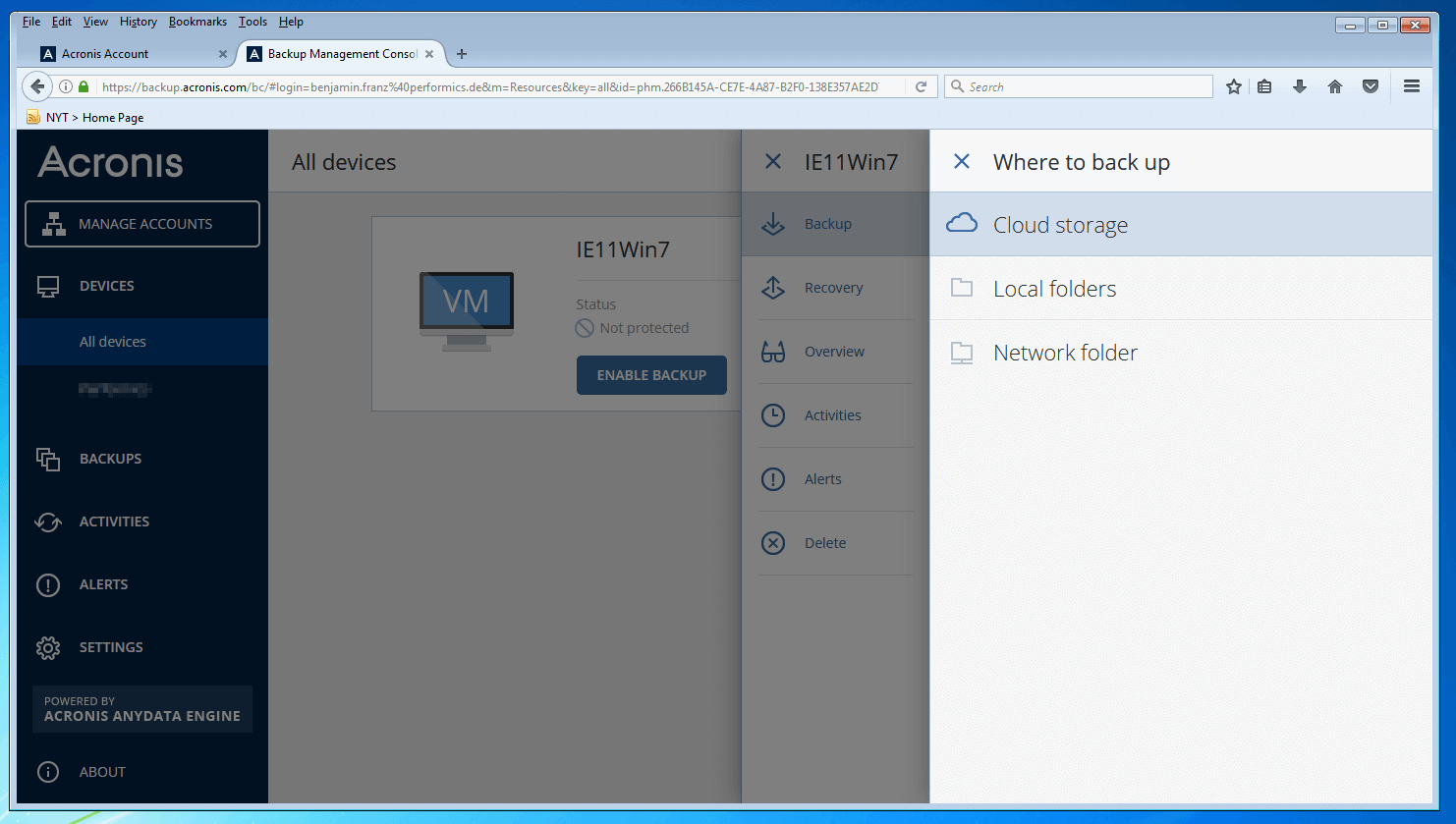
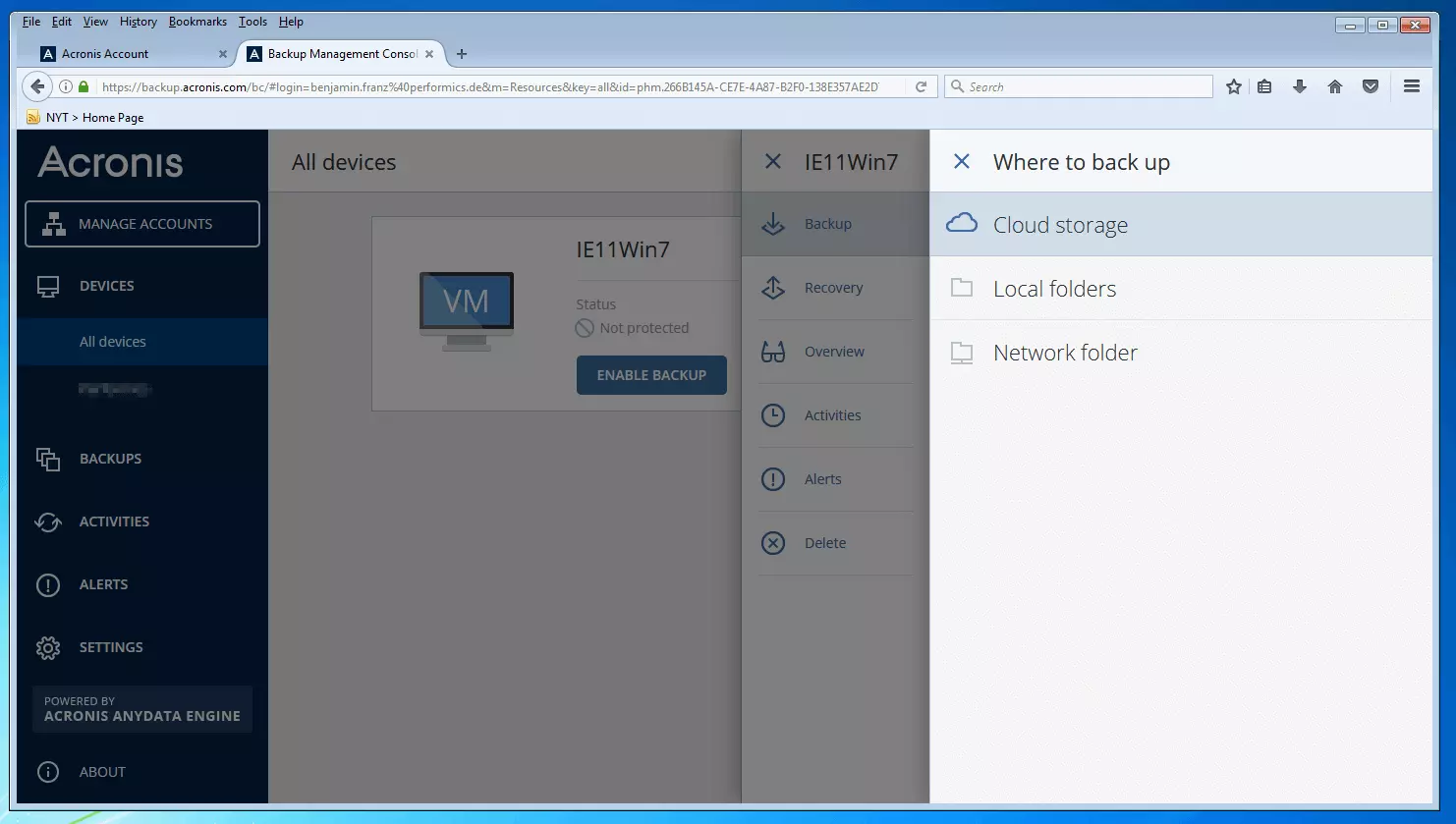
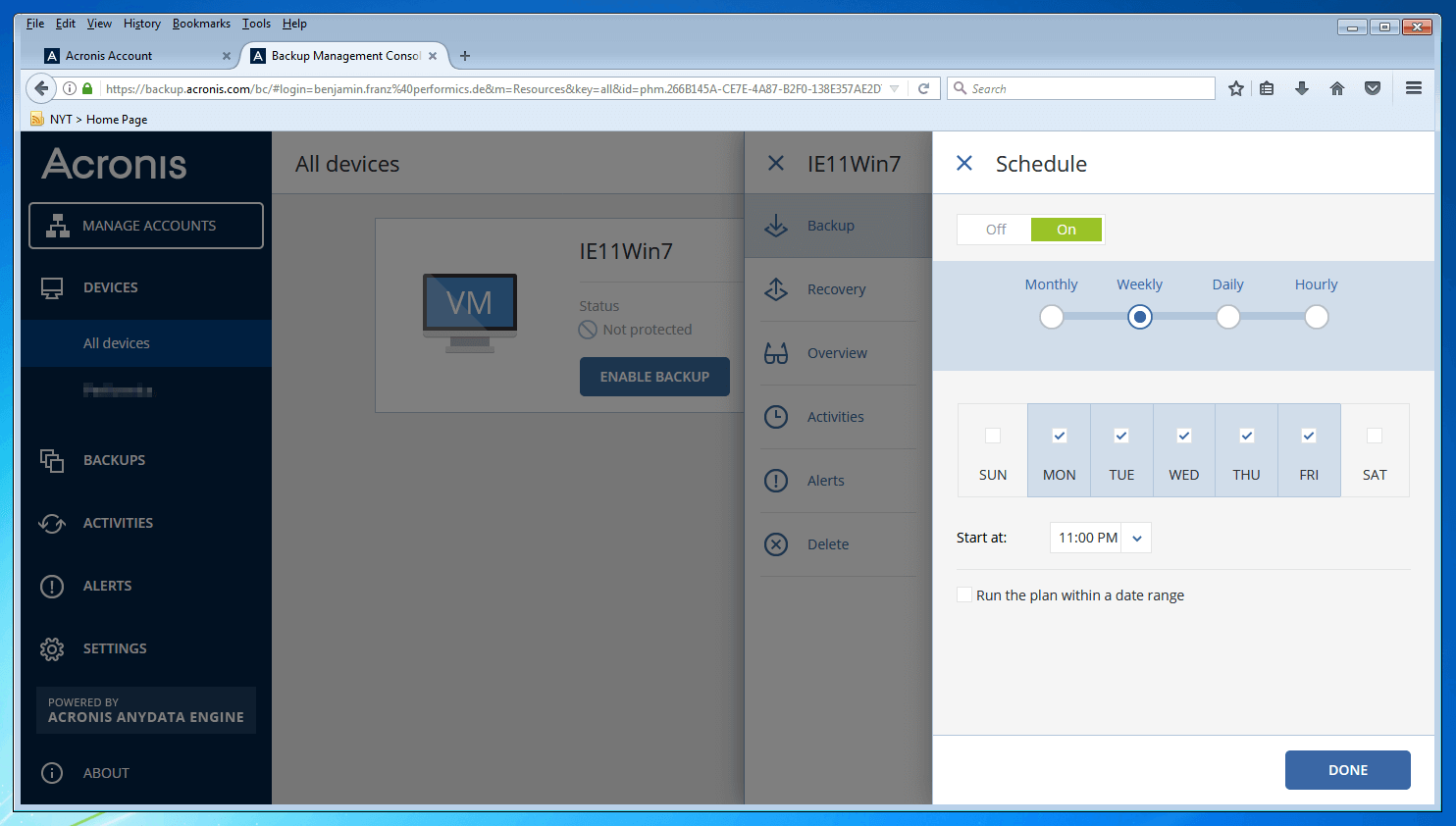
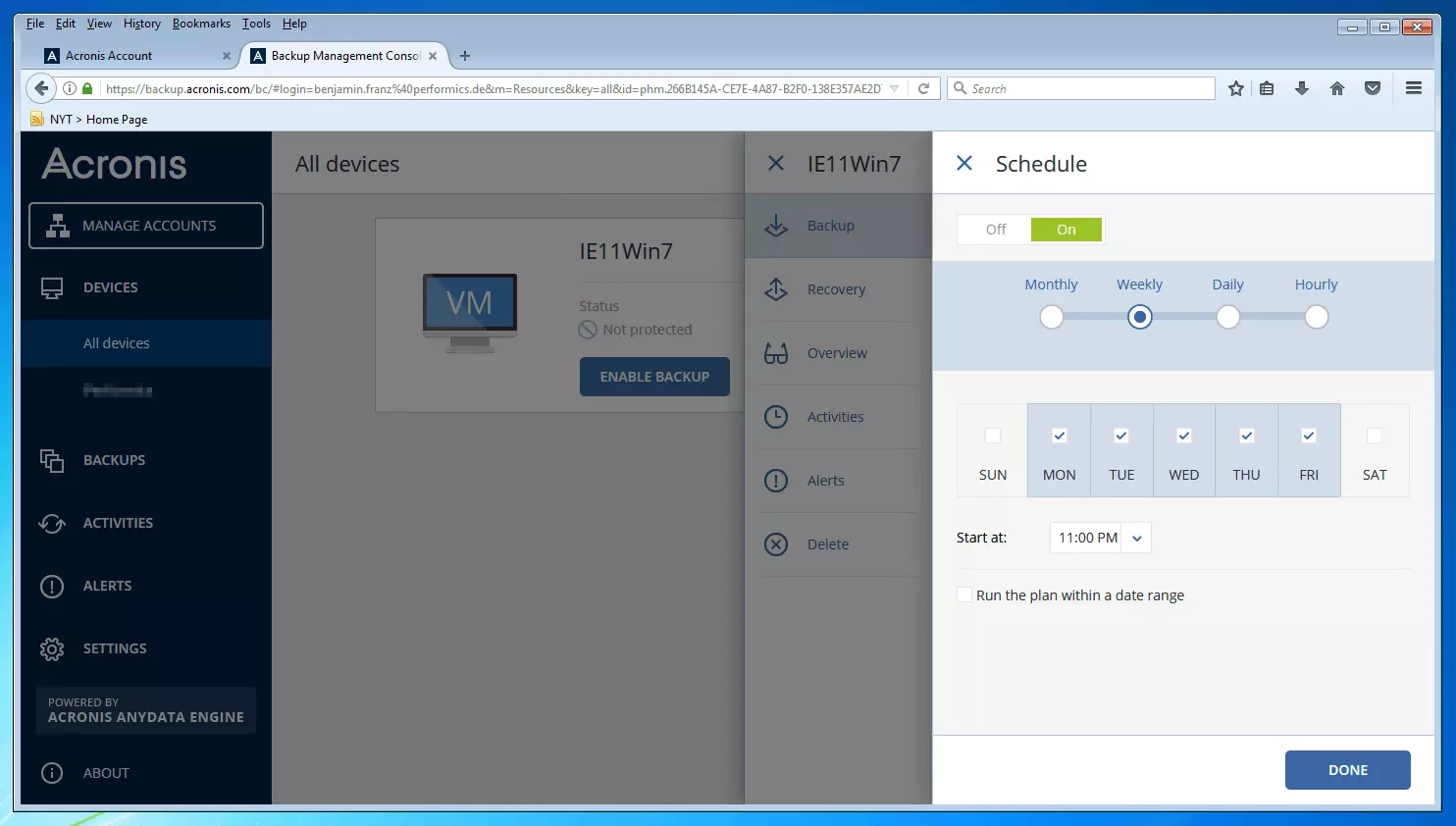
Like Acronis True Image 2017, Acronis Backup 12.5 also offers a clear calendar function which can be used to automate backup cycles.
Backups can be encrypted with a password-protected AES algorithm of 128, 192, or 256 bits.
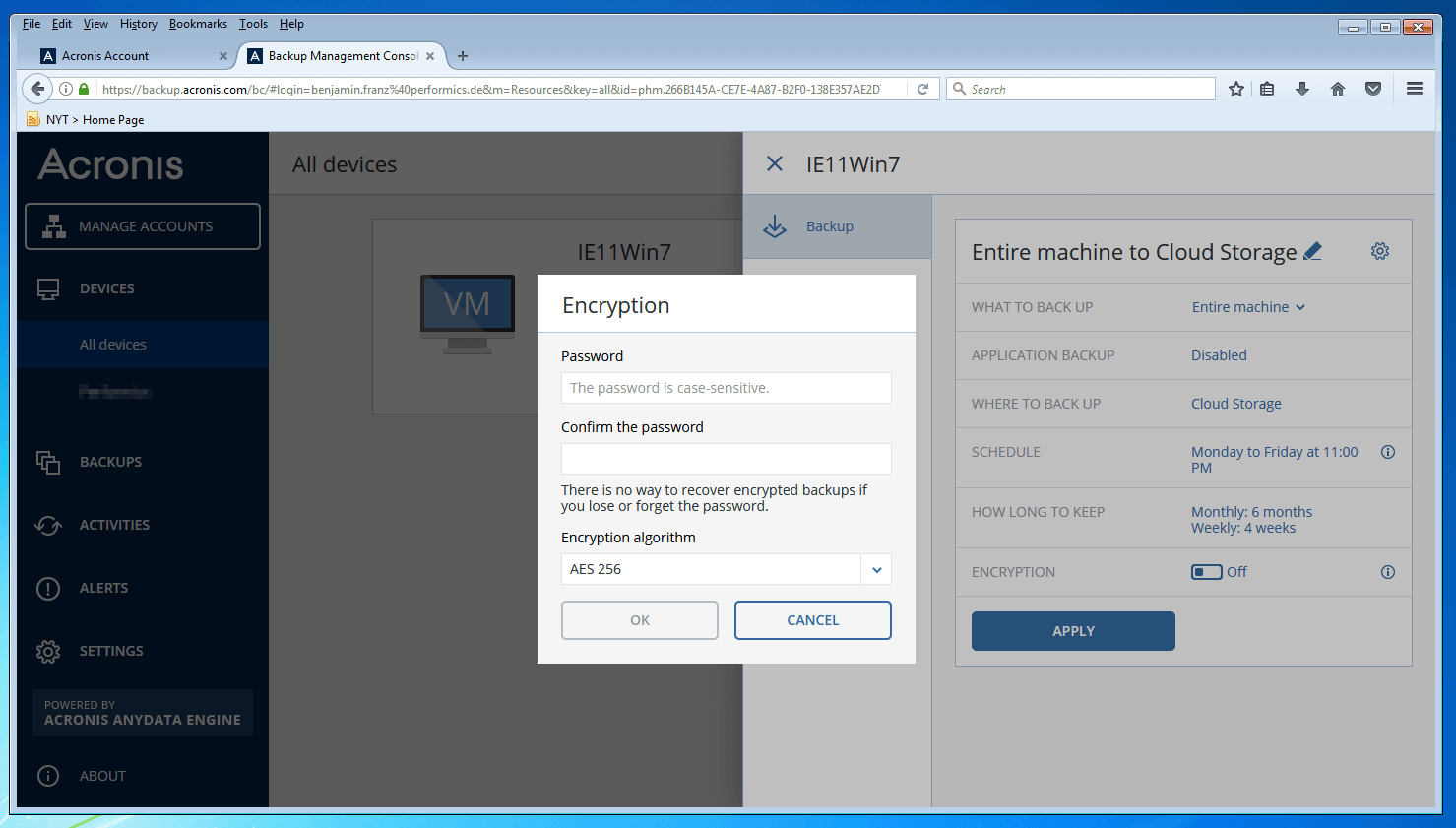
In addition to the basic functions of image-based backup plans, Acronis Backup 12.5 offers a series of advanced settings under “Backup Options” such as alarms, backup validation, file filters, and compression.
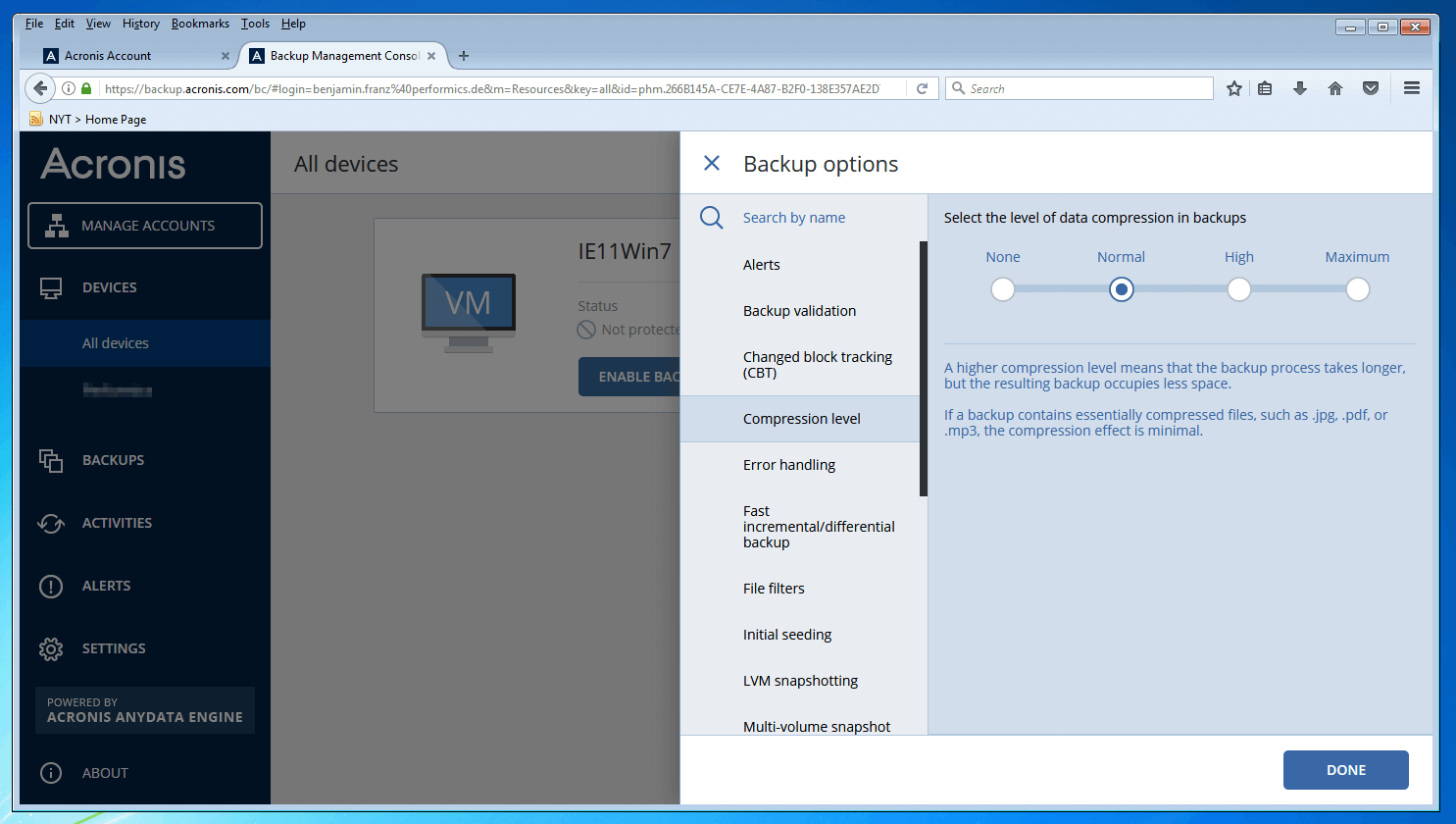
Additional information on the extended backup options of the imaging software can be found in the following YouTube video provided by Acronis.
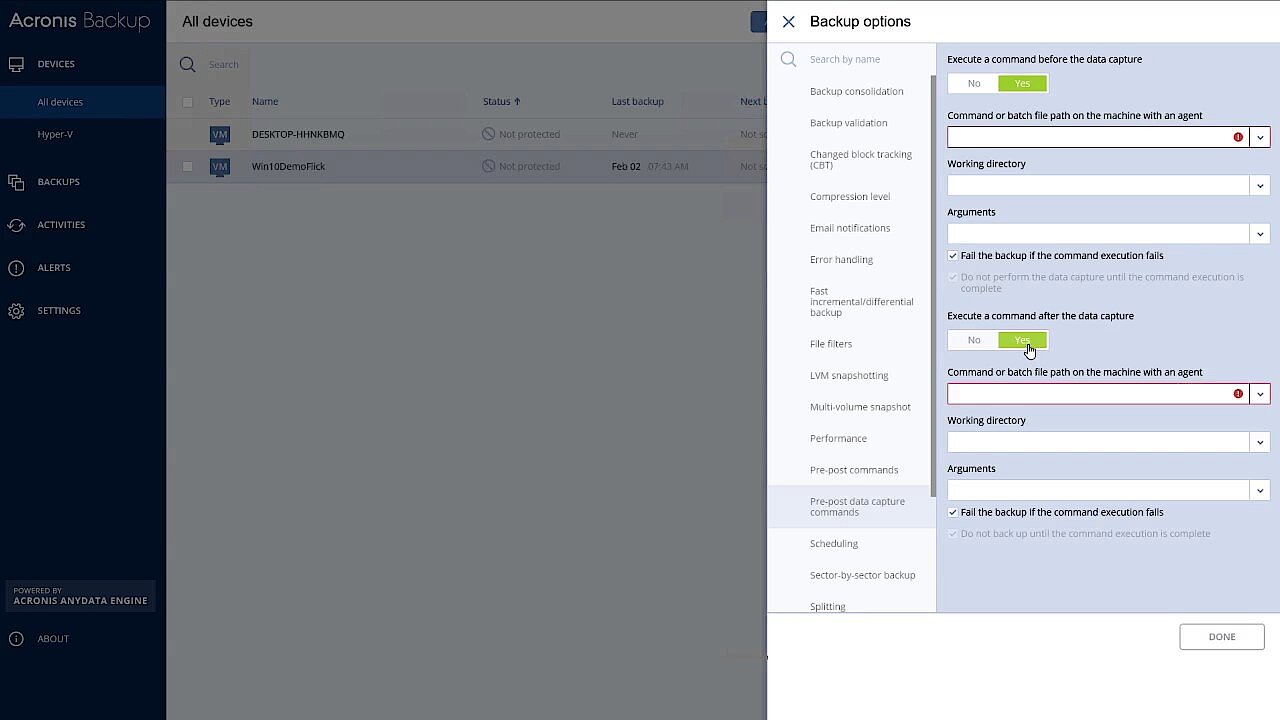 To display this video, third-party cookies are required. You can access and change your cookie settings here.
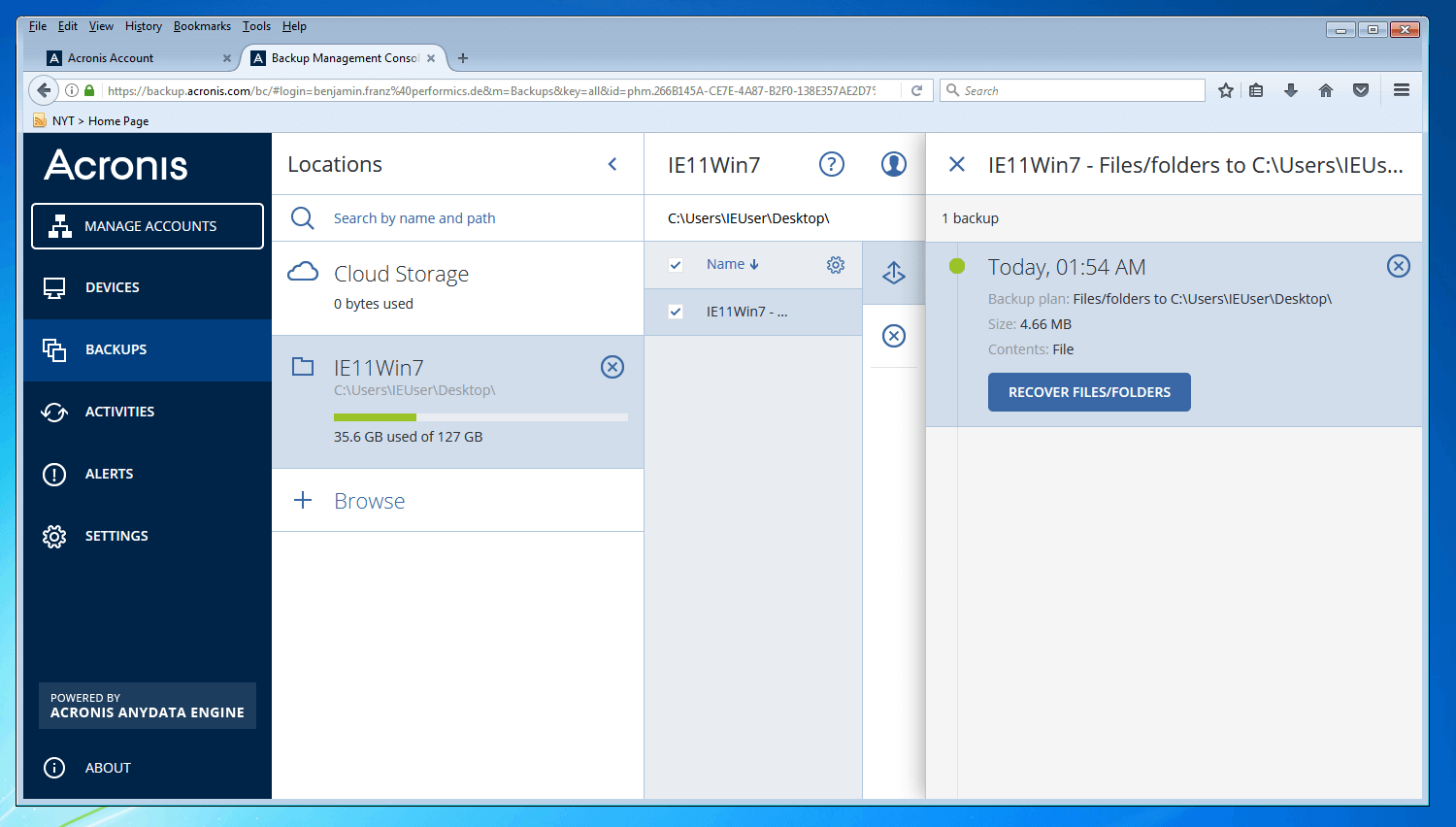
 An overview of your defined backup plans can be accessed in the “Backups” menu on the right side of the page.
If you want to use Acronis Backup 12.5 to restore backed up data at a specific time, select the corresponding backup for the desired device and click on “Recover.” You also have the option to download the selected backup data as zip files.
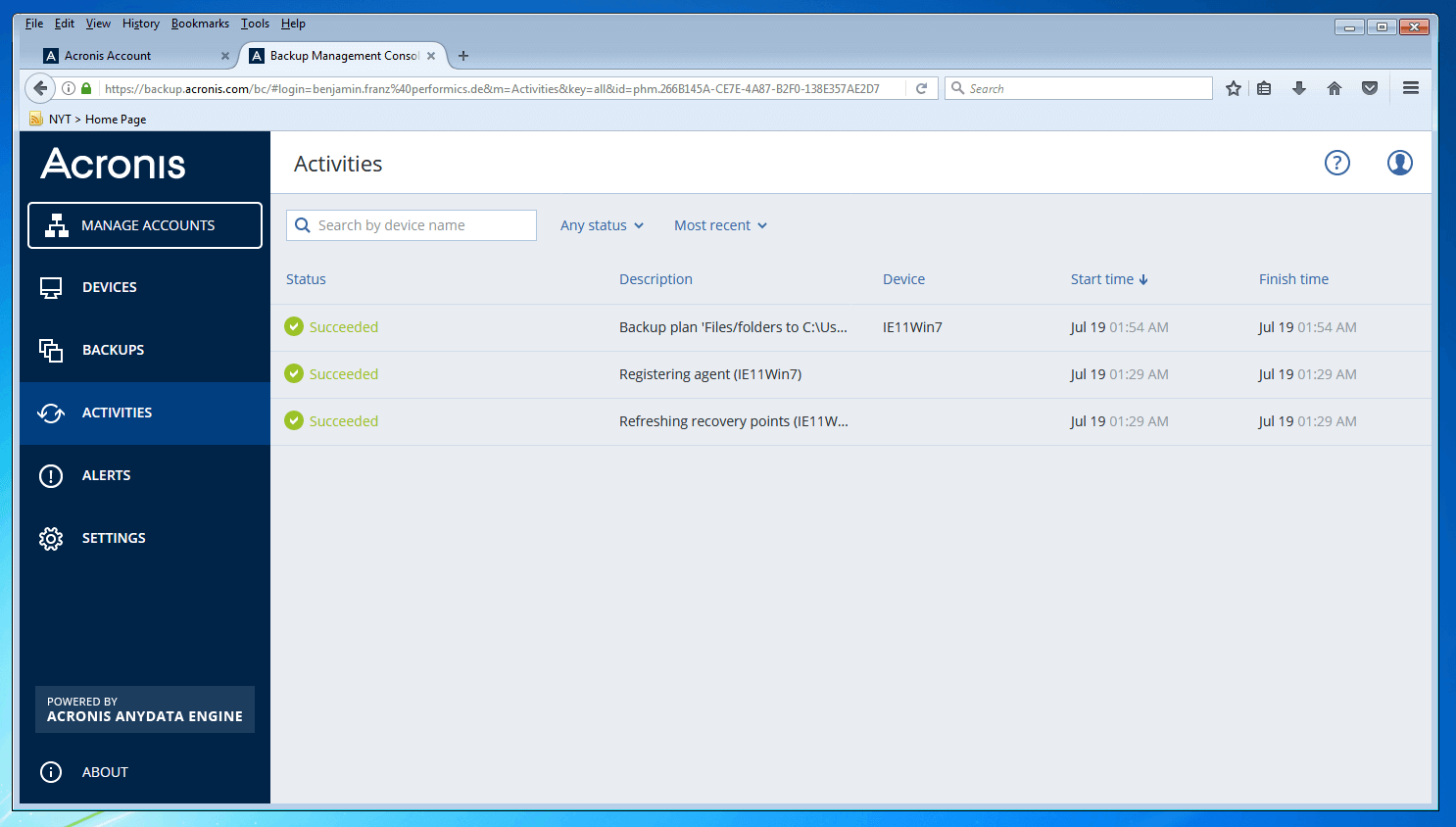
All actions that are carried out via the backup management console are logged by the image tool. Access entries as necessary by using the “Activities” tab. Click on an entry to display details about the respective occurrence. The activity protocol contains information on the status of the action, the device and backup plan, and the start, completion, and duration of the activity. You can also see which user started the activity.
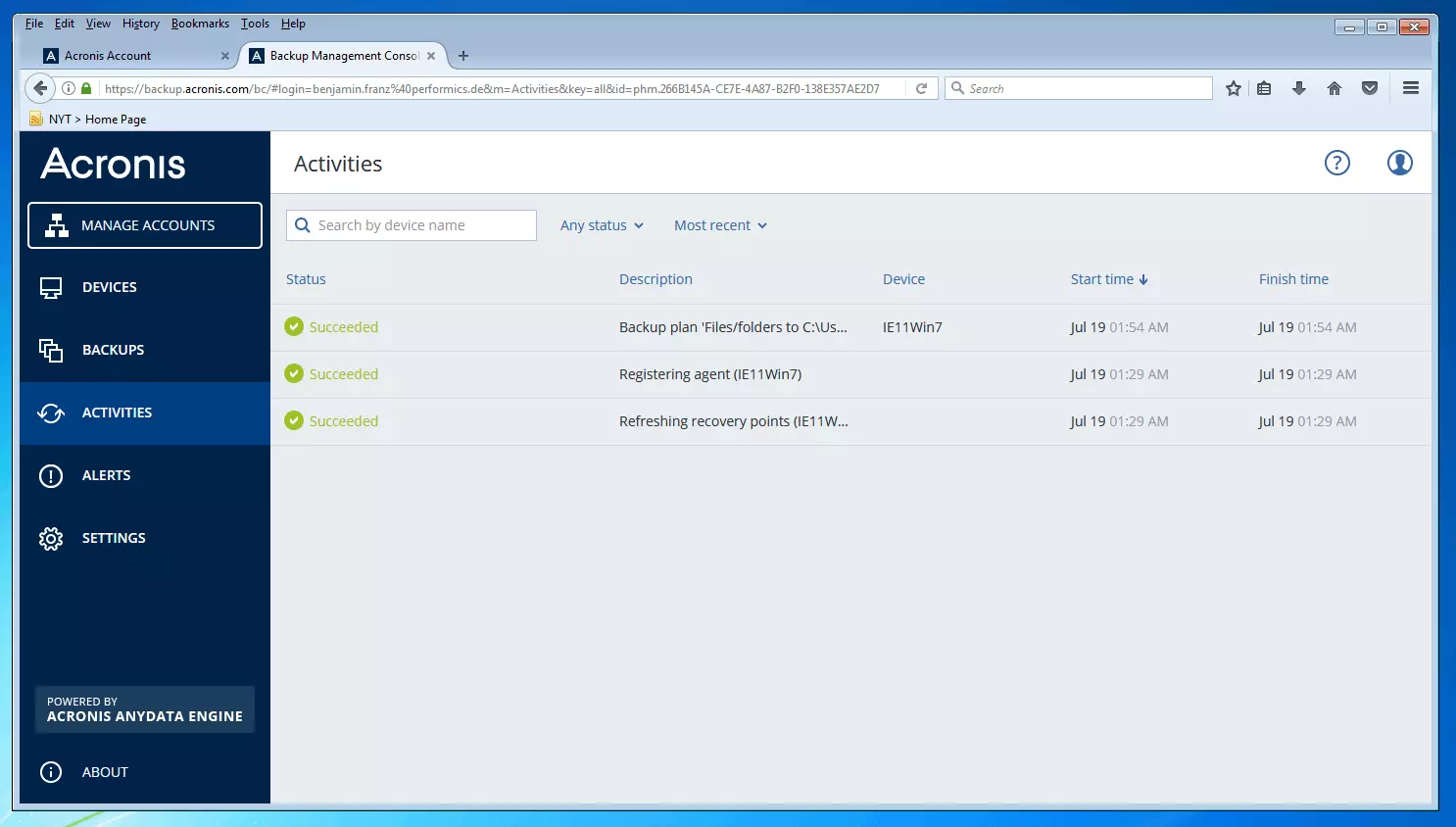
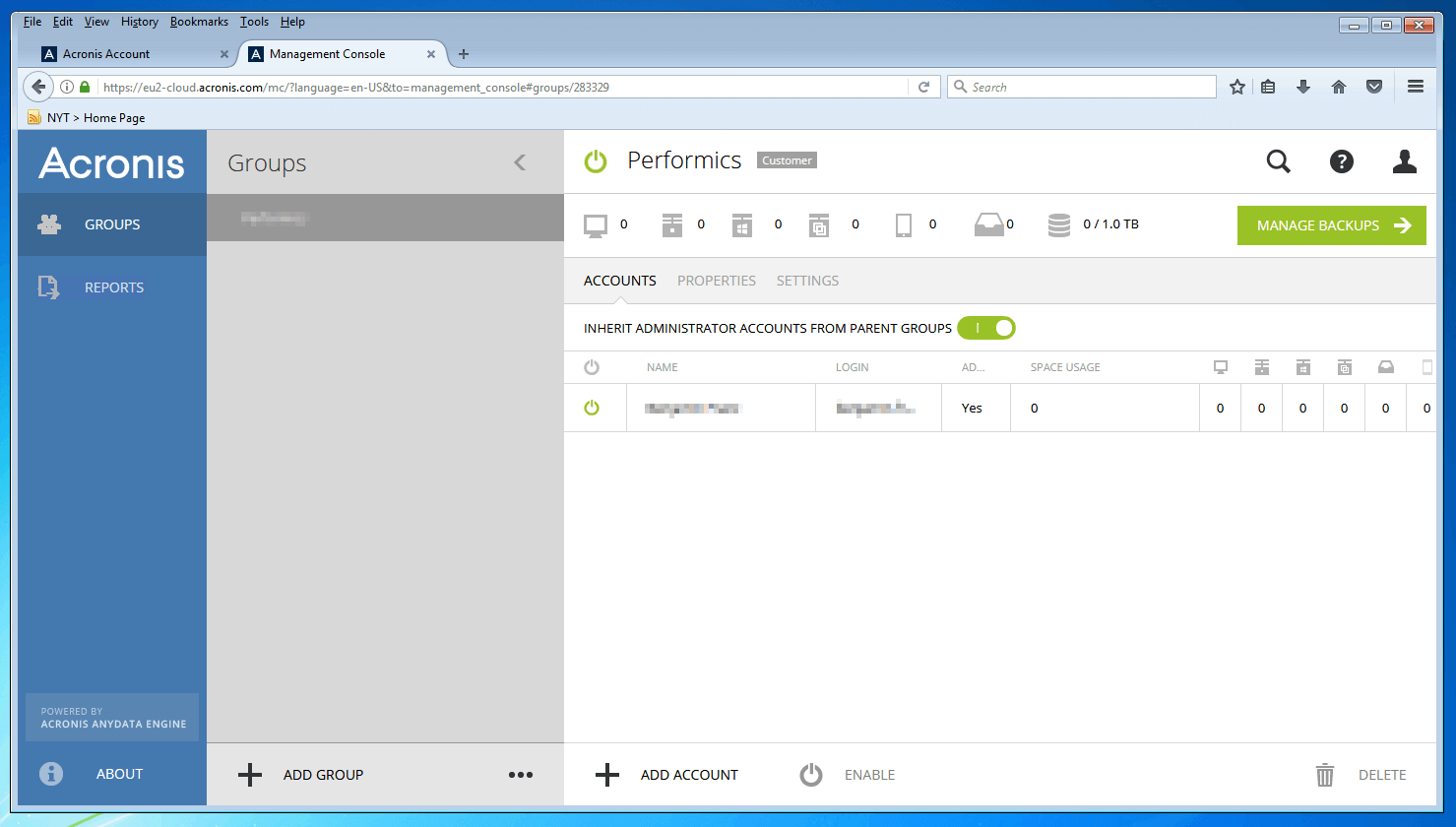
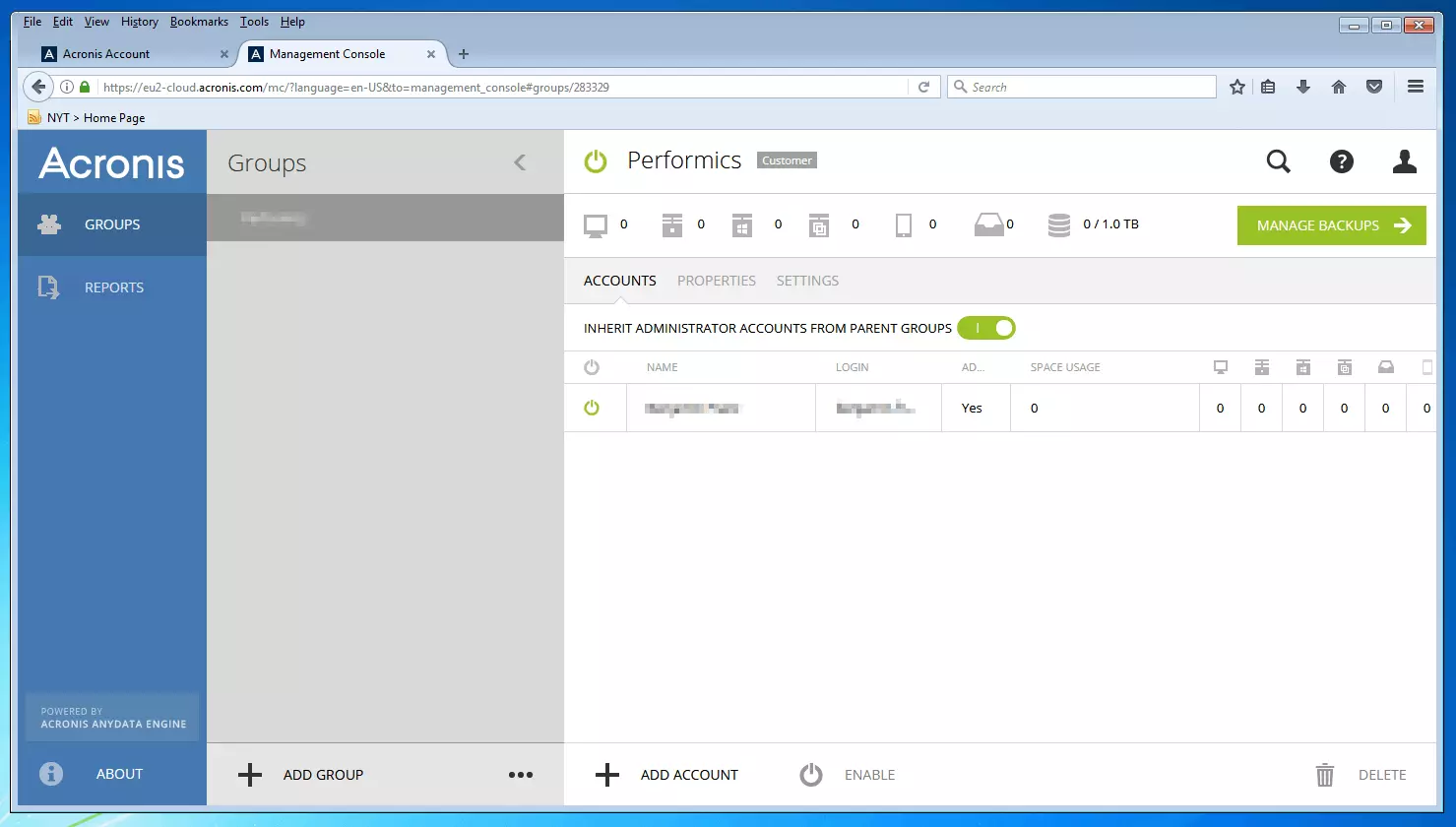
One of the core functions of Acronis Backup 12.5 is its role-based administrative access. Using the “Manage Accounts” function, you can create as many administrator user accounts as you wish and assign different areas of responsibility using group memberships.
| Benefits | Drawbacks | |
|---|---|---|
| ✓ Very good backup performances | ✗ Cloud storage from other providers not supported | |
| ✓ Very clear, intuitive user interface | ✗ Storage space in the Acronis cloud relatively expensive compared to other providers | |
| ✓ Integrated anti-ransomware, authentication, and backup validation | ||
| ✓ Optional image- or file-based backup | ||
| ✓ Cloud-based backups | ||
| ✓ Encrypted backups | ||
| ✓ Automatic compression |
Acronis Backup 12.5 is an imaging software developed for company use by IT infrastructures both small and large. The range of functions is tailored to cloud-based data protection and provides a variety of tools to ensure the security and integrity of backup data. Companies that decide to use this image tool have to rely on the online storage of Acronis for cloud-based data backup, though. Possible alternative: O&O DiskImage 11.0 Server Edition.
Paragon Backup & Recovery 16 Free
The German software manufacturer Paragon offers a free edition of their image tool Backup & Recovery 16 as “the most powerful free backup solution ever”. With more than 5500 downloads, the freeware has secured itself a top position in the ranks of free backup software. But does the tool keep all its promises?
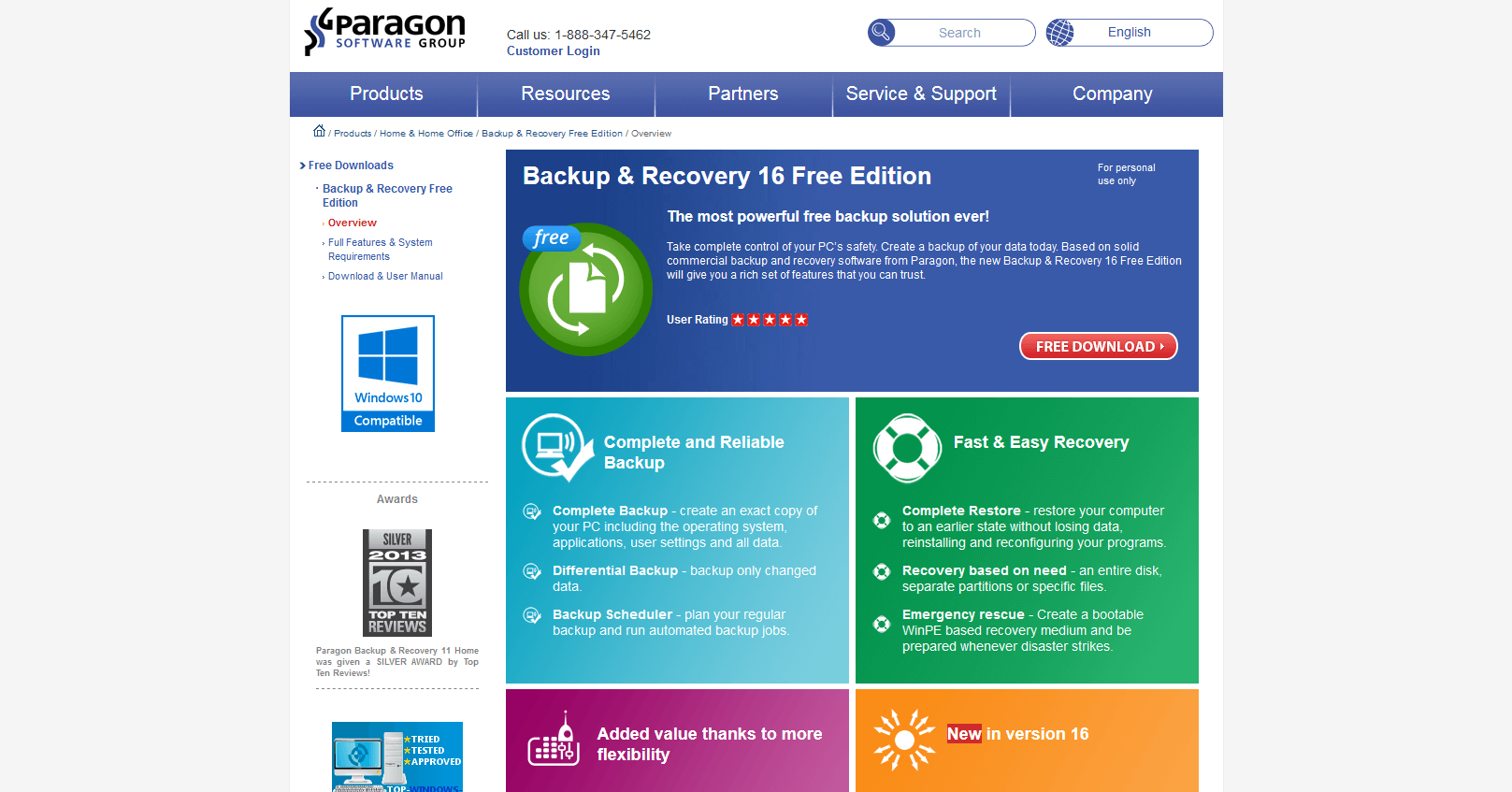
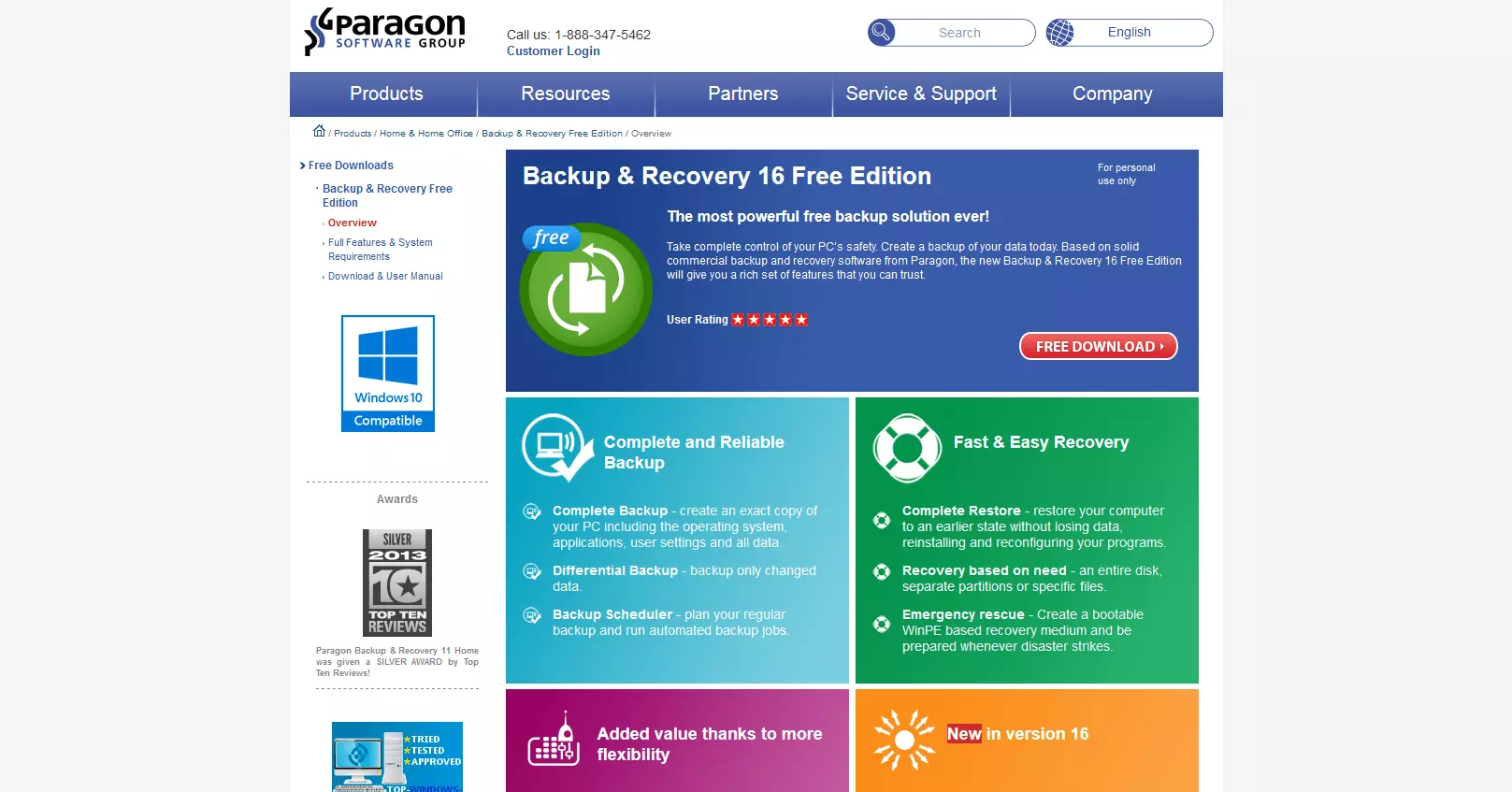
Backup & Recovery 16 is available free for private users. After a 30-day trial, further use requires a free registration with the provider. For commercial use, a comparatively inexpensive single-user license is required.
The following functions are included in the free edition of Paragon Backup & Recovery 16:
- Complete image-based backups
- Complete restoration including operating system, programs, and settings
- Selective restoration of individual hard drives, partitions, or files
- Creation of a bootable Microsoft Windows PE rescue medium
- Differential backups
- Incremental backups
- Automatic retention
- Universal Image Mounter (UIM)
- File filter functions
- Calendar function for regular backups
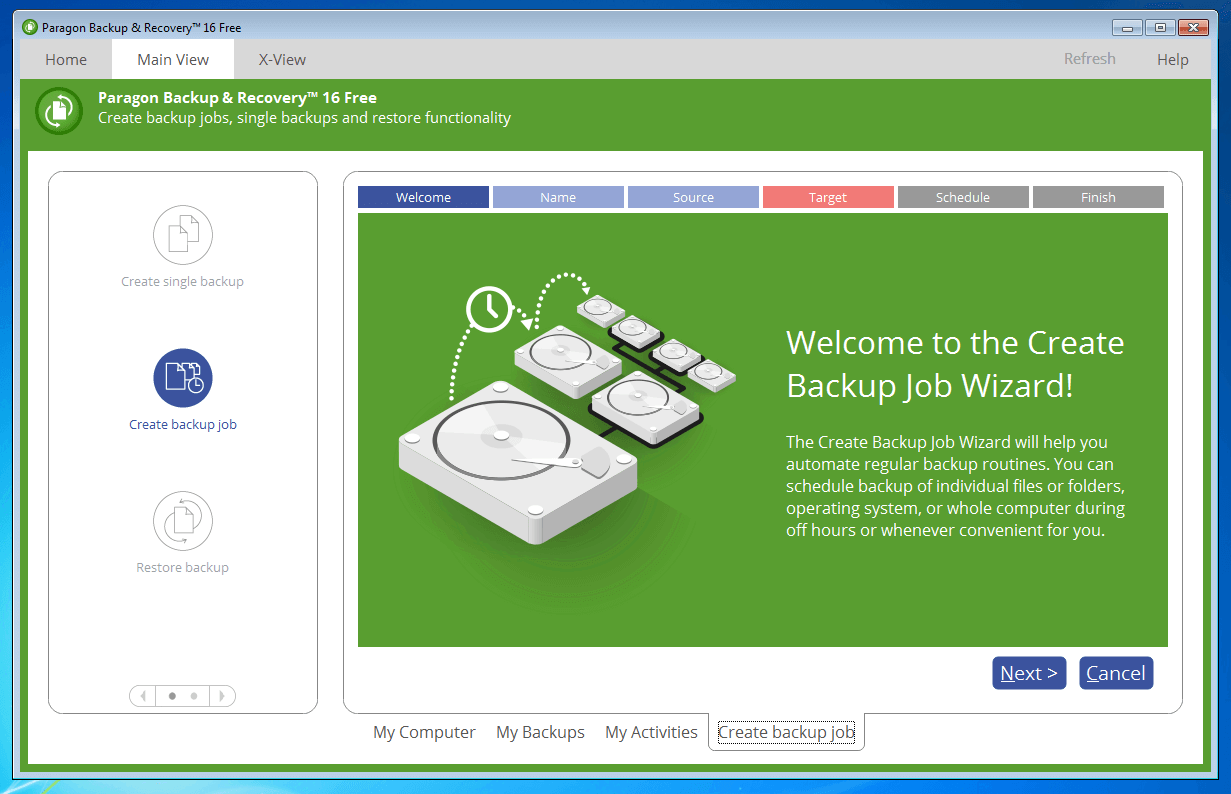
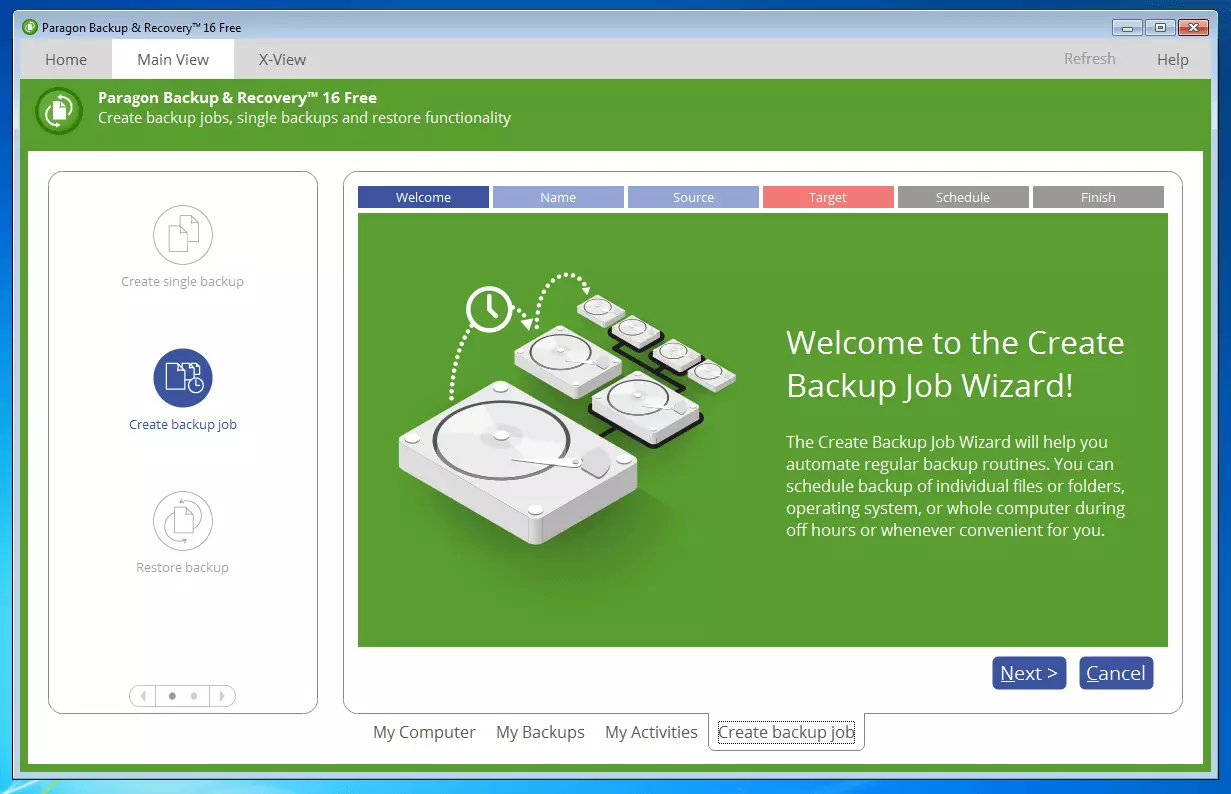
The software offers an appealing, well-designed interface and guides you through the backup process using a wizard.
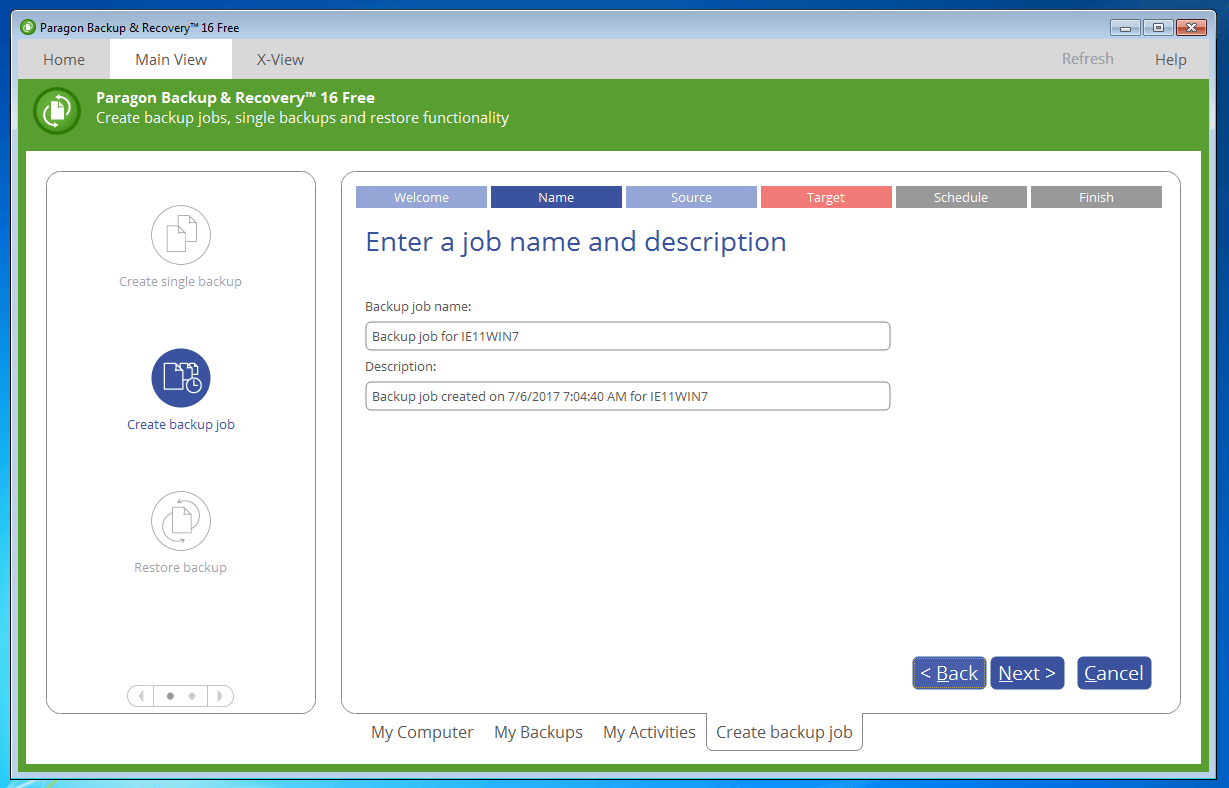
Each backup is automatically named and given a time stamp.
 Feng YuShutterstock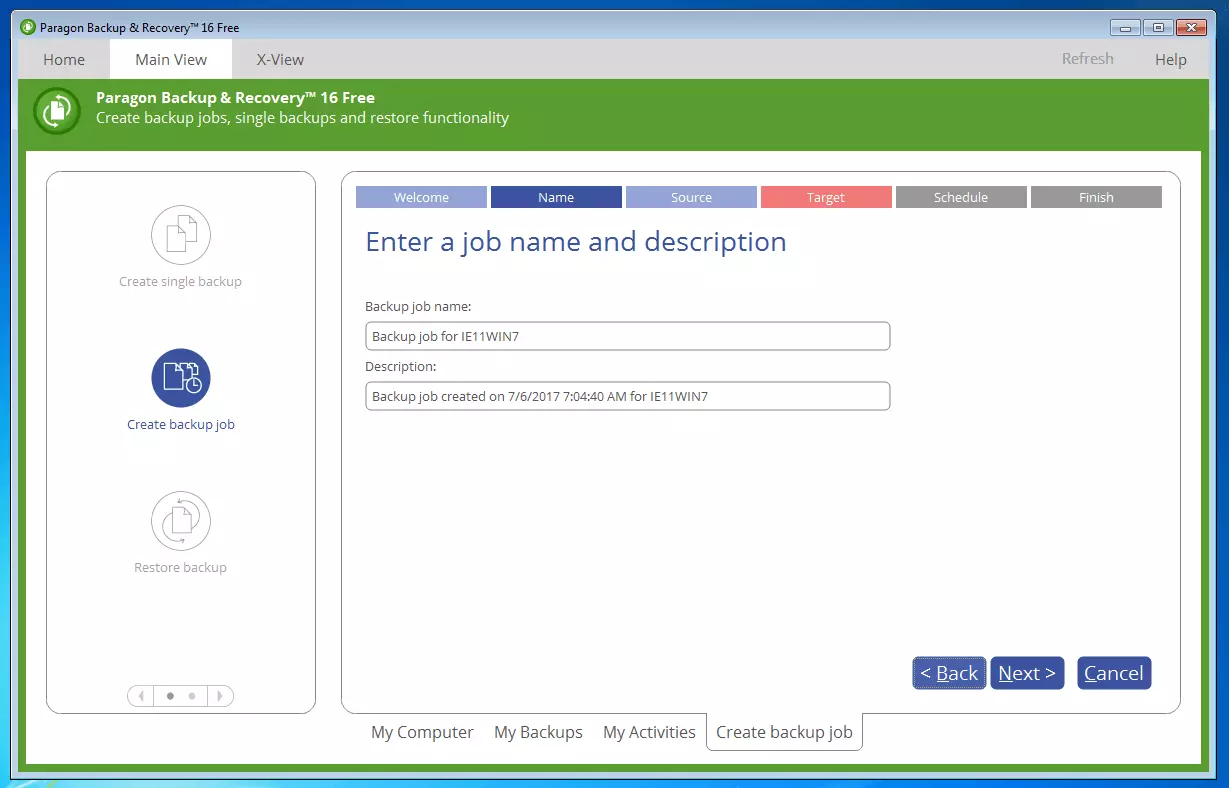
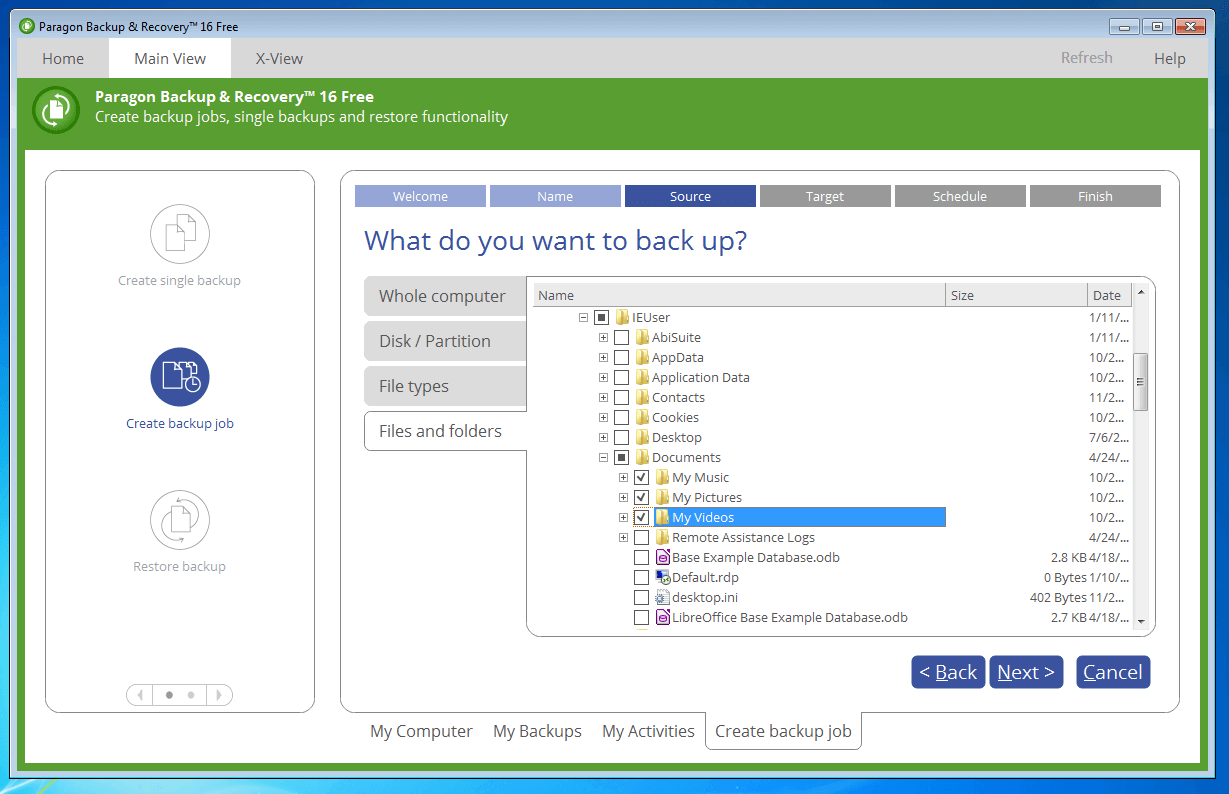
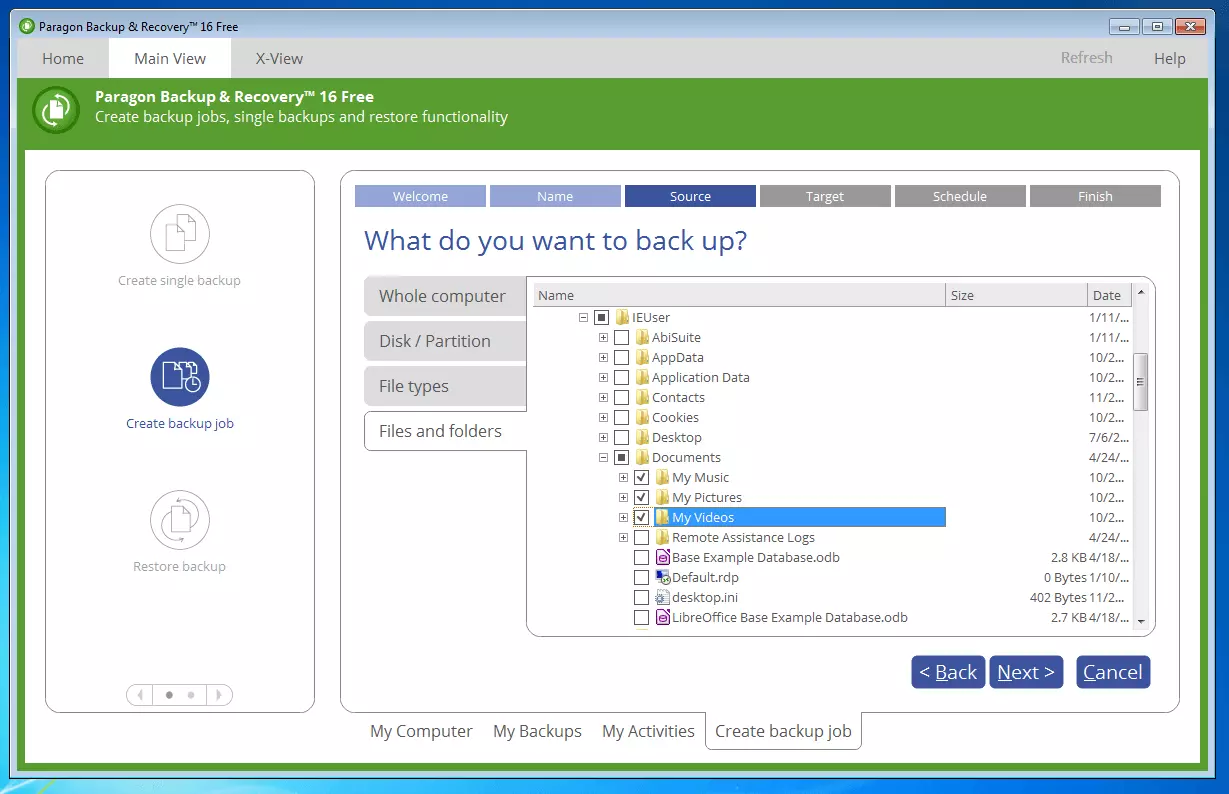
With Backup & Recover 16 Free, you can choose to back up the entire system including configurations, single hard drives and partitions, or chosen files and folders.
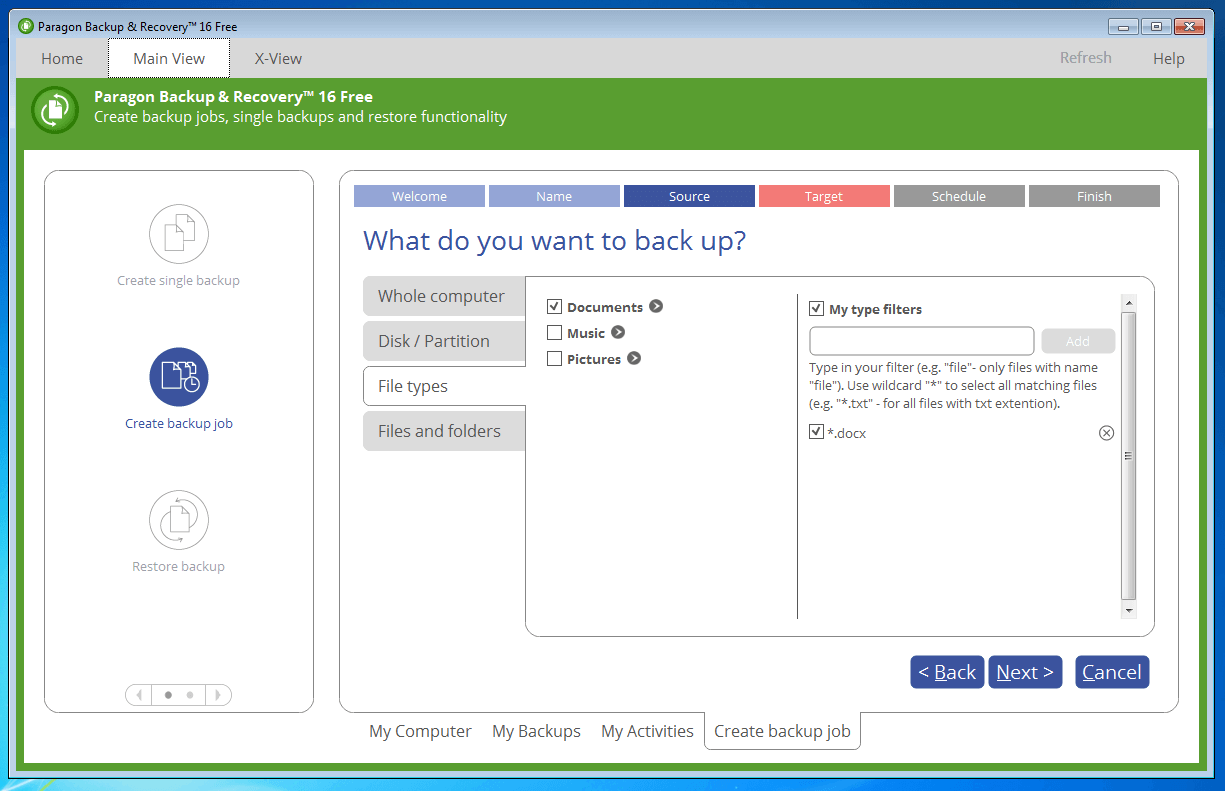
A filter function gives you the opportunity to only include particular file types in the backup plan.
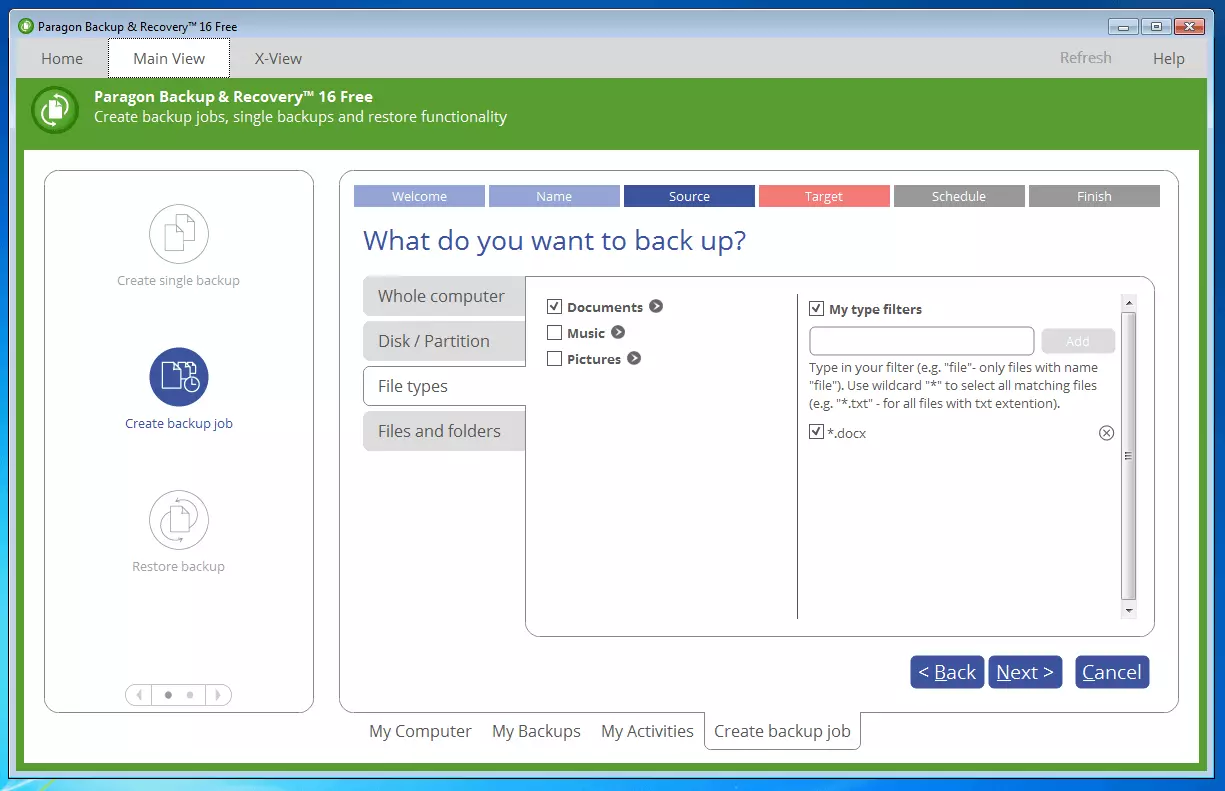
The imaging software supports local hard drives (HDD, SSD), external hard drives via USB and FireWire, RAID systems, network drives, and FTP/SFTP servers, as well as optical file storage like CDs, DVDs, and Blu-ray discs as destination media.
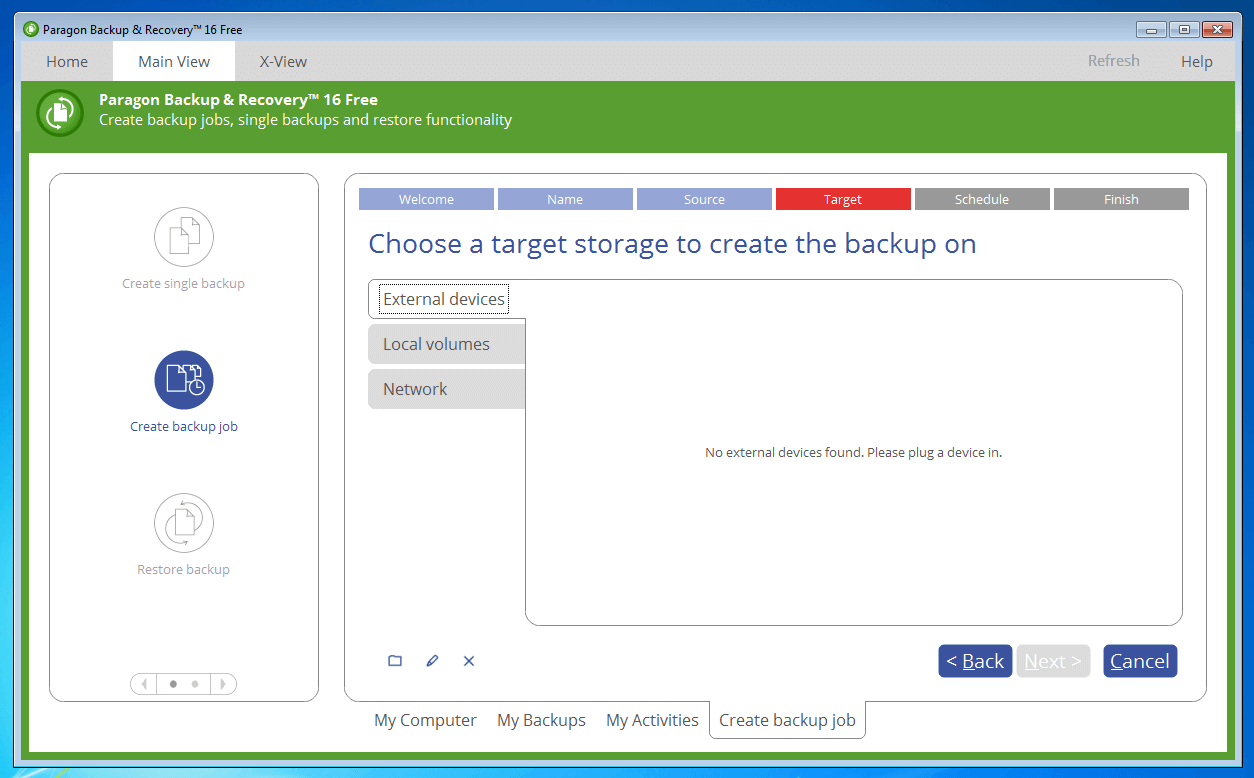
Backup routines are created with the help of a calendar function and so-called backup jobs.
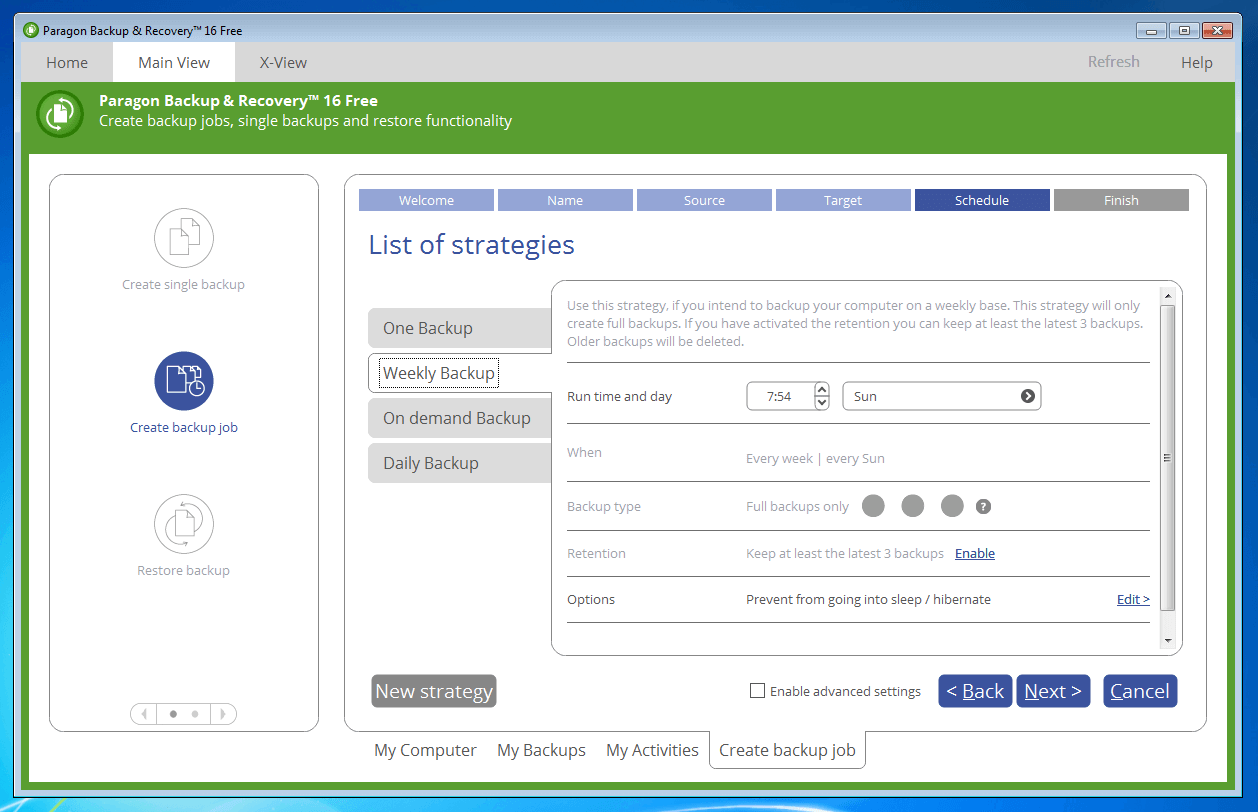
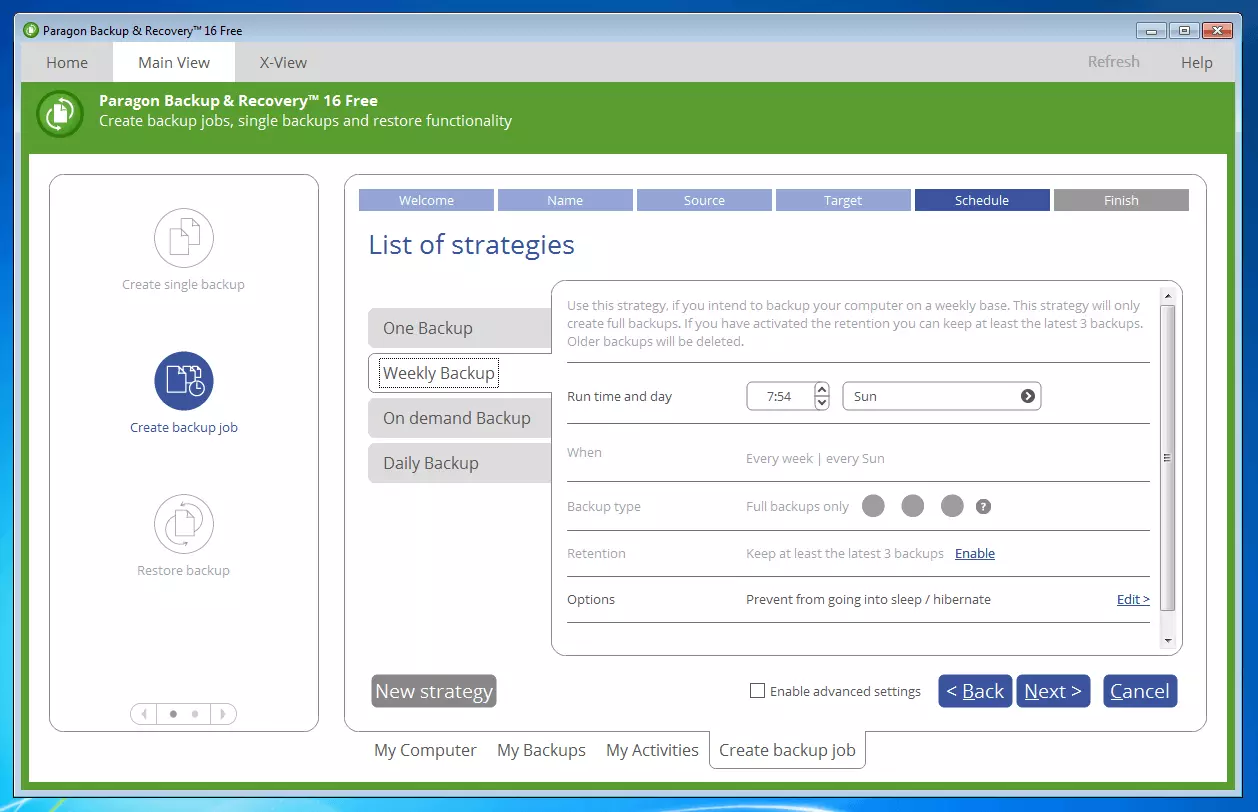
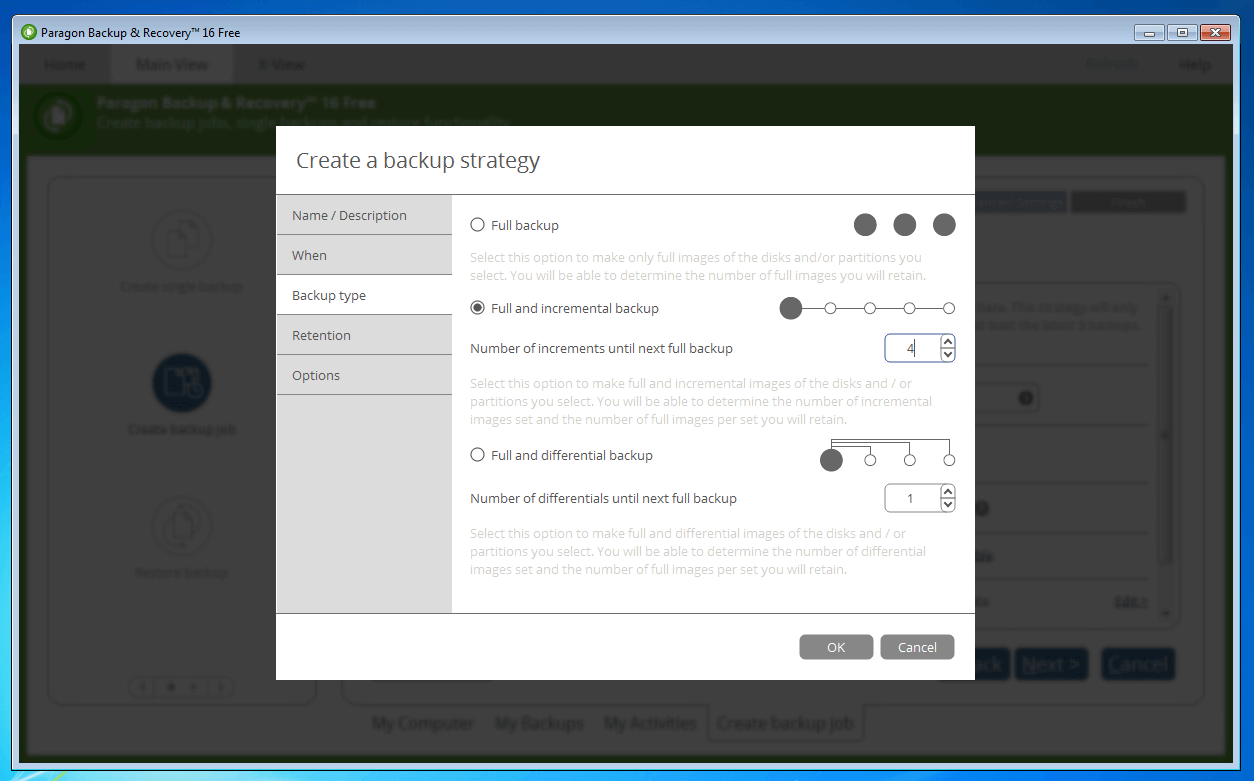
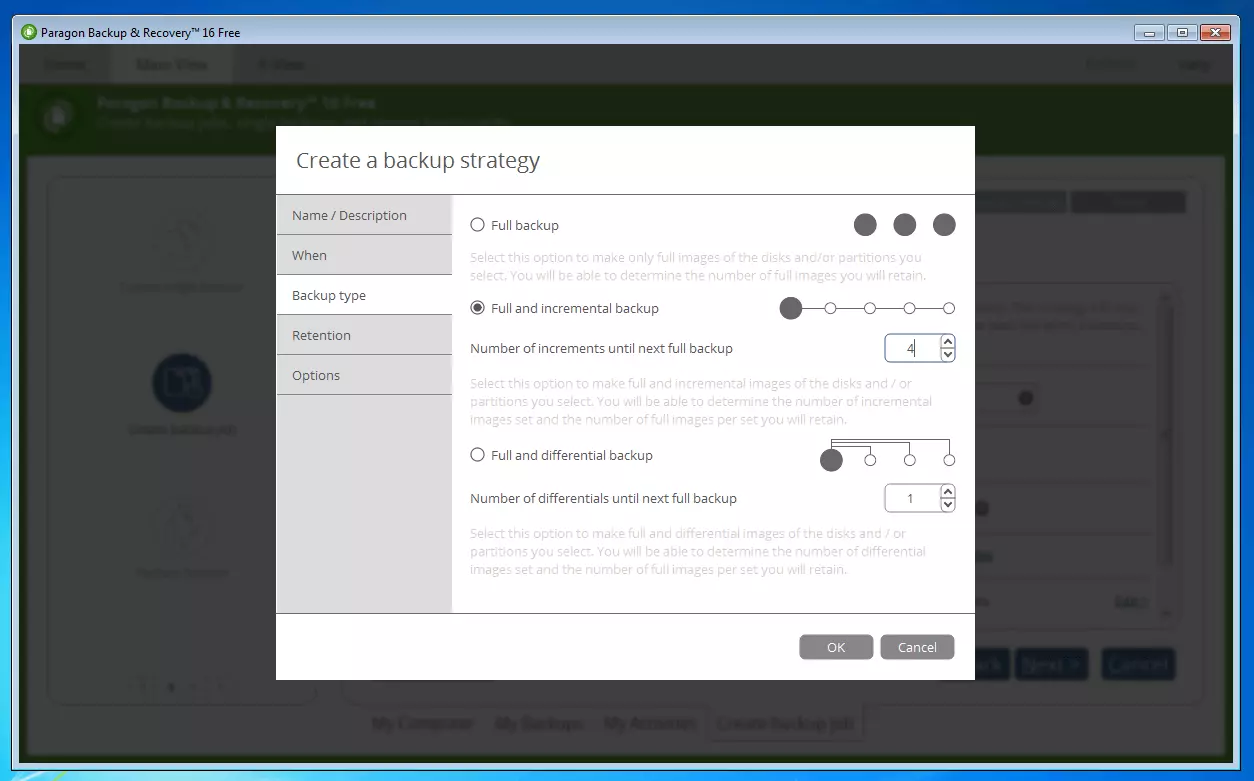
If the data security is implemented as a partial backup, then the number of incremental or differential backups can be adapted individually until the next full backup.
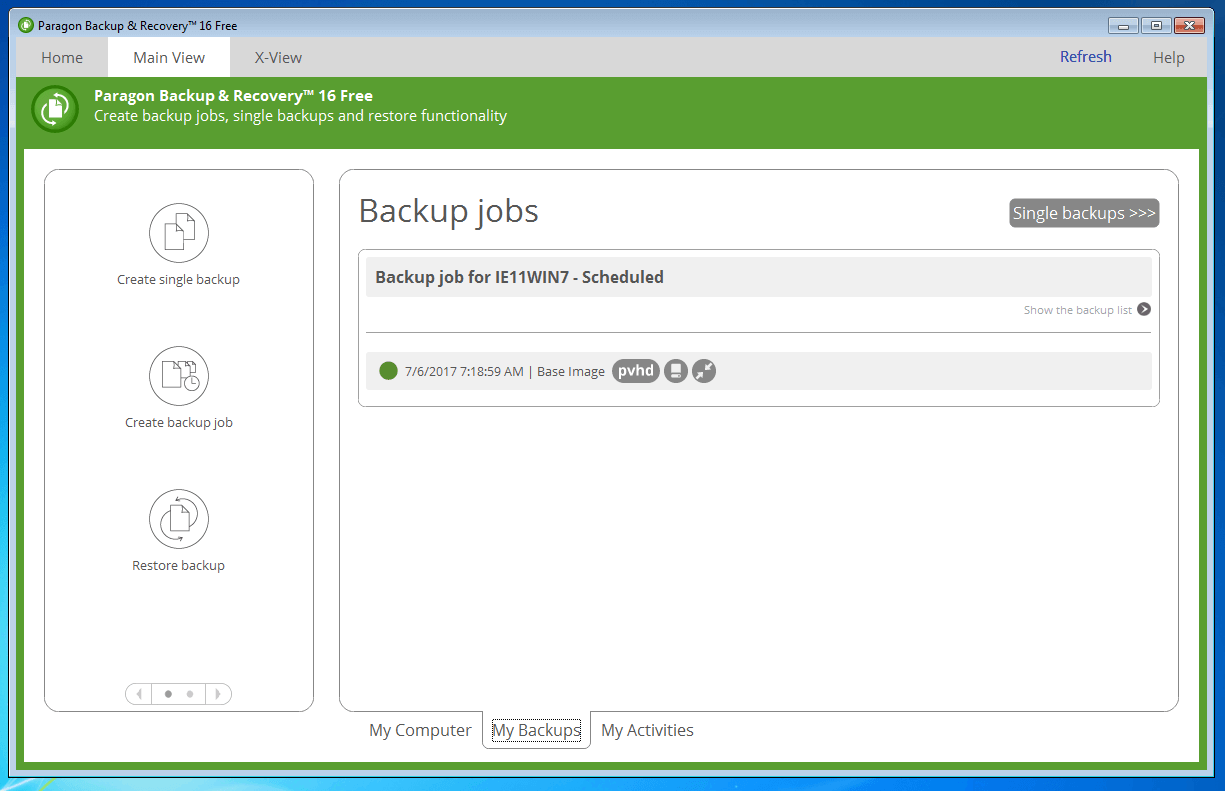
Each image-based backup is saved as a pVHD container.
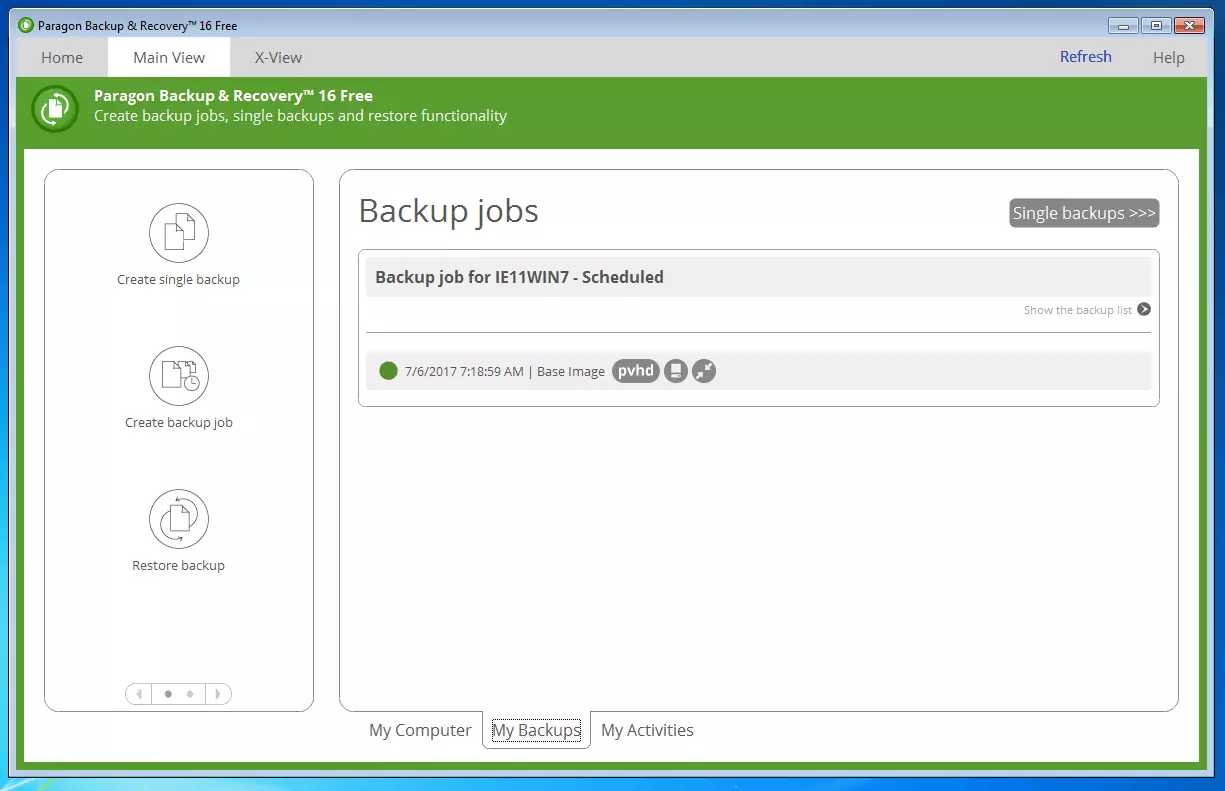
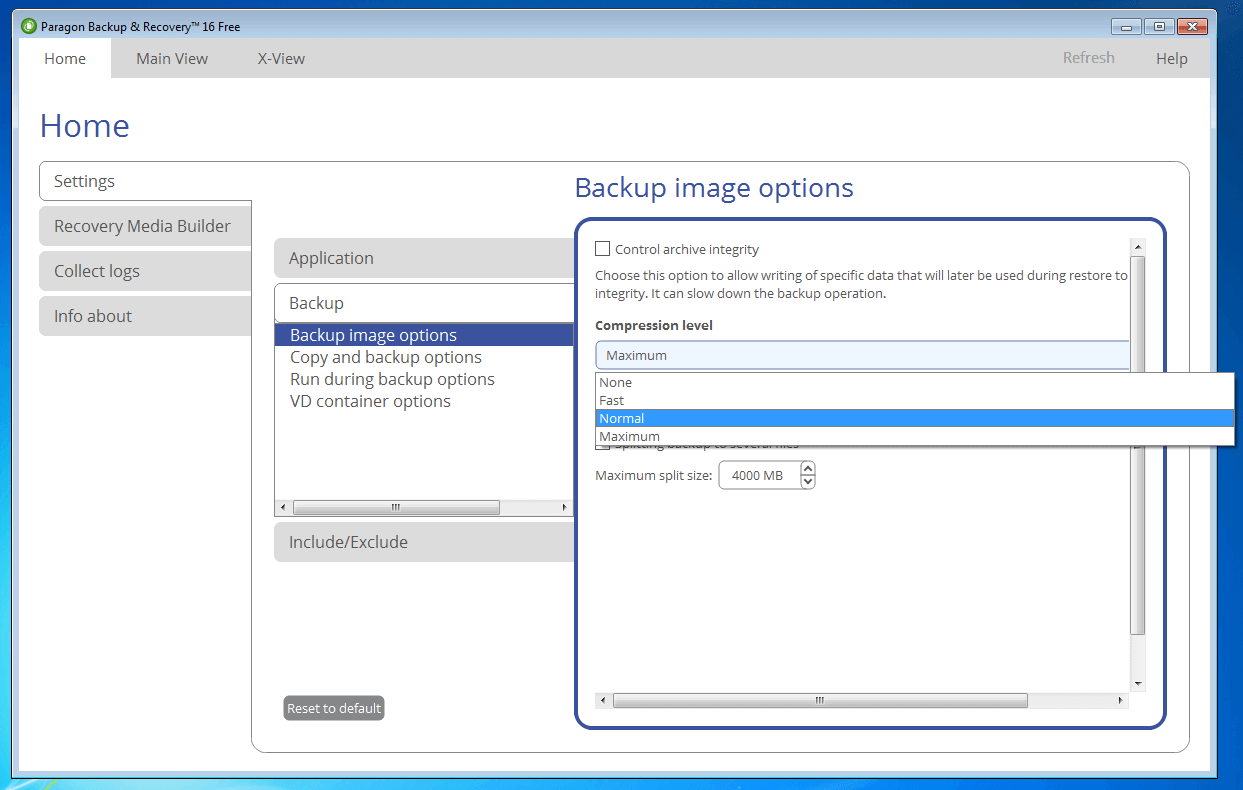
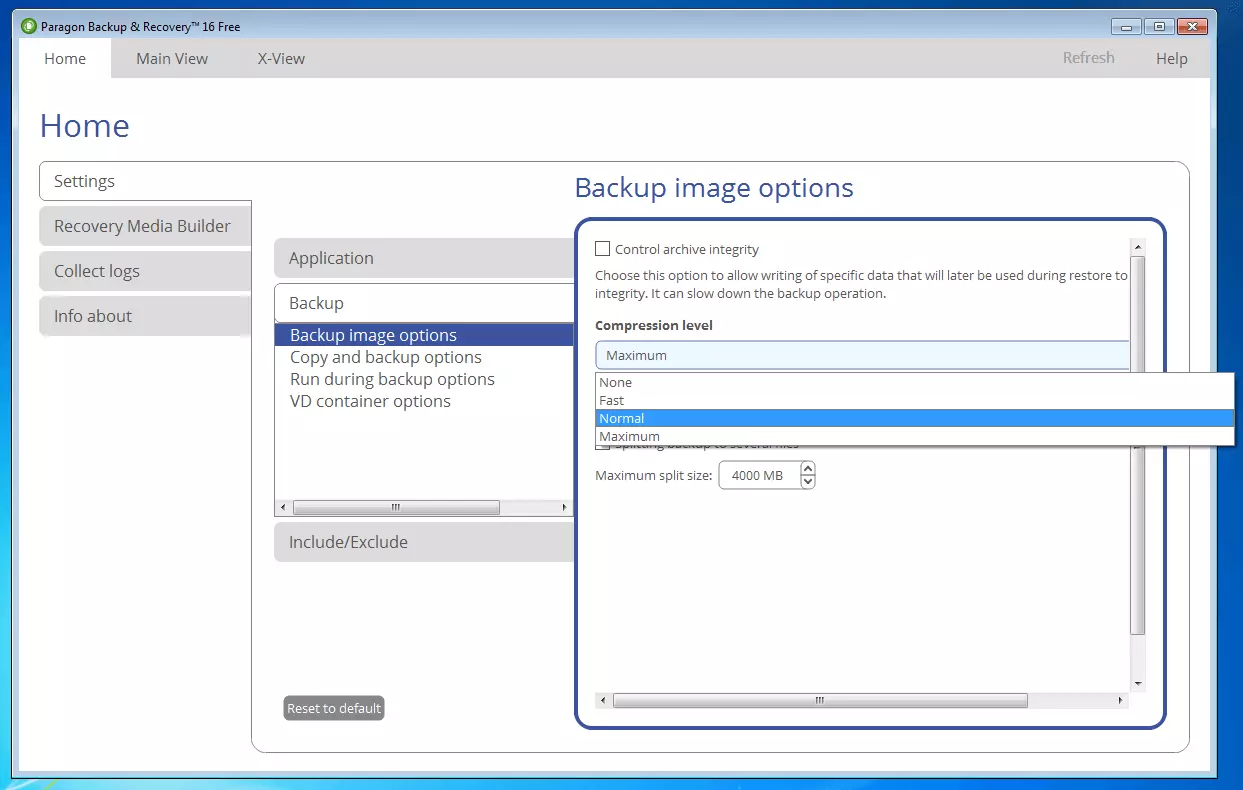
To prevent memory bottlenecks, Backup & Recovery 16 Free offers a retention function. If this is activated, backups that are no longer necessary are automatically deleted. To reduce the data throughput and storage space requirements, the image tool offers incremental and differential backup schemes as well as various compression grades.
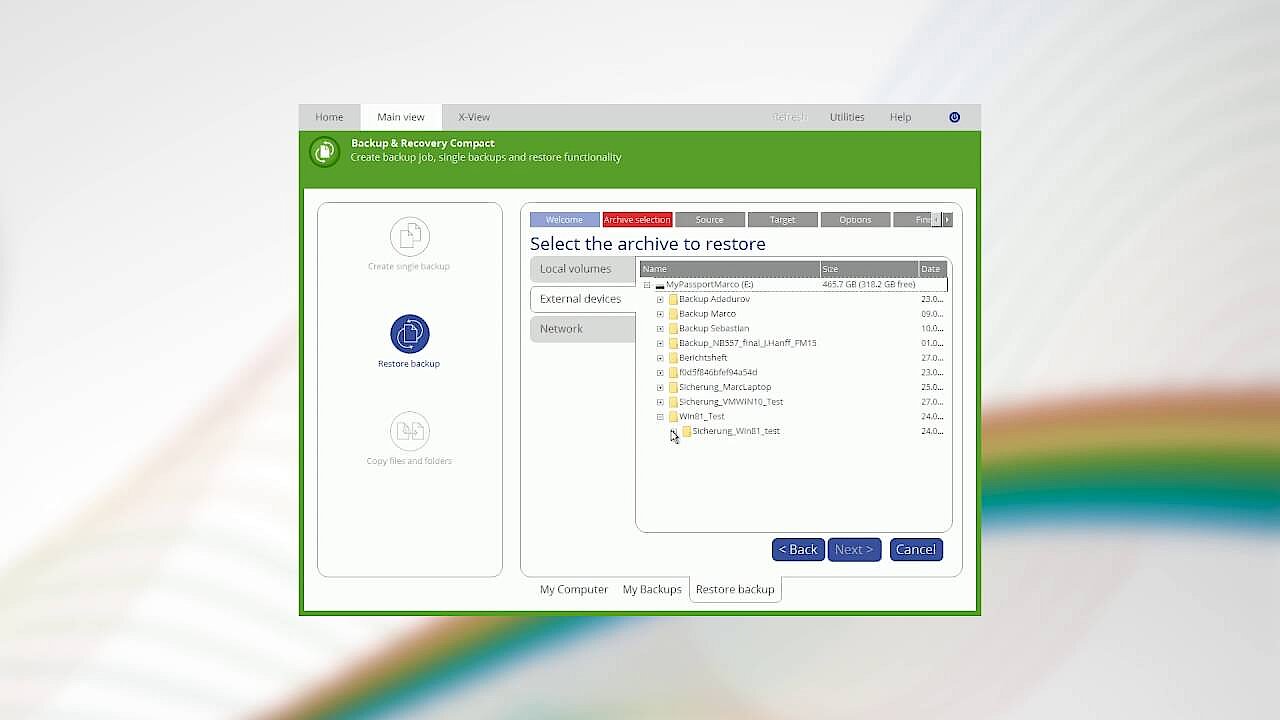
When recovering saved data, you have the option to restore complete hard drives and partitions or only selected files from the backup. In addition, backups can be directly integrated as a Windows drive using the UAG (Universal Image Mounter) method developed by Paragon.
Backup & Recovery 16 also offers the option to create bootable recovery media in the form of CDs, DVDs, or USB removable media. These are based on the minimalist operating system Microsoft Windows PE (WinPE) and enable the recovery of your system even if it’s not booting on its own.
| Benefits | Drawbacks | |
|---|---|---|
| ✓ Freeware with large range of functions | ✗ No encryption function | |
| ✓ Clear user interface | ✗ Both editions of Paragon Backup & Recovery 16 only offered for Windows | |
| ✓ Security and restoration of entire hard drives or individual files | ✗ Language of the user interface can’t be changed in the program: Each language version of the image tool is its own installation | |
| ✓ Backups integrated as Windows drives (UIM) | ✗ Free version only available for private users | |
| ✓ Compression |
 To display this video, third-party cookies are required. You can access and change your cookie settings here.
 Backup & Recovery 16 from Paragon already boasts a large range of functions in the free version. But products from the competition offer an encryption function by default. In this respect, developers have some work to do.
Clonezilla
Clonezilla is an open source image program that makes it possible to clone entire hard drives or individual partitions bit for bit and copy them to another data medium. The software was developed by the Taiwanese National Center for High Performance Computing (NCHC) and is available at no cost to users under the GNU General Public License (GPL) Version 2.
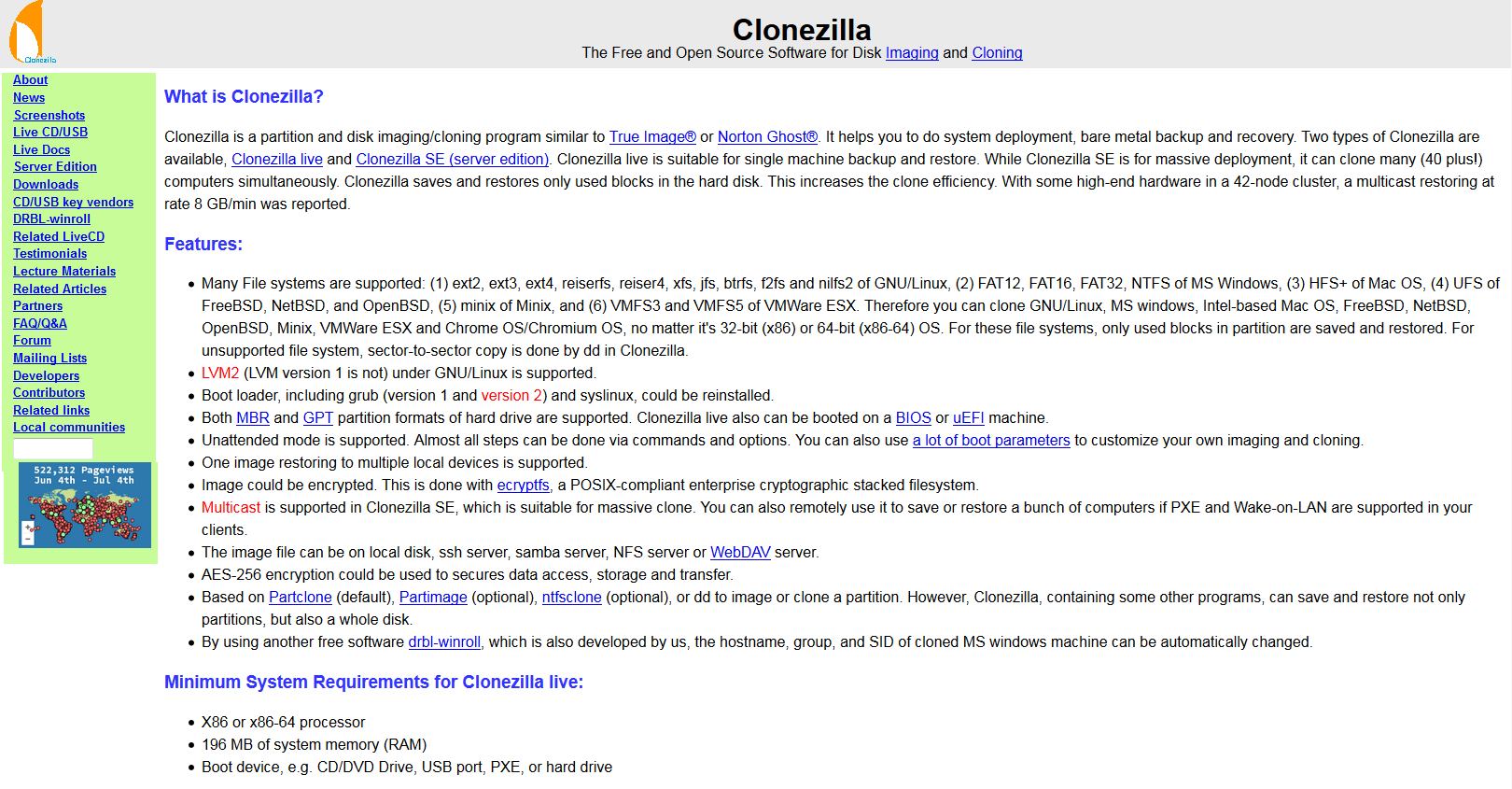
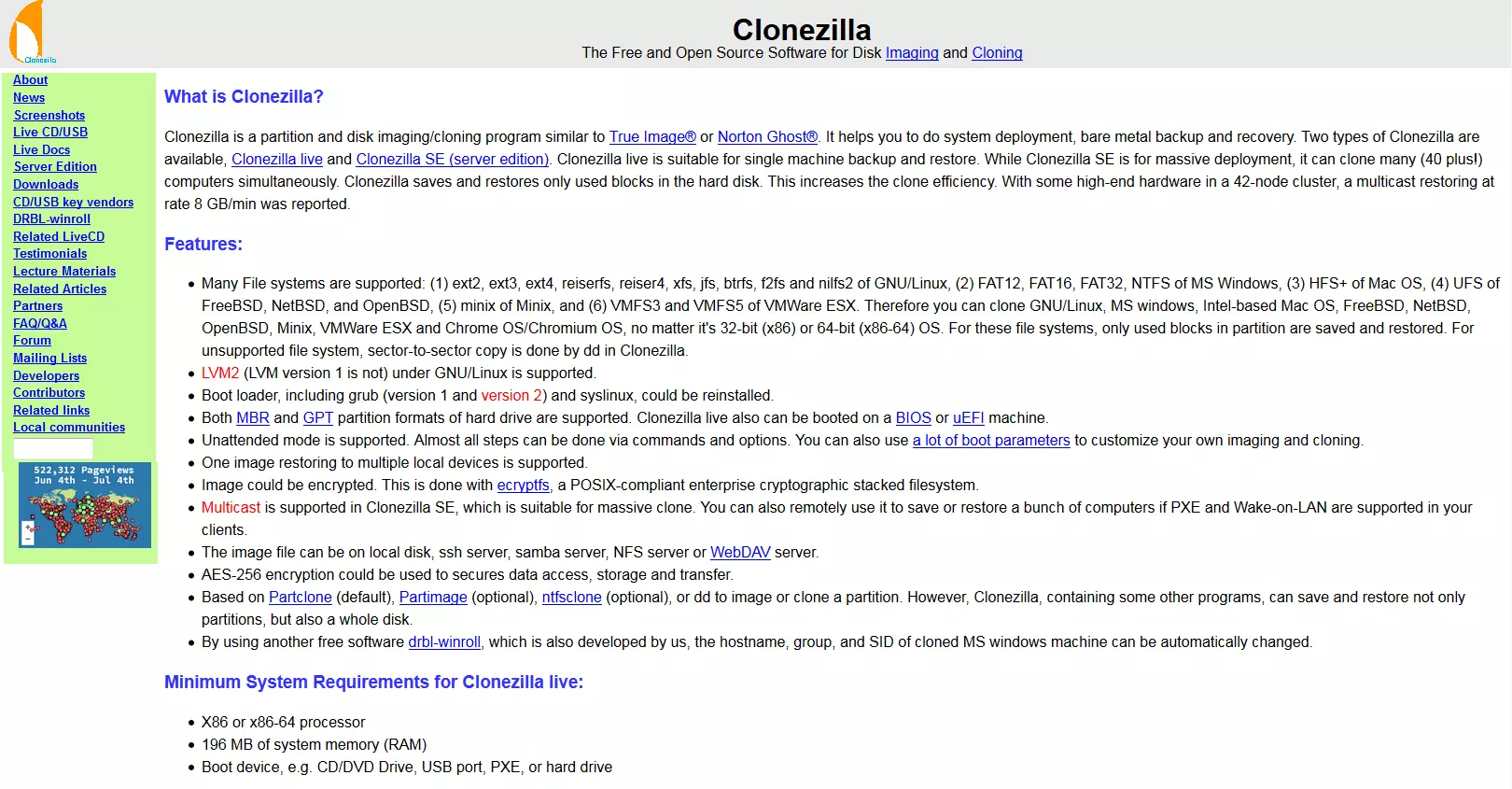
The imaging software is offered in two editions: Clonezilla Live and Clonezilla SE (Server Edition):
- Clonezilla Live is aimed at users who want to back up a single computer and recover it as needed. In this edition, the image tool doesn’t run as an application on the operating system, but instead requires a restart of the computer as a Linux-based Live System (Debian Live) from an external medium.
- Clonezilla SE – the server edition of the imaging software – is used in the context of network administration and makes it possible to clone more than 40 computers at the same time. The backup tool is a component of a DRBL server (Diskless Remote Boot in Linux). Client computers connected to such a server don’t boot from their own hard drive, but instead over the network. Data security and system recovery are run remotely. This spares an administrator the work to back up or restore every computer on the network manually via live CD.
The following points are in the foreground of the imaging software’s live edition, characterized by the following functional spectrum:
- Support of various operating and file systems
- Image-based complete backups of entire hard drives or individual partitions
- Encryption tools for image files
- Compression tools
To carry out a backup of your computer with the help of Clonezilla, you first need to create a live medium. Download Clonezilla Live as an ISO file from the provider website and burn it onto a CD or DVD. The image tool is also available in zip format for use on a bootable USB storage device.
Restart your computer and boot it with the created live medium. The boot menu of the imaging software will show on the screen. Clonezilla Live bots on BIOS as well as UEFI-based computers.
In addition to the debian-based Clonezilla version for BIOS computers, there is an UEFI version of the image tool based on Ubuntu.
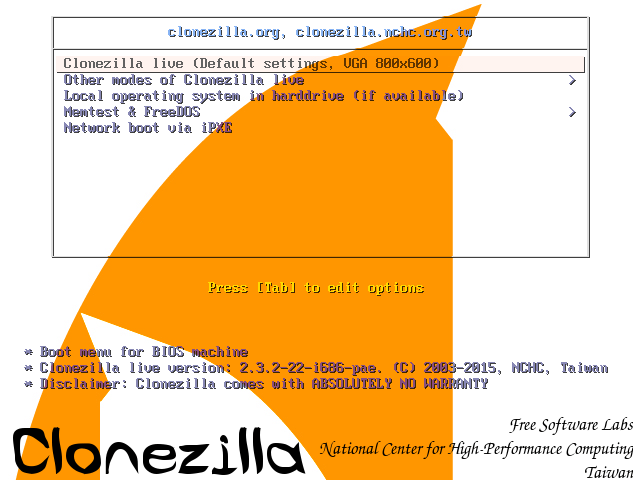
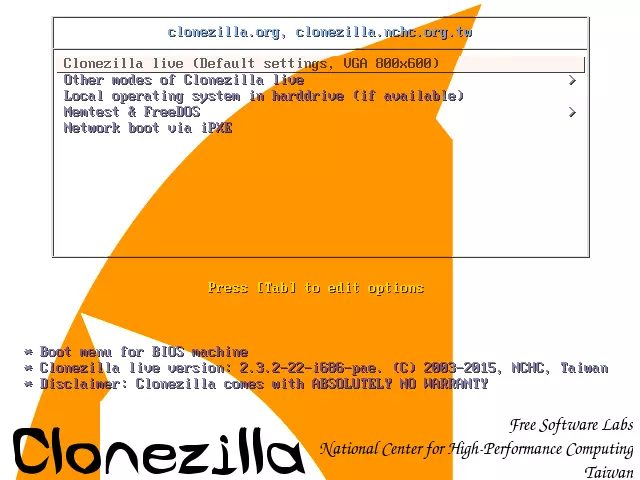
The live system of the backup software can be run in various modes. In addition to the recommended standard mode (Default settings) in the resolution VGA 800 x 600, multiple other modes of operation are available under “other modes”. Select “Safe graphic settings” to run the live system with secure graphics settings. Other hardware problems can be avoided by selecting “Failsafe mode.” Start Clonezilla in To RAM mode to copy the entire live system to the workbook. The external medium can be ejected. This mode is particularly useful when the computer doesn’t provide enough external connectors for storage devices.
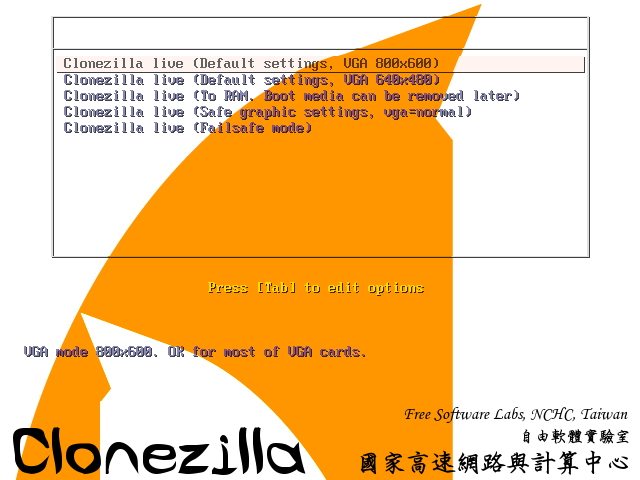
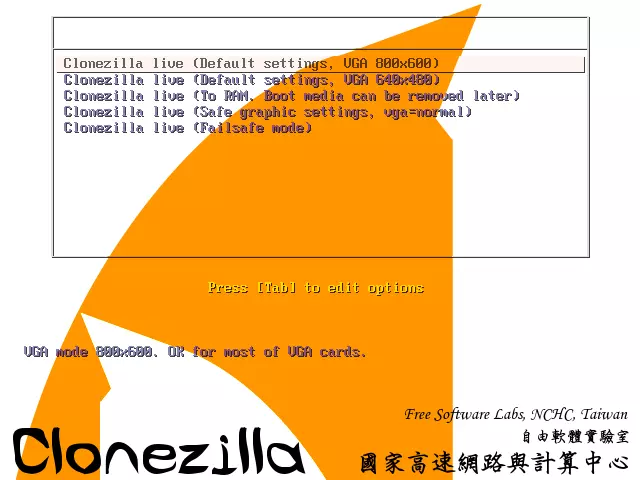
Once you’ve decided on an operating mode, select the desired language version and keyboard layout.
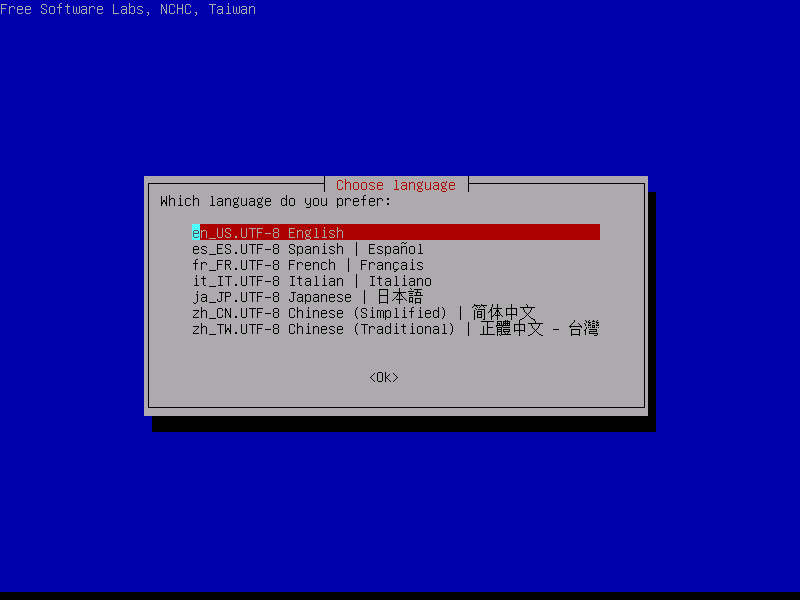
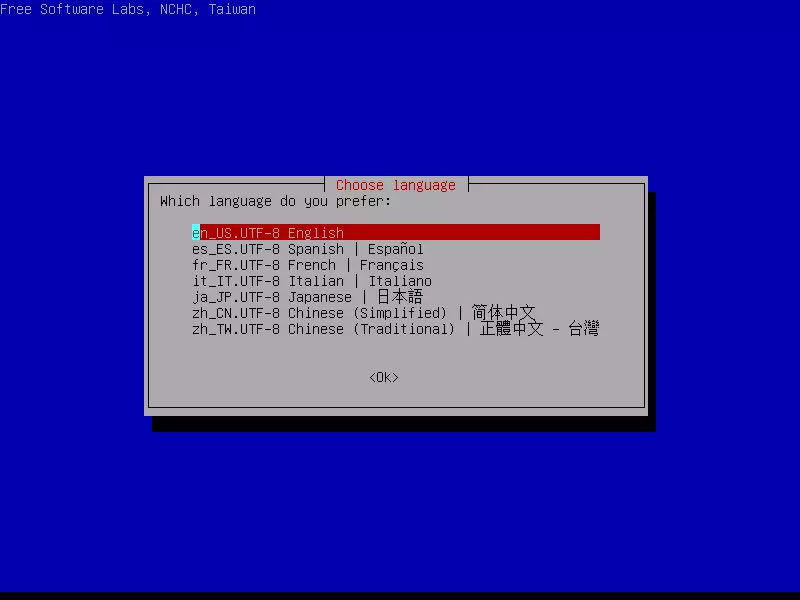
The current version of Clonezilla Live is available in multiple language versions.
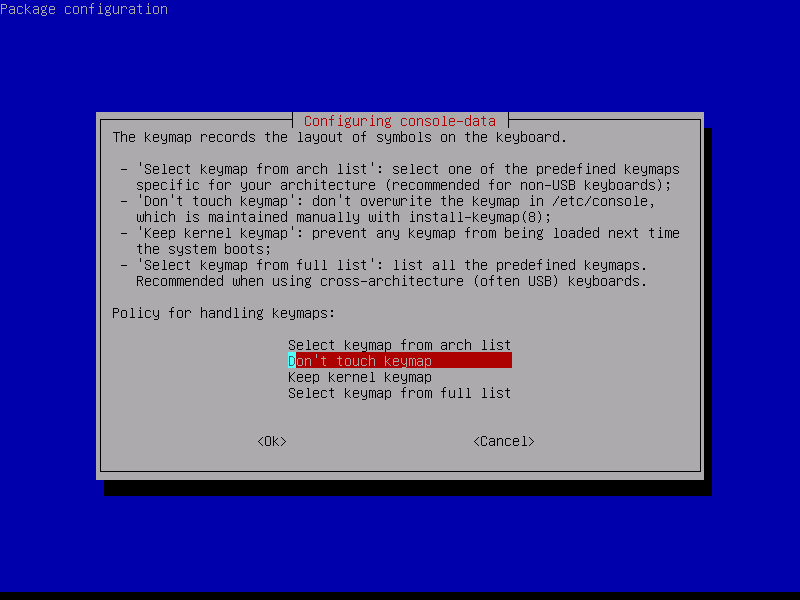
Click on “Select keymap from full list” and search for the keyboard layout “pc / qwerty / English / Standard / latin1 - no dead keys.”
You will then be asked if you want to start the backup tool or change to the command line. Select “Start_Clonezilla.”
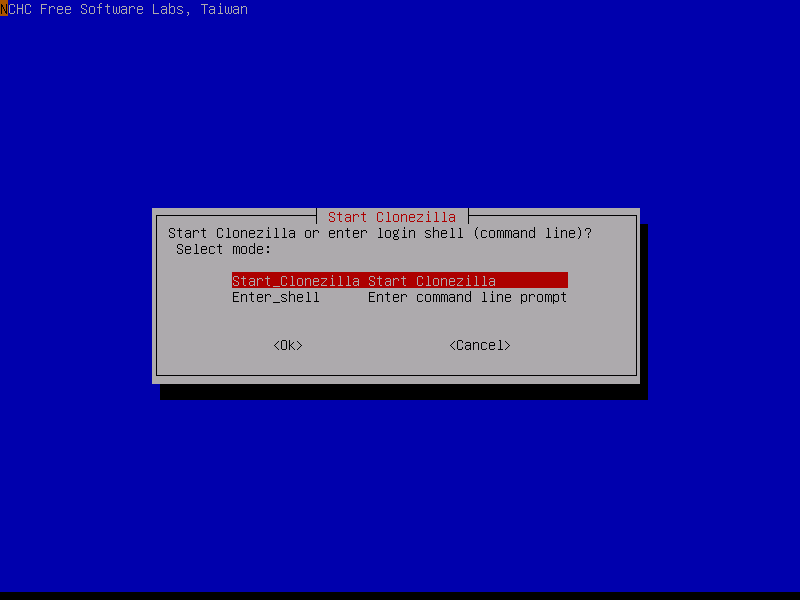
Backup and restoration operations with Clonezilla Live are carried out in two backup modes: “device-image” and “device-device.”
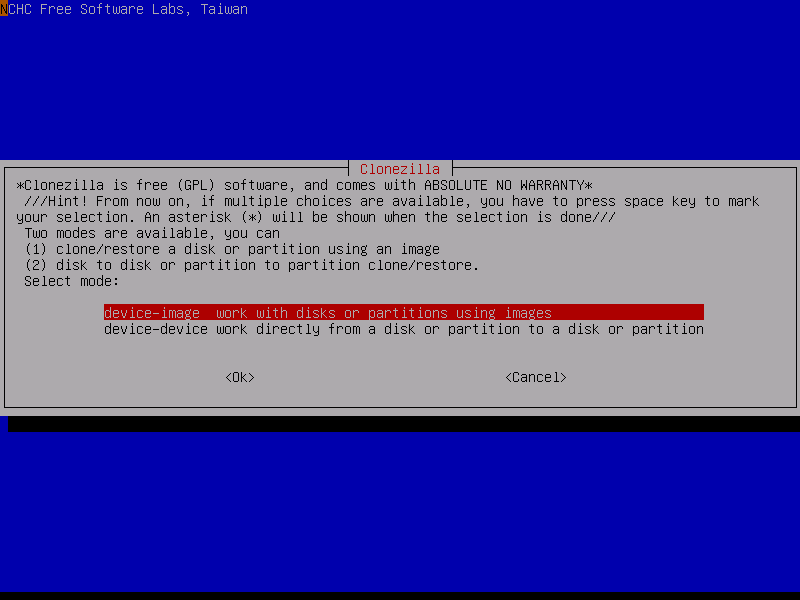
Select the “device-image” mode to select a backup as an image file or select an image for recovery. Alternatively, the “device-device” mode offers the possibility to clone data and so transfer it directly to another hard drive or recover it from one.
Clonezilla Live has the following options for the selection of destination or source device:
- local dev: Backup to or recovery from internal or external hard drive
- ssh_server: Backup to or recovery from an SSH server
- samba_server: Backup to or recovery from a Samba server
- nfs-server: Backup to or recovery from an NFS server
- enter_shell: Manual selection of storage destination or image source via command line
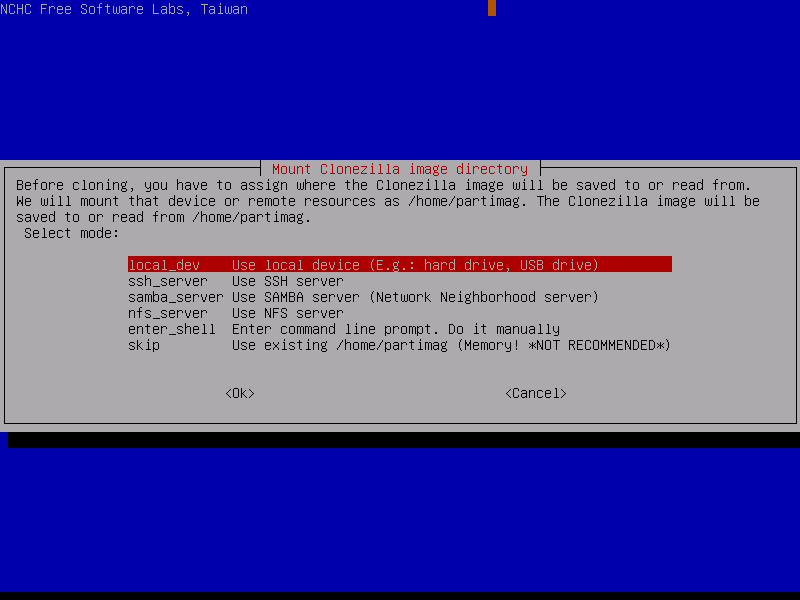
If the target or source medium has been selected, Clonezilla mounts it into the file system. This is followed by the selection of the partition as well as the subdirectory, which serve as the storage destination or image source.
Next, select one of five backup or recovery actions:
- savedisk: Back up a hard drive as an image file on the target medium
- saveparts: Back up a partition as an image file on the target medium
- restoredisk: Restore a hard drive from the image file on the source medium
- restoreparts: Restore a partition from the image file on the source medium
- recovery-iso-zip: Create an emergency medium (Live CD or USB storage device)
If you select one of the backup options (savedisk or saveparts), you’ll be prompted to select the hard drive or partition you want to back up and name the image file. If you select one of the recovery options (restoredisk or restoreparts), Clonezilla will ask which hard drive or partition the backup data should be written from. If you want to create a bootable emergency medium instead, select the recovery-iso-zip action.
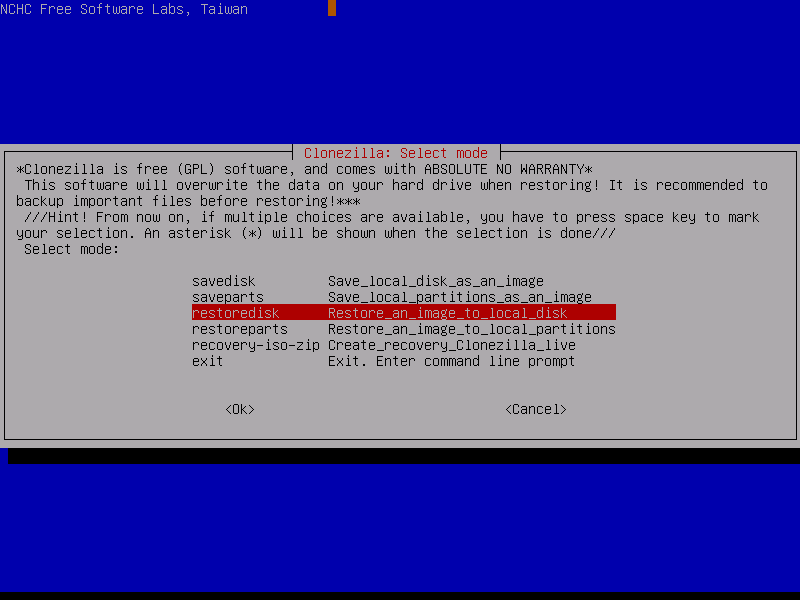
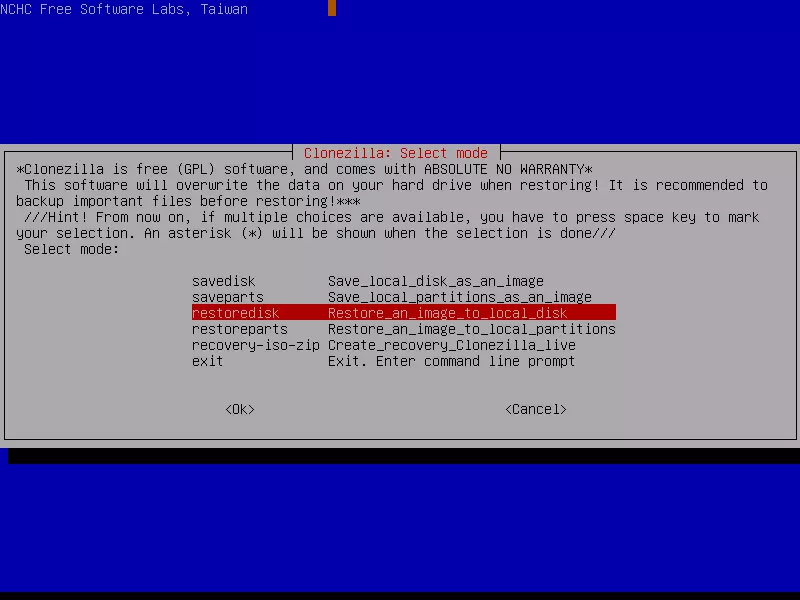
After you have decided on a backup or recovery option, Clonezilla displays a summary of the planned action. Confirm this with y (for yes) to set the process in motion. The progress of the backup or recovery process is displayed in a status line at the bottom of the screen. After the data transfer is finished, the imaging software closes itself.
Clonezilla doesn’t write the backup data in its own image file, but instead splits the image into multiple 2GB files. This prevents users of outdated FAT 16 file systems from encountering the file size limit of 4GB. The files of the storage image are placed in a subdirectory with the chosen image name. The storage requirements of the image files are reduced in accordance with one of the following compression methods: gzip, bzip, lzo, lzma, xz, or lzip.
When creating the image, Clonezilla relies on a series of source-based standard programs:
- Partclone: Backup tool for the file formats FAT, NTFS, ext2/ext3/ext4, reiserfs, xfs, HFS Plus, UFS2, VMFS (from Version 0.2.3)
- Partimage: Command line program for backups of the file formats FAT, ext2/ext3, reiserfs, xfs, jfs
- ntfsclone: Command line program for backups of NTFS file systems
- dd: Command line program for bit-exact copying from hard drives or partitions
To save storage space and speed up the backup or recovery process, Clonezilla only copies occupied sectors for all supported file systems. The dd tool, integrated in Clonezilla, makes it possible to back up file systems that aren’t supported. In this case, a 1-to-1 copy takes place for all sectors.
Do you want to encrypt your image files? That’s also possible with the open source tool. Clonezilla Live uses the freeware eCryptfs to protect data from third-party access with an AES-256 key.
The operation of the imaging software (starting the application via boot medium, input only via keyboard) may be unfamiliar to younger users when compared to today’s standards. User interface and menu navigation are clearly laid out, though, and furnished with helpful tips.
Regarding backup schemes, Clonezilla is more restrictive than modern image tools. Differential and incremental backups are not supported. The same goes for backup schedules and automatic data backup. Clonezilla also only clones at the bit level. Backups of individual folders or files can’t be made with the image tool.
| Benefits | Drawbacks | |
|---|---|---|
| ✓ Freeware | ✗ Only full backups | |
| ✓ Open Source | ✗ Backups on the file level not supported | |
| ✓ Encryption | ✗ Backup schedules not supported | |
| ✓ Compression | ||
| ✓ Using command line program dd, Clonezilla can also create images of unknown file systems |
The freeware Clonezilla offers a unified user interface for various Linux-based backup tools, and for years has been one of the standard solutions for image-based backups. But Clonezilla can’t compete with the range of functions of modern backup tools. Users who only want to make partial backups or automatically schedule the backup process should choose another software.
DriveImage XML 2.60
DriveImage XML 2.60 from Runtime Software is the competition to Paragon Backup & Recovery, and is marketed with a dual license system. While the image tool is free to private users, commercial use requires the purchase of a commercial license for 5, 10, 20, 50, or 100 users. The purchase includes 2 to 10 support requests, and software updates for one year.
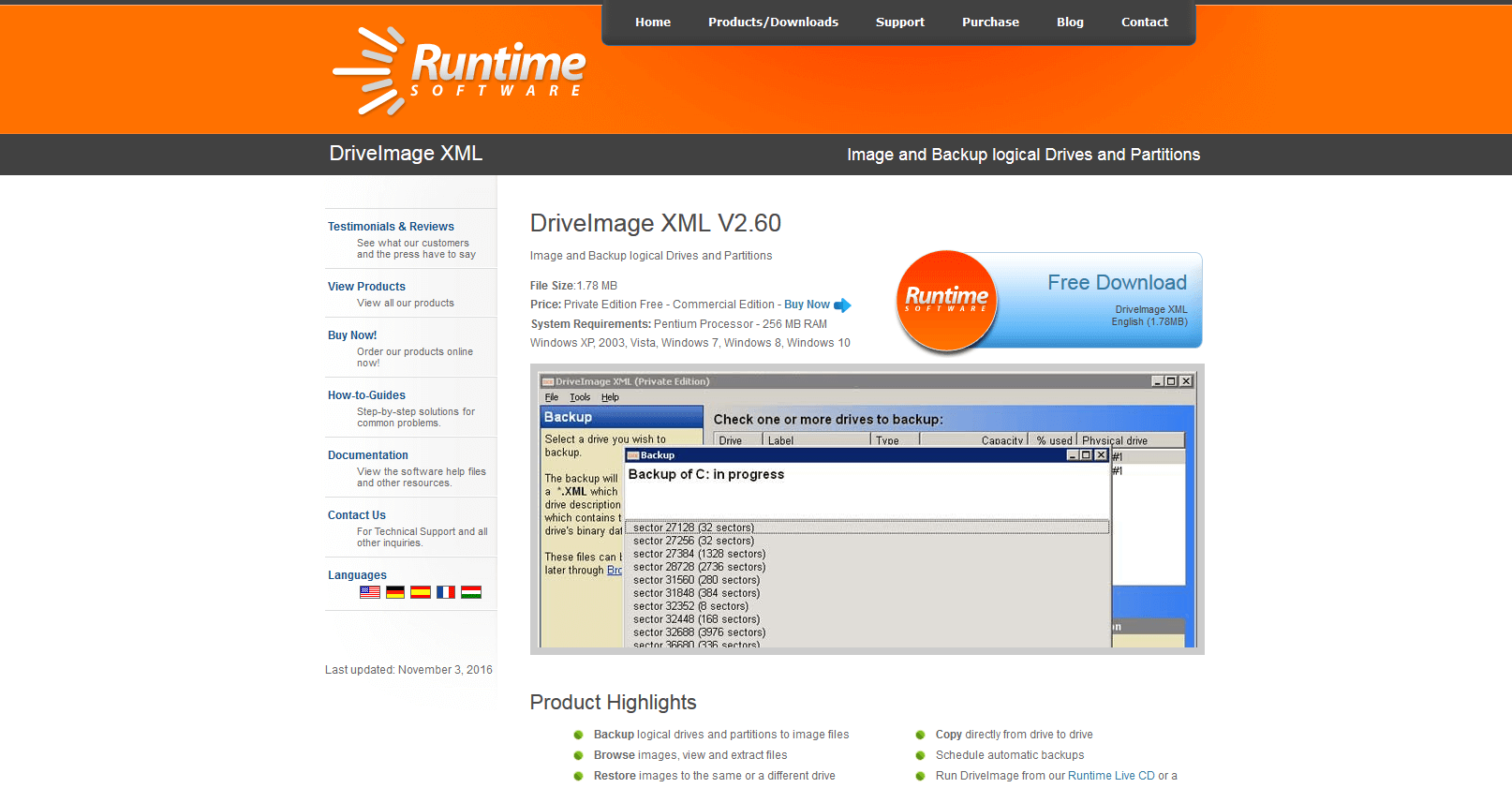
Both editions of the imaging software offer users the same range of functions:
- Image-based backups for logical drives and partitions
- Copy function from one drive to another
- Restoration of image-based backups on any target drive
- Extraction of individual files and folders from created images
- Calendar function for automatic backups
- Creation of a boot medium (Runtime Live CD or WinPE-Boot CD)
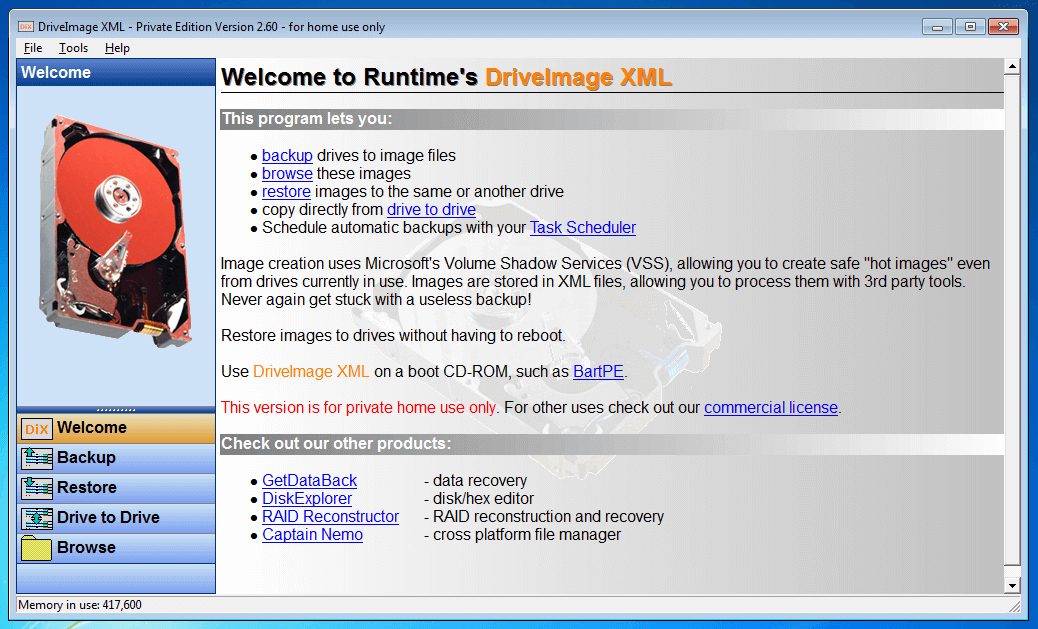
As opposed to Acronis True Image 2017 and Paragon Backup & Recovery 16, the current version of DriveImage XML only supports image-based full backups. Backups of selected files or partial backups can’t be carried out with the simple imaging software.
To back up your data, first select the source drive or desired partition. The setup of backup plans is done with a wizard, just like with Paragon Backup & Recovery 16.
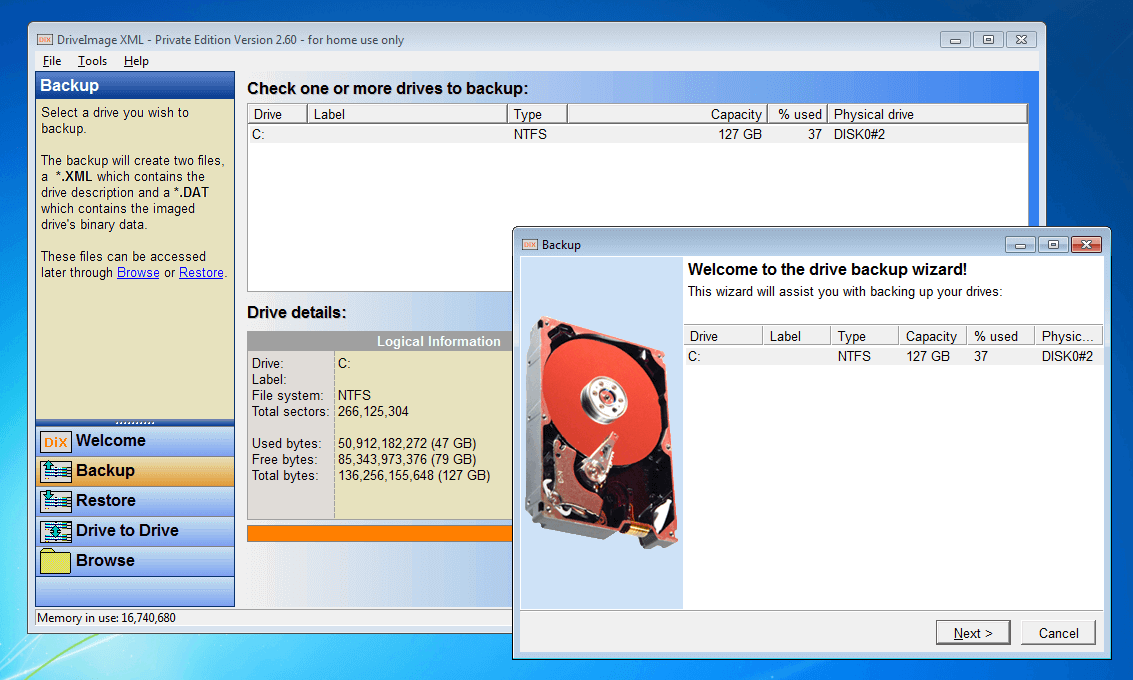
Then specify a logical or physical hard drive as the destination medium and define the imaging options. A direct backup isn’t possible on optical data carriers (CDs, DVDs, Blu-ray discs, etc.).
DriveImage XML offers three compression levels: None (no compression), fast (minor compression), and good (high compression).
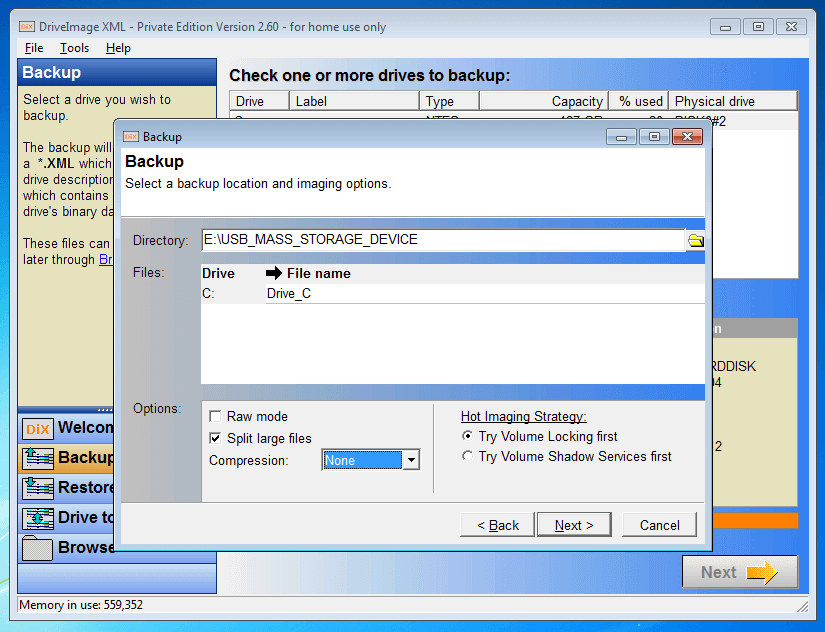
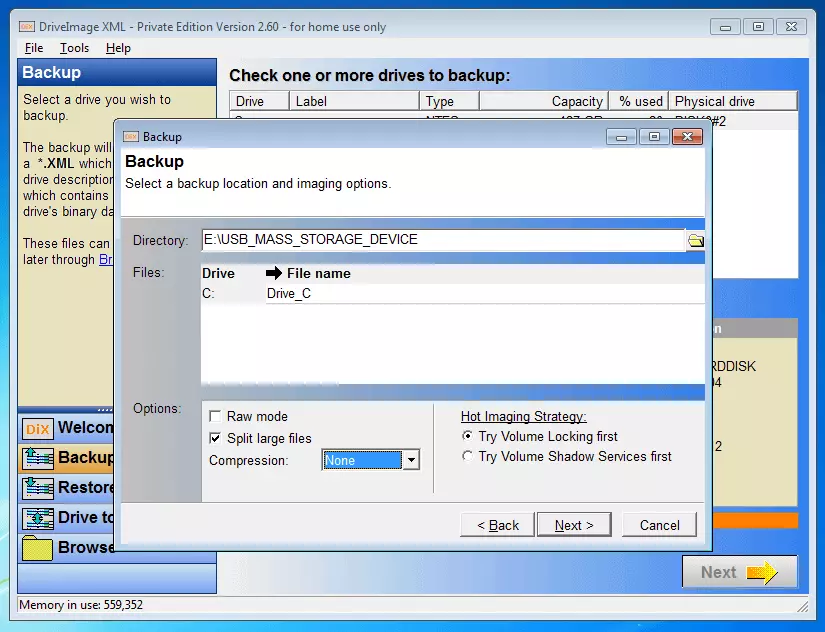
Backup files are created as so-called “hot images”. Select the “Try Volume Shadow Service first” option to have DriveImage XML access the Volume Shadow Copy Service (VSS), introduced with Windows XP, which allows you to mirror running discs.
Use the “Raw mode” function to create a 1-to-1 copy of the selected data. In the standard settings, DriveImage XML only copies occupied sectors to the destination medium.
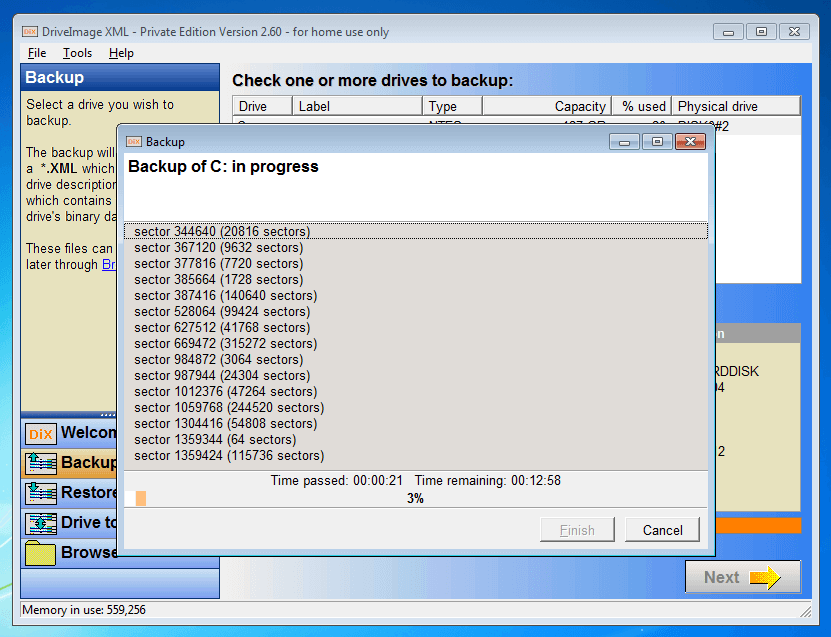
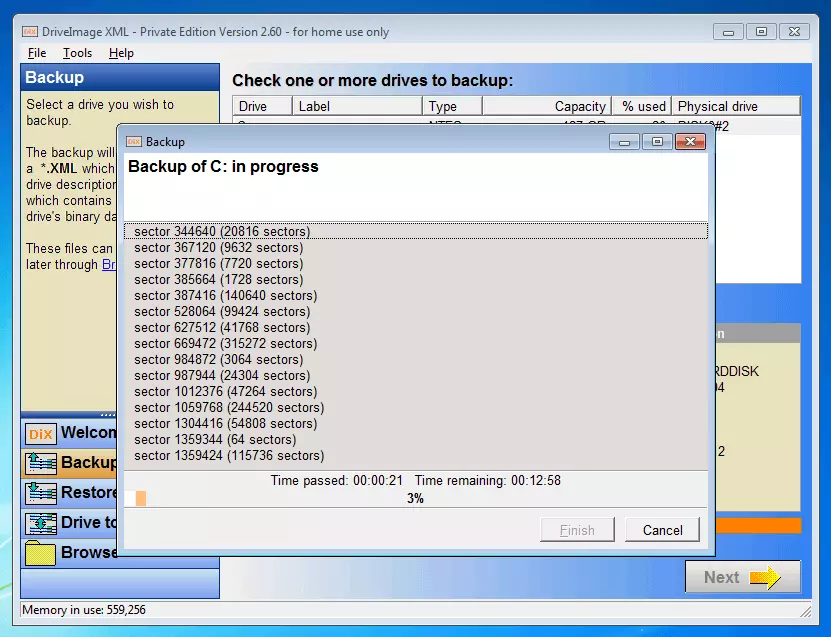
Each backup consists of an .XML file that contains a description of the copied drive as well as a .DAT file that contains the actual image in the form of binary data.
Data saved as an image can be completely recovered using the restore function. Alternatively, DriveImage XML also offers a browse function based on the .XML file that allows you to search through images and extract selected files or folders.
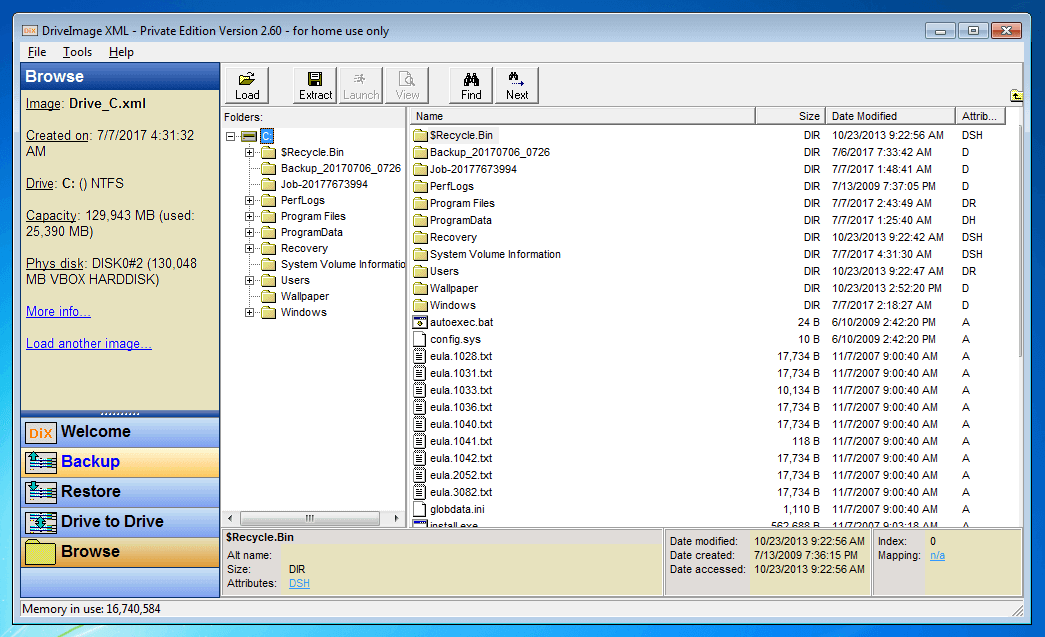
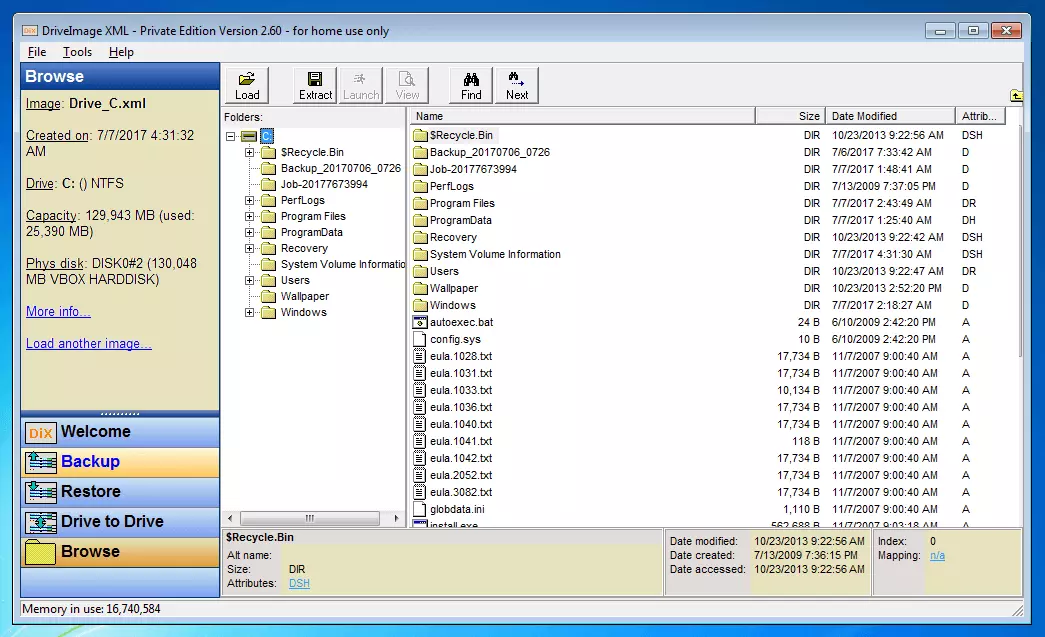
The imaging software’s user interface is rather old-school and unclear when compared to its competitors, Acronis True Image 2017 or Paragon Backup & Recovery 16. The operation is less intuitive, and full documentation is missing. Instead, Runtime Software refers to YouTube videos and third-party tutorials.
| Benefits | Drawbacks | |
|---|---|---|
| ✓ Freeware (for private use) | ✗ Poor documentation | |
| ✓ Restoration of entire hard drives or individual files | ✗ Confusing user interface | |
| ✓ Active drive backups possible thanks to VSS | ✗ No partial backups possible | |
| ✓ Compression | ✗ No incremental or differential data backups possible | |
| ✓ Compact download | ✗ No encryption function |
 To display this video, third-party cookies are required. You can access and change your cookie settings here.
 DriveImage XML 2.60 is missing important functions like backup schemes for partial backups and encryption possibilities that other freeware providers have long included as standard.
Aomei Backupper Standard 4.0.4
The image tool Backupper from Aomei is available to private and commercial users in the version AB Standard 4.0.4 as freeware with a limited range of functions. If you need additional backup features or to backup server data, then you can turn to the fee-based editions AB Professional or AB Server. Aomei also provides two versions of the imaging software directly to service providers with Backupper’s Technician and Technician Plus. The software supports the operating systems Microsoft Windows XP, Vista, 7, 8, 8.1, and 10, as well as Windows Server 2003, 2008 (R2), 2012 (R2), and 2016. The purchase of a permanent license includes a lifelong update service and a free upgrade to subsequent versions.
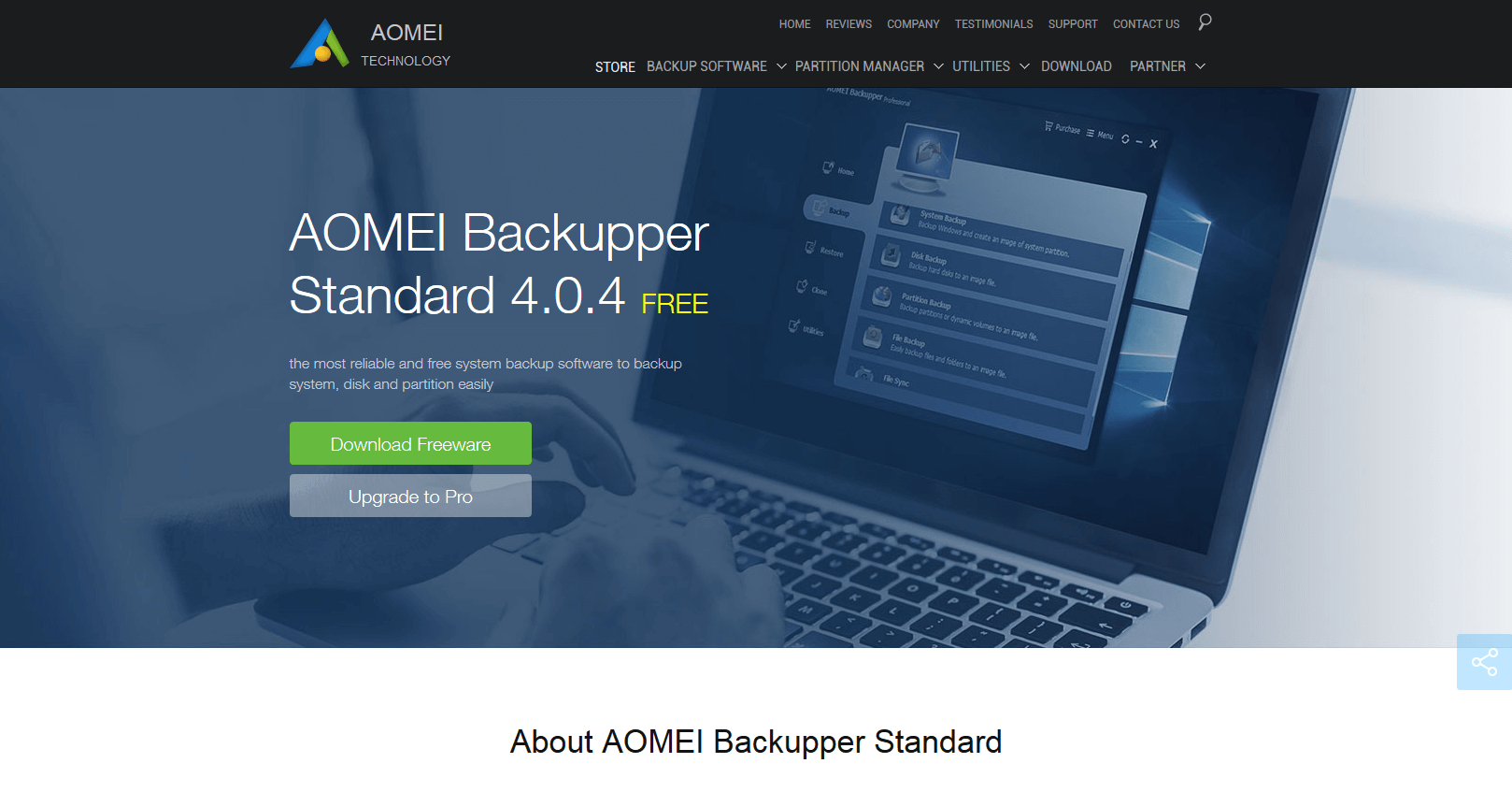
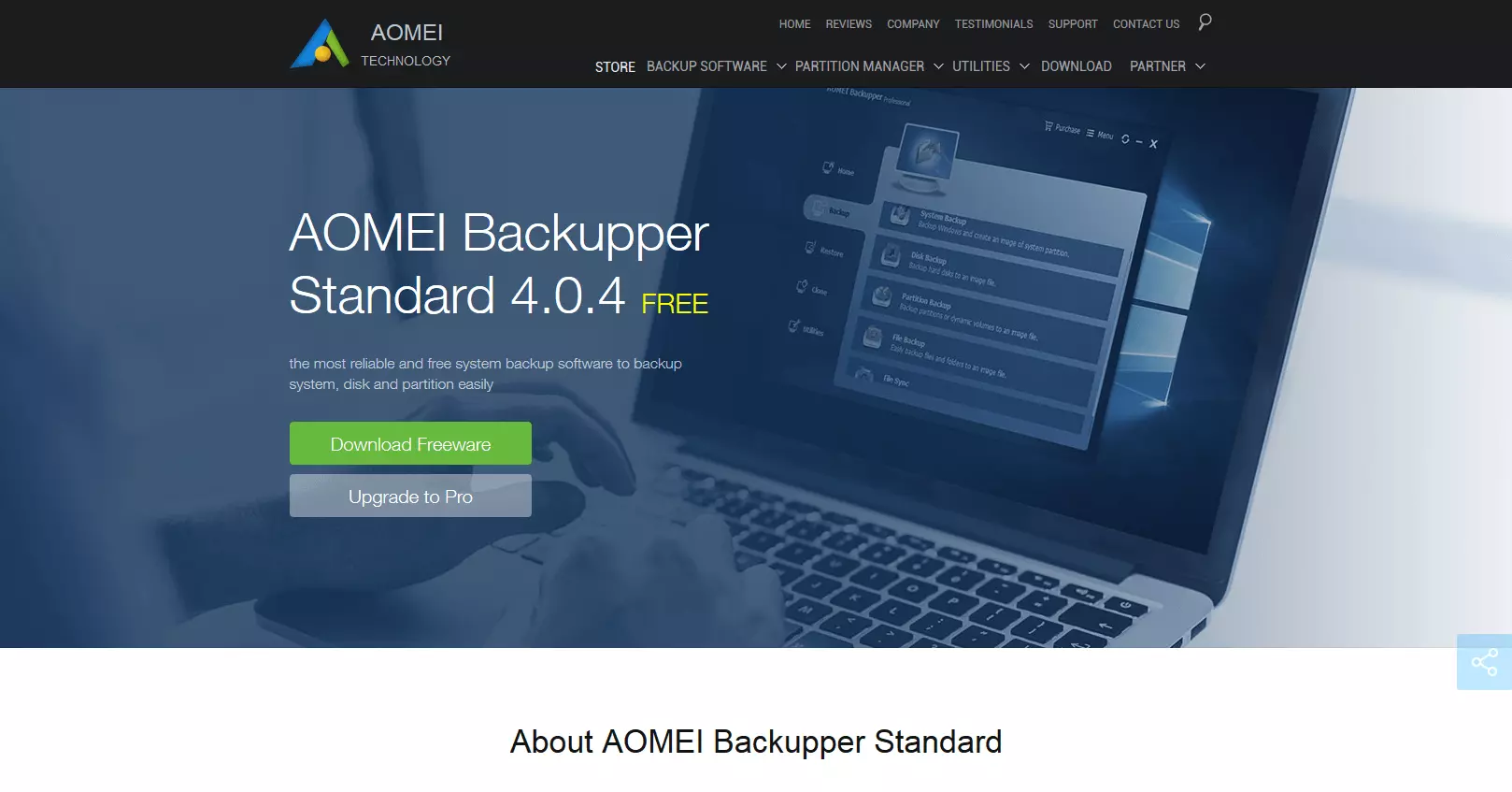
The free version of the imaging software already offers all basic functions needed for a professional backup:
- Image-based system backups
- Backups of chosen hard drives, partitions, folders, or files
- Incremental and differential backups
- Backup scheduling
- Tools for cloning hard drives and partitions
- Real-time synchronization
- E-mail notifications
- Compression
- Encryption
The acquisition of user licenses AB Professional and AB Server extend the range of functions to include tools for cloning the entire system, combining images, and automatically deleting backups that are no longer necessary. The fee-based product versions are also equipped with a universal restore tool that enables users to restore the image of a system on a different computer with different hardware.
Other professional features are command-line-based operation, event-driven backup schemes, a file filter, and the PXE-BOOT (Preboot Execute Environment) tool, which allows multiple computers on the network to boot using the same image file.
While licenses for the AB Professional and AB Server editions are acquired per device, companies can secure rights to install Aomei Backupper on any number of computers or servers with the licenses AB Technician or AB Technician Plus. In addition, software deployments for company use provide advanced functions for the preparation and distribution of images in the network (image deployment).
In the Standard Edition, Aomei Backupper stands out with an intuitive user interface and appealing design.
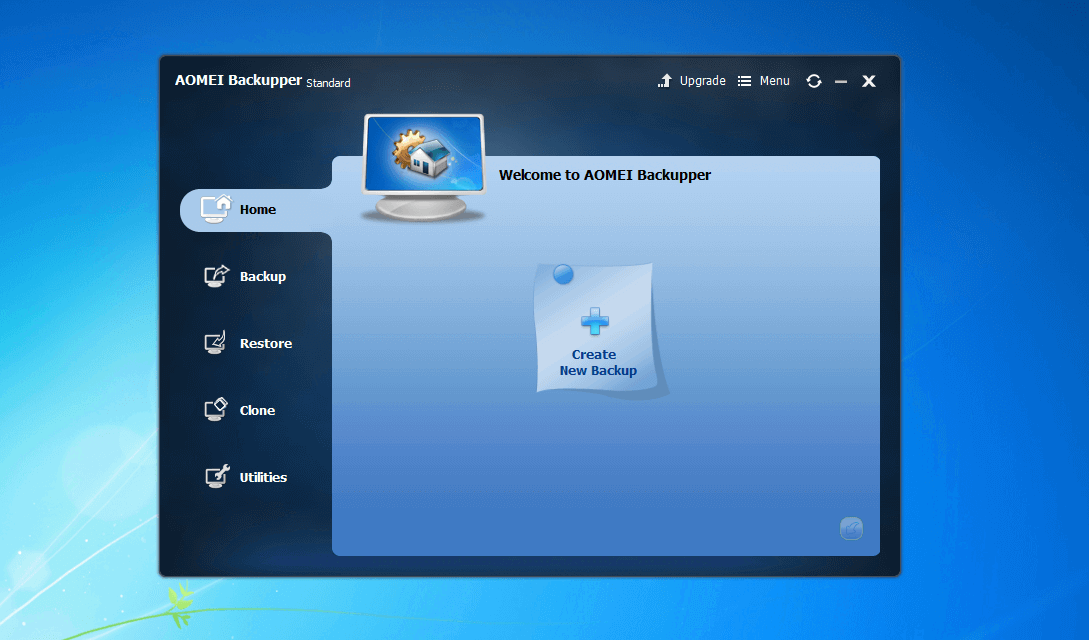
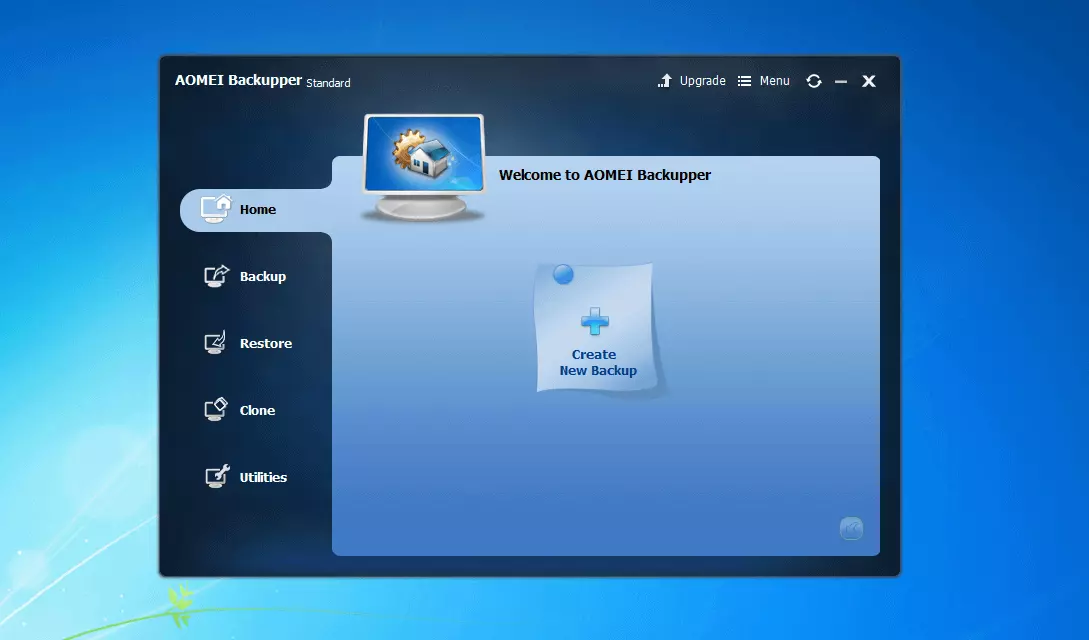
To create a backup, select one of the five backup options: System backup, hard drive backup, partition backup, file backup, or file synchronization.
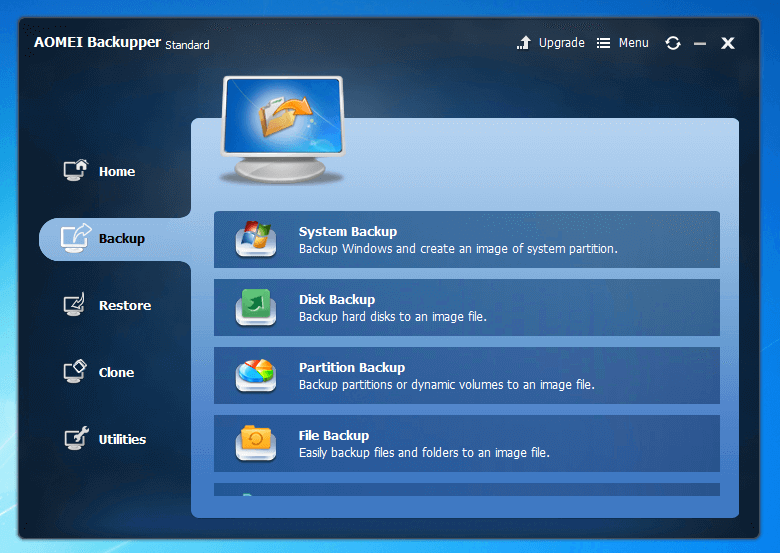
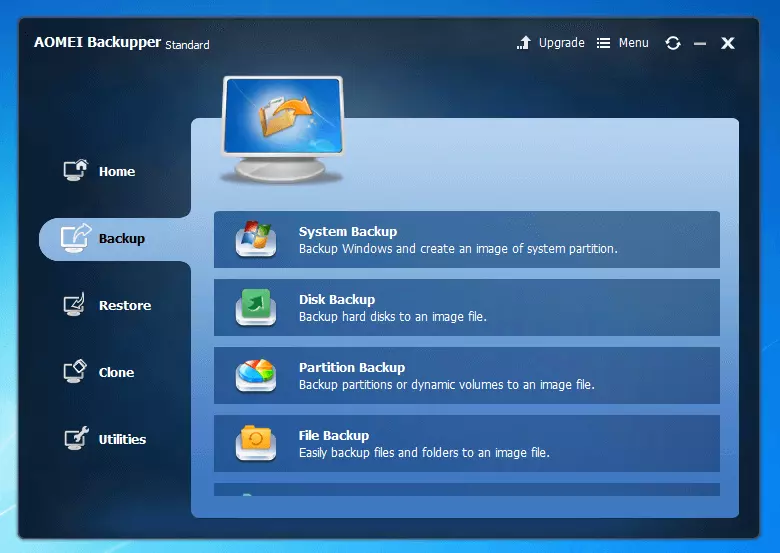
If you don’t want to use a custom backup strategy, then the backup process follows two steps:
- Step 1: Select the data source
- Step 2: Select the destination medium
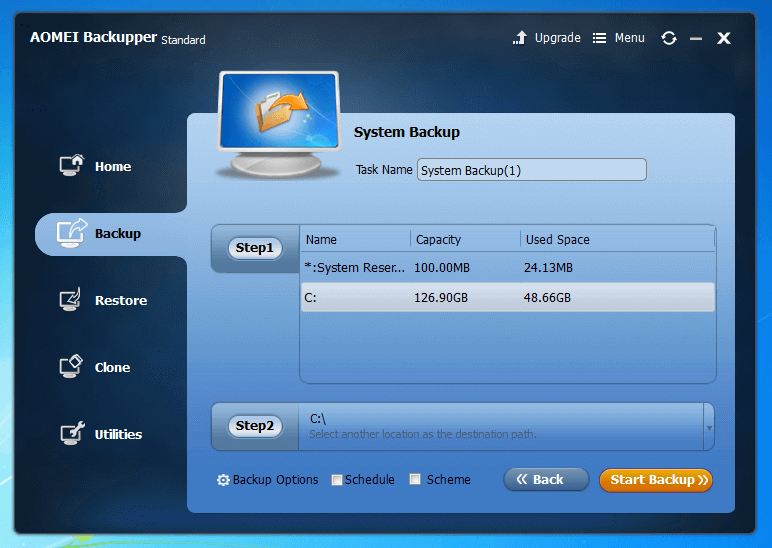
Each backup is individually named.
In addition to a backup on local networks and storage devices connected to the network, Aomei Backupper Standard 4.0.4 also makes it possible to create a backup on the cloud. In principle, all cloud storage providers are supported (for example, Google Drive, Dropbox, Amazon Drive, OneDrive). But a prerequisite is that the online storage is integrated as a drive in the file system.
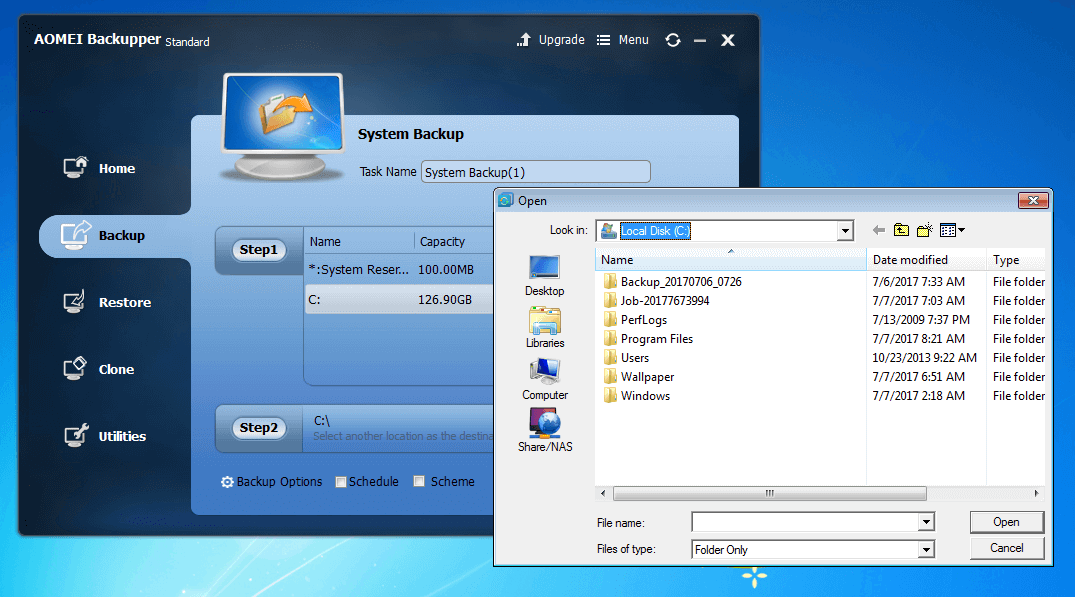
Aomei Backupper Standard also offers the possibility to define extended backup options and schedules.
Click the “Options” button to access the backup settings. Here, you can prepare a commentary for the respective backup if necessary, and define settings for encryption and compression as well as for the distribution of image files and the backup method.
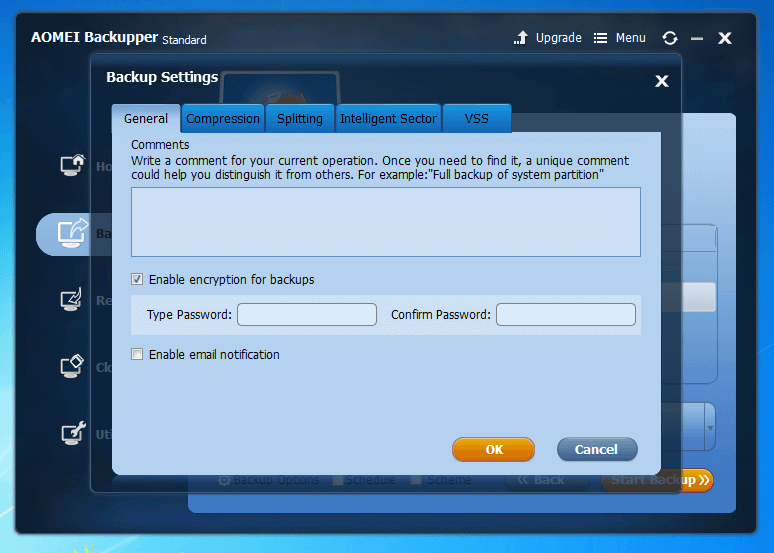
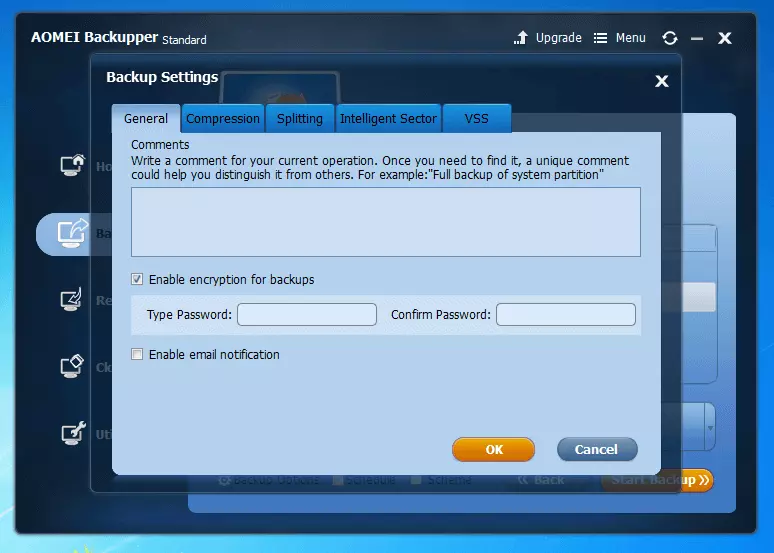
Aomei Backupper uses the AES encryption algorithm.
To reduce the storage space requirements of image files, Backupper offers three compression levels: none, normal, and high.
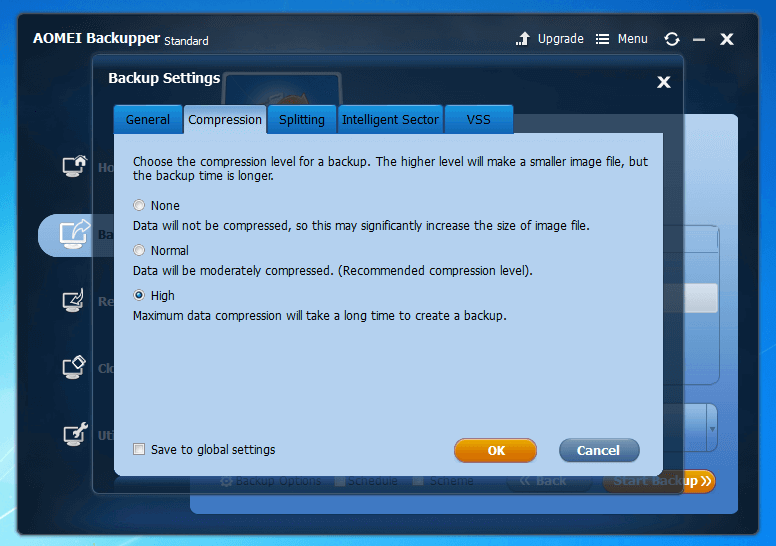
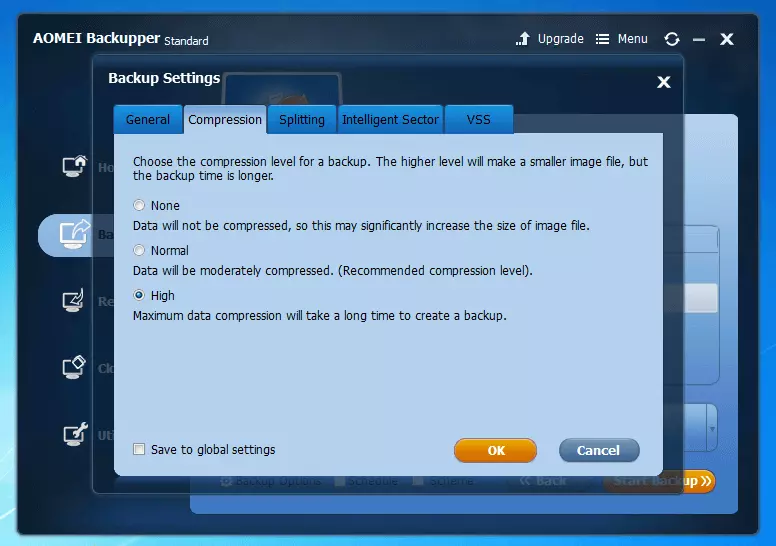
By default, Backupper only backs up occupied sectors of the file system. But if you wish to create an exact image, selected hard drives or partitions can be copied sector by sector.
Like DriveImage XML, Backupper uses VSS technology. The image tool also provides an Aomei internal backup technology, which makes it possible to backup data without disrupting or rebooting the system.
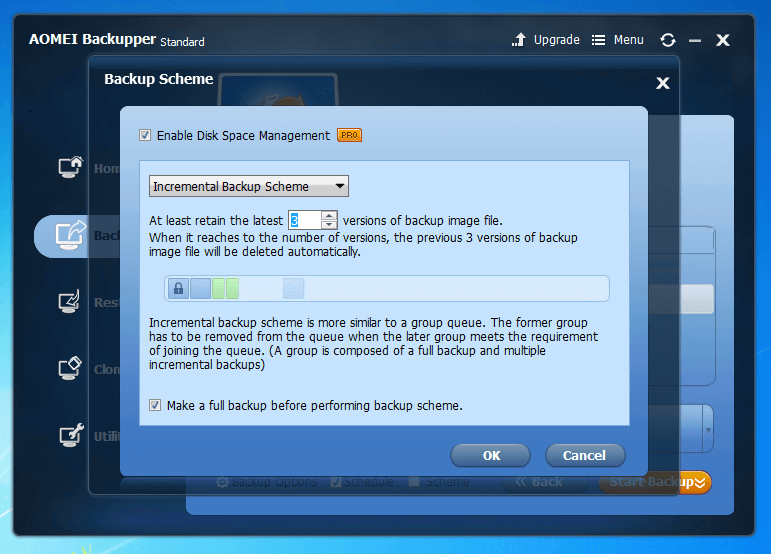
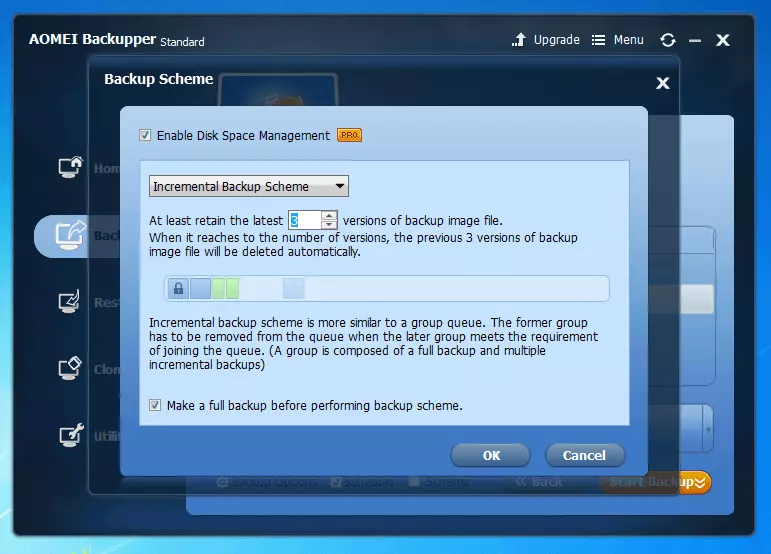
Clicking on the schedule opens the imaging software’s scheduling settings. Here, you can define automatic backup processes and select desired backup strategies under “Advanced Settings”.
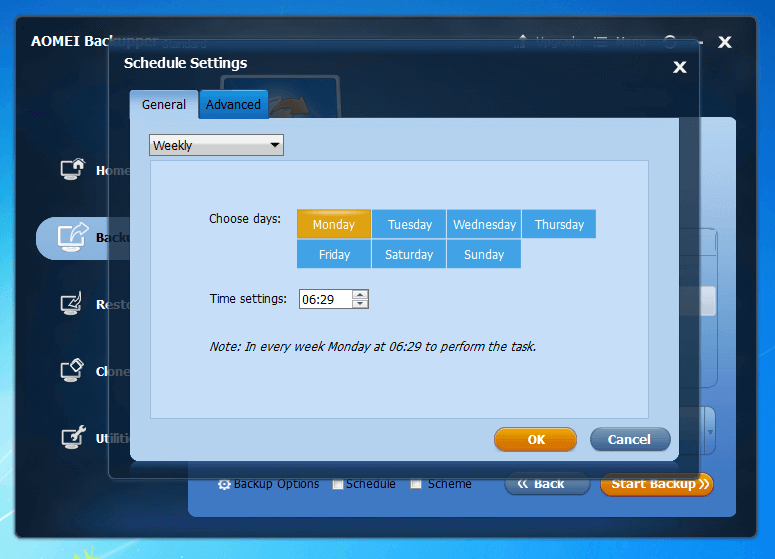
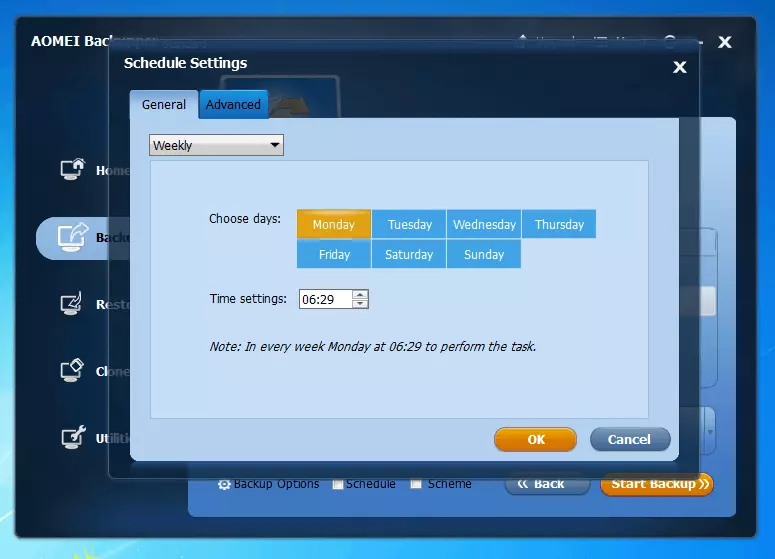
Though it’s possible to create incremental and differential images with Backupper, the freeware offers less design freedom than the competing product, Paragon Backup & Recovery 16 Free.
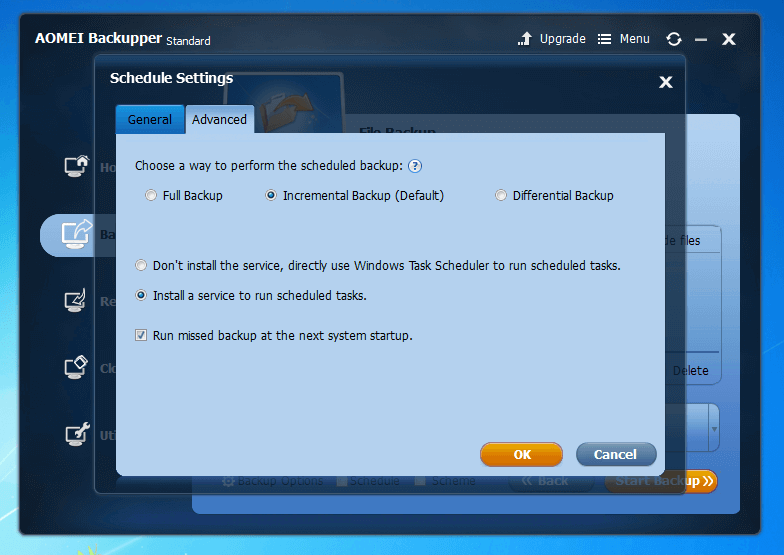
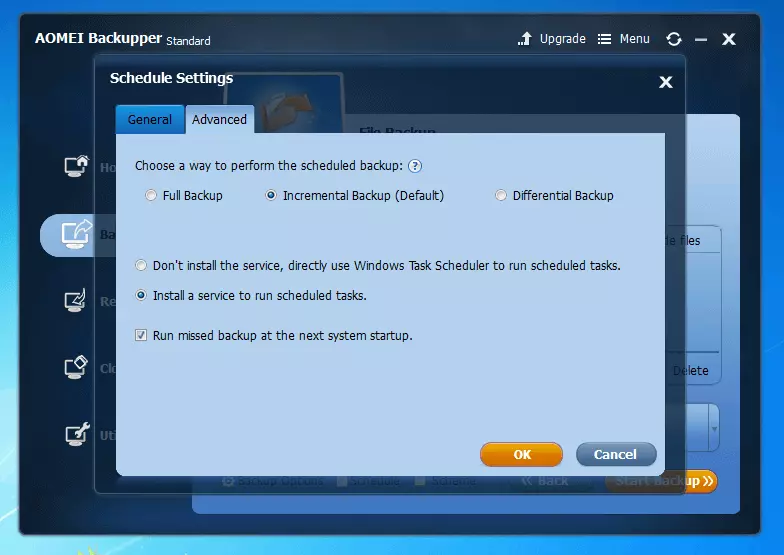
Users who want to set up advanced backup schemes have to upgrade to the paid professional edition.
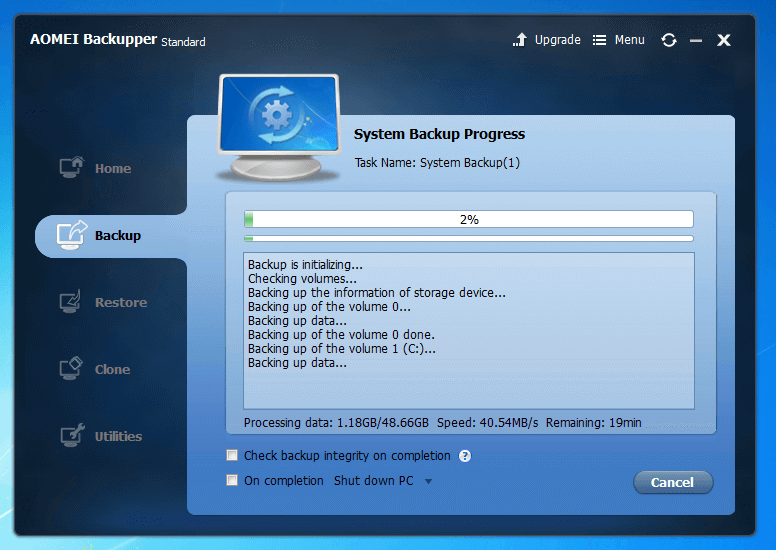
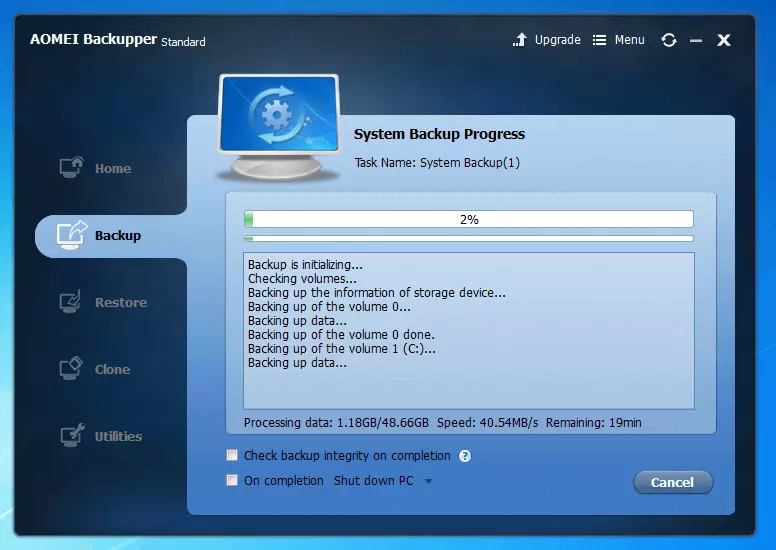
Click on “Start Backup” to begin the backup process. The progress of the backup can be tracked with the status bar.
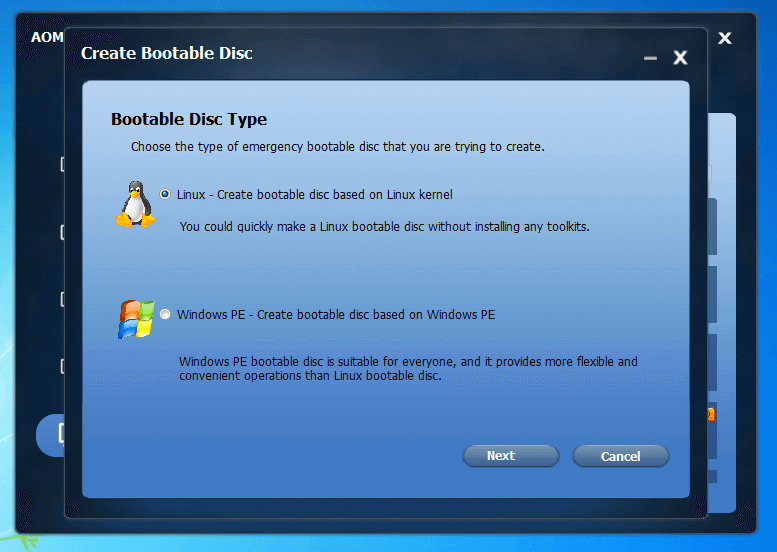
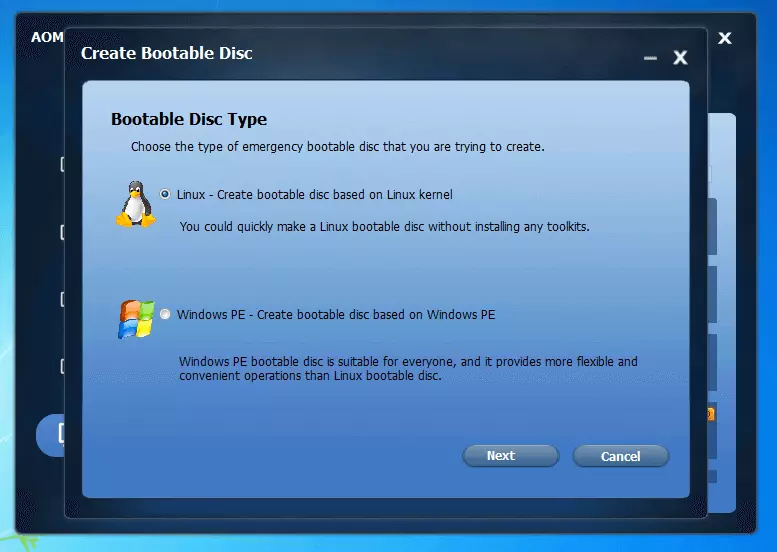
Aomei Backupper Standard also offers the possibility to create a bootable emergency medium based on Linux or as a WinPE disc – choose between a CD, DVD, USB storage device, or ISO file.
| Benefits | Drawbacks | |
|---|---|---|
| ✓ Freeware (also for commercial use) | ✗ Minimal documentation | |
| ✓ Backup and recovery of entire hard drives or individual files | ✗ Only predefined backup schemes available in the free version | |
| ✓ Very clear, intuitive user interface | ||
| ✓ Compression | ||
| ✓ Encryption |
Creating an image with freeware is never more comfortable than with Aomei Backupper. But the standard edition is missing advanced settings for backup plans. One plus though: The free license also includes commercial use.
O&O DiskImage 11.0
The backup tool DiskImag from the Berlin-based software company O&O offers users Professional, Workstation, and Server product editions. The software supports all current Microsoft operating systems from Windows Vista or Windows Server 2008 – in both 32 bit and 64 bit versions. All editions have a free 30-day trial period, no registration required. If you want to continue to use the image tool after the trial period, you need a paid permanent license for each device. Companies receive volume licenses and starter kits from O&O.
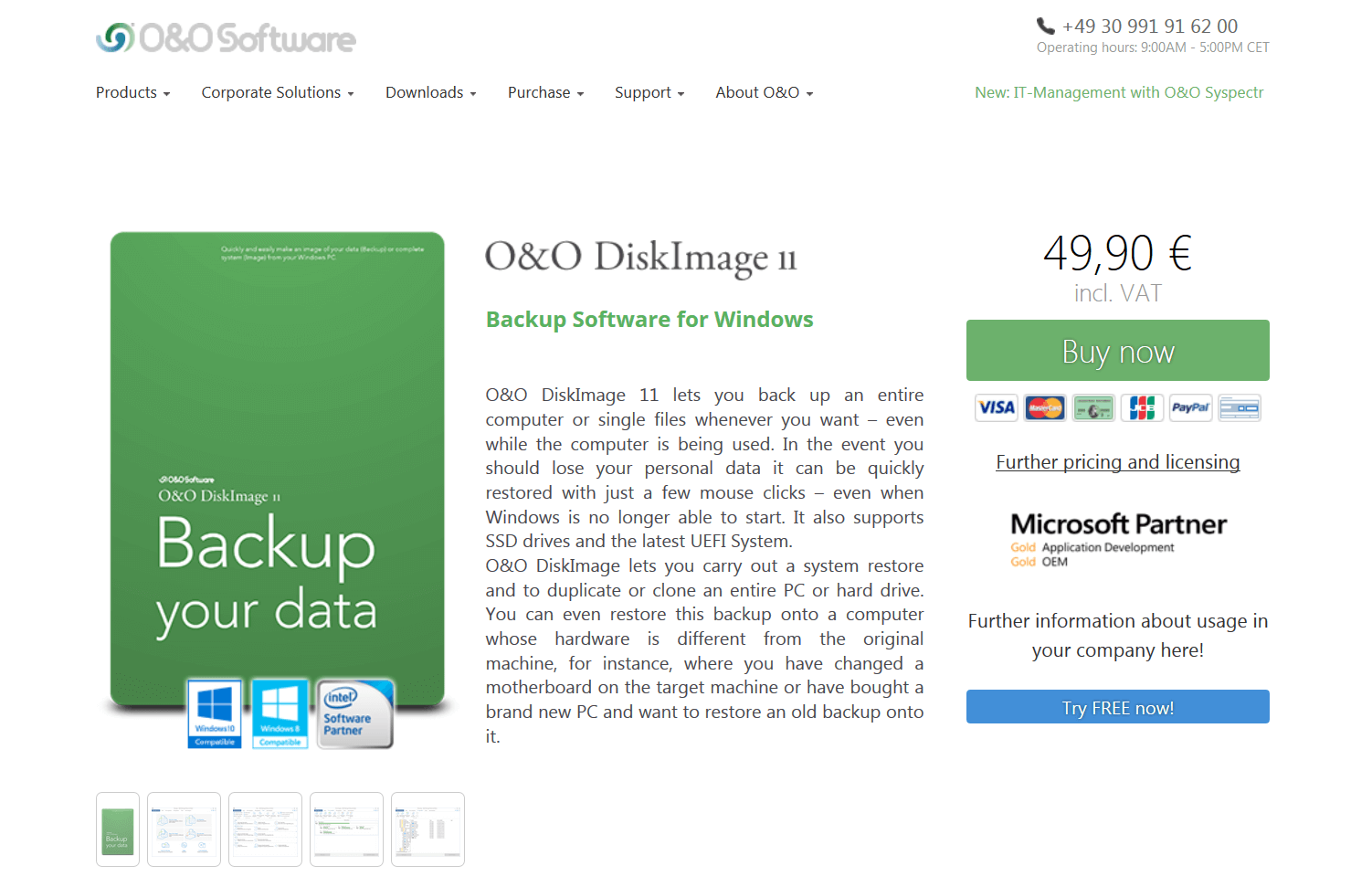
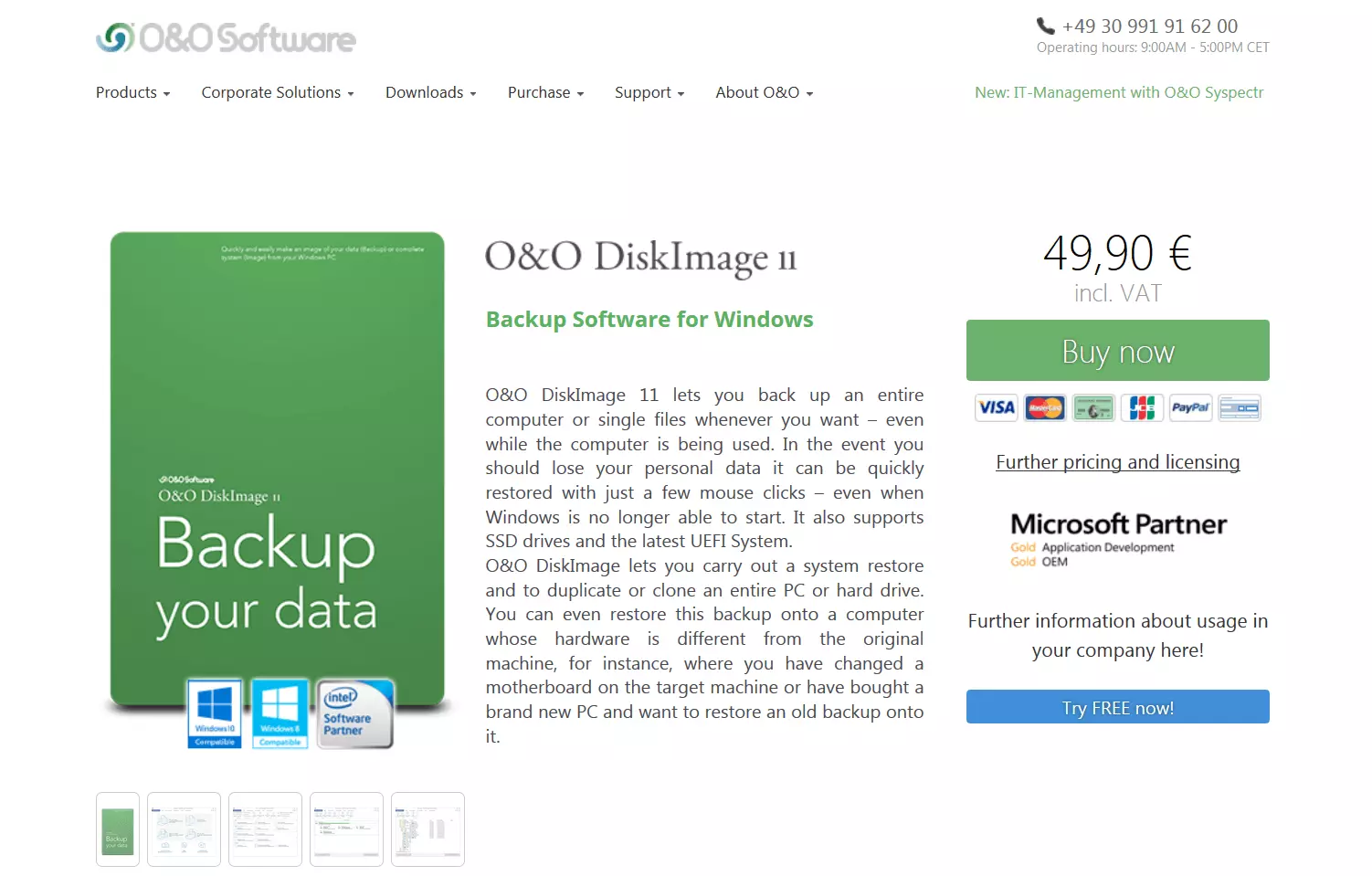
With the professional edition, O&O DiskImage 11.0 provides all relevant functions that users need for a comprehensive backup of a single PC:
- Image-based backups
- File-based backups
- Incremental and differential backups
- 1-click backup: Back up an entire computer with the click of a button
- Search function for images
- Integrate ISO files as drives
- Tool for the cloning of hard drives and partitions
- Hot imaging
- VSS (Volume Shadow Copy Service) support
- Bare Metal Restore by means of WinPE-based bootable medium
- Control via the command line
- Machine Independent Restoring (MIR): Recovery on different hardware
- Compression (LZNT 1 or BZIP2)
- Multi-level encryption
- Full scripting support
The Server and Workstation editions, which are tailored for company use, extend the imaging software’s range of functions to include tools for central network management.
- Cross-product management console
- Tools for remote installation and configuration
- Extended scripting interface
- Detailed logging functions
The user interface of O&O DiskImage is slick and attractive. An overview of all the basic functions can be found on the homepage of the application. This point separates O&O DiskImage only marginally from competing products such as Acronis True Image 2017 or Aomei Backupper 4.0.4. One unique feature, though, is the 1-click image, with which the entire system can be backed up with a single click. O&O recommends this function, for example, when backing up your system for the first time.
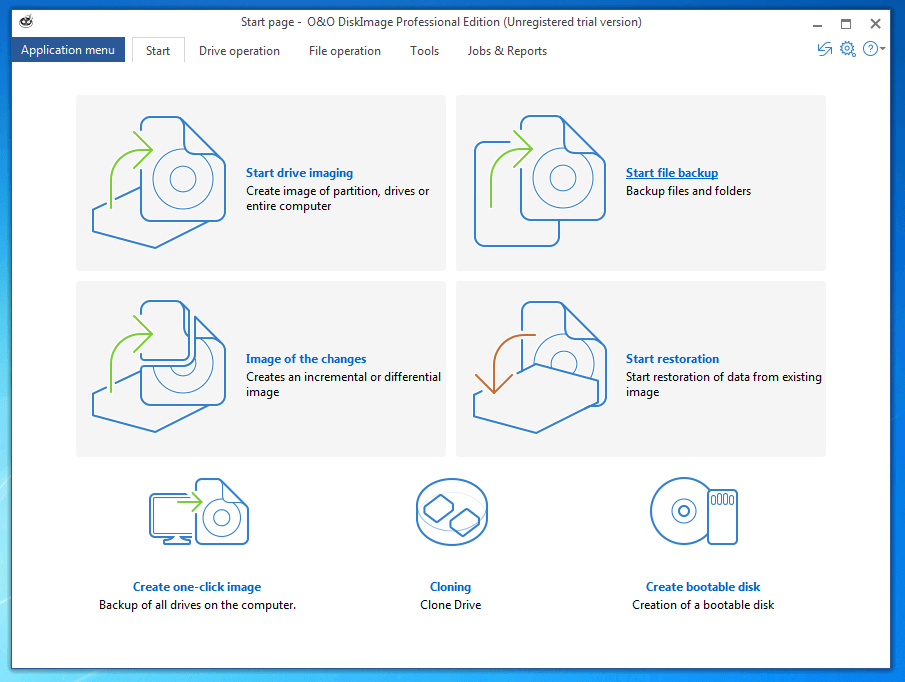
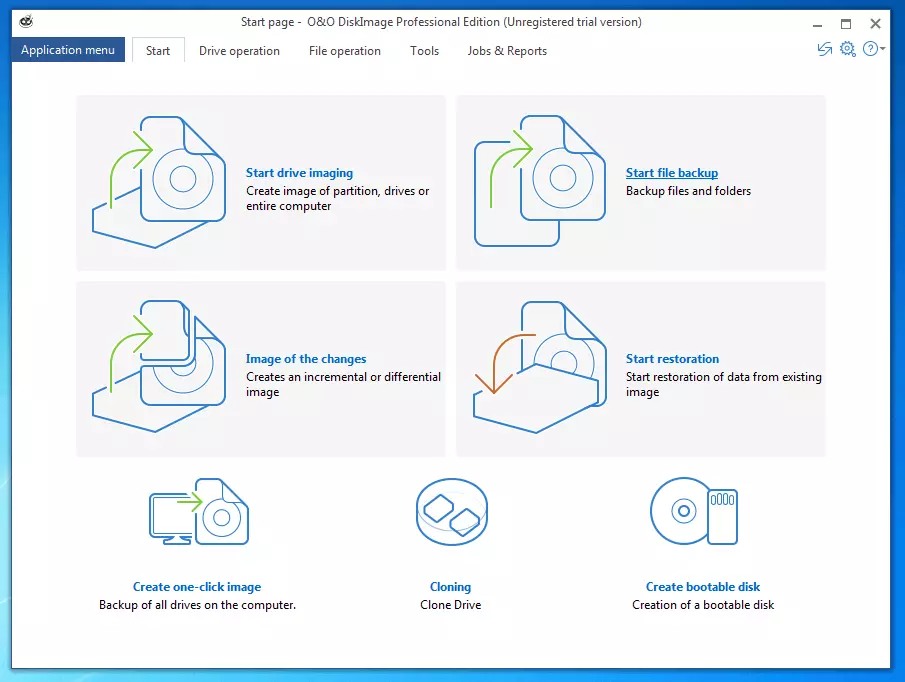
As desired, you can create a backup image of the entire system, individual hard drives, or selected partitions with O&O DiskImage.
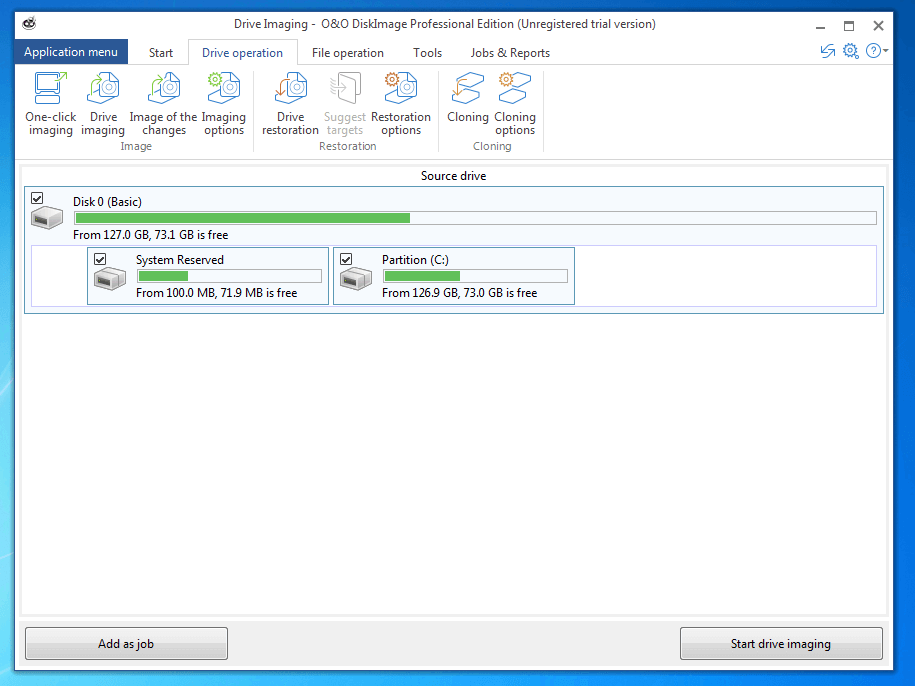
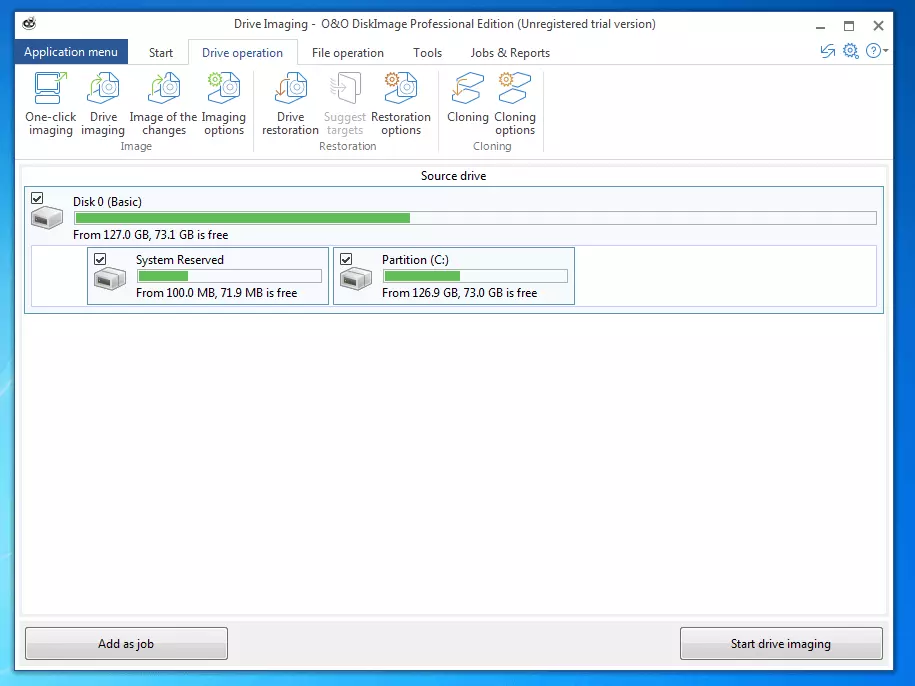
You can also create backups of selected files or folders.
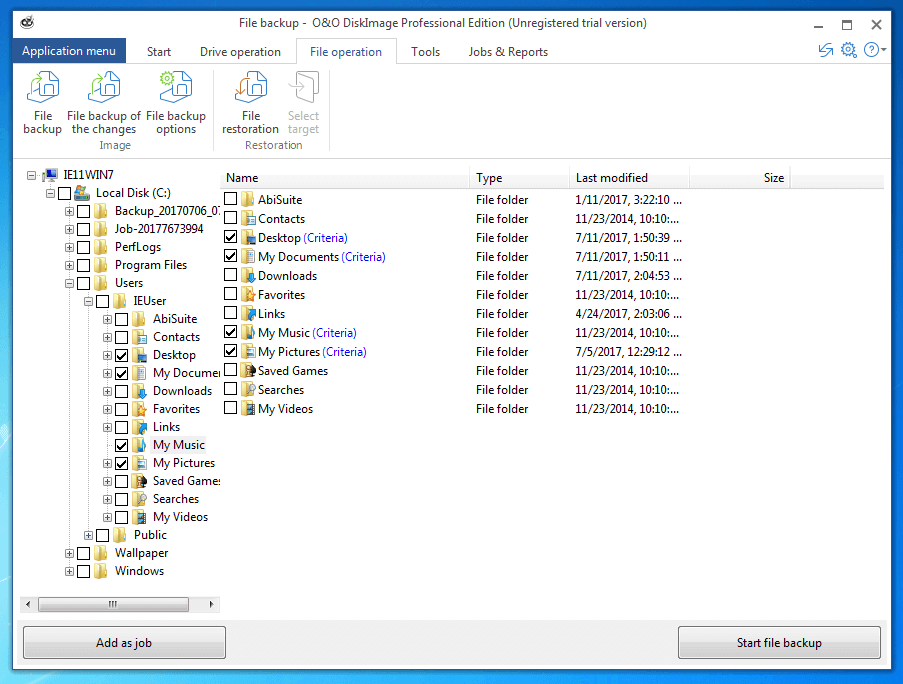
The imaging process is either started manually or run as a “Job.” For backup jobs, you define automatic backups. This ensures that backups are created regularly. You can define the frequency using one of the following settings:
- Once
- Daily
- One or more times per week
O&O DiskImage also supports event-based backup strategies:
- In connecting to a particular device
- When starting the system
- When a user logs in
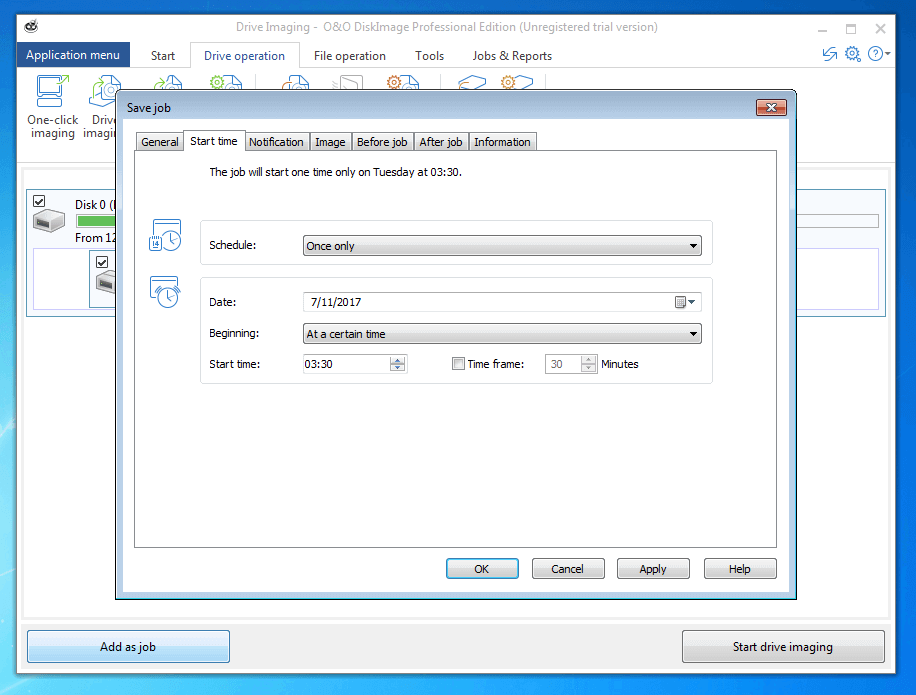
By allowing the configuration of imaging options, O&O DiskImage separates itself from the competition with the backup profile. Users have access to four predefined profiles: Default, Express, Multimedia, and Archive. The imaging software also gives the option to save customized settings for imaging methods, compression, and encryption as a user-defined profile.
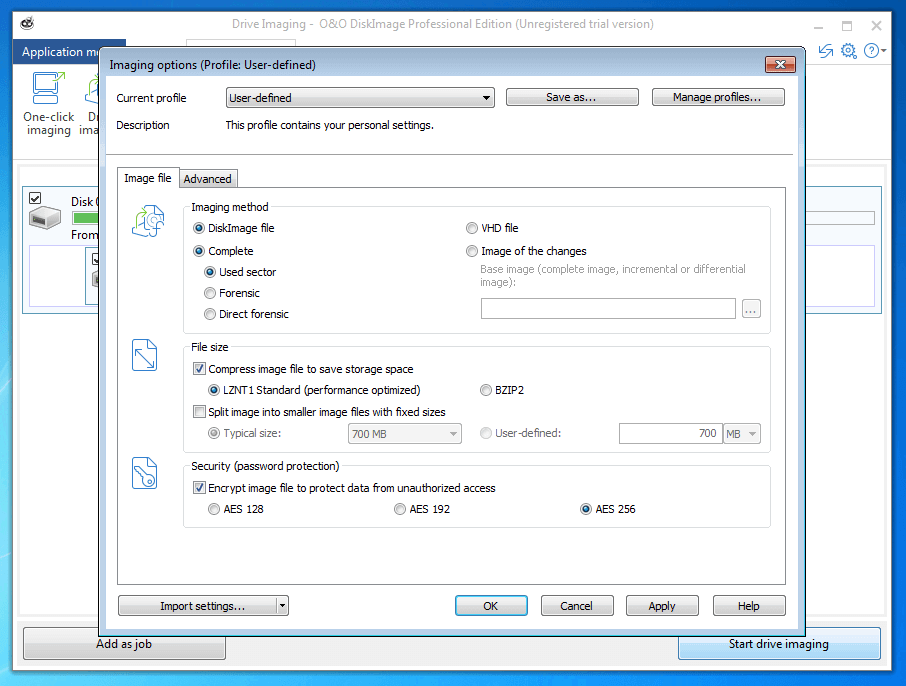
Full backups can be carried out in three ways with O&O DiskImage:
- Used sector: Only sectors that are occupied are copied
- Forensic: O&O DiskImage generates an exact sector image of the source drive
- Direct forensic: O&O DiskImage generates an exact sector image of the source drive. The data is then read out via a low-level system interface. Direct forensic backups enable you to back up encrypted data.
Users also have the option to only backup the data that was added or altered since the last full or partial backup.
As destination media, O&O DiskImage supports internal hard drives (HDD, SSD), external hard drives via USB or Firewire (HDD, SDD), network drives, RAID systems, or FTP/FTPS. Users can save images as needed on CDs, DVDs, or Blu-ray using a native burn function. O&O DiskImage also supports virtual hard drives (VHD), used in the context of Microsoft Virtual PCs (VPC).
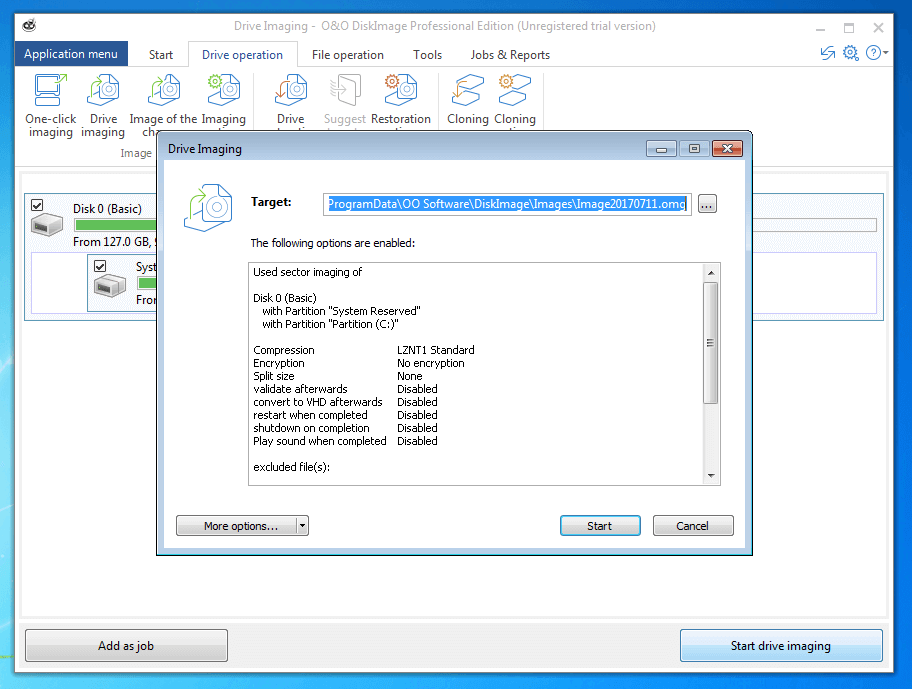
If a backup is started, the progress can be monitored via a status display.
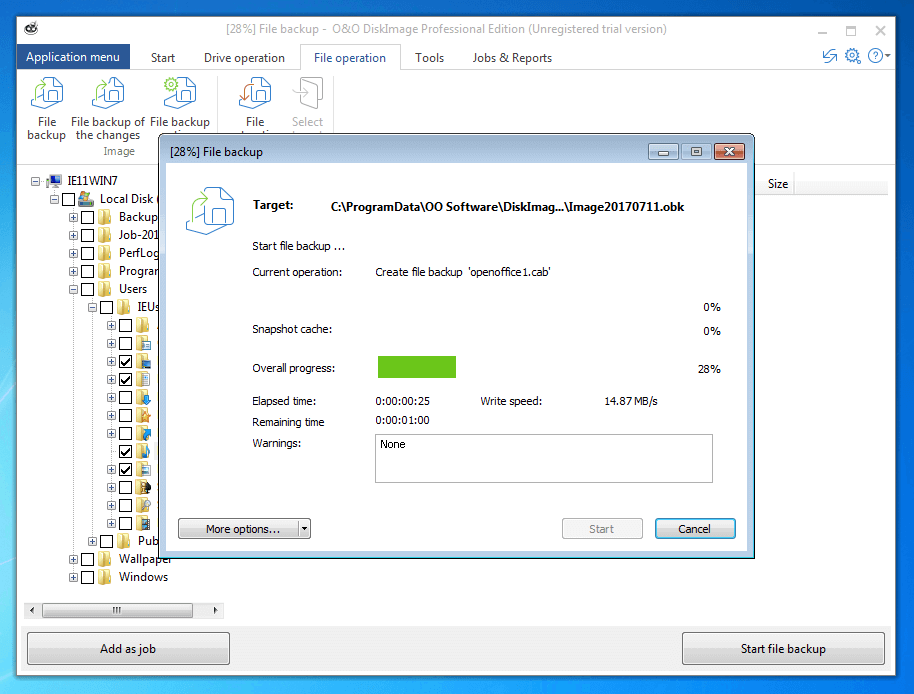
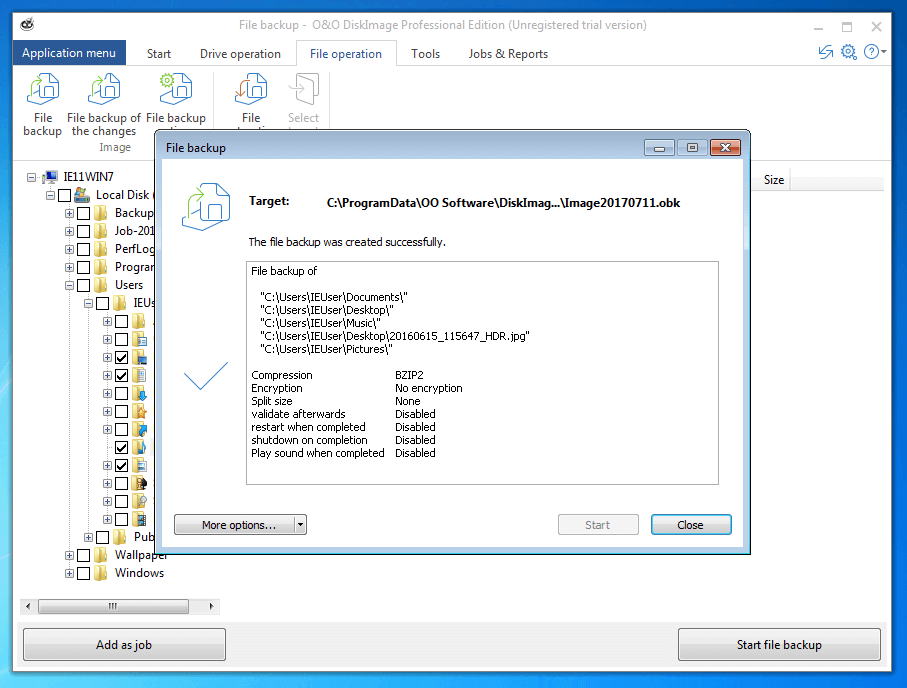
If the backup process is closed, O&O DiskImage displays a summary of the performed action.
 SFIO CRACHOShutterstock
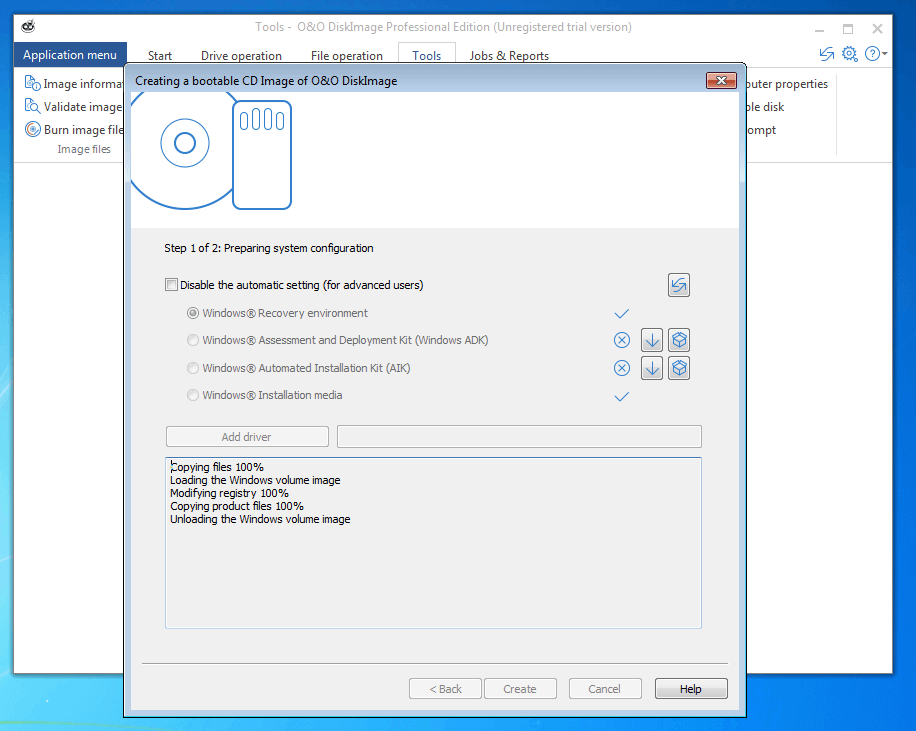
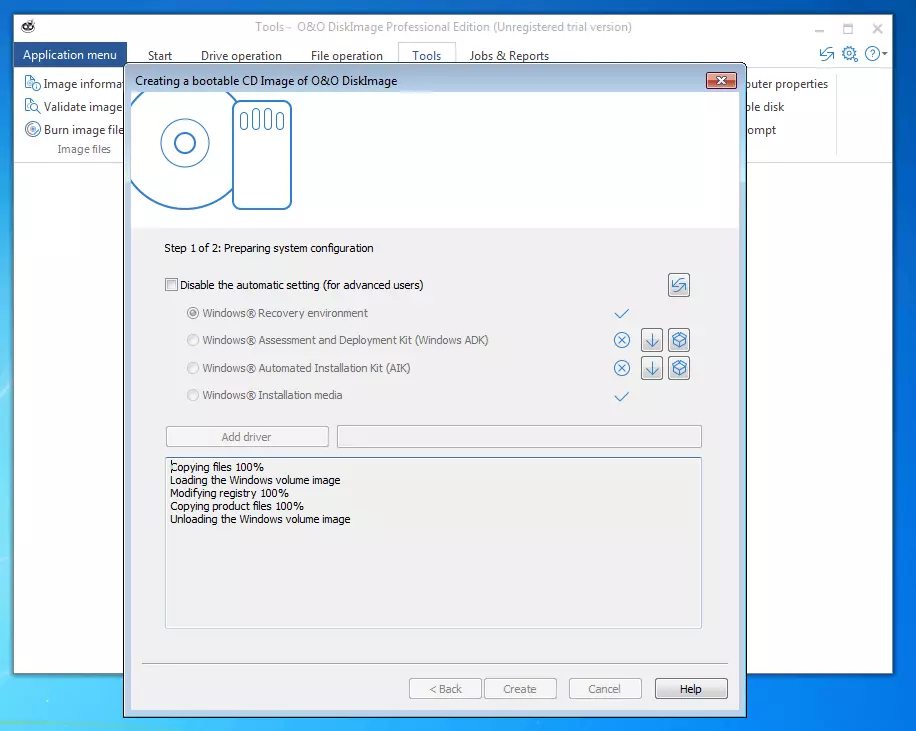
With O&O DiskImage, you can also create a WinPE-based emergency medium on a CD, DVD, or USB storage device as necessary, or you can save a rescue system as an ISO file on the desired destination medium.
O&O DiskImage separates itself from other imaging tools by providing all prerequisites for script-file-based command processing in the professional edition. This allows users to define complex backup schemes as scripts. A free Whitepaper is already available in the documentation section from O&O as a command interpreter for the image tool.
The command file interpreter from O&O DiskImage gives users explicit access to hard drives, partitions, and image files, and should only be used by experienced users. With conventional software operation, the design protects users with warnings and confirmations. Errors in script-file-based command processing can have grave consequences and, in the worst case, could even result in a loss of data.
| Benefits | Drawbacks | |
|---|---|---|
| ✓ Backup and recovery of entire hard drives or individual files | ✗ No free version | |
| ✓ Event-based backup strategies | ✗ Only available for Microsoft Windows | |
| ✓ Forensic backups of encrypted hard drives or partitions | ✗ User interface language can’t be changed in the program: Each language version requires its own installation of the image tool | |
| ✓ Compression | ||
| ✓ Encryption | ||
| ✓ Script-file-based command operation |
O&O DiskImage Professional 11.0 is an image tool with a large range of functions that allows experienced users to set up complex backup scenarios thanks to script-file-based command operation.
Imaging-Tools – die beliebtesten Produkte im Vergleich
Wir möchten Ihnen die Auswahl der passenden Imaging-Software für Ihr System und den jeweiligen Einsatzzweck erleichtern. Im Folgenden haben wir daher alle vorgestellten Image-Tools hinsichtlich ihrer wesentlichen Funktionen in einer Vergleichstabelle gegenübergestellt.
| Acronis True Image 2017 | Acronis Backup 12.5 | Paragon Backup & Recovery 16 | Clonezilla Live | |
| Languages | German English Japanese Russian Italian Spanish Korean Chinese Polish Czech Dutch Indonesian Portuguese | German English Japanese Russian French Italian Spanish Korean Chinese Polish Czech Hungarian Danish Dutch Turkish Portuguese | German English French Italian (Each language version requires its own installation) | Deutsch English Spanish Catalonian French Italian Japanese Portuguese Russian Slovakian Turkish Chinese |
| Licensing model | Permanent license (1, 3 or 5 computers) Yearly subscription (1, 3 or 5 computers) | Subscription for 1, 2, or 3 years Unlimited license | Free edition Paid single license | Free software (GNU General Public License (GPL) Version 2) |
| Supporting systems | Windows: Windows XP SP3 (32 Bit) Windows 7 SP1 Windows 8 Windows 8.1 Windows 10 Windows Home Server 2011 OS X/macOS: OS X 10.9.5 (Mavericks) OS X 10.10.5 (Yosemite) OS X 10.11.6+ (El Capitan) macOS 10.12 (Sierra) | Windows: Windows 10, 8/8.1, 7 Windows Vista Windows XP Professional SP3 (x86, x64) Windows Server 2016 Windows Server 2012 (R2), 2008 (R2), 2003 (R2) Windows Small Business Server 2011, 2008, 2003 (R2) Windows MultiPoint Server 2012, 2011, 2010 Windows Storage Server 2012 (R2), 2008 (R2), 2003 Linux: Red Hat Enterprise Linux 4.x - 7.3 Ubuntu 9.10 - 16.04 Fedora 11 – 23 SUSE Linux Enterprise Server 10 – 12 Debian 4 - 8.5 CentOS 5.x - 7.3 CloudLinux 7, 7.1 ClearOS 5.x, 6.x, 7, 7.1 Oracle Linux 5.x - 7.3 OS X/macOS: OS X 10.8 – 10.12 Mobile devices operating systems: iOS 8 or higher Android 4.1 or higher Cloud: Microsoft 365 mailboxes Amazon Web Services EC2 instances Microsoft Azure VMs | Windows: Windows 10 Windows 8/8.1 Windows 7 All operating systems supported as 32-bit or 64-bit versions | Windows: All OS X/macOS: Intel-based Mac OS GNU/Linux : All Other: FreeBSD NetBSD OpenBSD Minix VMWare ESX Chrome OS/Chromium OS All operating systems supported as 32-bit or 64-bit versions |
| Boot medium | Rescue medium as CD, DVD, USB storage device, or ISO file | Windows PE-, Linux- or mac-based rescue medium as CD, DVD, USB storage device, or ISO file | Windows PE rescue medium as CD, DVD, Blu-ray disc, USB- storage device, or ISO file | Rescue medium as CD, DVD, or USB PXE |
| Supported file systems | FAT16/32 NTFS ext2/ext3/ext4 ReiserFS Linux Swap exFAT HFS+ | FAT16/32 NTFS HPFS ReFS ext2/ext3/ext4 ReiserFS3 Reiser4 XFS JFS Linux Swap | ReFS NTFS (v1.2, v3.0, v3.1) FAT16/FAT32 ext2/ext3/ext4 Linux Swap HFS+ | FAT12/FAT16/FAT32 NTFS ext2/ext3/ext4 ReiserFS Reiser4 XFS JFS Btrfs F2FS NILFS2 HFS+ UFS Minix VMFS3/VMFS5 |
| Supported interfaces and storage media | Windows: HDDs (hard disk drives) SSD (solid state drives) Networked storage devices (NAS) FTP server CD-R/RW DVD-R/RW, DVD+R (including double layer DVD+R), DVD+RW, DVD-RAM BD-R, BD-RE USB 1.1 / 2.0 / 3.0 eSATA FireWire (IEEE-1394) PC card storage devices OS X/macOS: Internal drives (HDD, SSD, RAID) USB drives FireWire drives Thunderbolt Network sharing, NAS | Standard edition: Local drives based on SATA, SCSI, IDE, RAID Network storage devices such as NAS systems based on SMB, NFS, iSCSI, FC Removable drives like ZIP, Rev, RDX External hard drives like SSDs based on USB 3.0/2.0/1.1 and IEEE1394/Firewire Acronis cloud storage Advanced edition also includes: Tape drives, autoloader, and tape libraries (including media management and barcode support) | Windows: HDDs SSDs AFDs (advanced format drives) Networked storage devices (NAS) FTP server CD-R/RW DVD-R/RW, DVD+R/DVD/RW, DVD+/-R (DL) BD-R/BD-RE Windows storage spaces Parallel ATA (IDE) Serial ATA (SATA) External SATA (eSATA) SCSI, iSCSI All RAID levels from SCSI-, SATA- and IDE-controllers RAID (Hardware-RAIDs) IEEE 1394 (FireWire) USB 1.0/2.0/3.0 PC card storage devices UEFI | Internal and external hard drives USB 2.0 Firewire SATA FTP/Windows/Samba clearance |
| Supported partition tables | MBR (Master boot record) GPT (GUID partition table) | MBR GPT | MBR GPT | MBR GPT |
| Backup in the cloud | Cloud storage only included in subscription models (Plus and Premium) Additional cloud add-on required for the purchase of a permanent license (Essential) | Yes | No | No |
| Backup for mobile devices | Smartphones and tablets with Android 4.1 (or higher) iPhone, iPad, or iPod with iOS 8.x (or higher) | Smartphones and tablets with Android 4.1 (or higher) iPhone, iPad, or iPod with iOS 8.x (or higher) | No | No |
| Remote backup | Yes | Yes | No | Only in the server edition (Clonezilla SE) |
| Social media backup | Only for Windows PCs in a yearly subscription | Yes | No | No |
| Encryption | 256 bit AES end-to-end encryption | 256 bit AES end-to-end encryption | No | Encryption for the image file via ecryptfs (AES 256 encryption) |
| Compression | Yes | Yes | Yes | Yes |
| Supported backup types | Image-based backups File-level backups | Image-based backups File-level backups | Image-based backups File-level backups | Image-based backups |
| Supported backup procedures | Full backups Differential backups Incremental backups | Full backups Differential backups Incremental backups | Full backups Differential backups Incremental backups | Full backups |
| Automatic backups | Yes | Yes | Yes | No |
| Anti-ransomware | Yes (only with premium subscription) | Yes | No | No |
| Backup authentication | Yes (only with premium subscription) | Yes | No | No |
| Updates | Free product updates (unlimited with subscription only) | Free upgrades to new versions (unlimited with subscription only) | Free product updates | Free product updates |
| Support | Live chat service Phone-line customer support Documentation including online help for Mac and PC | Round-the-clock support (24/7) | Support for the free edition only via the support forum Paid version includes free support | User forum Mailing list |
| DriveImage XML 2.60 | Aomei Backupper Standard 4.0.4 | O&O DiskImage 11.0 | |
| Languages | English | English German French Chinese Japanese | English German French (planned) (Each language version requires its own installation) |
| Licensing model | Free private edition Paid commercial edition for 5, 10, 20, 50, or 100 users (including support and updates for one year) | AB Standard (free) AB Pro license for 3, 4, or 6 computers (paid) AB Server license for 1, 2, or 5 servers (paid) AB Technician and Technician Plus for company use | O&O DiskImage 11 Professional Edition for 1 or 3 computers (paid) O&O DiskImage 11 Server Edition for a server (paid) O&O DiskImage 11 Workstation Edition for a computer (paid) |
| Supported systems | Windows XP Windows Vista Windows 7 Windows 8 Windows 10 Windows Server 2003 | AB Standard/Pro/Technician: Windows XP Windows Vista Windows 7 Windows 8/8.1 Windows 10 AB Server/Technician Plus: additionally Microsoft Windows Server 2003 Microsoft Windows 2003 R2 Microsoft Windows Server 2008 und 2008 Microsoft Windows Server 2008 R2 Microsoft Windows Home Server (WHS) 2011 Windows Small Business Server (SBS) 2011 Microsoft Windows Server 2012 Microsoft Windows Server 2012 R2 All operating systems supported as 32 bit or 64 bit versions | Professional Edition/Workstation Edition: Windows Vista Windows 7 Windows 8 Windows 10 Server Edition: Windows Server 2008 Windows Server 2008 R2 Windows Server 2012 Windows Server 2012 R2 Windows Server 2016 All operating systems supported as 32 bit or 64 bit versions |
| Boot medium | Microsoft Windows PE-based boot medium (CD, DVD, or USB stick) Live CD, DVD, or USB | Microsoft Windows PE-based boot medium (CD, DVD, USB stick, ISO file) Aomei PXE boot tool (only AB Technician and AB Technician Plus) | Microsoft Windows PE-based boot medium (CD, DVD, USB stick, or ISO file) |
| Supported file systems | FAT 12/16/32 NTFS | FAT 16/32 NTFS ext2/ext3 | FAT 16/32 NTFS |
| Supported interfaces and storage media | Discs formatted according to supported data formats USB SATA | Internal and external HDDs Internal and external SSDs USB drives Dynamic disc Hardware RAID NAS VM systems DIE SATA SCSI Drive-integrated cloud apps | Internal hard drives (HDD, SSD) External USB or Fireware hard drives CD/DVD, Blu-ray Network drives RAID Virtual PC Discs (VHD) |
| Supported partition tables | MBR | MBR GPT | MBR GPT |
| Backup in the cloud | No | Yes (cloud storage needs to be purchased from a third party and integrated as a drive) | No |
| Backup for mobile devices | No | No | No |
| Remote backup | No | Yes (only in AB Professional, Server, Technician, and Technician Plus editions) | Yes (only in O&O DiskImage 11 Server Edition) |
| Social media backup | No | No | No |
| Encryption | No | Optional encryption of image files | Optional encryption of image files AES (128, 192, 256 bit) |
| Compression | Yes | Yes | LZNT1 (Standard) or bzip2 |
| Supported backup types | Image-based backups | Image-based backups File-level backups | Image-based backups File-level backups |
| Supported backup procedures | Full backups | Full backups Differential backups Incremental backups | Full backups Differential backups Incremental backups |
| Automatic backups | Yes | Yes | Yes |
| Anti-ransomware | No | No | No |
| Backup authentication | No | No | No |
| Updates | Updates only available for paid commercial edition | Minor updates provided free of charge Major updates are fee-based | Minor updates are provided free of charge Major updates are fee-based |
| Support | Support only for the commercial edition | Free mail support | E-mail and telephone support |