

How to take Screenshots on Google Chrome

When it comes to taking screenshots from Chrome, you’ve got three options. Besides the traditional approach via keyboard shortcuts, there are some useful extensions like Chrome Capture that let you access additional features. Alternatively, you can save screenshots in Google Chrome using developer tools.
- Simple registration
- Premium TLDs at great prices
- 24/7 personal consultant included
- Free privacy protection for eligible domains
How to take screenshots in Chrome manually
If you are looking to archive or share the content of your website, you can create screenshots with Chrome manually using the following key combination:
- [Alt] + [Print] for screenshots in Windows 10 and screenshots in Windows 11
- [Shift] + [Command] + [3] for screenshots in iOS.
This way you can take an image of the entire visible page in Chrome. However, only the visible part of the page will be captured. Content below what is visible won’t be captured in the screenshot.
Chrome Capture: the screenshot extension from Google
Chrome Capture is an extension that lets you take screenshots in Chrome to capture an entire page – beyond the visible part. The extension is freely available from Google Chrome. You can get it from the Chrome Webstore and add it to your browser with a single click.
Screenshot of visible screens
Once added, Chrome Capture provides different ways to capture Chrome screenshots. Like the manual method, you can capture the entire visible screen. Alternatively, you can select a portion of the screen to capture a specified area in your Google browser.
Screenshot of the full page
The extension shows just how useful it can be when you want to screenshot not only the visible area, but an entire page in Chrome. Chrome Capture provides this option in a few clicks using the following steps:
- Enter the URL you wish to screenshot.
- From the top right select “Extensions”.
- The menu that launches should include an overview of your screenshot tools. Locate Chrome Capture.
- To screenshot a visible area or a section, you simply click on Chrome Capture. When you want to capture the entire page, including areas that are not in view, click on the three dots to the right – “More actions”.
- You should now see the option “Full webpage screenshot (beta)” in fourth position. Click on it.
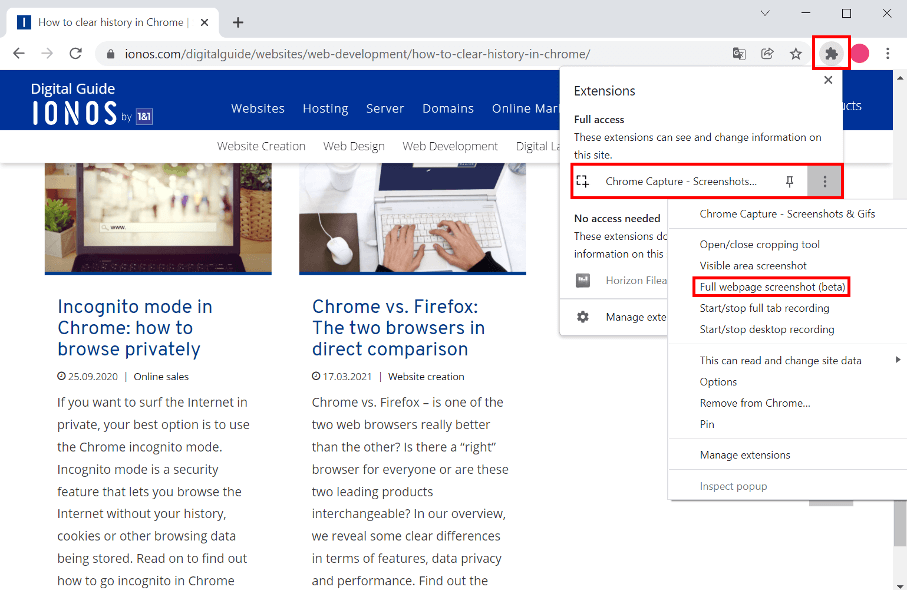
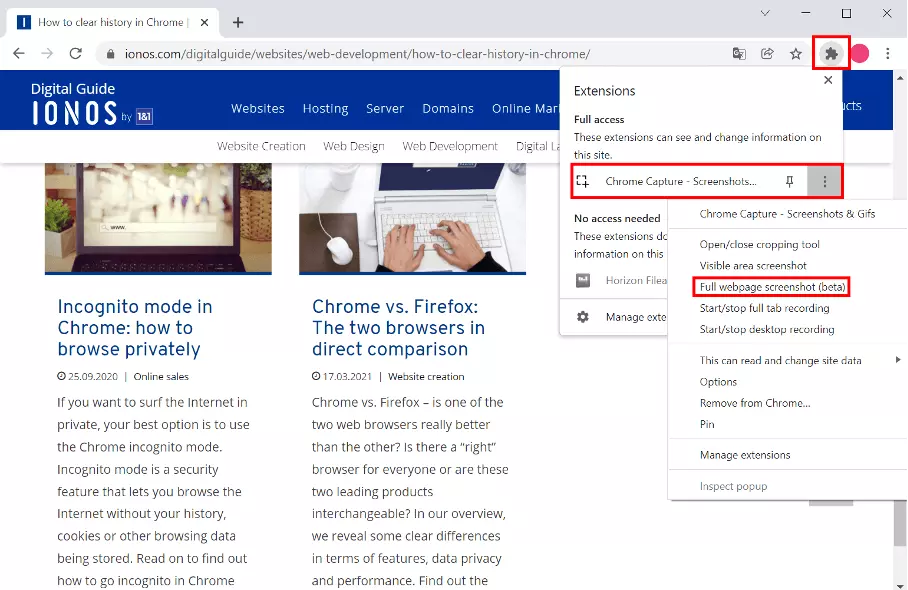
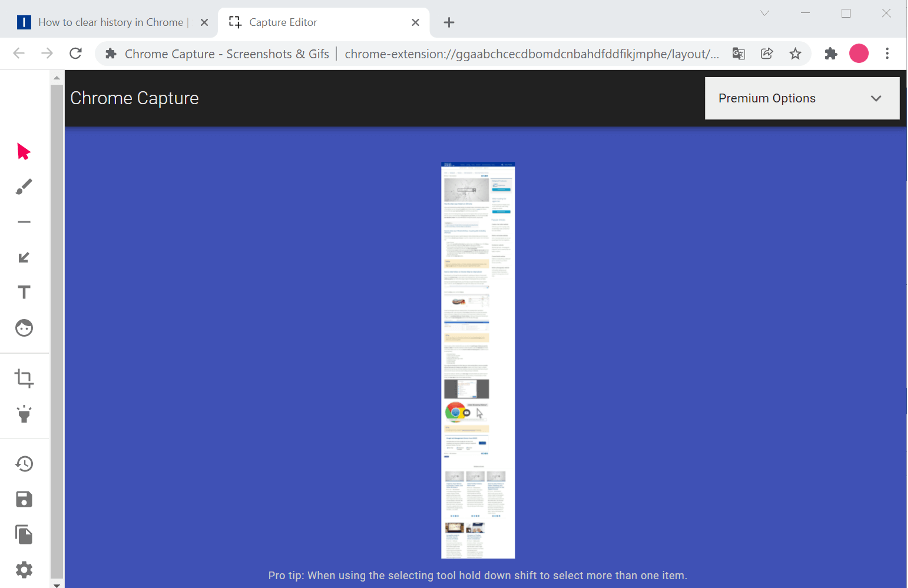
6. Chrome Capture now auto-scrolls a page and creates a screenshot of the entire website.
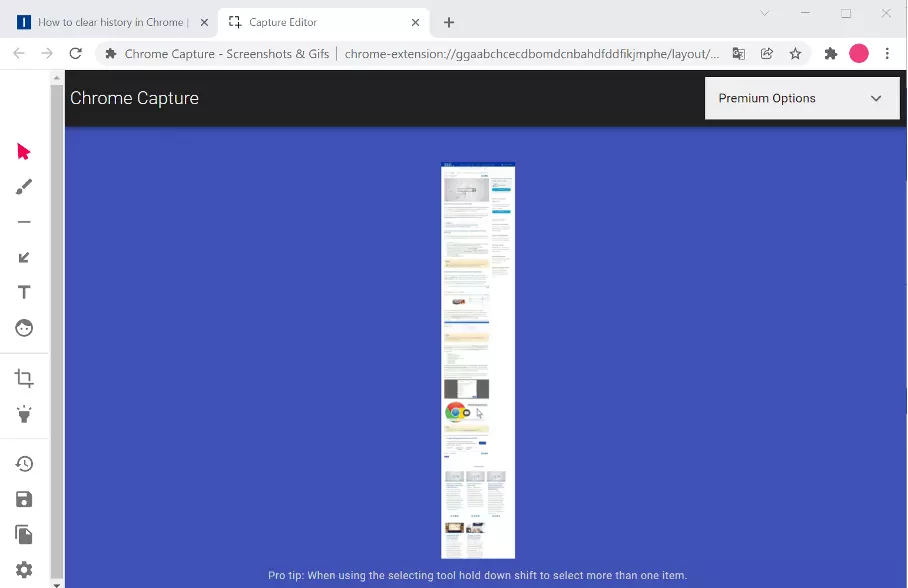
7. After creating the screenshot, Chrome Capture automatically launches an editor that you can use to crop the image as you see fit.
Additional options for screenshots with Chrome Capture
In addition to full-page screenshots, Chrome Capture provides several other options. Besides image editing, you can create and share GIF or WebM files. This is a useful feature to document a moving image or video instead of a static image. You can record up to ten seconds of footage and also crop or annotate it afterwards.
Alternatively, a premium version of Chrome Capture is available that lets you record longer videos. You are not restricted to a maximum running length, and the extension offers several options for editing. Although the version is not very expensive with a one-time fee of around $8.99, the free version is sufficient for ordinary screenshots in Google Chrome.
- Store, share, and edit data easily
- Backed up and highly secure
- Sync with all devices
How to screenshot in Chrome using developer tools
Perhaps the ideal option that neither requires an extension but also does not feature additional options are Chrome developer tools. Comparatively, the option can seem a bit more complex for screenshotting and while editor tools are not included, the results are good. Here’s how to use developer tools to take Chrome screenshots:
- First, go to the URL you wish to screenshot in Chrome.
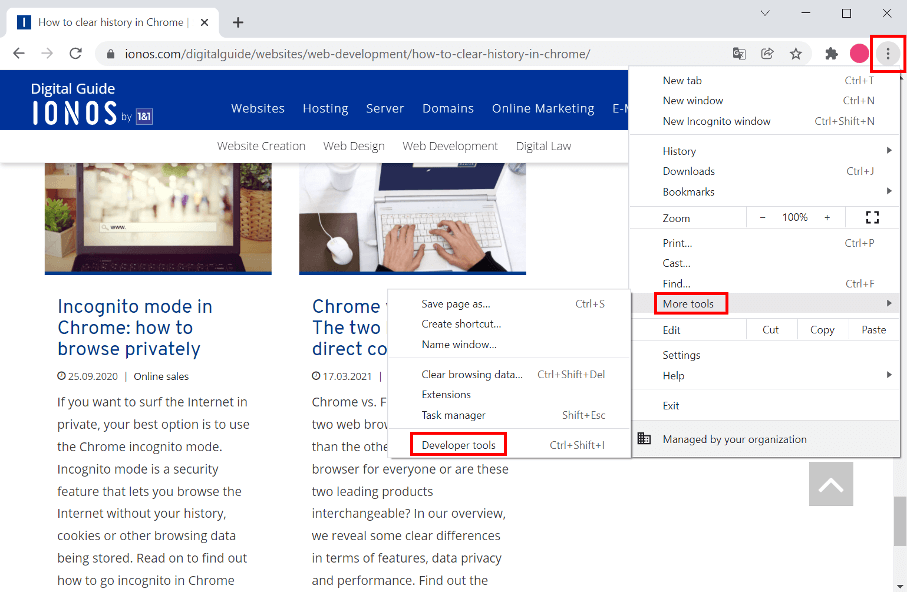
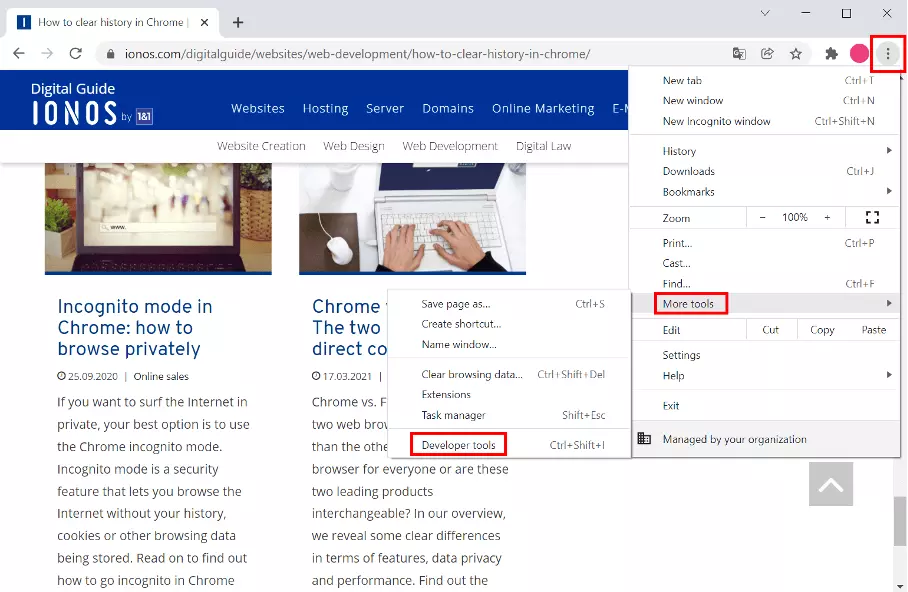
- Click the three dots in the top right.
- Now select “More tools” and “Developer tools” at the bottom.
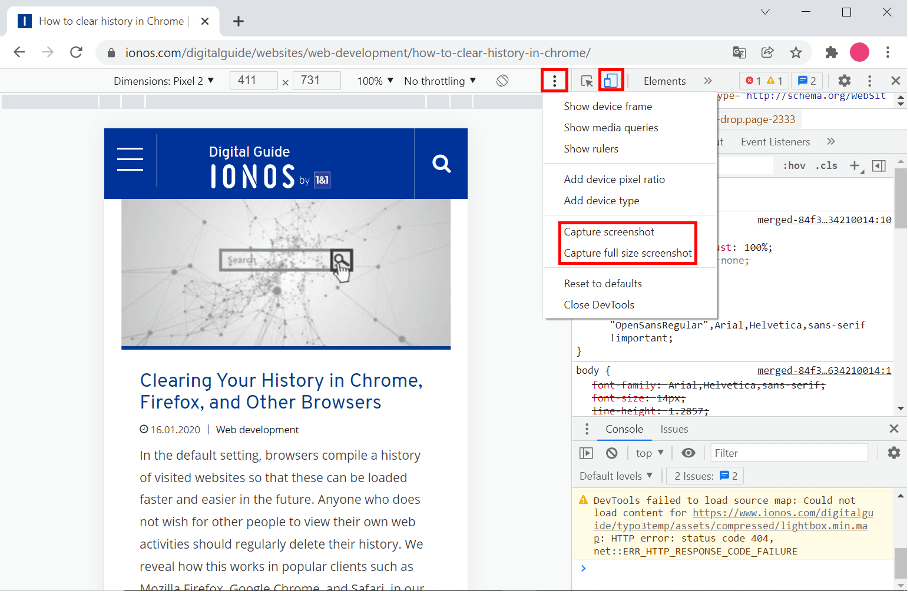
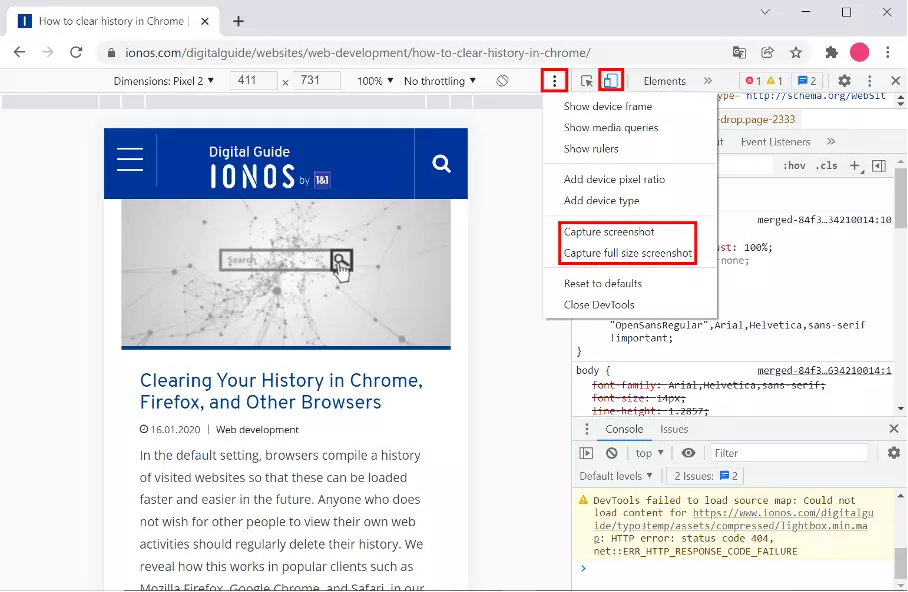
- Click the second icon from the left at the top displaying a small and a large screen – called “Device Toolbar”.
- You can now select parameters for your screenshot. If you would prefer them not to be there, click on the appropriate option under “Responsive”.
- Click the three dots to the right of the bar and select the screenshots you wish to create in Chrome. You can choose to screenshot the visible area (Capture screenshot) or the entire page (Capture full size screenshot).
- Write perfect emails with optional AI features
- Add credibility to your brand
- Includes domain, spam filter and email forwarding