

APNG (Animated Portable Network Graphics)

Anyone who wants to add funny animations to their website, social media articles, or chat messages usually look for GIFs. Whether it’s your own website, Facebook, Twitter, or WhatsApp – the short image sequences and clips, known as GIFs (Graphics Interchange Format) form a large part of the animated image content on the web and are used by numerous users. This ultimately makes them a popular tool for marketers. GIF is not the only format with which several images can be combined in a single file: For example, the developers of APNG (Animated Portable Network Graphics) promise not only similar animation options, but even better quality of the sequences created.
What is behind APNG (Animated Portable Network Graphics)?
Back in 2004, Mozilla developers Stuart Parmenter and Vladimir Vukicevic released a first specification of the APNG format to allow the storage of animated website elements like a throbber (a graphic that shows an action being performed). Previously, Mozilla had discounted support for MNG (Multiple Image Network Graphics) animations that had been under-used for these components, but they were too large a décor library. APNG’s decoder (which was largely taken from the model PNG format) is much smaller by comparison. Although animated PGNs are often used as well, APNG 2007 was rejected as an official extension – especially because the majority of those responsible saw PNG as a pure, single format.
How is the APNG format structured?
Although APNG does not count as an official PNG extension, it is backward compatible to the basic format. An application program that supports PNG (but not APNG) is still able to play an APNG file, but in this case, just a single image can be seen, not the complete animation.
From a technical point of view, the APNG data stream largely corresponds to the standard PNG data stream whose structure can be found in the official image format specifications. However, the Animated Portable Network Graphics format includes three additional types of information blocks (chunks) that describe the animation and provide additional frame data.
- Animation control chunk (acTL): This block informs the parser that the PNG is animated. It shows the number of frames that make up the animation and also describes how often the animation should be played before it stops.
- Frame control chunk (fcTL): The frame control chunk precedes each frame contained in the APNG animation. It contains information, the most important of which is the display time of the frame.
- Frame data chunk (fdAT): Frame data chunks are structurally equivalent to the standard PNG image data blocks (IDAT), but are additionally marked with a sequence number. The respective number is also automatically assigned to the preceding fcTL block, so that the different frames can be brought back into the correct sequence at any time.


APNG vs. GIF: The benefits of Animated Portable Network Graphics
The fact that APNG is a serious alternative to the established GIF is illustrated by a look at the properties of the Mozilla format: APNG supports a color depth of up to 24 bits and thus over 16 million colors. The GIF format with its 8-bit support is limited to just 256 colors. Of course, it is important to keep in mind that a higher quality of the animated images always leads to a growing file size. Since APNG tends to have a smaller file size and also has a better compression behavior than GIF, the quality advantage still holds.
A further advantage: Animated PNG supports not only complete, but also partial (graded) transparency, which makes a natural integration of the animations into the existing web layout possible. GIF animations only provide support for simple transparency, which can create unattractive edges around the graphic (where it meets the background).
| APNG | GIF | |
| Publication | 2004 | 1987 |
| Color depth | 24 bit | 8 bit |
| Frame rate | Unlimited | 10 frames per second |
| Transparency | Complete and partial | Complete |
| Compression | Very good | Good |
APNG currently still has a need for optimization in comparison to GIF and slight disadvantages when it comes to browser support – although the format is also gaining ground in this respect: Firefox, Mozilla’s in-house solution, has long been the only web browser capable of correctly rendering animated PNG files, but Chrome and Safari (desktop and mobile versions), as well as Opera (desktop only) are now able to do so. Other browsers, like Internet Explorer or Microsoft Edge, are still unable to play PNG animations. An extensive list of browsers with or without APNG support can be found in the web service “Can I Use”.
Creating an APNG – how it works
In order to create your own APNGs, you first need suitable software. This software must either be able to merge several PNG files into a single APNG file or convert foreign file formats into PNG and animated PNG. As far as these functions are concerned, you have the choice between classic desktop programs and web applications. In the following, we present APNG Assembler and the animated PNG Maker from ezgif.com as solution examples of both types.
APNG Assembler: How to create APNG animations with the open source tool
You can use the MIT and zlib-licensed command line tool APNG Assembler on all common platforms. Windows users even have a graphical user interface at their disposal, which can be downloaded free of charge from the official website. If you make use of this option, start the tool by double-clicking on the file “apngasm_gui”.
In order to create your own APNGs, you need suitable image material in PNG format: The software does not offer functions for converting images, animations, or even videos in other formats like JPEG, GIF, or MPEG. Once you have the desired images ready, simply drag and drop them into the “Input files” field:
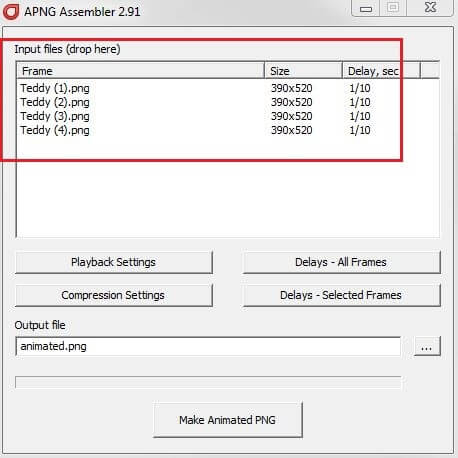
Once you have added all the PNG images you want to include in the animation, you can specify the setup of this animation using the options below:
- Playback settings: In the playback options, you can set how often the animation should be repeated (without limitation by default). To do this, just uncheck “Play indefinitely” and enter the appropriate number. You can also select “Skip the first frame” option if you want the first frame in the animation to be skipped.
- Compression settings: With zlib, 7zip, and Zopfli, APNG Assembler provides three different algorithms for compressing the animation. In the compression settings, you can select one of these algorithms. You can also activate or deactivate the optimization of the color palette and color types using the tool.
- Delays – all frames/selected frames: Under “Delays” you can set the time interval between the individual frames of the animation. You can either make a general setting for all frames or set the distance frame by frame.
Once you have adjusted your settings, create the APNG file by clicking on “Make Animated PNG.” You can then view the result with any playback program that supports the format, with your browser, for example.

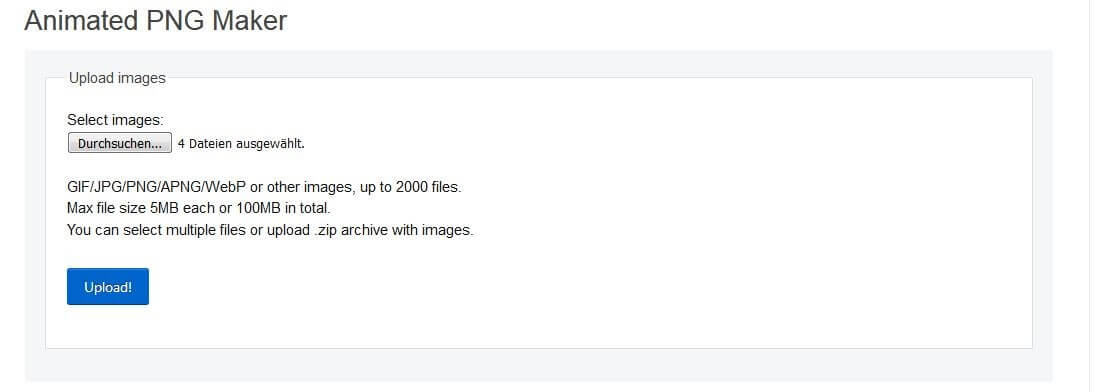
Create APNGs with the web tool Animated PNG Maker from ezgif.com
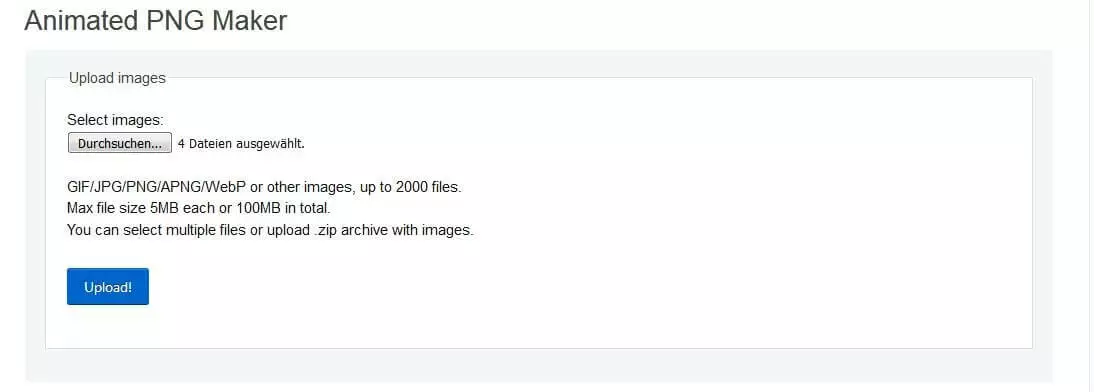
The Animated PNG Maker on the ezgif.com website is partly based on the previously presented command line and desktop tool APNG Assembler. For this reason, it works very similarly, even if you cannot start the service directly, but have to call it with the browser of your choice. In the first step, you also add the desired image files in this tool. Unlike APNG Assembler, you are not limited to the PNG format: The web service also allows you to implement images in JPG, WebP, or GIF format. Simply click on “Browse,” select the files of your choice, and click on “Upload.”
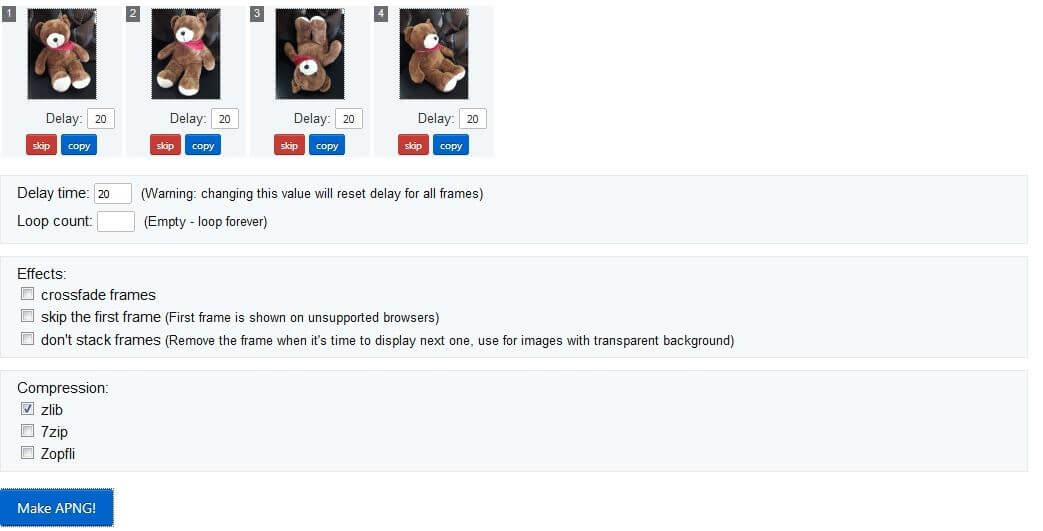
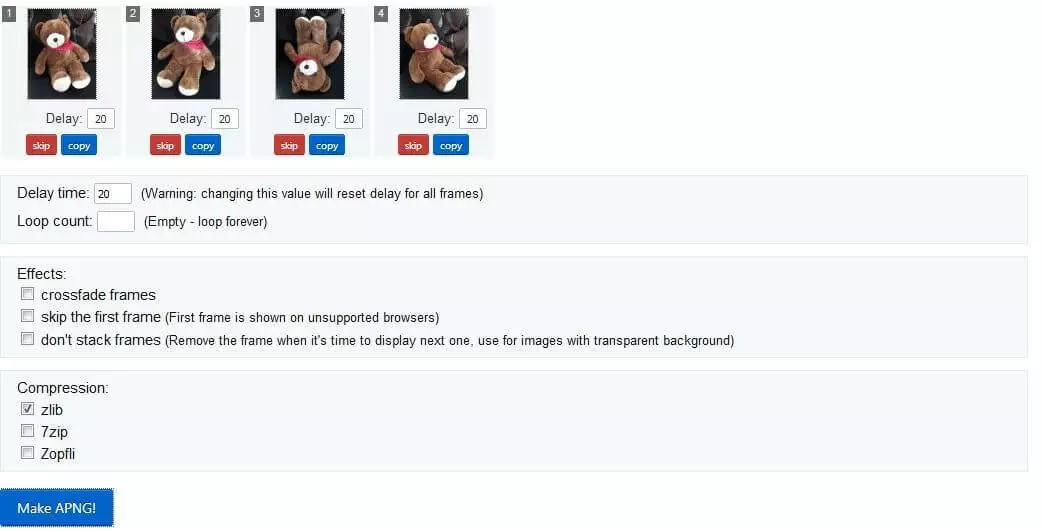
Using the settings known from APNG Assembler (delay, playback options, and compression), you then set the basic animation setup. With “Make APNG!”, you can finally create your own APNG and save it locally.
How to convert videos and GIF animations to APNGs using ezgif.com converters
It is not always practical to assemble a new animation from individual image files. For example, it is not uncommon to have a small video clip ready that you want to convert into an APNG animation. You can use “Video to APNG” to upload video files of up to 120 megabytes in size and then convert them into an APNG animation. Supported formats include MP4, WEbM, AVI, MPEG, FLV, MOV, and 3GP.
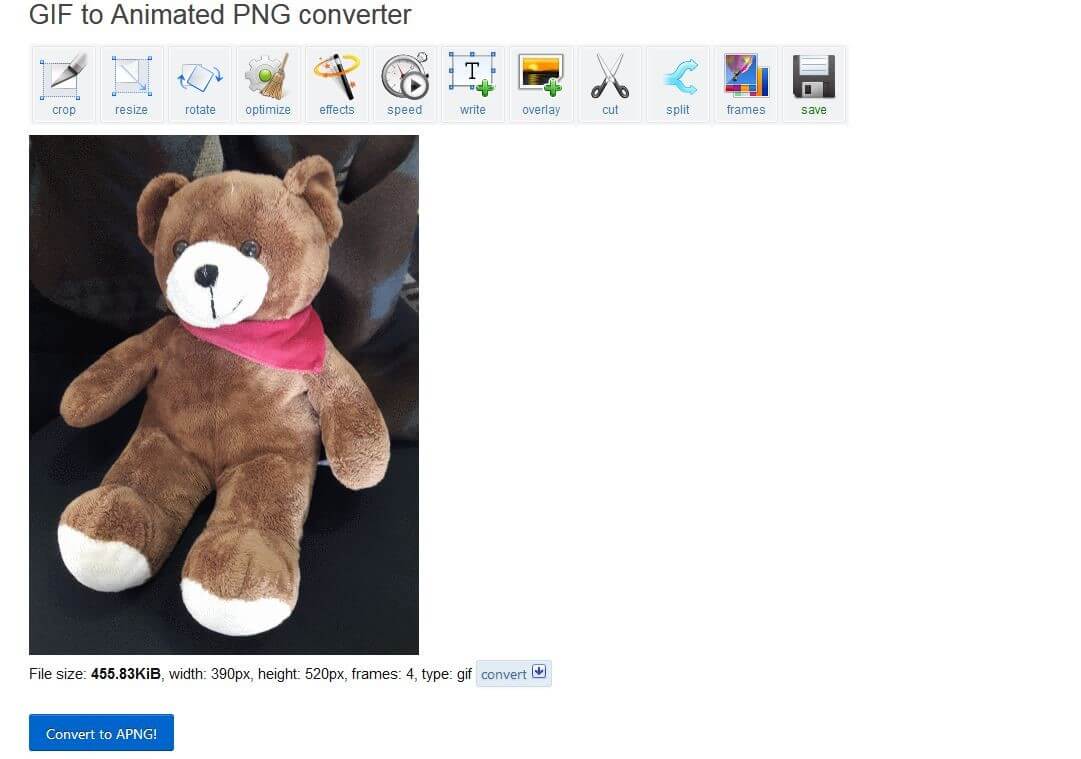
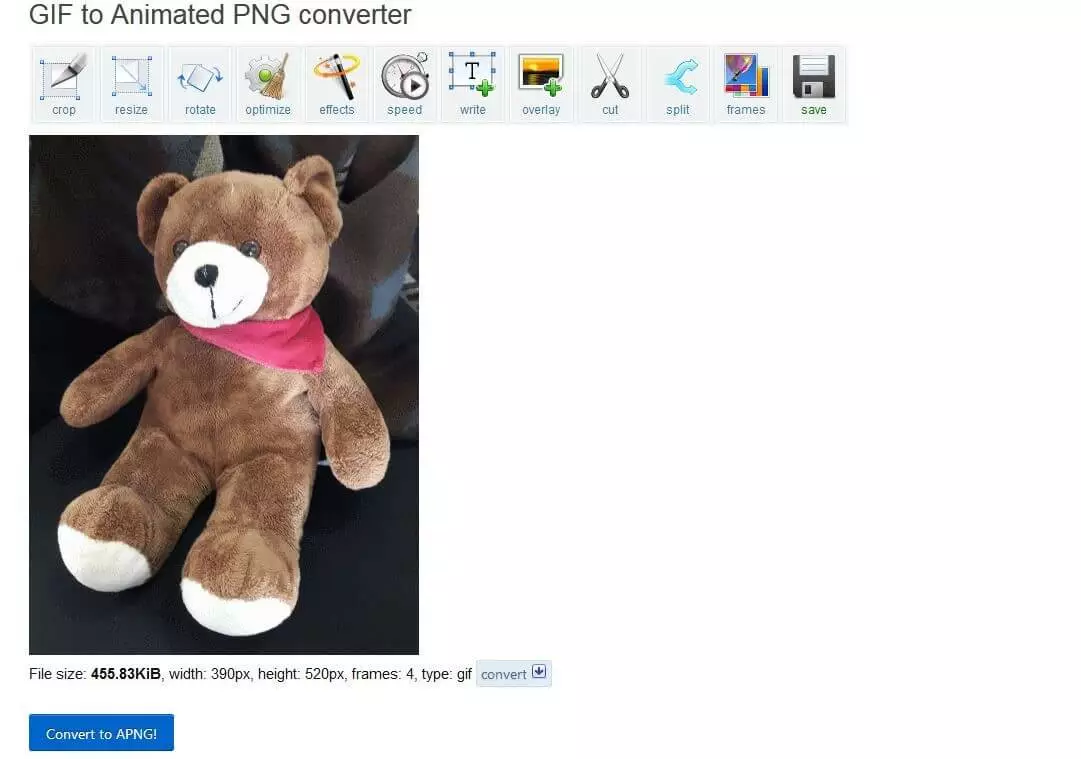
The website also provides a converter for converting GIF animations into animated PNG. With this tool, you can save up to 35 megabyte GIFs on your hard disk in the alternative animation format. You can also convert GIFs from platforms like Giphy by entering their URL in the line “OR paste image URL” and clicking “Upload.” In both cases, start the conversation process by clicking “Convert to APNG!” after uploading. Before doing so, you can adjust and optimize the original in a number of ways, such as changing the playback speed, adding text and effects, or using additional compression methods.
Summary: Powerful GIF alternatives to Mozilla
Animated Portable Network Graphics has numerous advantages over the GIF format. It lets you create animations whose quality clearly exceeds that of GIF animations. If both have the same quality level, APNGs are characterized by a smaller file size, thanks to more effective compression algorithms. The fact that animated PNG is still rarely used is mainly due to the patchy support provided by the application programs. So far, not only do some browsers lack APNG support, but there is also a lack of communication and social media apps in which the use of animations plays an important role.