

The Alt key on the Mac keyboard: functions and special characters
Have you ever pressed the Alt key on your Apple keyboard and wondered why nothing happened? Normally, pressing [Alt] by itself will not execute a system command. However, by combining it with other keys, you can access the third assignment of keys and many common special characters. The Alt key on Mac devices can also be used to perform hidden functions. Below you will find the most important keyboard shortcuts and functions which use the Alt key on Macs.
Importance and function of the Alt key (Mac)
You can identify the Alt key (also referred to as the Option key) on Apple keyboards by the following symbol: ⌥. This symbol represents an alternative and indicates the function of the key. By combining the Alt key with other keys, you can use hidden options and select the alternative assignment of keys allowing you to display special characters. On some keyboards, the key is labeled with the term “alt”. On English-language keyboards, the key is also labeled with the term “option”.
On Windows keyboards, you can identify the Alt key by its [Alt] label. The alternative symbol is not used here. For more information about the function and use of this key in Microsoft systems, check out our in-depth article on the Alt key in Windows.
There are two Alt keys on a Mac keyboard. Both are located in the bottom row of keys to the left and right of the two command keys, respectively. Note that they have the same function. Just use the key that is easier to reach for the keyboard shortcut you are performing.
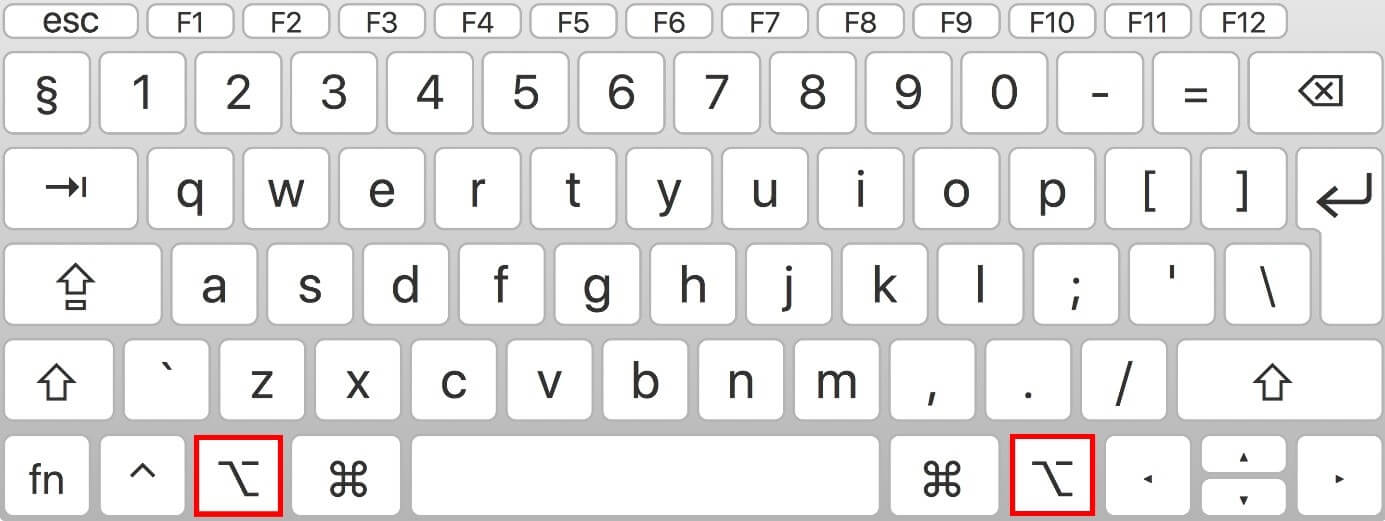
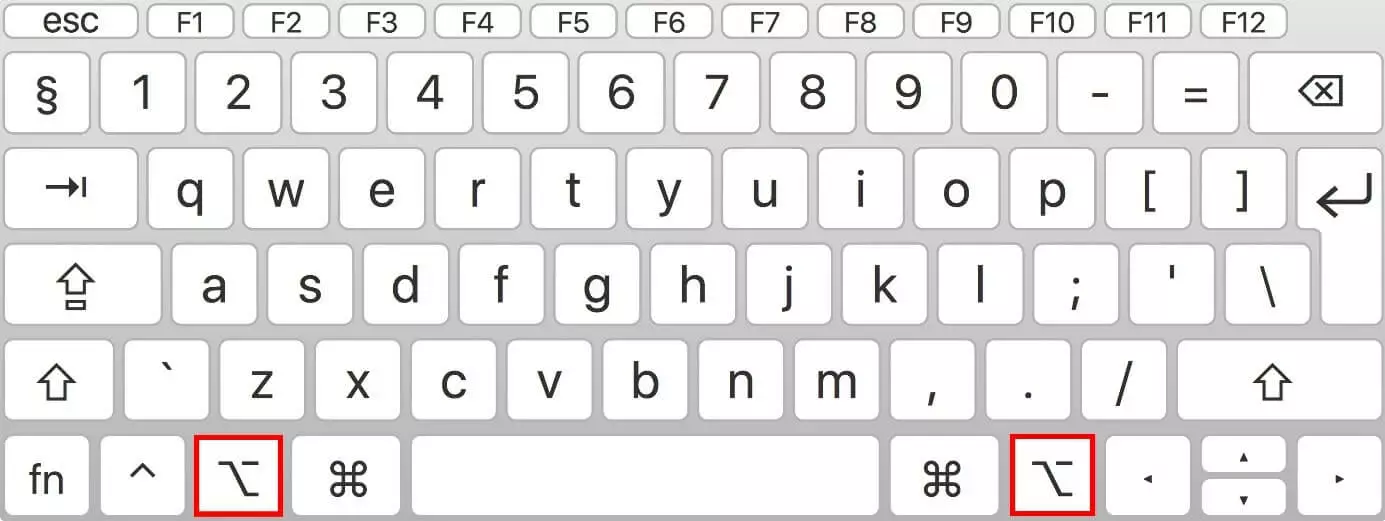
What functions does the Alt key provide on Macs?
When you combine the Alt key with other keys on a Mac keyboard, you gain access to a wide variety of functions that are otherwise only accessible via indirect means. What commands are available varies depending on the active window or program. For example, the Alt key performs different functions in the Finder than in an open text document. If your mouse cursor is in an input field or word processing program, the Alt key can be used to access the third assignment of keys and thus special characters.
The most important keyboard shortcuts using the Alt key on Mac
Depending on whether you are using the Finder, a program or an input field, you will have different commands and functions available to you via the keyboard shortcuts using the Alt key on Macs. Below you will find some useful shortcuts that can be used to access functions and special characters quickly and easily.
Alt key functions on macOS
If you are looking to use an Apple system application or macOS, you can use the Alt key to quickly access a variety of options. There are even shortcuts to hibernate your computer. The following table is an overview of the most important shortcuts:
| Keyboard shortcut | Function |
|---|---|
| [Alt] + Time Machine icon | Check and look for backups |
| [Alt] + speaker icon | Display and adjust input and output device |
| [Alt] + Bluetooth icon | Display information about the Bluetooth version and visibility |
| [Alt] + volume icon | Open sound settings |
| [Alt] + WLAN icon | Display additional information about the WLAN connection |
| [Alt] + battery icon | Display additional information about the battery |
| [Alt] + Notification Center icon | Activate “Do Not Disturb” mode |
| [Alt] + [Cmd] + [Q] | Log out |
| [Alt] + [Cmd] + [Eject] key | Hibernate |
| [Alt] + [Ctrl] + [Cmd] + [Eject] key | Close all apps and then turn off Mac |
Alt key shortcuts in the Mac Dock
Using the appropriate keyboard shortcut, you can show or hide the Dock. If you select an app in the Dock by left-clicking on it while pressing the Alt key, you can perform additional functions:
| Keyboard shortcut | Note | Function |
|---|---|---|
| [Alt] + [Cmd] + [D] | Show or hide Dock | |
| [Alt] + click on active app | First press and hold the Alt key, then left-click on the active app to select it | Show or hide all windows |
| [Alt] + click on inactive app | Start program while holding the Alt key | Varies depending on the program. For example, in iTunes this selects or creates a media library |
| [Alt] + right-click on active app | First press and hold the Alt key, then right-click on the active app to select it | Immediately closes the selected app |
Quick settings shortcuts using the Alt key on Mac
Using the following shortcuts, you can control various settings. You can also adjust the brightness of the display and the keyboard in smaller increments. If needed, you can set additional individual shortcuts in the keyboard settings.
| Keyboard shortcut | Function |
|---|---|
| [Alt] + brighter/darker | Open the monitor settings |
| [Alt] + [Shift] + brighter/darker | Adjust the display brightness in smaller increments |
| [Alt] + keys for keyboard brightness | Open the keyboard settings |
| [Alt] + [Shift] + keys for keyboard brightness | Adjust the keyboard brightness in smaller increments |
| [Alt] + volume up/volume down | Open sound settings |
Additional useful keyboard shortcuts
Using the following Alt key shortcuts, you can execute common commands faster and simplify your daily work:
| Keyboard shortcut | Command |
|---|---|
| [Alt] + [Cmd] + [Esc] | Close the selected app |
| [Alt] + [Cmd] + [Shift] + [Esc] | Force program to close |
| [Alt] + [Cmd] + [L] | Open the Downloads folder |
| [Alt] + [Cmd] + [N] | Create a new Smart Folder |
| [Alt] + [Cmd] + [V] | Move files from the Clipboard to the current location |
| [Alt] + [Cmd] + [W] | Close all open windows in a program |
| [Alt] + [Cmd] + [H] | Hide all inactive windows |
| [Alt] + [Cmd] + [Shift] + [Backspace] | Empty the Trash without confirmation dialog |
Alt key shortcuts in the Mac File Manager
If the Finder application is open in the foreground, use its dedicated shortcuts to show and hide additional functions or to execute commands for the selected file.
| Keyboard shortcut | Note | Function |
|---|---|---|
| [Alt] + [Cmd] + [i] | Open information about the selected file | |
| [Alt] | When moving a file | Create a copy of the file |
| [Alt] + [Cmd] | When moving a file | Create a shortcut to the file |
| [Alt] + [Cmd] + [T] | Show or hide the toolbar | |
| [Alt] + [Cmd] + [Y] | Open Quick Look in full-screen mode | |
| [Alt] + [Cmd] + [A] | Use [Cmd] + [A] to select all items | Deselect all items |
| [Alt] + [Cmd] + [M] | Using [Cmd] + [M] will only minimize the active window | Minimize all windows |
| [Alt] + [Cmd] + [W] | Using [Cmd] + [W] will only close the active window | Close all windows |
| [Alt] + [Cmd] + [P] | Show or hide the path bar in Finder windows | |
| [Alt] + [Cmd] + [S] | Show or hide the sidebar in Finder windows | |
| [Alt] + [Cmd] + [T] | Show or hide the toolbar(only possible when a single tab is open in the Finder window) |
Inserting special characters with the Alt key on Macs
On Windows keyboards, many common special characters are displayed on the keyboard itself. If you press a key while holding [Alt Gr], you can access its third assignment. On macOS, you can use the Alt key to access these sub-functions. However, the available special characters are not displayed on Apple keyboards. The following is an overview of the most important characters and how to access them:
| Keyboard shortcut | Characters | Description |
|---|---|---|
| [Alt] + [C] | ç, Ç | C with cedilla |
| [Alt] + [Cmd] + [T] | ² | Two in superscript |
| [Alt] + [N] | ~ | Tilde |
| [Alt] + [L] | @ | “At” symbol |
| [Alt] + [E] | € | Euro symbol |
| [Alt] + [R] | ® | Registered trademark symbol |
| [Alt] + [G] | © | Copyright symbol |
| [Alt] + [5] | [ | Open square bracket |
| [Alt] + [6] | ] | Closed square bracket |
| [Alt] + [7] | l | Vertical line |
| [Alt] + [8] | { | Open curly bracket |
| [Alt] + [9] | } | Closed curly bracket |
| [Alt] + [Shift] + [7] | \ | Backslash |
| [Alt] + [Shift] + [W] | „ | Lower German double quotation mark |
| [Alt] + [2] | “ | Upper German double quotation mark |
| [Alt] + [S] | ‚ | Lower German single quotation mark |
| [Alt] + [#] | ‘ | Upper German single quotation mark |
| [Alt] + [Shift] + [Q] | » | Left French double quotation mark |
| [Alt] + [Q] | « | Right French double quotation mark |
| [Alt] + [Shift] + [N] | › | Left French single quotation mark |
| [Alt] + [Shift] + [B] | ‹ | Right French single quotation mark |
| [Alt] + [+] | ± | Plus-minus symbol |
| [Alt] + [U] + [letter] | ä, ü, ö | Adds an umlaut to the selected letter |
In our follow-up article, you can learn about the most important Windows “Alt Gr” keyboard shortcuts.