

Option key on Mac: How to use the Opt key to save time
The Mac Option key is a special key – also known as the Alt or Opt key. Compared with other operating systems, its functionalities are similar to the Alt key on Windows computers in many respects.
Where can you find the Option key on Macs?
Two Option keys can usually be found on a Mac keyboard. They are positioned to the left and right of the space bar and are marked by the ⌥ symbol.
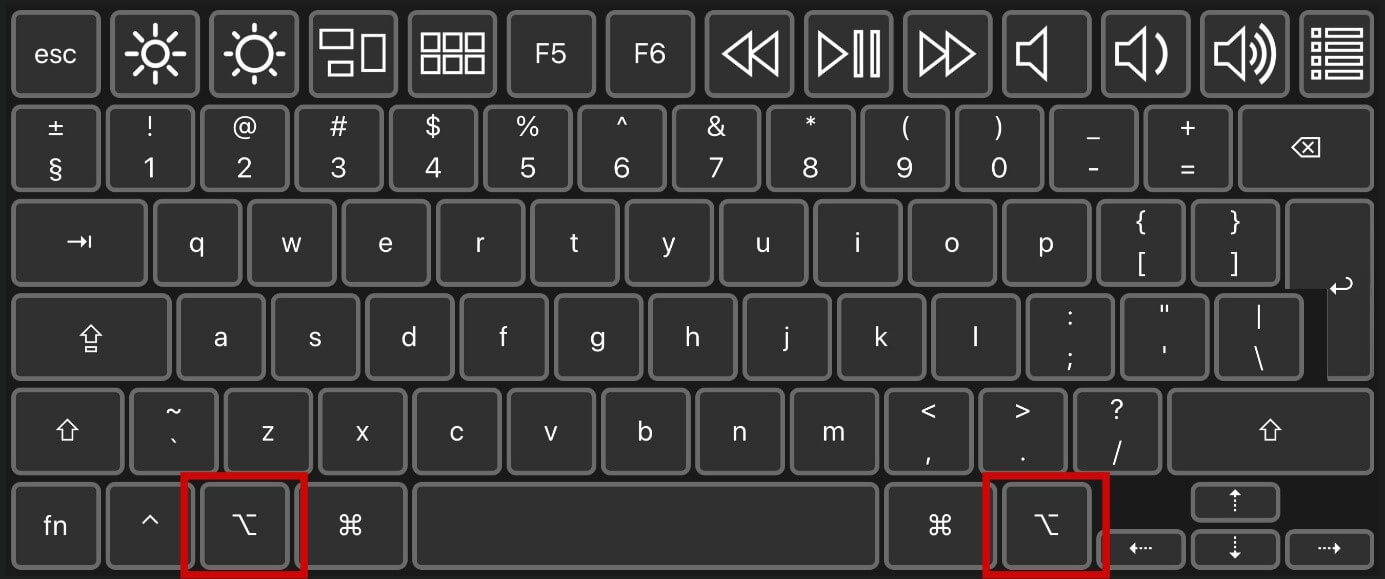
On newer Mac keyboard models, the Option key sometimes bears the label “option”. On older models, you will find the term “alt” on the key.
What functions does the Mac Option key have?
The Mac Option key has different functions depending on the application and key combination. The most common and probably most frequently used commands are:
- Copy files: If you would like to copy and move files in the Finder, hold down the Option key while dragging the files with the mouse. As soon as the mouse hovers over the desired location, let go, and a copy of the file will be saved in the respective location. Holding the Command key in addition to the Option key while dragging will save an alias of the file.
- Close all windows: Hold down the Option key and click on the “close window” symbol to close all open windows automatically in the program currently in use. If a file contains any unsaved changes, you will be asked whether you wish to save the changes before closing the file. This function is very useful as a shortcut in Word or Finder, for example.
- Special characters: Some keys can be used to insert special characters. For instance, pressing the Mac Option key with L will insert the @ symbol.
- Navigate: In a text program, you can hold down the Option key and press the left and right arrows to navigate from one word to another.
Overview: additional commands and combinations with the Mac Option key
Besides the functions already mentioned, there are many more applications for the Mac Option key that enable faster controls. Here is an overview of some practical commands:
| Key combination | Command |
| Option key + Command key + ESC | The window to close apps immediately will launch. Select the corresponding application and force it to close. |
| Option key + Command key + power button | Puts your Mac to sleep. |
| Ctrl + Option key + Command key + power button | Ends all running apps and then shuts down the Mac. If open documents contain unsaved changes, you will be asked whether you wish to save them. |
| Option key + Command key + L | Opens the “Downloads” folder. |
| Option key + Command key + D | Hides/shows the “Dock”. |
| Option key + Command key + backspace | If you have selected one or more files in the Finder, this key combination allows you to delete the selected files immediately. |
| Option key + double-click | Double-click on a folder in the Finder while holding down the Option key in order to open it in a new window and close the current window. |
| Option key + backspace | Deletes the word to the left of the cursor. |
To speed up work with your Apple device, there are even more Mac shortcuts available.