

The best project management apps

Project management used to consist mainly of blackboards, sticky notes, project folders, and a load of office clutter. The internet has made significant changes to many aspects of work life, and project management is no exception. These days, you can choose from a number of programs that simplify project work and workplace communication, making everything tidier and easier. Most SaaS/PaaS-based internet platforms can be accessed and used from almost any device, which makes it much easier to work together in the office or from a distance.
Many project management apps combine features from social networks with planning tools and project threads to cover the biggest number of tasks possible. The planning, communication, personal chats, calendars, appoints, messages, surveys, emails, etc, often all take place entirely on the one platform. Most apps are suitable for large operations as well as smaller teams or even self-employed individuals who want to organize themselves better, as project planners, for example. While some providers prefer to keep their platforms tidy, other developers would rather find innovative solutions for day-to-day work.
Because project management apps come in so many diverse forms, it’s often difficult to find the appropriate platform for you and your team. There are also variations in price: most offer a free version but these are usually limited to a certain period of time or have restricted functionality. So generally speaking, if you want to set up a project management platform for your workplace, you should be ready to pay for it. Here, we’ll present five of the best apps for project planning.
Slack
Slack can be described as an industry leader among collaboration tools. Project management with Slack runs via communication channels like chats and project threads. Individual chats between team members are placed in separate channels, as are chats that break away from the main thread. Slack works in such a way that no communication is ever lost. It also allows for individual video chats (free version) and group video conferences (paid “Standard” and “Plus” versions).
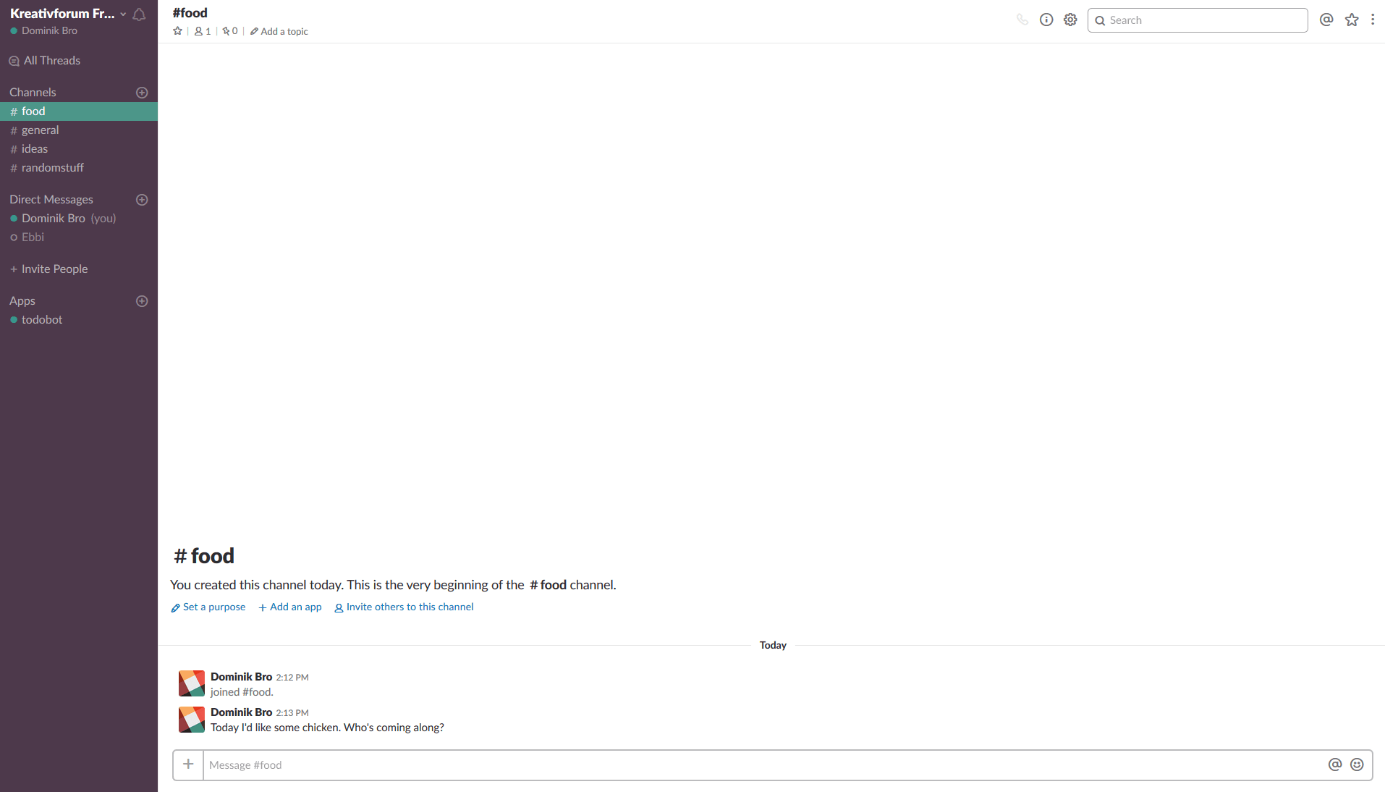
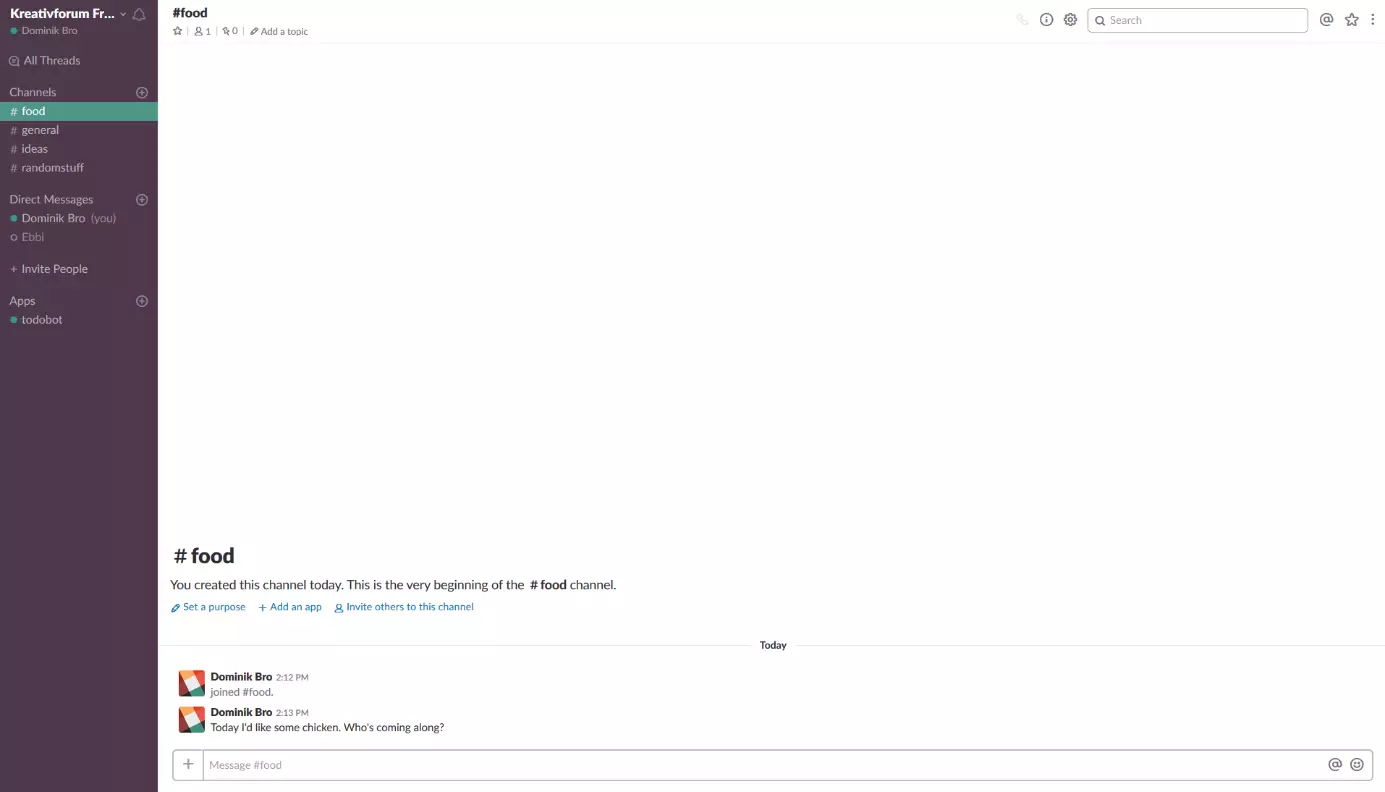
Slack is a particularly attractive option if your team is looking for a fast and efficient tool for internal communication. Using the integrated apps and bots, Slack can be upgraded to extend its functionality.
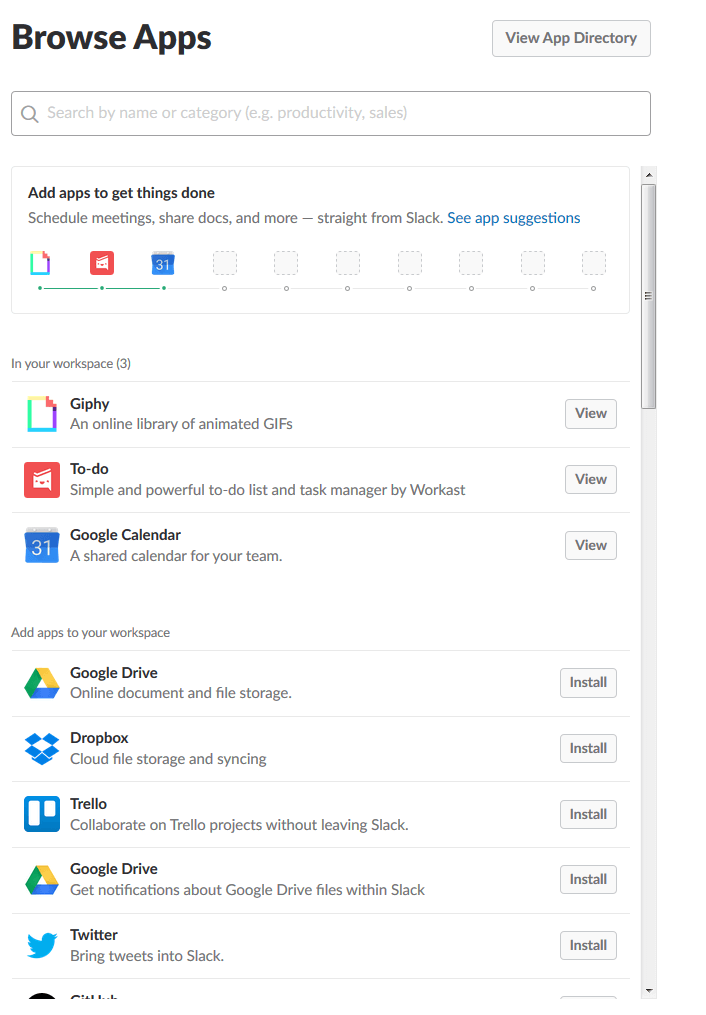
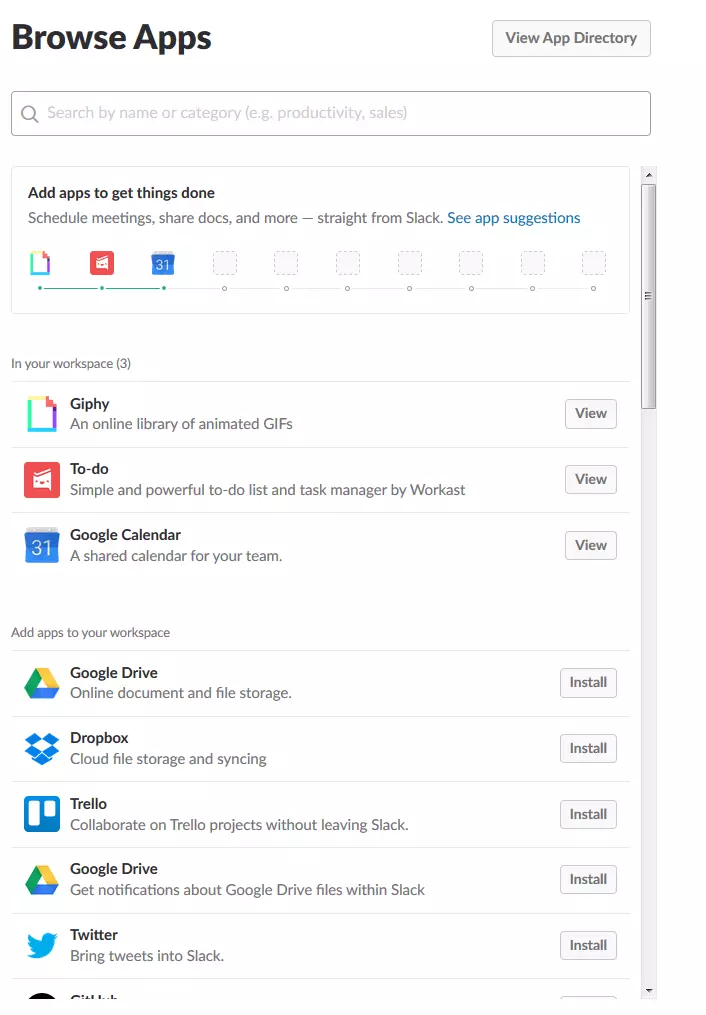
The large selection of apps for Slack is partly responsible for the platform’s popularity. Adding other project management apps like Asana and Trello (which we’ll also talk about later) is helpful if you want to communicate with your colleagues via Slack but would rather run the actual project management on another platform.
For teams that primarily just need a chat platform, Slack is also an excellent choice. In terms of range and functionality for workgroups and project teams, the apps that will be presented here later may be more suitable. Communication on the other tools, however, doesn’t run as smoothly and elegantly as it does on Slack. Even the free version can be great for larger teams as well (up to 10 apps and backups of up to 10,000 messages), while other apps sometimes require payment for providing larger functionality or even being useful at all. So if you’re looking for a free communication platform for your team, you’re in good hands with Slack.
Thanks to mobile apps (Android and iOS), you can also access Slack from out of the office, even if it’s a bit more cluttered and loses some functionality as a result of the smaller format. It works the same as other project management platforms: mobile apps are meant to be used for support when out of the office and not relied on as primary software. Most project management apps are clearly optimized for web browsers on a PC.
There are different packages available for the software: the “Standard” version of Slack is available for around 6 dollars per user/per month. In addition to unlimited apps, you also get the video conference function, among others. The “Plus” version costs about twice as much, offers higher compliance, better data protection, and guaranteed service. Slack Enterprise Grid is aimed at large customers and makes Slack into a powerful workspace platform. Here, the price has to be negotiated directly with Slack.
| Benefits | Drawbacks |
|---|---|
| Outstanding chat platform | Not a complete solution for companies |
| Integrating apps increases functionality | Chat program structure a matter of personal preference |
| Beginner-friendly | Increased reports of hours-long failures |
| Video calling | Free version only saves 10,000 chat messages |
| Free version can accommodate unlimited number of employees |
Asana
Asana is one of the best known and most widely used platforms in the world. The tidy design is just as appealing as the intuitive and smooth distribution of tasks. The user interface of Asana can be described as relatively minimalistic. In contrast to its competition, Asana can be particularly recommended to beginners who are introduced to the project management app with an excellent guide.
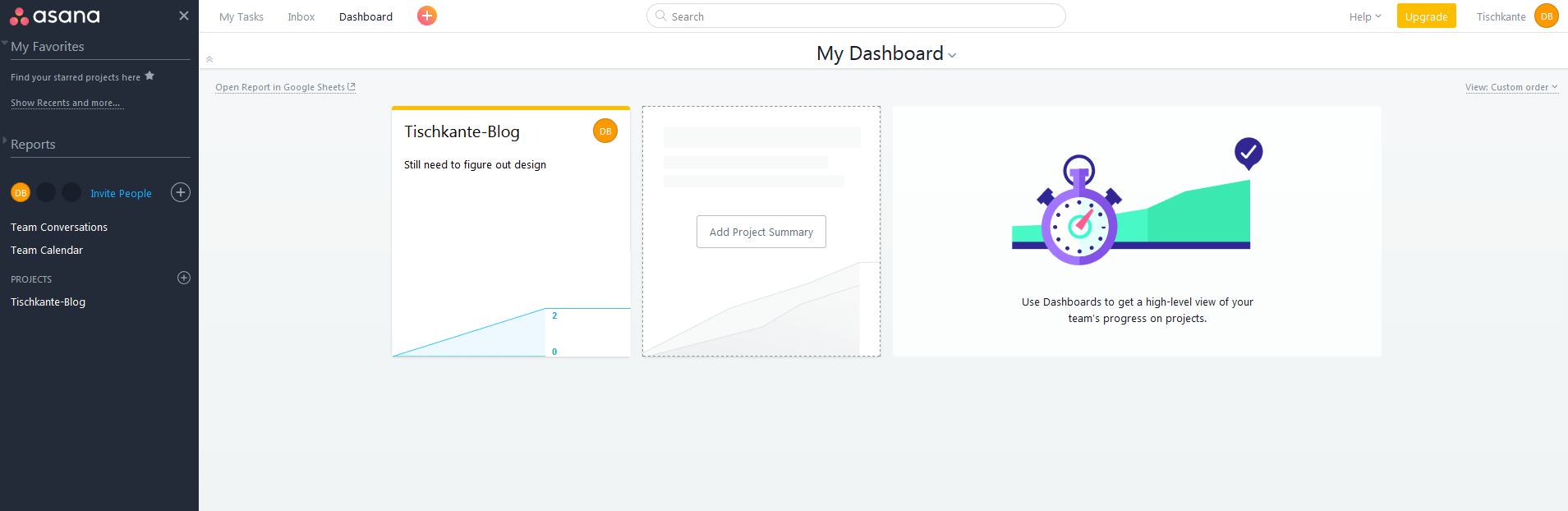
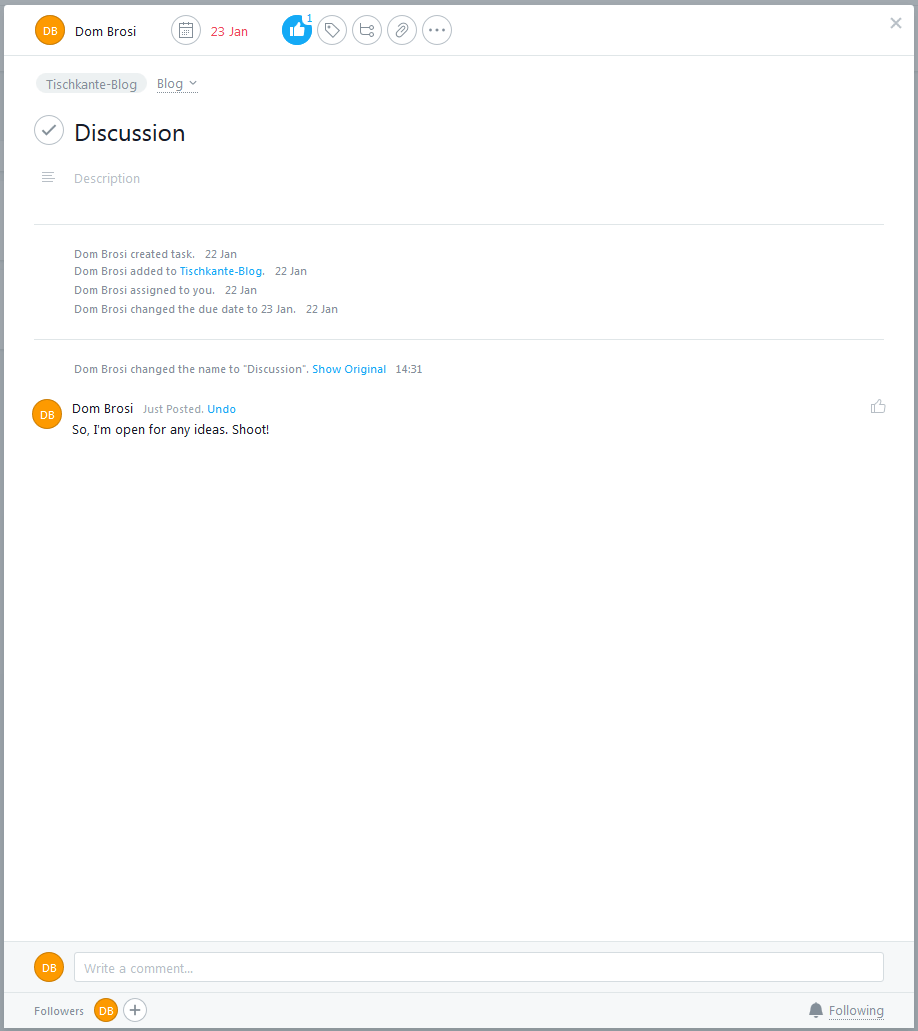
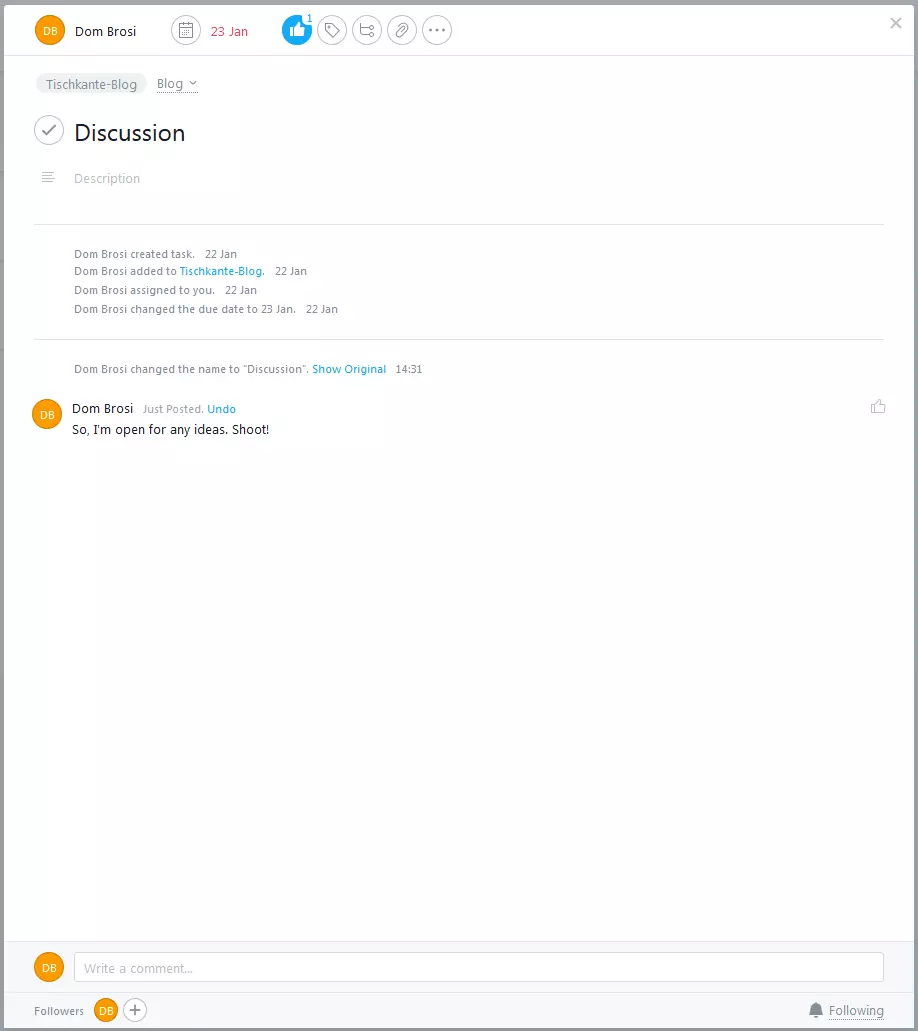
With Asana, projects are created like individual threads. In these threads, content can be shared and edited. Designated project contributors have specific permissions that you define. In the project view itself, you can have discussions, specify subtasks, give feedback, set deadlines, and much more. You can highlight individual project threads in different colors to improve the overview.
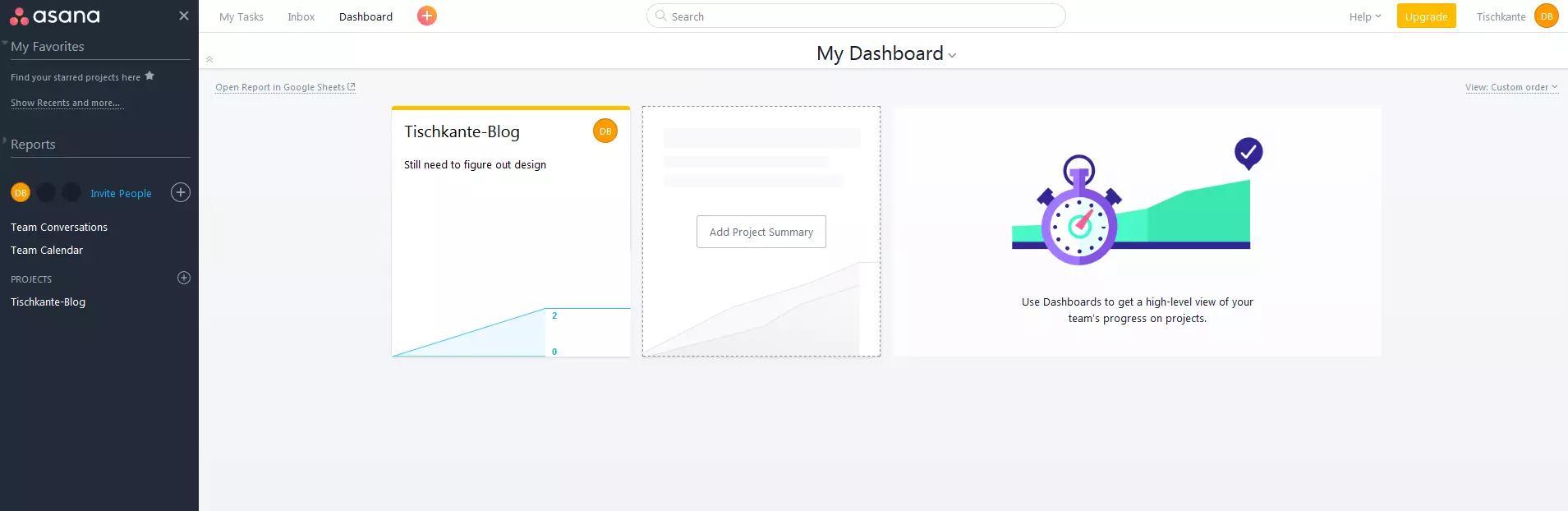
These project threads are then integrated into the calendar and dashboard and collected with others. This provides a good project overview. Overall workflow can be tracked very well on Asana. The app functions using accounts, so the manager and any team members have to register to use the web tool or mobile apps. Then, your members can be connected with or assigned to particular teams and projects. Subtasks can also be linked to specific members.
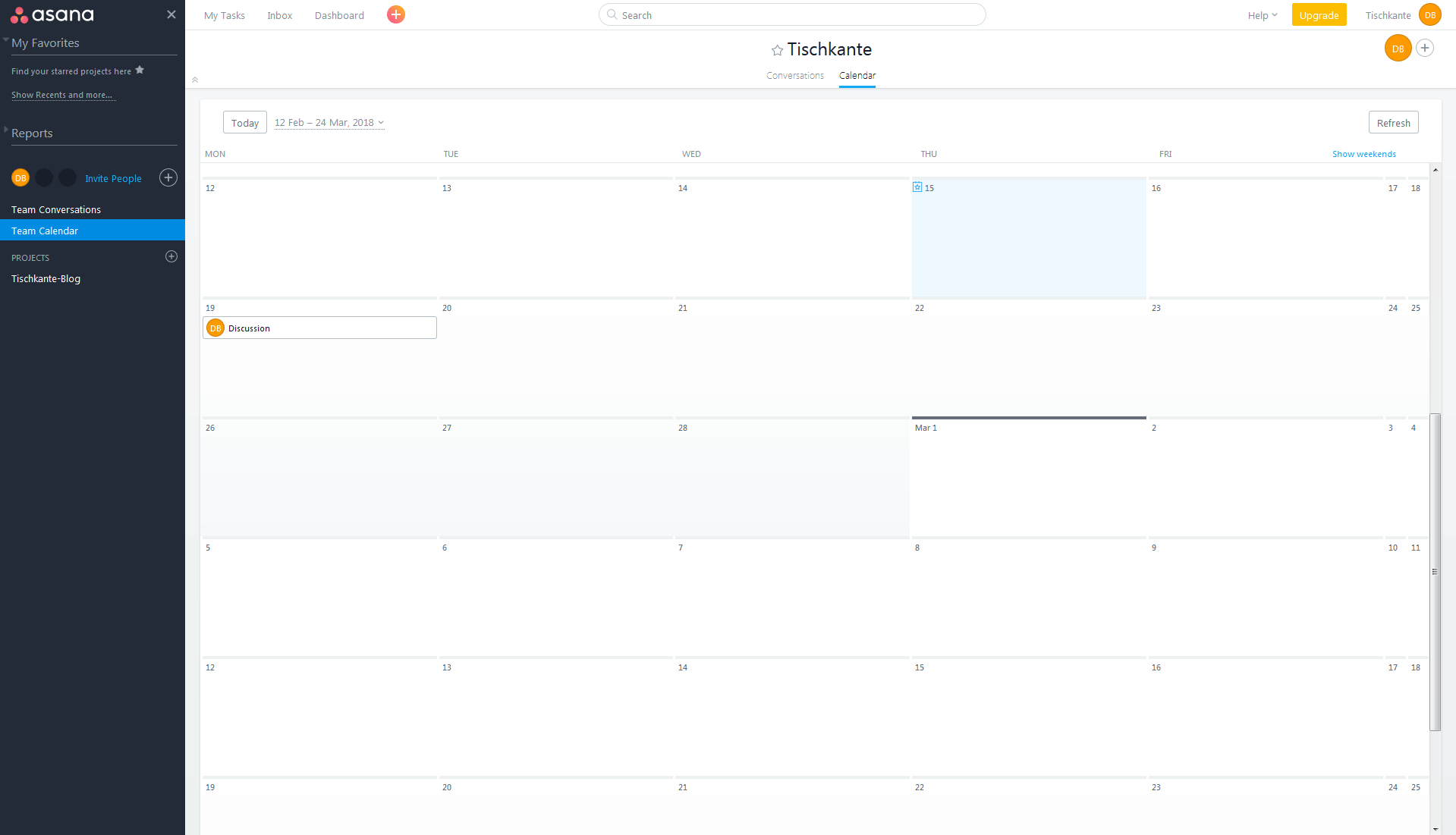
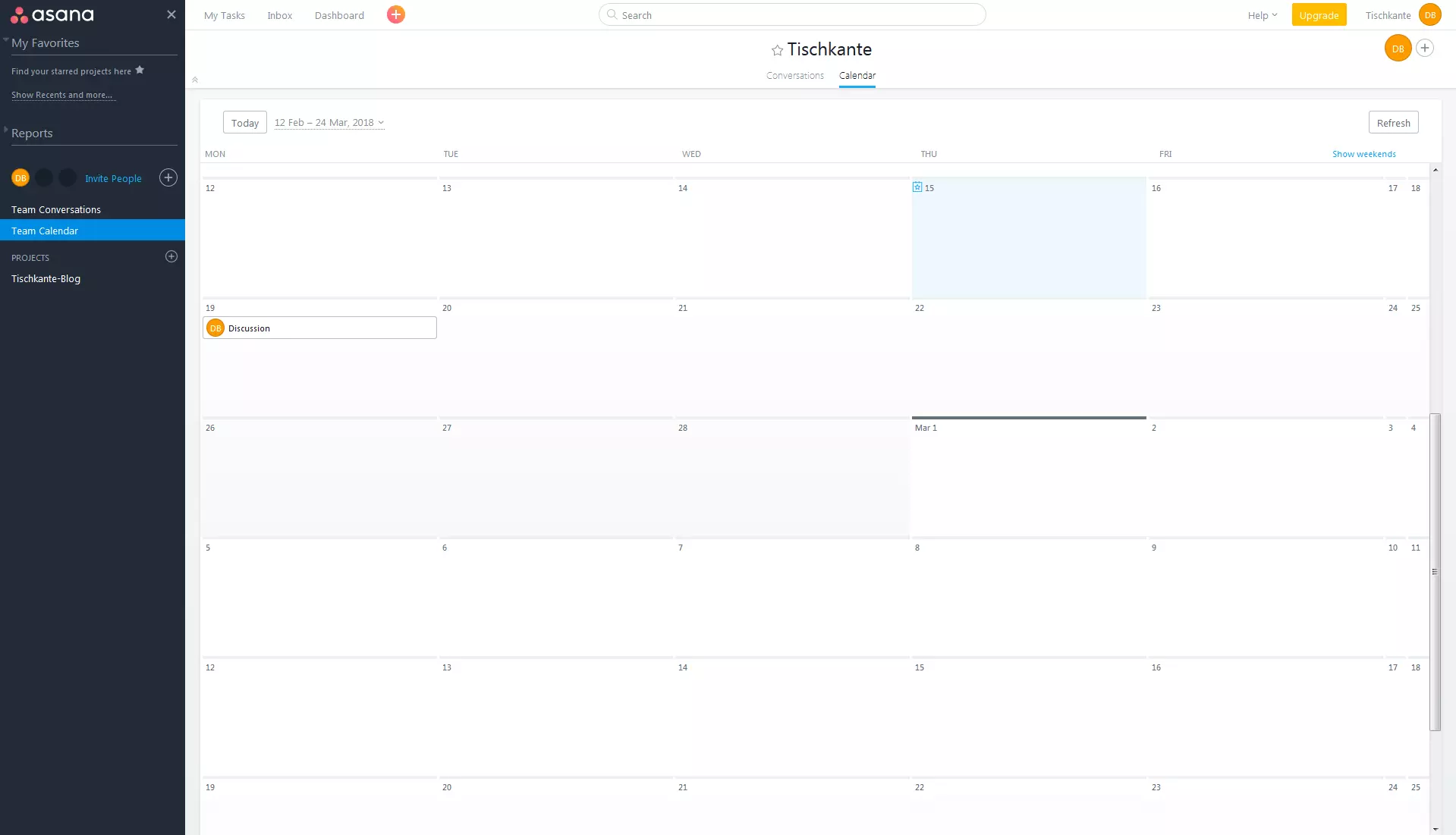
The philosophy of Asana is communal, open work. By default, all team members can edit all information and content in the projects and tasks. Of course, clear rules should be set for doing so, as user freedom can always lead to errors such as data loss due to poor communication. The tool is ideal for less hierarchical teams that work openly with one another. Traditional work circles with clearly defined power structures are poorly served by Asana.
In addition to its main web-based tool, Asana also offers apps for Android and iOS, though they’re relatively rudimentary. With the mobile app, you can create and edit tasks, receive new personal messages, attach files, and gain access to your personal inbox. Without a doubt, though, Asana is optimized for browsers on the computer. Here, more experienced users of the tool can navigate with multiple keyboard shortcuts to work even more efficiently with Asana.
The integration of external tools is also commendable. Various different micro-tools can be quickly and easily activated by Asana, including popular cloud services like Google Drive and Dropbox, developer tools like GitHub, CMS like WordPress, and many others.
In regard to data protection, Asana is considered secure. Regular server backups are intended to prevent data loss, and server hardware should be of the highest level. Additional firewalls also improve user security. The same goes for Asana and for most SaaS/PaaS apps: with your credentials, unauthorized people can easily gain access from anywhere. The user remains the main person responsible for their own data security and that of the company.
The free version of Asana can only accommodate up to 15 team members and offers all of the basic functions. For around 6-10 dollars per user each month, this limit can be eliminated and lots of features such as dashboards and the search function have their functions significantly increased. There’s one more version for large customers as well that comes with personal support and more data control. The price for this version must be negotiated directly with Asana.
| Benefits | Drawbacks |
|---|---|
| Very clear and accessible, extremely beginner-friendly | No offline functionality |
| Free versions for small teams with extensive functionality | Free versions not usable by large teams with more than 15 members |
| Quick and fluid use thanks to keyboard shortcuts | Limited integration of media, clunky work with graphics |
| Extensive support of external tools from well-known providers | No real functionality for finance and resource management |
Trello
Innovation meets playful elements with Trello. Here, organizational elements meet the design of a kind of community Kanban board. Notes, projects, discussions, chats, etc. are displayed as cards that can be moved from the board to one list or another via drag-and-drop. Cards are easily filed into categories and the workflow is clearly depicted.
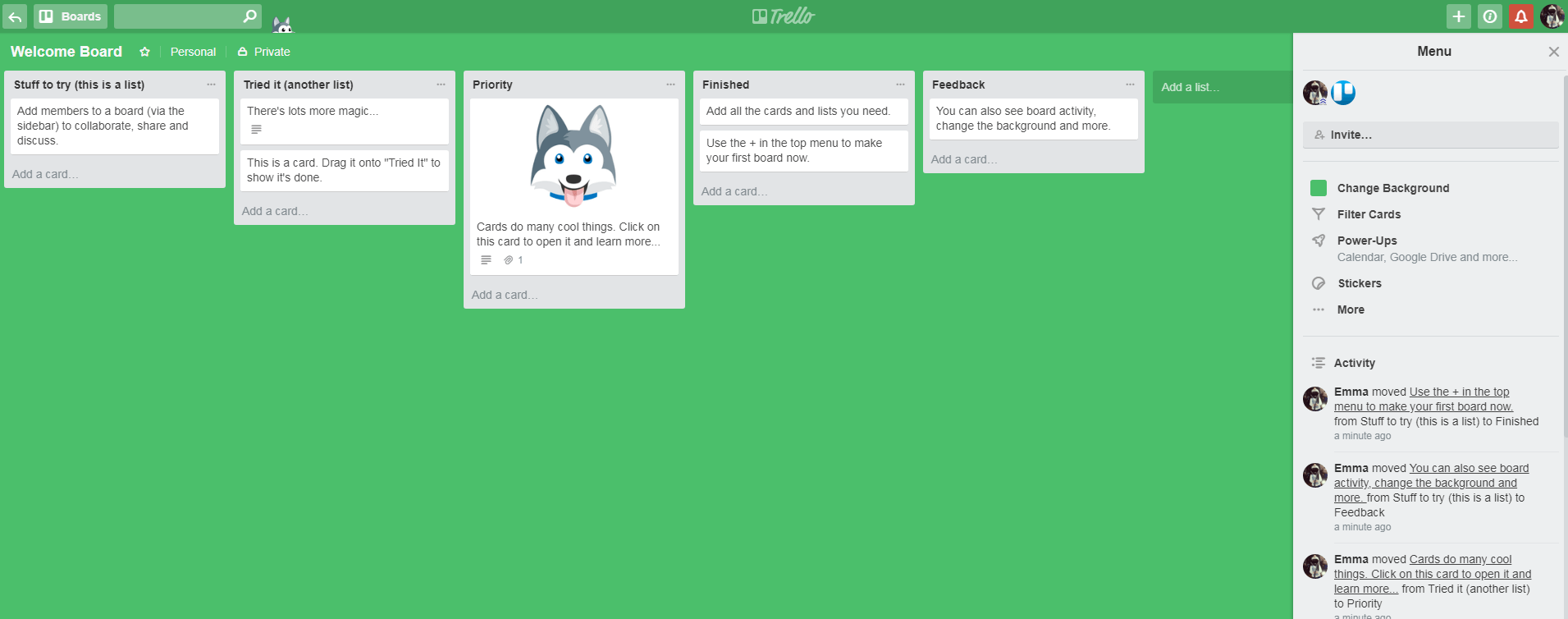
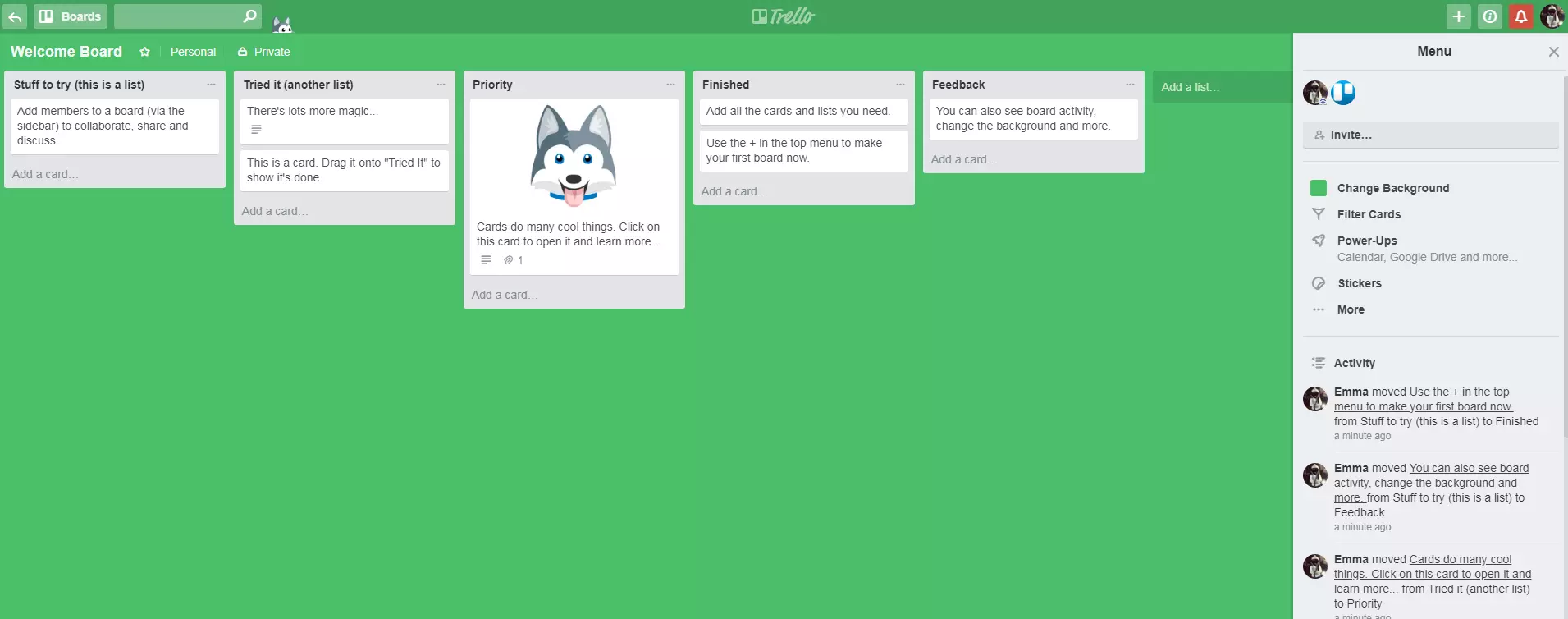
The cards are highly interactive. Team members can be linked to a card so that they can participate. They can also be packed with lots of content, including texts, images, discussions, and links to the most important functions.
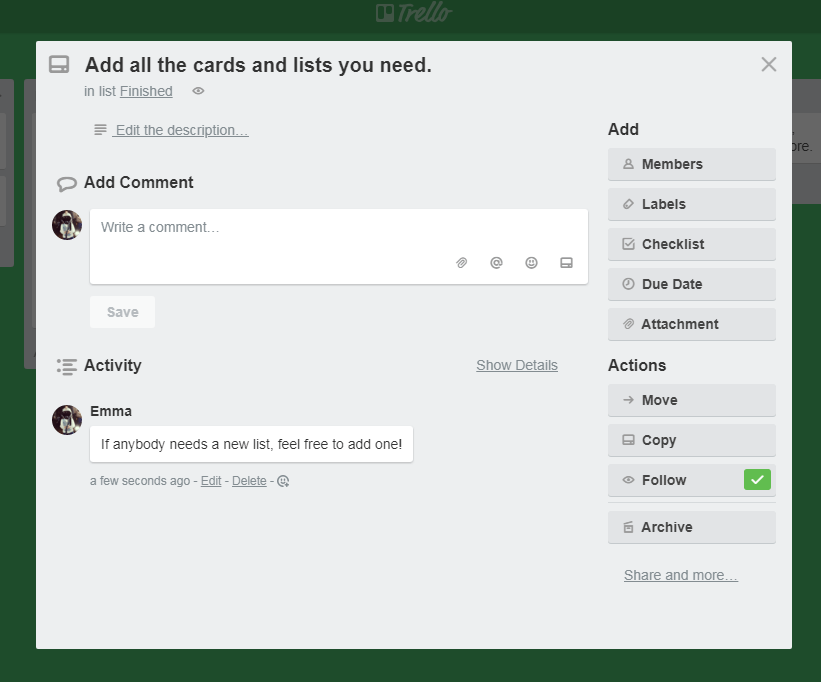
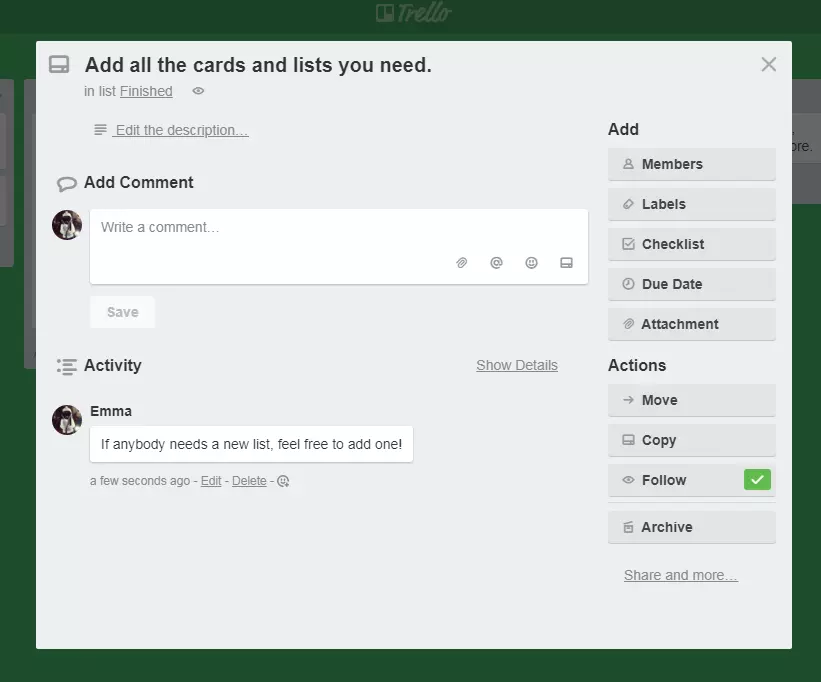
Trello doesn’t switch windows when a card is opened. This makes the operation of the tool fast and simple. You can also equip cards with so-called power-ups, or integrated apps. Using Giphy, for example, you can give each card an image file to highlight it and make it more individualized.
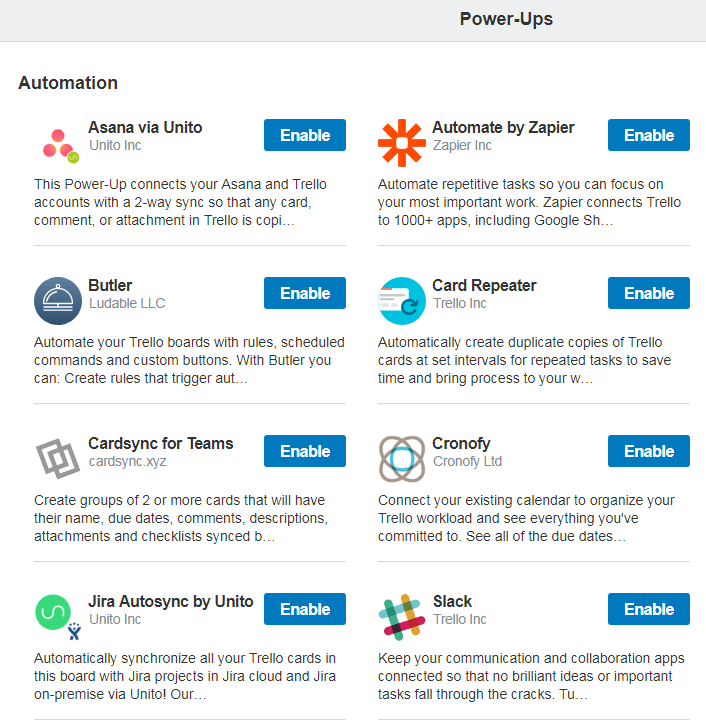
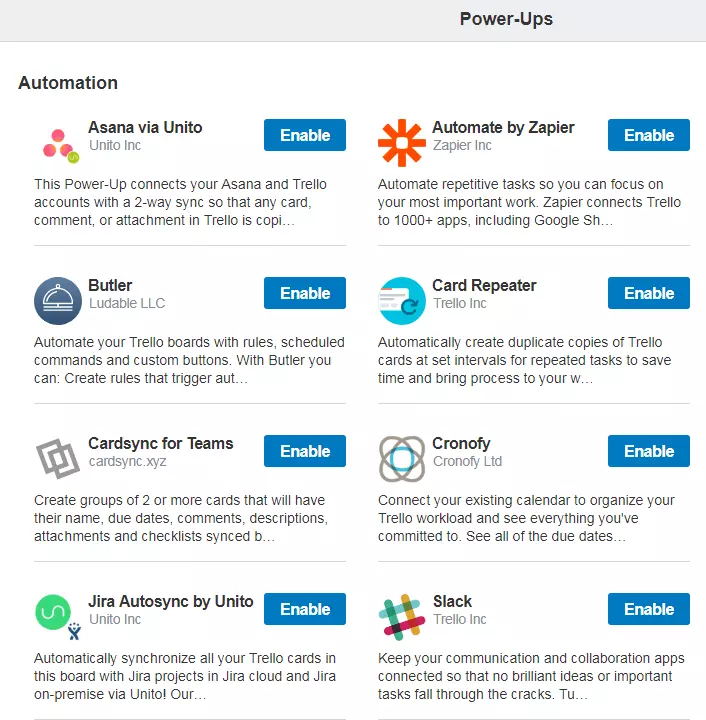
Unfortunately, you can only activate a single power-up in the free version of Trello. This dramatically limits the web tool’s range of functions. To be free of this limit, an upgrade to “Trello Business Class” for around 10 dollars per user and month is necessary. This version also boasts increased security for your data and an improved overview if you’re a member of multiple boards.
| Benefits | Drawbacks |
|---|---|
| Very easy to use, beginner-friendly | Free version only allows one power-up |
| Very clear and intuitive card system | No assignment of subtasks in cards/projects |
| Attractive, playful design | Fairly rudimentary calendar function |
| Free version also supports multiple boards and members |
Basecamp 3
Basecamp thinks of itself as an all-around solution for companies. The user interface is as tidy and easy to use as Trello’s but the individual functions go into considerably more depth – albeit at the cost of beginner-friendliness. Basecamp is suitable for both small and large teams. Because of the breadth of the functions, a certain amount of training is necessary in order to truly use the platform efficiently. It is worth it, however. Basecamp is a powerful project management app, overall. But you have to be ready to pay, sooner or later, as Basecamp can only be used for free for 30 days.
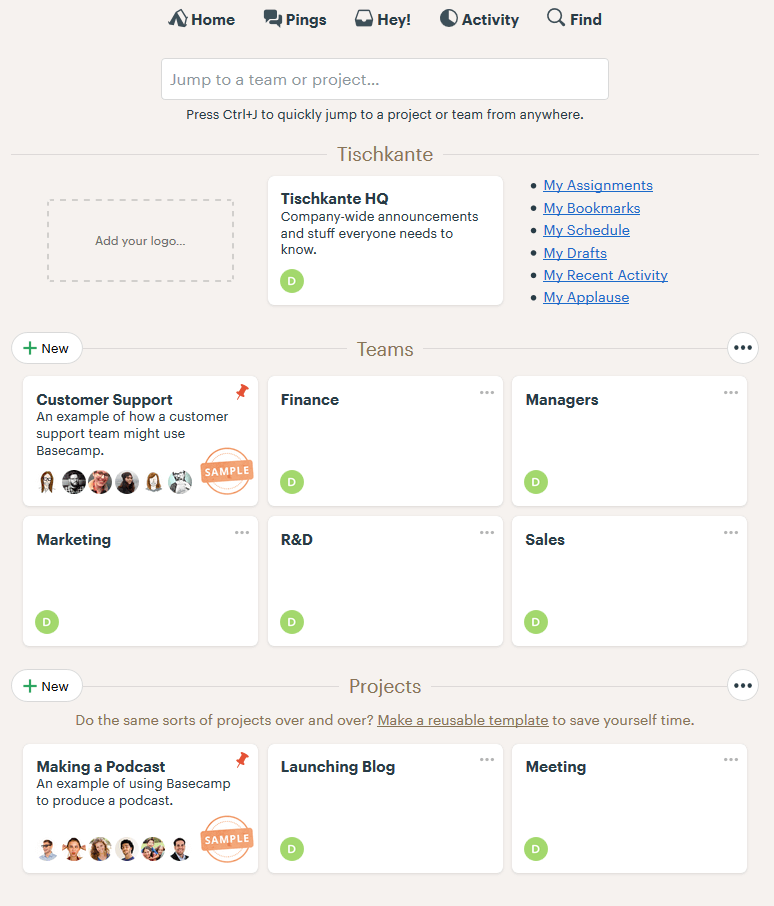
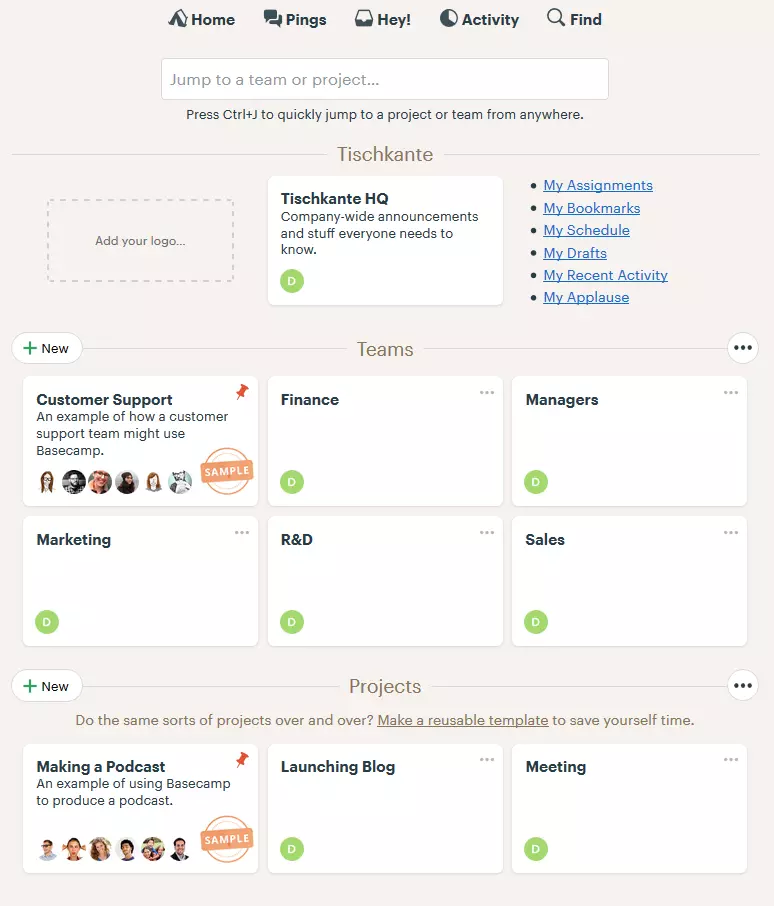
Once you’ve set up Basecamp, you’re greeted by a rather sparingly designed user interface. Each team and each project that you’ve set up gets its own page that you can navigate to from here. There are also links to personal tasks, bookmarks, appointments, etc. and there’s a search function available for finding your way around Basecamp as quickly as possible. If you click on a team or a project, you’ll be directed to the respective page from which the team or project is managed.
 Chanwit IssarasuwipakornShutterstock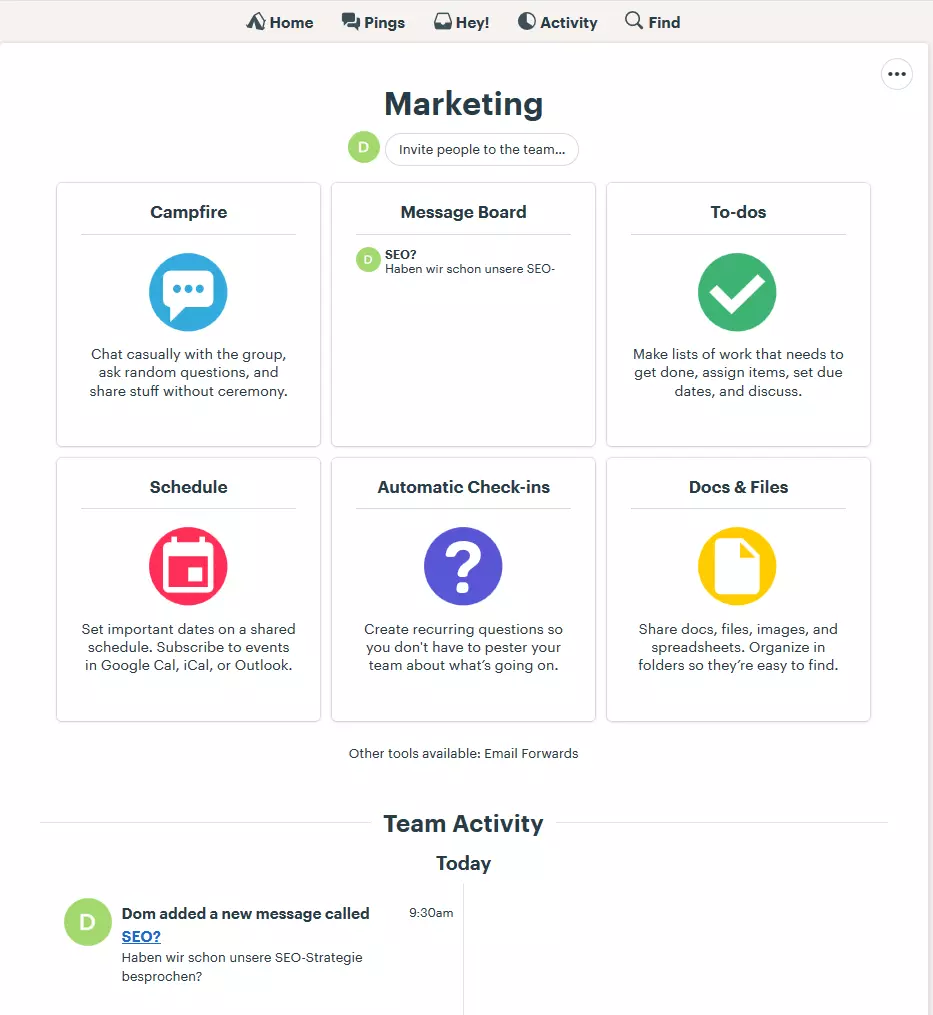
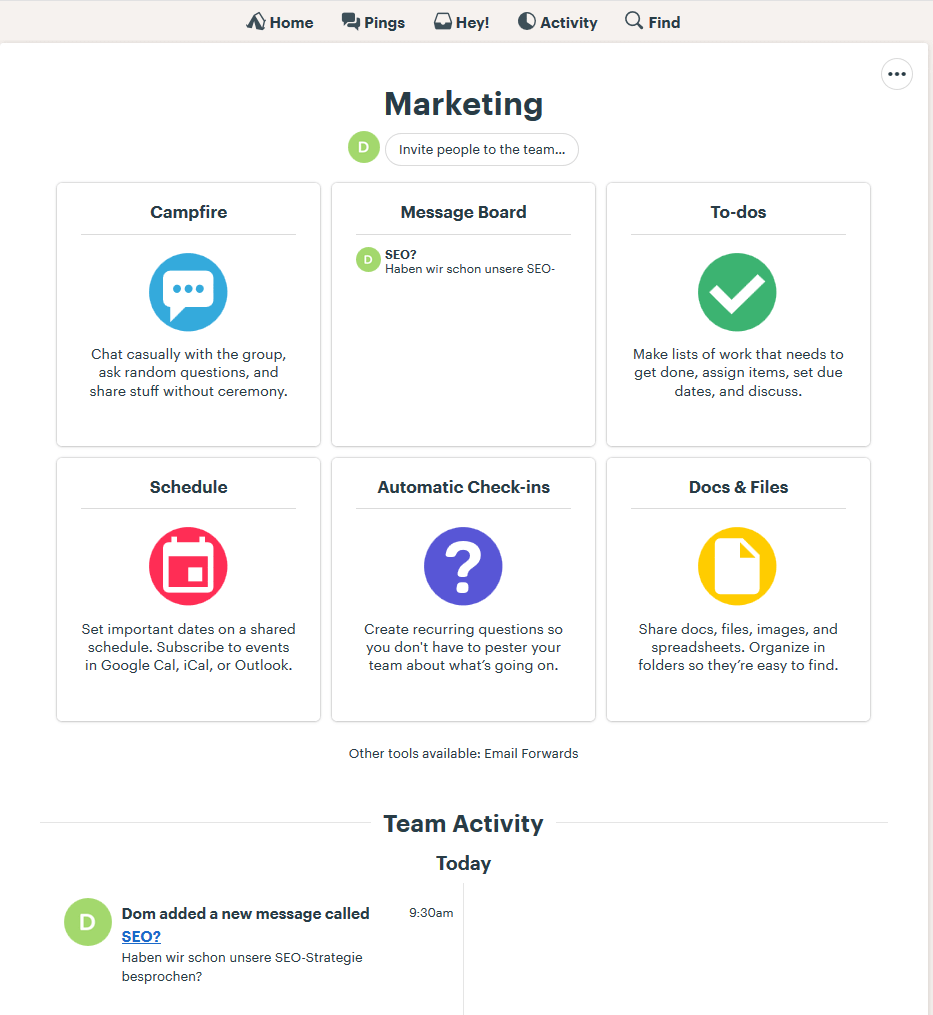
From the team page, you gain access to all important functions and a personalized, scrollable daily feed that summarizes the most important news and daily tasks for the team. The functions include chat rooms, designed for fast communication, forums for sharing more extensive content, to-do lists and a calendar for structured work, a media center, and automatic check-ins. Project pages are practically identical to team pages.
Via the above navigation list, you can send short messages to members (“Pings”). Like with social networks, you also have a notifications button (“Hey!”) that can be set up individually, for example, if you want to deactivate notifications during your free time. “Activity” clearly summarizes all past activities in Basecamp within a timeline. This is the best way to see what happened during your absence.
Basecamp can only be tested for one month for free. It costs around 100 dollars per months or 1000 dollars per year (for an entire team). This model is very simple: you simply activate Basecamp and can create as many projects and teams as you want. You can also incorporate any number of members into your Basecamp.
| Benefits | Drawbacks |
|---|---|
| Extensive functions | Only free for 30 days |
| Very simple payment model, comparatively cheap app | No broad customization possibilities |
| Unlimited number of teams and projects | Very slim, dry design |
| Fast and stable |
Wrike
Wrike’s resemblance to Slack is quite striking at first. Both programs feature a similar design and division of chat channels. While Slack is optimized for communication within teams, however, Wrike wants to provide the widest range as possible for their offer. Wrike goes much deeper, making it only suitable for beginners on a basic level. The free version is only usable for 14 days.
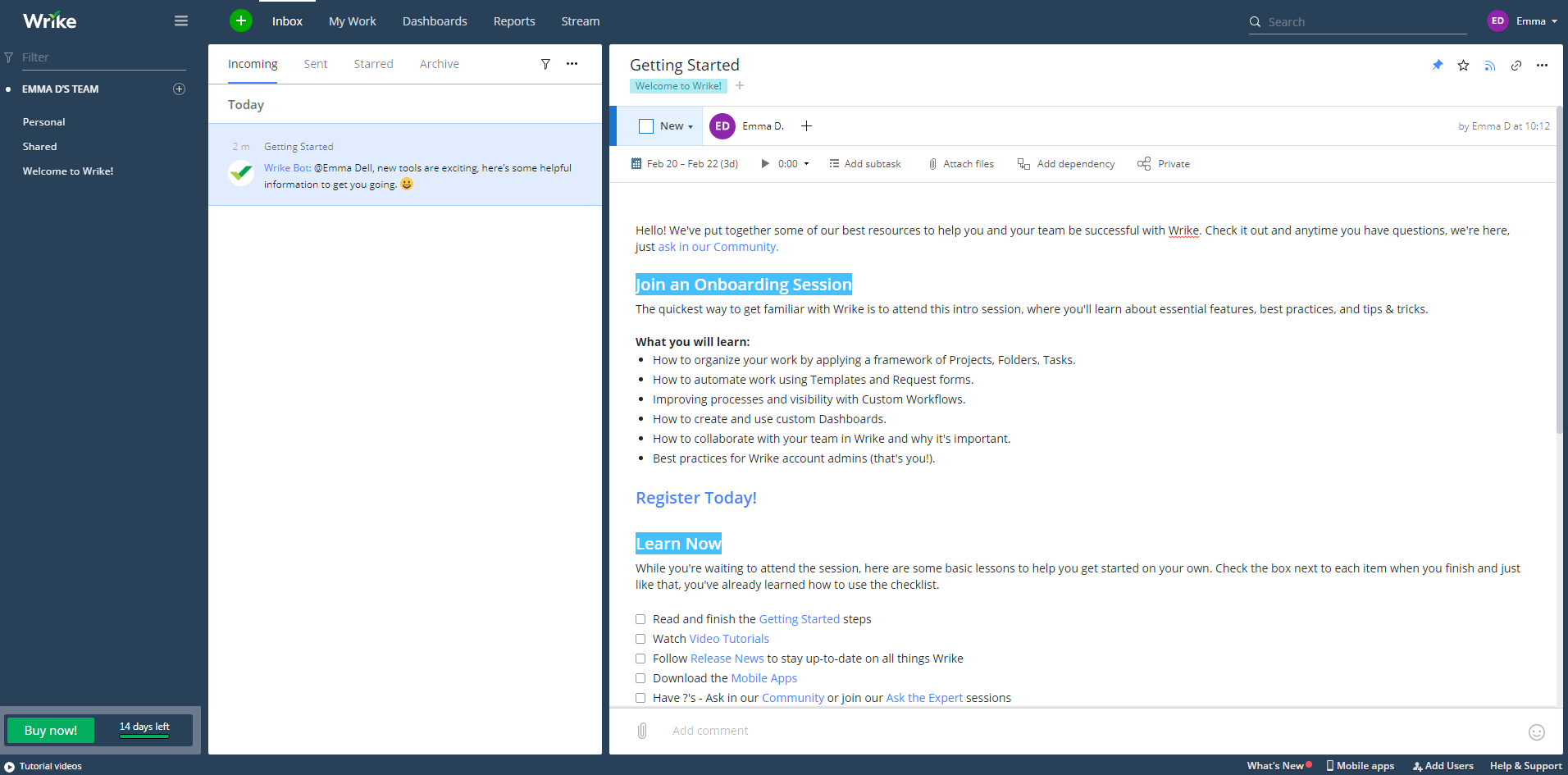
In the project view, Wrike’s available features strongly resemble Trello. Here, you can also create lists with cards that can be adjusted in the detailed view in a variety of ways so that the employees responsible for the particular tasks can be assigned to cards and subtasks. The cards can be easily moved via drag-and-drop to easily generate a workflow overview. Wrike seems to have lots of the same functions and design ideas as its competition, which has a positive effect on the efficiency and clarity of the tool, but sometimes comes at the cost of manageability.
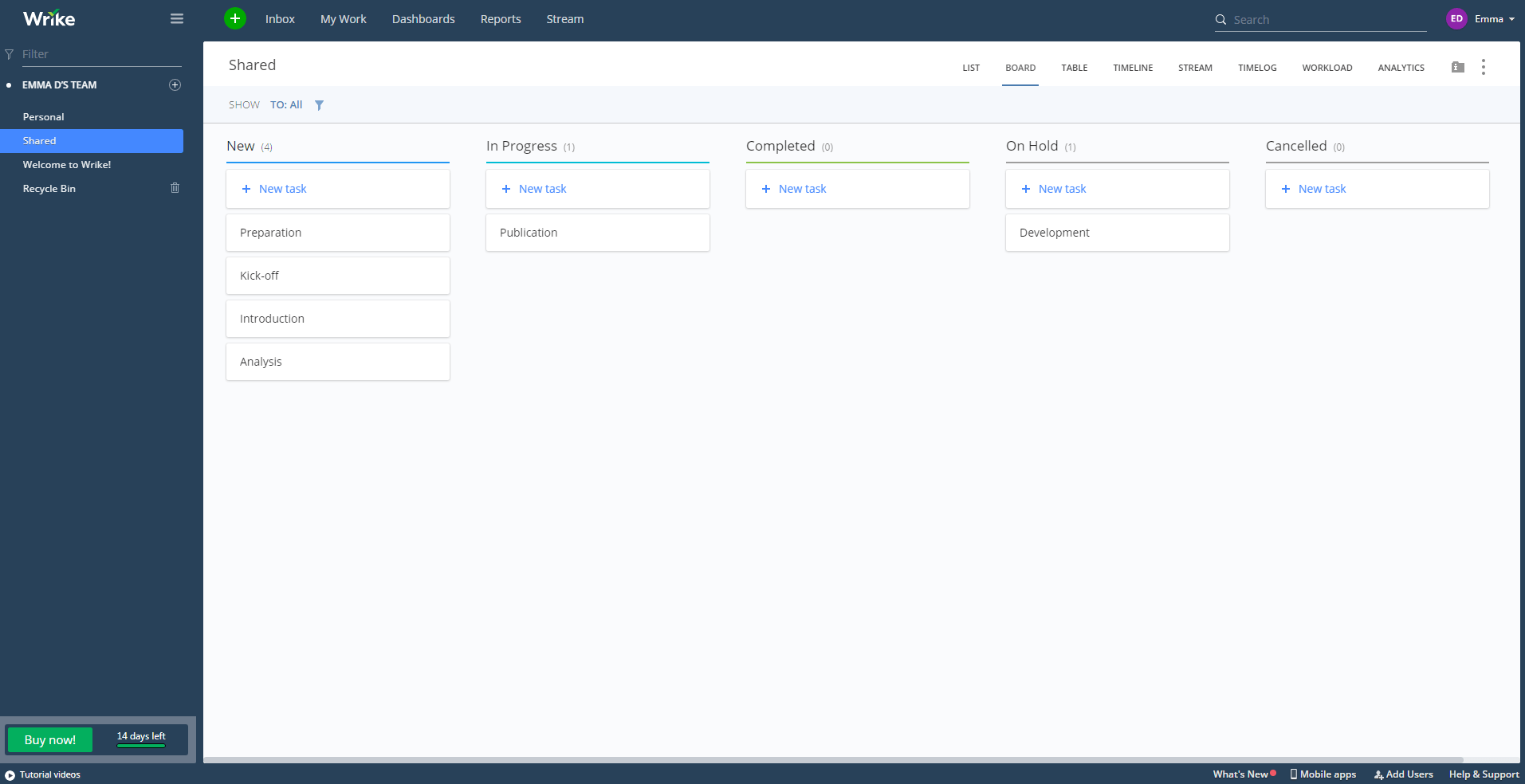
The navigation list above is practical in a manner similar to Basecamp. Here, you can access your personal inbox and see an overview of your completed and pending tasks. You can also find individual dashboards to which various team members can contribute. Under “Reports” you have access to different report creation tools. The “Stream” is a handy activity log with which you can overlook all of the processes in Wrike. This is also worth noting because Wrike has a quite expansive range of functions. The wide range of options as to how this stream can be displayed, for example, as a table or a timeline, is commendable.
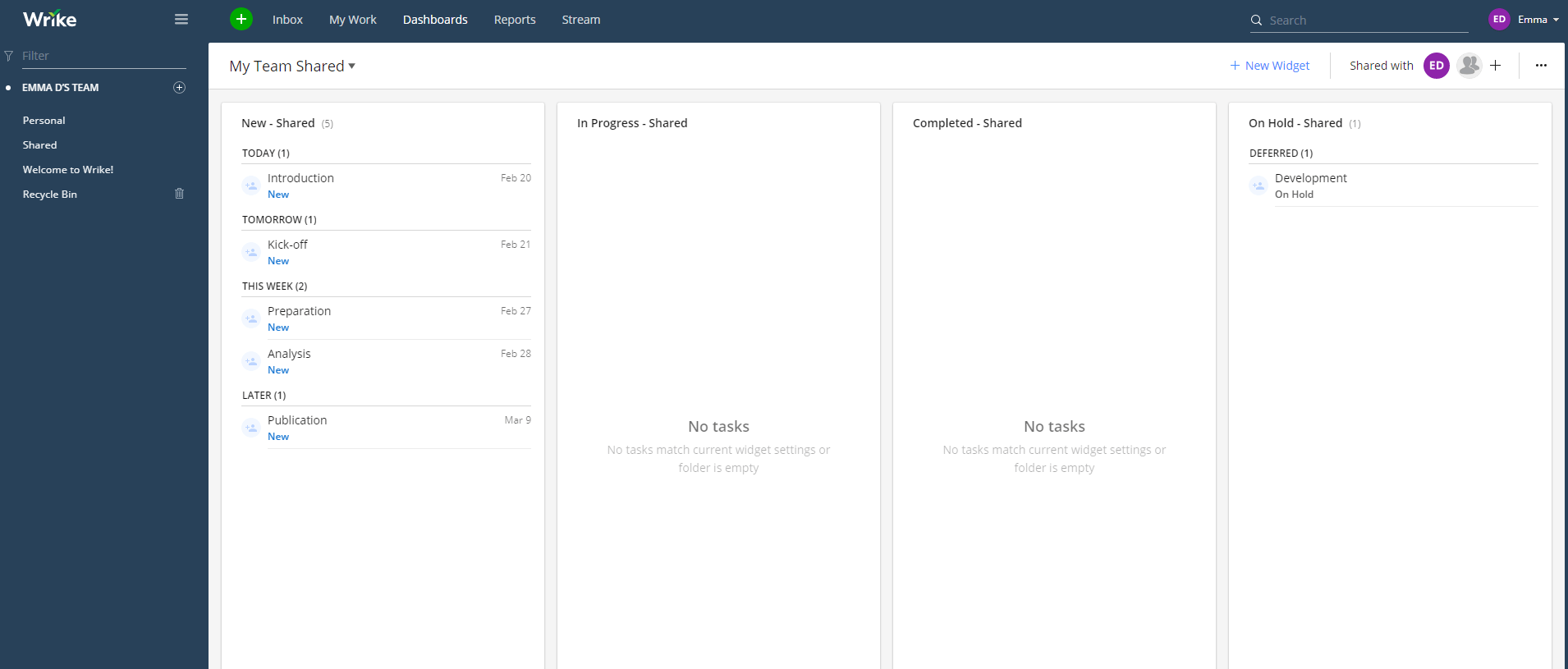
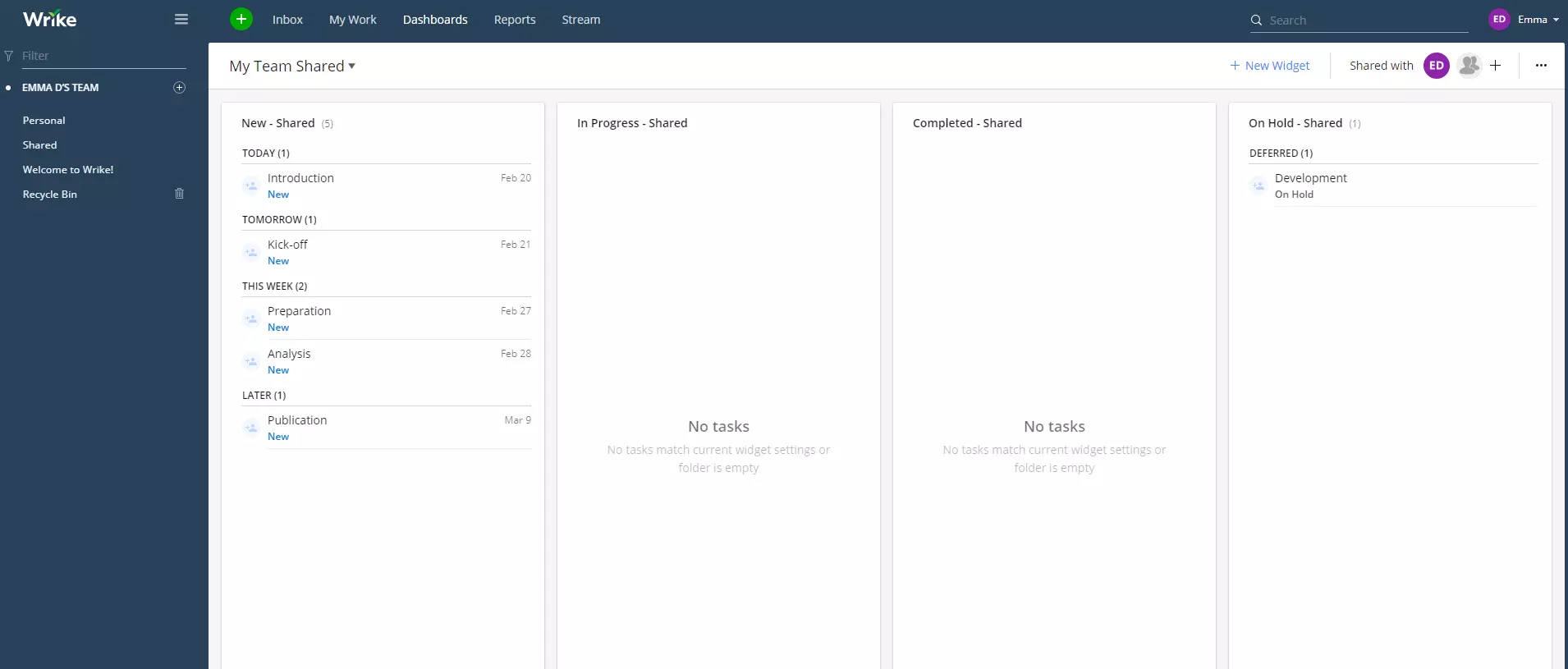
Comprehensive chat functions and quick communication between individual people is sorely missing from Wrike. In its current form, the app is well suited for project management, but an improvement in the communication structure would help round out the program as a whole.
There are mobile apps available for Wrike (Android and iOS) that cover all of the important functions but are more difficult to handle than the main web tool. The same goes here as for the others: mobile apps should only be used as a supplement, not primarily.
Wrike is only available for a 14-day free trial. It’s doubtful that this is enough time to fully test out the tool. The price of Wrike depends on team size: a team of up to 15 employees can use the app for around 350 dollars per month; a team with 15 to 50 employees, however, has to buy the more expensive business version. The cost for an operation with 30 people runs around 740 dollars per month. Companies with 50 employees or more need the complete enterprise version, whose costs must be negotiated directly with Wrike.
In comparison with its competition, Wrike is an expensive platform for small teams as well as medium-sized operations. Smaller teams with up to 10 people can find cheaper apps with the competition that are also less complex. After all, many of Wrike’s features, such as analysis tools and workflow management, only really become important with companies of a certain size.
| Benefits | Drawbacks |
|---|---|
| Combines many features, tools, statistics, and design elements of various competitors | Free version only usable for 14 days, paid version relatively expensive |
| Extremely extensive | Complexity requires long introduction period |
| Good project management with dashboards and cards or Kabana boards | No comprehensive chat tools |
| Quick, steady, and good support | Occasional performance problems |
Overview: Project management apps
| App | Preis | Grundfunktionen | Empfohlen für |
|---|---|---|---|
| Slack | Free | Communication channels | Small teams |
| “Standard”: approx. 6 dollars per month and user | Integration of lots of additional apps | Interest groups | |
| “Plus”: approx. 12 dollars per month and user | Video calls/conferences | Medium-sized operations | |
| Asana | Free up to 15 employees | Kabana board | Small teams (free) |
| Pro version approx. 6-10 dollars per user and month | Interactive project threads | Interest groups | |
| Extensive data protection | Medium-sized operations | ||
| Wide plugin support | Large companies | ||
| Trello | Free | Interactive cards | Small teams |
| “Business Class” for approx. 10 dollars per user and month | Dynamic lists | Medium-sized operations | |
| Extensive “Power-Ups” | |||
| Playful design | |||
| Basecamp 3 | Free (30 Tage)days | Project and team pages | Small teams |
| approx. 100 dollars per month or approx. 1000 dollars per year | Personalized feeds | Medium-sized operations | |
| Chat functions | |||
| Automatic check ins | |||
| Wrike | Free (14 days) | Kanban boards | Medium-sized operations |
| Price depends on number of users (comparatively expensive) | Dashboards | Large companies | |
| Analysis tools | |||
| Extensive logs |
Our recommendation for your team
| Team size (in employees) | Need | Recommended app(s) |
|---|---|---|
| 1–5 | Communication | Slack |
| 1–5 | Project planning | Trello |
| 1–5 | Communication + Project planning | Asana |
| 6–15 | Communication | Slack |
| 6–15 | Project planning | Trello, Asana |
| 6–15 | Communication + Project planning | Asana |
| 16–49 | Communication | Slack, Asana |
| 16–49 | Project planning | Asana, Trello, Basecamp 3, Wrike |
| 16–49 | Communication + Project planning | Asana, Basecamp 3 |
| 50+ | Communication | Slack, Asana |
| 50+ | Project planning | Asana, Basecamp 3, Wrike |
| 50+ | Communication + Project planning | Basecamp 3, Wrike |