

How to set up a family email address

Setting up your own family email address is straightforward, even without IT expertise. All you need is your own domain and a little time to prepare the customized mailboxes for the family members you want.
Why it makes sense to have your own family email address
Some families use a single shared inbox with their preferred email provider. Folders and filtering rules can automatically sort incoming messages so that each family member has a separate space for their email. However, managing a shared family email address this way takes considerable effort. It is also one of the few practical ways to use a generic address such as smithfamily@example.com.
A simpler option is to create a separate email address for each family member. With your own email domain, you can choose each address yourself and keep them all under one consistent, personalized domain. There is no need for technical expertise or your own hardware, as there would be when running your own email server. In most cases, you can set up and manage the addresses in just a few steps through your provider’s account.
- Build trust with email matching your domain (you@yourbrand.com)
- Free domain included to get your brand online instantly
- Work smarter with AI writing support
What are the advantages of having your own email address?
A custom domain with individual email addresses for family members is a convenient solution that is easy to set up. It gives everyone their own private mailbox and offers several advantages over traditional webmail services:
- Access across devices: With IMAP support, you can access your email anytime, anywhere and from virtually any device.
- Ad-free mailboxes: Email addresses with a custom domain usually come with a low monthly fee. In return, the mailboxes are generally free of ads, making them cleaner and easier to manage.
- Strong security features: Modern email services typically include spam and virus protection, encryption and two-factor authentication.
- Compliant email archiving: Many providers offer optional email archiving, which can help you store messages in accordance with applicable data protection requirements.
- More personalized addresses: A family email address that includes each person’s first and last name is easier to recognize and looks more professional. This can be especially useful for school, work and other formal communication.
How to set up a family email account
Setting up personalized email addresses for the whole family only takes a few minutes. The exact steps vary by provider, but the basic process is usually the same:
- Choose a domain: Start by registering a domain that works well for your family. The domain is the part that appears after the @ symbol. For example, with
lastname.com, you could create addresses such asfirstname@lastname.com. - Choose a suitable email plan: Providers offer different plans for creating and managing email accounts. Choose one with enough storage and support for the number of mailboxes your family needs.
- Create the family email addresses: Once the domain and email plan are active, you can create each address and set a password through your provider’s account. You can often configure additional features there as well, such as spam filters and email forwarding.
How to set up your own family email addresses with IONOS
You can also create personalized family email addresses with IONOS. Everything you need is available in one place, including a domain, email plans with 2 to 50 GB of storage, spam protection and 24/7 expert support. You can also add a paid AI email assistant to help you write, translate and summarize emails.
The following section explains how to set up email with IONOS step by step.
Step 1: Register a domain
Your custom family email addresses are based on your own domain. You can purchase one as part of an IONOS email plan or register it separately.
If you already have a domain with another provider, you can transfer it to IONOS or connect it as an external domain.
Use the domain checker to see whether your preferred domain is available. If it has already been registered, the tool automatically suggests alternatives, including options with other top-level domains.
Step 2: Log in to your customer account and select your email product
With your domain set up, you can start configuring your family email address. First, open the IONOS customer account login page and sign. Then select the “Email Addresses” category and choose the desired email product.
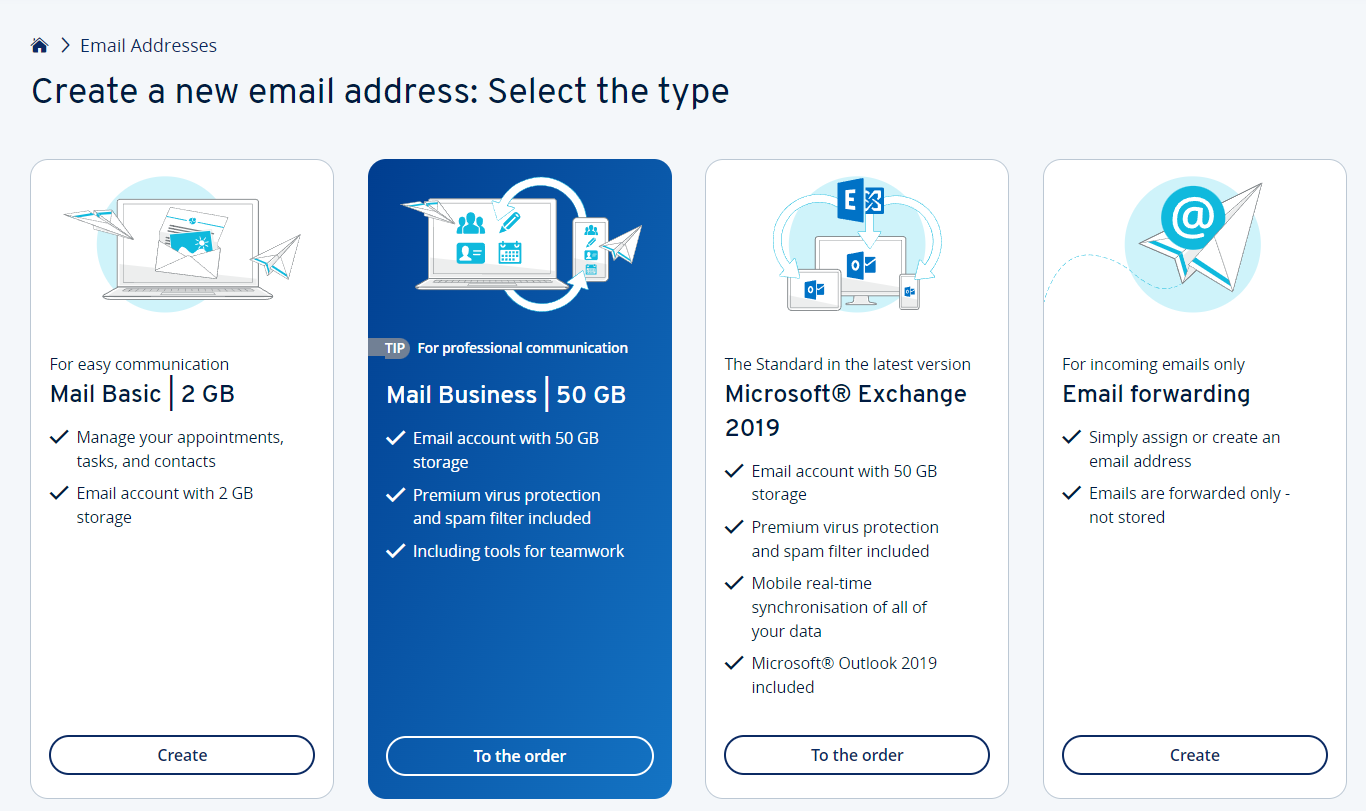
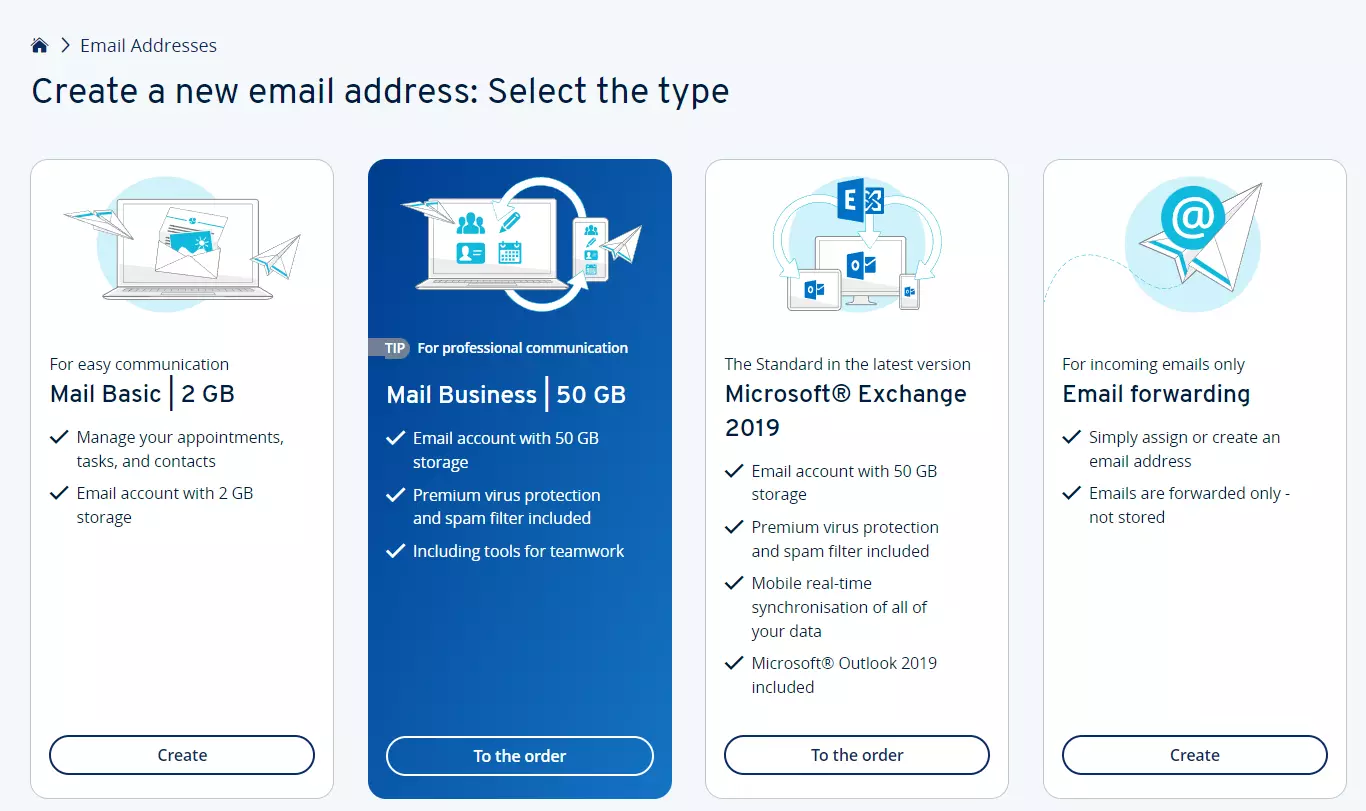
Step 3: Set up a family email address
Once you’ve selected a domain and email plan, click on “Create new email address” and fill out the following fields:
- Email: Part of the family email address that appears before the @ sign
- @: Selection of the desired domain
- Password: Password for the email address
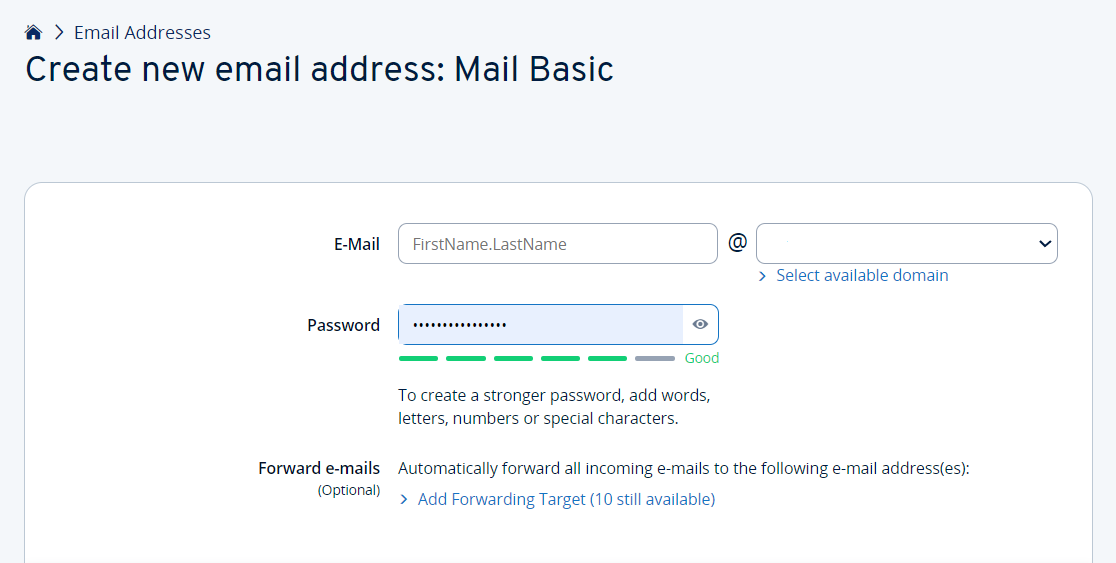
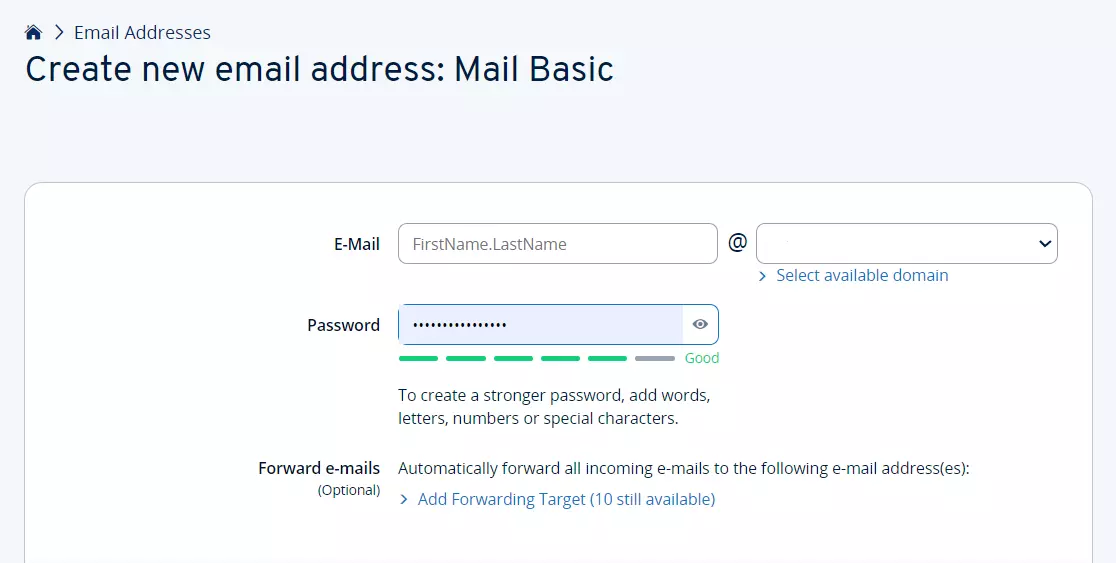
Optionally, you can add forwarding destinations for incoming messages and book paid security services such as antivirus protection and email archiving, as well as the AI assistant.
Finally, click the “Save” button to set up the new mailbox.
Step 4: Add more addresses
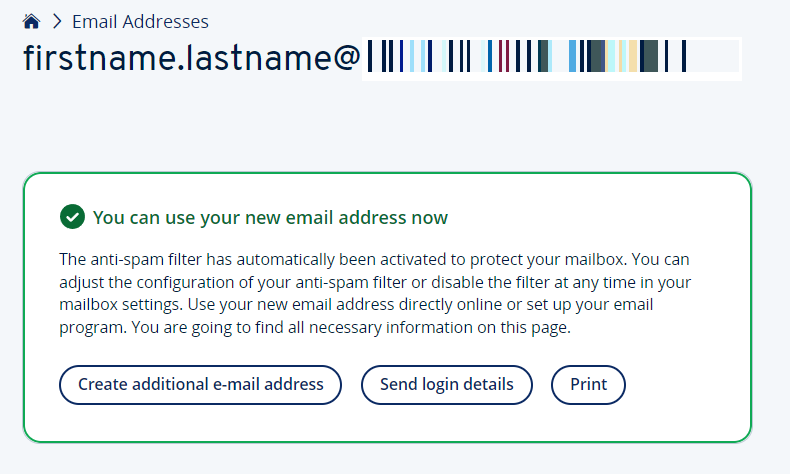
You’ll see a confirmation message as soon as the email account has been set up. Click the “Create another email address” button to continue setting up the address for the next family member.
You can purchase additional domains at any time to create more personalized email addresses, including addresses for professional use.
Reviewer

Jeanna Raffa
With over 18 years of experience in online marketing, Jeanna Raffa possesses extensive expertise in digital marketing. Since 2020, her focus has been on providing practical information regarding email, office, and cloud storage solutions.