

Google: Import contacts into Gmail, Google Workspace and Co.

When using an email program, careful management of the address book has always been one of the most important tasks. If all of your important contact data is saved and readily at hand, sending private or professional messages is nothing more than a mere formality. In addition to the possibility of manually adding contacts, most email applications also come with a contact import function for this very reason. The import function is useful when integrating address data from a CSV document or from other email clients.
Gmail, Google’s email application, provides this type of extension. However, since 2018, importing contacts into Gmail is only possible by using the content manager app Google Contacts. We will show you how to use this function.
- All your favorite Google productivity tools
- Business Gmail for your domain
- Using Gmail with your domain from IONOS
Importing Gmail contacts: a summary of the most important steps
Users of Google services like Gmail and Google Workspace, for years, have managed their contacts via the “Contacts” program. Previously integrated into Gmail, the app is now available as an independent service. But since all contact information that has previously been saved in Google Contacts is transferred automatically to the entire Google account, including Gmail, this separation doesn’t pose a problem for importing Google contacts. Instead of using Gmail, you can now easily use the Contacts app for your import. Here is a summary of the basic steps involved:
- Sign in with your Google account using your email (or phone number) and password.
- Click on the button “Google apps” in the upper-right corner of the screen, next to the small profile picture for your account.
- Click on the icon for the “Contacts” app.
- Now click on the “Import” command in the left-hand side menu of the contact manager.
- Click on “Select file” and select the location where the CSV document or vCard file with the contacts to be imported into Google Contacts or Gmail has been saved.
- As soon as a file has been chosen, an “Import” command will appear. Select this to import the new Gmail contacts.
Importing Google contacts: step-by-step instructions (web version)
There are plenty of good reasons for wanting to import contacts into Gmail instead of manually adding them. For one, an import offers the simple possibility of integrating existing CSV lists of contact data – for example, from a client database – into Google’s mail client. For another, the function is popular when an address book from another email program needs to be transferred into Gmail. Thanks to the import function, you won’t have to manually enter and resave every single contact one-by-one.
Finally, you can also use the function if you want to import a backup of your Google contacts. Whatever your reasons for wanting to import data into your Google contacts, it doesn’t change the individual steps in the process. Here’s what you need to do:
First, sign in to the Google account that contains the address book you wish to add new entries to. To do so, launch your Google account sign-in page and sign in with your personal account information.


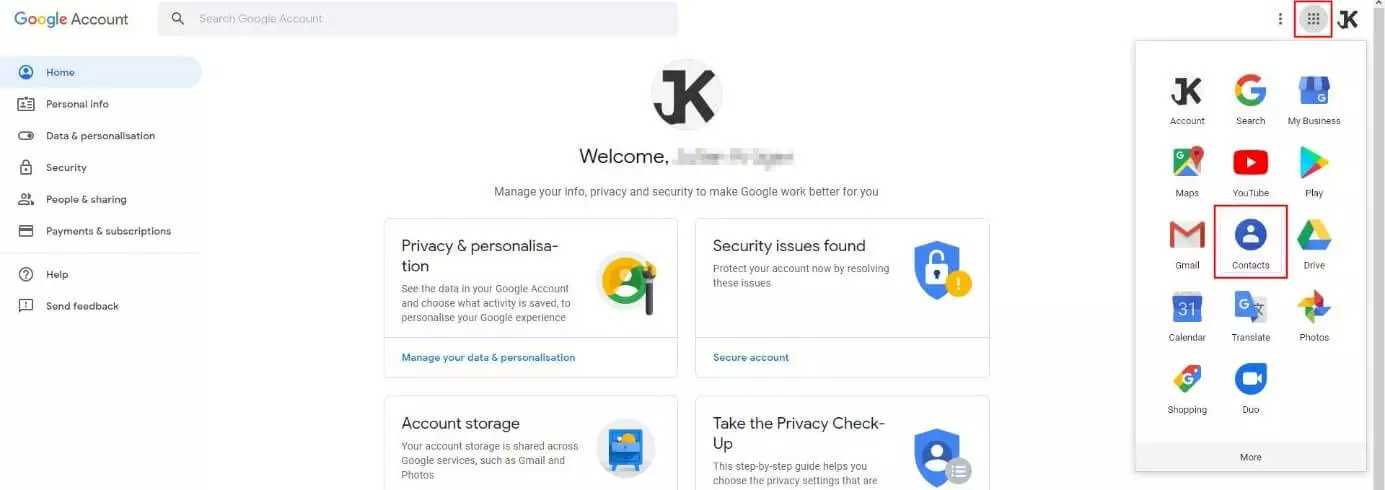
From the homepage or the account menu, select the “Google Apps” button and then click the “Contacts” icon:
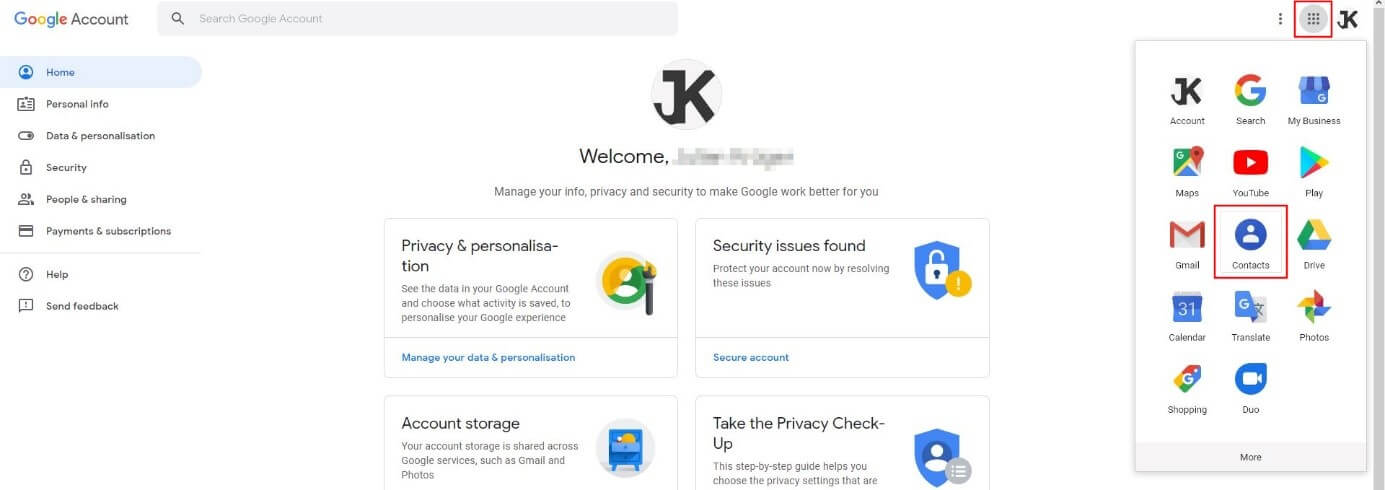
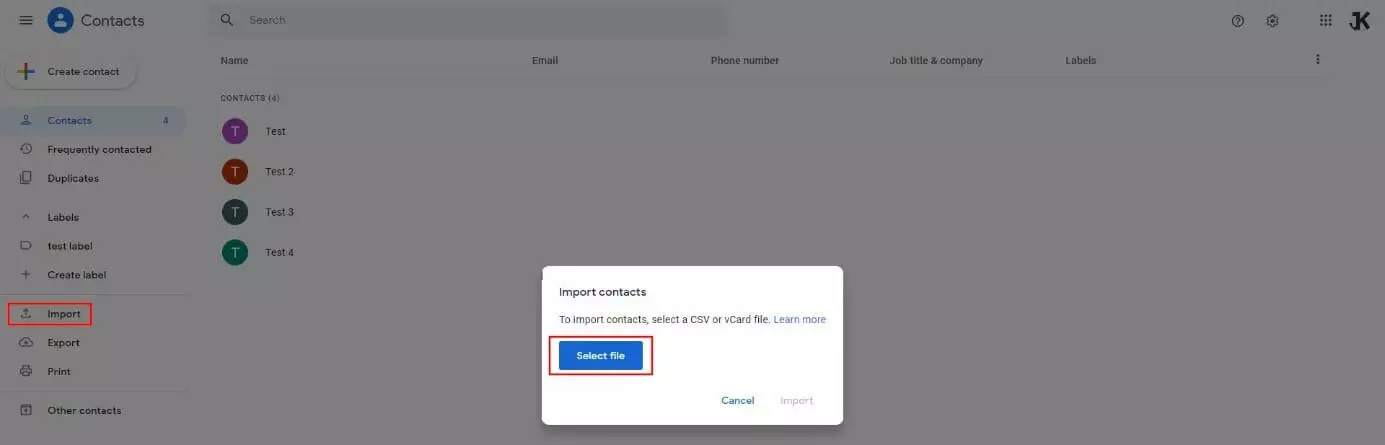
Once you have opened Google Contacts, click on the “Import” command found in the left-hand side menu of the contact software application. Click on “Select file” from the pop-up window:
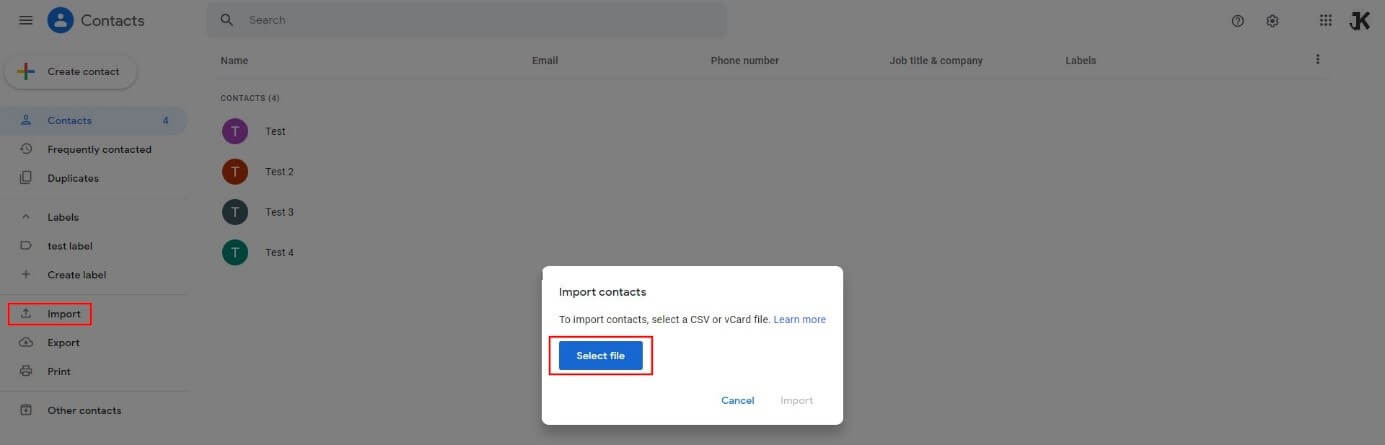
Now, choose the location of the saved file containing the contact data. This can either be a CSV or vCard format (.vcf). The former is the typical format for contact data originating from database management systems or from mail clients such as Outlook; the latter is a common output format from Apple programs. It doesn’t matter in which of these two formats your contact data file has been saved when importing contacts into Gmail, and there is nothing else you need to prepare. Simply double-click on the file name with your left mouse button (as soon as it is visible in your File Explorer) and then click on the “Import” command:


When your contacts have been imported into Gmail, a message will be shown at the bottom of the screen to confirm the successful import.
How to import Gmail contacts onto your mobile device (Android app)
If you use Gmail on your smartphone or tablet, you can integrate contact data just as easily and as described in the previous instructions by using the browser version of Google Contacts. However, when you install the Google Contacts app on your device, you will have a convenient alternative, since the app includes an integrated function for importing contacts. Here is how to use this function:
- Download and install Google contacts from the Google Play Store. On some smartphones, the app will have been pre-installed.
- Sign in to the app with your personal Google account or with the account to which contacts should be imported.
- Click on the hamburger menu icon (three horizontal lines) to open the app’s main menu.
- Click on the menu item “Settings”.
- Scroll down to the section “Manage contacts” and click on “Import”.
- Choose whether you would like to import contacts from a vCard file (.vcf) or from a used SIM card – other options, such as CSV, are not available in the Contacts app.
- Finally, select the location where the data has been saved or choose the desired SIM card contacts, and then begin the import process.
If you want to import Gmail contacts, it makes no difference whether you are using the mobile app or the web browser application. The added data will be automatically synchronized so that it will not only be available in every version of Gmail but also across every single Google service that includes a Google Contacts integration feature.
- The world’s leading email and calendar solution
- Secure hosting from a single source
- Anytime remote access with Microsoft Outlook