

What is the MX record?

The MX record (Mail Exchange Record) is a type of DNS entry that defines which mail server is responsible for receiving email for a given domain. It ensures that incoming emails are properly routed to the correct server.
What is the MX record?
DNS records are stored in zone files – simple text files that contain all the entries for a zone managed by a specific server. When a client sends a request, the server retrieves the relevant information from this file. There are different types of DNS entries, each with its own function. The abbreviation MX stands for Mail Exchange, which hints at its function. An MX record tells email clients which mail server is responsible for receiving messages for a given domain via DNS.
A domain typically includes multiple servers. In addition to the web server that hosts the website, there may be FTP servers and one or more mail servers. These are accessed through different subdomains. The MX record helps identify which subdomain handles email traffic for the domain. The sending mail server usually performs this check automatically.
The Domain Name System supports many different resource record types, each enabling various functions within the system. For example, A and AAAA records are used for name resolution.
- Free Wildcard SSL for safer data transfers
- Free private registration for more privacy
- Free Domain Connect for easy DNS setup
What are the fields and syntax of an MX record entry?
Each DNS record contains several fields of information. In addition to the name of the mail server, other details are included:
- <name>: Domain name
- <ttl>: Time to live refers to how long the information remains valid
- <class>: Type of network
- <type>: Type of DNS record (MX, in this case)
- <priority>: Lower values indicate higher priority
- <rdata>: Resource data (mail server name)
Domain names are always specified using Fully Qualified Domain Names (FQDN), which end with a period. An FQDN shows the complete path, from the smallest subdomain to the root server. Since the root remains unnamed, the domain name ends with a period.
Time to live (TTL) determines how long a client can store the information in its cache. This helps avoid outdated entries. Once TTL expires, the record must be requested again. TTL is defined in seconds and is often set at the beginning of the zone file for the entire zone rather than in each individual entry.
The class field is now largely obsolete, as only the Internet (IN) is in use. Older network types like Hesiod (HS) and Chaos (CH) are no longer operational. For this reason, the field is either omitted or set to IN.
Priority is specific to MX records. Many administrators use multiple mail servers to ensure reliability and distribute traffic. Lower numbers indicate higher priority — email is delivered to the server with the lowest value first. If that server is unavailable, the next one in line is used.
The data field contains the name of the mail server in FQDN format. All fields are listed in a single line, and the entry ends with a line break, not a special character.
An example of an MX record
Let’s look at the fictional domain example.com. A valid email address might be user@example.com. When an email is sent, the sender’s mail server queries DNS for example.com. The zone file might look like this:
$TTL 1200
example.com.	IN	A		93.184.216.34
example.com.	IN	MX	10	mail1.example.com.
example.com.	IN	MX	10	mail2.example.com.
example.com.	IN	MX	50	mail3.example.com.
As you can see here, the TTL value applies to the entire zone, so it is only listed once. The first entry is an A record linking the domain to an IP address. The three MX records specify mail servers with different subdomains.
Mail servers 1 and 2 have equal priority levels (10), so email traffic is distributed evenly between them. Mail server 3, with a lower priority level, is only used as a fallback.


What are some security aspects to note when setting up MX records?
Security is a key consideration when configuring MX records. You must never point MX records directly to IP addresses — they need to reference FQDNs, which are then resolved using A or AAAA records. Additionally, using a CNAME entry as the target of an MX record is not permitted, as it violates DNS standards and can cause delivery failures. The target mail servers must be properly configured and reachable via DNS to avoid errors or message loss.
To prevent spam and spoofing, it’s also essential to implement SPF, DKIM, and DMARC:
- SPF ensures that only authorized servers can send emails on behalf of a domain.
- DKIM adds a digital signature to messages to prevent tampering.
- DMARC instructs receiving servers on how to handle emails that fail SPF or DKIM checks.
How to set up MX Records
If you’re using Google Workspace or Microsoft 365 for business email, configuring the correct MX record in your domain’s DNS zone is essential. This ensures reliable email delivery to the provider’s servers.
- All your favorite Google productivity tools
- Business Gmail for your domain
- Using Gmail with your domain from IONOS
How to set up an MX record with Google Workspace
To route emails through Google Workspace, you need to add the official Google mail server as an MX record in your domain’s DNS zone. This can be done by following these steps:
-
Delete all existing MX records.
-
Add the following MX record for Google’s mail server:
@ IN MX 1 smtp.google.com.- Log in to the Google Admin Console with your admin account. In the domain settings, enable Gmail for the domain whose MX record you want to update.
It can take up to 72 hours for the changes to take effect.
How to set up an MX record in Microsoft 365
To configure an MX record for Microsoft 365, follow these steps:
-
Delete all existing MX records.
-
Log in to the Microsoft 365 Admin Center. Go to Show all -> Settings -> Domains. Here you will find the MX record to be used.
-
Copy the MX record provided, add it to your hosting provider’s DNS settings, and save the changes.
Powerful Exchange email and the latest versions of your favorite Office apps on any device — get started with our free setup assistance.
If you’re a IONOS customer, you can adjust your MX records to use IONOS mail servers. If you prefer to use your IONOS domain with an external mail server, that’s also possible.
How to check the MX record
To check an MX record, use one of several online tools. Google’s Public DNS is a convenient option. On the homepage, simply enter the domain whose MX records you want to look up. On the results page, change the Record Type from A to MX. You don’t need to modify the EDNS Client Subnet or DNSSEC settings. The EDNS Client Subnet helps speed up DNS responses by including part of the requester’s IP address, while DNSSEC (Domain Name System Security Extensions) ensures the integrity of the response — making sure the information hasn’t been altered or spoofed by a malicious third party.
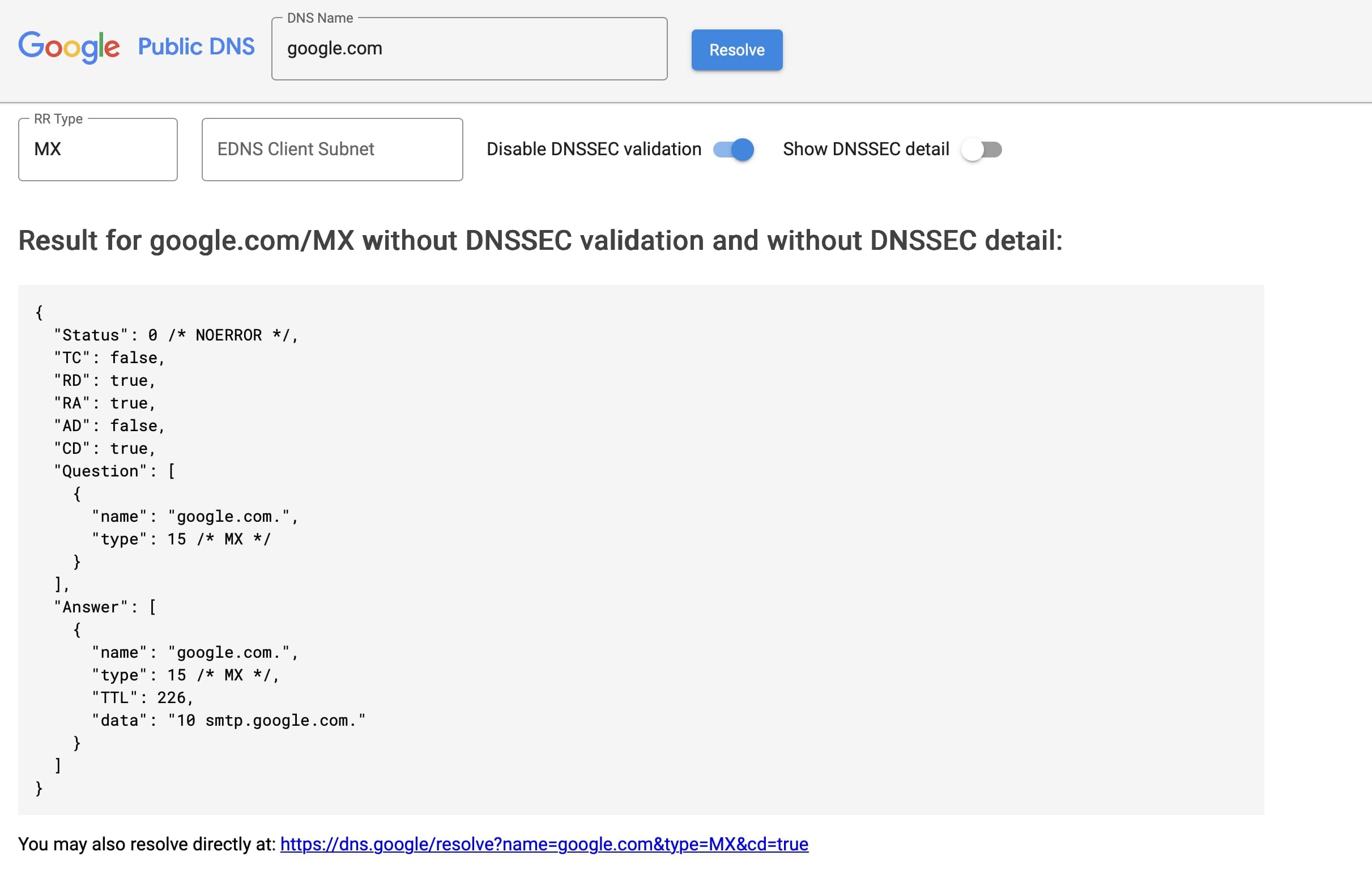
The results will list the mail server under “Answer,” along with the FQDN under “Data” and the priority value priority of 10. The “Type” field will show the number 15, which indicates an MX record. Each DNS record type is assigned a number by the Internet Assigned Numbers Authority (IANA).
Prefer to avoid using tools from major tech companies? You can also check MX records using the MX Lookup from MXToolBox, a widely trusted, independently operated tool.