

Outlook won’t open: The best solutions simply explained

It is especially frustrating when you are waiting for an important email and you cannot start Microsoft Outlook. If a specific error code is displayed, the problem can be quickly identified, but many users do not know how to proceed in instances like these. In the following sections, you will find solutions for typical errors and what to do when faced with more unfamiliar ones.
Powerful Exchange email and the latest versions of your favorite Office apps on any device — get started with our free setup assistance.
This guide is for Microsoft 365, but also applies to Office versions 2021, 2019, and 2016.
Outlook won’t open and displays an error code
The error message, “Cannot start Microsoft Outlook. Cannot open the Outlook Window” appears relatively often and is usually due to one of these causes:
- Navigation Pane issue
- Defective add-in
- Outlook profile in need of repair
Reset the Navigation Pane with the command outlook.exe/resetnavpane
Outlook’s Navigation Pane is usually found on the left edge of the application window. It includes the folder list as well as the menu items, Mail, Calendar, Contacts, Tasks, and Notes. This area can be adjusted according to your preferences, but making changes here can sometimes lead to errors severe enough that Outlook will not open.
The solution involves reverting the Navigation Pane to its default setting:
- Depending on your operating system: click Run in the start menu, or simultaneously press the Windows key and [R] to open the Run dialog box.
- Type in the command
outlook.exe /resetnavpane(note the blank space) into the text field and confirm it by pressing OK. - Start Outlook.
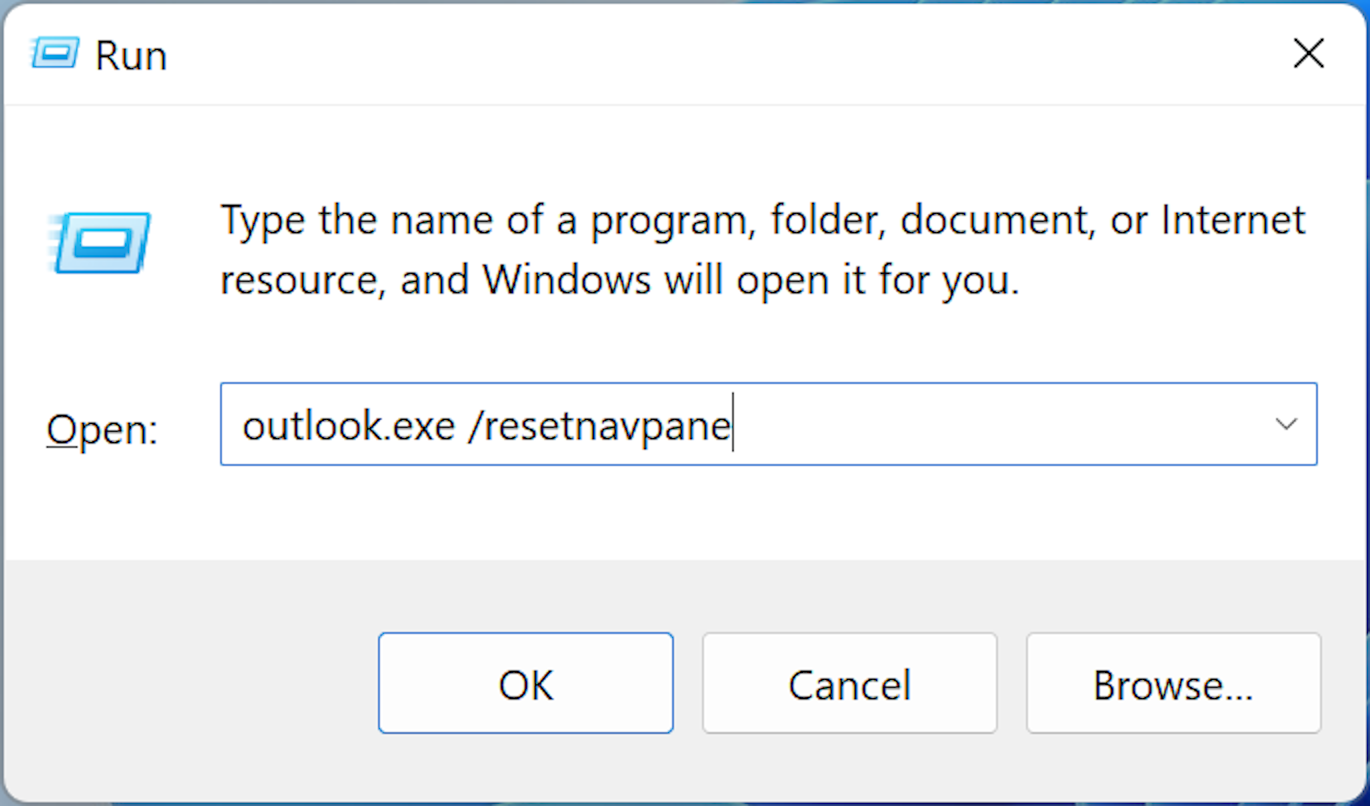
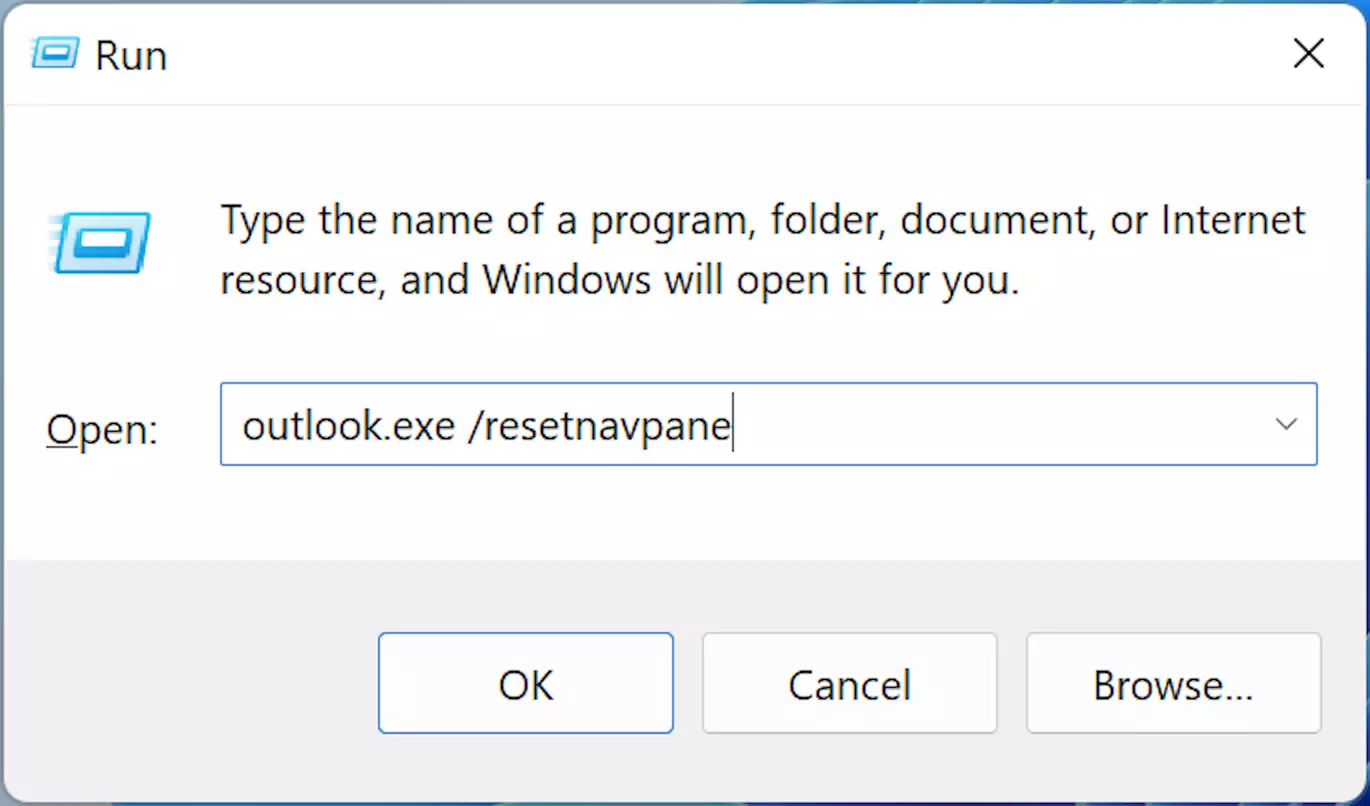
The resetnavpane command stands for “reset navigation panel”.
Identify defective add-ins in safe mode
If this quick solution does not work, it may be add-ins that have been integrated into Outlook. These can either be defective or simply outdated and prevent Outlook from starting as usual.
Outdated versions of add-ins can cause issues when trying to start Outlook.
Diagnosing this problem only works in safe mode:
- Open the Run dialog box (as previously described) and type in the command
outlook.exe /safe(note the space here, too), and then confirm with OK. - If the Choose Profile dialog box opens, choose the standard settings and click OK once more.
- Outlook will now start in safe mode without add-ins.
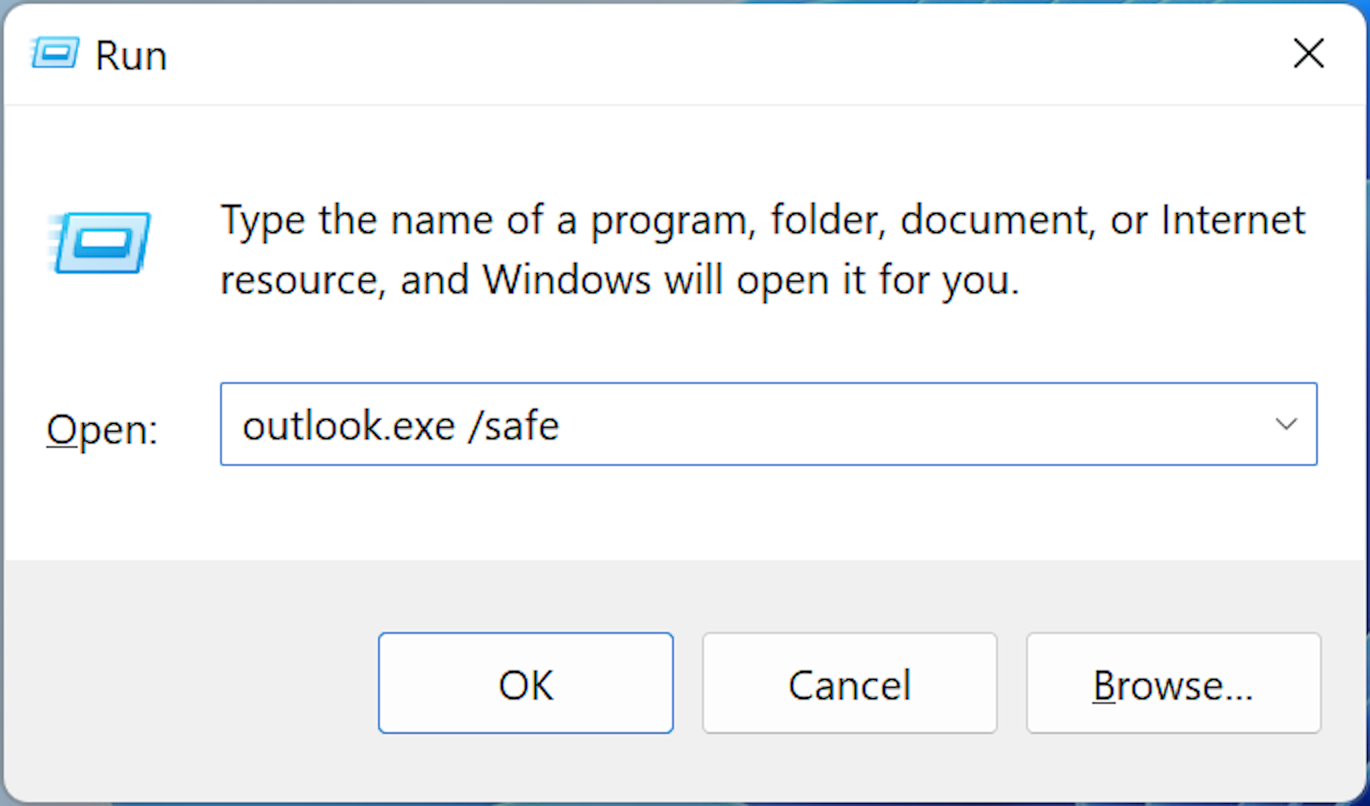
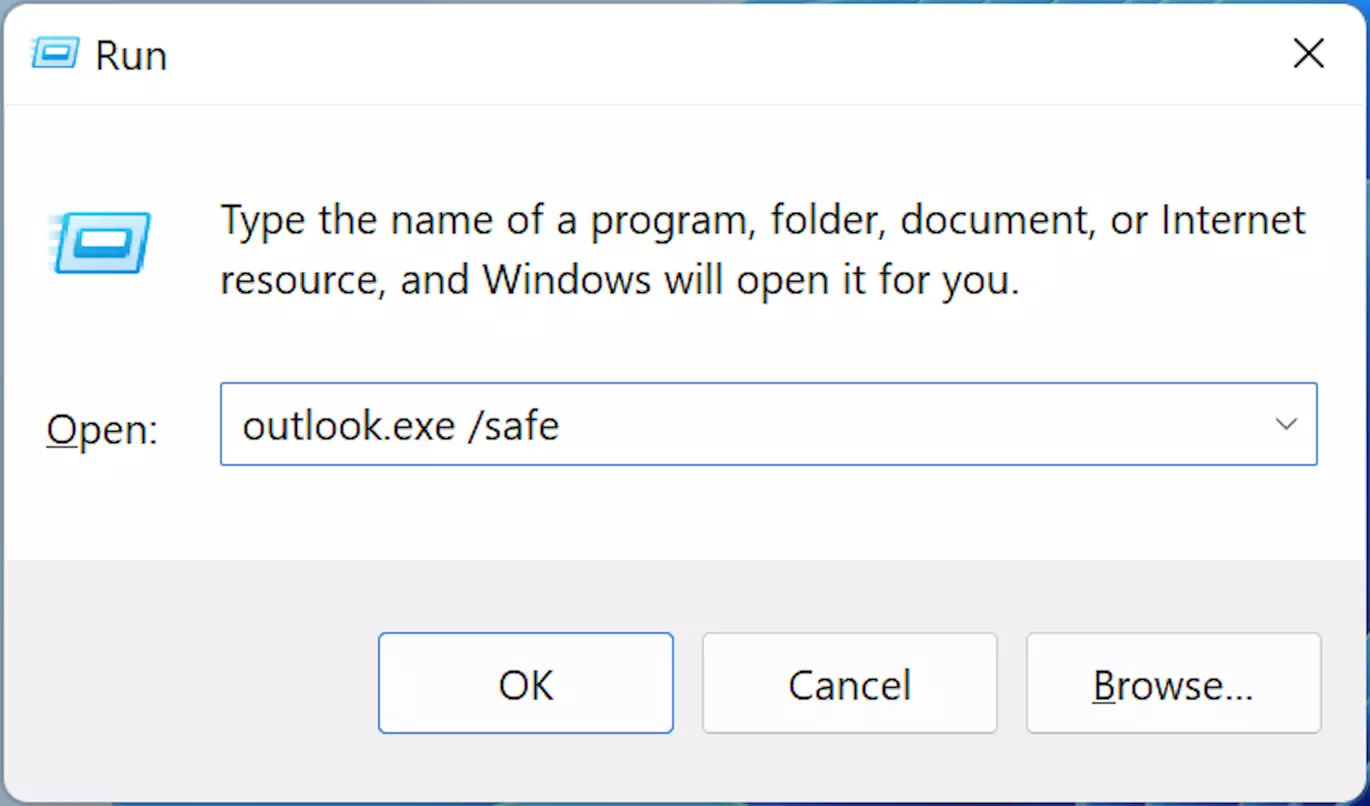
If Outlook starts in safe mode, it means that one or several of the add-ins may be preventing Outlook from starting normally. While this significantly narrows down the options of what the problem could be, to find out exactly which add-in is causing the issue, complete the following steps:
- In the top left of your Outlook window, click on the File tab and then on Options.
- On the left side of the window, choose Add-Ins and click Go, which is located in the bottom part of the add-ins window.
- Deactivate all add-ins (a completely harmless action) by unchecking their corresponding boxes in the list that opens.
- Restart Outlook as you normally would without safe mode on.
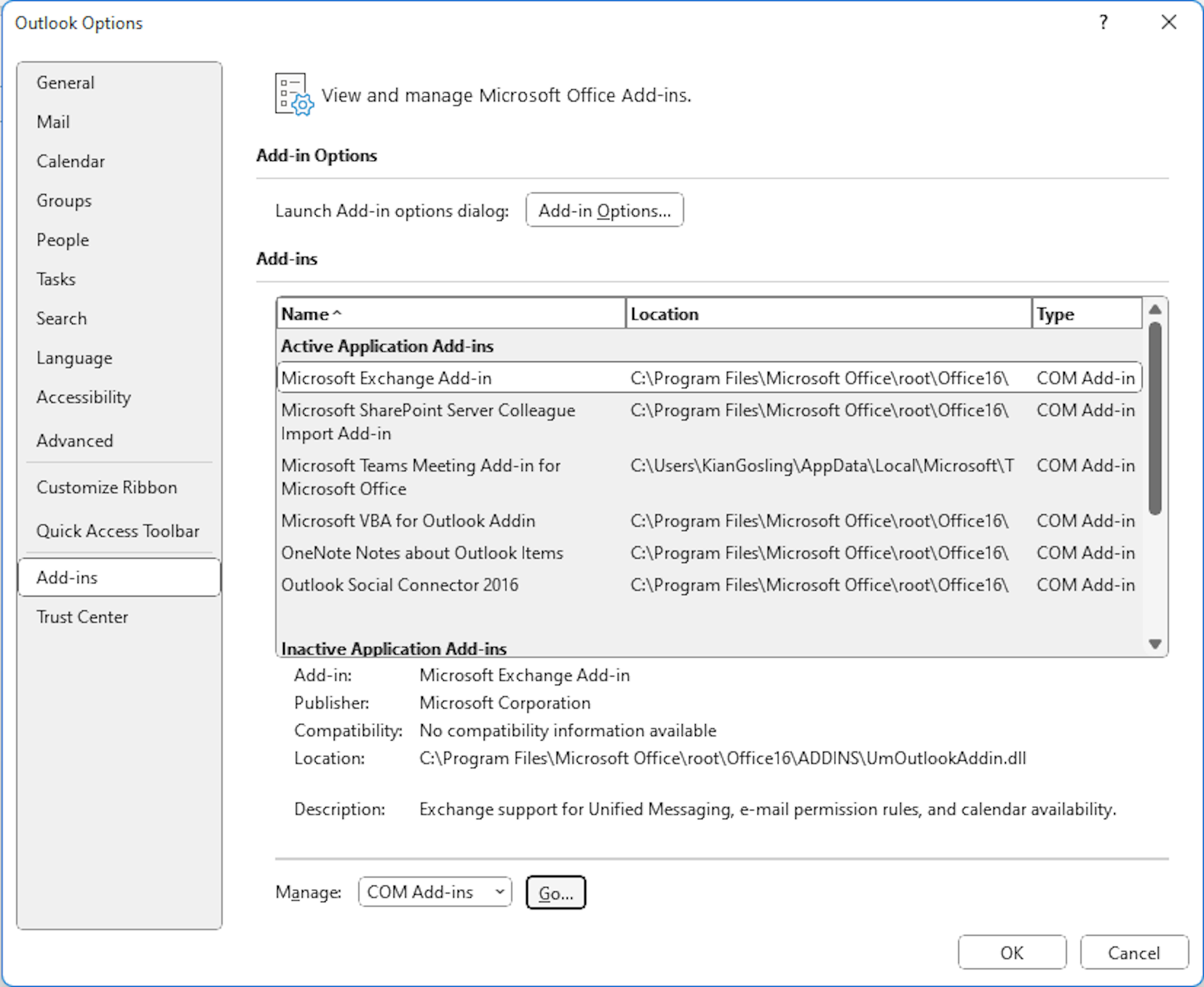

If the restart was successful, this further indicates that one or more defective add-ins are at fault. Now, you should find out which ones are the culprits by process of elimination:
- Activate each of the add-ins one after the other and restart Outlook after each reactivation.
- As soon as Outlook won’t re-open, you will know that the add-in that you reactivated last is defective.
- In this case, reenter safe mode, and then deactivate and completely uninstall the add-in to resolve the problem.
Repairing a faulty Outlook profile
If the previous method is unsuccessful and you still cannot open the Outlook window, even in safe mode, it could be that your profile—more specifically your “personal folders file” (.pst file)—is defective.
A .pst file contains the data files (all emails, calendar entries, contacts, tasks, and notes) that are associated with your Outlook profile. A standard outlook.pst is created the first time Outlook is started. However, you can create .pst files on your own, for instance, to generate a backup copy of your archived emails. It also allows Outlook to import pst files.
To confirm that the profile is causing the problem, you can try the following tricks:
- Depending on your operating system, click Control Panel in the start menu or type “Control Panel” into the Windows search bar and then click on it.
- In the control panel, click Mail (the exact name of the label may vary).
- When the dialog box Mail Setup – Outlook opens, click on Show Profiles.
- Click on Add.
- Follow the instructions to create a new profile, then click Finish.
- Under When starting Microsoft Outlook, use this profile, choose Prompt for a profile to be used option and click OK.
- Start Outlook.
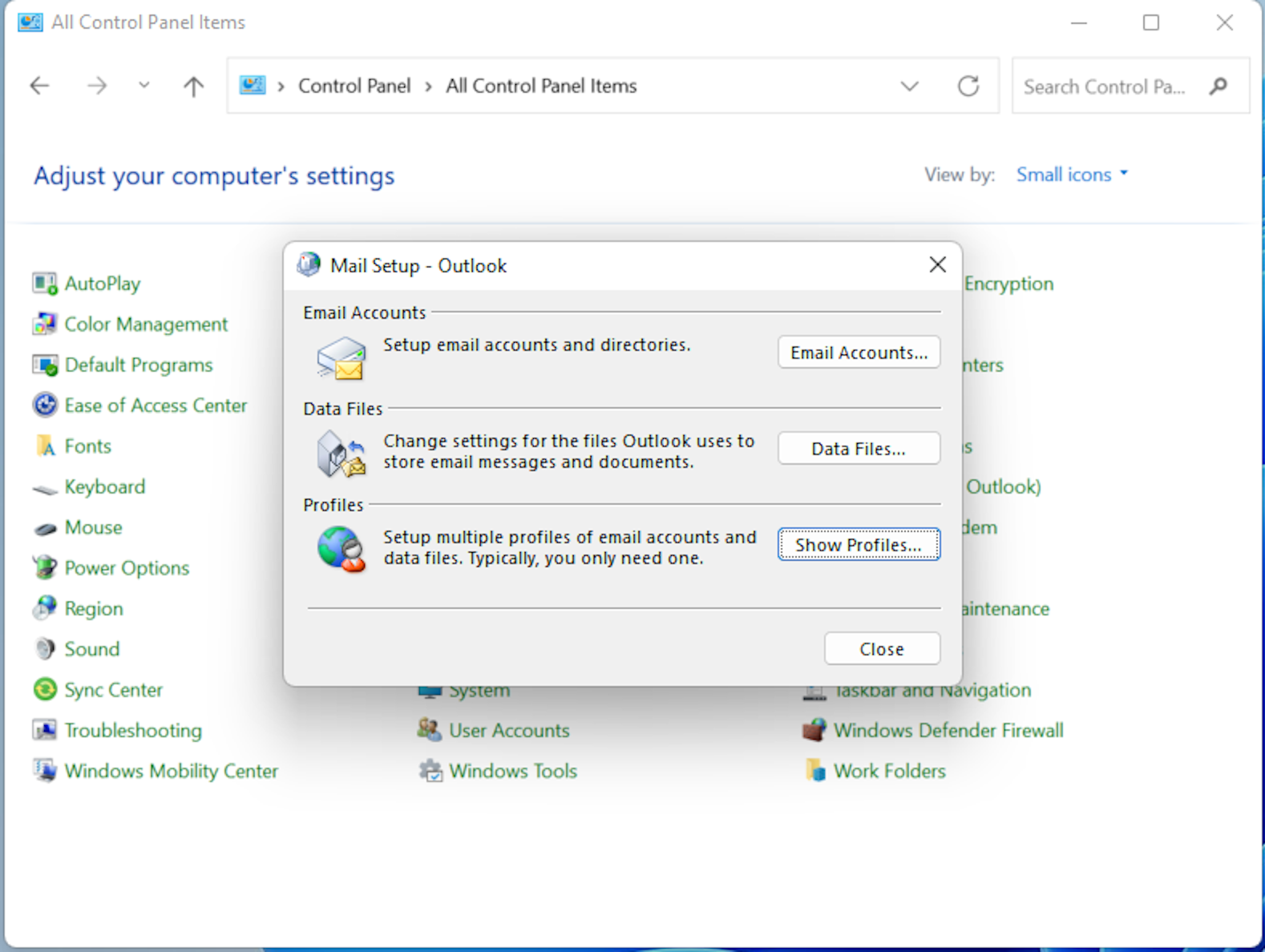
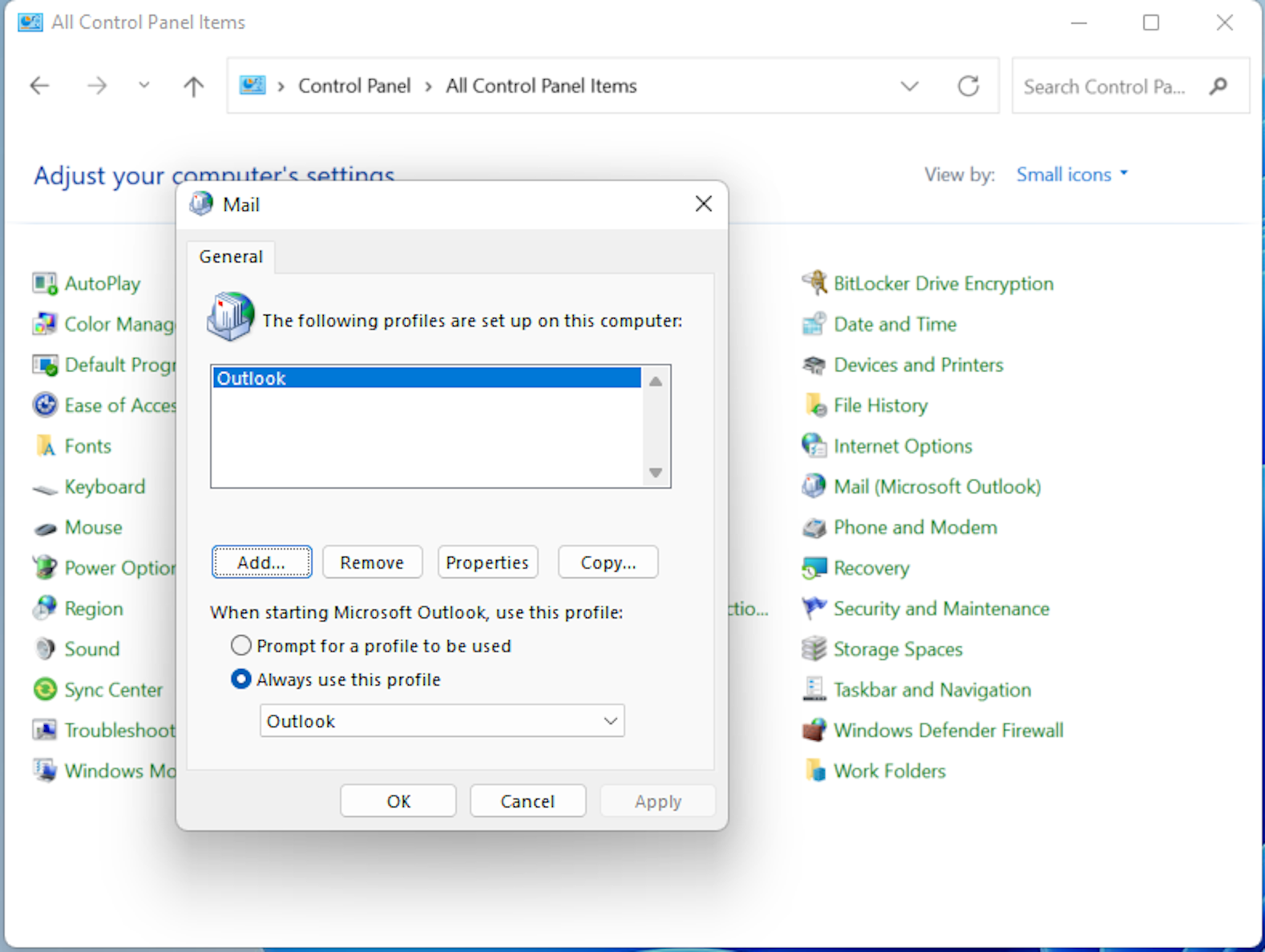
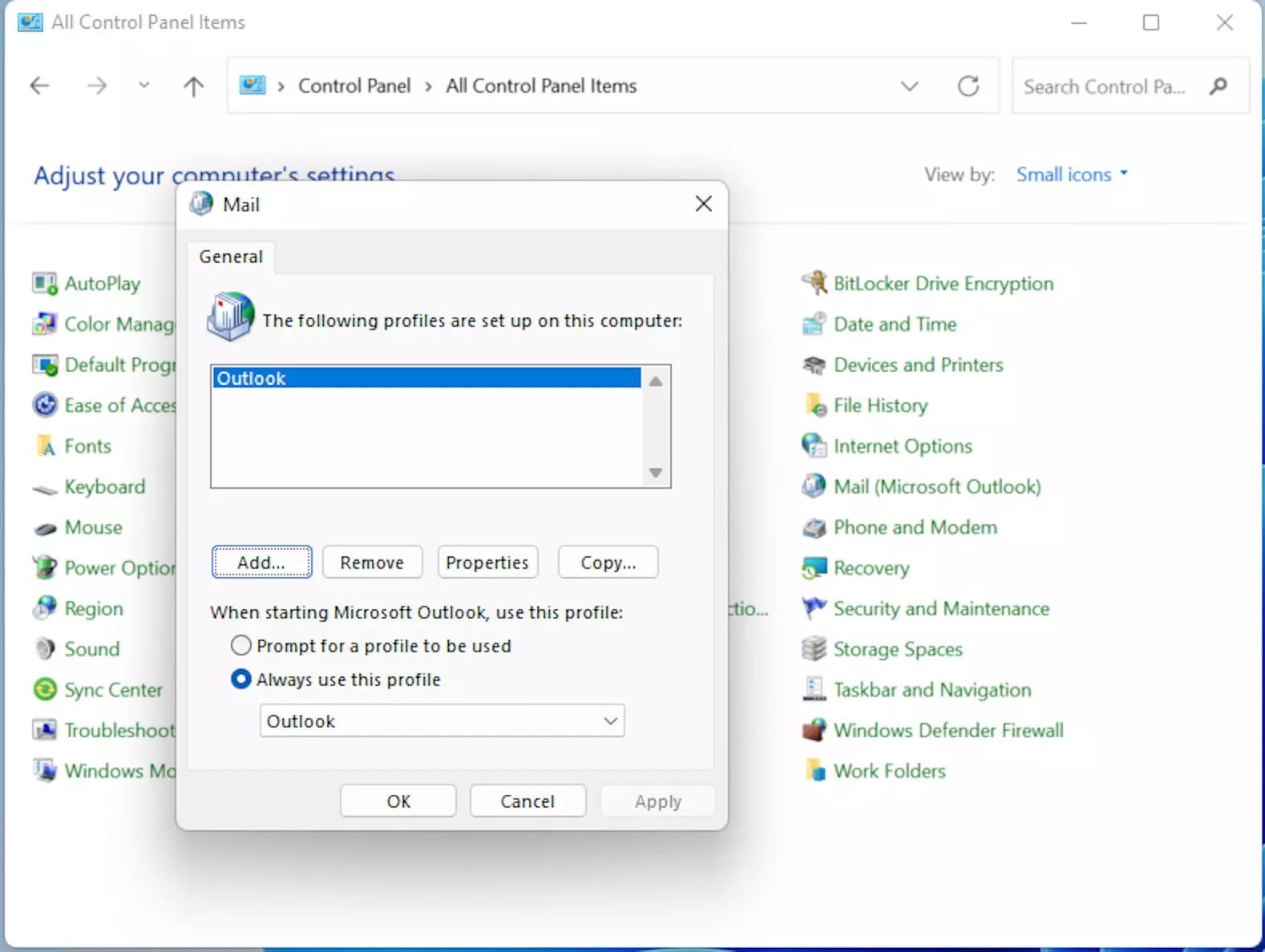
If you’ve done everything correctly, Outlook will start with your new profile. This confirms that the issue stems from your original profile. Using the Inbox Repair tool, which is pre-installed on your computer along with Outlook under the name scanpst.exe, you can restore damaged data files.
The scanpst.exe tool searches through your data files for any issues. This includes your emails, calendar entries, contacts, tasks and notes. If it finds an unreadable or damaged section of data, it will automatically remove it. It is therefore possible that several data files will be lost during the restoration process. However, this is the best solution according to Microsoft, because the files in question are already irreparably damaged.
First you need to locate the tool in Windows Explorer. If your main drive is named “C:”, it will most likely be here depending on the Outlook version and operating system:
| Outlook version & operating system | scanpst.exe location |
|---|---|
| Outlook 2016, 2019 and 365 (Click-to-Run installation, 32-bit) | \Program Files\Microsoft Office\root\office16 |
| Outlook 2016, 2019 and 365 (Click-to-Run installation, 64-bit) | \Program Files (x86)\Microsoft Office\root\Office16 |
| Outlook 2016, 2019 and 365 (MSI-based installation, 32-bit) | \Program Files\Microsoft Office\Office16 |
| Outlook 2016, 2019 and 365 (MSI-based installation, 64-bit) | \Program Files (x86)\Microsoft Office\Office16 |
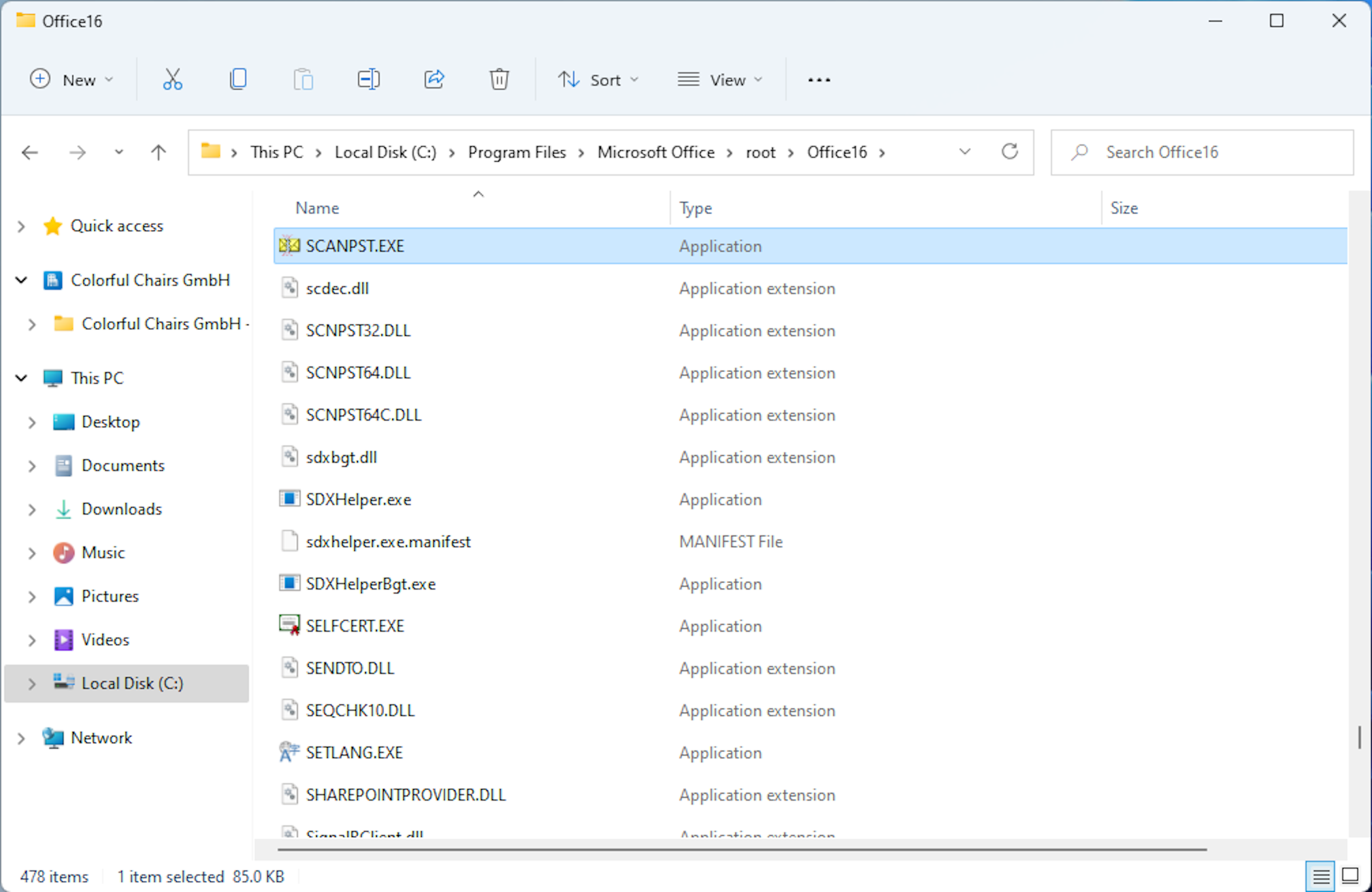
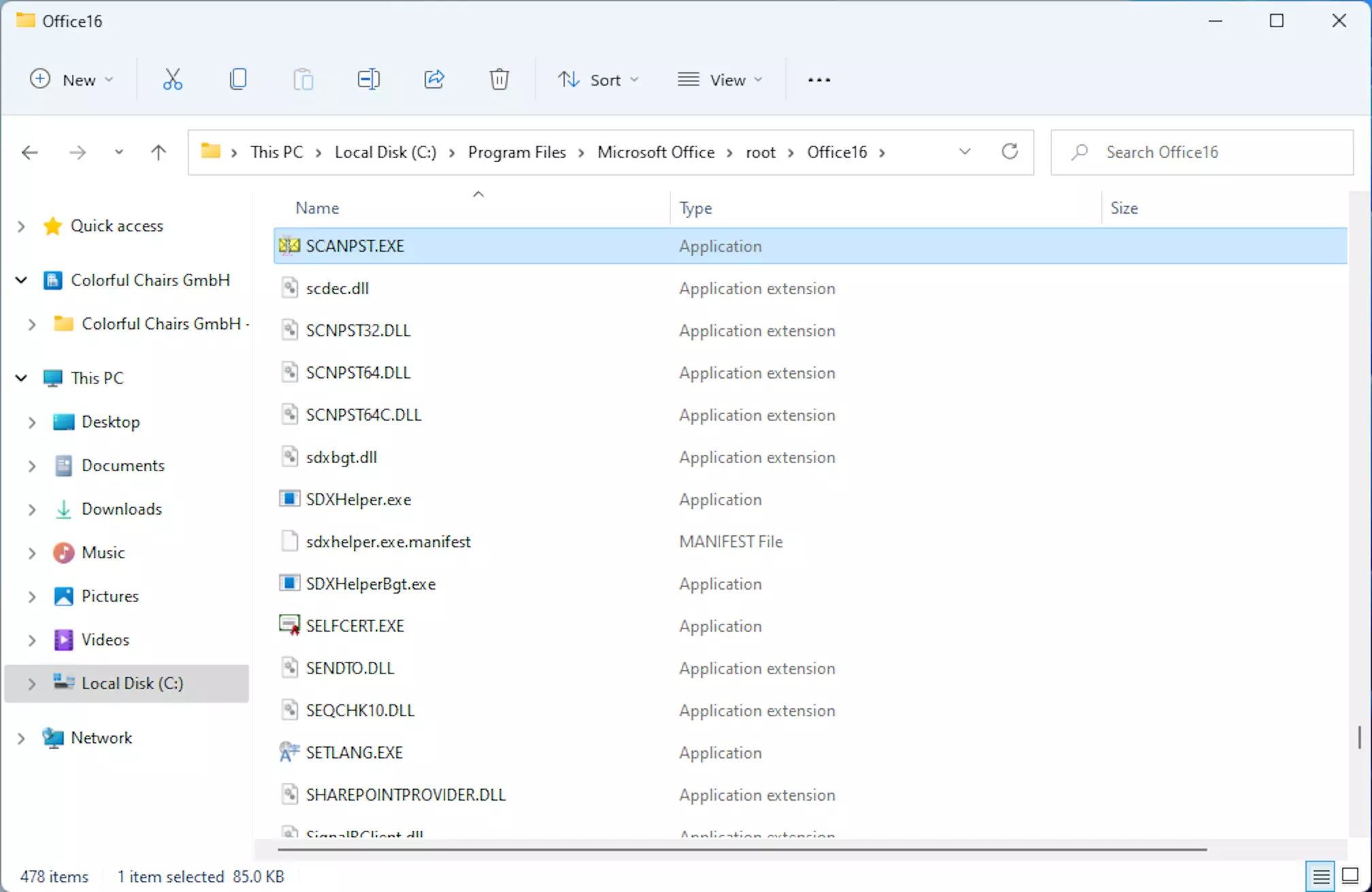
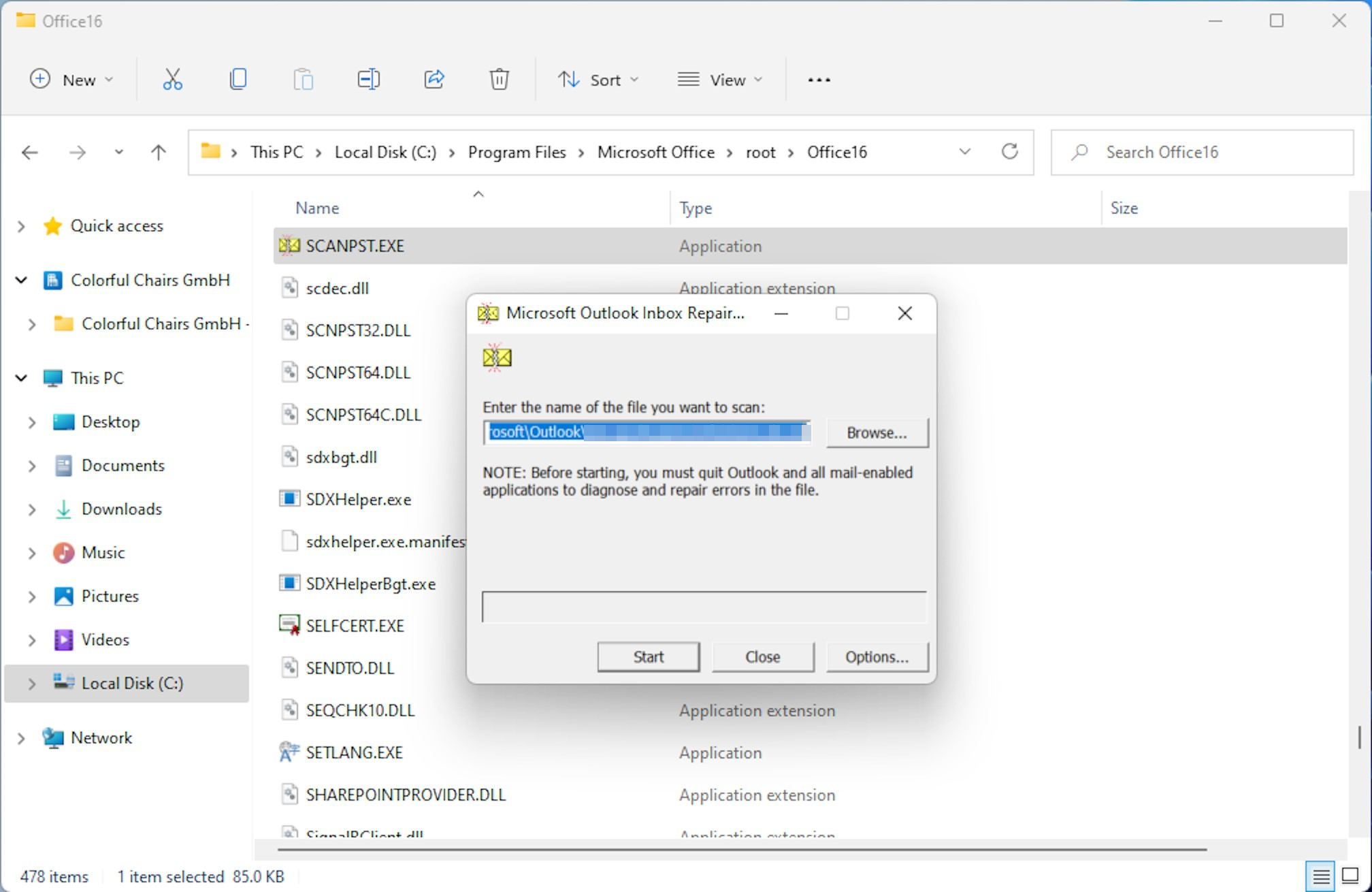
Double-click on scanpst.exe (or rather, SCANPST) and proceed as follows:
- Enter the path and the file name of your personal data file (.pst) or click Browse to find the file via Windows Explorer.
- Under Options, choose Replace log.
- Click Start.
- If issues are discovered during the inspection process, the tool will request a repair.

Your .pst file is now repaired. Now all that is left to do is to transfer the restored files into a new Outlook profile:
- Start Outlook
- Create a new .pst file by clicking New Items in the top left, then click More Items in the drop-down menu that appears, and finally on Outlook Data File.
- Pull up the folder list on the left side with the key combination [Ctrl] + [6].
- Look inside the Lost and Found folder in your old profile to verify which data files were fully restored and which were lost during the reparation.
- Next, pull all restored data files into your new profile.
- The Recovered Personal Folders .pst file can now be deleted. Doing this will result in the removal of “Lost and Found” folder from your folder list.
- All your favorite Google productivity tools
- Business Gmail for your domain
- Using Gmail with your domain from IONOS
Outlook will not open due to an unknown error
Besides the widely-known error message, “Cannot start Microsoft Office Outlook. Cannot open the Outlook window,” errors that are unknown can also lead to a situation where you cannot open the Outlook window. In this case, the following approaches can help.
End the OUTLOOK.EXE task process in task manager
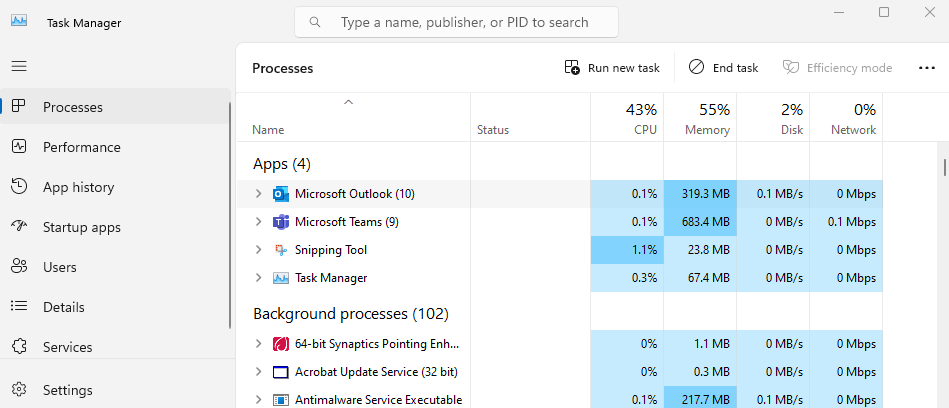
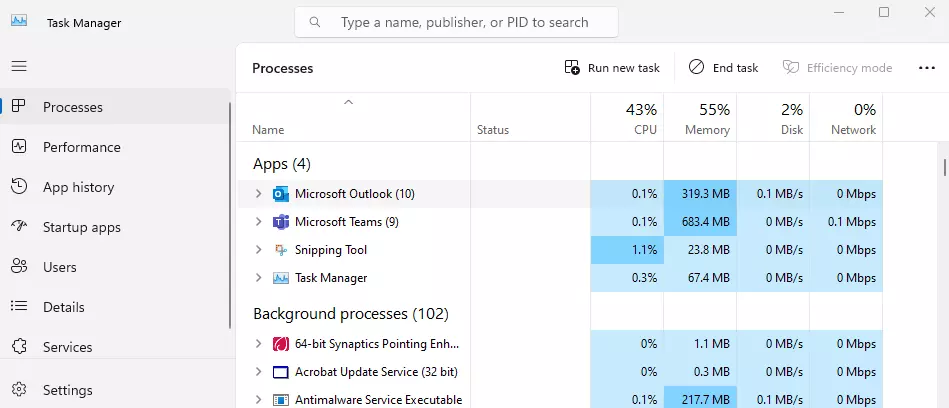
It is sometimes the case that Outlook experiences issues during its initial launch and does not provide an error message. Indications of this are that the PC slows down and nothing happens even after clicking on the Outlook icon several times. If a window does eventually open, the message “Not Responding” is probably shown in the menu bar. At this point, usually the only solution is to end the program manually:
- Press [Ctrl] + [Alt] + [Delete] to access the task manager.
- Click on the Processes tab.
- Look for the OUTLOOK.EXE task process on the list and click on End Process in the bottom left corner.
- Restart Outlook.
Be careful not to accidentally end a different process, such as a system task process.
Update Outlook
If the issue has still not been resolved, you do not have to proceed with a new installation right away. It is possible that your issue has already been solved by Microsoft and that the updates necessary for the solution already exist.
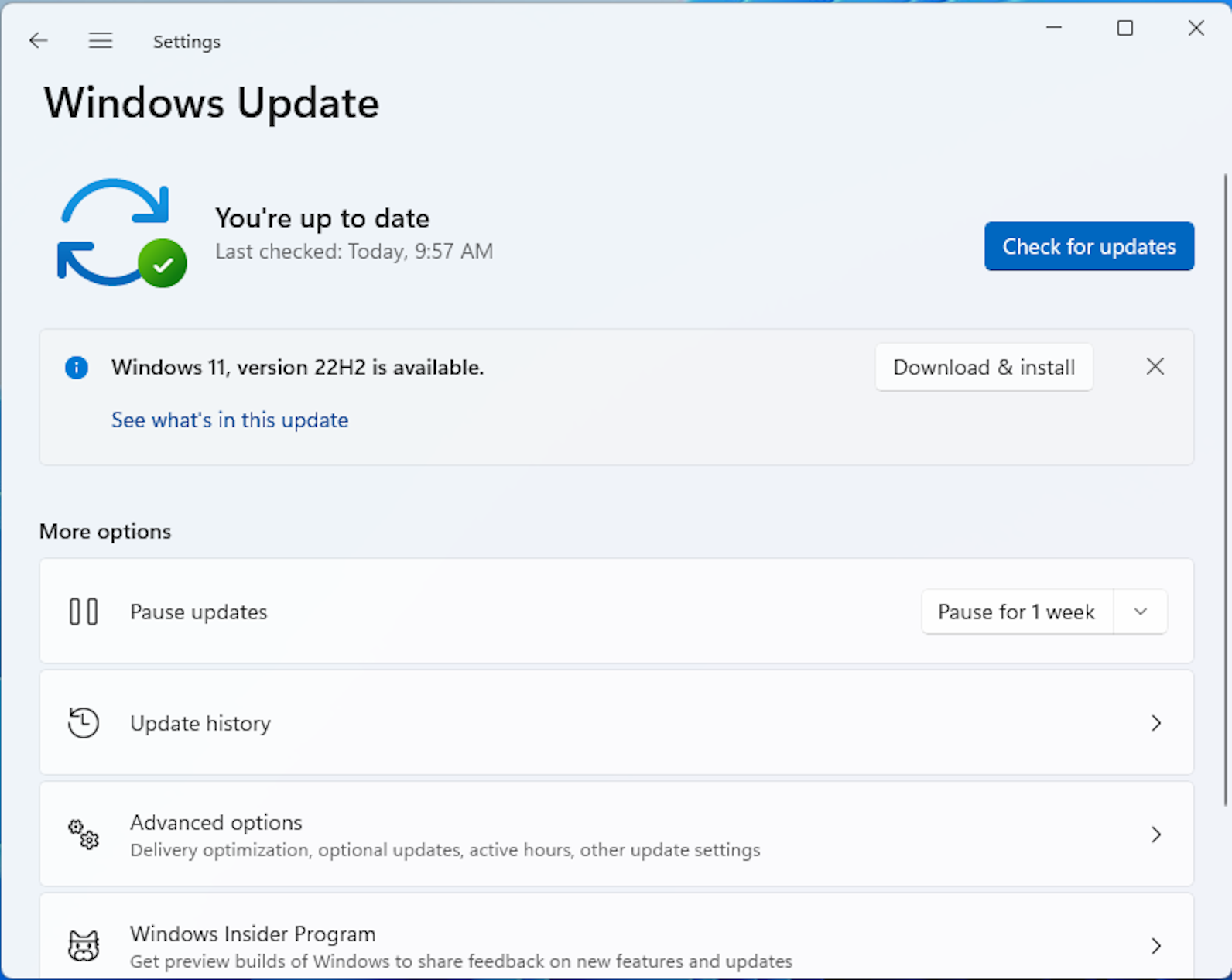
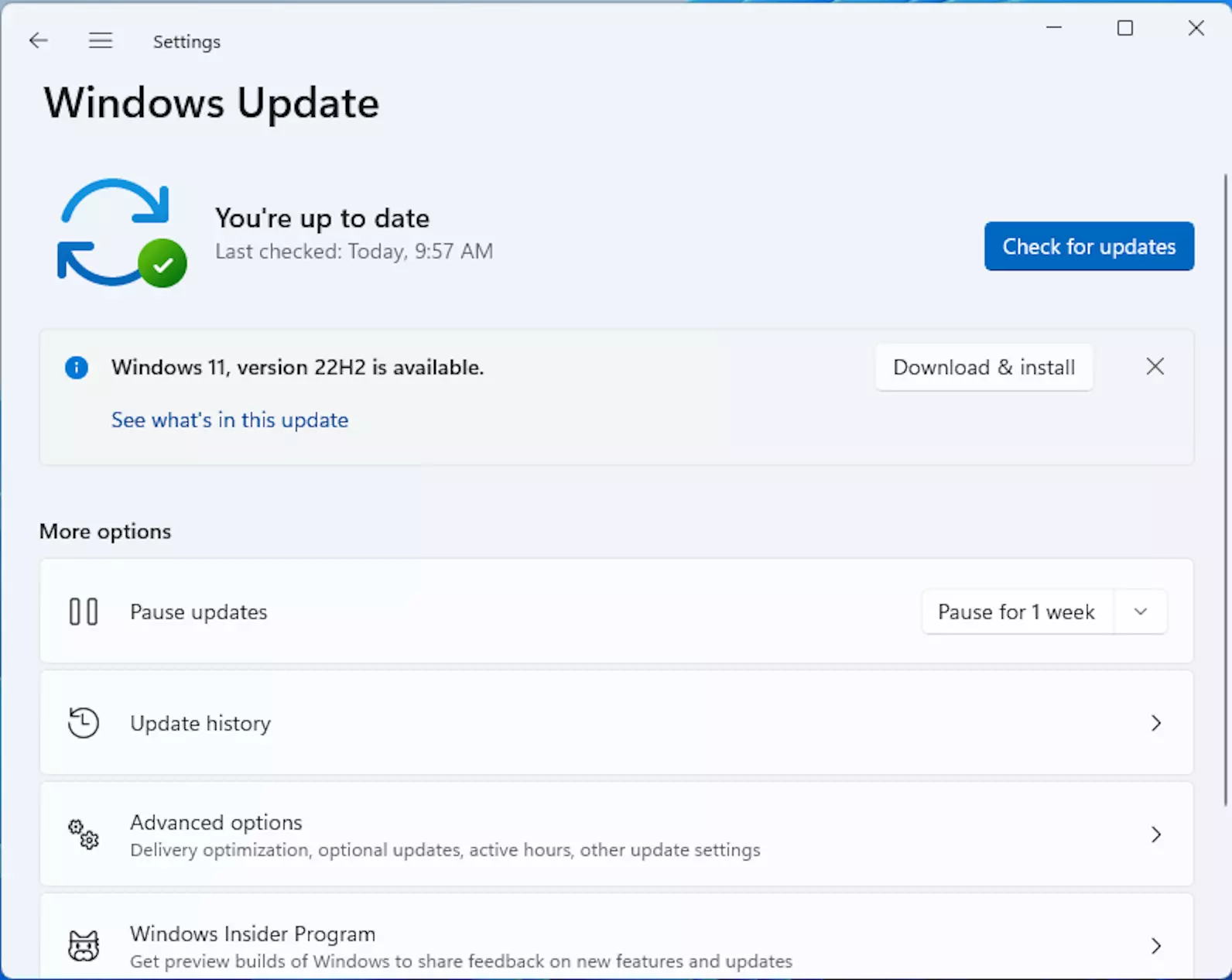
To update Outlook, it’s best to use a Windows update:
- Depending on your operating system, go to the system settings and choose Windows Update or enter it into the search bar.
- In the window that pops up, check if there are new updates for Windows and Microsoft 365 products available and install them.
- Write perfect emails with optional AI features
- Add credibility to your brand
- Includes domain, spam filter and email forwarding
Repair or reinstall Outlook
If none of the other solutions work, you can try Microsoft 365’s internal repair function:
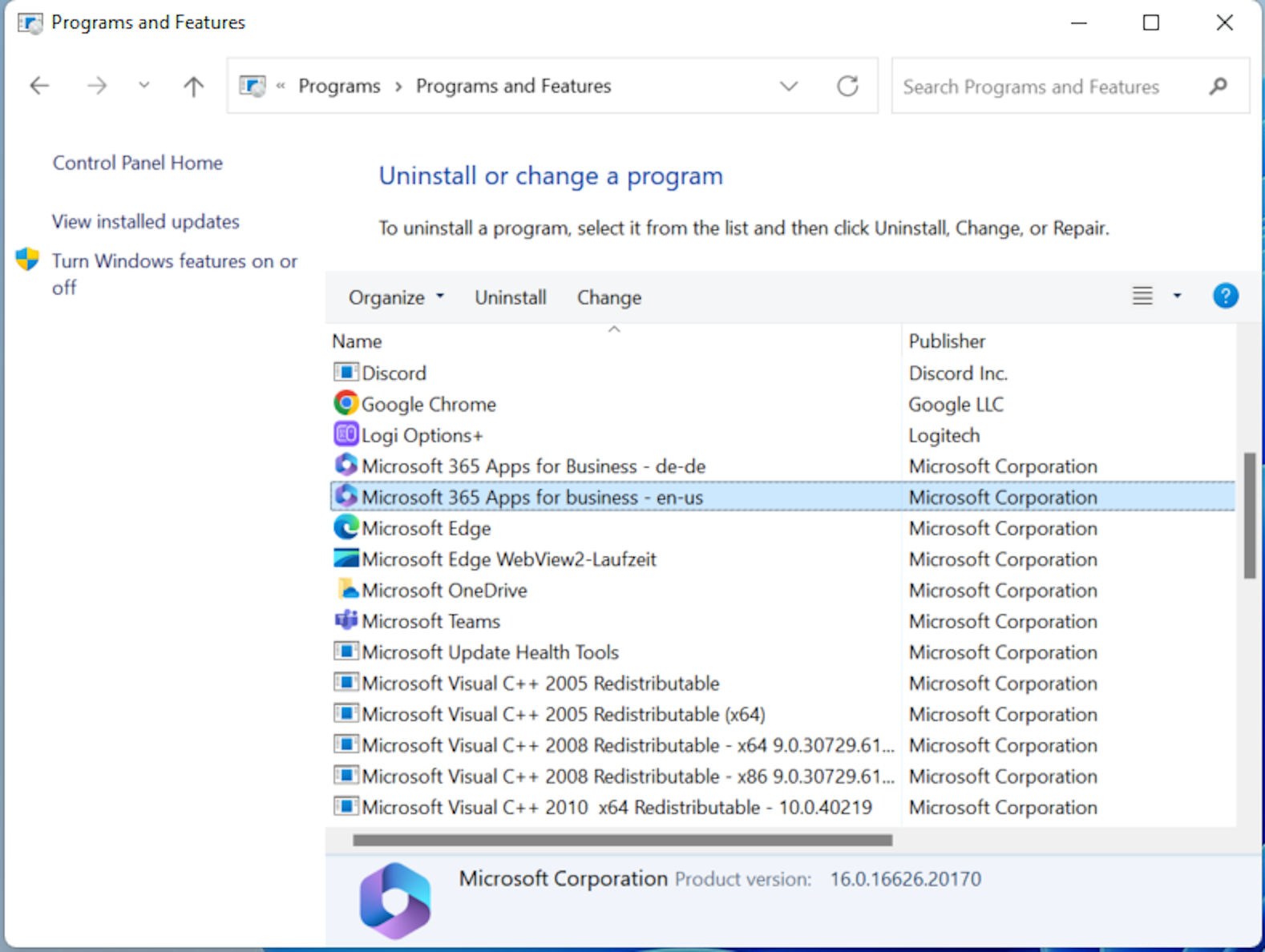
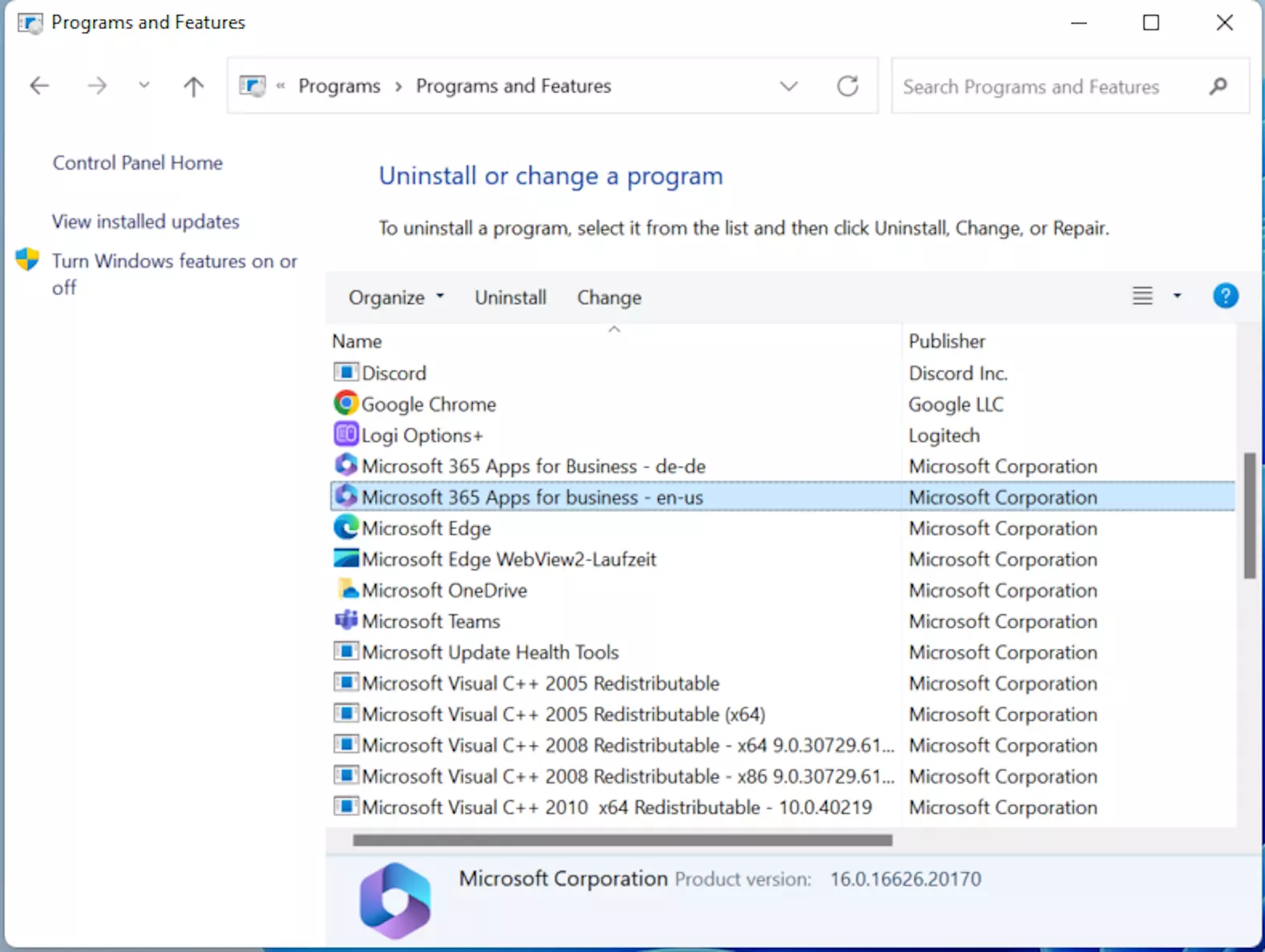
- Open the Control Panel (as previously described).
- Click Programs and Features.
- Find “Microsoft 365” on the list and click Change.
- Follow the instructions – the best results are achieved with the Online Repair option.
If none of the solutions described here are successful, you can try to reinstall Outlook. Unfortunately, however, this is the most time-intensive method.
Does your business need a complete and ready-to-use office suite with centralized storage? Then Microsoft 365 Business from IONOS is the right solution for you! This plan includes Outlook as well as many other office programs and is especially suitable for companies.