

How to recover deleted emails in Outlook step by step

Microsoft includes a built-in trash system and provides several options to recover deleted emails in Outlook. In this guide, we’ll show you how to retrieve messages that were accidentally deleted.
How to recover deleted Outlook emails quick guide
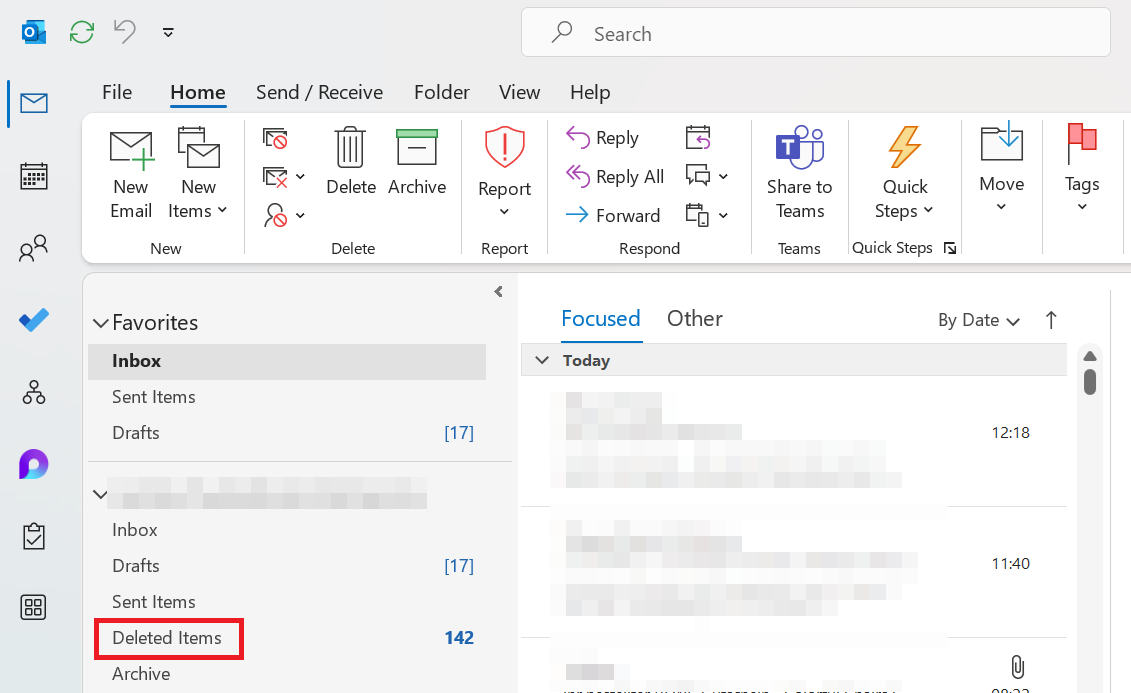
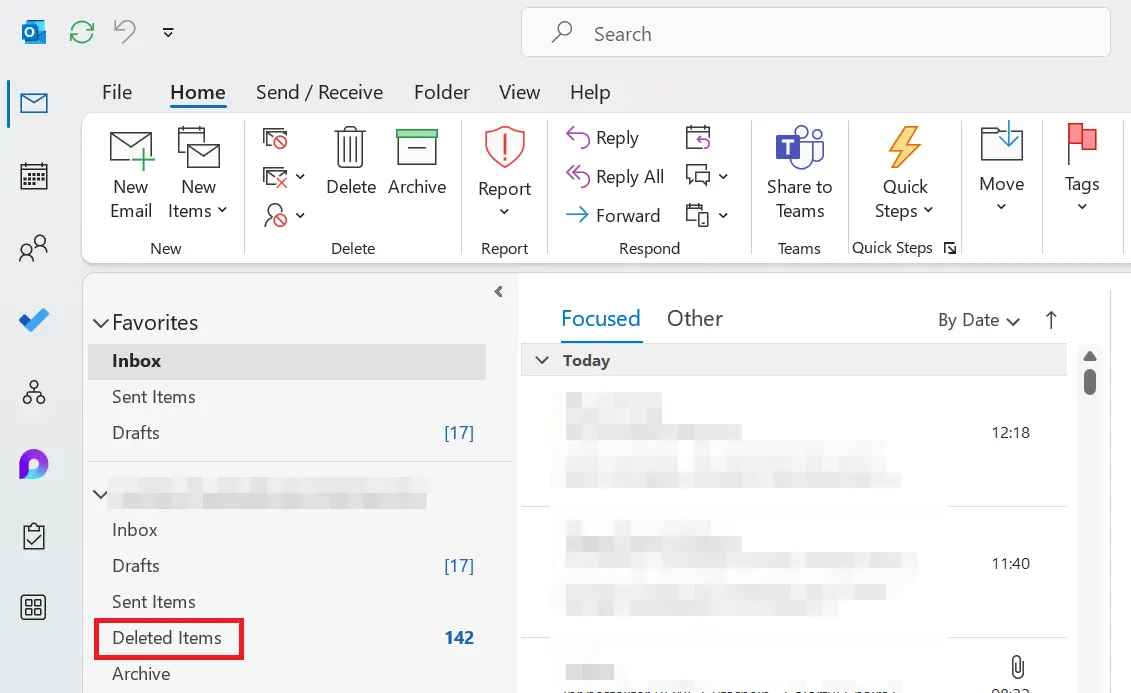
- Open the “Deleted Items” folder in your email account.
- Right-click the email you want to recover.
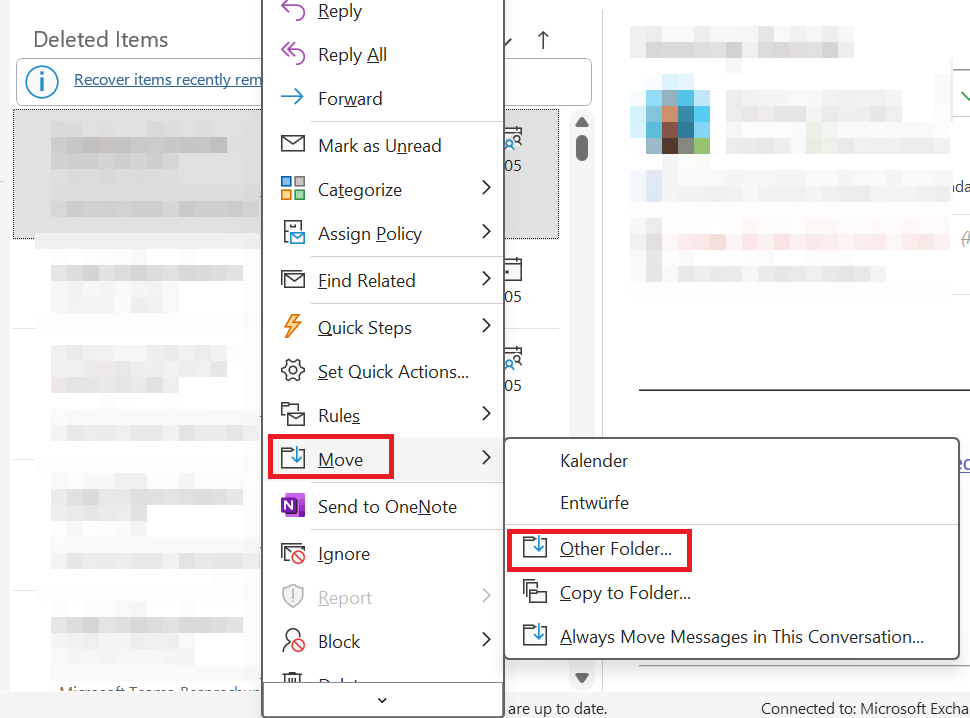
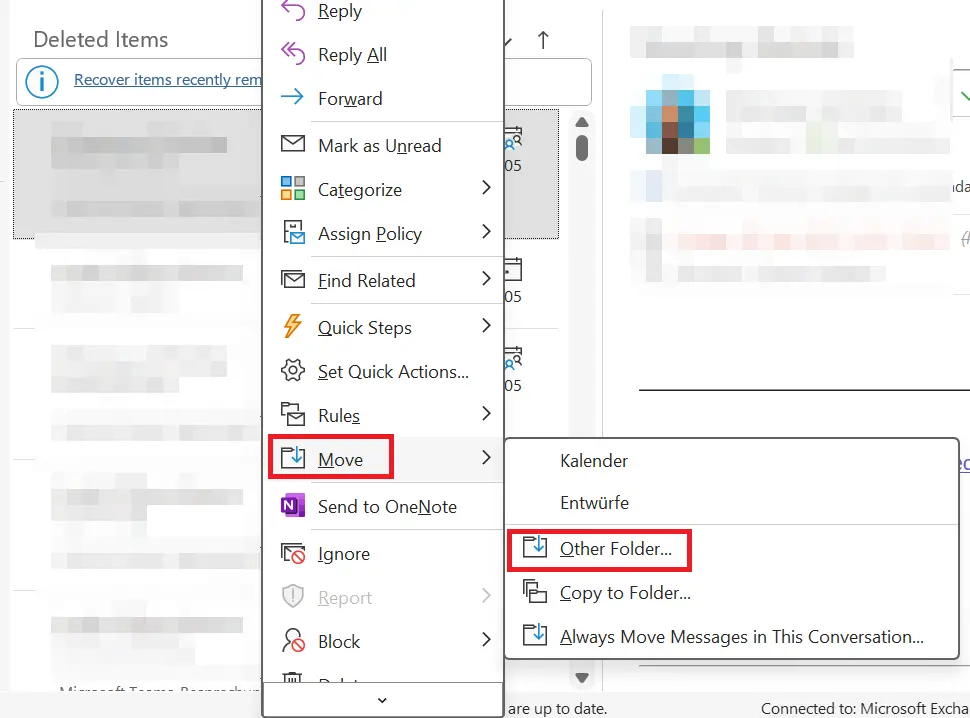
- Click “Move”, then select “Other Folder…”.
- Choose a destination folder and click “OK” to retrieve the deleted Outlook email.
These instructions apply to Microsoft 365 versions of Outlook as well as Outlook 2021, Outlook 2019, and Outlook 2016. Depending on your version and Outlook view settings, the interface may vary slightly.
Powerful Exchange email and the latest versions of your favorite Office apps on any device — get started with our free setup assistance.
How to recover deleted Outlook emails step by step
If you want to retrieve emails you’ve recently deleted in Outlook, follow the steps below.
Open the trash folder with deleted Outlook emails
In the folder list, navigate to the deleted items folder of the email account where the message was deleted. This folder is usually called “Deleted Items.” For IMAP accounts, the folder name is taken from the email server.
Retrieve a deleted Outlook message
In this folder, you’ll see all emails currently in the trash. Right-click on the Outlook message you want to restore and select “Move” from the context menu, then choose “Other Folder…”.
In the next step, select the folder where you want to move the email from the trash, then confirm your choice by clicking “OK”.
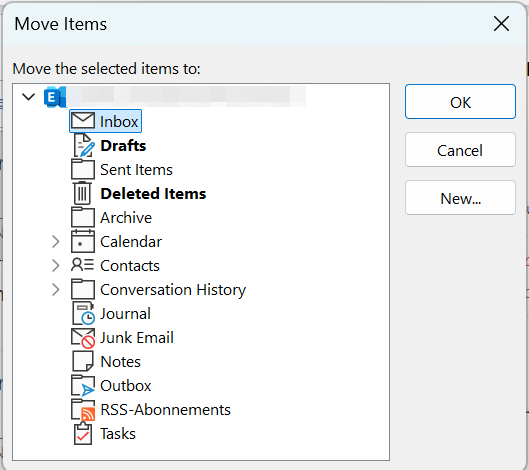
By the way: If you’ve just accidentally deleted an email, you can restore it immediately using the Outlook shortcut [Ctrl] + [Z]—no need to go through the trash folder.
Hosted Microsoft Exchange from IONOS is the ideal solution for small and medium-sized businesses that want to manage emails and calendars centrally without building and maintaining their own in-house IT infrastructure.
How to recover permanently deleted emails
Even after emptying the trash, there’s still a chance you can recover a deleted Outlook email—provided it’s still stored on the server. Whether this works depends on several factors, including how long ago the email was deleted and how many emails you’ve received or deleted since. Additionally, the mail server must support this feature.
To attempt recovery, first go to the “Home” tab and open the “Deleted Items” folder for the respective email account. If your email account supports the recovery of permanently deleted messages from the server, you’ll see the option “Recover Deleted Items from Server” in the ribbon.
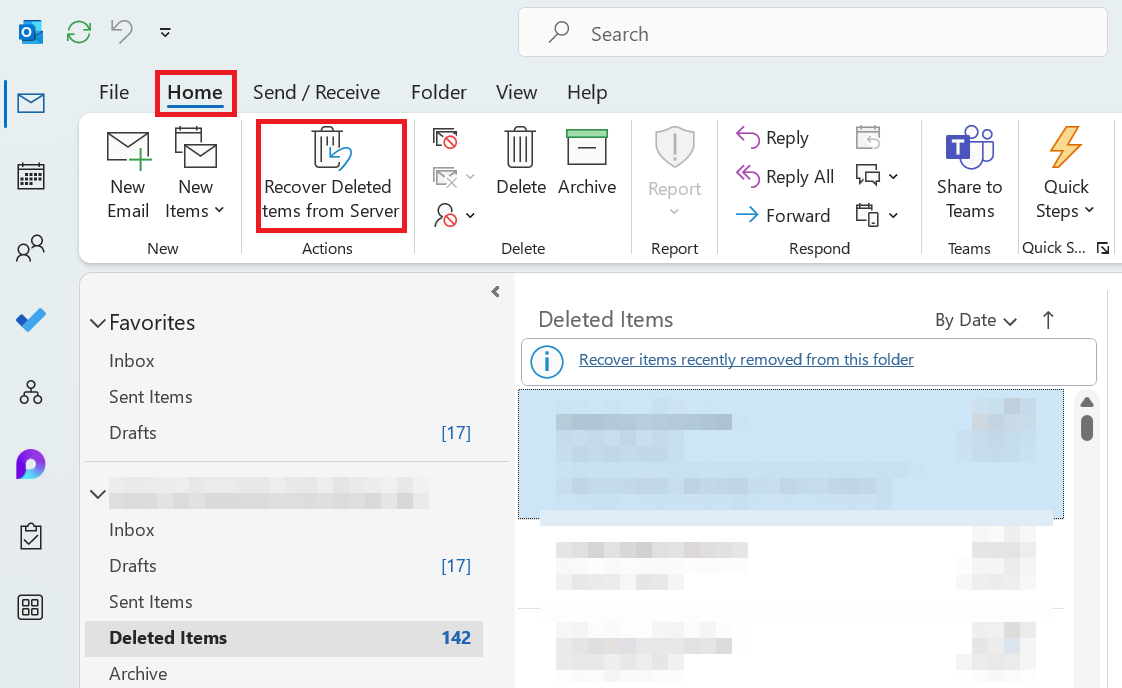
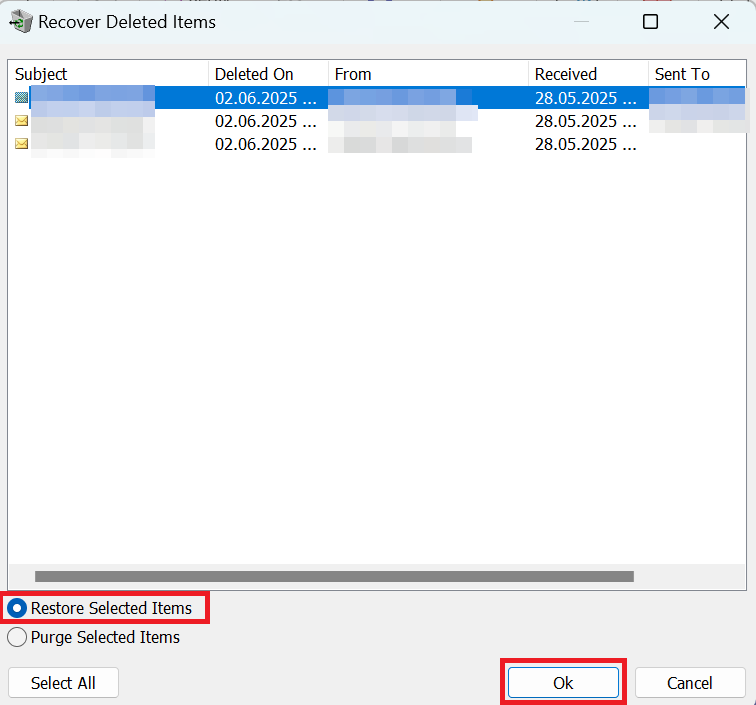
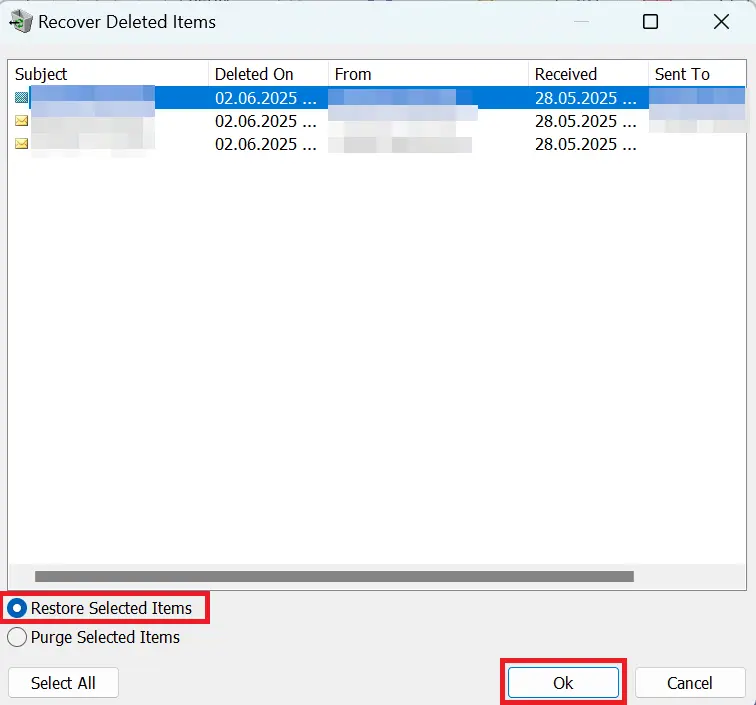
After clicking the button, a list of emails deleted in Outlook that can still be retrieved from the server will appear. Select one or more emails from the list, choose “Restore Selected Items” at the bottom, and confirm by clicking “OK”. The selected Outlook emails will then be restored.
Important: Don’t rely on being able to recover deleted emails in Outlook in an emergency. Especially for business email accounts subject to specific archiving requirements, you should archive your emails with Outlook to ensure they can be retrieved from the archive if needed.
The best protection against accidental deletion is secure email archiving on a server outside your own premises. This not only safeguards against hardware damage but also ensures that business emails are stored in a legally compliant and GoBD-compliant manner.