

How to carry out WordPress migration step by step

A move doesn’t only happen from New York to San Francisco—it can also be digital, from one server to another. Reasons for a server migration can include switching hosting providers, creating a backup, or setting up a test environment. If you’re planning to move your WordPress blog, you can do it manually or with the help of a migration tool.

How to manually migrate a WordPress site
Experienced WordPress users can manually migrate a site to a new server or domain. In just a few steps, all themes, plugins, settings, and of course all content including comments can be transferred. The only prerequisites are SFTP access to the existing site, phpMyAdmin access to the database, and a hosting package with a suitable provider. In roughly an hour, you can back up and export your data, set up new access credentials and a database, and import your adjusted data.
Step 1: Back up the database and WordPress files
Always start with a full backup of your current WordPress site. Simply exporting the content isn’t enough—doing so would omit key settings and plugins. For smaller sites (up to 2 MB), phpMyAdmin, available with many hosting providers, is a good choice. For larger sites, consider using an external program like mySQLDumper.
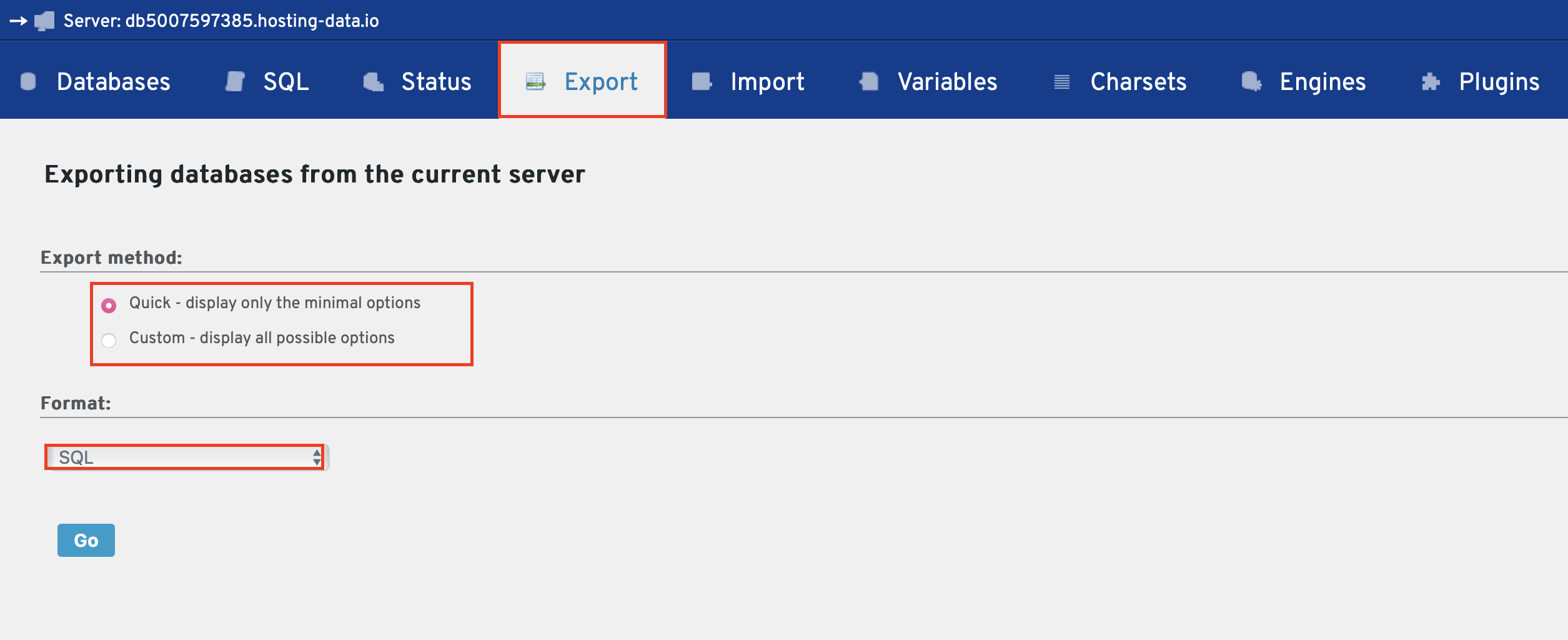
Save the backup locally. In phpMyAdmin, first select the correct database (especially if you’re managing multiple websites on the same server). Click “Export” and choose between “Quick” or “Custom”. Only choose “Custom” if you’re familiar with MySQL. Since you’re manually migrating WordPress, choose SQL as the export format. Other formats are suitable only for alternative use cases. Confirm the settings and save the SQL file to your hard drive.
Want to learn more about the popular database management system? Check out our MySQL tutorial for beginners.
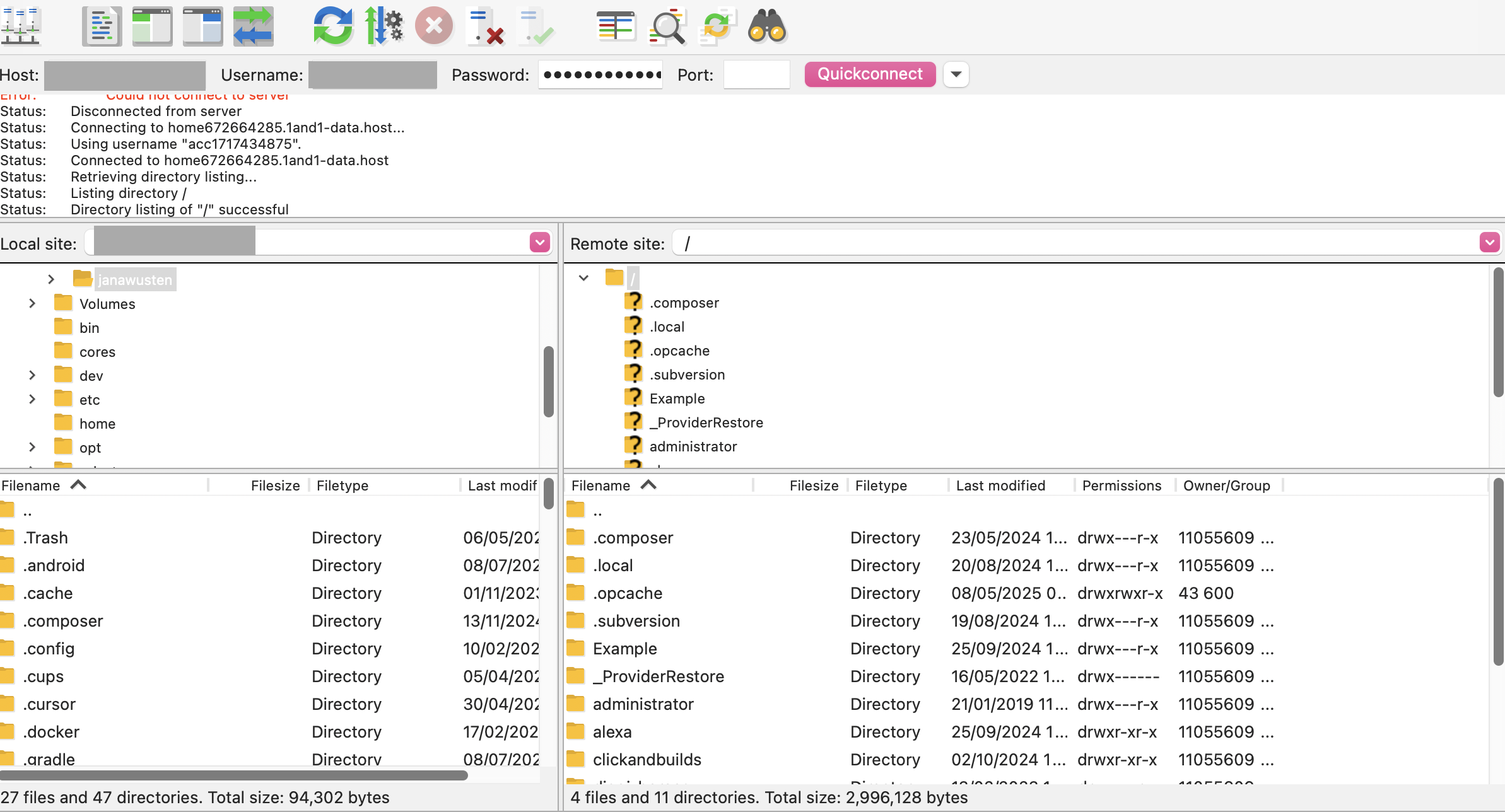
Next, use an FTP client like FileZilla to save the remaining WordPress files locally. Select your site’s directory and copy all files to your local drive.
Step 2: Create new access credentials and database
At your new hosting provider, create a new database. If you’re an IONOS customer, go to the MySQL section in the Control Center. Also, set up a new FTP account. Be sure to write down the username and password. Do the same for the new database: note the database name, hostname, user name, and password.
Step 3: Edit and upload WordPress files
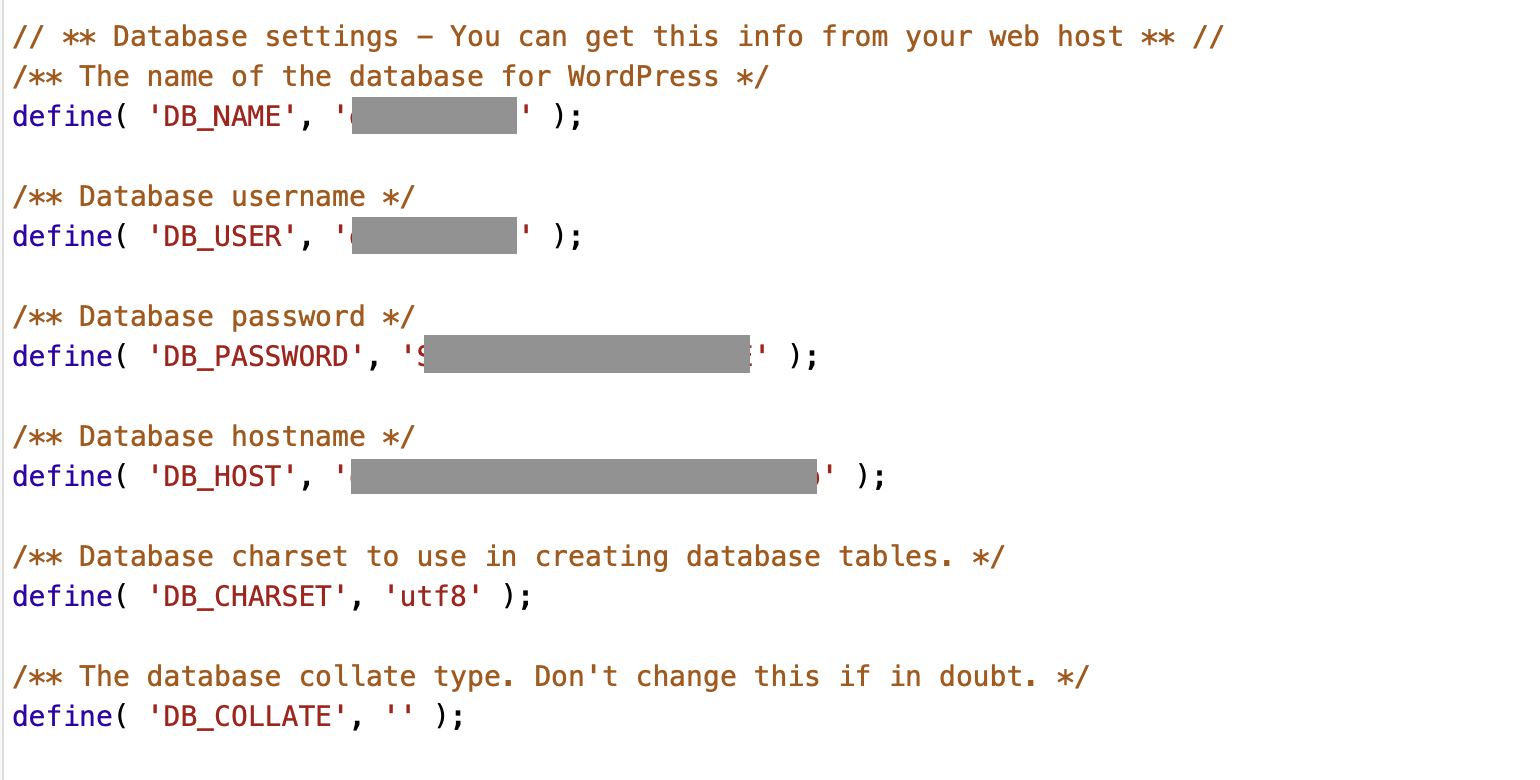
Open the wp-config.php file (found in the root directory of your backup) using a text editor. Update the values for DB_NAME, DB_USER, DB_PASSWORD, and DB_HOST with your new server information. Then upload all files and folders to the new server’s root directory using FileZilla or another FTP client.
Step 4: Update the domain
If the domain of your website or blog is changing, you can update the domain within the SQL file before uploading it. Open the SQL file and search for “siteurl” and “home”, then replace the old domain with the new one.

Need a new domain? Try the IONOS Domain Checker:
Step 5: Import the database
To complete your WordPress migration, import the database into your new hosting account. Use phpMyAdmin or, for large projects, mySQLDumper. In phpMyAdmin, be sure to select the correct database on the left before choosing the “Import” tab. Select your saved SQL file and start the upload. Unless you used custom settings during export, you can stick to the default import settings.
Step 6: Final checks after migration
Your website should now be running on the new server. If issues arise, here are three common problems and how to solve them:
- .htaccess errors : Your
.htaccessfile might still contain links to the old domain. Open and update this file to avoid redirect errors. - Incorrect character encoding : If special characters appear broken, it’s likely due to a charset mismatch. Try different encodings like
latin1,UTF-8, or Unicode. Some plugins can also help fix this. - mod_rewrite and Error 500 : If the server can’t read
.htaccessfiles, mod_rewrite may be disabled. You’ll see an Internal Error 500. Disable permalinks in your CMS settings, then enable mod_rewrite once the error disappears.
Why not use plugins to migrate WordPress?
Many online tutorials suggest that WordPress migration is quick and easy. But for less tech-savvy users, a manual migration can be complex and error-prone. Even advanced users may find the process inconvenient for frequent testing or staging. As WordPress is open source, there are now many free plugins to simplify the migration process. Most tools include essential security features, but it’s still a good idea to create a full backup before beginning.
5 best free WordPress migration tools
Migrate Guru
Migrate Guru is a popular plugin known for its simplicity and speed. It transfers your entire WordPress site—including database, media, and plugins—automatically and without manual steps. Since it operates at the server level, it avoids PHP upload limits and supports sites up to 200 GB without performance loss.
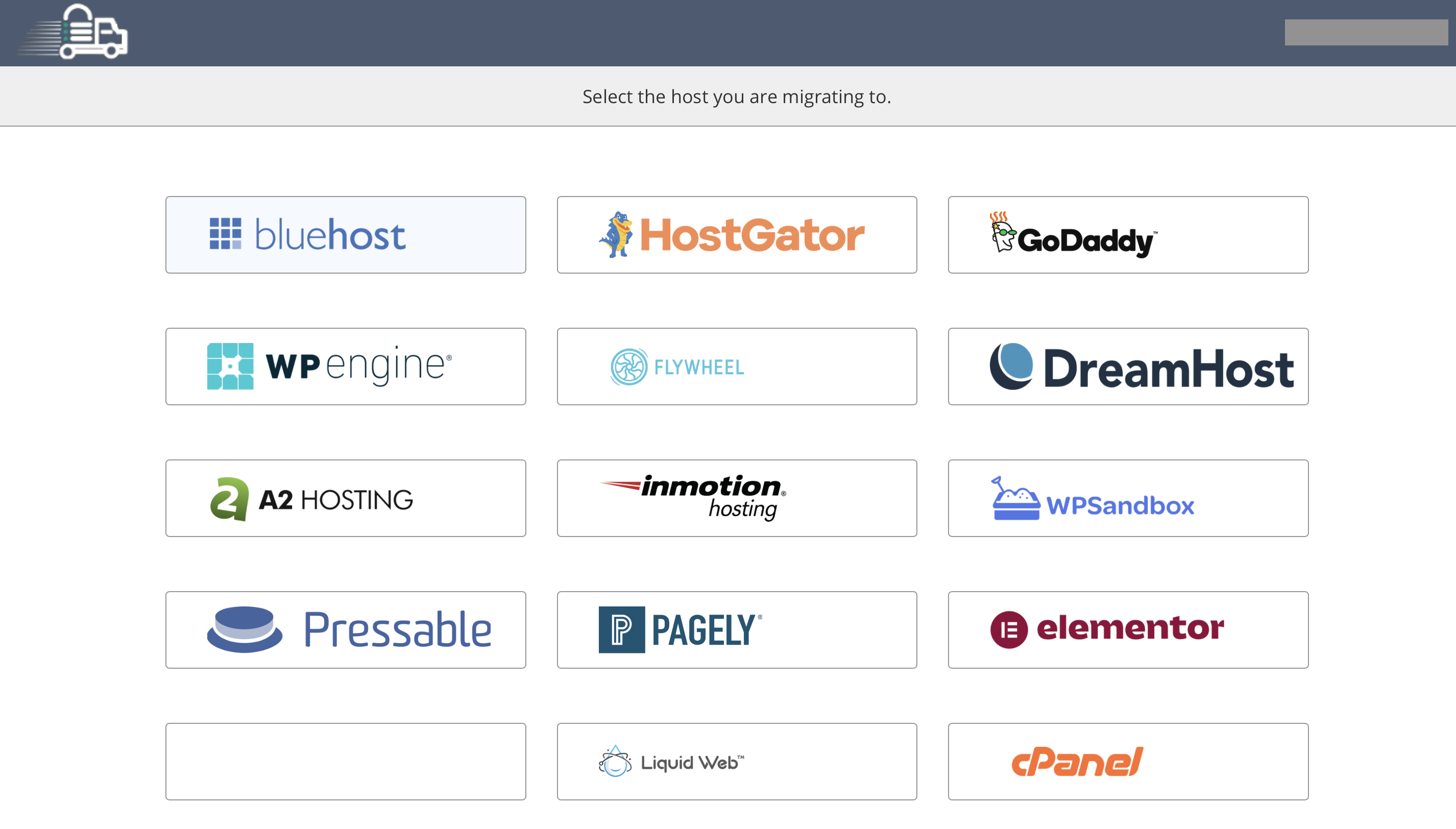
Install the plugin on both servers and start the migration in just a few clicks—no FTP access or additional tools required.
All-in-One WP Migration
All-in-One WP Migration is a complete solution for migrating your site. It exports everything—files and database—in one step. The premium version allows file splitting to bypass server file-size limits.
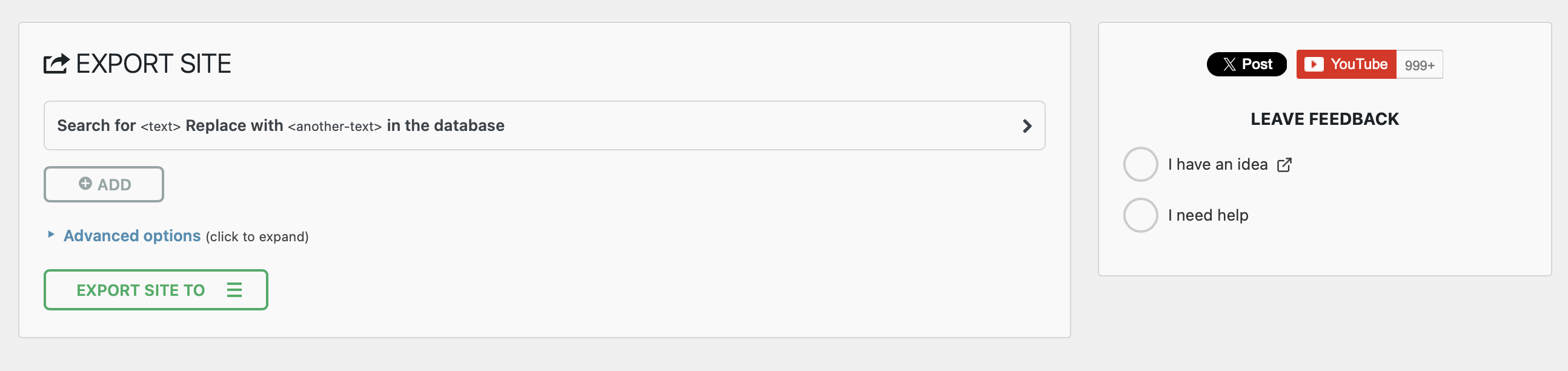
Export your site to a single file. The premium version also supports cloud uploads and direct FTP transfers. Install WordPress and the plugin on the new server, then simply drag and drop your file to begin migration.
WordPress Clone by WordPress Academy
WordPress Clone is one of the easiest and fastest ways to move a WordPress site. It can also be used to copy sites to a local server for testing.
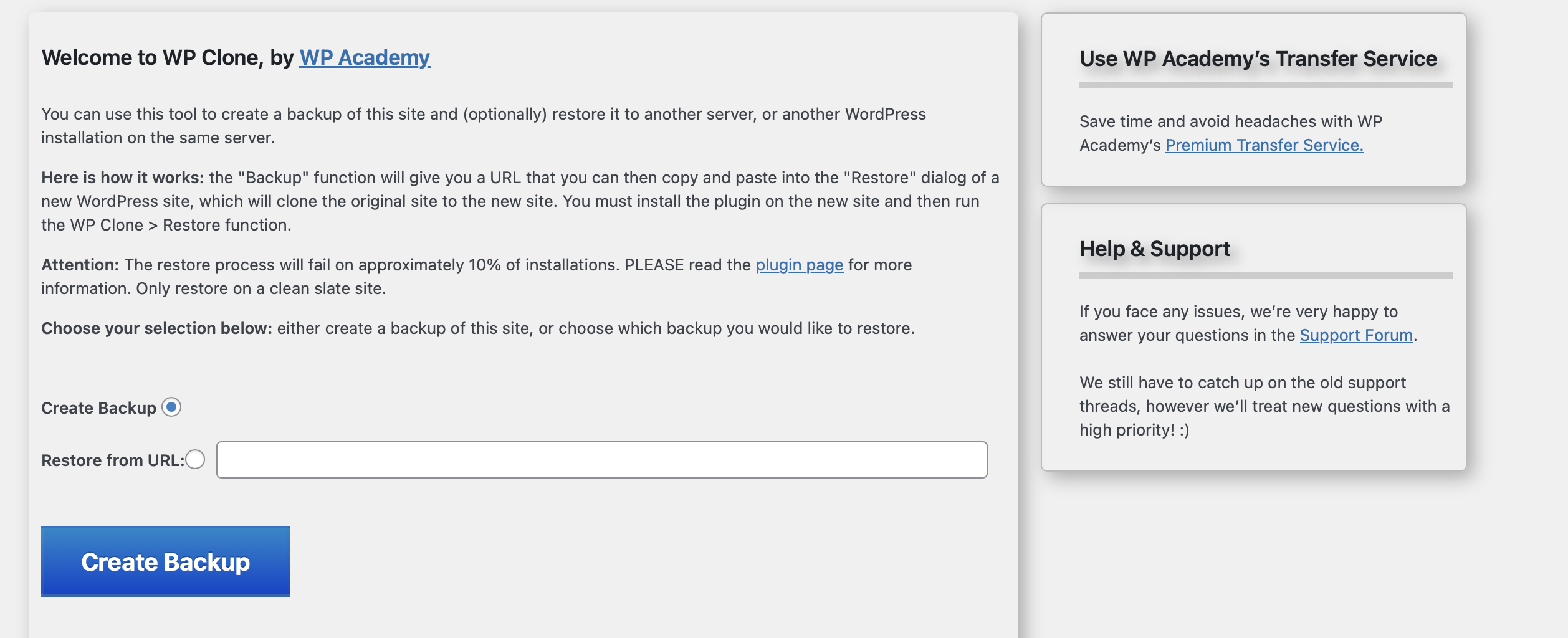
Click “Create Backup” to generate a URL. On the new server, install WordPress and the plugin, paste the URL, and start the migration.
WordPress Duplicator
Duplicator lets you clone and migrate your site from one server to another. However, this tool is better suited for developers due to its complexity.
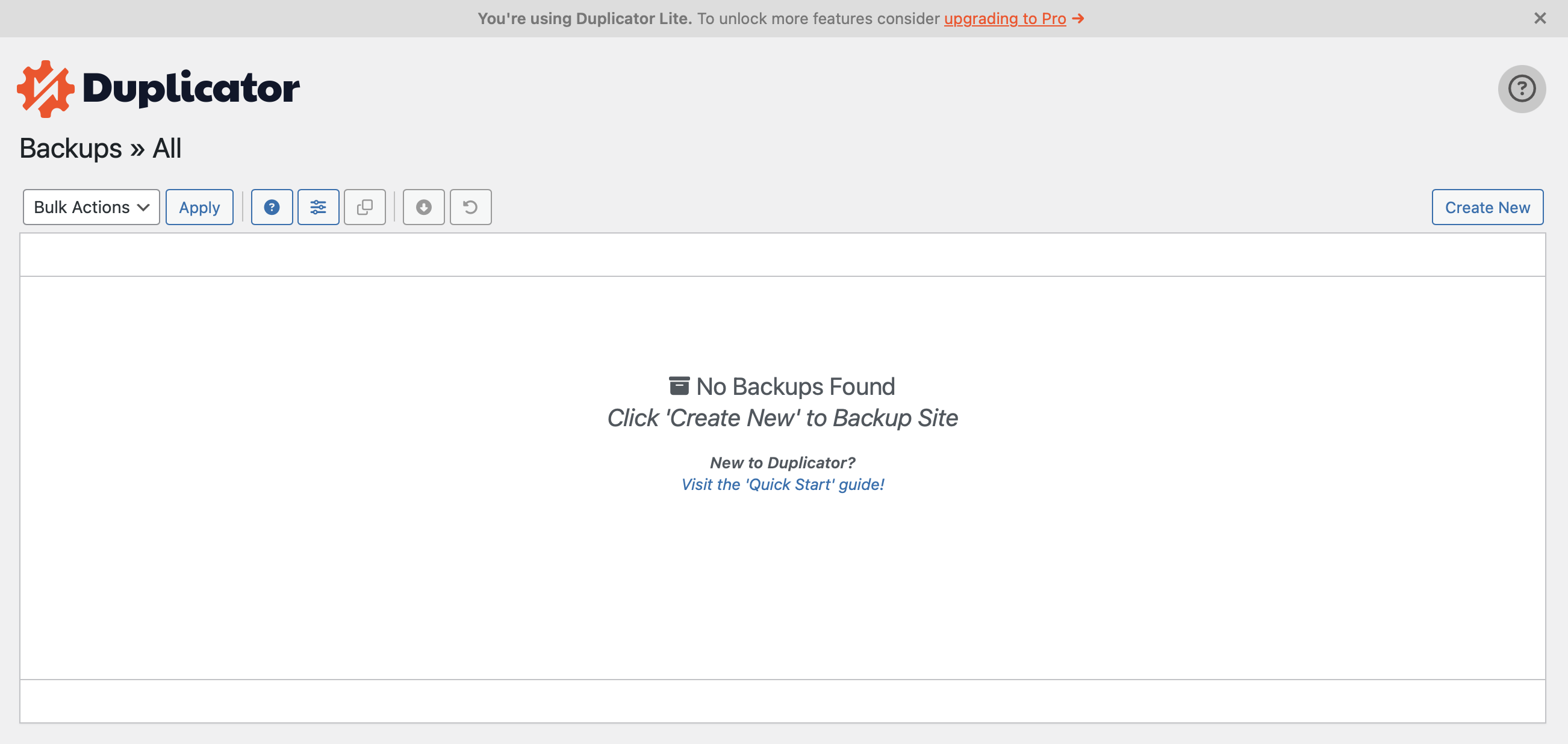
Create a package and download both the archive and the included installer.php. Upload them to the new server and run the installer via browser (e.g., yourdomain.com/installer.php).
UpdraftPlus
UpdraftPlus allows you to store backups in cloud services like Dropbox, Amazon S3, Google Drive, or via email (avoid this for large backups). Configure your cloud settings, then create a backup with one click. On your new server, reinstall WordPress and UpdraftPlus, then restore the backup.
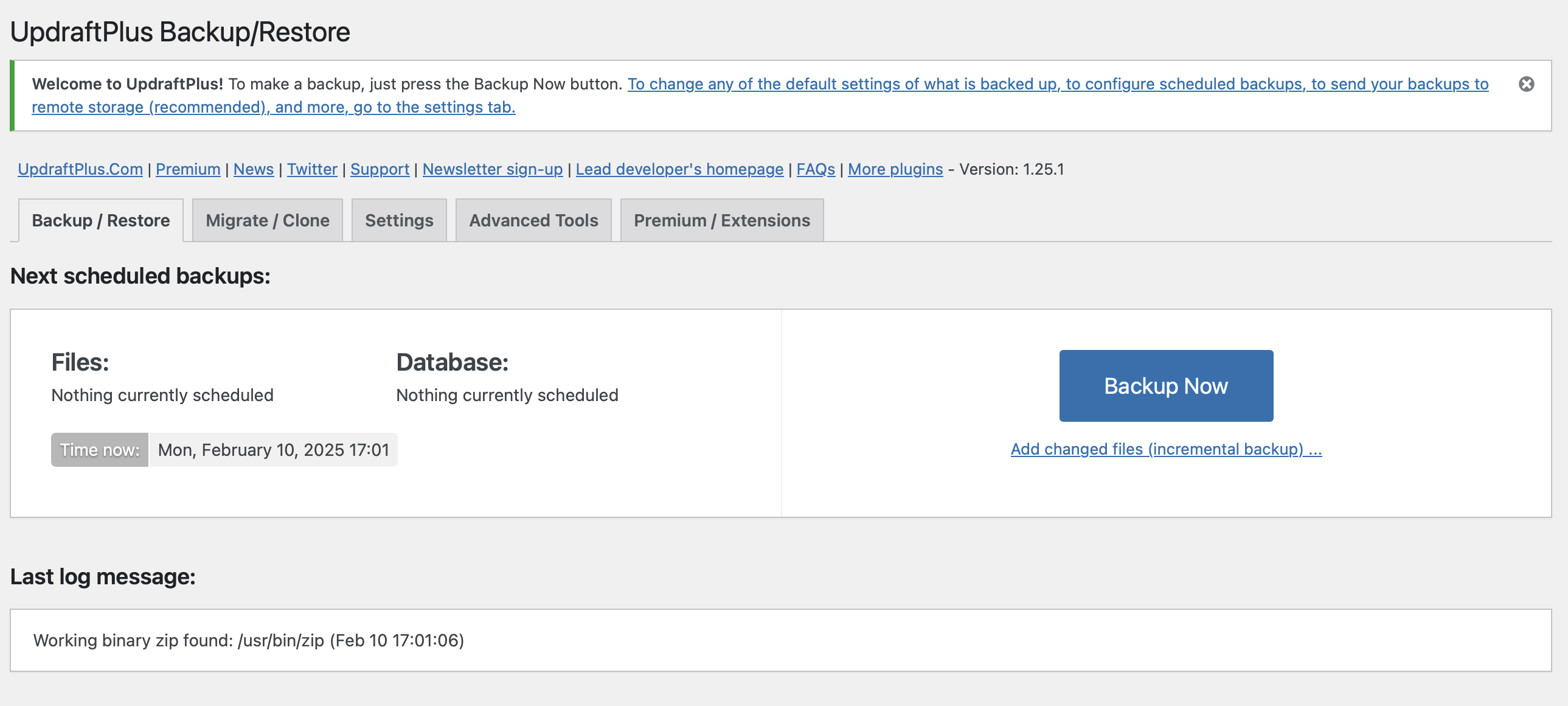
With the premium version, you also get a dedicated migration feature and encrypted backups—ideal for enhanced security on cloud servers.
- Stress-free, no matter your skill level with easy AI tools
- Fully customizable with themes and plugins
- Hassle-free updating and less admin