

How to change your admin URL in WordPress

The administration area of WordPress projects is by default accessible via my-domain.com/wp-admin, which is of course known to cybercriminals. They therefore use the WordPress “wp-admin” URL all too readily as a point of attack. To protect yourself from this and other attack patterns, you can rename or disguise the default path to your WordPress admin login. We’ll show you how to do that.
- Stress-free, no matter your skill level with easy AI tools
- Fully customizable with themes and plugins
- Hassle-free updating and less admin
This is why you should change the WP admin login
The fact that the WP login page is accessible by default via the sample URL my-domain.com/wp-admin does not in principle mean that your WordPress project is highly compromised. If you have changed the admin credentials, the WP admin login is also only possible for you.
The big problem with the default URL is that it attracts cybercriminals in the first place: Whether WordPress is the basis of your website can be determined in seconds - and the check to see if you’re still using the common default URL for your project happens just as quickly. With a brute force attack or other measures, the attack on your login could start directly afterwards.
An individual WordPress admin login is therefore recommended - and quickly and easily implemented with appropriate WordPress plugins.
WordPress: Change WP admin login with the plugin Rename wp-login.php
The lightweight and free plugin Rename wp-login.php by Ella van Durpe is a bit older but serves its purpose flawlessly even with current WordPress installations. We have tested the WordPress extension with version 5.8.1. How exactly the WP login page customization works, you can read below.
Step 1: Install the plugin via the WordPress backend
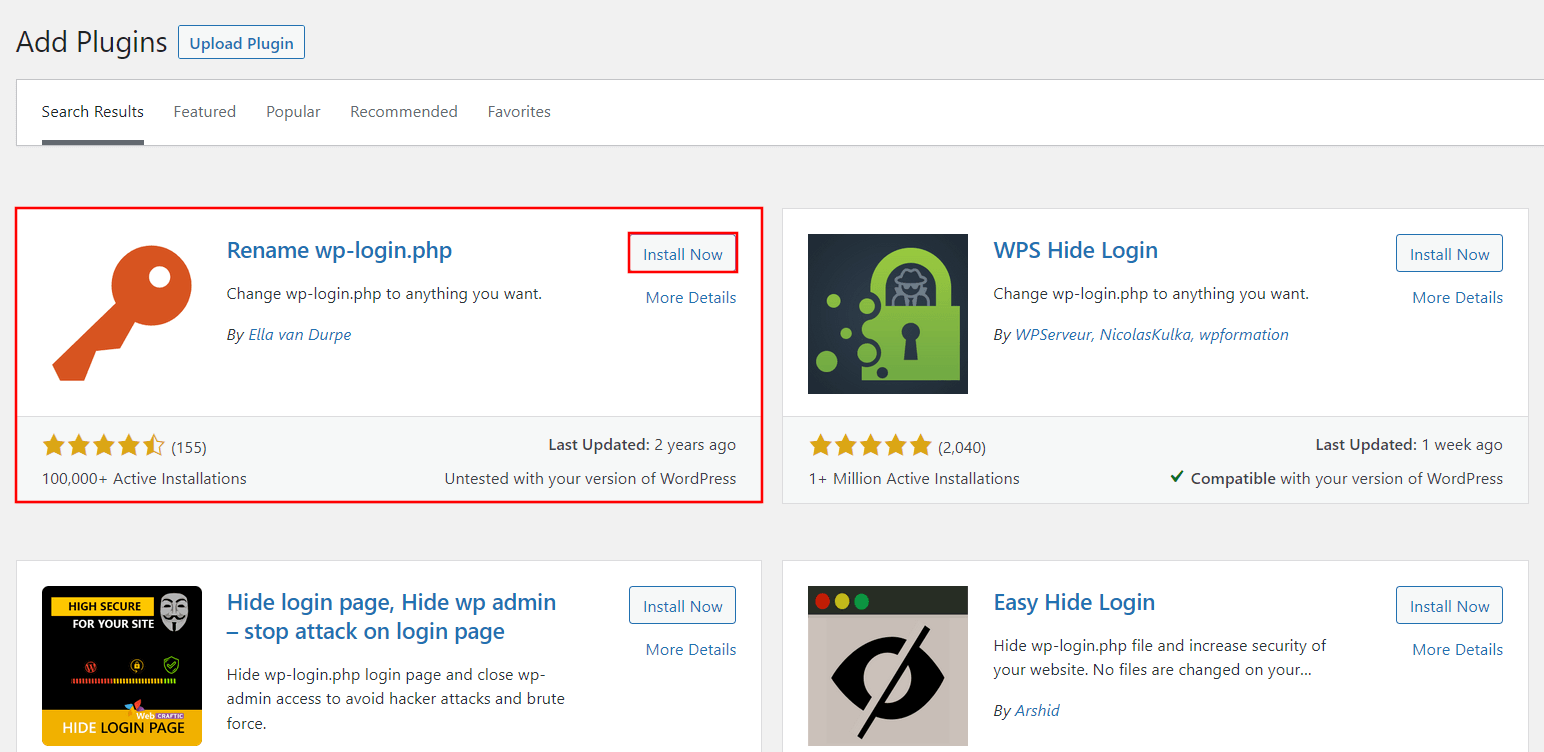
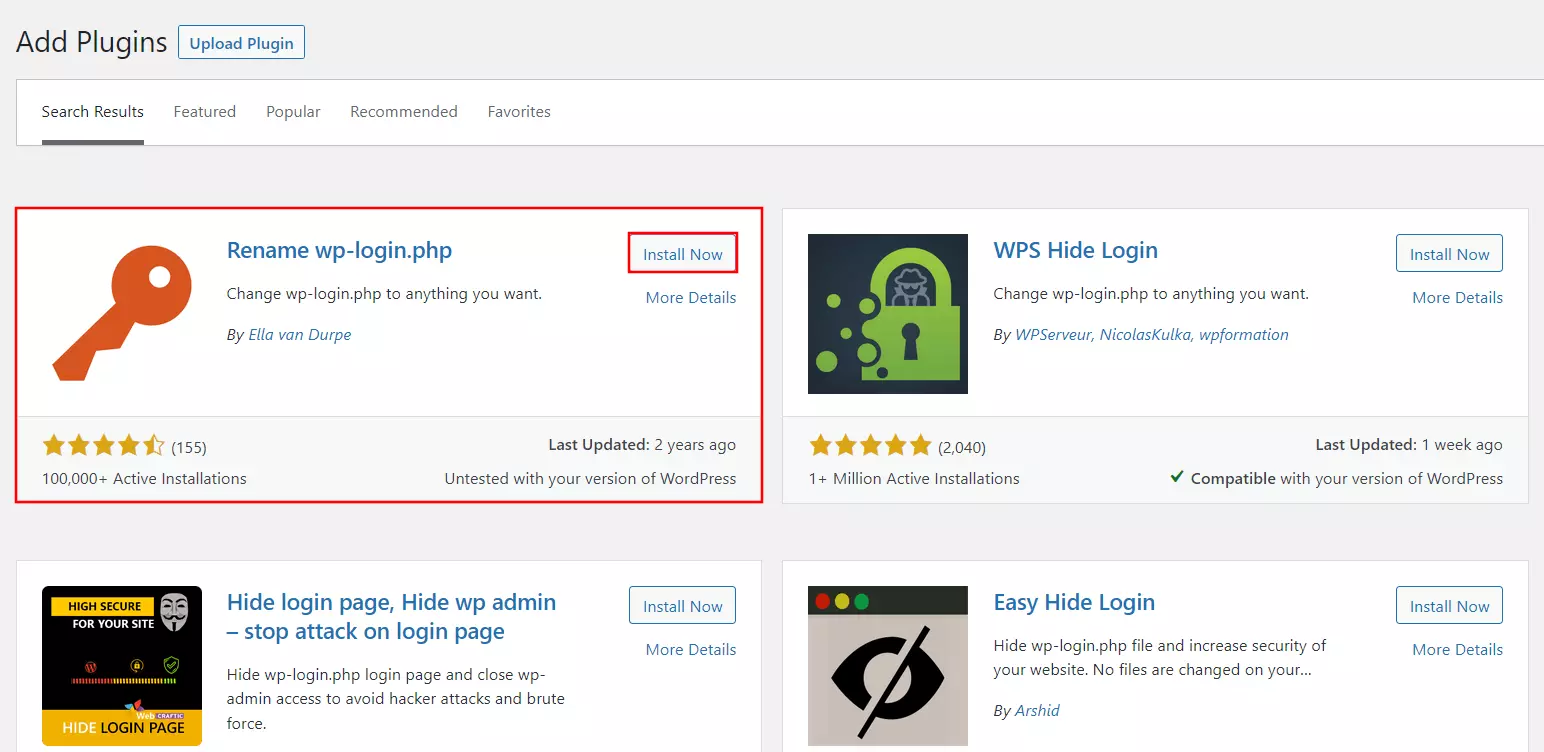
The first step is to install the security plugin via the backend of your WordPress project. To do this, log in and click on “Plugins” and “Install” in the left side menu one by one. Use the search function to search for “Rename wp-login.php” and click “Install Now” once the plugin appears.
Step 2: Change WP admin URL in WordPress
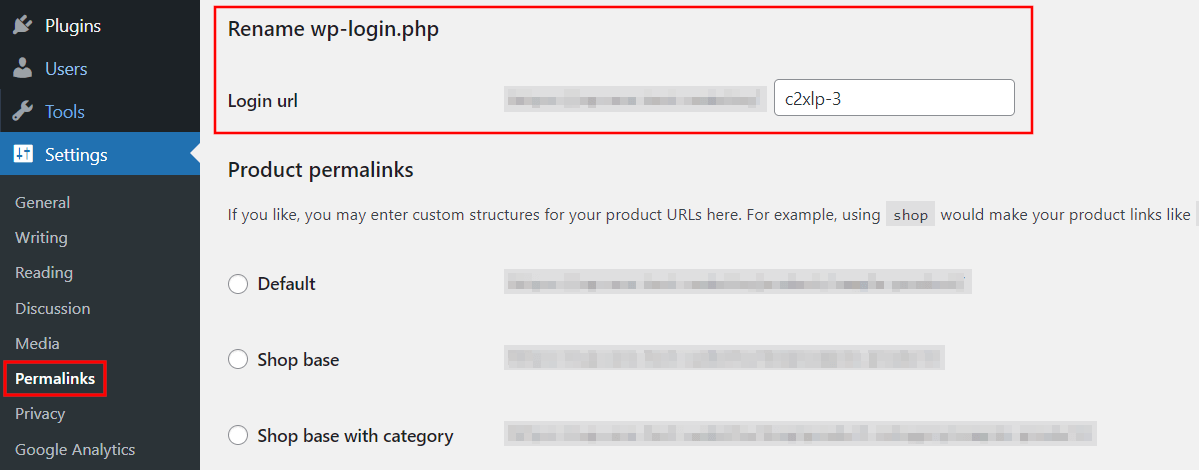
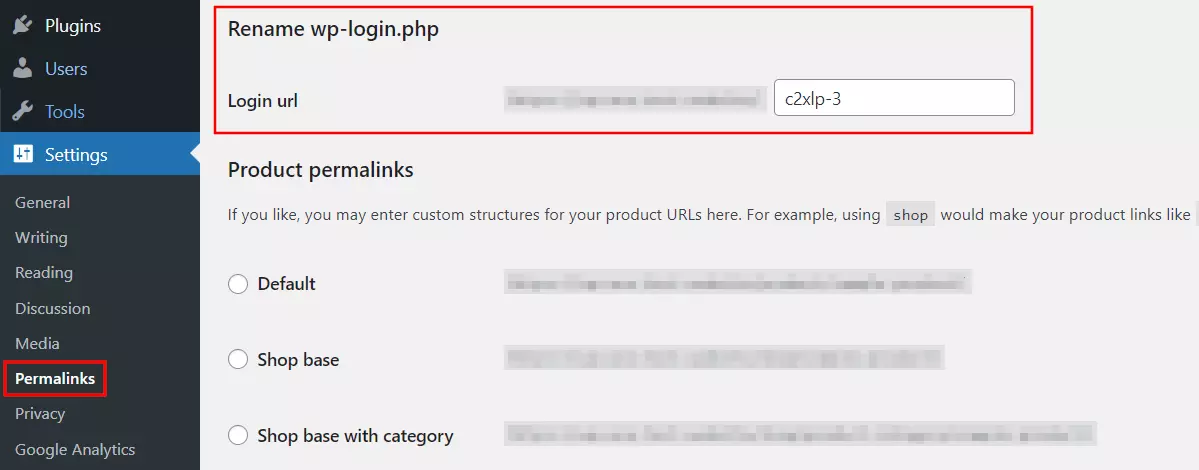
Once you activate the plugin following the installation via the button of the same name, you can access it in the side menu. To do so, press “Settings” and then “Permalinks”.
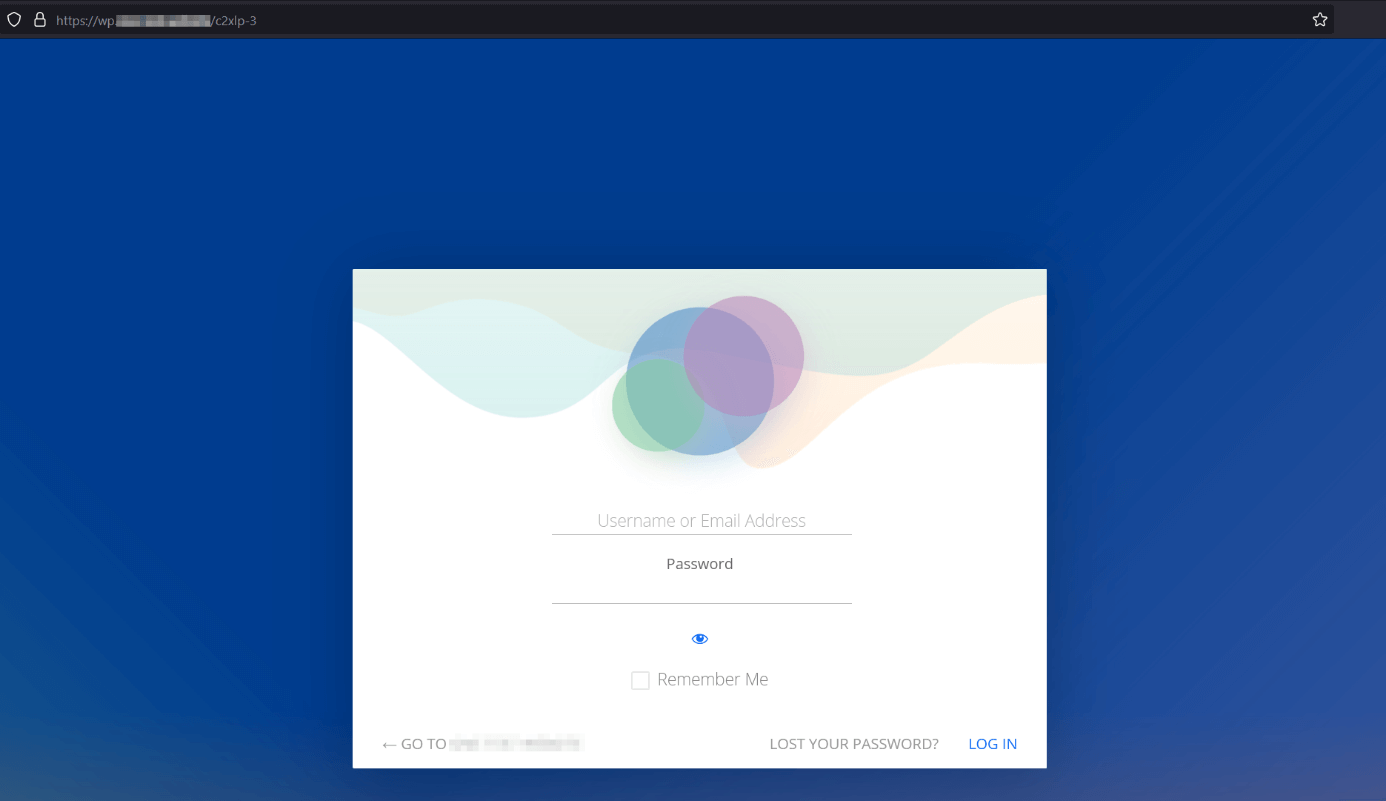
Scroll down to the “rename wp-login.php” section and assign a new, secure name for the login URL, such as c2xlp-3.
Don’t use typical names like “login”, “credentials”, “admin”, or “backend” for the WordPress admin login URL. These are also known to criminals and therefore offer little protection.
Step 3: Access WP admin login under new address
Click on “Apply changes” to confirm your new login URL. In the future, you will reach your WordPress admin at the new URL - in our case, with the URL segment c2xlp-3 you just defined.
Changing WP admin URL is not possible: Solution .htaccess file
If the WordPress admin login cannot be changed, it is often because your WordPress installation does not allow the definition of speaking URLs. In this case, before you customize your URL with the plugin, you need to manually add the following mod_rewrite rules to your .htaccess file:
<IfModule mod_rewrite.c>
RewriteEngine On
RewriteBase /
RewriteRule ^index\.php$ - [L]
RewriteCond %{REQUEST_FILENAME} !-f
RewriteCond %{REQUEST_FILENAME} !-d
RewriteRule . /index.php [L]
</IfModule>