

How to Backup Databases with MySQLDumper

MySQLDumper is a free backup program for MySQL databases. This open source software enables you to create a backup copy of your complete database, whether it’s for a forum, shop, or blog content. Our MySQLDumper guide takes you step-by-step through the installation and configuration process. We have also laid out how to use the program to back up and restore your SQL database.
Advantages and features at a glance
The backup, MySQLDumper is a popular alternative to phpMyAdmin, the most common pre-installed program. A great advantage of the dumper: it can be used to manage very large databases, back up several databases simultaneously, and also restore them. A local backup is carried out, which means that no data is saved on an external server or in the Cloud. Unlike plugins and other extensions, the Dumper functions independently of the content management system being used.
The most important features at a glance:
- simple backup and restoration of MySQL databases
- e-mail notification after a successful backup
- automatic dispatch of backups via FTP
- possibility of managing several backup files
- multipart-backup
- SQL browser
- supplied Perl script
- directory protection
Daniel Schlichtholz, the developer of MySQLDumper, officially discontinued the software project in January 2016. In a forum post on the MySQL website, Schlichtholz announced that the source code of the open source software was available for community-based further development on GitHub. Here, users can find a version of MySQLDumper that has already been adapted to the current web standard PHP7.
Avoiding timeout errors
A big problem regarding backups and PHP: PHP scripts are usually aborted after a runtime of 30 seconds and therefore most tools can usually only establish a backup up to a given maximum size. If the script is aborted, a full backup copy cannot be created. MySQLDumper avoids this timeout error by only selecting a certain number of data sets from the table. The program then memorizes the point at which the backup has stopped. It then picks up again from this same point after the timeout and thus avoids a server termination. The same principle is also used when restoring data.
Installation of MySQLDumper
Below we have explained step-by-step how to install MySQLDumper. Thanks to a practical set-up assistant, the installation will run quickly and easily and won’t burden you with any technical hurdles or difficulties.
1. Download and upload
The installation is simple and doesn’t require any special technical knowledge. In order to start the MySQLDumper installation, you have to download the current version of the program in the form of a ZIP archive. The current version of MySQLDumper is available to download on GitHub. After the ZIP archive has been unzipped the files can be uploaded to the web space via FTP (e.g. with the free FileZilla programm).
2. Open the program in the browser
After the upload you can simply call up the program via your web browser. The address under which the MySQLDumper is filed depends on the register that the files have been deposited in (HTML file or in its own subfolder).
3. Set-up assistant
The dumper’s set-up assistant leads the user step-by-step through the installation and configuration process. After you have selected language preferences and confirmed the installation process, you have to adjust some database parameters. The following information is needed:
- database host name
- database user
- database password
The program needs this information to connect to your MySQL server. You can skip the remaining database boxes such as the port and socket.
4. Create a connection to MySQL database
If all entered parameters are correct, a notification will appear informing you that the database was found. All available databases are listed in the window. Click on “save and continue installation”. The rest of the set-up happens automatically.
5. Create directories
For the last step, MySQLDumper creates several directories, which normally happens automatically. If this doesn’t work, you can create a “work” folder in FileZilla and then create further “backup”, “config” and “log” subfolders.
Now the installation is complete and the MySQLDumper home page will open.
On the developer site you will find helpful video tutorials for each individual step. Here is a video tutorial for the MySQLDumper installation:
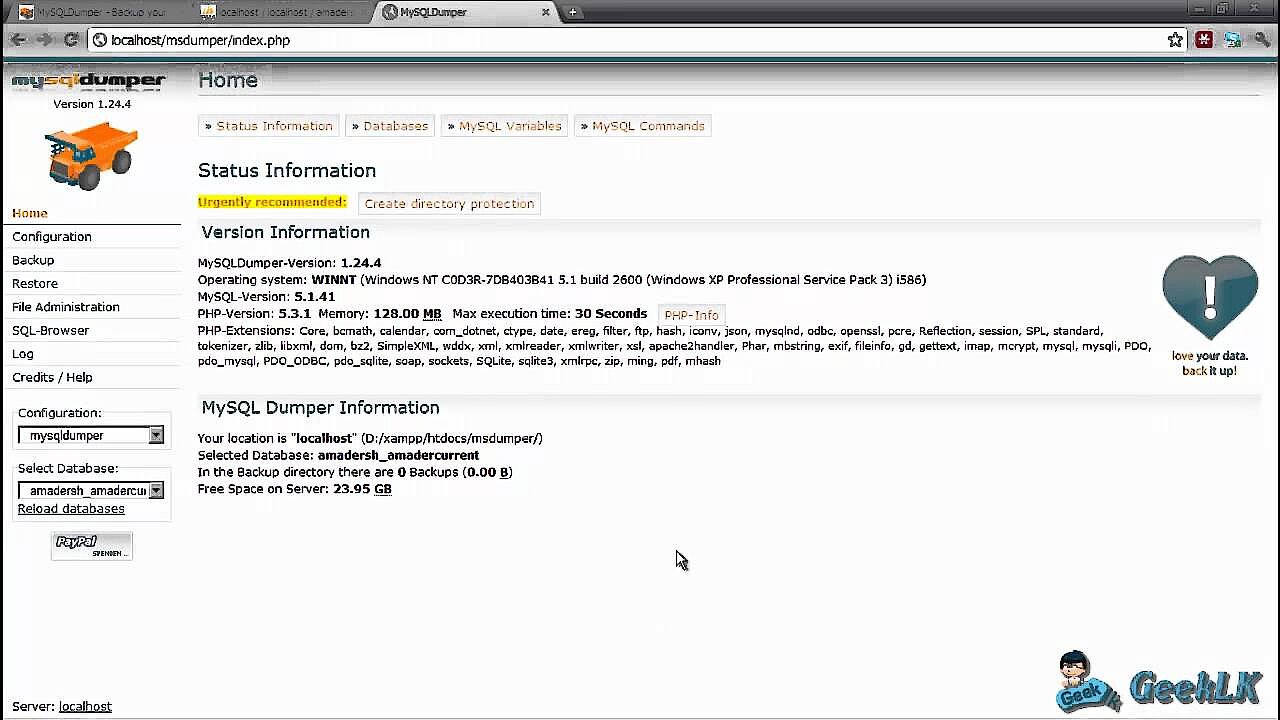 To display this video, third-party cookies are required. You can access and change your cookie settings here.
 Create directory protection
The MySQLDumper installation is now complete. Everyone that knows the address can currently access the program and change or delete data. To prevent this, you should set up password protection (via .htaccess) right after installation. This can easily be taken care of on the MySQLDumper homepage where is says “create directory protection”. Additional user names and passwords can be set here independently of all other access data. The type of encryption must match the utilized operating system. You will find clear instructions in the following screenshots.
Create a configuration & backup
All known databases are listed in the following overview. The currently selected database is highlighted and placed in first position. System databases automatically created by the program (“information_schema” and “MySQL”) are displayed. There is also the “multidump” option, which means that several databases can be selected and copied at the same time. Before you can create the first database backup, the Dumper needs to be configured.
Configuration
The basic settings of the program can generally be accepted. If you have certain requirements or are working with especially large and extensive amounts of data, you can perform additional settings. The general settings can be found by clicking on “general” in the menu. You also have the option of compressing the log file of the MySQLDumper and indicating the maximum size. It is also possible to adjust the maximum limit of the utilized internal memory allocated to the script execution.
General settings
- compressing log files
- maximum size for log files
- internal memory capacity can be adjuste
- speed check
Further settings can be found under the “backup” menu item. Here you can choose whether the created backup file should be compressed or not. If you want to work with especially large databases, you should activate the “multipart backup” option. You can set the maximum file size for backup splitting.
Backup settings
- compressing backup files
- multipart backup
- maximum file size
- optimizing the table before the backup
You can also determine the restoration settings and decide whether the database should be deleted before the restoration. If choosing this option, ensure that all data sets that should be saved are included. It’s also possible to instruct the program on how to deal with errors during the restoration.
Restoration settings:
- delete the database before the restoration
- trouble shooting preferences
- ignoring enable keys (with regards to large databases)
Creating the backup
The backup can be created after the configuration. In the left navigation bar, you find the “backup” option. This is how to proceed:
1. Enter comments
This feature lets you comment on or name individual backups, which is especially useful when creating several backups. For example, the remark “backup December 2015” informs you of when your database was last backed-up.
2. Choose resources
You can choose which areas of your database should be backed up. If you want a complete backup, click “select all”.
3. Start the backup
Click on “start backup” and the program will begin to create the backup copy. The current process is shown in the browser window and depending on the size of the data, it can take several seconds or sometimes even minutes.
If the process is completed, a corresponding notification will appear in the browser window. Under “file administration” you can find a list of all created backups which are grouped together based on the different databases.
From this overview you can see:
- whether the database was compressed
- which script was used
- when the backup was created
- whether a multi-part backup was created
- how big the backup is
- how many tables or entries it contains