

ERR_CONNECTION_REFUSED: The best solutions when dealing with this Chrome error

Connection errors are equally annoying for visitors and website operators. However, very few of these error messages are caused by the website itself. Usually, the problem lies on the visitor’s end and they can correct it themselves. However, the situation can quickly become frustrating if you try to fix it without any information. One of the most persistent errors is the message “ERR_CONNECTION_REFUSED”, which should be well known to most Chrome users. If the 102 error appears in Google’s browser, it is usually not enough to reload the page or access it again at a later time.
- Simple registration
- Premium TLDs at great prices
- 24/7 personal consultant included
- Free privacy protection for eligible domains
What is behind the ERR_CONNECTION_REFUSED Chrome error?
When you visit a website with Google Chrome and receive the error message ERR_CONNECTION_REFUSED, it means that your attempt to connect with the page was refused. While the error message with the error code 102 only appears in this form on Google Chrome, the problem itself also occurs on other browsers like Firefox if a connection to the target website is unavailable or impossible. The ERR_CONNECTION_REFUSED error is a client-side problem that can be caused by incorrect firewall, system or browser settings, but also by malware or a faulty Internet connection. In exceptional cases, however, the message is also displayed if the website is unavailable (however, other messages are provided for this by default).
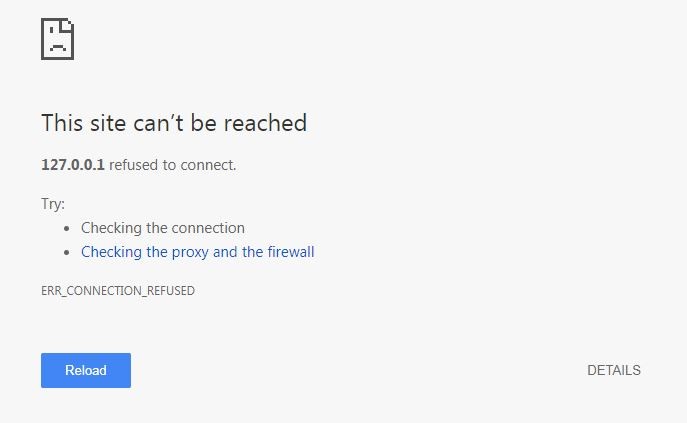
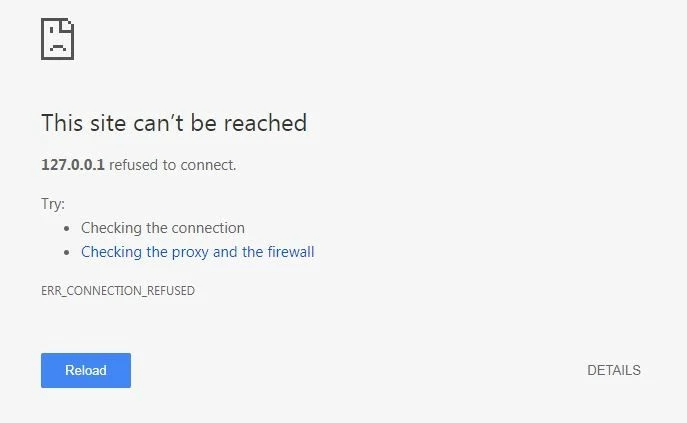
The connection error does not necessarily affect website visitors, as the following example shows: if web developers work with Google Chrome and temporary local addresses for individual resources of a website, these addresses are often inaccessible when their URLs end on .localhost. The ERR_CONNECTION_REFUSED message in this case is due to a security feature introduced on Chrome version 43 that automatically blocks these localhost subdomains.
A rejected connection message may appear regardless of the operating system used. You can therefore encounter an ERR_CONNECTION_REFUSED error message on Windows 10, as well as on a Mac. Android users can also be confronted with the connection problem if they use Chrome.
How to fix the ERR_CONNECTION_REFUSED error message
The fact that the ERR_CONNECTION_REFUSED error message appears almost always due to a client-side misconfiguration or a technical problem on the user’s side means that you have the chance to fix the problem on your own. However, the difficulty is that there are many potential causes of errors that can be responsible for blocking the connection. However, the browser message does not indicate what prevented the desired page from being accessed in the specific case. Therefore, you have no other choice than to try out the various solutions one by one until the error is corrected and the website can be accessed again as usual.
Which methods for correcting the ERR_CONNECTION_REFUSED error message are most likely to succeed?
Solution 1: Check the website status
Before looking for a solution to your internet connection and the internet or browser settings, you should rule out that the ERR_CONNECTION_REFUSED error is caused by the contacted web server. Even if the likelihood of this is minimal, you should first check if the website is just offline and the Chrome 102 error is displayed instead of the usual messages like a HTTP 503 message.
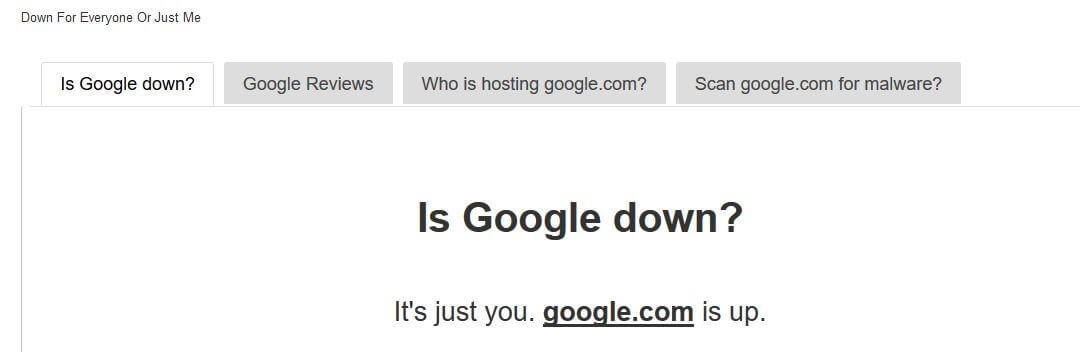
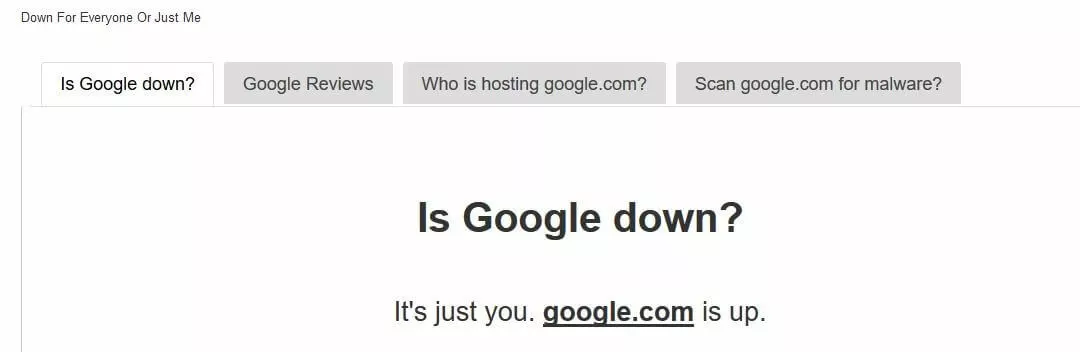
In principle, you have two options for checking the status of the website: the classic way is to try and access other sites. If these can be loaded without the ERR_CONNECTION_REFUSED error message, this is a clear sign of a server-side problem on the actual target page. A second option is to use the web tool Down For Everyone Or Just Me?. Enter the web address of the non-functioning webpage and start a quick check by clicking on “or just me?” to check the general functionality of this page. After a few seconds, you will receive a result: the website is offline (“down”) or online (“up”).
Solution 2: Restart the router
One of the most common solutions to various errors on the internet is to restart the network device that connects you to the internet. Although the chance of success is rather low in most cases, you should also try this when this ERR_CONNECTION_REFUSED error message appears – especially since restarting the router is a matter of a few minutes. Just disconnect the power supply by unplugging the router’s power supply and wait about 30 seconds before reconnect with the plug. When the router boots up again, try to access the target website again with your browser. If the connection problem persists, there must be another cause.
Solution 3: Clear Browser Cache
Like all internet browsers, Chrome stores a lot of information in the program’s cache. These include the history of visited websites, cookies, or static content like images or log-in data, which are recorded in the cache in order to be able to load the corresponding pages more quickly the next time they are accessed. However, this can become a problem if these cache states are outdated and therefore no longer match the current version of the contacted website. A possible solution to fix the ERR_CONNECTION_REFUSED error message in Chrome is to clear the Google Chrome’s browser cache.
The menu needed to achieve this can be accessed in two ways:
- Click on the three-point symbol in the browser’s menu bar and then select “more tools” and click on “delete browser data”.
- Access the address chrome://settings/clearBrowserData on the Chrome address line.
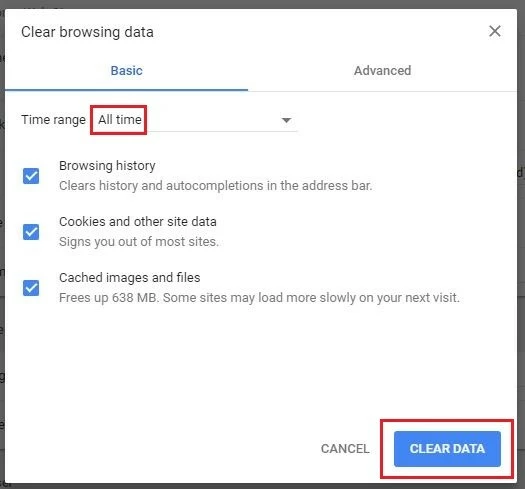
In both cases, you can go directly to the browser cache menu, where you can remove the cache files with a single click on the “DELETE DATA” button. Please make sure that all listed file categories, as well as the option “total time” (under “period”) are selected, otherwise Chrome will not empty the entire cache, just certain files and the cache from the last couple of hours or days.
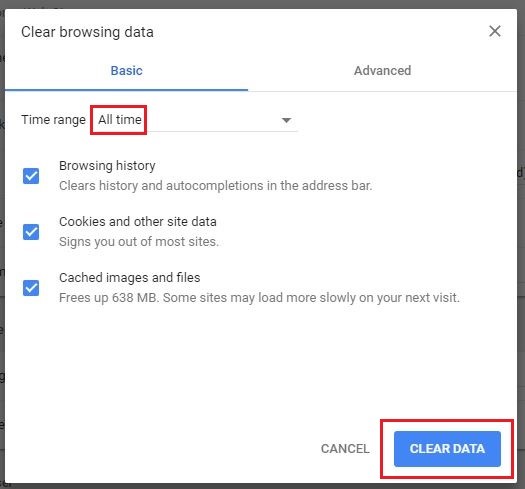
Solution 4: Check proxy settings and adjust them if necessary
The protection of privacy on the internet has been an important issue for browser manufacturers and users for years. However, the increasingly important role security features have played in the development of websites does not prevent many users from using individual solutions to protect their own data. Particularly popular is the use of proxy servers, which act as an intermediary between the browser and websites. In this way, they can filter communication and cache data, as well as keep the IP address of the user secret from the contacted web server.
However, there are various scenarios in which a proxy server can cause problems like the ERR_CONNECTION_REFUSED error message. For example, the web server could block the proxy or its IP address and therefore reject the connection. Another possible source of errors is the caching function of the proxy servers – as soon as the cache contains obsolete data, connection errors cannot be excluded. Of course, it is also possible that the proxy is offline or incorrectly configured, which would also cause the connection to fail.
If you receive a message like the Chrome 102 error, it is recommended to check your own proxy settings and delete registered servers in case of doubt. For this purpose, Chrome even has its own entry in the browser options, which saves you having to search for the corresponding menu in your system settings. In the first step, open the Chromes settings by entering the following address in the search bar:
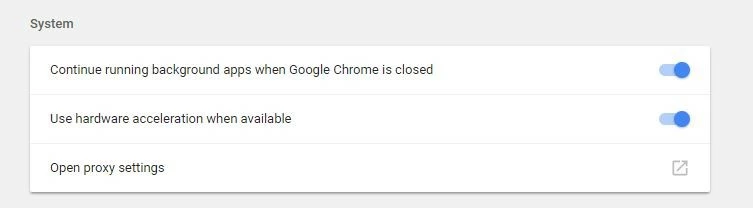
chrome://settings/Click on “advanced” to open the complete menu. Under “system”, you will find the entry “open proxy settings”, which takes you to the corresponding menu on your operating system.
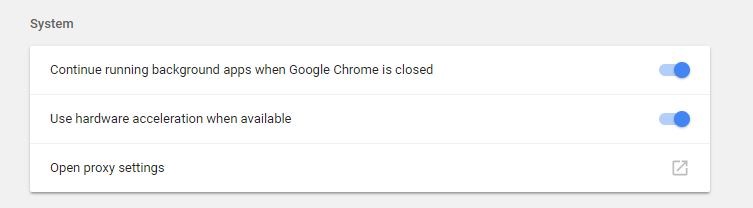
Windows users then click on “LAN settings” and uncheck (if necessary) “use proxy server for LAN”. Mac users immediately land in the appropriate menu and only have to uncheck all selectable proxy protocols.
Solution 5: Temporarily disable firewall and antivirus software
Firewalls and programs against malware and the like also serve to protect users and systems. To this end, they filter network traffic and scan the system at regular intervals to automatically block malicious and conspicuous (potentially unsafe) pages or detect known malware. However, as important as this security software is, it is also problematic if it unjustly blocks pages or content and therefore prevents connections from being established.
 To display this video, third-party cookies are required. You can access and change your cookie settings here.
 A solution to the ERR_CONNECTION_REFUSED error message is therefore to temporarily deactivate the firewall and the like. If the project can then be called up, you know the cause of the connection problem and can make corresponding changes to the programs filter lists. Alternatively, you can switch to other security tools.
Solution 6: Clear DNS cache (DNS flush)
While most people are probably aware of the browser cache, only a few internet users know that the operating system also collects information about browsing habits. For example, the DNS cache contains temporary entries for all pages that you have called up with your browser. In detail, these entries contain all the information required for the name resolution of the respective domain addresses, which means that the DNS cache performs a similar task as the browser cache (acceleration of the loading process). This caching eliminates the need to contact a DNS server again, saving a lot of time.
However, the fact that the query is answered directly from the cache is not always an advantage. If an entry no longer matches the current version of the website, technical problems and connection errors like the ERR_CONNECTION_REFUSED error message are not unusual. The simple and quick solution is to clear the DNS cache, which you can easily do from your systems command line. With Windows, the command required for this is as follows:
ipconfig /flushdnsYou can find out what the corresponding commands for macOS and Linux look like in our guide – including more information about the DNS cache and DNS flush.
Solution 7: Change DNS server
Name resolution is one of the basic building blocks of computer network functionality. This means that an outdated DNS entry is not the only potential source of errors like the ERR_CONNECTION_REFUSED error message on Android and iOS that originates from the Domain Name System. The DNS server itself can also be responsible for these kinds of connection errors if it does not function properly, for example, because it is overloaded or even offline.
In most cases, the DNS server address is automatically obtained from the internet provider, although selected name server can easily be entered for name resolution. The Google servers (8.8.8.8 and 8.8.4.4) and the CDN provider Cloudflare (1.1.1.1 and 1.0.0.1) are particularly recommended.
Solution 8: Disable Chrome extensions
Extensions broaden the functionality of your Chrome installation, but the majority of these are not from Google, instead they have been developed by third parties. If you use extensions, you have no guarantee that they will work as intended, and will be updated regularly (to be compatible with the current Chrome version). Since incorrect or obsolete extensions can also cause error messages like ERR_CONNECTION_REFUSED, you should always consider a thorough check of the chrome add-ons you have installed. First, open the “extensions” menu by accessing the following address:
chrome://extensionsThe individual extensions can now be deactivated by moving the slider to the left:
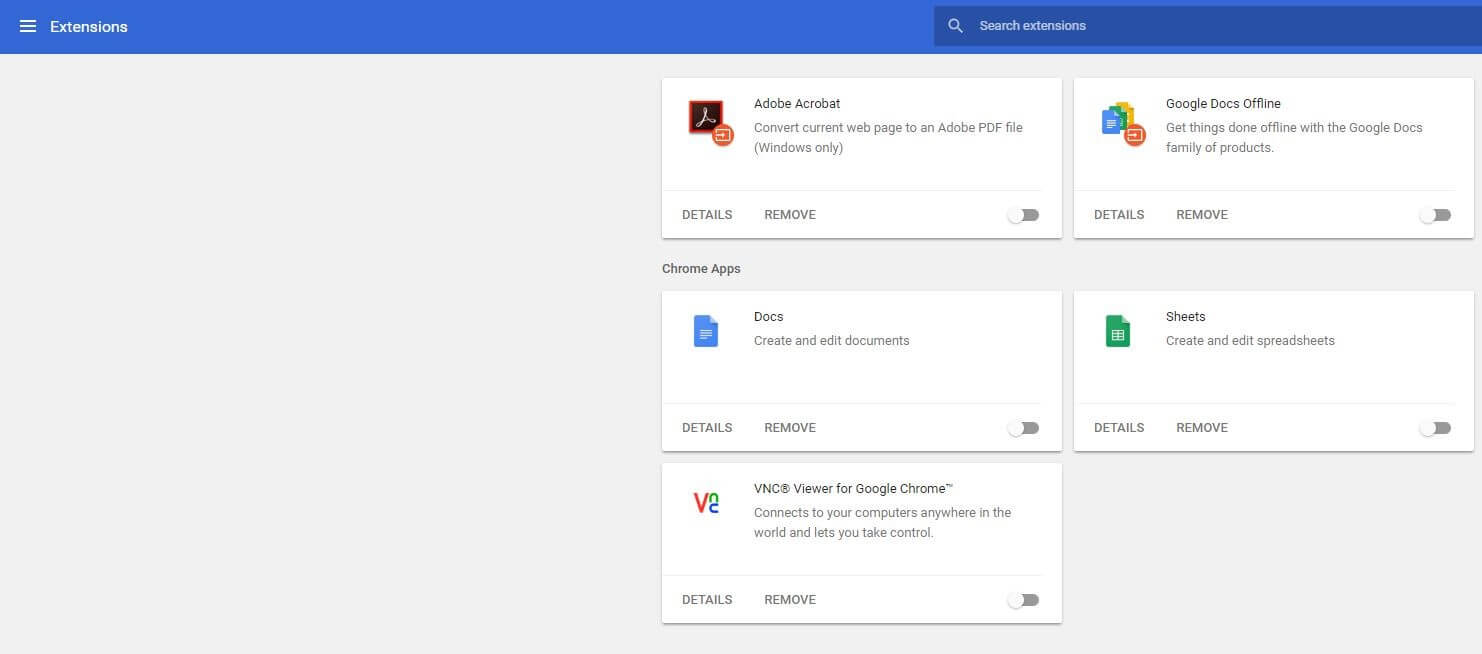
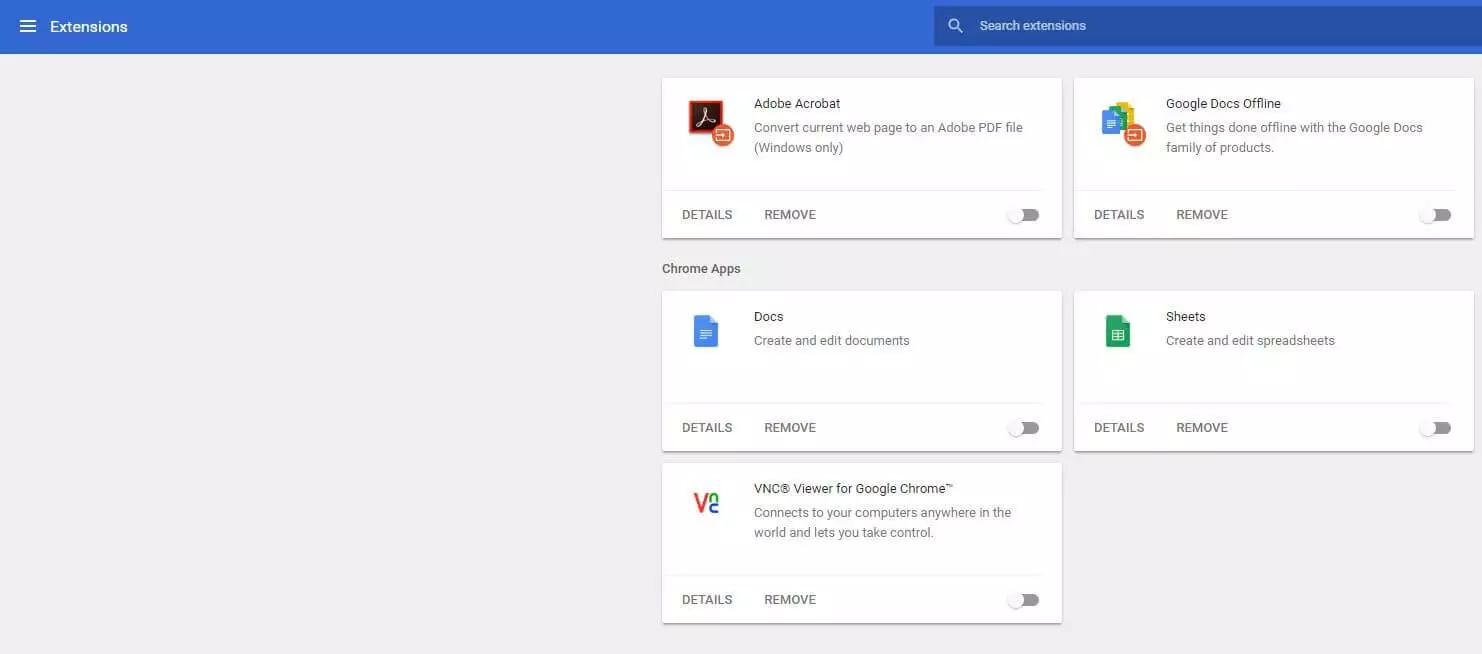
If the target website can be executed correctly after you have switched off all extensions, you know that at least one extension is responsible for the ERR_CONNECTION_REFUSED error message. Activate the extensions one after the other to find the culprit(s) and then delete them using the “REMOVE” button.
Solution 9: Reinstalling Chrome
Like any other application, Chrome is not bug-free. Many errors can be quickly corrected thanks to regular updates, but problems between the browser and the operating system can still occur, which cannot be solved despite updates. If this even results in connection errors like the 102 error, you will usually just have to completely reinstall Chrome completely. You can delete the current installation from your software center and download the required file for a new installation from the official Chrome Website.
Solution 10: Contact provider
While you can change DNS servers on your own and therefore replace the standard solution of your internet provider, you have no influence whatsoever on the packet filtering performed by your provider. Since there is at least the possibility that this blocks the website you are targeting through the provider’s own firewall system, you should not hesitate to contact support if these DIY solutions are not successful. If you are lucky, the page in question is actually blocked, so it is sufficient to order an unblocking to correct the ERR_CONNECTION_REFUSED error.