

Connecting a computer to a TV: A few things to observe

Both when working from home and in your everyday life, a television as a second PC screen can have many advantages. Not only can cell phone videos, pictures, or PC games be admired on a high-resolution flat screen, but presentations in your home office can also be shown on your TV. Find out what you have to do below.
What methods are available?
There are two ways to connect a PC to a TV: With or without a cable.
- With a cable: With this classic variant using a connector cable, you can usually use the three types of cable (HDMI, DVI, or VGA). Depending on whether you are using a PC, laptop, or Mac, you should pay attention to the existing connection.
- Without a cable: A PC can be connected to a television via WLAN, which is particularly practical. In this case, you will usually need additional streaming adapters, such as the Apple TV adapter or the Google Chromecast HDMI stick. If you use a Mac with AirPlay 2 support or TV sets with the Miracast wireless transmission standard, you can connect your PC to a TV without an additional adapter.
Connect a PC to a TV: What are the technical requirements?
The technical requirements for establishing a connection between a PC and a television depend on the method chosen.
Via HDMI: If you want to connect the PC to the TV using an HDMI cable, you must pay attention to the size of the HDMI port. Depending on the device, HDMI cable ports exist in the following sizes: HDMI, mini-HDMI, and micro-HDMI. No additional audio cable is required when using an HDMI cable, regardless of the port size, since HDMI also carries sound.
Via DVI and VGA: DVI cables are usually used as a connection between a PC and a computer monitor. However, some televisions also have a DVI port. Since only the image is transmitted from the PC in this case, an additional audio cable or external loudspeaker is required. VGA connectors are among the oldest PC connectors and also only transmit the image. This means that an additional cable or device for audio output is also required. DVI and VGA are usually only supported by older PCs.
Via WLAN: If you want to connect your computer to your TV wirelessly, you will need an adapter that transmits the signal between the PC and the TV. The HDMI stick Google Chromecast is used for transmissions from the Google Chrome browser, and an Apple TV adapter is used for Apple devices. MacBooks from macOS version Mojave 10.14.5 support adapterless streaming via AirPlay 2. If your TV and Mac have AirPlay 2 support, no additional adapter is required.
Via Miracast: With the wireless Miracast transmission service, you can establish a direct connection (Peer-to-Peer via the Wi-Fi Direct standard) between a PC and television in order to transmit PC content. To do so, both the PC and the television must support Miracast. For Windows, support is integrated starting with Windows 8.1. Macs, on the other hand, do not currently offer Miracast support.
Would you like remote access from a device of your choice to other devices connected in the same network, such as smart TVs, PCs, laptops, or smartphones? Then a remote desktop software can help you to control devices remotely.
Connecting a computer to a TV: Step-by-step instructions
Decide on the right method: An HDMI cable can potentially be awkward to fit, but usually offers a better connection. We have written instructions for you for each method.
Via HDMI using Windows
Step 1: Connect the connector cable to the PC and television. Some TVs automatically recognize the device connected via HDMI and will switch to HDMI output. If this is not the case, open the TV input menu with the remote control and switch to the corresponding HDMI channel.
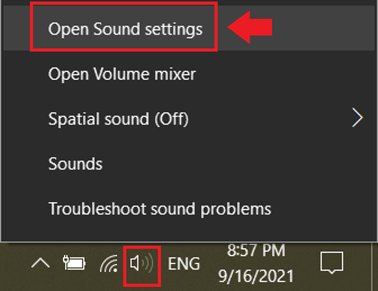
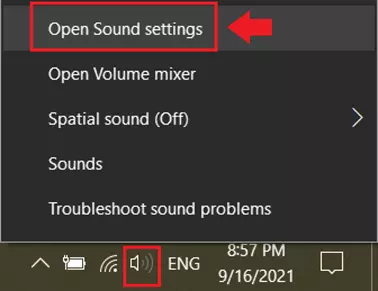
Step 2: If the sound is not transmitted automatically, right-click on the loudspeaker symbol in the taskbar and go to “Open Sound settings”. Here, you can change the output device to the desired television screen.
Via HDMI with a Mac
Step 1: Connect your Mac to the TV using the HDMI cable. Here, too, you have to switch to the corresponding HDMI channel with the remote control via TV input if this does not happen automatically.
Step 2: If the audio output does not change automatically, go to “Sound” and “Output” in the macOS. You should now see your connected TV listed as an output device.
Via WLAN using Apple TV or AirPlay 2
Step 1: Check if your Mac and smart TV support AirPlay 2. In this case, no additional Apple TV adapter is required. If there is only AirPlay support, you will need an adapter as a signal receiver.
Step 2: If you want to stream a video on the TV, open the video or stream that you would like to broadcast. In the playback controls, click on the AirPlay symbol which looks like a stylized television with a triangle.
Step 3: If you want to establish a general connection and synchronization from the Mac screen to the smart TV, make sure the Mac and TV are connected to WiFi. Then click on the AirPlay icon in the menu bar.
Step 4: Select your smart TV as the output device and establish the connection. An AirPlay code may be required the first time you connect. This is usually displayed on the output device, i.e. the television. Synchronization will begin after entering the code.
Via WiFi using Google Chromecast
Step 1: Creating a connection between a PC and a TV is particularly practical with the compact Google Chromecast HDMI stick. Insert the stick into the HDMI port on the TV.
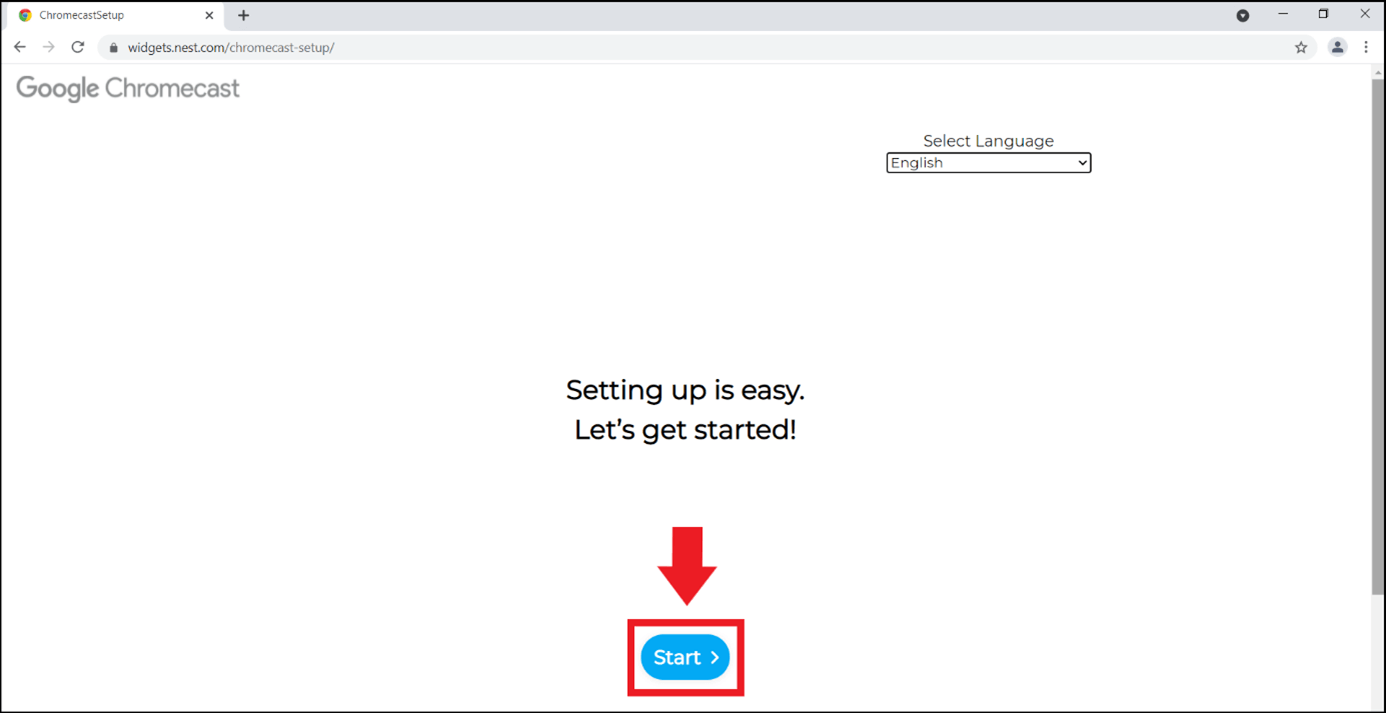
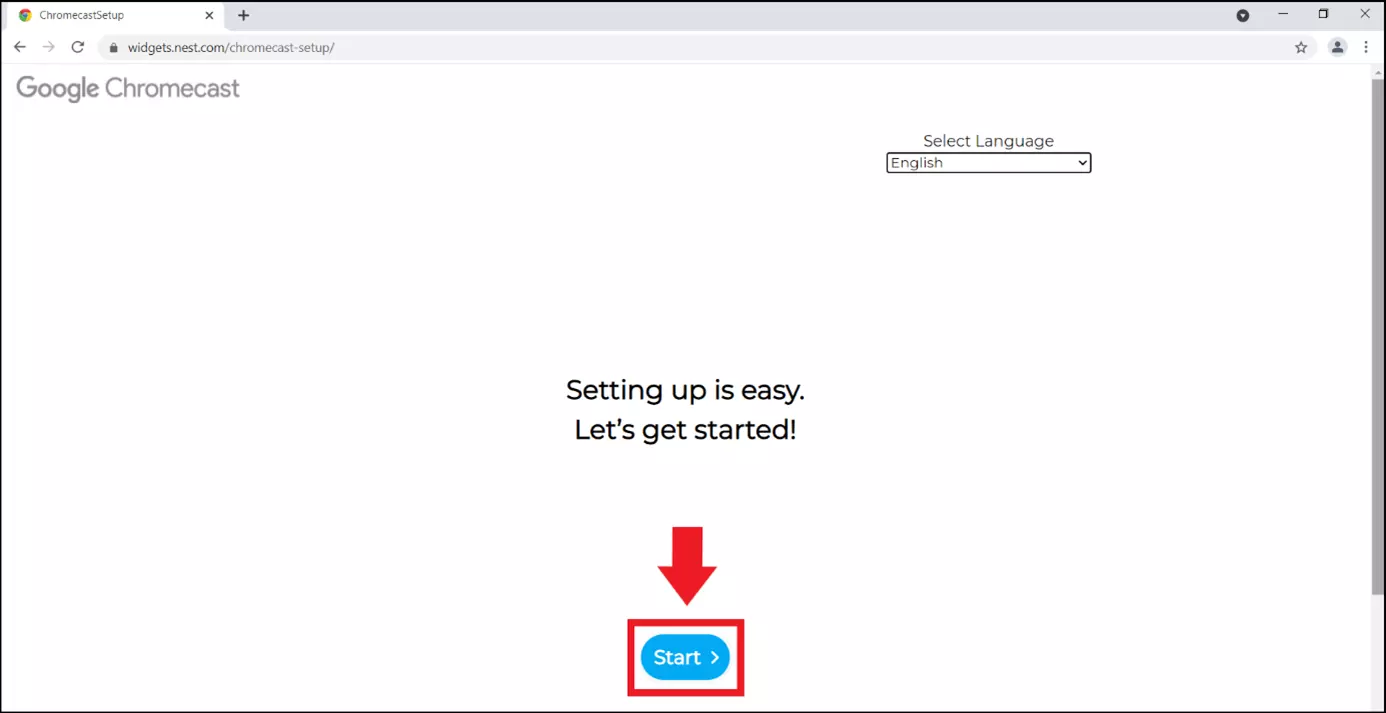
Step 2: You will now need the Google Chrome browser to broadcast. Open the URL “chromecast.com/setup” and go to “Start”.
Step 3: Chrome will now show you available Chromecast devices. Select your connected TV and wait for the set-up wizard to automatically establish a connection. Then, click on “Next”.
Step 4: When setting up for the first time, you will be shown a code. Enter this code, confirm by clicking on “Yes”, and then set your Chromecast name and region. Now, you can establish a connection to the WLAN and click on “Next” to complete the setup.
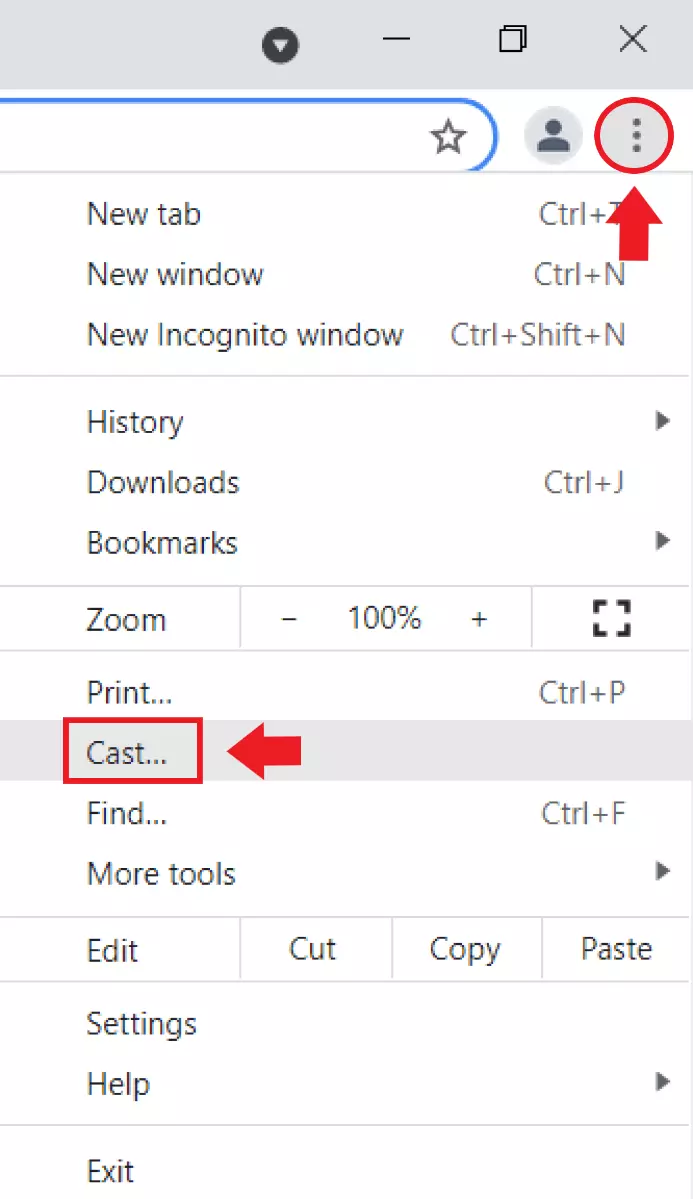
Step 5: To broadcast the content of the current Google Chrome browser tab to the television, go to the three-point symbol in the top-right corner of the browser and select the item “Cast” and the corresponding target device.
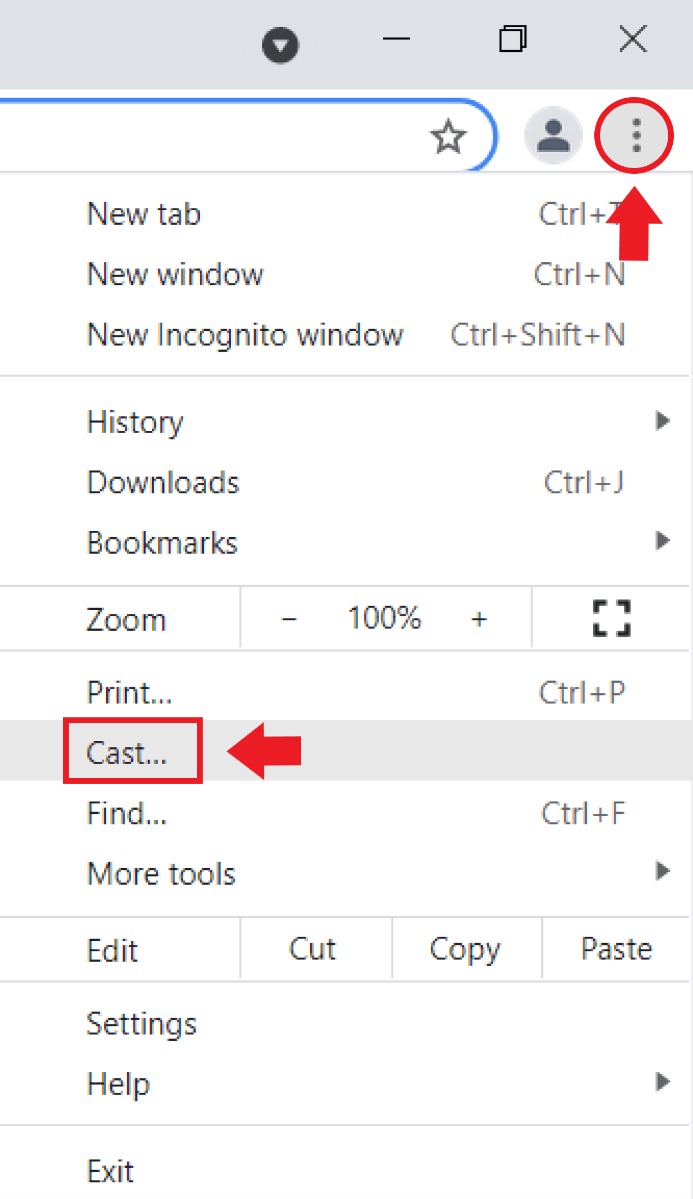
Step 6: In order to broadcast the entire Windows desktop, go to “Cast”, then “Sources”, and then “Cast desktop”.


Via WiFi using Miracast
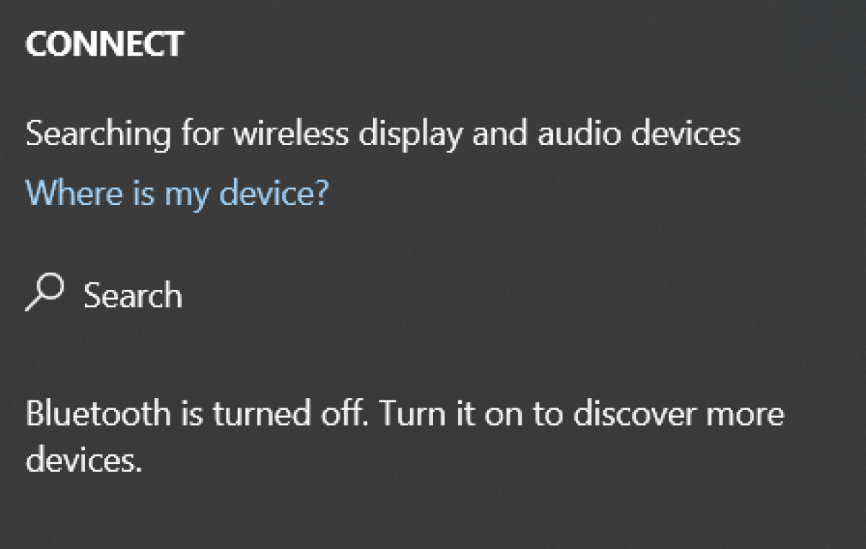
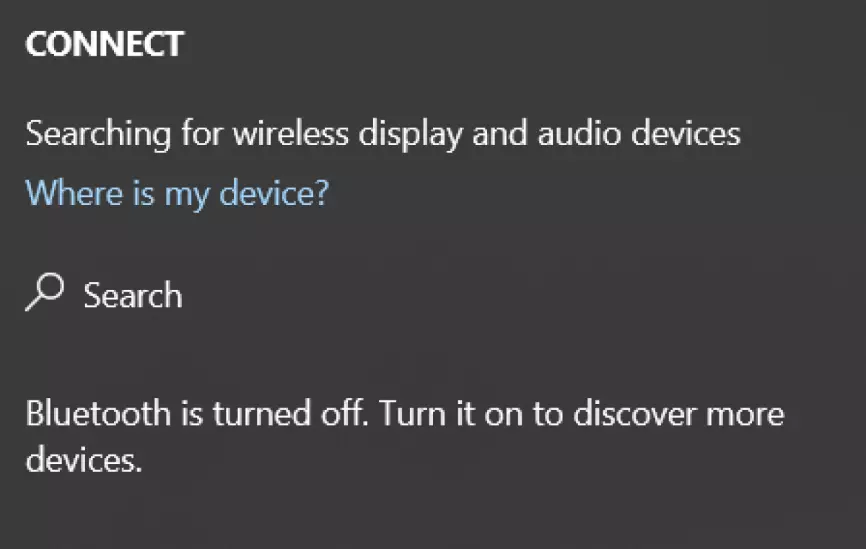
Step 1: With a smart TV that supports the wireless transmission technology Miracast, it is particularly easy to connect a PC and TV via WLAN. First, activate the Miracast function on the television (under “Settings” or “Network Devices”). You will have to check whether Miracast is supported on either your PC or in Windows. Use the shortcut WINDOWS + K to open the “Connect” menu. Here, you will be able to see your TV for the transmission if Miracast is supported.
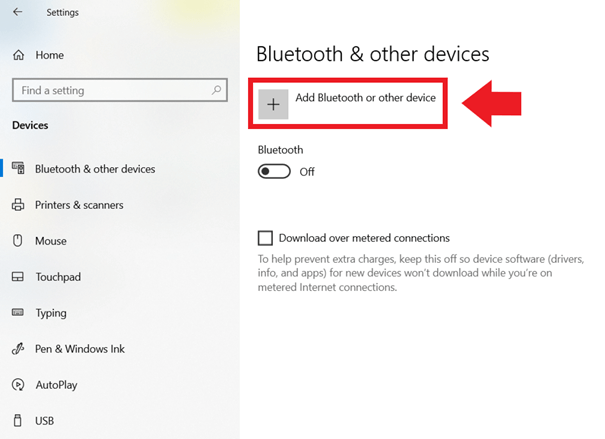
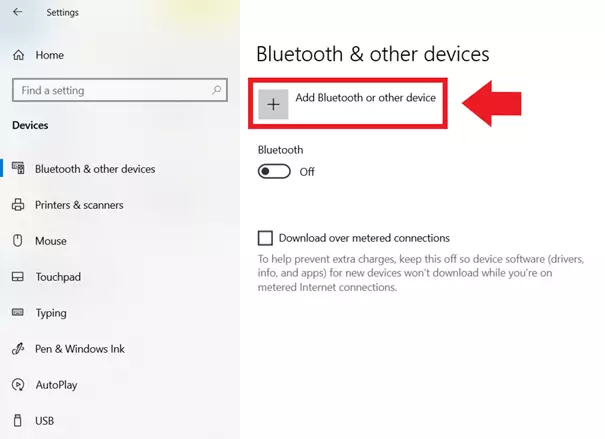
Step 2: Press WINDOWS + I to open the Windows settings, go to “Devices”, and click on “Add Bluetooth or other device”.
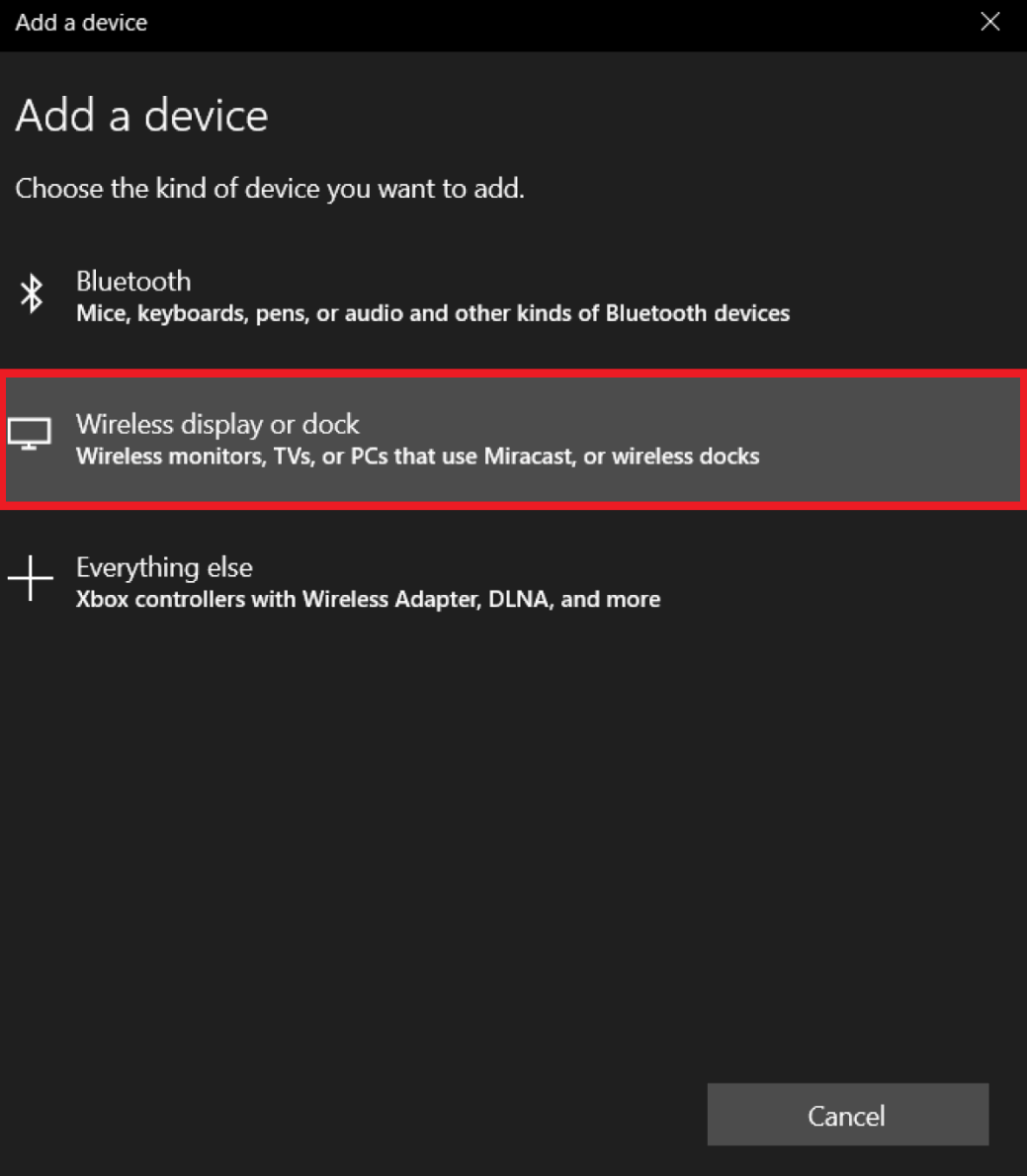
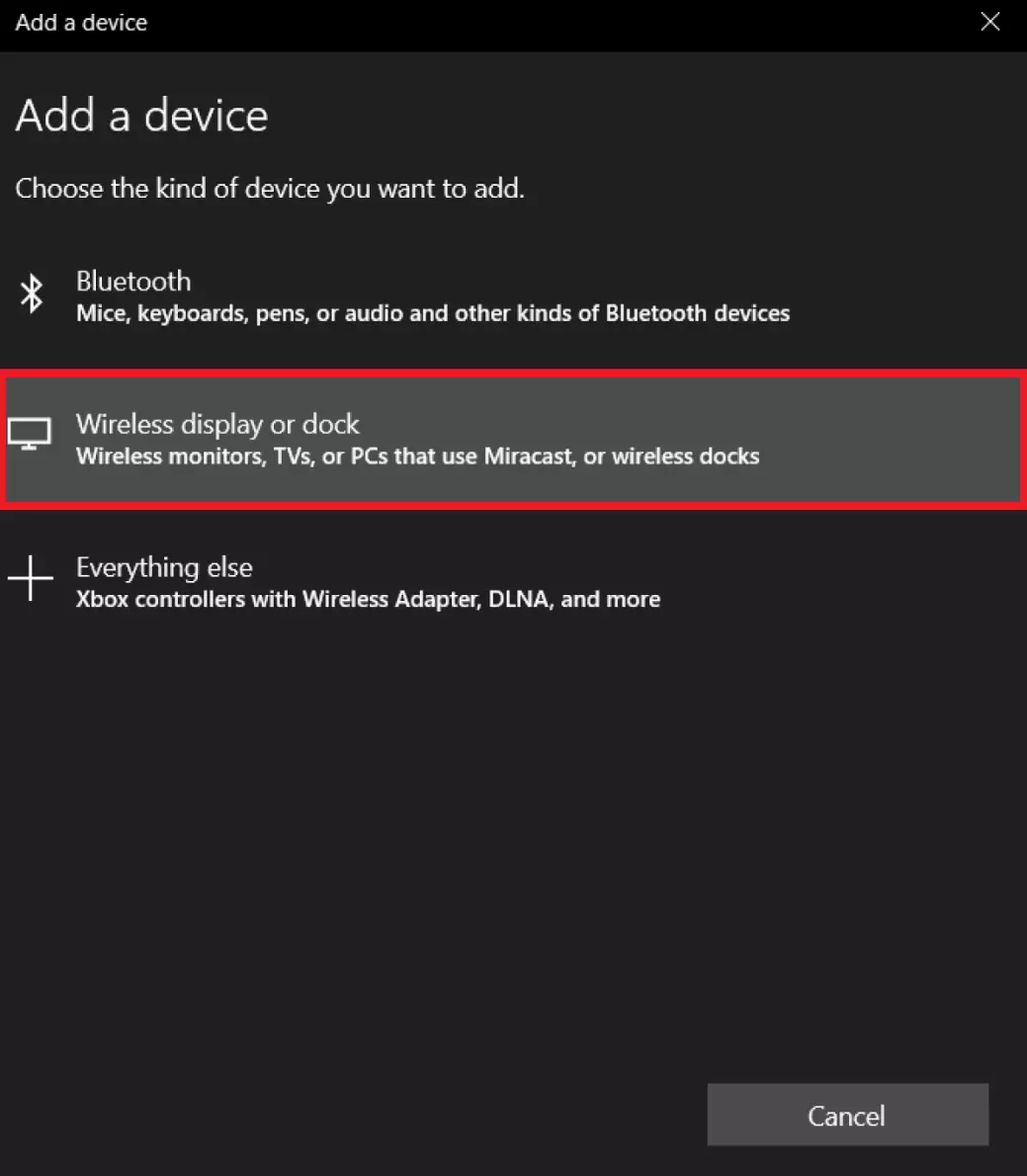
Step 3: Go to “Wireless display or dock” and wait for your TV to appear. Click on its name to project your PC content onto the TV.
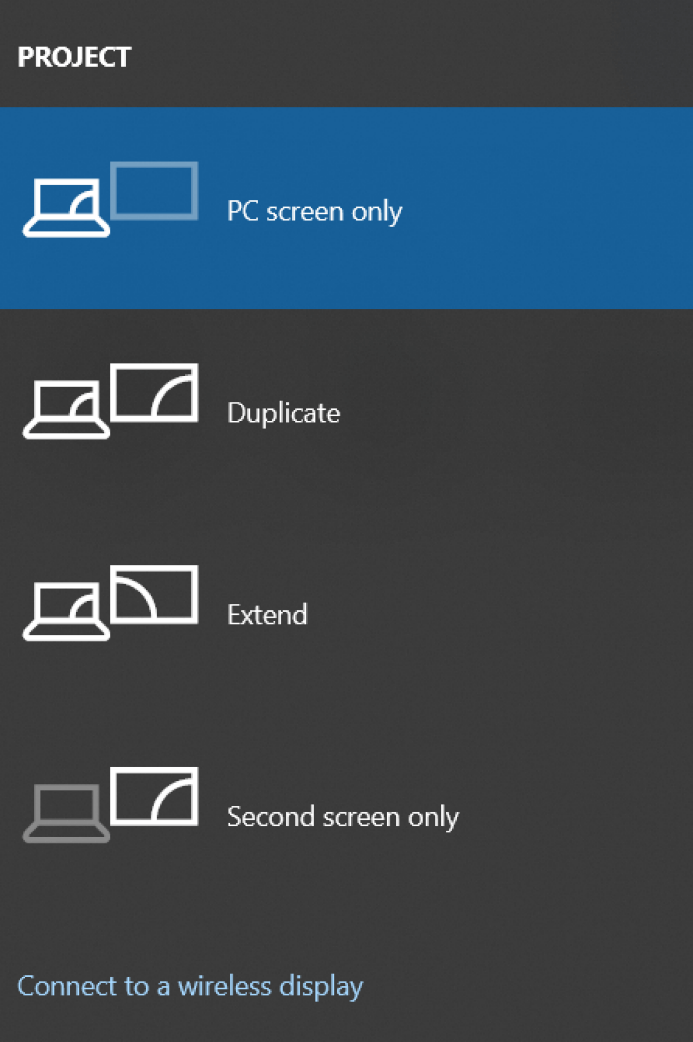
Step 4: If you want to specify what should be projected, press WINDOWS + A and go to “Project”. Here, you will find various options, such as “PC screen only”, “Duplicate”, or “Second screen only”.
You don’t always need a second screen to see several windows at the same time. To split your PC screen into two, three, or four Windows screens, use the shortcut WINDOWS + arrow keys.
Just want to mirror your PC or use it as a second screen?
You can usually connect your PC to a TV in order to project or mirror desktop content onto the television screen. However, with this option, using the television as a monitor differs from using a separate PC monitor. When you connect two PC monitors to the PC via an HDMI, DisplayPort, or DVI connection and use them at the same time, you can usually only transfer content from the PC monitor to the TV through the PC-TV connection.