

How do you edit a PDF document?

Adobe’s “Portable Document Format,” PDF for short, is a cross-platform file format that reproduces a document exactly, regardless of which application program it was originally created on. This avoids common conversion problems when exchanging files created in different programs or program versions. Many also use the format to prevent a document from being subsequently edited. But what if that’s what’s needed? What are the options to edit a PDF file?
Prevailing office software programs such as Word and Excel have been able to create PDF files directly in the application for a long time. The other way around isn’t quite so easy, however. If you want to change a document after it’s been converted to a PDF, you usually need the original file and then have to export a new PDF after making your edits. But what if you don’t have the original file?
If the file isn’t password protected, the document can still be edited provided you have an appropriate tool available. There are both downloadable desktop programs as well as online tools that allow you to edit PDFs in the browser. In addition, you can also edit a PDF text by converting it back to Word.
- Simple registration
- Premium TLDs at great prices
- 24/7 personal consultant included
- Free privacy protection for eligible domains
Whether a PDF document can be edited not only depends on the software used. It also makes a difference whether the PDF was created with a word processing software like Word or by scanning a document. In the latter case, editing is only possible in a program that uses text recognition (OCR).
Editing a PDF file in Word
In order to edit a PDF file in Word, it first needs to be converted back into a Word document. In most cases, this isn’t a problem unless the source document isn’t predominantly a text file, but rather a graphic. Microsoft Word is the wrong application for this. It would be better to use a graphics program such as Paint or Adobe Photoshop.
PDF files can be easily converted and edited in Word 2013 and Word 2016. Simply open the PDF file in Word. Start the application first and then select the PDF document via “File” and “Open.” Make sure that you select the “All Files” option to see all file formats. Alternatively, you can right-click on the file and select Word in the “Open With” dialogue. Word will then convert the PDF file to a Word document by itself.
Before converting, the program advises that the conversion takes some time and that the text can be edited afterwards. When the process is complete, you should be able to work in the document in Word as accustomed.


It can be that the new Word document doesn’t look quite the same as the PDF format. Graphics and formatting in particular may undergo minor text structure changes in the conversion. Expect shifted images or missing interactive elements. To avoid this, certain programs other than Microsoft are better suited to converting documents.
Editing a PDF document online
Free and simple-to-use online PDF editors are a good option for highlighting important information in a PDF document such as circling an essential passage, for example. Using these, it’s often possible to convert files using drag and drop. However, the options are varied: some allow only superficial changes because the document is treated like an image and thus it’s only possible to add graphic elements or text. Others convert PDF documents to give you the option to edit the text. As examples of these, to follow are how-to guides for the tool Smallpdf as well as another option from Google.
- Intuitive website builder with AI assistance
- Create captivating images and texts in seconds
- Domain, SSL and email included
Smallpdf
The PDF editor Smallpdf allows you to edit PDFs for free. This tool converts the PDF file back into a Word document in order to be able to edit it. In principle, it works just like Word itself. Select the file, and the tool converts it to a Word document automatically. Afterwards, you can download the file.
You can also edit PDF files directly online. But this requires you to upload the document, which generally carries a security risk. For this reason, Smallpdf can be accessed via an SSL-encrypted connection. Additionally, the Swiss company provides assurance that it doesn’t store files long term, deleting them automatically after an hour. Smallpdf is suitable for all Windows, Linux, and Mac devices, requires no installation or registration, and works in all popular browsers such as Firefox, Safari, Chrome and IE.
Opening the editor in the browser
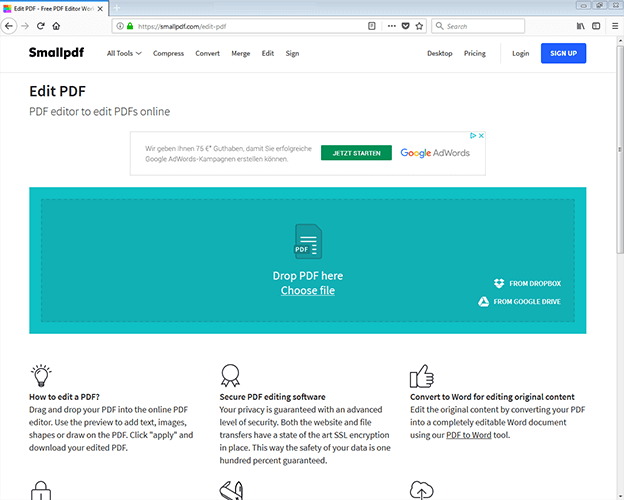
Smallpdf offers a variety of services related to PDFs: several conversion tools, a handy tool for compressing PDF files, and features that allow you to rotate pages or merge multiple files into one. To open the editor, click on “Edit PDF.”
File upload
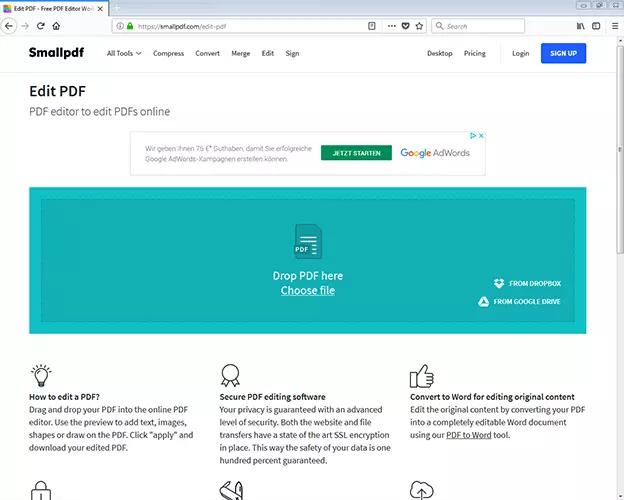
Click, drag and drop – that’s how easy it is to upload a PDF file in the editor. Alternatively, you can search for files on your hard drive by clicking “Choose file” or you can even connect the tool to Dropbox or Google Drive.
Editing text
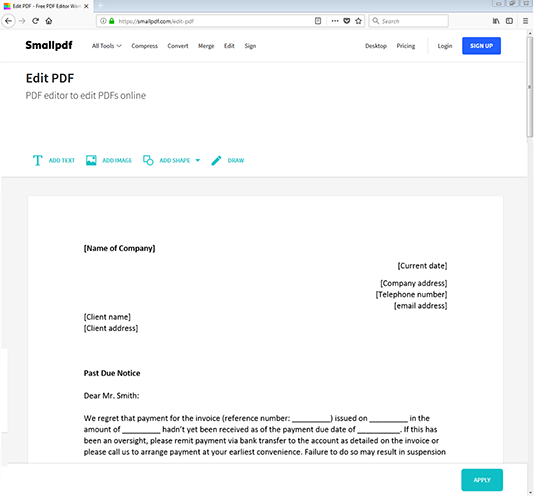
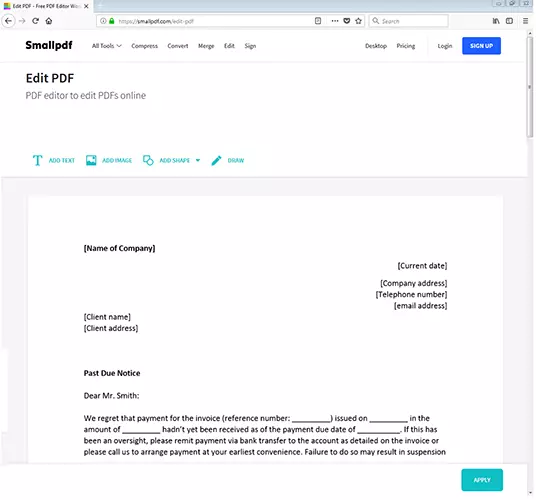
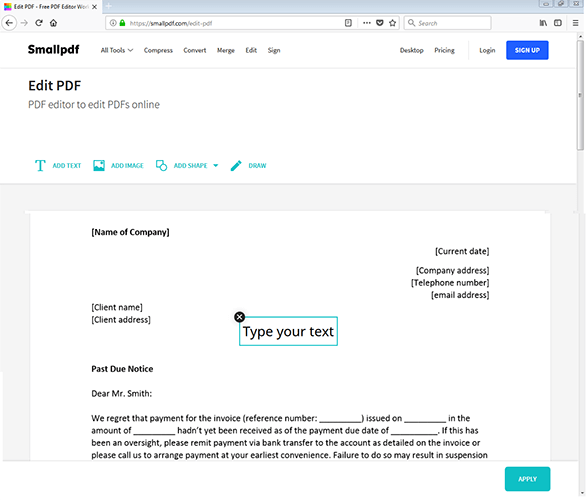
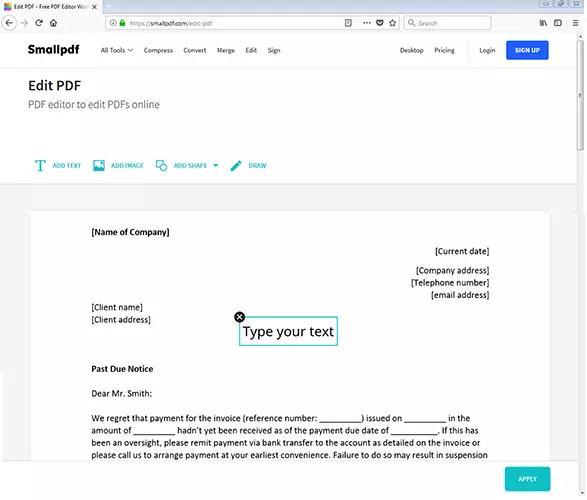
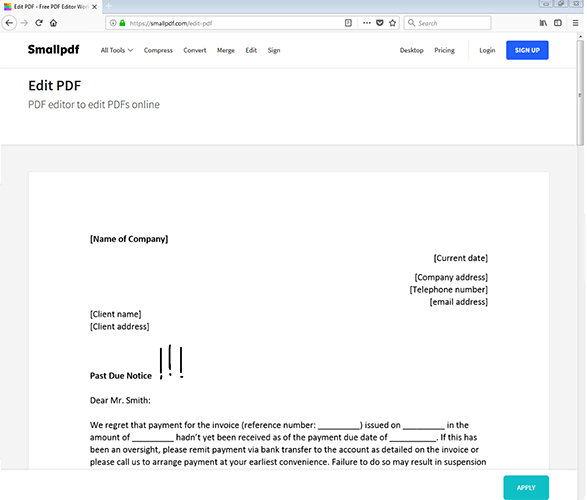
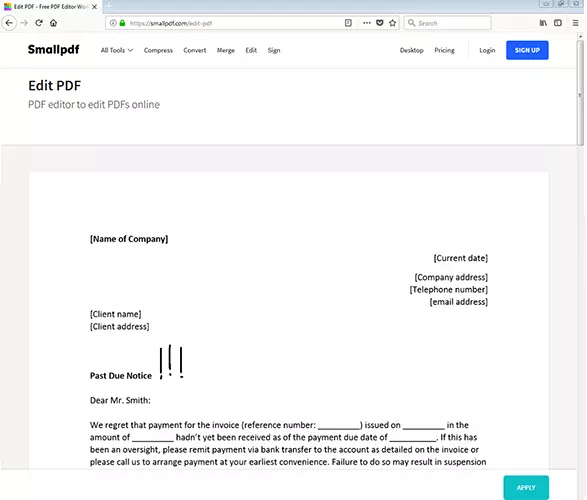
The PDF file opens directly in the program to allow for easy editing. The editor has various editing tools: “Add Text,” “Add Image,” “Add Shape,” and “Draw.” Each editing tool’s function is different. With the “Add Text” tool, you can insert additional text into the document and move it around. You can format this text in different sizes, colors, and fonts.
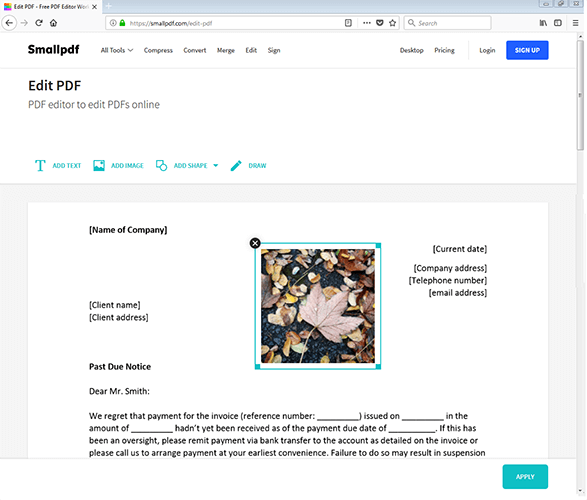
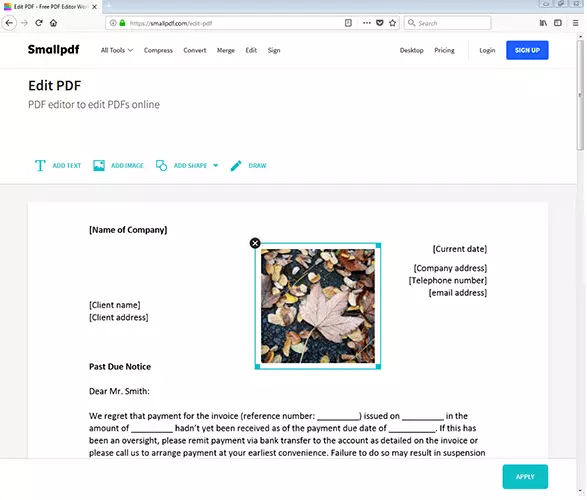
The “Add Image” function allows you to insert pictures into the document as well as edit their position. Of course, you can also adjust the size of the images. You can’t edit the images, however.
The “Add Shape” function allows you to add graphic shapes into the document, choose the color, and add text to them. The possible shapes include a circle, a square, and an arrow. The “Draw” function, on the other hand, allows you to draw connections, circle important things, black out segments of text, or simply sketch something.
Saving and downloading
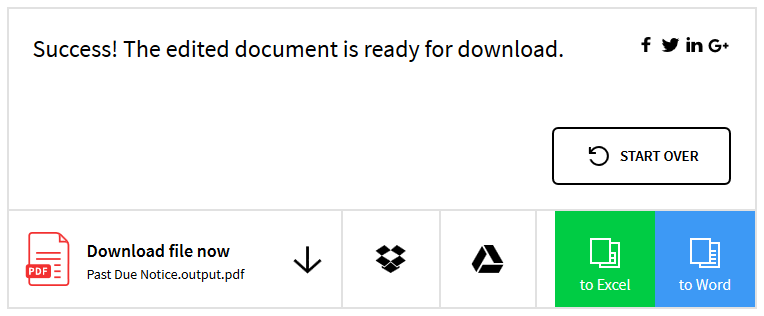
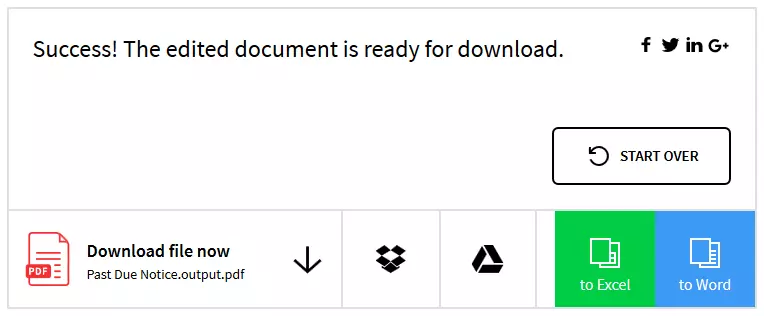
As soon as you are finished editing the document, save it by clicking the “Apply” button in the lower right corner. You can then download or save the document in Google Drive or Dropbox on the next page.
Google Docs
You can also edit PDFs for free using Google’s online tools. It’s easy to edit a PDF with Google Docs and Google Drive.
Register with Google
To use Google’s PDF functions, you need a free account with the search engine. Users who have a Gmail account or are active on the social media platform Google+ already have an account that can also be used with many other services. Unfortunately, these are only available once registered. To set up a Google account, click on the “Sign in” button on the Google homepage, then click “Create account” on the page that follows.
Upload PDF document
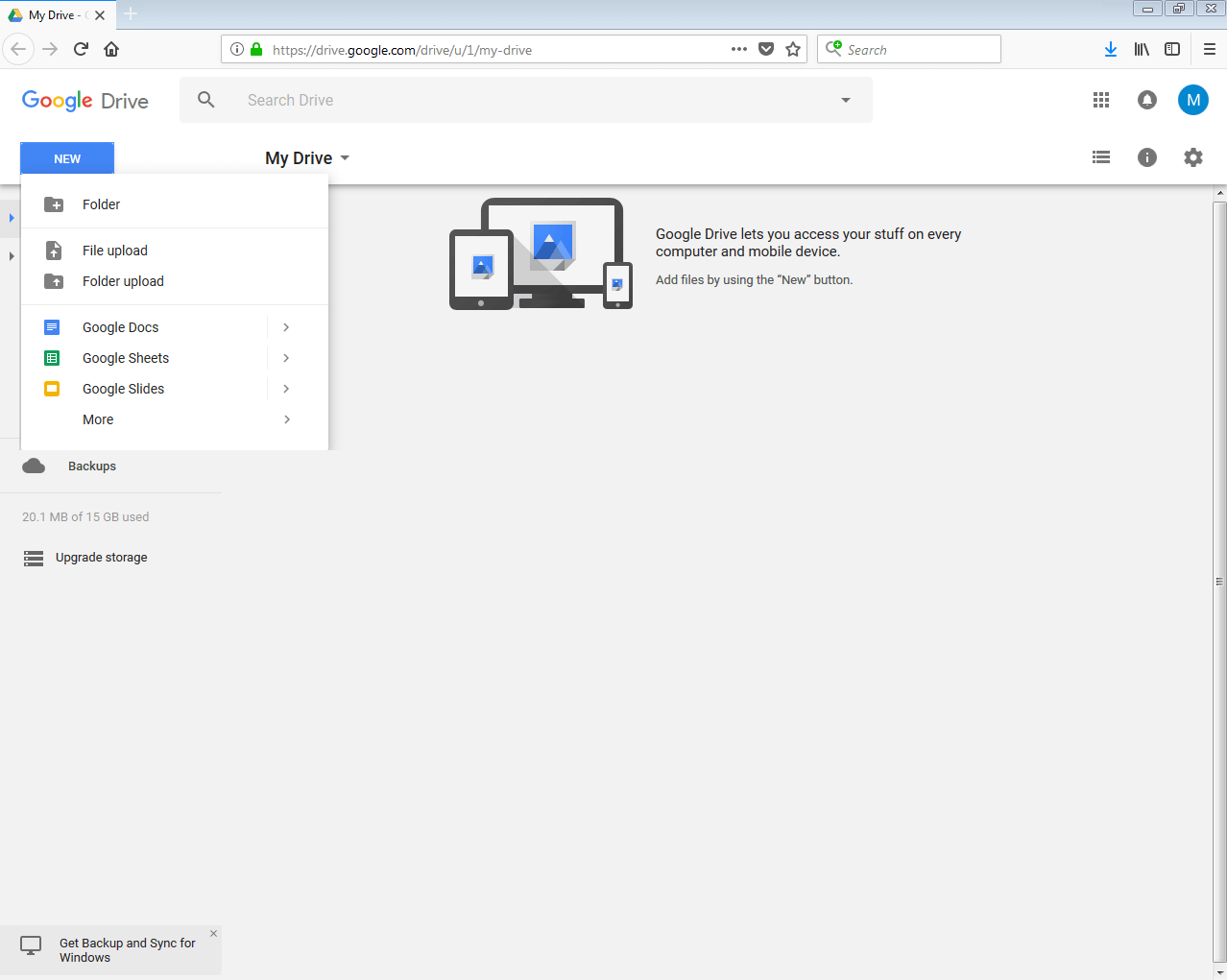
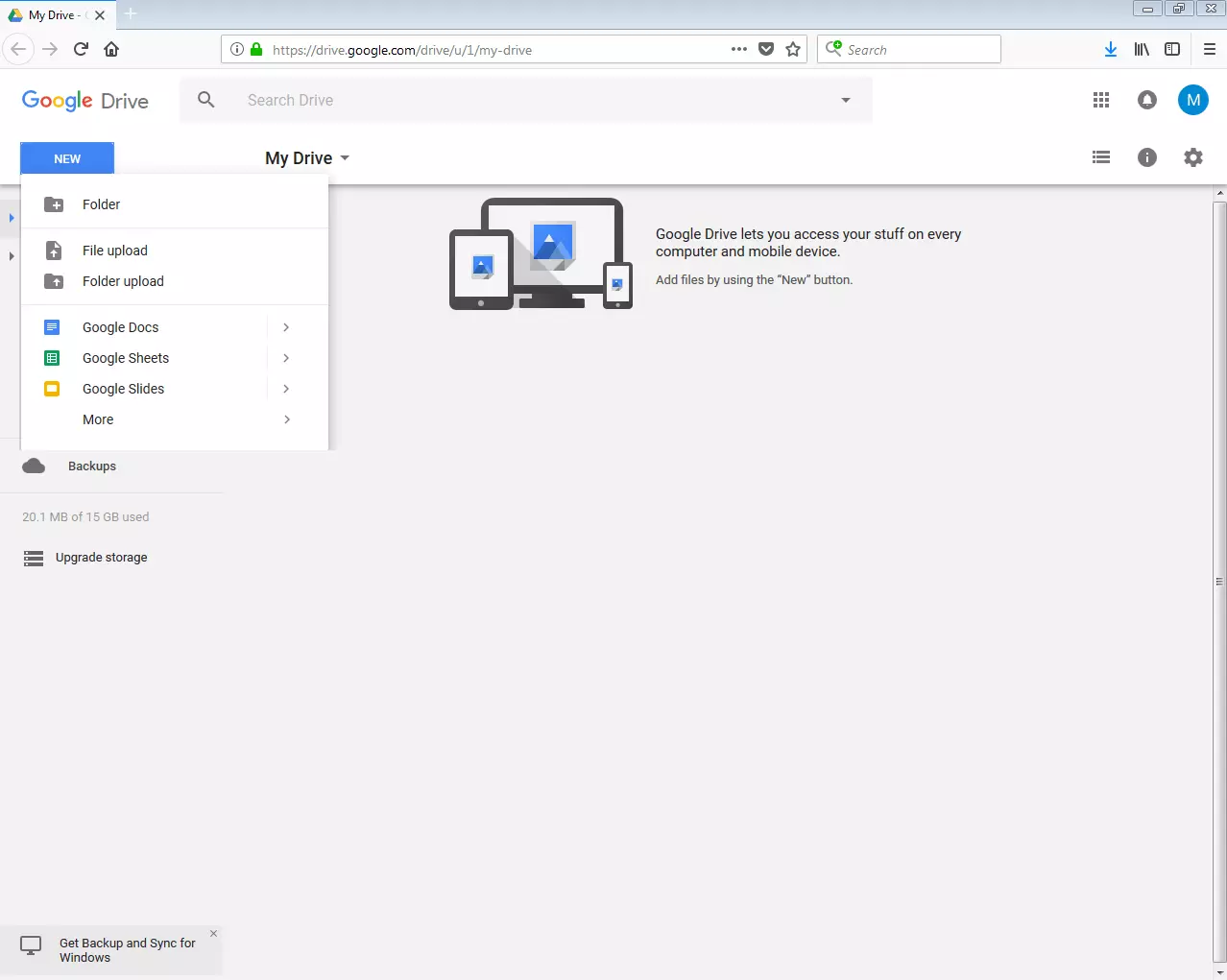
The first step is to upload the PDF document in Google Drive. Available to all Google account holders, Google Drive is accessed by clicking the Google Apps symbol in the upper right hand corner of the screen. You can create your own folder structure in the online drive. But to edit a PDF, you only need to upload the file to the clipboard. By clicking “New” and then “File upload,” you can look for documents on your hard drive. Once you’ve uploaded the PDF document, it should appear in your files list. Open the document in Google Docs by right clicking on it.
Editing documents
Google Docs should open in a new browser tab or window. Conversion to an editable document happens automatically. Google Docs has many familiar features from other word processors such as changing, deleting, or adding new passages. Formatting work is also possible to a certain extent. The menu bar further includes tools for drawing, creating tables, and even a spellchecker.
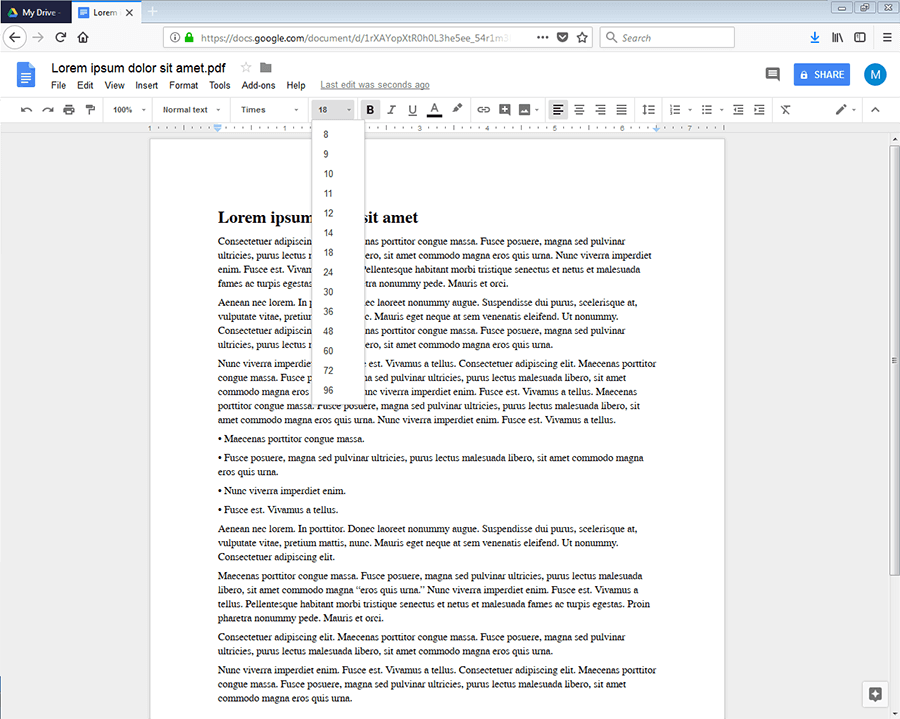
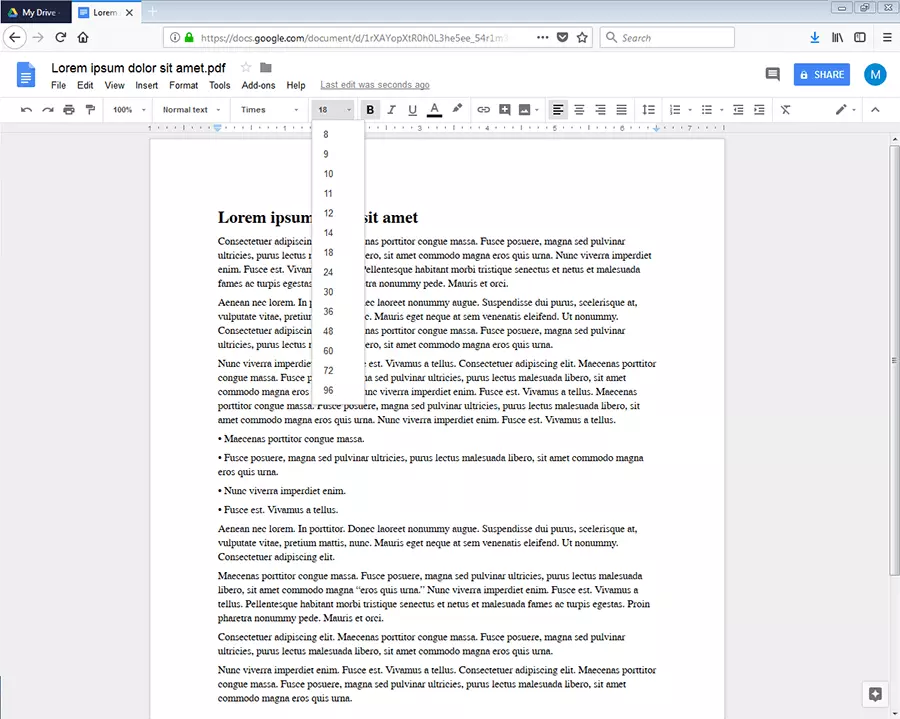
Just like converting to Word, assume that converting a document in Google Docs won’t be on a strict 1:1 basis. It can be that elements are moved around and that the formatting isn’t correct.
Saving files
Document edits are saved automatically in Google Drive. However, edited documents can then be re-downloaded in various formats. Clicking “File” and then “download as,” you’ll see formats such as DOCX, ODT, HTML, EPUB or even PDF as options. And since the file will be stored in the Cloud, it is also easily shared with others using the release button top right. Google will create a link that can be forwarded to others, giving colleagues or friends access to the document.
Desktop tools for editing PDFs
PDF documents can not only be edited in your browser, but also offline. All you need to do is to install a program for this purpose.
Adobe Acrobat DC
The editor Adobe Acrobat DC provides several ways to change PDFs. While the free Adobe Acrobat Reader DC now allows you to not only read but also edit PDF files to a limited extent, only in the paid version of Adobe Acrobat DC has full functionality.
The Portable Document Format (PDF) was developed and released by Adobe Systems in 1993. So it’s not surprising that Adobe programs handle the format so well. But in the meantime, the document format is now so well known that many other applications interact with it without any problems.
Choosing the correct version
If you already use Adobe Acrobat Reader DC to read PDF documents, you’re already familiar with the free features: you can add comments, add digital signatures to documents, or send files to others to sign. However, if you want to make other changes to the document, you need the paid version of Adobe Acrobat DC.
There are two different variations of this: Pro and Standard. Both require a monthly subscription. Among the differences between the two versions is that the more expensive one can incorporate JavaScript and multimedia elements, optimize PDF accessibility, and compare two documents with one another. In addition, only the Pro version is available for Mac. If you want to test drive the program, you can download a 14-day free trial on the Adobe homepage.
Opening files
As in other programs, open a PDF document for editing by clicking “File.” Alternatively, you can set Adobe Acrobat DC as the default program for opening PDF files. It’s even easier to open a PDF file by dragging and dropping it into the program window. The application isn’t limited to working with documents in PDF format. You can also open other formats such as Word files and convert them to PDFs.
Editing documents
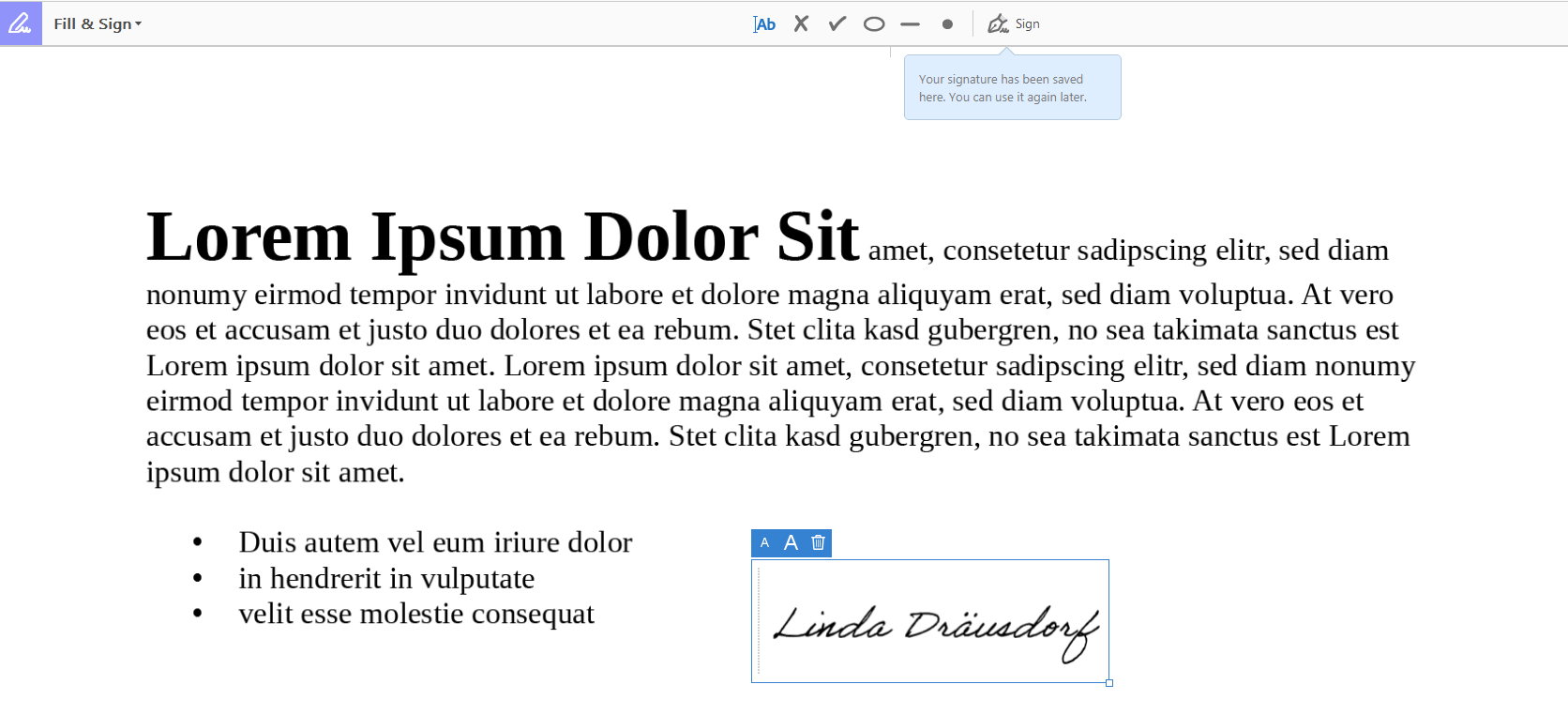
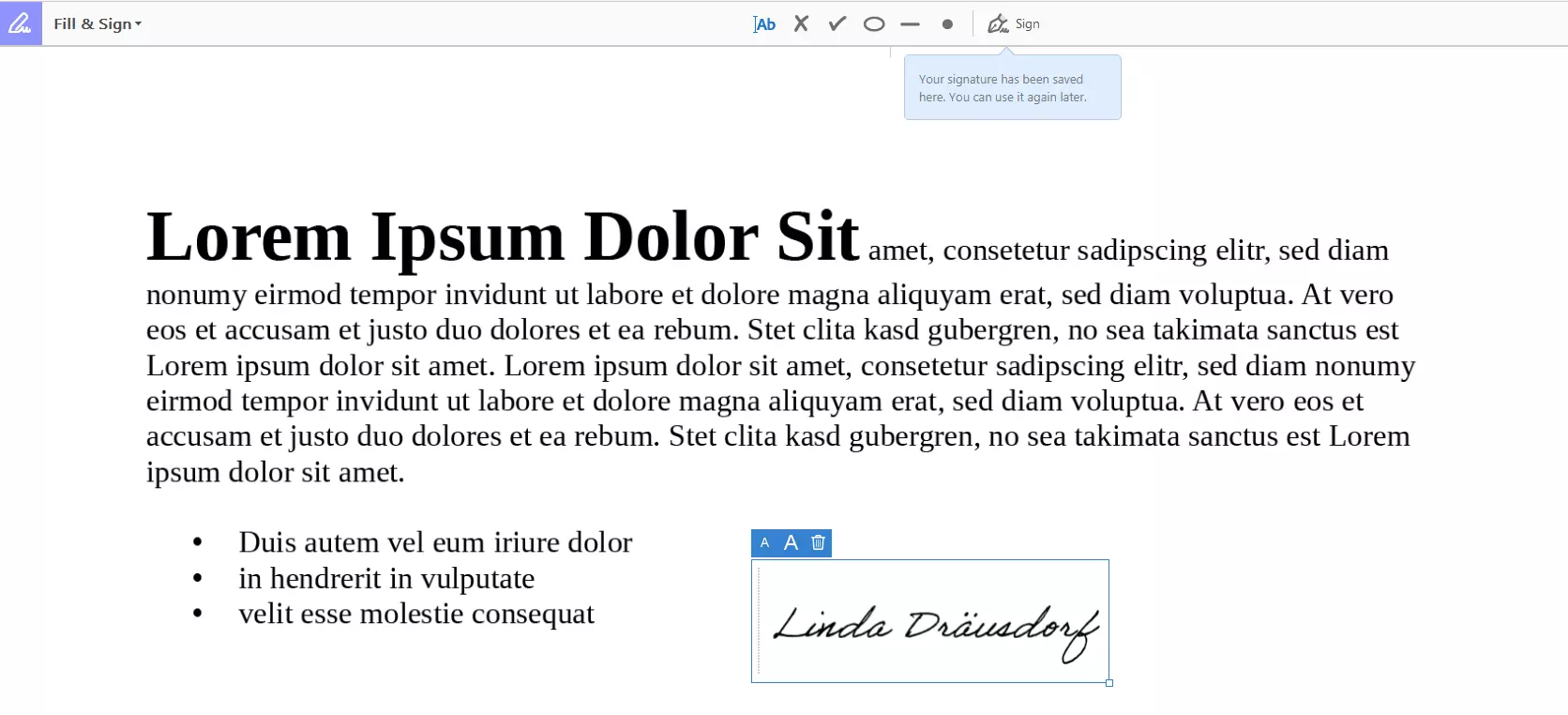
Several tools are available to change PDF documents and you can switch back and forth between them. Having the ability to sign documents is becoming increasingly important in online correspondence. To do this, create a digital signature that can be easily inserted into a document. The menu item “Fill in and sign” also gives you the opportunity to fill out fields.
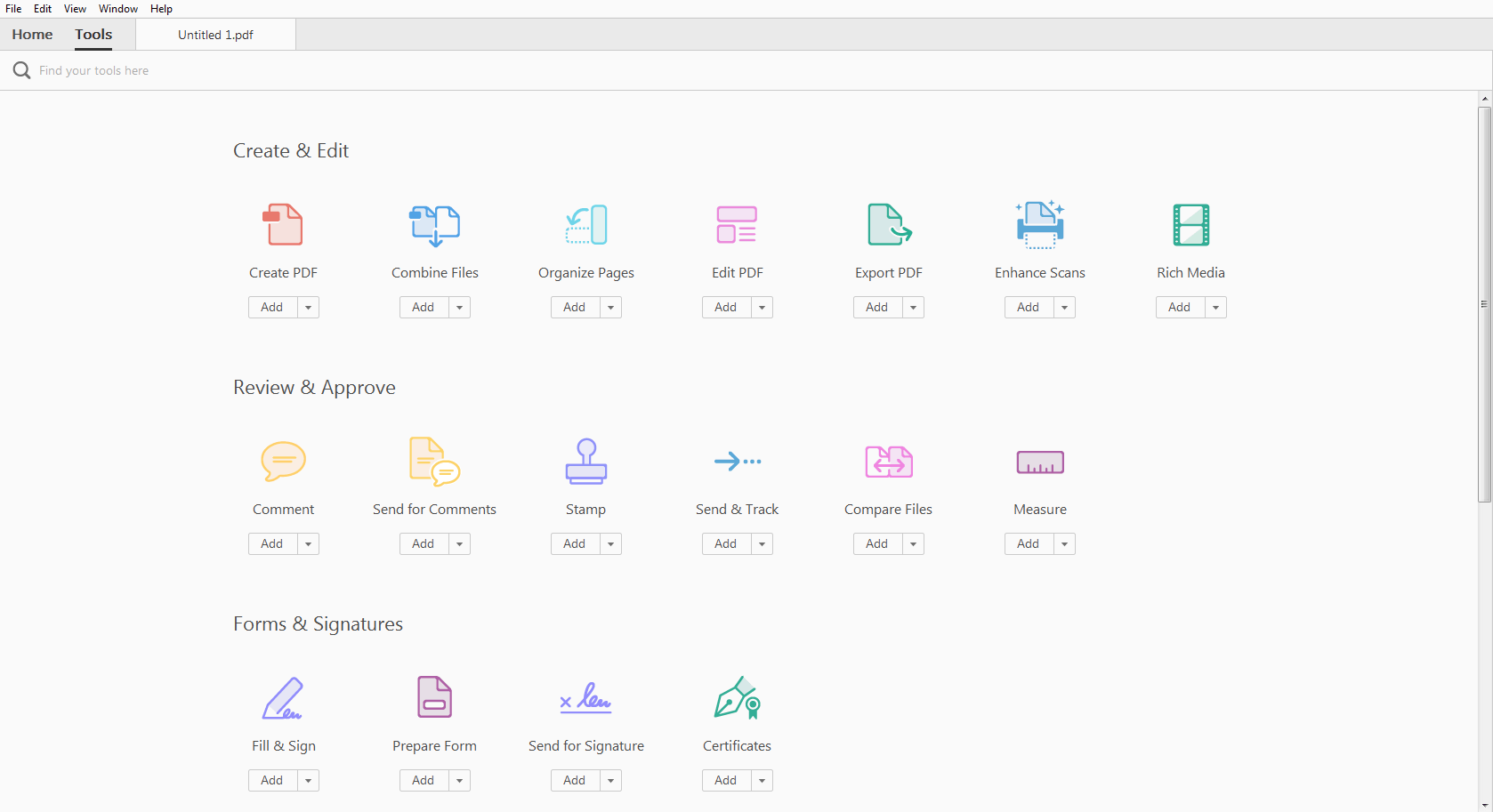
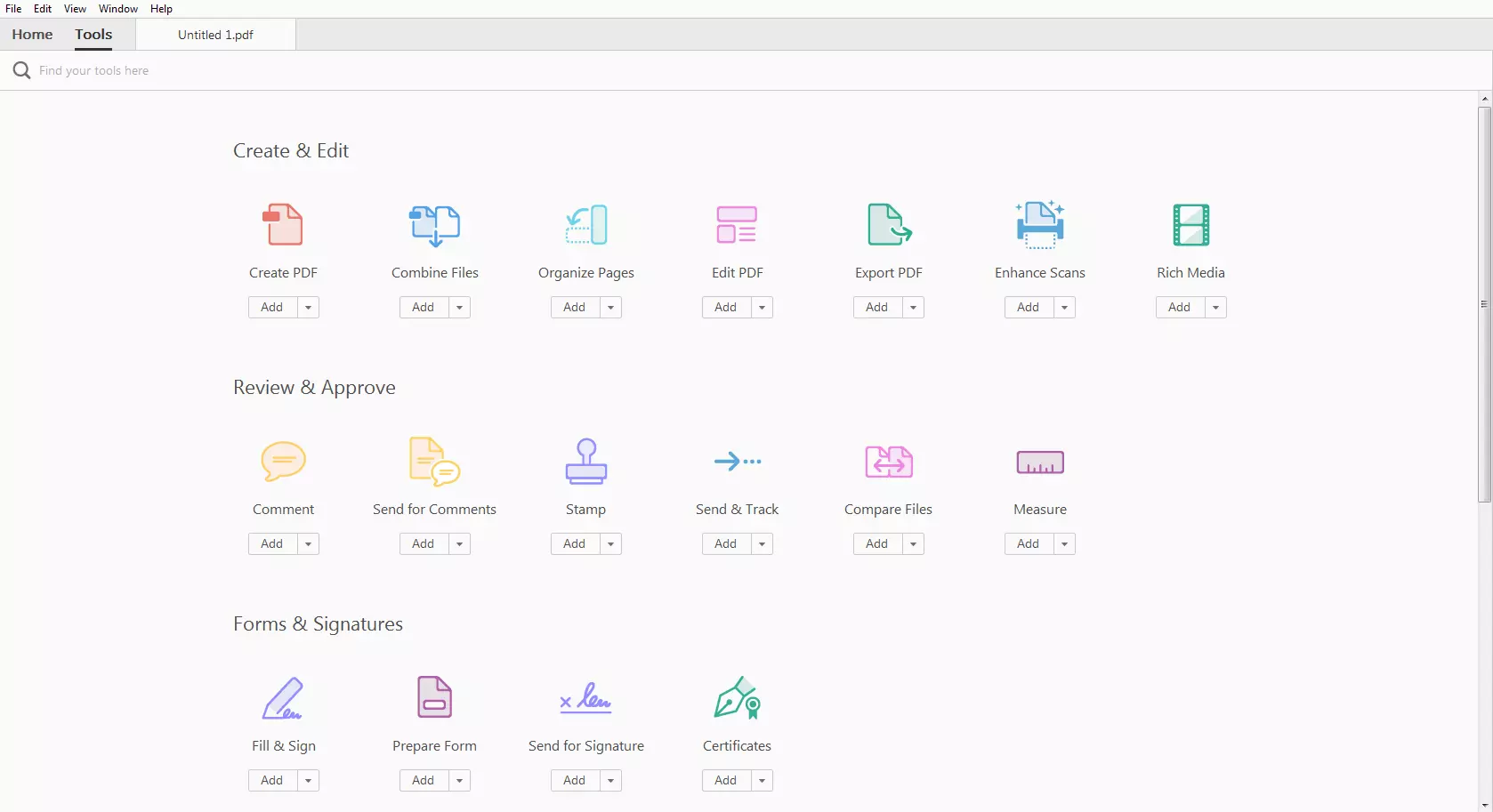
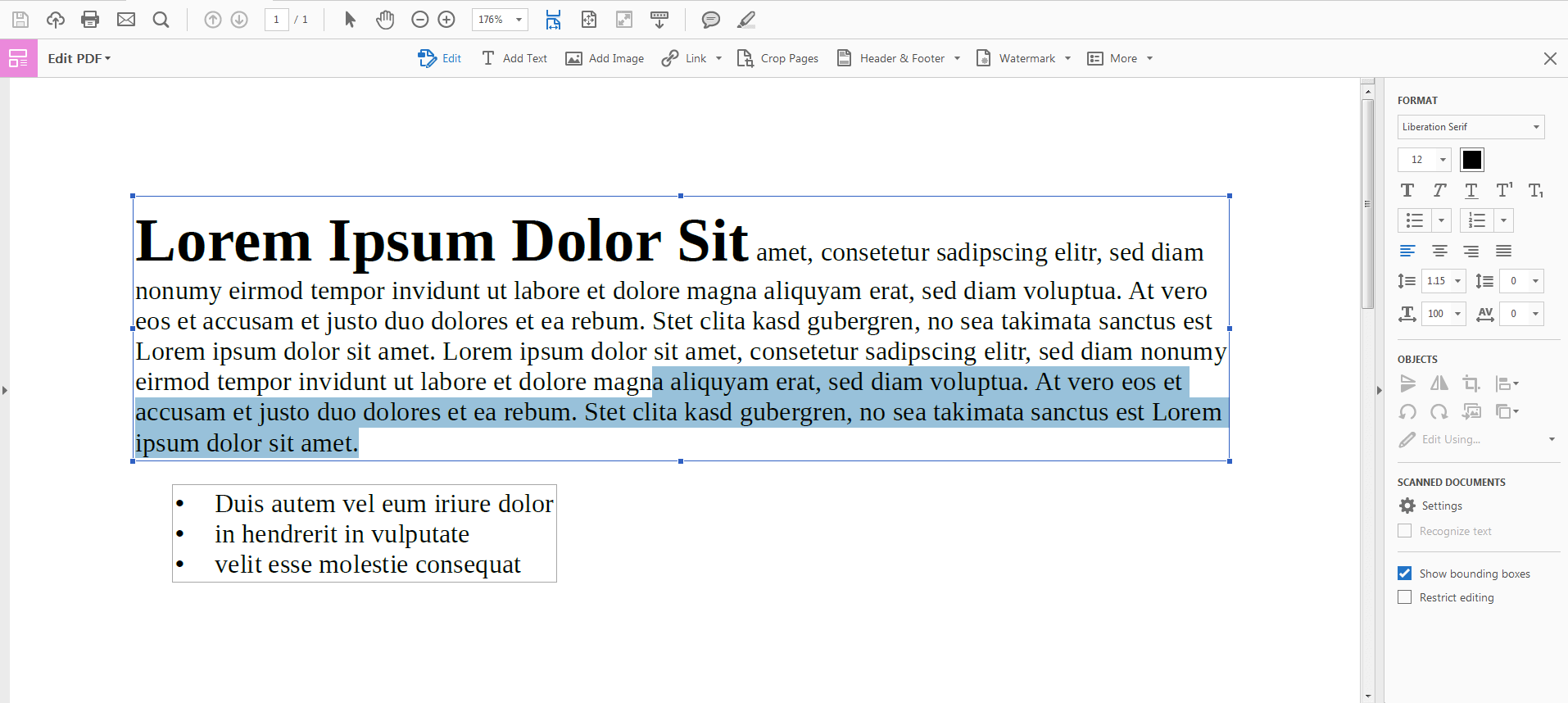
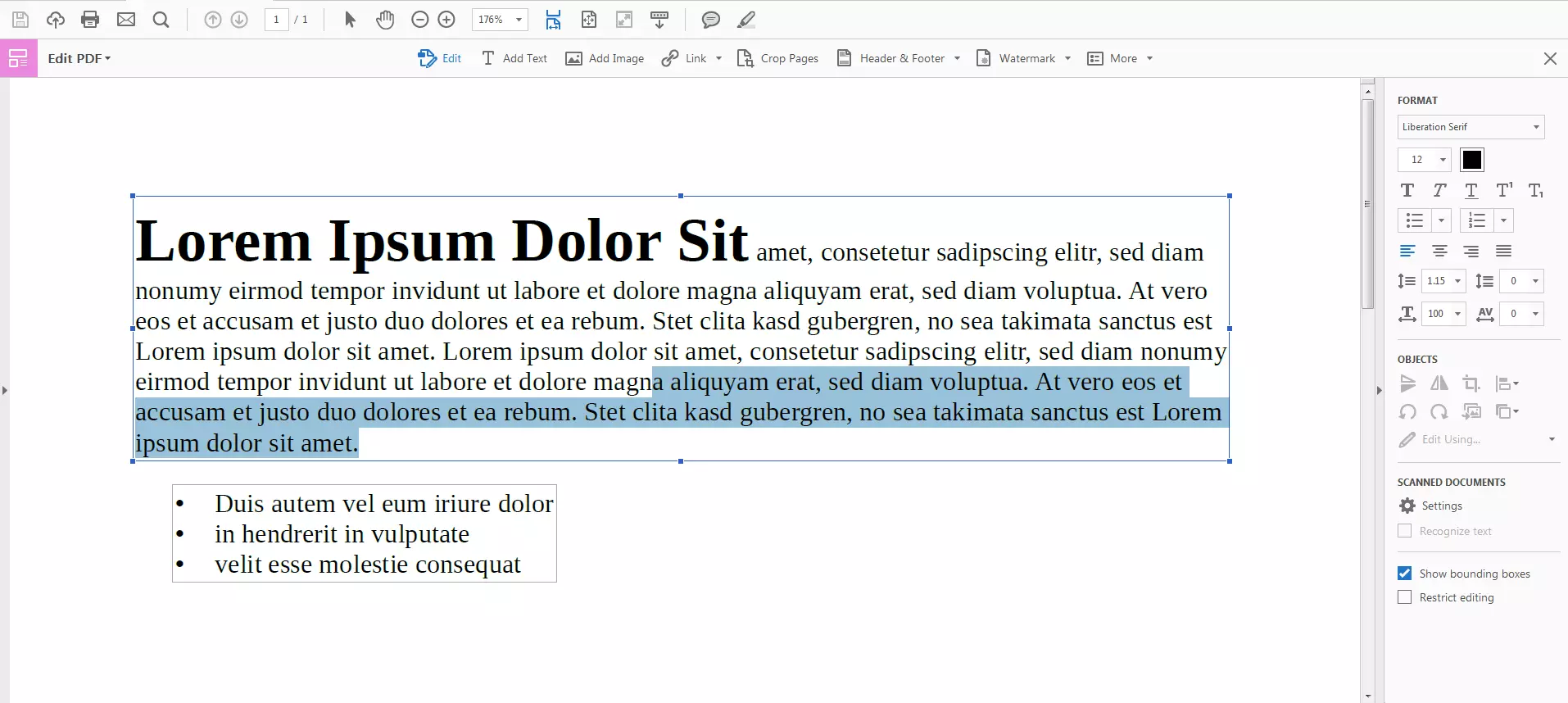
The primary advantage of Acrobat Pro DC can be found in the “Edit PDF file” tool, where you can edit the document’s existing content. You can edit, add or delete text exactly like a word processor such as Word without having to first convert the file. The program detects text boxes automatically, allowing the user to make changes to them.
Saving documents
The edited document can be saved as a PDF or forwarded to colleagues, business partners, or friends, allowing them to comment or sign. The program also gives users the option to export the document to other formats, converting a PDF file into a Word document, for example.
FlexiPDF
With FlexiPDF you can open PDF files and edit them directly. The paid version of FlexiPDF is also available on a trial basis.
Installing the program
There are two different versions of the tool: Standard and Professional. Both are available for a fixed price, not on subscription as with Adobe. The program license is valid for up to three PCs. The standard version offers almost all of the functions one requires to create or edit PDF documents, e.g. inserting images or graphics or editing text. However, differences can be found in the advanced features for creating PDFs, for example:
| Function | FlexiPDF Standard | FlexiPDF Professional |
| Merge several PDF files together | x | ✓ |
| Create PDF portfolio | x | ✓ |
| Automatic text recognition | x | ✓ |
| Header and footer | x | ✓ |
| Watermarks | x | ✓ |
| Text translation with CAT software | x | ✓ |
| Crop or mask embedded images | x | ✓ |
| Search and create hyperlinks | x | ✓ |
| Black out confidential content | x | ✓ |
| Search and replace | x | ✓ |
| Change page numbering | x | ✓ |
Opening files
Thanks to the program’s simple design, you can quickly find your way around, making opening files simple and straightforward. Navigate either through the menu bar or click on the folder icon in the toolbar where you can search your files for the PDF you need.
Editing PDF files
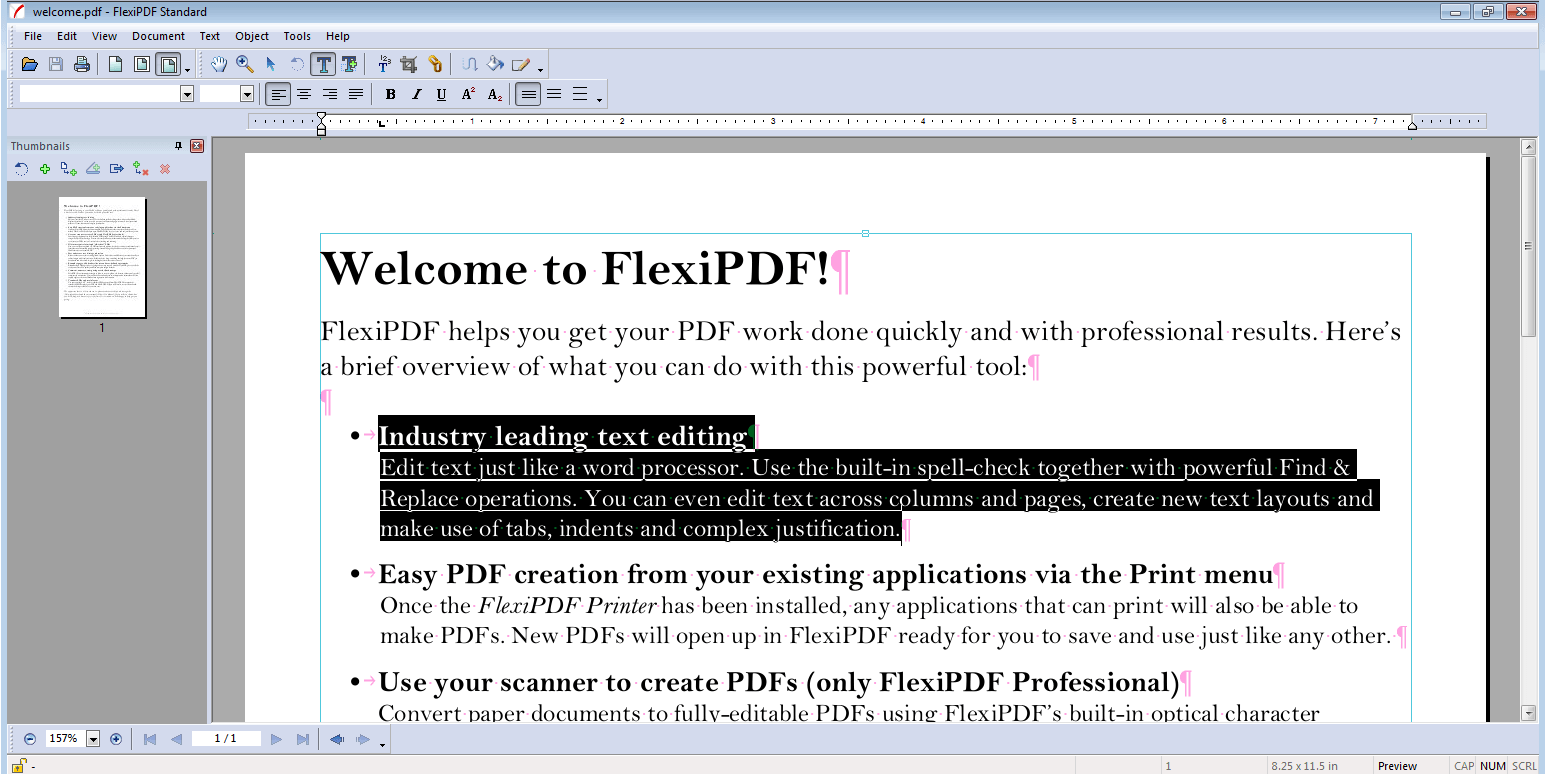
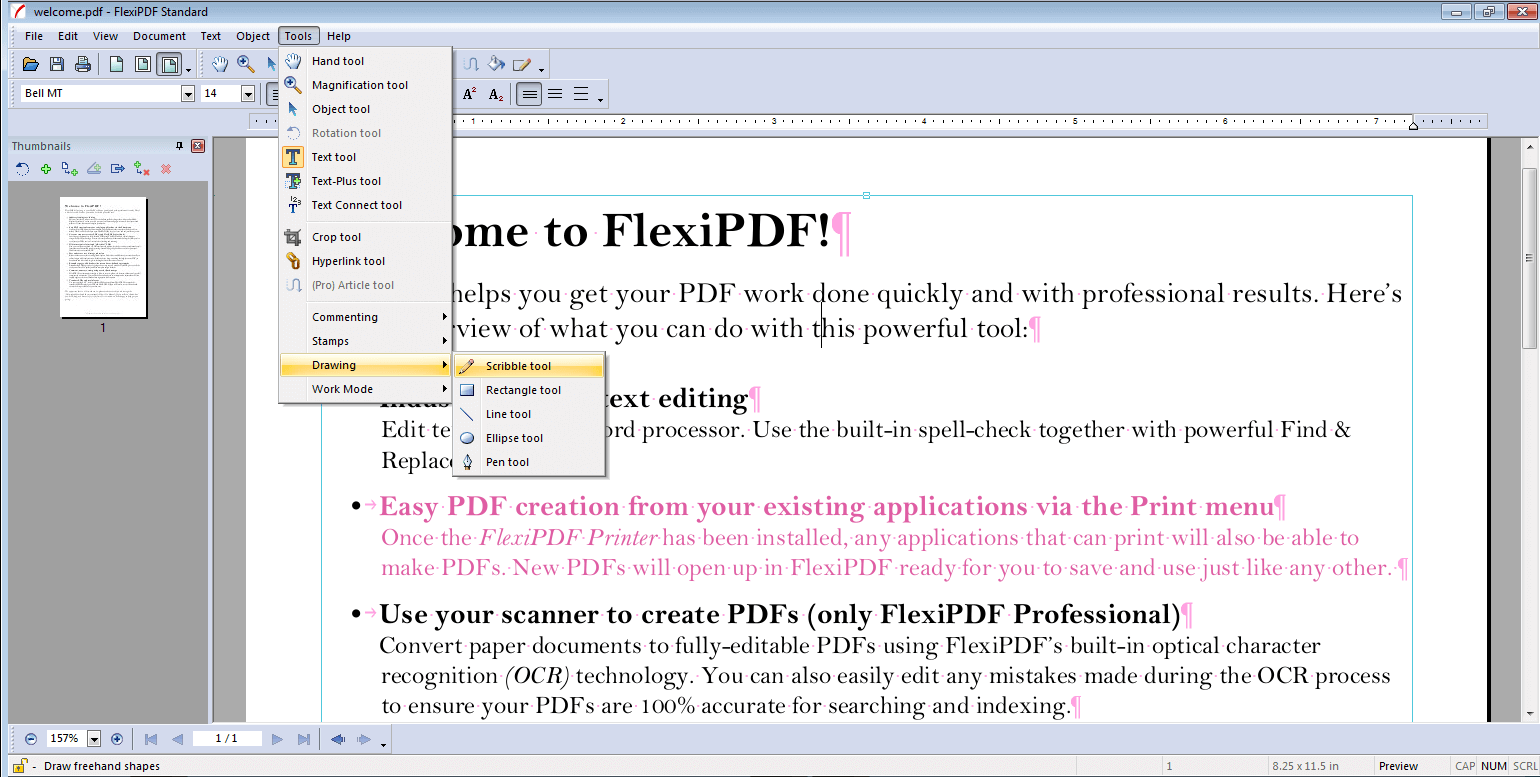
The FlexiPDF editor’s basic structure and function is similar to Microsoft Word.
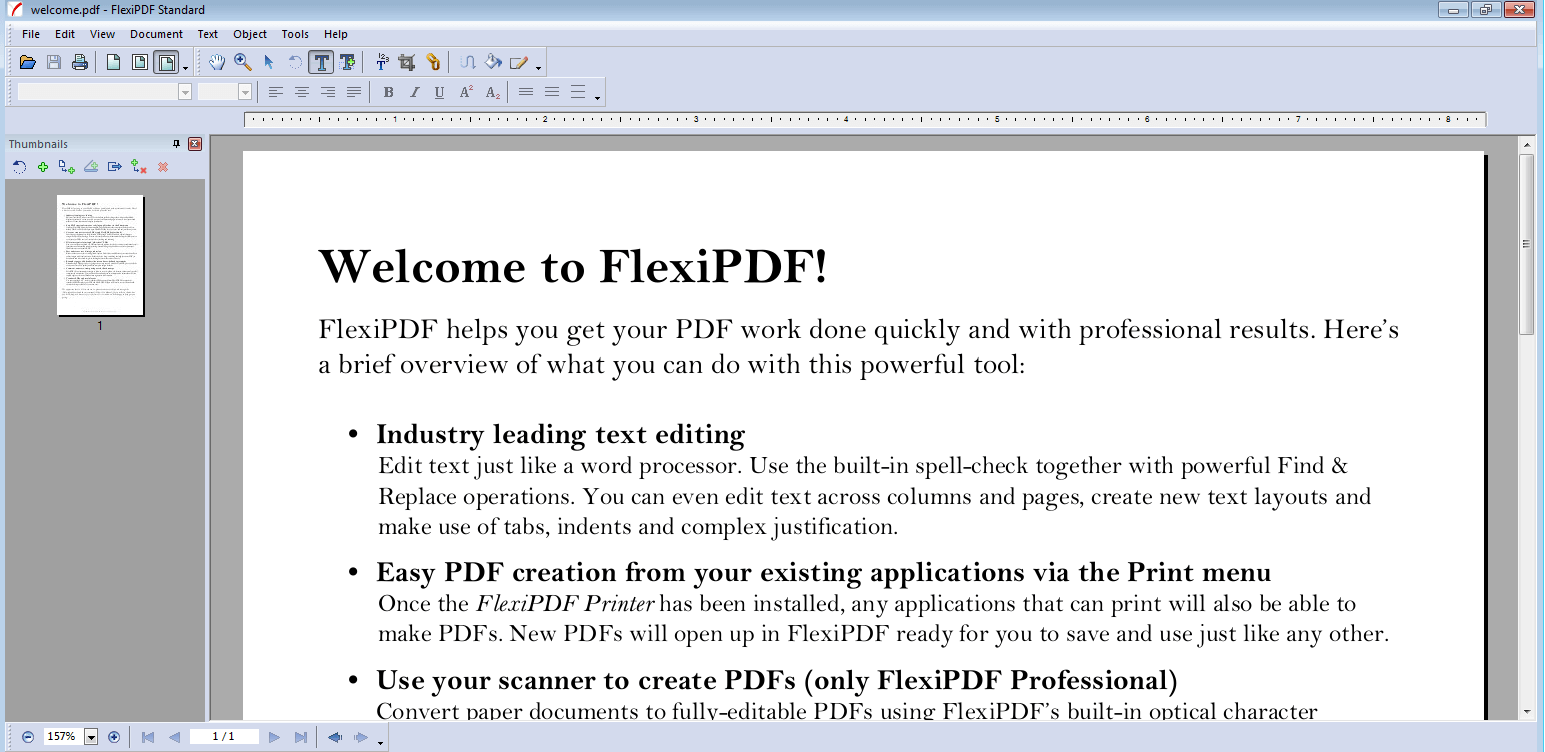
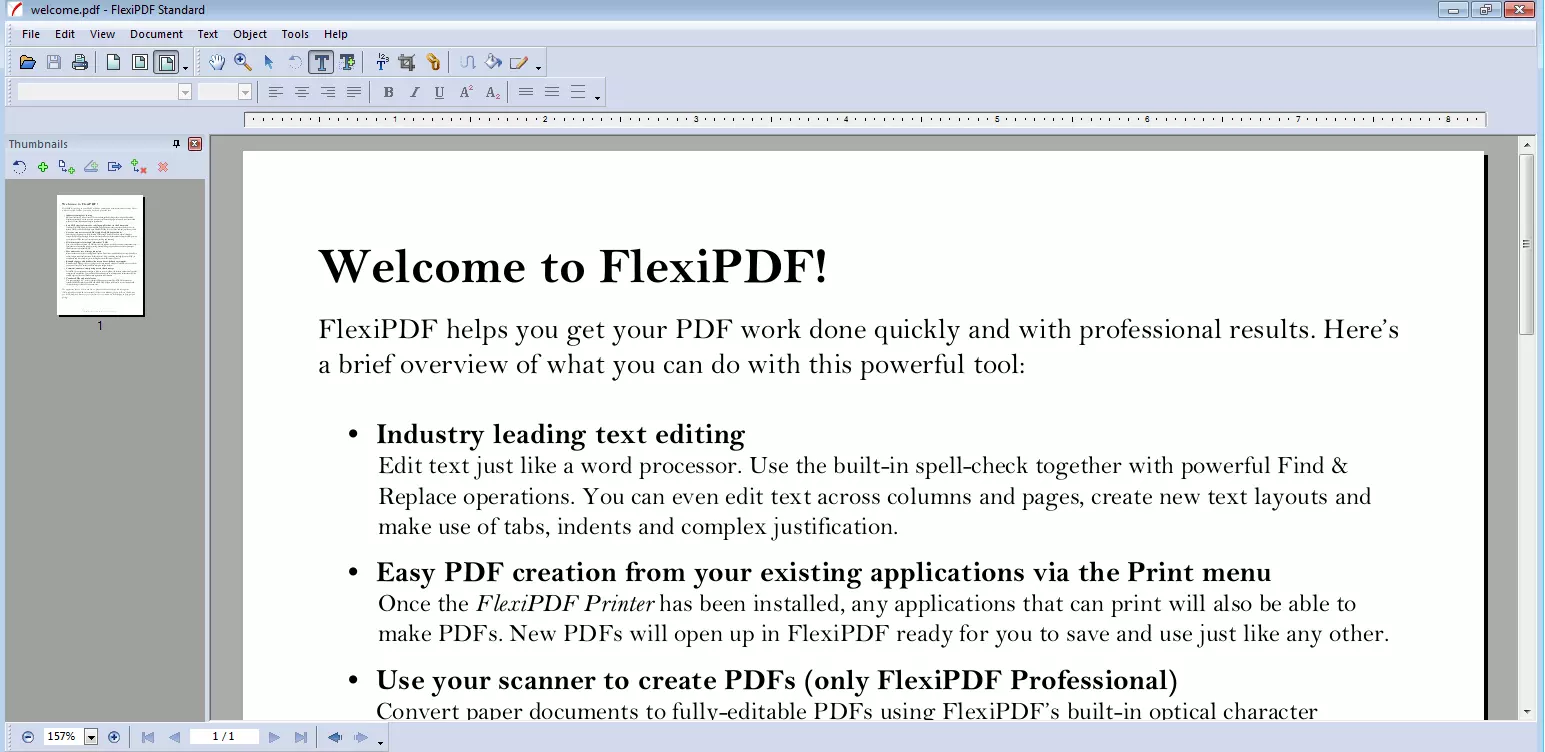
In FlexiPDF’s trial version you can change the body of the text, i.e. to make edits within the text. This is a major advantage if you want to retrospectively change the text in a PDF. Many other (mostly free) PDF editors often just allow you to remove or move paragraphs, but not to edit within the text itself.
Saving files
Saving files also functions similarly to word processing programs. In addition to PDF files, the program can export documents in numerous formats: HTML, TXT, RTF, EPUB and Word files are available as are the image formats JPEG, TIFF, BMP and PNG.
PDF-XChange Editor
PDF-XChange Editor from the Swiss company Tracker Software advertises itself as the fastest free PDF editor which at the same time offers a broad range of functions.
Installing the Editor
Like other programs for editing PDFs, PDF-XChange is available in different paid versions as well as a free version which has most of the necessary functions that you need to edit a PDF. While the standard version is available either paid or free, buying a license comes with the benefit of professional support. The Plus version comes with even more, allowing you to create forms, merge PDF documents and move or delete individual pages.
PDF-XChange Pro offers the total package. In addition to the editing features, this license also includes a PDF printer for creating PDF files as well as PDF tools that allow you to quickly create PDF documents from multiple sources.
PDF-XChange also allows you to change language settings after the program has been installed. Under “File,” select “Preferences” and then “Languages.” Choose a language and click “Apply.”
Opening files
In addition to the usual ways of opening a PDF file in an editor, PDF-XChange users can upload documents directly in the editing window with a double-click. You can also add multiple files to the editing view and thus to an existing document using drag-and-drop. Additionally, you can connect the program to your accounts in Google Drive, Office365, or SharePoint.
Editing PDFs
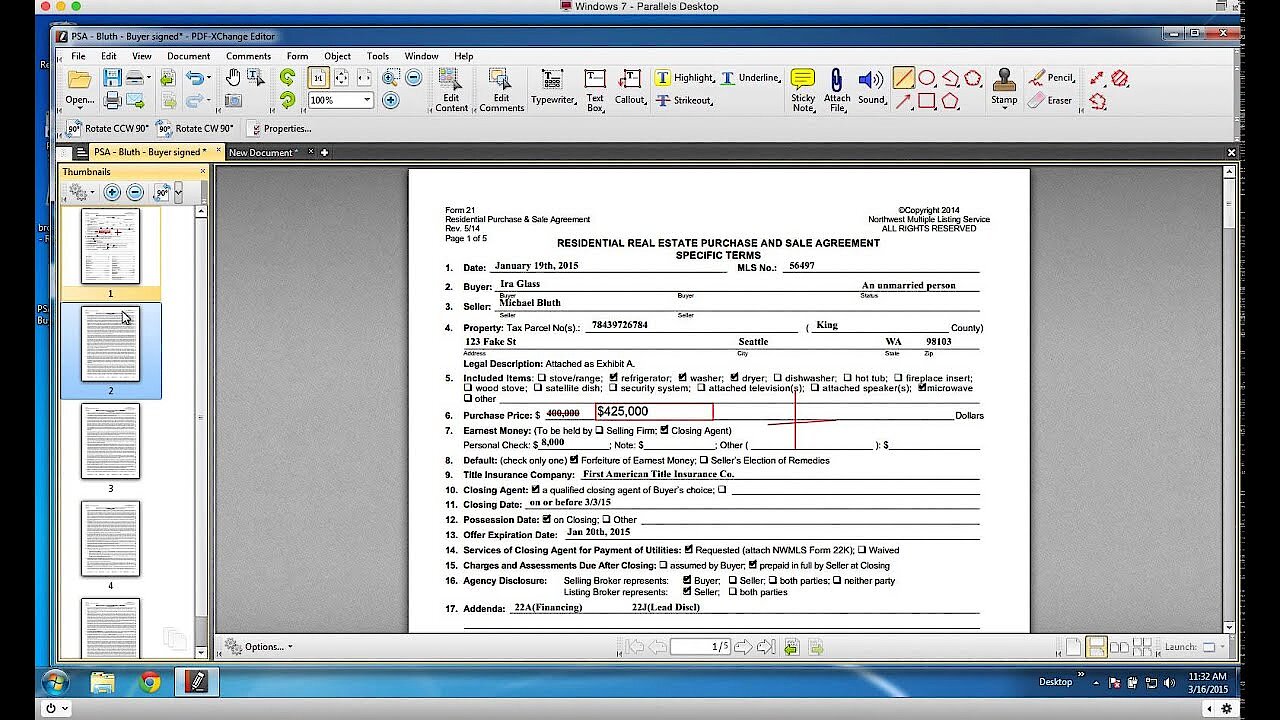
On the surface, the program functions like other editors and is very intuitive and user friendly. Files open quickly and there are many different tools that can be used to change the PDF document.


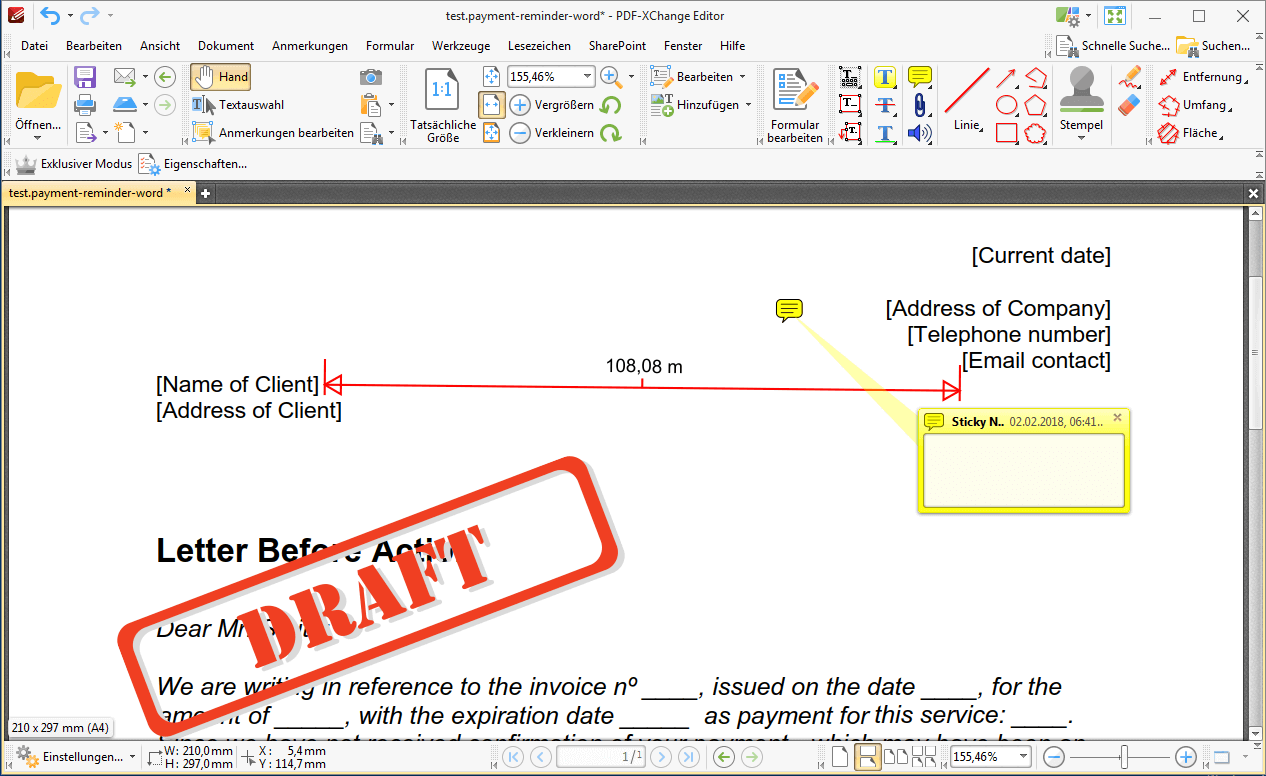
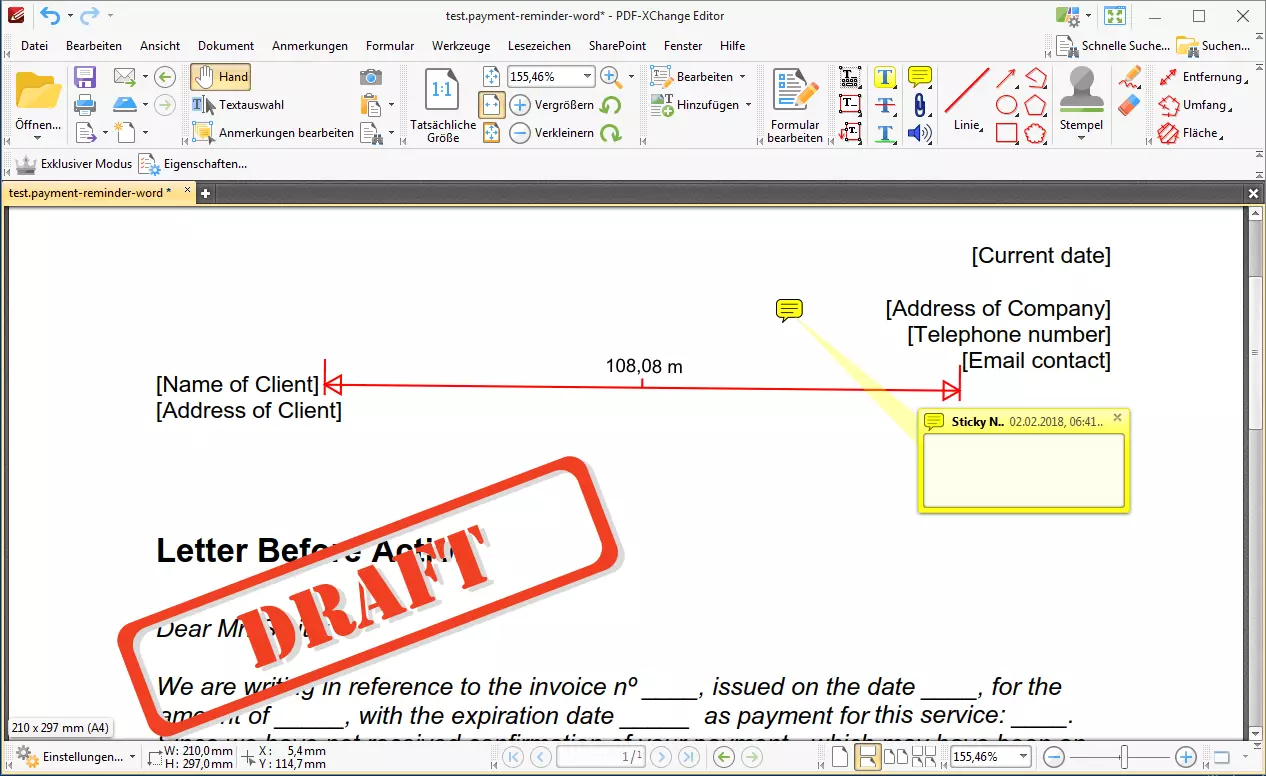
With PDF-XChange you can also change the document text, whether modifying it, deleting and adding. The same is true for photos or other images. The program can even support multimedia content including sound.
 To display this video, third-party cookies are required. You can access and change your cookie settings here.
 In addition, you can add comments, stamps, and your own images to documents.
Saving documents
Aside from the usual storage options (accessible from the diskette icon in the toolbar) of a PDF editor, users can convert files directly to Word or even PowerPoint in order to work on them there. Likewise, complete documents can be exported or only selected pages in different image formats.
PDF Expert for Mac
PDF Expert is a good program for editing PDF files on a Mac. The free PDF editor can convert PDF files, edit text, and insert images.
Different downloadable versions
This program also has several versions available. For the most useful editing functions you should opt for the paid version, although there is a free one-week trial available. If you don’t opt for the paid version after this trial period, the free version still includes a PDF reader. You can either buy the product on the homepage or download it in the Mac app store.
In addition to the desktop version, the software is also available in a mobile version for iPhone and iPad which can be found in the app store. These allow you to edit PDF documents on a mobile device as well as to add comments and signatures.
Opening files
There are several ways to open PDF documents in the software: when you open a new tab, you can either drag the file into the window or select a file via the button. Drag and drop is the quicker option. The open program shows up in the Mac’s dock. Simply drag the file you want onto the program’s icon and the document will open in PDF Expert. Of course, you can also open files as usual via the menu bar by clicking “Open” in the program.
Editing documents
The functionality of the Mac program is every bit as good as its Windows competitors. In addition to standard features such as adding comments or filling out forms, advanced features can be used to edit existing content. Text can be changed completely and even picture elements can be edited. When creating PDFs, you can merge several documents, extract individual pages, or move pages around.
 To display this video, third-party cookies are required. You can access and change your cookie settings here.
 The ability to redact specific information is particularly useful. This function (also available in other PDF programs) doesn’t just draw a black box over the text, rather, it also deletes the text underneath. Also practical is the ability to search the entire document for certain words or groups of words. Choose the redact function and enter the sensitive information. Warning: After redacting, you aren’t able to restore the text at a later point, so be sure to keep a copy of the original.
 To display this video, third-party cookies are required. You can access and change your cookie settings here.
 Saving PDFs
As a software for desktop and mobile Apple devices, PDF Expert is compatible with iCloud, making for easy transfer of documents from different devices. The software can also synchronize with other Apple devices through the Readdle Transfer feature, enabling you to begin editing on one device and continue seamlessly with another. When saving onto your hard drive, you can also decide whether to retain an editable file or an ordinary PDF.
For more information on "How to search a PDF", consult our Digital Guide/ Startup Guide article on the topic.
- Write perfect emails with optional AI features
- Add credibility to your brand
- Includes domain, spam filter and email forwarding