

Excel: Find and Replace – made simple

When it comes to tables, calculations, and formulas, Excel is often the first choice for many users. The popular spreadsheet software is included in Microsoft’s 365 package and is compatible with Windows and macOS operating systems. It’s an ideal solution to help bring structure to figures and values, but the more data included in a document, the more confusing it can get. That’s where the “Find” and “Replace” functions prove useful. The feature allows you to quickly search for and replace letters, words, and number combinations. We’ll show you how this works step-by-step.
Step-by-step: using Excel’s Find and Replace features
Both features are tightly connected. However, Find and Replace can be used separately and are subject to different shortcuts. The features launch within the same dialog window but are located on different tabs. Find out how to launch and use the features.
Find feature: step 1
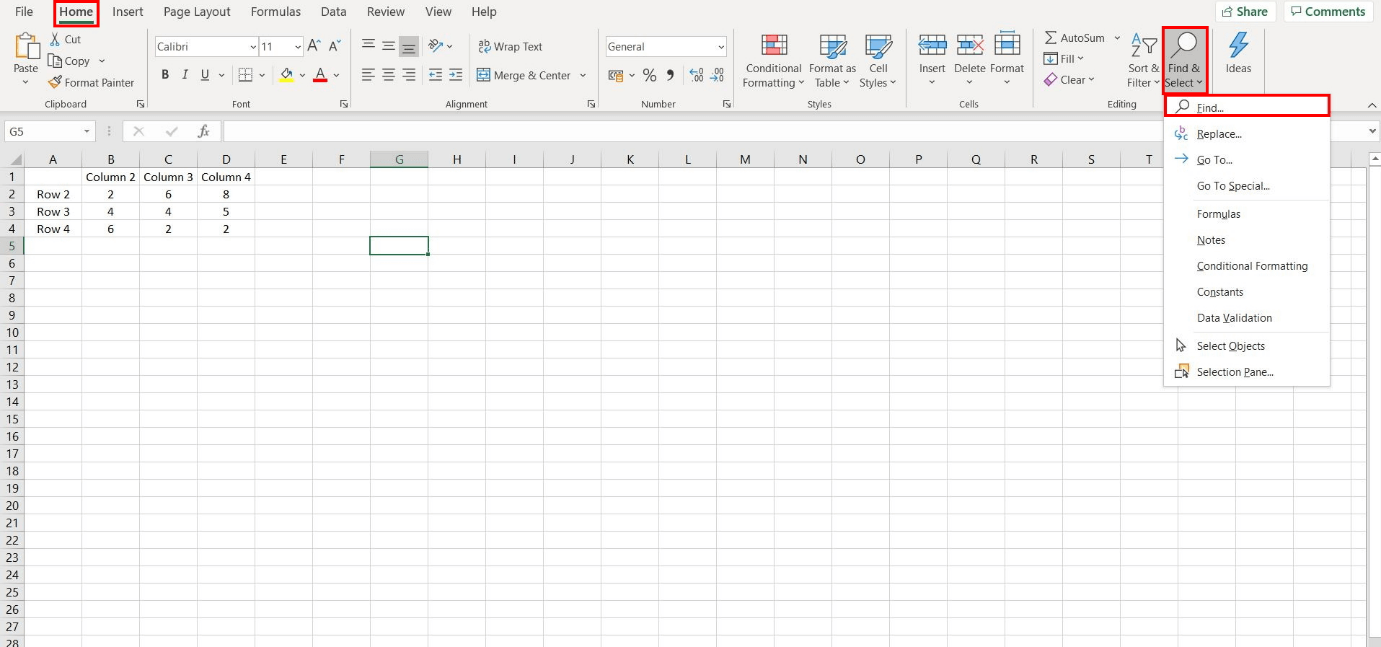
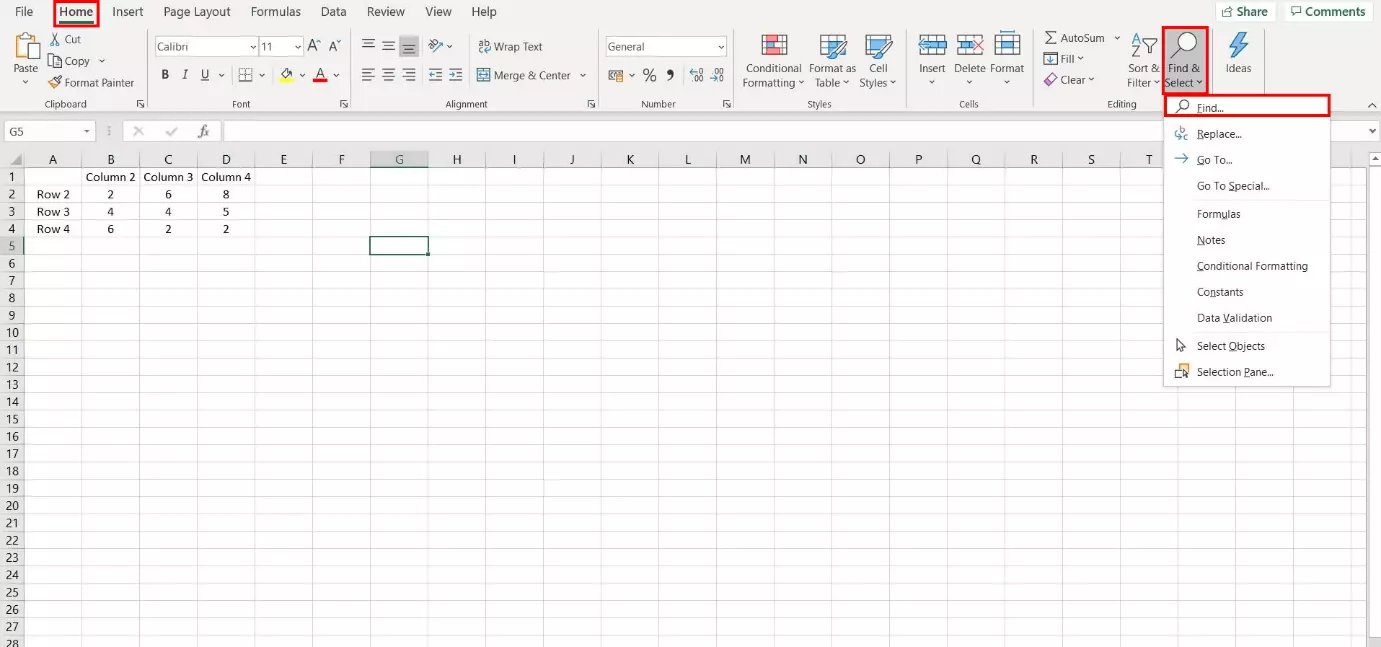
If you’re working on a large Excel data table with multiple entries and need to find a unique number or letter combination quickly without having to manually scan your document, the Find feature is the ideal tool. To launch it, choose “Find & Select” from the header dashboard. From the dropdown menu, select “Find” to launch the matching dialog window.
It’s even faster to launch the feature using a shortcut by holding down “Ctrl” and “F” on your keyboard.
Find feature: step 2
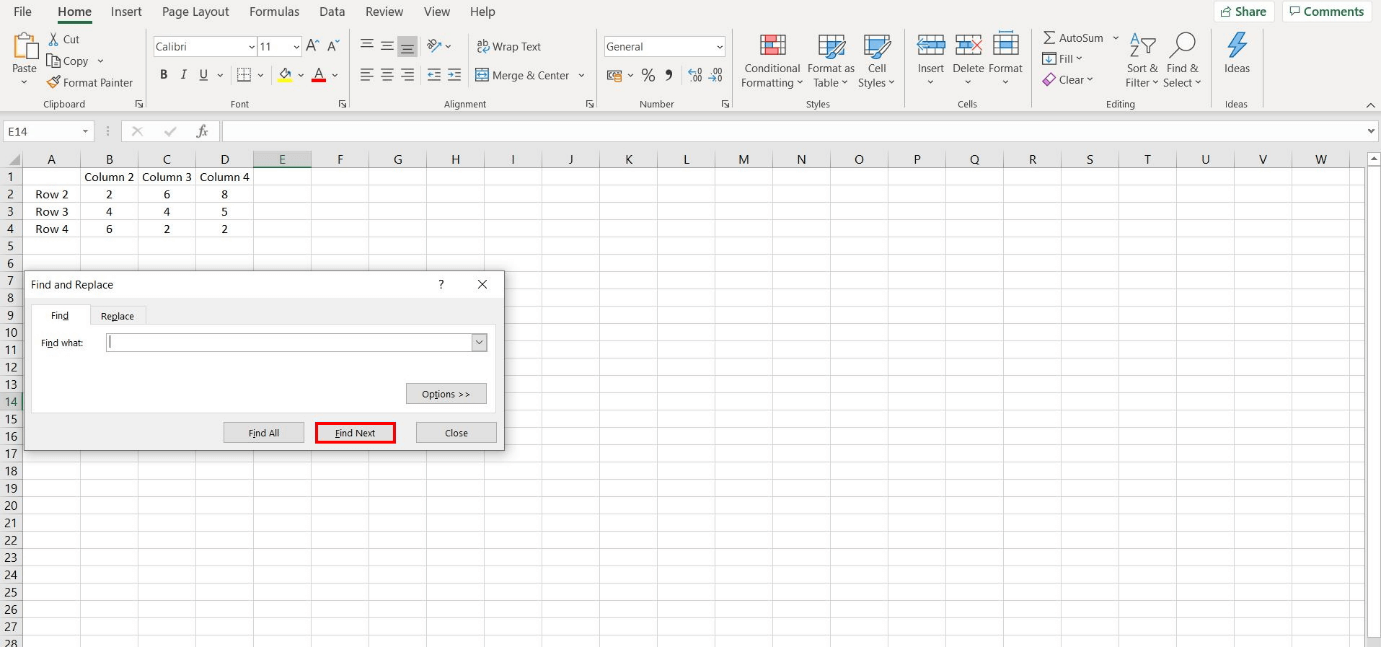
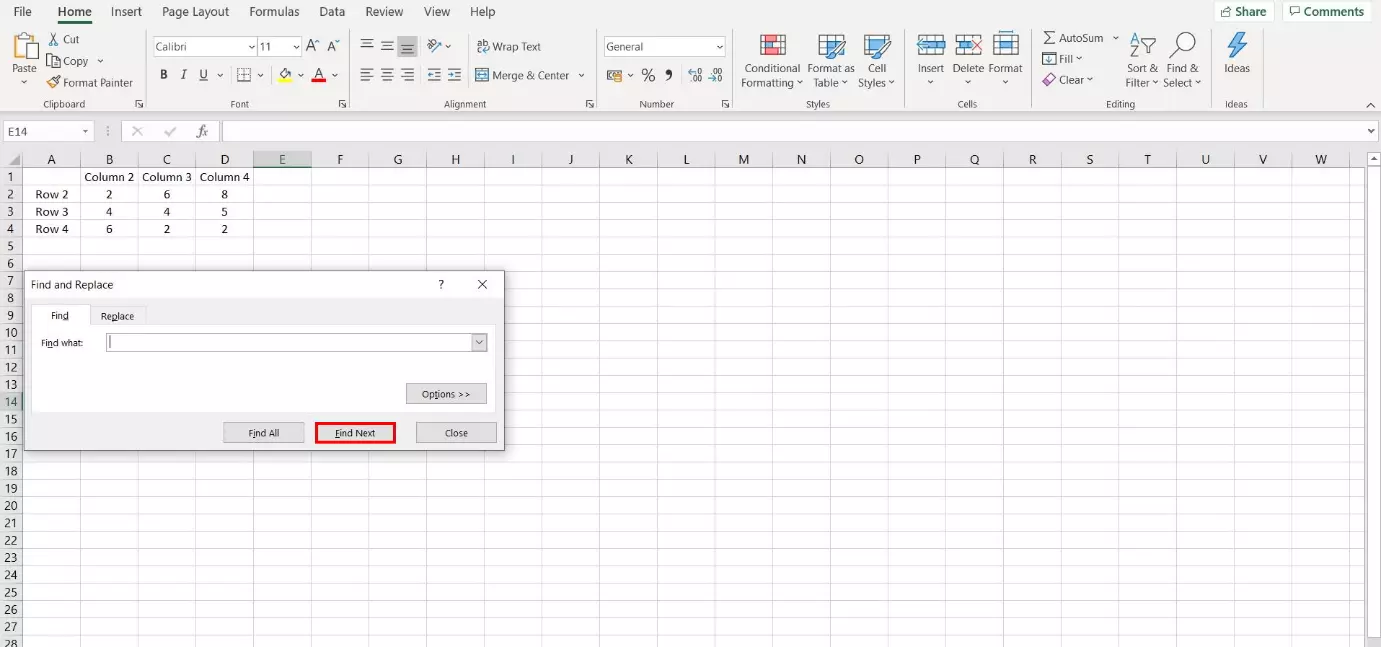
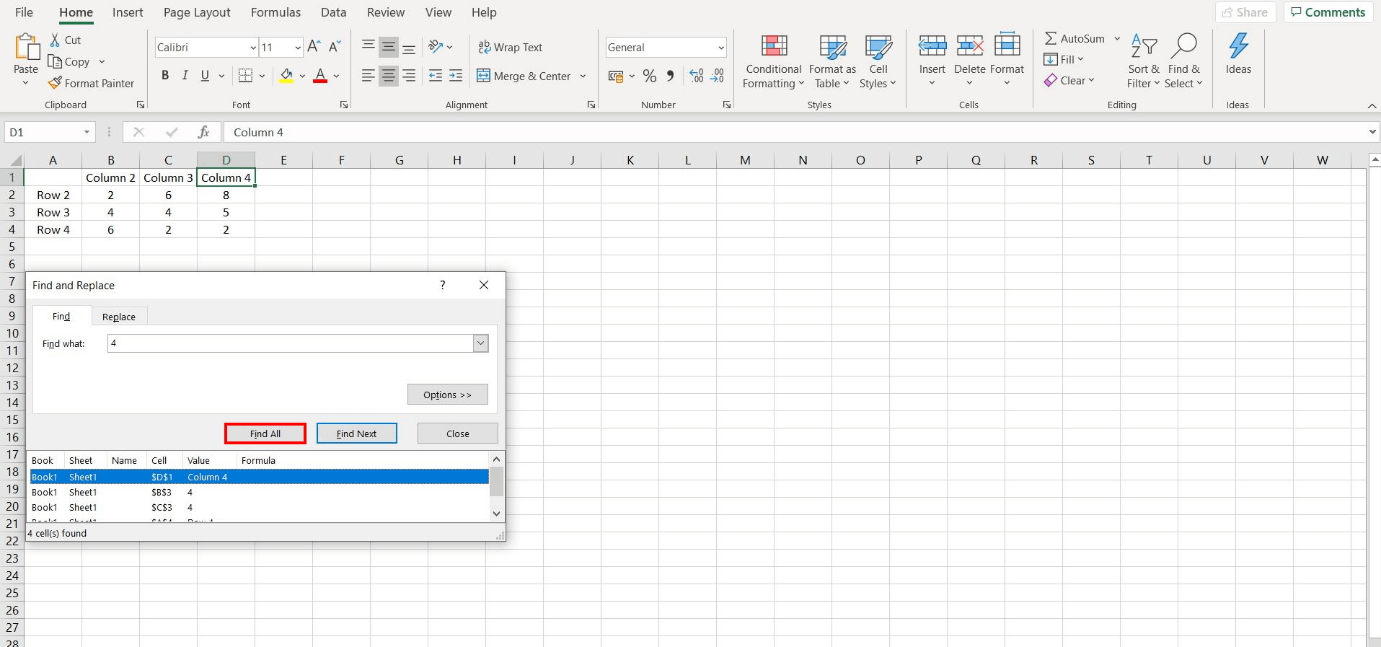
The dialog window Find and Replace will open and the search option is automatically displayed. To begin searching a document, enter a character combination into the “Find what” field. Select “Find Next” or hit Enter. Excel will mark the first cell containing your search combination. Select “Find Next” to continue to search for your numbers or letter in the next matching cell.
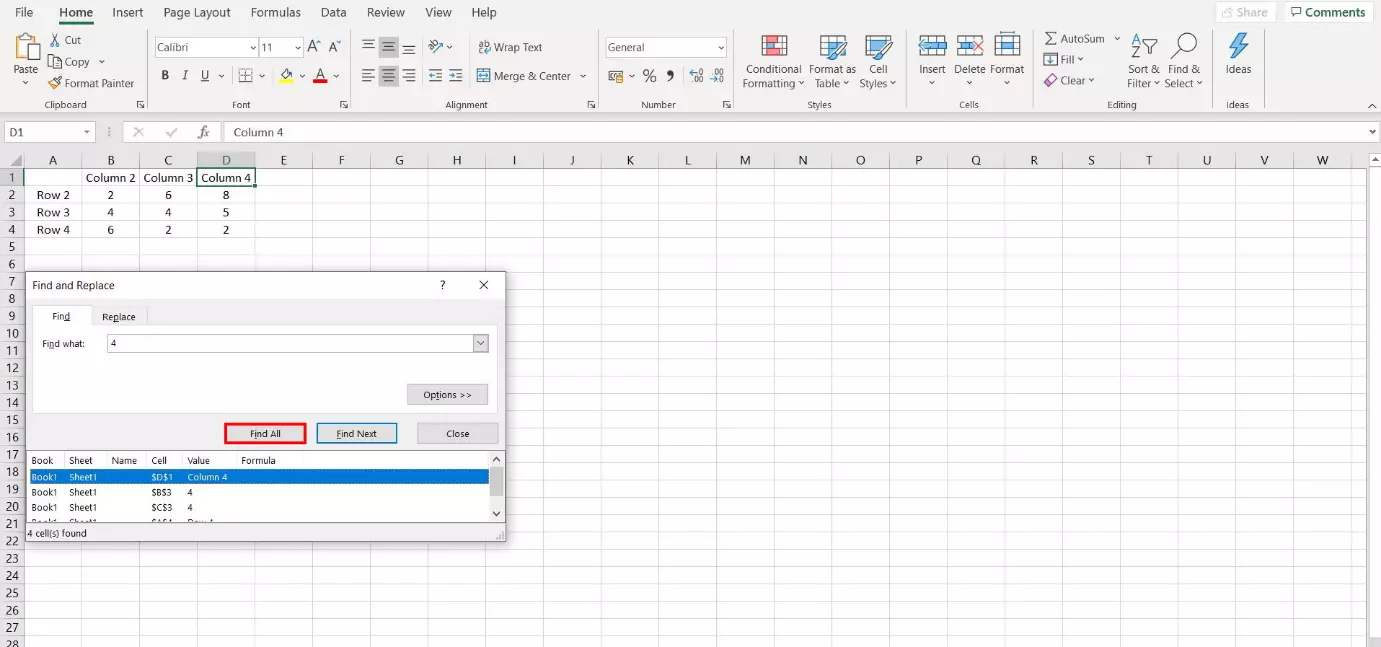
“Find All” is a useful feature if you’re looking for a value occurring multiple times across a large data table. Select the option from the pop-up menu. Excel will be highlighting all cells that match the search term. Make a selection and the program will mark the corresponding cell(s). In addition, Excel offers the option to sort results. Click on the column header to match the sequence.
- Up to 50 GB Exchange email account
- Outlook Web App and collaboration tools
- Expert support & setup service
Find feature: extended options
Excel provides a range of additional options to define your search more clearly. Click on “Options” to start.
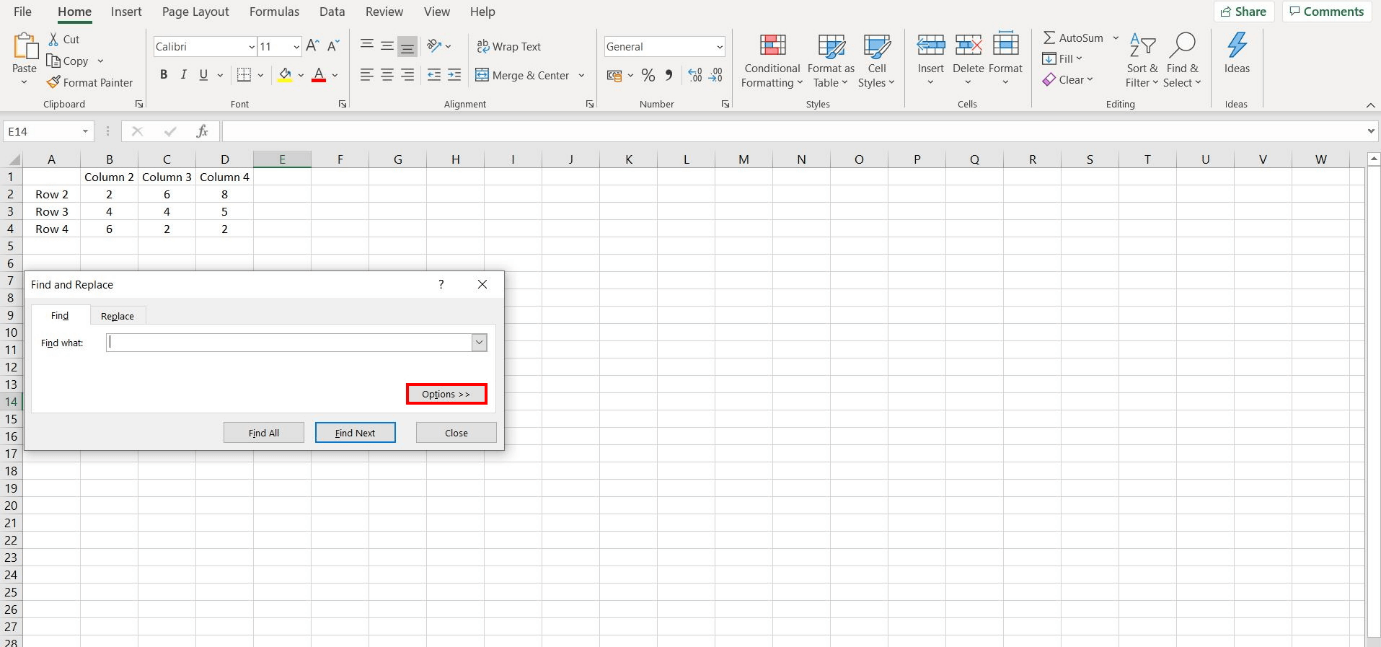
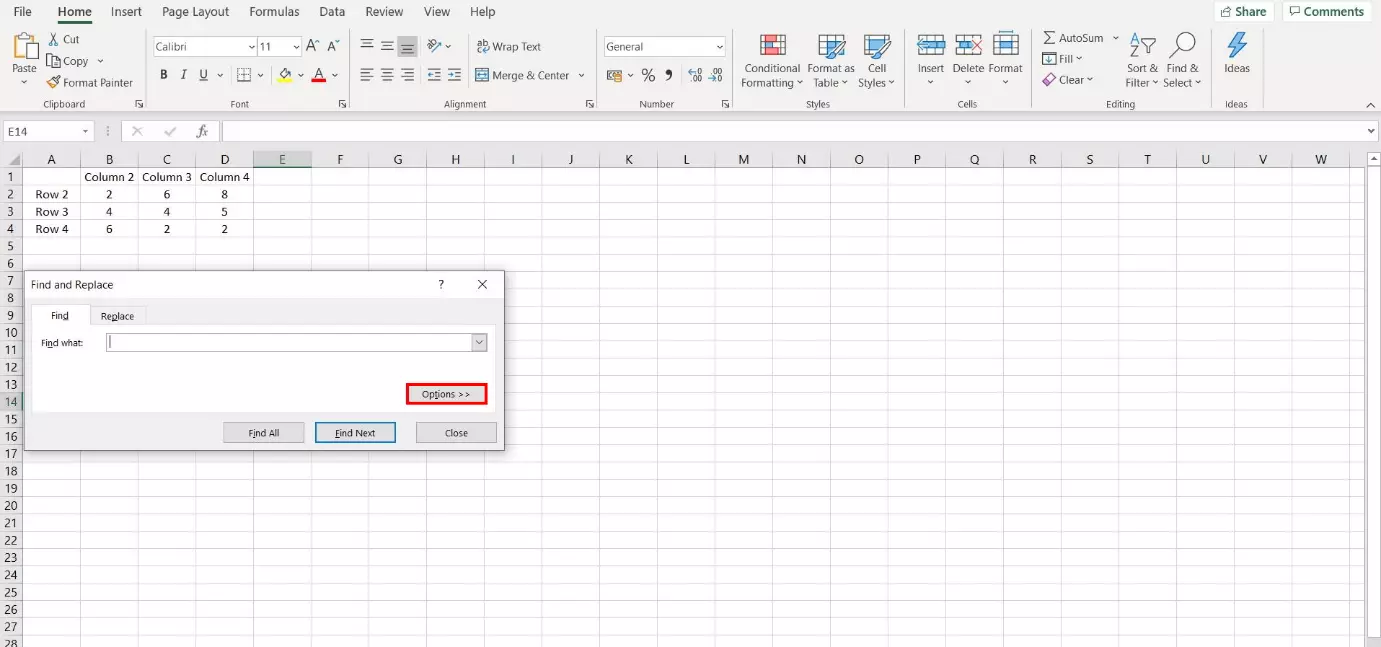
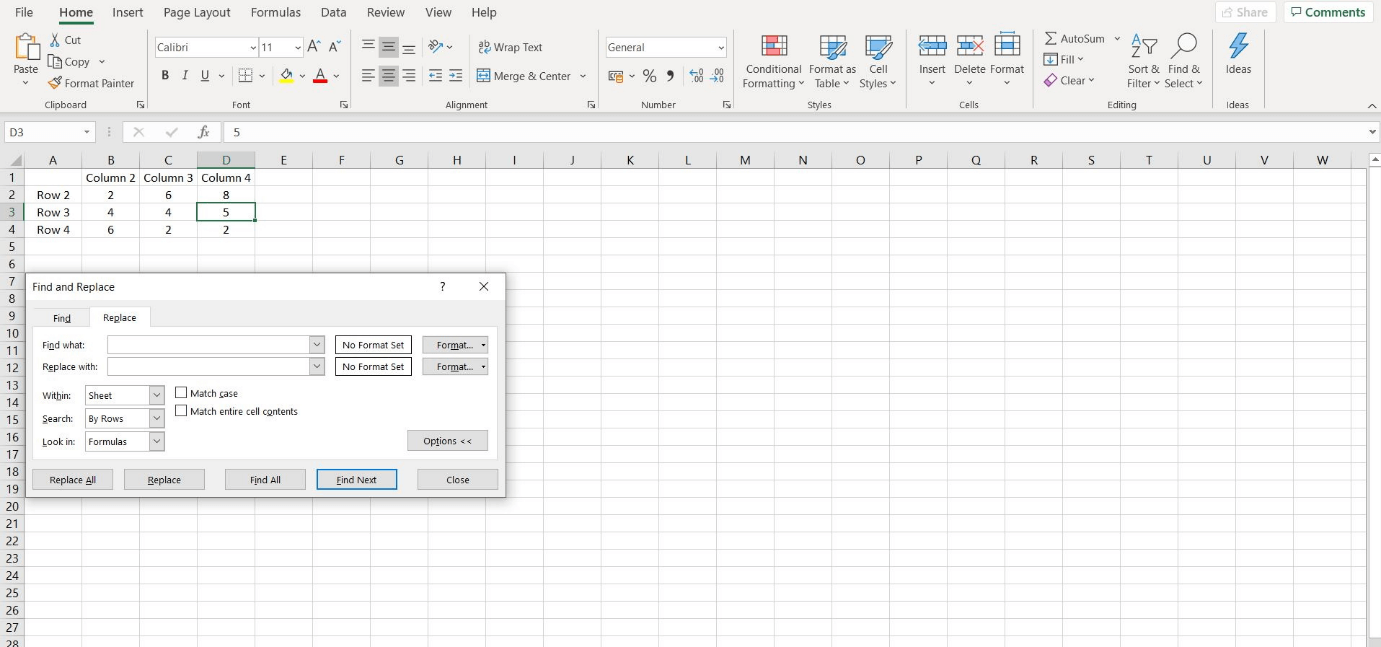
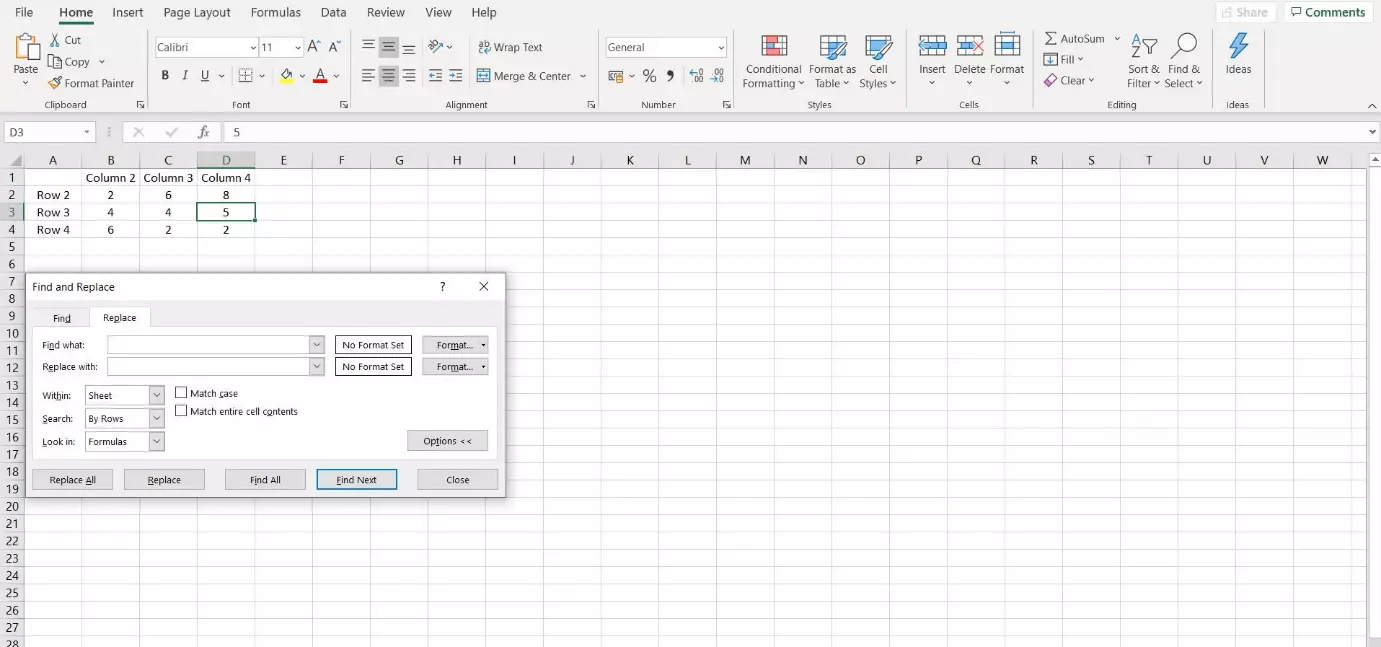
The dialog window will expand and launch various options: the dropdown menu next to “Find” allows you to define the cell area in which to search. If you select “Sheet,” Excel will only search for the specified terms within the current Excel sheet, while “Workbook” expands the search to all sheets within a Excel document. You can also search for terms by row or column. Selecting these will also affect the order of your search results. The feature determines the direction in which a search will take place in – from the position of your current active cell. Besides “Search by…”, Excel lets you “Look in…” formulas, values, notes, and comments.
Formulas are not viewable, because Excel only shows the results in a cell. If, for example, a cell contains the Excel formula SUM “=SUM(4,4)”, only the result (“8”) will be viewable in the cell. By using “Look in…” and selecting “Formula,” the program can find the formula numbers “4.”
If capitalization of individual words is important for your search, make sure you tick the relevant box. By clicking “Match case,” Excel will only show cells that exclusively contain your search result.
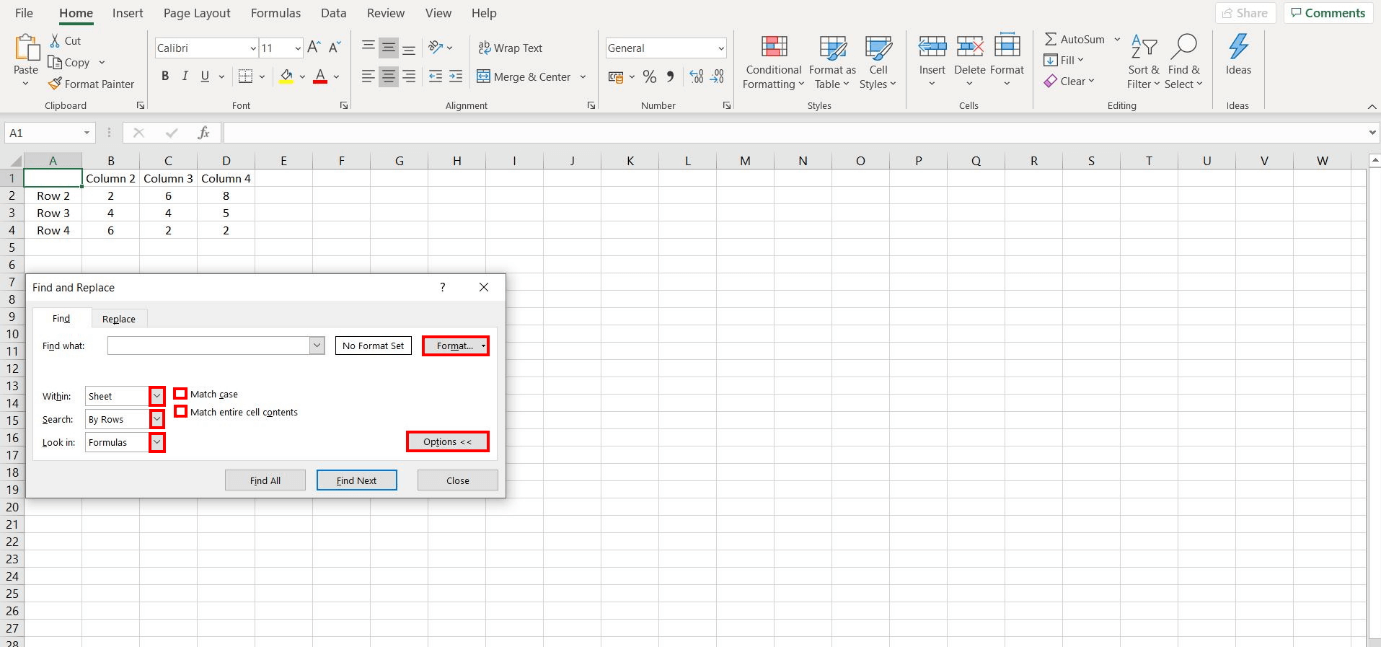
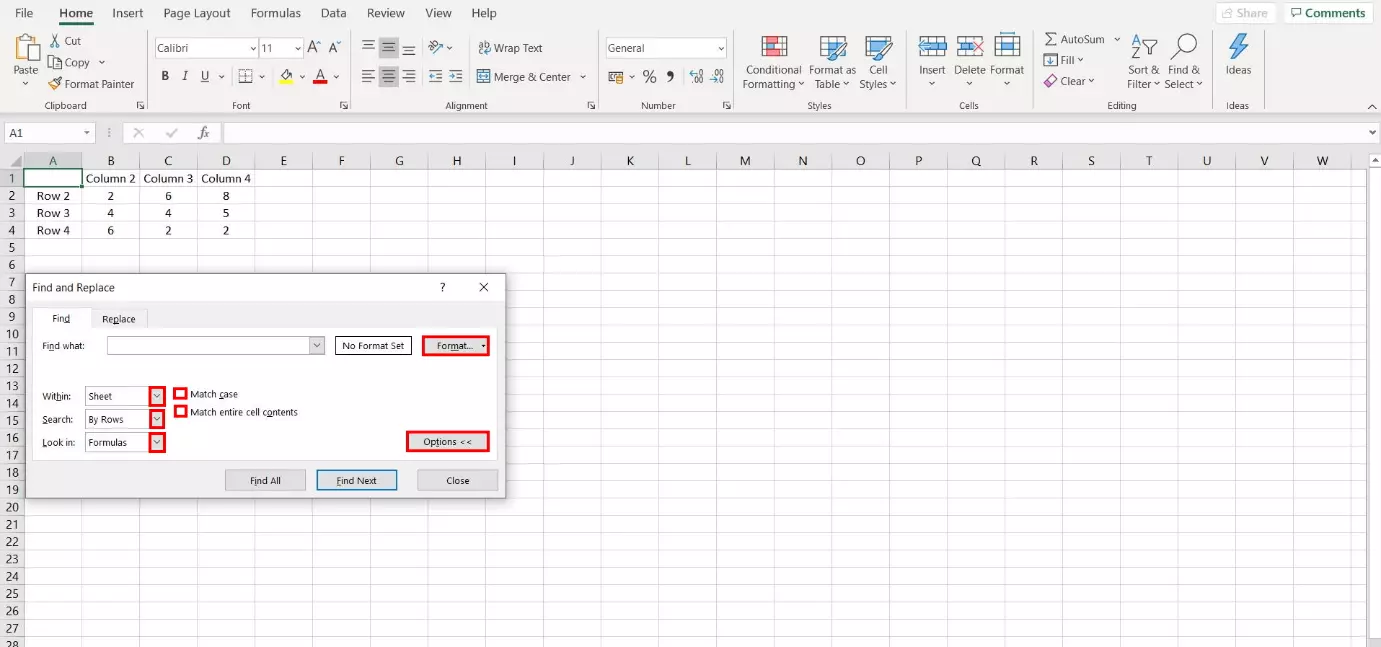
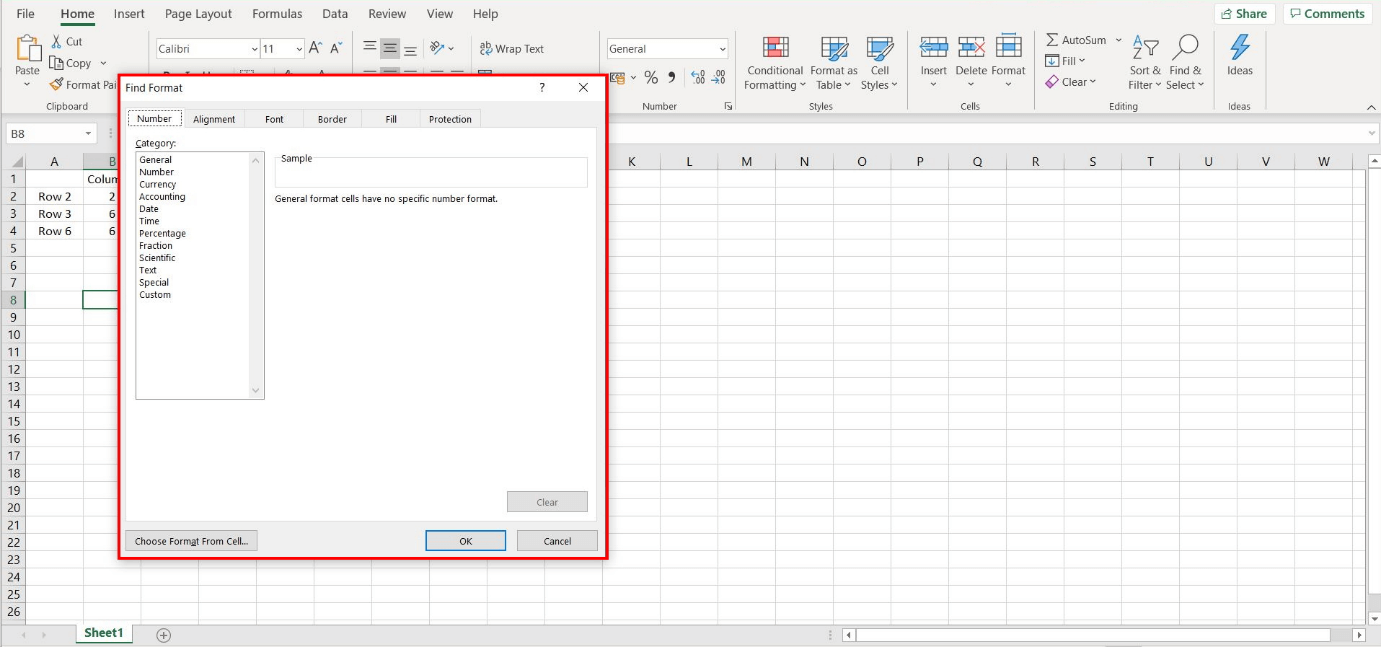
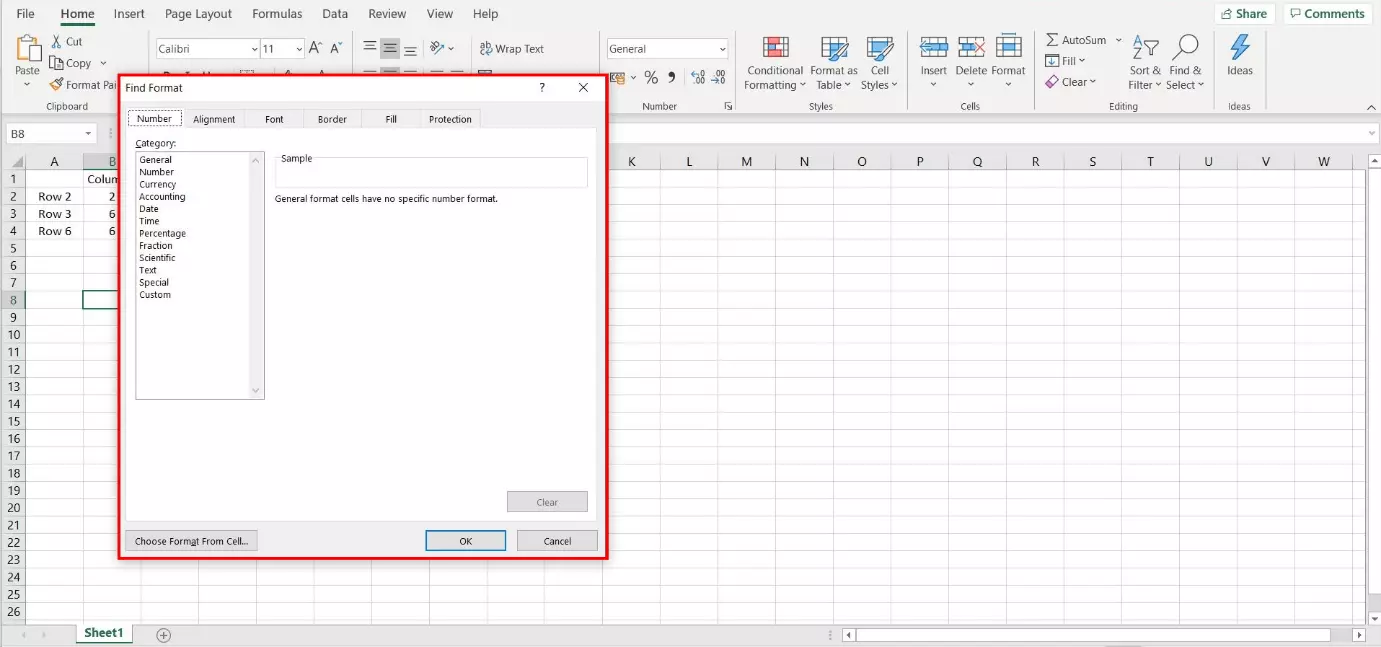
To search for cells that have been formatted in a certain way click on “Format.” A new dialog window will open where you can define your formatting. Alternatively, launch the drop-down menu by clicking on the arrow to the right. Choose “Format Cells” and select a cell containing the desired formatting.
Replace: step 1
When working with large data sets, it can be hard to spot values that you already know will require replacement. On some occasions, you may need to replace multiple values at the same time. That’s where the Replace feature can prove useful. Using this tool, Excel will replace the specified text or number after automatically searching for it.
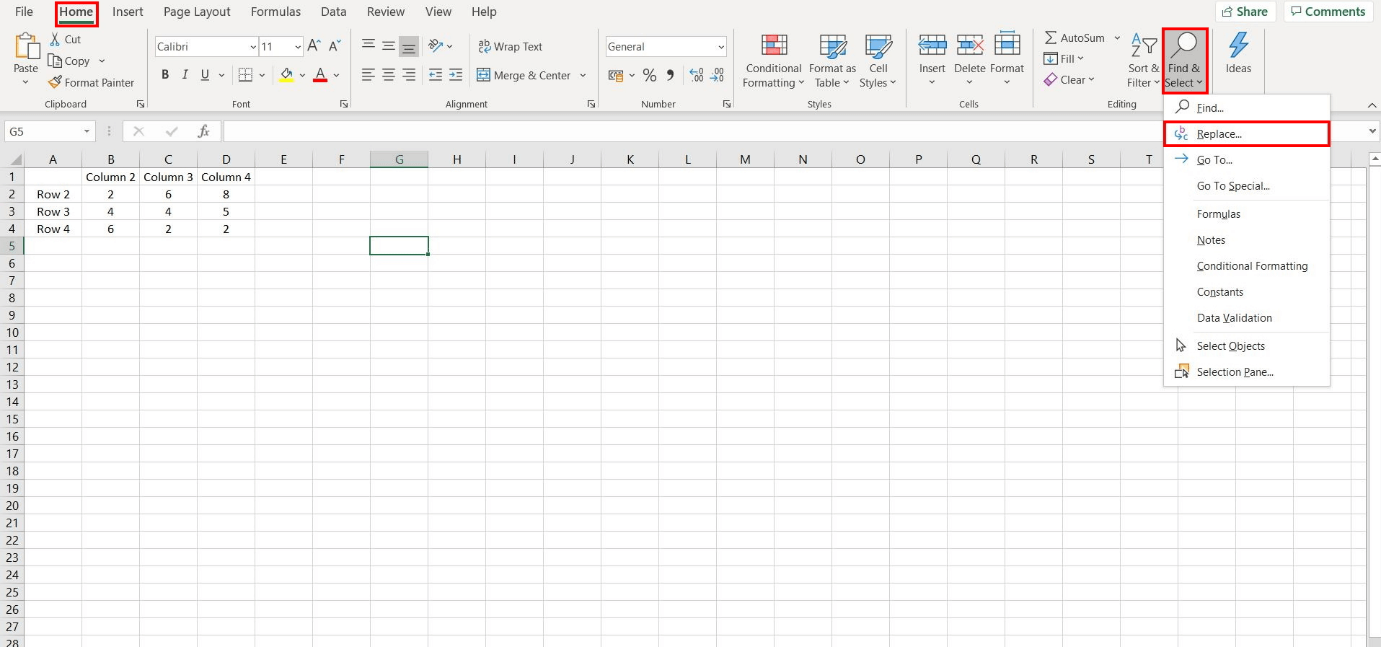
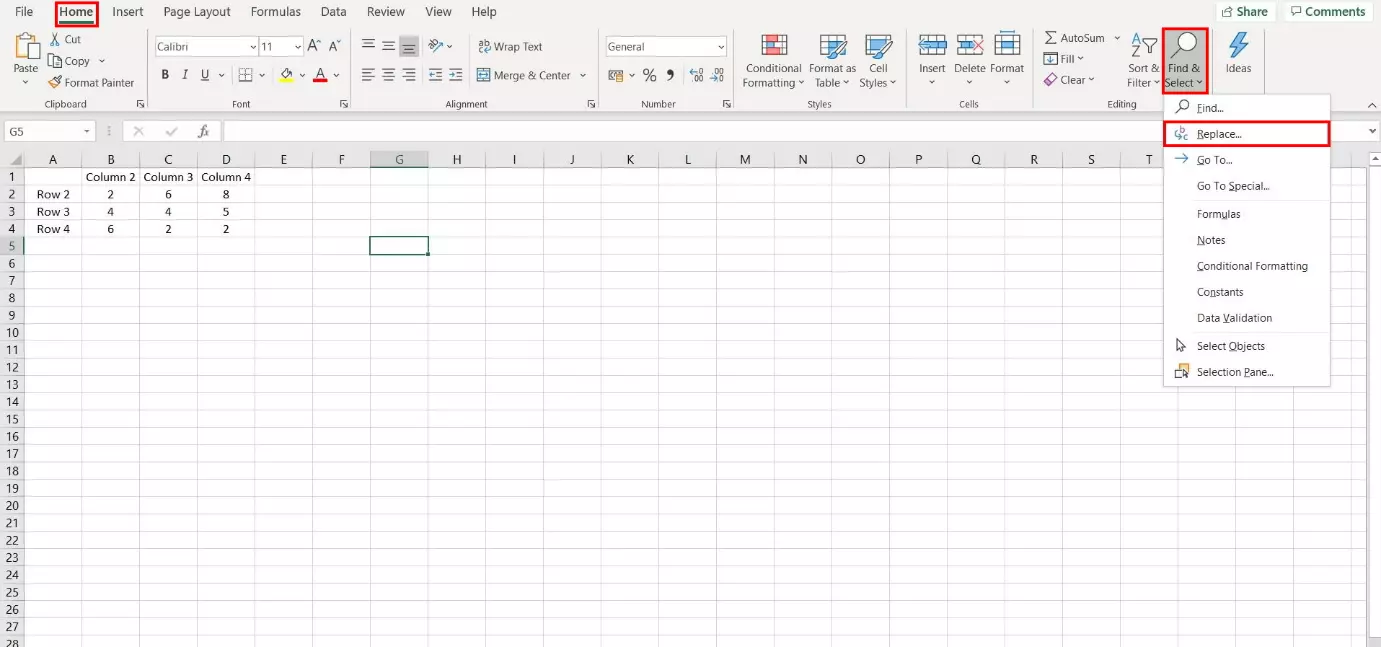
If you’ve just searched for a text or a number, the dialog window for Replace will already be opened (second tab). Otherwise, choose “Replace…” from the “Find & Select” option from the header dashboard.
You can use a shortcut to launch Replace even faster by pressing “Ctrl” and “H” on your keyboard at the same time.
Replace: step 2
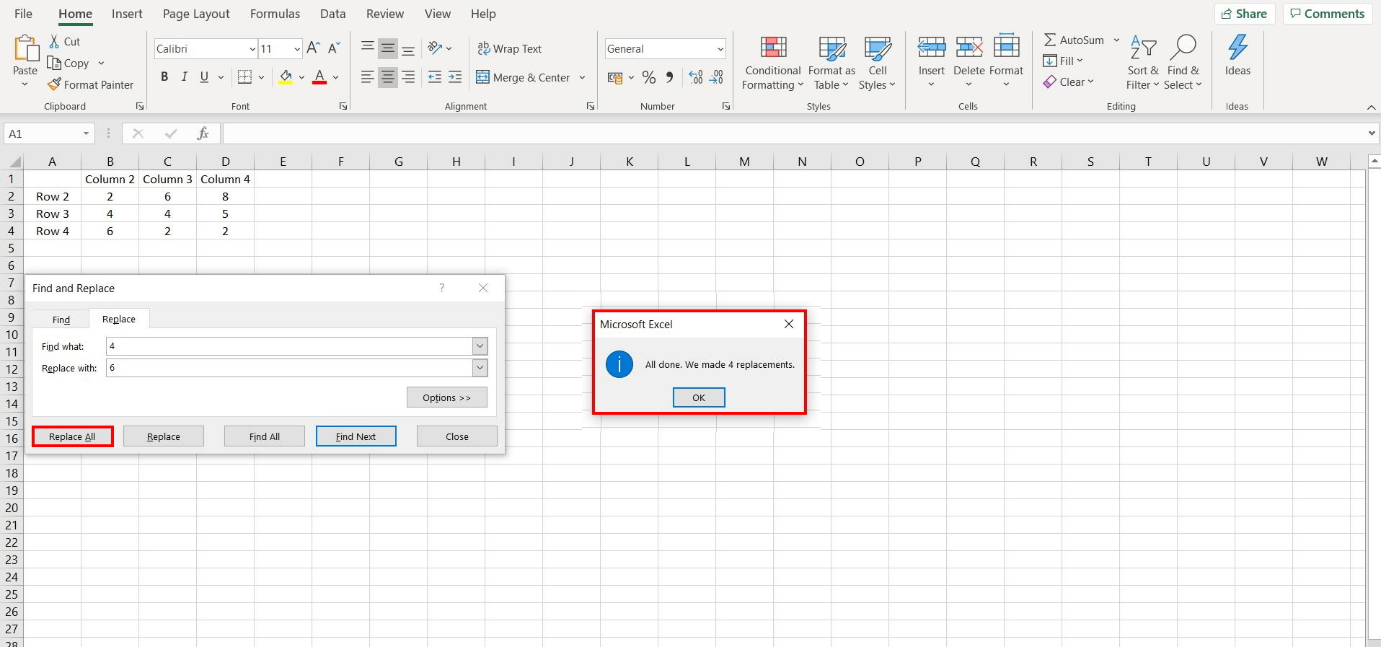
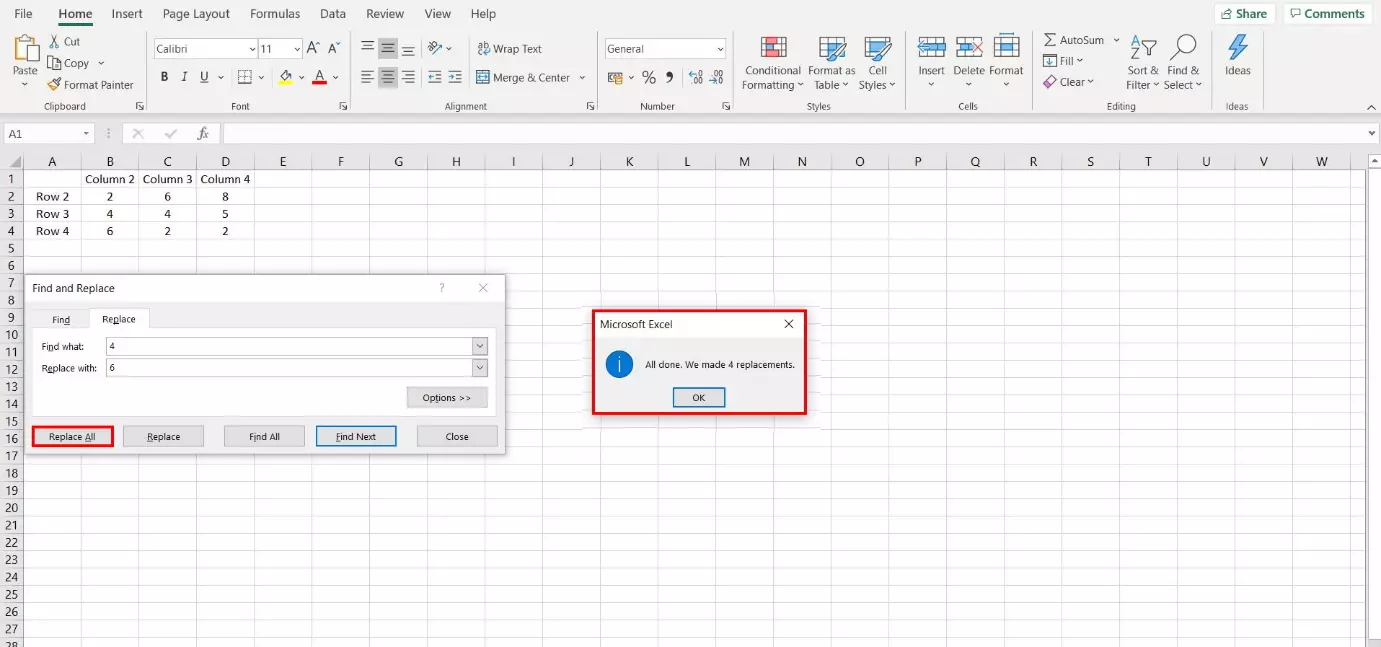
The Find and Replace features in Excel are fairly similar. To Replace a value, enter the number of text into the dialog field (“Find what”) and specify what you would like to replace it with (“Replace with”). In the first instance, you can search for and replace existing values.
To search and replace values in Excel, you can either hit the Replace button to replace one occurrence of a search term after another. This is advised if you want to keep a better overview of individual cells in large documents.
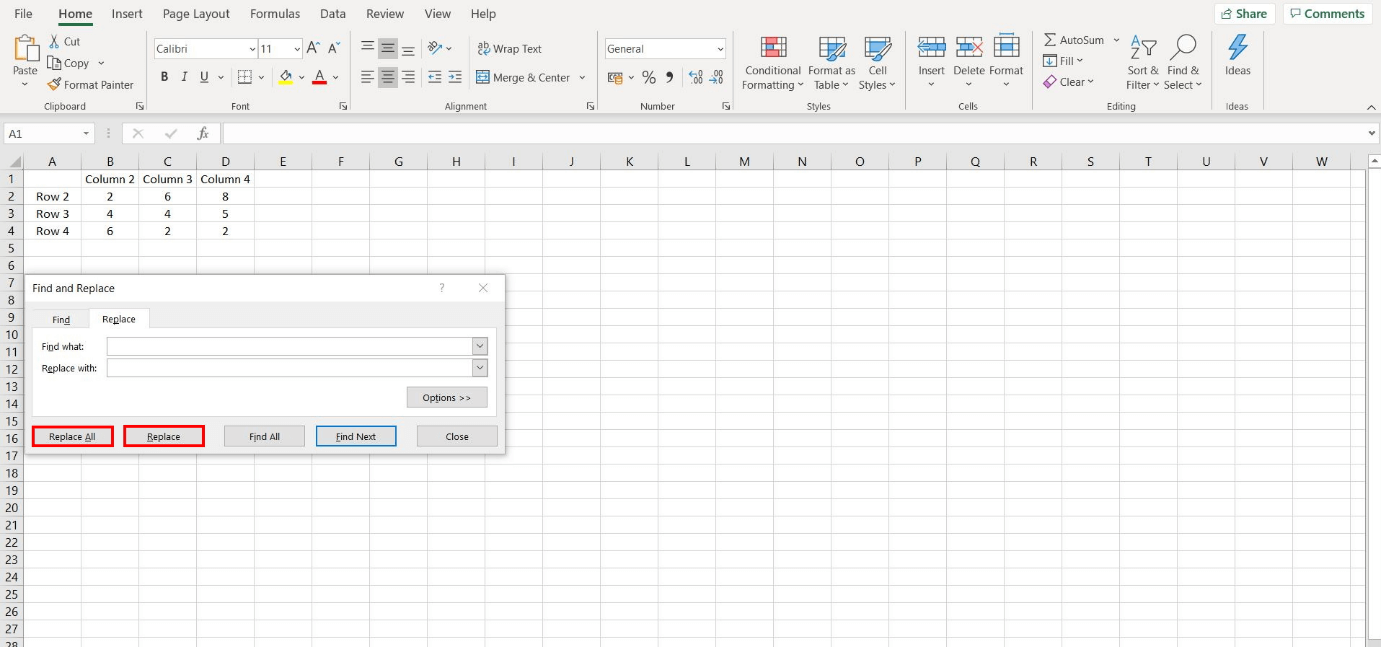
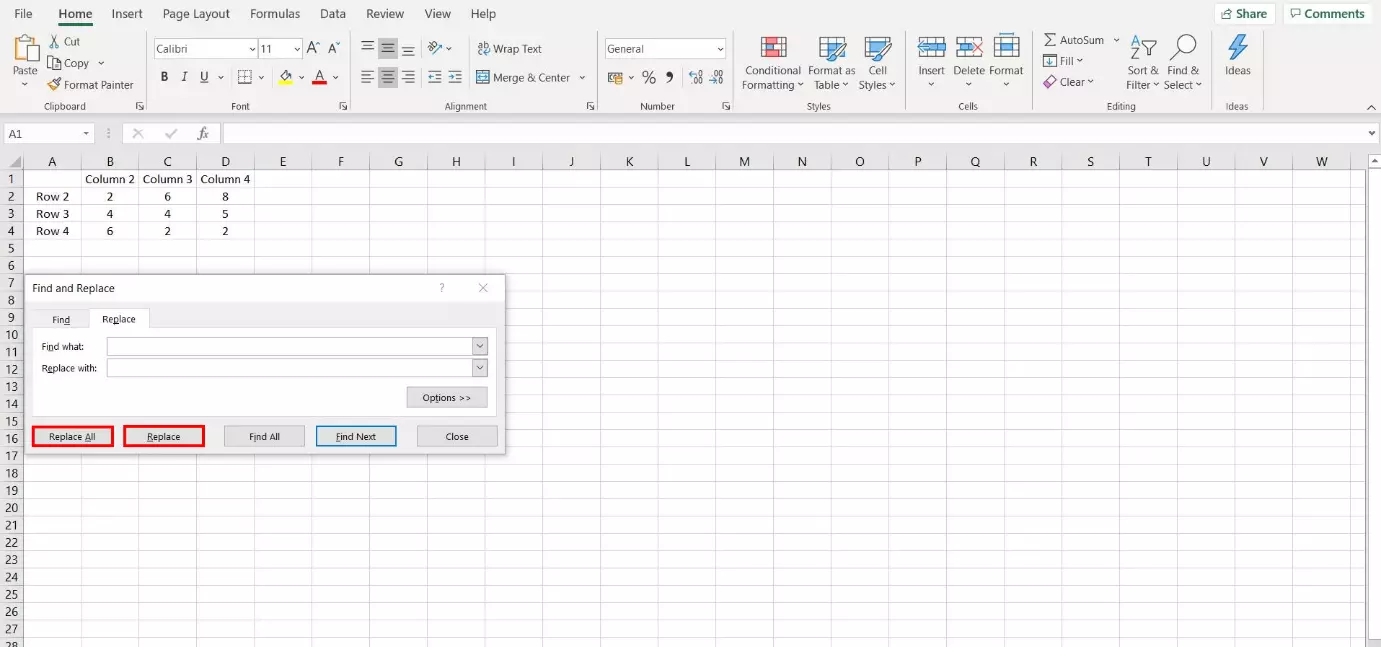
If you’re certain that you’d like to replace all cells of a certain value, click “Replace All.” A window will pop up automatically and show the number of cells that have been replaced.
To delete a search term instead of replacing it, leave the “Replace with” field empty.
- All your favorite Google productivity tools
- Business Gmail for your domain
- Using Gmail with your domain from IONOS
Replace: extended options
Similar to using Find, Excel provides a range of additional options when using the Replace feature that are more or less identical to the Find options. However, “Search by…” is restricted to formulas; values, notes, and comments aren’t an option here.
If multiple people are working on a table, some values may accidentally be entered twice. Excel offers a dedicated feature to detect and delete such entries. Find out more in our article on deleting duplicates in Excel.
Placeholder symbols: Find and Replace unknown values
Sometimes you may not know which values or results you’re looking for – that’s particularly true for large Excel documents. The spreadsheet software offers placeholders for these situations to search for character combinations which fulfill certain criteria. We’ll show you which placeholder symbols Excel recognizes.
Question mark (?)
The question mark symbolizes an unknown character. Let’s assume you’re searching for “y?s”, Excel would list results such as “yes”.
Star sign (*)
The star sign is similar to the question mark with the main difference being that it doesn’t just display a single character but also results containing multiple characters. If you search for “y*s”, Excel could list results such as “eyestalk” or “yes”. If you require a list of all words that begin on a certain letter, you could search for “S*”, for example. All words starting on “S” would be selected.
Swung dash (~)
But how does a search for a placeholder work? In that case, you can use the swung dash. Enter it before the placeholder sign you’re looking for, for example “~?” or “~*”. You can even search for a swung dash in this way “~~”.
The complete Microsoft 365 package provides all the Office software you need for your day-to-day work.