

What are Excel formulas? An explanation and overview

Excel offers you a range of simple and complex formulas for performing calculations. Similar to a pocket calculator, the spreadsheet program takes on the work of calculating and evaluating data. It is able to do this via formulas.
What is the definition of an Excel formula?
When you know the right Excel formulas, the software can be used like an intelligent calculator. At a basic level, an Excel formula is nothing more than a mathematical equation consisting of symbols, numbers and letters. By using arithmetic operators, you can use Excel formulas to add or multiply, as well as perform other actions. By combining cell references or constants with arithmetic operators, you can not only calculate individual cell values but also work with complex cell ranges.
- Up to 50 GB Exchange email account
- Outlook Web App and collaboration tools
- Expert support & setup service
What is the difference between formulas and functions in Excel?
Just like formulas, Excel functions are an important spreadsheet tool. Although the two are similar and are often combined, there is a clear difference between Excel formulas and functions:
- Formulas: A formula always begins with an equals sign, followed by the cell references or cell address. These are linked using certain calculation operators such as
+for adding or-for subtracting. - Functions: A function can be made up of formulas but is not a formula itself. Functions are automated operations, algorithms and programs such as ‘SUM’ or ‘ROUND’. Functions use a fixed, predefined combination of formulas to deliver a specific result. They are particularly suitable for complex numerical values and can therefore also be part of a formula.
To illustrate the difference between formulas and functions, let’s compare adding cells A1 to A6 as a formula and a function:
| Addition via Excel formulal | Addition via Excel function |
|---|---|
| =A1+A2+A3+A4+A5+A6 | =SUM(A1:A6) |
One thing Excel formulas and functions have in common is that they both have the ability to create links between cells and the values they contain.
Overview of the most important Excel formulas
Below is a list of the most important formulas that you can use in Excel.
| Arithmetic formula | Excel formula example |
|---|---|
| Addition | =A1+A2 |
| Subtraction | =A1-A2 |
| Multiplication | =A1*A2 |
| Division | =A1/A2 |
| Exponentiation | =A1^2 |
| Selection and application of cell range | =A1:A10 |
How do Excel formulas work?
Excel formulas use various calculation algorithms based on cell references, constants and linked calculation operators to perform arithmetic operations. Each formula that you enter in a selected cell in Excel must begin with an equals sign =. Cell references and operators are entered after the equals sign. For example, you would use the formula =A1+A2 to instruct Excel to add the content of cells A1 and A2 together and display the result in the cell where you have entered the formula.
If you want to use several operators in an Excel formula, it is worth noting that multiplication and division always come before addition and subtraction.
What is the structure of Excel formulas?
Every Excel formula begins with the equals sign =. This is followed by row references, i.e., the addresses of the rows that are needed for the calculation. Alternatively, you can calculate with constants. These are fixed cell values that don’t change. The individual row references are again combined with calculation operators.
An Excel formula can contain the following components by themselves or in full (typically in the order shown below):
- Equals sign
= - a function like
SUM - Cell references (for example, A2 or B3)
- Constants (with moving or copying a formula, constant text or numerical values in cells such as “3”)
- Operators such as
*or+
The following examples illustrate the structure of Excel formulas:
- Example 1: If you want to add rows A1 to A4 together using an Excel formula, the formula would look like this:
=A1+A2+A3+A4 - Example 2: If you want to divide the numerical values of cells A1 and A2, the formula would be:
=A1/A2
What are the arithmetic operators for Excel formulas?
You’re probably already familiar with the basic arithmetic operations that Excel offers for formulas from the math lessons you had in school. The following calculation operators can be used, depending on the type of calculation or cell and value evaluation:
- Addition:
+ - Subtraction:
- - Multiplication:
* - Division:
/ - Exponentiation:
^
- Store, share, and edit data easily
- Backed up and highly secure
- Sync with all devices
How to use excel formulas
In the following section, we’ll show you various ways you can use, edit or show Excel formulas.
Create Excel formulas
If you want to enter an Excel formula that relates to values in cells, do the following:
- Click on any cell or a cell adjacent to the cell value that you want to use in the formula.
- Now enter the equals sign
=. - Select the cells for your formula. Alternatively, you can enter the address of the cell after the equals sign.
- Now enter the calculation operator you want to use, for example,
+or-. - Now select the next cell or enter the cell address for the cell that you want to place after the operator.
- Press the Enter key to see the result of the formula.
Edit Excel formulas
If you want to change an Excel formula you have created, you have two options:
- Option 1: Click on the cells with the relevant formula and change it directly in the cell.
- Option 2: When you enter an Excel formula in a selected cell, it also appears at the top in the formula bar.
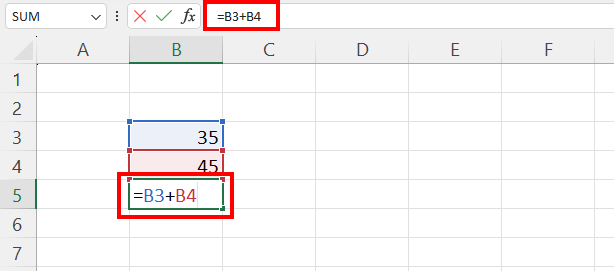
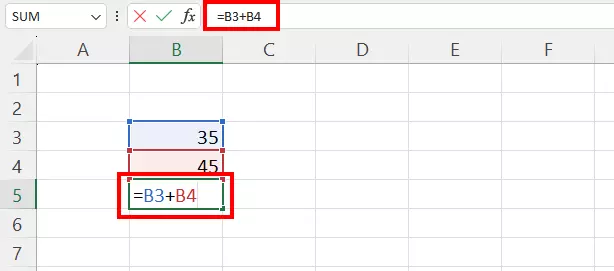
Show Excel formulas
If you want to show a formula used in the data sheet retrospectively, do the following:
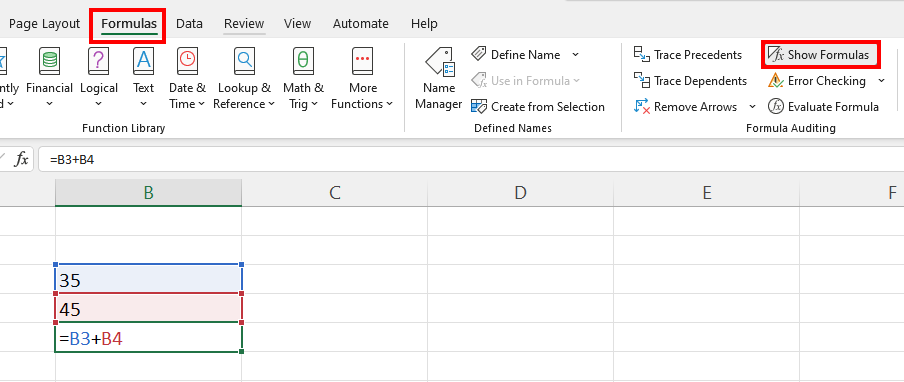
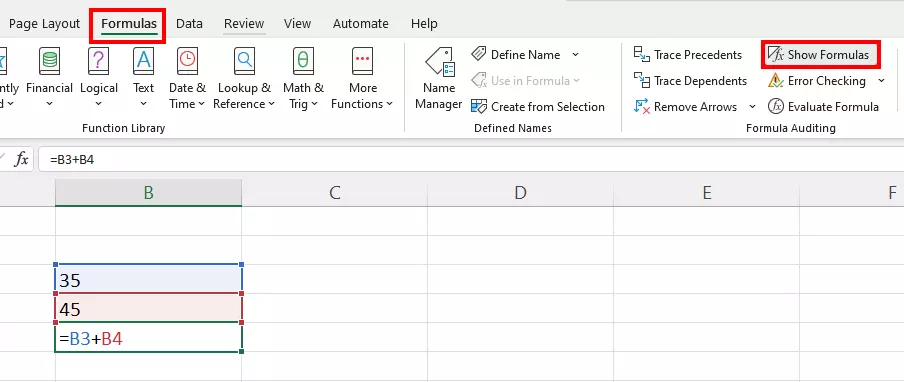
- Open the Formulas tab at the top of the menu bar.
- Select the Show formulas option.
- You will now see the formula used in the selected cell.
Use functions in Excel formulas
When creating an Excel formula, you can also integrate a function. To do this, proceed as follows:
- Select the cell you want to use for the formula.
- Enter the relevant function after the equals sign. This could be
SUM, for example. - Now enter an open bracket as you normally would for functions and select the cell range you need for the calculation.
- Close the bracket at the end of the function.
- You will be shown the result after you press the Enter key.
Delete Excel formula and keep the result
To remove a formula from the data sheet and only keep or insert values, do the following:
- Click on the cell with the corresponding formula. Copy the content of the cell using the Excel shortcut [CTRL] + [C].
- Select the cell where you want to insert the value without formulas. Then go to the Start tab and click on the small arrow pointing downward under Paste in the Clipboard menu area.
- In the Paste values section, select the Values option to paste only the values (i.e., the result without the formula).
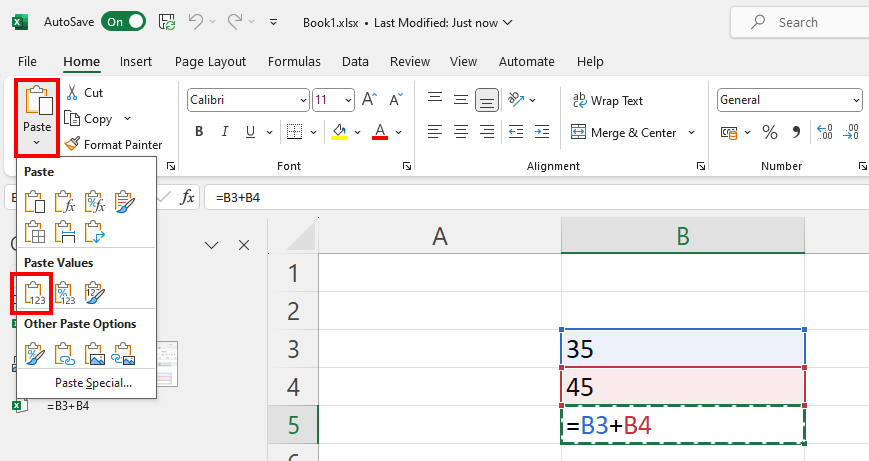
The benefit of removing formulas is that you leave the data sheet or workbook with all the results clearly arranged. This way you can pass it on to third parties without any formulas getting in the way.
Powerful Exchange email and the latest versions of your favorite Office apps on any device — get started with our free setup assistance.