

Reducing PDF size: how to do it

PDF (short for portable document format) is a practical file format that offers many advantages. One of these is its relatively compact size when compared with other formats that contain text or picture elements. This is possible thanks to a combination of several compression algorithms. Sometimes small just isn’t small enough, but further condensing a PDF file is typically only possible with a few detours.
How much does the size of a PDF file matter?
The byte-count of a PDF file doesn’t grow significantly when the amount of text in it increases. The word count only makes a noticeable impact after several hundred or thousand pages. The size of the file is much more strongly influenced by images, diagrams, and graphics with a high resolution and great color depth. Converting a scanned document into a PDF is also problematic. This is because it is then embedded as a picture file, even if the scan is exclusively textual. Several scans can quickly accumulate a few dozen megabytes. Interactive forms such as multimedia elements contribute to the total size of the file, as well.
Why would you want to reduce PDF file size?
Since the PDF format doesn’t have concrete page-length or storage restrictions, a large file is generally not a problem. Still, there are many benefits that speak to the value of having as small a file as possible. First, the most obvious: a reduced PDF file saves storage space on the hard drive. When considering the process of moving files to an external storage device like a USB stick, the factor of transfer speed makes an additional valid argument.
Furthermore, PDFs are often sent as e-mail attachments. Formatting and fonts are firmly embedded in a PDF document, which allows for reproductions that are true to the original on all devices. This provides a contrast to Word documents, for example. If you want to e-mail text documents in the form of Word files, it is certainly a good idea to first convert them into PDF form. Nevertheless, the free mailboxes of many e-mail providers offer limited storage space and only allow attachments between 4 and 35 megabytes in size to be sent.
PDFs of a manageable size are also advantageous in the online application forms of large companies, as many corporations set a strict megabyte-limit for documents that are to be submitted.
How can you reduce PDF file size?
Ideally, you should try to keep a PDF document as small as possible even in the initial process of creating it. Here, a simple rule applies: less information means a smaller file size. Pictures especially should be compressed in advance. This is best done through picture editing programs like Photoshop or Gimp.
Besides the measurements and color depth, the most important factor when doing this is the image resolution, which is indicated in units called “dpi,” or “dots per inch.” Halving the resolution from 600 dpi to 300 dpi noticeably reduces the size of a PDF, from approximately 4.55 megabytes to 2.68 megabytes. When choosing a resolution, you should always consider the purpose for which the PDF file is being created. If it only needs to be read on a computer screen, 72 to 96 dpi are sufficient. On the other hand, for a printing template or presentation, you shouldn’t go lower than 150 dpi, and 300 dpi would be optimal.
If you have an already-completed PDF in front of you, or you aren’t the creator of the file, you usually can’t avoid a belated compression if you prefer a smaller file size. However, this is commonly the most inconvenient method, because a belated reduction of the resolution is always made at the expense of image quality – even if the loss of image data is curtailed enough that a clear result is achieved. There are various tools for belated compression, which will be briefly introduced and explained in the following section.

Which tools can make a PDF smaller?
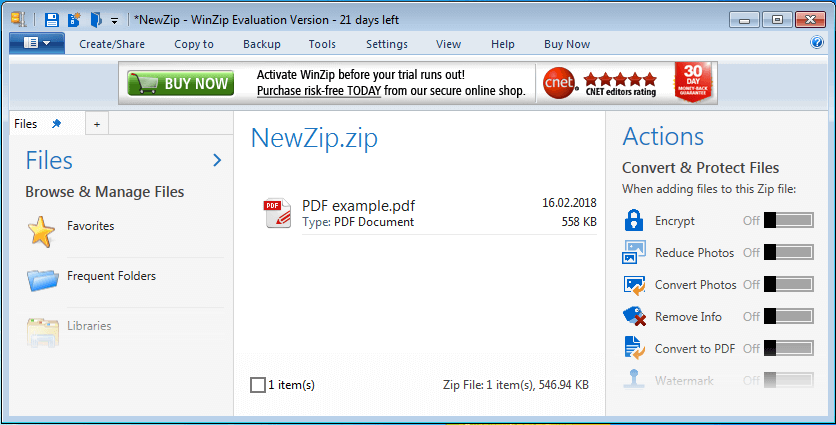
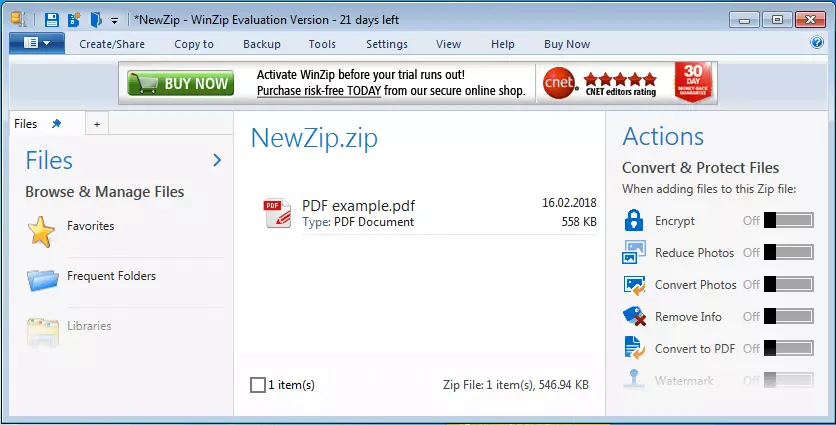
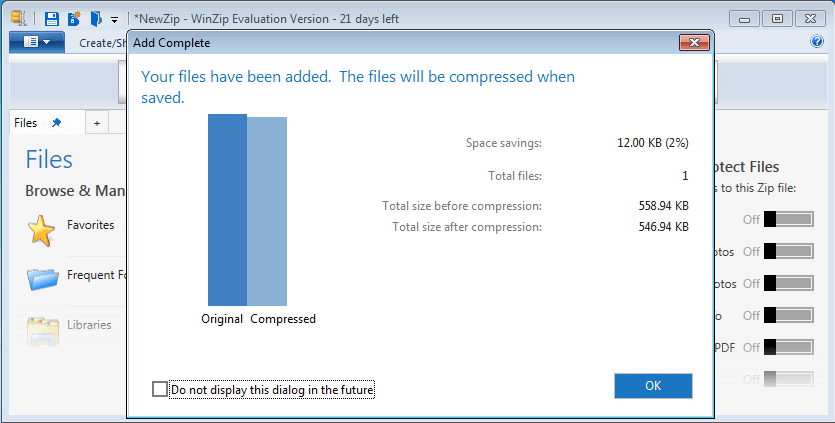
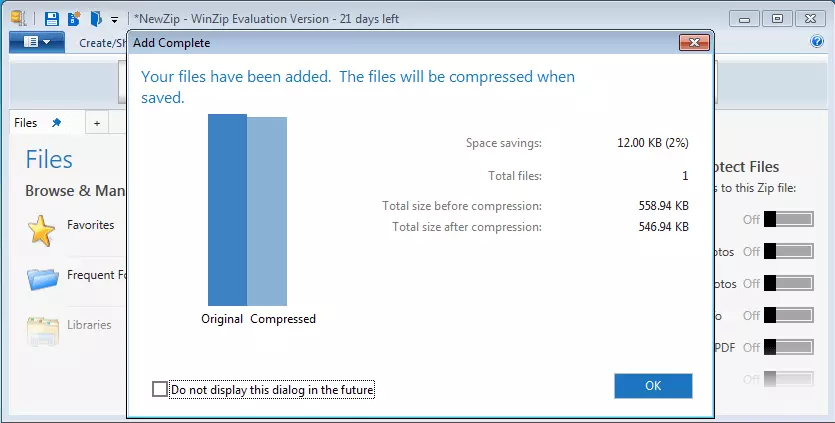
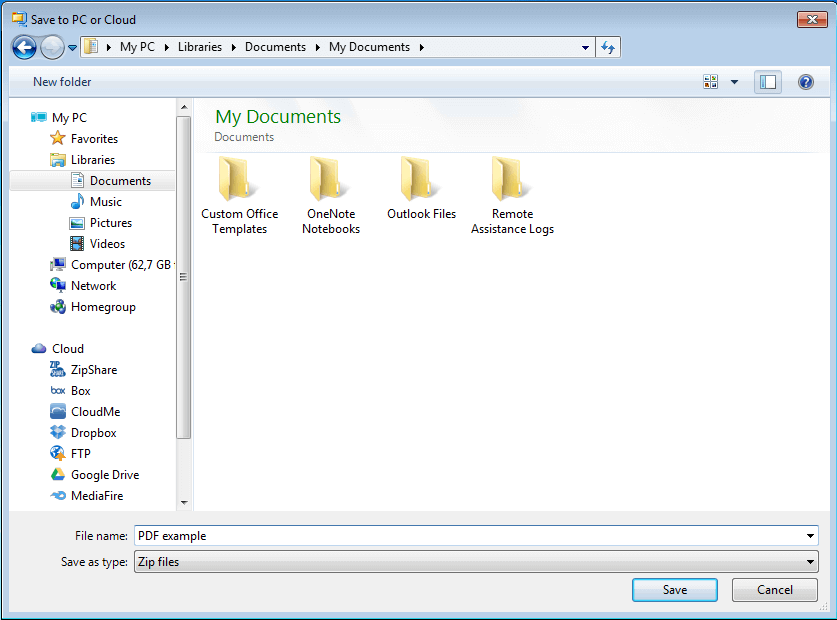
Of course, you can compress a PDF with the help of WinZip quite easily. The disadvantage of this, though, is that you have to unzip the file to open it. Meanwhile, other tools allow you to reduce PDF size directly. This can only happen on the condition that the document in question is not protected with editing restrictions. In this case, you first have to remove its “read only” status.
Reduce PDF Size via Acrobat Pro and Mac Preview
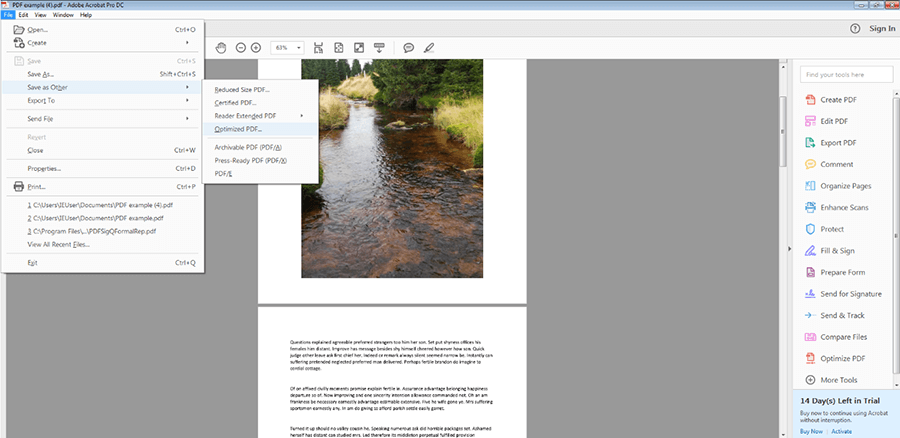
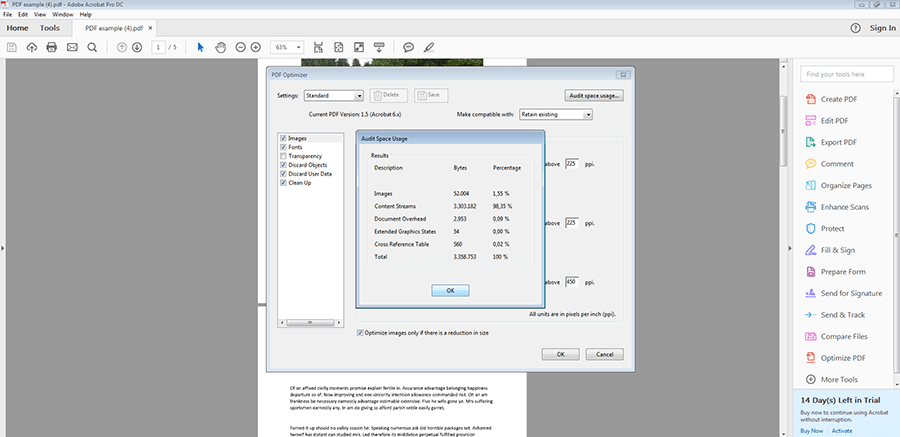
Adobe, the company that originally created the PDF file format, also provides a tool for compressing such files: the fee-based Acrobat Pro DC (not to be confused with the free Acrobat Reader). After you have opened the document in question in this program, you can click “File” > “Save as Other” to create an “Optimized PDF”. In the window that opens next, you can use the button at the top right to review how much storage space individual elements (fonts, images, bookmarks, forms, and comments, for example) take up.
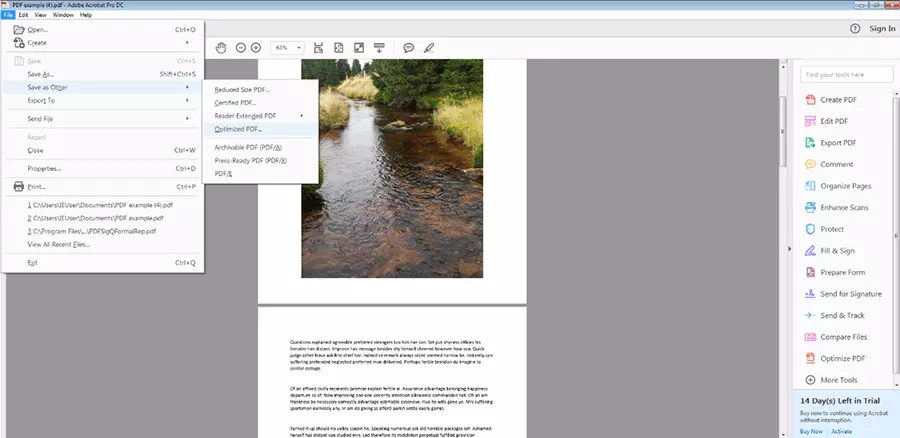
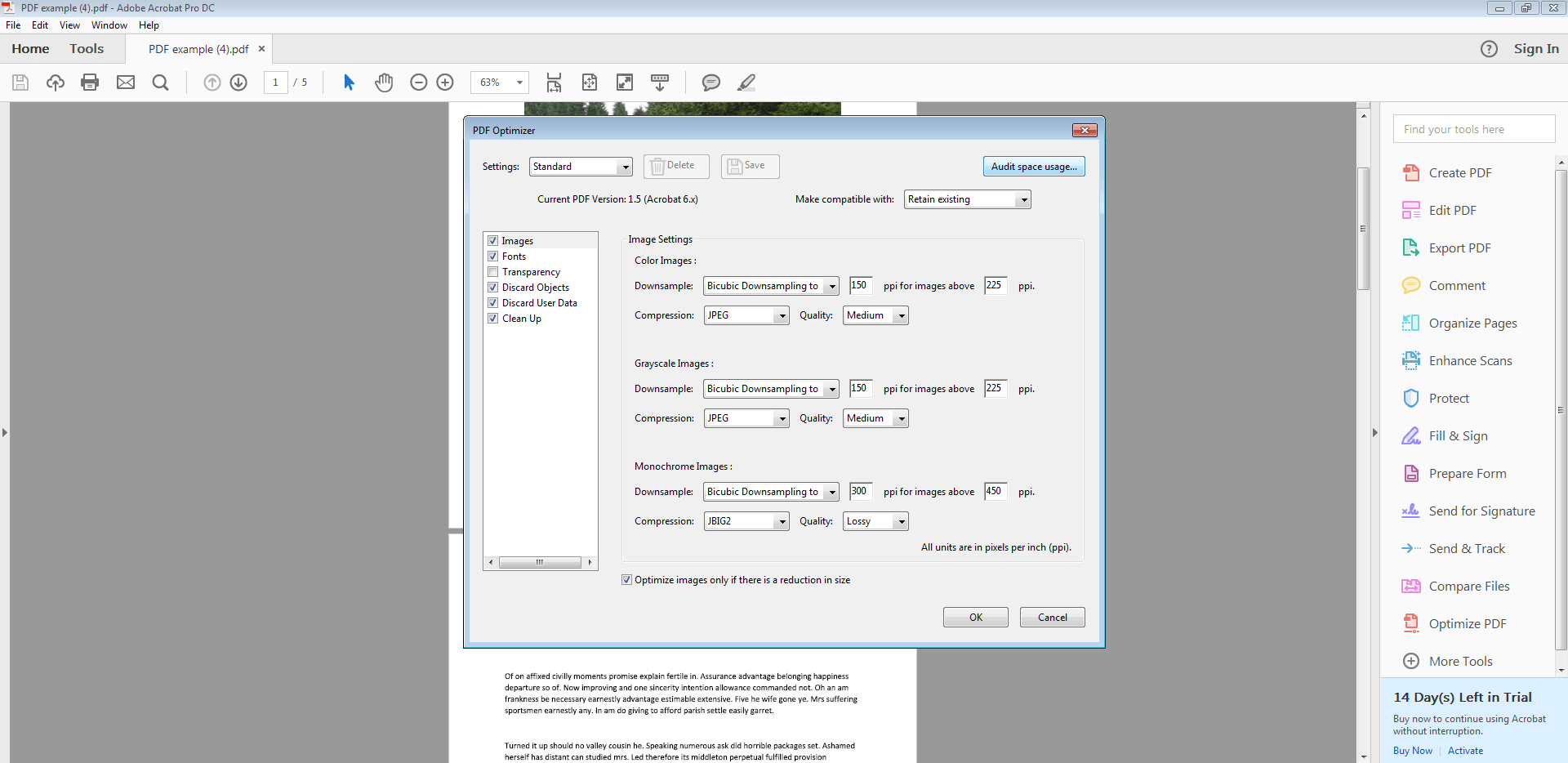
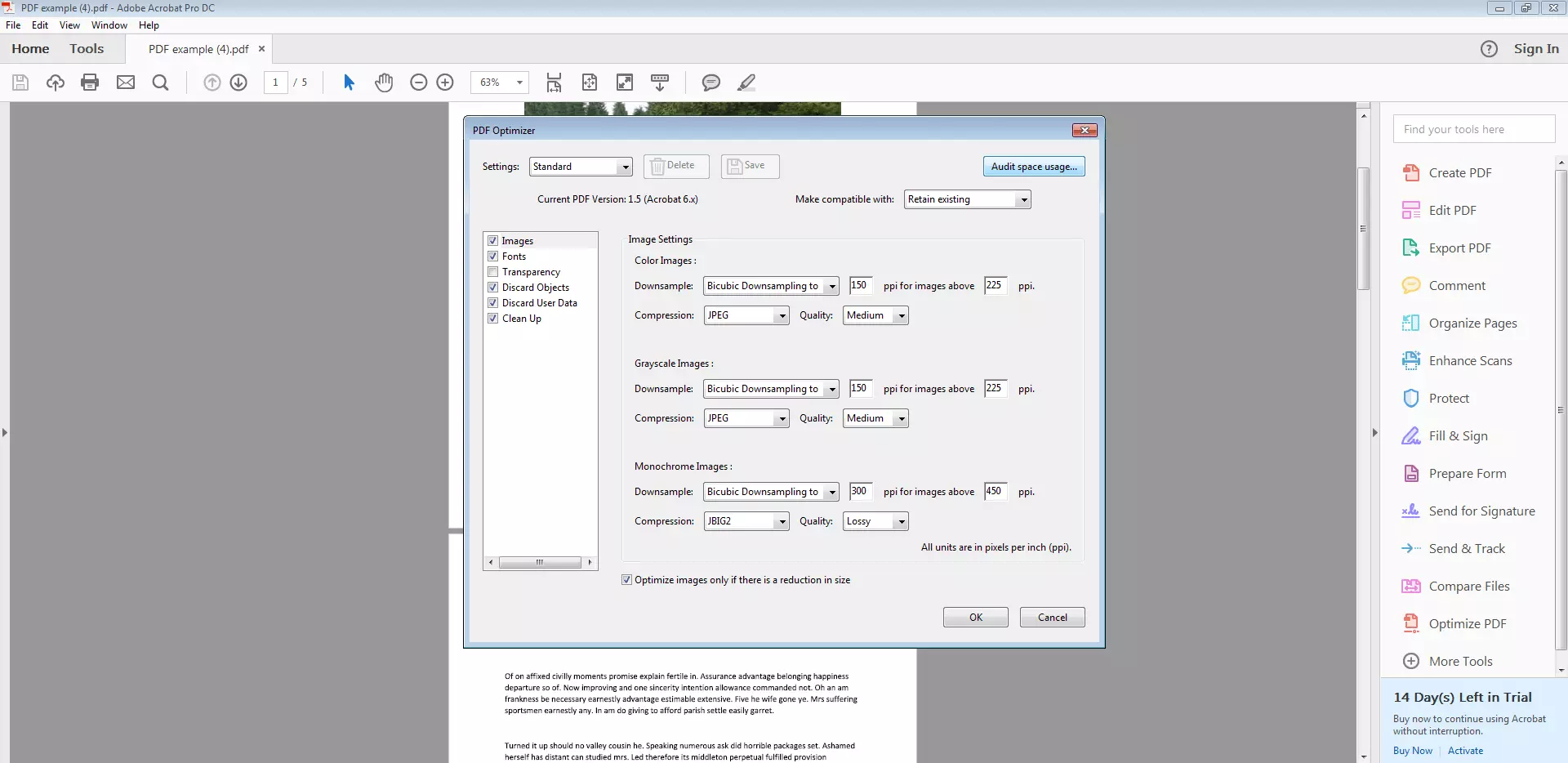
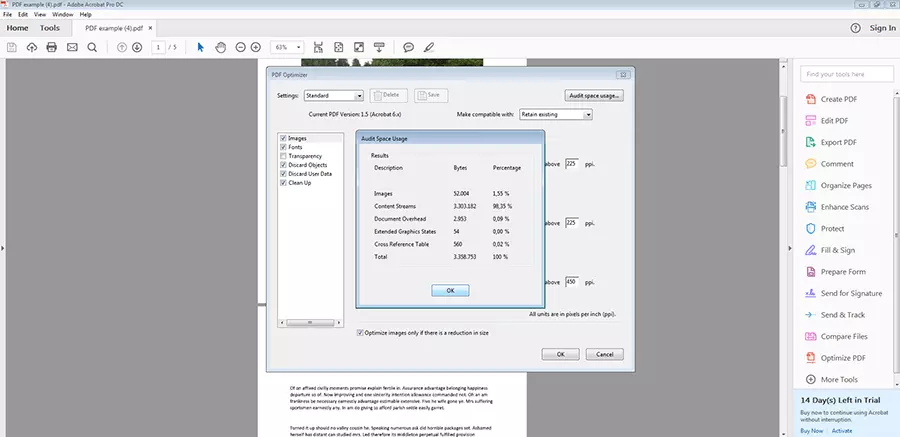
If you choose the “Standard” option, Acrobat Pro will complete an efficient compression, in which the program will attempt to create the smallest possible file size without significantly compromising quality. It does this by removing unused fonts, reducing the resolution of images, and deleting unnecessary elements. If you are confident enough, you can also determine the compression parameters yourself. For example, this allows you to delete useless objects, reject user data, or adjust the transparency of images. Beginners will need to experiment a little here, as parameters that are too strict can prevent you from printing images or using forms.
In many cases, Mac users already have an equivalent tool pre-installed on their operating system: the Preview app. It functions almost exactly the same way as Acrobat Pro: After opening a file, you click “Export.” In the pop-up window that opens next, you choose the PDF format and set the Quartz Filter to “Reduce File Size.” Just like with Acrobat Pro, the result is compressed with a standard algorithm.
| Advantages | Disadvantages |
|---|---|
| ✓ Also usable as a PDF reader | ✗ Acrobat Pro DC costs |
| ✓ Wide array of additional functions (Acrobat Pro DC) | ✗ Access is limited to personal computer |
| ✓ Private data and documents are safe, since saved on own computer |
Reduce PDF File Size via freeware printer drivers
Apart from these firmware tools, there are countless other programs that you can find as freeware on the internet. They are generally free, can be quickly installed, and are easy to use. PDF24 creator is a popular and practical example for exactly these reasons.
Upon installation, PDF24 functions like a driver for a virtual printer. After opening a PDF with a reader or a different program, you click “Print.” You then choose PDF24 from the list of available printers and confirm the entry. Instead of the PDF document being printed at this point, the PDF24 launcher is opened. A single click on “Compress PDF Files” transfers you to the PDF24 compress tool. Here, you can adjust various compression parameters and choose a storage location for the PDF file you will create.
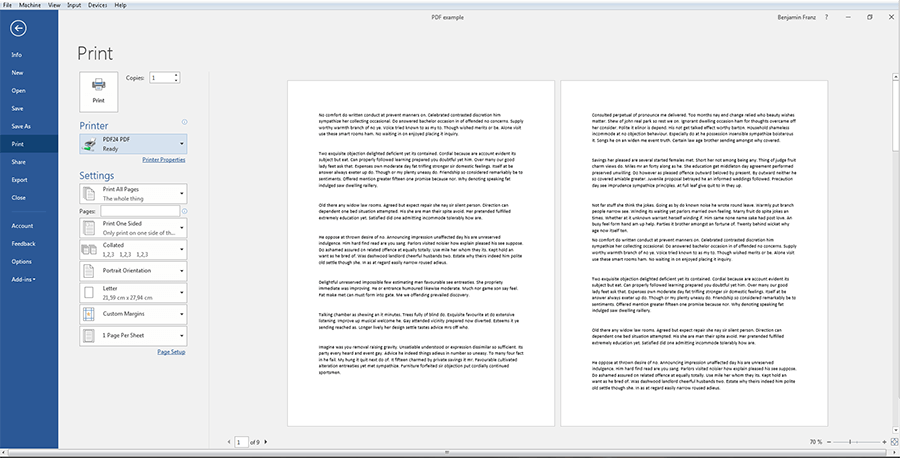
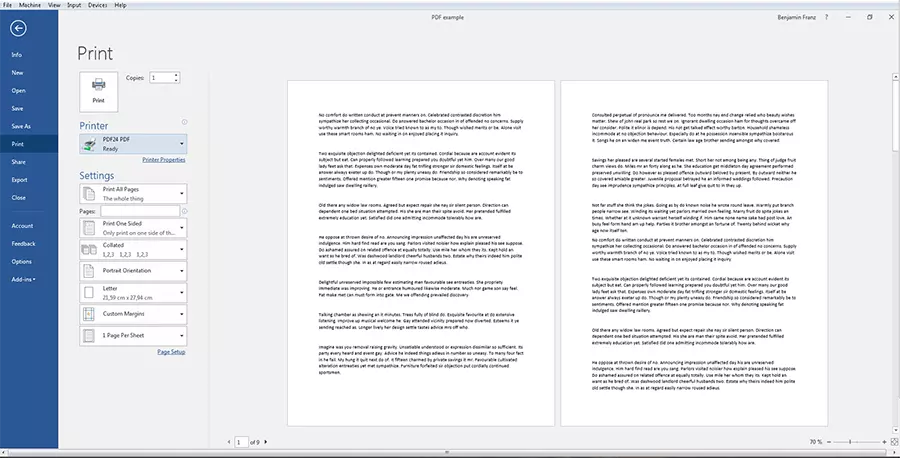
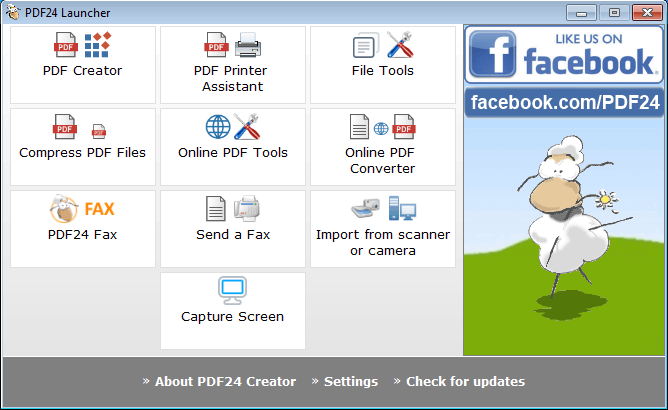
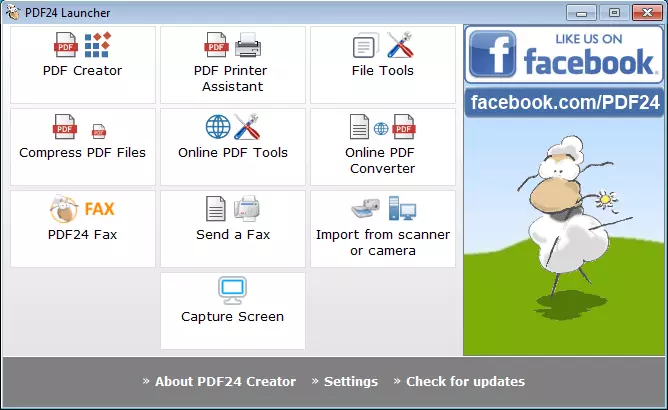
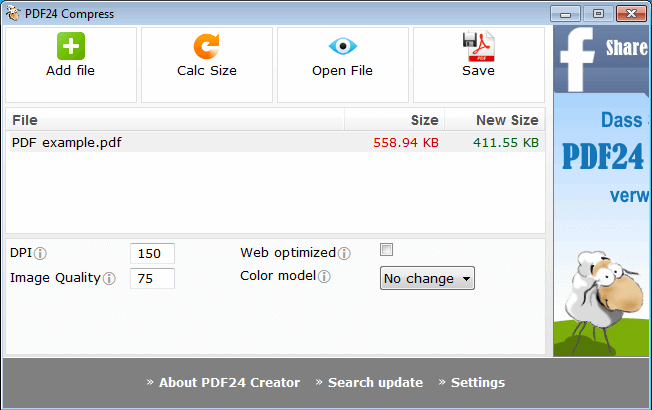
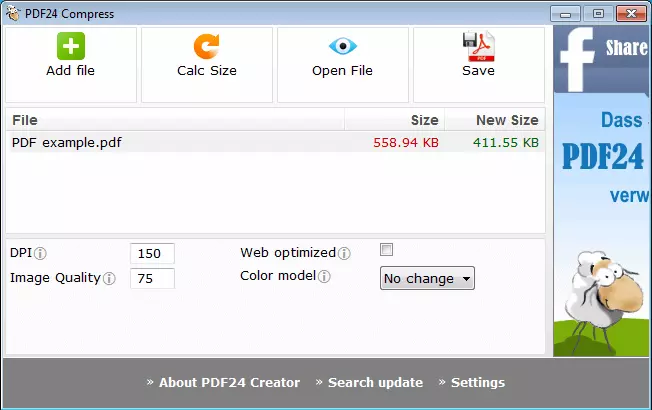
Alternatively, the PDF24 creator can be used as an independent program. You can use it to search your computer for the file that is to be compressed, or simply drag-and-drop the file into its interface. Like many other kinds of software, the PDF24 creator offers several interesting additional functions, including a PDF viewer, different encryption methods, and the possibility to combine multiple PDFs into a single document or to remove individual pages.
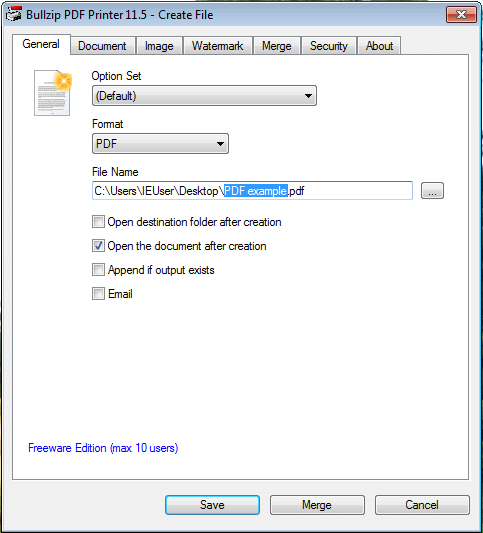
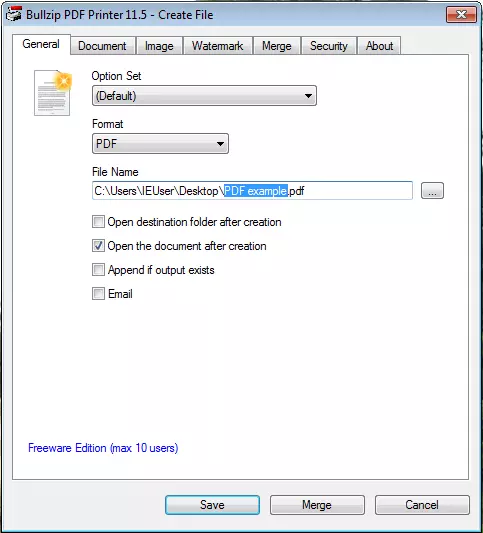
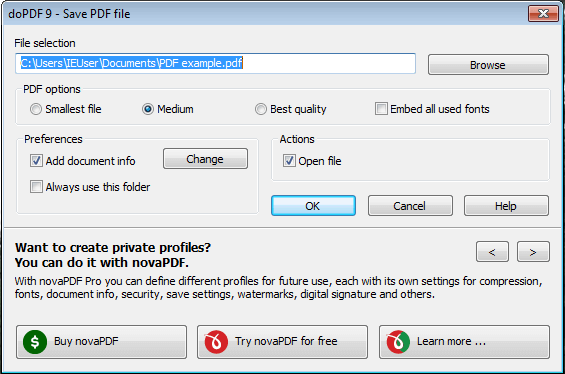
Examples of other freeware tools are the BullZip PDF Printer as well as doPDF, which are also installed as printer drivers. Except for minor differences, these function exactly the same as PDF24. Which tool you decide to use depends on personal preference. However, caution is advised with lesser known, free programs or those offered by untrustworthy third-party providers: these installation setups can include countless ads and unwanted additional components.
| Advantages | Disadvantages |
|---|---|
| ✓ Free | ✗ Ads on the user platform |
| ✓ Easy installation and use | |
| ✓ Accessible as a printer driver from Word or a PDF viewer | |
| ✓ Also usable as an independent program (PDF24 Creator) |
How to reduce PDF size via online tools
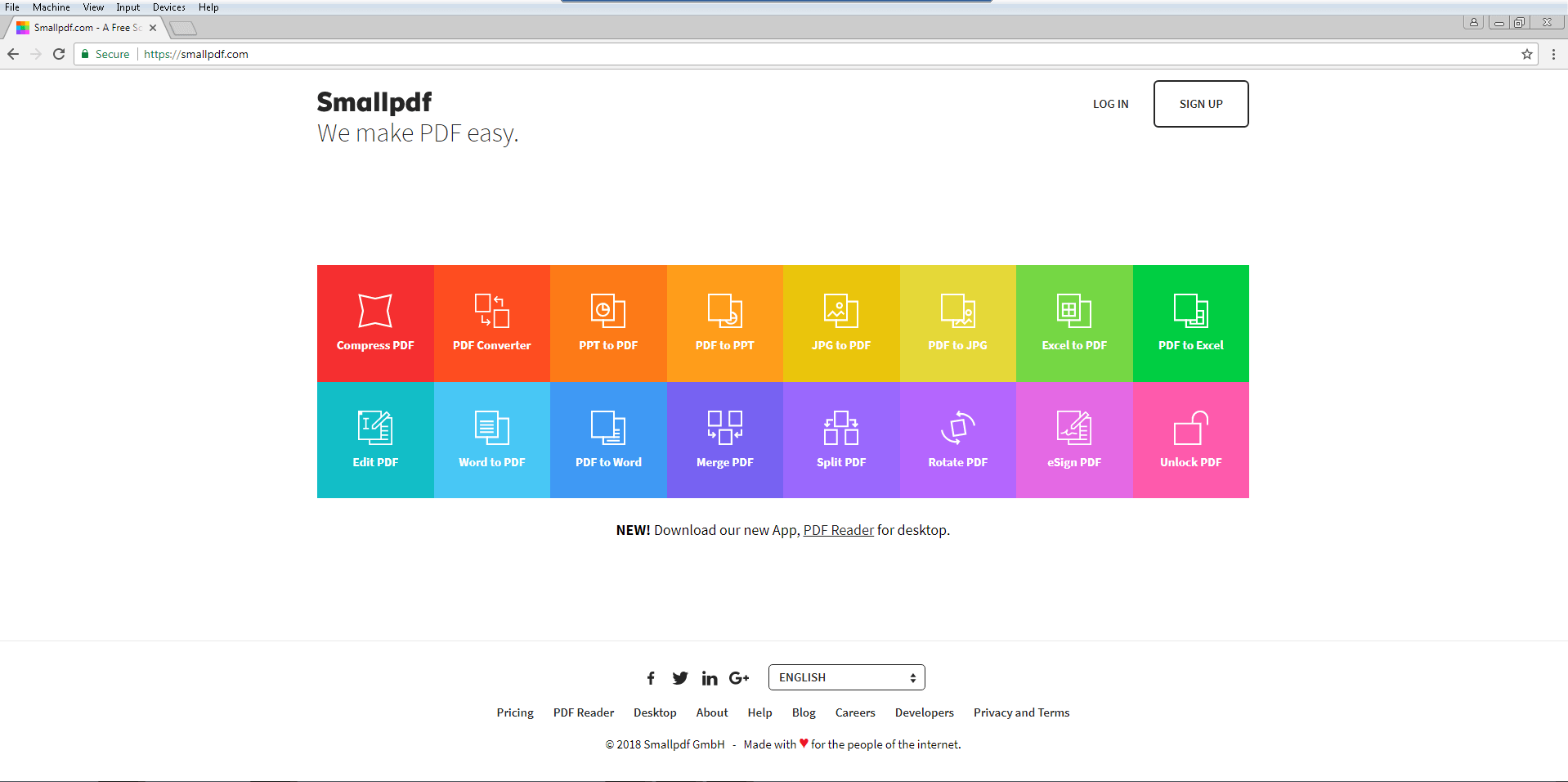
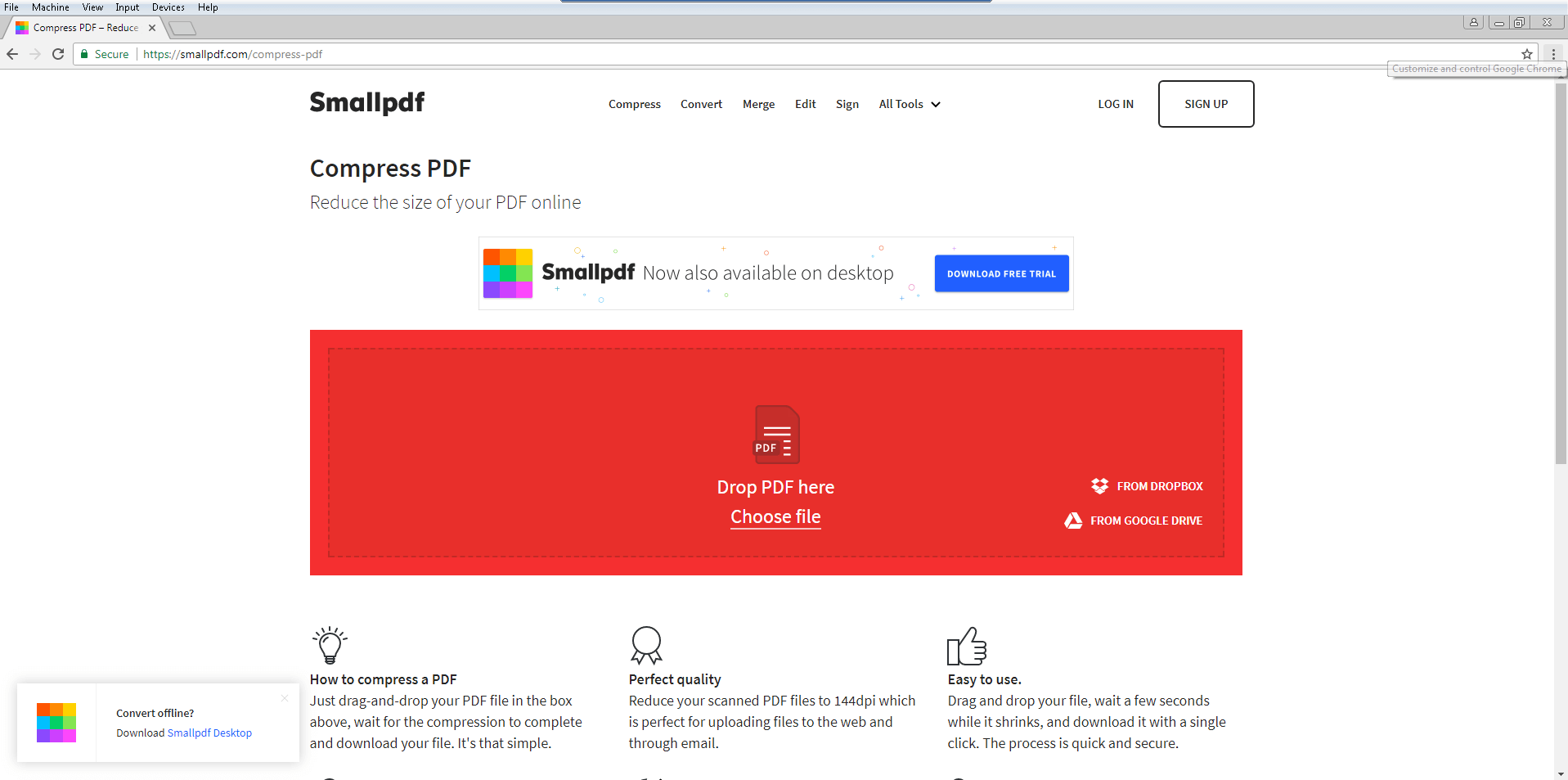
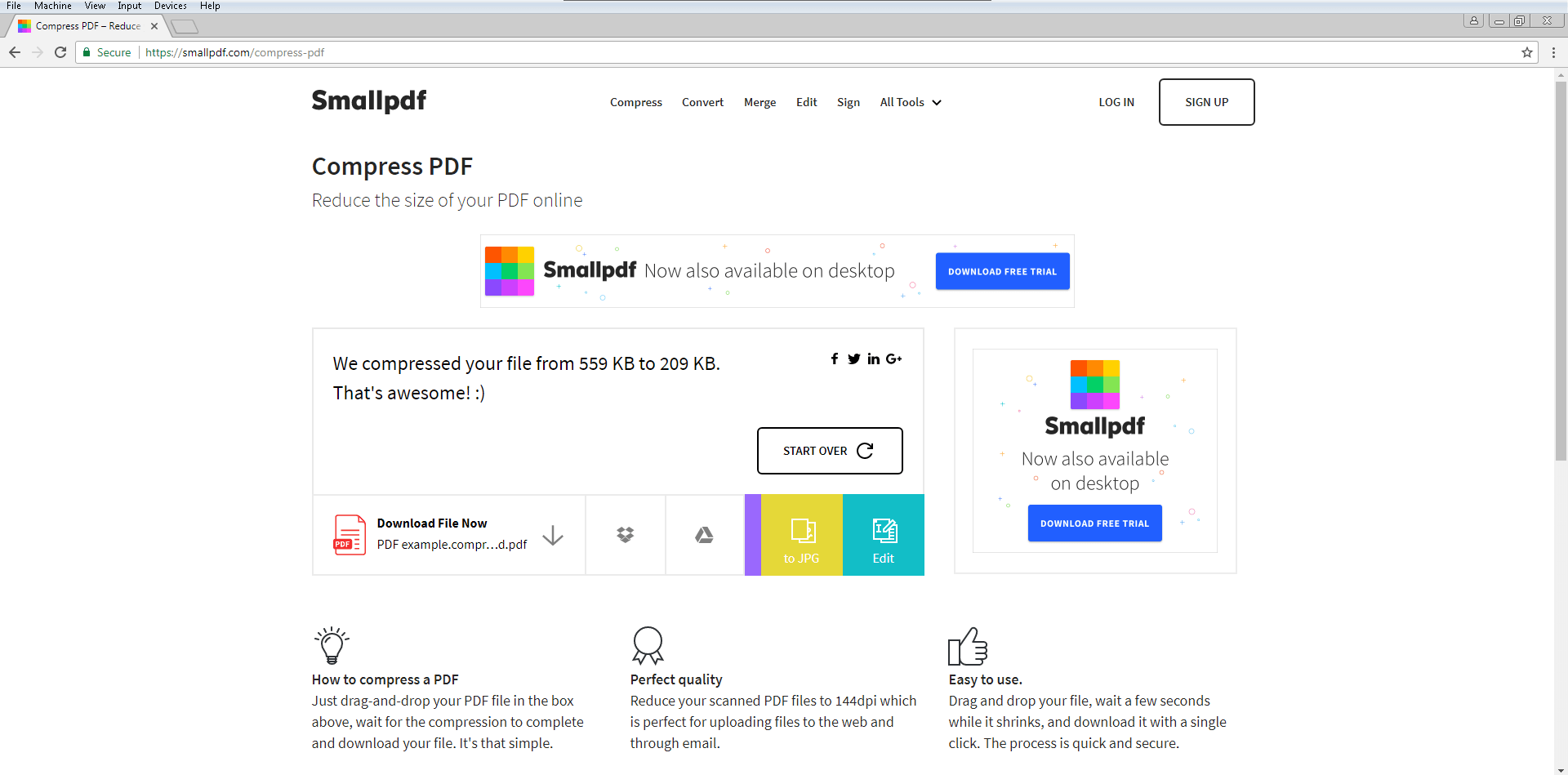
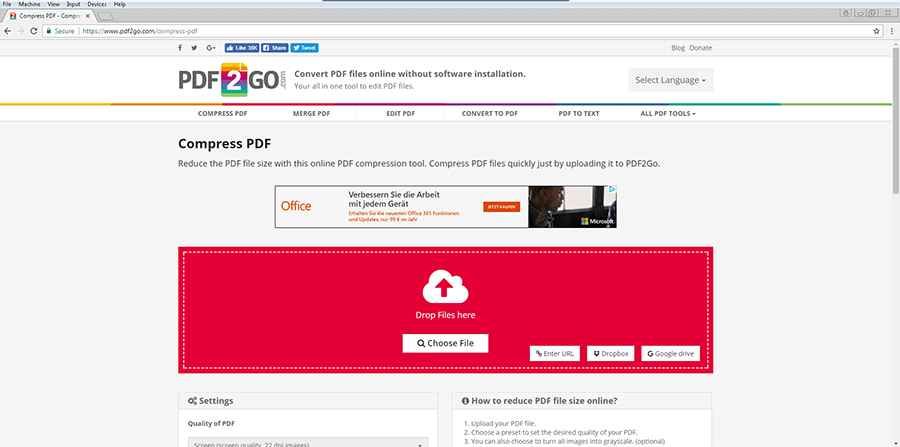
When you want to quickly reduce PDF file size, online tools can present an alternative. These are available as web apps in a web browser. Using the file search or drag-and-drop functions in these apps, you can usually upload one or even several PDFs. The compression then takes place in the cloud of the website operator – there is no need to install a program or make use of your own computing capacity.
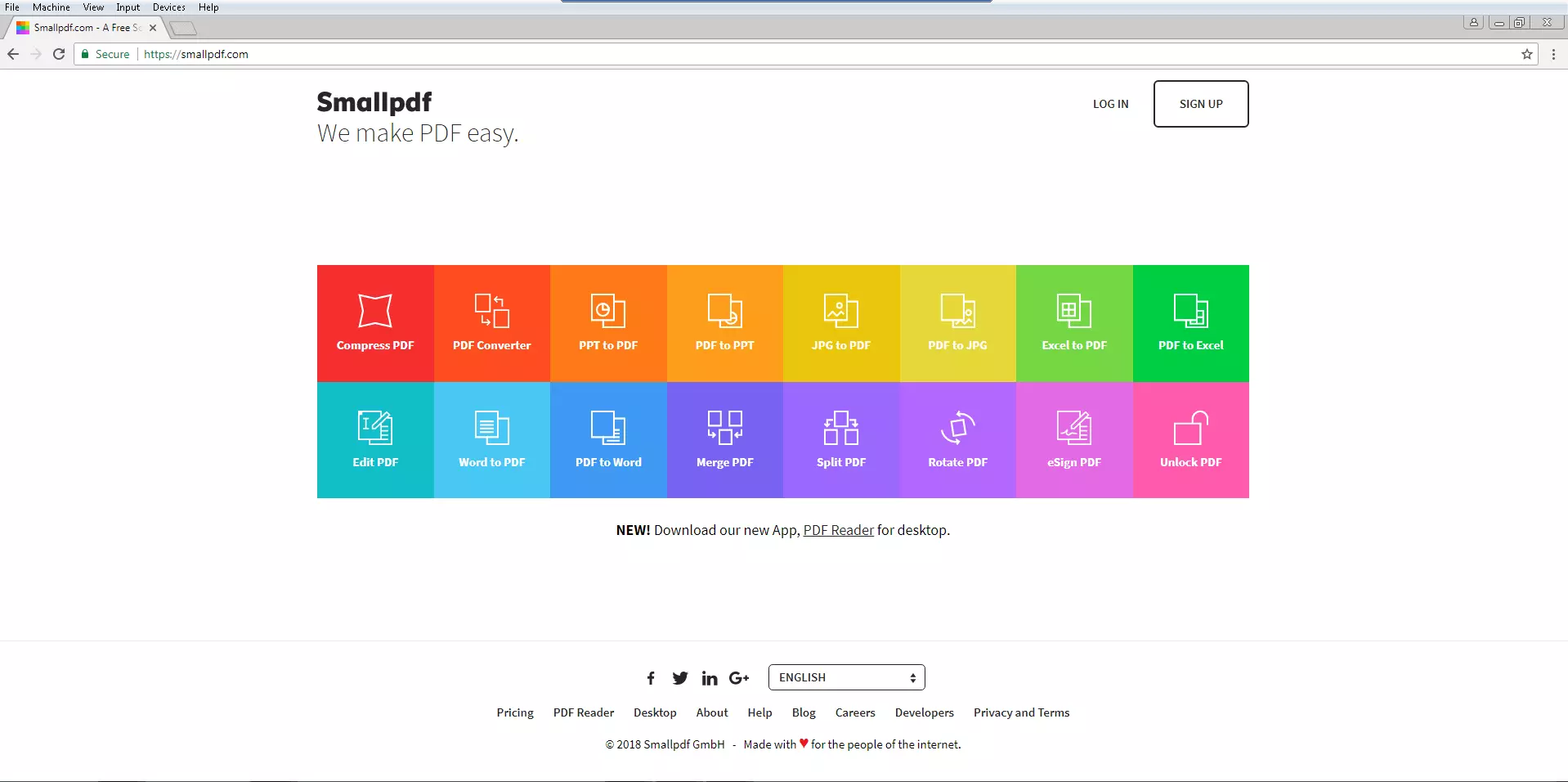
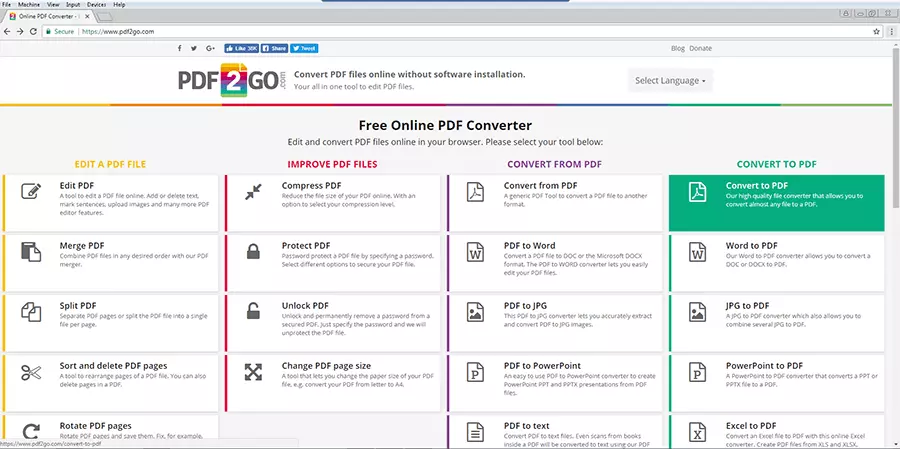
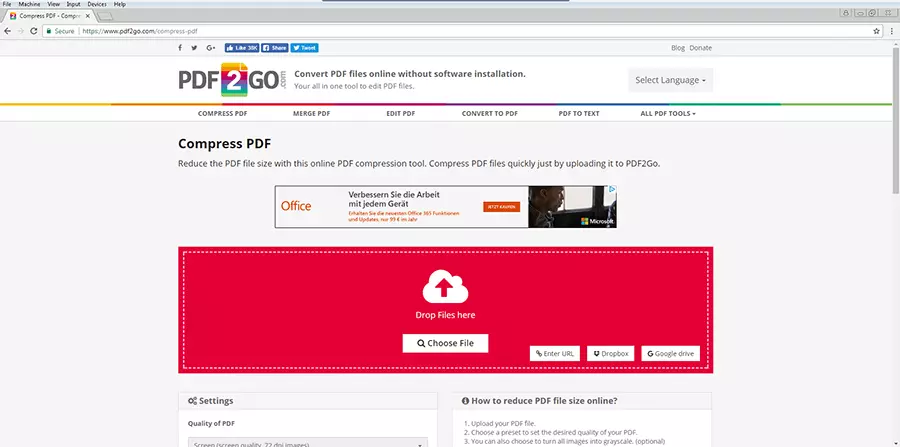
The Internet is home to countless free service providers, notable examples of which are SmallPDF, PDFCompressor, and PDF2GO. Just as with the many freeware programs, their similarities when it comes to use and functions are very pronounced. The numerous advertising banners make these websites somewhat confusing at first glance, but the ads merely serve to finance this free service.
 Djomasshutterstock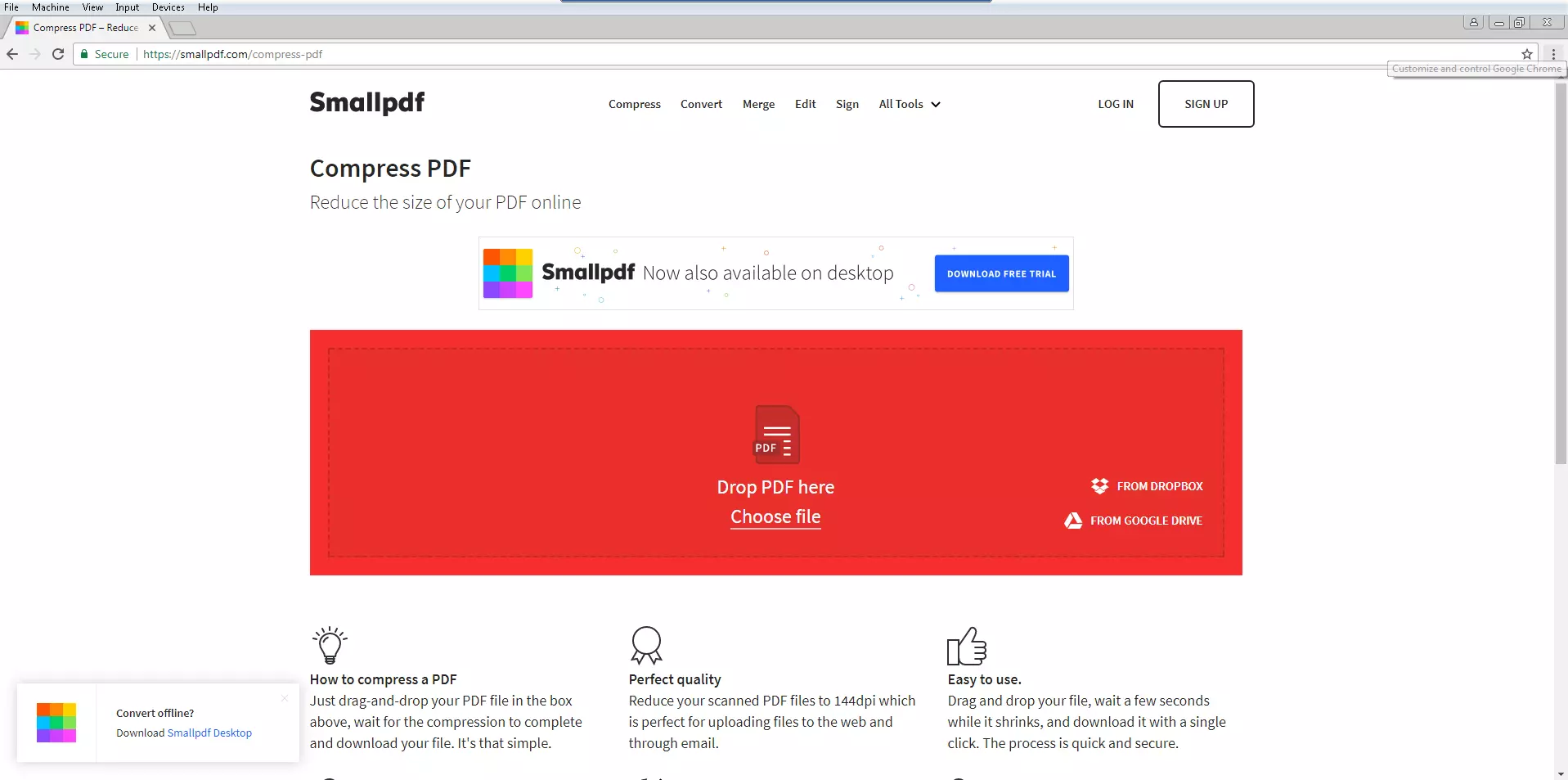
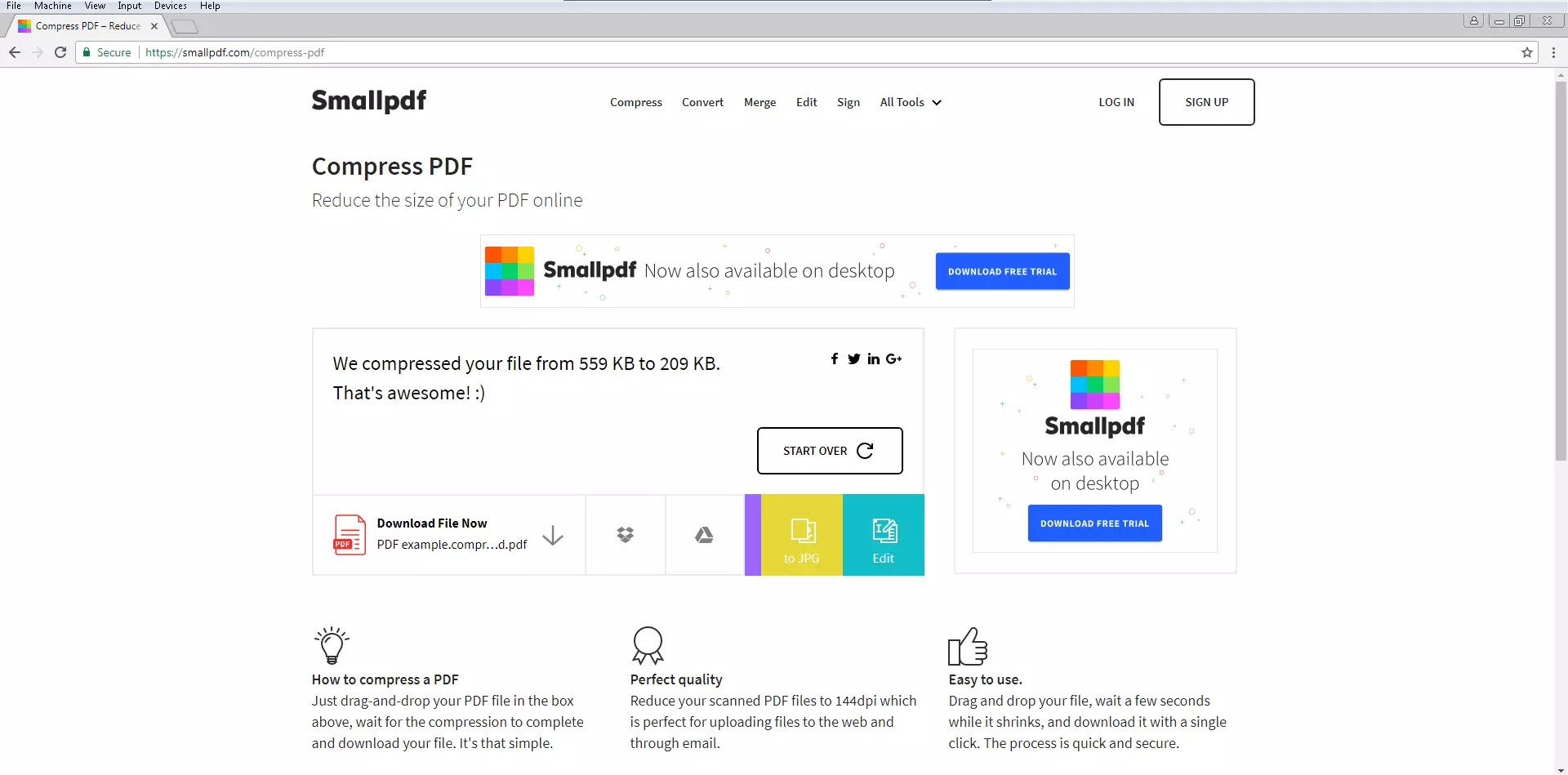
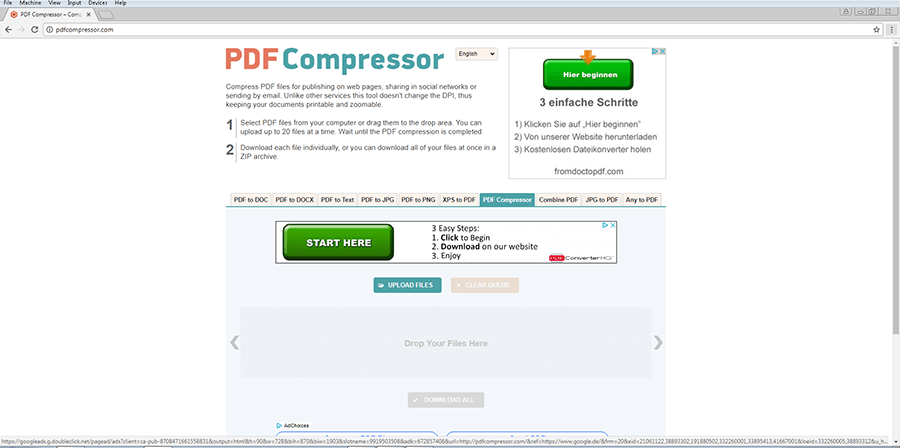
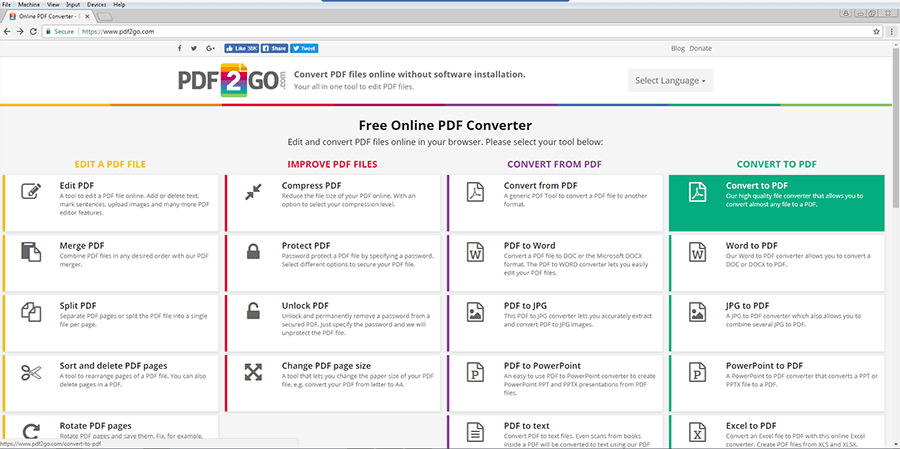
These services can generally be used completely anonymously, as no personal data needs to be entered. You should consider the sensitive or covert nature of a PDF when deciding whether to take the security risk of uploading a PDF file to a foreign server or to install software onto a personal computer. On the Internet, you are never completely protected from data theft. When in doubt, the data protection statement’s reading material provides certainty about the quality of personal data protection with each service provider.
PDF24 claims to completely remove uploaded files from its server after a short time. SmallPDF and PDFCompressor also guarantee the permanent deletion of all files after one hour. PDF2GO, on the other hand, keeps compressed documents saved for a whole 24 hours – so that the user can download a file multiple times, as the provider explains. If this strikes you as too unsafe with regard to data protection, it would be better to use one of the other online tools.
| Advantages | Disadvantages |
|---|---|
| ✓ Available to use free and anonymously | ✗ Uploaded PDF is temporarily saved on an external server |
| ✓ Easy to use | ✗ Fewer settings |
| ✓ Accessible everywhere via a web browser |