

Inserting a line break in Word

Microsoft Word belongs to Microsoft 365 and significantly simplifies the workday for those that work with text-based documents on a regular basis. One of the reasons for its popularity is its variety of options for formatting text. One thing that’s especially practical is the fact that Word automatically takes care of many of these formatting challenges. Among these is the insertion of an automatic link break in Word when a word goes beyond a provided line length.
In many cases it can make sense to insert a line break manually to improve the document’s overall structure. We’ll explain the differences between a soft and a hard line break (also called a return) and how you can apply both types of line breaks to structure your document. Do you work with Microsoft Word regularly? Our guide provides many more helpful articles on topics like Word macros and instructions on how to combine Word documents.
What is a line break?
The text editing program Microsoft Word offers lots of options when it comes to formatting text: such as defining the font size, line spacing, and text alignment. In addition, there are so-called spacing settings, such as the space before and after a paragraph. To start a new line within a paragraph, you can insert a line break in Word. This lets you jump to the next line, without having to change the set paragraph formatting or starting a new bullet point.
How do you insert a line break in Word?
By pressing the Enter key, you can achieve a hard return and start a new paragraph in Microsoft Word. This is probably the most used break. One that’s less common, though, is the manual line break in Word, which can be achieved by pressing down the right key combination. Using the Enter + Shift keys generates a so-called soft return. In doing so, you move to the next line while maintaining the defined formatting.
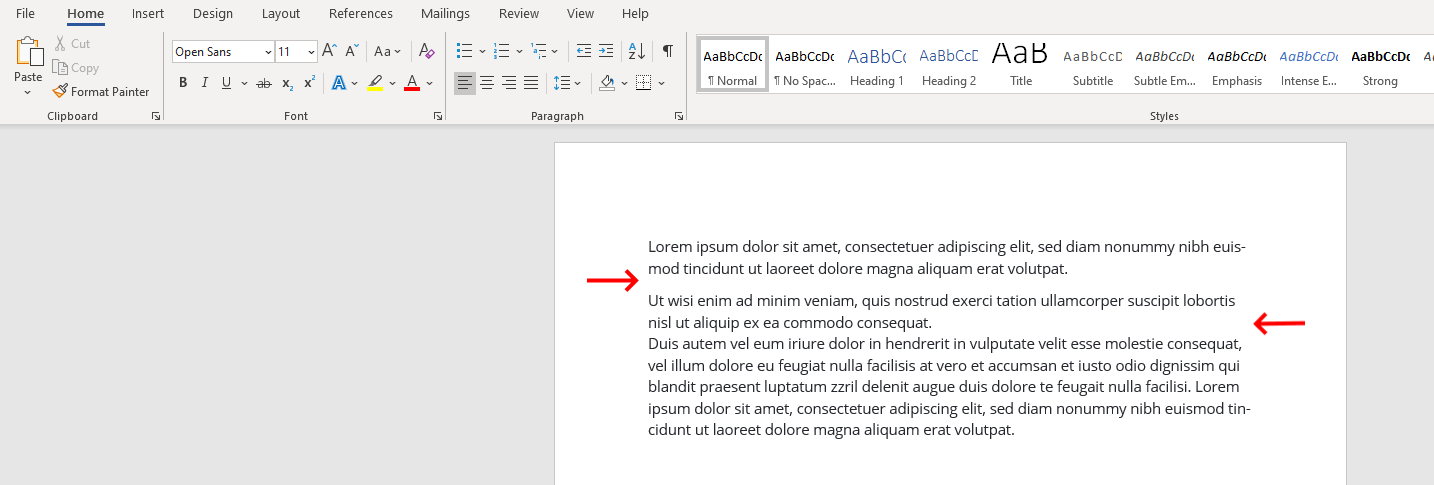
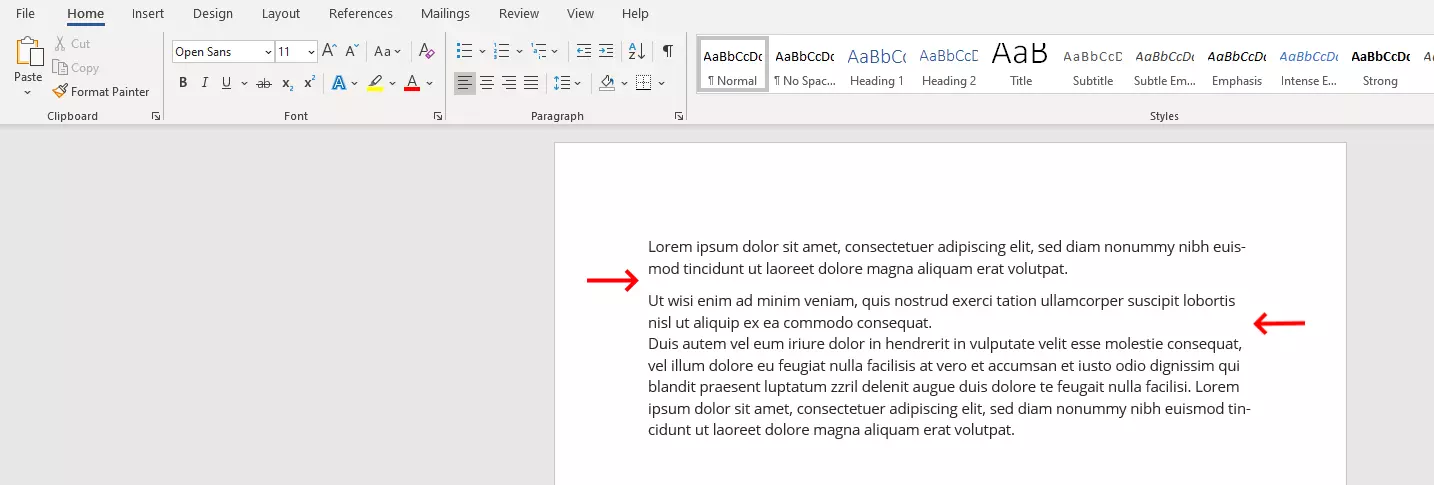
The key combination also works in other common text editing programs, as well as on different internet sites that have text and format fields.
Example: manual line break in Word with bullet points
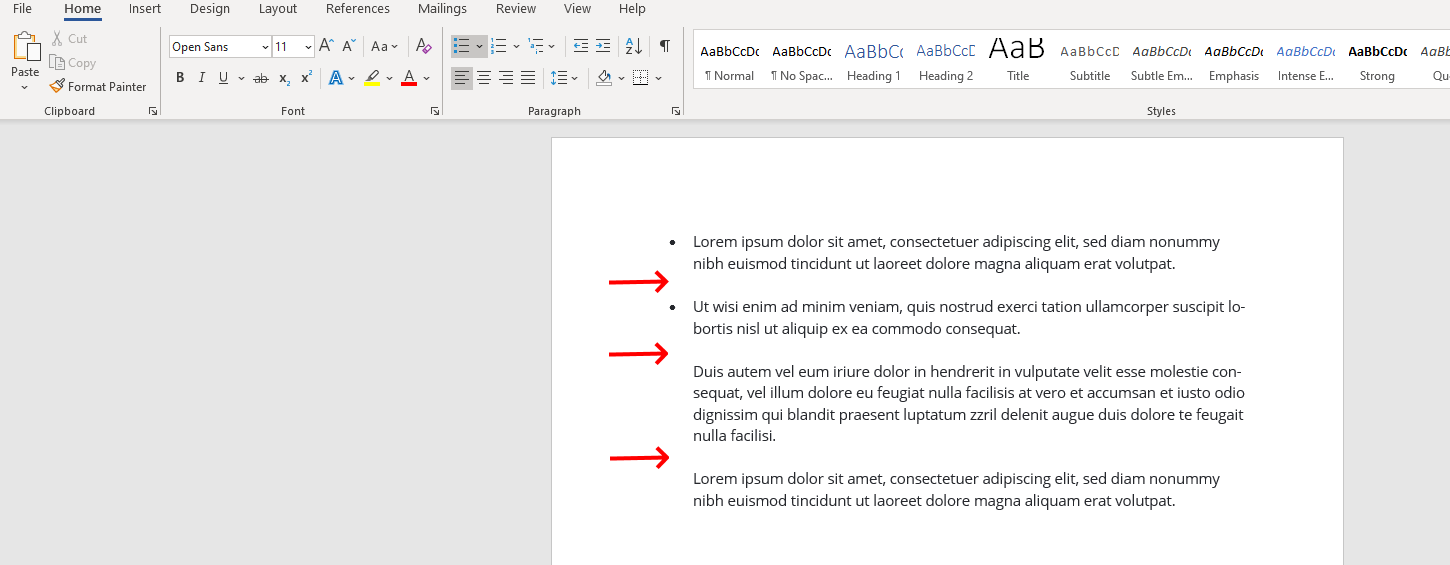
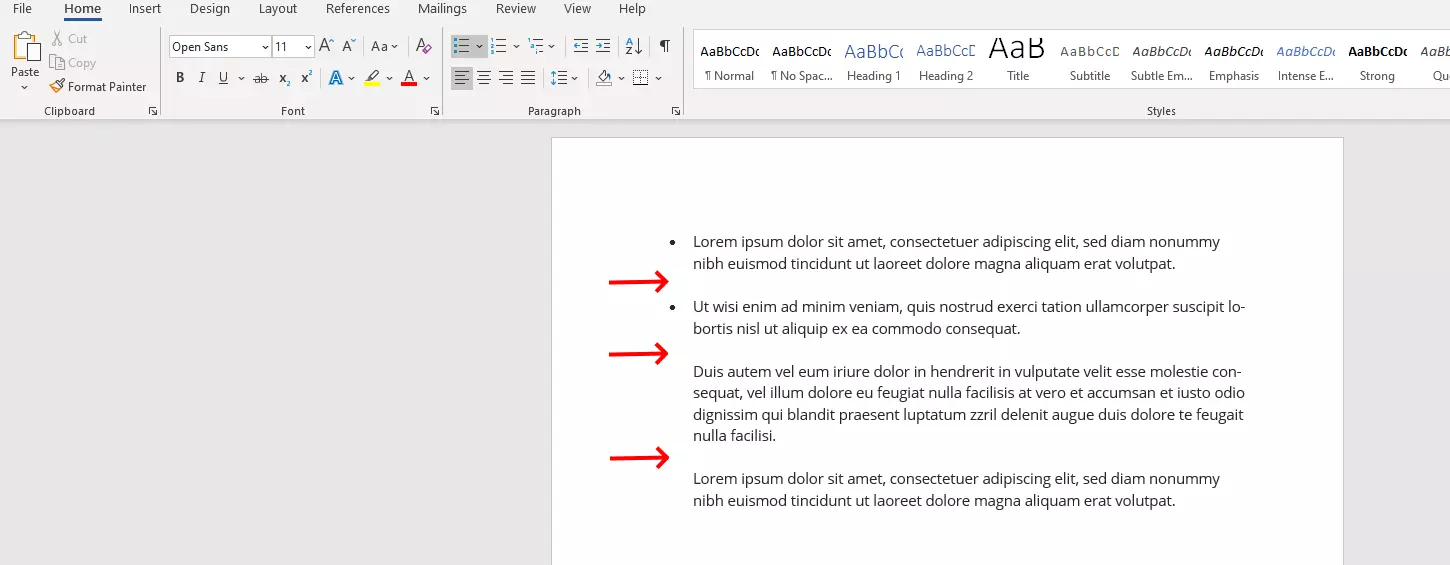
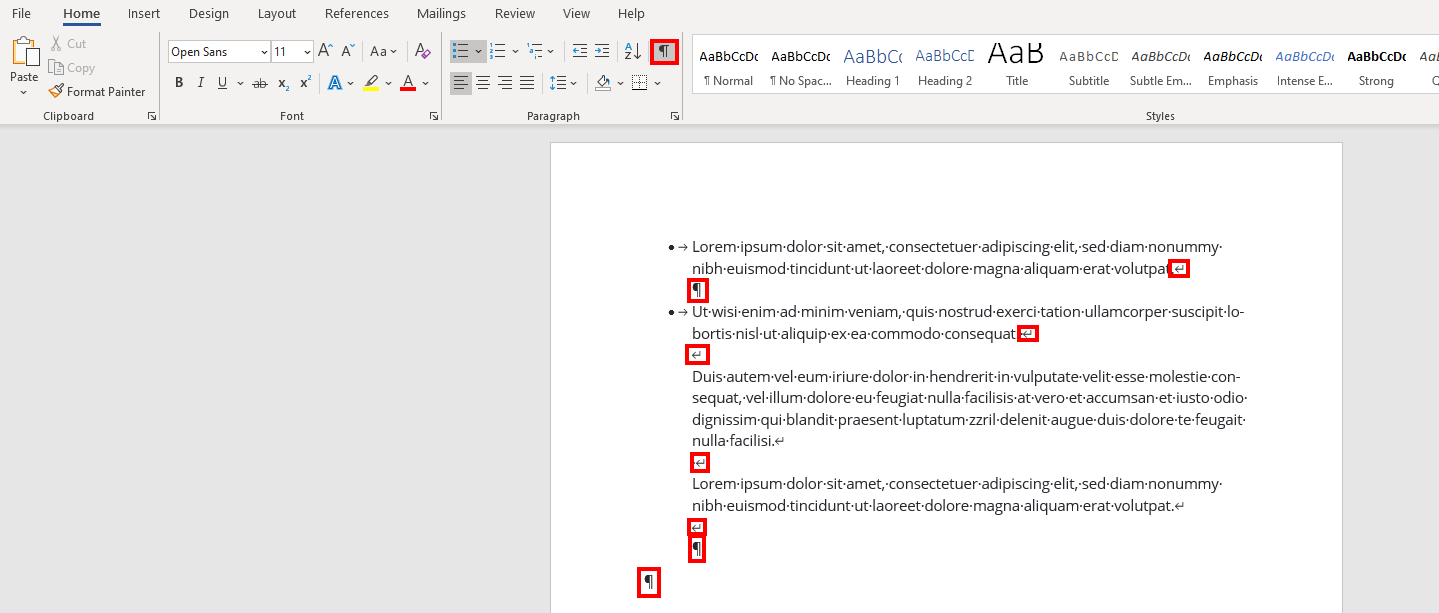
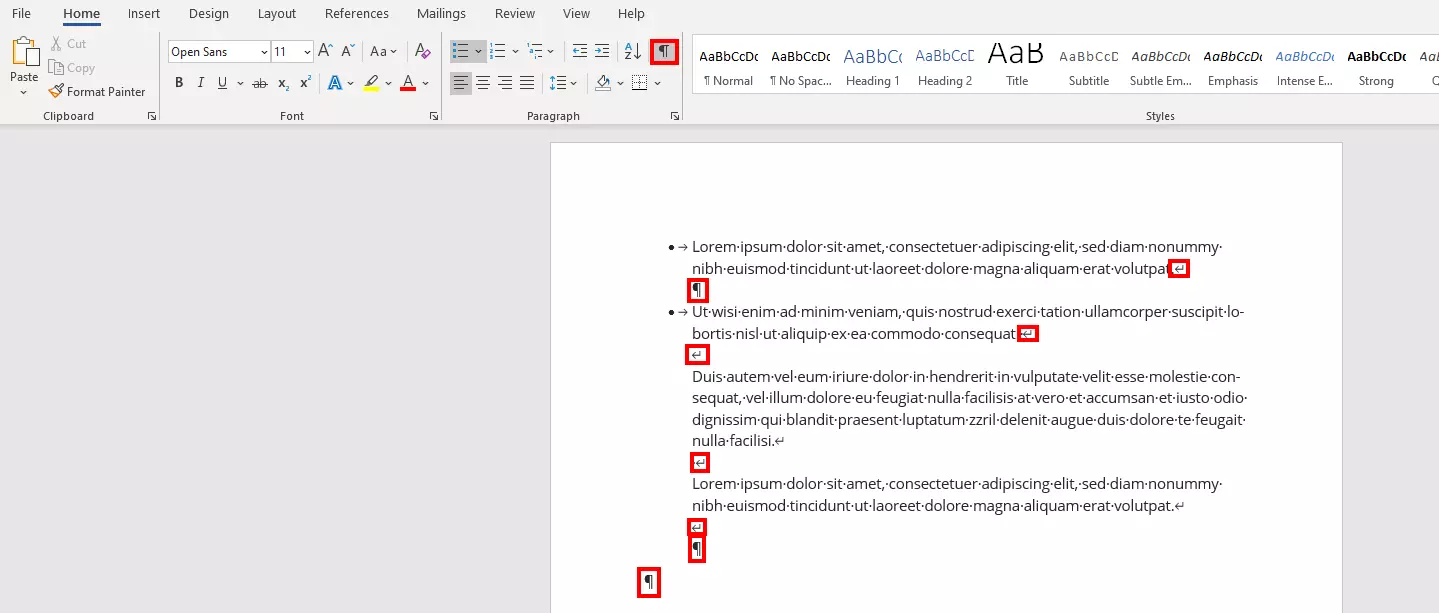
Bullet points are a popular means of clearly structuring long sections of text and summarizing related information into a single point. However, a clear structure is also recommended within a bullet point, especially if a point covers several lines. With a manual line break in Word, a section can be clearly structured with breaks and blank lines. In this example, those places where manual line breaks are inserted are marked. Only in the case of a hard return or a new paragraph is a new bullet point inserted.
Example: manual line break in Word with justified paragraphs
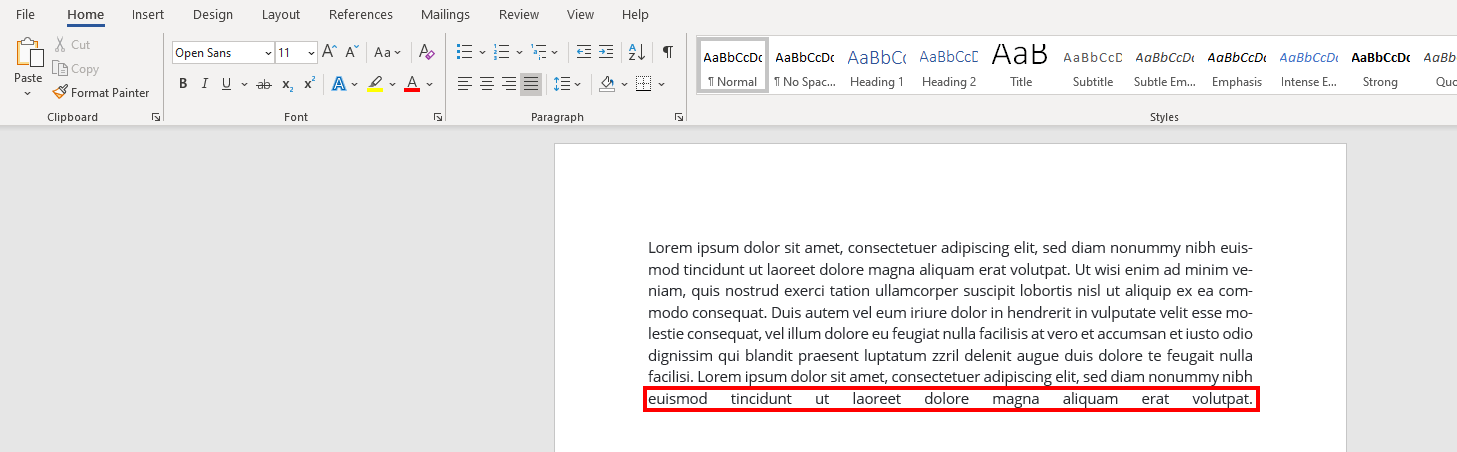
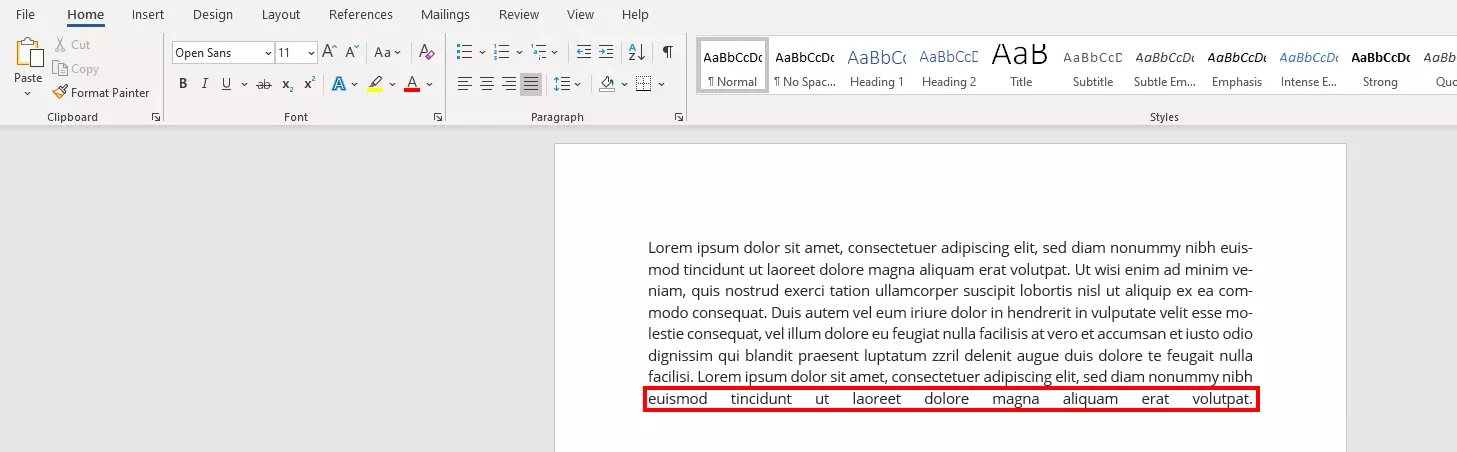
If you are justifying text in Word, then you’re probably very familiar with the following problem: when you insert a manual line break at the end of a paragraph, Word stretches the last sentence over the entire width of the page. Due to the wide spacing, the text looks “patchy” and is difficult to read.
Luckily, this problem can be easily avoided. At the end of the sentence, press the Tab key and then then insert the manual line break in Word by using the key combination [Enter] + [Shift]. This will avoid Word from stretching out the sentence.
Making line breaks visible in Word
Formatting options such as font size or font color are obvious in a document. In contrast, it’s not immediately apparent whether a hard or soft return has been inserted in Word. For this purpose, the word processing program offers a practical function to highlight this kind of “invisible” formatting. To do this, activate the formatting characters.
Select the “Start” tab from the main menu and click the “¶” symbol in the “Paragraph” section. Alternatively, the function can also be activated or deactivated with the key combination [CTRL] + [Shift] + [+]. Up to version 2003 in Word, the feature to activate paragraph formatting characters is located on the standard toolbar. After clicking on it, Word marks all inserted line breaks as follows:
- The ¶ symbol marks all hard returns or paragraphs.
- A corner arrow marks a soft return in Word.
It’s not necessary to deactivate this function before printing a document since the formatting characters – as displayed on the print preview – are not printed on the final document.
Besides Microsoft Word there are also other programs like PowerPoint and Excel that are a part of Microsoft 365. Our Digital Guide is packed full of articles on topics like line breaks in PowerPoint and wrapping text in Excel.
With Microsoft 365 you’ll have access to the entire suite of Office programs, including Microsoft Word, PowerPoint, Excel und Outlook.