

How to delete a Netflix account and user profiles

You can either delete an individual Netflix profile or cancel your Netflix membership directly. Deleting individual profiles is simple and can be done at any time. Canceling your Netflix membership is also possible without a notice period and takes effect at the end of the billing cycle.
- Store, share, and edit data easily
- Backed up and highly secure
- Sync with all devices
How to delete a Netflix profile quick guide
In the app
- Open the Netflix app and sign in.
- Tap on the pencil icon in the top right corner, then on the profile you want to delete.
- If you’re already logged in to a profile, tap on the hamburger icon and select “Manage Profiles”.
- Select the profile you want to delete and tap on “Delete Profile”.
- Tap on “Delete Profile” again on the next screen to confirm.
In a browser
- Sign into Netflix.
- Click on “Manage Profiles”.
- Select the profile you want to delete.
- Click on “Delete Profile”.
- In the new window, click on “Delete Profile” again to confirm.
What’s the difference between deleting a Netflix profile and deleting your account?
When you sign up to Netflix, you can create up to five profiles within your account and share them with family and friends. Creating separate profiles allows each user to configure their own preferences and benefit from personalized viewing recommendations. If someone you’ve created a profile for decides they no longer want to use Netflix, you can delete or transfer their profile in just a few steps.
Do you want to cancel your membership and try out an alternative to Netflix instead? No problem – Netflix has made the cancelation process very straightforward. If you choose to cancel, your membership will stop at the end of your current billing period.
Netflix will then automatically delete your account after ten months. This makes it easier to start a new membership. If you want Netflix to delete your account before the ten months are up, you just need to contact them by email. We’ve provided detailed instructions below.
- Free Wildcard SSL for safer data transfers
- Free private registration for more privacy
- Free Domain Connect for easy DNS setup
How to delete a Netflix account step by step
If you want to delete an individual Netflix account, proceed as follows:
In the app
Step 1: Open the Netflix app and log in.
Step 2: Tap the pencil icon or the “Edit” button in the top right-hand corner to open the settings for your various user profiles and select a profile.
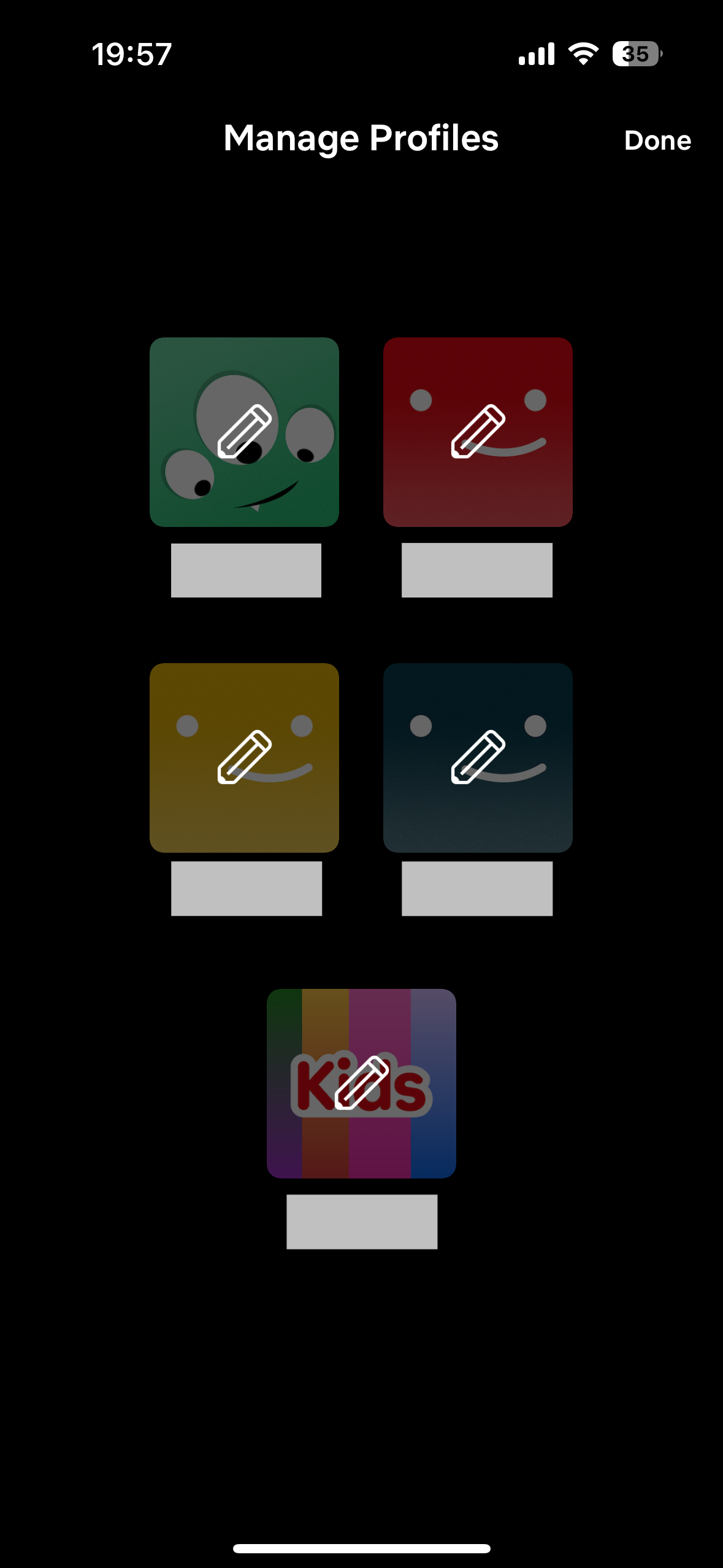
Step 3: If you’re already logged in to a profile, tap on the “More” hamburger icon and select “Manage Profiles”. Select the profile you want to delete.
Step 4: Tap to edit the profile, then tap on the “Delete Profile” button.
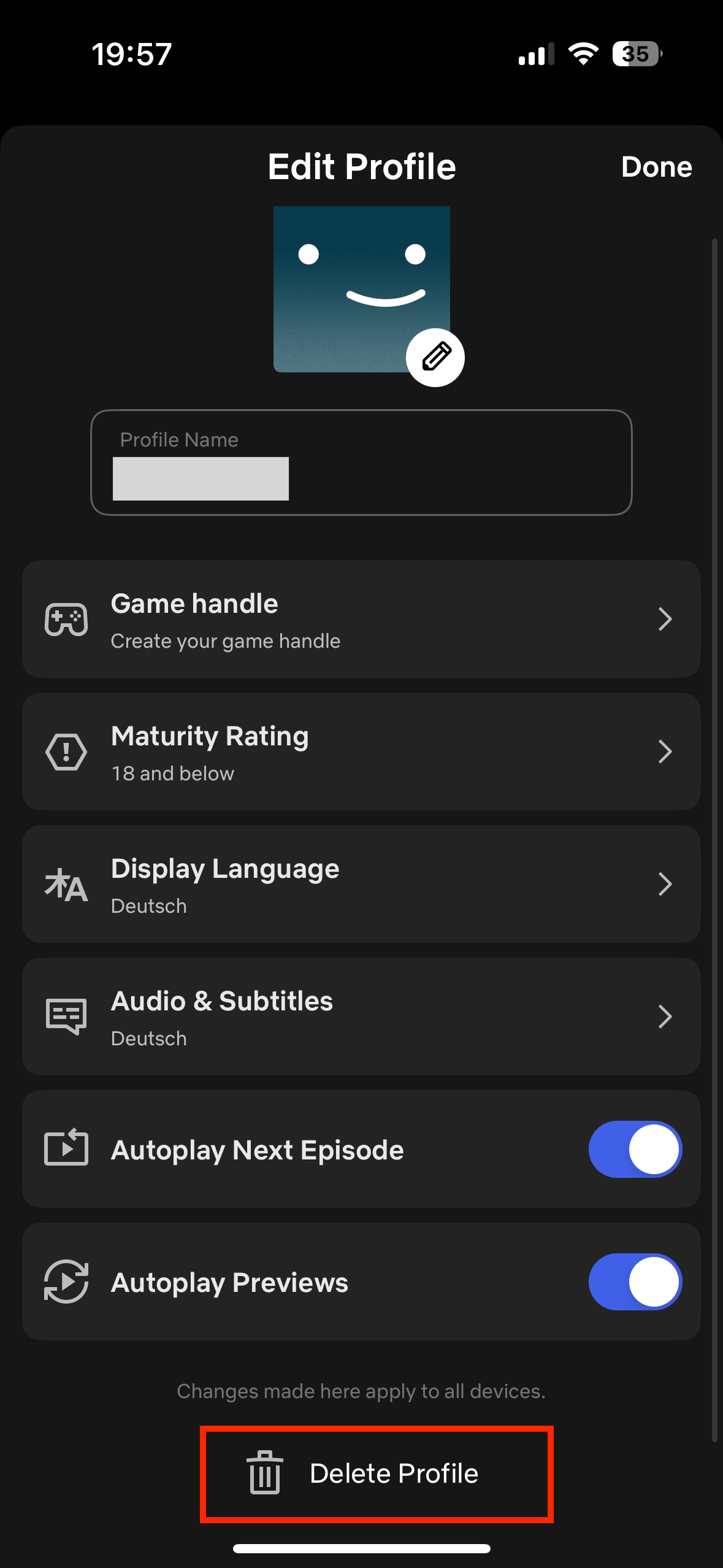
Step 5: A new screen will open, asking whether you’re sure about deleting the profile. Tap on “Delete Profile” to confirm.
In the browser
Step 1: Log in to your Netflix account.
Step 2: Instead of choosing a profile, click on the “Manage Profiles” button at the bottom of the screen. If you’ve already opened a profile, click on your profile picture to open the menu.
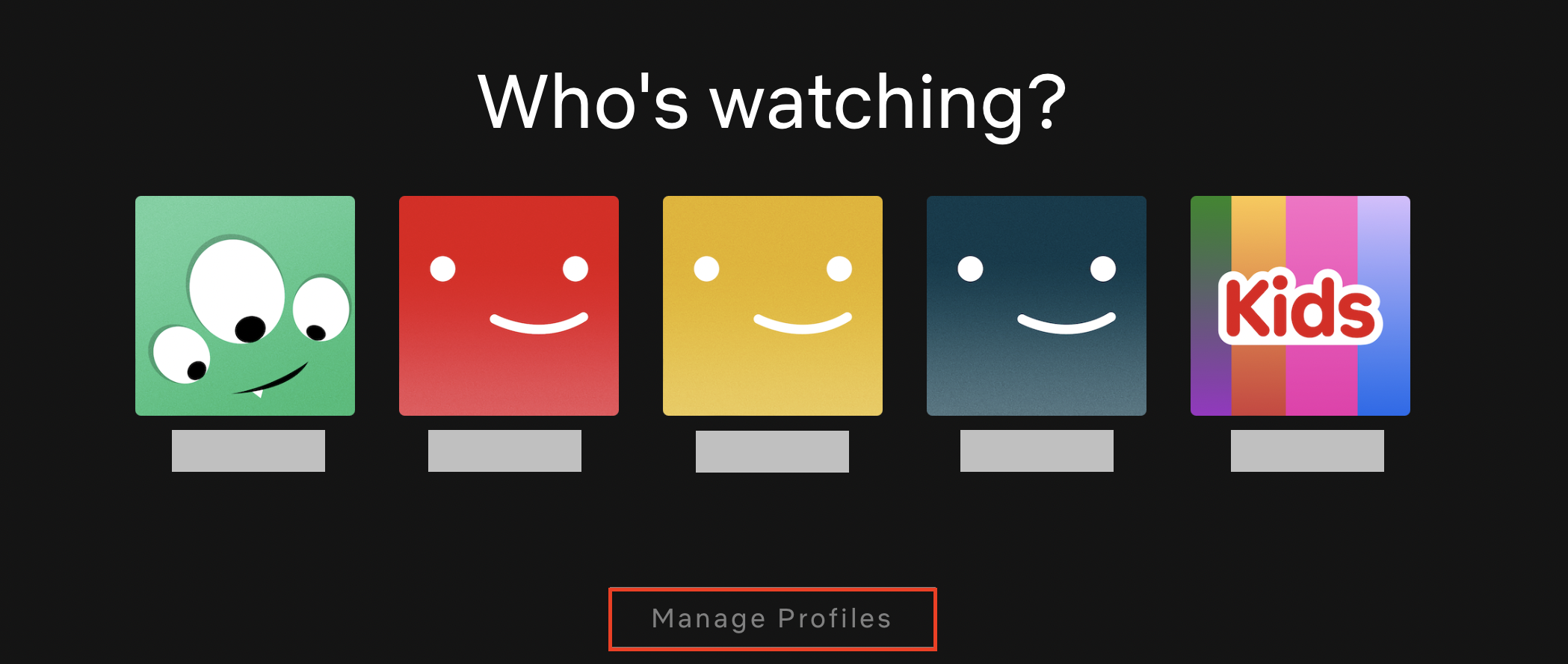
Step 3: A pencil icon now appears on each profile. Click on the profile that you want to delete.
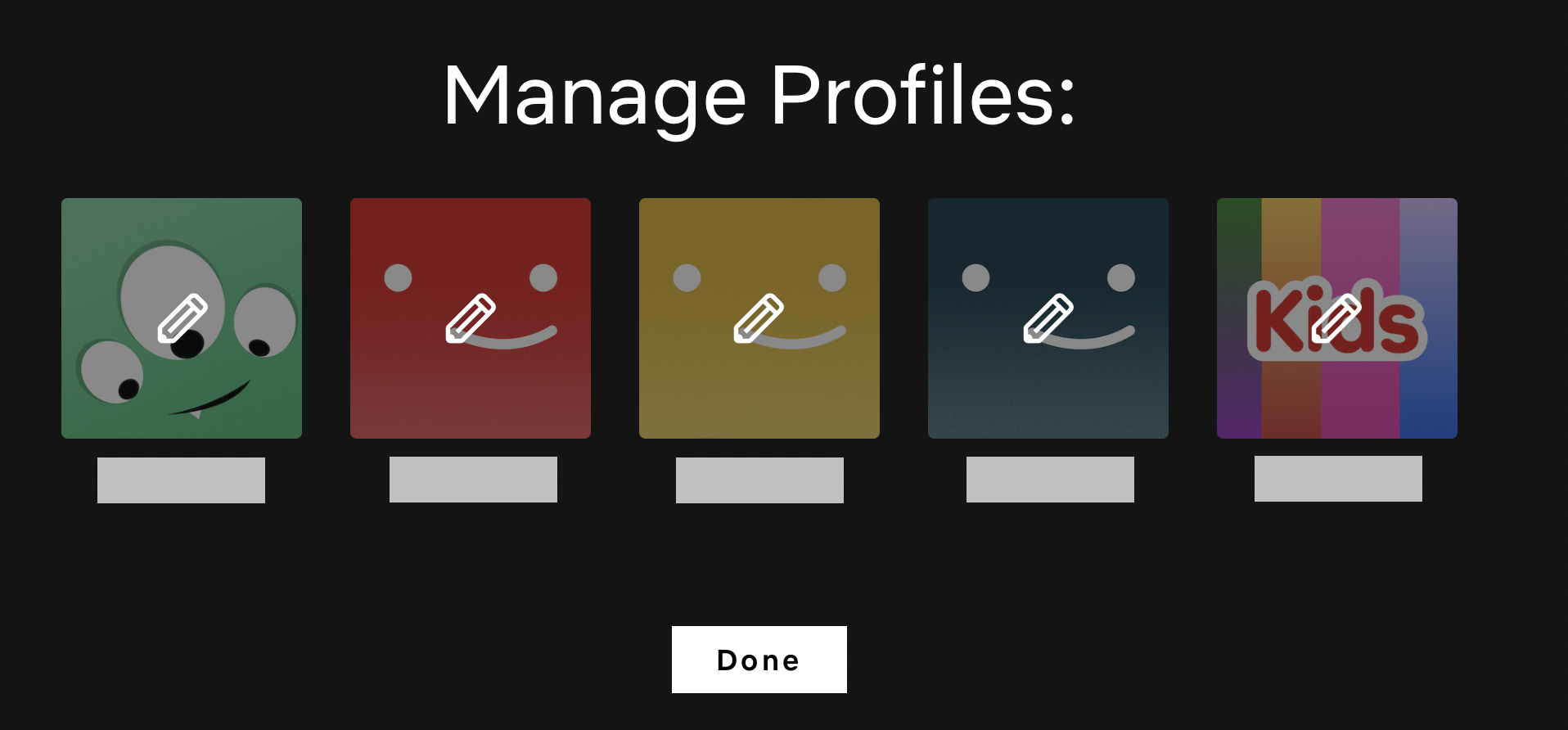
Step 4: You’ll now see the “Edit Profile” screen, which has a “Delete Profile” button in the bottom right corner.
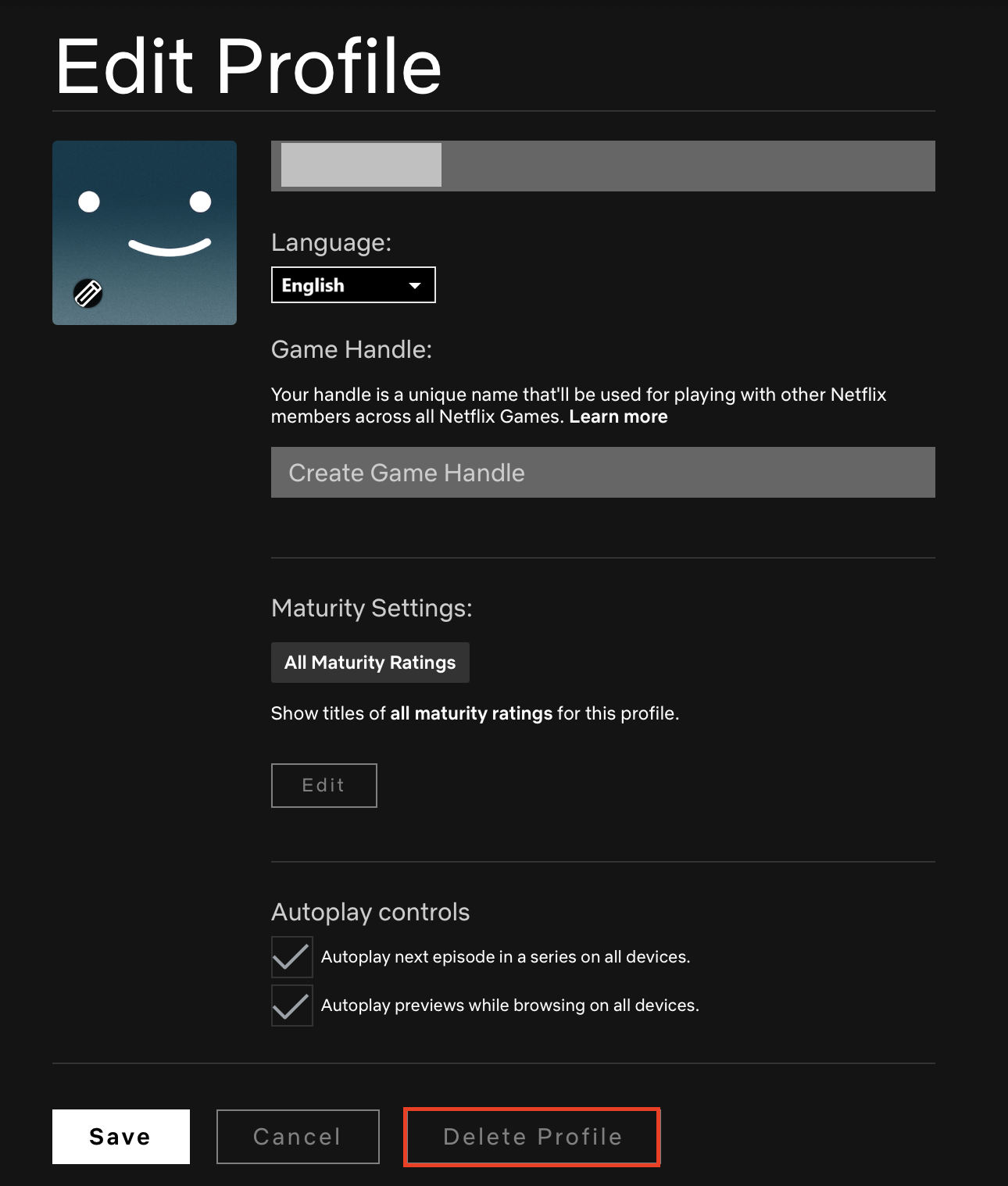
Step 5: Click on the “Delete Profile” button.
Step 6: A confirmation window will appear. Click on “Delete Profile” again to confirm.
How to cancel your Netflix membership
If you’re no longer planning to use the Netflix streaming service, deleting your Netflix profiles isn’t sufficient – you need to cancel the membership itself. There’s no notice period, so you can cancel whenever you want, but bear in mind that your membership will run until the end of your current billing period.
Step 1: Sign into Netflix and go to the “Account” page.
Step 2: Click on “Cancel Membership”. You’ll be asked to confirm your choice in the next window.
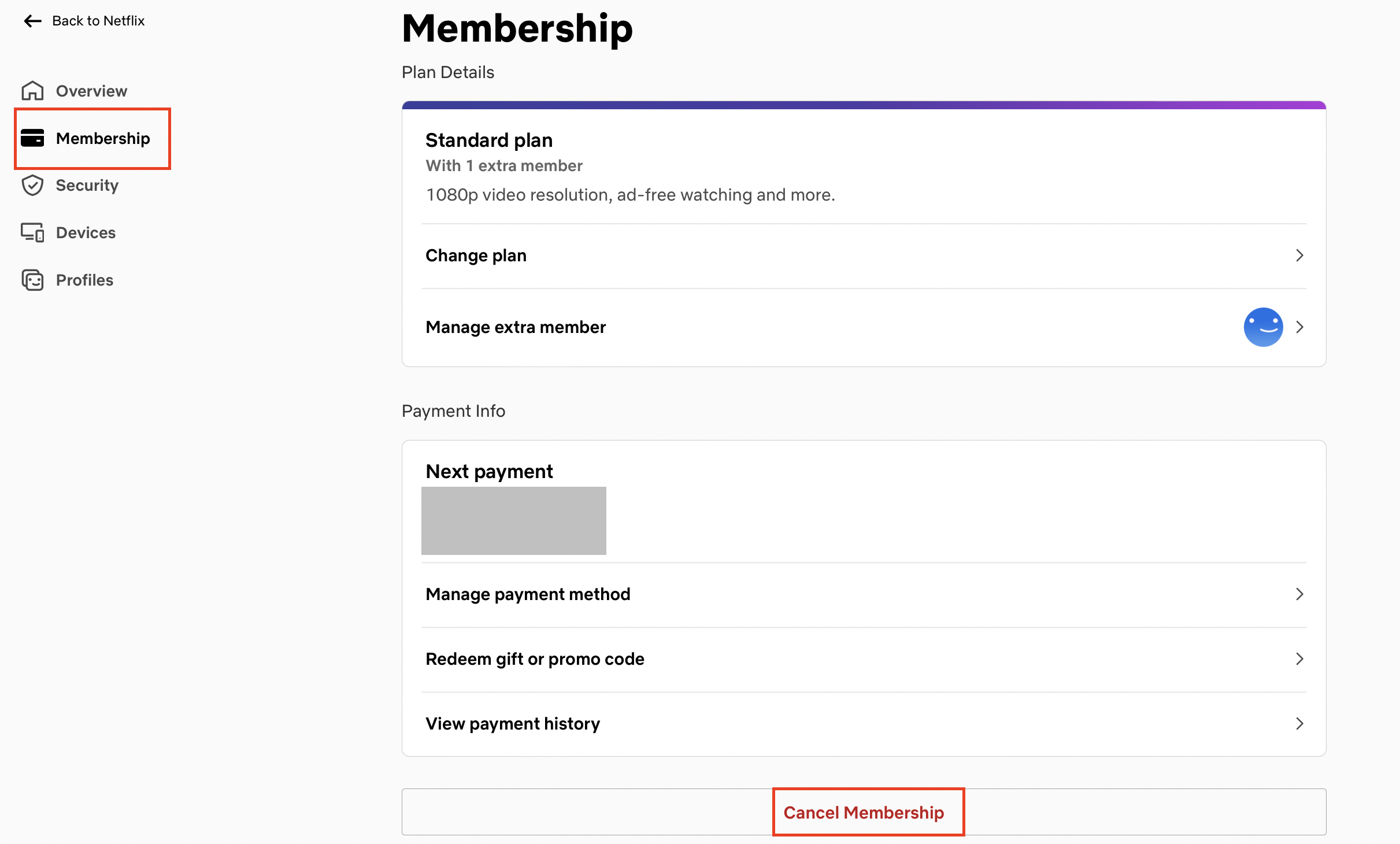
Step 3: You should now receive an email confirming the cancelation. Your subscription will run until the end of your current billing period – the date will be shown in your billing details. Netflix will delete your account ten months after the cancelation date, but if you log back in before this, you can reactivate your Netflix account.
Step 4: If you want Netflix to delete your account as soon as you’ve canceled your membership, simply write to privacy@netflix.com. Note that you have to send the email from the address you used for your Netflix account. Your account will be deleted as soon as your subscription ends. If you want it deleted even earlier than this, you need to say so in your email.
- Write perfect emails with optional AI features
- Add credibility to your brand
- Includes domain, spam filter and email forwarding