

How to delete your LinkedIn account – it’s as easy as 1, 2, 3

You can delete your LinkedIn account in just a few short steps. To do this, go to “Account management” under your account preferences.
- Simple registration
- Premium TLDs at great prices
- 24/7 personal consultant included
- Free privacy protection for eligible domains
Quick guide: deleting a LinkedIn account
Via the LinkedIn app
- In the app, click on your profile picture.
- Go to “Settings” and then “Account preferences”.
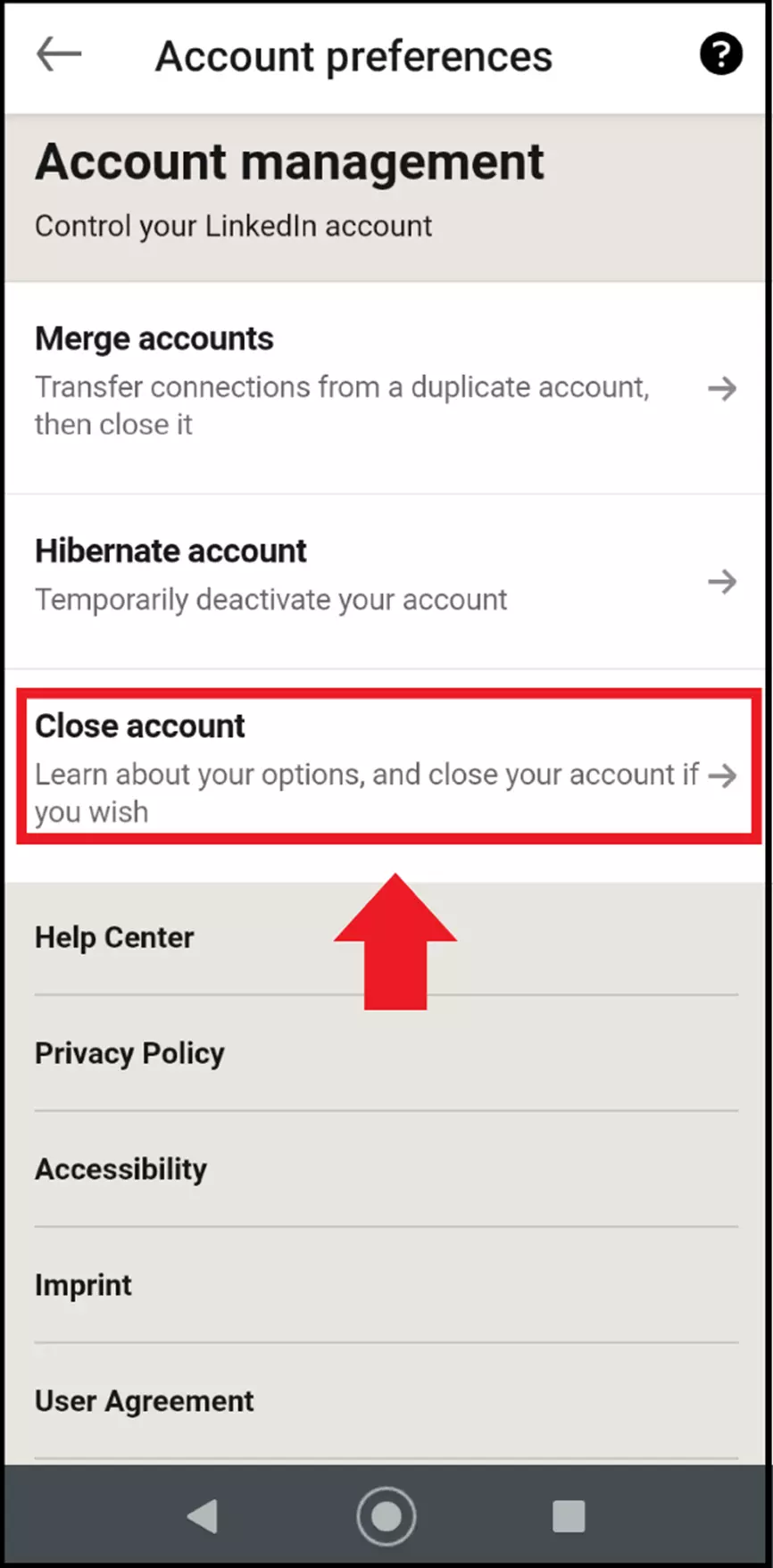
- Scroll down to “Account management” at the bottom and click on “Close account”.
- State your reason and enter your password.
- Click on “Done”.
Via a browser
- Sign into your LinkedIn account.
- Go to “Settings & Privacy”.
- Look under “Account preferences”.
- Click on “Account management” and then “Close account”.
- State your reason and enter your password.
- Click on “Done”.
Deleting a LinkedIn account: what you need to think about
Just like Xing, LinkedIn is one of the most important social media platforms for career opportunities, businesses, and personal branding. People looking for work who do not have their own resume website use their LinkedIn profile like a digital business card, showing off their expertise and qualifications and putting themselves out there for potential employers. Similarly, companies can brand themselves as employers via LinkedIn and build up a network of potential talent and partners.
People who wish to use a different professional website or who need a new LinkedIn profile due to a job or even career change should delete their old LinkedIn account. Fortunately, LinkedIn makes this very easy for users to do in just a few steps. In addition, your profile will be saved for a further 20 days and can be reactivated if you log in again during this time. If you want to permanently delete it, simply avoid logging in to your account again during this time. Permanent deletion means that all your contacts and connections, messages, and data on online courses will be lost.
Deleting a LinkedIn account via the app
Step 1: Open the LinkedIn app, log in, and tap on your profile picture. A menu will appear where you can click on “Settings”.
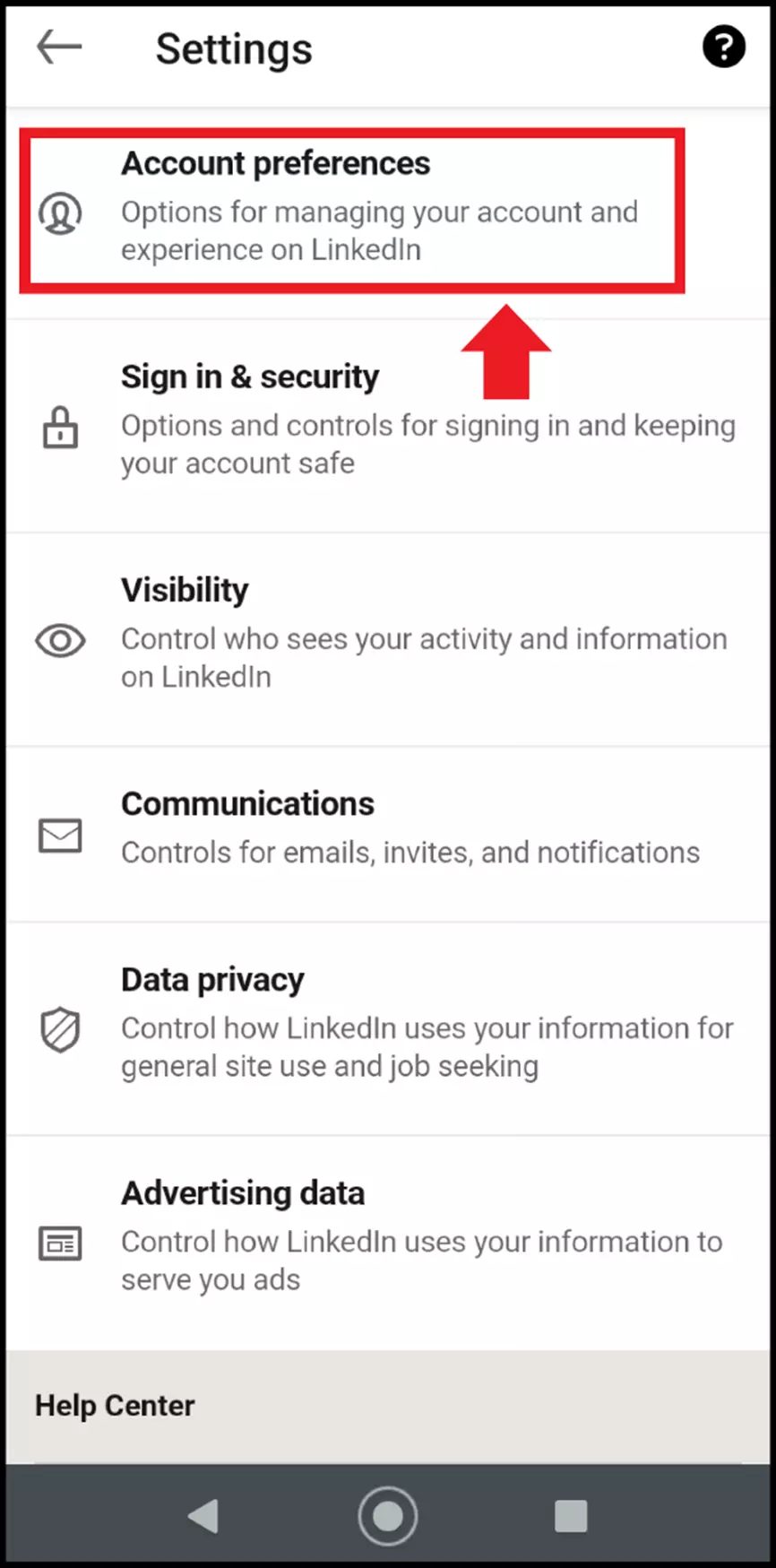
Step 2: In the Settings menu, click on “Account preferences”.
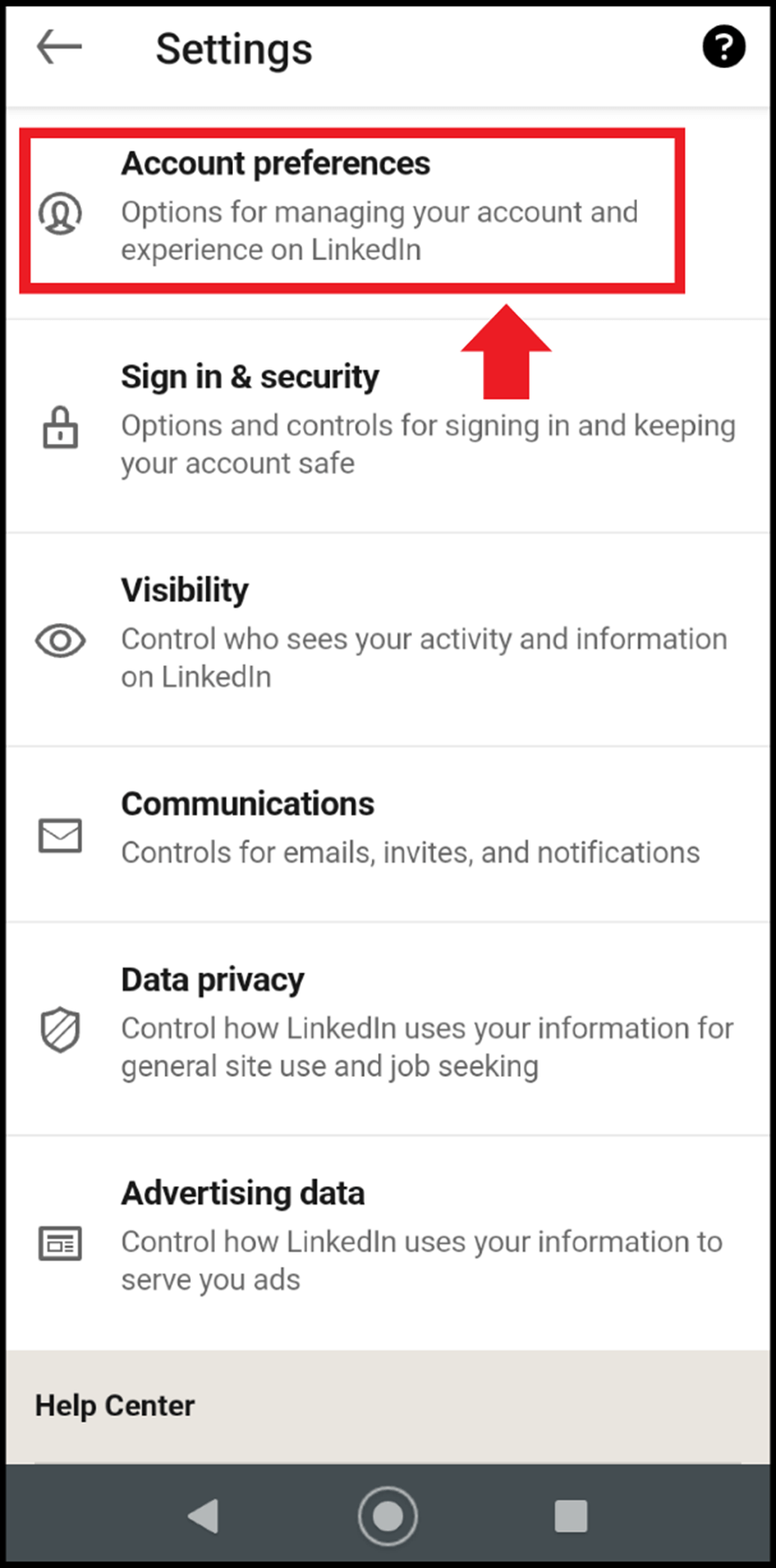
Step 3: In the account preferences area, scroll down to “Account management”. Here, you will see the option “Close account”. Click on this.
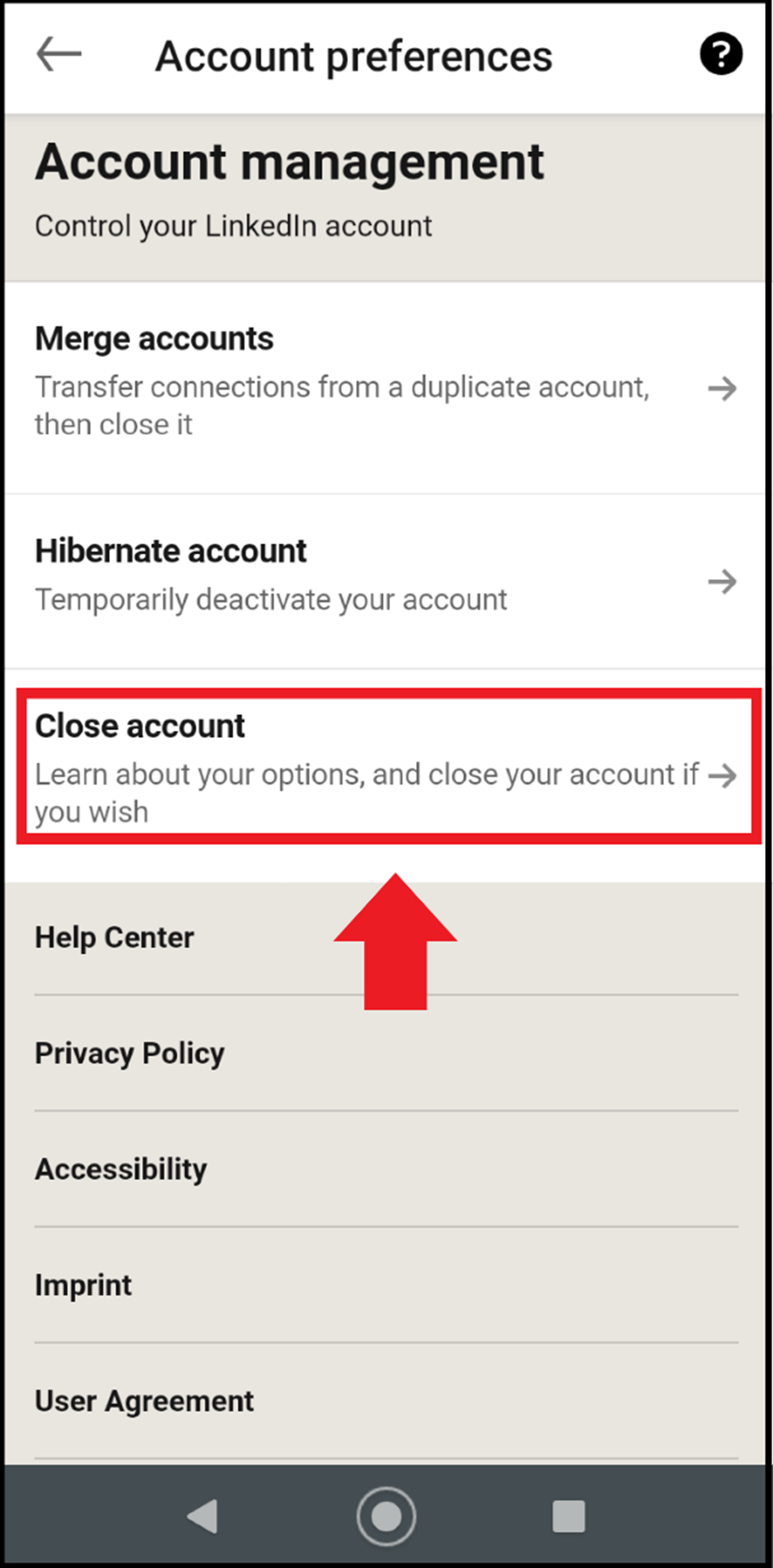
Step 4: State a reason why you are deleting your LinkedIn account and enter your password. Check the final box to confirm that you understood everything, and then delete your profile by tapping on “Done”. After 20 days, your LinkedIn profile will be permanently deleted. Public information remains available until then.
Deleting a LinkedIn account via a browser
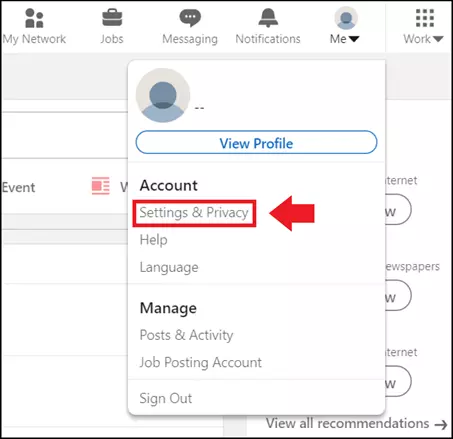
Step 1: Log in to your profile on the LinkedIn homepage. Click on your profile picture and go to “Settings & Privacy”.
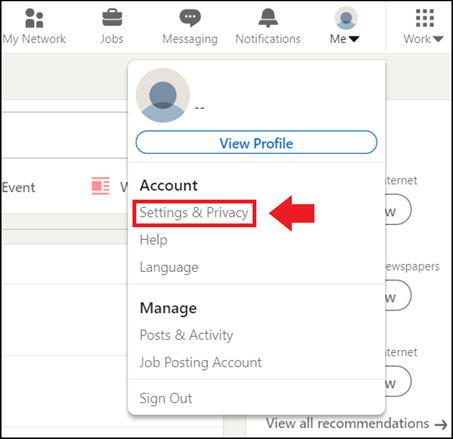
Step 2: Now go to “Account preferences”.
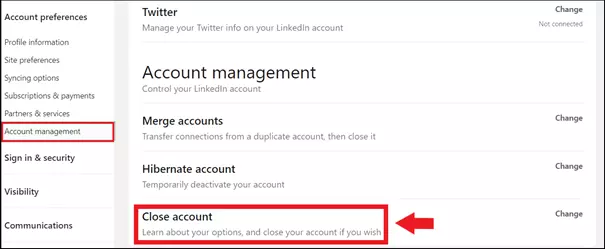
Step 3: On the left side of the account preferences menu, click on “Account management”, or simply scroll all the way down in the main menu. Under “Account management”, you will see the option “Close account”.
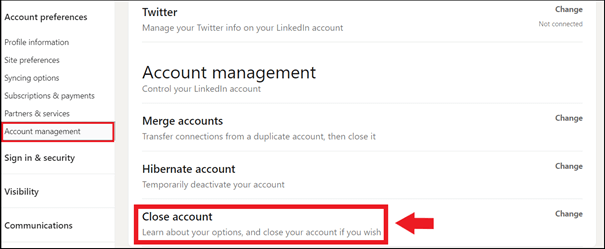
Step 4: State the reason why you are deleting your LinkedIn account and confirm your identity with your password. Check the box and click on “Done”.