

Using a PS5 controller on PC – here’s how to connect the two

For some game genres, keyboard and mouse on the PC are not actually the best way of controlling the game, especially if you want to jump from platform to platform in a long gaming session. A PS5 controller can be connected to the PC in just a few steps. We’ll show which connection options are available.
Make a statement with your own .gg domain and let the games begin. Register your own .gg domain now with IONOS.
Connect your DualSense to the PC with a USB cable
Probably the easiest connection between controller and PC or laptop is via a suitable UBS cable, which is connected to the controller and via USB input on the computer. This is how you connect the PS5 controller to the PC:
- The cable that comes with the PlayStation 5 can be used for this. Use it to connect the controller to the computer.
- As soon as the connection via cable is established, the computer automatically recognizes the newly connected hardware and starts setting up the controller. This should be completed within a few seconds. Now you can use the controller for a wide variety of games.
Use DualSense with your PC via Bluetooth: How to connect the PlayStation 5 controller wirelessly
To enable a wireless gaming experience, the PS5 DualSense controller can also be connected to a PC via Bluetooth.
- To do this, open the “Settings” of the PC via the menu item “Devices”.
- On “Bluetooth and other devices” you can activate the Bluetooth function by clicking on the slider.
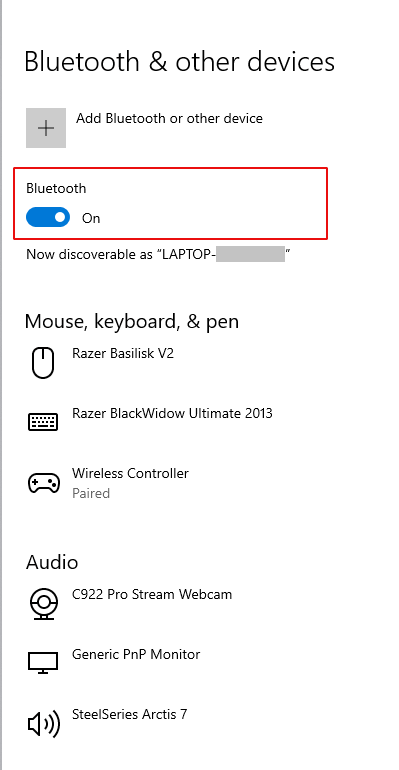
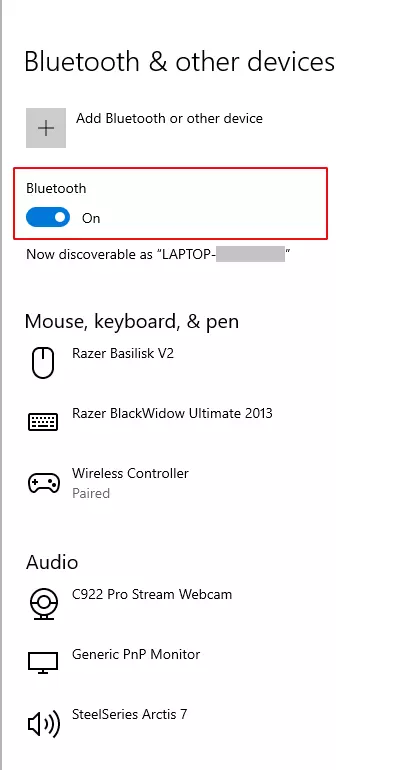
- Next, select the top item from the menu by clicking on the cross “Add Bluetooth or other device”.
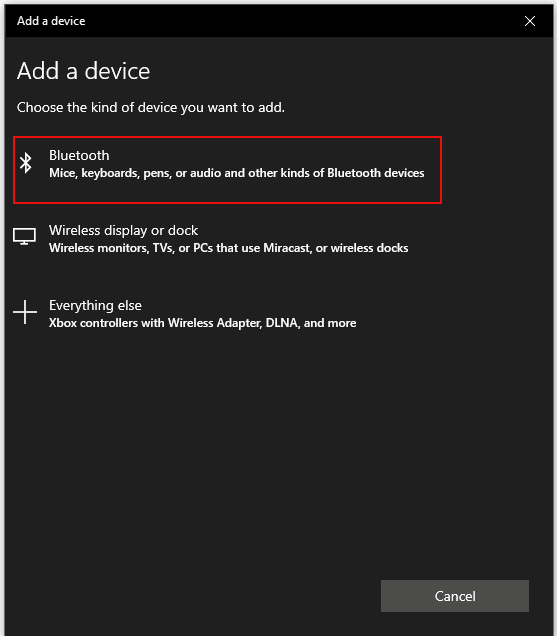
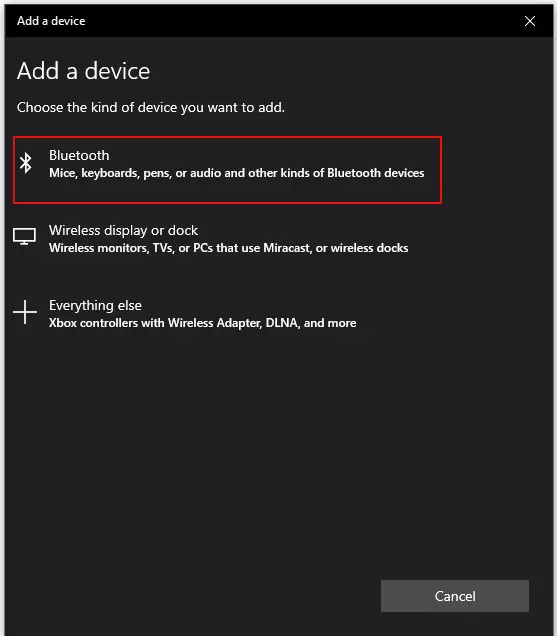
- A selection of three different possibilities will then appear. You just need to choose the first — Bluetooth. Don’t be put off by the fact that the third item talks about Xbox controllers. As indicated, this action is specific to connecting to Microsoft controllers.
- As with the older PS4 DualShock controller, the [PlayStation] button and the [Share] button have to be pressed to pair the DualSense with a PC. The built-in LED light will flash in the controller, confirming the start of the Bluetooth search.
- The PS5 controller should now be recognized as a wireless controller by Windows. Clicking on the menu item confirms the connection to the PlayStation controller, and the setup is complete.
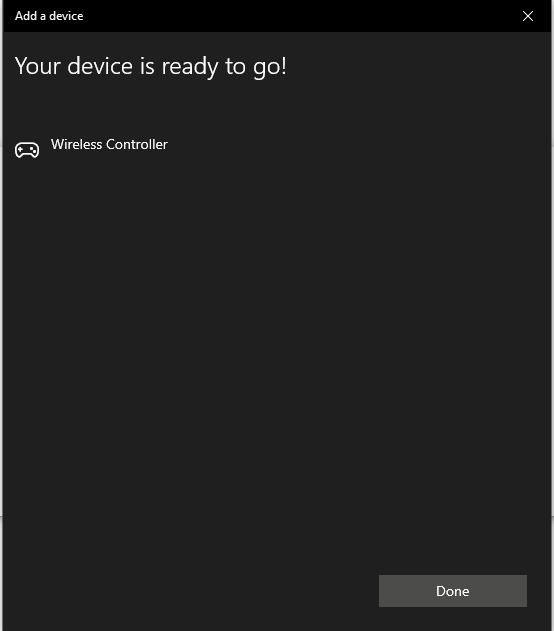
Just like with linking a PS4 controller to PC, configuration of the controller via a suitable program can also be useful for a PS5 controller — or even necessary, especially for older games.
Set up a PlayStation 5 controller for PC with DS4 for Windows individually
Sony uses a special interface for connecting its controllers, while Microsoft uses a different interface, the so-called Xinput, for connecting Xbox and Windows. Due to these different interfaces, the assignment of the PS5 buttons of connected PlayStation controllers is not optimized in some cases.
To fix this and precisely adjust the settings from game to game, there are a few free programs available. First and foremost, the DS4 Controller software offers the option of mirroring the PS5 controller’s button assignment to a virtual Xbox controller.
In DS4 Controller, you can see in the first menu item “ID”. As soon as the controller is displayed there, click on “Profile” and you’ll be brought to the change mode. In this, you can change the button assignment of the PS5 controller on the PC according to your preferences.
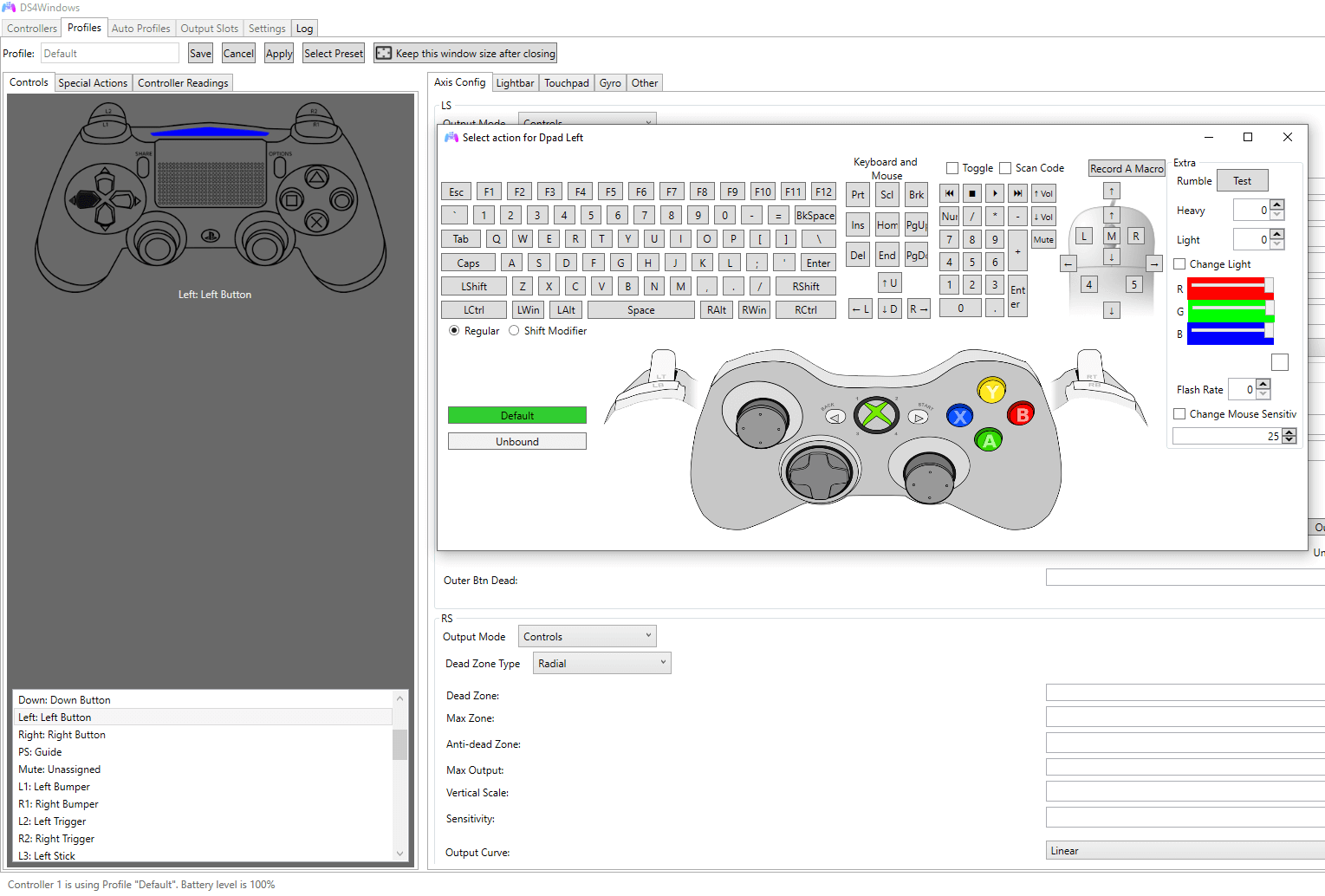
You’ll see the Xbox controller as a visual guide for your configuration. As soon as you have made the setting, the program takes over the individual adjustment at every start. Note that you have to run the DS4 controller again every time you restart the computer.
Wondering how to use an Xbox controller on PC? We’ll explain this in a dedicated article!