

How to delete a YouTube channel

There can be various reasons for wanting to delete your own YouTube channel. Perhaps you’re ready to leave the Google platform entirely and explore YouTube alternatives. Whatever the reason, we will explain step by step how the deletion process works.
- Free Wildcard SSL for safer data transfers
- Free private registration for more privacy
- Free Domain Connect for easy DNS setup
How to save your videos before you delete your YouTube channel
A YouTube channel accumulates a lot of content over time. If you want to create more professional videos, become an influencer or improve your YouTube SEO ranking, your old videos or an outdated channel may no longer fit your brand’s image.
However, bear in mind that videos are irrevocably lost when you delete your YouTube channel. So if you haven’t yet backed up copies of important videos, download them as follows (as MP4 files):
- Sign into your YouTube account.
- Click on your profile picture and select “YouTube Studio”.
- Navigate to “Contents” on the left.
- Select a video and click the three-dot icon.
- Press the “Download” button to download the selected video as an MP4 file.
How to delete a YouTube channel quick guide
When you need it done fast and permanently. Simply follow our quick guide.
- Sign in to YouTube with your YouTube or Google account credentials.
- Open the “Settings” menu by clicking on your profile picture in the top right and then on the gear icon.
- Click on “Advanced settings”.
- Select the “Delete channel” option.
- To confirm the deletion process, enter your credentials again and confirm them via “Next”.
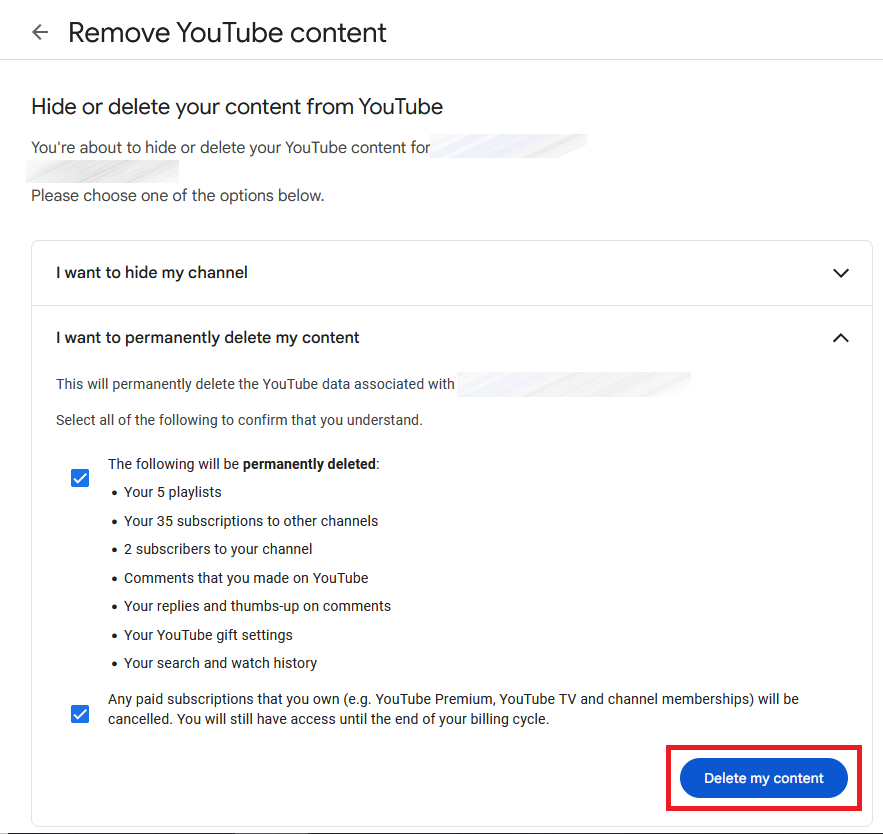
- Select “I want to hide my channel” (without deleting) or irrevocably remove the channel with “I want to permanently delete my content”.
- Check the “The following will be permanently deleted” box to delete all content as well as the “your paid subscriptions will be canceled” box.
- Complete the process by clicking “Delete my content” to delete your YouTube channel permanently.
Get a personal email address from IONOS. This includes your desired domain and customer support.
How to delete YouTube channel step by step
Here we have summarized the individual steps for how to delete your YouTube account or channel.
Step 1: Sign in to YouTube
Sign in to the YouTube website with the Google account associated with your YouTube channel.

Step 2: Access settings
Go to the “Settings” menu by clicking on your profile picture in the top right and then on the gear icon.
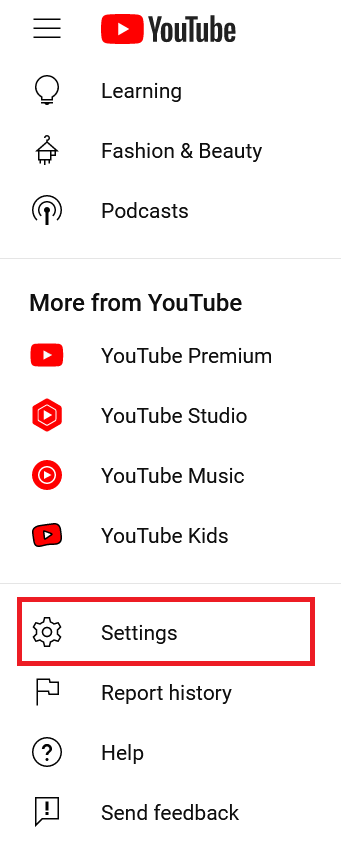
Step 3: Open the advanced settings
Click “Advanced settings” at the bottom of the Settings menu.
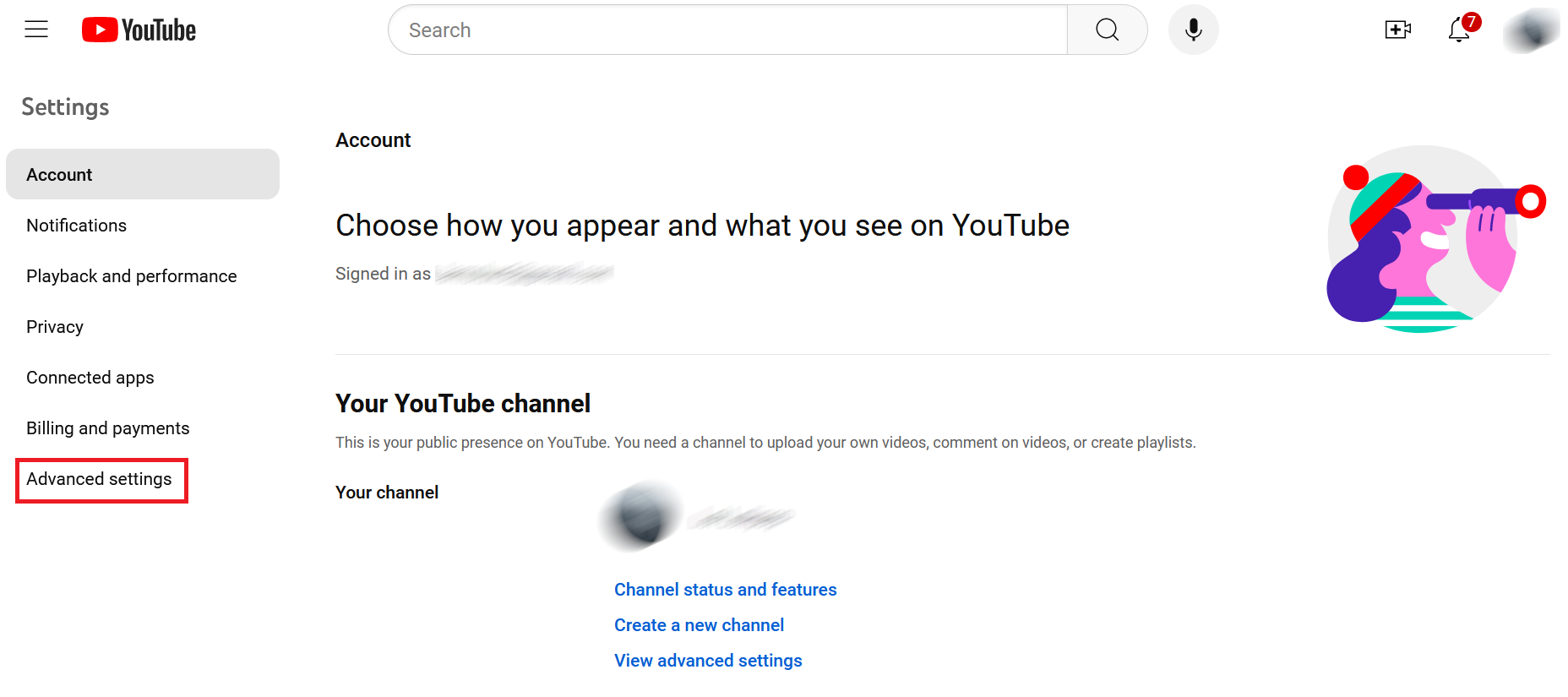
Step 4: Start process to delete channel in YouTube
At the bottom of the “Advanced settings”, you will find the “Delete channel” section, including a link of the same name, which initiates the deletion process.
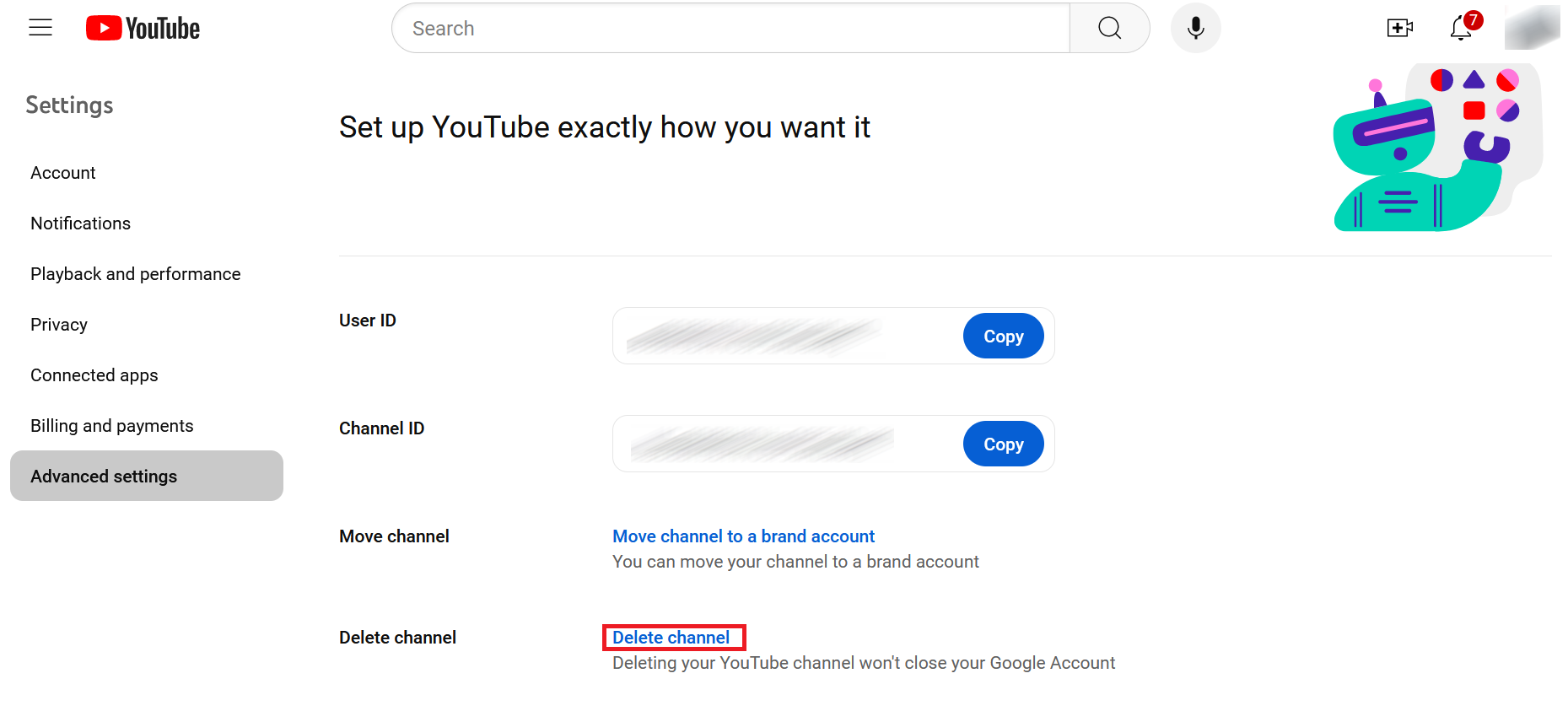
Step 5: Verify YouTube account
Confirm the Google account associated with the channel by entering your password and then clicking “Next”.
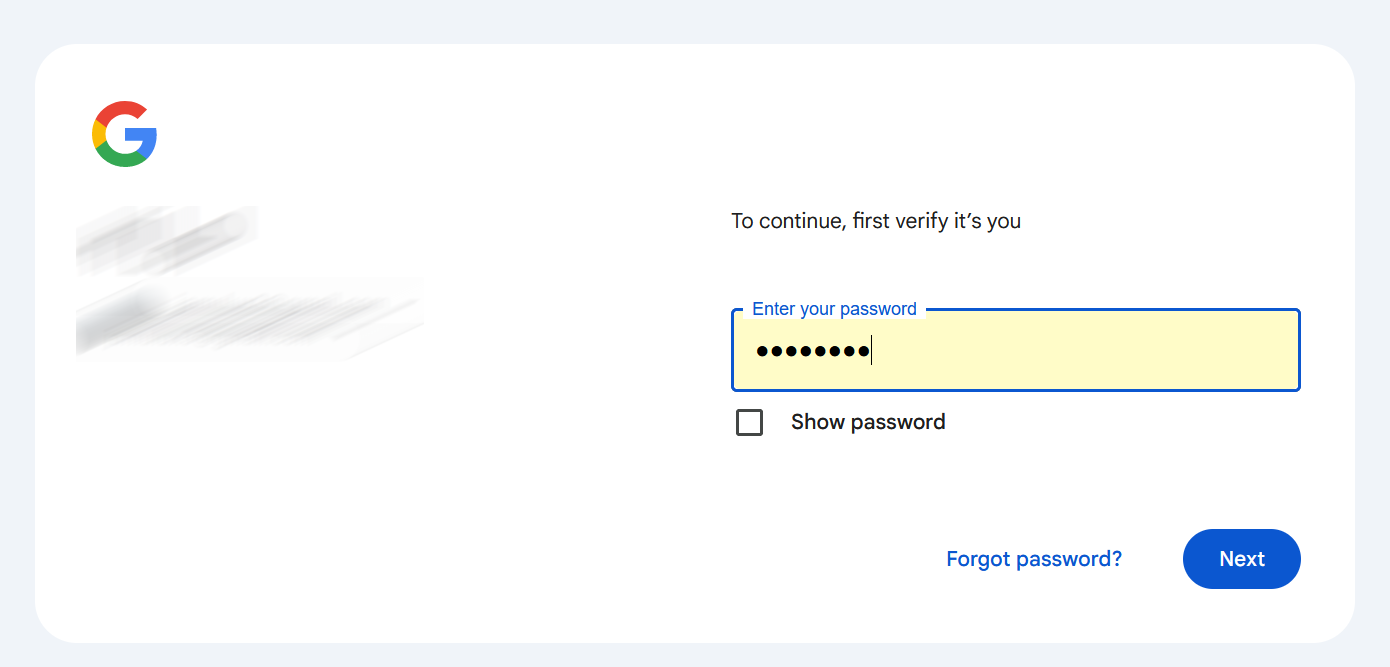
Do you only want to delete your YouTube history or just individual YouTube videos? In this case, you can keep your channel. Delete the history in your YouTube account by selecting the option “Clear all watch history” in the menu under “History”.
Step 6: Delete YouTube channel for good
If you want to delete your YouTube channel and its content permanently, select the “The following will be permanently deleted” box under “I want to permanently delete my content”. By activating the field below, you can cancel all paid subscriptions associated with the account (e.g. YouTube Premium). Click on “Delete my content”. You have now permanently deleted your YouTube channel. It may take a few hours for your channel to disappear from YouTube.
Alternatively, you can deactivate your channel via “I want to hide my channel” and make it invisible (without deleting it).
Always remember to back up important files and information. Avoid data loss with secure and flexible HiDrive cloud storage from IONOS.
How to delete a YouTube channel in YouTube Studio
Alternatively, you can also delete your channel via the Creator feature YouTube Studio:
- Sign into your YouTube account.
- Click on your profile picture and go to “YouTube Studio”.
- Select “Settings” in the top right.
- Click “Channel”, then “Advanced settings”, and finally “Remove YouTube content”.
- Confirm the operation with your password and then click “Delete content” to delete the channel.
If you’re looking to completely realign your brand or company’s presence online, don’t forget about your other social media profiles when you delete your YouTube account. It may be a good idea to delete your Snapchat account and Instagram account if you no longer use them and have connected them to your YouTube account.