

How to perform a YouTube channel name change step by step

Since 2021, you can change your YouTube channel name without affecting your Google Account. To do this, simply go to your channel via your profile picture and open the channel settings.
Key Takeaways
- Google Account: Renaming your YouTube channel no longer changes the name of your Google Account.
- Browser: Click your profile picture, select “View your channel” and then “Customize channel” to edit your name and handle in the “Profile” tab.
- App: Tap your profile picture, open “View channel” and tap “Edit channel” or the pencil icon.
- Channel name vs. handle: The channel name is your display name and doesn’t have to be unique. The handle starts with @, is unique, and is part of your channel URL.
- Verified channels: Changing your channel name removes the verification check mark, so you’ll need to request it again.
- Simple registration
- Premium TLDs at great prices
- 24/7 personal consultant included
Quick guide: How to change your YouTube channel name
In a browser
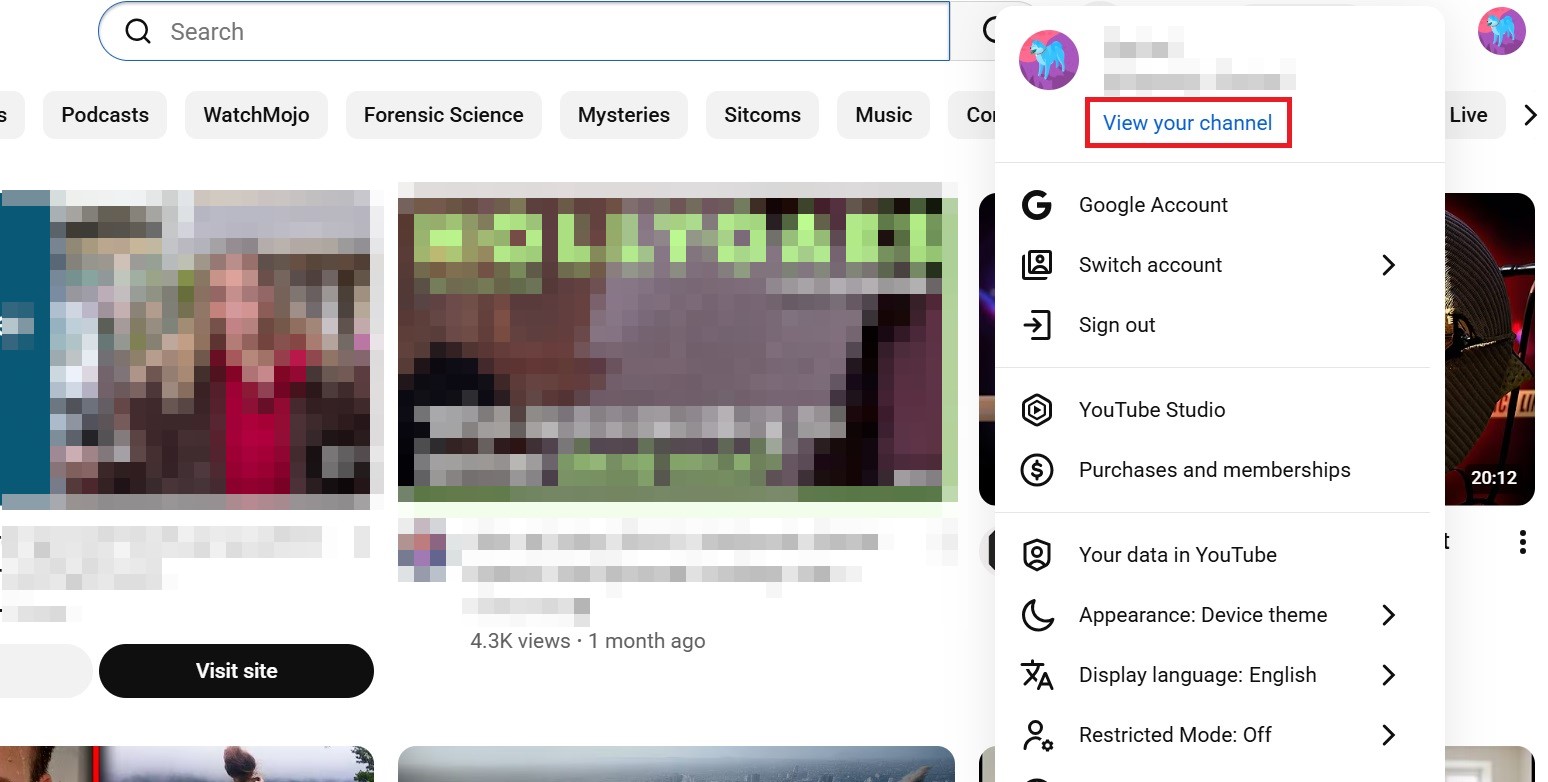
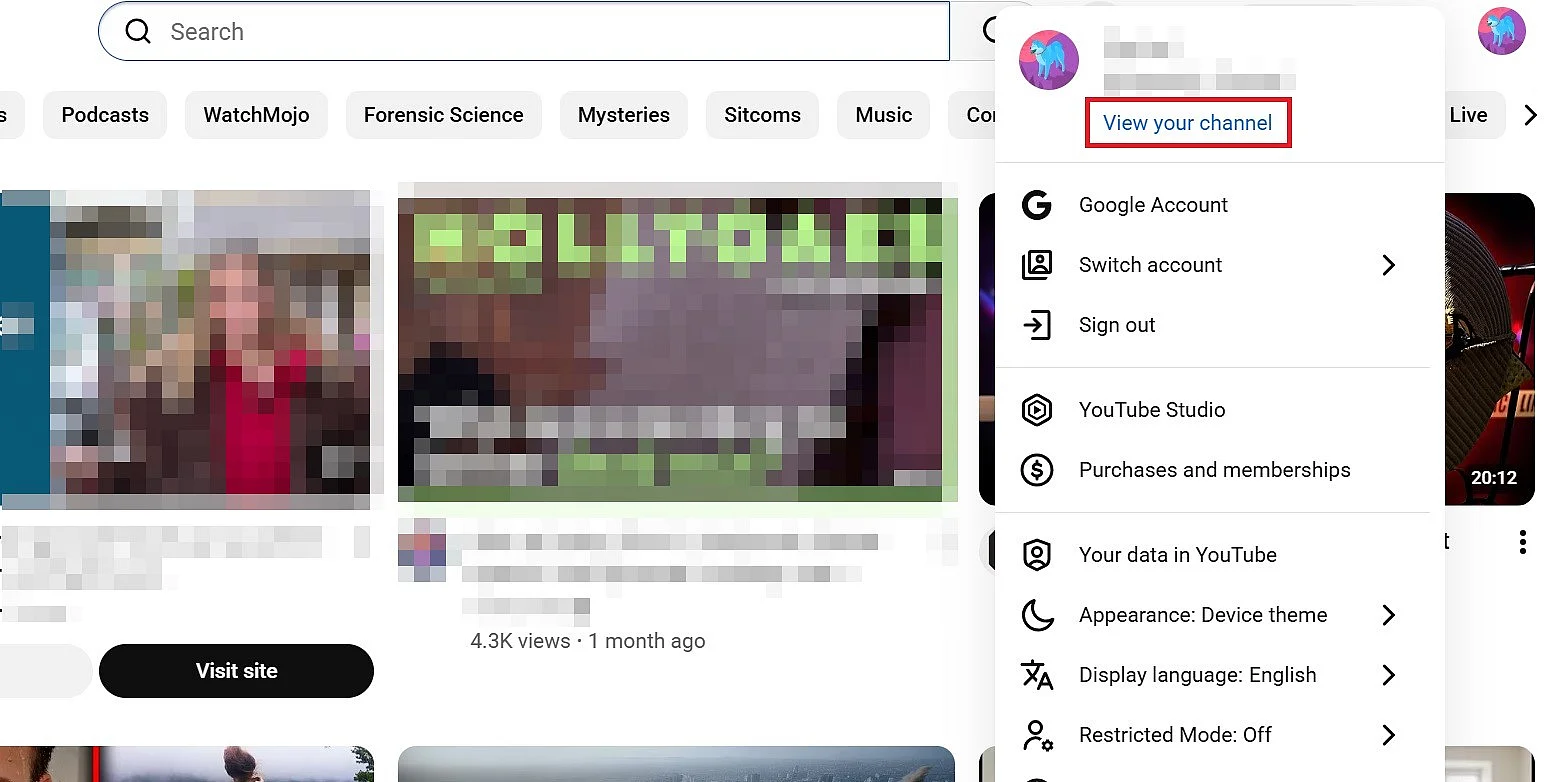
- In the top right, click your profile picture and select “View your channel.”
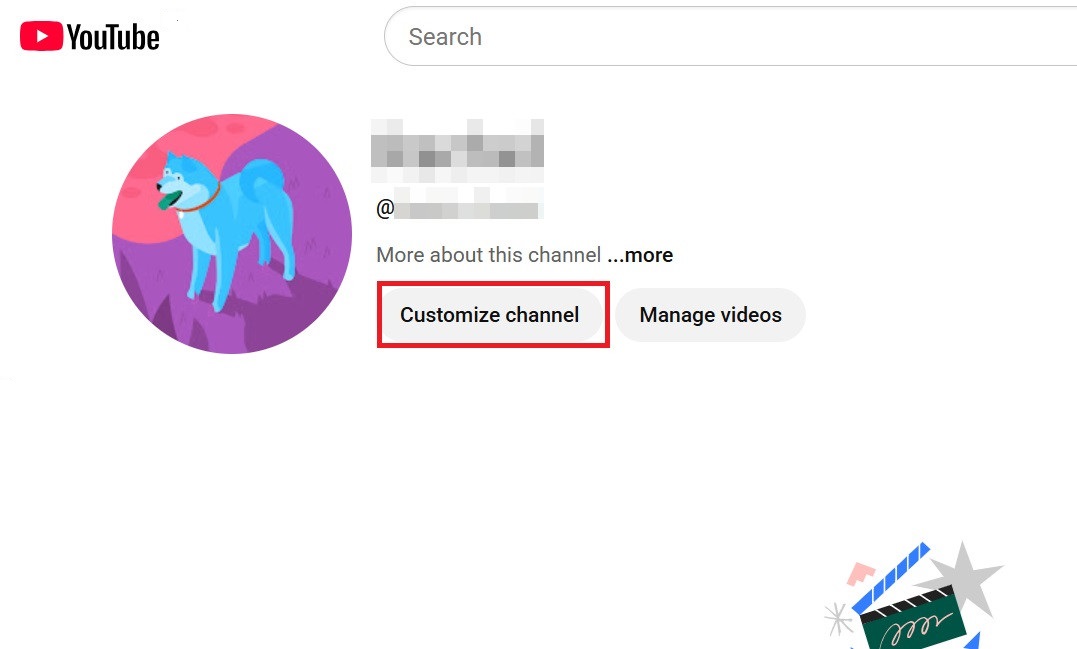
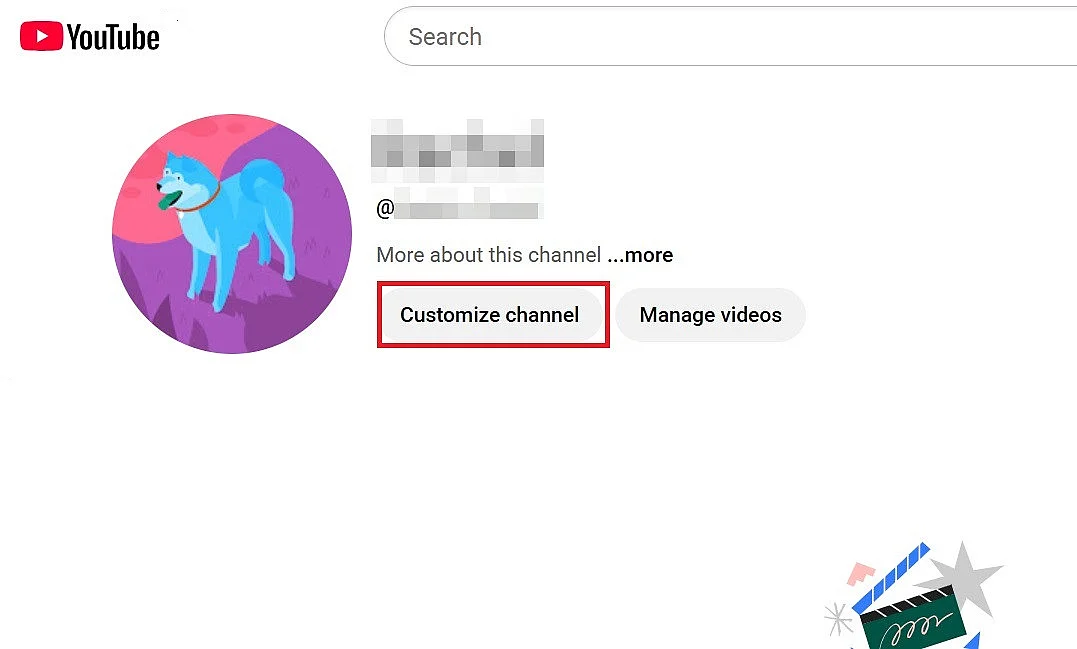
- Click “Customize channel.”
- In the already open “Profile” tab, you can now change your name and your alias or handle.
- Then go to “Description” if you also want to update the channel description.
- Click “Publish” to apply the changes.
In the YouTube app
- Open the YouTube app and tap your profile picture in the bottom right corner.
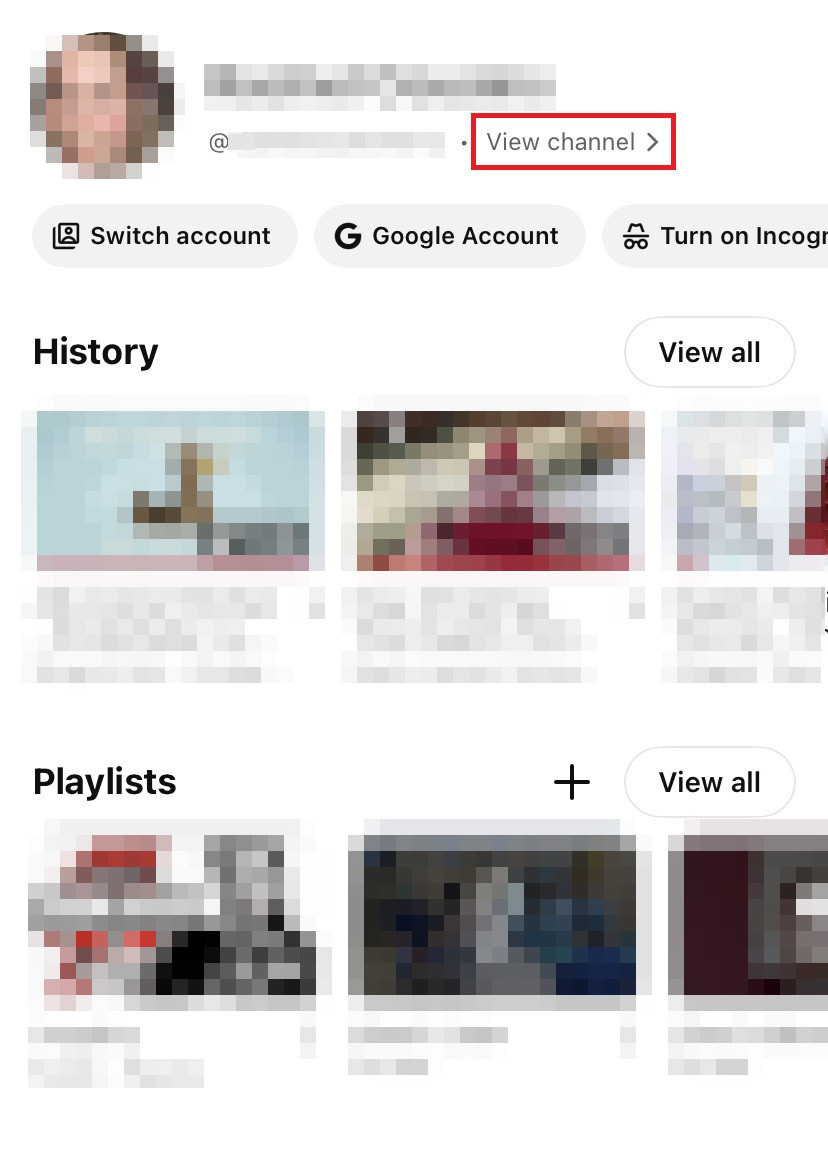
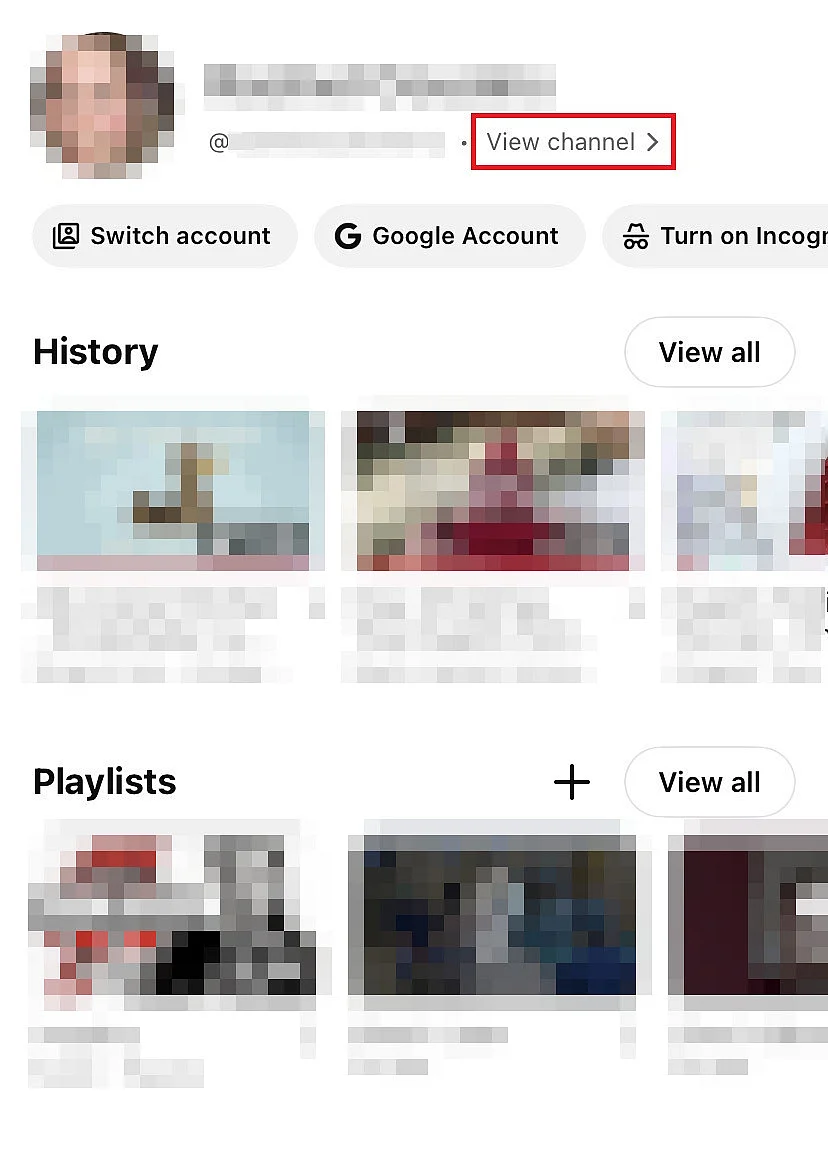
- Tap “View channel.”
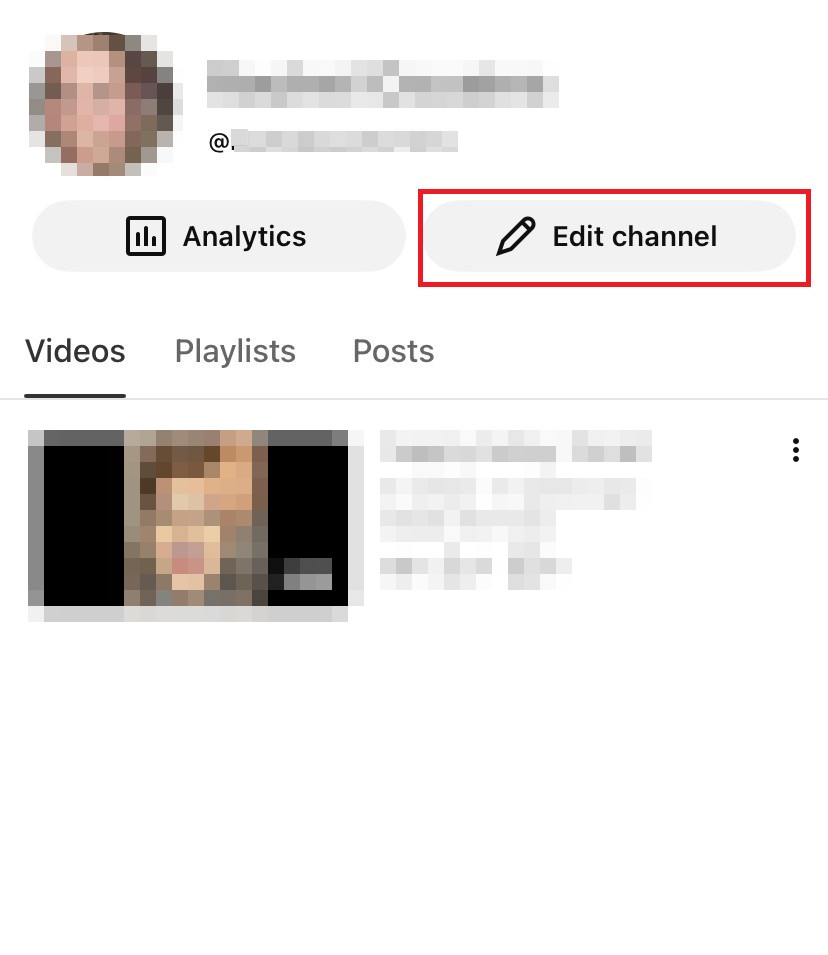
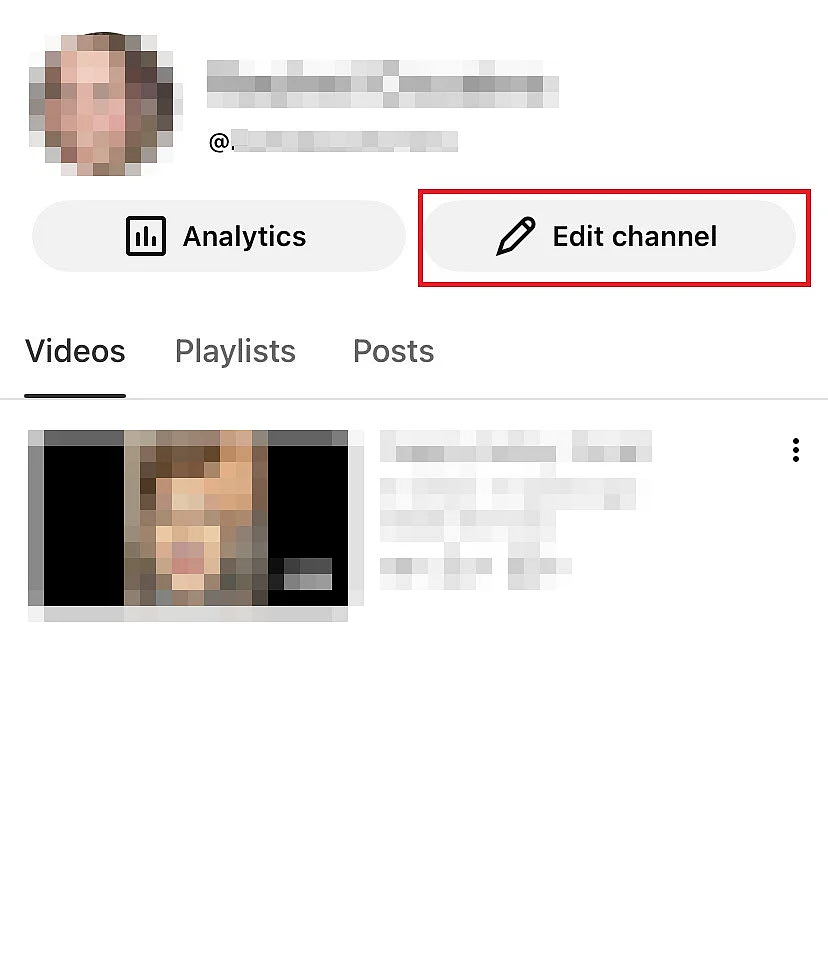
- You’ll see either some text under your name labeled “Edit channel” or a pencil icon. Select the option that appears for you.
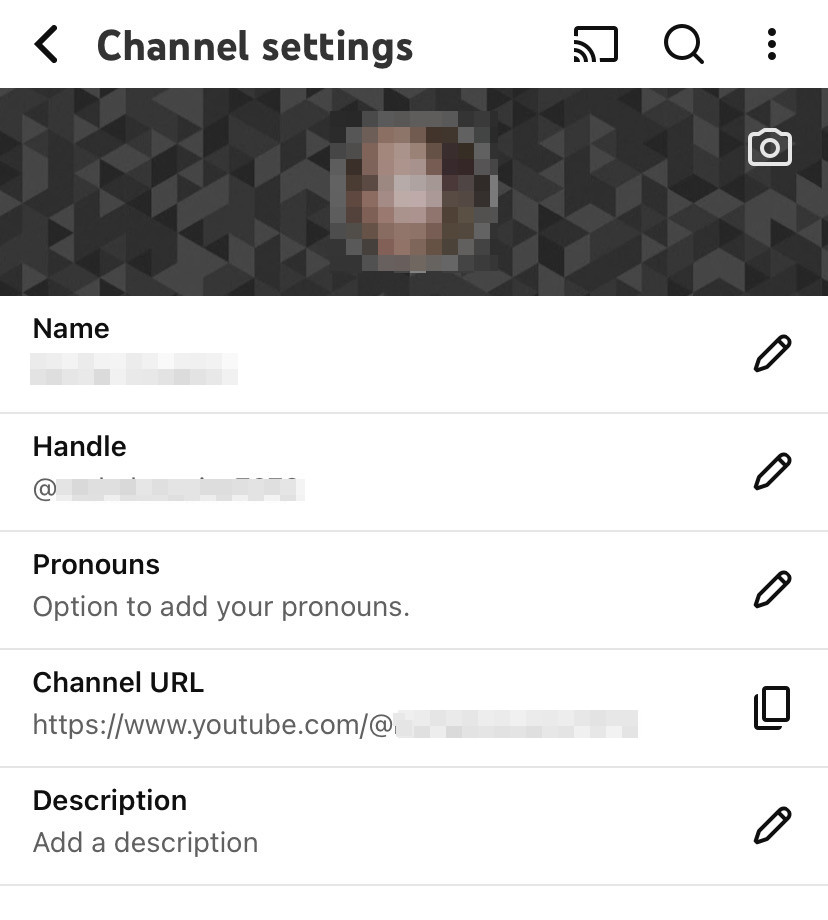
- In the first line, change your YouTube name; in the second line, your alias or handle; and in the fifth line, your channel description.
YouTube channels age, too! A new name for your channel can play a key role in improving your YouTube SEO ranking.
How to change your YouTube channel name step by step
Follow our step-by-step guide on how to change your YouTube name (or your channel name). You can rename your YouTube channel in just a few steps, both in your desktop browser and in the YouTube app.
Do you use YouTube alternatives like Twitch, Dailymotion, Vimeo, and TikTok? Make sure your channel name is consistent across all platforms.
How to change your YouTube name in a browser
Step 1: Open the “View your channel” menu item
Go to your profile picture and, in the menu that appears, click “View your channel.”
Step 2: Select “Customize channel”
You’re now in your YouTube channel menu. Here, click the “Customize channel” button.
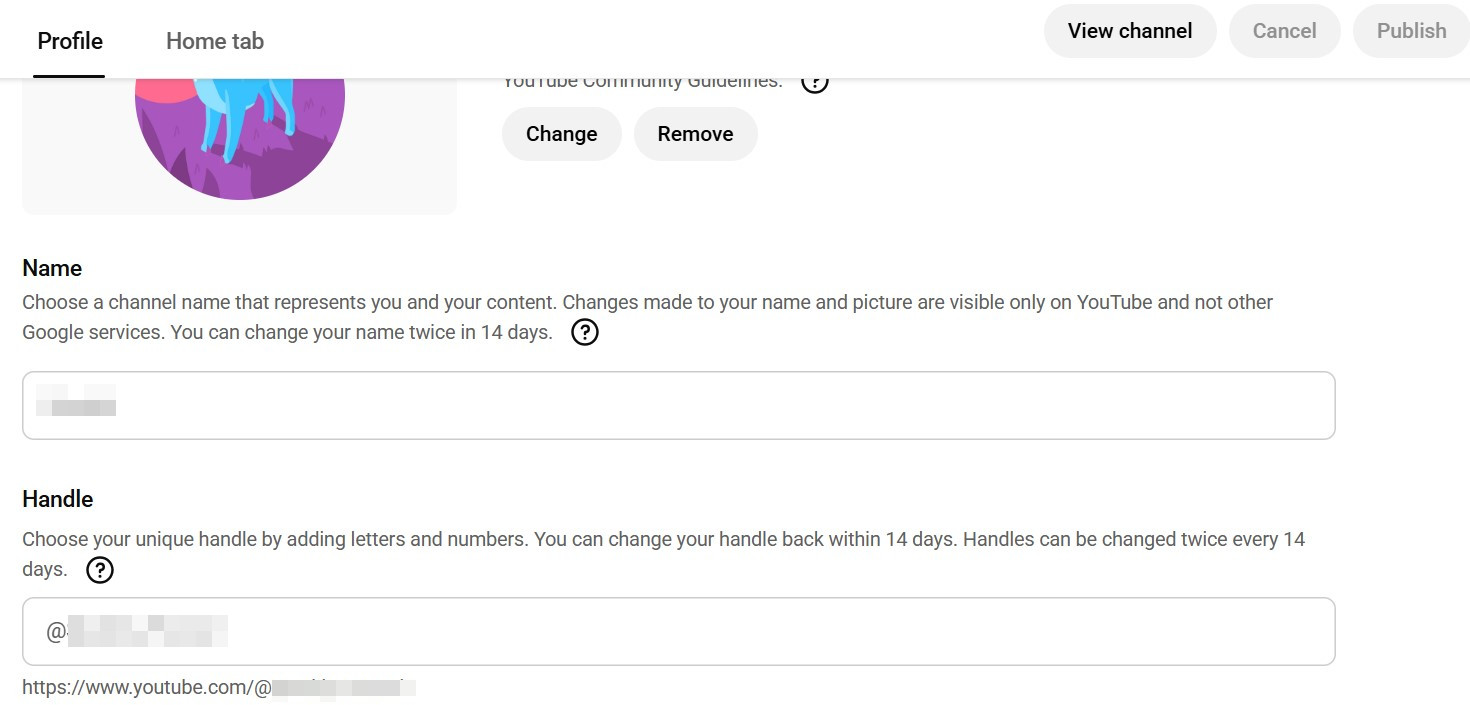
Step 3: Change your YouTube name
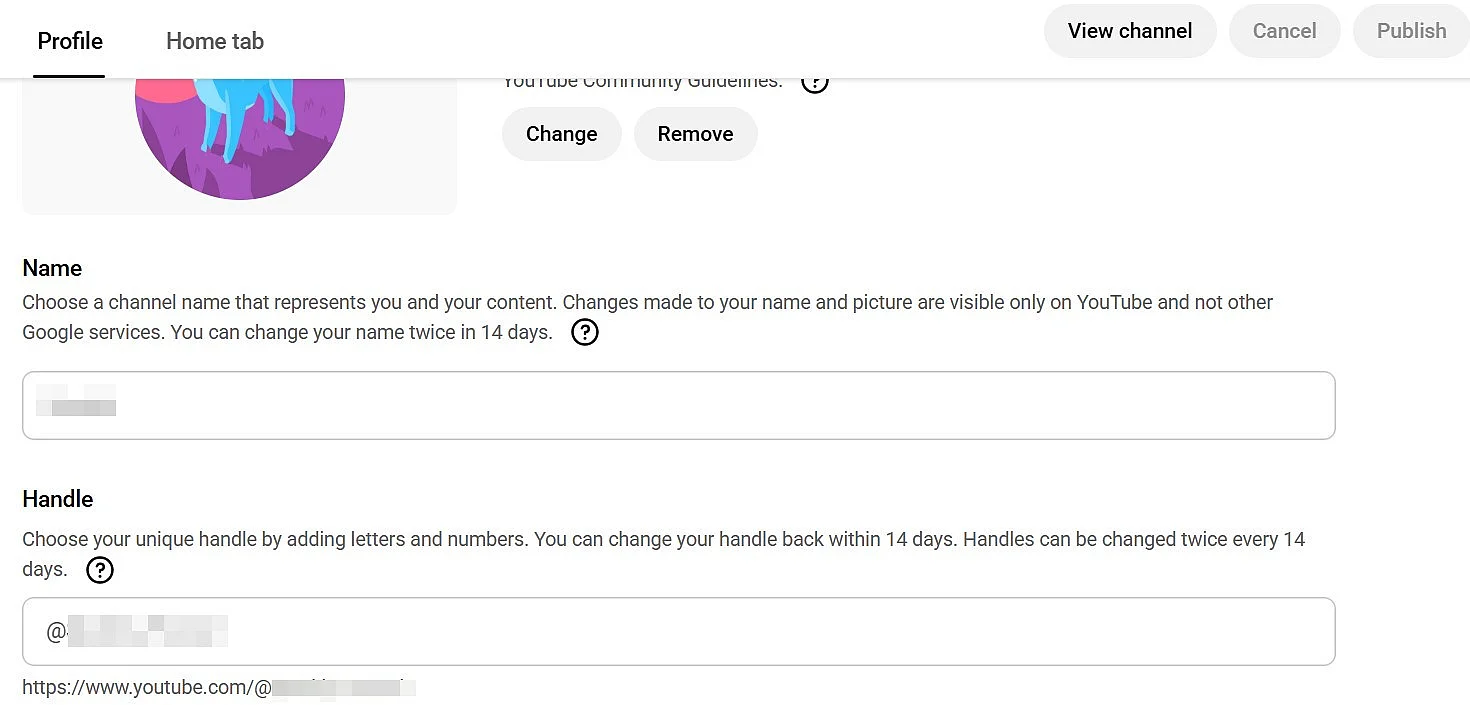
Click the line in the “Name” section to change your account name, and the Alias line to change your handle. Unlike the username, handles are unique and change your account URL. Two lines below, you can also edit your channel description if you want.
When you’re done, confirm your changes by clicking “Publish” in the top right.
- Improve your Google ranking without paying an agency
- Reply to reviews and generate social media posts faster
- No SEO or online marketing skills needed
How to change your YouTube name in the app
Step 1: Tap your profile picture and open “View channel”
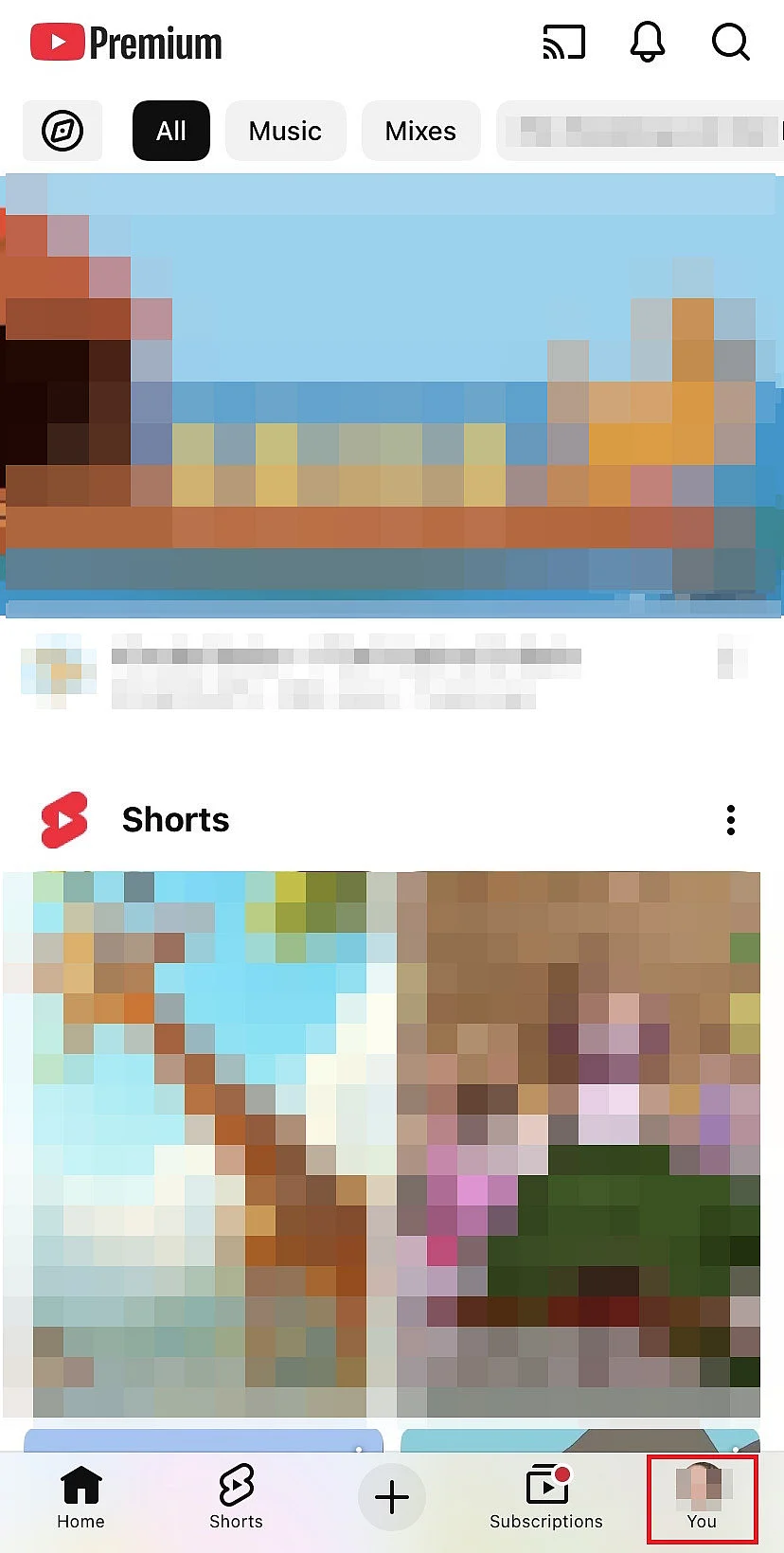
Open the YouTube app and tap your profile picture in the bottom right.
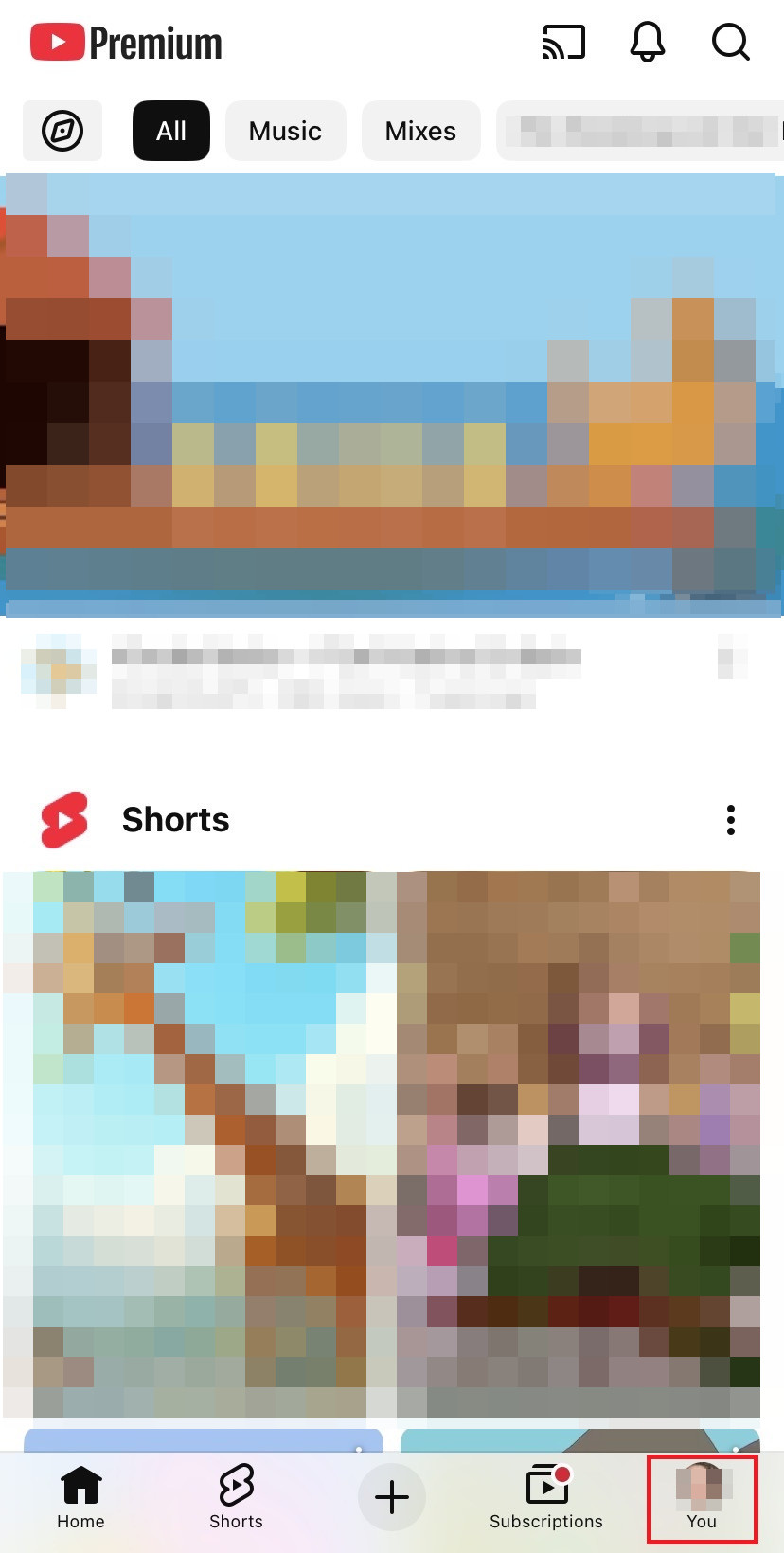
Select “View channel” to open the menu for customizing your YouTube channel.
Step 2: Tap the “Edit channel” button
In this menu, tap “Edit channel.” Alternatively, an icon shaped like a pencil will be shown instead.
Step 3: Edit your YouTube name and channel description
Now change your YouTube name, your alias or handle, and optionally the channel description as well.
- Free Wildcard SSL for safer data transfers
- Free Domain Connect for easy DNS setup
What is the difference between channel name and alias?
The channel name is your channel’s display name. It appears on your channel page, under videos, and in search results. It isn’t unique, so multiple channels can have the same name. Your alias or handle, on the other hand, is a unique username that starts with “@.” It’s used in the URL, in mentions, and in comments.
What verified YouTube channels need to keep in mind
YouTube channels with more than 100,000 subscribers, as well as well-known individuals or brands, can apply for channel verification, which adds a verification check mark to their profile. This is exactly the group that should think carefully before changing a YouTube channel name because once the name is changed, the verification check mark is removed and must be requested again.
Use YouTube links with timestamps if you don’t want to share a full video, but only specific highlights.
Reviewer

Melissa Senn
Melissa Senn has been with IONOS since 2016 and focuses on website, e-commerce, social media, and AI in the Digital Guide. As a digital strategist, she uses her extensive SEO and GEO experience to transform complex technological trends into practical content.