

Reverse image search with Google: Search by image

When you search for something with a search engine like Google, hundreds of thousands of results appear within a few milliseconds. These are then subdivided into search results, including under “Images” which lists photographs that are assigned to the search term. So, how exactly does the reverse image search function work? Have you ever stood in front of a building and wondered, “What kind of building is this?”. If so, then Google’s reverse image search could definitely come in handy for you. Google’s memory draws on its available pool of images and compares them with your search image.
Another example of a situation when you might use this function is if you have a photograph as a file and want to check whether it’s used on other websites. Our guide will explain how to use different devices and operating systems to perform a Google reverse image search.
What does Google look for during a reverse image search?
Google’s reverse image search tries to identify distinctive features in an image. It uses outlines, structures, lettering, logos, colors, and combinations of these different features to identify certain objects in an image. The search results display individual or multiple identified objects, similar images, or websites that contain either your search image or similar images.
To get the search results, you must input the photograph that you want to search for into Google. It works best in a browser on a PC, but you can also try to use “Google Lens” on mobile devices that have a camera. The principle is the same: Google compares the photograph that you input with all available image databases.
You’re probably already familiar with Google’s direct image search. By entering text, you can display specific images as search results. You can also use Google search operators to perform a refined and detailed search with the input field. If the location of the PC, cell phone, or tablet that you are using is known, local search results will appear first.
Google image search with a PC
It’s highly likely that if you’re using a PC to perform the reverse image search, you’ll use an existing image from the PC’s hard drive. To do this, enter the following URL in Chrome, Firefox, or Safari:
https://images.google.comAlternatively, click on the blue “Images” icon (1) under the input field in the Google search window. It will take you to the same page (2). Click on the camera symbol to open the “Search by image” window (3). Finally, upload the image that you want to search for. There are two different ways to do this.
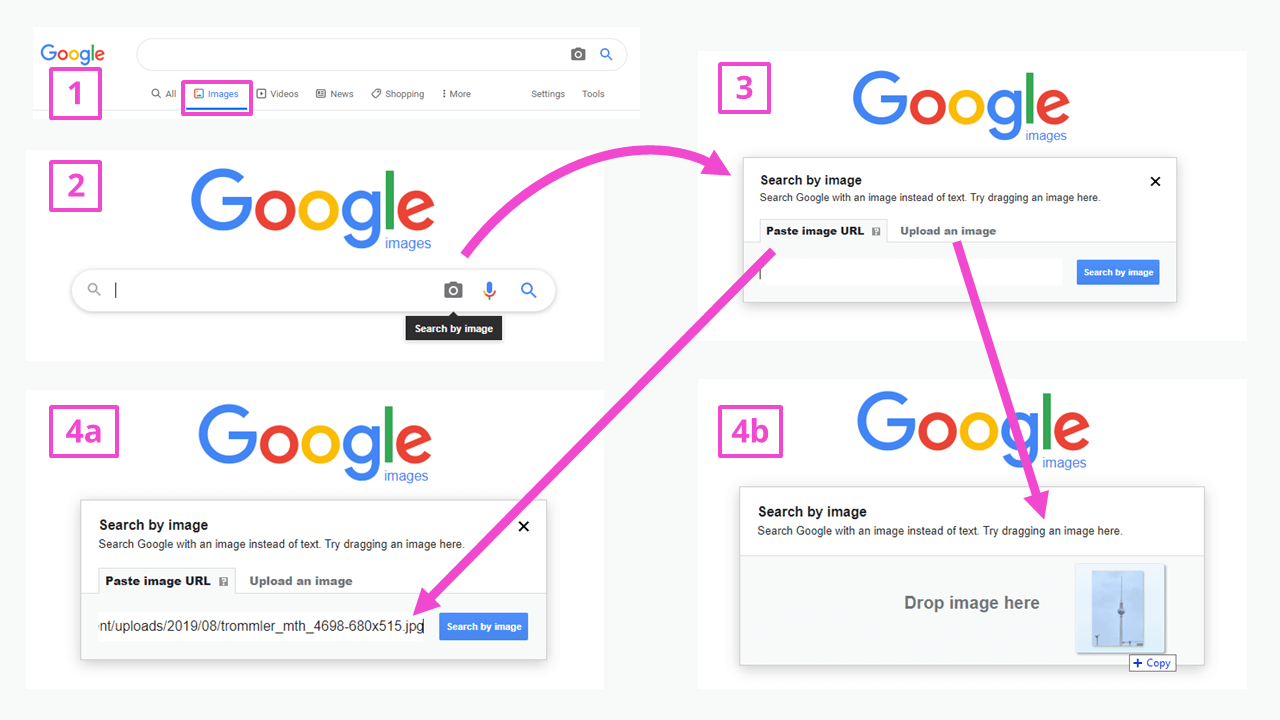
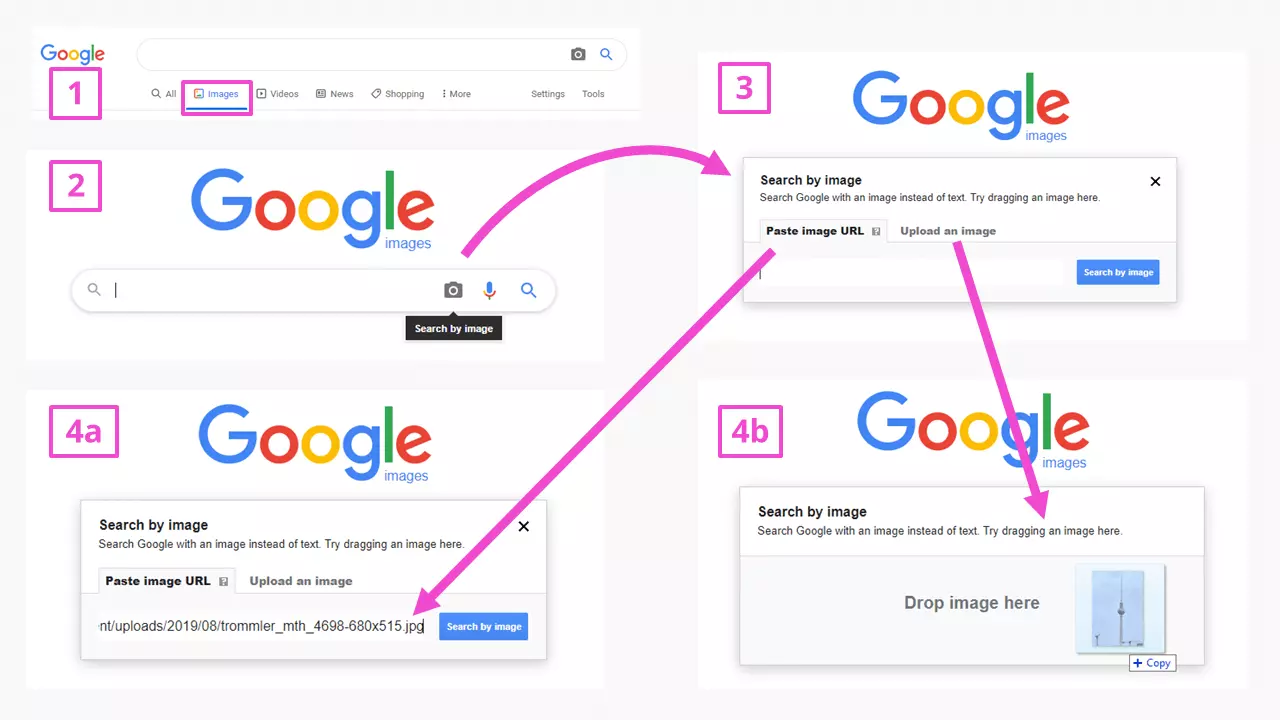
- If you want to use an image from a website for the search, you can simply copy and paste the URL (4a). You can obtain the web address of the image by right-clicking on the image and then clicking on “Copy link address” in the menu.
- You can also upload the image from Windows Explorer, Mac Finder, or your desktop with drag and drop (4b). To do this, select the “Upload an image” option. Alternatively, instead of inserting the picture with drag and drop, you can also insert the file path to the picture on your PC with “Choose file” or “Browse”.
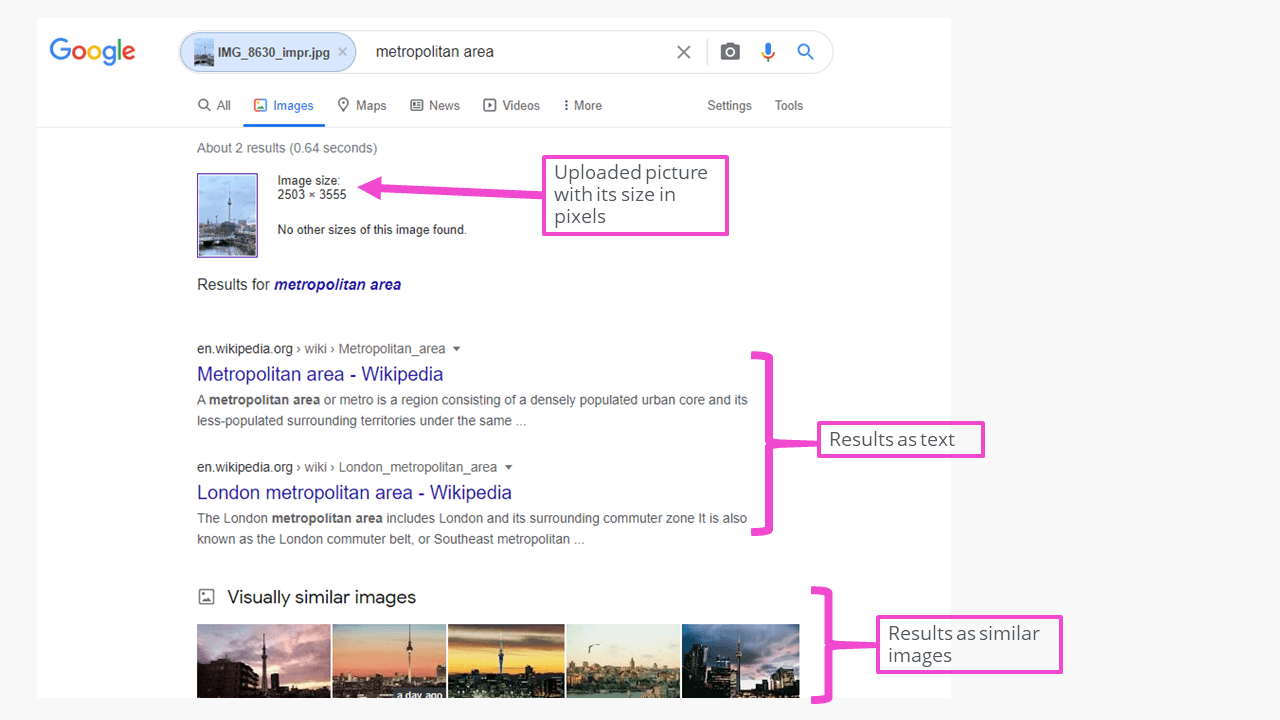
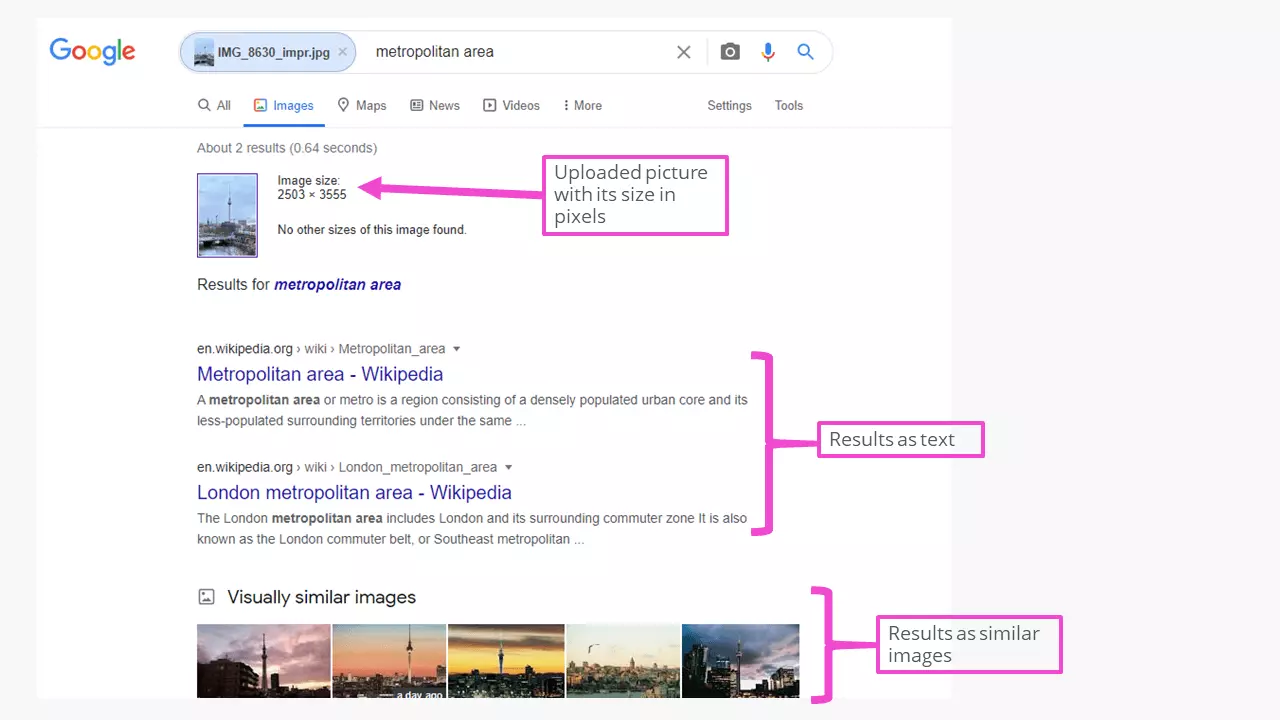
In the results, you get the pixel dimensions of the uploaded image as well as search results in text form and search results as “similar images”. If a known object is embedded in an environment, like the Berlin TV Tower in the example above, “Berlin TV Tower” may not necessarily appear in the results of the reverse image search. Here there are clearly other objects in the photograph which have led to the search result “metropolitan area” coming up. As such, this search result may lead back to similar photos on websites that feature the topic “metropolitan area”.
Google also extrapolates the contents of an image from the associated text information, the alternative text (or alt text for short), and from the information that is in the context of an image on a website. This is important for the selection of image details from an image SEO point of view, as well as when it comes to selecting images for and designing image galleries for websites.
In the search bar, Google automatically recommends a search term alongside the image you have used for the search (e.g. metropolitan area), which may not necessarily match your search intent. Most of the time, this search term describes what can be seen in the photograph. As previously mentioned, Google’s “experience” with similar photographs on other websites plays a role here and is thus not always precise. You can change the recommended search term by restarting the search. Simply press the Enter key or search icon to obtain more suitable search results.
IONOS HiDrive cloud storage offers plenty of space and data security with ISO certification – and not just for photographs but for any kind of data.
Google reverse image search on an iOS device
Searching by image on a mobile device with Google is even more exciting. When searching with an available image, simply use the Google image search function in your browser, just like you would if you were using a PC. In addition, you can also search for things that you see when you’re out and about with the camera on your iPhone or iPad. To do this, you can use the Google app for iOS that appears with the “Google Lens” symbol. Google Lens is a mobile image recognition application which you can also install on your mobile device as a separate app.
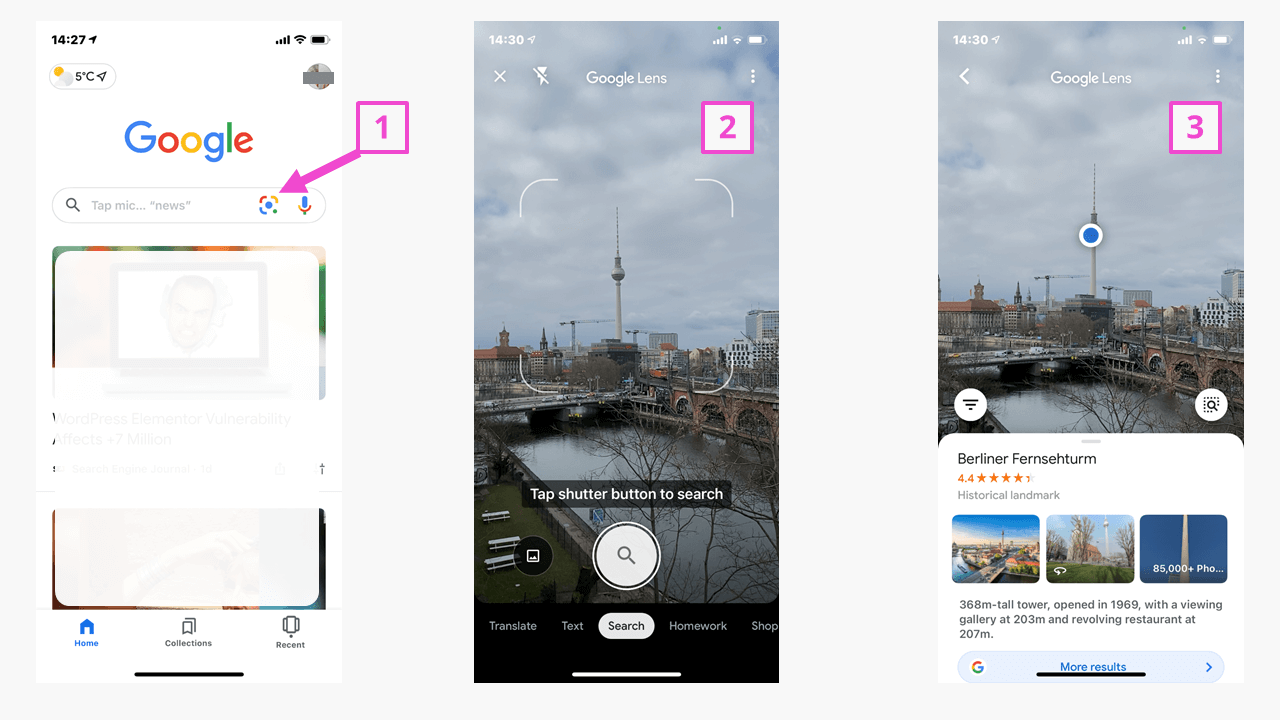
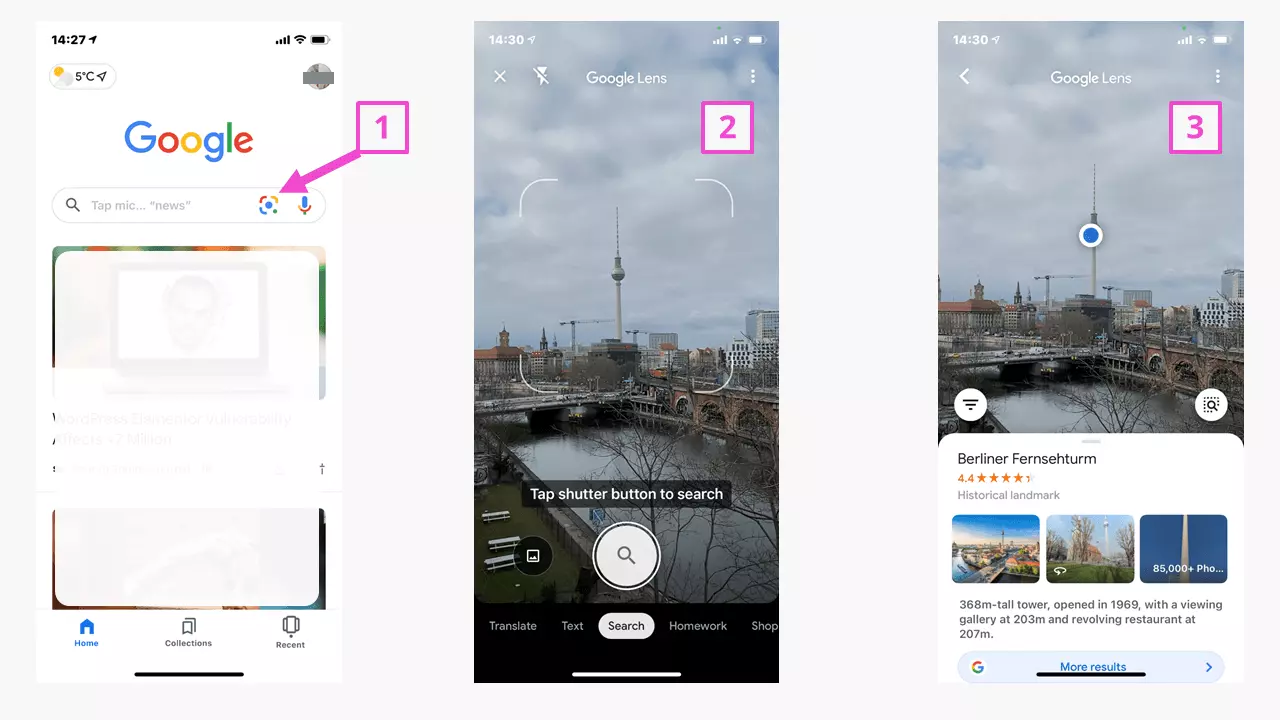
After tapping on the symbol (1), “Google Lens” opens and accesses the camera of the iOS device. The app marks recognized objects with a blue point surrounded by a white outline. Tap on the shutter release button (2) to start the search process. As you can see with this example, the Berlin TV Tower is recognized and quickly appears as a search result. When you swipe the search result up, other similar information and search results are displayed.
Google reverse image search on an Android device
Android devices also offer the Google image search function with the Google app from the Play Store. In the app, the symbol for “Google Lens” (1) can be found in the Google input field. This activates the Android device’s camera. Google Lens is also available in the Google Play Store as a separate app.
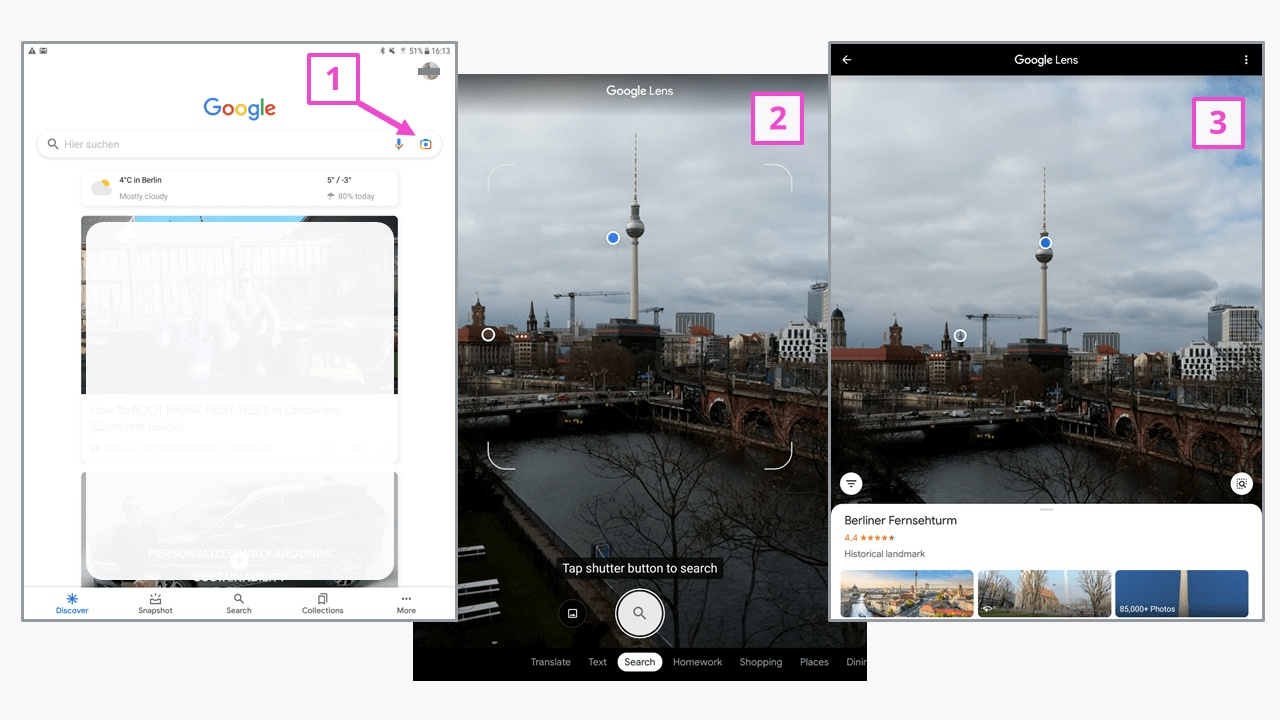
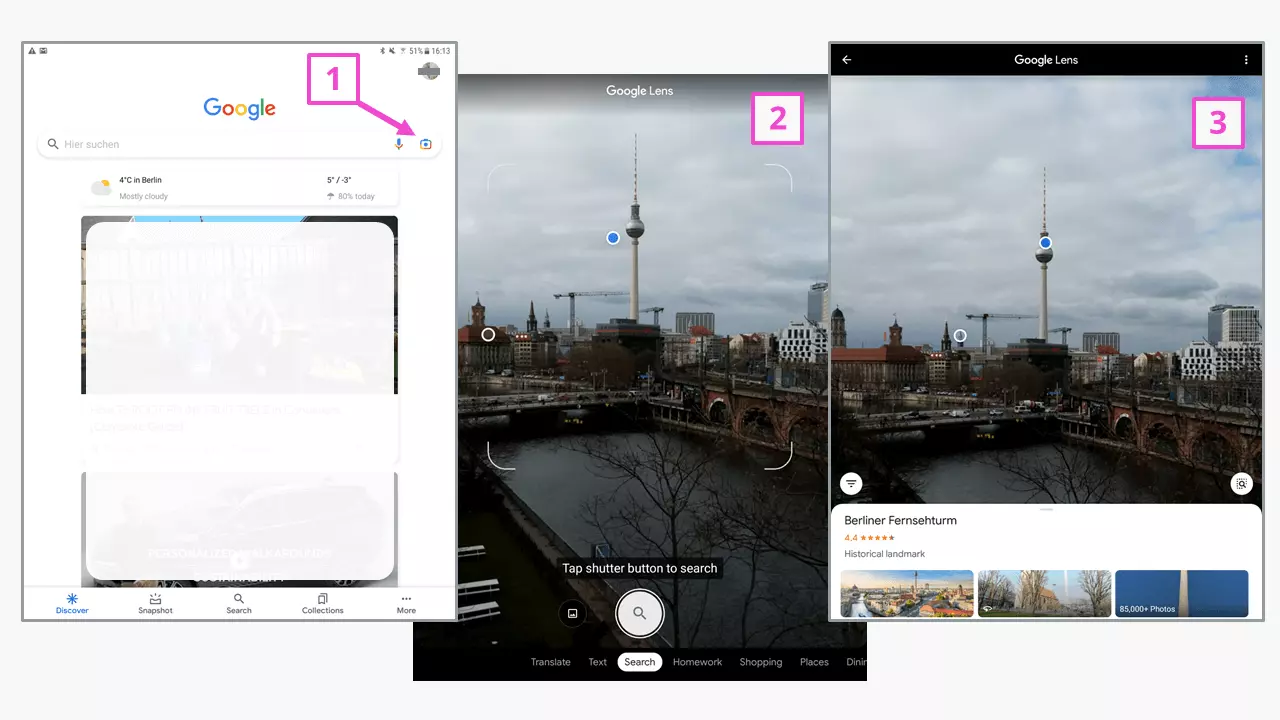
When using the app for the first time, you must give it permission to access your camera. The standard view will appear through the camera viewfinder, along with outlines that must be “aimed at” the object that you want to search for. Simply tap the shutter (2) to start the search. A recognized object, which was previously marked with a blue point surrounded by a white outline, will be displayed as a search result. You can swipe up the page with the search results to see more and similar information.
Google reverse image search is a fantastic search tool. The search engine can only compare with similar images and information within their context, but you can get useful results depending on the search intent. Alternatives to Google, like Bing, offer similar reverse image search functions for desktop and mobile devices. Search engines are still unable to clearly identify people in an image; however, further developments in artificial intelligence will soon help to improve the algorithms used for image recognition.