

Enable administrator account in Windows 10

The administrator account in Windows 10 gives users additional system rights to make system changes or install programs without restrictions. However, as you’ll have heard before - with great power comes great responsibility - so the administrator account is disabled by default. We’ll explain how to enable and remove the Windows 10 Administrator account.
- Simple registration
- Premium TLDs at great prices
- 24/7 personal consultant included
- Free privacy protection for eligible domains
Quick guide: Enable administrator account in Windows 10
Using a command prompt
- Open “Run” with [Windows] + [R].
- Type “cmd” and press [Ctrl] + [Shift] + [Enter].
- Type “net user administrator /active:yes”.
- The administrator account is now activated.
- To deactivate: “net user administrator /active:no”.
Using Windows PowerShell
- Open the context menu with [Windows] + [X].
- Click on “Windows PowerShell (Administrator)”.
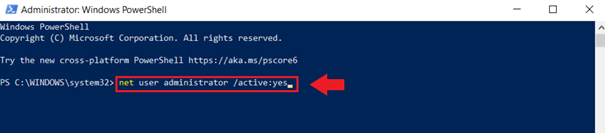
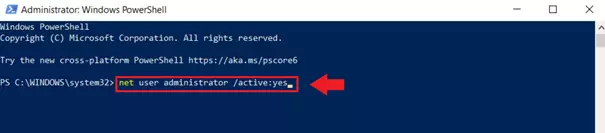
- Enter “net user administrator /active:yes”.
- The administrator account is now active.
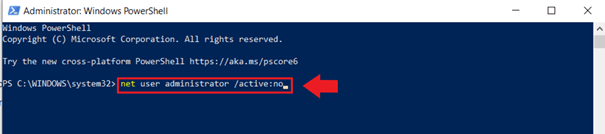
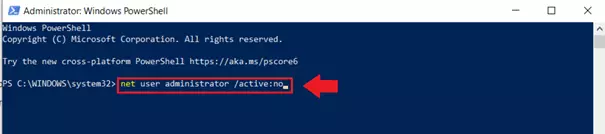
- To deactivate: “net user administrator /active:no”.
Through Local Users/Groups (only in Windows 10 Pro and higher)
- Open the “Run” window with [Windows] + [R].
- Type “cmd” and press [Ctrl] + [Shift] + [Enter].
- Type “lusrmgr.msc”.
- Click “Users” in “Local Users and Groups” on the left.
- Click on “Local Users and Groups”.
- Go to “General”.
- Uncheck “Account is disabled” and click “OK” or “Apply”.
- The Windows 10 administrator is activated.
What does “Administrator” mean in Windows 10?
Most Windows users are familiar with the blue and gold shield icon that says “Run as administrator”. This means that you are currently using a standard user account with “administrative rights”. However, some programs and files are so important that incorrect changes can harm the operating system. That is why the Windows Administrator account exists.
The Administrator account is hidden and disabled by default in Windows 10 to prevent malware or unauthorized people from making system changes. However, sometimes it is necessary to enable the Windows 10 administrator account to install programs, change Windows languages or change keyboard language in Windows 10, change Windows passwords or enable dark mode. Those who activate these administrative “super powers” for their user account should not forget to deactivate the Windows 10 administrator again afterwards. Better safe than sorry.
Check or change Windows user account
By default, Windows users belong to the Administrators group as local accounts with administrative privileges and can obtain administrator privileges. If you are not sure which user account you have, check or change it as follows:
Step 1: Go to the Windows Start logo at the bottom left, scroll down under “Recently Added”, click “Windows System” and click “Control Panel”.
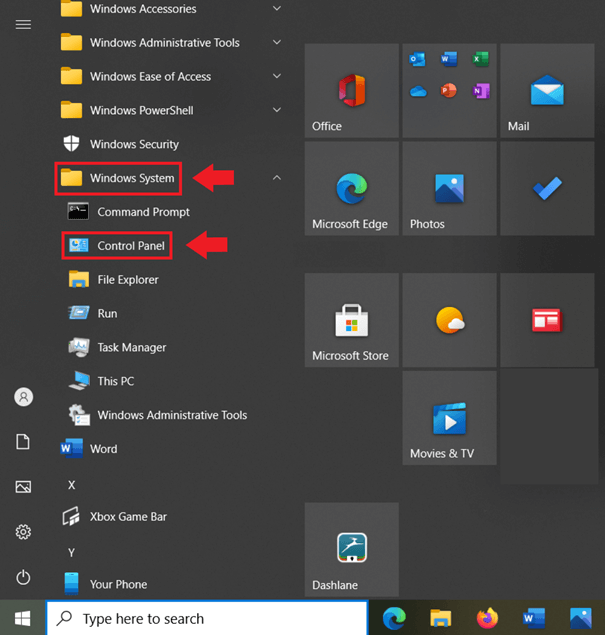
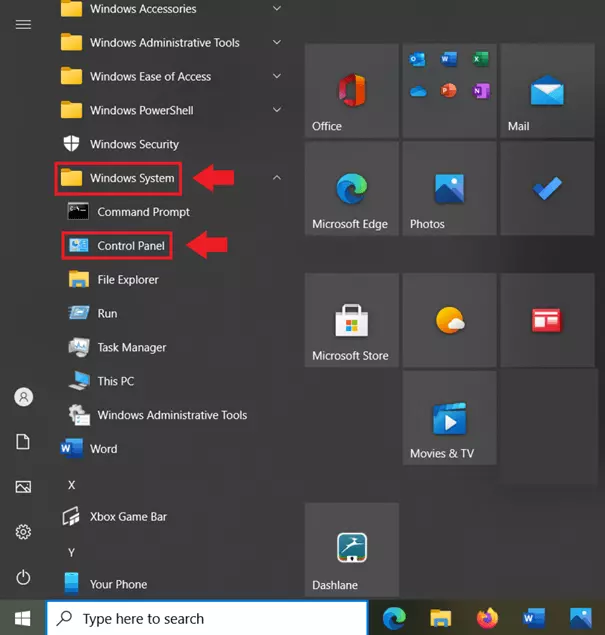
Step 2: Under “User Accounts,” go to “Change account type.” There you will see which account and system privileges you have. If you belong to the Administrators group, it will say “Administrator” under your computer name.
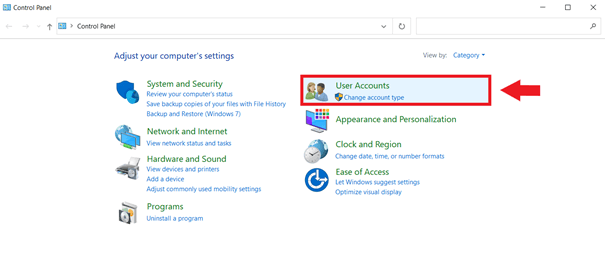
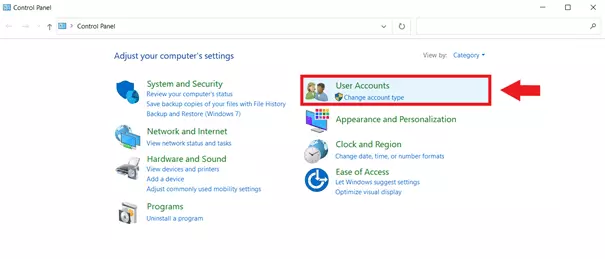
Step 3: If there are multiple user accounts, the administrator is active, and you want to switch to the administrator account, change the account type here.
Activate administrator account in Windows 10 and remove it again
If you have a standard user account with administrative privileges, it’s relatively easy to enable the Administrator account in Windows 10. How you proceed depends on your Windows 10 edition (Home, Pro, or Enterprise). We’ll explain how to do it.
Using command prompts (Windows Home, Pro, and Enterprise)
Here’s how to enable administrator account Windows 10 using cmd prompts:
Step 1: Open the “Run” window with the Windows shortcut [Windows] + [R]. Type “cmd”.
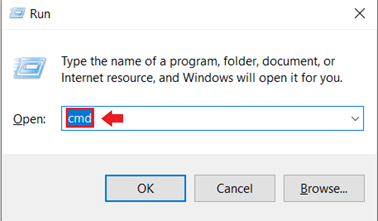
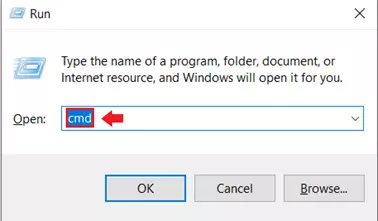
Step 2: Run the command prompt as an administrator by pressing [Ctrl] + [Shift] + [Enter] at the same time.


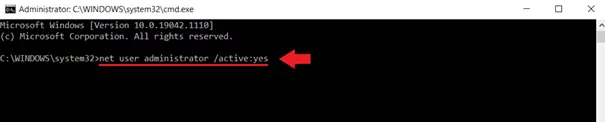
Step 3: Type the Windows CMD command “net user administrator /active:yes” and press [Enter]. The Windows 10 administrator account is now enabled.
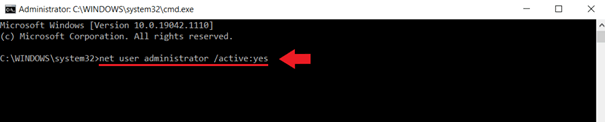
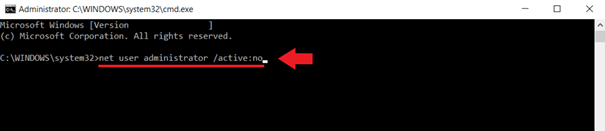
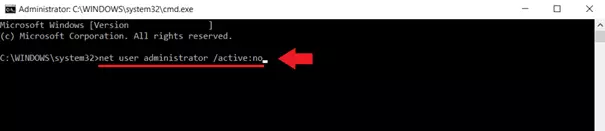
Step 4: To disable the Windows 10 administrator, use the CMD command “net user administrator /active:no”. Remember to disable the administrator again after a task that requires administrative privileges to avoid security vulnerabilities.
Using Windows PowerShell (Windows Home, Pro, and Enterprise)
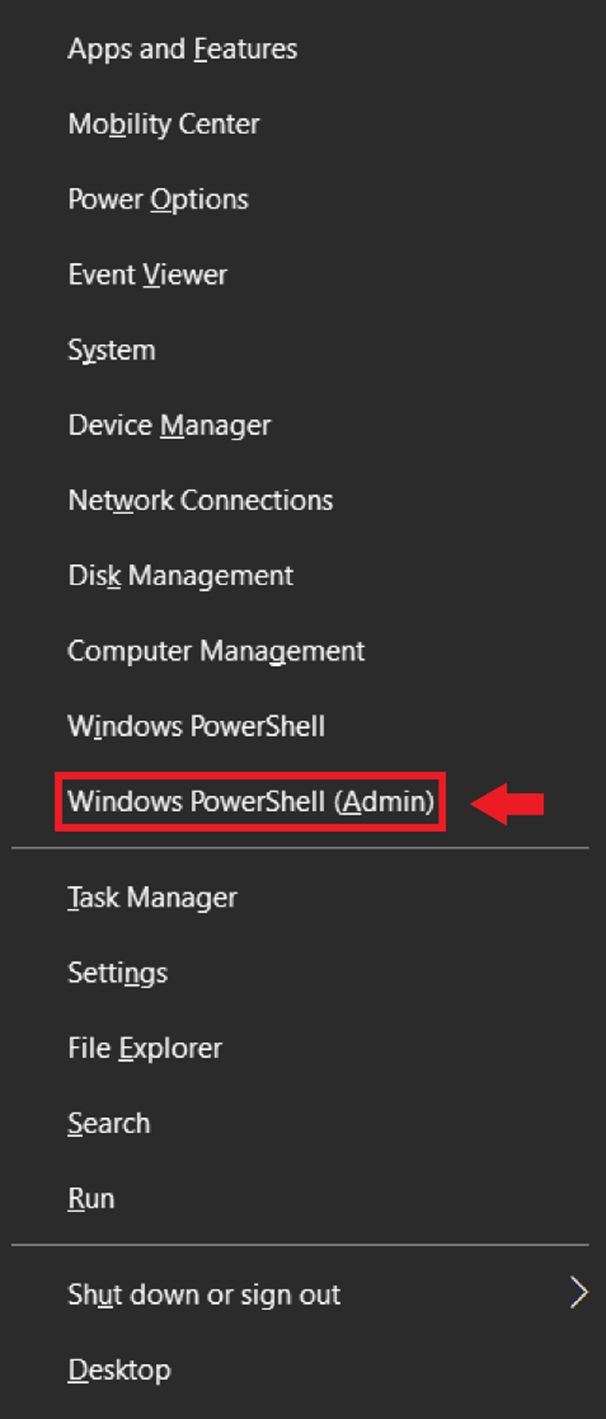
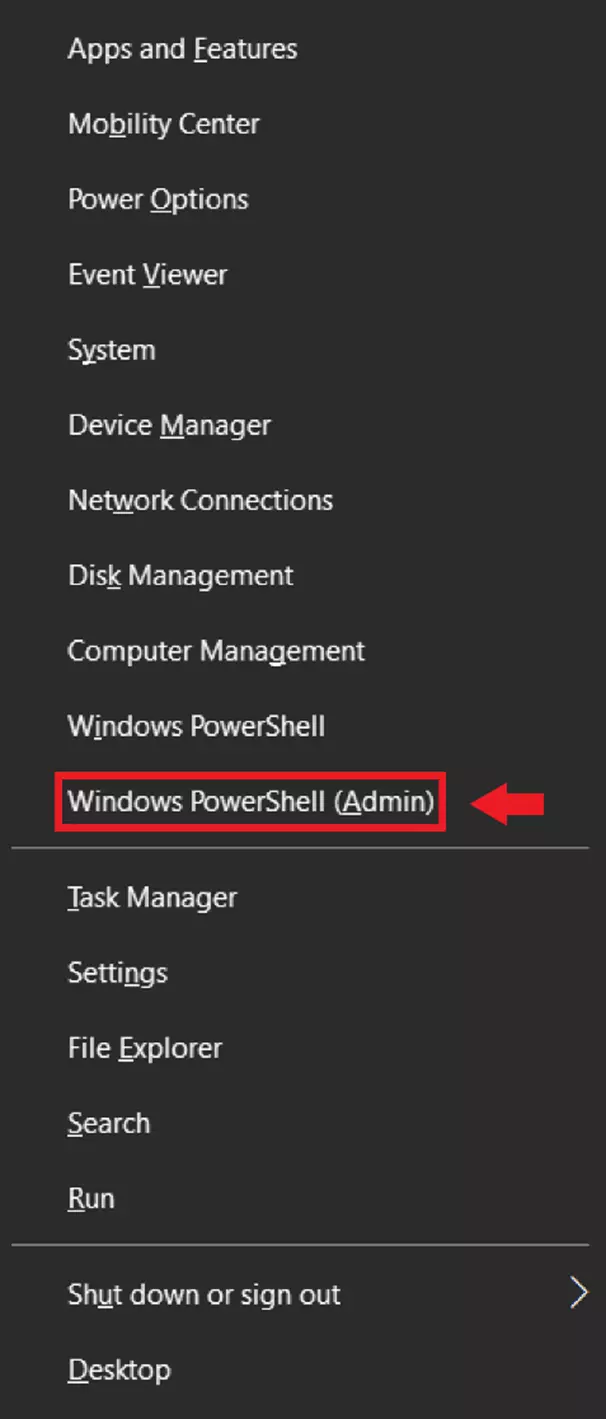
Step 1: Open the Windows context menu with the shortcut [Windows] + [X].
Step 2: Click on the “Windows PowerShell (Admin)” field. The Windows PowerShell provides a complete object-oriented scripting and programming environment as an all-round tool for system administrators.
Step 3: In the PowerShell command line interpreter (CLI), type the command “net user administrator /active:yes” and press [Enter]. If the message “The command was executed successfully” appears, you were able to activate the Windows 10 Administrator account.
Step 4: Use the CMD command “net user administrator /active:no” to disable the Windows 10 administrator.
Via Local Users/Groups (Windows Pro and Enterprise)
Step 1: In Windows 10 Pro and Enterprise, there is a third way to enable the administrator. Open the command prompt with [Windows] + [R], type “cmd” and start the Windows command processor as administrator with [Ctrl] + [Shift] + [Enter].
Step 2: In the Windows command processor, enter the CMD command “lusrmgr.msc”.
Step 3: Go to “Users” in the “Local Users and Groups” menu on the left.
Step 4: In the Administrator window, go to the “General” tab.
Step 5: Uncheck “Account is disabled” and go to “OK” or “Apply” to enable the administrator. Remove the check mark again to disable the Windows 10 Administrator.
Powerful Exchange email and the latest versions of your favorite Office apps on any device — get started with our free setup assistance.
Enable administrator account in Windows 10 without logging in as an administrator
To enable Windows 10 Administrator accounts in Windows 10 without administrator privileges, you need to contact administrators who can perform administrator tasks or change your privileges. However, if you are an administrator and forget the administrator password or lose your account access, an alternative route might be needed. This happens via the supplied Windows disc. In this case, it is recommended to contact IT specialists to avoid system damage.
If something goes wrong due to system changes with administrator privileges, it is recommended to have a backup of the most important data. IONOS offers MyDefender for a secure, automatic backup for all devices.