

Why are hard drives not showing up sometimes?

Repeatedly, it can happen that an internal or external hard drive does not show up on a Windows computer. In other words, the hard drive does not appear in File Explorer. There are different reasons why this could happen: Certain settings in the operating system may prevent the hard drive from showing up, or the error could be manual and require a repair of the actual hard drive.
- Simple registration
- Premium TLDs at great prices
- 24/7 personal consultant included
- Free privacy protection for eligible domains
Check cords and connectors
It might seem obvious, but defective cords or damaged connectors are often at the heart of hard drive connection issues. To save time, first check that the cables and connectors are correctly attached if an external hard drive is not being displayed. Many hard drives are equipped with an optical cue that indicates whether power is being supplied to it. However, it could also mean that the data cable is damaged. In this case, replace the SATA, power, and/or USB cable in order to repair the problem.
A SATA-SSD requires a separate power supply, like a conventional hard drive. This is usually integrated into USB-to-SATA adapters.
Another possibility is that the hard drive not being displayed is defective. One of the easiest ways to check for a defective hard drive is to plug it into a different SATA or USB port, or another computer. To check whether an internal hard drive is faulty, use a SATA-USB adapter cable. If the disk drive is in fact defective, you will need to replace it with an intact hard drive. You can check with the manufacturer whether the faulty device is still within its warranty period to order a replacement.
In addition to regular backups, make sure you create a data backup before you try to fix any problems with disk drives.
Check Windows drivers
To manage operating system disk drives, devices work with system- or supplier-specific driver data. If those drivers are too old or damaged, it could cause a hard drive that is connected through a SATA or USB port to not show up. So what to do? In these cases, the Windows Device Manager could be useful.
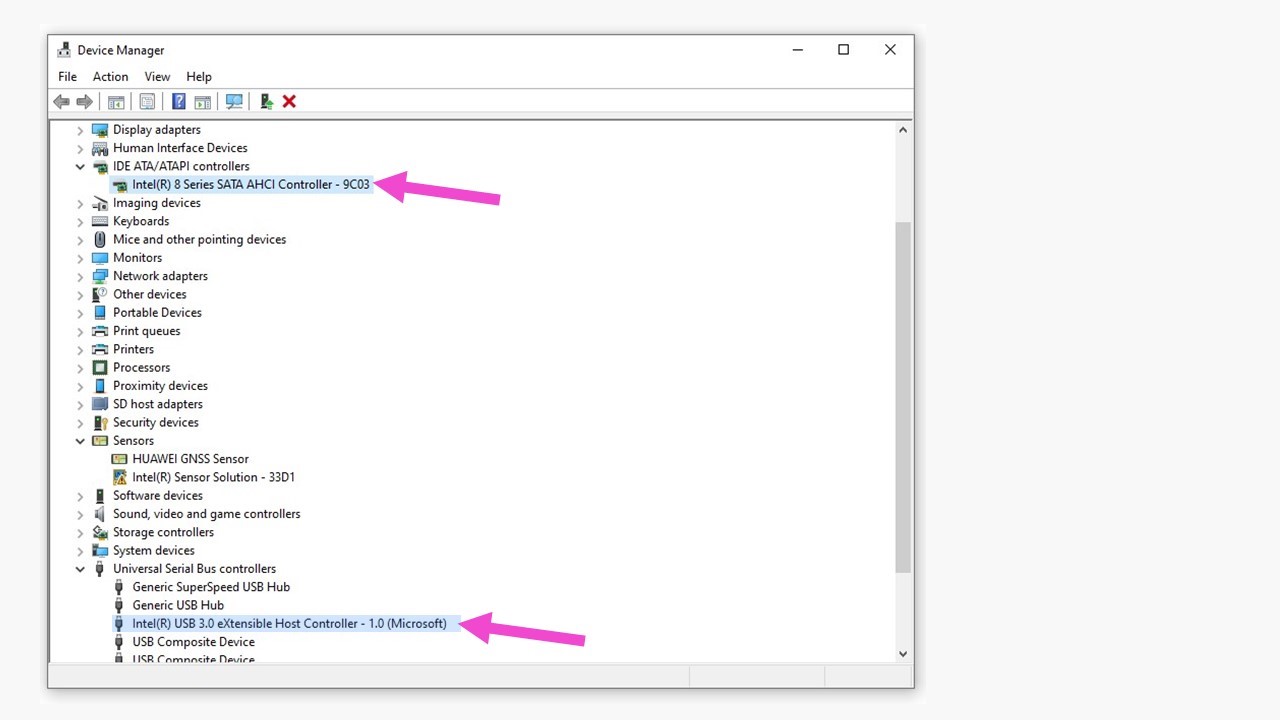
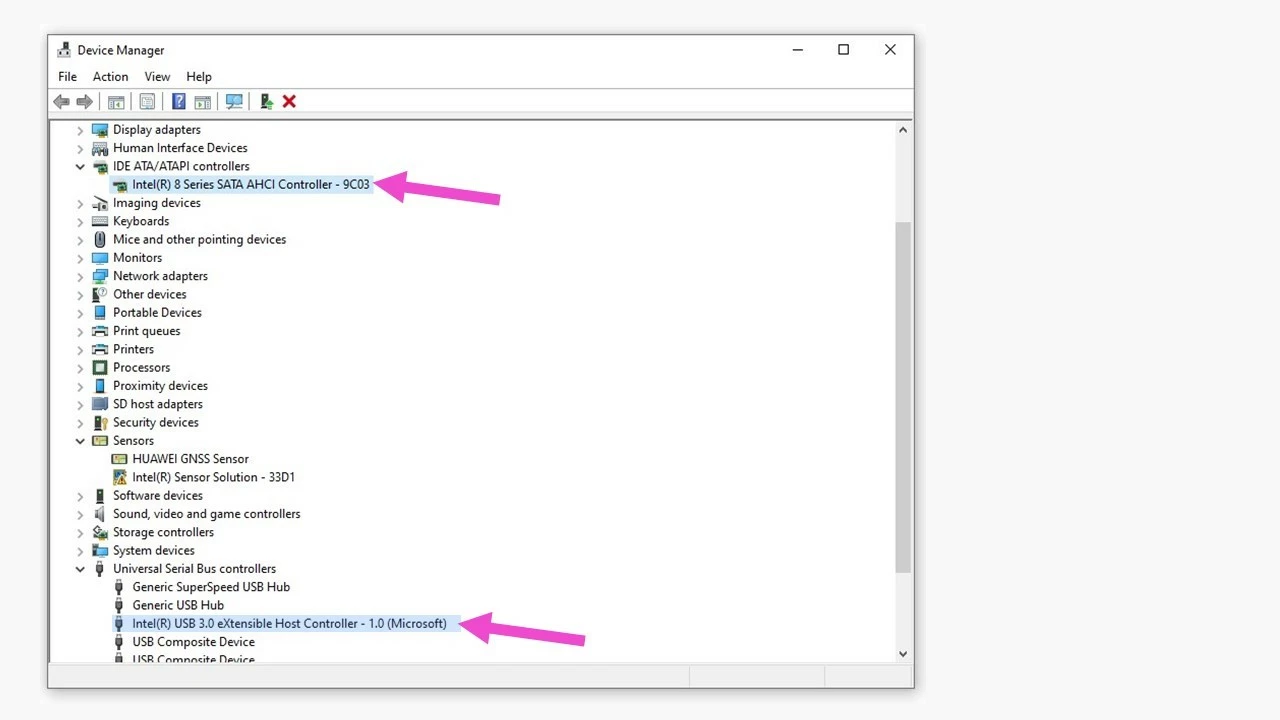
You can open Windows Device Manager by:
- Right-clicking on the Windows symbol in the task list and then clicking on “Device Manager.”
- Right-clicking on “This PC” in File Explorer > “Manage” in the menu bar > “System” > “Device Manager.”
- Searching for “Device Manager” in Windows.
This Windows utility displays all devices that are connected to the PC. Right-clicking on any device will open a context menu with several options for working with the device. Clicking on “Properties” will open a dialog box, where you can view the status of the device in the “General” tab. If there are no existing issues, the entry: “The device is working properly” is displayed.
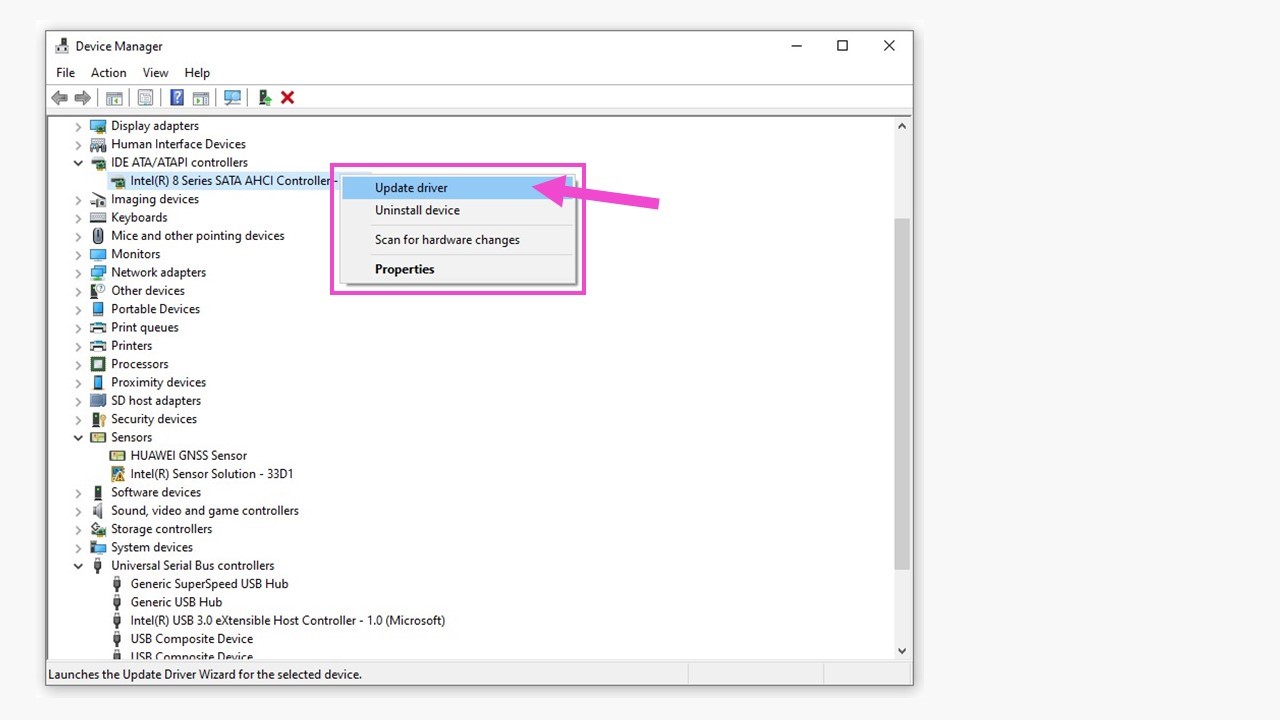
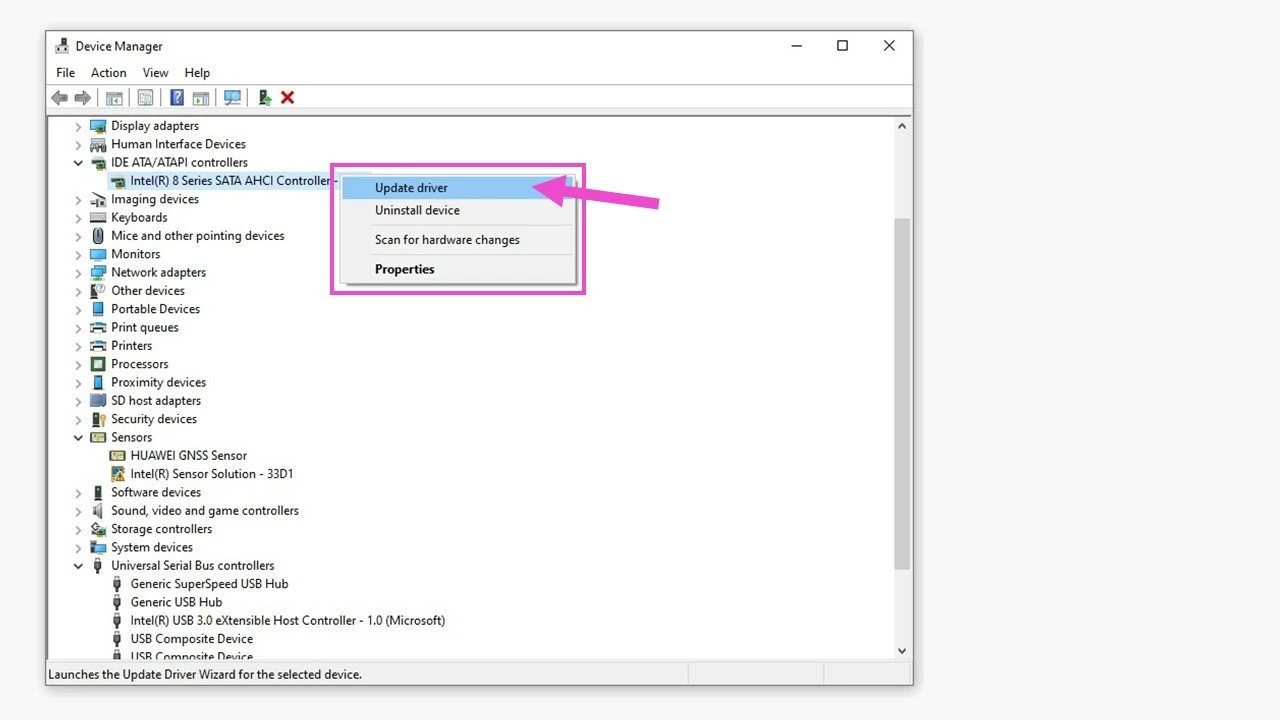
To fix or update a driver to the latest version, right-click on the controller in question and then click on “Update driver” from the context menu.
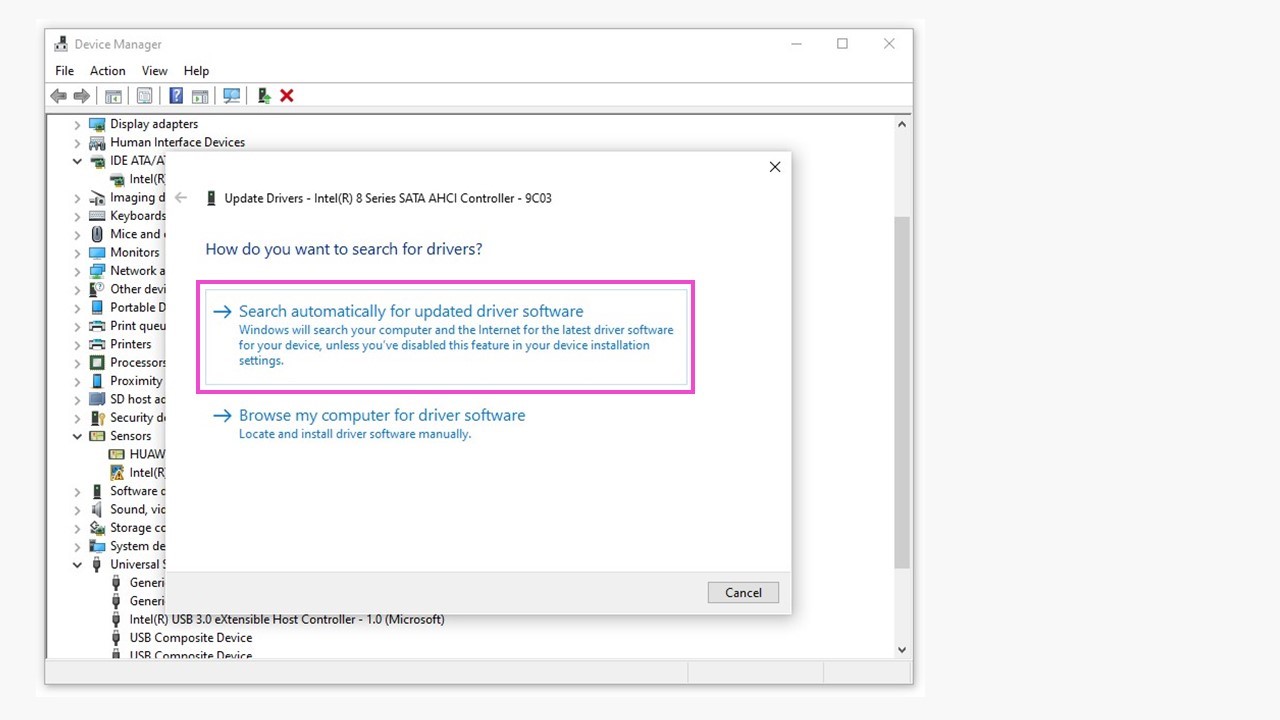
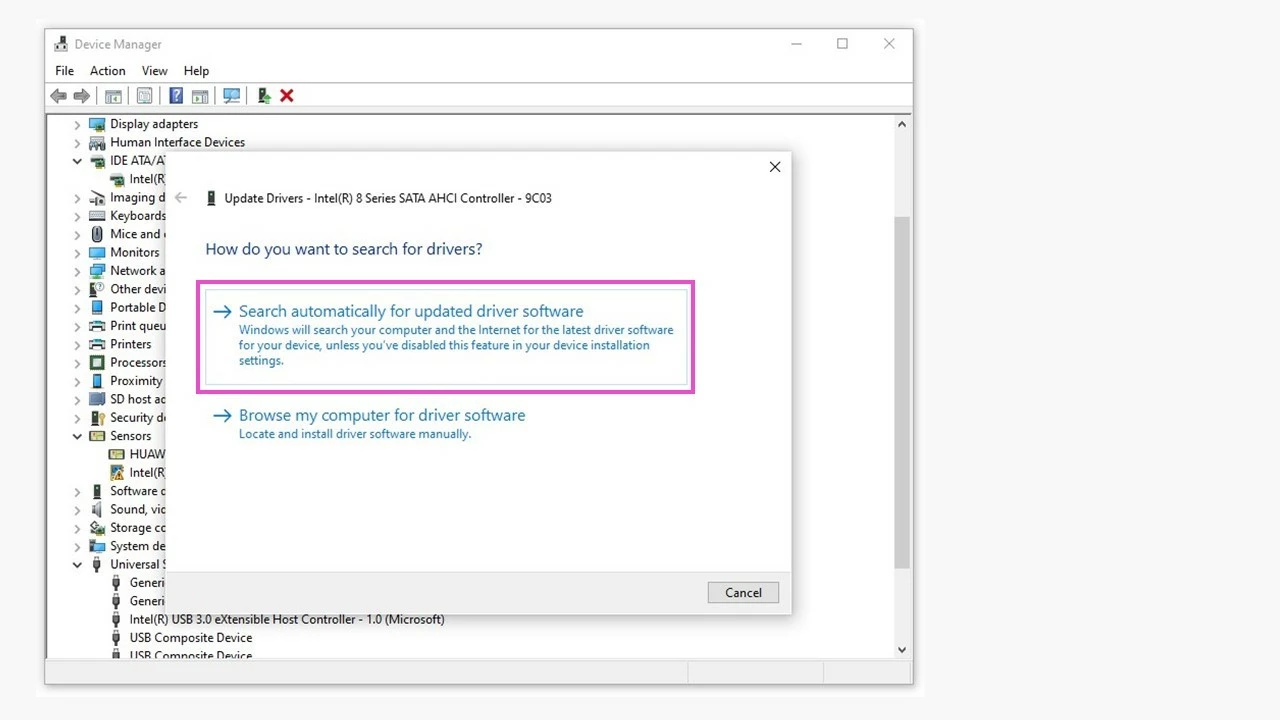
Windows checks through the selection of installed drivers and may scan for the latest available driver versions online.
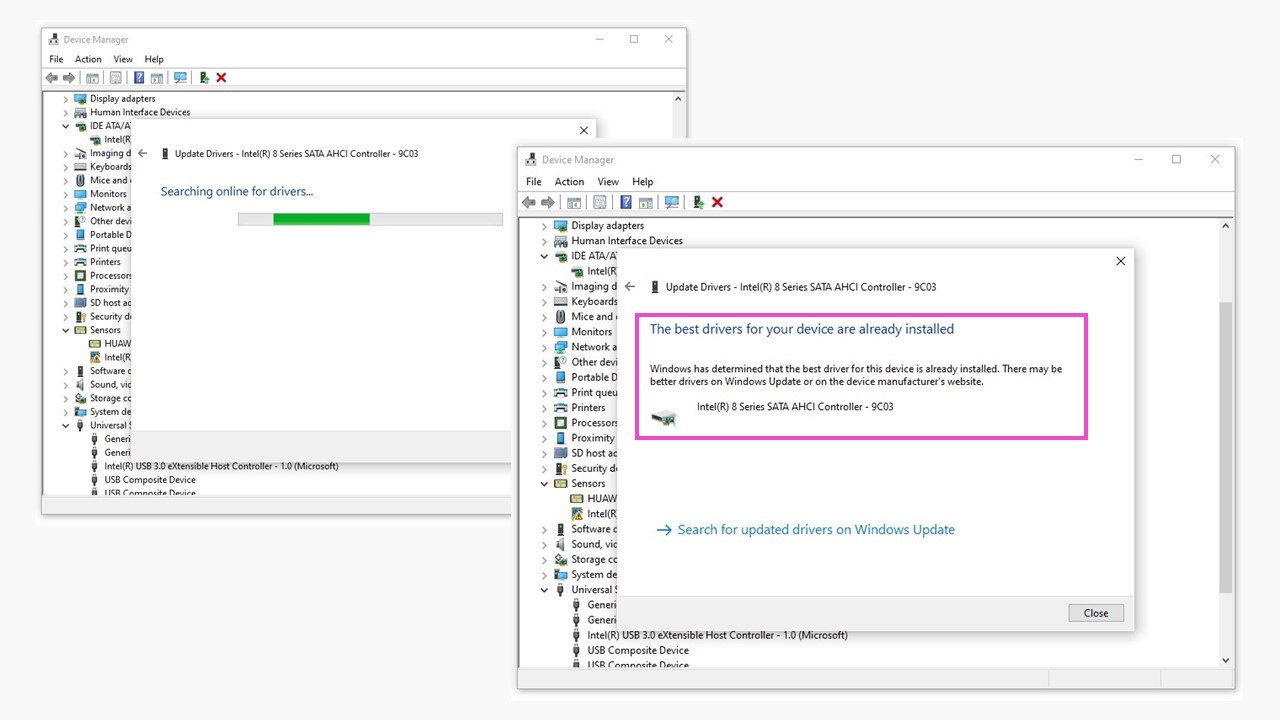
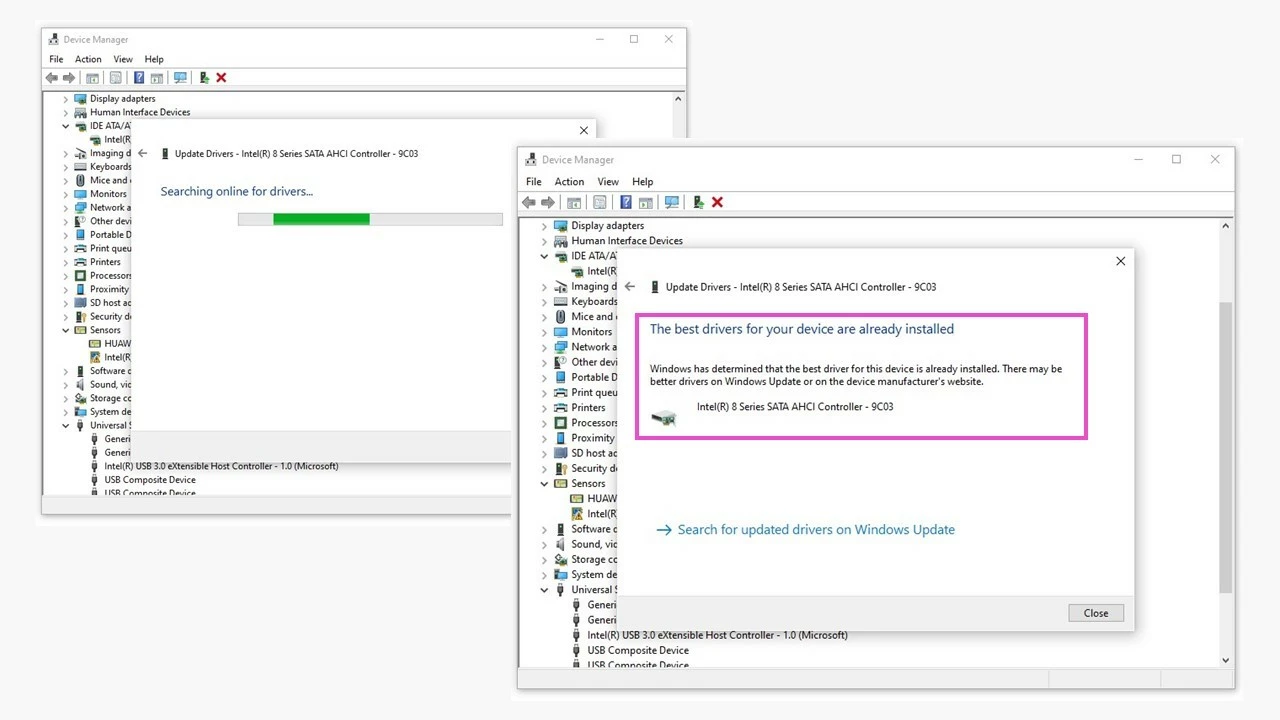
If the hard drive is still not showing up after the automatic driver update, you can manually search for the latest drivers on a manufacturer’s website.
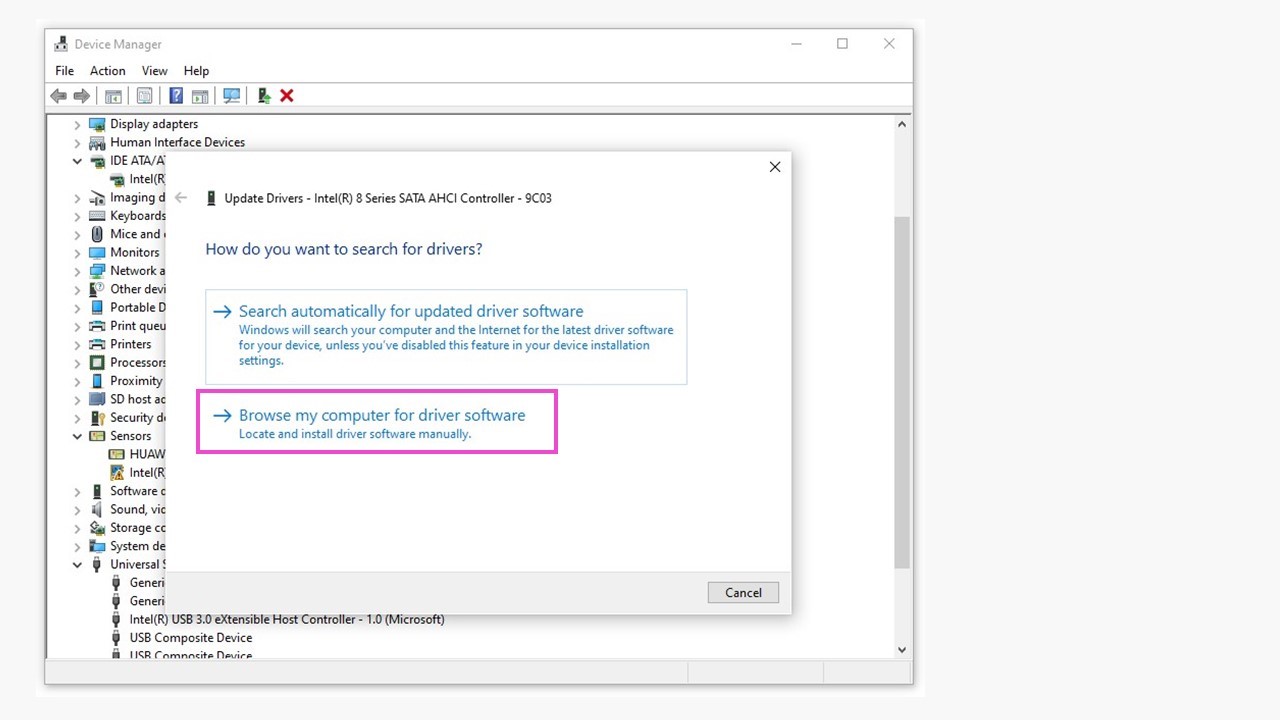
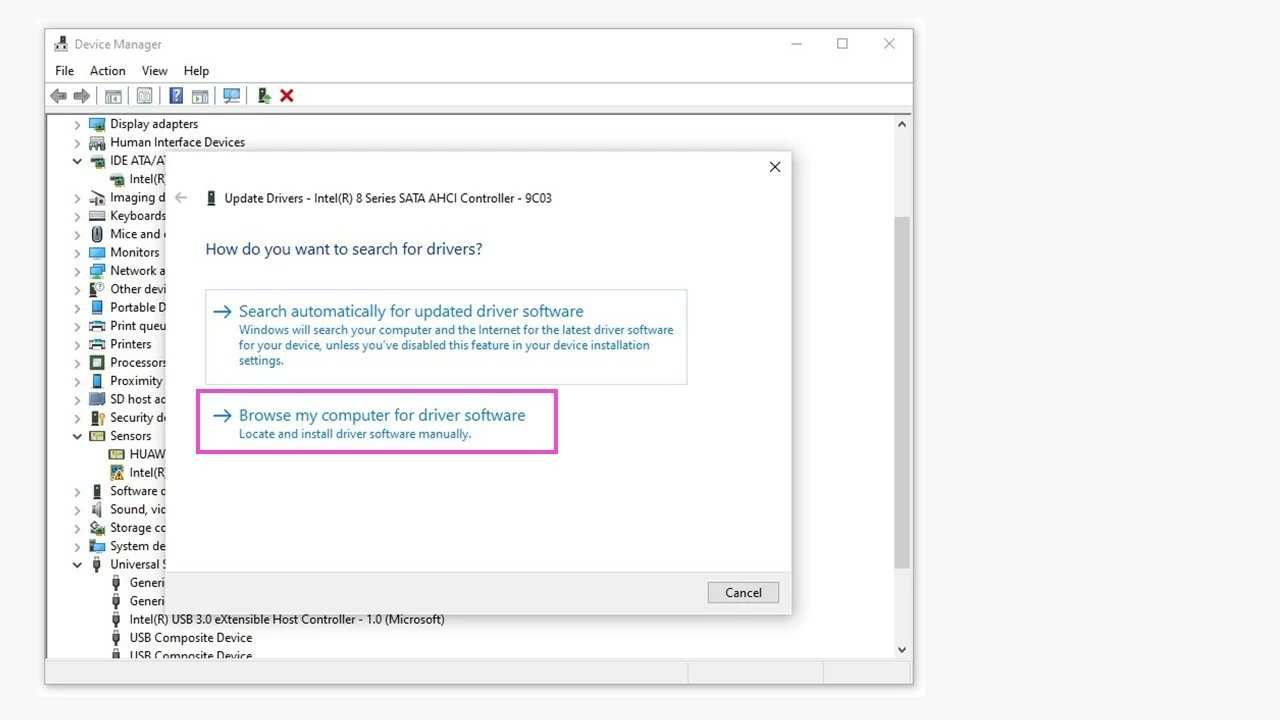
Once you’ve located the correct driver, simply download and install it. Once the driver installation has started in Device Manager, the process is practically identical to the automatic process. The hard drive should now be showing up.
Check BIOS for unrecognized disk drives
An additional internal hard drive could be deactivated in the computer’s BIOS (Basic Input/Output System). Turn off the computer and then connect the disk drive using a properly functioning cable. Restart the computer and press the key necessary for opening the BIOS several times (the key to do this varies by manufacturer). Check “System setup” to see whether the hard drive (not the boot disk!) is listed as “deactivated.” If this is the case, you can now activate the hard drive. The keys to do so are listed as on-screen aids in the vast majority of BIOS interfaces. You can exit the BIOS by selecting “Save Changes” and restarting the computer.
Using Disk Management
The Windows Disk Management provides multiple options to display hard drives that may not be showing up. Possible causes for an internal or external hard drive not showing up are:
- The hard drive is not installed.
- The hard drive has no drive letter.
- The hard drive has an invalid file system or none at all.
- The hard drive has no partition(s).
You can open Windows Disk Management by:
- Right-clicking on the Windows symbol in the task list and then clicking on “Disk Management.”
- Right-clicking on “This PC” in File Explorer > “Manage” in the menu bar > “Storage” > “Disk Management.”
- Searching Windows using the term “Disk Management,” and then clicking on “Create and format hard disk partitions.”
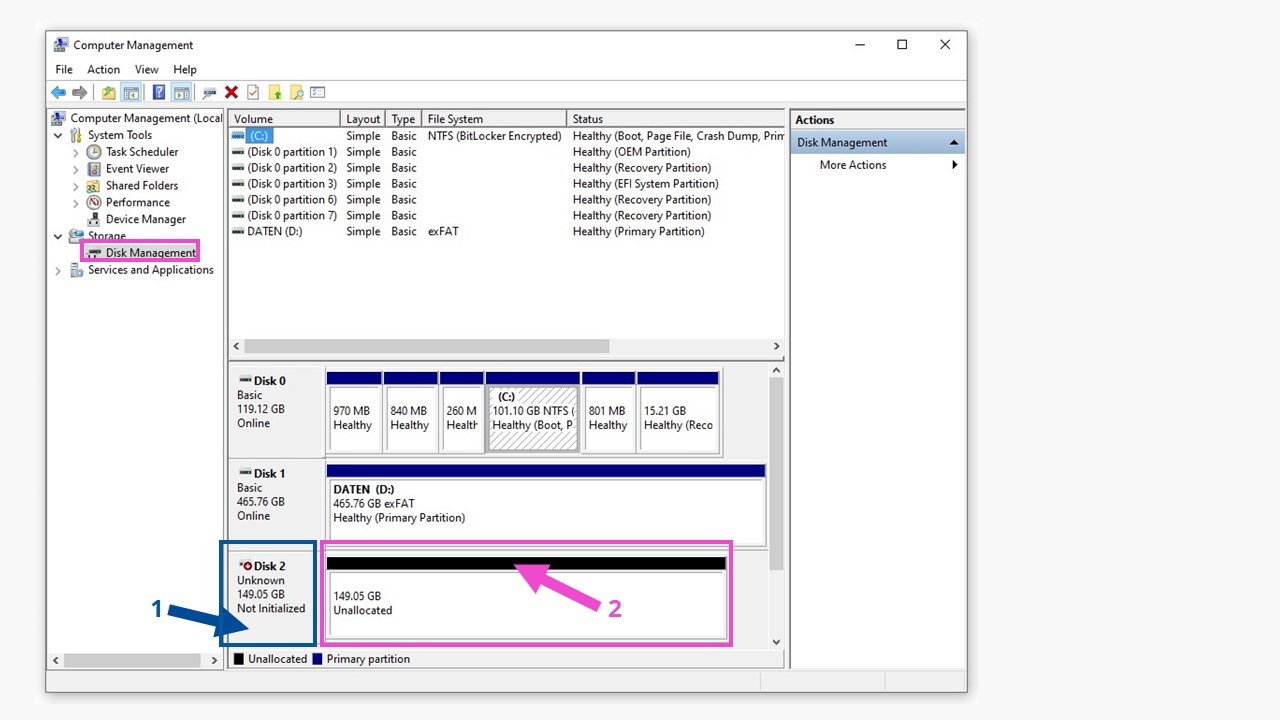
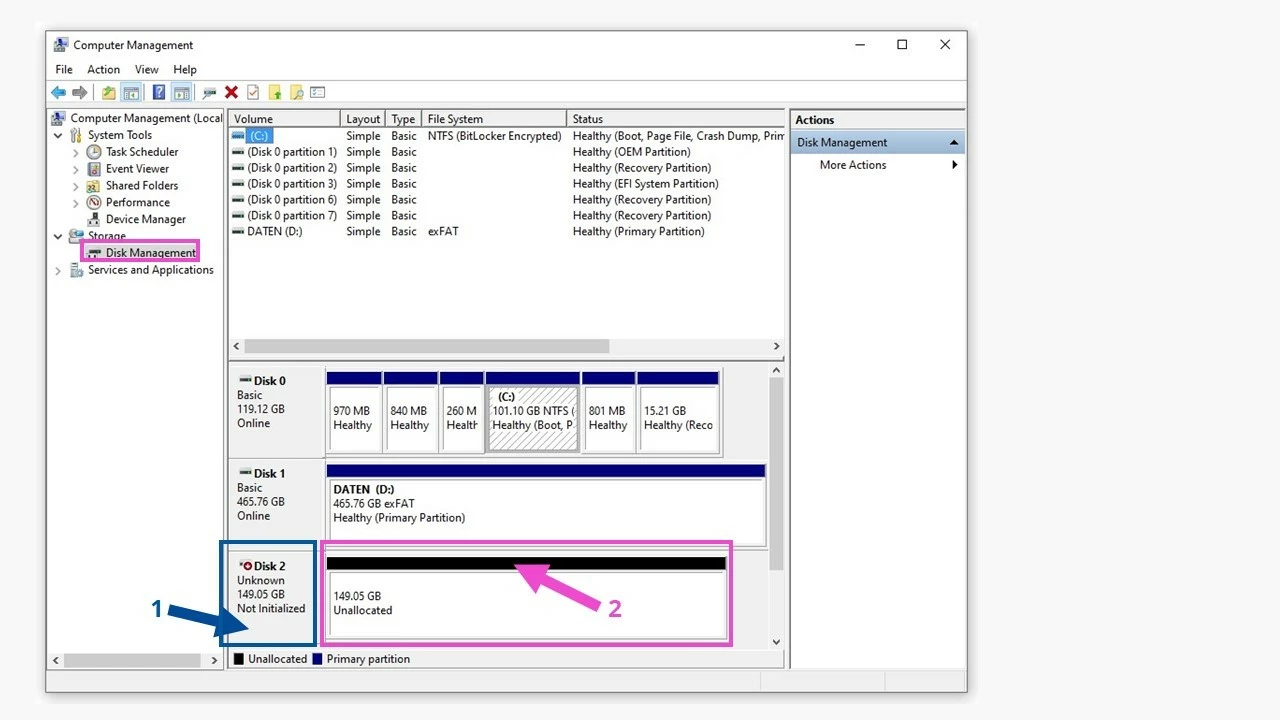
The unrecognized, uninstalled, or non-partitioned disk drive (which may possibly lack a drive letter) can be managed in Disk Management through different routines in order to integrate the disk drive. Right-clicking in areas (1) and (2) of the disk in question will launch the context menus. Possible actions are displayed in black, and those that are not possible are greyed out.
We have put together instructions for the initialization, partitioning, and allocation of drive letters and the creation of volumes in our guidebook on unrecognized hard drives.
Turn off power-saving mode
Should an external USB 3.0 hard drive not be recognized, a less common cause could be the active power-saving mode. To fix this, select the USB Host Controller in Windows Device Manager, right-click to open a dialog box, and select “Properties.”
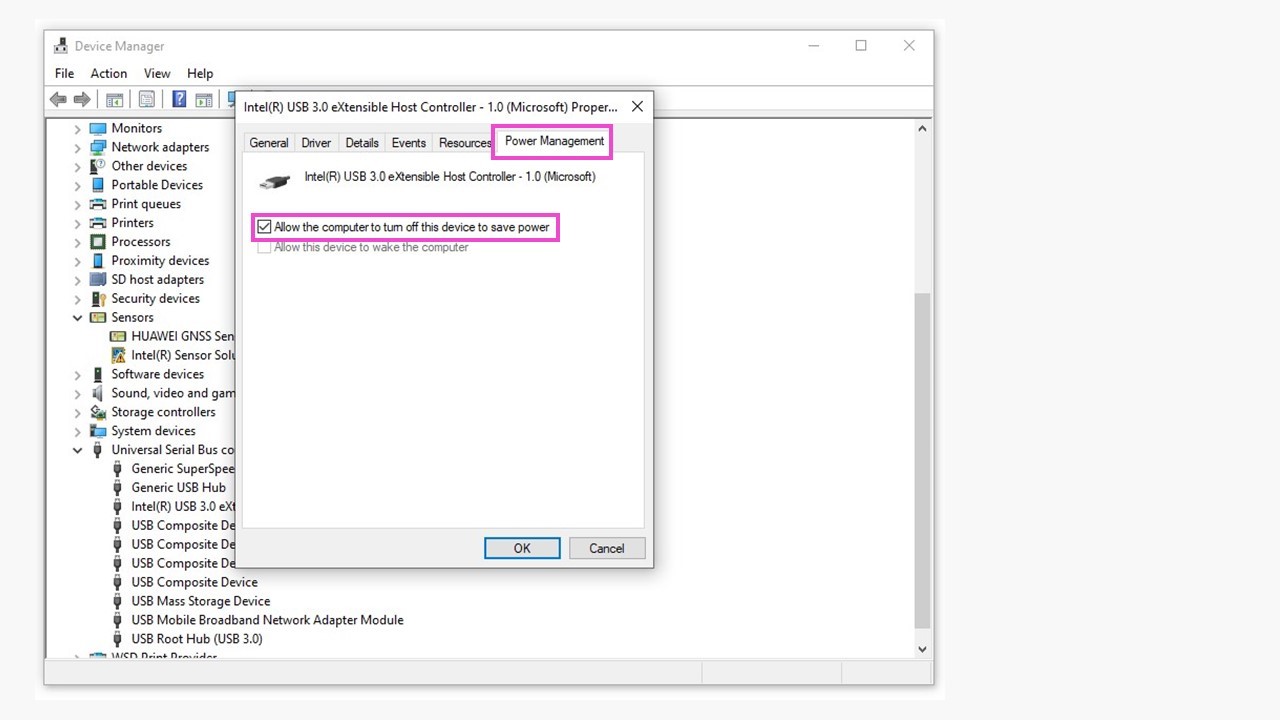
This power-saving option activates when a drive on a Windows tablet is turned off due to low remaining battery power. With the option deactivated, the computer can no longer make its “own decision.” For internal PC hard drives, you can find these power options under “Control Panel” > “Power Options” > “Choose or customize a power plan” > “Advance settings” > “USB settings.”
Virus attacks
Malware or viruses could be another cause for a hard drive not displaying. In that case, you should run a system scan using security software that will ideally repair any damage at the same time. You can check afterwards whether the problem has been resolved or not. Once you’ve connected an external storage device to your computer, many of the currently available antivirus programs will check whether the newly-connected disk drive should be scanned for viruses. By selecting this step, you can prevent any damage that could be caused from malware infiltrating your system.