

How to take a screenshot in Windows 10
We explain to you how to easily take a screenshot on Windows 10 and how these can be edited.
The most important in brief
- Capture the entire screen and copy to clipboard: [PrtScn] key (note: for some laptops press [Fn] + [PrtScn])
- Take a screenshot of the currently active window and copy to clipboard: [Alt] + [PrtScn]
- Capture a self-selected area: [Windows key] + [Shift ⇧] + [s] using the key combination [Ctrl] + [v] insert the screenshot in the chosen location
- Take a screenshot and save it directly in the folder path Images > Screenshots: [Windows key] + [PrtScn]
- Simple registration
- Premium TLDs at great prices
- 24/7 personal consultant included
- Free privacy protection for eligible domains
Keyboard shortcuts for taking screenshots in Windows 10
With just a quick keystroke, you could have the current display on your screen as a hard copy in your hand. In the early days of the personal computer, the [Print] key was a practical tool for printing out what you saw on your monitor. Since then, the function has changed a bit. When you press the key, the image is not sent directly to the printer. Instead, the screenshot is saved to the operating system’s temporary memory (i.e. the clipboard). This is also the case in Windows 10. However, some Microsoft users do not realize that they can also use this handy key in combination with other keys:
- [Print], [Prnt] or [Prnt Scrn]: Regardless of whether you are using one screen or two, pressing this key will take a screenshot of everything that is currently displayed on the screen(s).
- [Alt] + [Print]: If you only want to take a screenshot of a single window, use this keyboard shortcut. This will select the window in which you have placed your cursor.
- [Fn] + [Print]: Mobile devices such as laptops are smaller than conventional computers, hence many of the keys on their keyboards have two functions to save space. The screenshot function is accessed on these devices by using the [Fn] key.
- [Windows] + [Print]: Screenshots can also be taken in quick succession in Windows 10. If you take a screenshot while holding down the Windows key, it will be saved directly as a PNG file. You can usually find it under “This PC” > “Pictures” > “Screenshots”. Windows 10 also automatically numbers the files in ascending order. This keyboard shortcut works in combination with [Alt] and/or [Fn].
![Image: Keyboard with the [Windows], [Alt] and [Print] keys highlighted](https://www.ionos.com/digitalguide/fileadmin/DigitalGuide/Screenshots_2020/screenshot-windows-10-1.png "Keyboard with the [Windows], [Alt] and [Print] keys highlighted")
![Image: Keyboard with the [Windows], [Alt] and [Print] keys highlighted](https://www.ionos.com/digitalguide/fileadmin/_processed_/d/7/csm_screenshot-windows-10-1_37b75cd77b.webp "Keyboard with the [Windows], [Alt] and [Print] keys highlighted")
You should keep in mind that the clipboard in Windows 10 can only store one screenshot at a time. If you press the [Print] key again, the previous screenshot will be replaced – one more reason to hold down the Windows key to save the images. PNG files can easily be dragged and dropped from the “Screenshots” folder into virtually any Microsoft application (e.g. into Paint for further editing). You can paste images from the clipboard into the currently open project using the copy-paste function ([Ctrl] + [V]). Of course, you can also simply use the Photos app or any other image editing program, such as Gimp or Paint.NET.
There are numerous other screenshot tools for taking screenshots in Windows 10 in addition to the ones mentioned here.
Taking screenshots in Windows 10 using the Snipping Tool
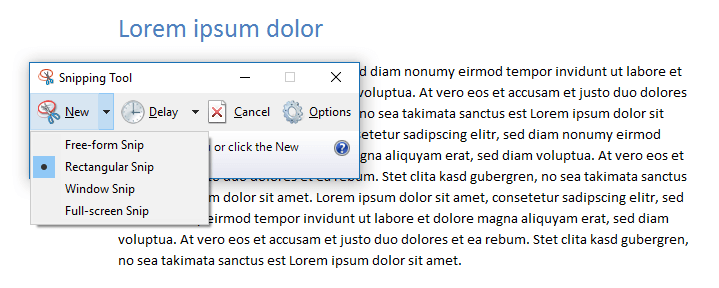
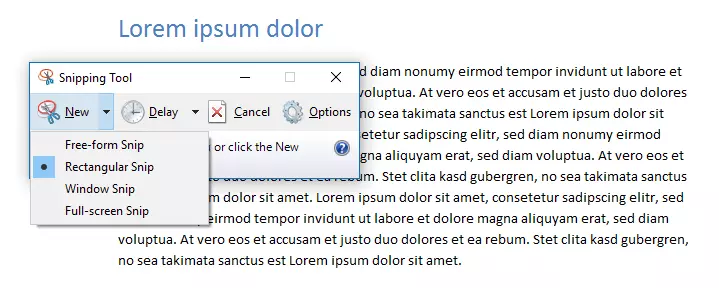
Regular Microsoft users have probably come across the Snipping Tool which was found in previous versions of the operating system under Accessories in the start menu. In Windows 10, it can be found under “Windows” > “All apps” (keyboard shortcut [Windows] + [Q]) or by using the search function. This little tool offers additional options for taking and editing screenshots in Windows 10:
- Full-screen snip: It takes a screenshot of everything displayed on the screen.
- Window snip: It only takes a screenshot of the window that you clicked on with the mouse.
- Rectangular snip: Similar to many other image editing programs, you can drag a rectangle to select an area to be included in the screenshot.
- Free-form snip: This works exactly like the rectangular snip, but you can freely choose the shape of the area you want to include in the screenshot.
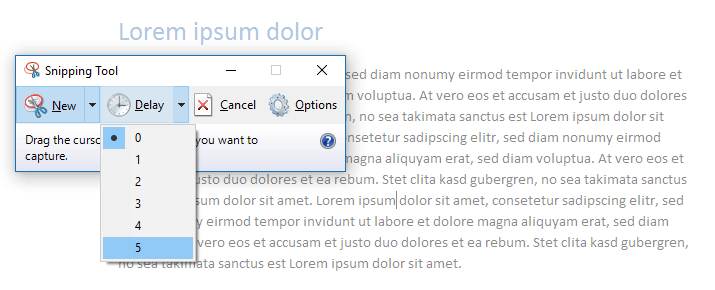
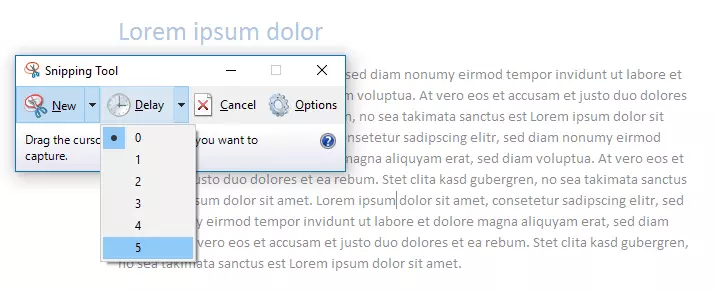
- Delay: The clock button is new to Windows 10. Click on it to set a delay of one to five seconds for taking the next screenshot. This allows you to include screen elements that are only visible when a specific key or the mouse button is being held down (e.g. a drop-down menu).
 To display this video, third-party cookies are required. You can access and change your cookie settings here.
 How do you take a screenshot of a website in Windows 10?
The Windows 10 keyboard shortcuts and the Snipping Tool allow you to take a screenshot of what you can see on your screen at that moment. So, what do you do if you cannot see all the important information at once, such as with a scrolling website? For such cases, you can use special add-ons for your browser.
For Google Chrome, you could use Fireshot or Awesome Screenshot – the latter even allows you to take videos of your screen. For Mozilla Firefox, Fireshot works or you could also use Awesome Screenshot Plus.
How it works:
- Open your browser. Click on the link for your desired add-on and press the “Add” button on the page that opens.
- The add-on will automatically be installed and appear as a button in the upper right-hand corner below your browser’s address bar.
- Click on it to configure the settings and take a screenshot of the entire website.