How to switch to Dark Mode in Windows 11

If you spend a lot of time at your PC or laptop at work, Windows 11’s Dark Mode is recommended for a number of reasons. Windows 11 offers a good solution to ensure readability even in dark work environments with its Windows 11 Dark Theme. Additionally, the dark mode ensures a lower energy consumption of the display. Read the following sections to find out how to turn Windows 11 Dark Mode on and off.
Powerful Exchange email and the latest versions of your favorite Office apps on any device — get started with our free setup assistance.
Turning Windows 11 Dark Mode On/Off: Quick guide
The easiest way to manage the dark mode is through the settings. To do this, proceed as follows:
- Open the Windows 11 settings via the Start menu or with the key combination [Windows] + [i].
- Click on the “Personalization” item in the left-hand side menu.
- Call up the “Colors” entry.
- In the “Select mode” line, select the “Dark” option to activate Windows 11 Dark Mode or “Light” to deactivate the mode.
How to enable dark mode in Windows 11
As mentioned, the use of the Dark Theme has its advantages. This mode is easier on your eyes in dark rooms, gentler than the standard mode, which makes the screen very bright. At the same time, the use of the dark mode results in a lower energy consumption for the displays, which increases the lifespan of the devices. Some users also opt for Windows 11 Dark Mode for aesthetic reasons.
In the following instructions we’ll show you which different possibilities you have to activate or deactivate the Windows 11 Dark Theme.
Perhaps you have not yet switched to Windows 11? Read our other guide on how to manage Dark Mode in Windows 10.
Option 1: Manage Dark Mode in Windows 11 in Settings
In the “Settings” menu, you have access to all important configuration options of Windows 11. Among other things, you can change the user name (Microsoft account), change privacy or accessibility settings, change the system language, or change the Change Windows 11 keyboard. You can also select or deselect the Windows 11 Dark Theme here as follows:
Step 1: Access the Windows 11 settings by opening the Start menu and clicking on the “Settings” icon. Alternatively, use the key combination [Windows] + [i] for the start.
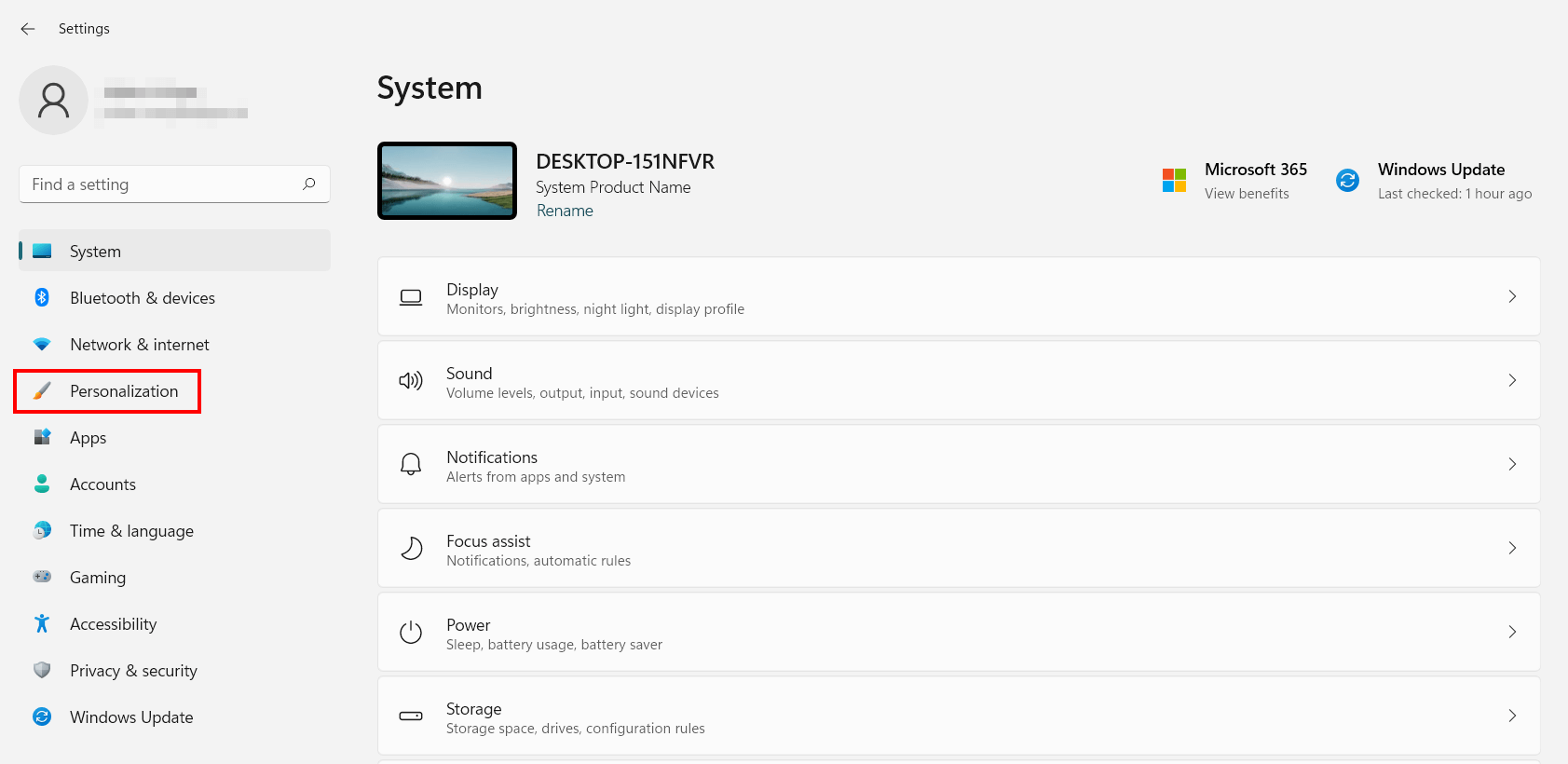
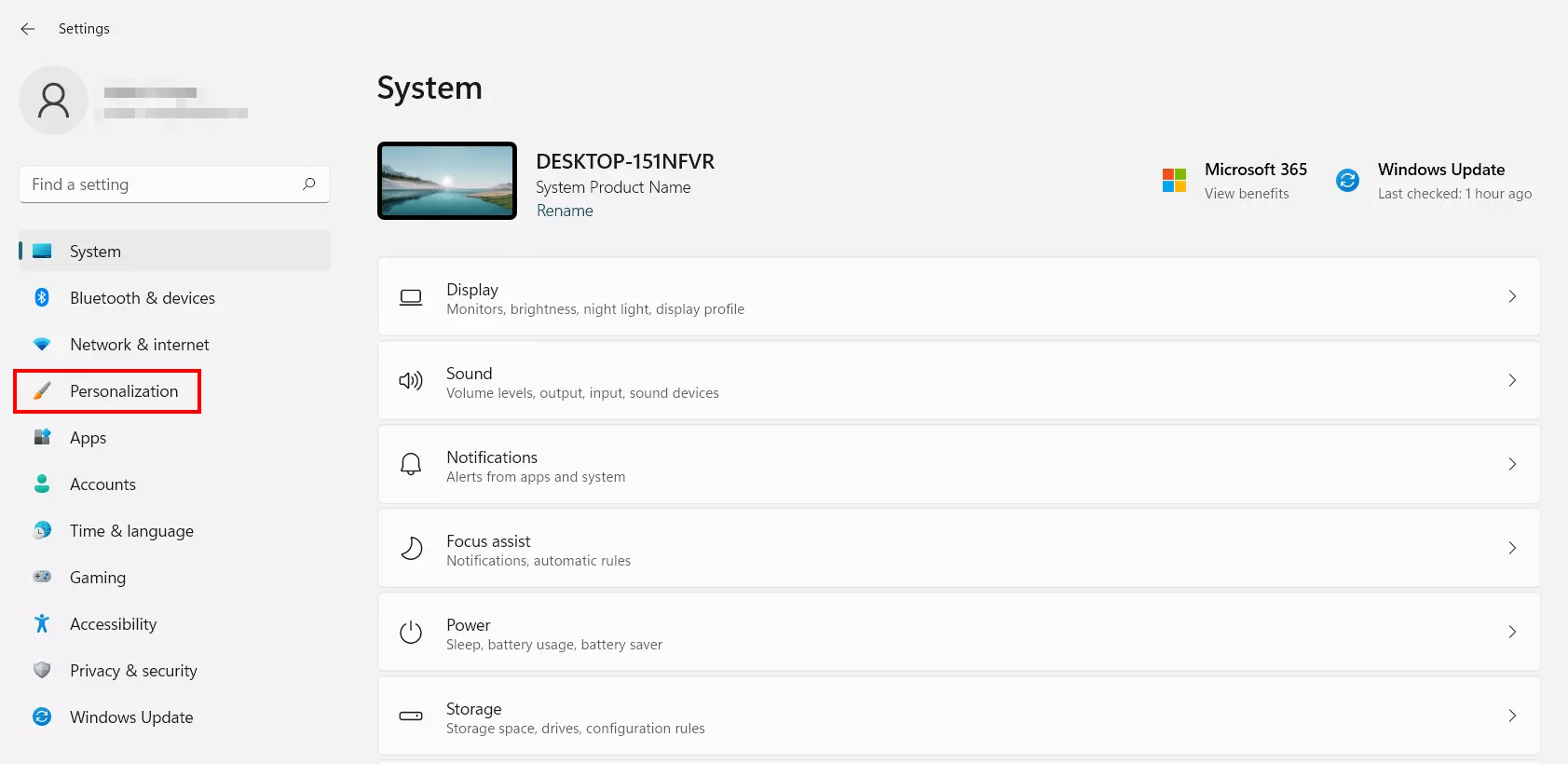
Step 2: Switch to the “Personalization” category by clicking on the entry of the same name in the left side menu of the settings.
Step 3: Select the “Colors” option.
Step 4: In the “Colors” submenu, you have access to various features for the color design of the Windows 11 interface. Here you can (de)activate transparency effects for windows and surfaces, define accent colors for the system, and turn Windows 11’s Dark Mode on or off. To do this, select the appropriate option in the “Select Mode” line: “Dark” to activate, “Light” to deactivate the Dark Theme.
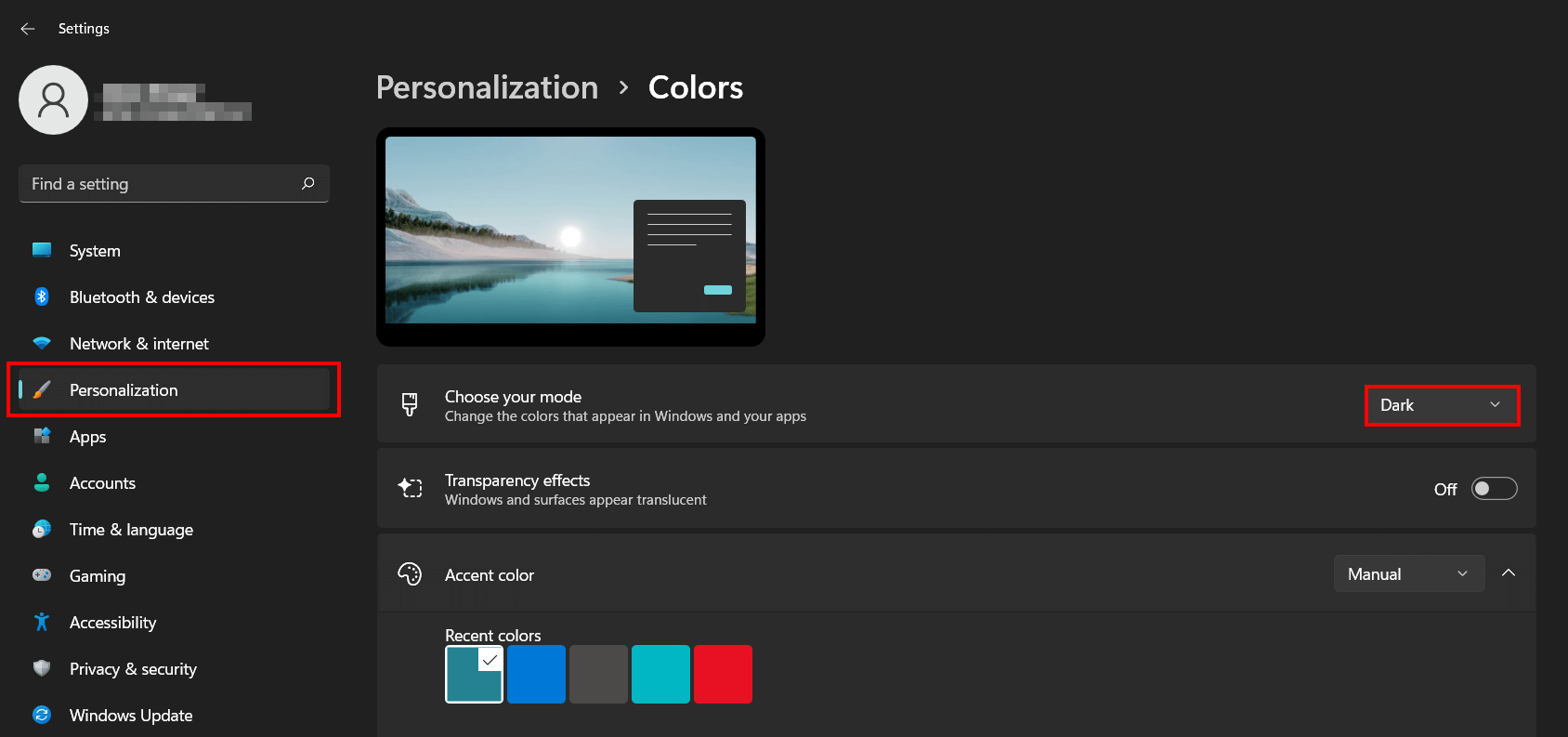
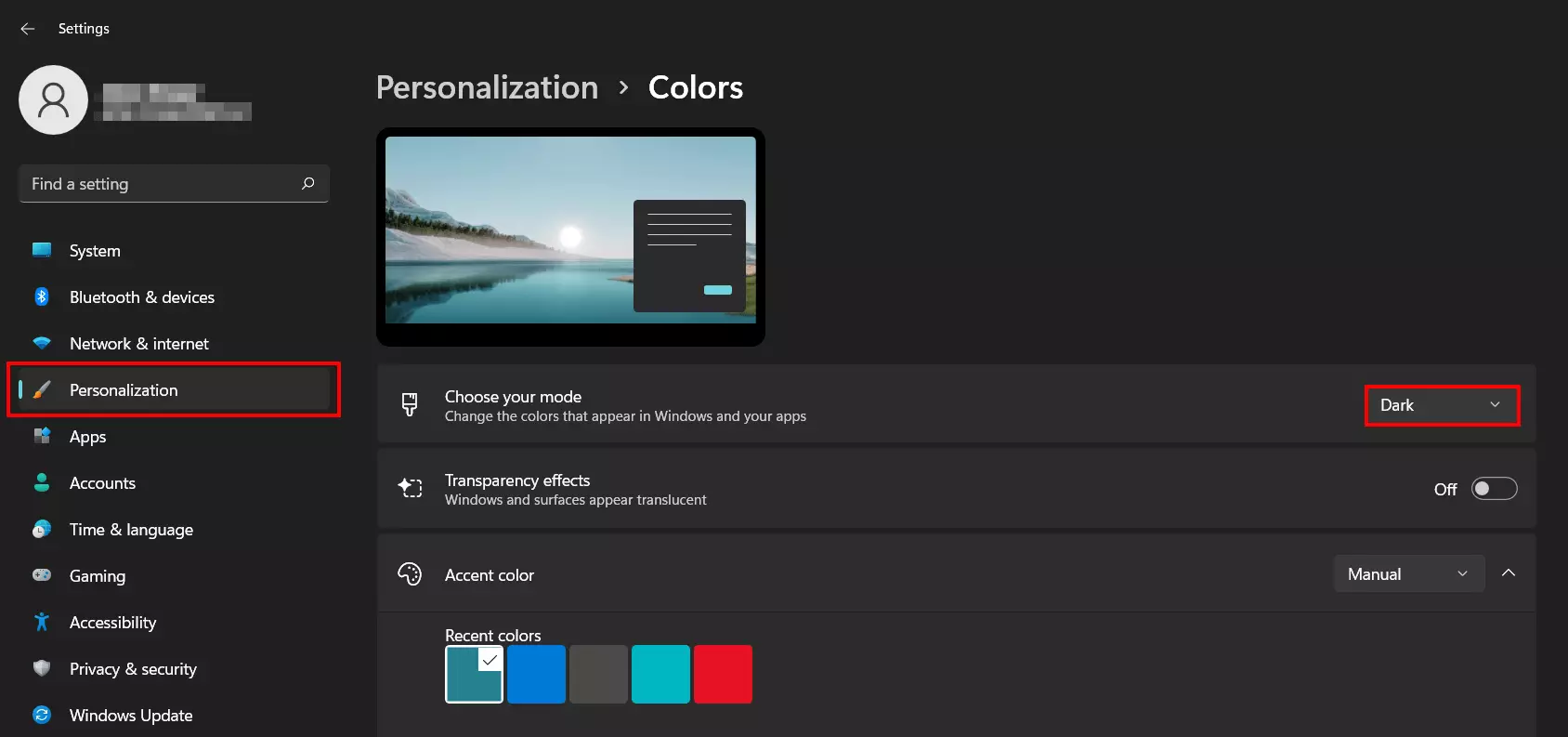
If you click the custom mode, you can select the Windows 11 Dark Theme for the user interface or apps only.
Option 2: Manage Windows 11 Dark Theme via Registry
Another possibility for managing the dark mode is via registry. By adjusting the corresponding entries in the Windows 11 registry, you can turn the mode on and off for apps or the entire system. The steps are as follows:
Step 1: In the first step, open Regedit the in-house editor for managing the system database. To do this, use the key combination [Windows] + [R] to open the “Run” dialog and enter “regedit”. After a subsequent click on “OK”, the editor starts.
Step 2: In Regedit, navigate the following path:
Computer\HKEY_CURRENT_USER\Software\Microsoft\Windows\CurrentVersion\Themes\PersonalizeSimply copy the path with the key combination [Ctrl] + [C] and then paste it via [Ctrl] + [V] into the address line of the editor. Confirm the input afterwards with the Enter key to go directly to the Windows 11 Dark Mode entry.
Step 3: Open the registry entry “SystemUsesLightTheme” via double-click and enter “0” as the value to switch on the dark mode for the system.
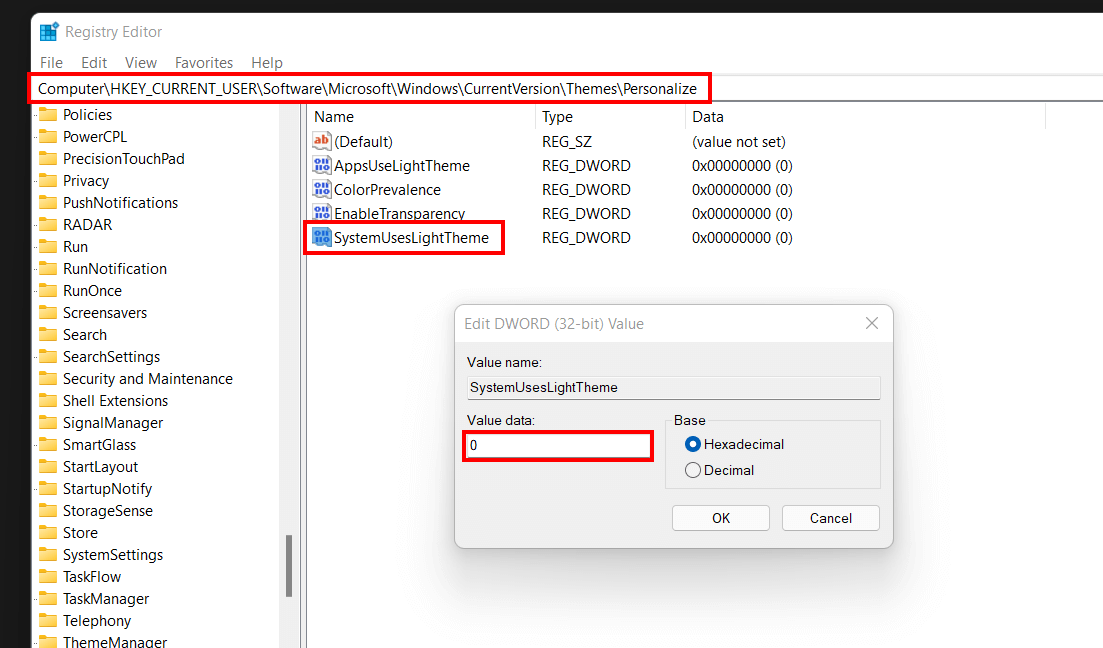
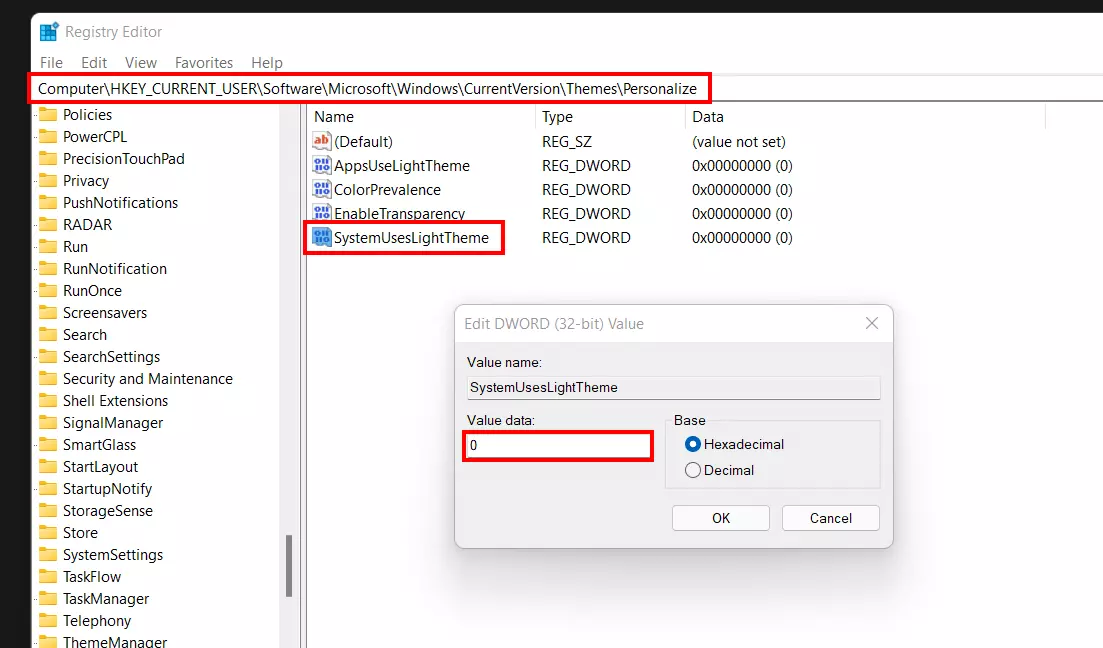
Step 4: If you want to deactivate the Dark Theme again, assign the value “1” for the registry entry shown.
If you want to (de)activate the Dark Mode in Apps as well, edit the entry “AppsUseLightTheme” in the same way.
Option 3: Switch Dark Mode in Windows 11 on/off per Tool
If the settings and registry are too complicated for you, you can also manage the Windows 11 Dark Theme with the help of a third-party tool. In this case, the mode can then be conveniently turned on and off with this program.
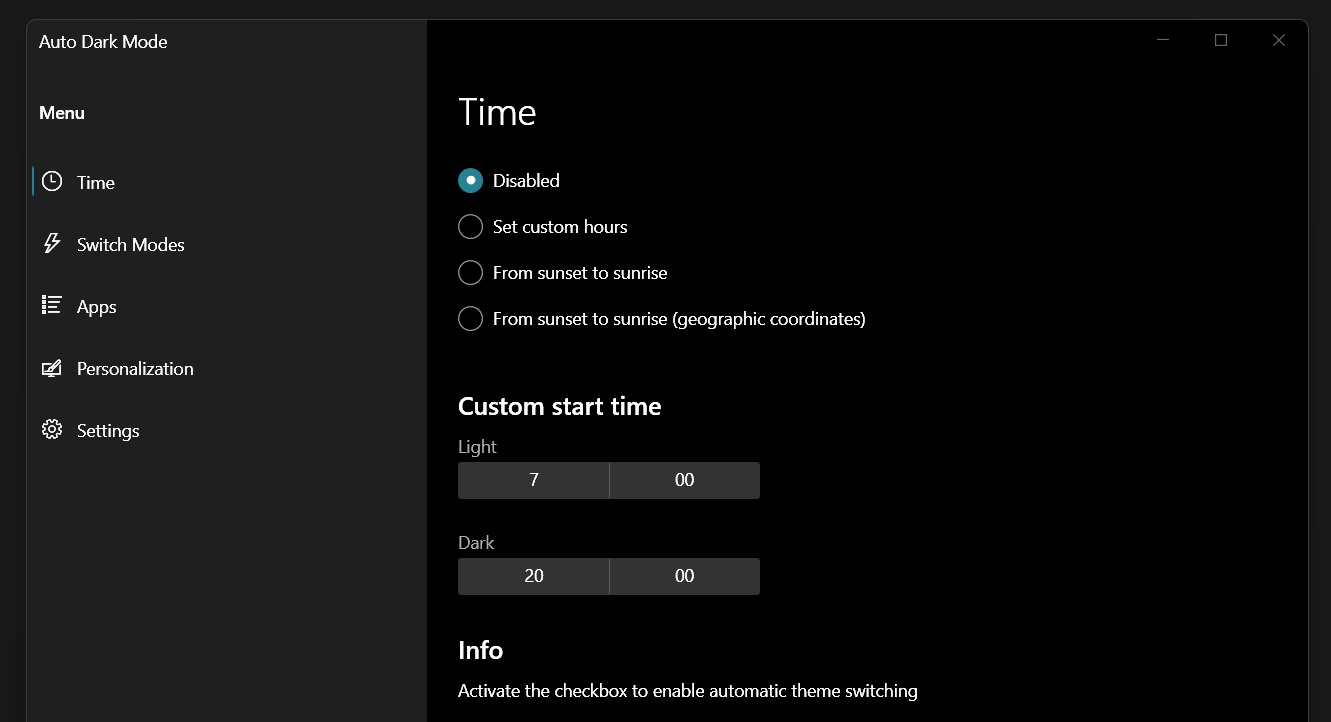
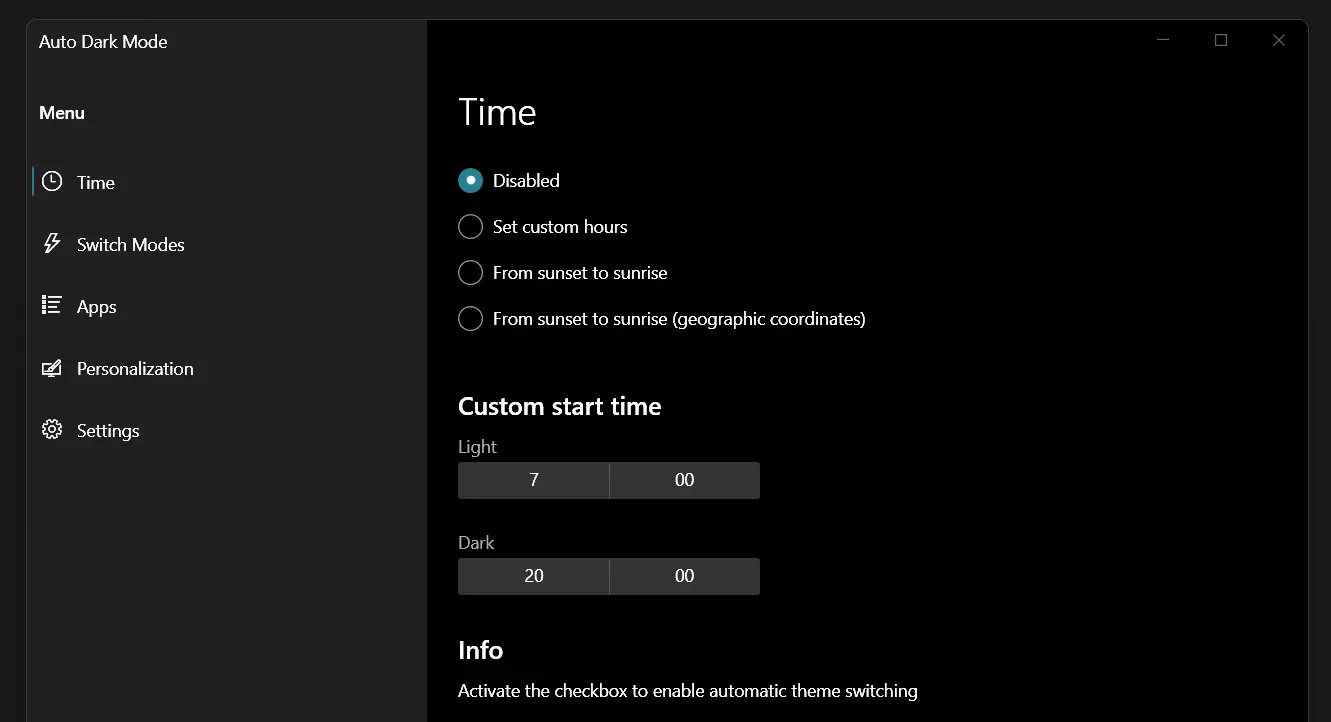
One of the most interesting solutions is Auto Dark Mode. The open-source application, compatible with Windows 10 and Windows 11, allows you to set a regular, automated switch between dark and light theme. For example, the default theme is played at bright times of the day and is replaced by the dark theme in the evening hours. You can download the latest version of Auto Dark Mode either from the official GitHub directory or from the Microsoft Store.