

How to check your Ubuntu version: a guide

The free Ubuntu operating system serves as a good alternative to Windows and macOS. The open-source system is highly flexible and comes with a variety of pre-installed software. Programmers can further develop its programs or use it for implementing their own software projects. But of course there will be times when you want to install additional programs. So how do you find out if your preferred software is compatible with your Ubuntu operating system? The Ubuntu version you’re using will be crucial information.
You’ll also need to know which Ubuntu version you’re running when troubleshooting. If you include the version number in your searches on forums and blogs, you’ll get a more specific answer to your questions. Keep reading to find out how to check your Ubuntu version.
- Simple registration
- Premium TLDs at great prices
- 24/7 personal consultant included
Checking the Ubuntu version in the terminal
There are two ways to check your Ubuntu version in the terminal. Both of them use a simple command entered into the command line.
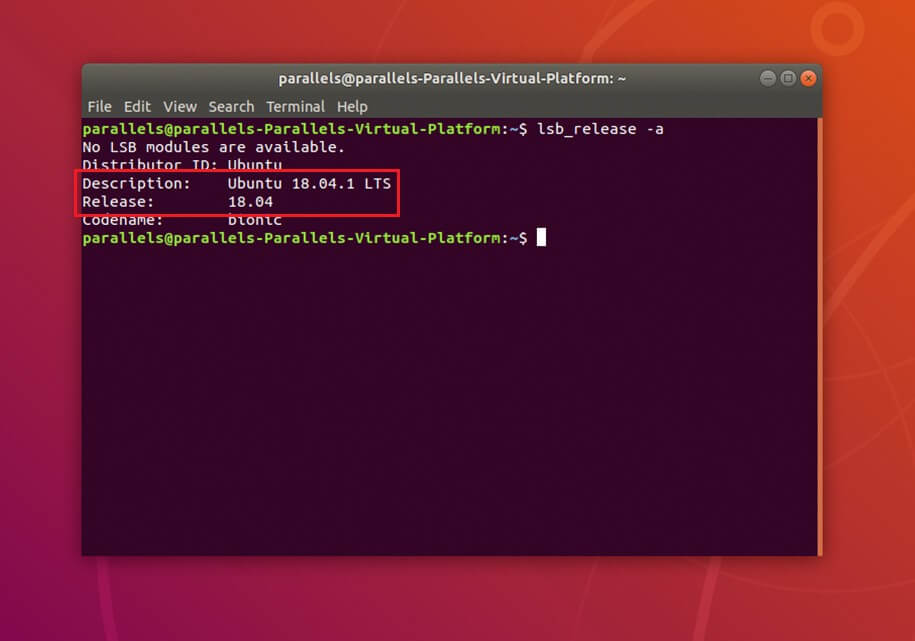
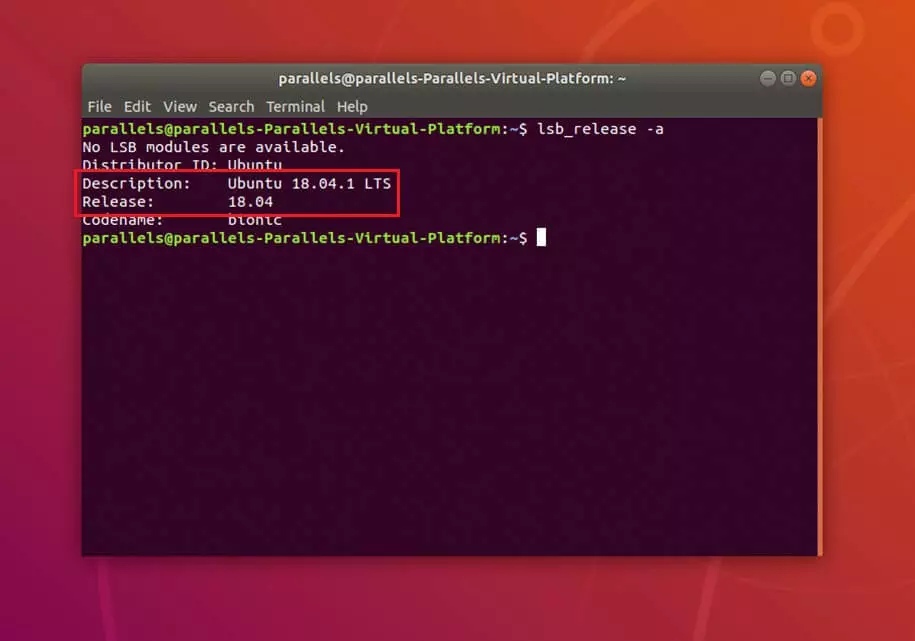
Option 1: Command lsb_release -a
- Open the terminal using “Show Applications” or use the keyboard shortcut [Ctrl] + [Alt] + [T].
- Type the command “lsb_release -a” into the command line and press enter.
- The terminal shows the Ubuntu version you’re running under “Description” and “Release”.
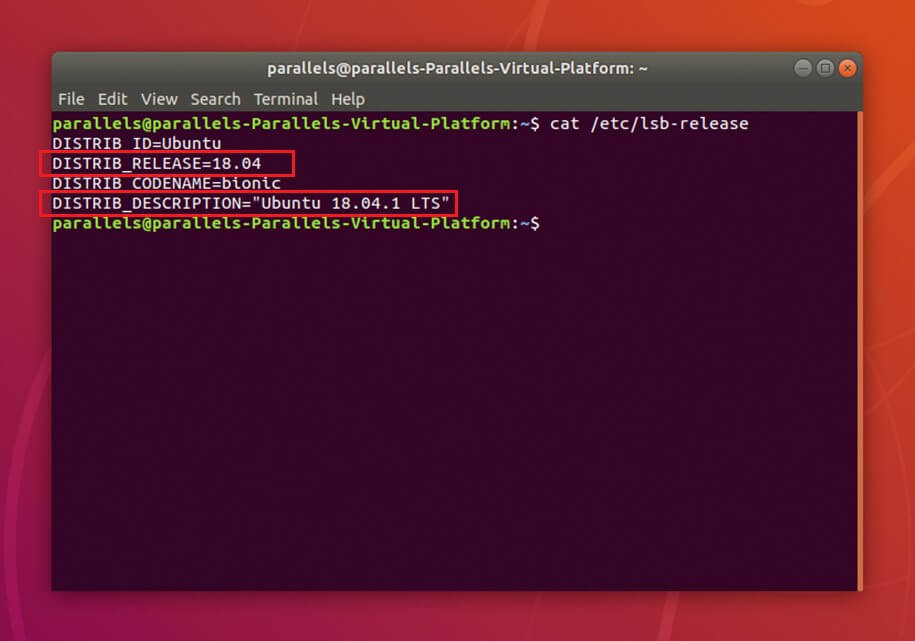
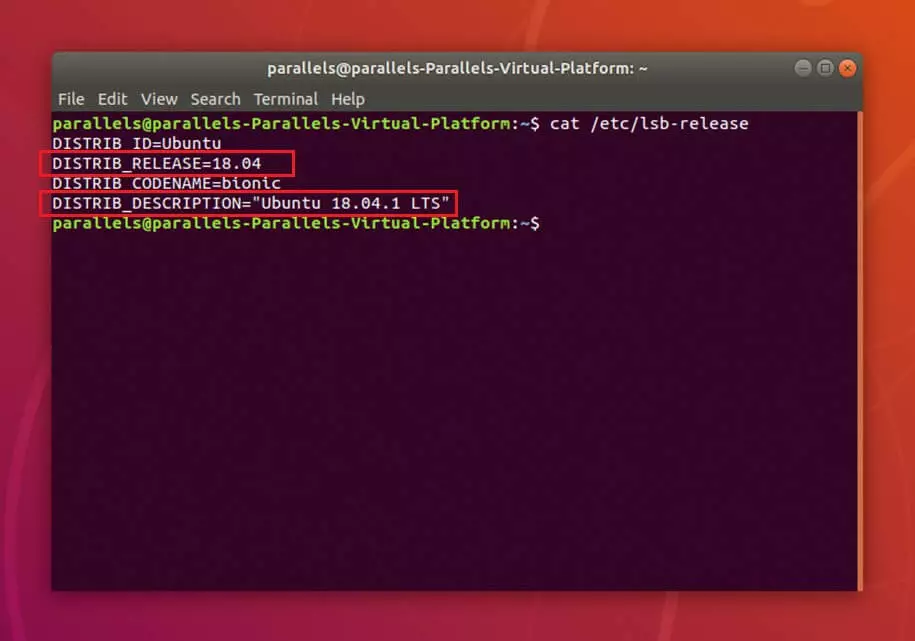
Option 2: Read the contents of /etc/lsb-release
- Open the terminal using “Show Applications” or with the keyboard shortcut [Ctrl] + [Alt] + [T].
- Type the command “cat /etc/lsb-release” into the command line and press enter.
- The terminal shows the Ubuntu version you’re running under “DISTRIB_RELEASE” and “DISTRIB_DESCRIPTION”.
Checking the Ubuntu version in Settings
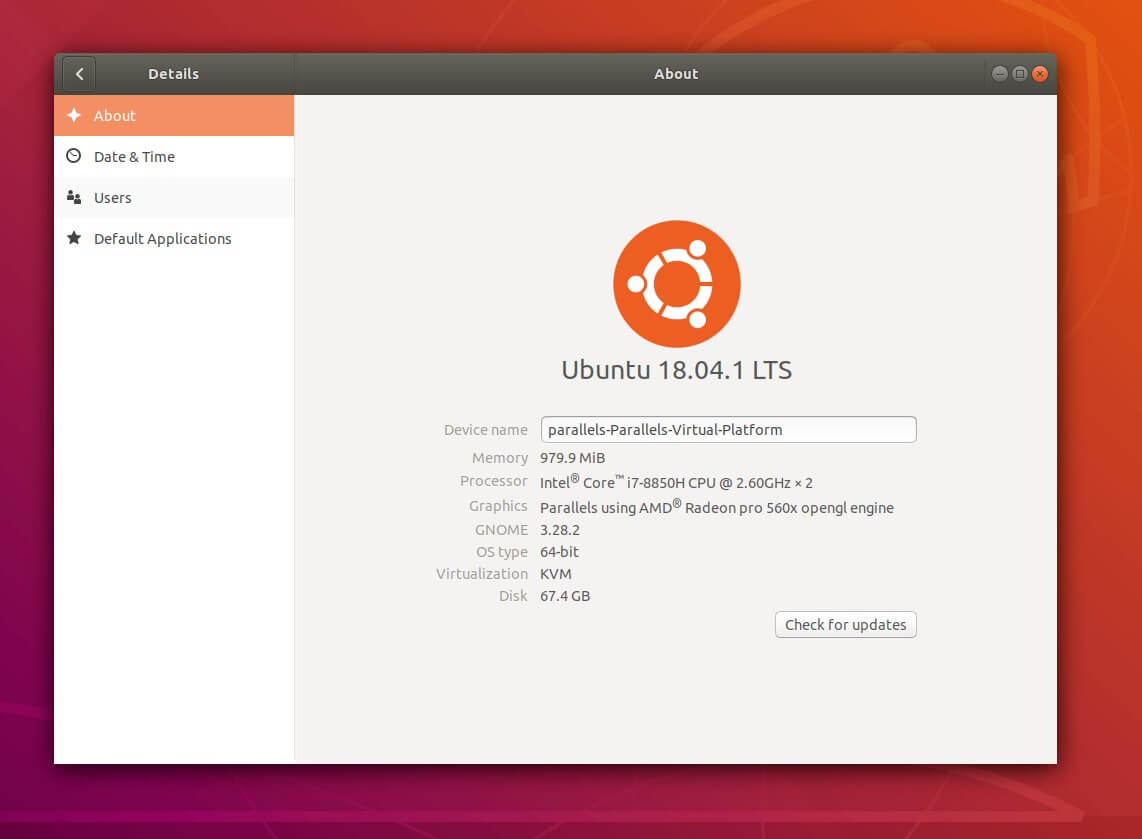
Another way to check your Ubuntu version is in the Settings. This can be done in just three clicks.
- Go to “Show Applications”
- Open “Settings”
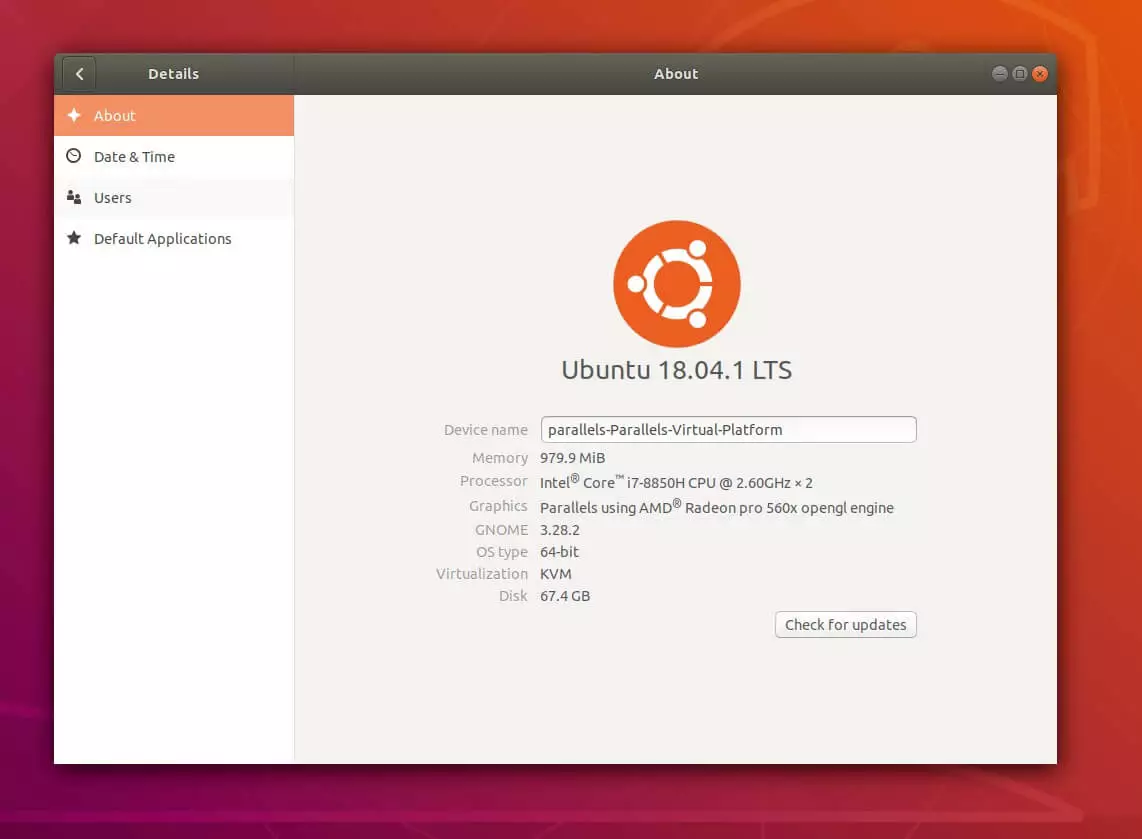
- When the program is open, you’ll see “Details” at the bottom of the left menu bar. When you click on this, you’ll see information about your system on the right. The Ubuntu version is written in large text right below the Ubuntu logo.
Get found with your own domain. Build trust with your own email address. Reach visitors with your own website.



Reviewer

Christian Heldmaier
Christian Heldmaier is an experienced online marketing and SEO specialist from Karlsruhe. He has been working as an SEO Manager at IONOS since July 2020.