

How to check the CPU temperature

It is common knowledge that a computer quickly becomes hot due to the many calculations of the CPU. You can easily find out exactly how high the temperature of your processor is by displaying the CPU temperature. The most informative CPU temperature is measured at the individual processor cores.
Where to find the CPU temperature
The information about the model and performance range forms the basis for assessing the CPU temperature. There are various tools to determine it, as Windows itself does not provide this information. It is possible to view CPU capacity via the Task-Manager with Windows and the command “top” on Linux as well as its course in the last 60 seconds and to check what share the running programs and processes have in this load.
If you are unsure which processor model is installed in your computer, you can use the Freeware CPU-Z find out all the necessary information. The tool not only indicates the manufacturer and processor type, but also provides information on other characteristics, e.g. the number of cores, clock frequency, voltage, etc.
If you want to access the temperature sensors of your CPU to display the CPU temperature, you cannot avoid installing additional programs. The best-known such programs are Core Temp and HW Monitor.
If you do not want to install additional tools, you can have the CPU temperature displayed in the BIOS. However, you must bear in mind that the values there are higher than in Windows or Linux mode. This is because energy consumption in the BIOS is not regulated downwards.
Showing CPU temp with Core Temp
A popular application that you can use to view your CPU temperature is Core Temp. We will show you step by step how to find out your processor's temperature with Core Temp.
Step 1: Install Core Temp
First you need to download Core Temp. You can follow this link to the official Core Temp website to do that. After you have successfully downloaded the application, the installer will open. Follow the installation instructions. After that you can start the program.
Step 2: Read out the CPU Temperature
Core Temp shows you the CPU temperature under “Temperature Readings” for each of your processor cores individually.
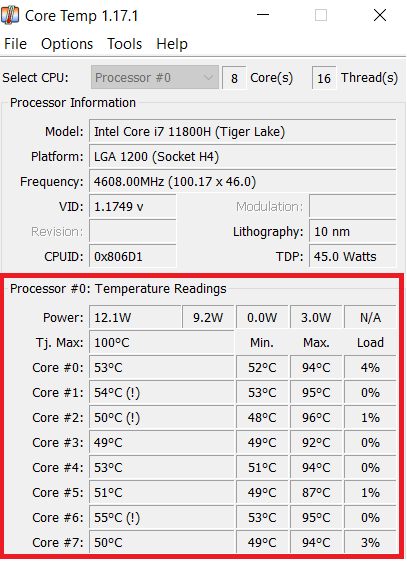
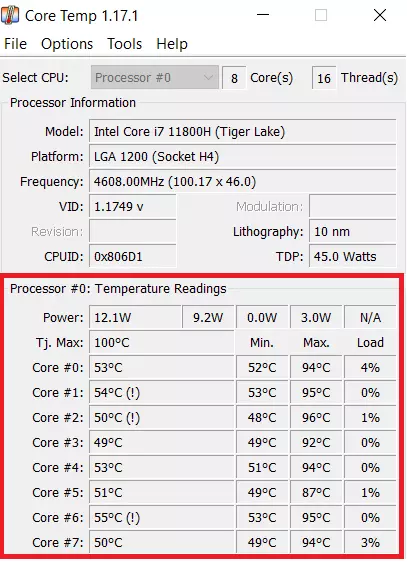
In the column “Min.” you can read the minimum and, in the column, “Max.” the maximum values that were measured in the current time interval. An exclamation mark next to a value means that the CPU temperature was at least once in the critical range during the evaluated interval.
Reading your CPU temperature with HWMonitor
The program HWMonitor is a popular tool to display various hardware stats of the computer. Among them is the CPU temperature.
Step 1: Install HWMonitor
First you need to download Core Temp. You can follow this link to the official CPUID homepage to do that. After you have successfully downloaded the application, the installer will open. Follow the installation instructions. After that you can start the program.
Step 2: Displaying your CPU temperature
The CPU temp for each of your processor cores can be found in HWMonitor under the entries “Temperatures” > “Cores”. Next to the current value, the minimum and maximum values of the current interval are displayed, similar to Core Temp.
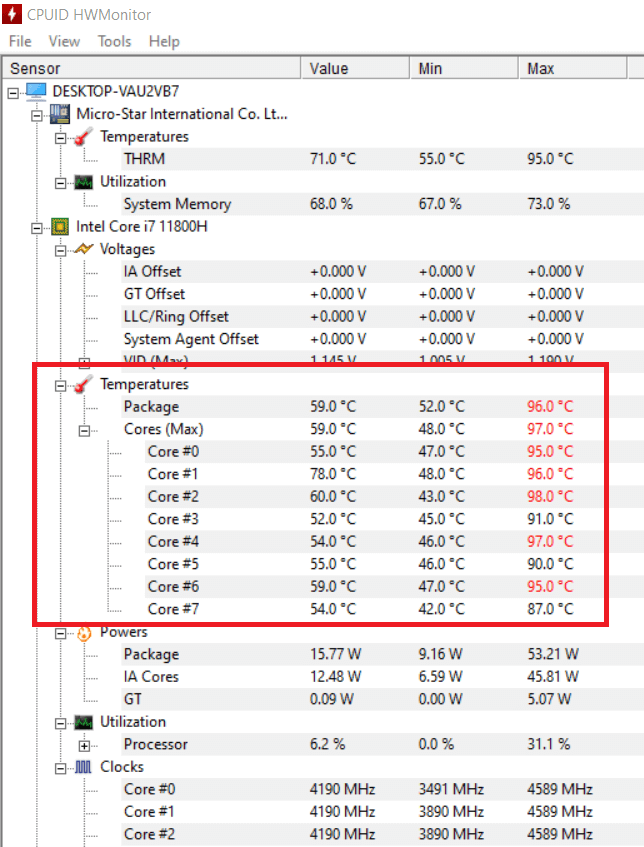
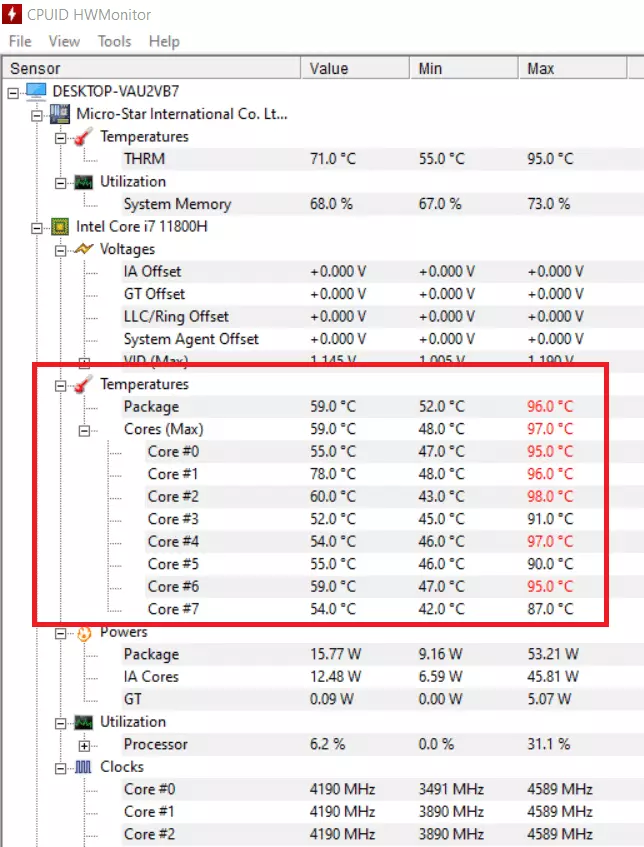
As soon as a temperature value reaches or exceeds a critical limit, the corresponding value is colored red. This way you can see immediately if your CPU temperature is too high.
What is a normal CPU Temperature?
To even be able to estimate whether you have a normal CPU temperature, you first have to know the “normal value” or the tolerance range. This is not quite easy, because apart from external conditions like the PC's location or the room temperature, it also depends on the specific processor type. For this reason, the following values are only rough guidelines:
- Low processor load (in normal operation): about 30 to 50 °C
- Heavy workload due to programs that require high computing power: up to 95 °C
- Maximum temperature should never exceed 100 °C if possible
Processors can withstand very high temperatures. The 100-degree mark can even be slightly exceeded for a short time (up to 103 °C is possible with new processors) without damaging the CPU.
However, values around the maximum limit shorten the lifespan because the individual components are extremely sensitive to heat. This sounds dramatic, but it is hardly relevant for average users, since the computer (or CPU) is usually already replaced by a new, more powerful model beforehand to meet the hardware requirements for the problem-free use of new software.
Is it possible to lower CPU temperature?
As a user of a standard PC in normal operation, you don't really have to worry about this question because the operating system usually regulates the CPU temperature by itself. As soon as a temperature previously defined by the manufacturer is reached, the CPU is throttled. This means that the clock rate is reduced and thus less heat is produced until the temperature is within the tolerance range again.
Nevertheless, poorly cleaned fans can cause the CPU temperature to turn out higher than necessary. Therefore, you should make sure to clean your fans regularly.
It looks different when you overclock the CPU to achieve better computing performance and speed. This is often practiced by gamers for the smooth running of online games.
In this case, the temperature can be lowered for a short time by opening the PC case or using external aids like fans. This supports the fan in its work because the accumulated heat can be removed faster, and a cooling draft can better reach the overheated components. Such methods provide short-term relief but are not a permanent solution. It often helps to lower the graphics settings to reduce the CPU temperature in games.
If you regularly use computationally intensive programs that drive the CPU temperature up, you can use certain programs to control the speed of the PC fan and adjust it individually in this way.
An even more efficient option is to install active cooling (e.g. water cooling). But before that, you should consider whether these measures are sufficient for your needs or the performance of your CPU, or whether it doesn't make more sense to upgrade to a more powerful processor.
Click here for important legal disclaimers.