

High CPU usage: What does this mean?

The CPU (Central Processing Unit) is the brain of a computer and performs many of its main tasks. It processes data and delegates commands. The speed at which all programs and processes run depends on the CPU’s performance capacity. The higher the performance of a CPU, the faster the PC will run. Depending on the applications you open, CPU may increase. CPU speed changes are then noticeable in the time required for the system to start-up or the time it takes for applications to respond to commands. When working with CPU-intensive programs (e.g. graphics and video editing software), you may notice that certain commands and actions may take longer to be executed.
That means slow processing performance may not be a sign that there’s an issue with the CPU itself. Instead, there may be too many CPU-intensive programs actively running at the same time and the CPU could have reached its usage limit. Thus, it’s important to examine CPU usage and causes for high usage before prematurely deciding to replace a PC for a high-performance model.
What is CPU usage?
By examining your CPU usage, you can check how intensively running programs are being processed. The respective value indicates what percentage of a processor core’s total working time is actually being utilized to process data. CPU usage can amount to a maximum of 100 per cent. In other words, CPU usage can be an indicator of how much stress the processor is currently undergoing, and, if necessary, what capacity is still available.
To calculate this, the general operating time is compared to the actual performance duration. If CPU usage is too high, users will experience long load and save times, and in the worst-case scenario, programs will start to freeze because the processor is overloaded with too many processing commands.
At the same time, you can reach conclusions about processing speed by checking the CPU temperature. With greater processing usage, more heat is produced by the processor core. Should the temperature increase beyond a threshold defined as the maximum limit by the manufacturer, computing performance will be curbed automatically and the processing power will gradually decrease.
How to display CPU usage?
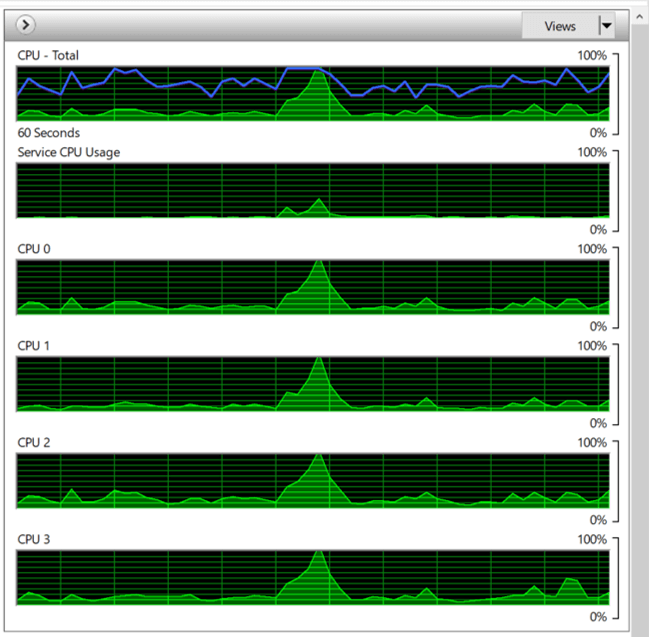
The CPU usage information is easily accessible in every operating system. In Windows, all you have to do is open the Task Manager. Beneath the “Performance” tab, you’ll be able to check how much of the CPU is being utilized at the present moment. For this purpose, a curve diagram appears that displays continuous updates of usage values for the previous 60 seconds. If you need more detailed information, check the resource monitor where temperature curves for individual processor cores are displayed.
If you are a Linux user, you can display CPU usage with the “top” command. After entering it, you’ll obtain a list of all actively running processes and their CPU values and memory usage. The list is continuously updated and is, for this reason, an optimal tool for monitoring system activities. If you require more powerful alternatives, you can download htop and Glances. They must be installed separately, but do provide additional graphs (htop) and statistics (Glances) for a more comprehensive system analysis.
Causes of high processor usage
Task Manager and the “top” command not only provide numeric values and data curves to check if CPU usage is too high. Often, you’ll also be able to identify the cause.
Within Task Manager, beneath the “Processes” tab in the first table row, you can check how much of the CPU is currently being used. A breakdown of all running programs and background processes can also be viewed. By clicking on the “CPU” column header, you can sort CPU according to usage intensity. If you notice a program which you hardly use but that takes up more CPU than average, you can terminate it with a right-click in the drop-down menu. This will reduce CPU usage.
The “top” command displays the CPU usage for all running processes. These can be immediately terminated using the “kill” command.
Higher than average processor usage can often be attributed to one of the following reasons:
- Programs with higher CPU requirements: Video and graphics editing programs, games with high-resolution graphics, DVD burning programs and applications that convert film and photo formats, require high processing power and are therefore known for driving up CPU usage. If, for this reason, the computer is hardly capable of operating, you should only run these programs one at a time and close all other applications.
- Autostart programs: Applications that are launched by booting the operating system and that continue to run in the background can affect CPU usage. That’s often the case for software required for connecting hardware components such as cameras, MP3 players or printers. These programs will automatically launch on boot-up once installed. You can prevent this from happening by deactivating them in Task Manager via the “Autostart” tab.
- Viruses: If you notice extremely high CPU usage of nearly 100 per cent but can’t find a cause, a virus or other type of malware may be causing it. Viruses are often invisible in popular monitoring tools. If you suspect a virus, you should immediately check your computer with an anti-virus program or malware scanner.
- Browser: Under certain circumstances, the browser (e.g. through countless open tabs) can use up a lot of the CPU’s processing power. Plug-ins and add-ons that run undetected in the background are another cause for high CPU. By regularly checking your browser settings, you can double-check if you require all the add-ons listed and deactivate unused or rarely used plug-ins and extensions.
The problem with high CPU usage
In general, high CPU usage is not a significant cause for concern as long as it doesn’t occur over the long-term or is due to an unidentifiable cause. But there’s always the danger that your PC may freeze whilst your working on an important work assignment and that you’ll lose your unsaved data after the unscheduled restart. For this reason alone, you should always try to reduce high CPU usage.
A second hazard is that your CPU temperature will become too high. Most operating systems and processors are developed in such a way that they automatically protect the system from overheating, e.g. by adjusting fan speed and curbing CPU activities – much to the disappointment of many gamers who specifically overclock their CPUs in order to improve processing power.
If one of the above-mentioned causes applies, you should close the relevant programs, preferably deactivate or uninstall them, or run them one at a time, depending on the best solution in your specific case. In general, a computer operates more quickly and smoothly if few CPU-intensive processes are running at the same time. It makes sense then, to regularly check your CPU usage so that you can terminate programs that unnecessarily burden the system, and in doing so optimize your PC’s performance.
However, if a system process is slowing down your computer, caution is advised. First of all, read up on the relevant process online to find out more about it. The same applies to processes that you cannot allocate. A quick online search may save you time and spare you issues that can emerge from terminating a process that is system-related. Doing so, you may learn more about the processes that run on your operating system.